



- Besonderhede
- Geskryf deur: IT Pro
- Kategorie: How to Articles
- Trefslae: 6647
1. Go to Windows Desktop
2. Click Start
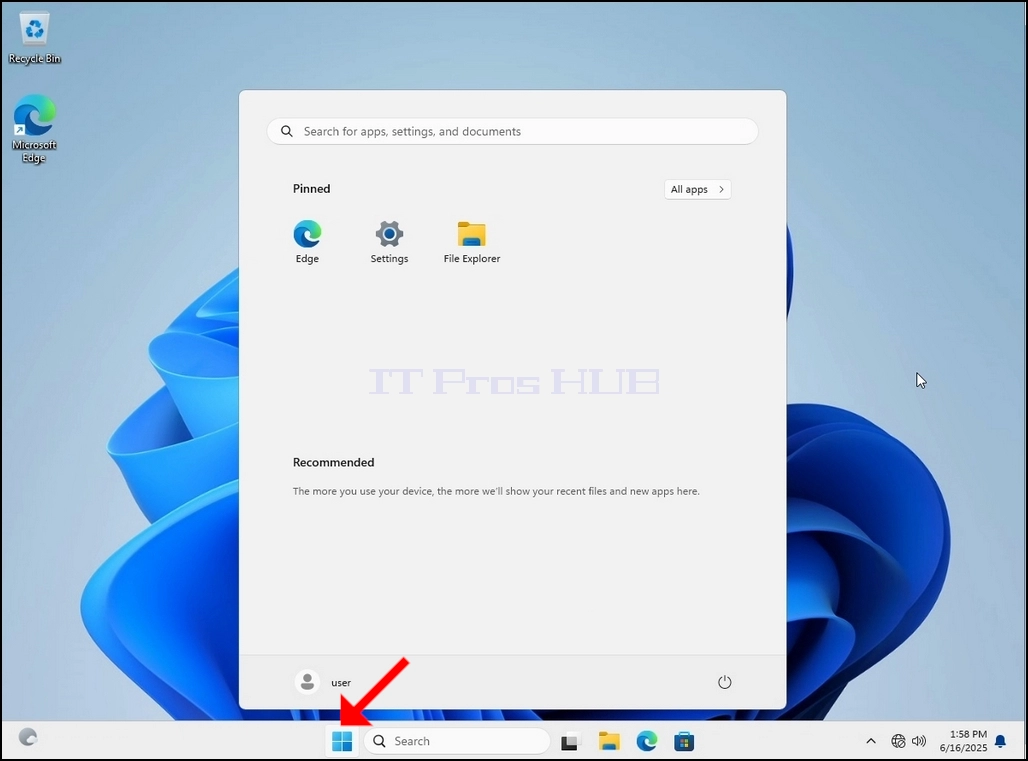
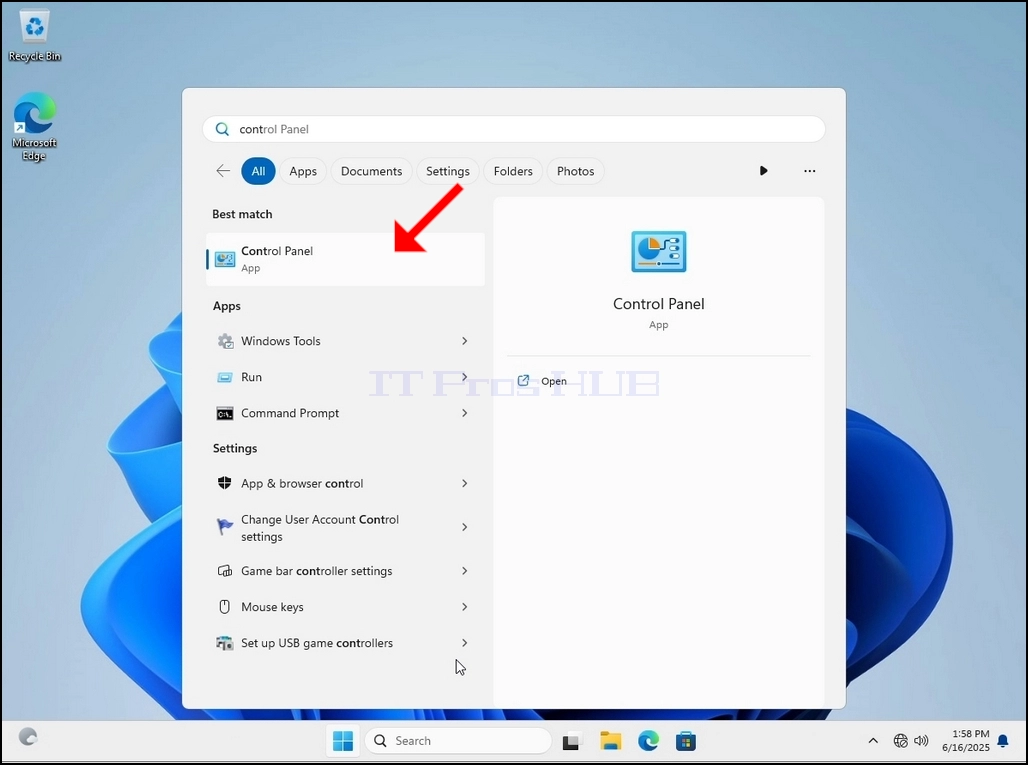
Once it finds it, click it and wait for the Control Panel window to appear.
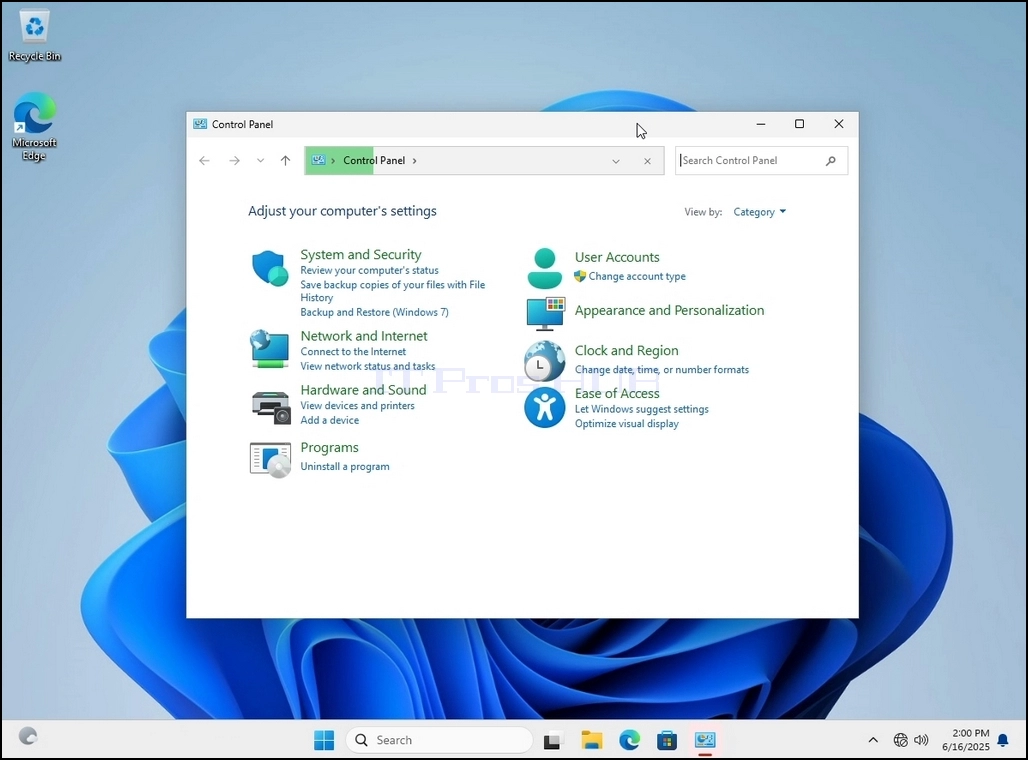
4. Once the Control Panel window is open, enlarge it by clicking the enlarging icon on the top right corner of that window.
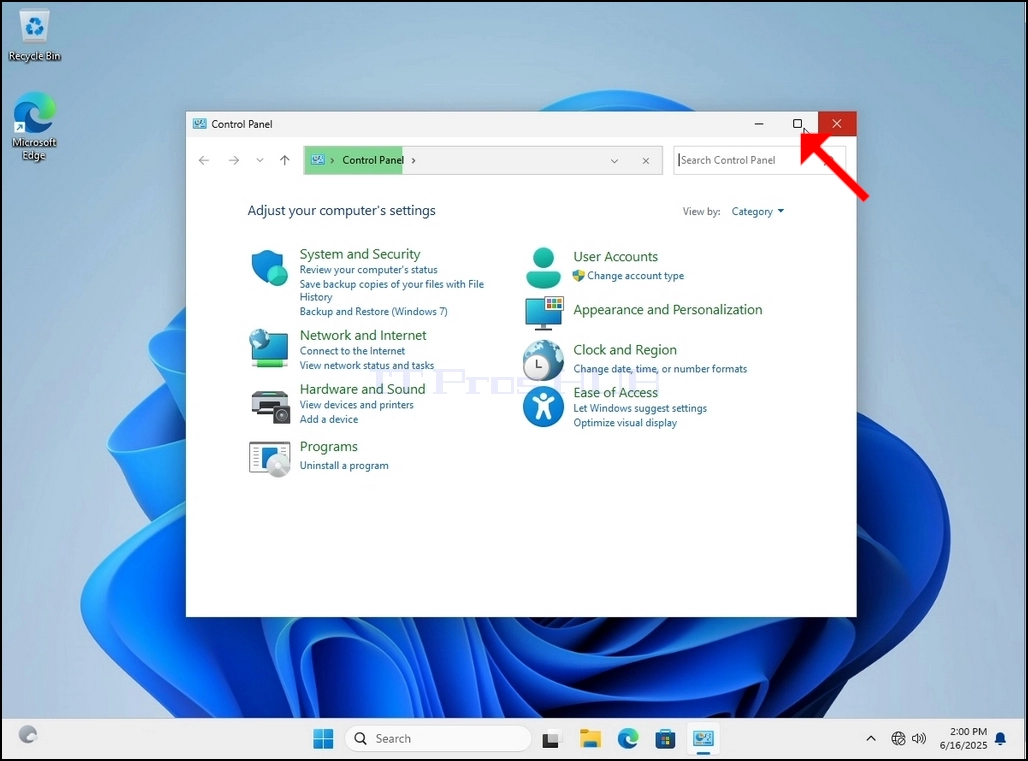
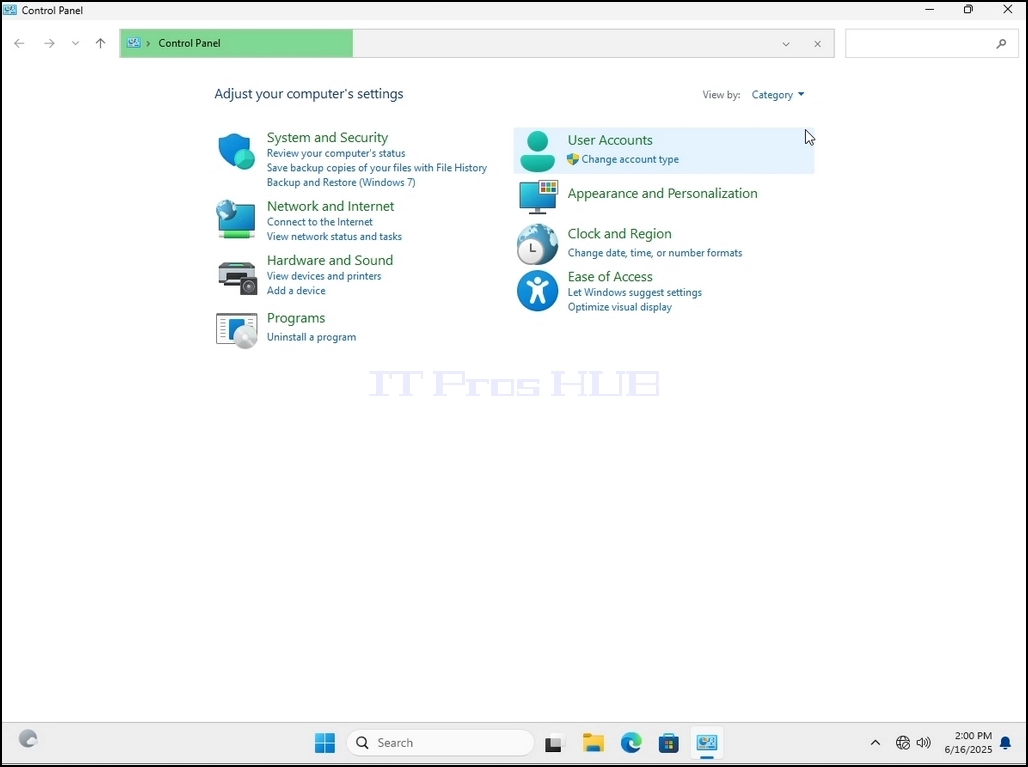
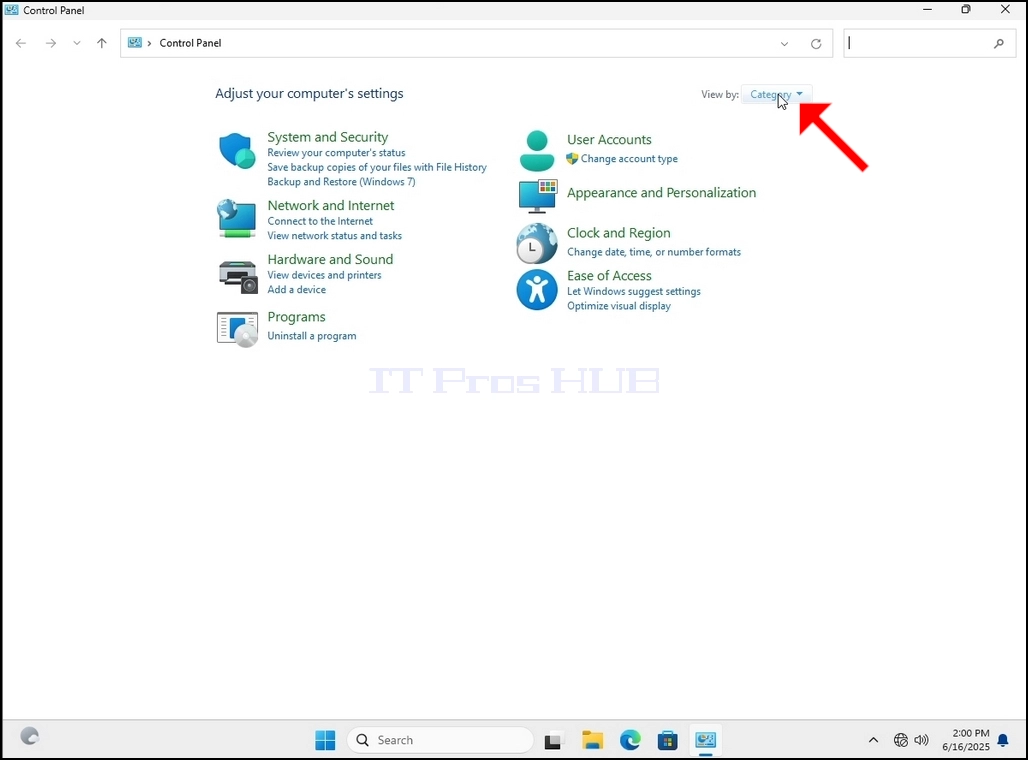
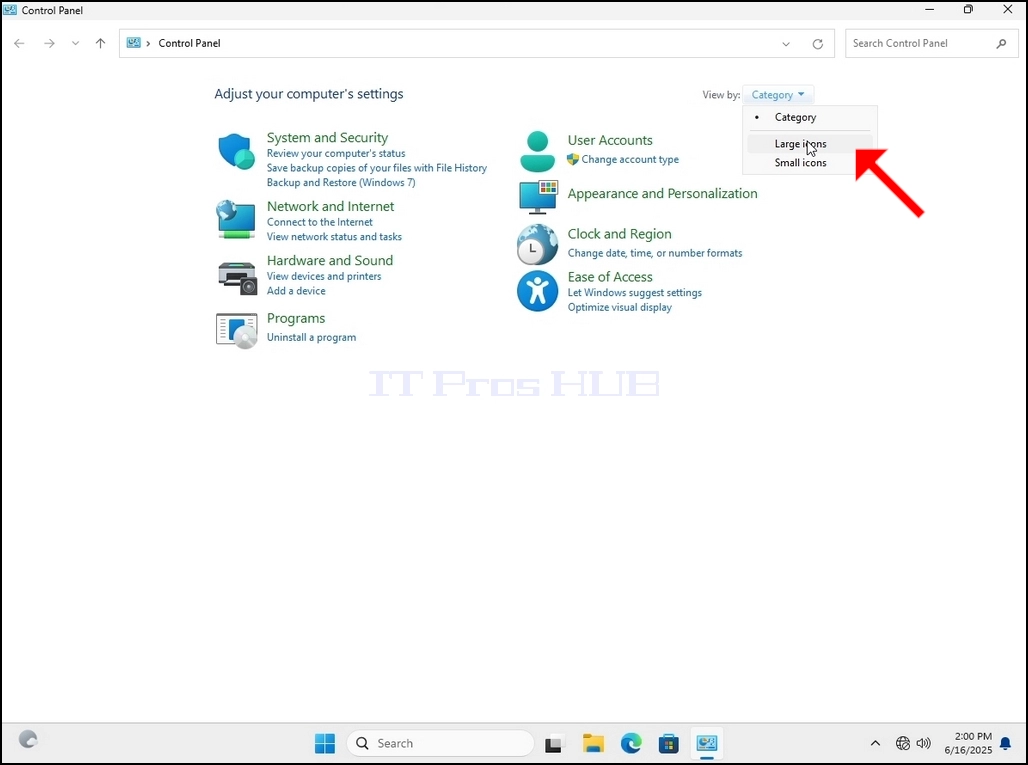
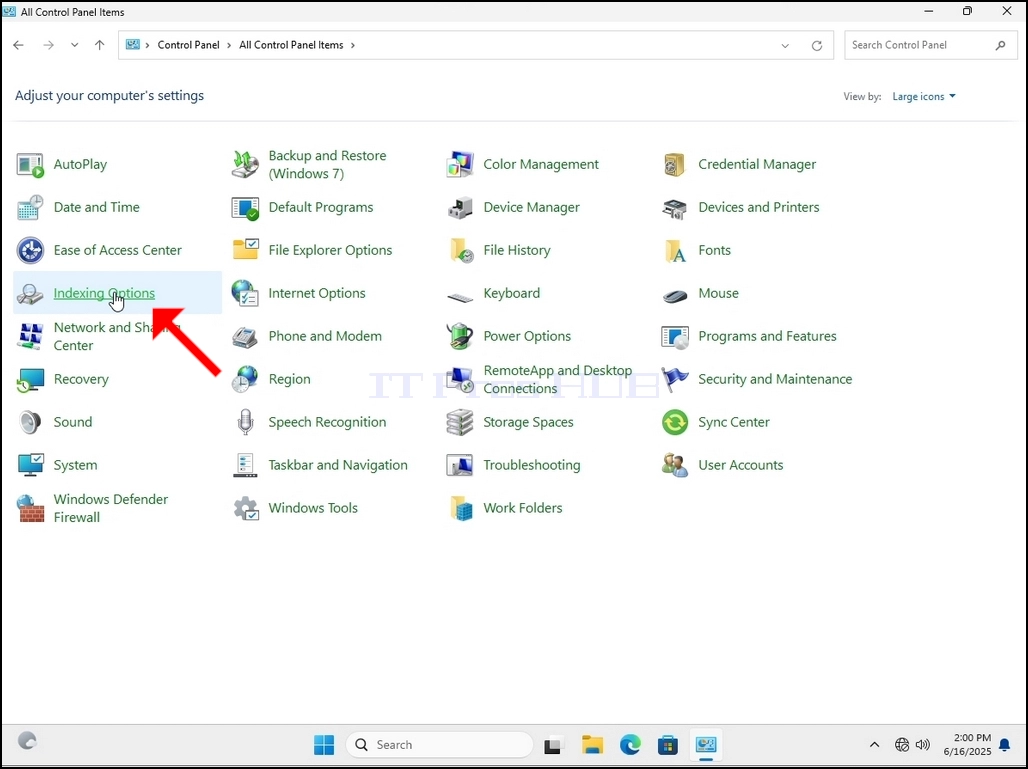
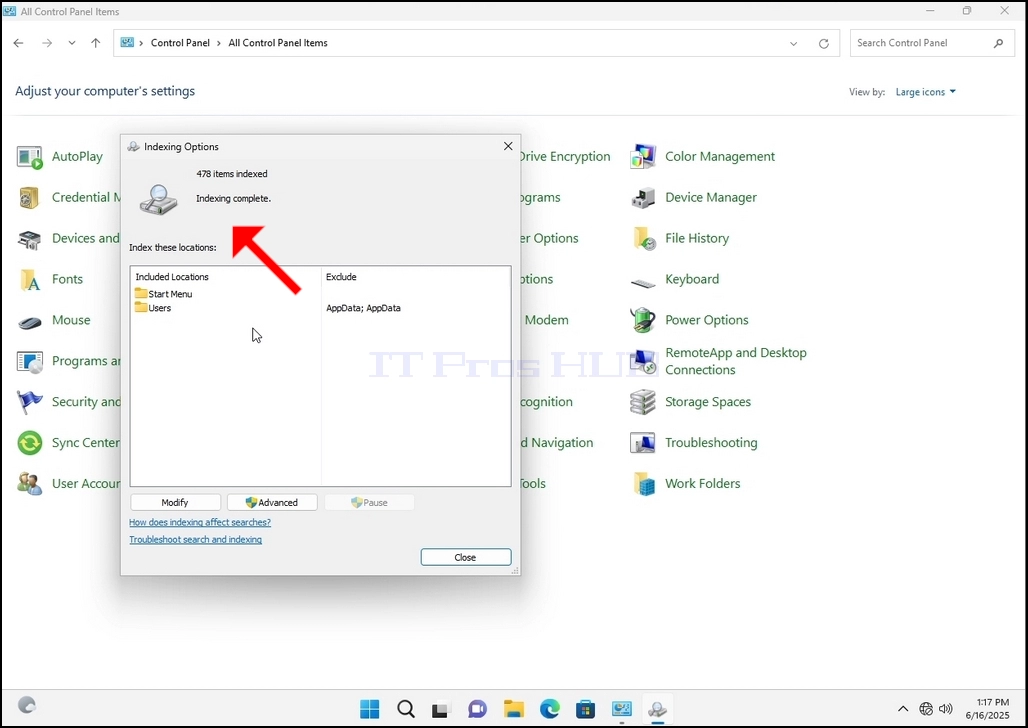
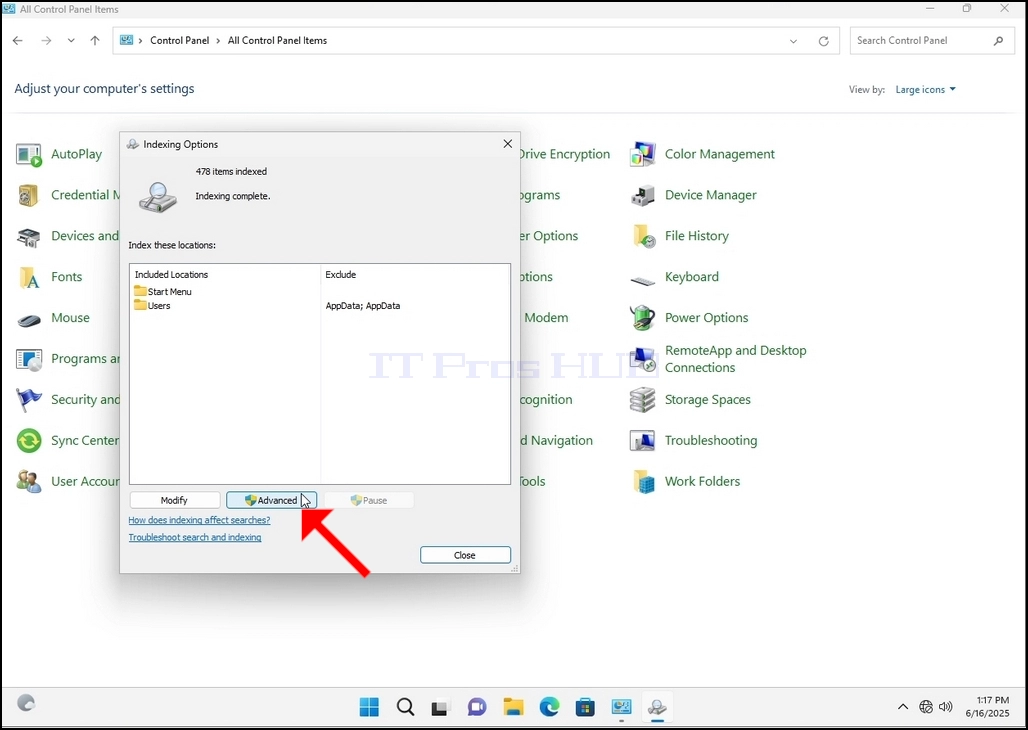
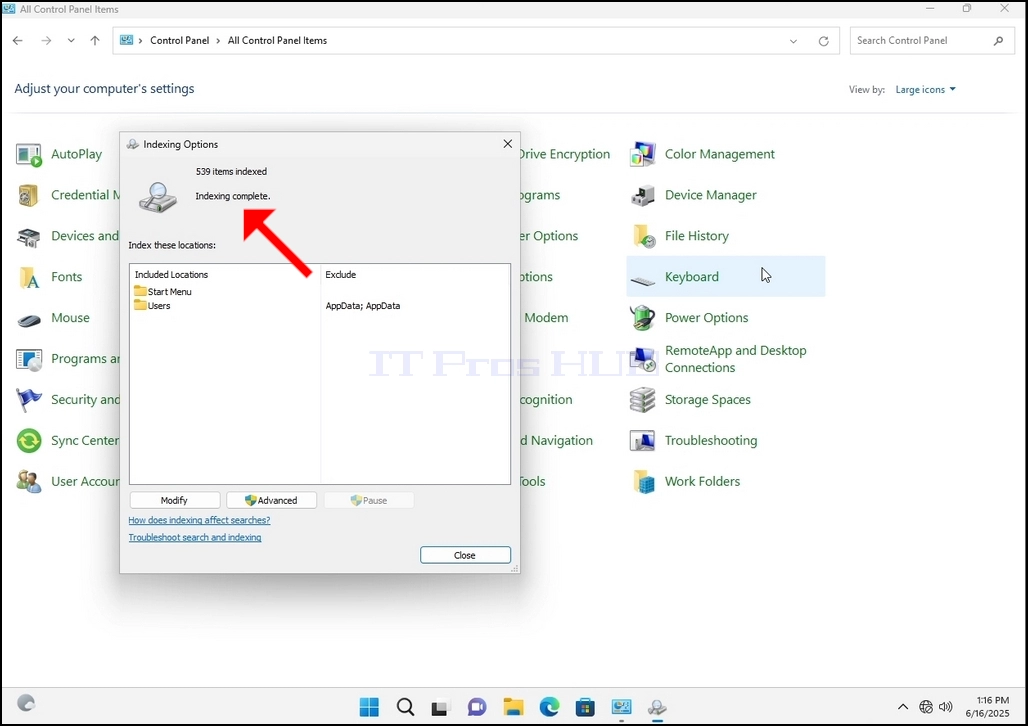
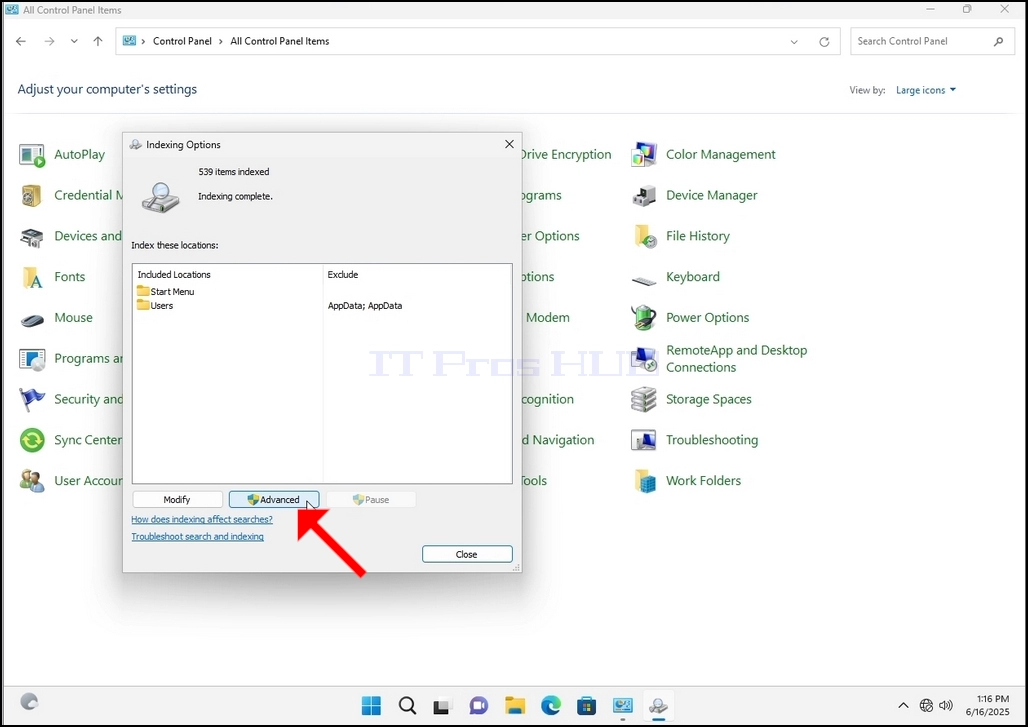
6. Look for the Indexing Options icon and click it. Wait for the Indexing Options window to appear.
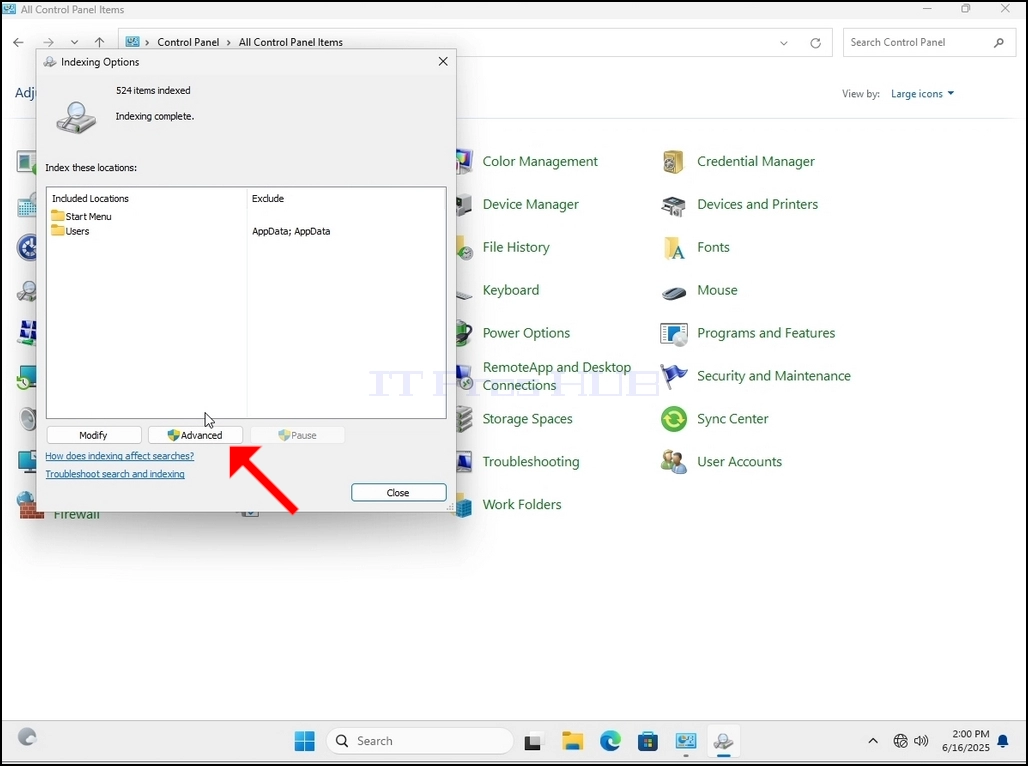
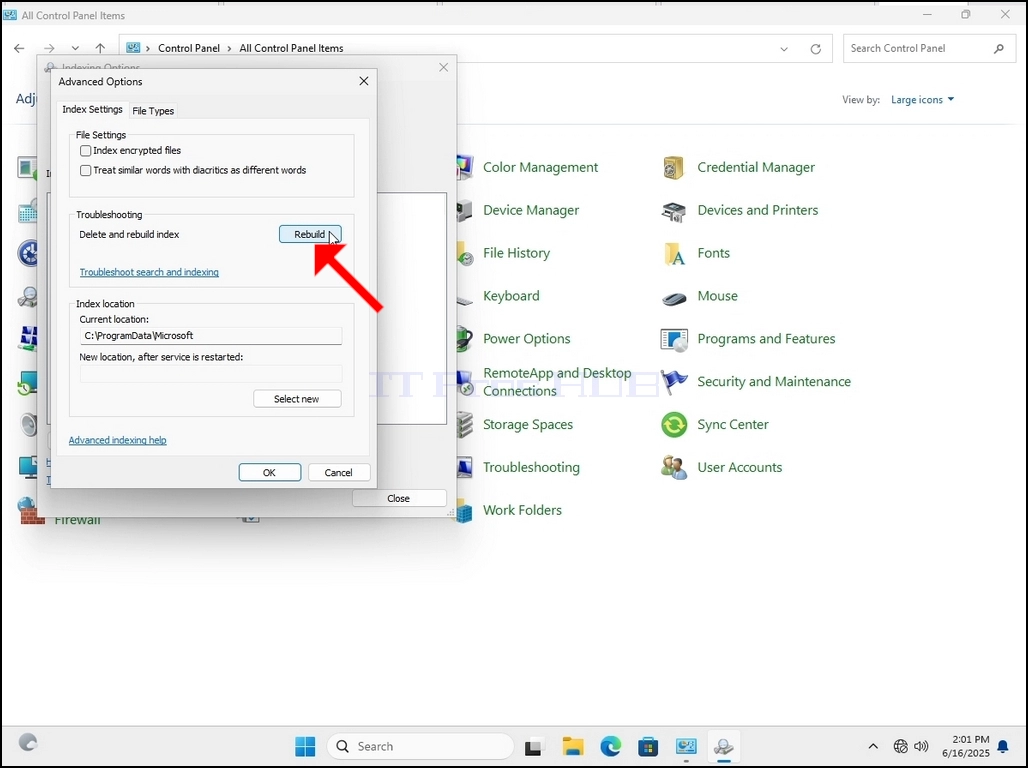
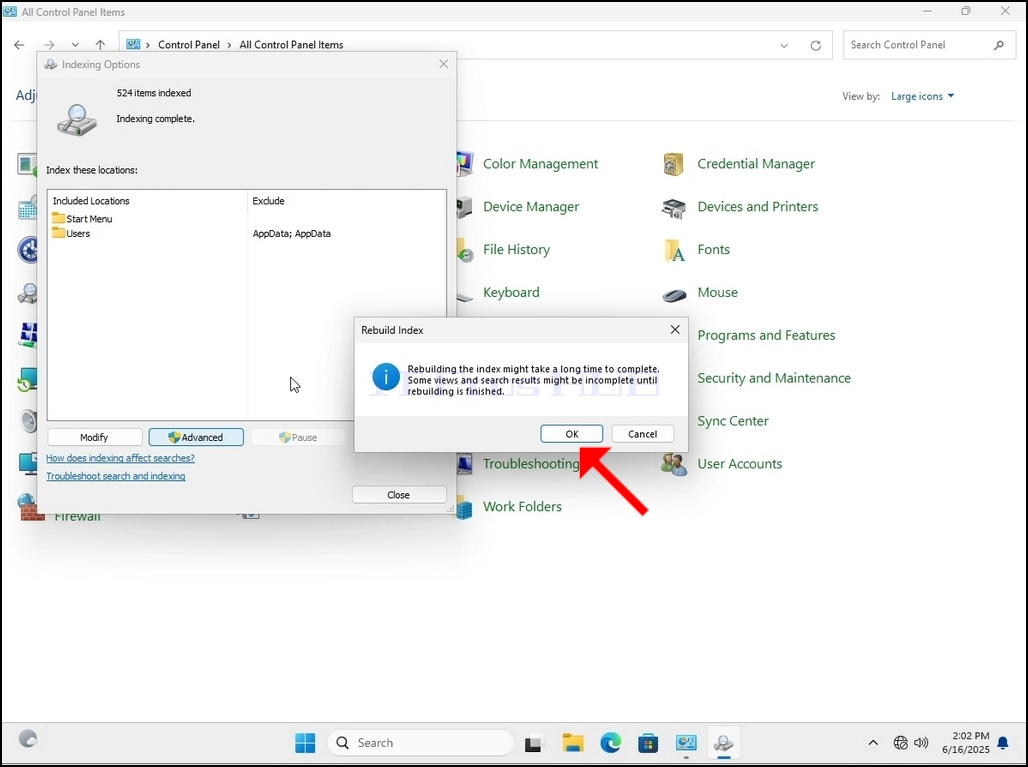
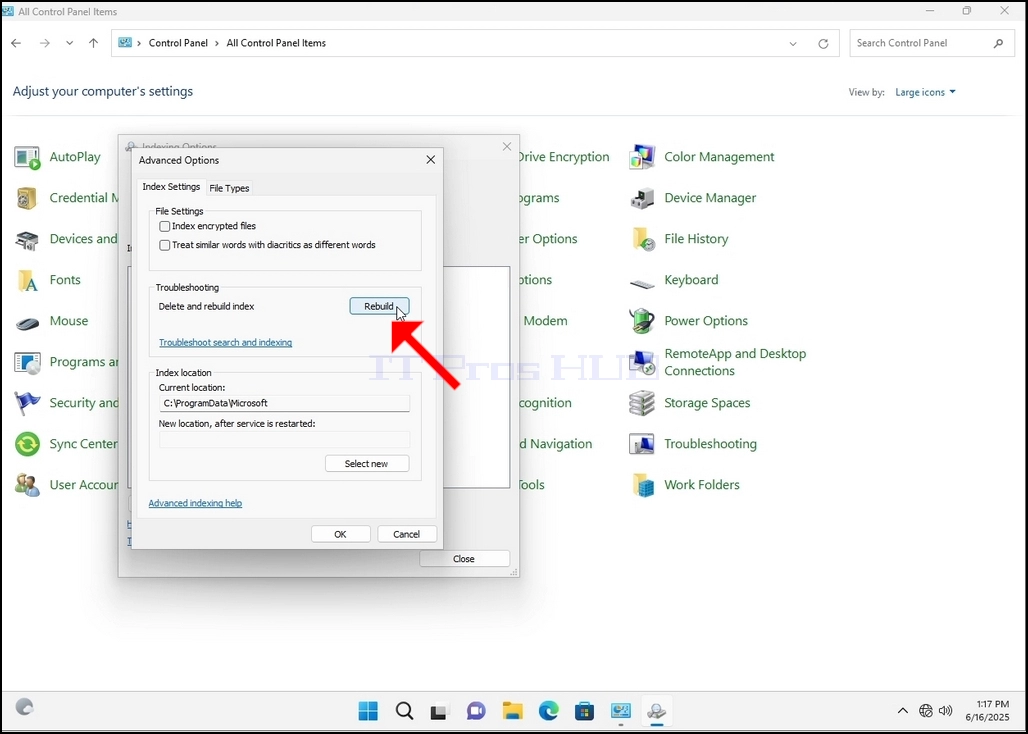
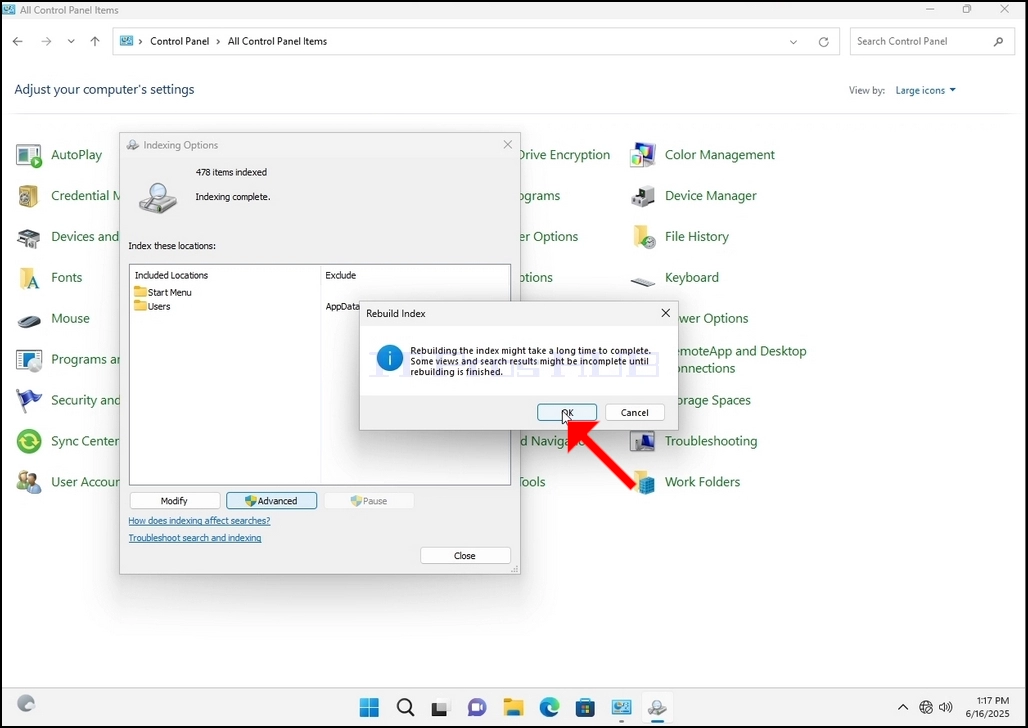
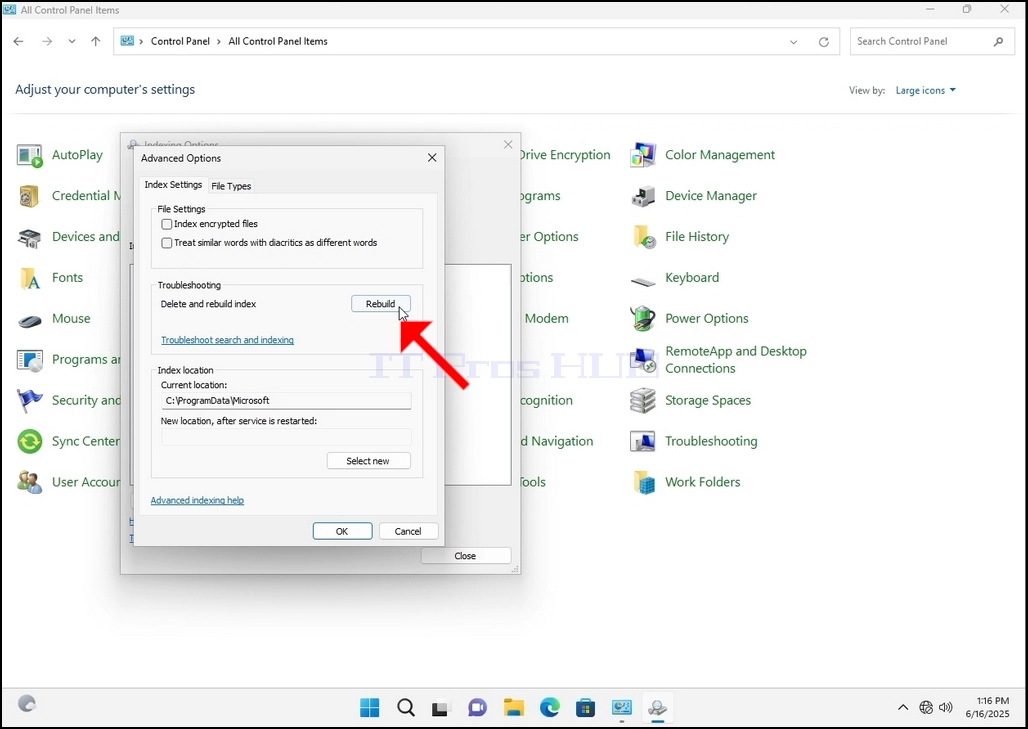
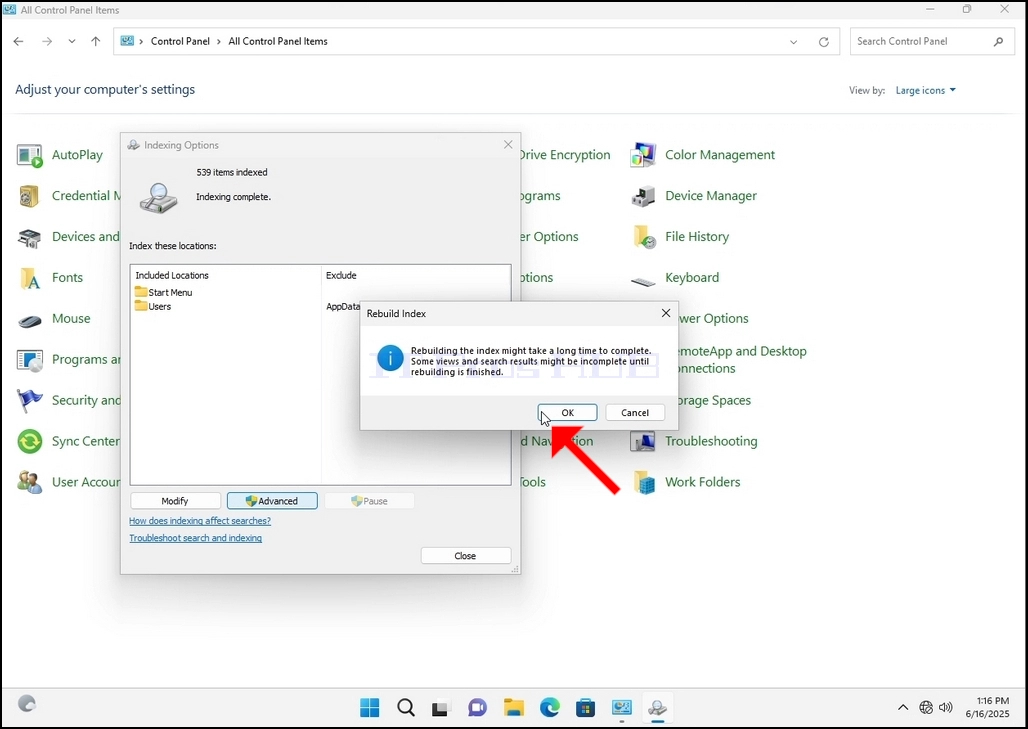
9. After clicking OK in the confirmation box, Windows will start rebuilding its index. It might take some time for the actual process to start, Wait patiently a few seconds to a few minutes. The moment the process starts, the "Indexing Complete" sentence will be replaced with "Indexing in progress. Search results might not be complete during this time."
In addition, the number of items indexed will be reset to 0 for a moment and then start to increase.
Note
- Besonderhede
- Geskryf deur: IT Pro
- Kategorie: How to Articles
- Trefslae: 6323
1. Go to Windows Desktop
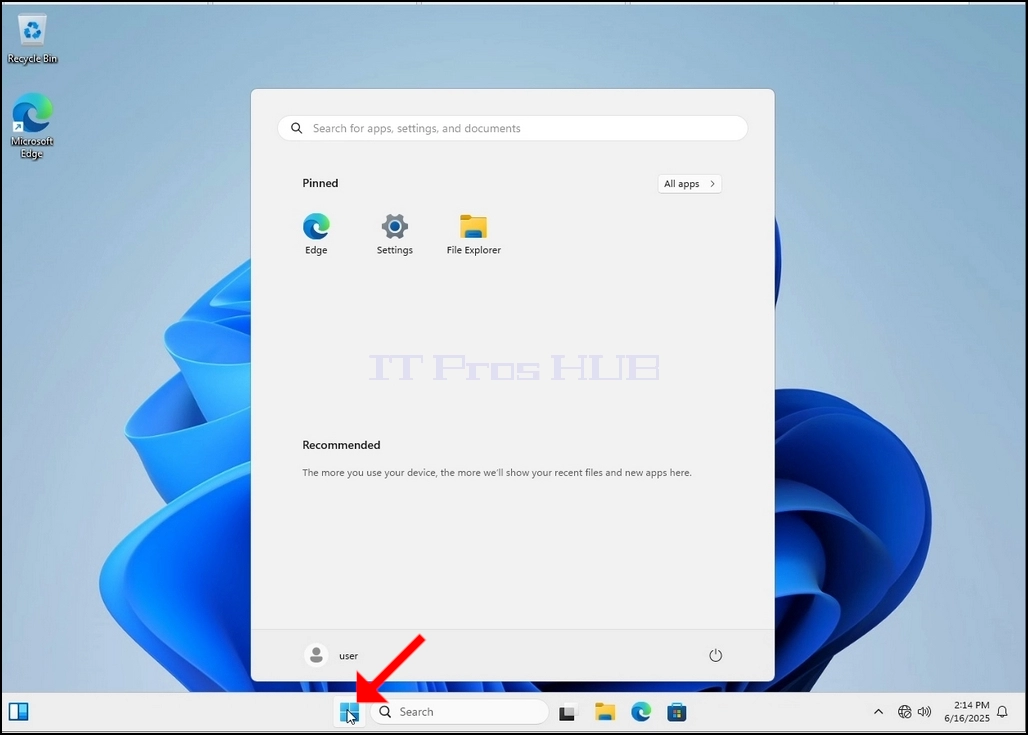
2. Click Start
Once it finds it, click it and wait for the Control Panel window to appear.
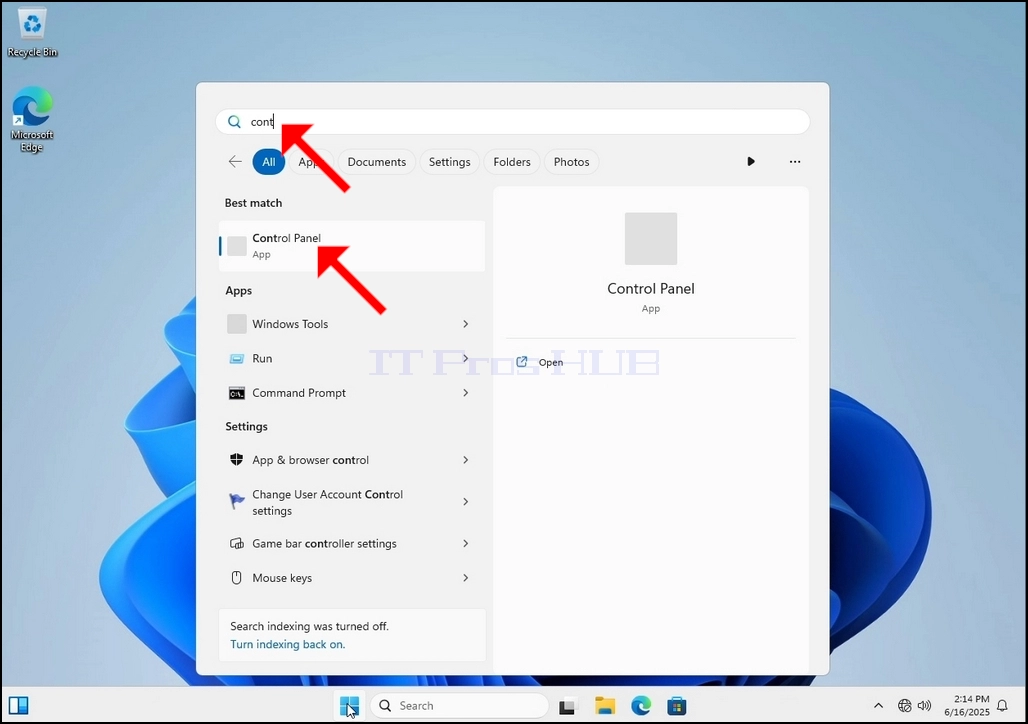
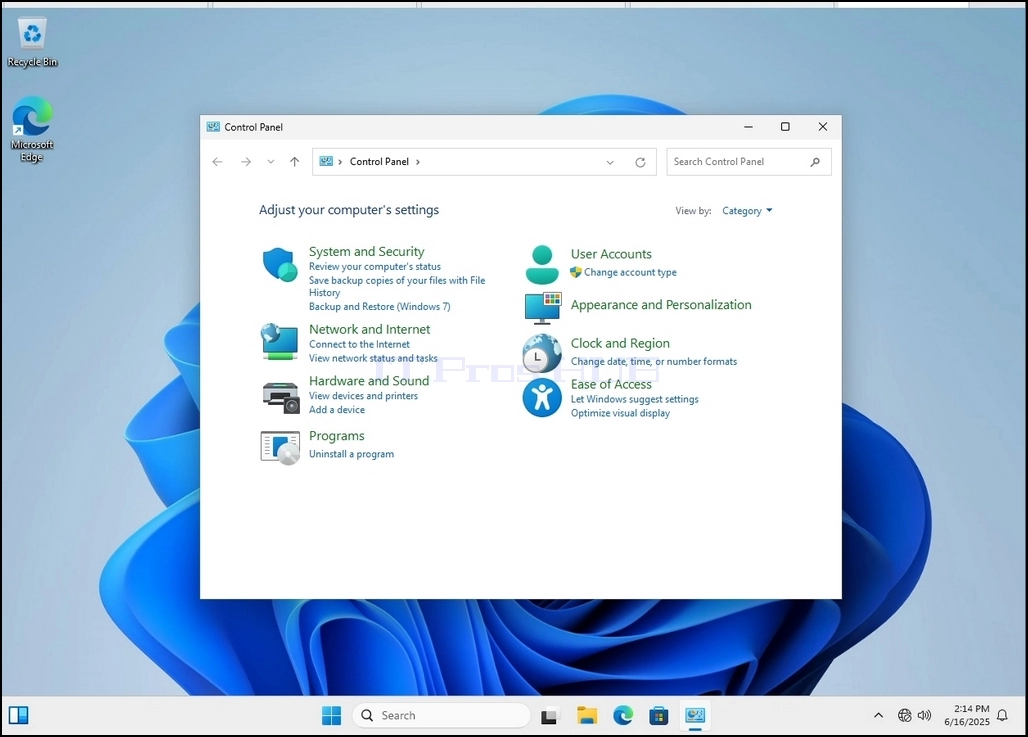
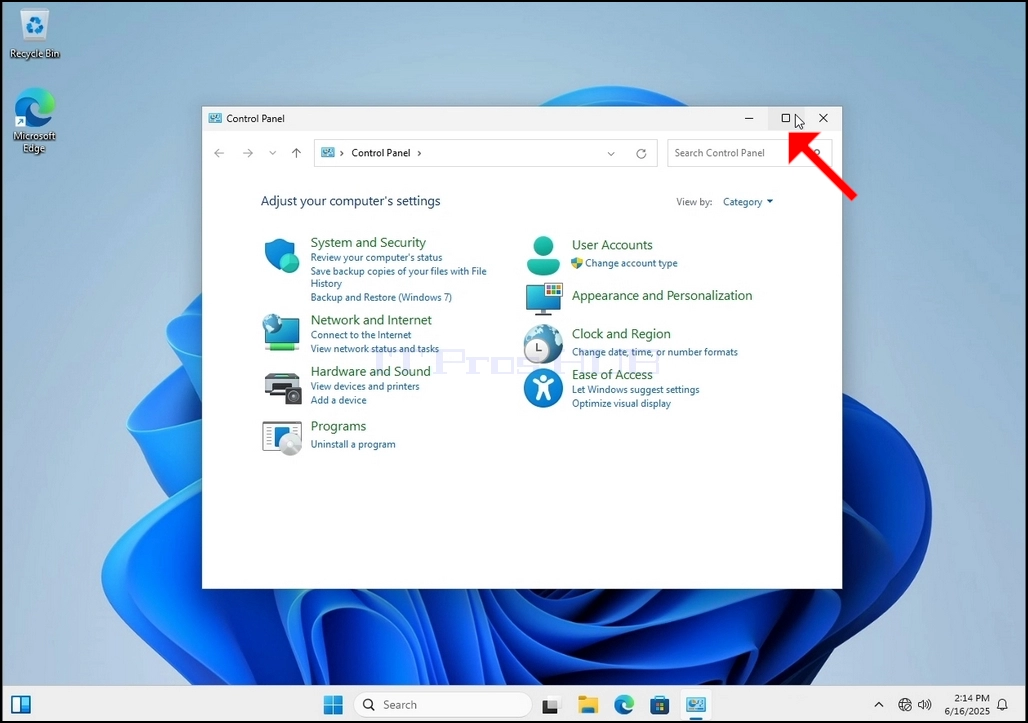
4. Once the Control Panel window is open, enlarge it by clicking the enlarging icon on the top right corner of that window.
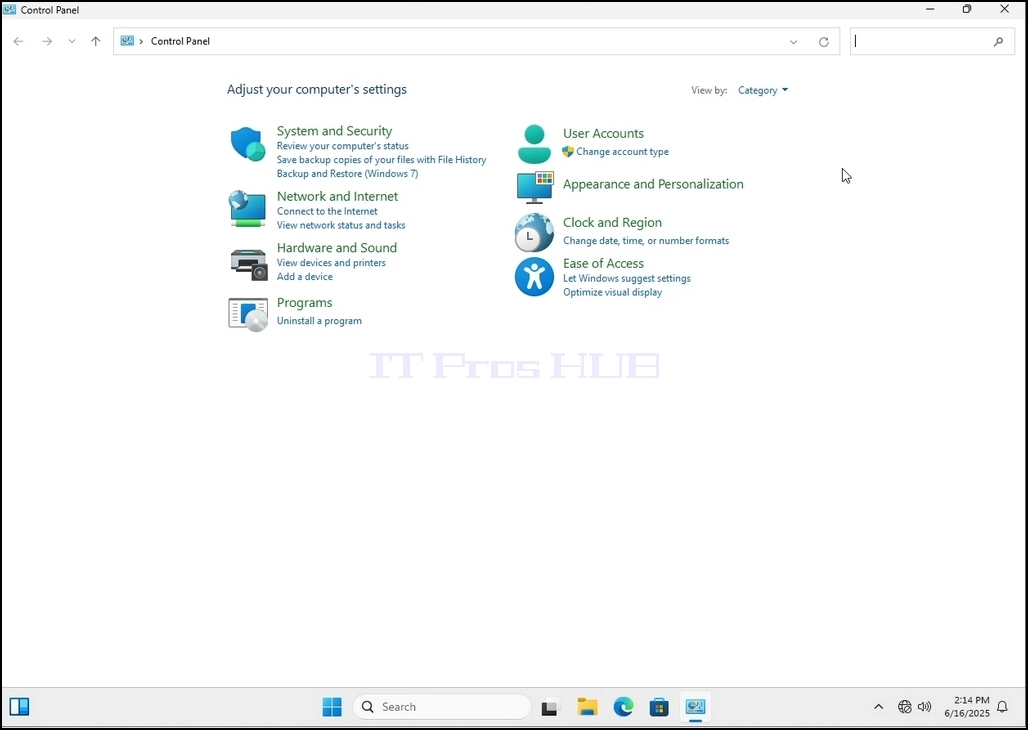
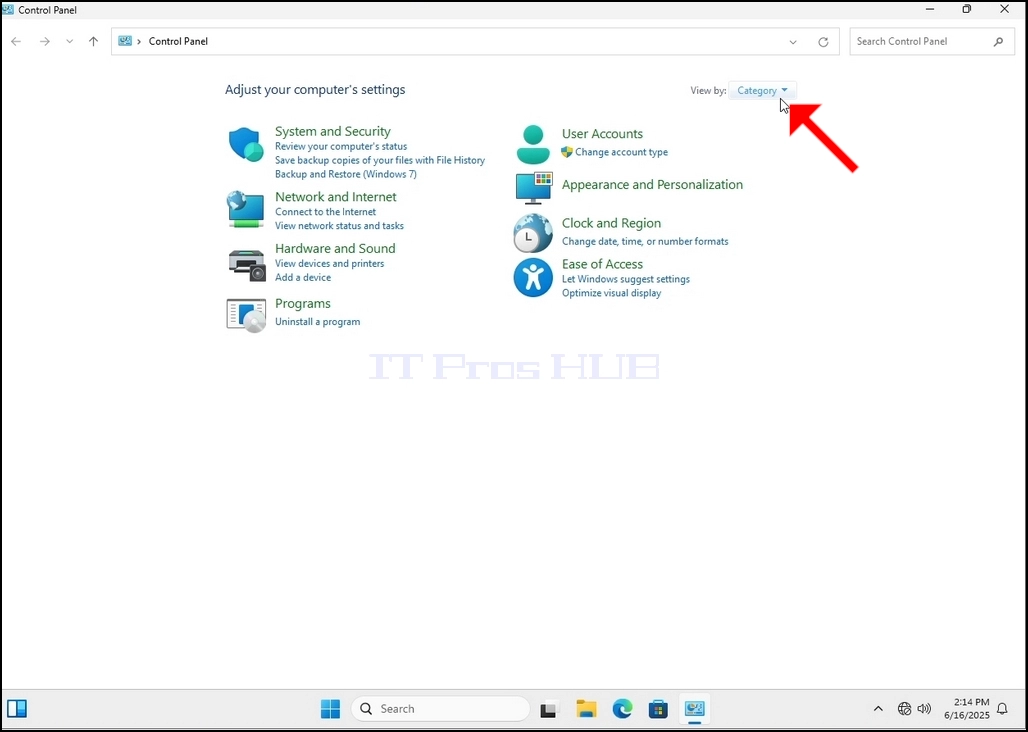
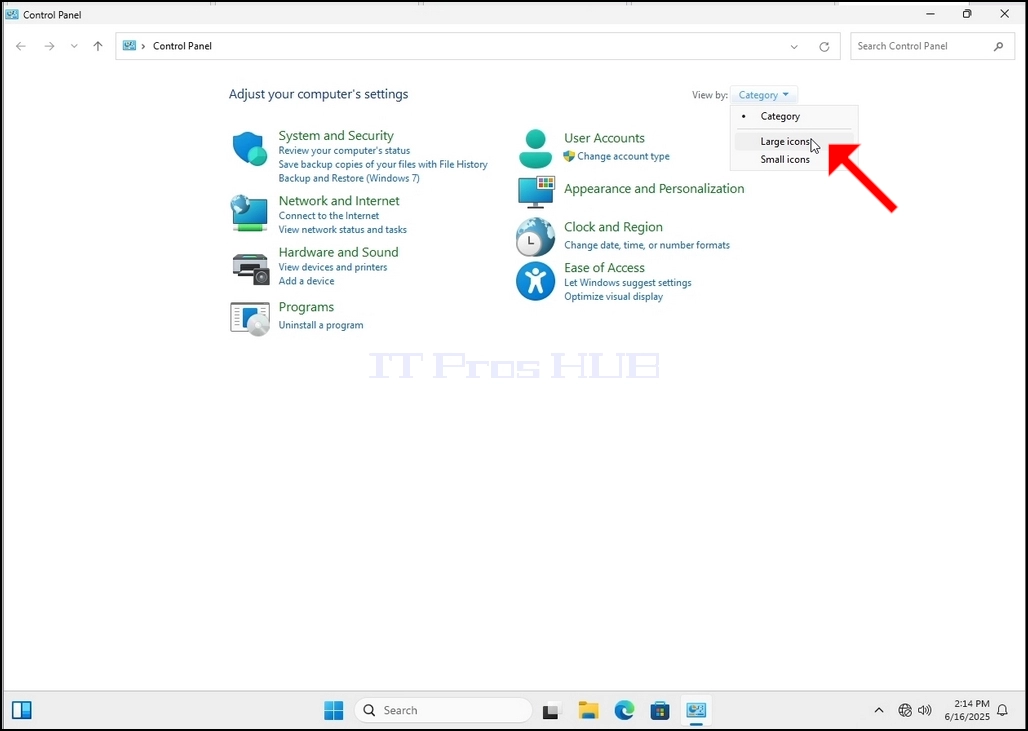
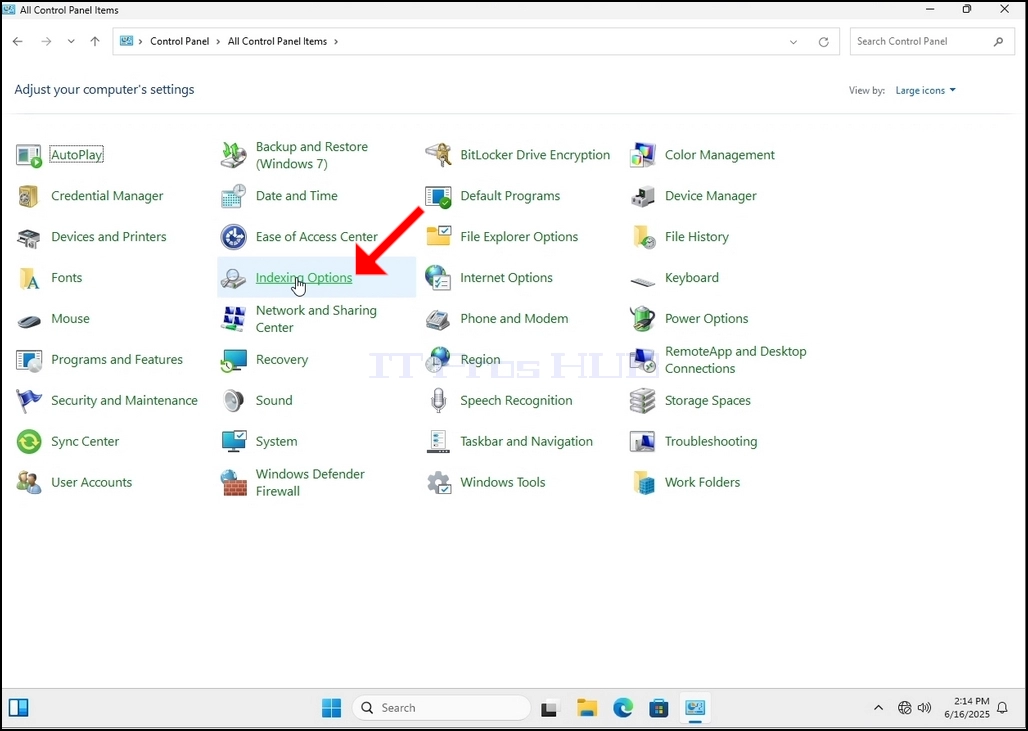
6. Look for the Indexing Options icon and click it. Wait for the Indexing Options window to appear.
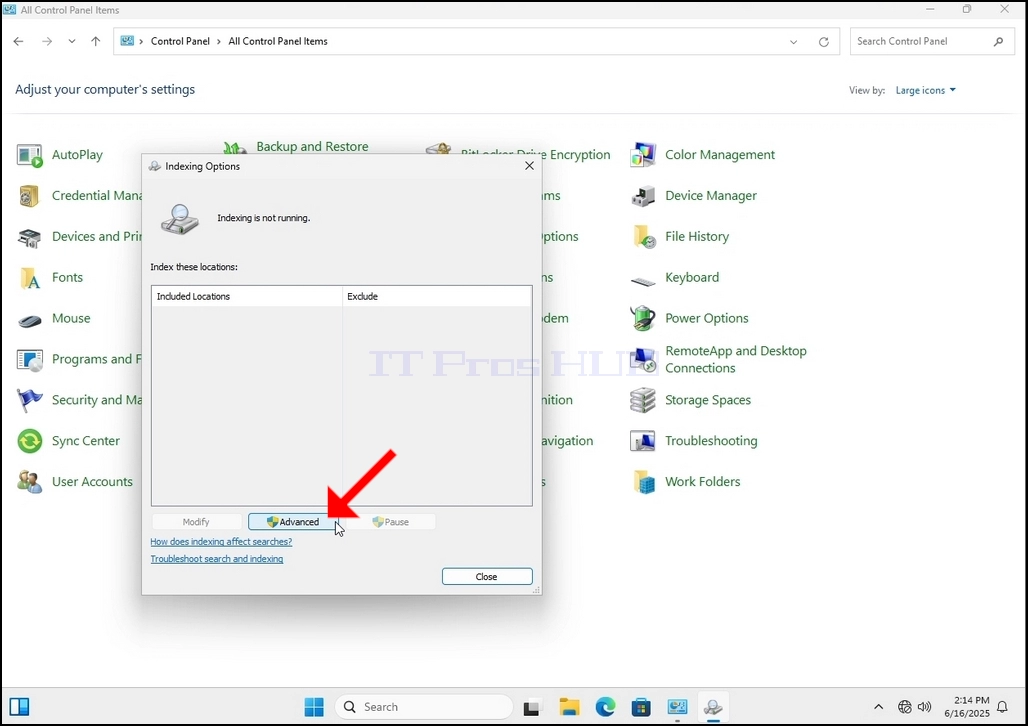
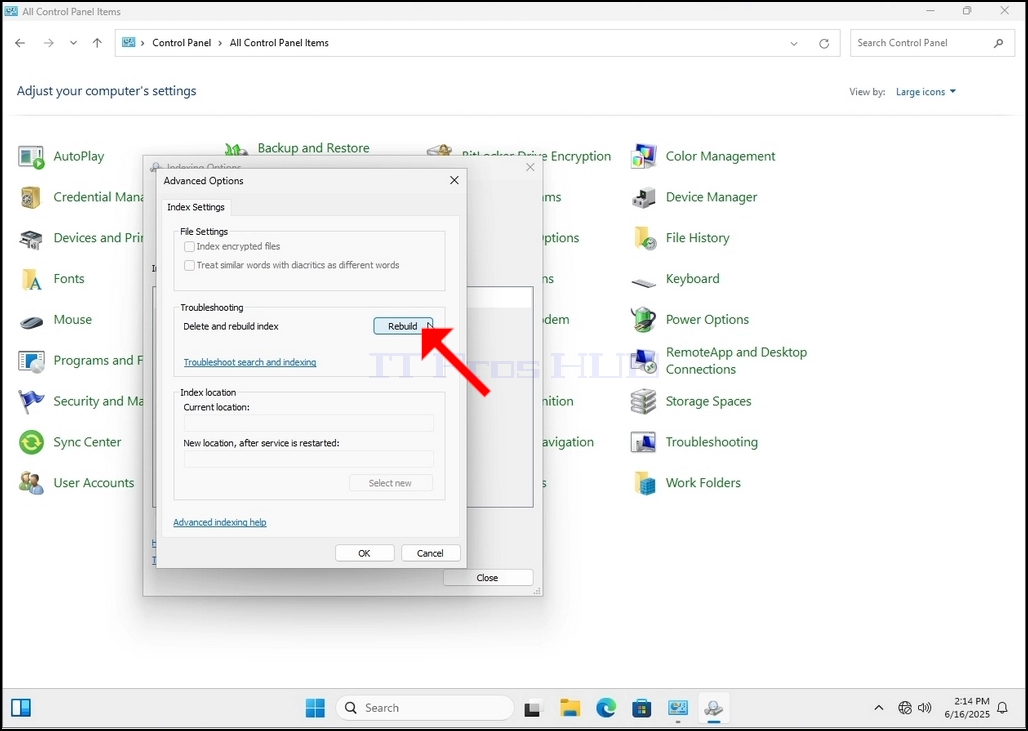
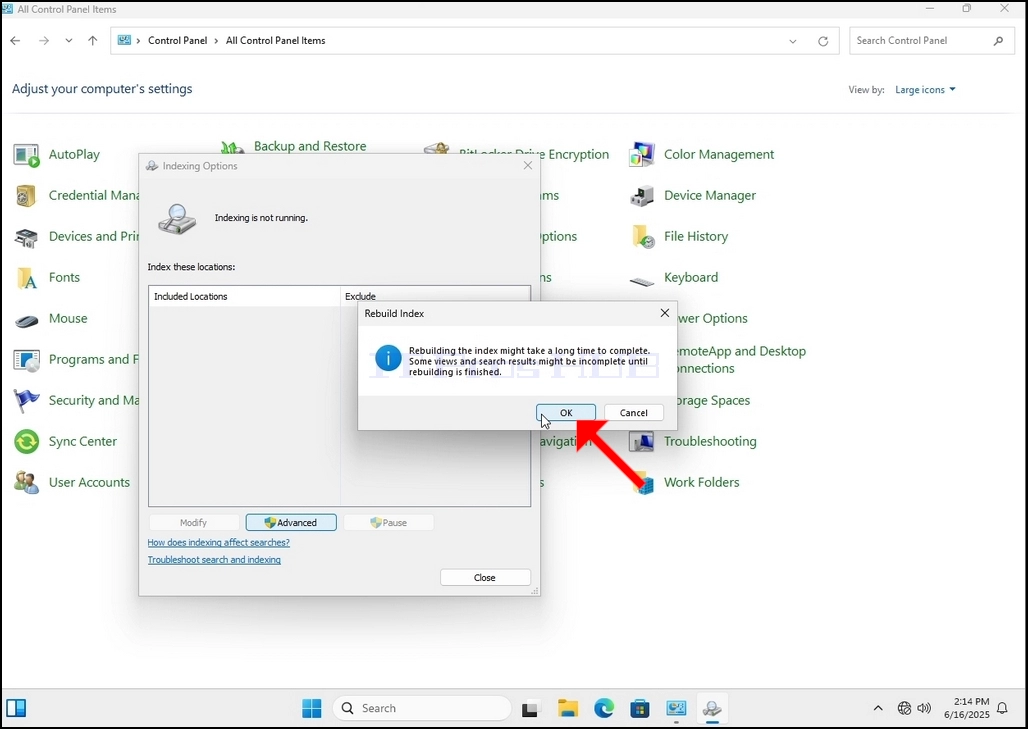
9. After clicking OK in the confirmation box, Windows will start rebuilding its index. It might take some time for the actual process to start, Wait patiently a few seconds to a few minutes. The moment the process starts, the "Indexing Complete" sentence will be replaced with "Indexing in progress. Search results might not be complete during this time."
In addition, the number of items indexed will be reset to 0 for a moment and then start to increase.
Note that All of the wind
- Besonderhede
- Geskryf deur: IT Pro
- Kategorie: How to Articles
- Trefslae: 6929
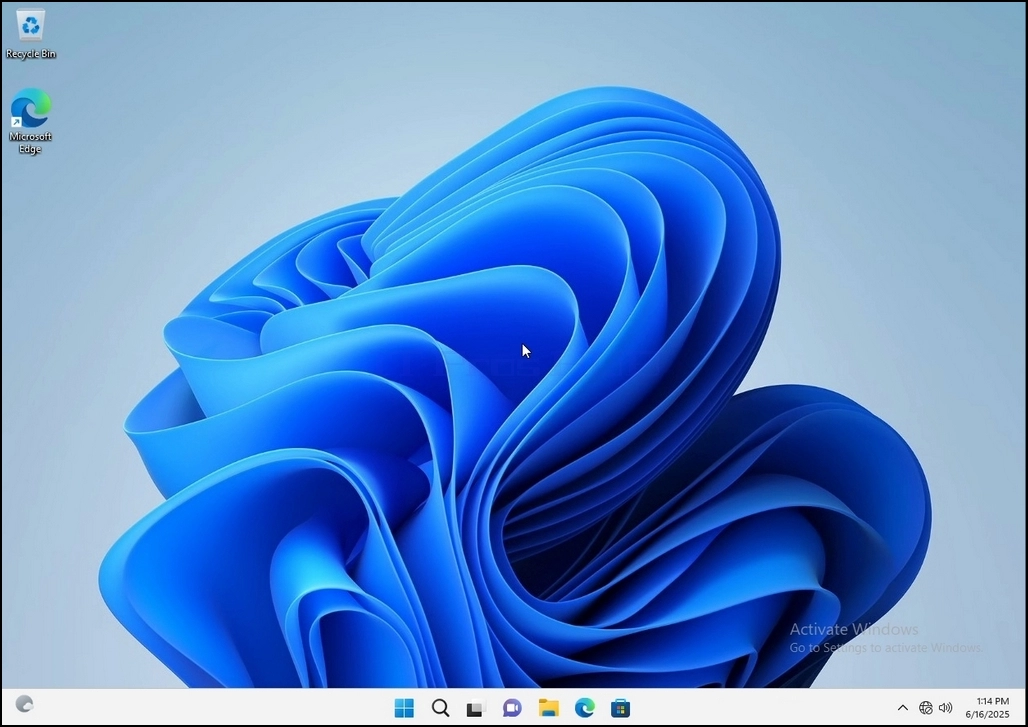
1. Go to Windows Desktop
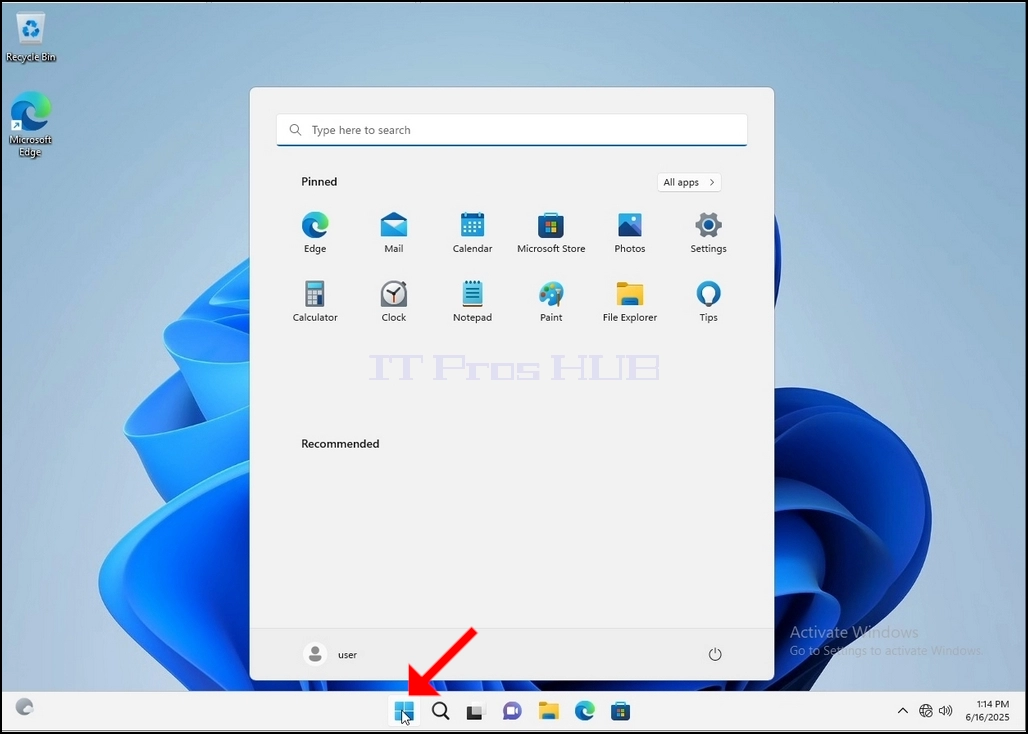
2. Click Start
Once it finds it, click it and wait for the Control Panel window to appear.
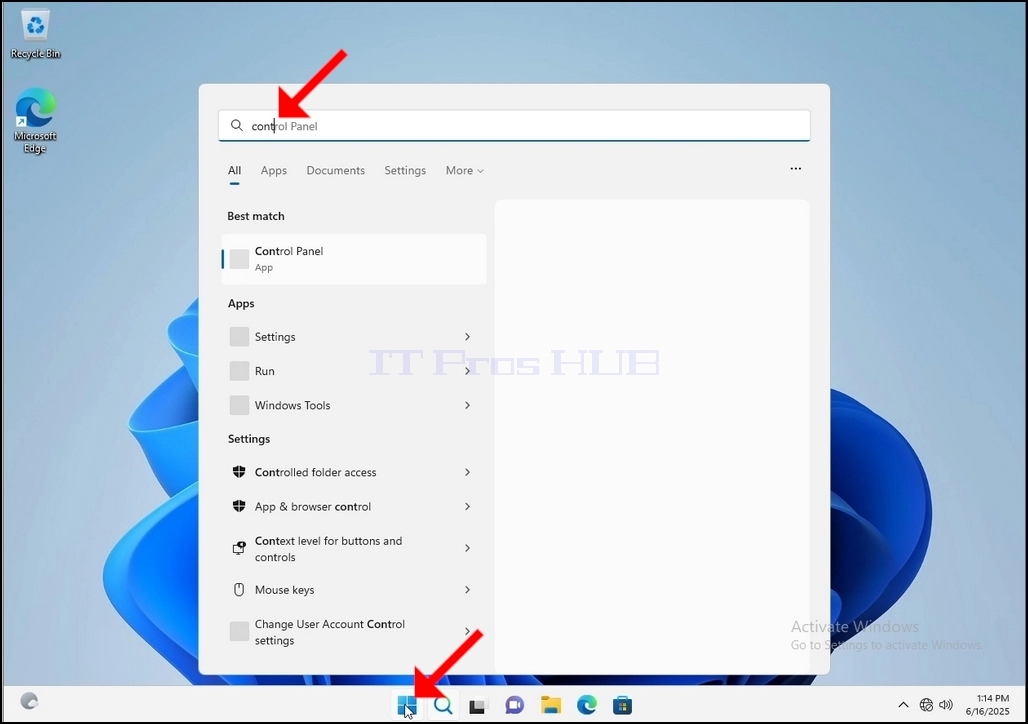
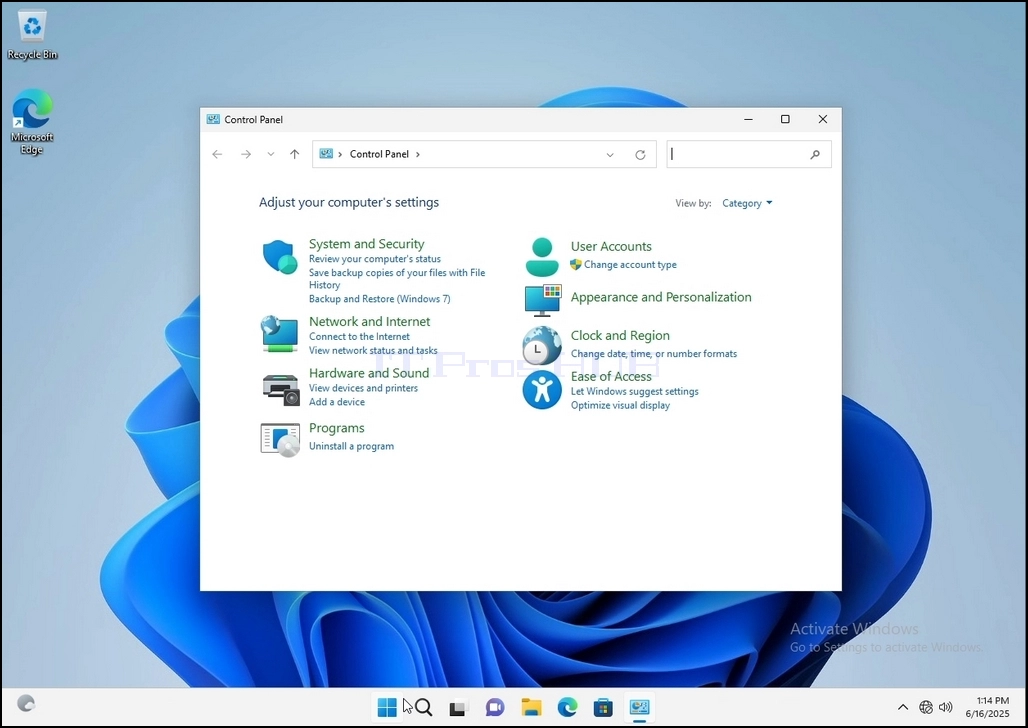
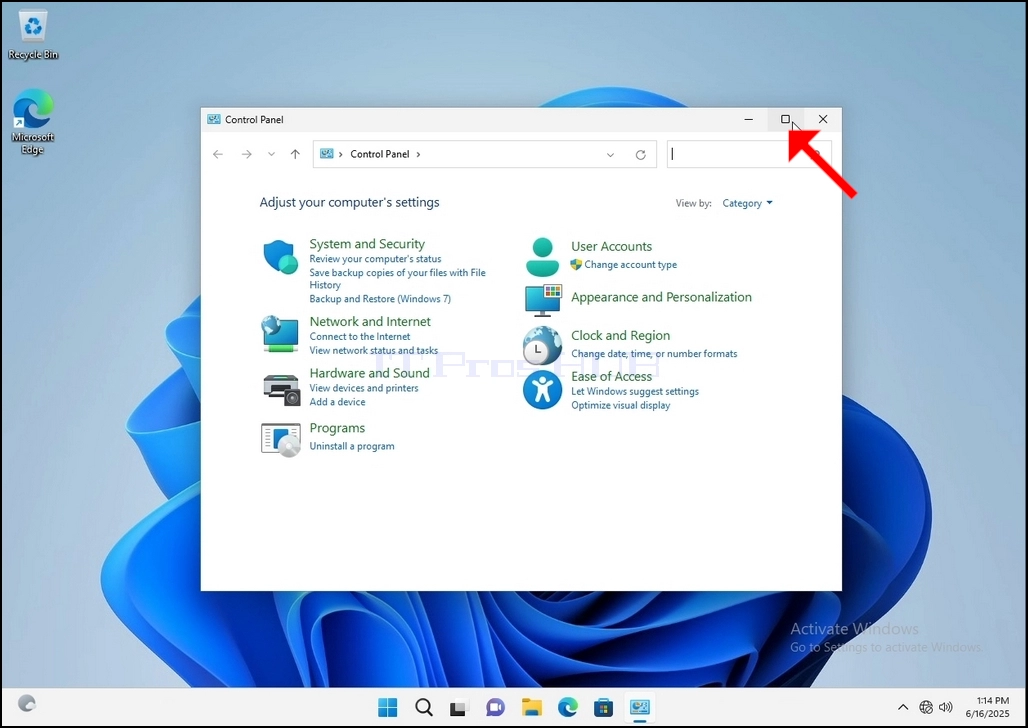
4. Once the Control Panel window is open, enlarge it by clicking the enlarging icon on the top right corner of that window.
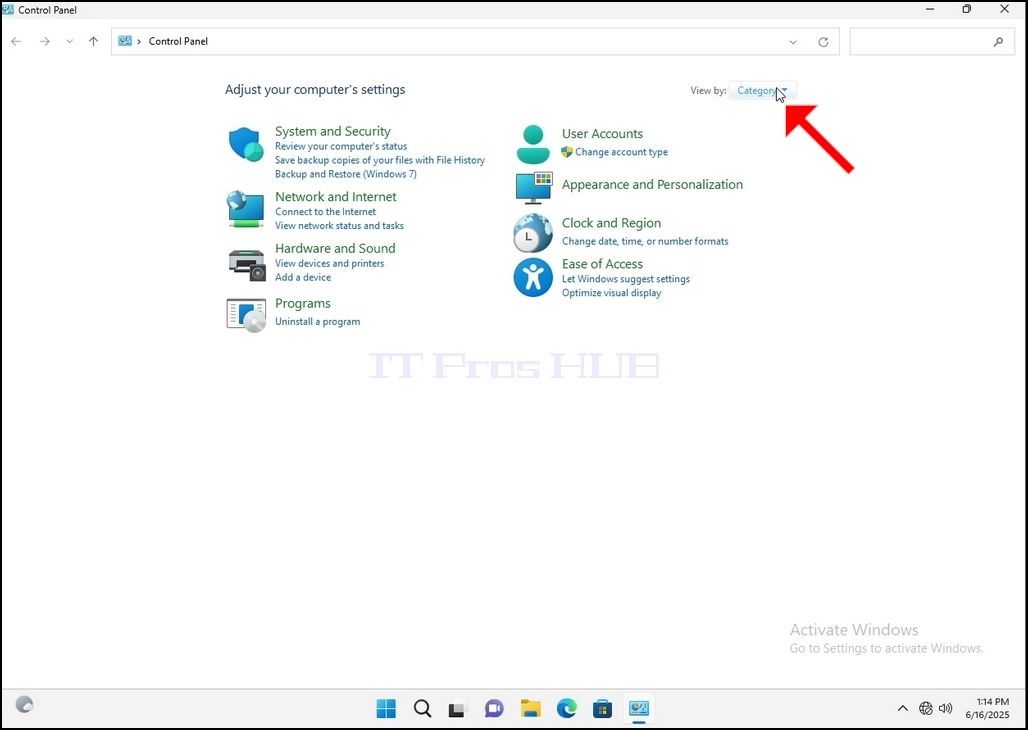
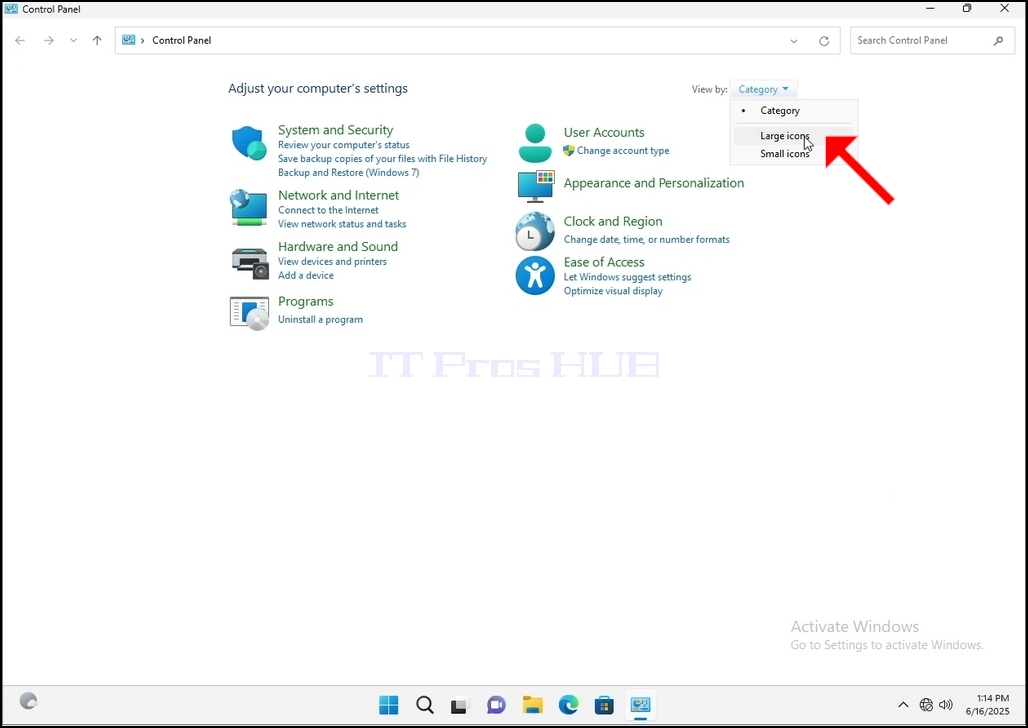
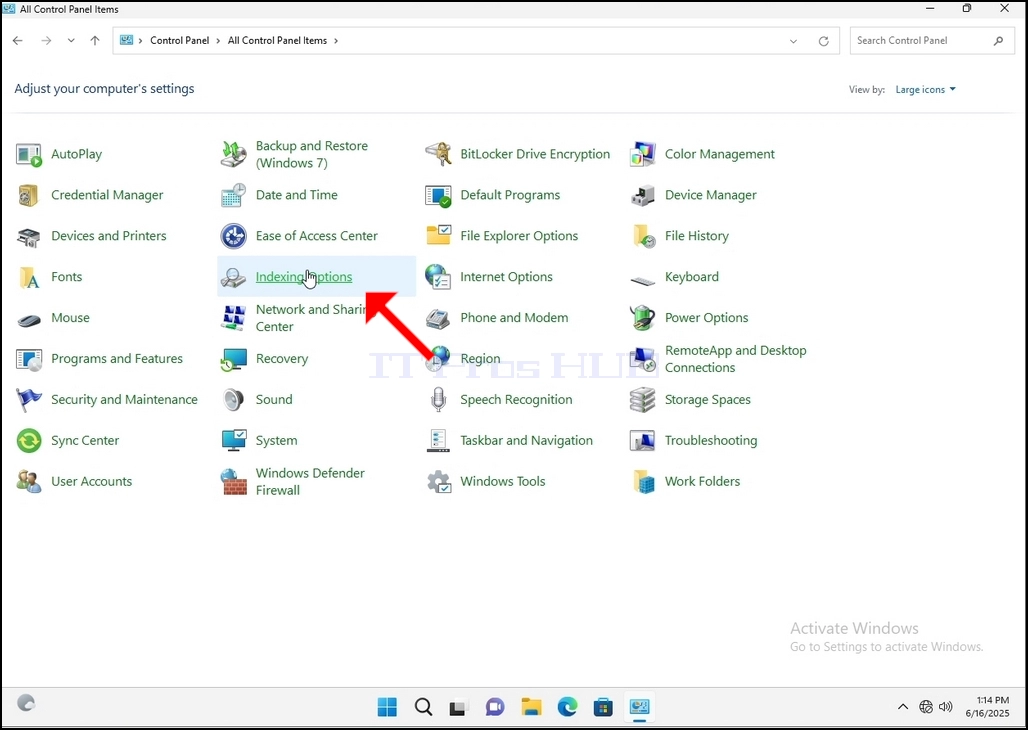
6. Look for the Indexing Options icon and click it. Wait for the Indexing Options window to appear.
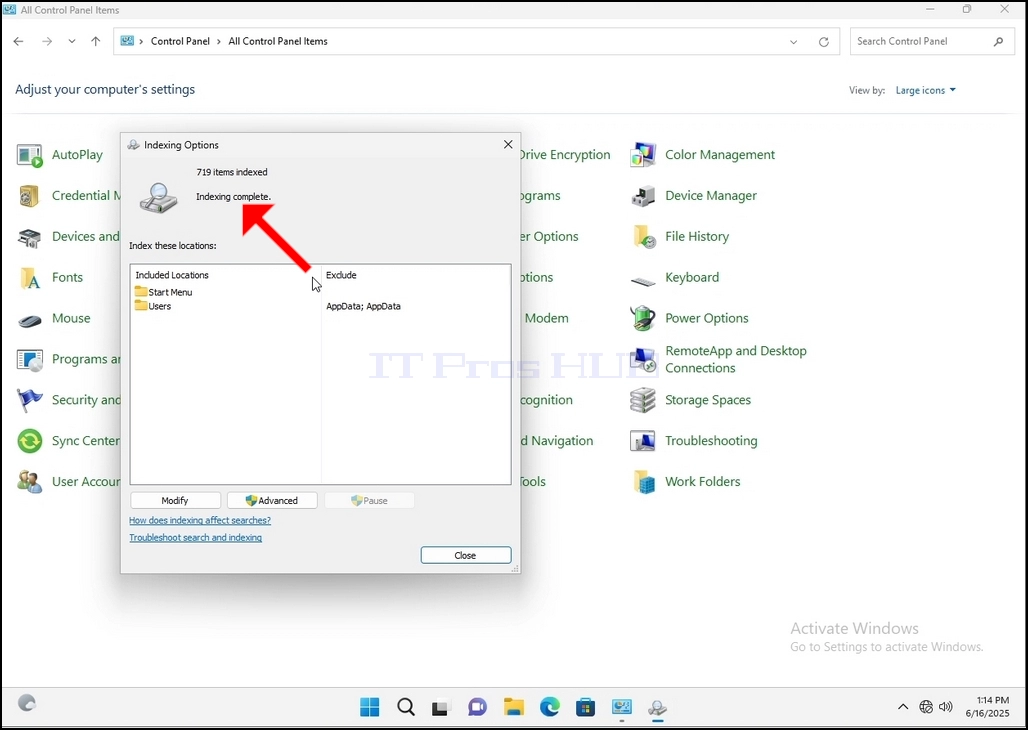
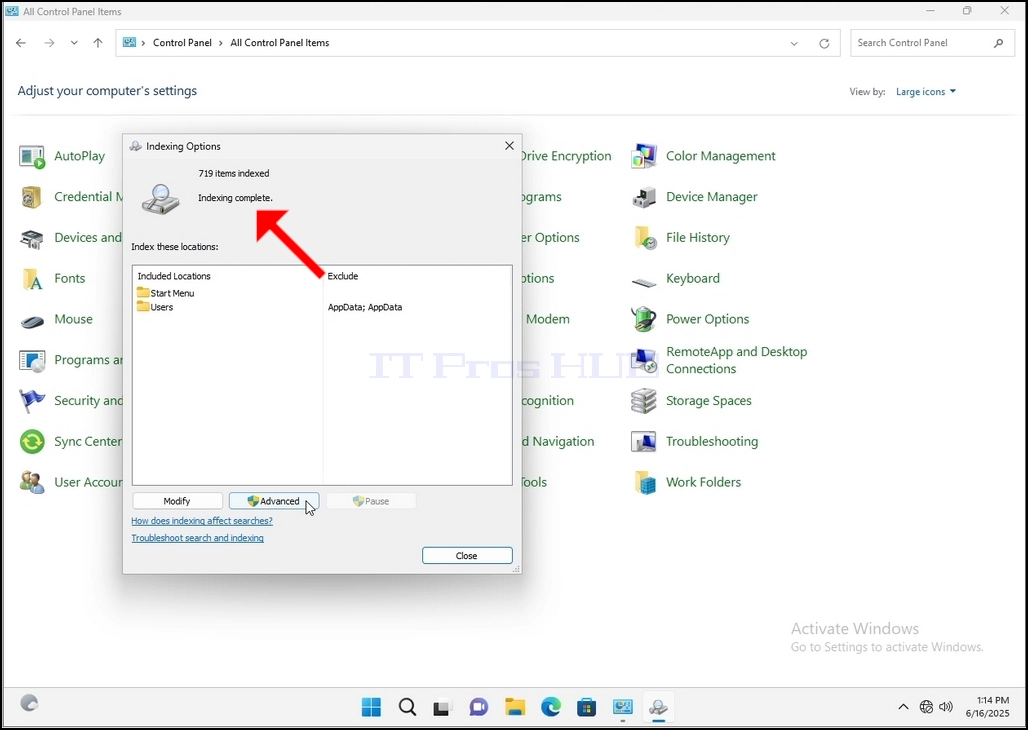
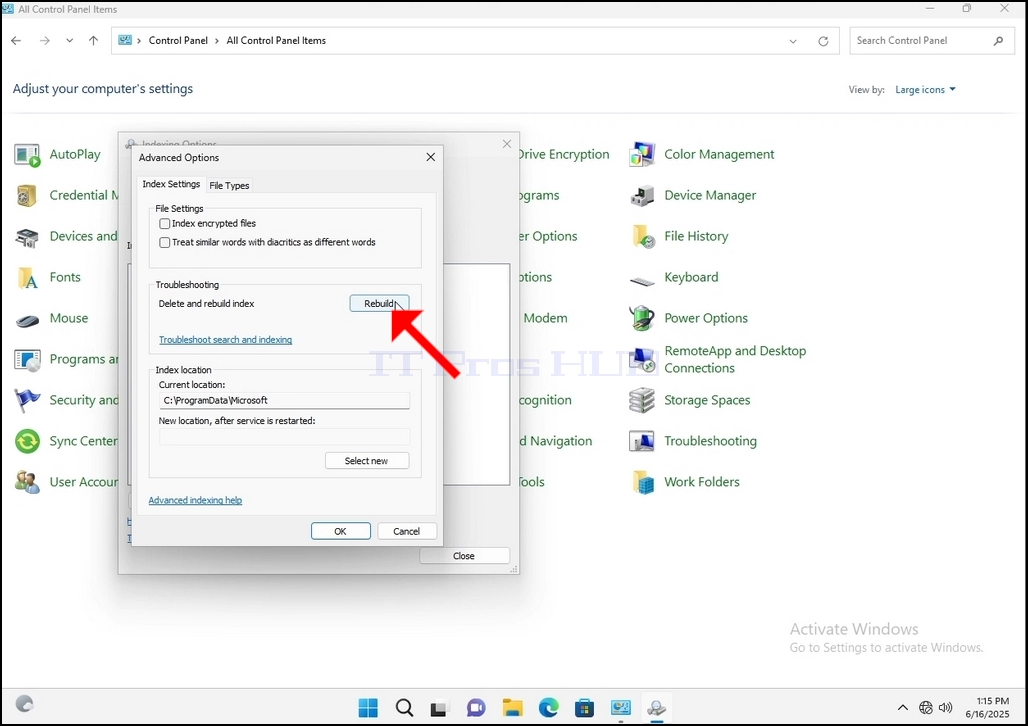
9. After clicking OK in the confirmation box, Windows will start rebuilding its index. It might take some time for the actual process to start, Wait patiently a few seconds to a few minutes. The moment the process starts, the "Indexing Complete" sentence will be replaced with "Indexing in progress. Search results might not be complete during this time."
In addition, th
- Besonderhede
- Geskryf deur: IT Pro
- Kategorie: How to Articles
- Trefslae: 7546
1. Go to Windows Desktop
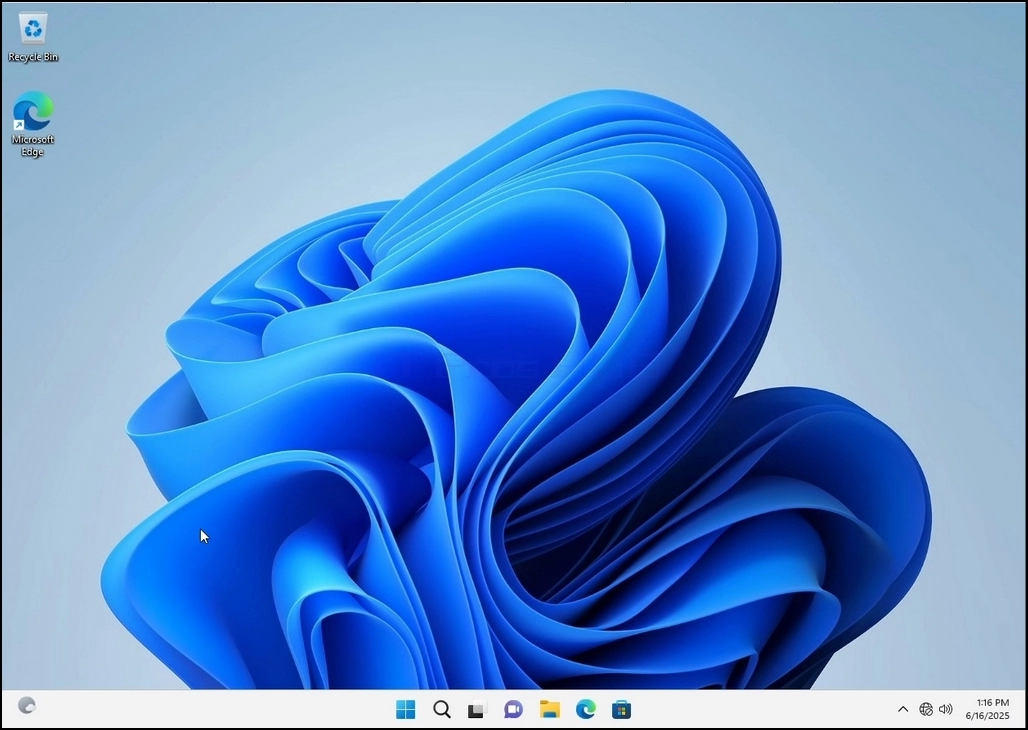
2. Click Start
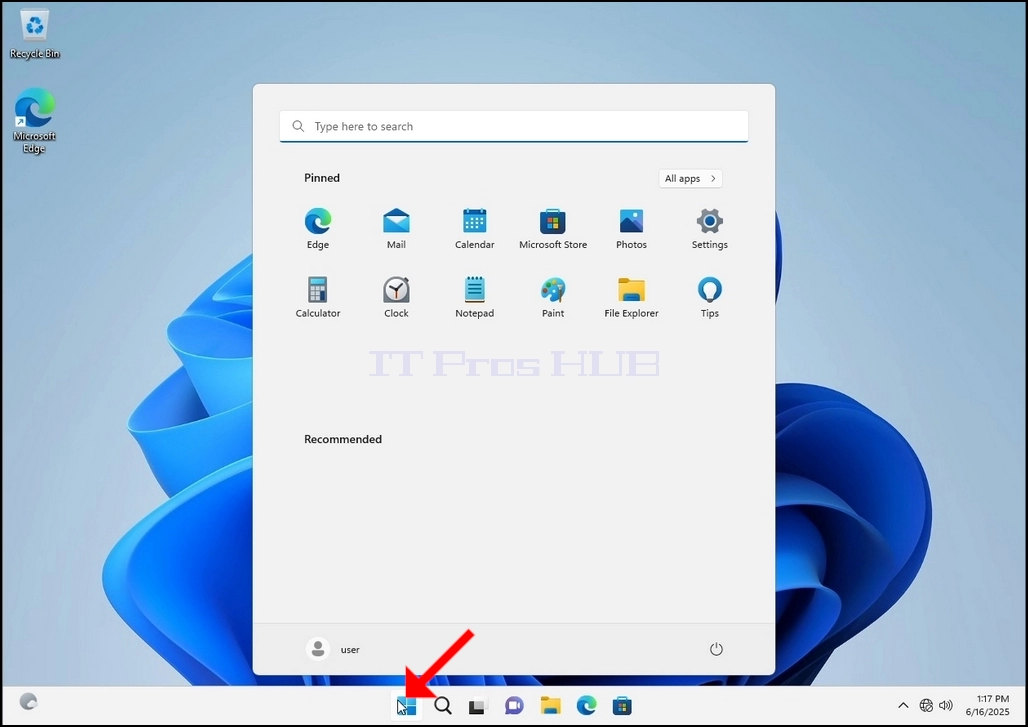
Once it finds it, click it and wait for the Control Panel window to appear.
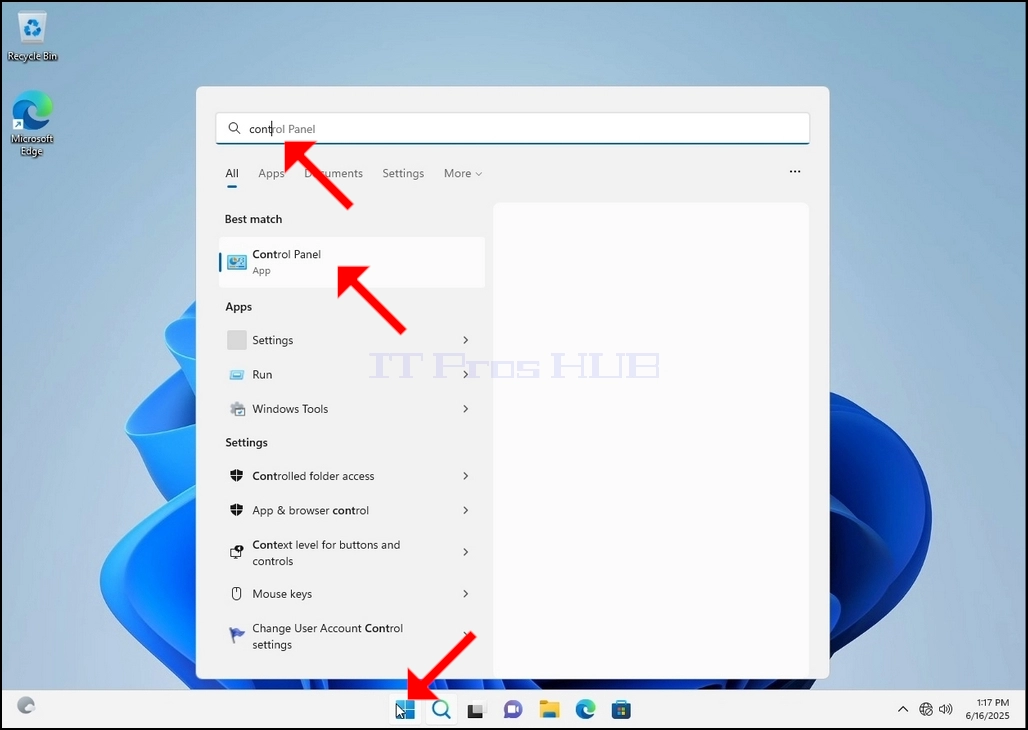
4. Once the Control Panel window is open, enlarge it by clicking the enlarging icon on the top right corner of that window.
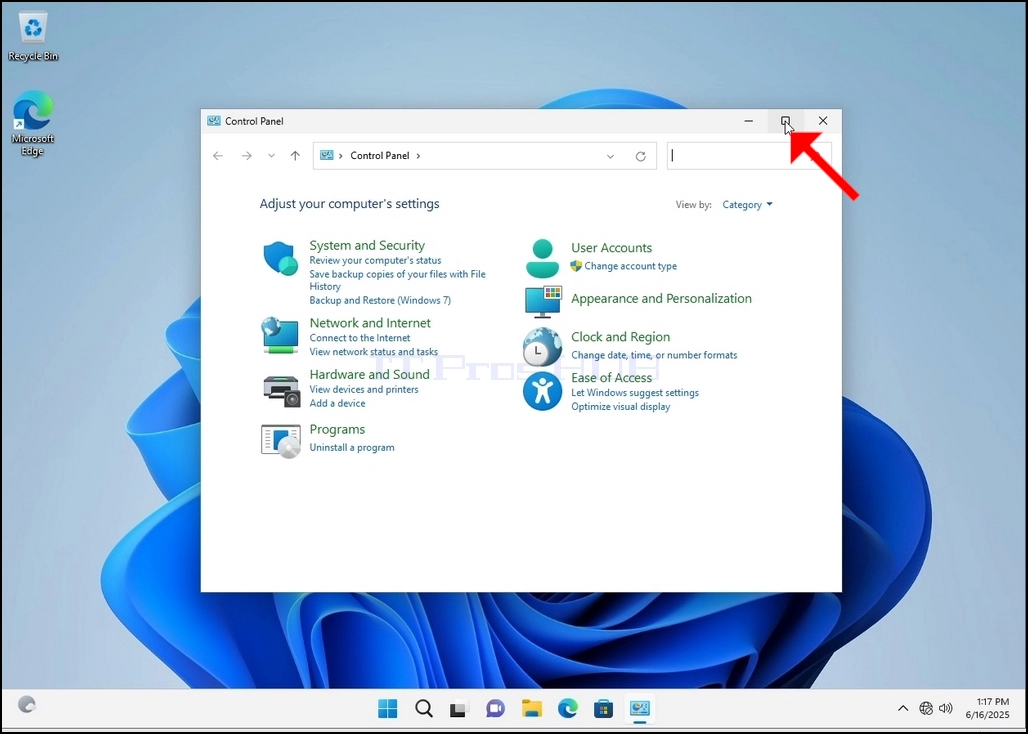
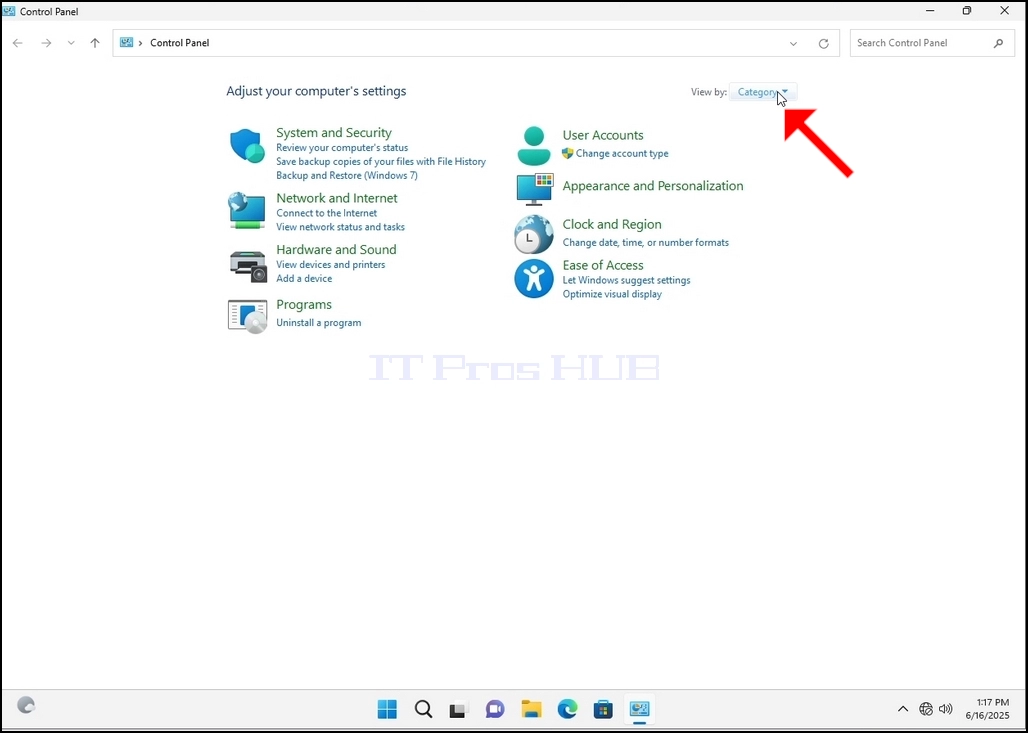
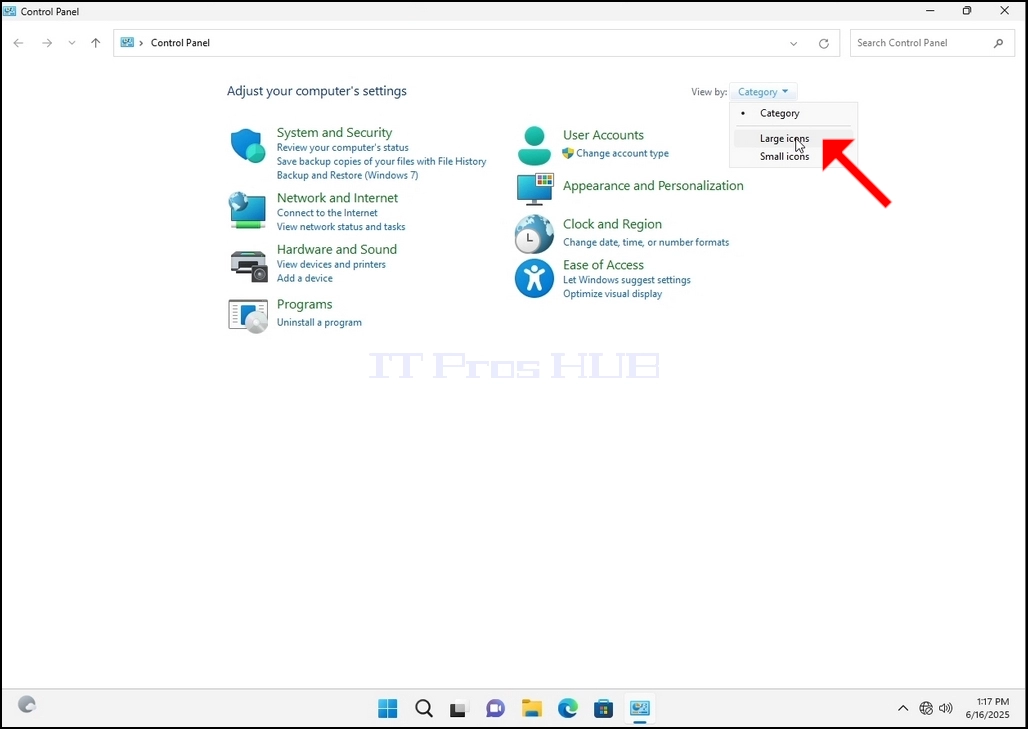
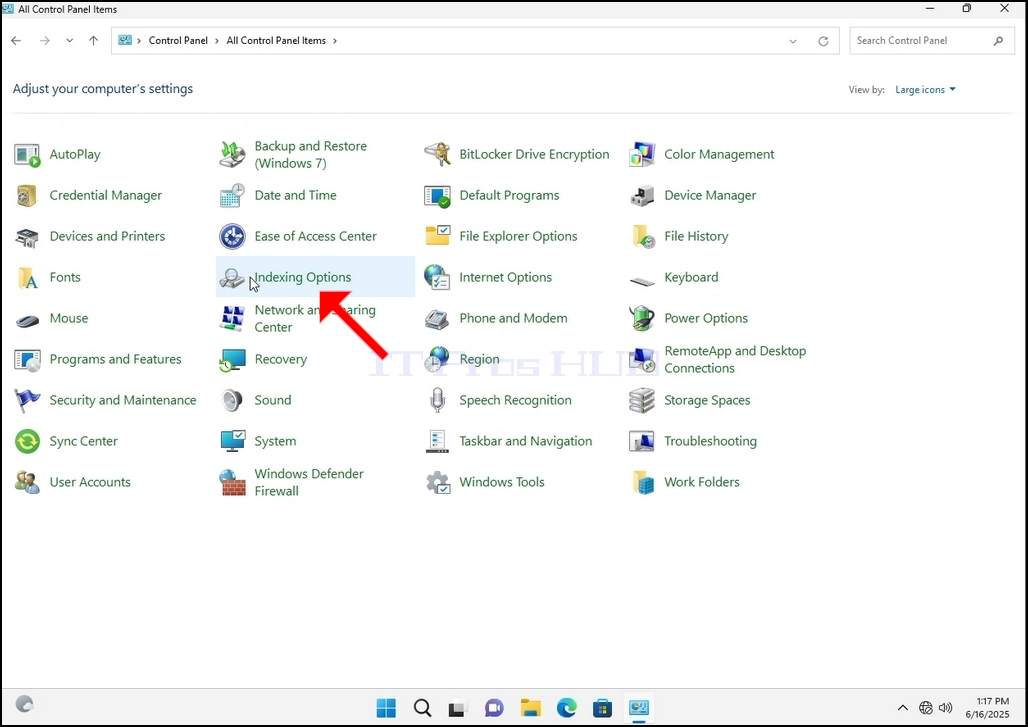
6. Look for the Indexing Options icon and click it. Wait for the Indexing Options window to appear.
9. After clicking OK in the confirmation box, Windows will start rebuilding its index. It might take some time for the actual process to start, Wait patiently a few seconds to a few minutes. The moment the process starts, the "Indexing Complete" sentence will be replaced with "Indexing in progress. Search results might not be complete during this time."
In addition, the number of items indexed will be reset to 0 for a moment and then start to increase.
Note that All of the windows that
- Besonderhede
- Geskryf deur: IT Pro
- Kategorie: How to Articles
- Trefslae: 5715
1. Go to Windows Desktop
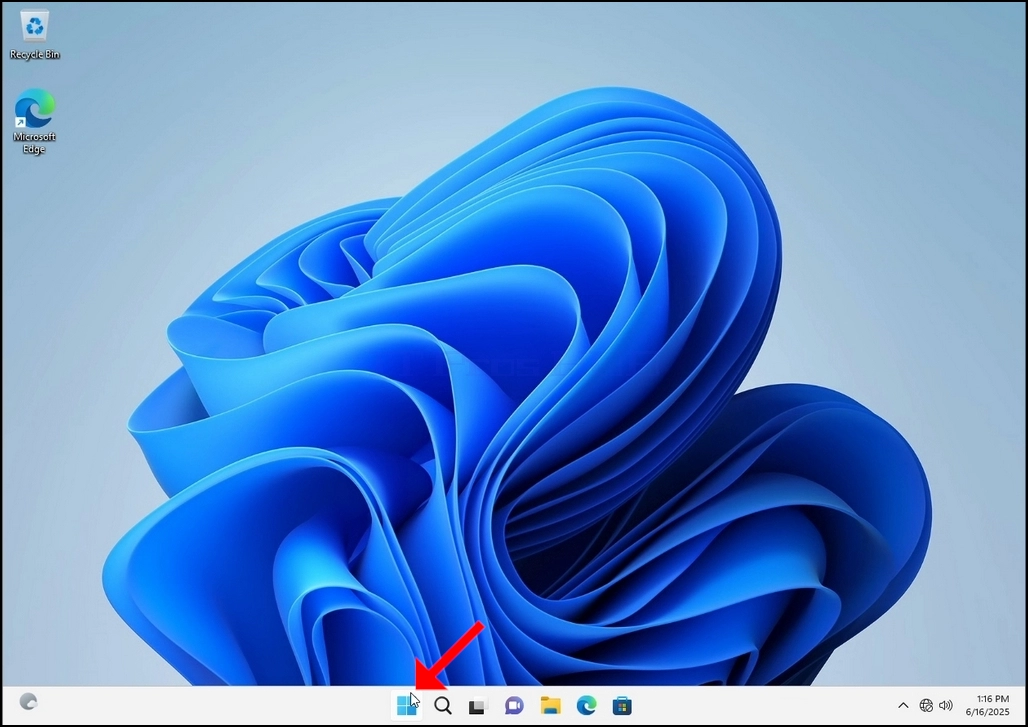
2. Click Start
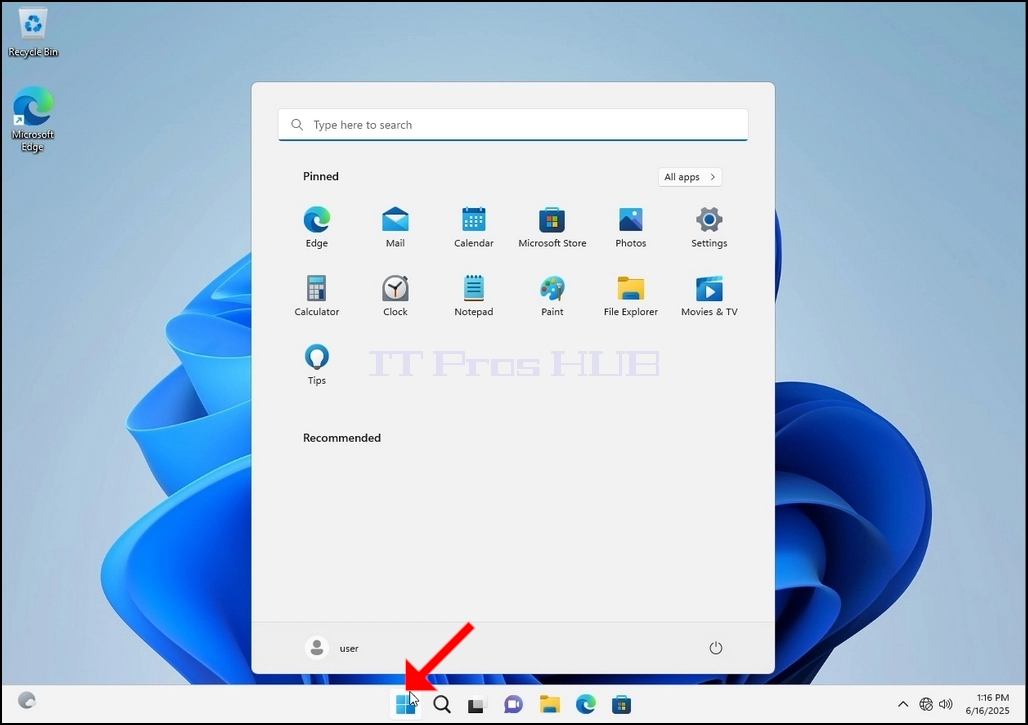
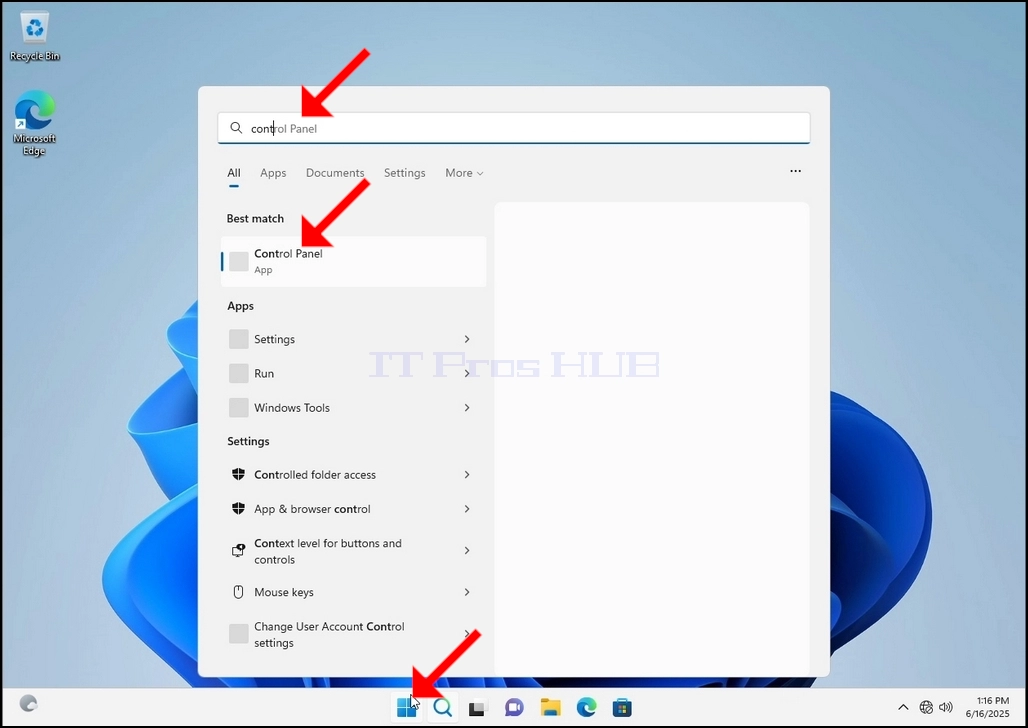
Once it finds it, click it and wait for the Control Panel window to appear.
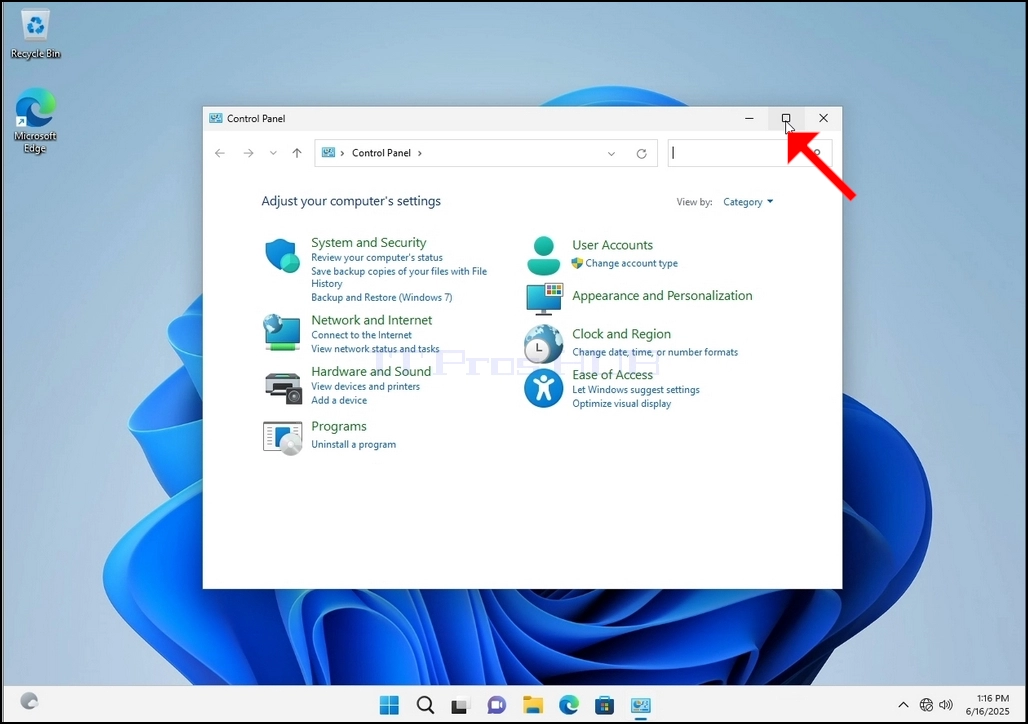
4. Once the Control Panel window is open, enlarge it by clicking the enlarging icon on the top right corner of that window.
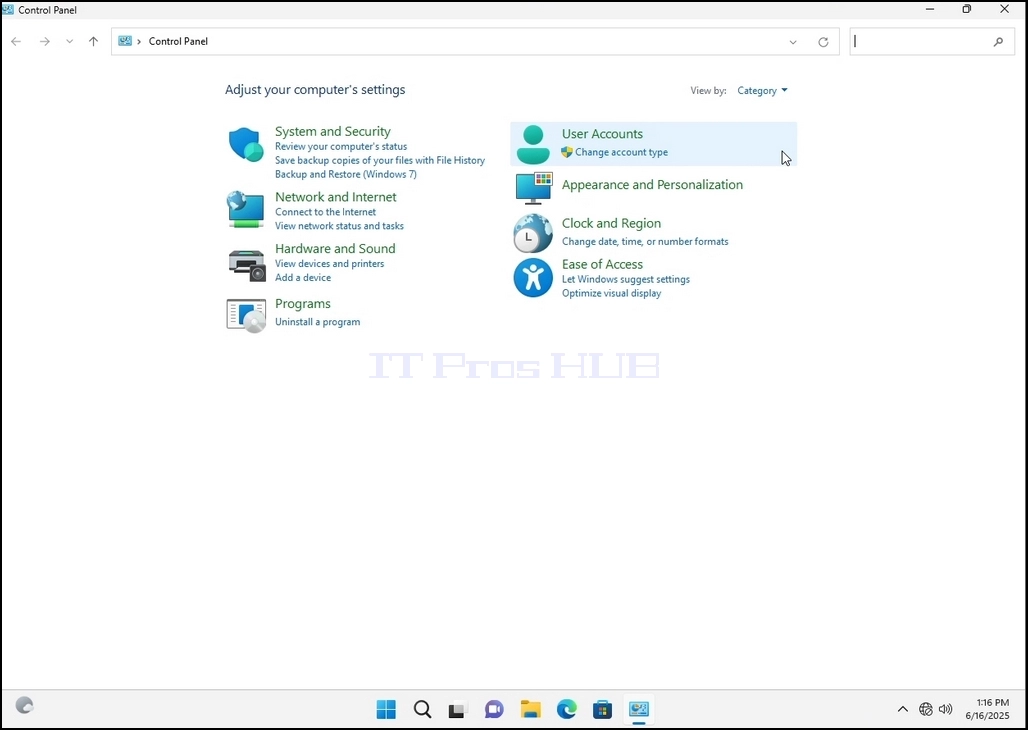
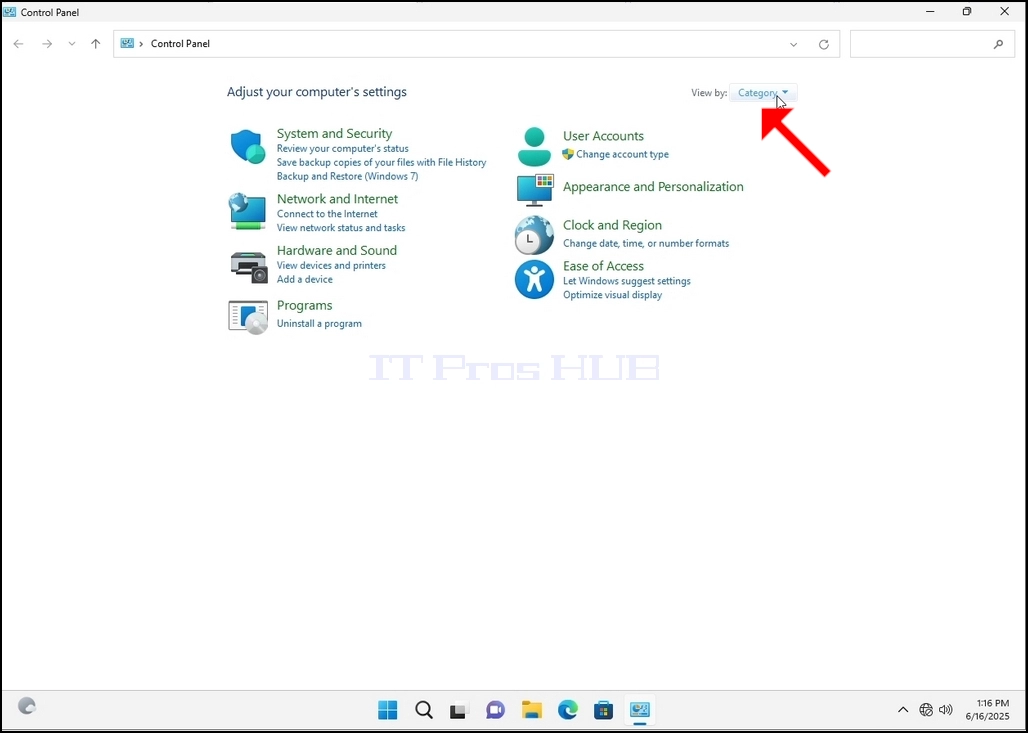
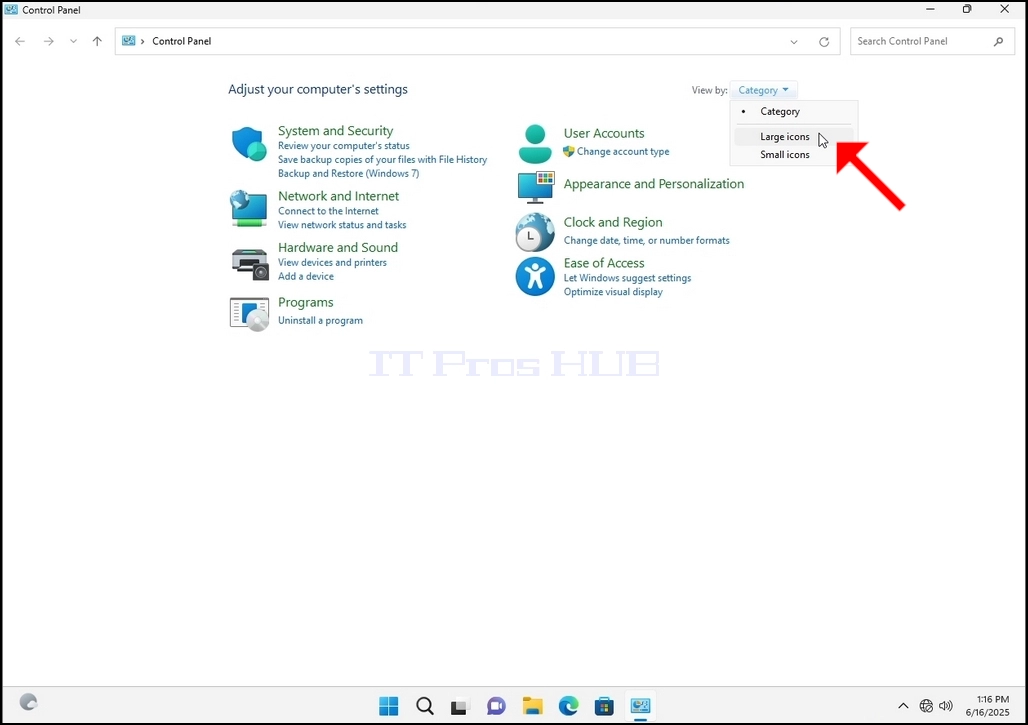
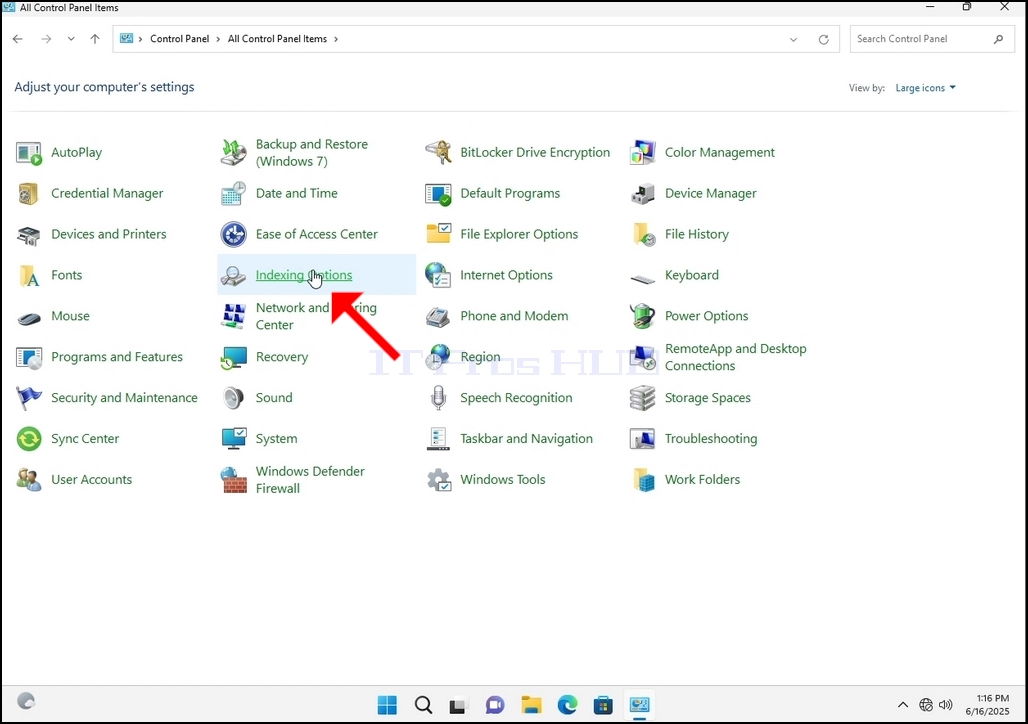
6. Look for the Indexing Options icon and click it. Wait for the Indexing Options window to appear.
9. After clicking OK in the confirmation box, Windows will start rebuilding its index. It might take some time for the actual process to start, Wait patiently a few seconds to a few minutes. The moment the process
- How to Rebuild Indexing in Windows 11 22H2 x64 Pro Education N Build 22621.525
- How to Rebuild Indexing in Windows 11 22H2 x64 Pro Education Build 22621.525
- How to Rebuild Indexing in Windows 11 22H2 x64 Pro Build 22621.525
- How to Rebuild Indexing in Windows 11 22H2 x64 Home Single Language Build 22621.525