- Besonderhede
- Geskryf deur: IT Pro
- Kategorie: How to Articles
- Trefslae: 6026
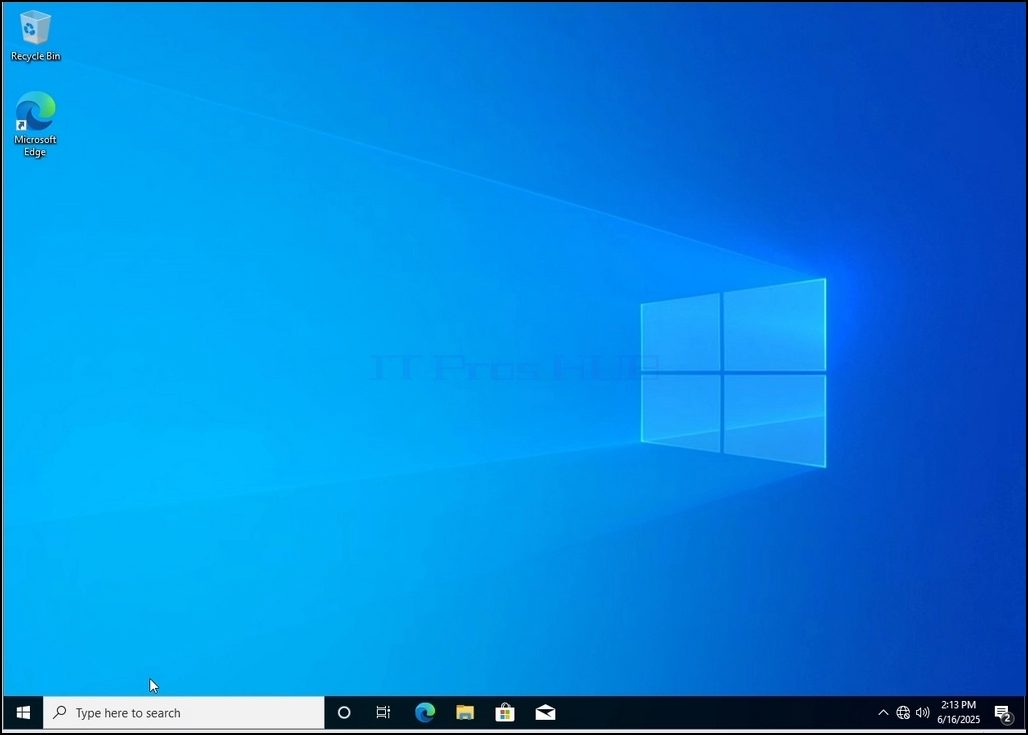
1. Go to Windows Desktop
2. Click Start
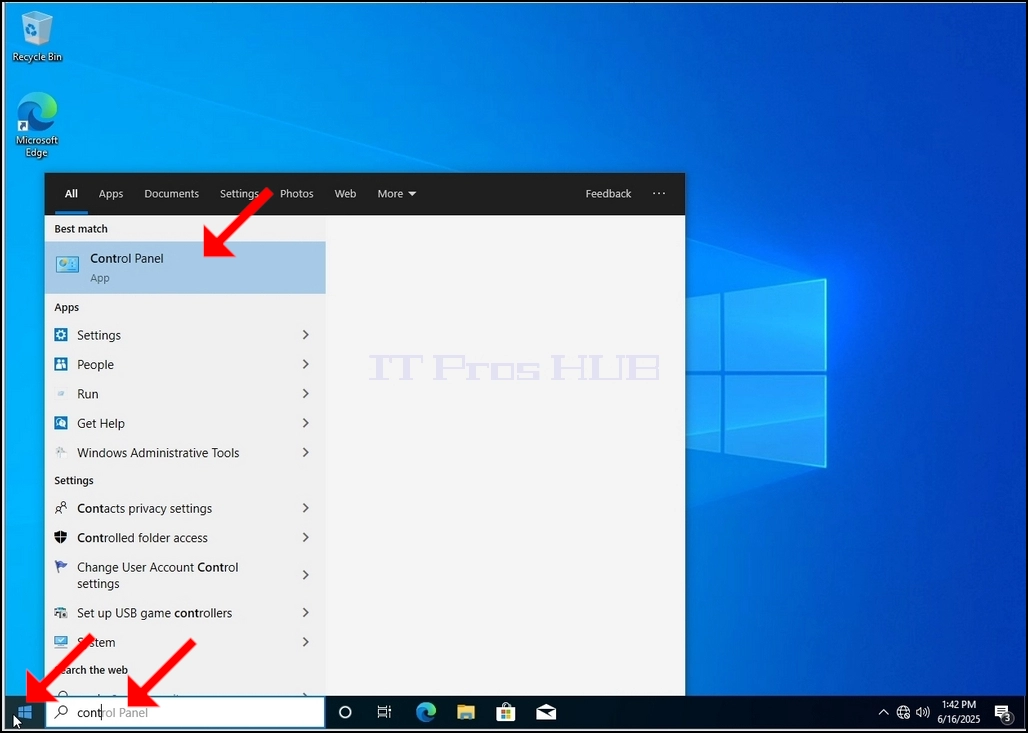
Once it finds it, click it and wait for the Control Panel window to appear.
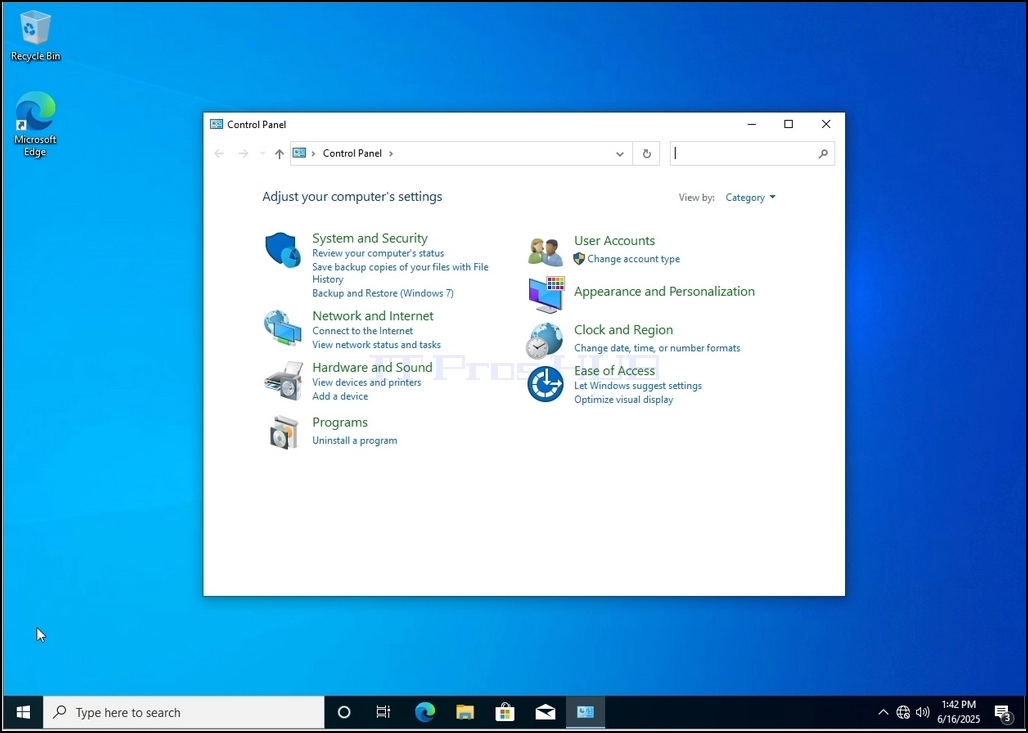
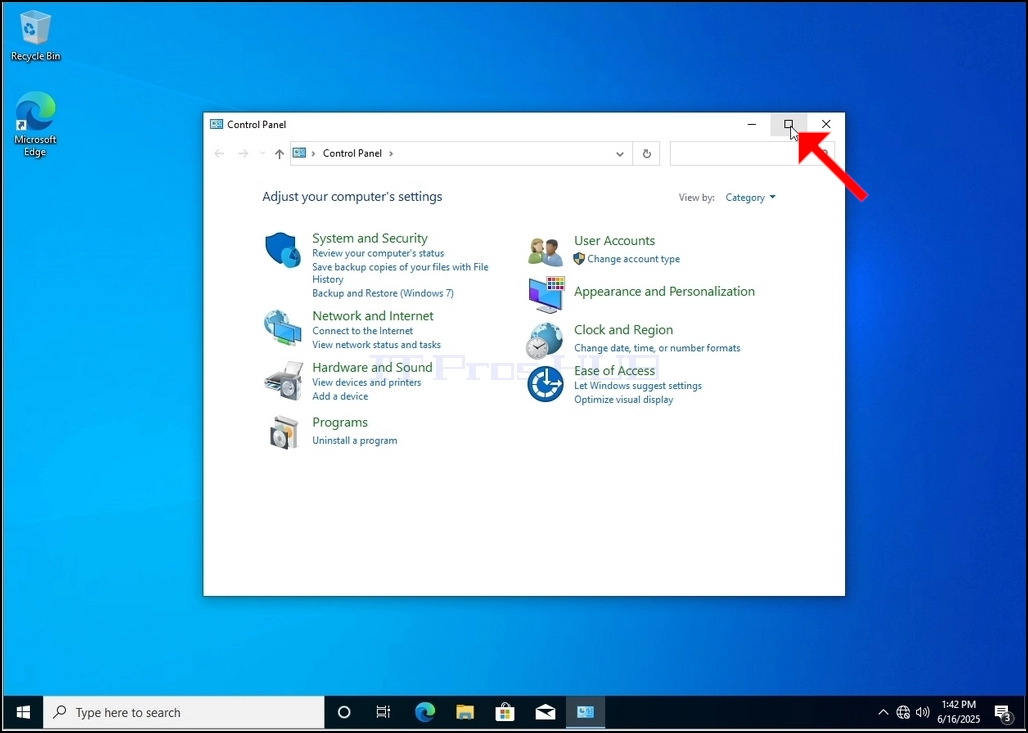
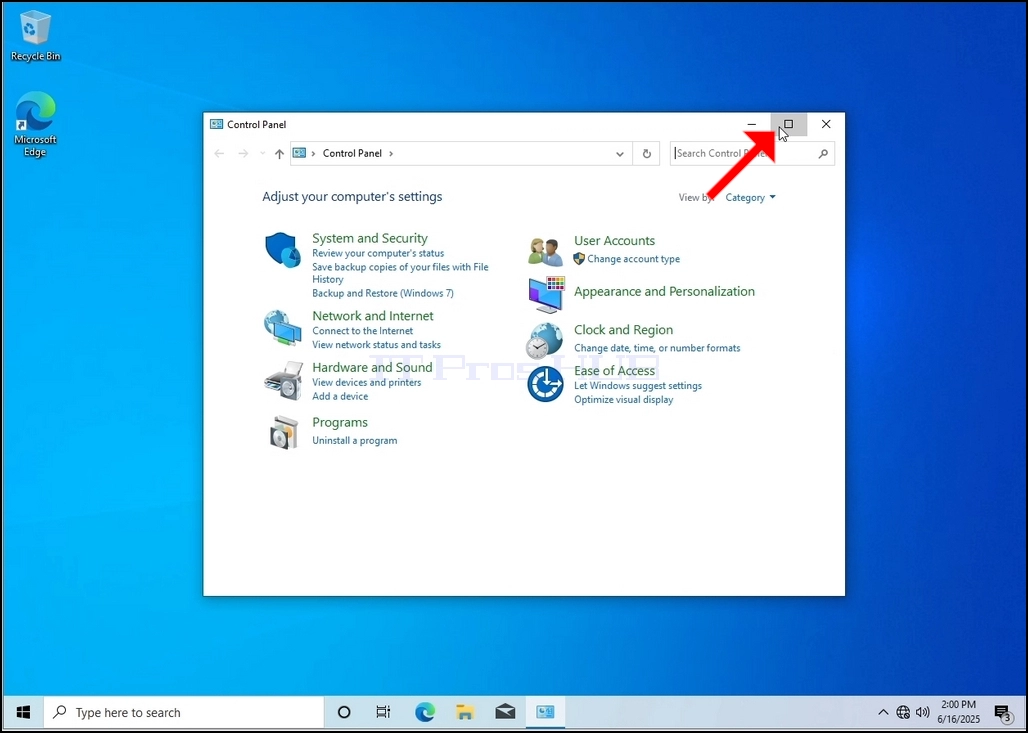
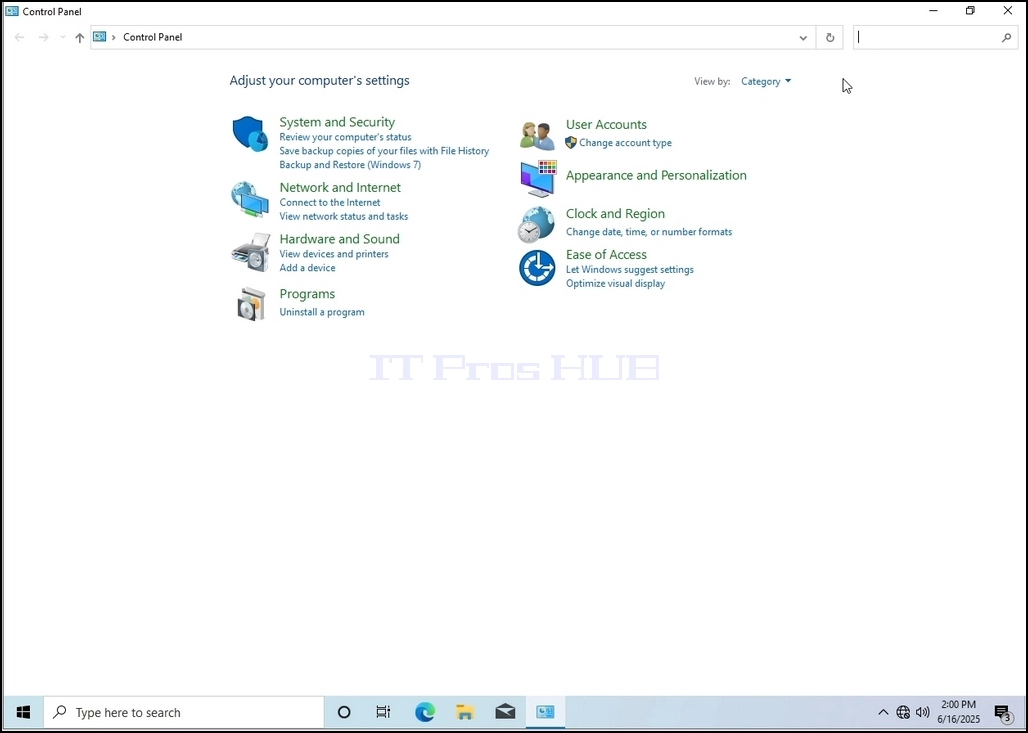
4. Once the Control Panel window is open, enlarge it by clicking the enlarging icon on the top right corner of that window.
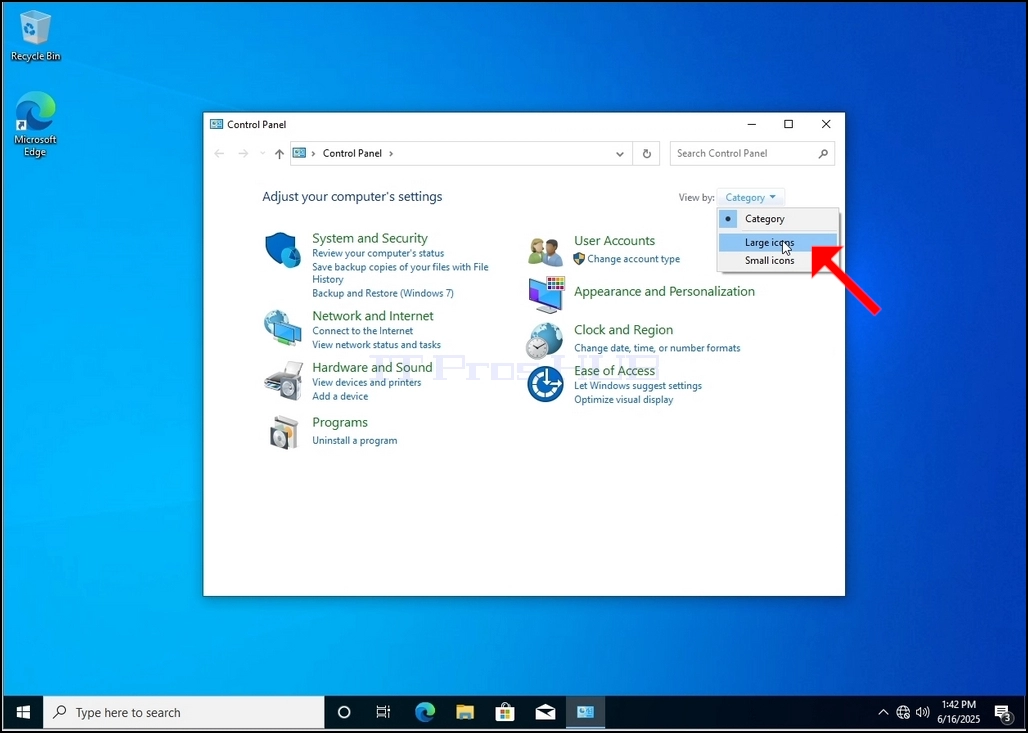
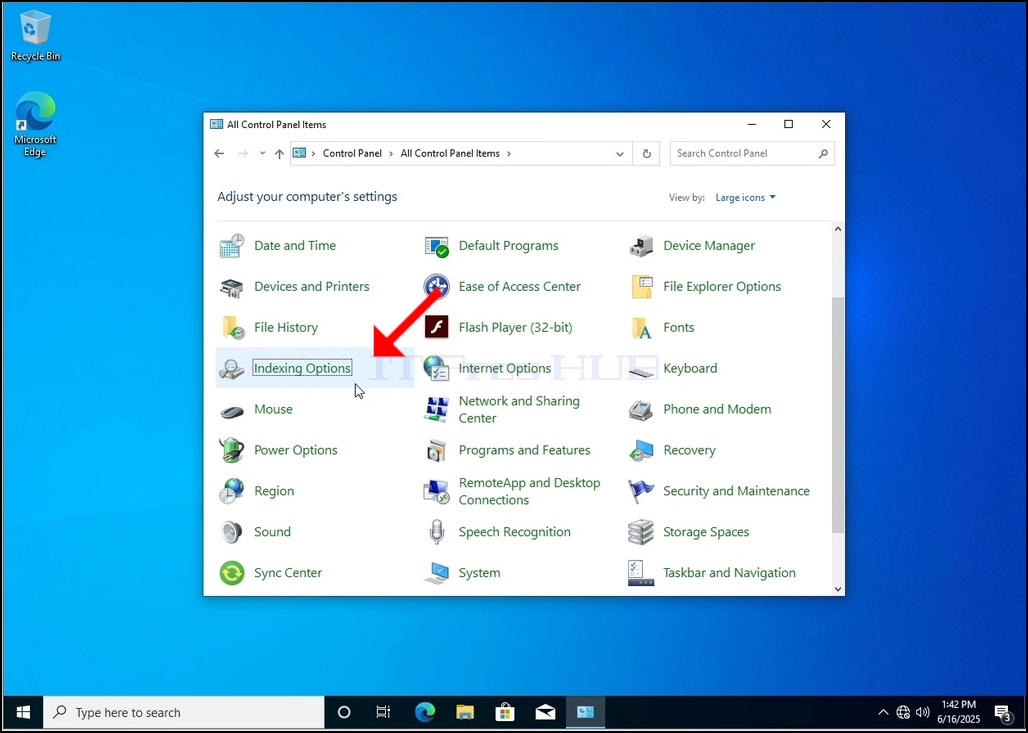
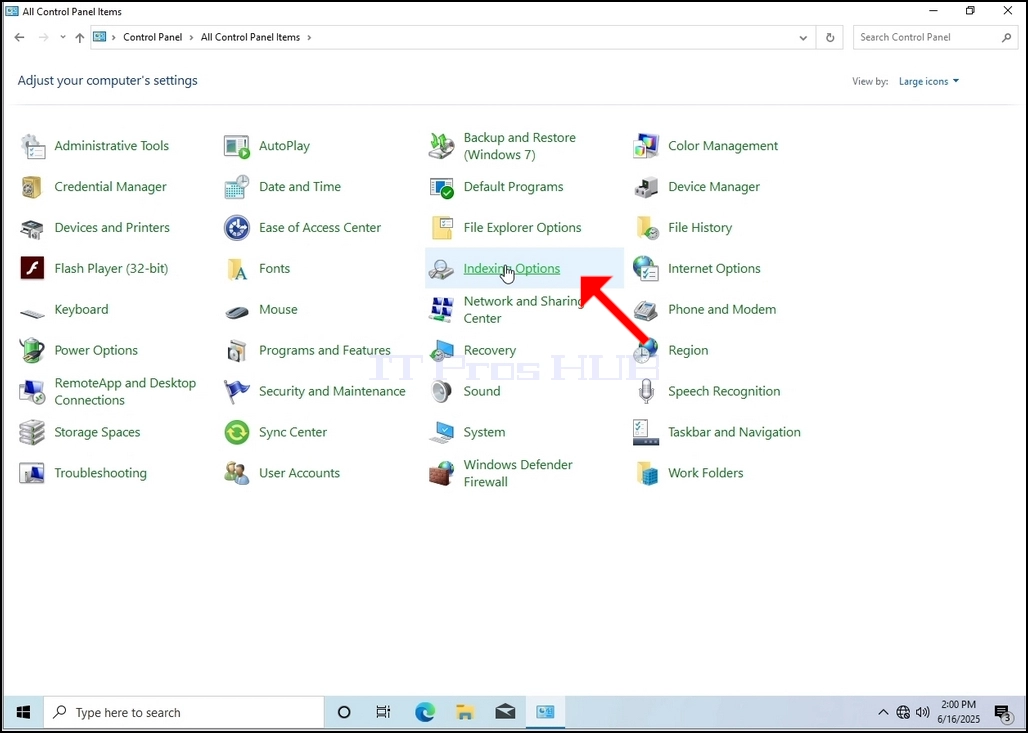
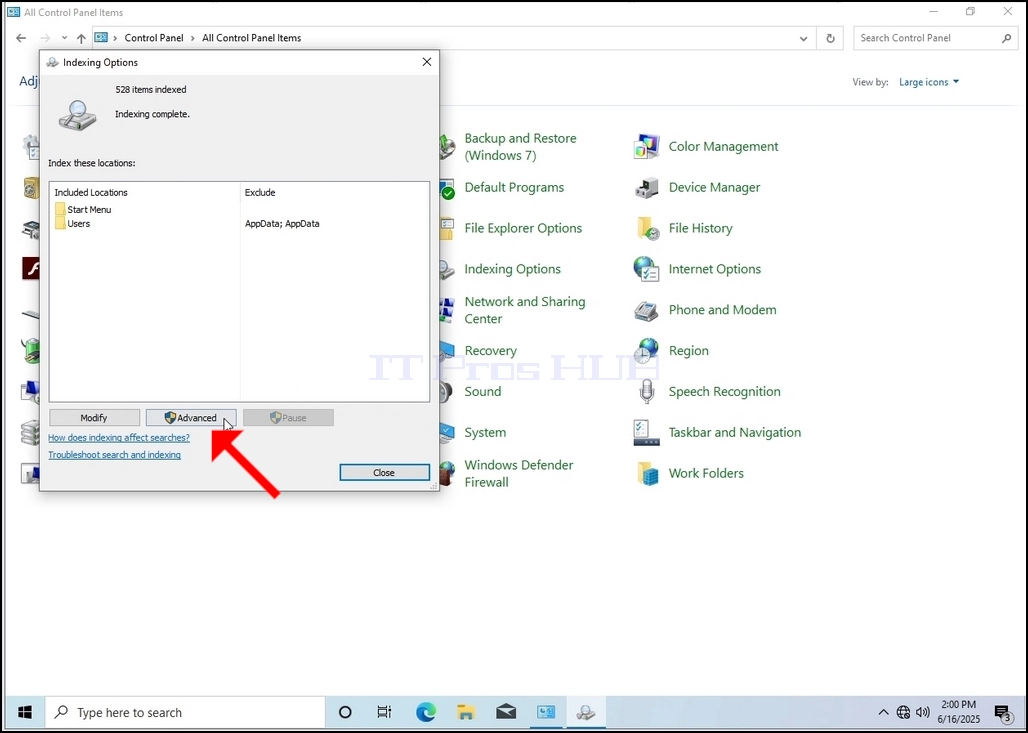
6. Look for the Indexing Options icon and click it. Wait for the Indexing Options window to appear.
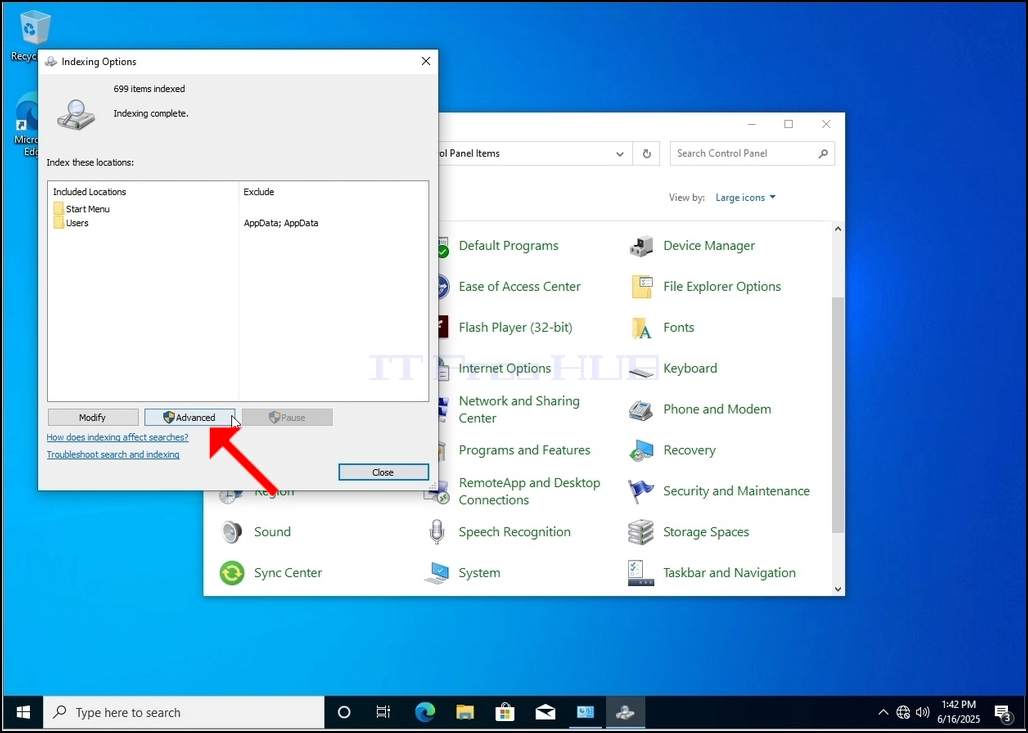
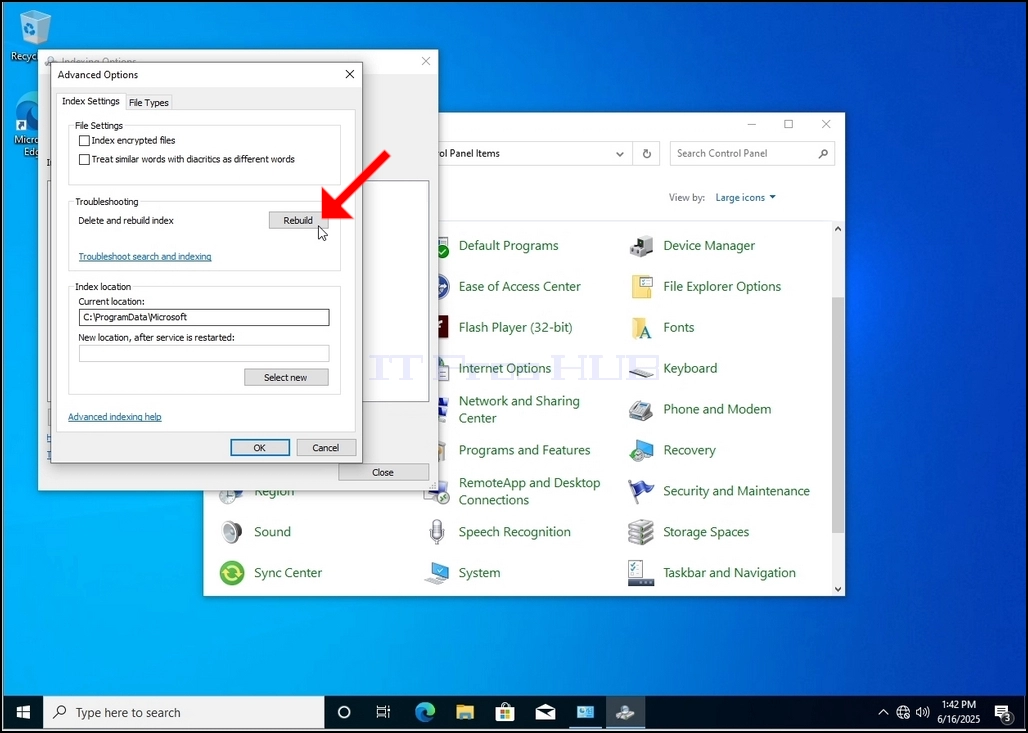
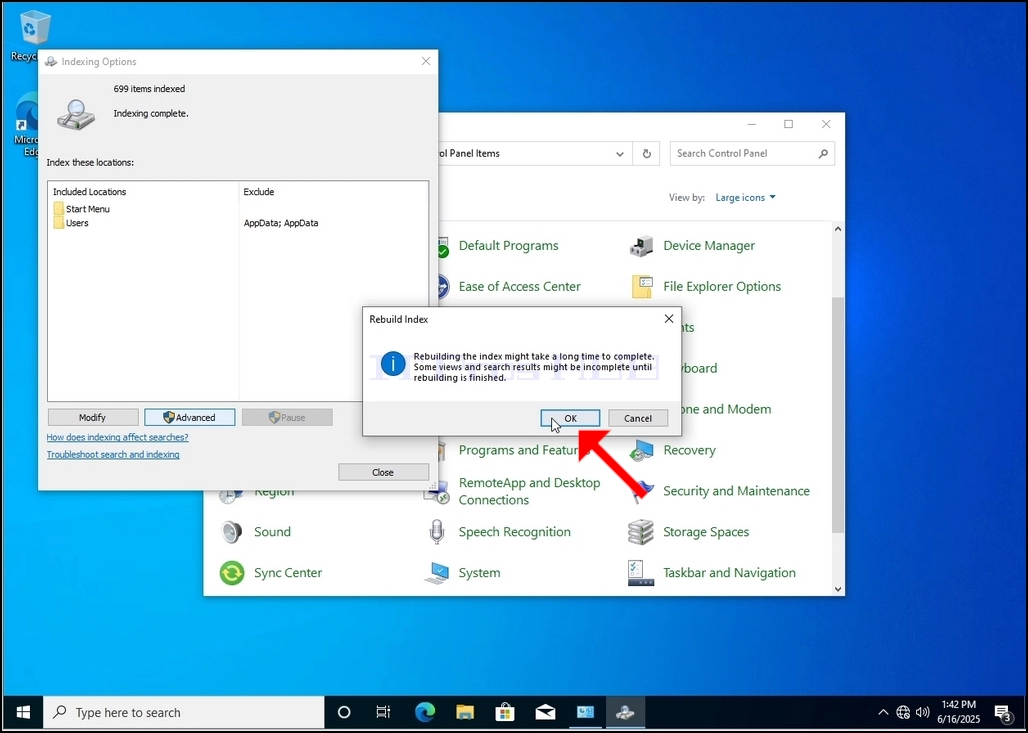
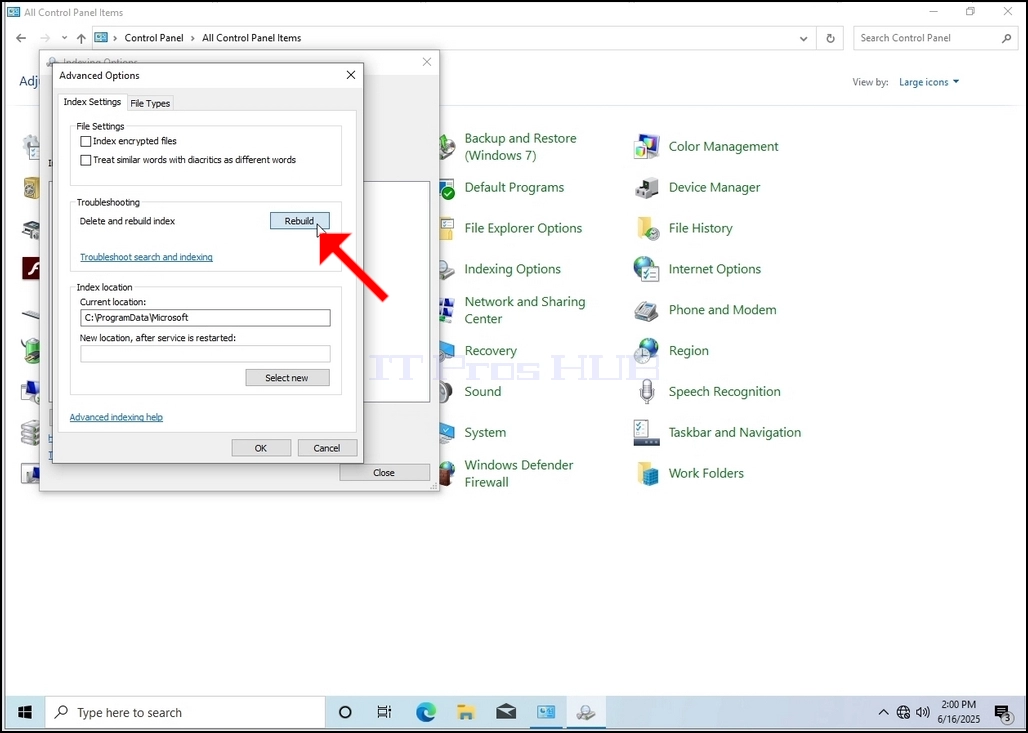
9. After clicking OK in the confirmation box, Windows will start rebuilding its index. It might take some time for the actual process to start, Wait patiently a few seconds to a few minutes. The moment the process starts, the "Indexing Complete" sentence will be replaced with "Indexing in progress. Search results might not be complete during this time."
In addition, the number of items indexed will be reset to 0 for a moment and then start to increment.
Note that All of the windows that are related to the Indexing process can now be closed and the rebuilding process would still be running in the background.
Note that the Indexing process' speed might be reduced due to user activity on the computer. The more intense the activity the less the Indexing speed would be.
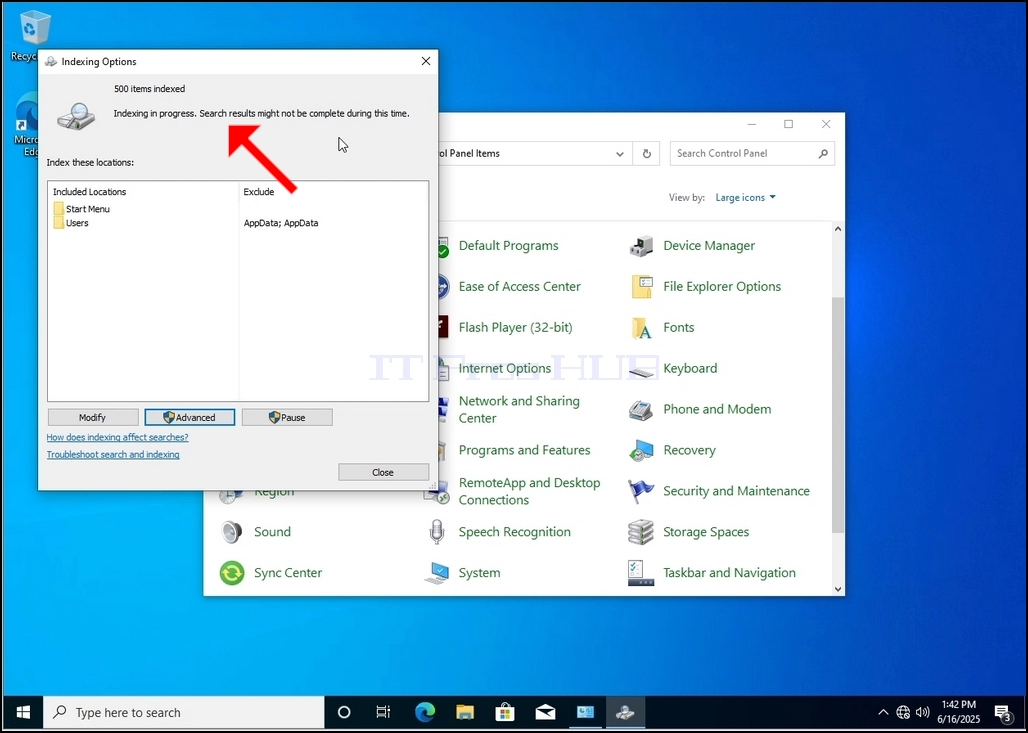
10. In order to check if the indexing process is done, go back to the Indexing Options through Control Panel as explained in the previous stages.
- Besonderhede
- Geskryf deur: IT Pro
- Kategorie: How to Articles
- Trefslae: 4606
1. Go to Windows Desktop
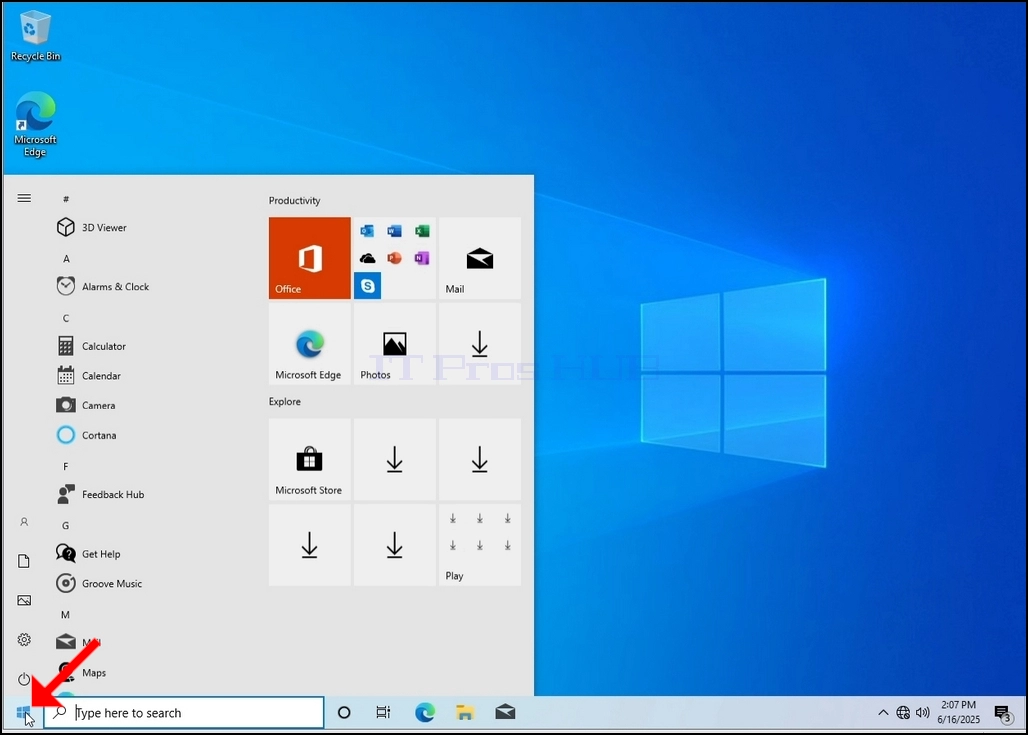
2. Click Start
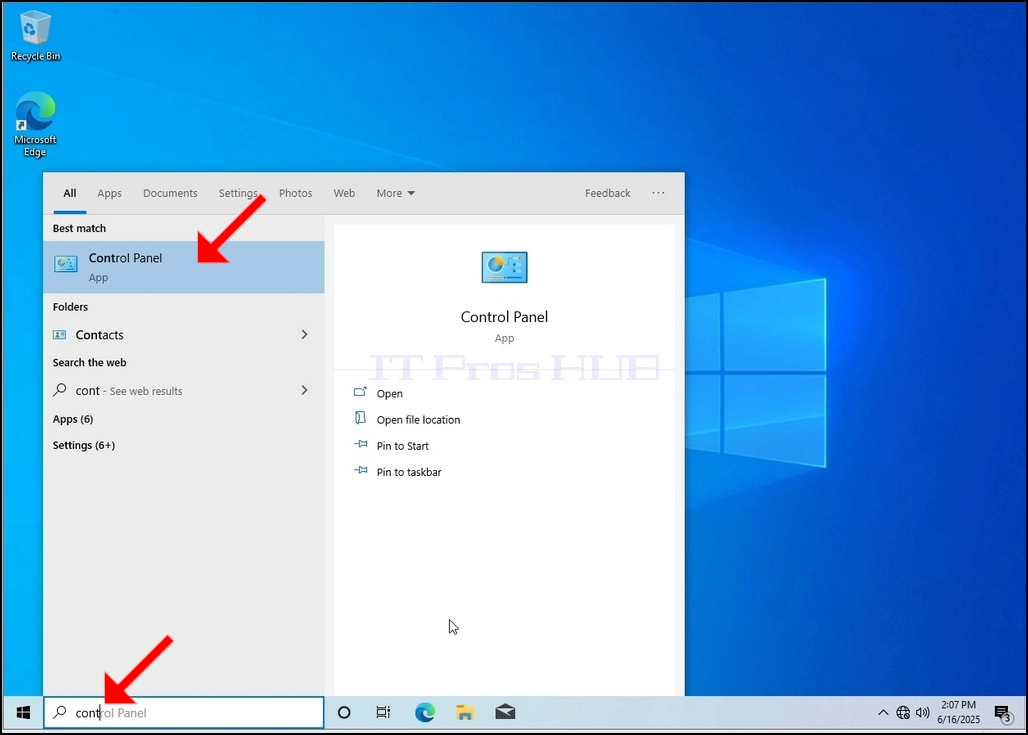
Once it finds it, click it and wait for the Control Panel window to appear.
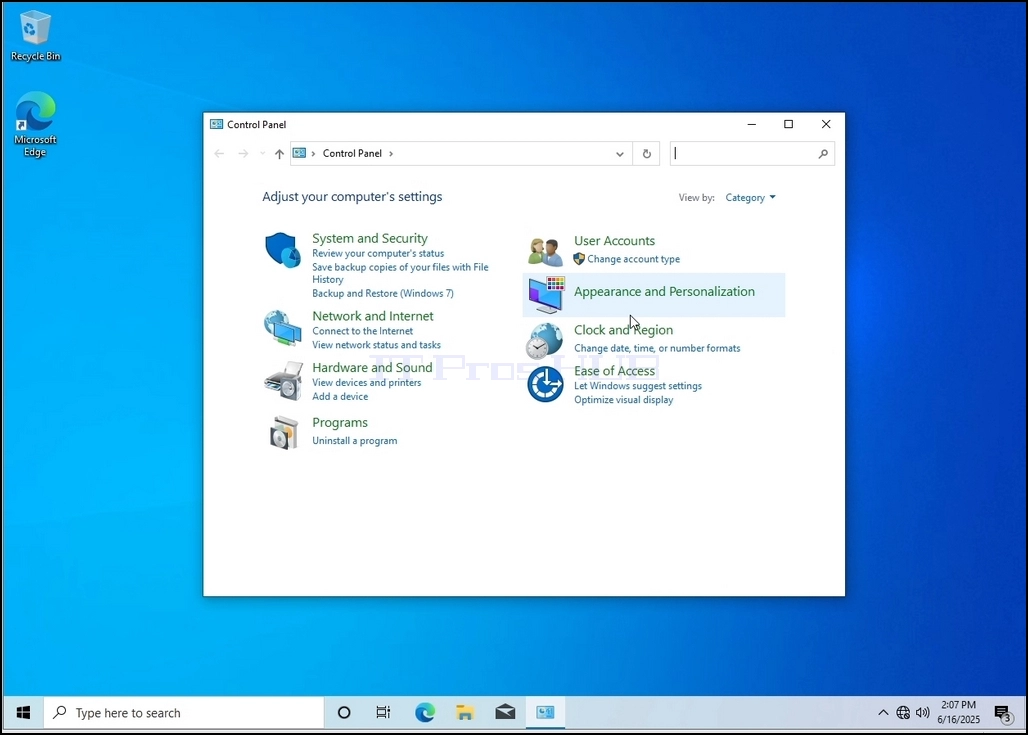
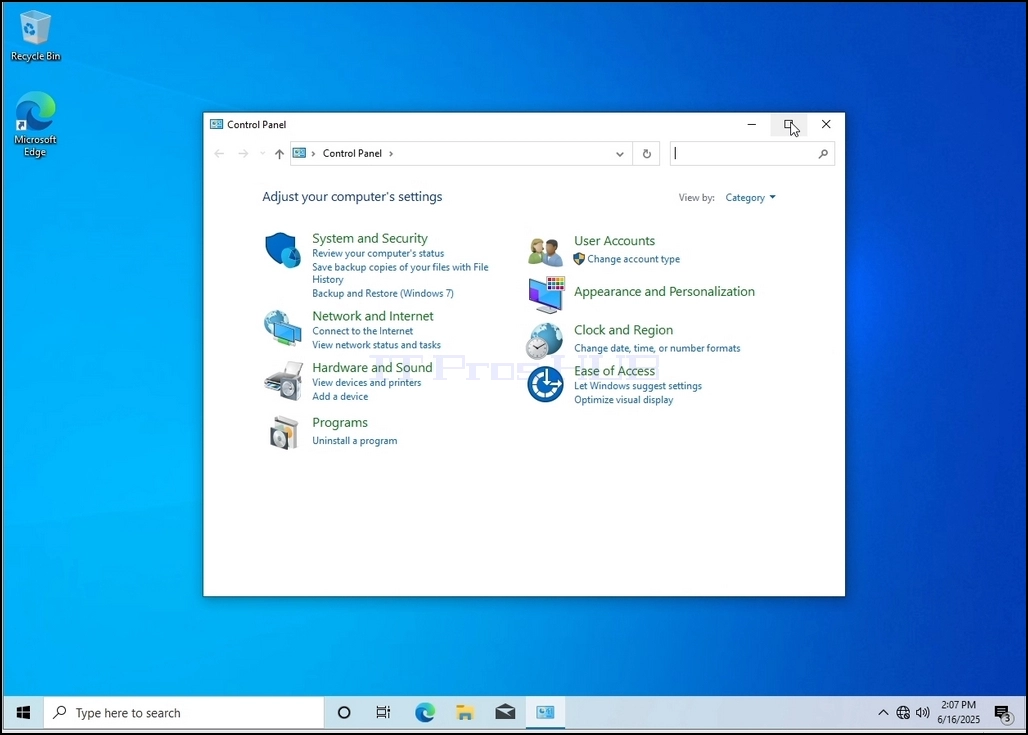
4. Once the Control Panel window is open, enlarge it by clicking the enlarging icon on the top right corner of that window.
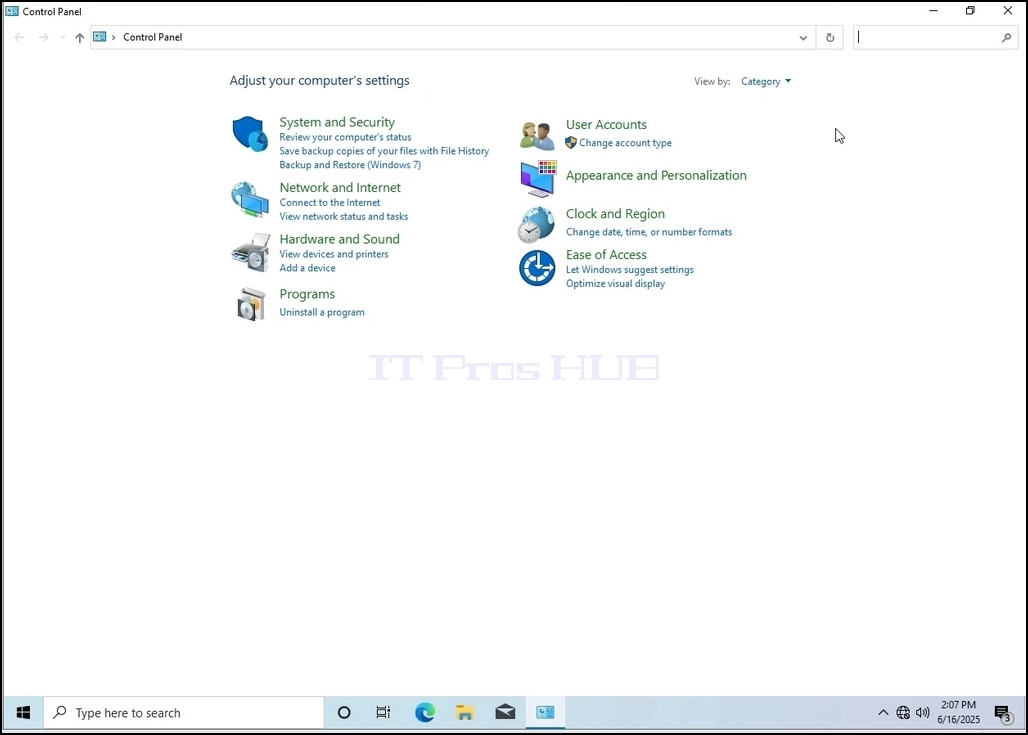
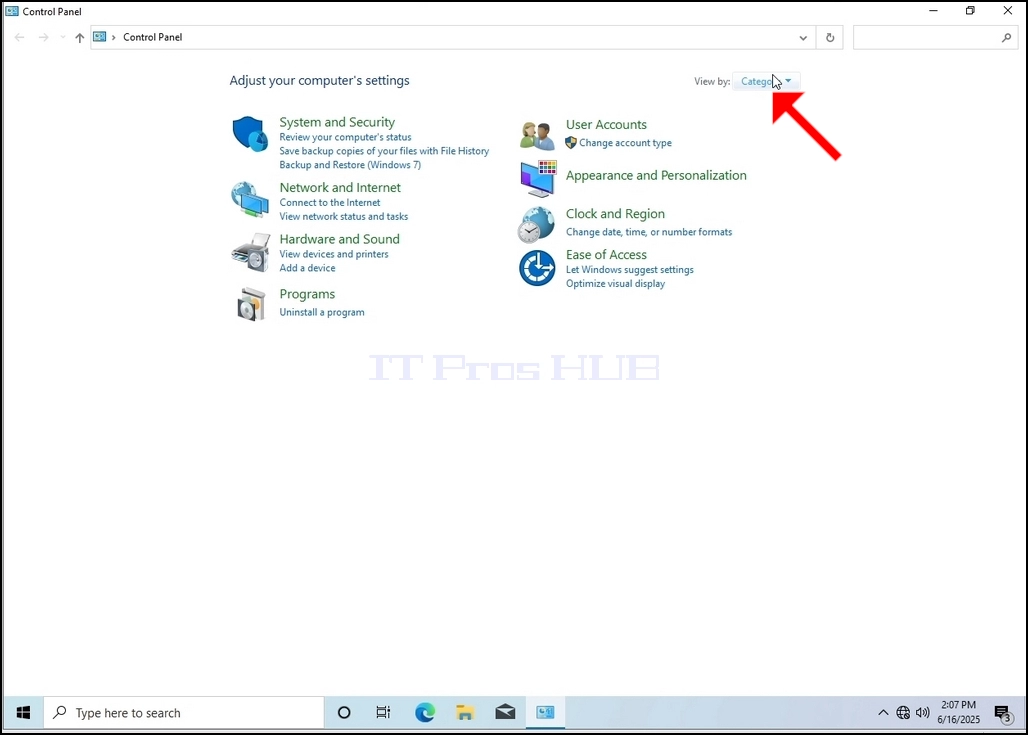
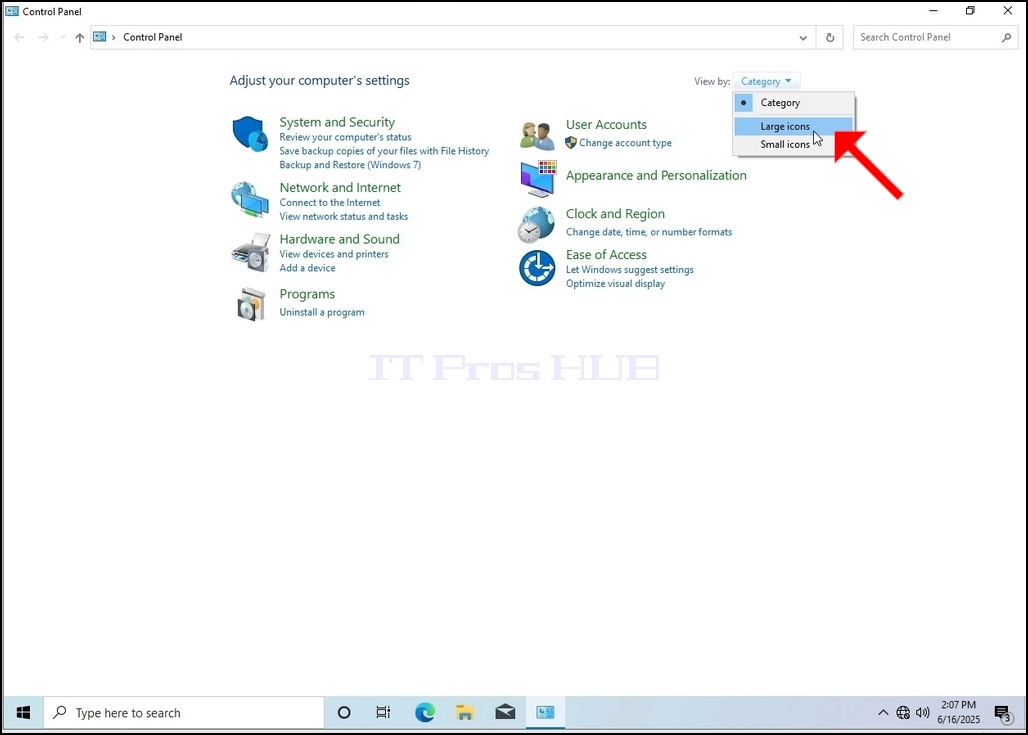
6. Look for the Indexing Options icon and click it. Wait for the Indexing Options window to appear.
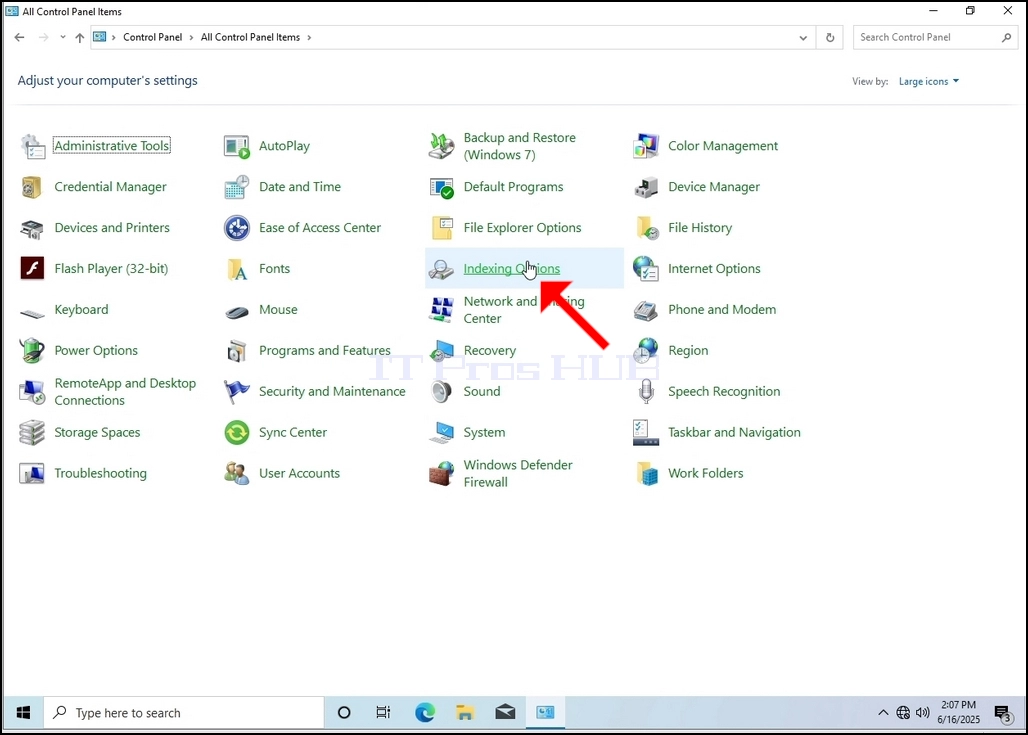
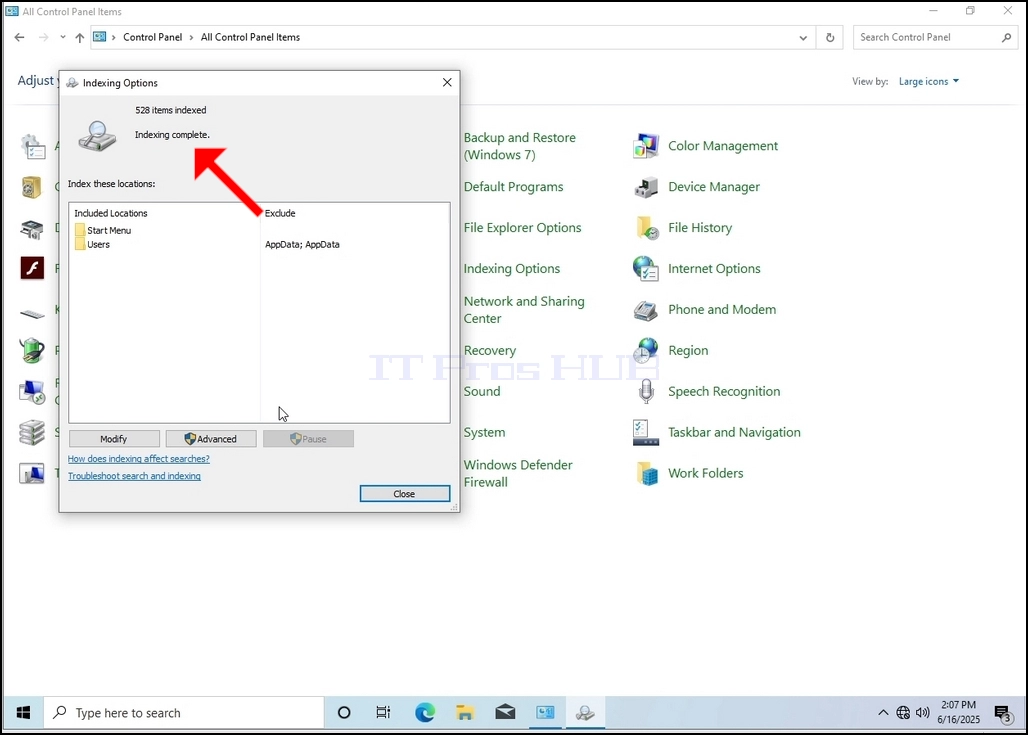
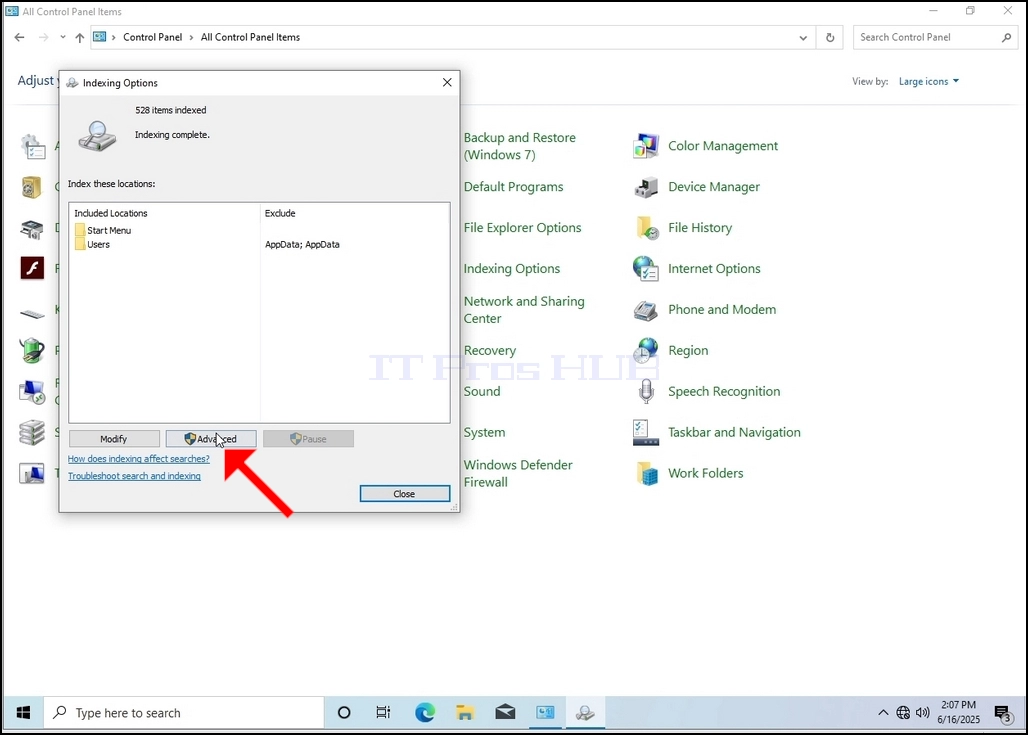
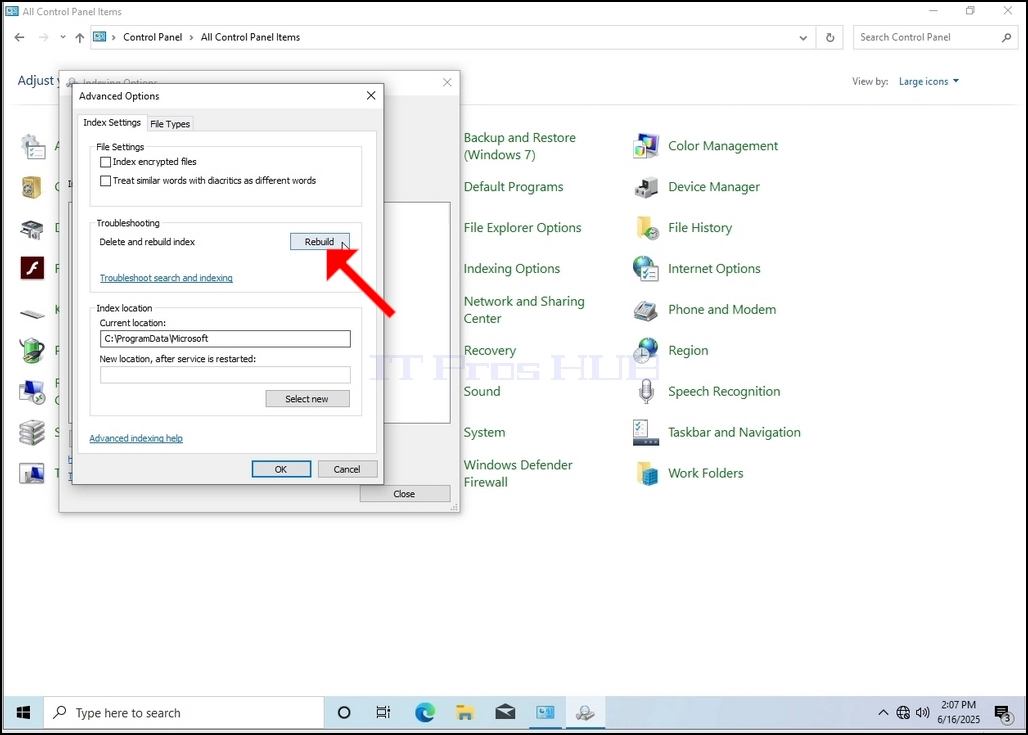
9. After clicking OK in the confirmation box, Windows will start rebuilding its index. It might take some time for the actual process to start, Wait patiently a few seconds to a few minutes. The moment the process starts, the "Indexing Complete" sentence will be replaced with "Indexing in progress. Search results might not be complete during this time."
In addition, the number of items
- Besonderhede
- Geskryf deur: IT Pro
- Kategorie: How to Articles
- Trefslae: 5933
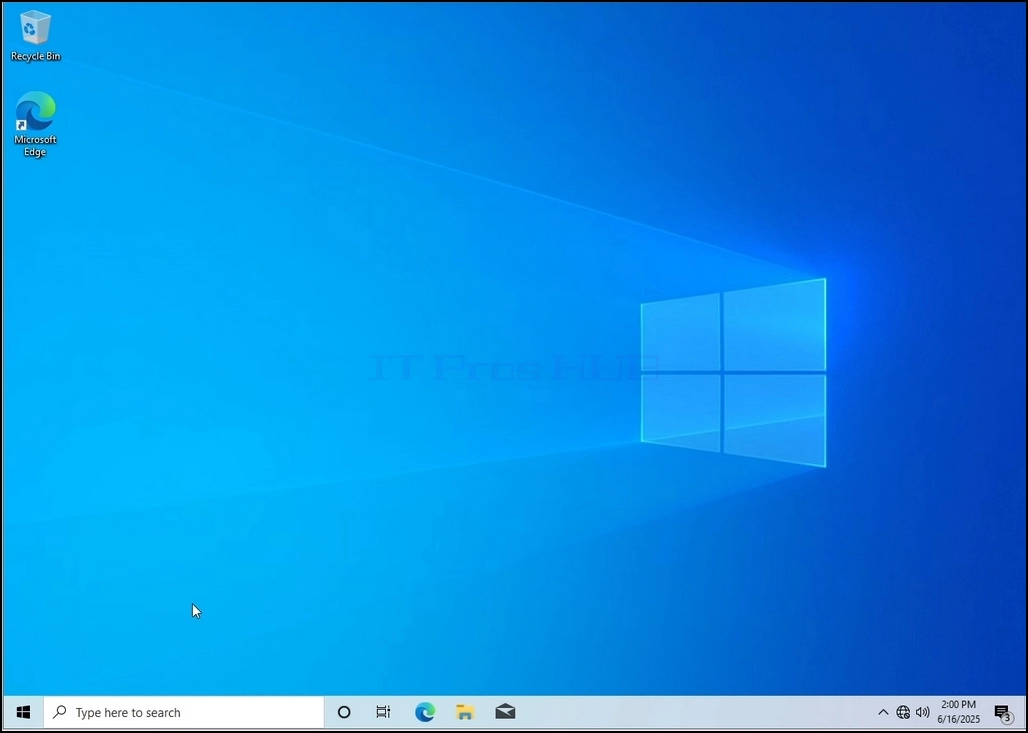
1. Go to Windows Desktop
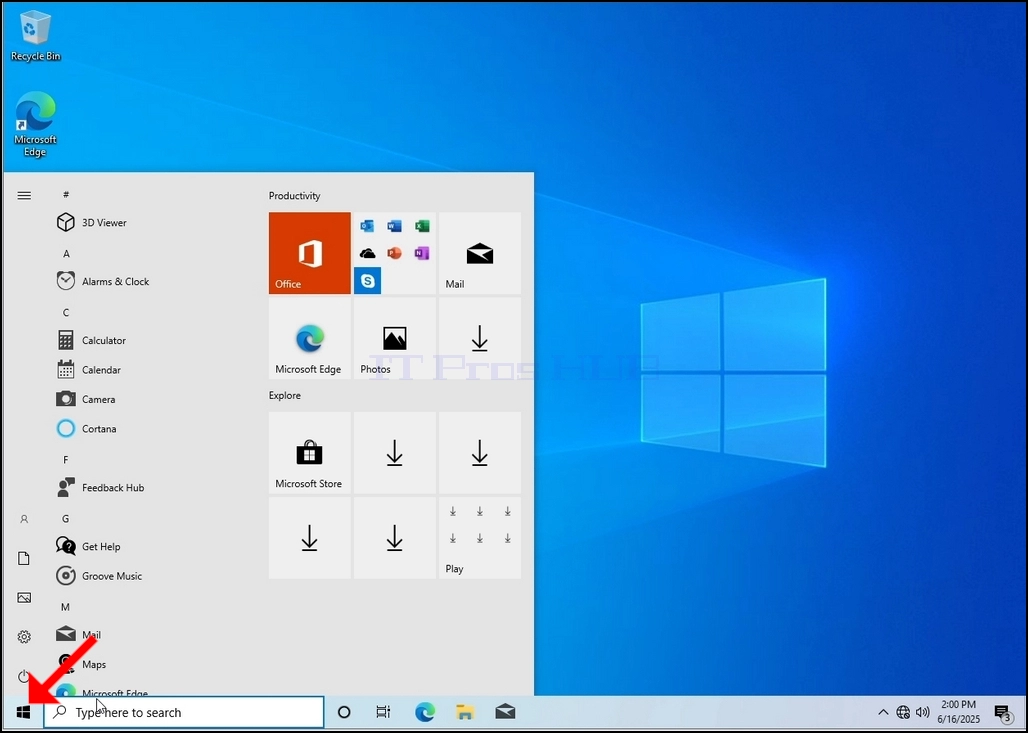
2. Click Start
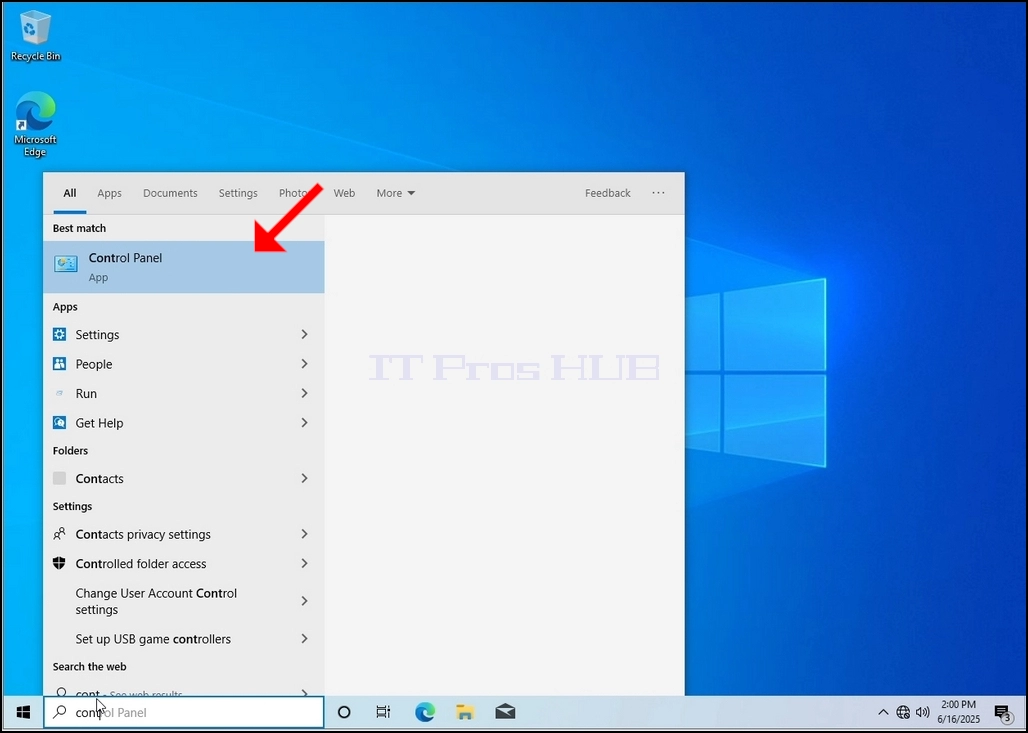
Once it finds it, click it and wait for the Control Panel window to appear.
4. Once the Control Panel window is open, enlarge it by clicking the enlarging icon on the top right corner of that window.
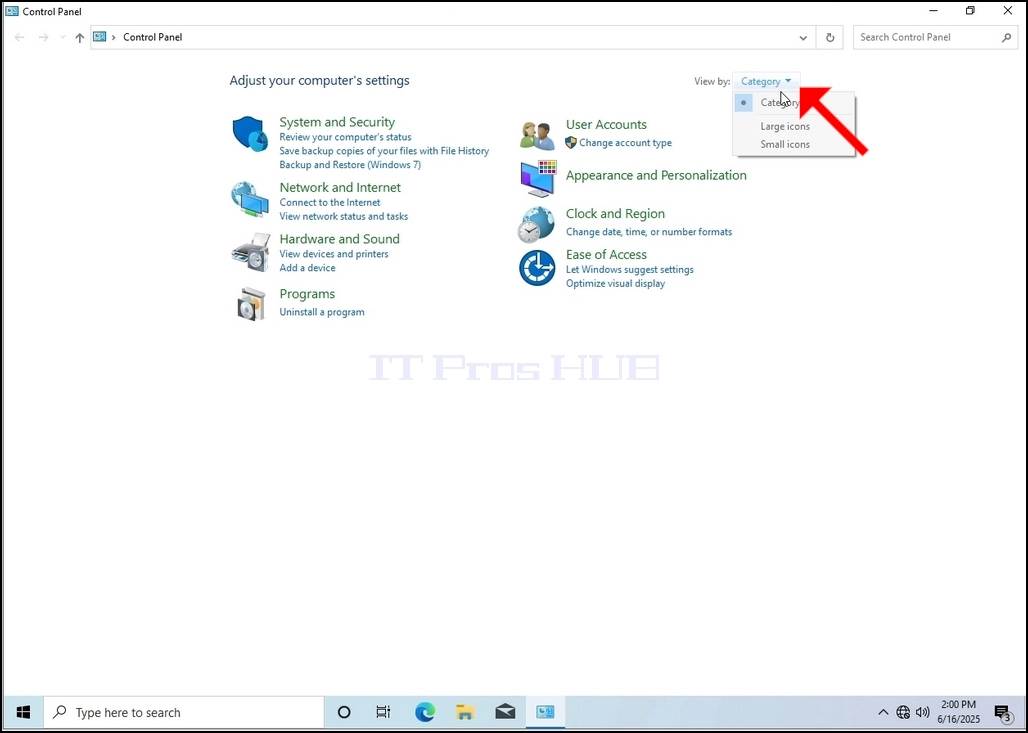
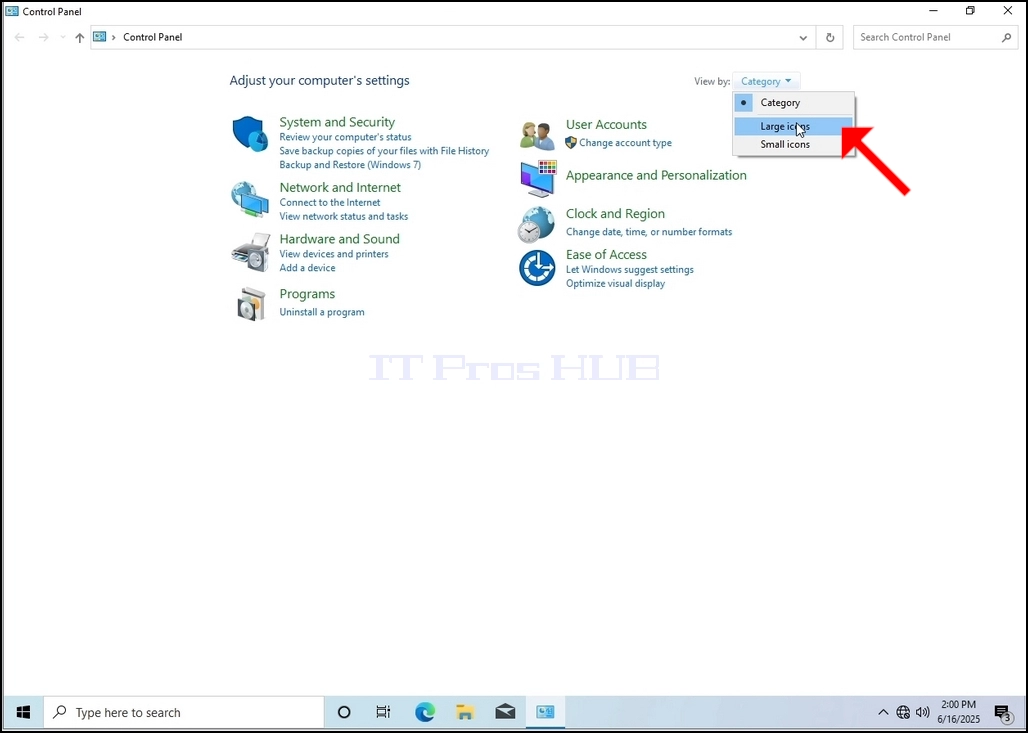
6. Look for the Indexing Options icon and click it. Wait for the Indexing Options window to appear.
9. After clicking OK in the confirmation box, Windows will start rebuilding its index. It might take some time for the actual process to start, Wait patiently a few seconds to a few minutes. The moment the process starts, the "Indexing Complete" sentence will be replaced with "Indexing in progress. Search results might not be complete during this time."
In addition, the number of items indexed will be reset to 0 for a moment and then start to increment.
Note that All of the windows that are related to the Indexing process can now be closed and the rebuilding process would still be running in the background.
Note that the Indexing process' speed might be reduced du
- Besonderhede
- Geskryf deur: IT Pro
- Kategorie: How to Articles
- Trefslae: 4875
1. Go to Windows Desktop
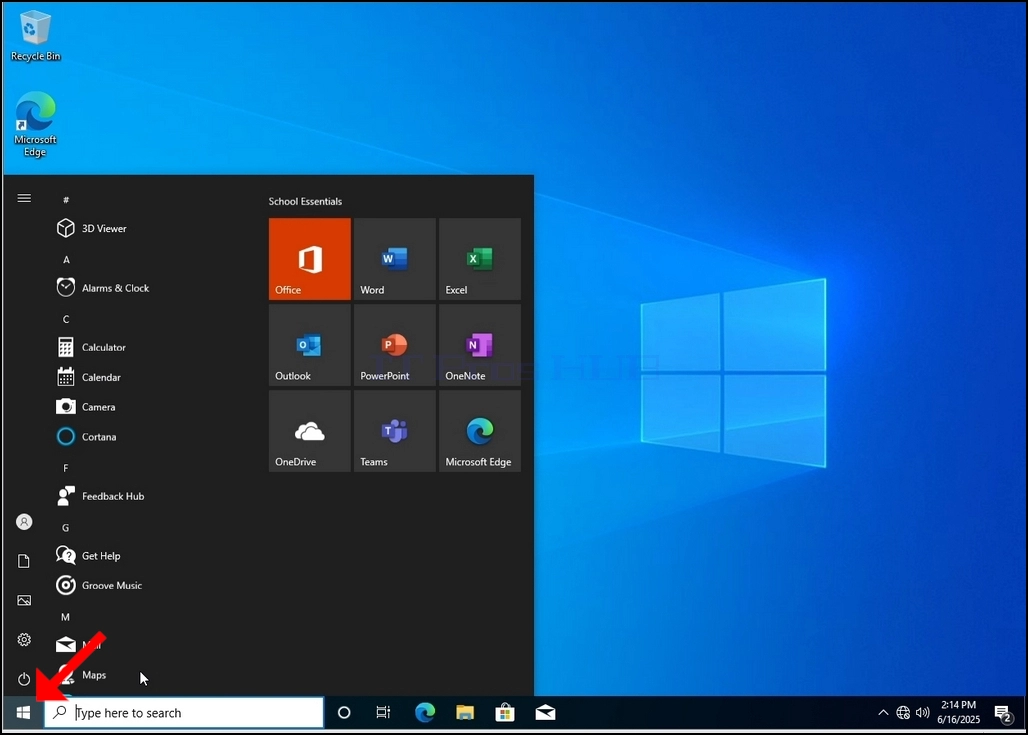
2. Click Start
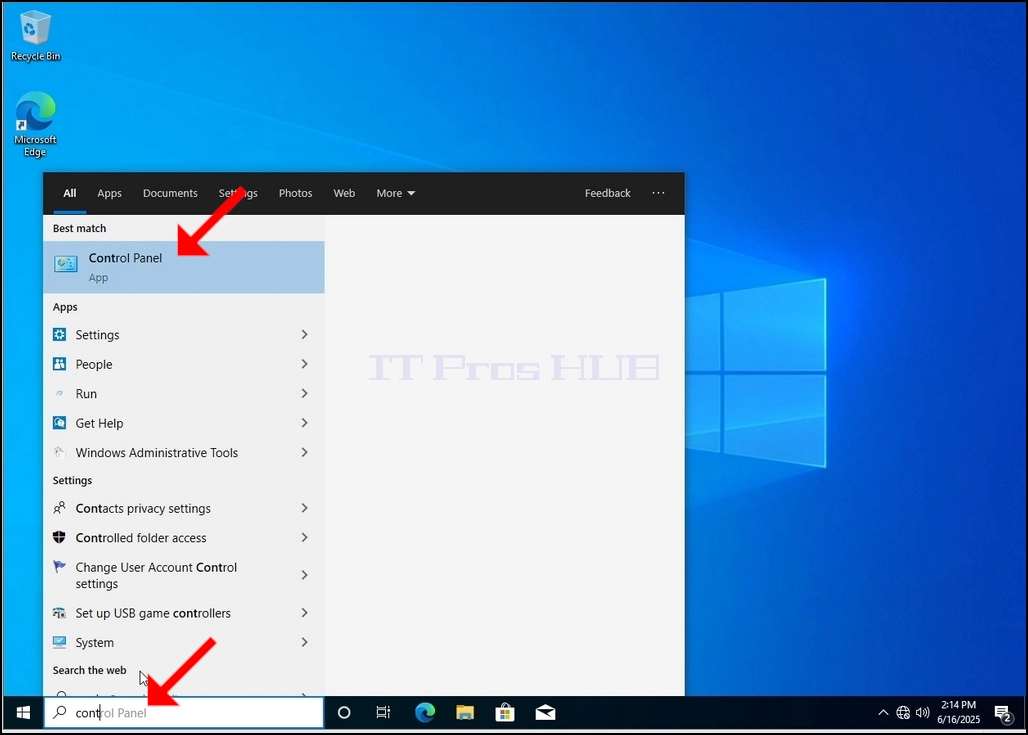
Once it finds it, click it and wait for the Control Panel window to appear.
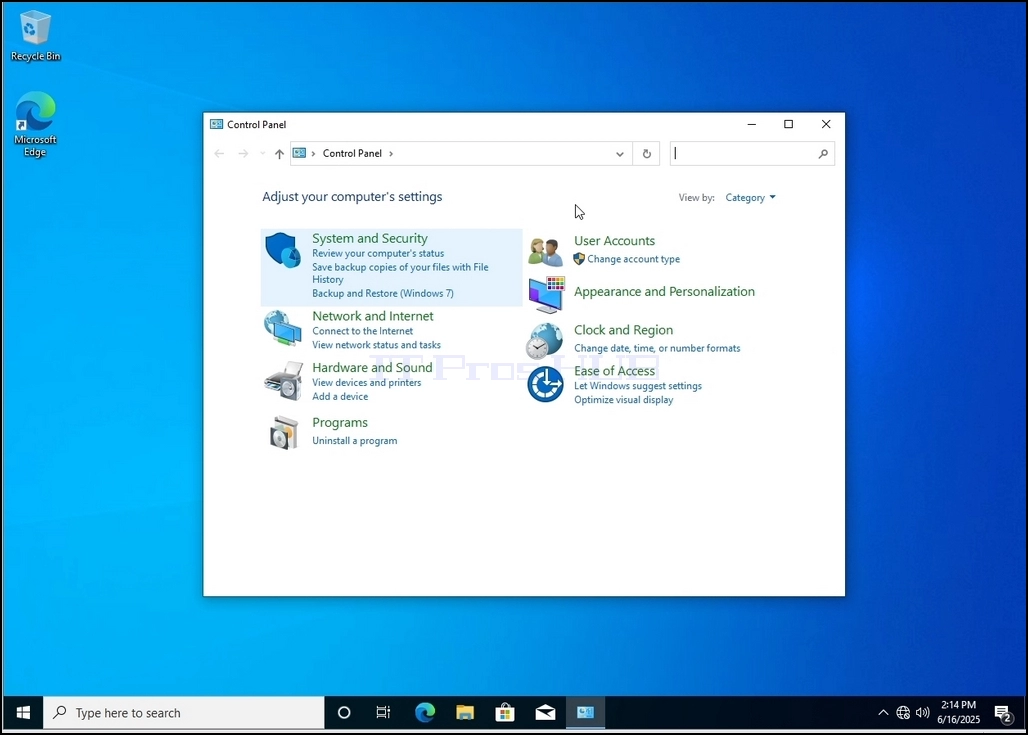
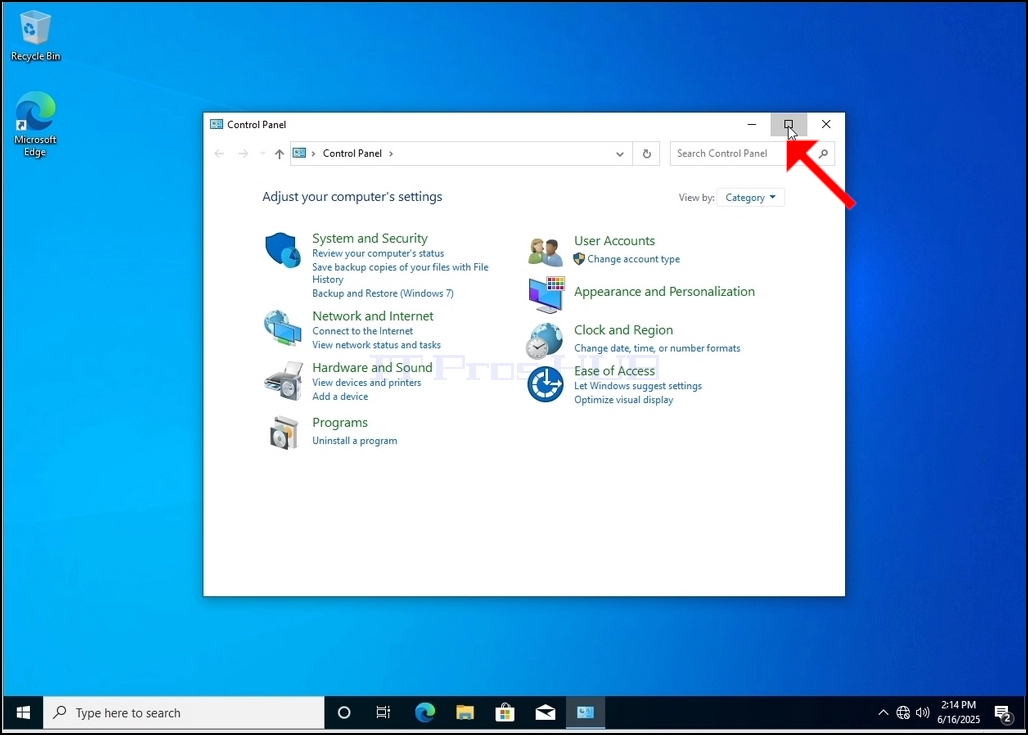
4. Once the Control Panel window is open, enlarge it by clicking the enlarging icon on the top right corner of that window.
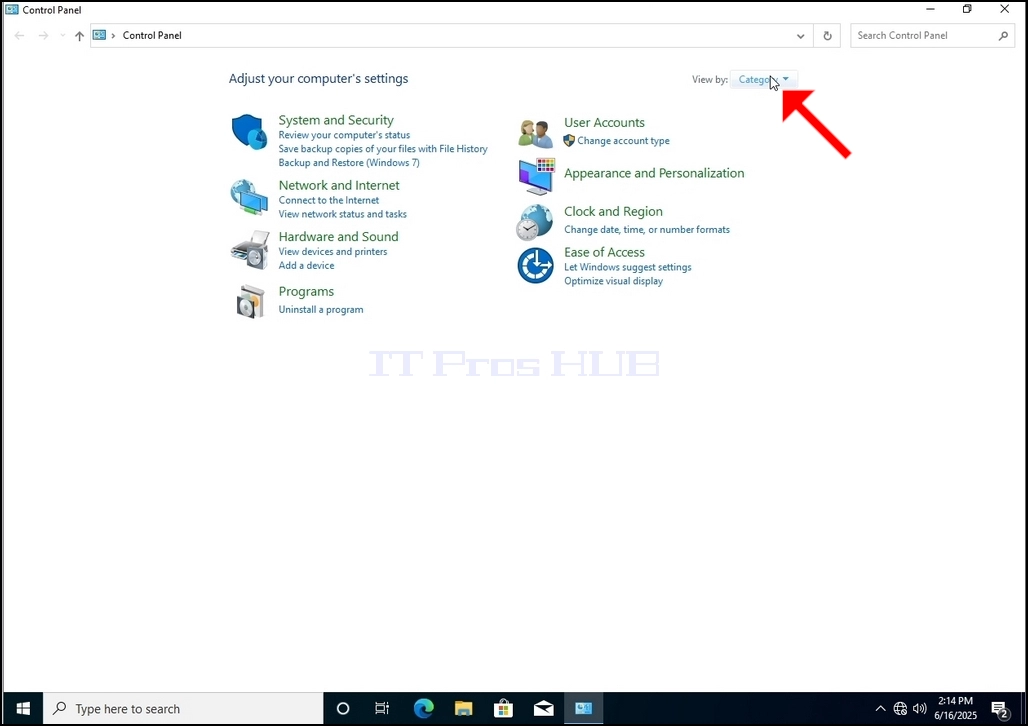
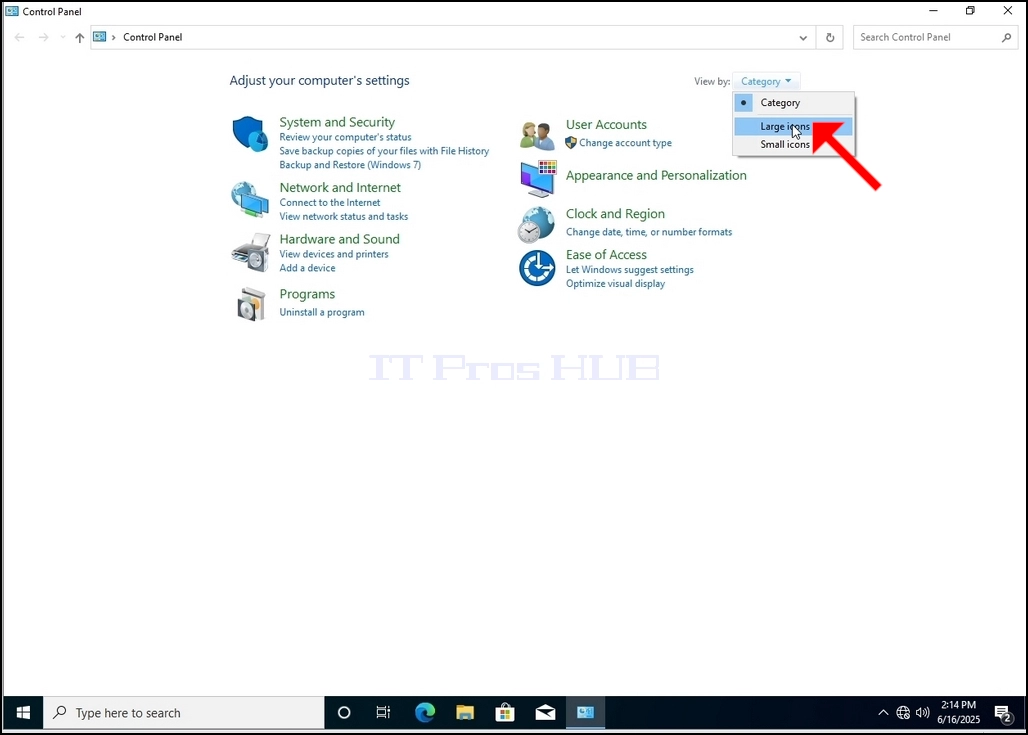
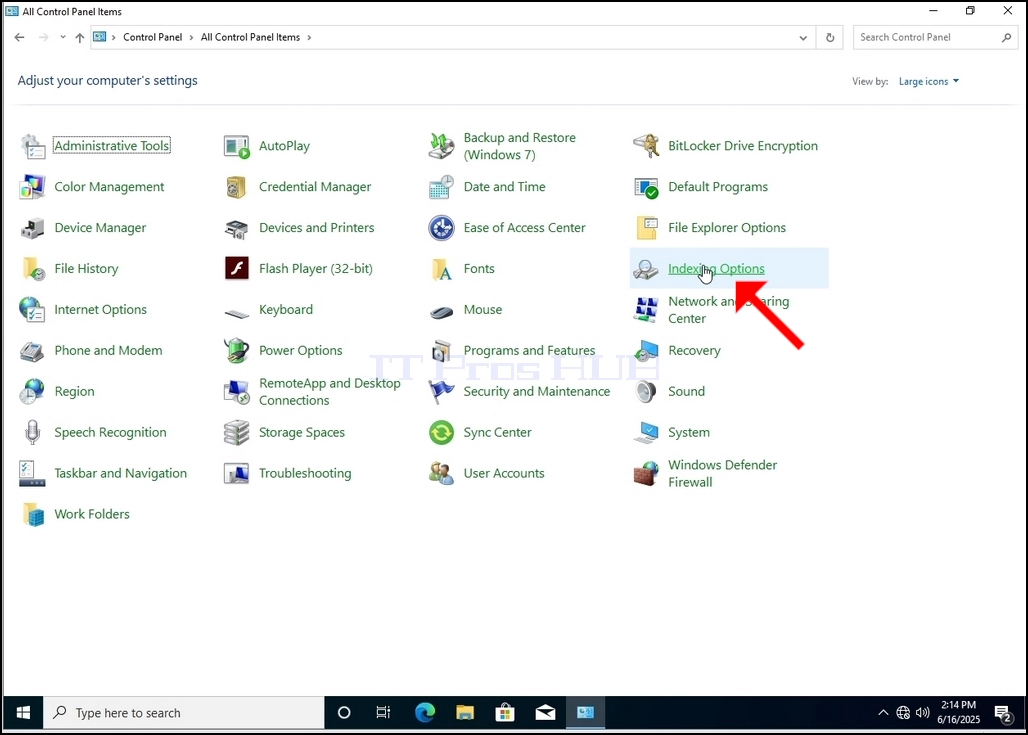
6. Look for the Indexing Options icon and click it. Wait for the Indexing Options window to appear.
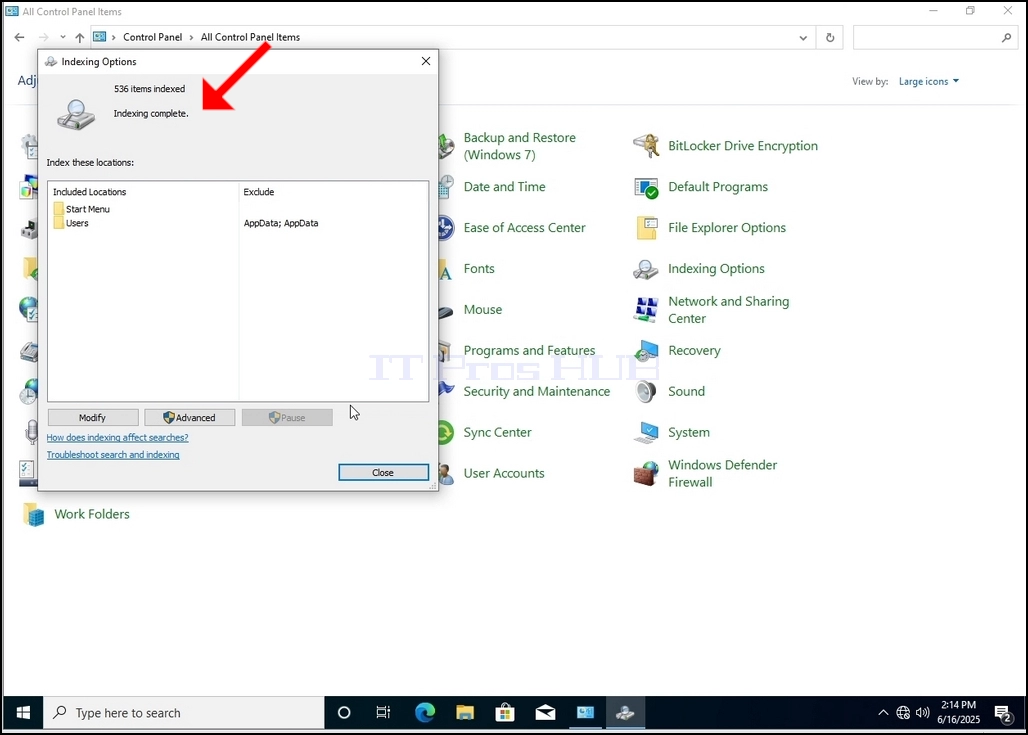
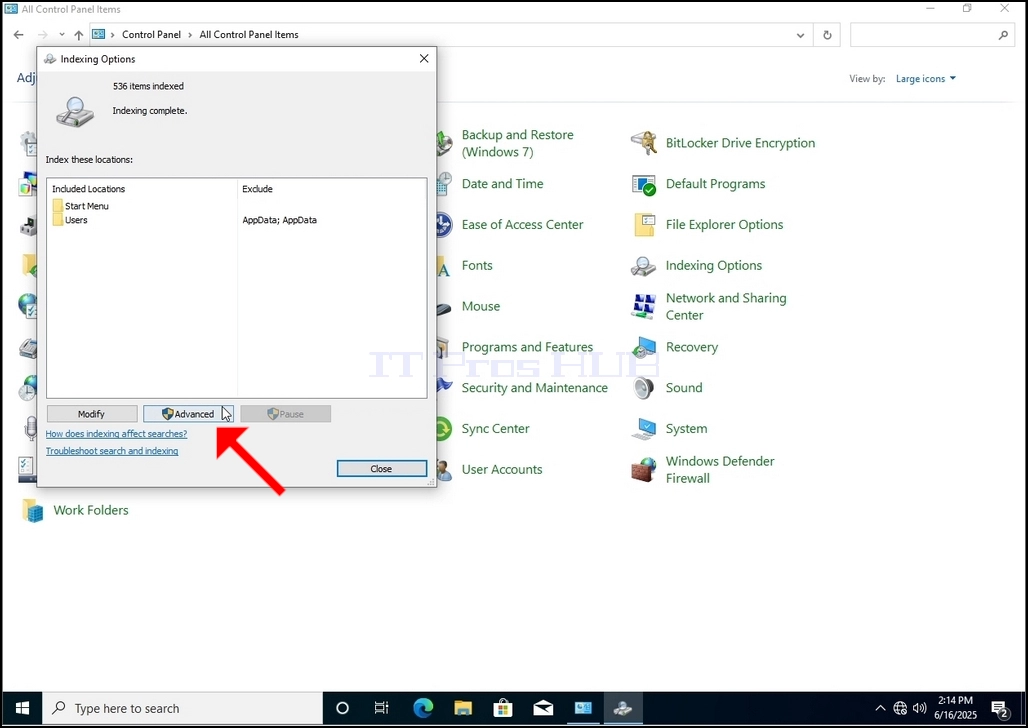
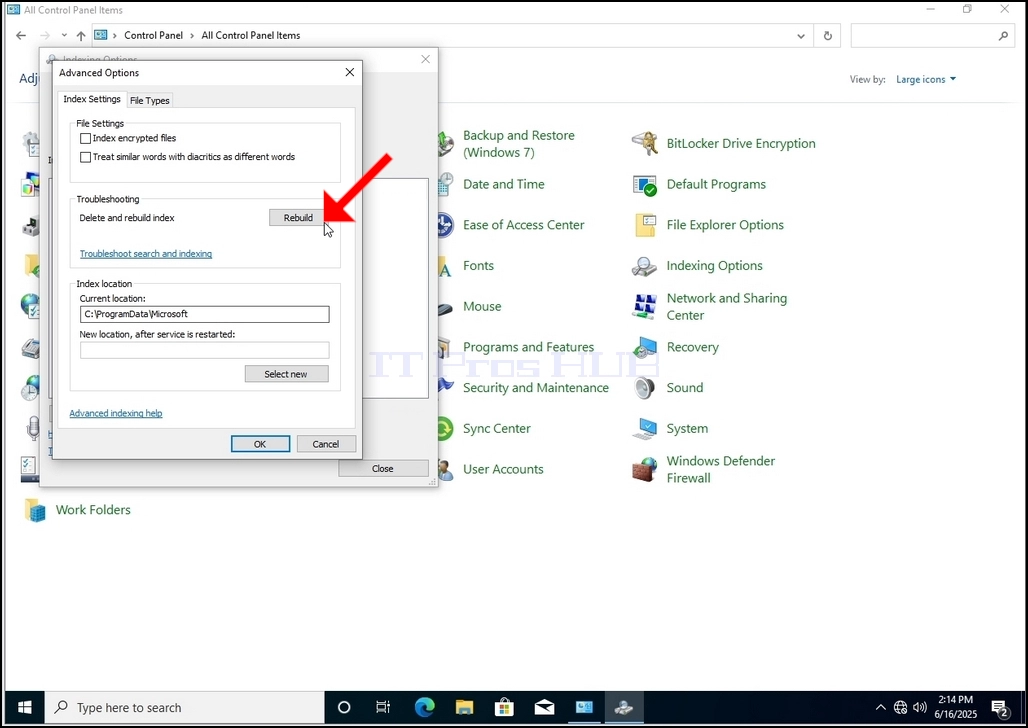
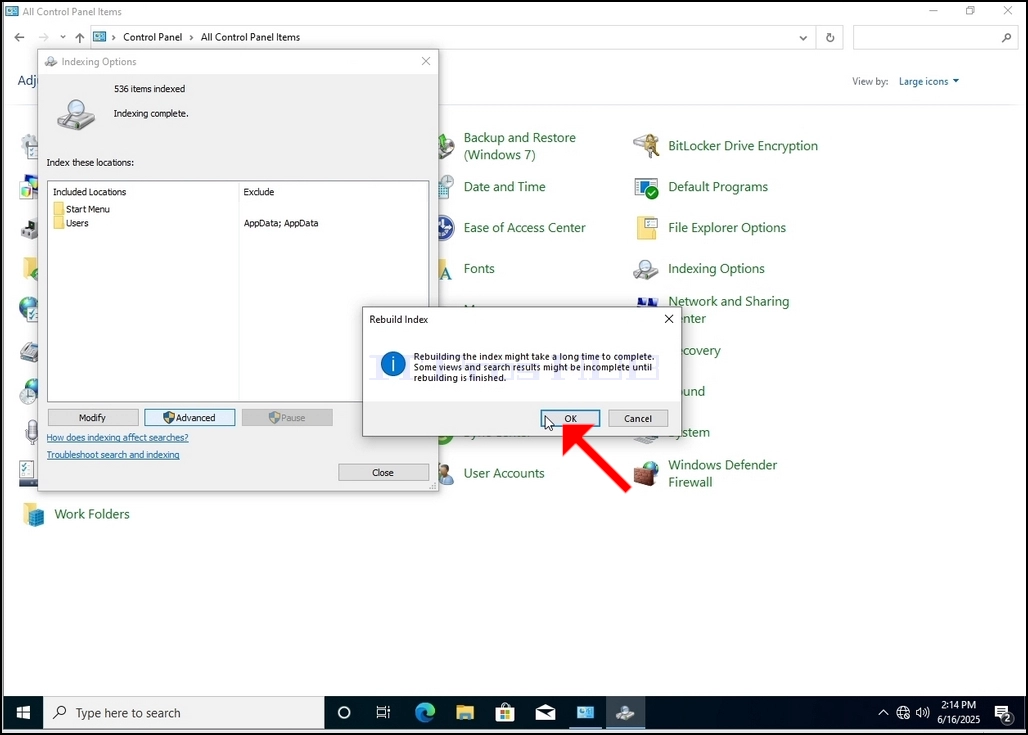
9. After clicking OK in the confirmation box, Windows will start rebuilding its index. It might take some time for the actual process to start, Wait patiently a few seconds to a few minutes. The moment the process
- Besonderhede
- Geskryf deur: IT Pro
- Kategorie: How to Articles
- Trefslae: 6720
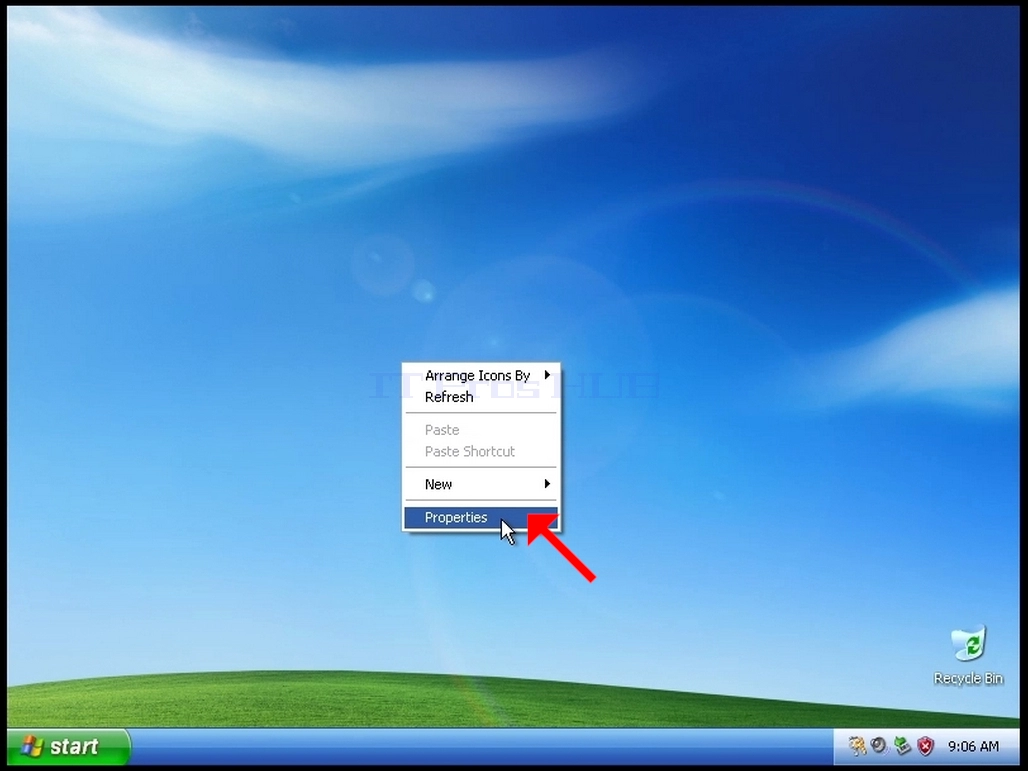
1. Regskliek op 'n leë spasie op die agtergrond totdat 'n kieslys verskyn
2. Soek in die nuwe kieslys na die Eienskappe-opsie en klik daarop en wag totdat die Vertoon-eienskappe-venster verskyn

3. In die venster Vertooneienskappe, soek na die Instellings-oortjie en klik daarop
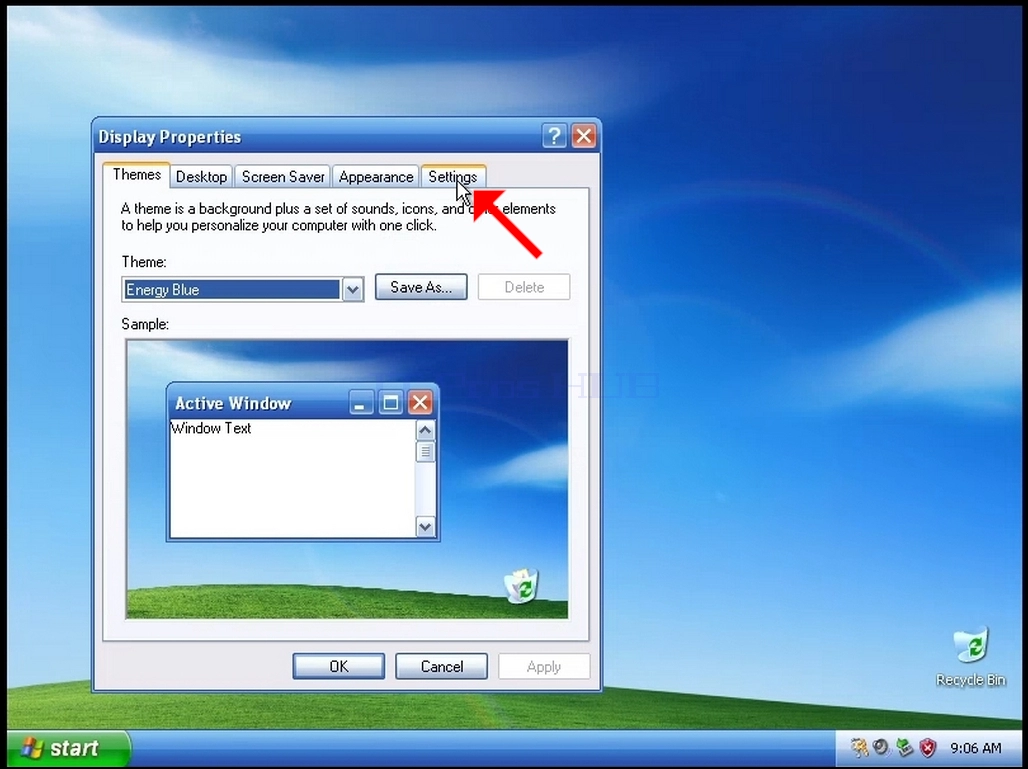
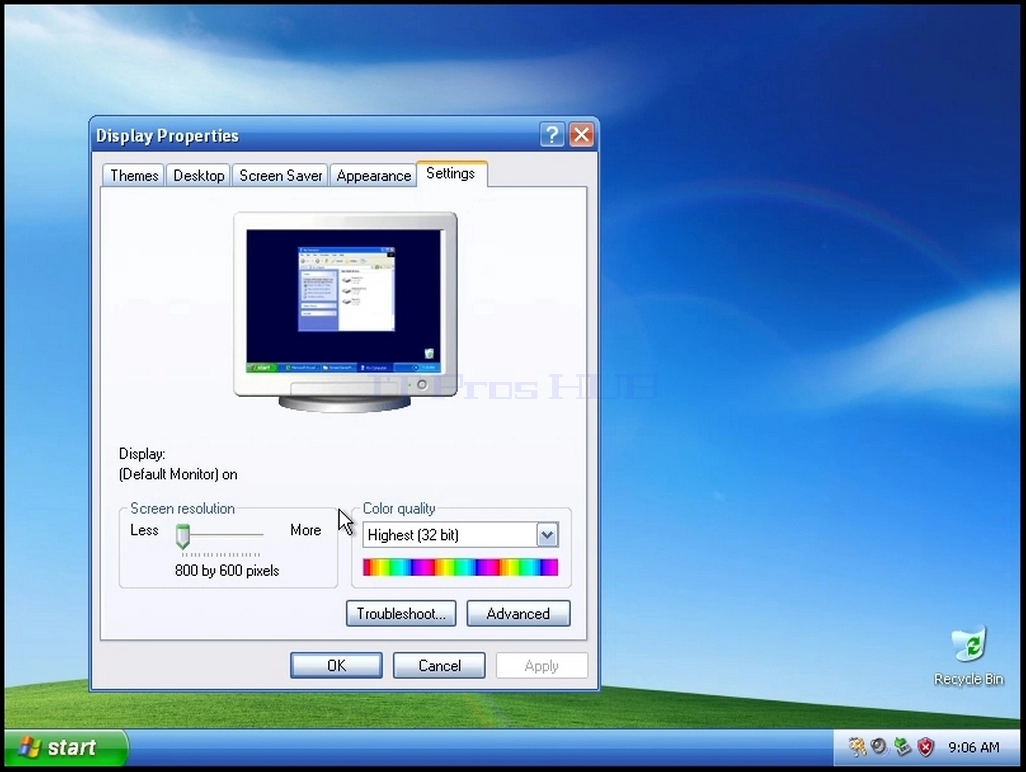
4. In die Instellings-oortjie, skuif die skuifbalkknoppie om die huidige resolusiewaarde te verander
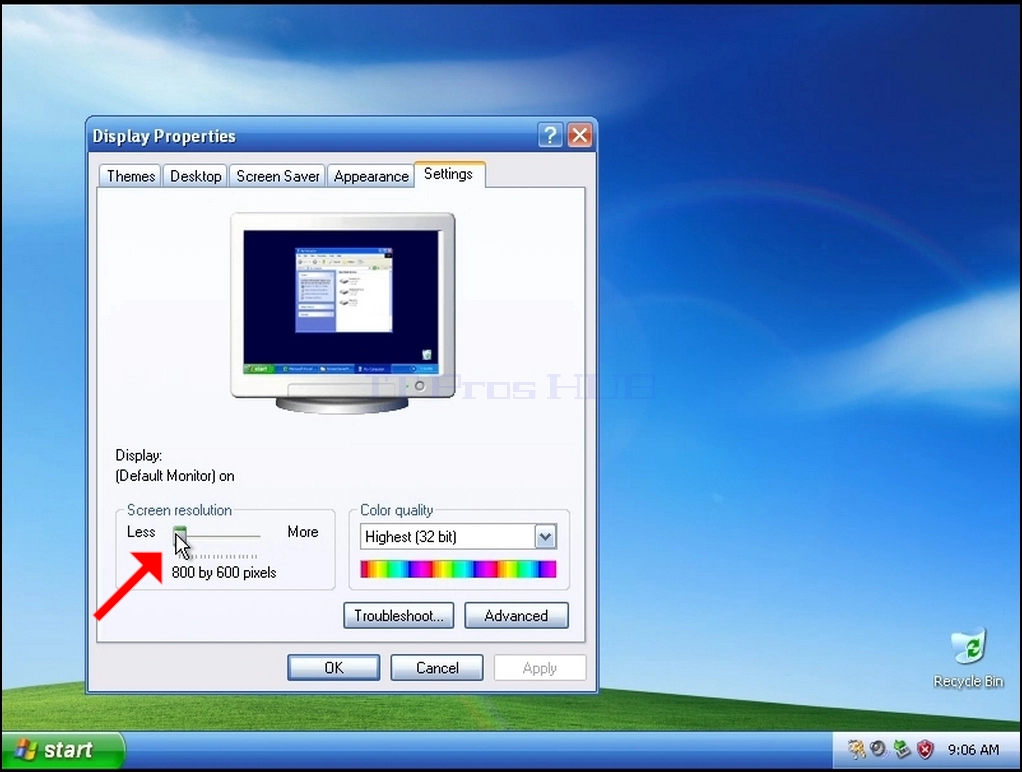
5. Kies uit die verskeie resolusie-opsies die een wat die beste by jou behoeftes pas (In hierdie voorbeeld is die gekose een 1024x768)
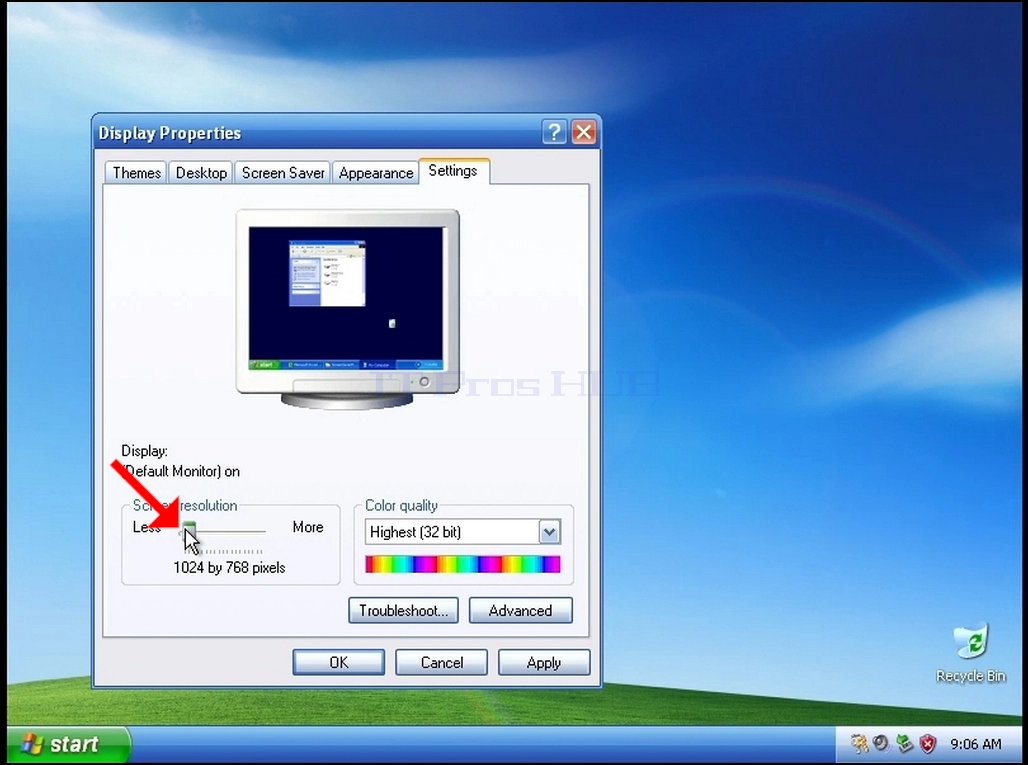
6. Nadat u die nuwe resolusie-instelling gekies het, klik op Toepas.
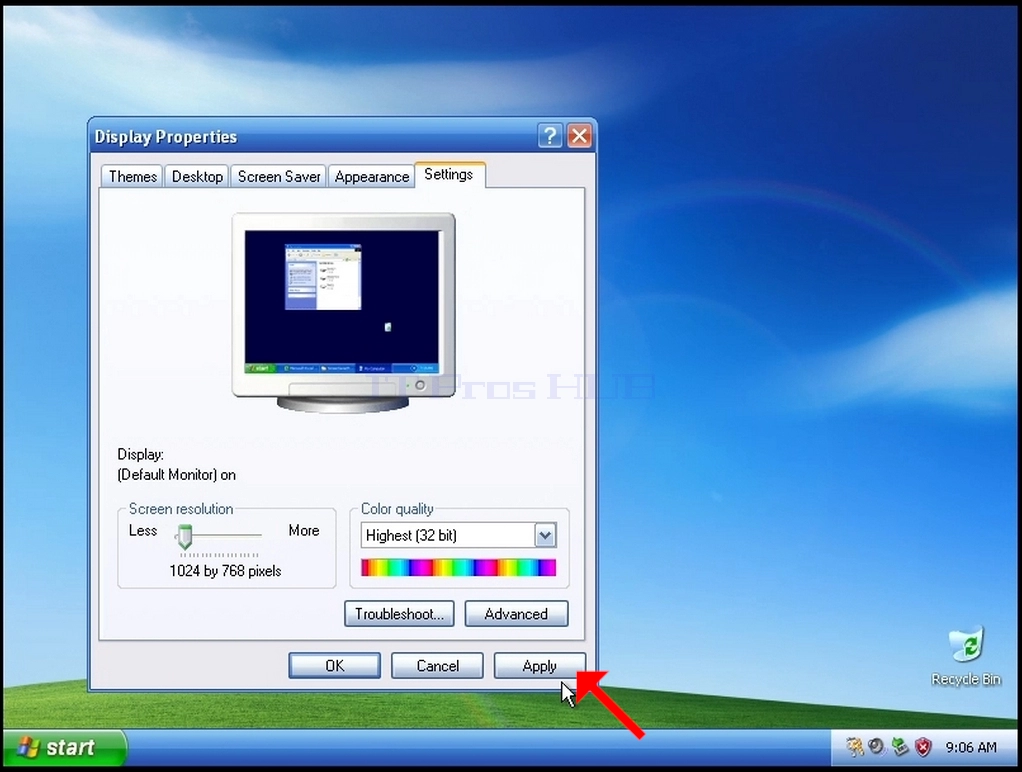
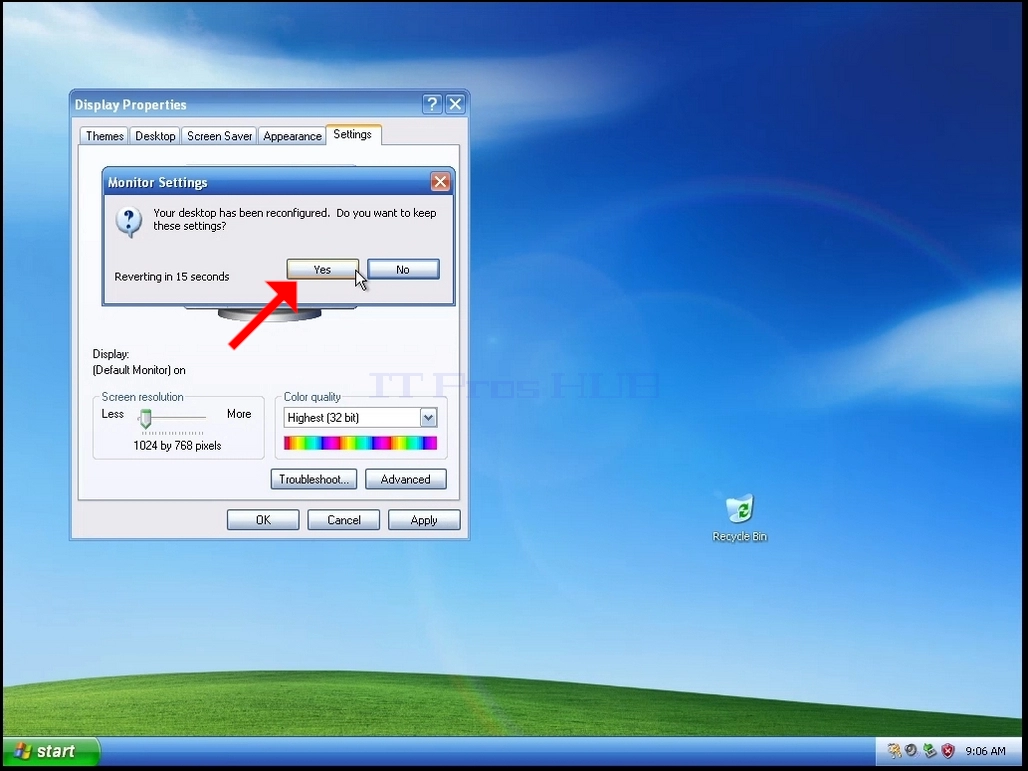
7. Windows sal jou vra of jy hierdie skerminstellings wil behou of nie. Indien 'n opsie nie binne 'n toegekende aantal sekondes gekies word nie, sal Windows terugkeer na die voorheen gekonfigureerde resolusie. Dit word gedoen indien die monitor nie die gekose resolusie ondersteun nie, en die gebruiker nie die video-uitset kan sien of tans kan sien nie, om die nuut gekose resolusie handmatig terug te keer.
As die nuut gekose resolusie versoenbaar is met die monitor, kies Ja Veranderinge en klik daarop.