



- Besonderhede
- Geskryf deur: IT Pro
- Kategorie: How to Articles
- Trefslae: 6892
1.Go to Windows Desktop


a. Once the wizard appears it will automatically verify if the computer meets the system requirements required to encrypt data using Bitlocker.
b. Although it says it takes a few minutes, in most cases it takes up to 30 seconds on a modern computer setup.


a. Microsoft account – saves it in your Microsoft account
b. Save to a file – saves the recovery key to a text file
c. Print the Recovery Key – prints the Bitlocker recovery key, even to a virtual printer.
6. In this article we will choose the last option which is Print the Recovery Key and we will save it locally.
a. Note that Bitlocker doesn't allow saving a recovery key file onto the same drive that is about to be encrypted.
b. However, it does allow printing that recovery key to a file on the same drive that is about to be encrypted. This method is not recommended as well but for the sake of this article we will do it this way.
c. Note – Never save the recovery code file onto the same drive that is about to be encrypted. If for some reason that drive gets locked out, the recovery key file would be locked out along with it.

- Besonderhede
- Geskryf deur: IT Pro
- Kategorie: How to Articles
- Trefslae: 5302
1. Go to Windows Desktop
2. Click Start
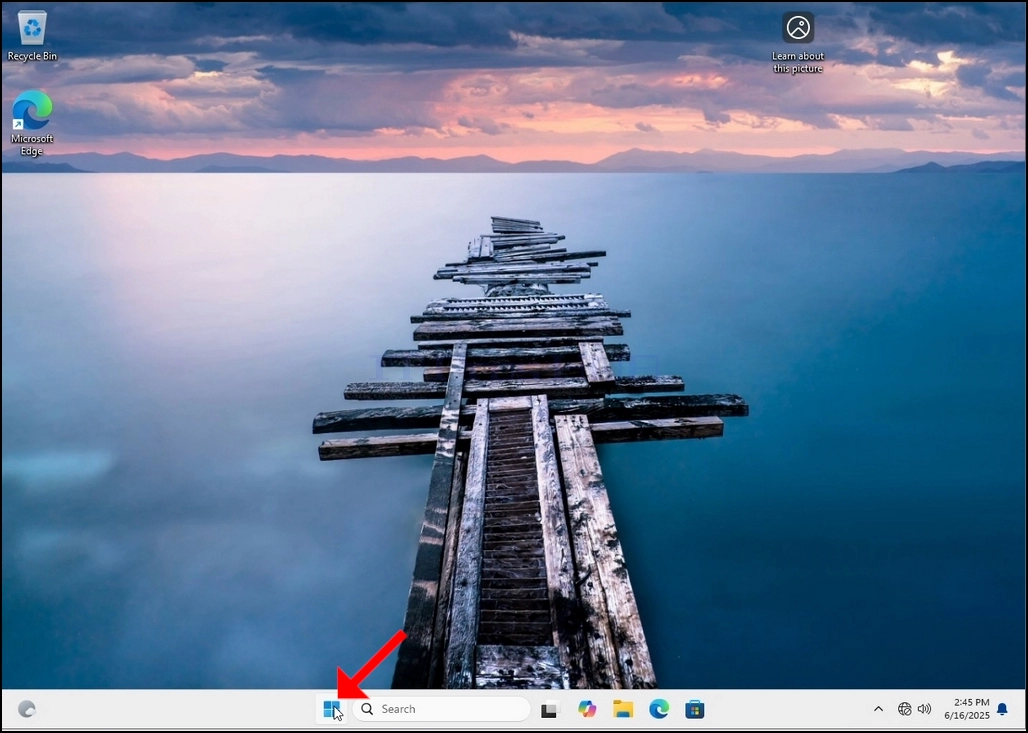
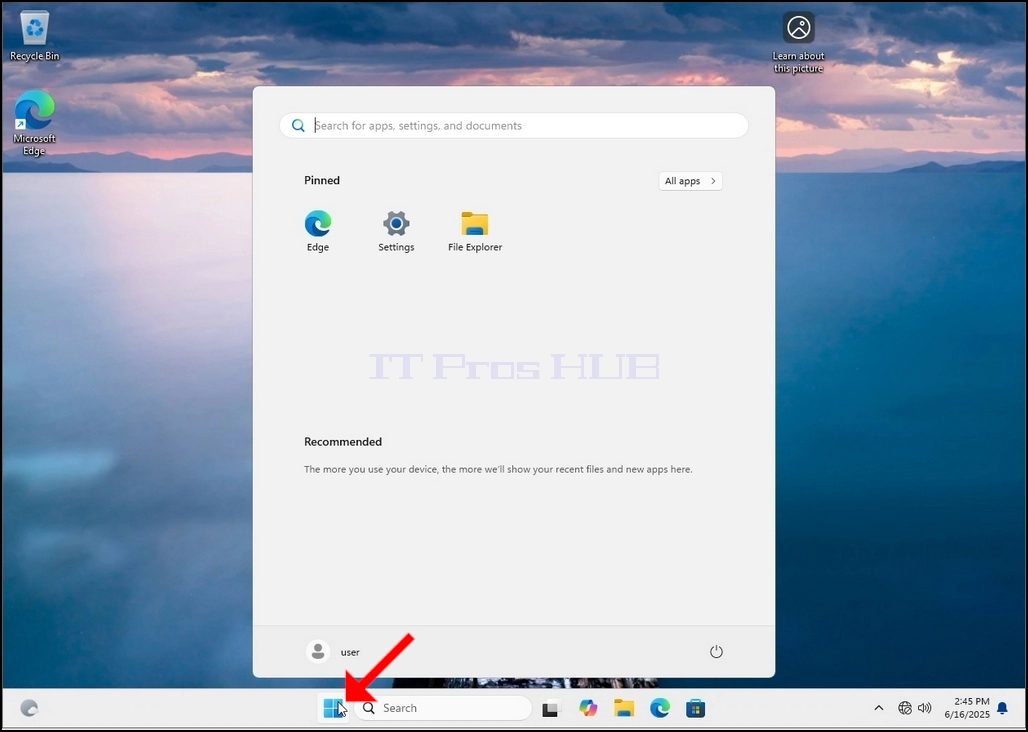
Once it finds it, click it and wait for the Control Panel window to appear.
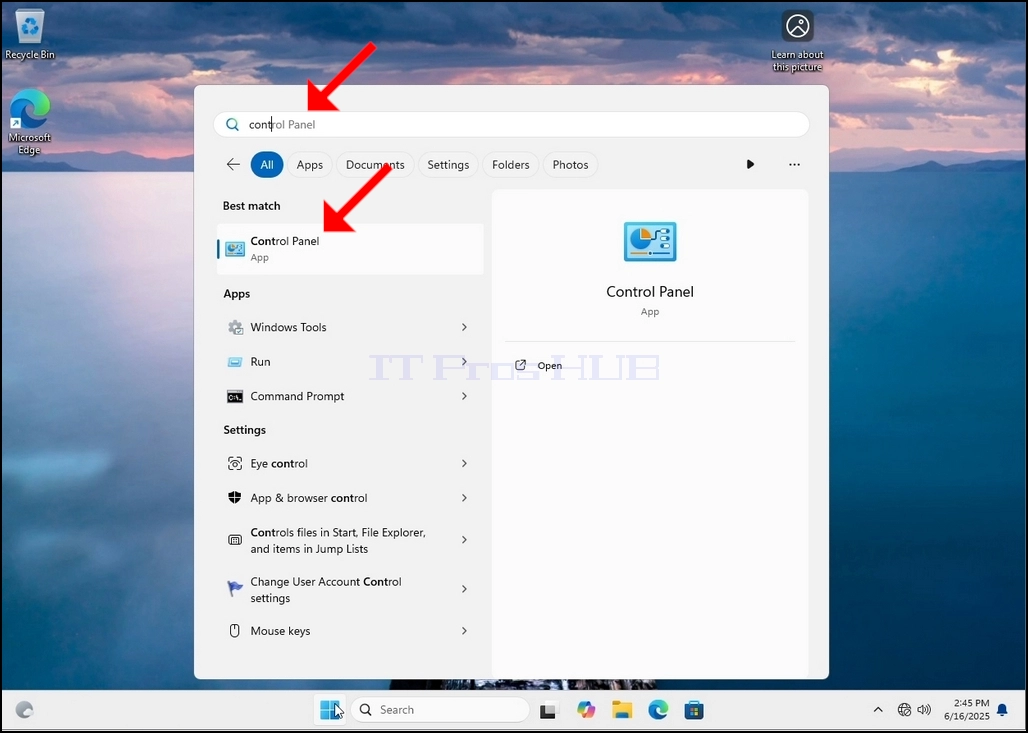
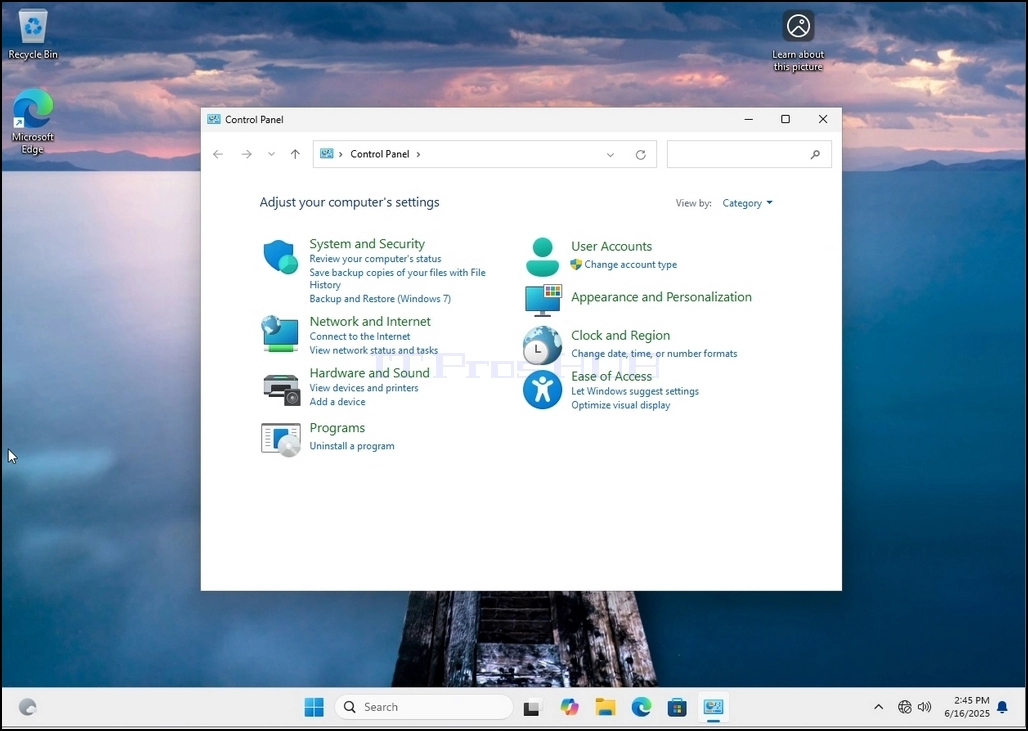
4. Once the Control Panel window is open, enlarge it by clicking the enlarging icon on the top right corner of that window.
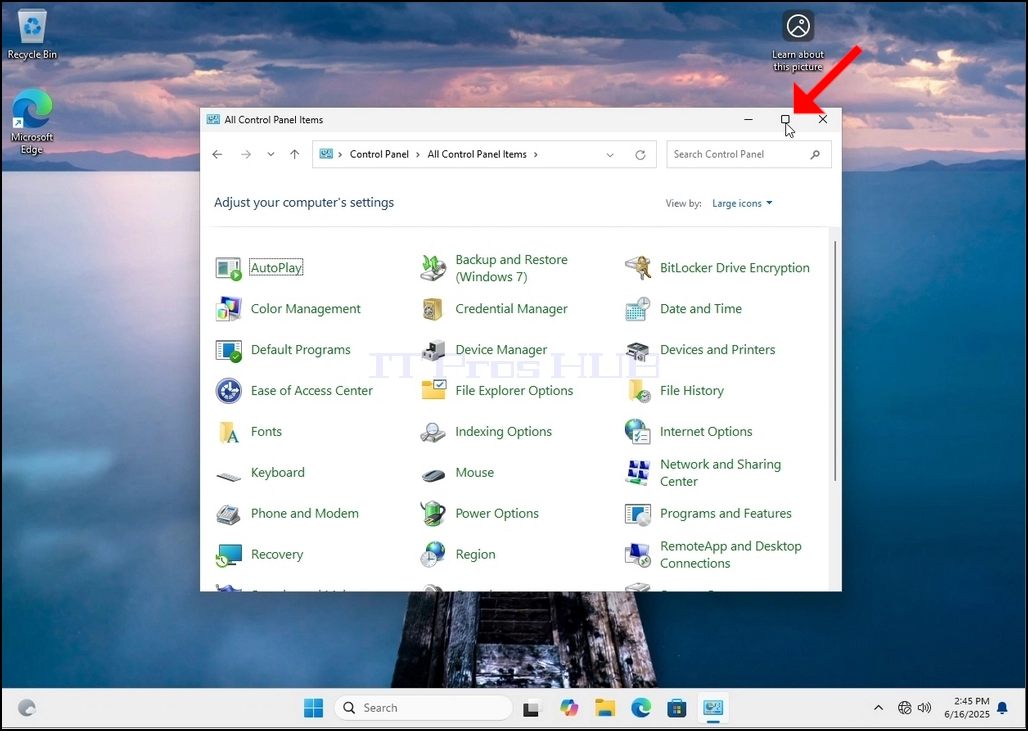
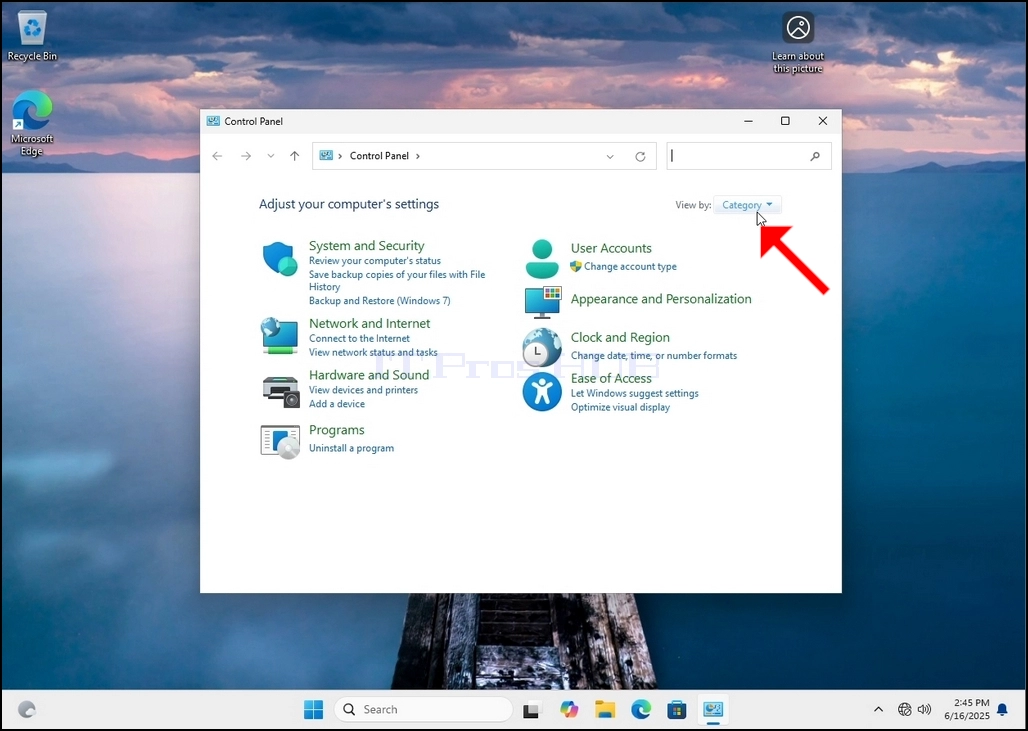
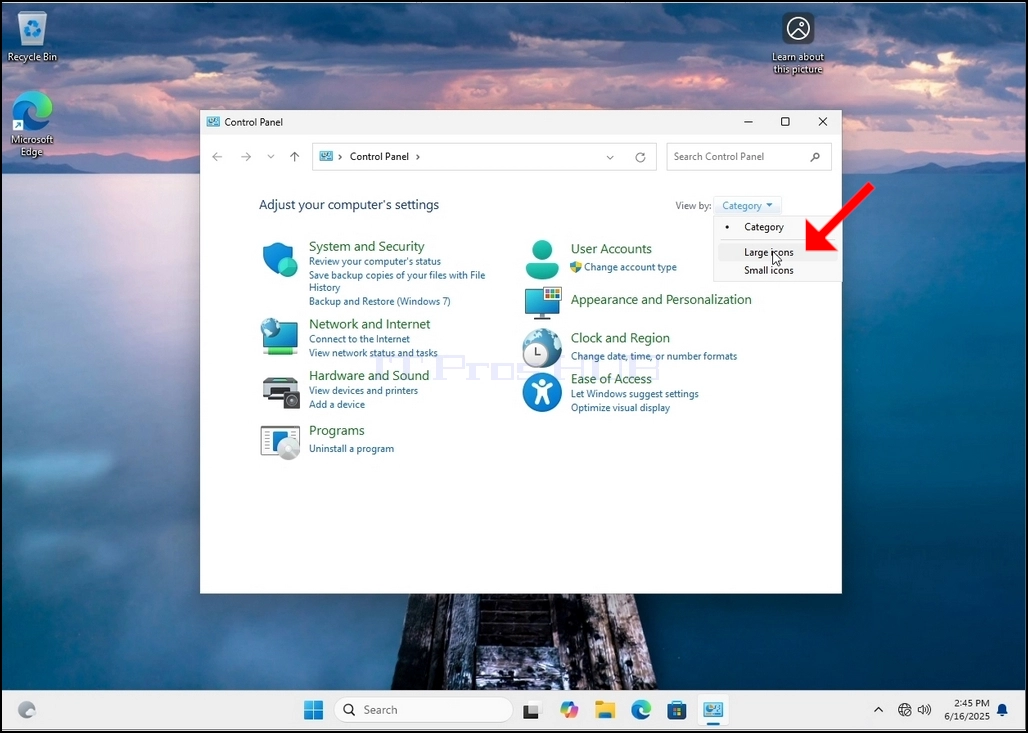
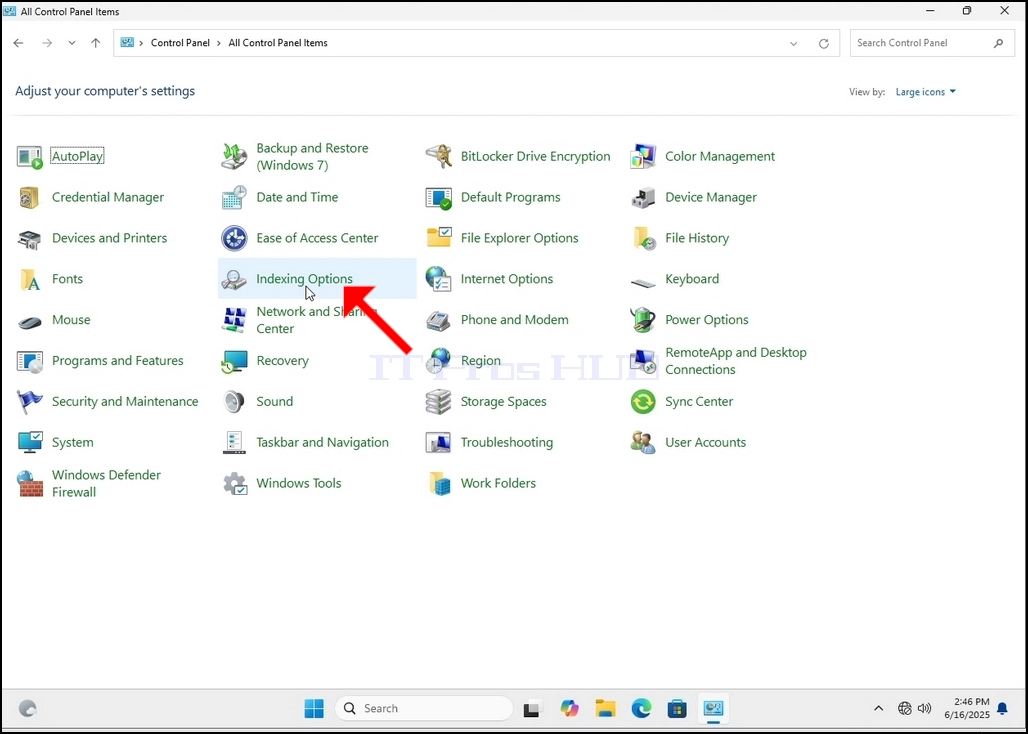
6. Look for the Indexing Options icon and click it. Wait for the Indexing Options window to appear.
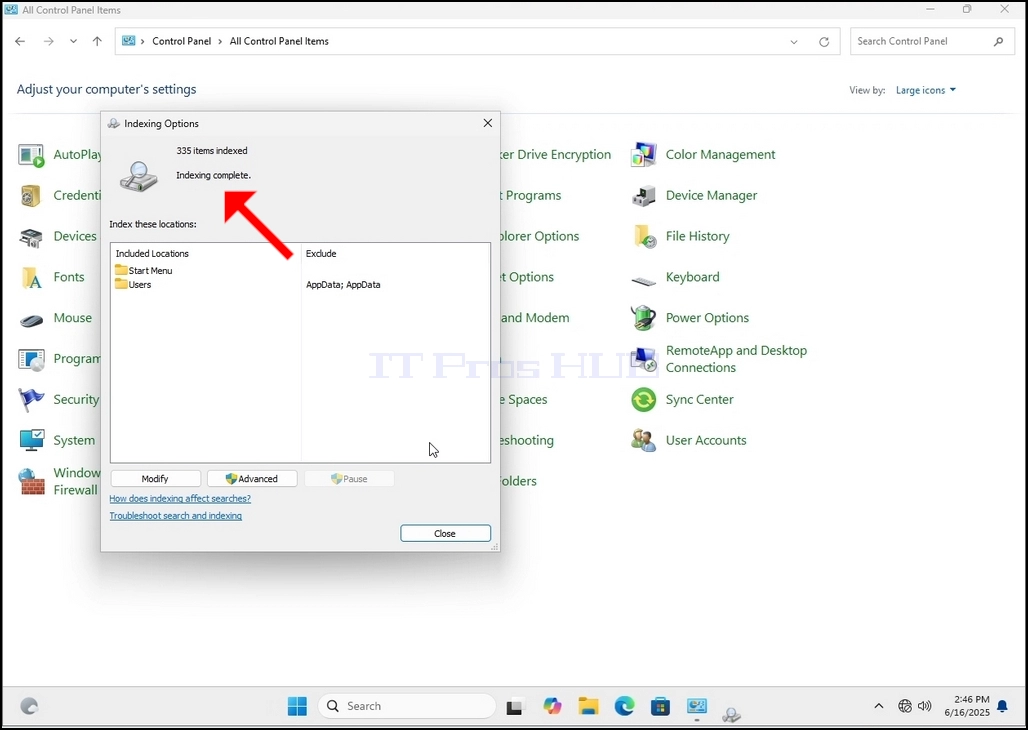
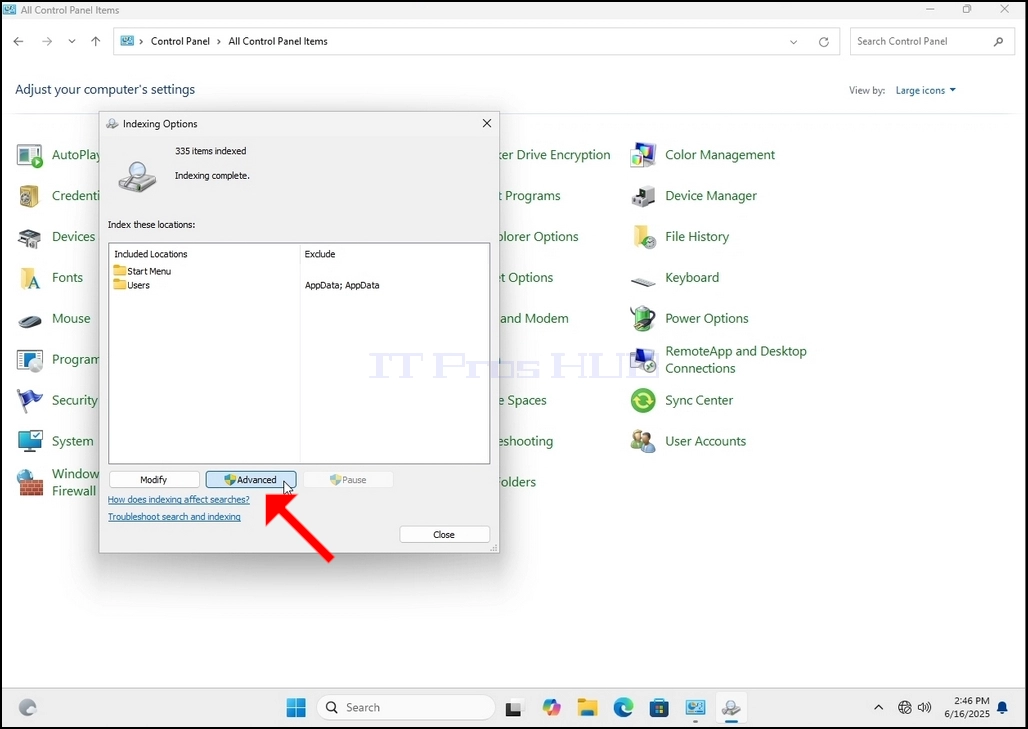
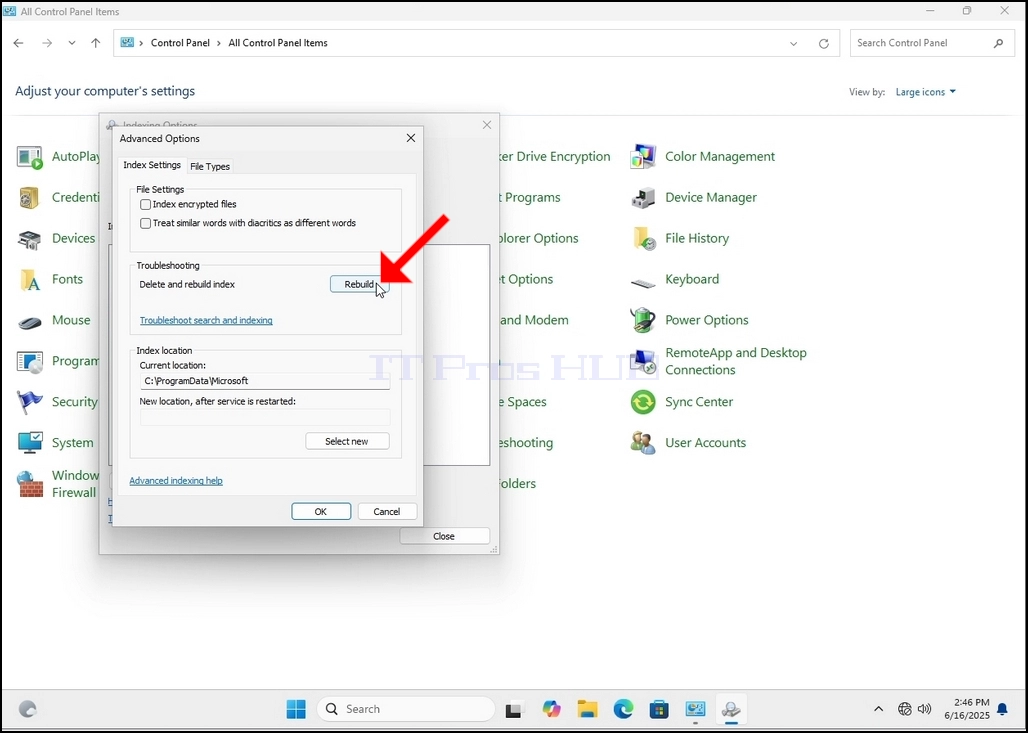
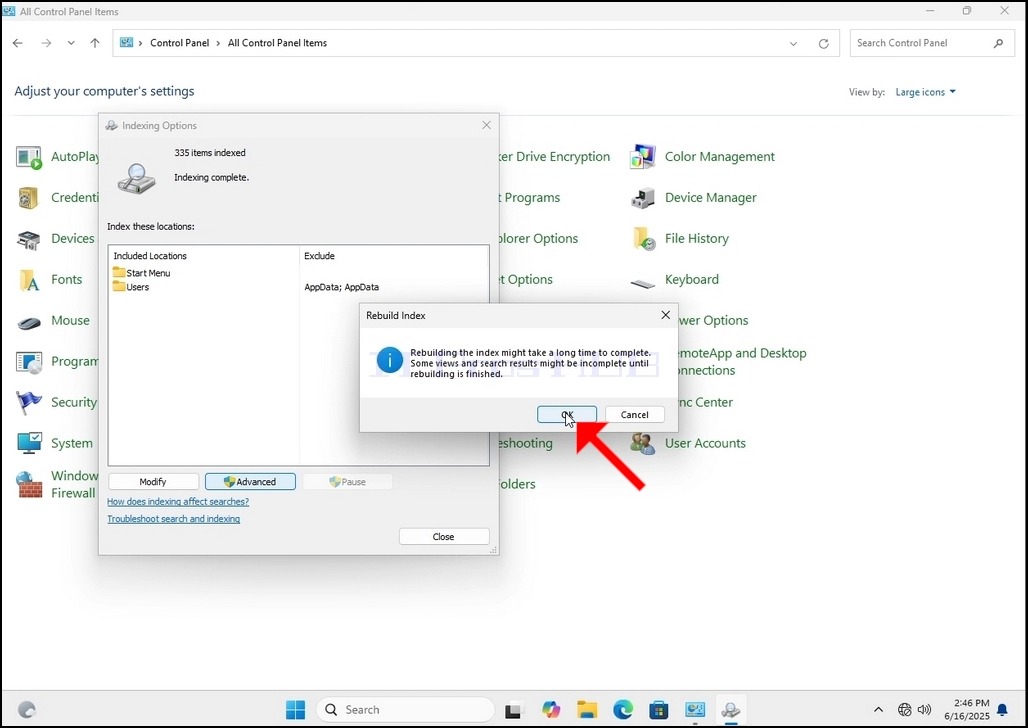
9. After clicking OK in the confirmation box, Windows will start rebuilding its index. It might take some time for the actual process to start, Wait patiently a few seconds to a few minutes. The mo
- Besonderhede
- Geskryf deur: IT Pro
- Kategorie: How to Articles
- Trefslae: 7198
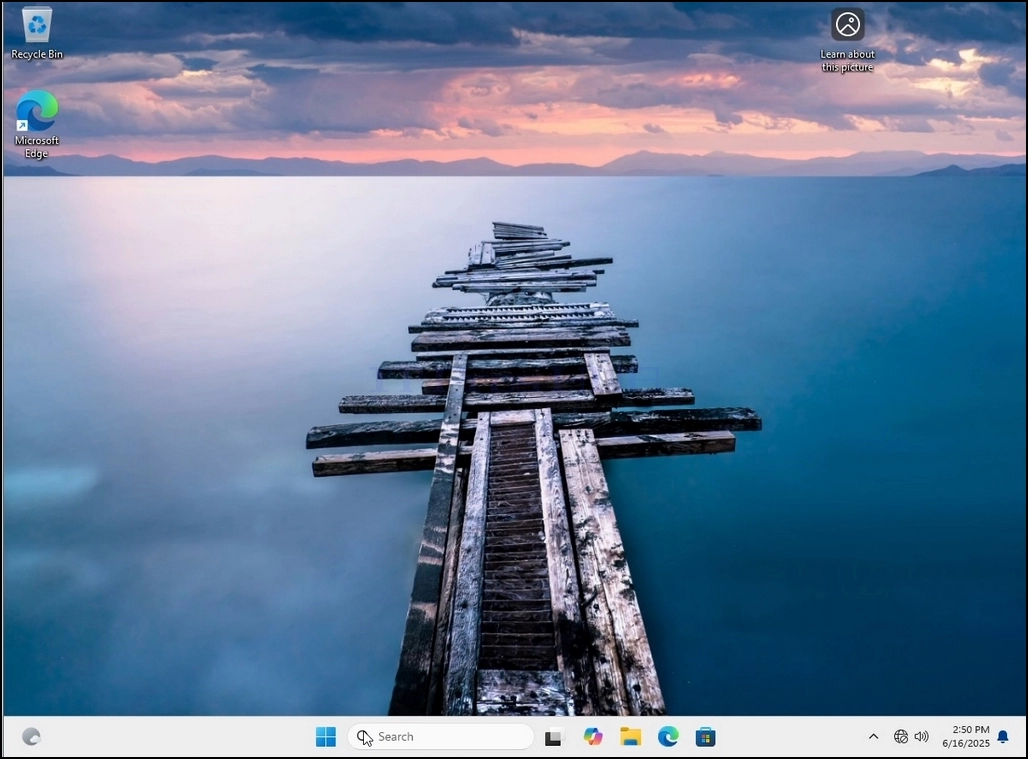
1. Go to Windows Desktop
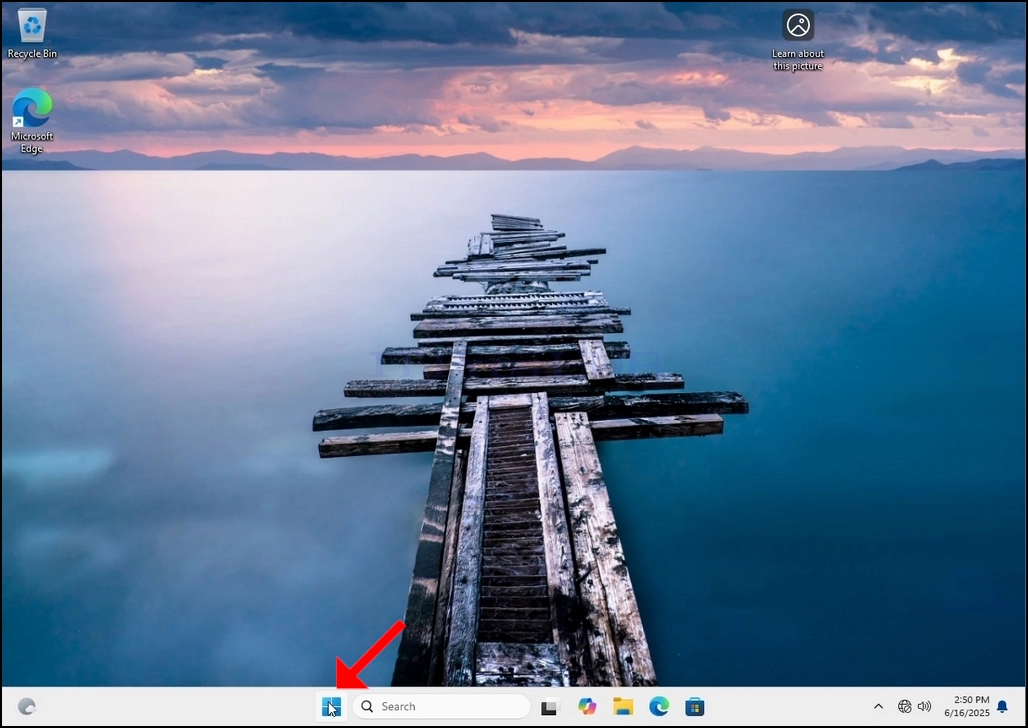
2. Click Start
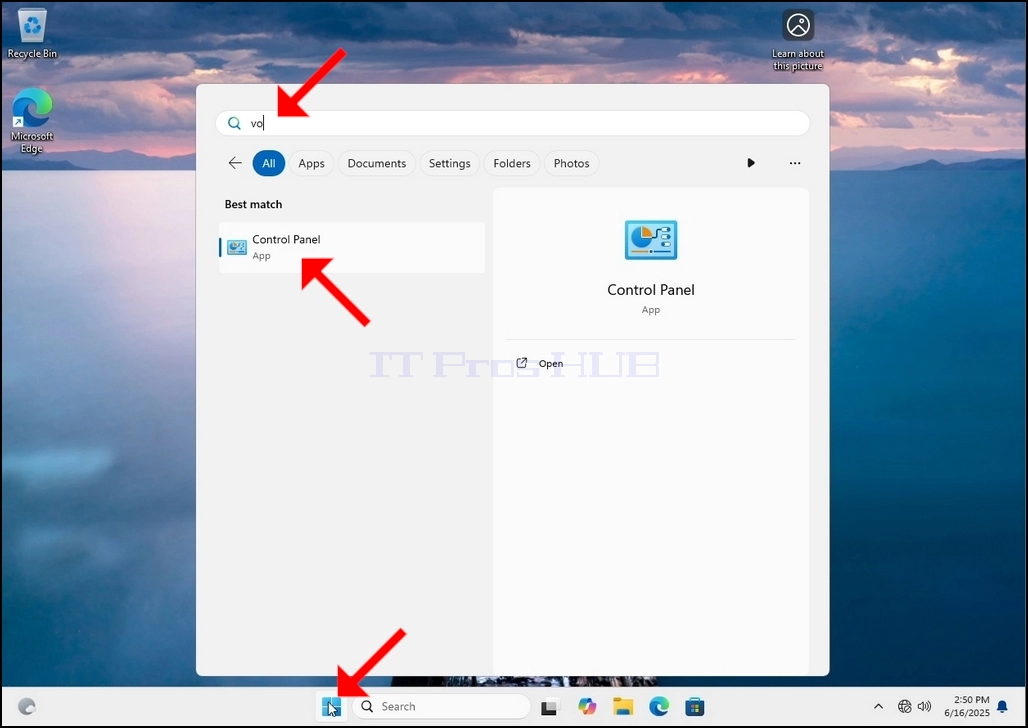
Once it finds it, click it and wait for the Control Panel window to appear.
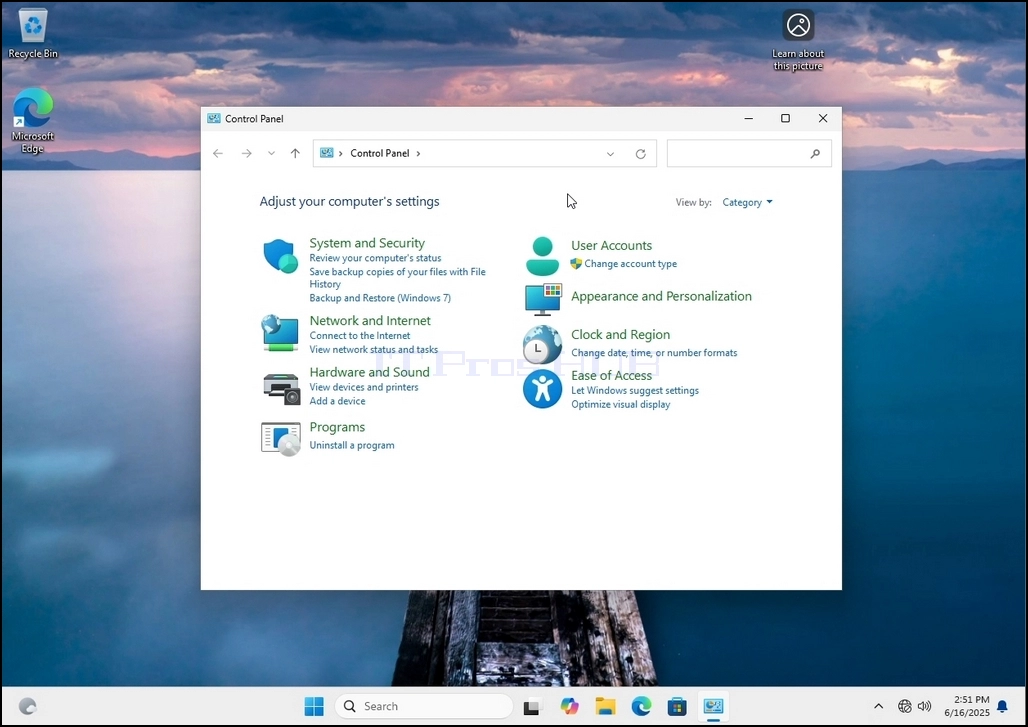
4. Once the Control Panel window is open, enlarge it by clicking the enlarging icon on the top right corner of that window.
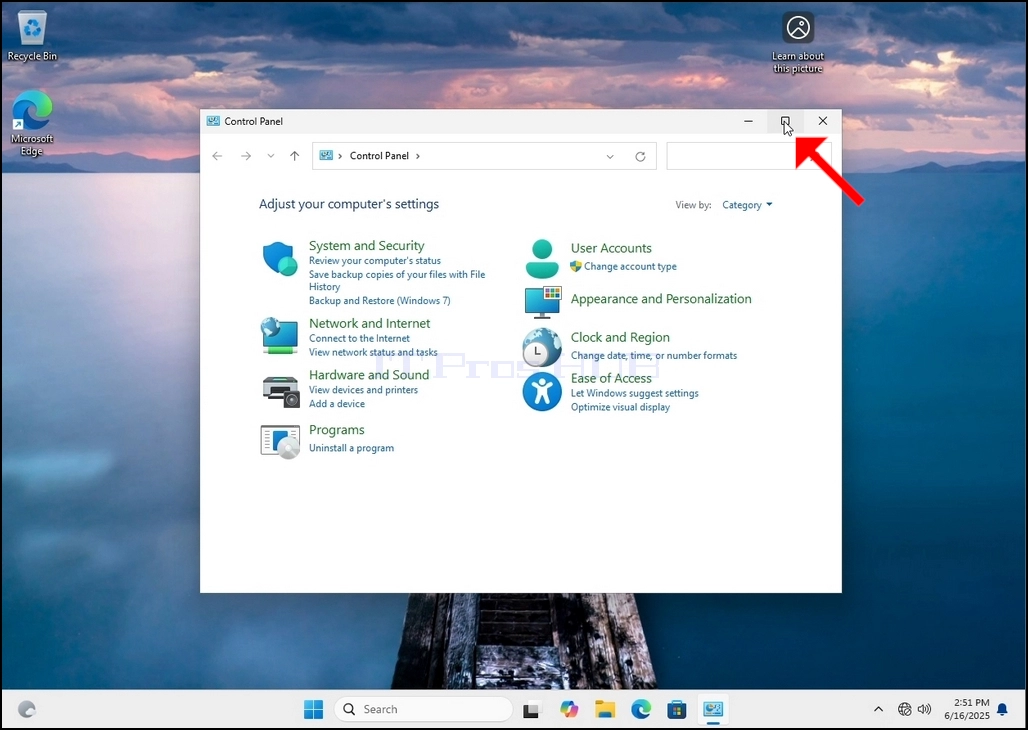
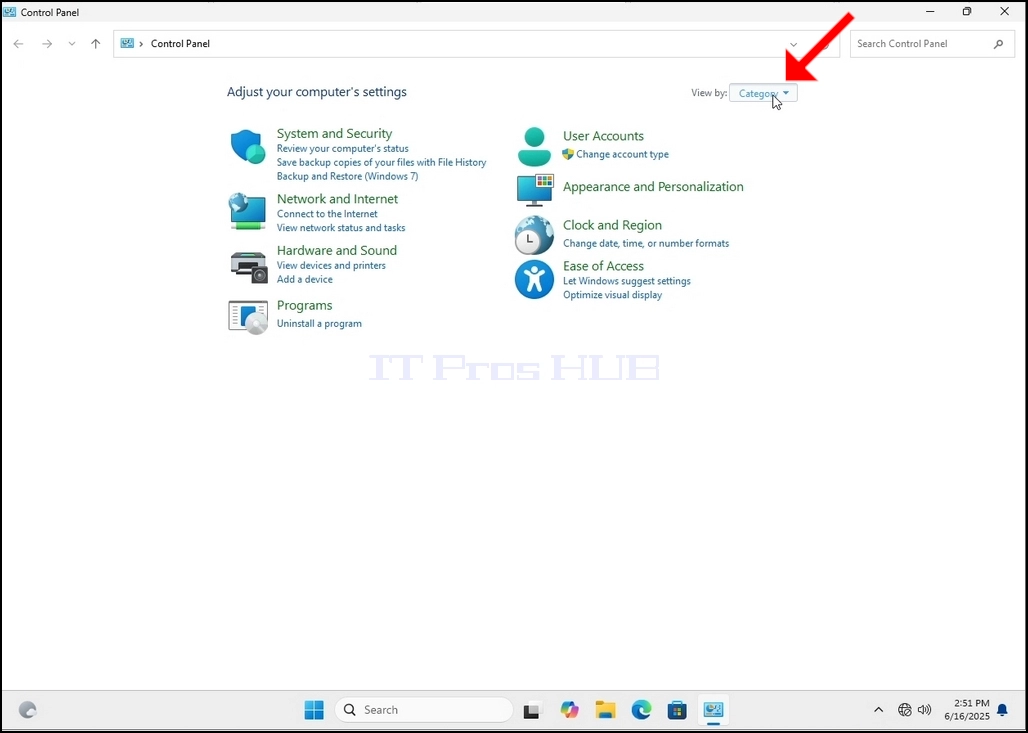
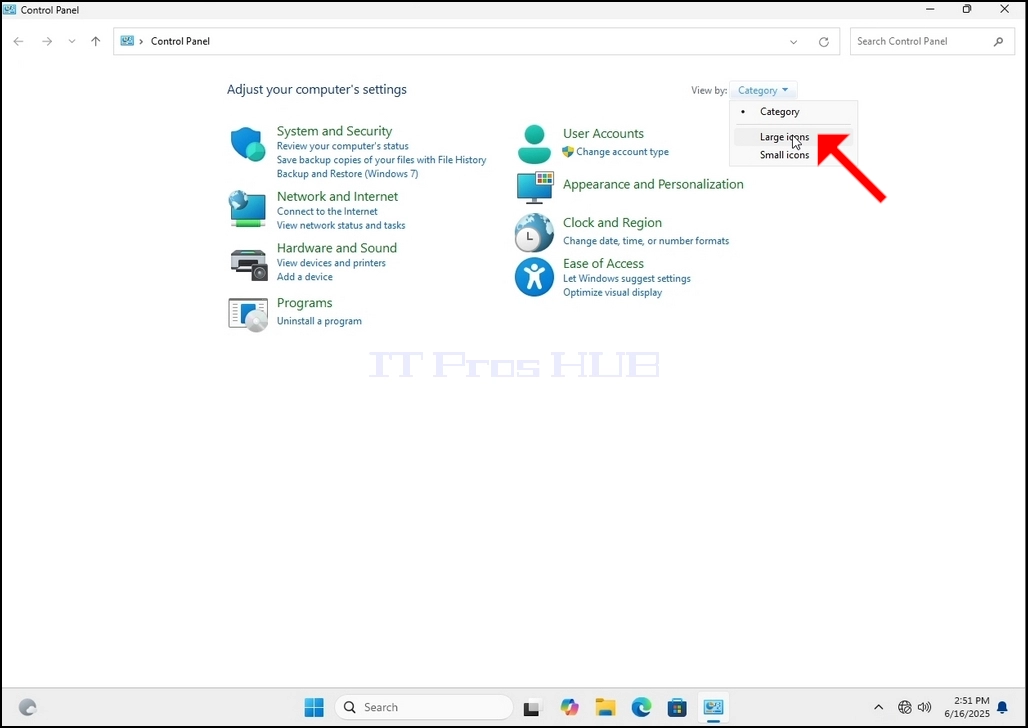
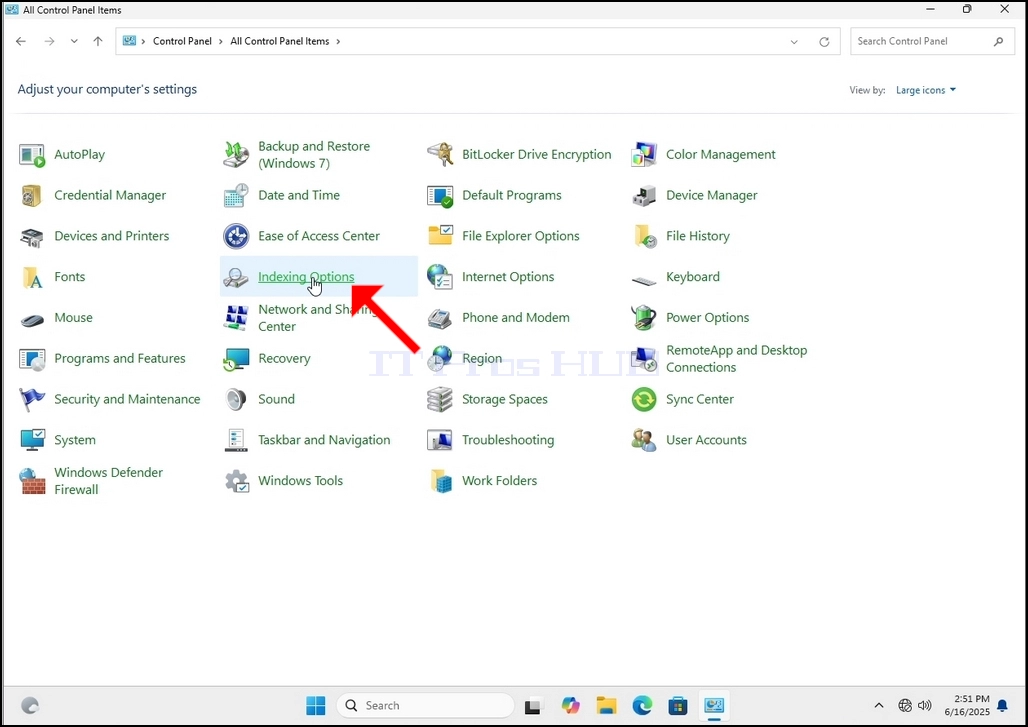
6. Look for the Indexing Options icon and click it. Wait for the Indexing Options window to appear.
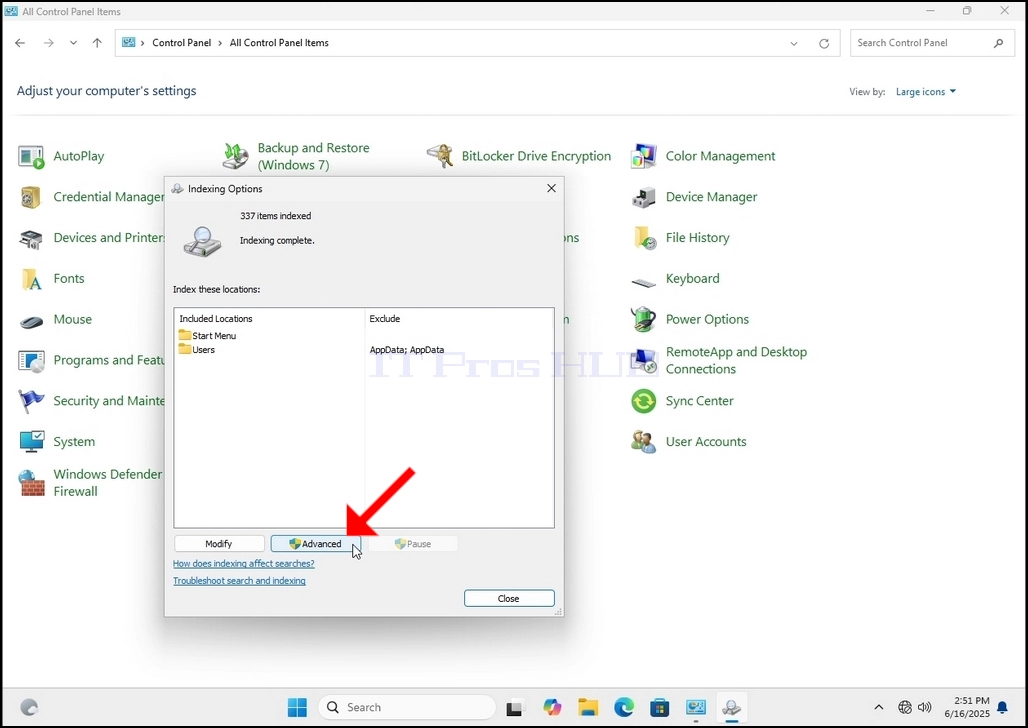
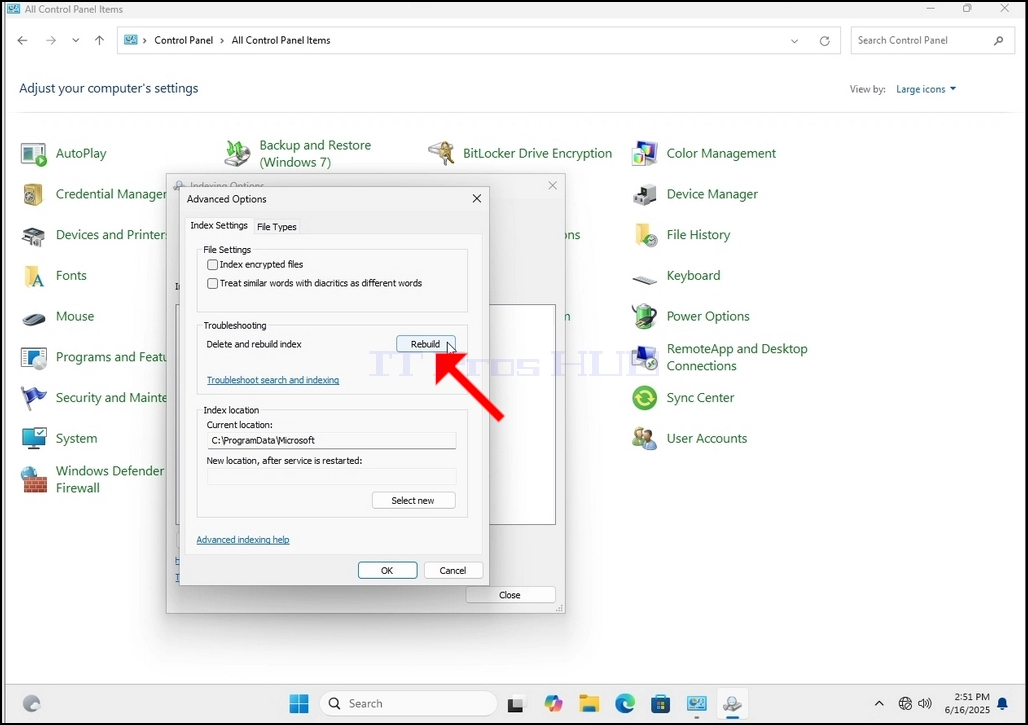
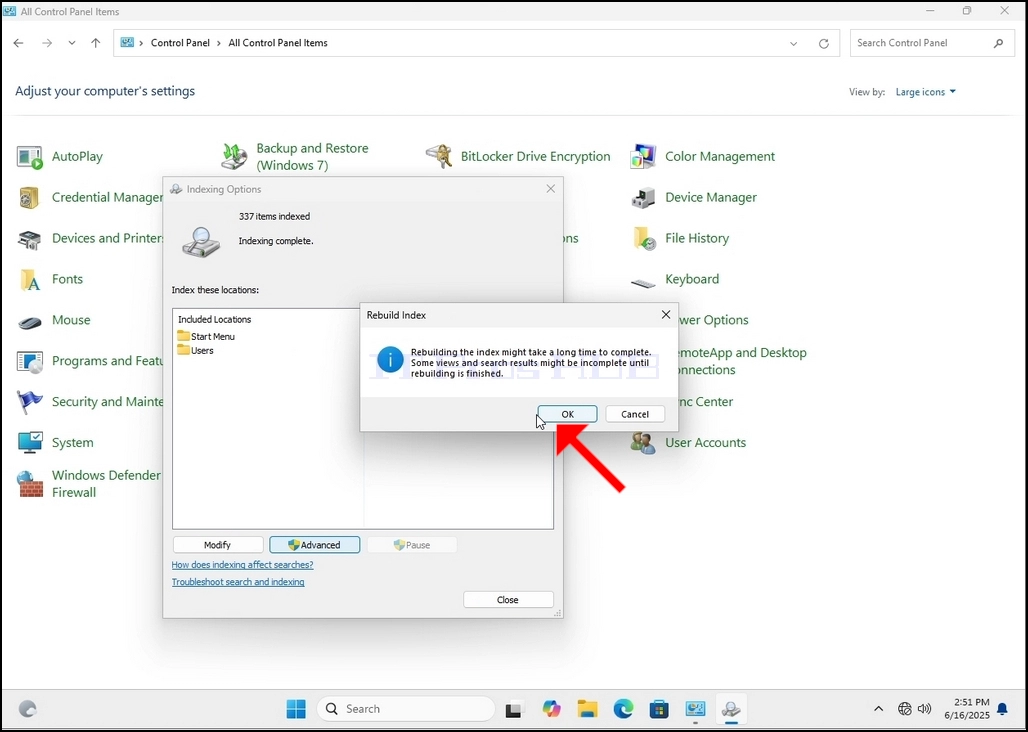
9. After clicking OK in the confirmation box, Windows will start rebuilding its index. It might take some time for the actual process to start, Wait patiently a few seconds to a few minutes. The moment the process starts, the "Indexing Complete" sentence will be replaced with "Indexing in progress. Search results might not be complete during this time."
In addition, the number of items indexed will be reset to 0 for a moment and then start to increase.
Note that All of the wi
- Besonderhede
- Geskryf deur: IT Pro
- Kategorie: How to Articles
- Trefslae: 6880
1. Go to Windows Desktop
2. Click Start
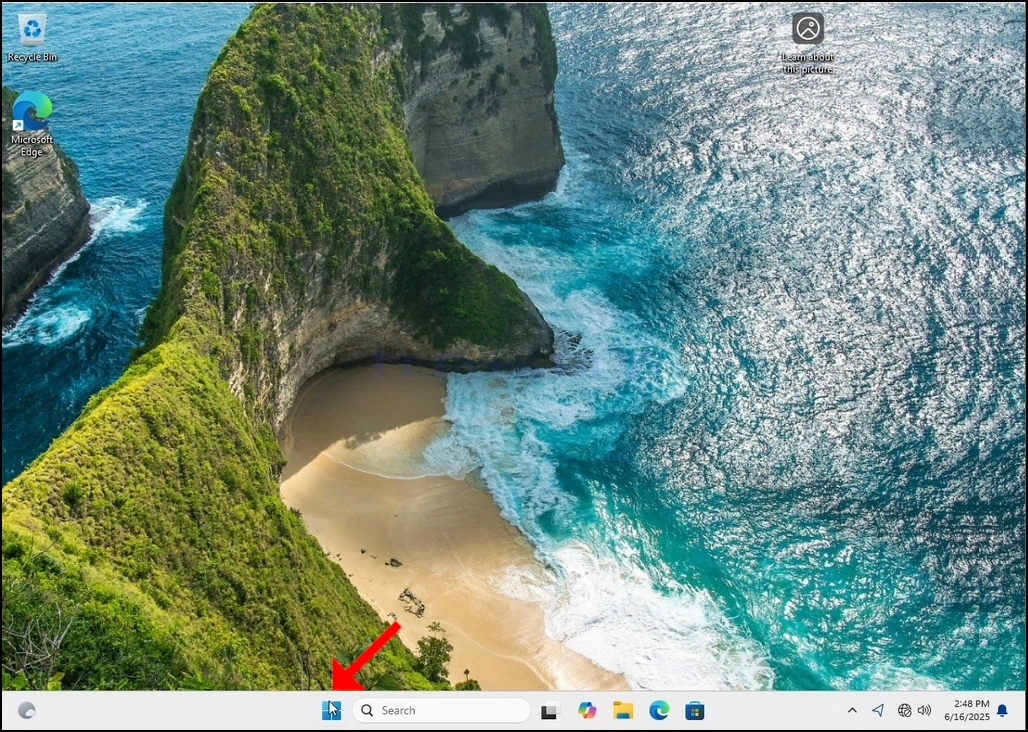
Once it finds it, click it and wait for the Control Panel window to appear.
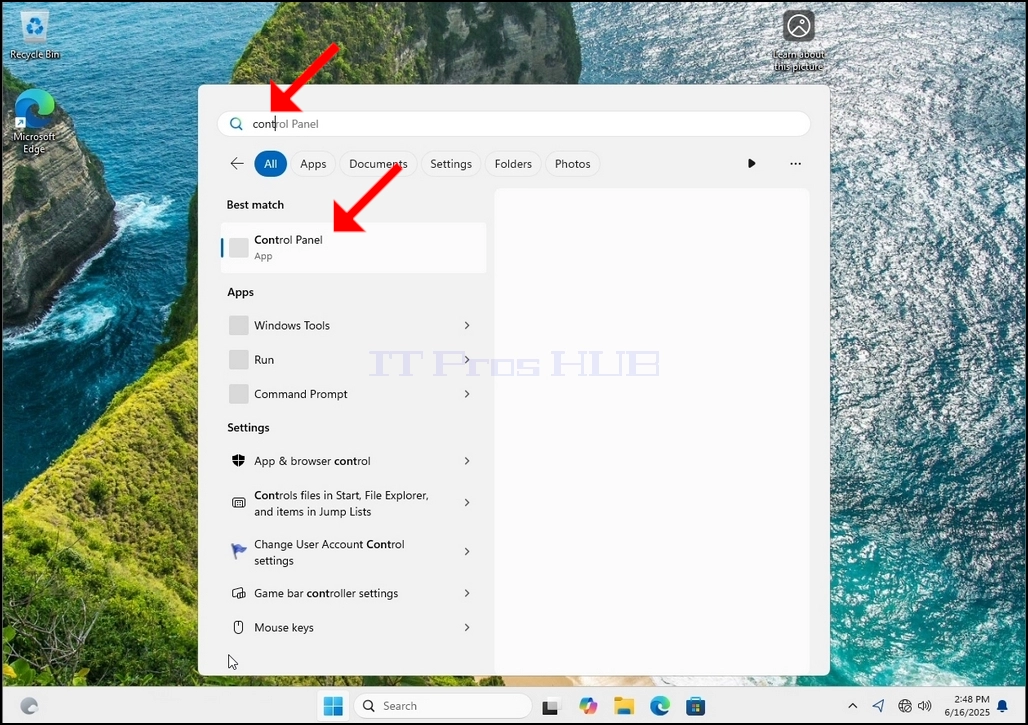
4. Once the Control Panel window is open, enlarge it by clicking the enlarging icon on the top right corner of that window.
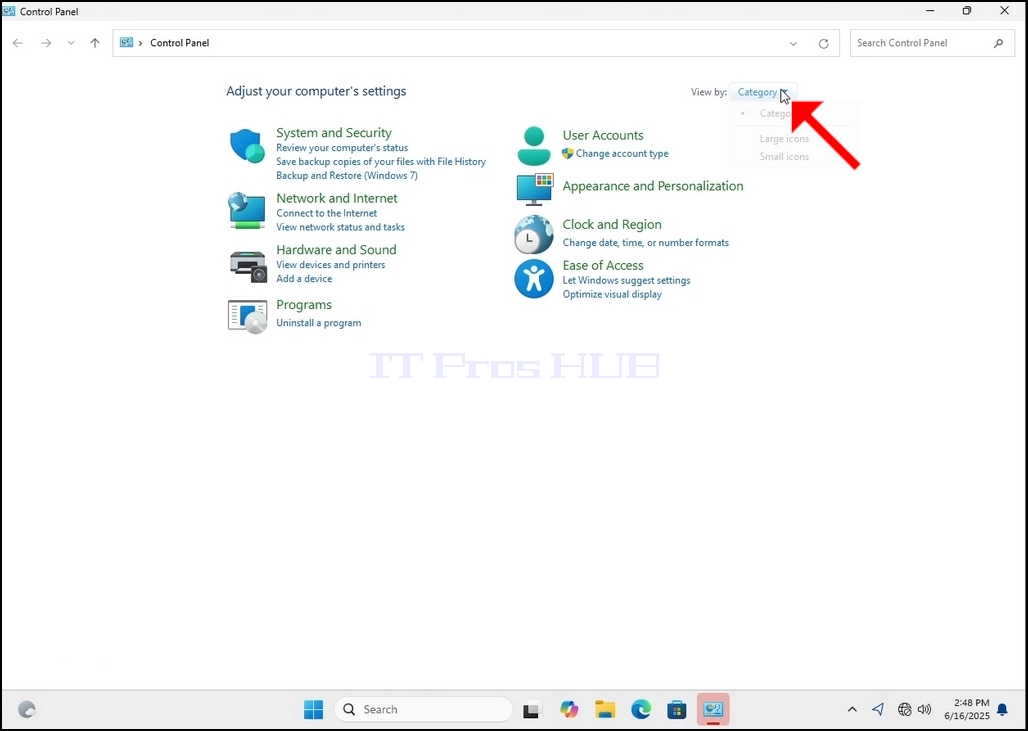
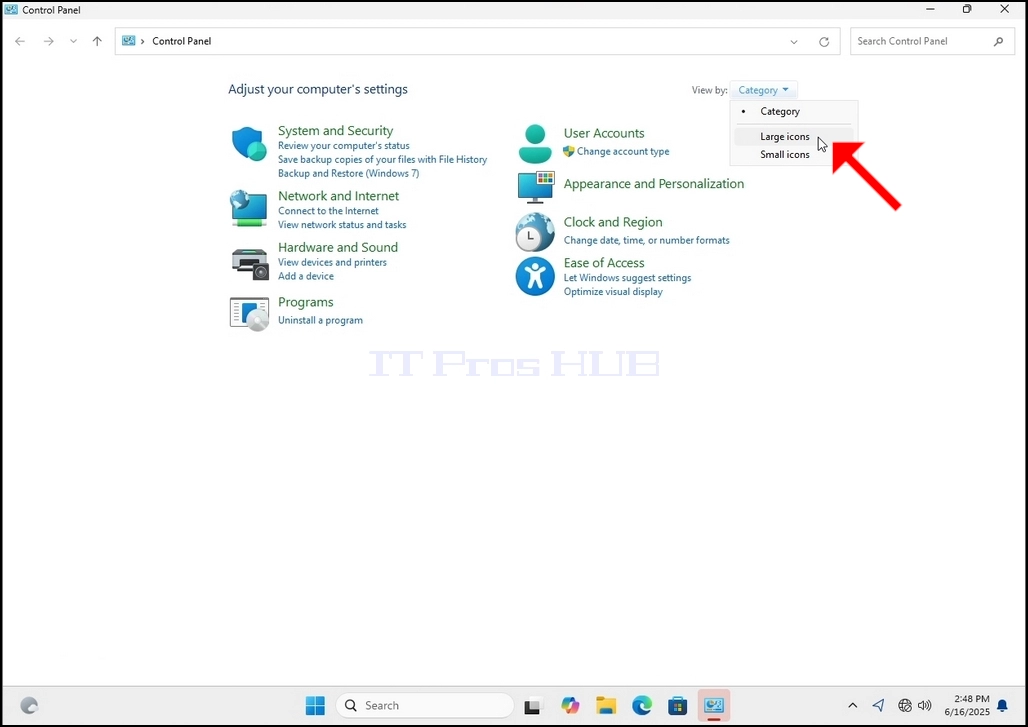
6. Look for the Indexing Options icon and click it. Wait for the Indexing Options window to appear.
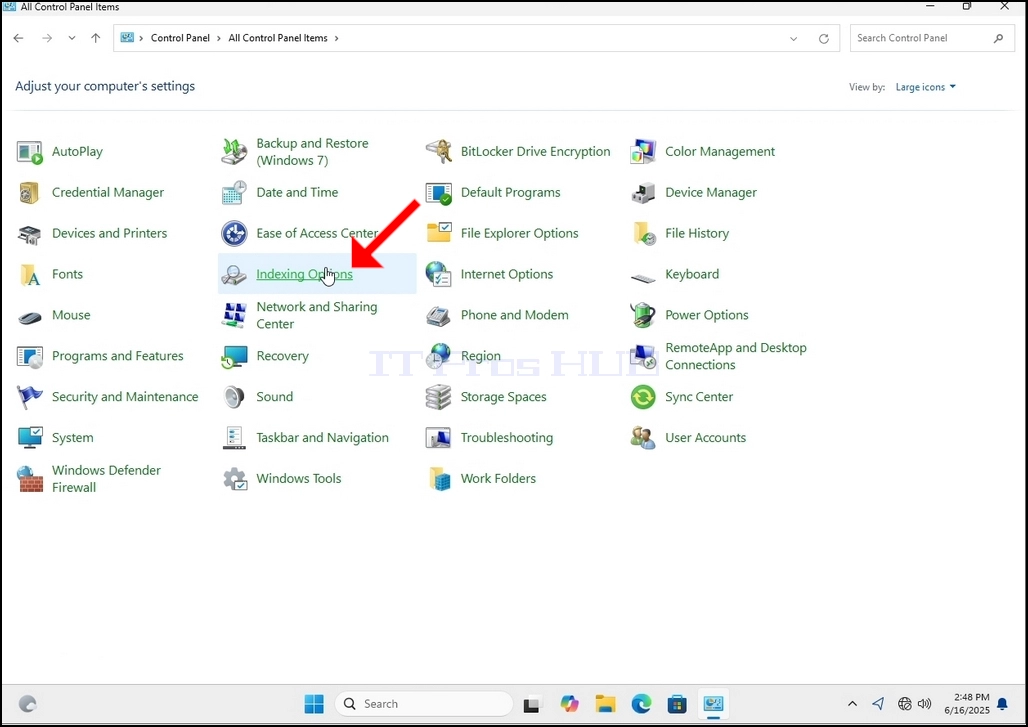
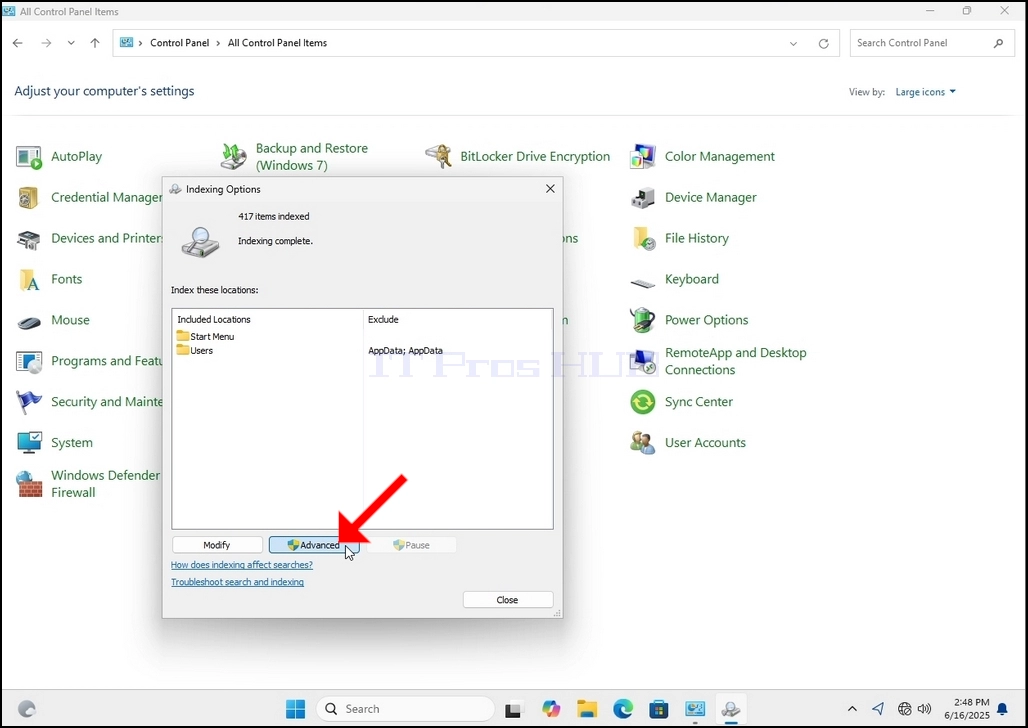
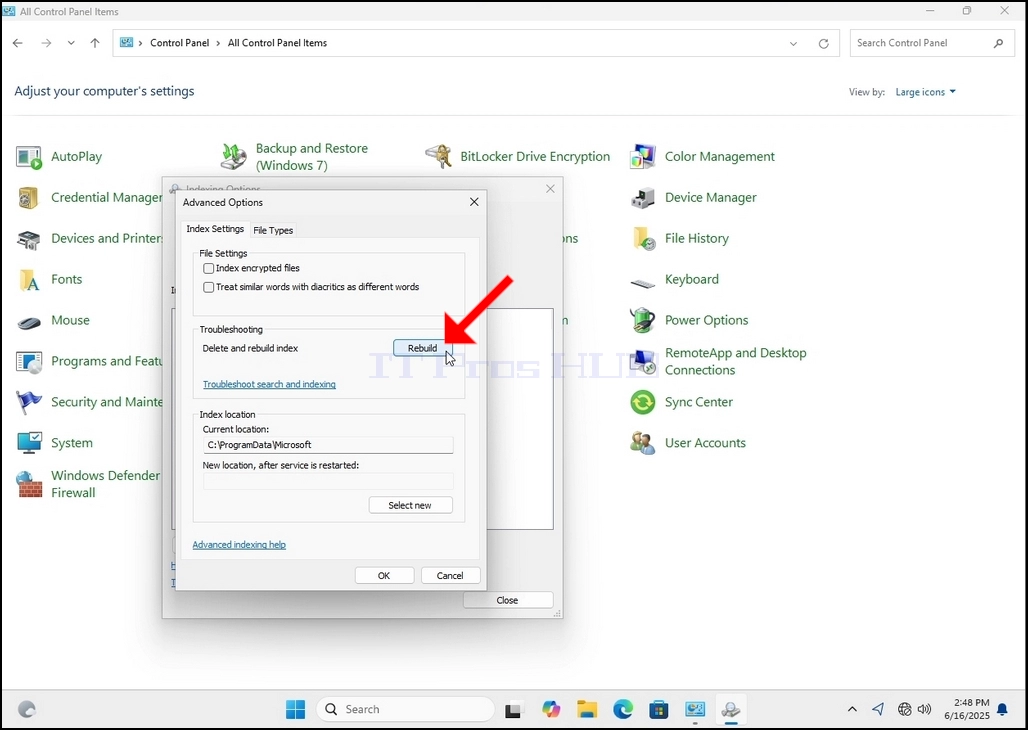
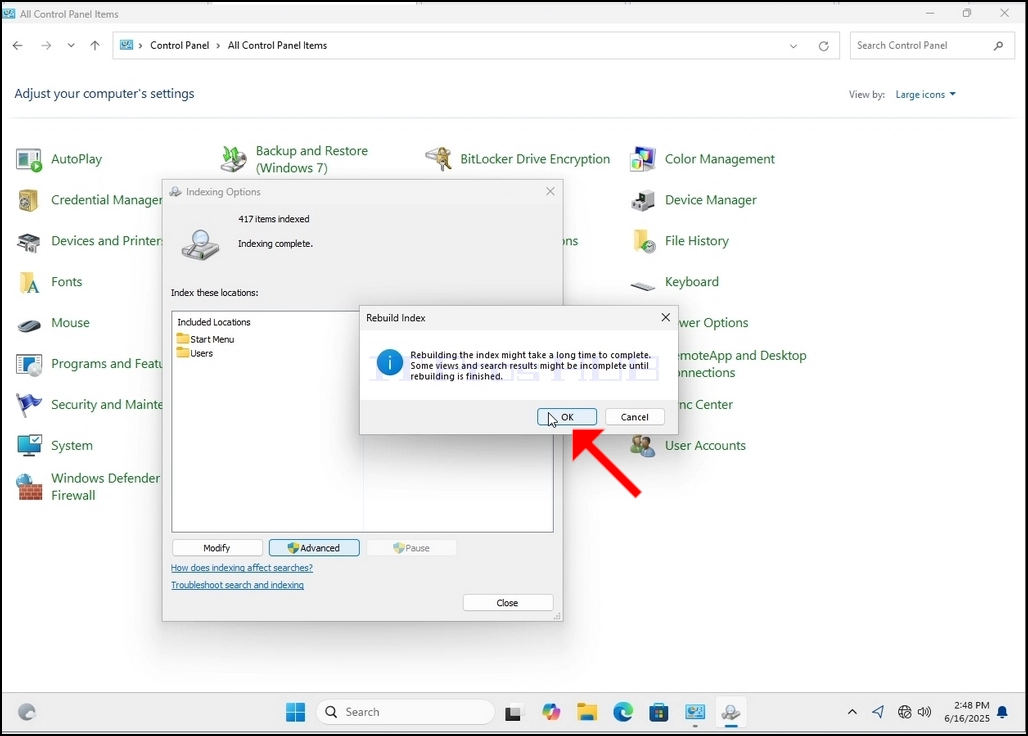
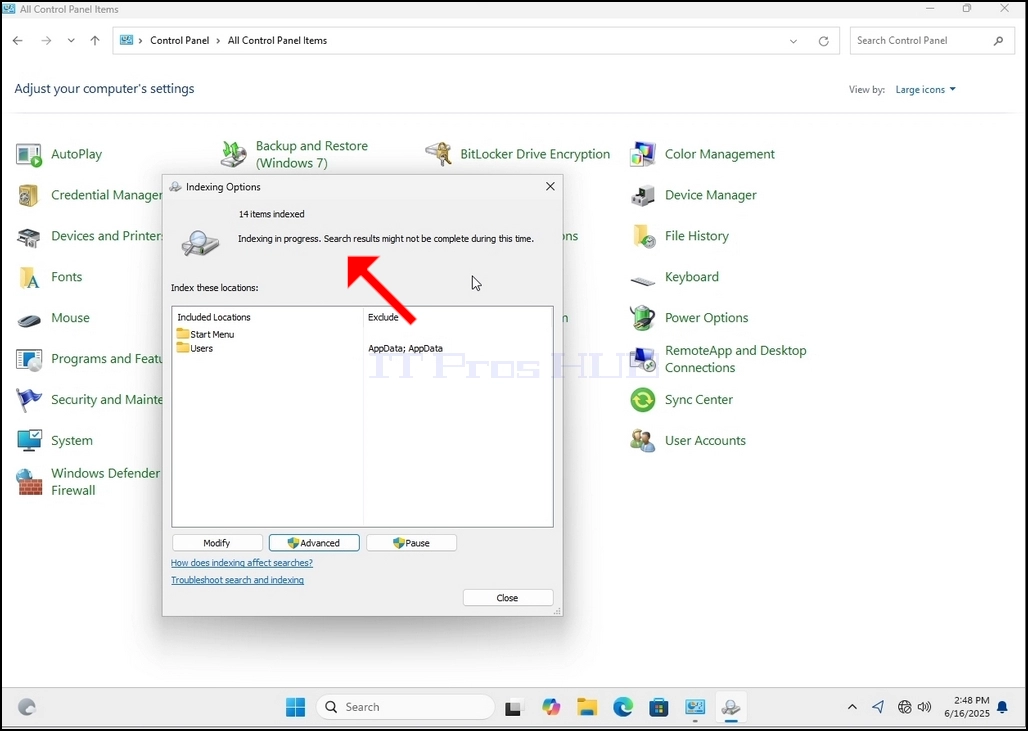
9. After clicking OK in the confirmation box, Windows will start rebuilding its index. It might take some time for the actual process to start, Wait patiently a few seconds to a few minutes. The moment the process starts, the "Indexing Complete" sentence will be replaced with "Indexing in progress. Search results might not be complete during this time."
In addition, the number of items indexed will be reset to 0 for a moment and then start to increase.
Note that All of the windows that are related to the Indexing process can now be closed and the rebuilding process would still be running in the background.
Note that the Indexing process' speed might be reduced due to user activity on the computer. The more intense the activity the less the Indexing speed would be.
- Besonderhede
- Geskryf deur: IT Pro
- Kategorie: How to Articles
- Trefslae: 7417
1. Go to Windows Desktop
2. Click Start
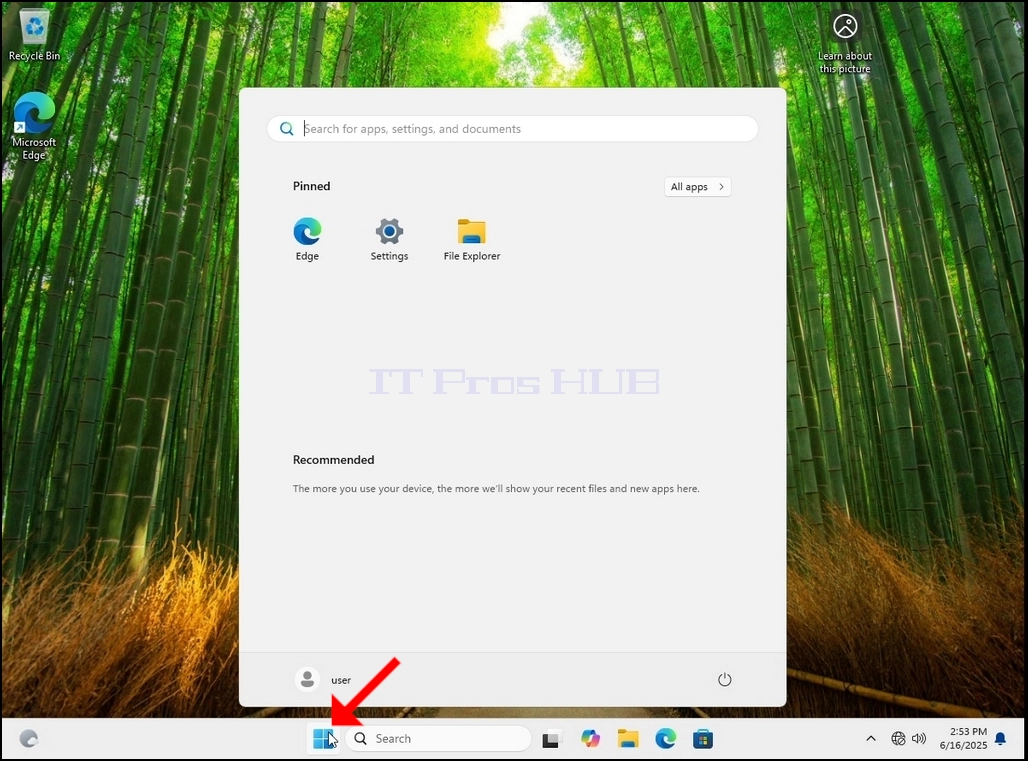
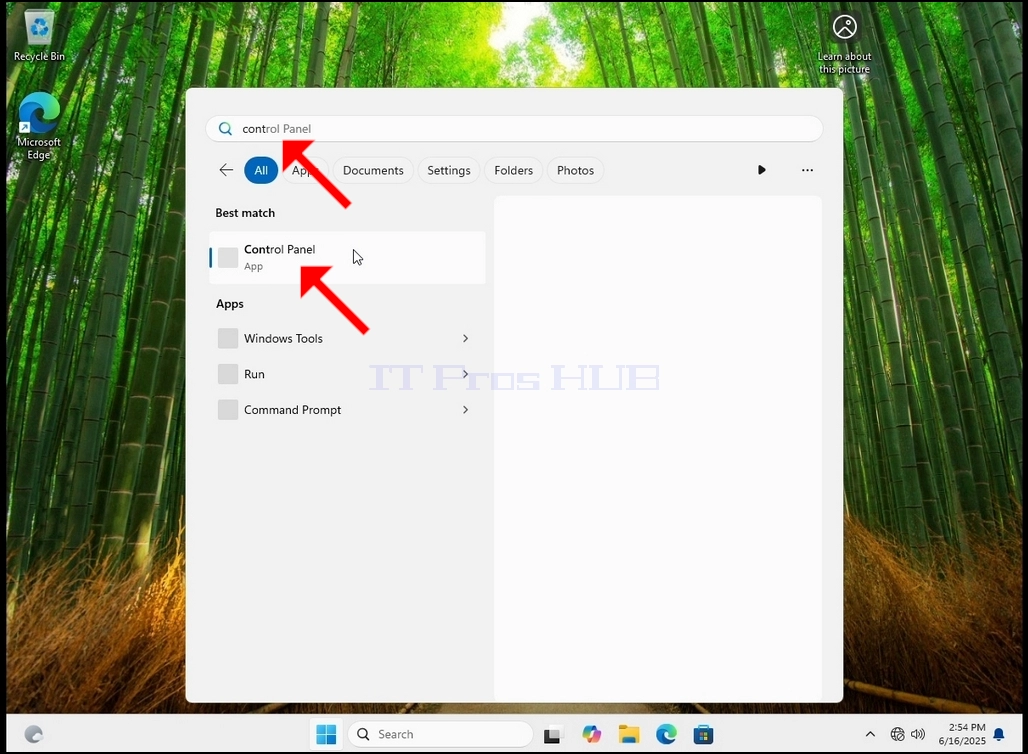
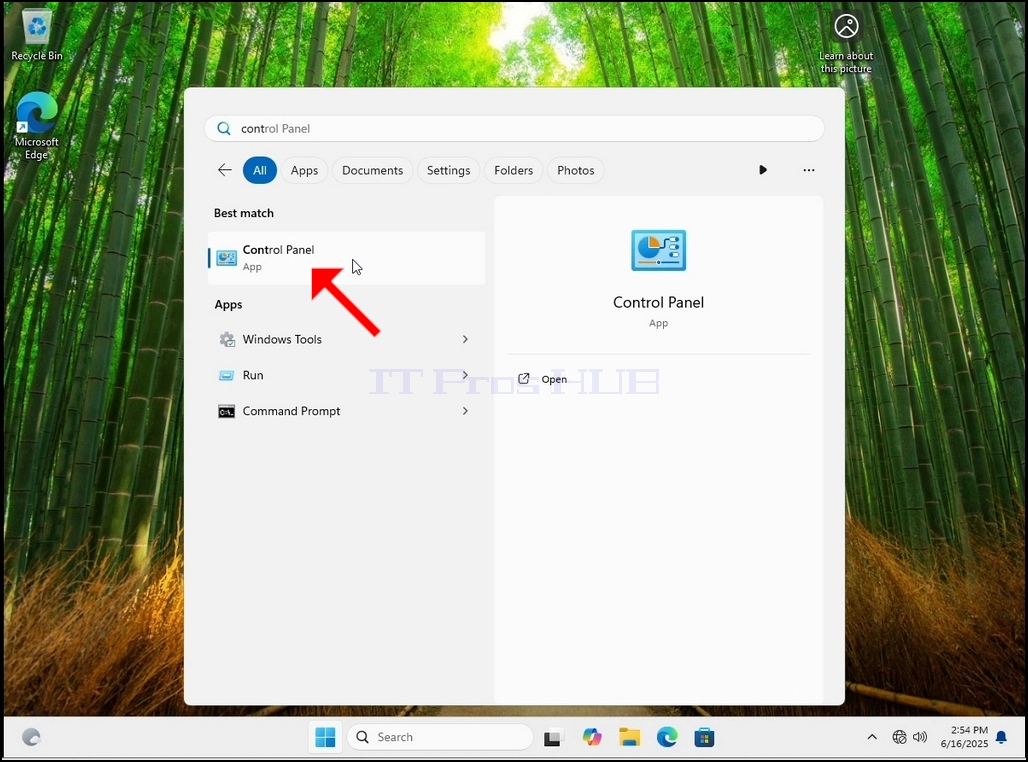
Once it finds it, click it and wait for the Control Panel window to appear.
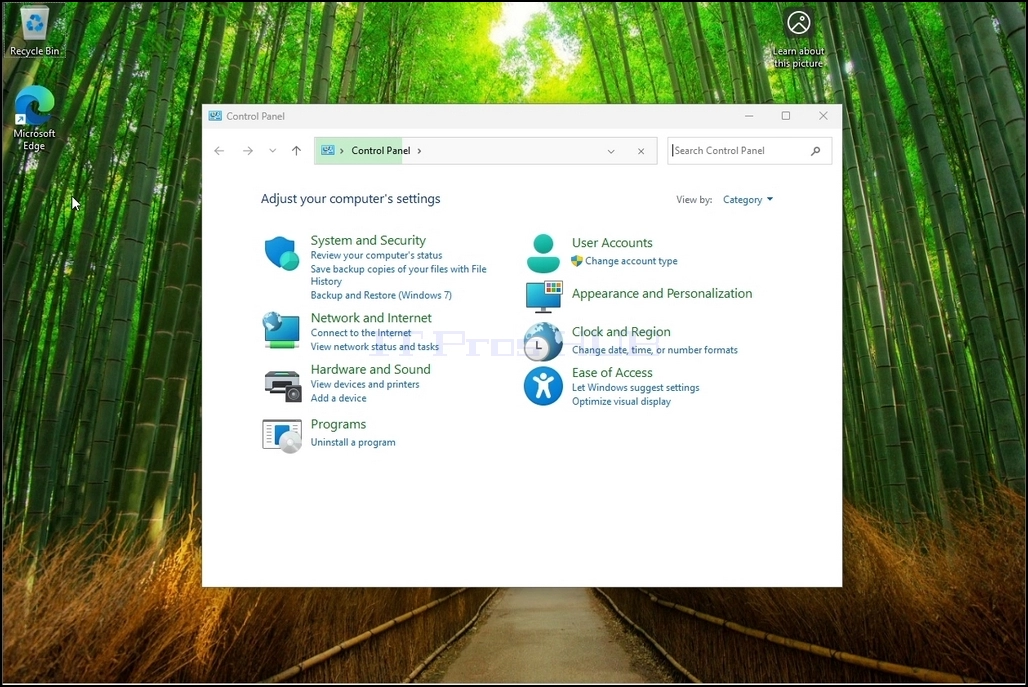
4. Once the Control Panel window is open, enlarge it by clicking the enlarging icon on the top right corner of that window.
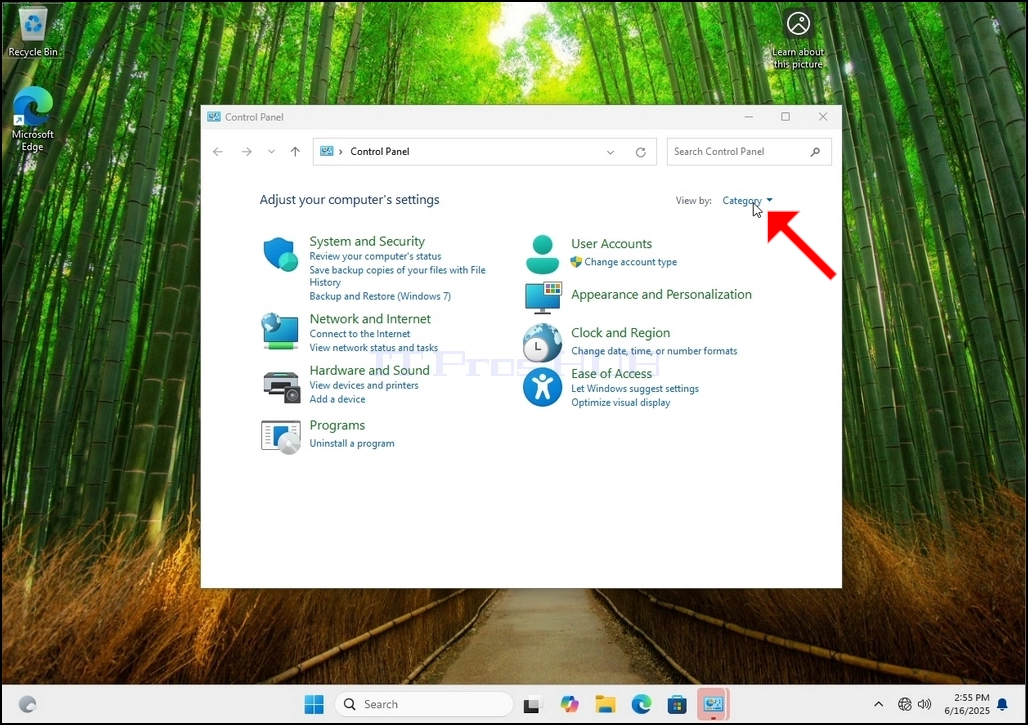
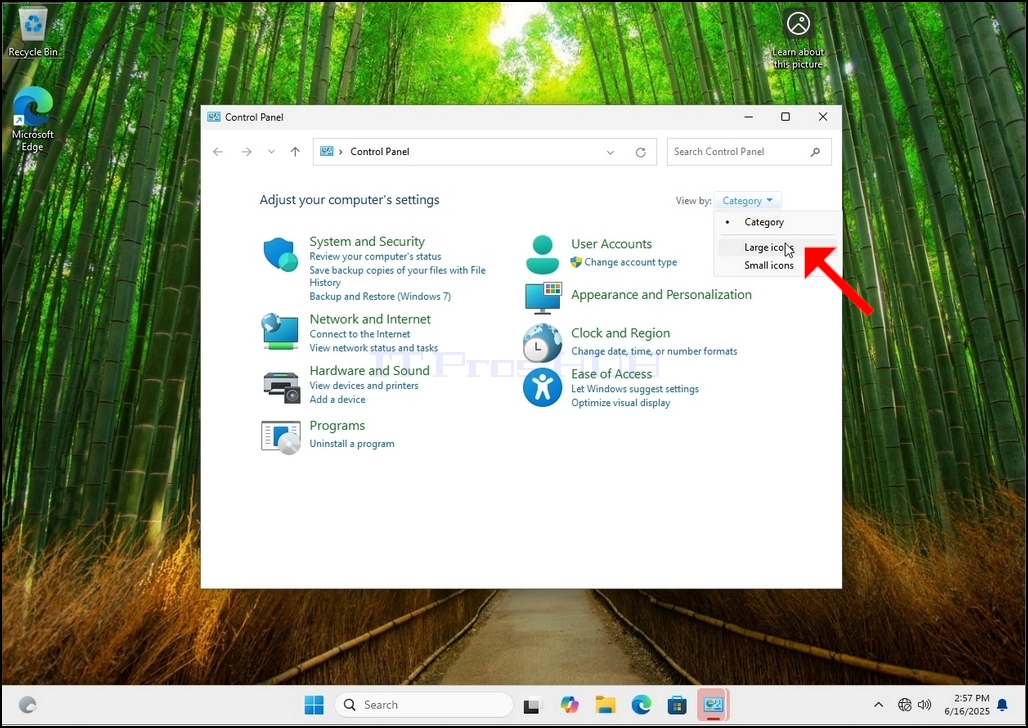
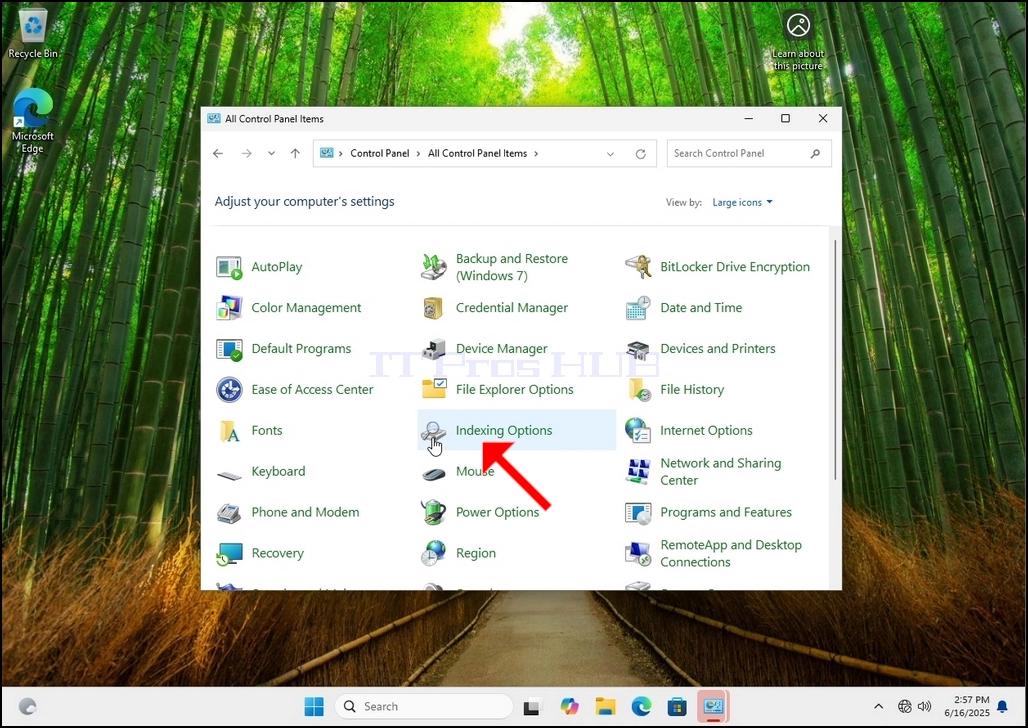
6. Look for the Indexing Options icon and click it. Wait for the Indexing Options window to appear.
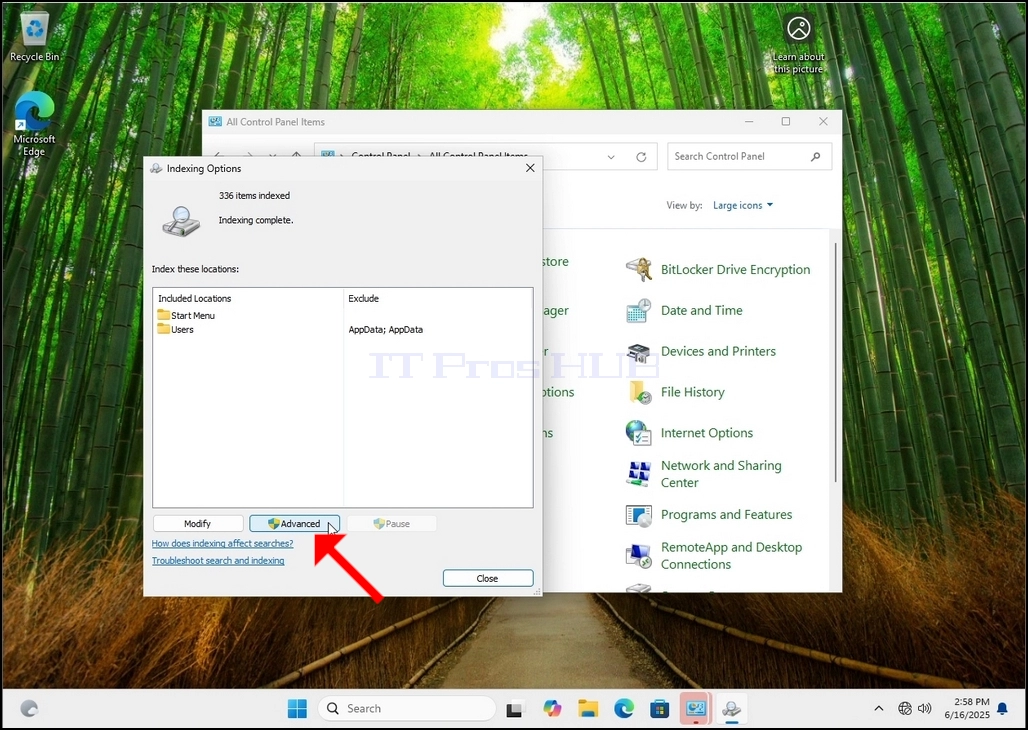
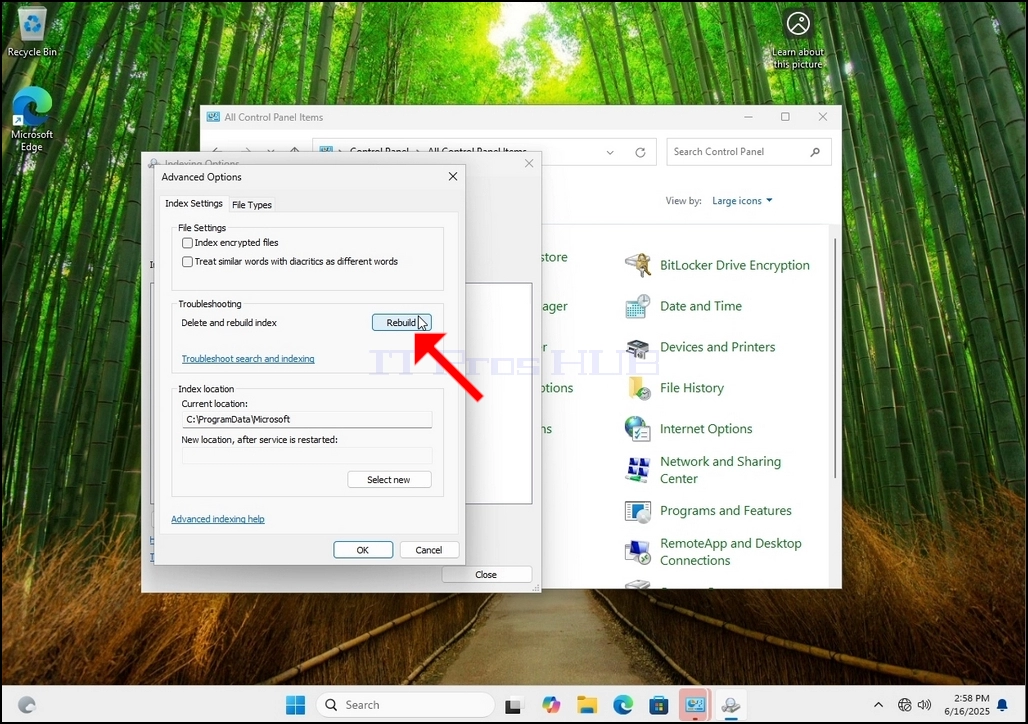
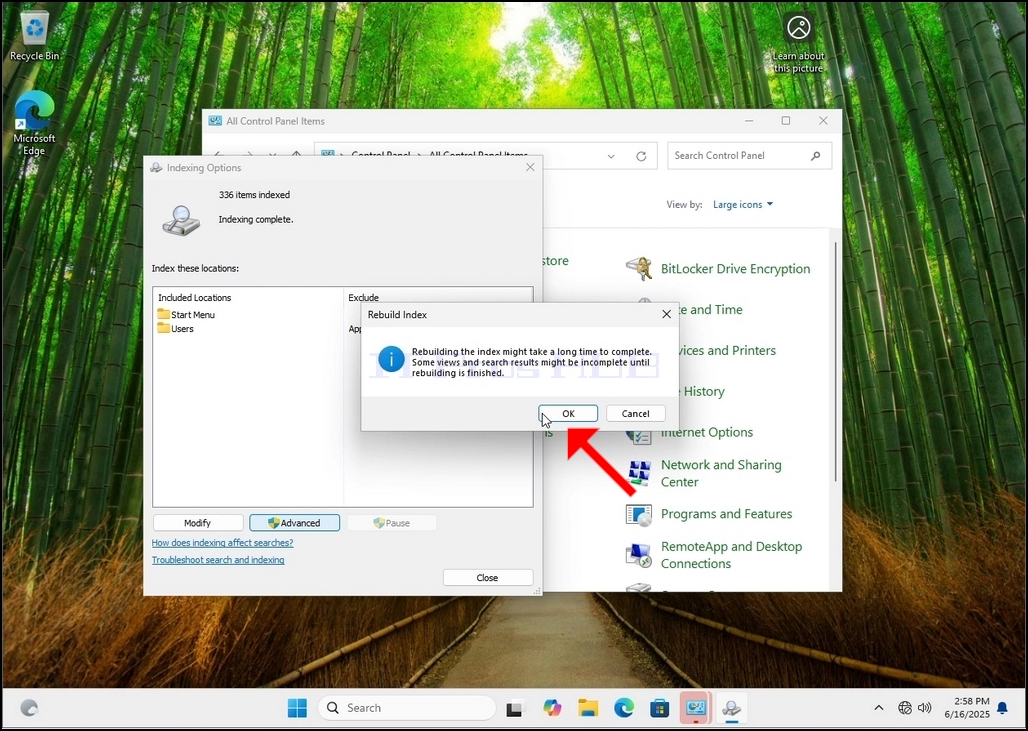
9. After clicking OK in the confirmation box, Windows will start rebuilding its index. It might take some time for the actual process to start, Wait patiently a few seconds to a few minutes. The moment the process starts, the "Indexing Complete" sentence will be replaced with "Indexing in progress. Search results might not be complete during this time."
In addition, the number of items indexed will be reset to 0 for a moment and then start to increase.
Note that All of the windows that are related to the Indexing process can now be closed and the rebuilding process would still be running in the background.
Note that the Indexing process' speed might
- How to Rebuild Indexing in Windows 11 24H2 x64 Pro Education Build 26100.1742
- How to Rebuild Indexing in Windows 11 24H2 x64 Pro Build 26100.3194
- How to Rebuild Indexing in Windows 11 24H2 x64 Home Single Language Build 26100.3194
- How to Rebuild Indexing in Windows 11 24H2 x64 Home N Build 26100.1742