- Details
- Written by: IT Pro
- Category: How to Articles
- Hits: 6445
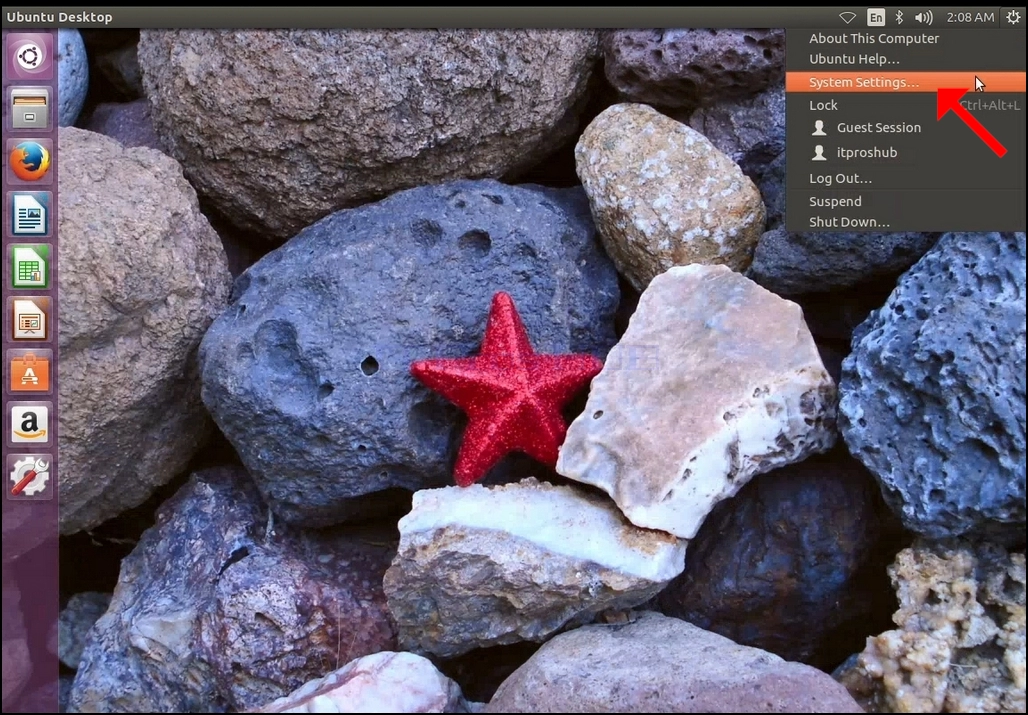
3. In the newly opened Settings window, look for the Displays icon and click on it.
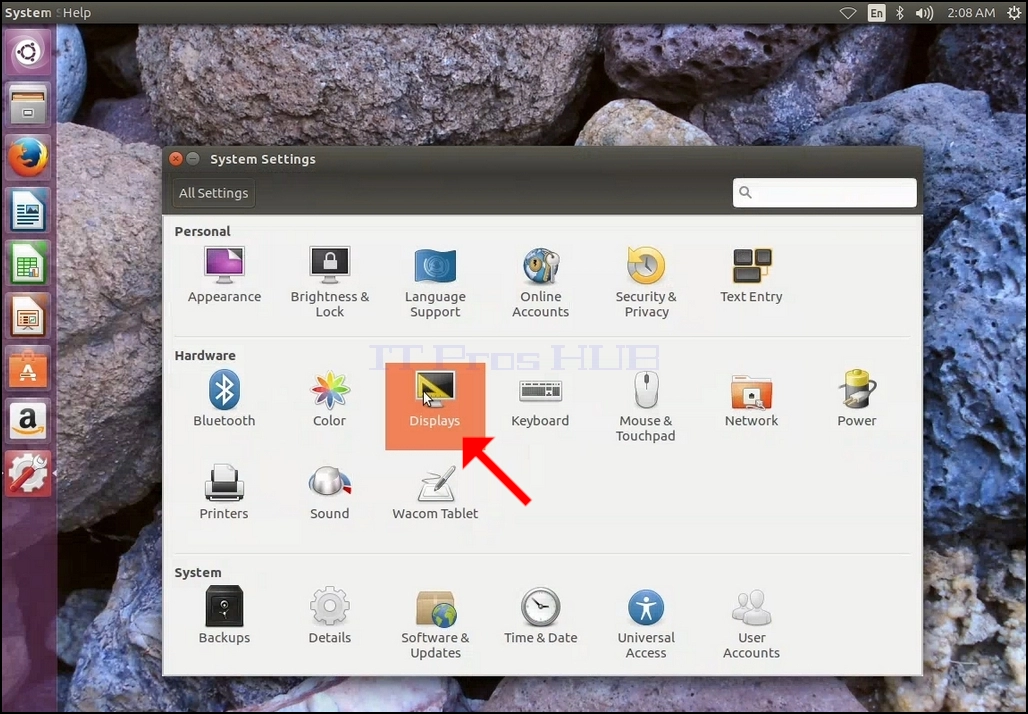
4. Under Displays, look for Resolution
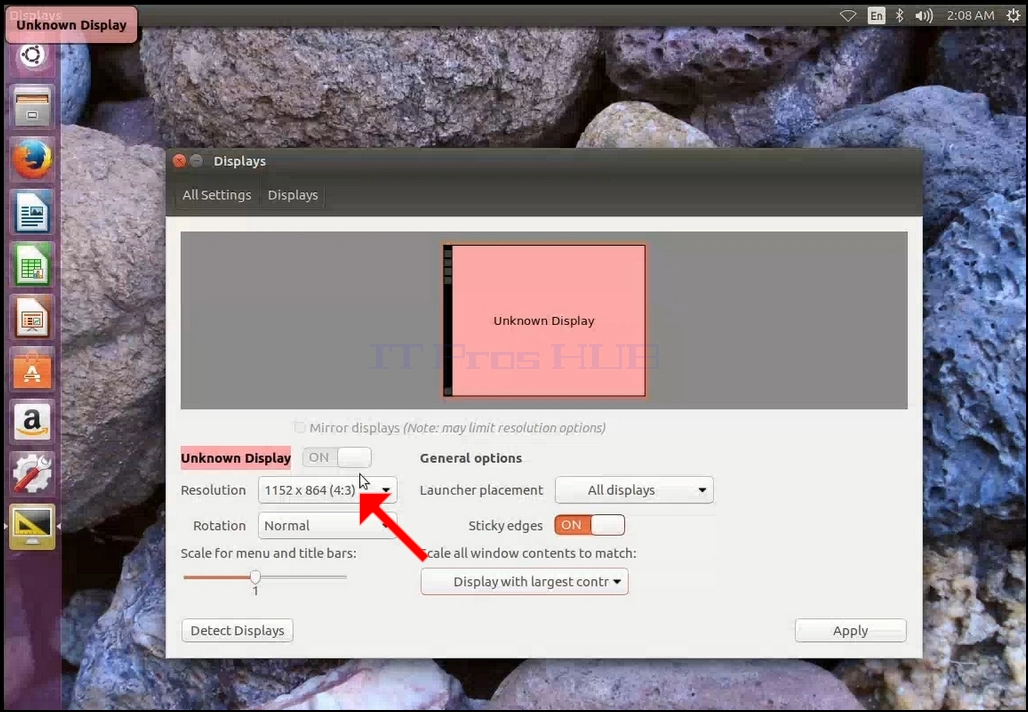
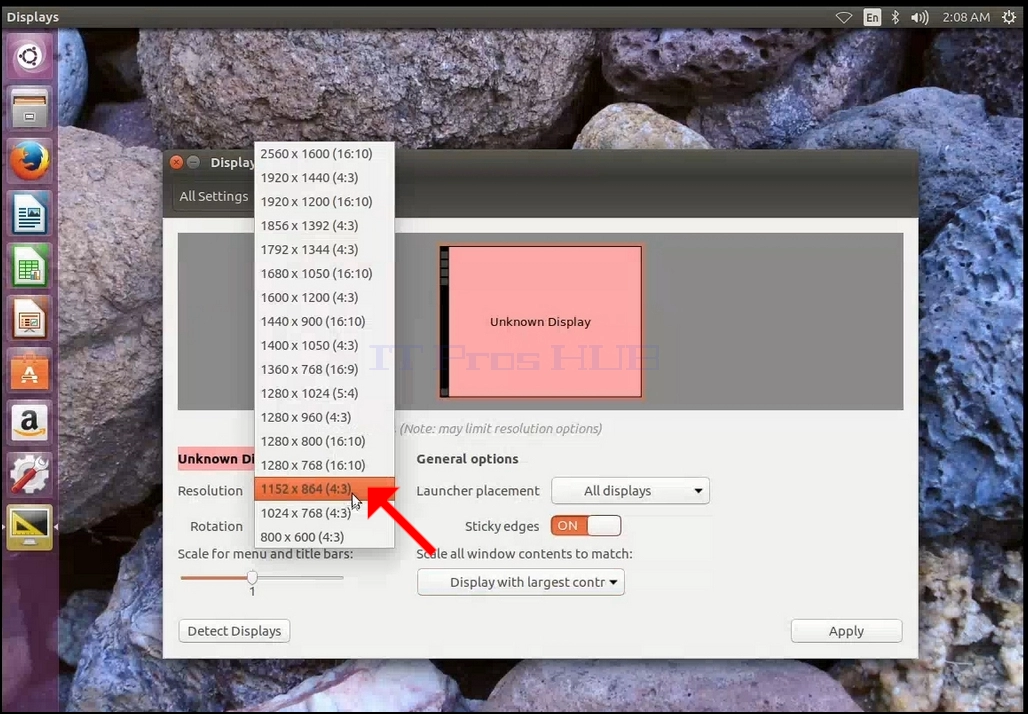
6. From the various resolution options, choose the one best suits your needs by left clicking on it (In this example the chosen one is 1024x768)
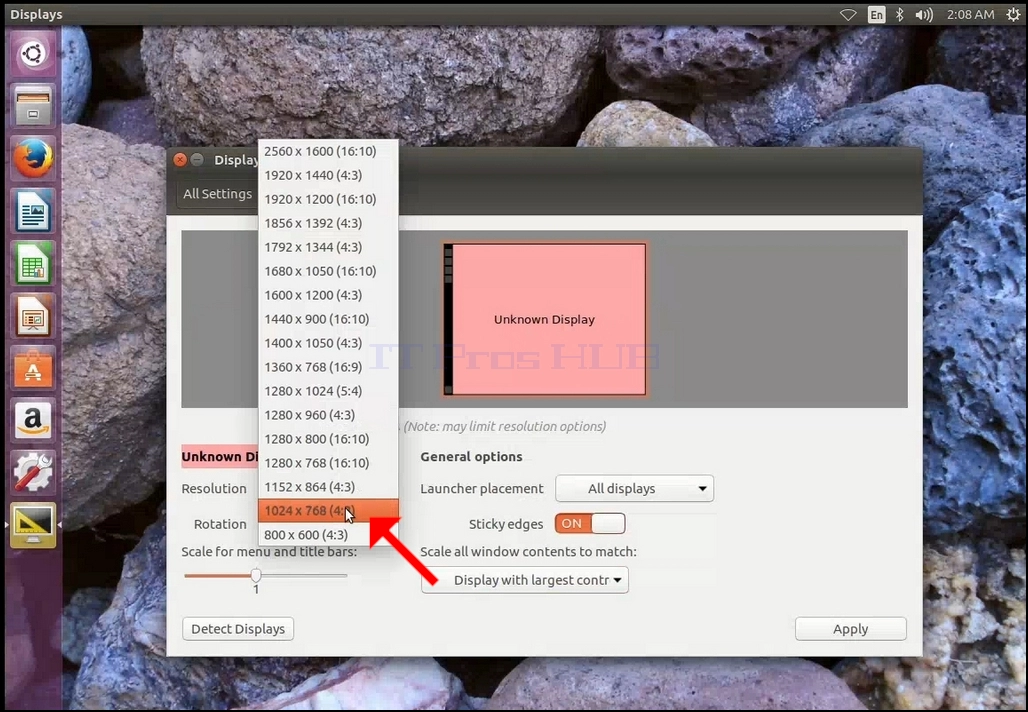
7. Click Apply
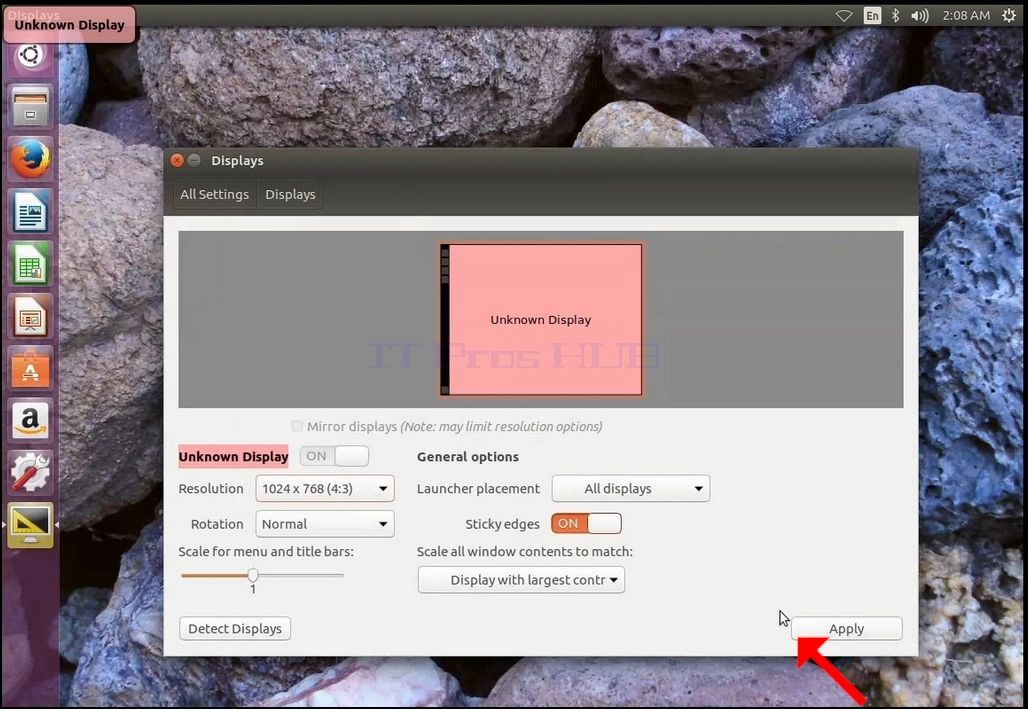
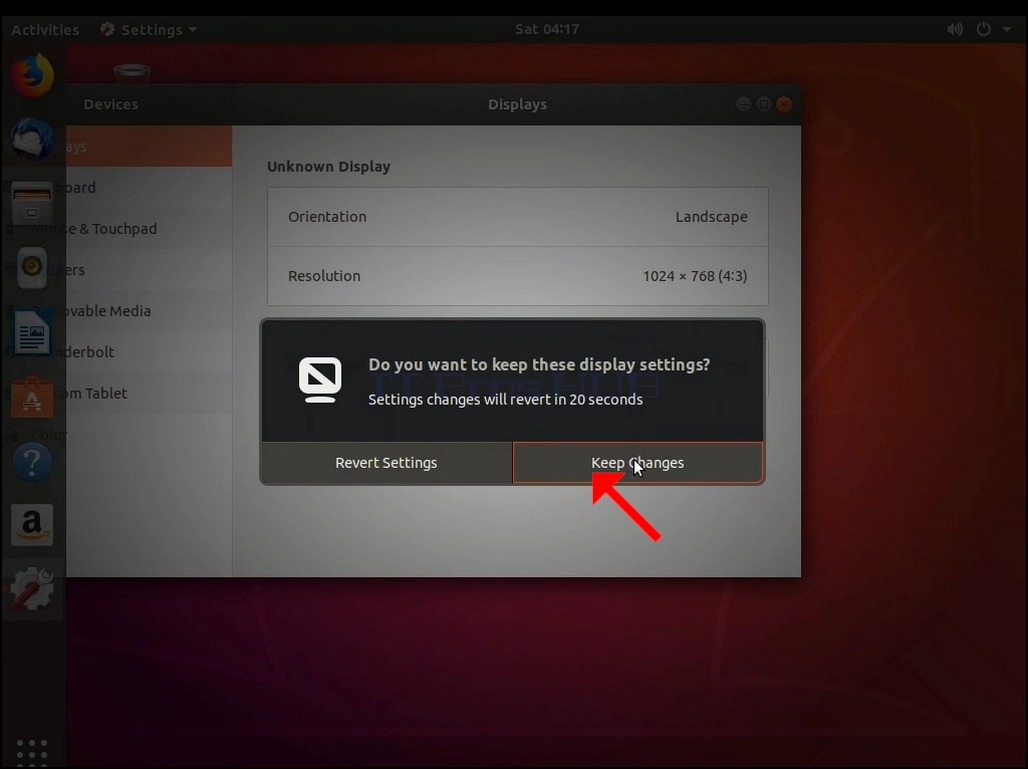
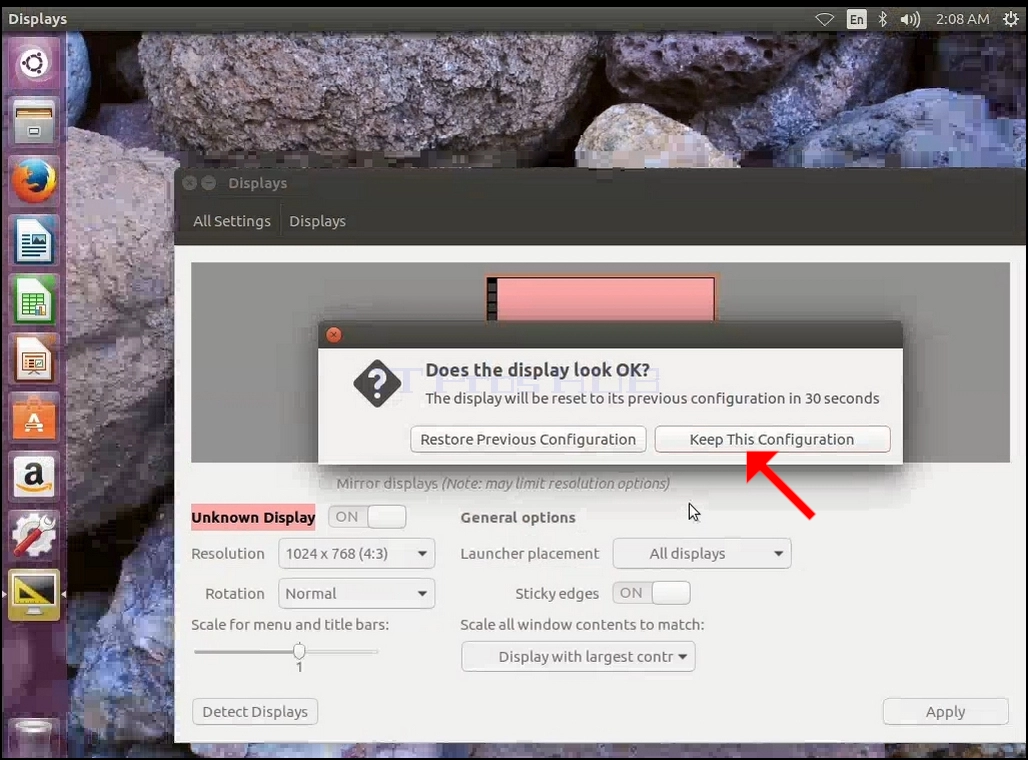
8. After choosing the new resolution setting, Ubuntu will ask you whether you would like to Keep This Configuration or to Restore Previous Configuration. If an option is not chosen within an allocated number of seconds, Ubuntu will revert back to the previously configured resolution. This is done in case the monitor doesn't support the selected resolution, and the user is unable to either see or see the current video output to manually revert the newly selected resolution.
If the newly chosen resolution is compatible with the monitor, choose Keep Changes, and click it.
- Details
- Written by: IT Pro
- Category: How to Articles
- Hits: 6109
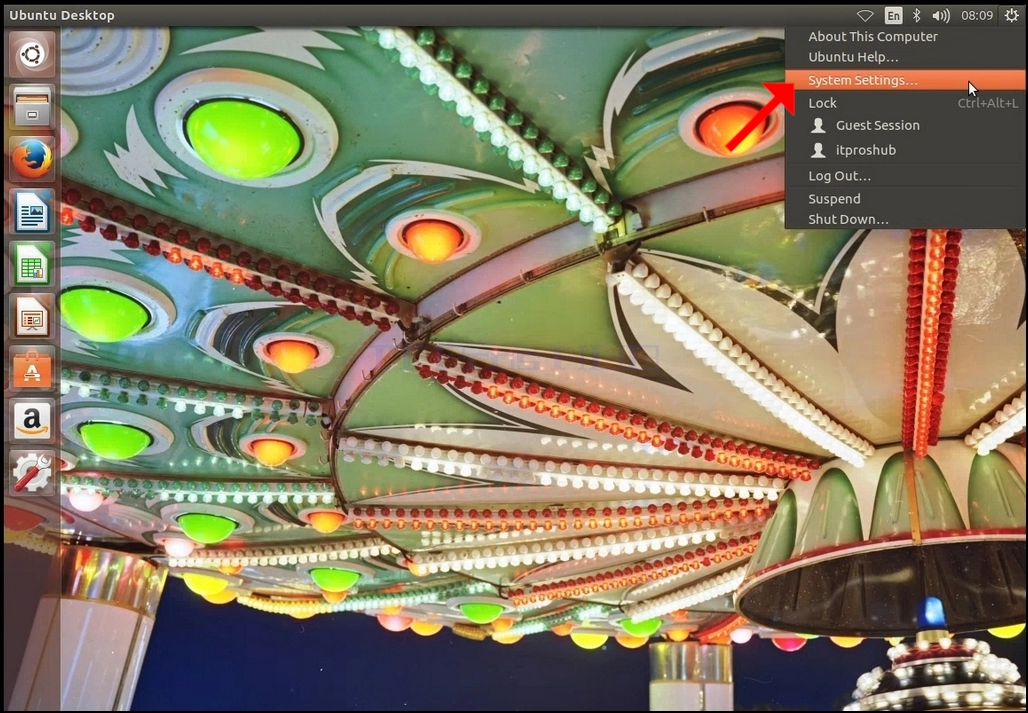
3. In the newly opened Settings window, look for the Displays icon and click on it.
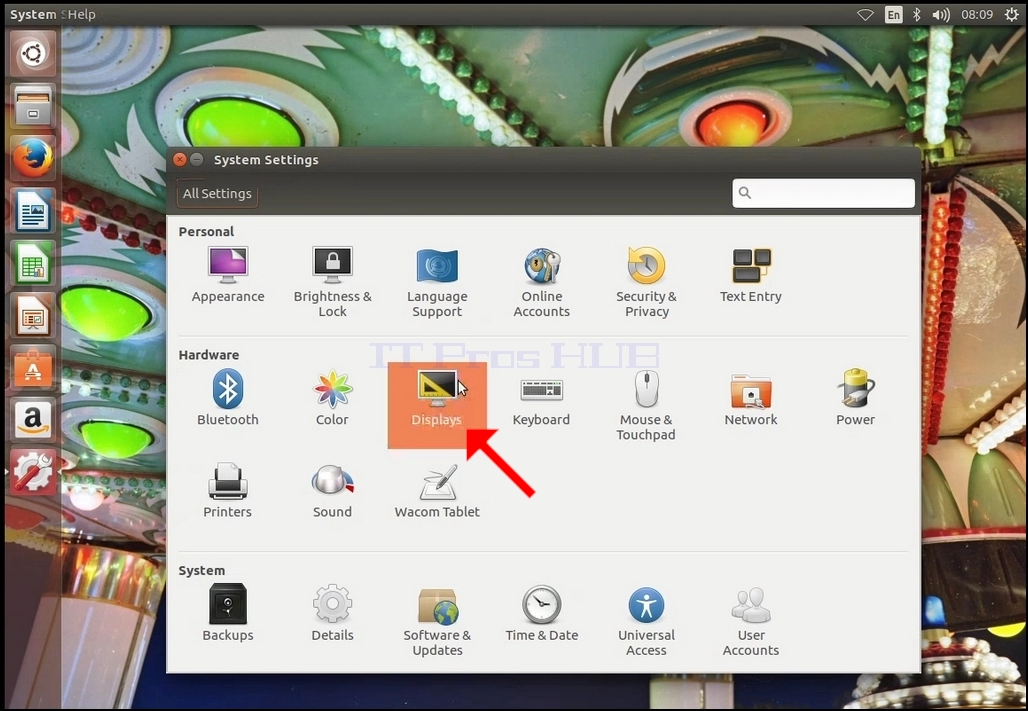
4. Under Displays, look for Resolution
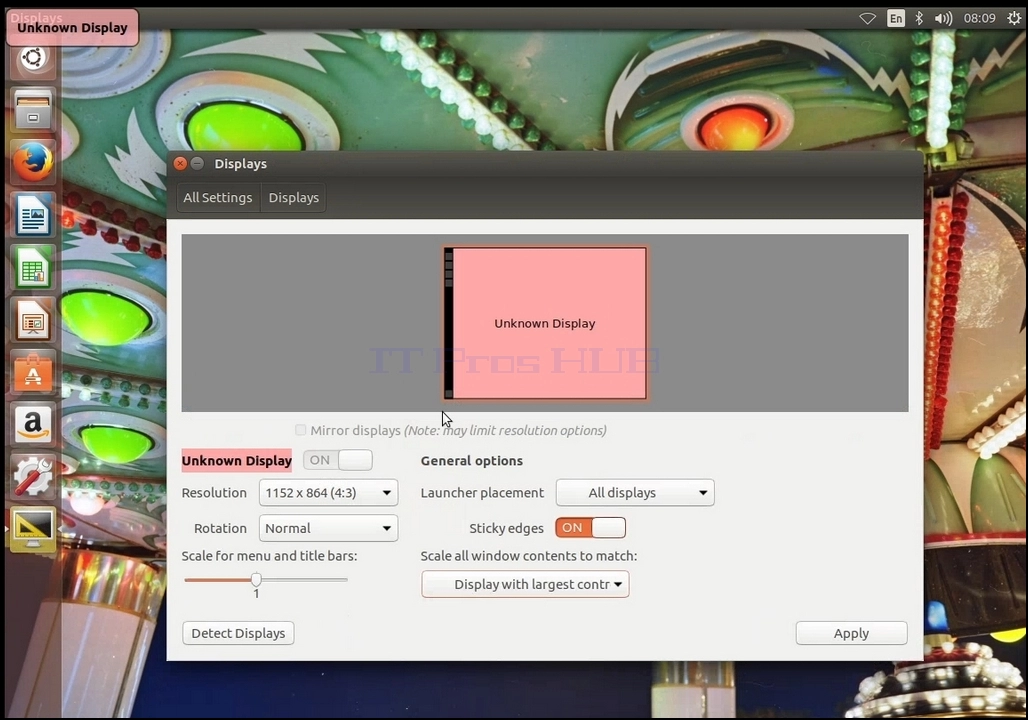
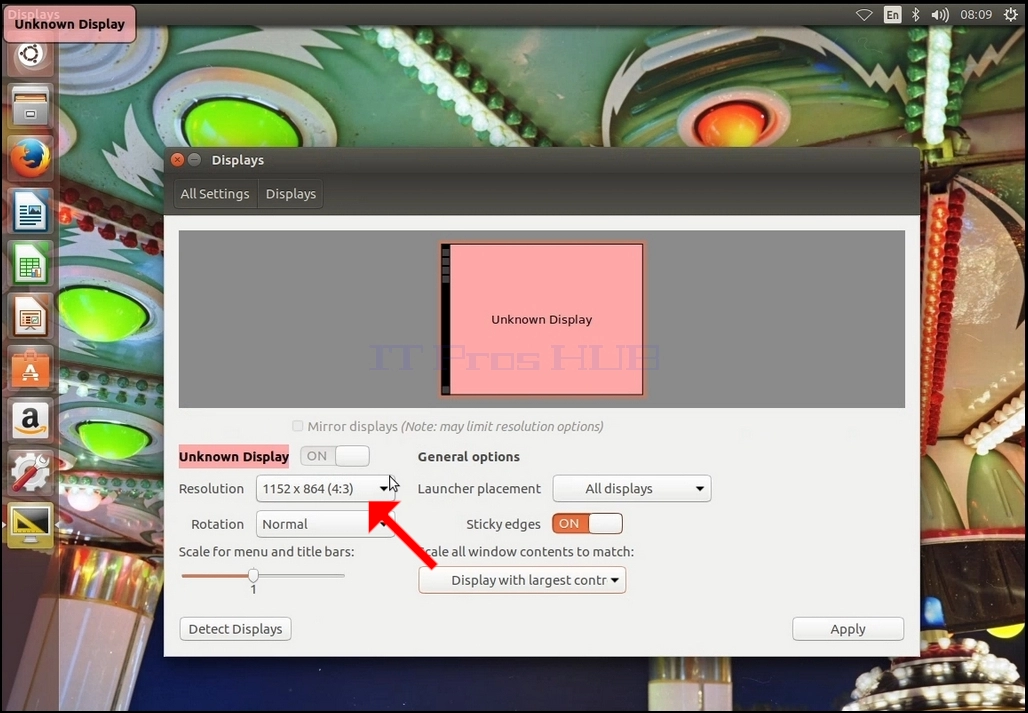
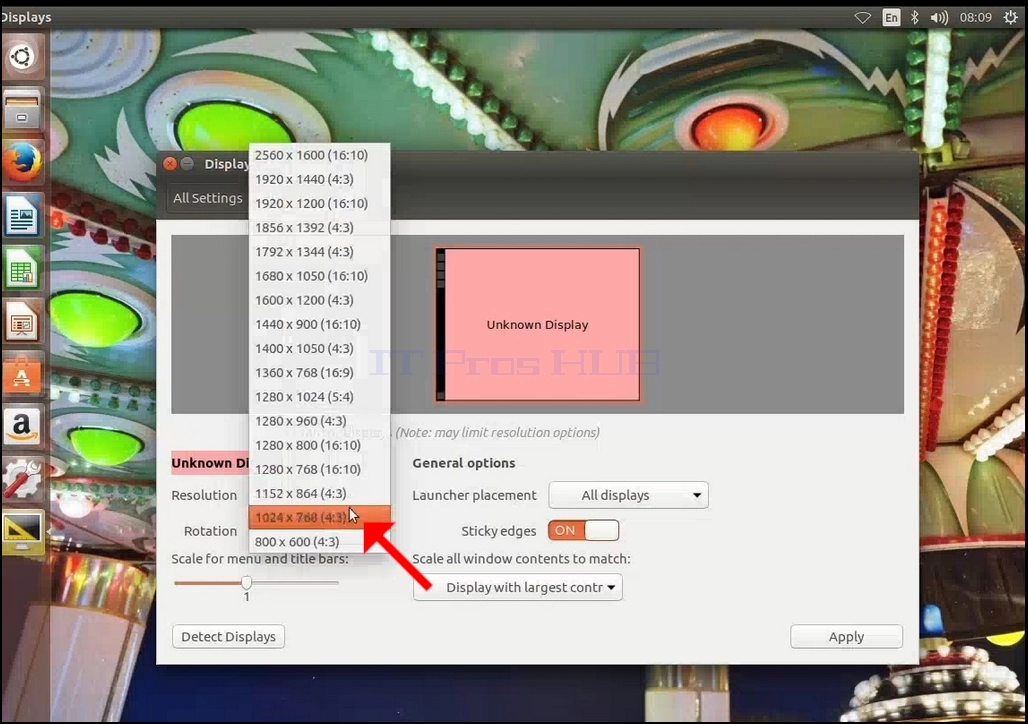
6. From the various resolution options, choose the one best suits your needs by left clicking on it (In this example the chosen one is 1024x768)
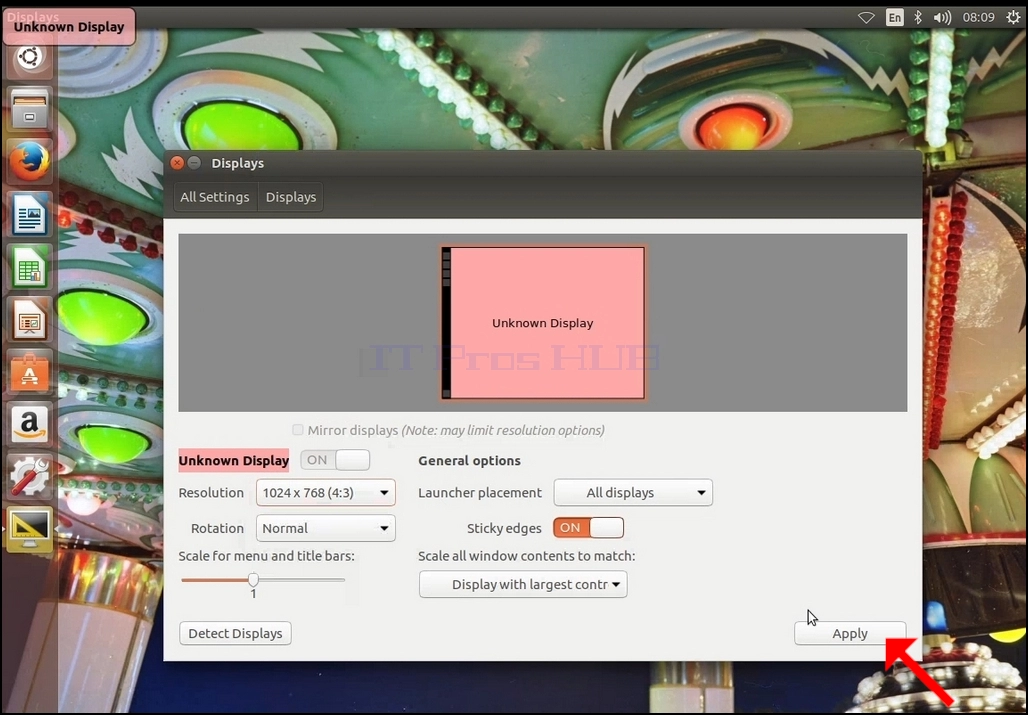
7. Click Apply
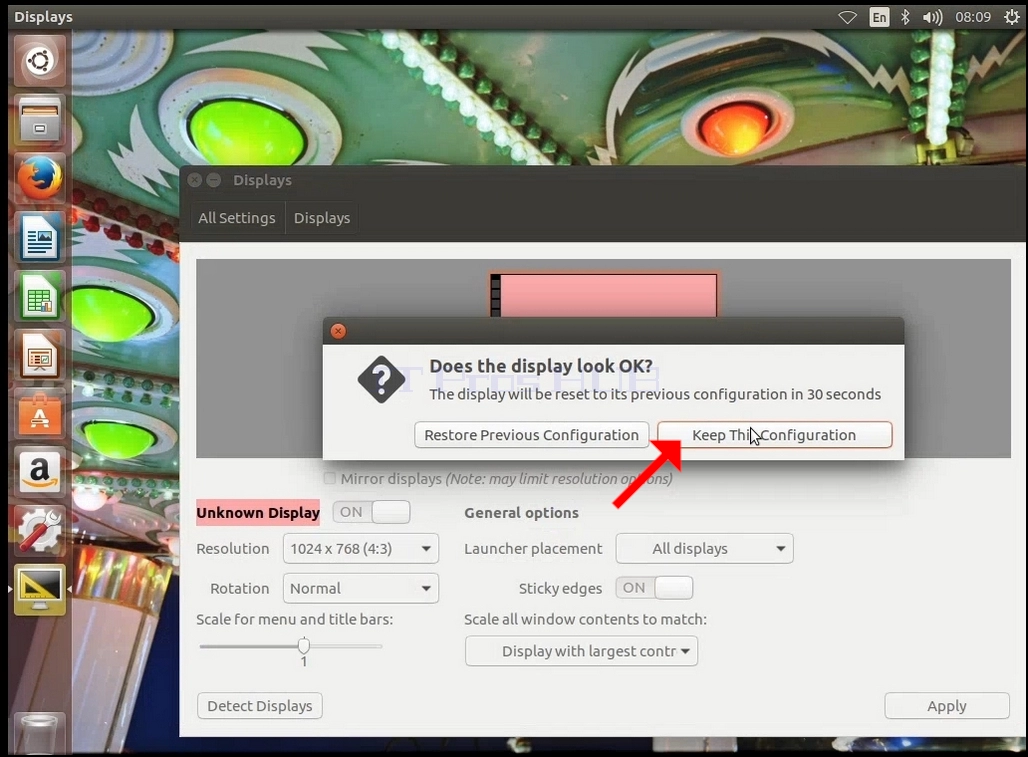
8. After choosing the new resolution setting, Ubuntu will ask you whether you would like to Keep This Configuration or to Restore Previous Configuration. If an option is not chosen within an allocated number of seconds, Ubuntu will revert back to the previously configured resolution. This is done in case the monitor doesn't support the selected resolution, and the user is unable to either see or see the current video output to manually revert the newly selected resolution.
If the newly chosen resolution is compatible with the monitor, choose Keep Changes, and click it.
- Details
- Written by: IT Pro
- Category: How to Articles
- Hits: 6258
1. በማያ ገጹ የላይኛው ቀኝ ጥግ ላይ ያለውን የማብሪያ/ማጥፋት አዶ ይፈልጉ። ጠቅ ያድርጉትና ትንሽ የጎን ምናሌ እስኪታይ ይጠብቁ።
2. በትንሽ የጎን ምናሌ ውስጥ የስርዓት ቅንብሮችን ይፈልጉና ጠቅ ያድርጉት።
3. አዲስ በተከፈተው የቅንብሮች መስኮት ውስጥ የማሳያ አዶውን ይፈልጉ እና በላዩ ላይ ጠቅ ያድርጉ።
4. በማሳያዎች ስር፣ ጥራትን ይፈልጉ
5. የተቆልቋይ ምናሌውን ለማስፋት እና ለመምረጥ ያሉትን ጥራቶች ለማየት የአሁኑን የጥራት ቅንብር ጠቅ ያድርጉ።
6. ከተለያዩ የጥራት አማራጮች ውስጥ፣ በግራ በኩል ጠቅ በማድረግ ለፍላጎቶችዎ የሚስማማውን ይምረጡ (በዚህ ምሳሌ የተመረጠው 1024x768 ነው)
7. Apply የሚለውን ጠቅ ያድርጉ
8. አዲሱን የጥራት ቅንብር ከመረጡ በኋላ፣ ኡቡንቱ ይህንን ውቅር ማቆየት ወይም ቀዳሚውን ውቅር ወደነበረበት መመለስ ይፈልጉ እንደሆነ ይጠይቅዎታል። አንድ አማራጭ በተወሰነው የሰከንዶች ብዛት ውስጥ ካልተመረጠ፣ ኡቡንቱ ወደ ቀድሞው የተዋቀረው ጥራት ይመለሳል። ይህ የሚደረገው ሞኒተሩ የተመረጠውን ጥራት የማይደግፍ ከሆነ እና ተጠቃሚው አዲሱን የተመረጠውን ጥራት በእጅ ለመመለስ የአሁኑን የቪዲዮ ውጤት ማየት ወይም ማየት ካልቻለ ነው።
አዲሱ የተመረጠው ጥራት ከሞኒተሩ ጋር ተኳሃኝ ከሆነ፣ ለውጦችን Keep የሚለውን ይምረጡ እና ጠቅ ያድርጉት።
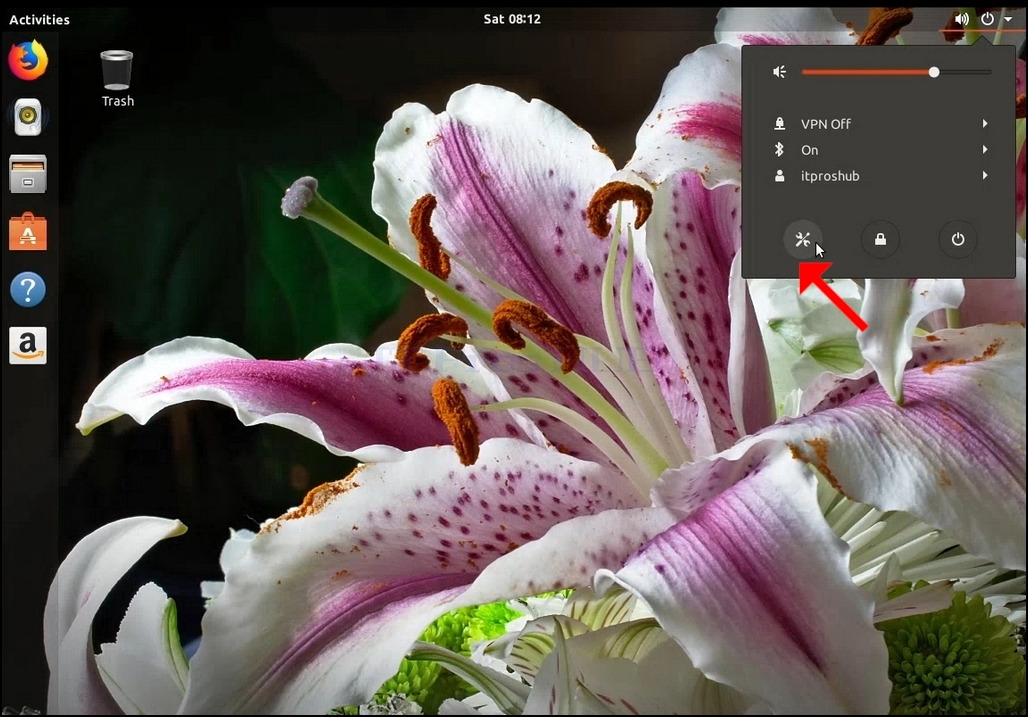
1. በማያ ገጹ የላይኛው ቀኝ ጥግ ላይ ያለውን የማብሪያ/ማጥፊያ አዶ ይፈልጉ። ጠቅ ያድርጉት እና ትንሽ የጎን ምናሌ እስኪታይ ድረስ ይጠብቁ።
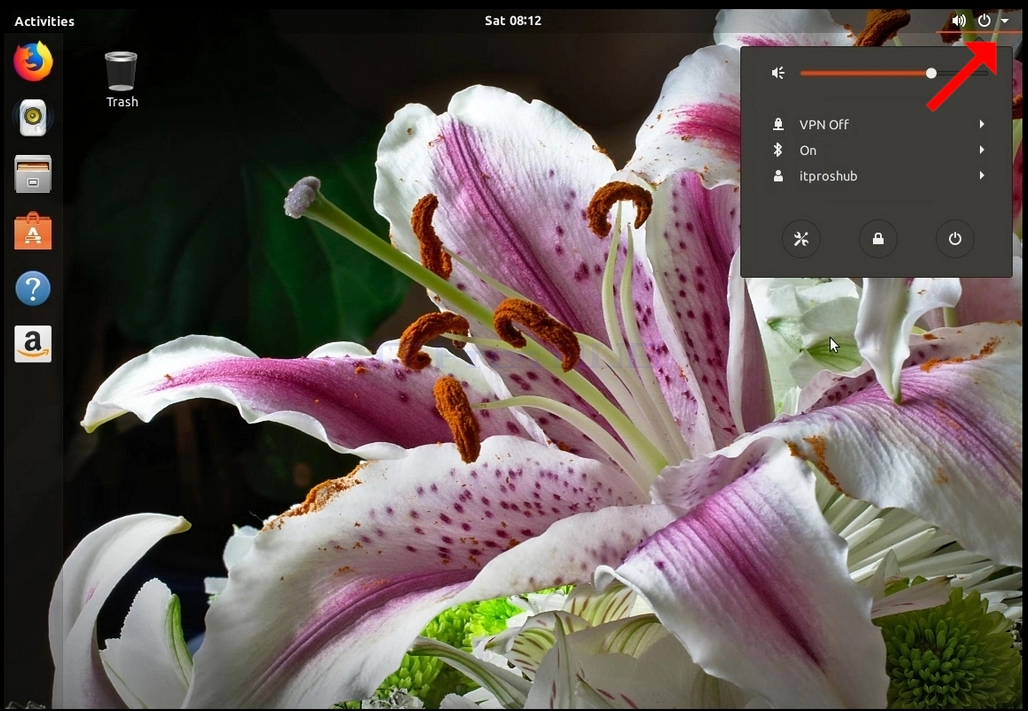
2. በትንሽ የጎን ምናሌ ውስጥ የመሳሪያዎች አዶን ይፈልጉ እና ጠቅ ያድርጉት።
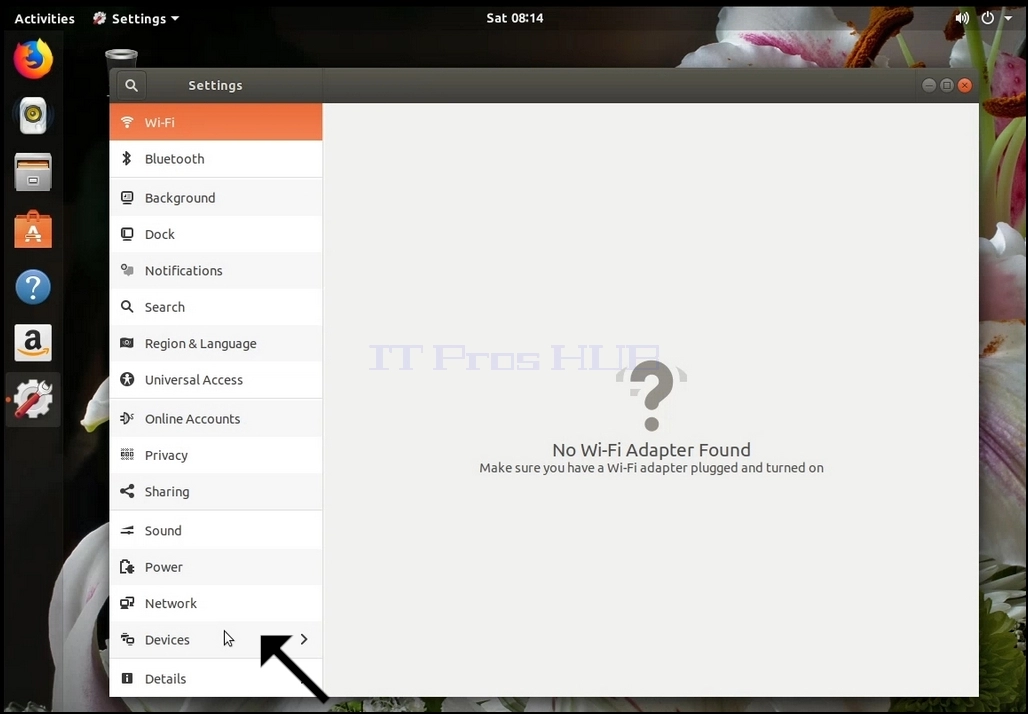
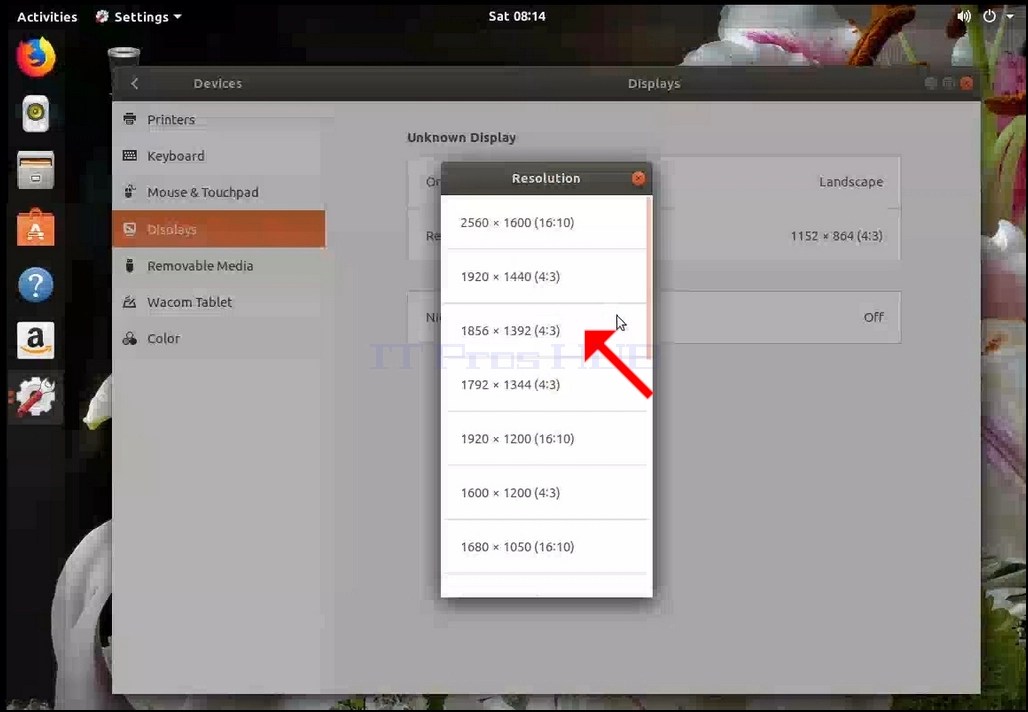
3. በአዲሱ የቅንብሮች መስኮት ውስጥ መሳሪያዎችን ይፈልጉ እና ጠቅ ያድርጉት፣ ከዚያ ማሳያዎችን ጠቅ ያድርጉ
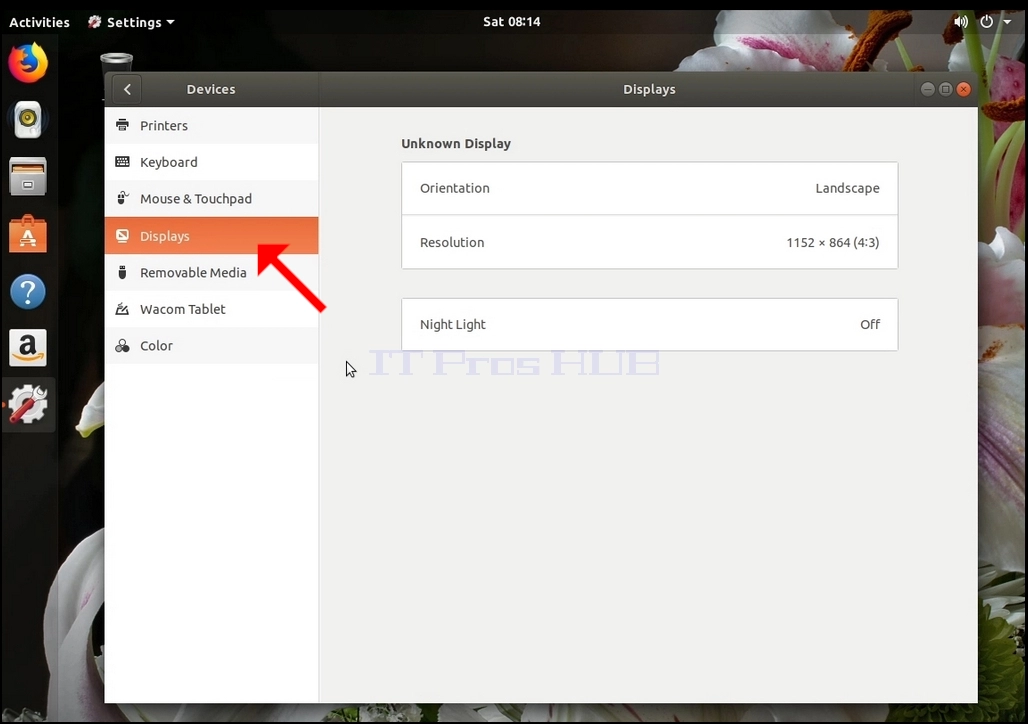
4. በማሳያዎች ስር፣ በመስኮቱ በቀኝ በኩል፣ ጥራትን ይፈልጉ
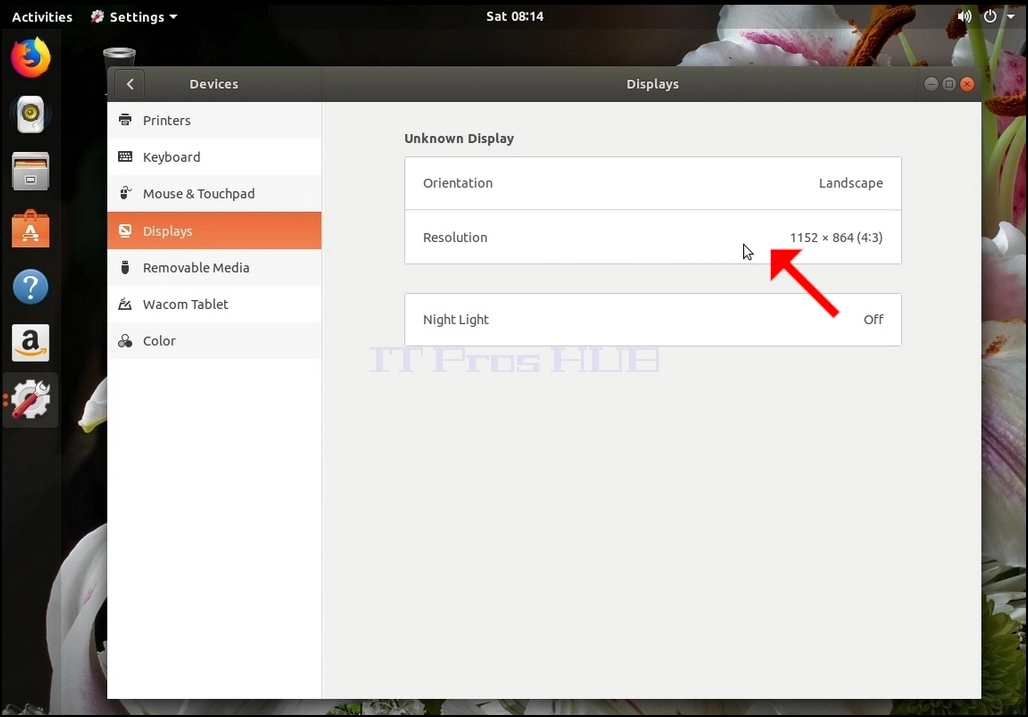
5. የተቆልቋይ ምናሌውን ለማስፋት እና ከምርጫዎቹ ውስጥ ያሉትን ጥራቶች ለማየት የአሁኑን የጥራት ቅንብር ጠቅ ያድርጉ።
7. ተግብርን ጠቅ ያድርጉ
- Details
- Written by: IT Pro
- Category: How to Articles
- Hits: 5885
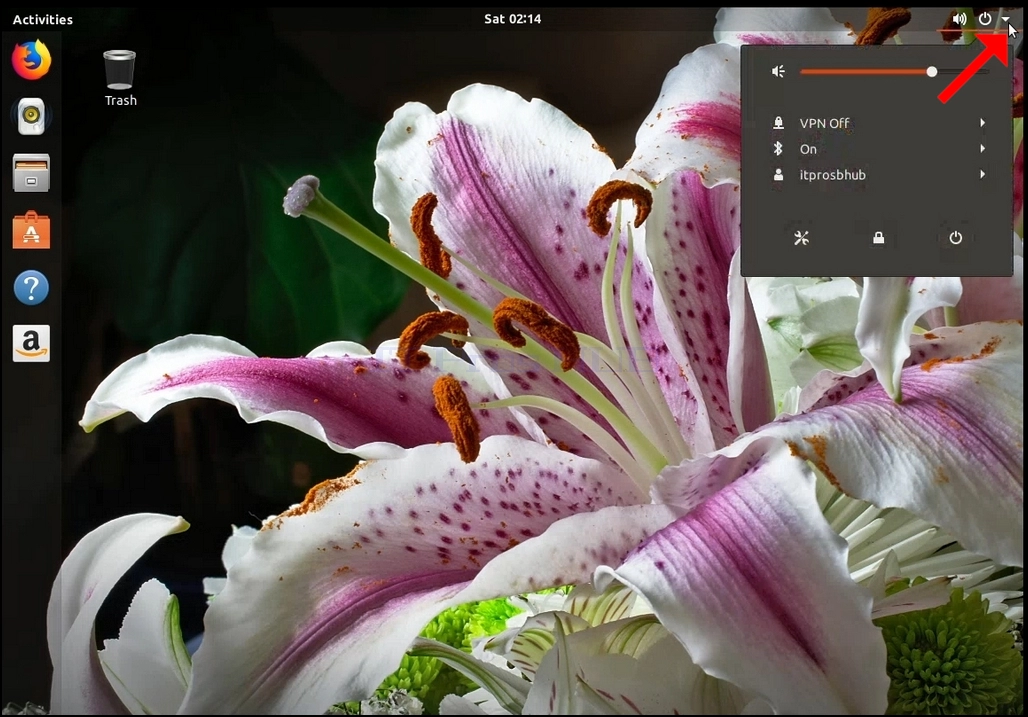
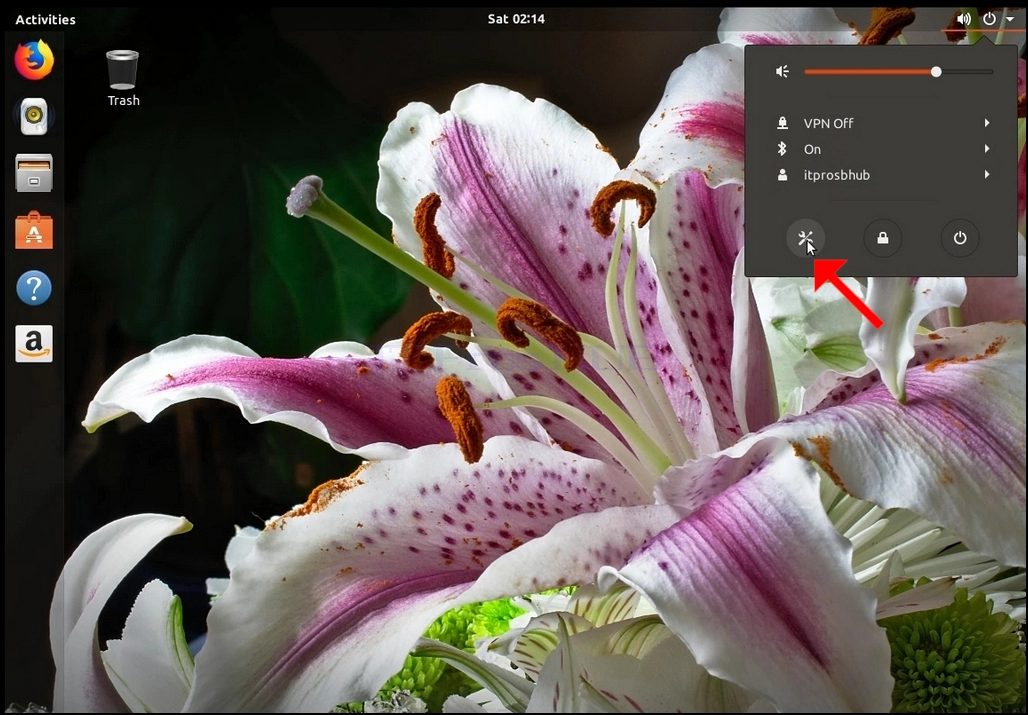
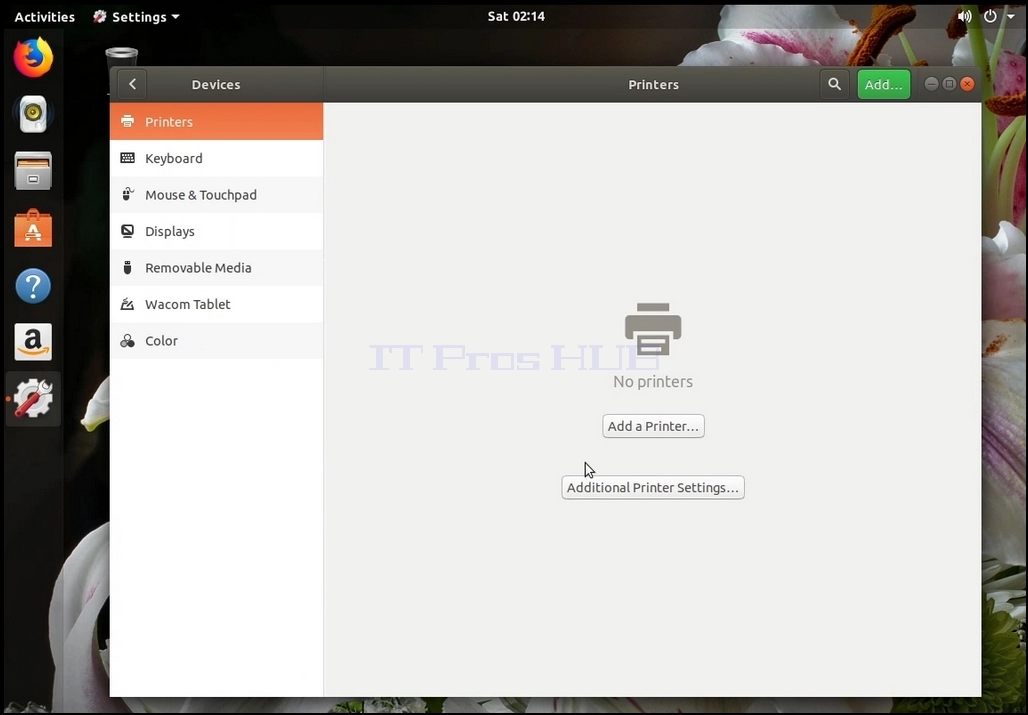
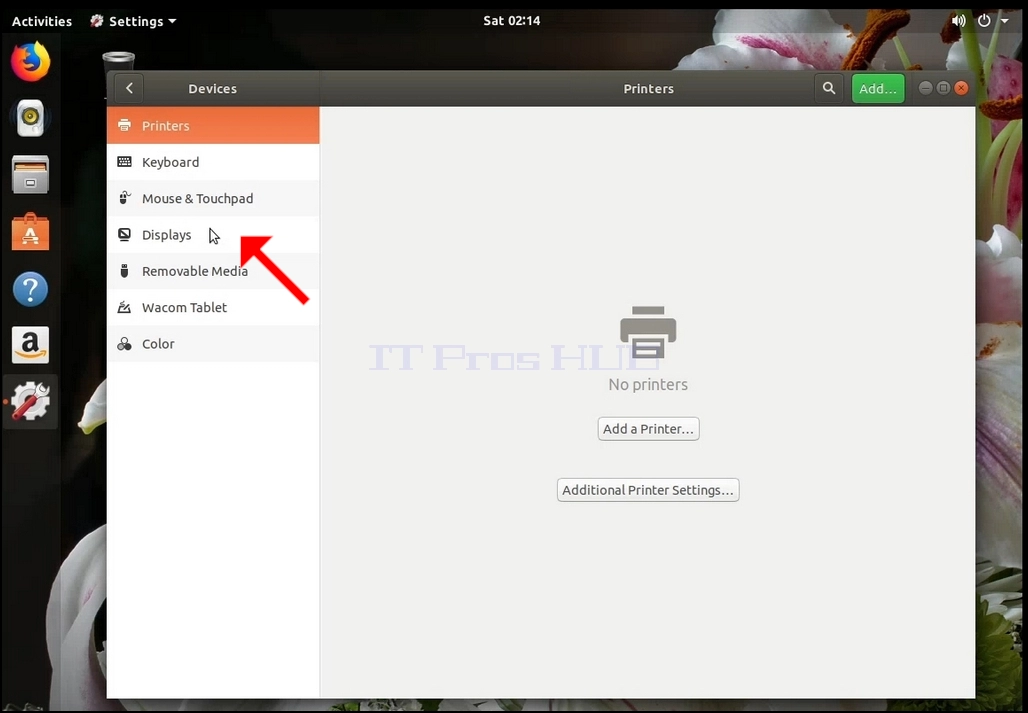
3. In the newly opened Settings window, look for Devices and click it, then Click Displays

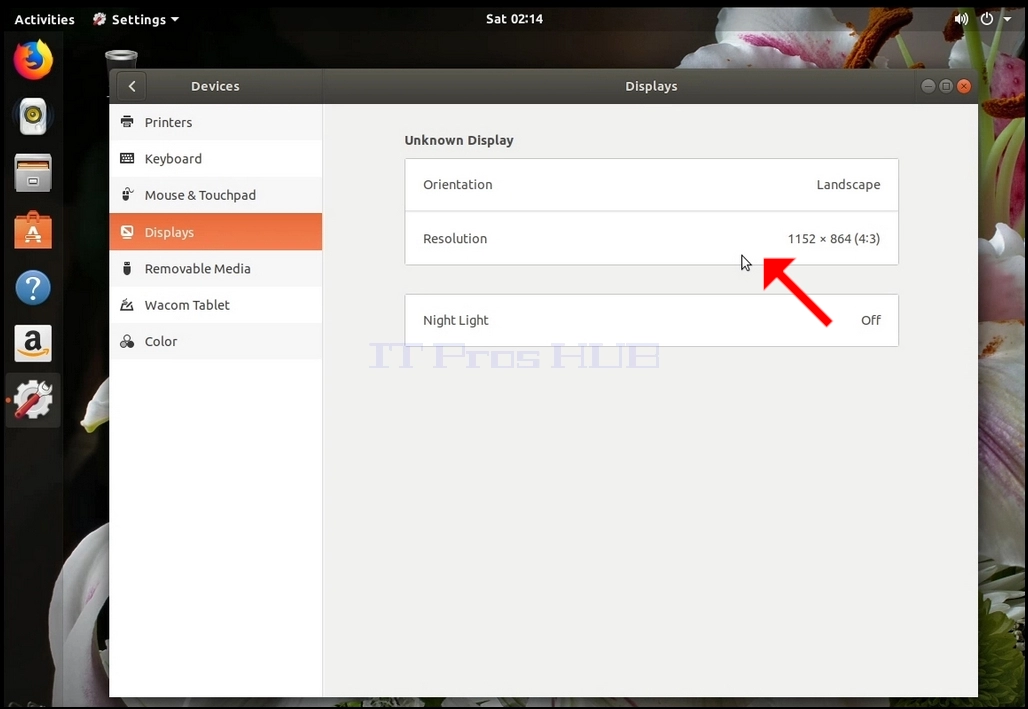
4. Under Displays, on the right part of the window, look for Resolution
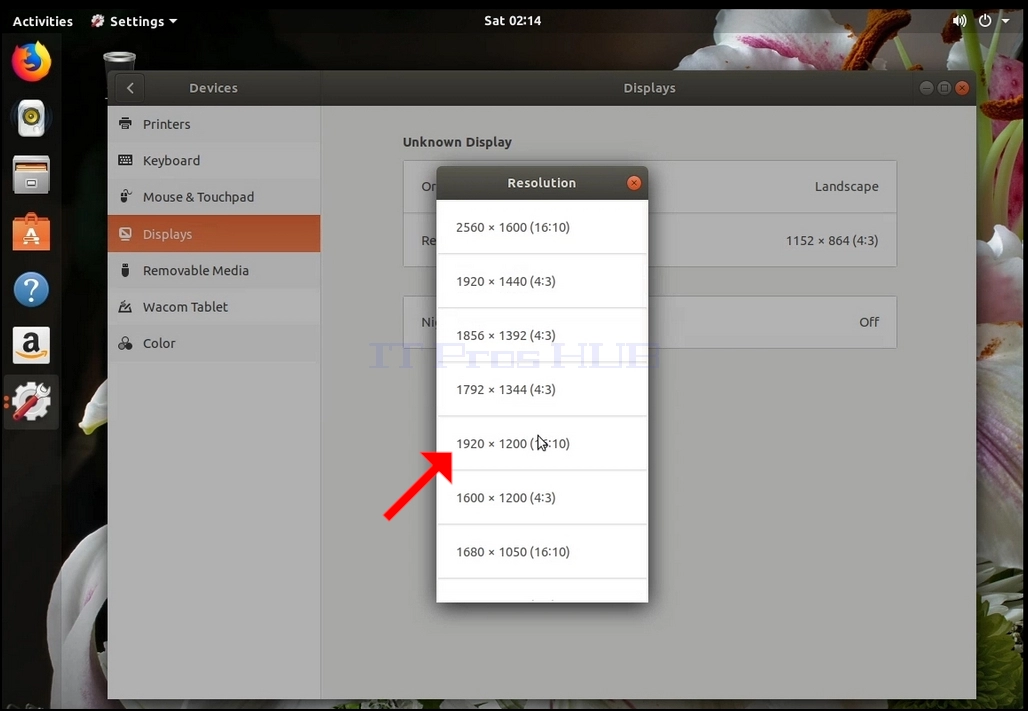
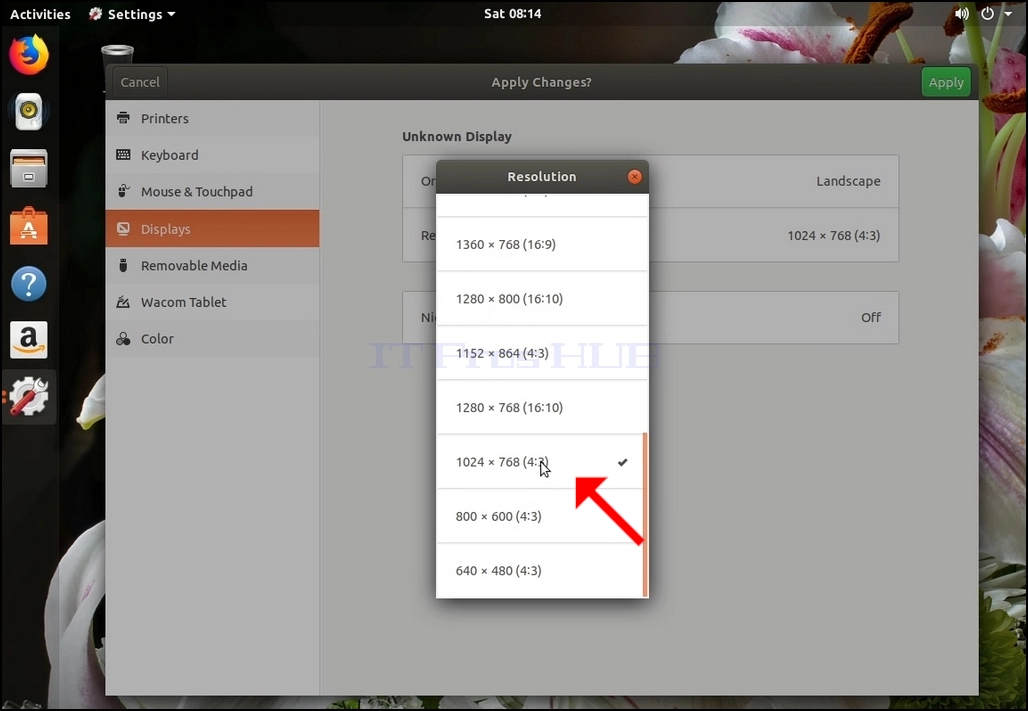
6. From the various resolution options, choose the one best suits your needs by left clicking on it (In this example the chosen one is 1024x768)
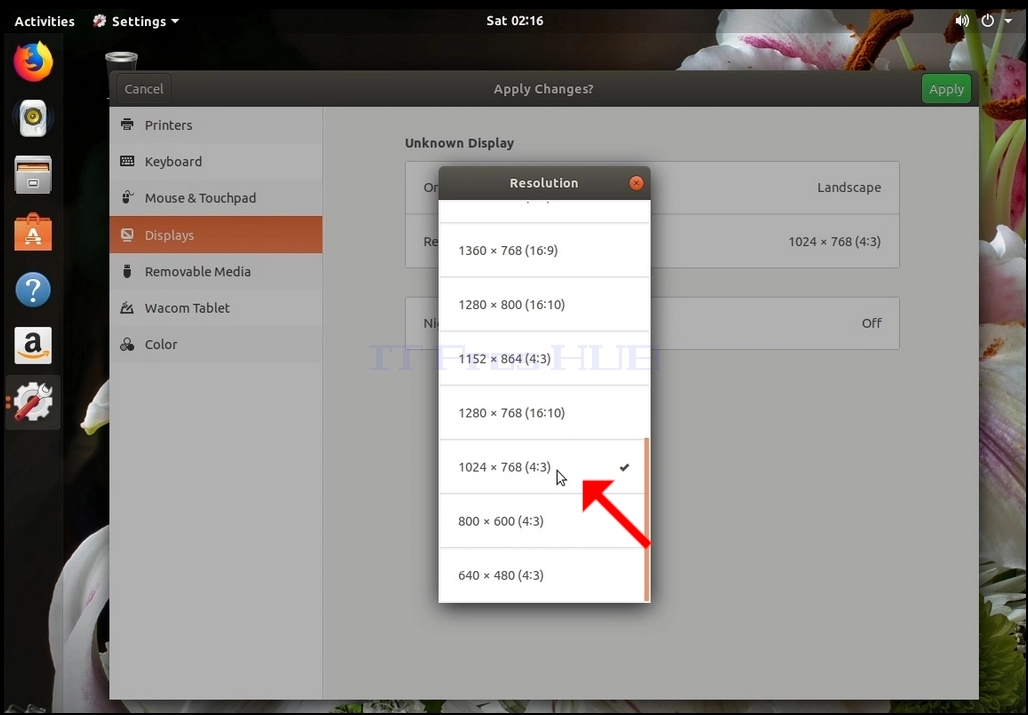
7. Click Apply
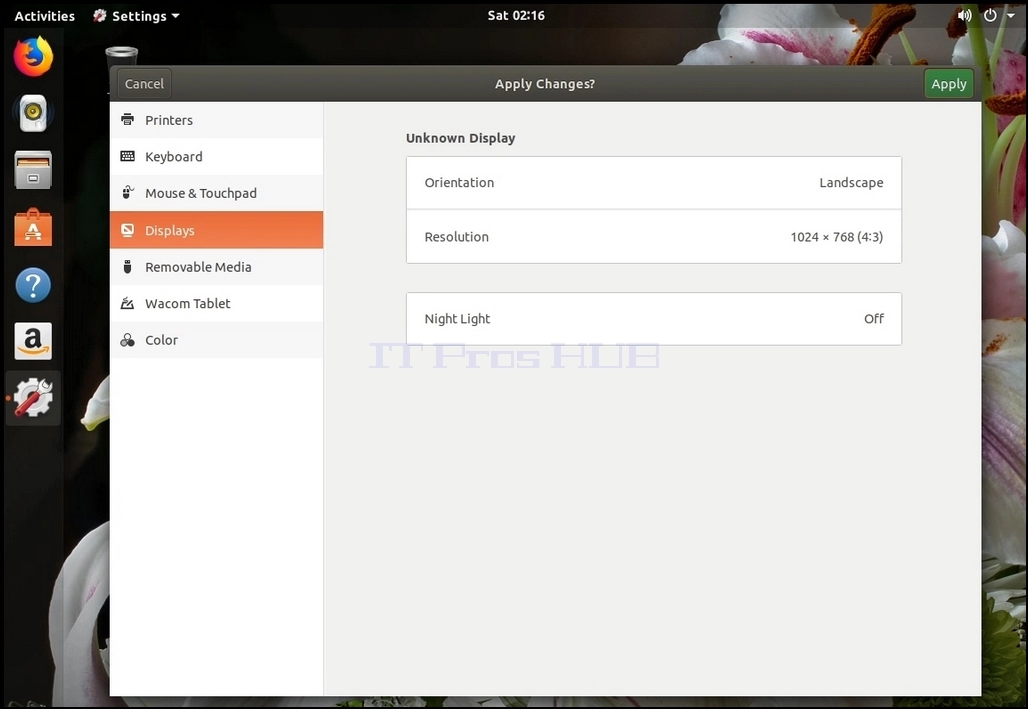
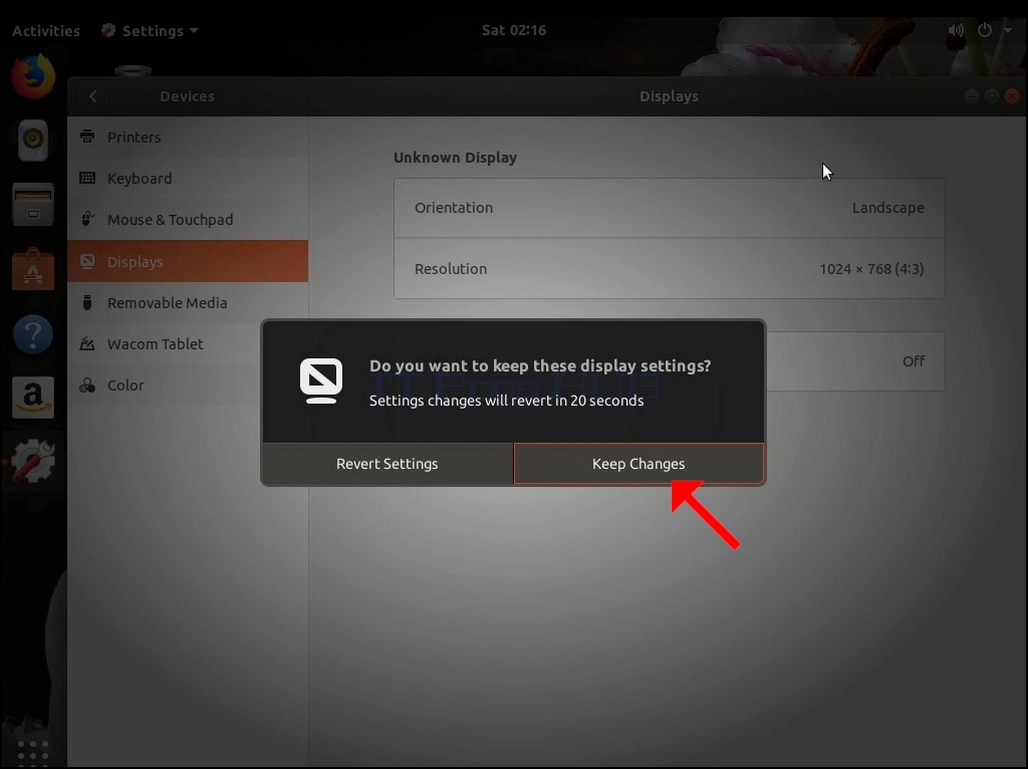
8. After choosing the new resolution setting, Ubuntu will ask you whether you would like to Keep Changes or to Revert them. If an option is not chosen within an allocated number of seconds, Ubuntu will revert back to the previously configured resolution. This is done in case the monitor doesn't support the selected resolution, and the user is unable to either see or see the current video output to manually revert the newly selected resolution.
If the newly chosen resolution is compatible with the monitor, choose Keep Changes, and click it.
- Details
- Written by: IT Pro
- Category: How to Articles
- Hits: 6906
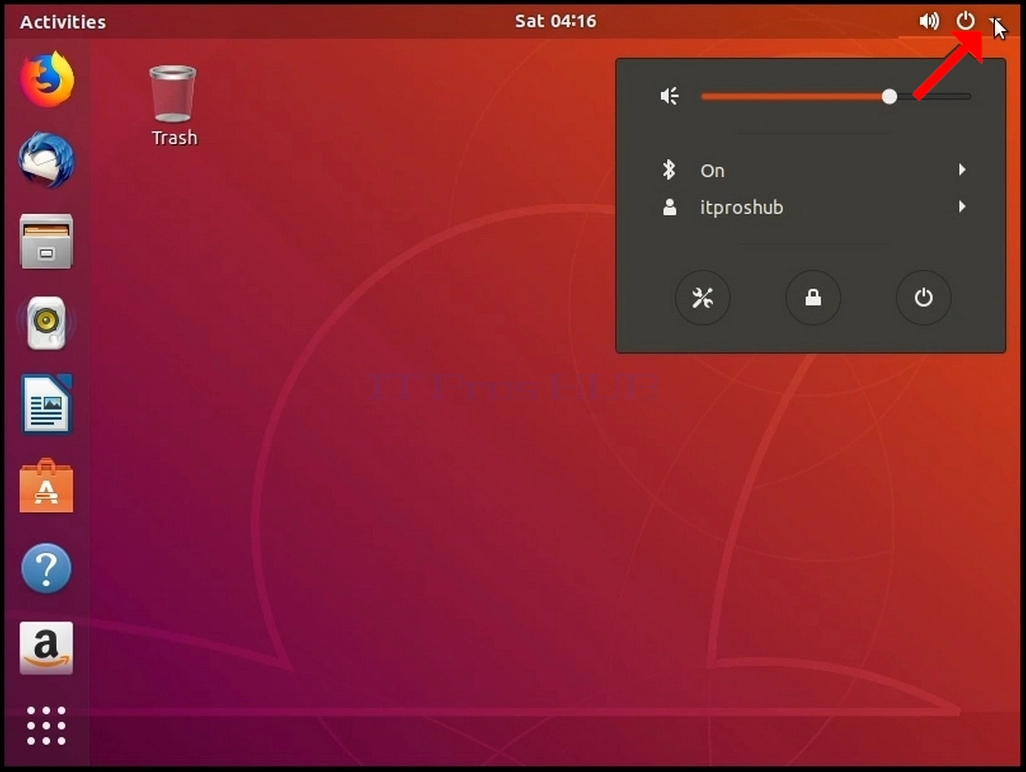
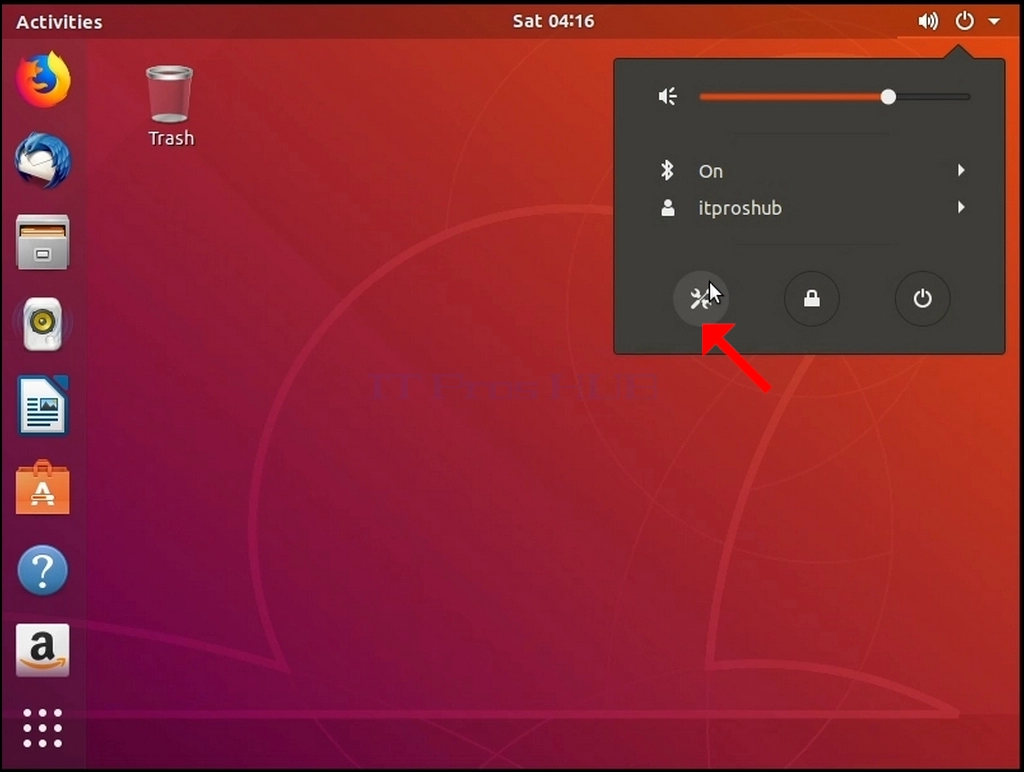
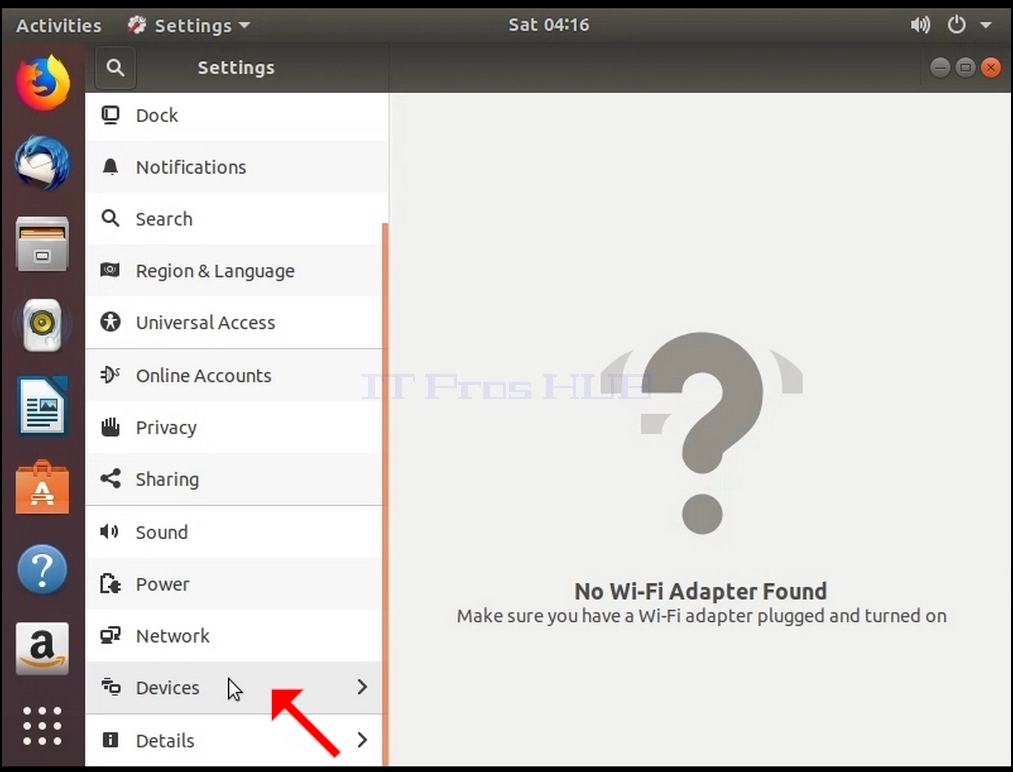
3. In the newly opened Settings window, look for Devices and click it, then Click Displays
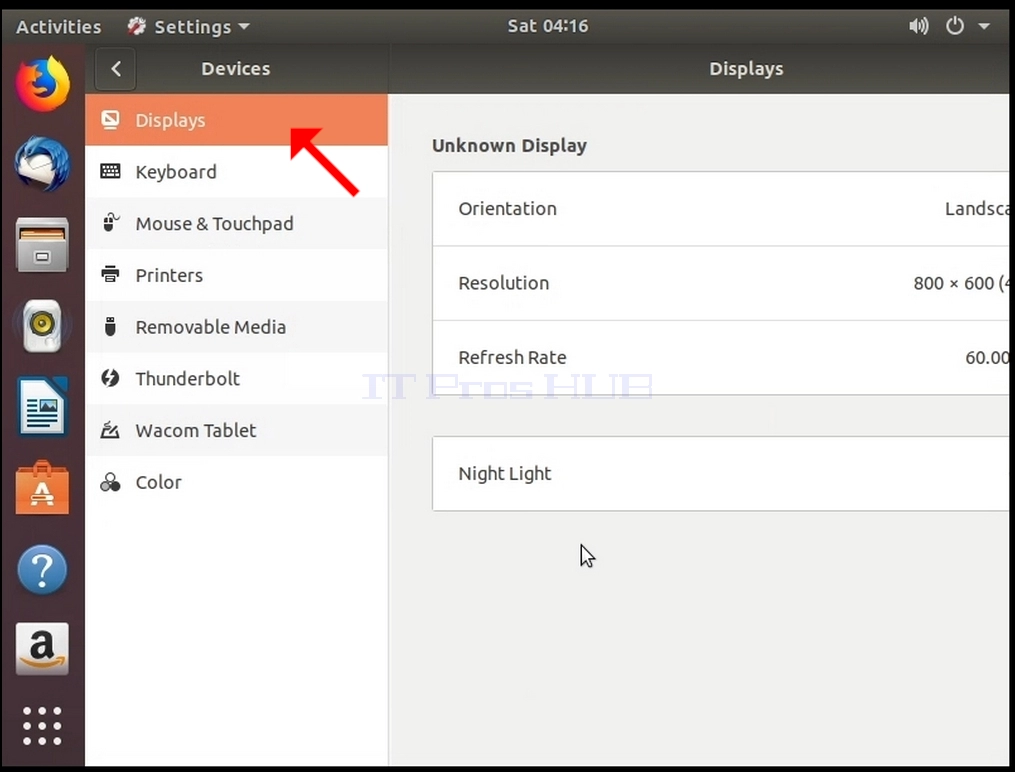
4. Under Displays, on the right part of the window, look for Resolution
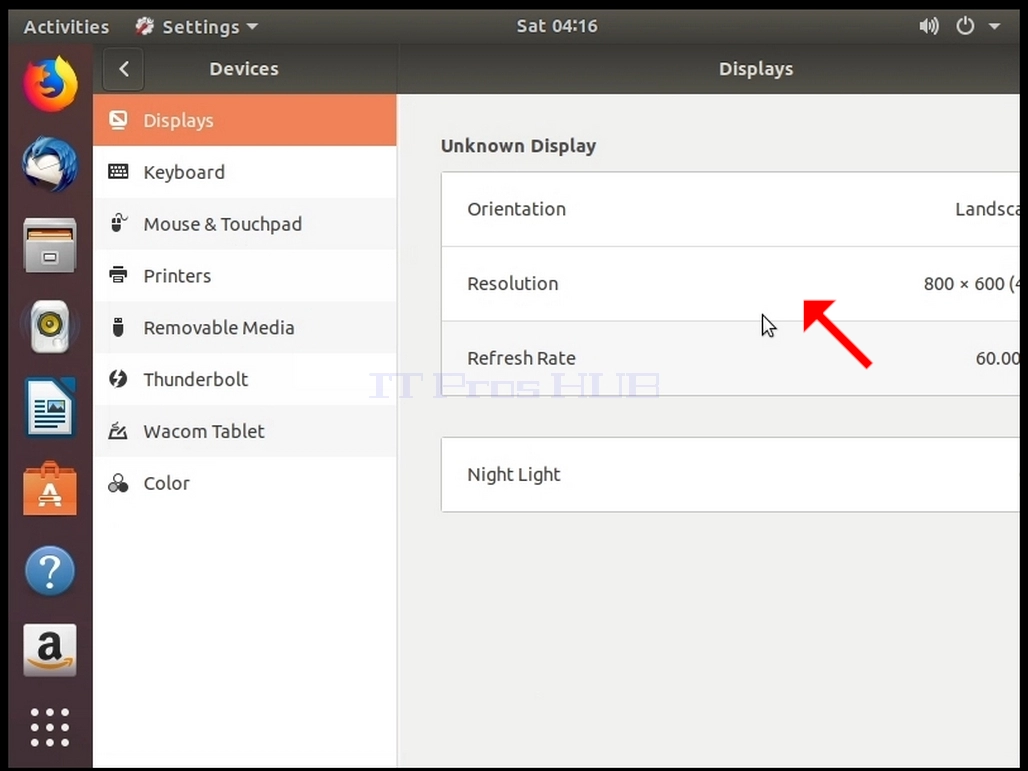
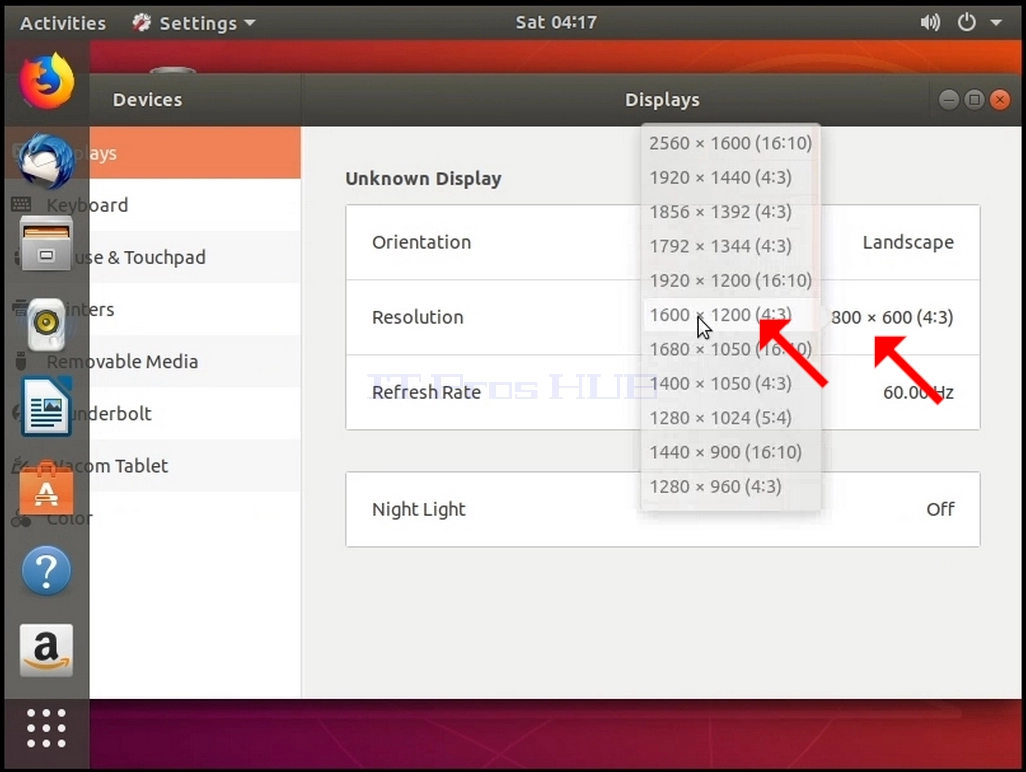
6. From the various resolution options, choose the one best suits your needs by left clicking on it (In this example the chosen one is 1024x768)
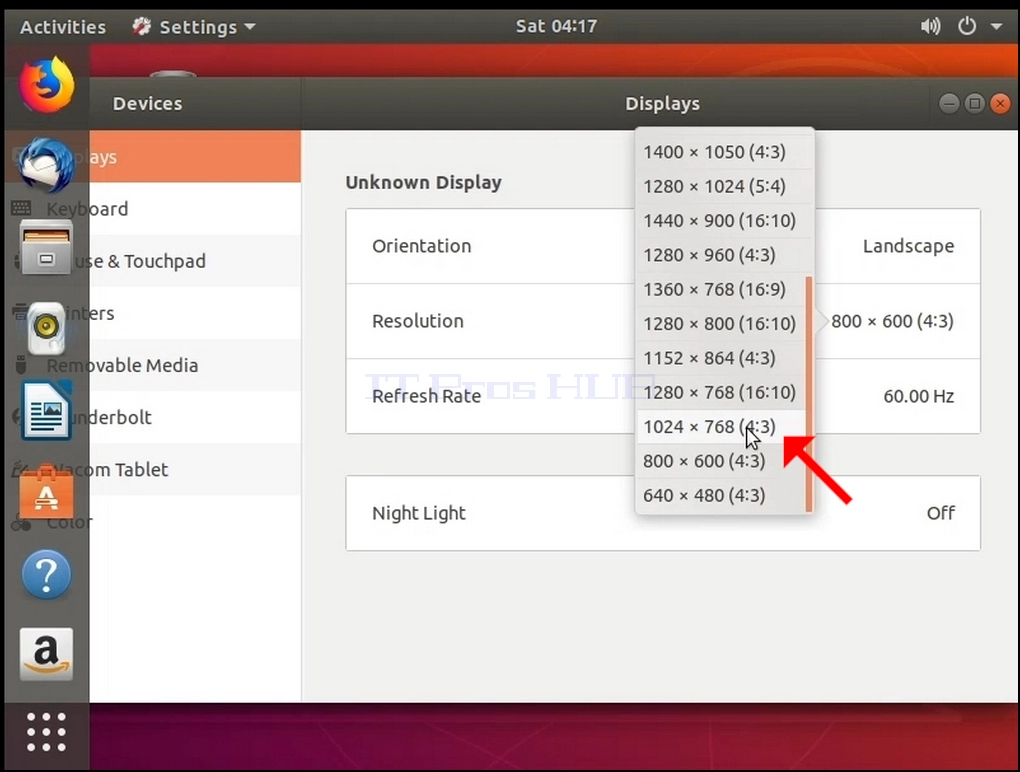
7. Click Apply
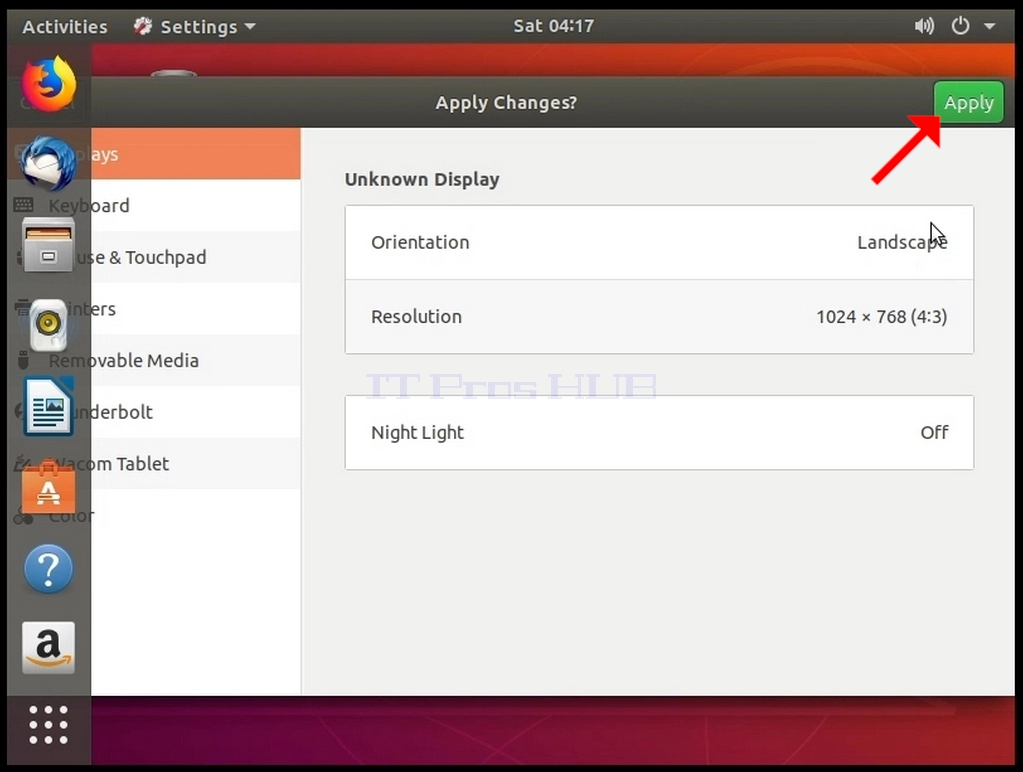
8. After choosing the new resolution setting, Ubuntu will ask you whether you would like to Keep Changes or to Revert them. If an option is not chosen within an allocated number of seconds, Ubuntu will revert back to the previously configured resolution. This is done in case the monitor doesn't support the selected resolution, and the user is unable to either see or see the current video output to manually revert the newly selected resolution.
If the newly chosen resolution is compatible with the monitor, choose Keep Changes, and click it.