



- Detaljer
- Skrevet af: IT Pro
- Kategori: How to Articles
- Visninger: 13533
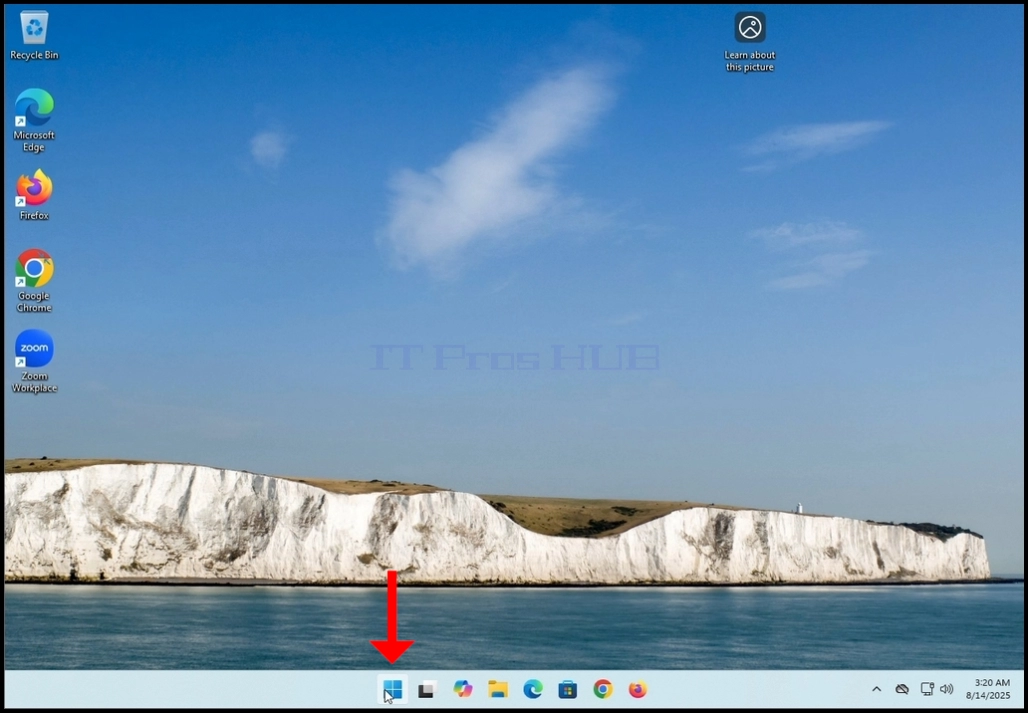

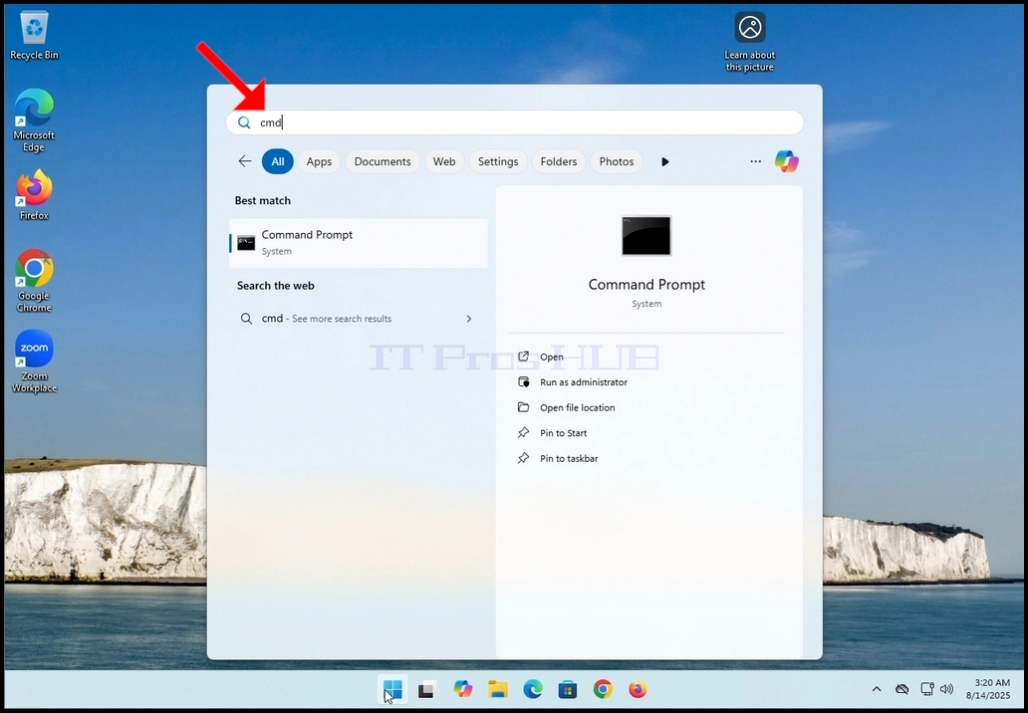

5. Click YES and wait for the Command Prompt window to appear


6. After the Command Prompt window appears, type the following command:
a. DISM /online /cleanup-image /restorehealth
7. Hit the ENTER key

8. After hitting the ENTER key, DISM will start working according to the given arguments
9. You will be presented with the version of the image version you are running

10. The following is a breakdown of the DISM process in this article:
a. /Online → Tells DISM to target the running Windows installation (your current OS), not an offline image.
b. /Cleanup-Image → Specifies that the command will operate on the Windows image servicing stack (the component store, also known as WinSxS).
c. /RestoreHealth → Instructs DISM to scan the system for corruption in the Windows image and attempt to repair it automatically.
11. What it does in practice:
a. Scans the component store (WinSxS) for corruption or inconsistencies.
b. Checks health against known good copies.
c. Repairs problems by downloading clean files

12. After a few seconds, a progress bar will appear

13. Wait till the progress bar hits 100%
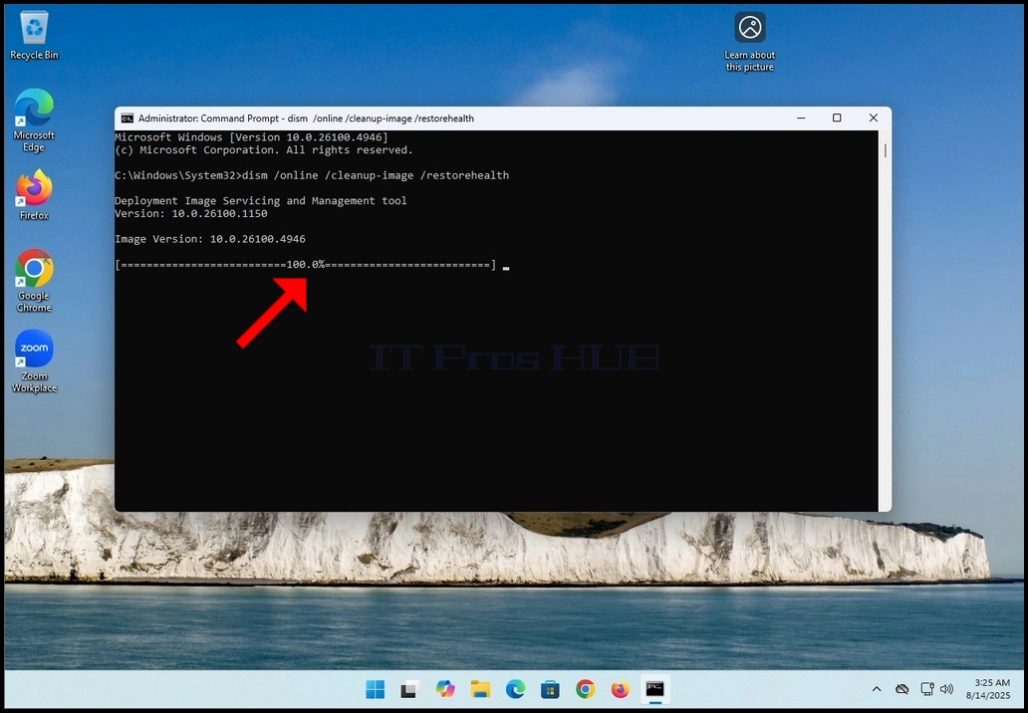
14. After the DISM process is done, you will be presented with the following message:
a. The restore operation completed successfully

- Detaljer
- Skrevet af: IT Pro
- Kategori: How to Articles
- Visninger: 11155
- Go to Windows desktop

4. Wait for the Personalization > Taskbar window to open

5. In the 3rd row, look for Widgets.


7. Close the Taskbar settings window

8. Now you can see that the widget feature is gone from the taskbar

- Detaljer
- Skrevet af: IT Pro
- Kategori: How to Articles
- Visninger: 10009


3. Wait for Zoom Workplace to load


5. On the next stage, Zoom will show you available sign in methods. Amongst these methods there is a Google method.
6. Click the Google sign-in method icon (The Google “G” icon) and wait for Zoom to open a Google “sign in with Google” page.

7. If your default browser is Chrome and is already signed into your Gmail account, you would see the following window:
a. If you use a different browser or a browser that was not signed into with your Google account, then fill in your Gmail address the phone number associated with it and click Continue


14. In the next window, to finish the sign in process, click on the Create Account button


17. Wait for Zoom Workplace to start again
 18.
18.


19. After Zoom Workplace starts, notice your Gmail account initials on the top right corner of the Zoom window. That means your Google account was successfully used to sign into Zoom Workplace!


20. In some cases, Windows Security will ask you if “Do you want to allow public and private networks to access this app?”. This is completely normal. In this case, Windows Security asks us this question because it is the local cyber security solution installed and activated on this Windows 11 platform. If a different cyber security solution was installed, then it would have been very highly unlikely Windows Security would have asked this question but rather the 3rd party cyber security solution would have.


- Detaljer
- Skrevet af: IT Pro
- Kategori: How to Articles
- Visninger: 9229

2. Click on Settings and wait for the Settings window to appear
3. On the left pane, look for the last option that says “Windows update” and click on it
4. Wait for the Windows Update window to appear


8. After the downloading process of a specific update has been done, Windows Update will start installing it right away.

9. When update is done being installed, the “Installing” status on the right would change to “Completed”

10. Some updates would require the Windows operating system to be restarted in order to be fully installed. In those cases, their status on the right would be changed from “Completed” to “Pending restart”.
a. In this article we have such an example
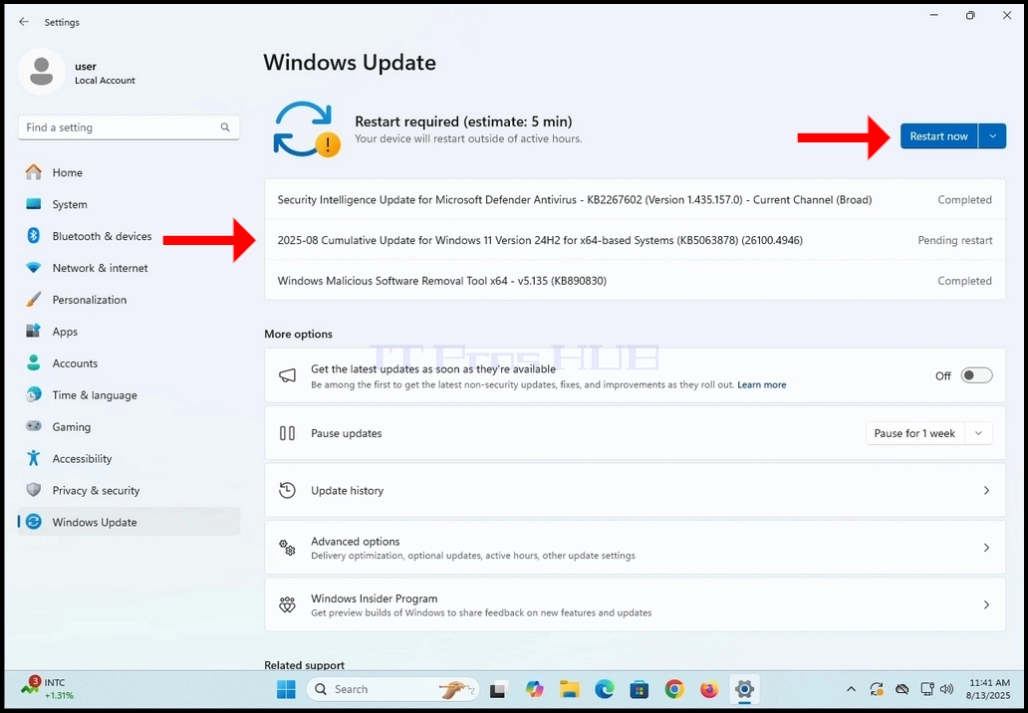
11. Manually restart the Windows operating system

12. As you can see in the screenshot below, Windows is automatically installing the update that has been pending restart mentioned in stage 10.

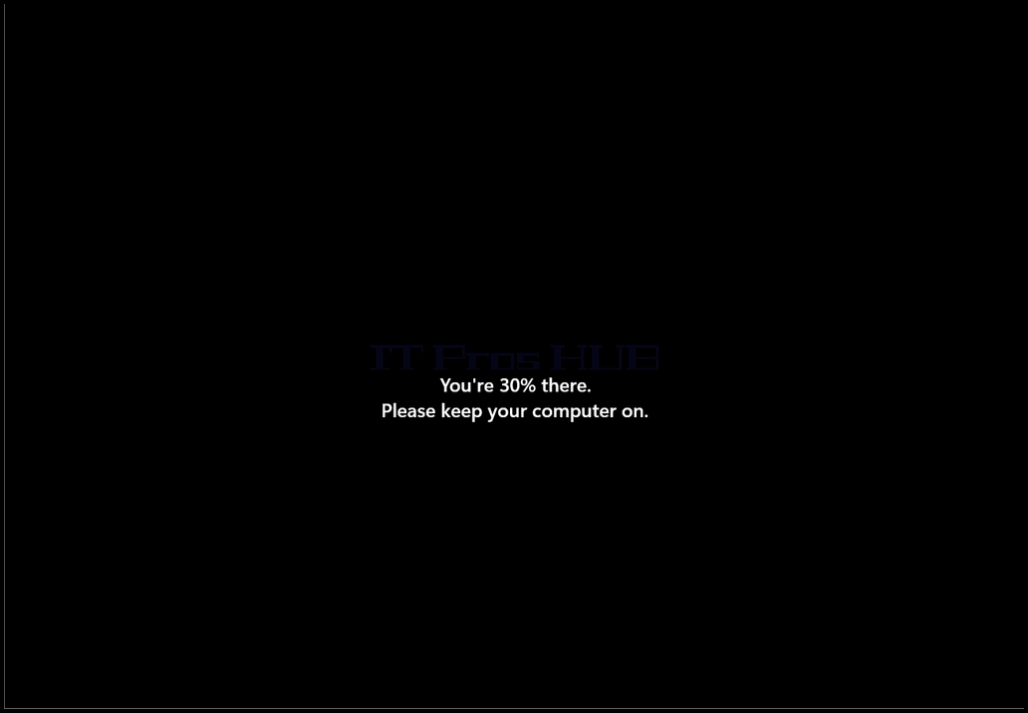

13. Once the start-up update has been installed, Windows should start normally.
x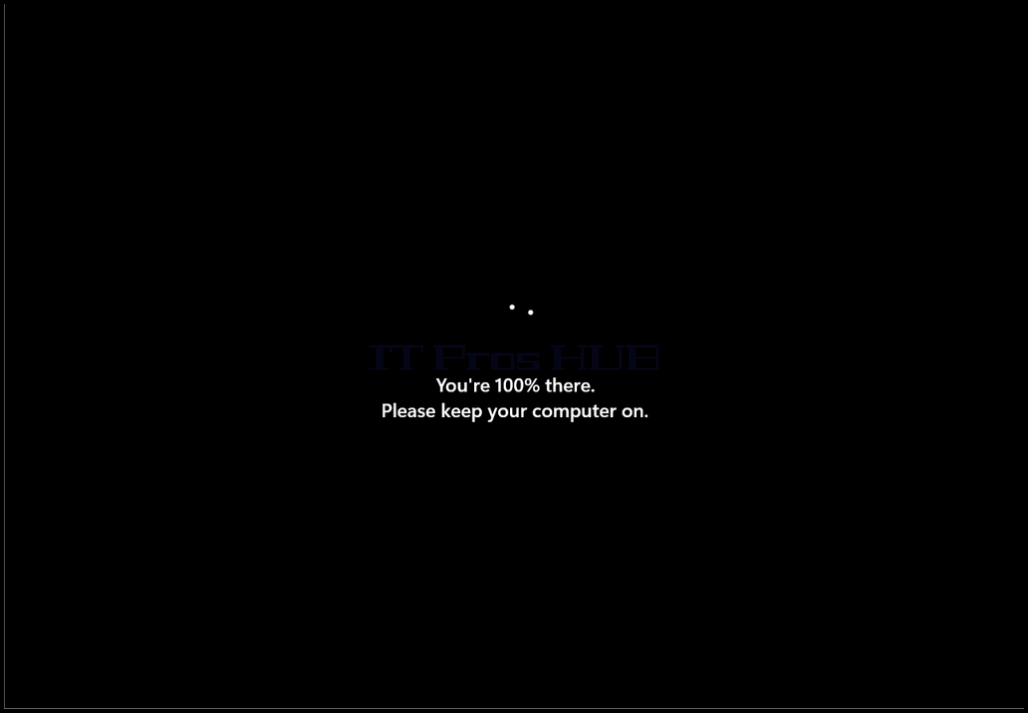
- Detaljer
- Skrevet af: IT Pro
- Kategori: How to Articles
- Visninger: 6800
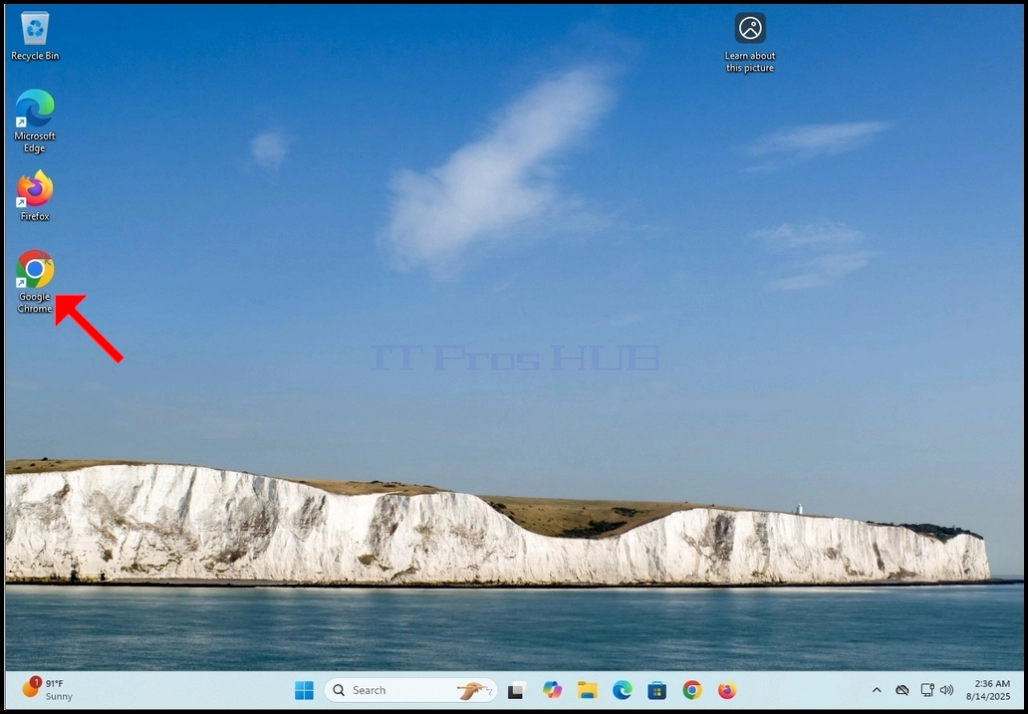
- Åbn din webbrowser. I denne artikel vil vi bruge Google Chrome.
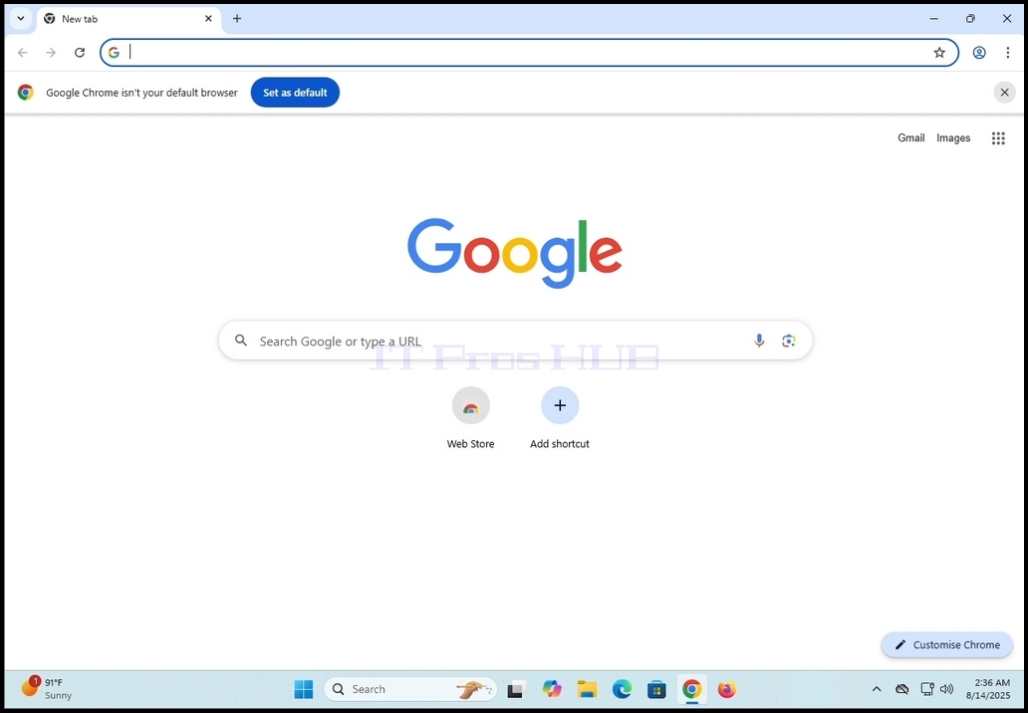
2. I adresselinjetype: "download zoom"og ramte ENTER tasten på tastaturet

3. Vent til søgeresultaterne kommer frem (I denne artikel er søgemaskinen den, der er indfødt i Google Chrome, som er Google)

4. Det første søgeresultat bør være det rigtige, men ikke kun. I denne artikel vil vi gå til den første søgeresultat, som er titlen: "Download Center for Zoom og Plugins"

5. Den næste skærm skal være Zooms downloadcenter Side.

6. Rul ned siden lidt indtil du finder de downloading muligheder
a. Download (64- bit)
b. Download (32bit)
c. Download (ARM64)
7. I denne artikel vil vi downloade 64- bit version, som også er den mest anvendte

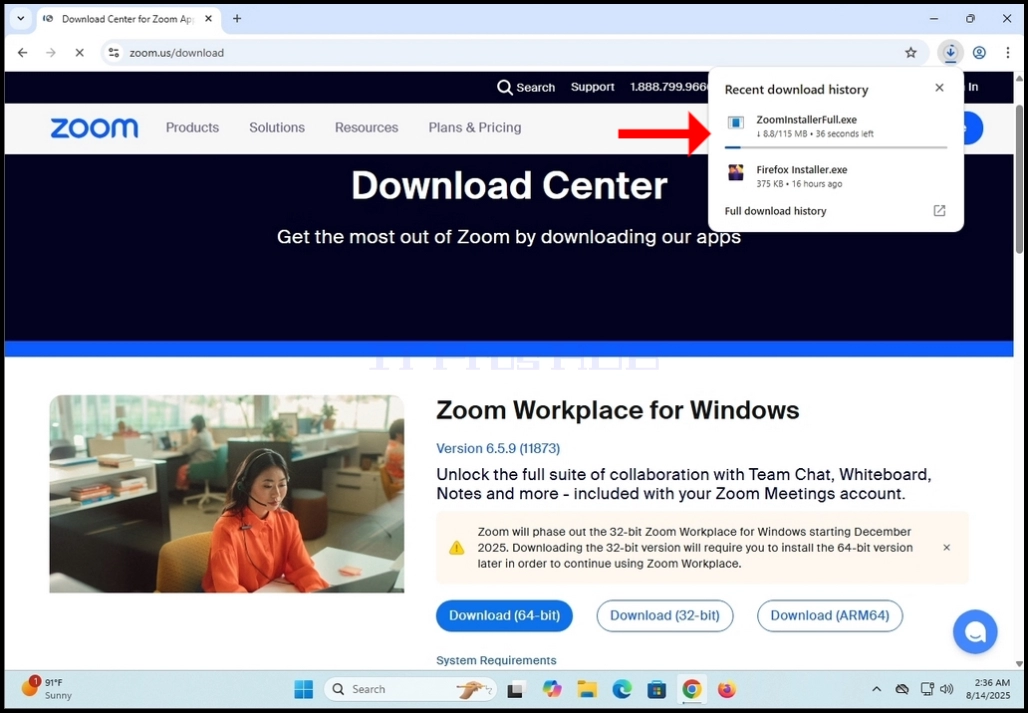
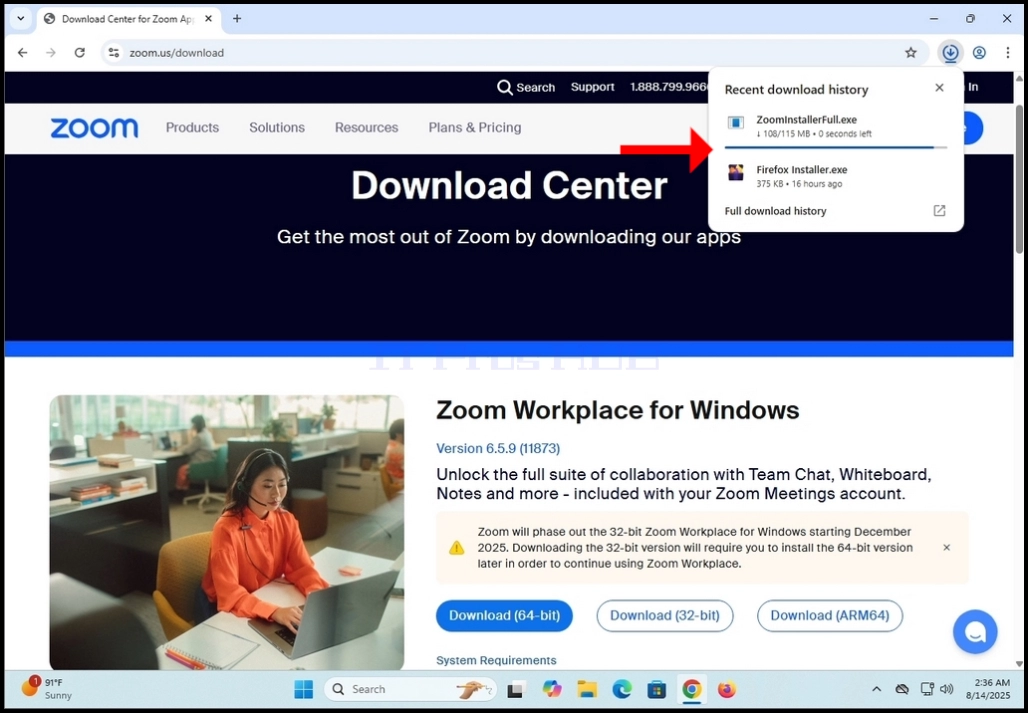
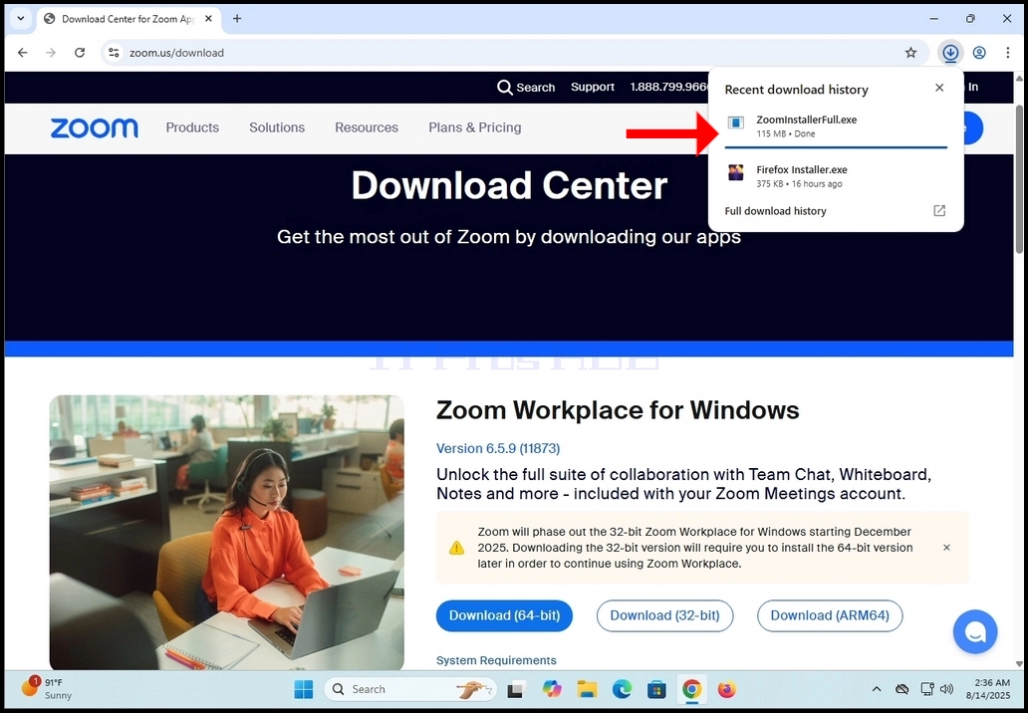
9. Vent på download for at afslutte og derefter klikke på den downloadede fil og vente på Zoom Workplace installation guiden skal vises

10. Vent til installeringsprogrammet initialiserer

11. Når installationen er vellykket, vil du blive underrettet som sådan af installeringsprogrammet
12. Du vil også komme til at vælge, om du kan lide at holde Zoom opdateret automatisk ved at markere "Automatisk holde Zoom Workplace app opdateret"sætning.
13. Klik på Færdig knap når klar

14. Når du klikker på Færdig, Zoom Workplace GUI skal vises
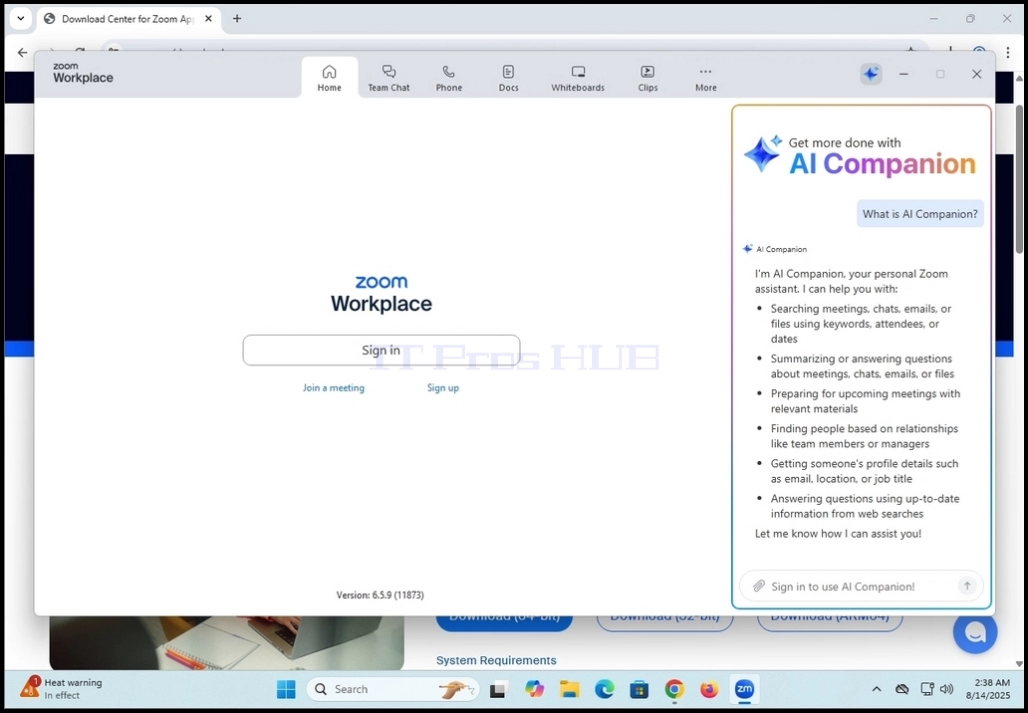
15. Herfra kan du bruge Zoom Workplace i et par måder:
a. Bare for at deltage i et møde - ingen grund til at oprette en konto
b. Tilmeld dig og opret en konto til at starte møder
16. Zoom arbejdsplads er nu installeret og klar til brug