
Online: 1139 online | Members: 0 | Guests: 1139
Wednesday, June 3, 2026
Page Minimap

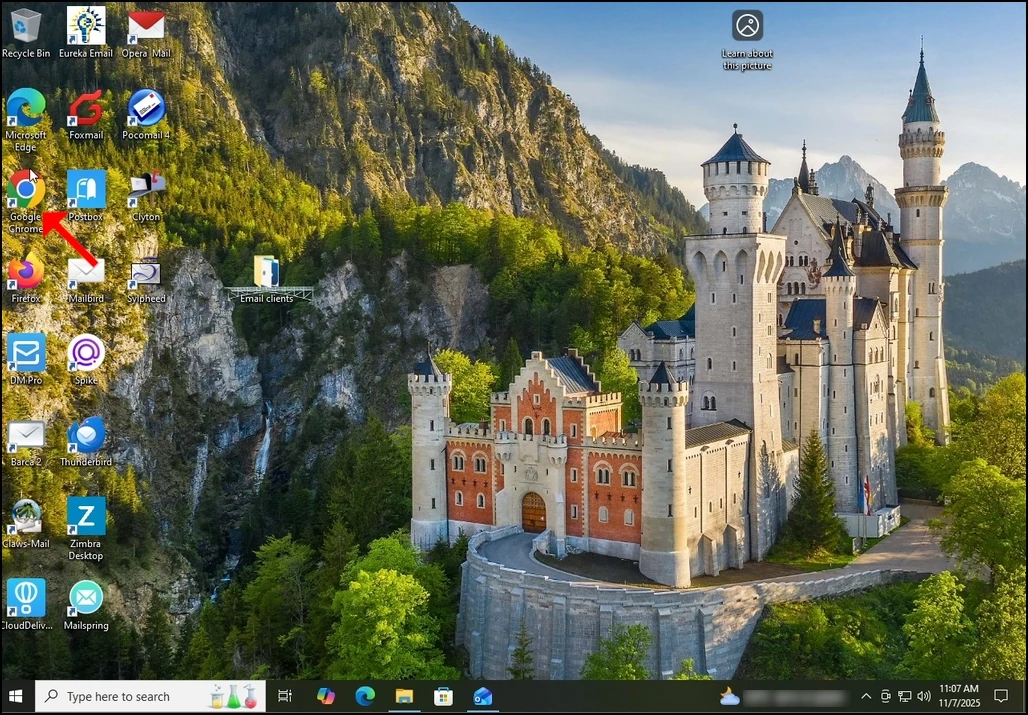
 1. Open Chrome:

how_to_check_for_hrome_updates_and_to_update_chrome1.webp

2. In Chrome, on the right side, click a the 3 dots icon and wait for the drop-down menu to appear:

how_to_check_for_hrome_updates_and_to_update_chrome5.webp

3. In the drop-down menu, Go to Help and from there go to About Google Chrome. Click once on About Google Chrome and wait for a new window to appear:

how_to_check_for_hrome_updates_and_to_update_chrome6.webp

4. Once opened, the About Google Chrome window will start automatically check for new updates for Google chrome. If there is such an update, Chrome would notify about it by changing the update status to Updating Chrome as can be seen below:

how_to_check_for_hrome_updates_and_to_update_chrome7.webphow_to_check_for_hrome_updates_and_to_update_chrome11.webp

6. Once finished, Chrome would notify you by displaying the message: "Nearly up to date! Relunch Chrome to finish updating".

7. A new button would appear with the word Relaunch. Click that button in order to restart Chrome and for the update process to be done:

how_to_check_for_hrome_updates_and_to_update_chrome12.webp

8. Usually, newly updated version of Google Chrome would show this type of message upon first launch:

how_to_check_for_hrome_updates_and_to_update_chrome14.webp

9. In order to make sure Google Chrome has no more updates, perform the same stages 1-4. As you can see, at the moment, there are no more updates available for Google Chrome after we have done the previous update:

how_to_check_for_hrome_updates_and_to_update_chrome17.webp