Online: 1008 online | Members: 0 | Guests: 1008
Wednesday, June 3, 2026
Page Minimap
Reading time: 2 min read
Tagline:HowtoAddStock3DModelsinWord

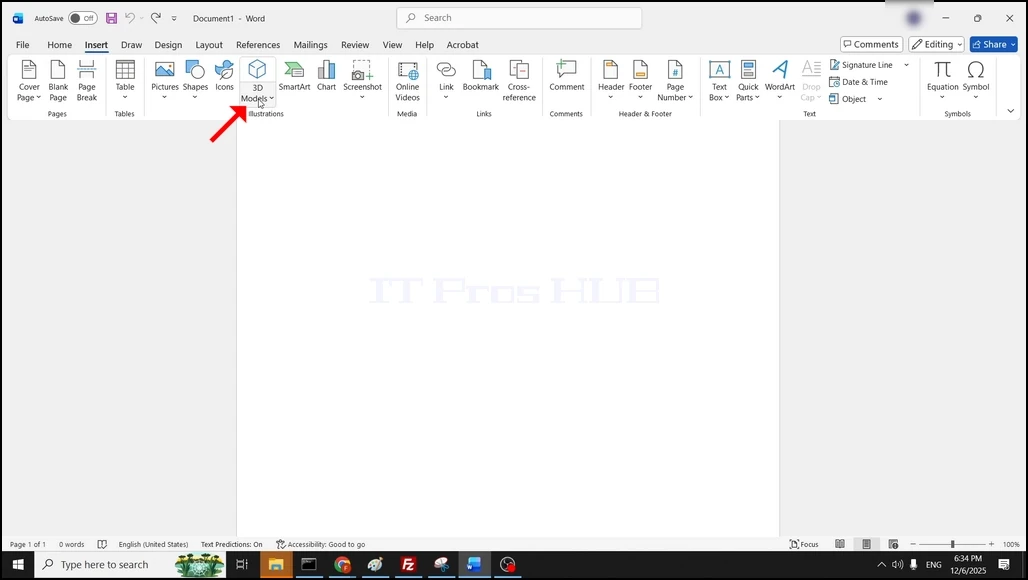
1.Open Word and click on the Insert button at the top menu ribbon.
How_to_Add_Stock_3D_Models_in_1Word_new.webp

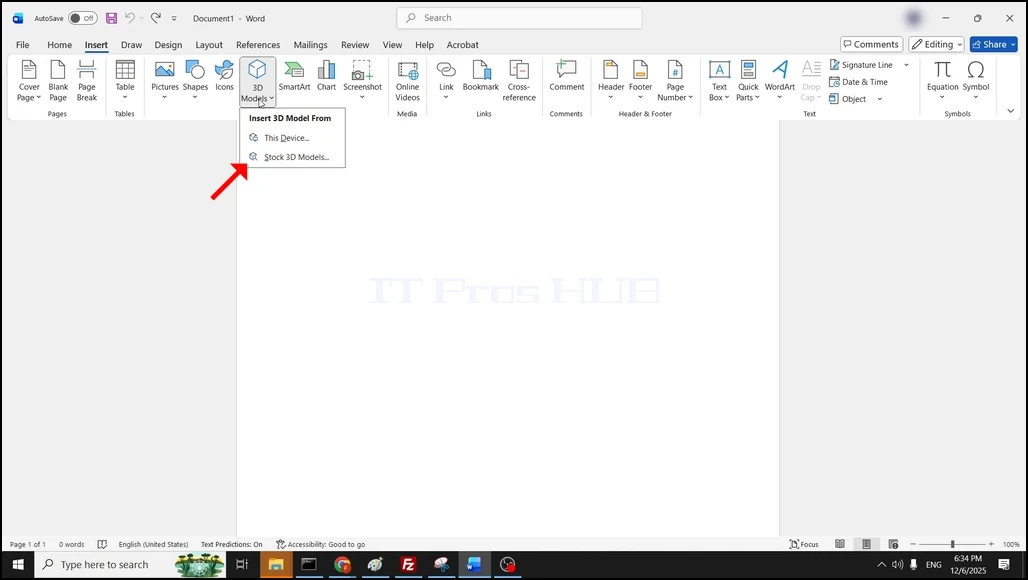
2. In the Insert menu ribbon, look for the 3D Models icon and click on it once to reveal a drop-down menu. Click on Stock 3D Models... and wait for a window to appear.

How_to_Add_Stock_3D_Models_in_2Word_new.webp

How_to_Add_Stock_3D_Models_in_6Word_new.webp

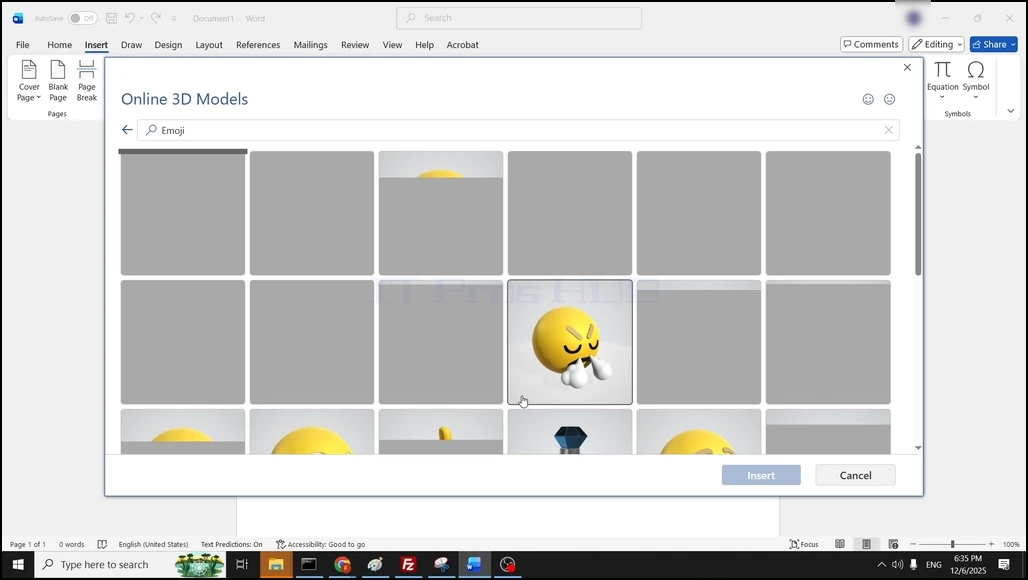
3. Wait for the stock 3D models to load and choose one by clicking on it once. Once picked, the Insert button should turn fully blue. click on it once to insert the selected 3D model into the Word document.

How_to_Add_Stock_3D_Models_in_7Word_new.webp

4. The 3D model is now inserted into the word document:
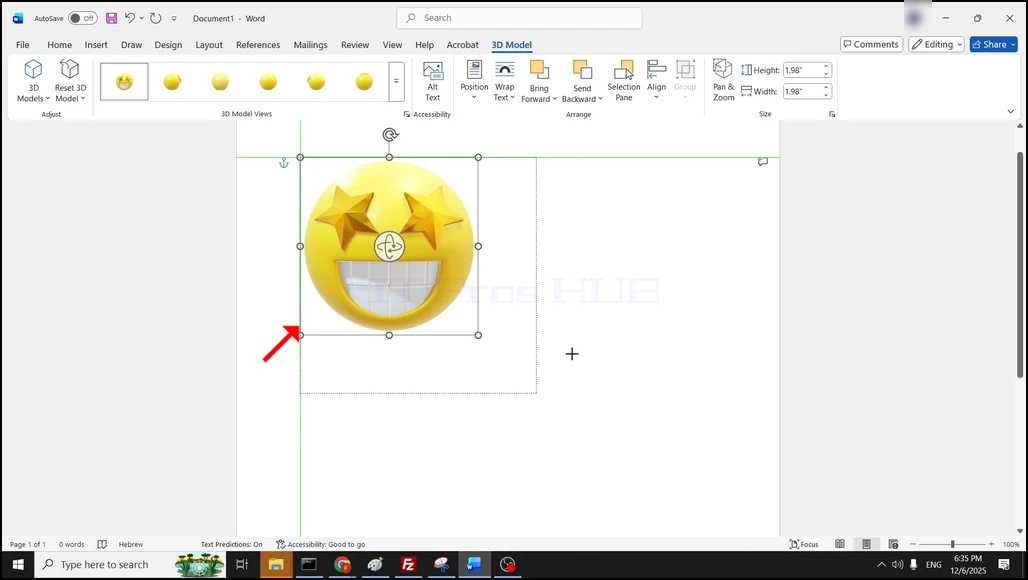
How_to_Add_Stock_3D_Models_in_8Word_new.webp