



- Details
- Written by: IT Pro
- Category: How to Articles
- Hits: 10068
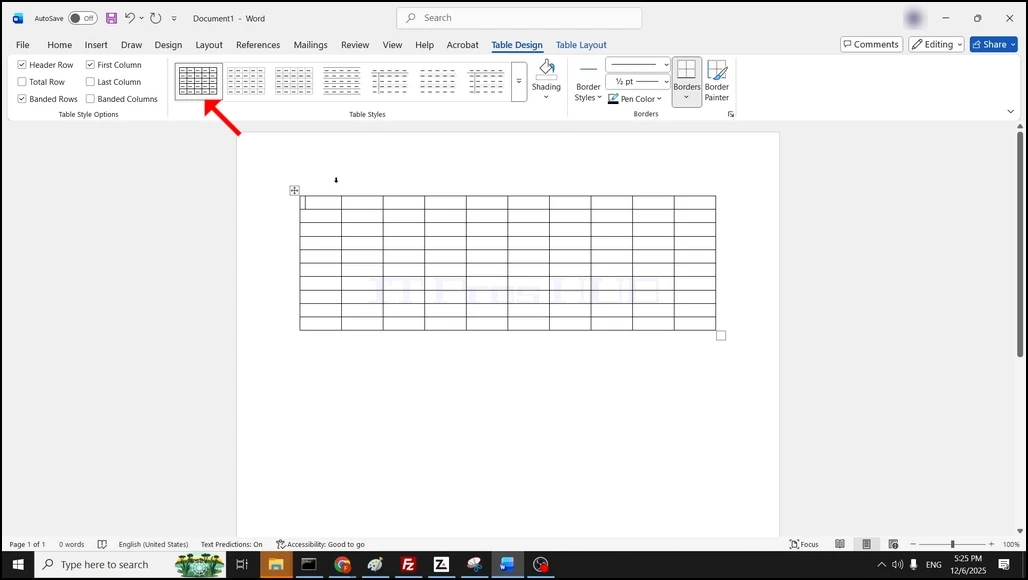
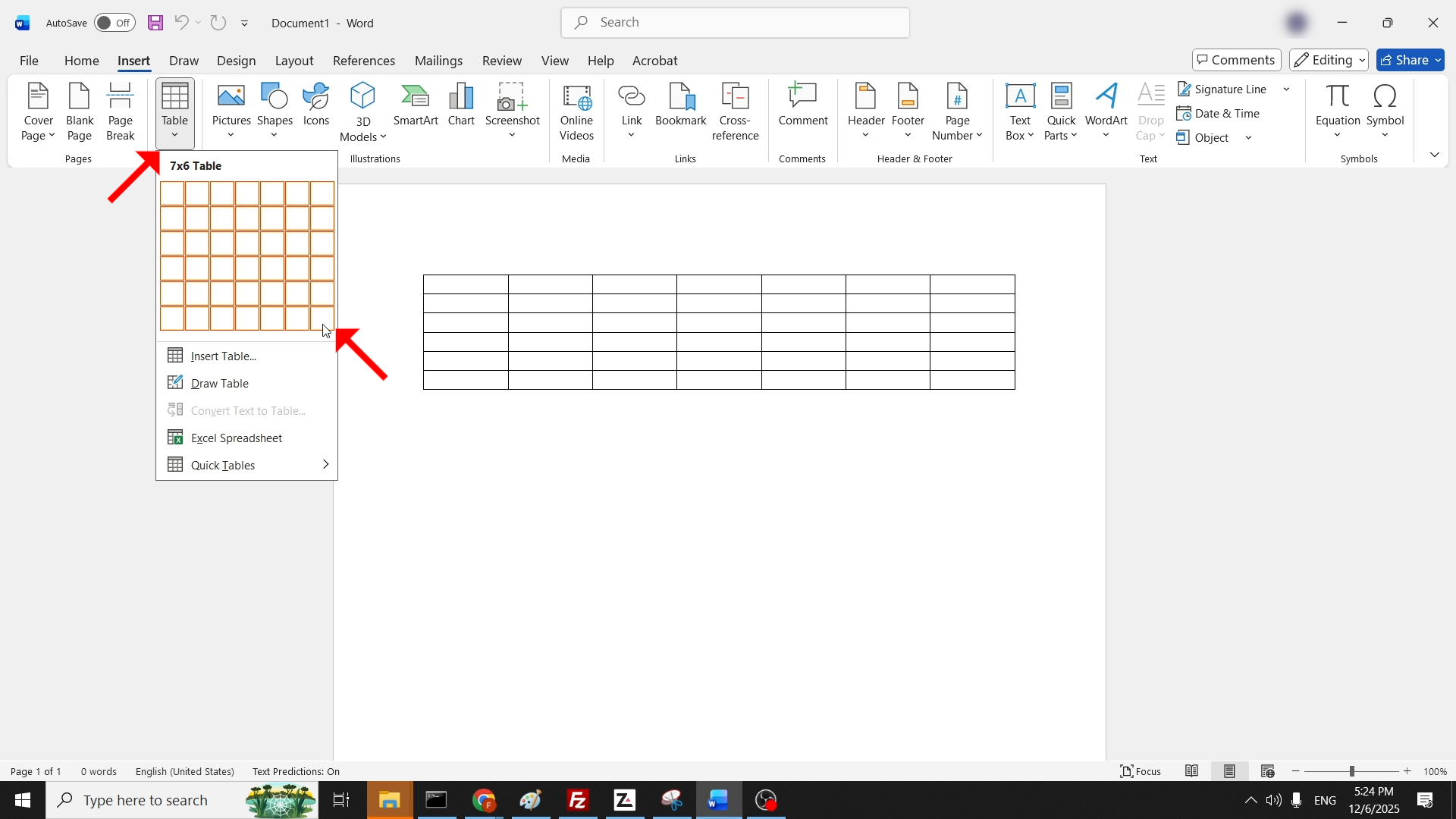
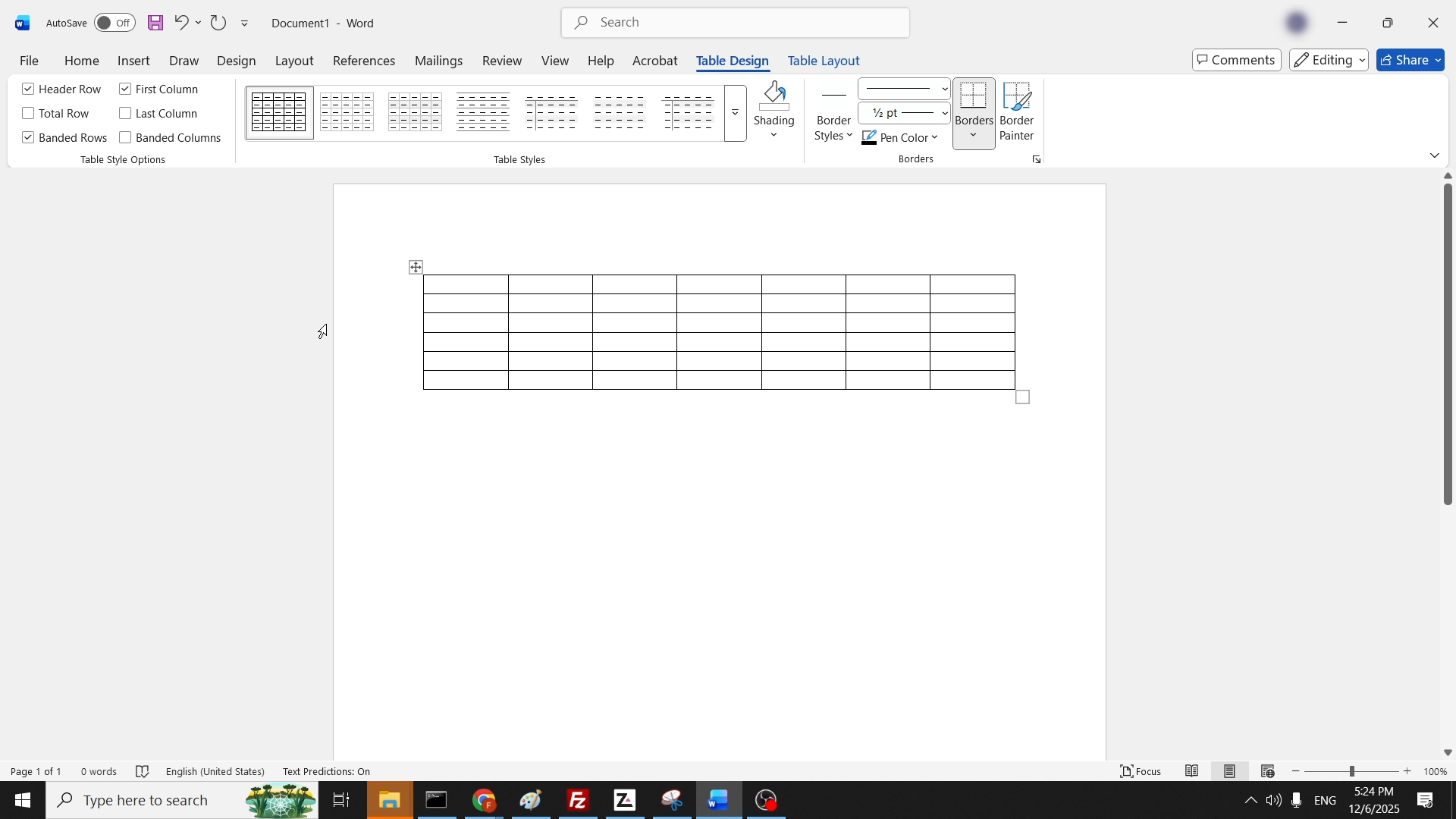
1. Hover with your mouse cursor over the table till a little square with 4 arrows shows up:


- Details
- Written by: IT Pro
- Category: How to Articles
- Hits: 10036
1. Go to your Default browser. In this article we will use Chrome:
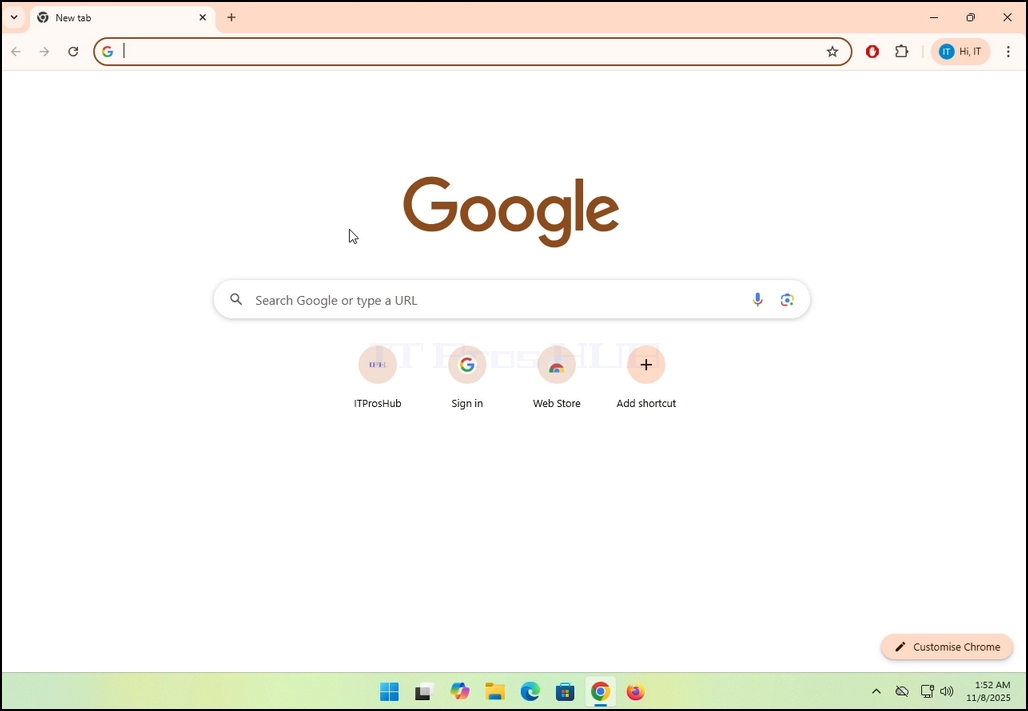
2. In Chrome's search bar, type "download AVG antivirus" and hit the ENTER key:
3. Choose the first result in Google and click on it once. Wait for AVG's website to load:

4. Click on Free Download and wait for the AVG download file to start downloading:


5. Once the file is downloaded, click on it through Chrome's download manager:

6. Click Yes on Windows UAC:

7. The installation wizard has begun:


9. The installation process has begun:


11. Choose AVG FREE by clicking on CONTINUE WITH FREE:

12. Click on RUN FIRST SCAN:


13. Click on Skip for now:

14. Click on Skip:


15. Click on IGNORE:

16. AVG is now installed

- Details
- Written by: IT Pro
- Category: How to Articles
- Hits: 6522
1. Go to Start and then go to Settings:

2. Go to System:

3. Scroll down the left pane all the way until you found About. Click on it and wait for the right window to load:

4. In the About window. In the right side, look for Advanced System Settings option and click on it once. Wait for the System Properties window to load.

5. In System Properties, go to the Advanced tab, under Performance and click Settings:
6. In Performance Options, change the selected option from Let Windows choose what's best for my computer to Adjust for best performance:

7. Notice that once that option is chosen, all of the V marks disappear. those are graphical features Windows turned off after the Adjust for best performance option was selected:

7. Click OK to close the window.

.8. Close System Properties

- Details
- Written by: IT Pro
- Category: How to Articles
- Hits: 5539
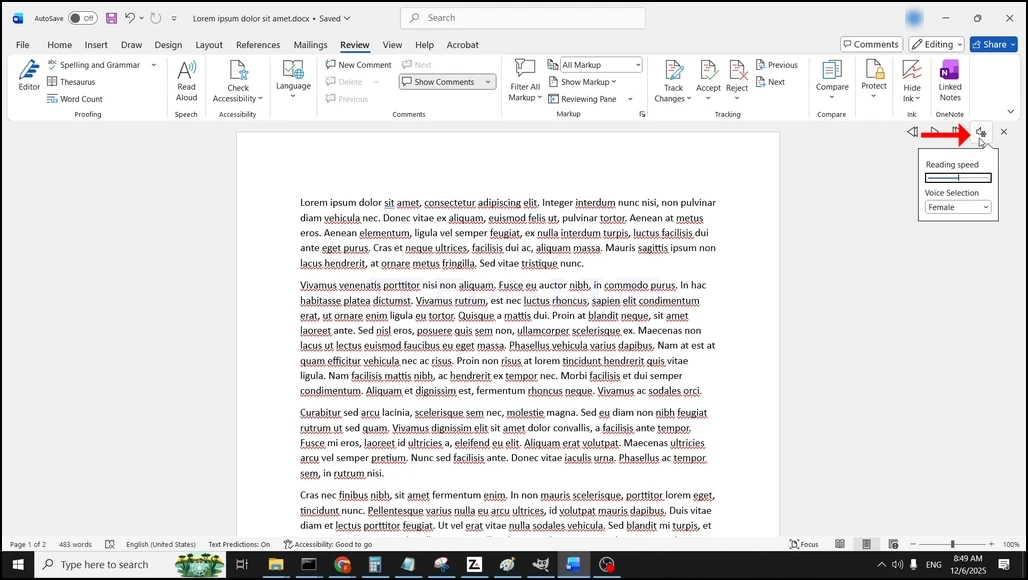
3. Change the reading speed by adjusting the bar under Reading Speed:

