



- Detalles
- Escrito por: IT Pro
- Categoría: How to Articles
- Visitas: 4883
1. Abra Microsoft Word
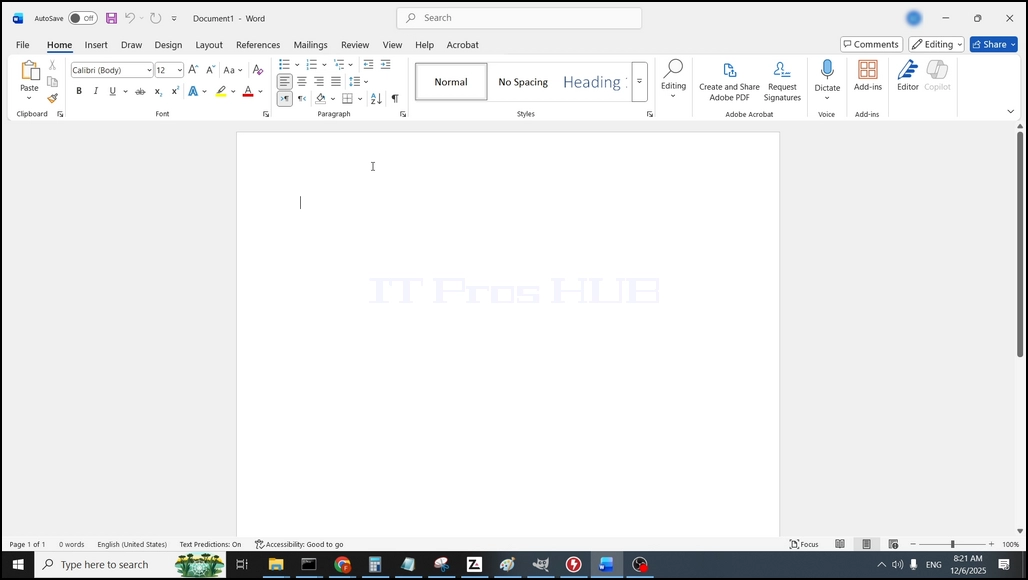
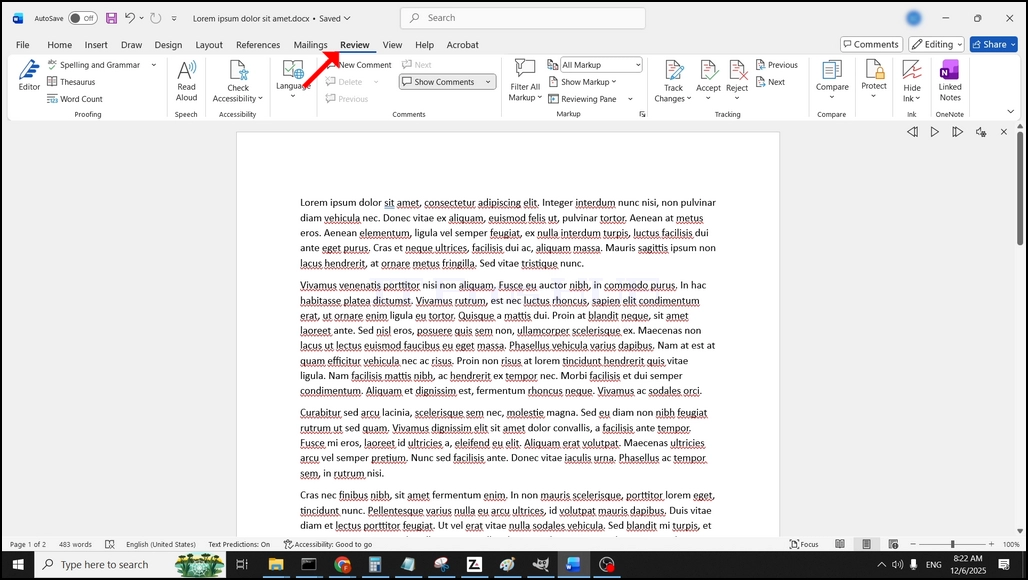
2. En la barra de menú superior, desde el hogar, vaya a la revisión:
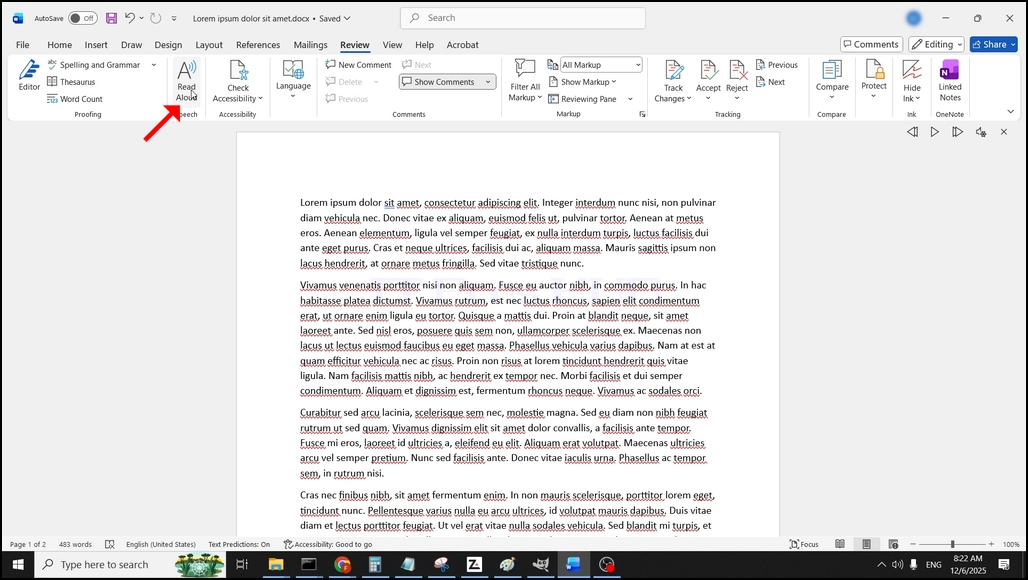
3. Bajo revisión, busca un gran "A" icono que dice "Lea Aloud" y haga clic en él para activar la función Texto a la palabra:
- Detalles
- Escrito por: IT Pro
- Categoría: How to Articles
- Visitas: 5621
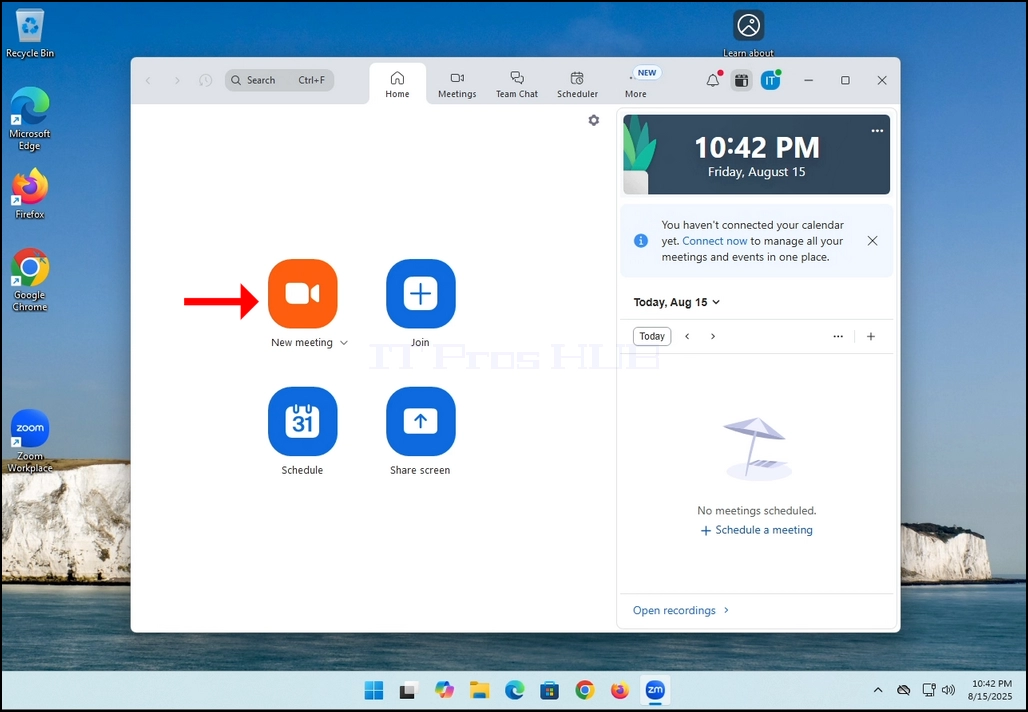
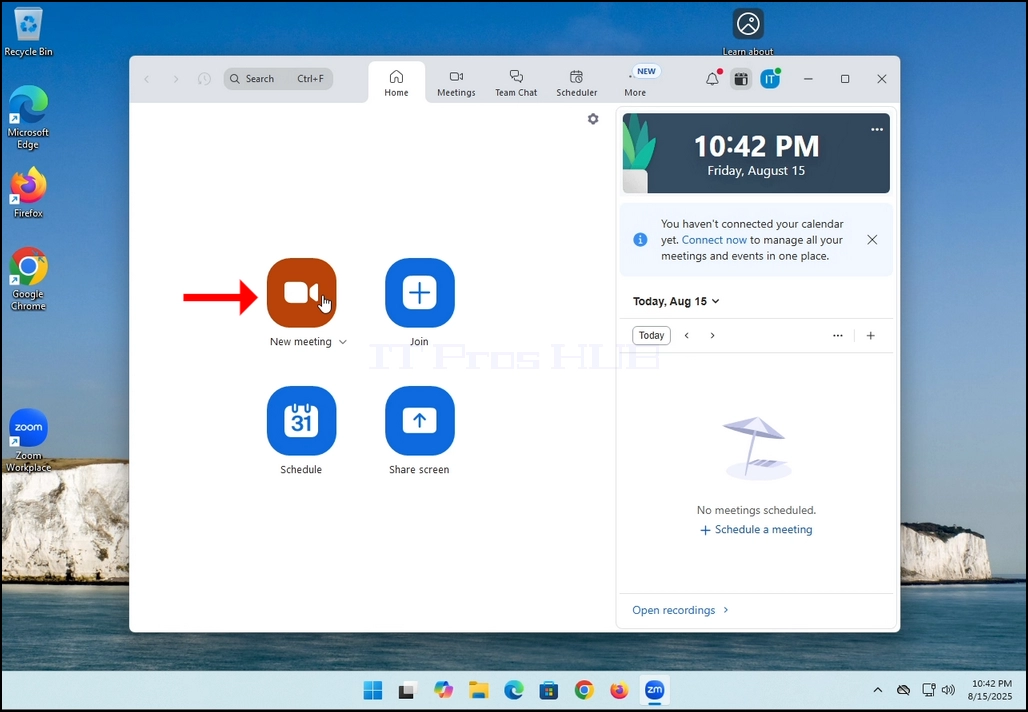
2. Once clicked, a new small window should appear. The window will show "connecting" and an animation progress circle.
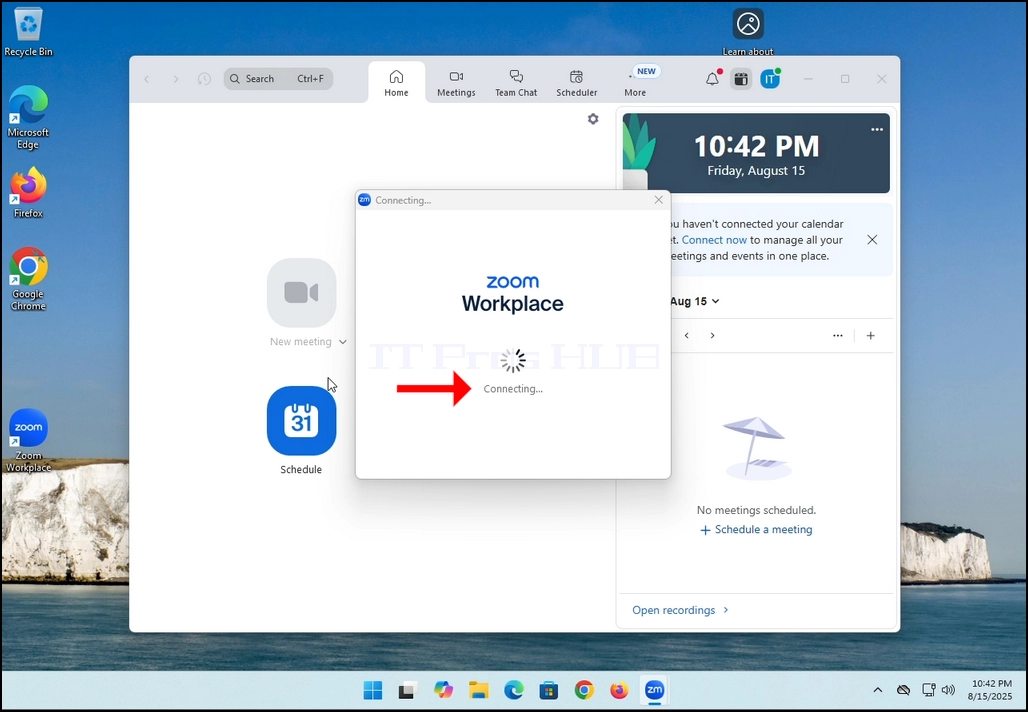
3. Once it's done loading, a new window will appear. Usually its title should say something along the lines of: "User's Zoom Meeting". In this article's case, it says "IT Proshub's Zoom Meeting" since the user that uses Zoom is called that way.
4. Here, you can mute your mic by clicking on the mic icon and you can also turn your camera off/on by clicking the Video icon.
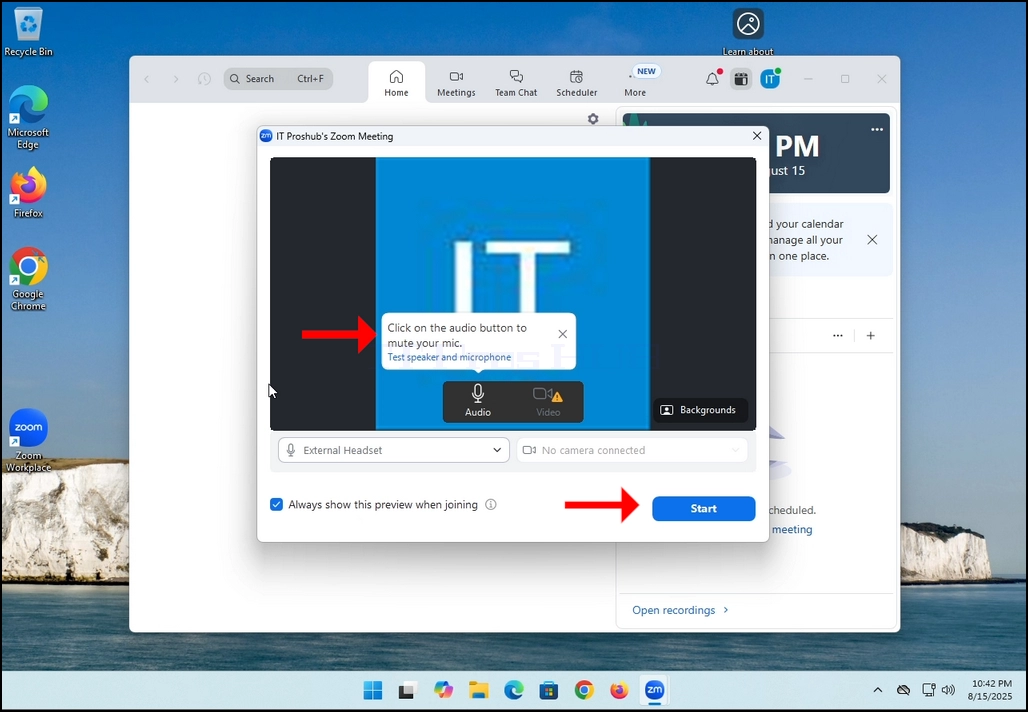
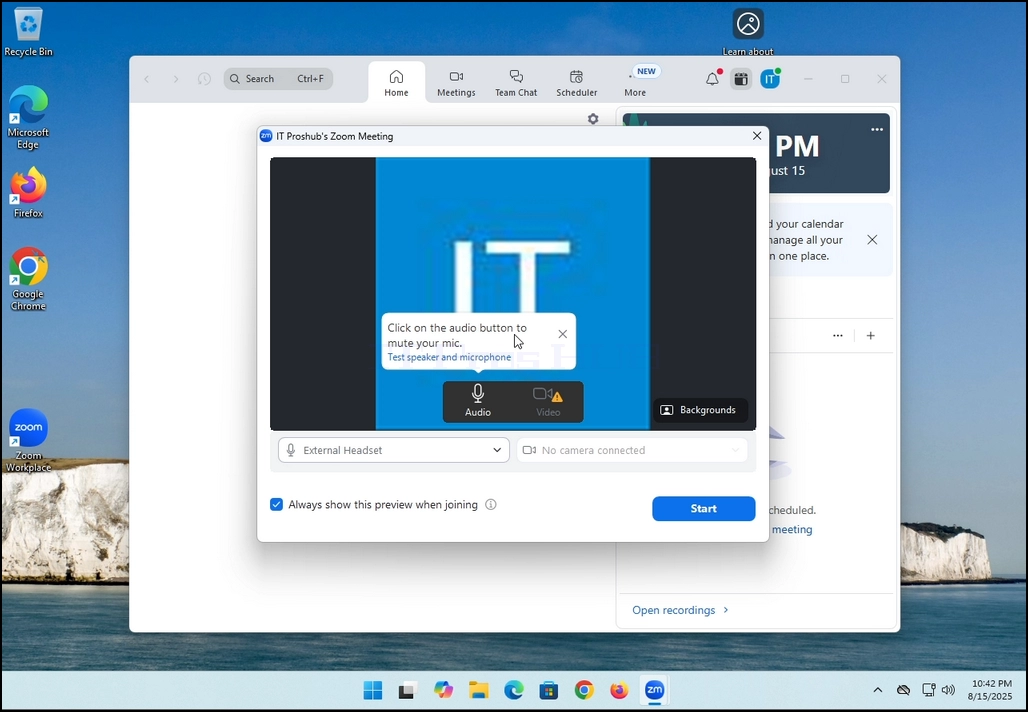
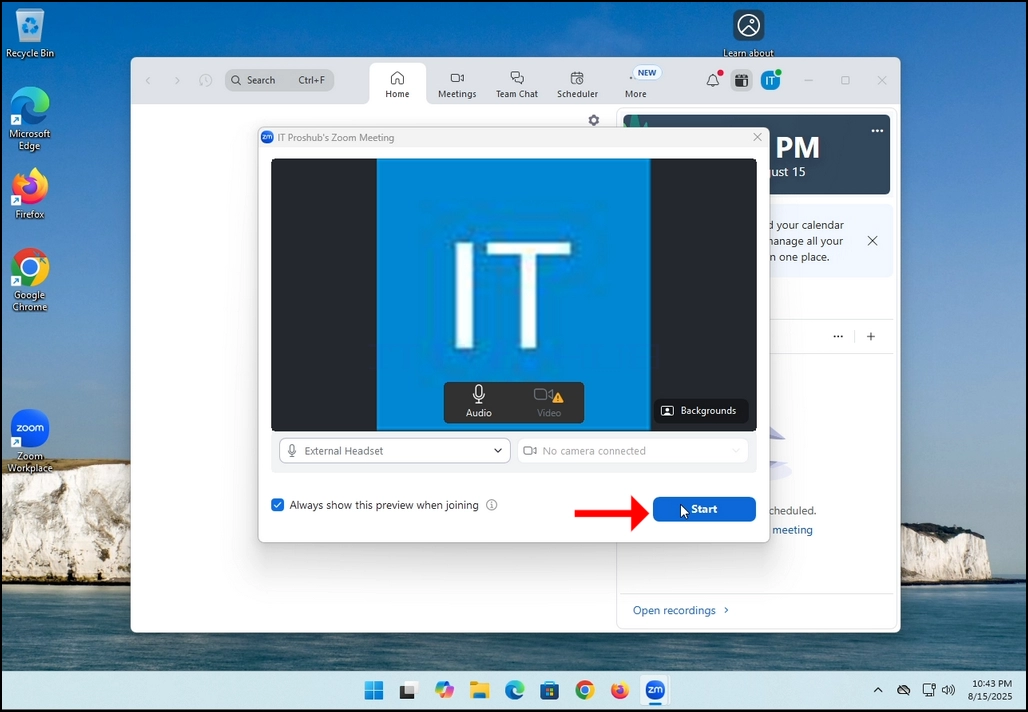
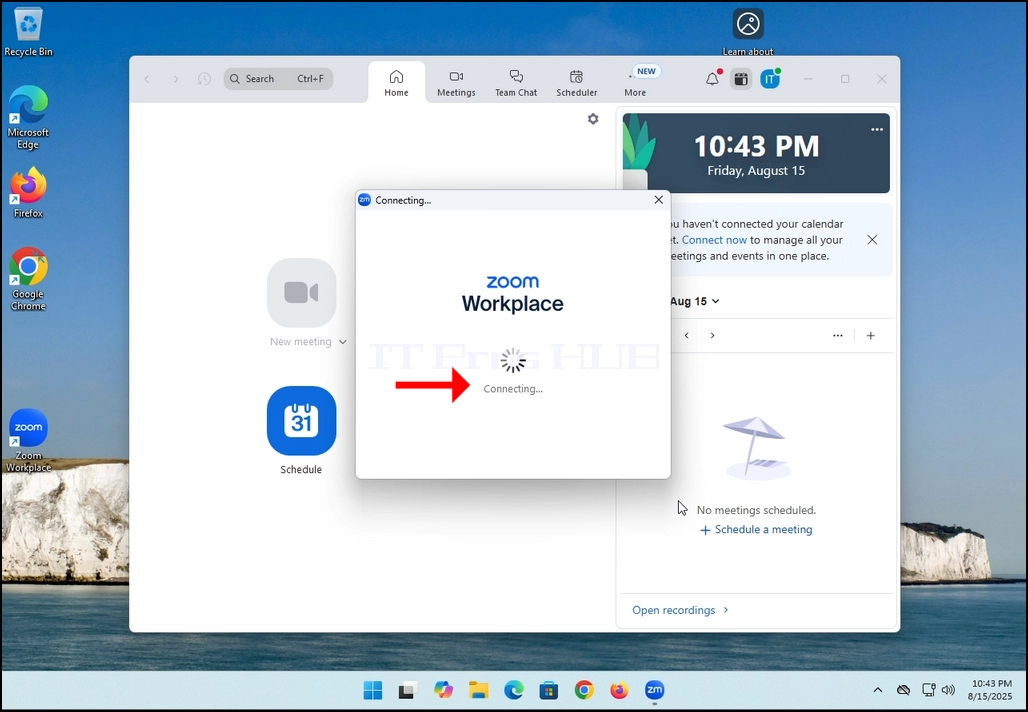
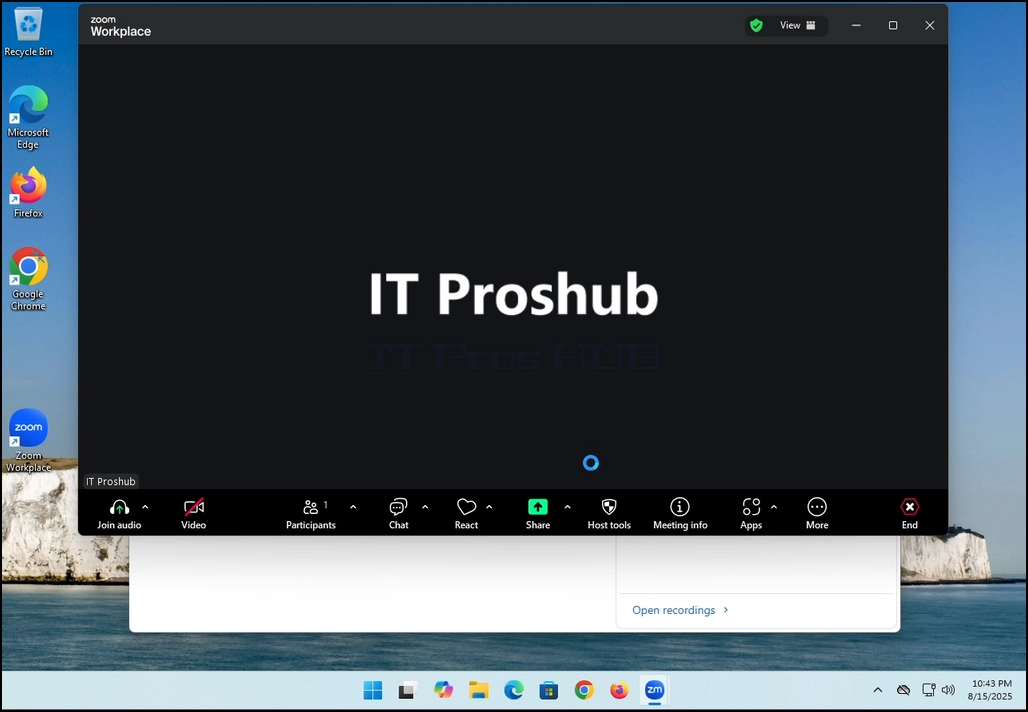
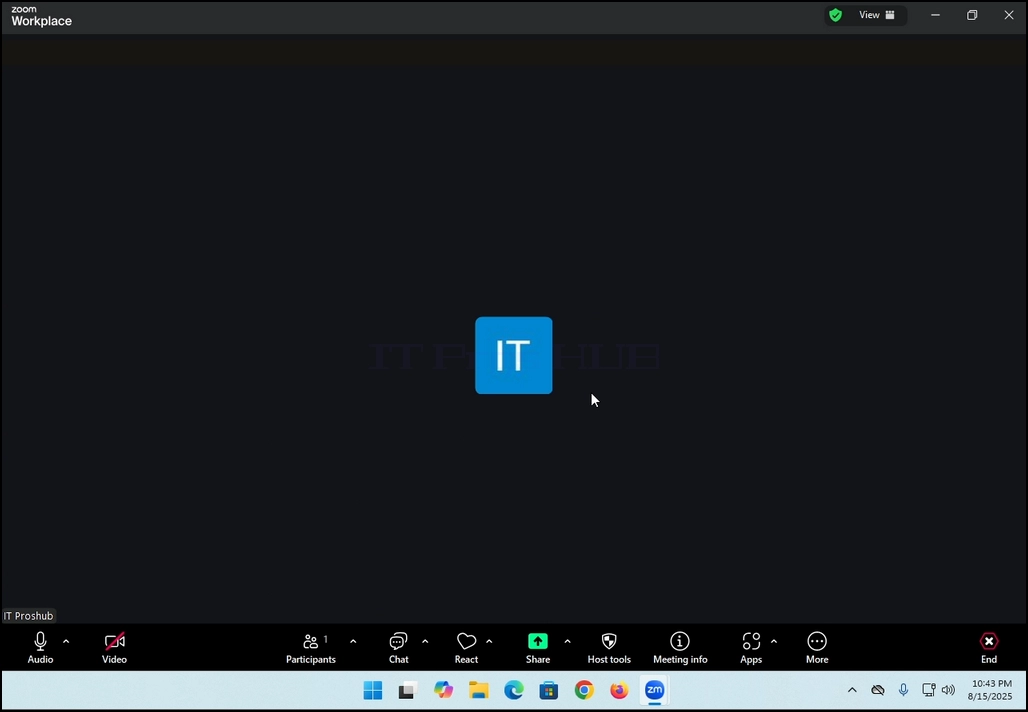
7. That's it! the new meeting is in progress. At this stage the meeting contains only the host which is IT Proshub in this article's case.
- Detalles
- Escrito por: IT Pro
- Categoría: How to Articles
- Visitas: 5304
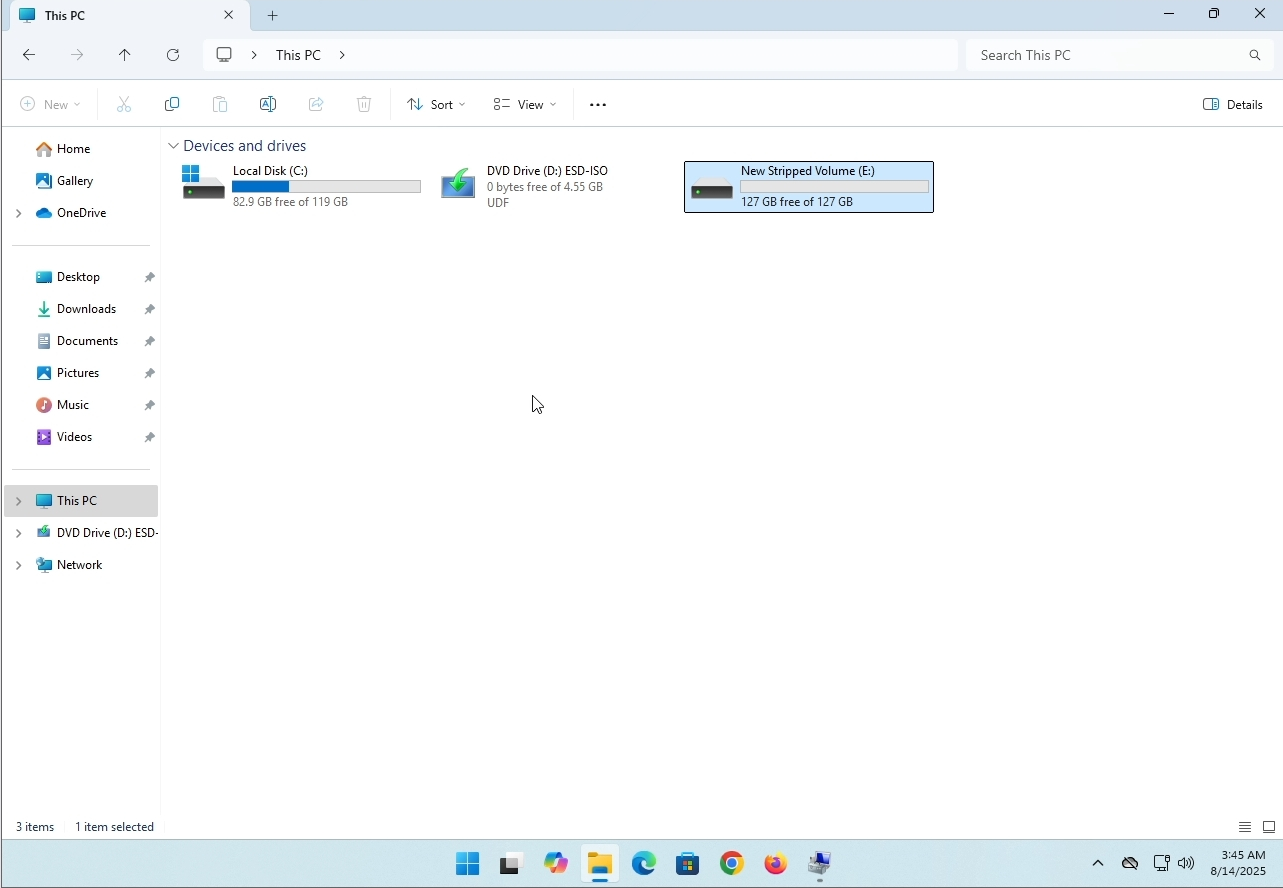
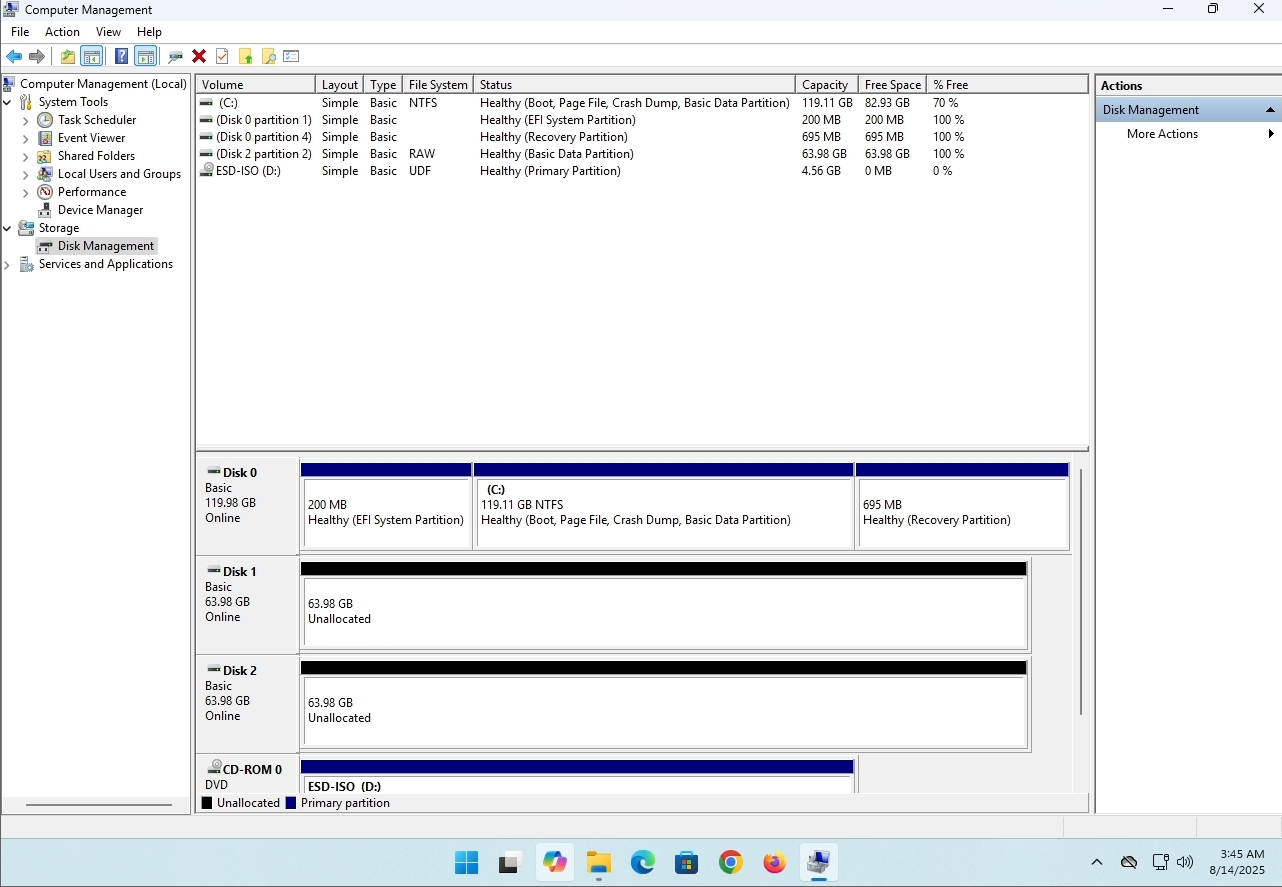
In this article we will demonstrate how to delete a stripped volume in Windows 11
1. Make sure what is the stripped volume's drive letter is. In this case the drive letter is (E:):
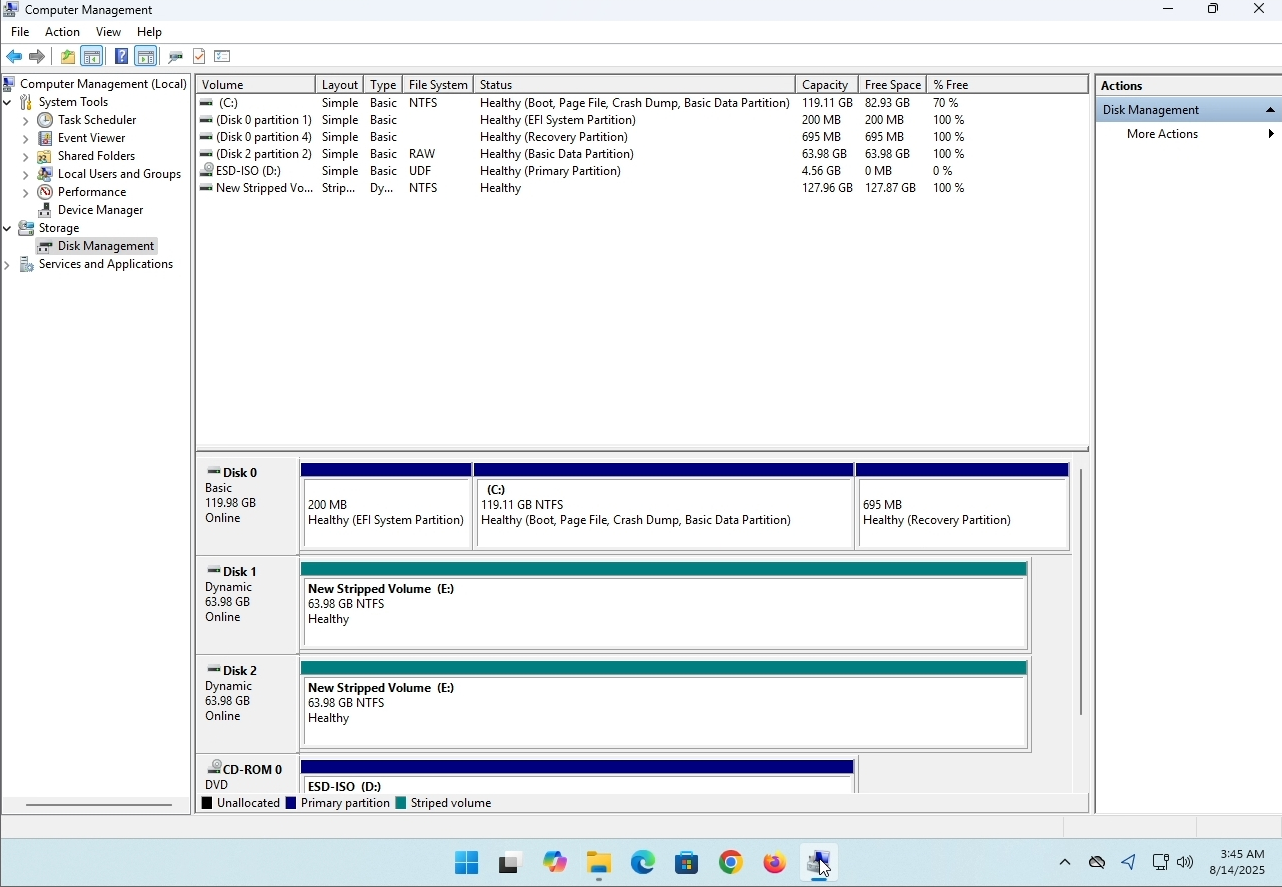
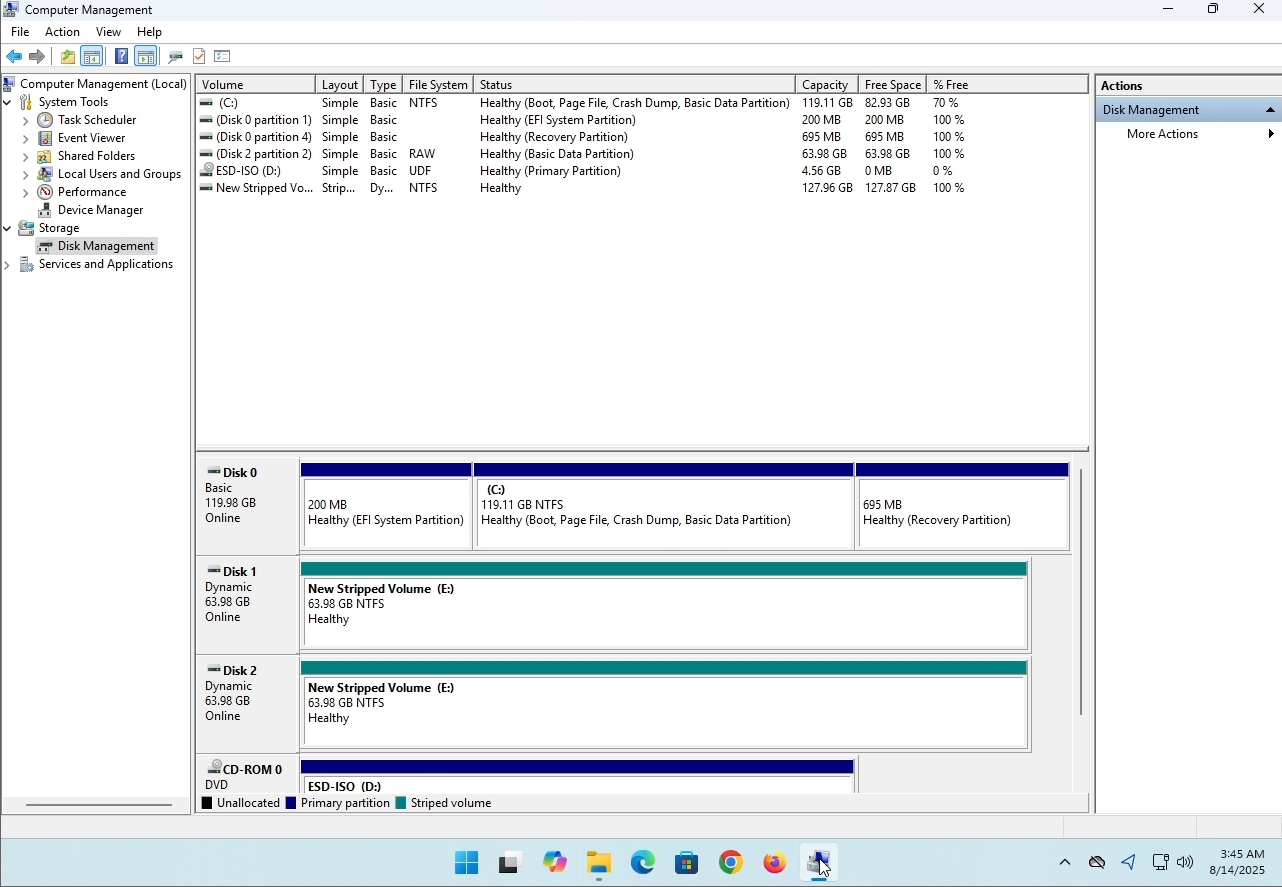
3. On the left pane. Look for Disk Management and click on it once.
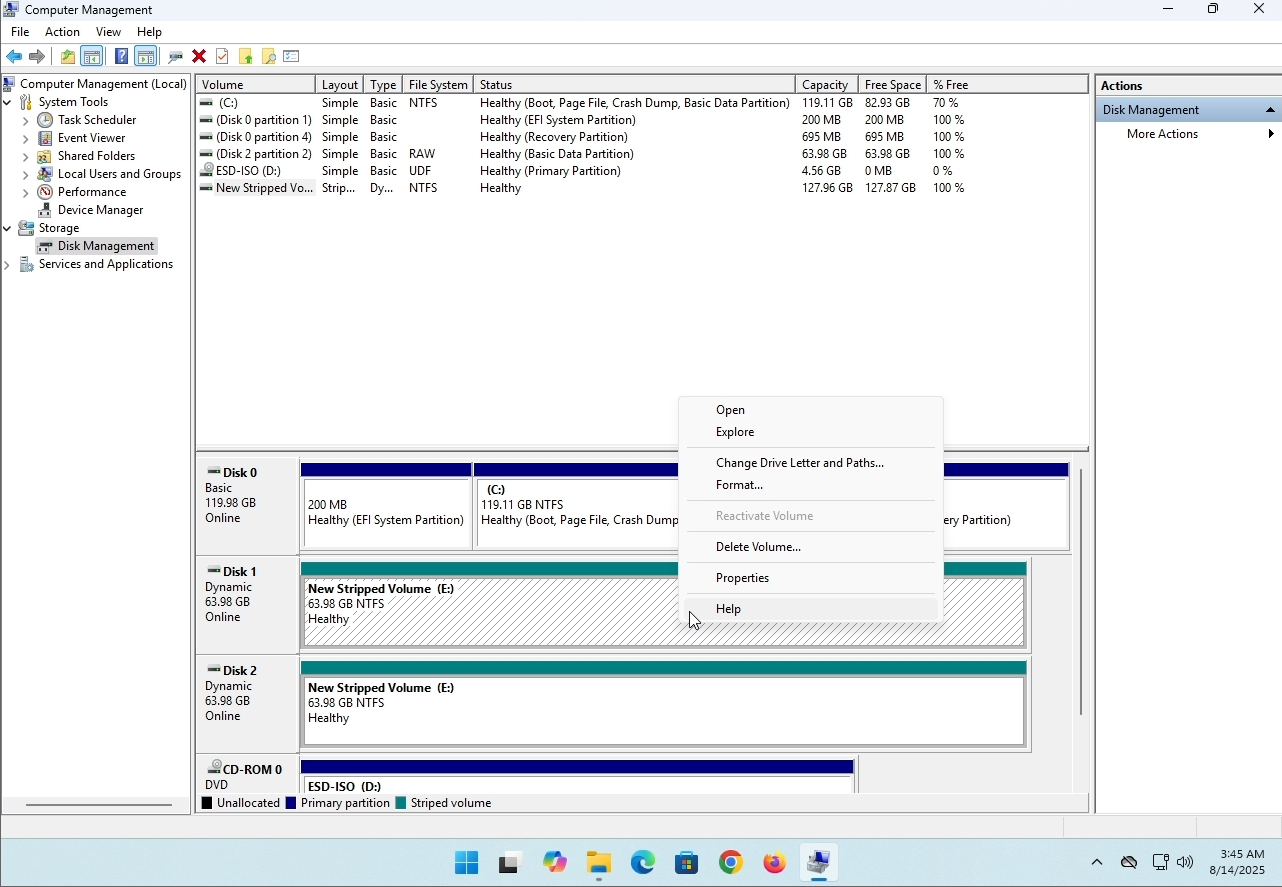
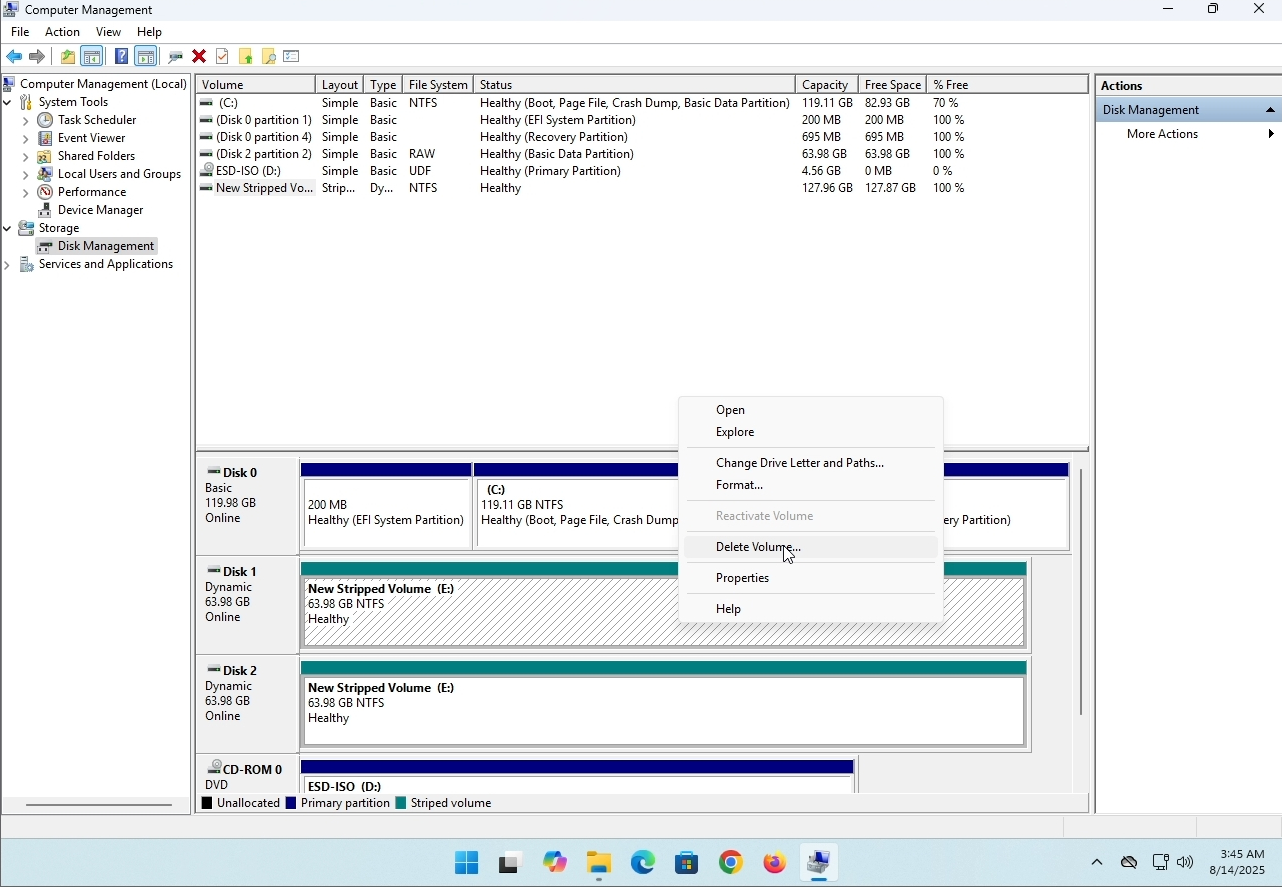
6. You will be shown a confirmation window. Click on Yes to confirm deleting the drive.
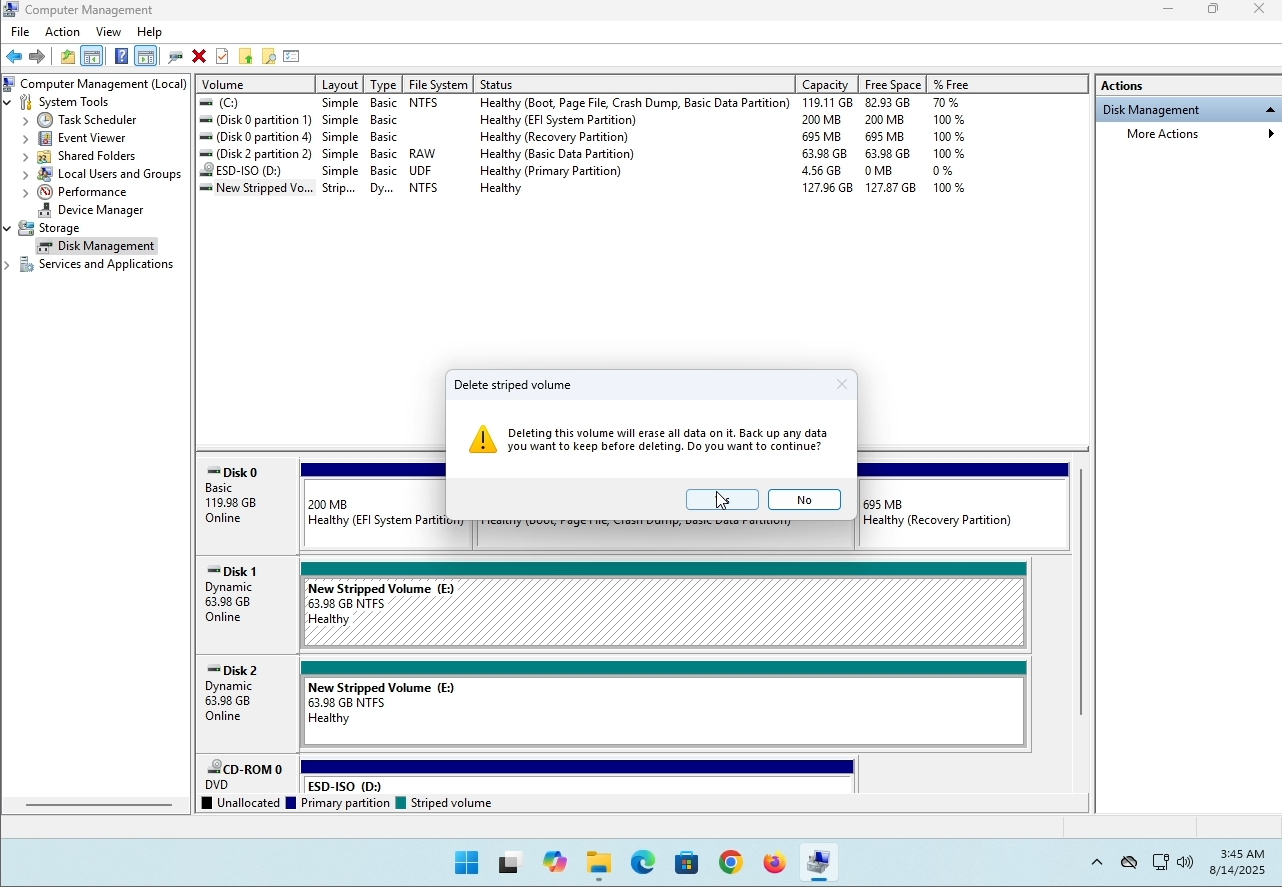
7. The drive is now deleted and the disks that were part of the stripped array are now unallocated.
- Detalles
- Escrito por: IT Pro
- Categoría: How to Articles
- Visitas: 8000
Introducción:
En este artículo examinaremos si Windows 11 podría instalarse en un ordenador que no tenga chip TPM.
En resumen: NO.
Windows 11 no se puede instalar en un ordenador sin un mínimo de un chip TPM versión 2.0.
Lo siguiente es una ilustración de un intento de instalación de Windows 11 en dicho ordenador.
La versión de Windows que se intentó instalar fue 24H2.
1. Booting en la instalación de Windows


2. Configuración del idioma

3. Método de instalación

4. Etapa clave del producto


5. Elegir Windows 11 Pro


6. Verificación de la fase PC

7. Blocker ☹

Conclusión:
No hay mucho que decir aquí. Teníamos que verlo por nosotros mismos. Hay un gran discurso sobre este tema, y parece tener agua en este caso. Cable de instalación – Windows 11 no se puede instalar en un ordenador o un sistema sin un chip TPM versión 2.0.
Eso no significa que Windows 11 no pueda ser RUN en dicho sistema. Para más información, visite nuestro artículo sobre este tema: https://itproshub.com/en/windows/can-windows-11-run-on-a-computer-that-has-no-tpm-chip-at-all-decembet-2025
- Detalles
- Escrito por: IT Pro
- Categoría: How to Articles
- Visitas: 7130
1. Iniciar la instalación de Thunderbird haciendo clic en su archivo de configuración
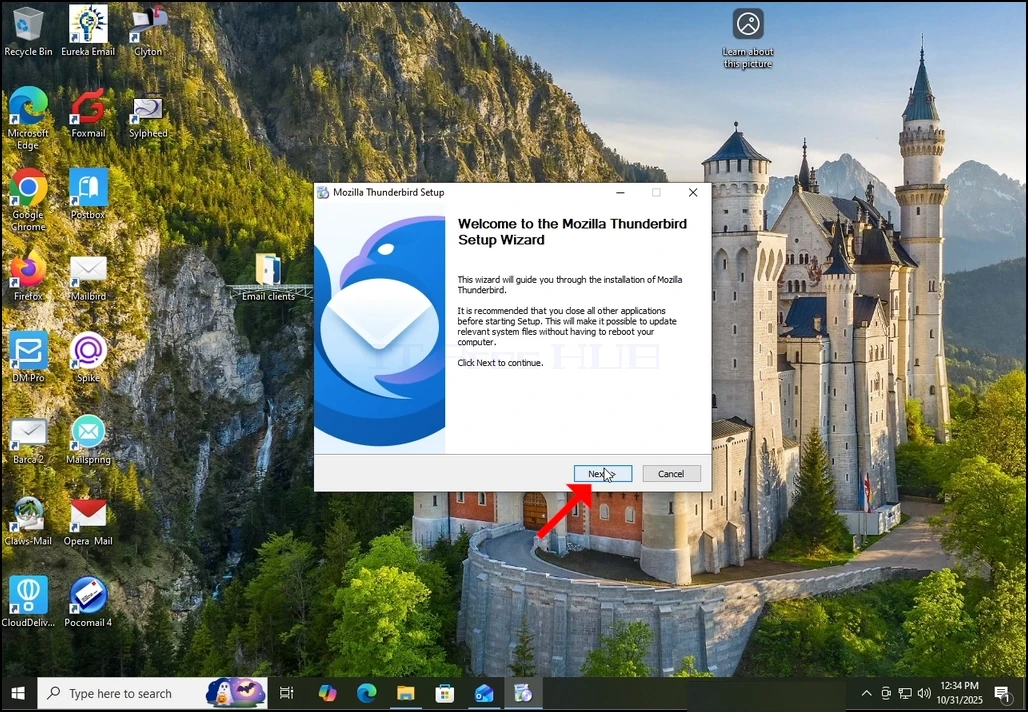
2. En la pantalla de bienvenida, haga clic en NEXT.
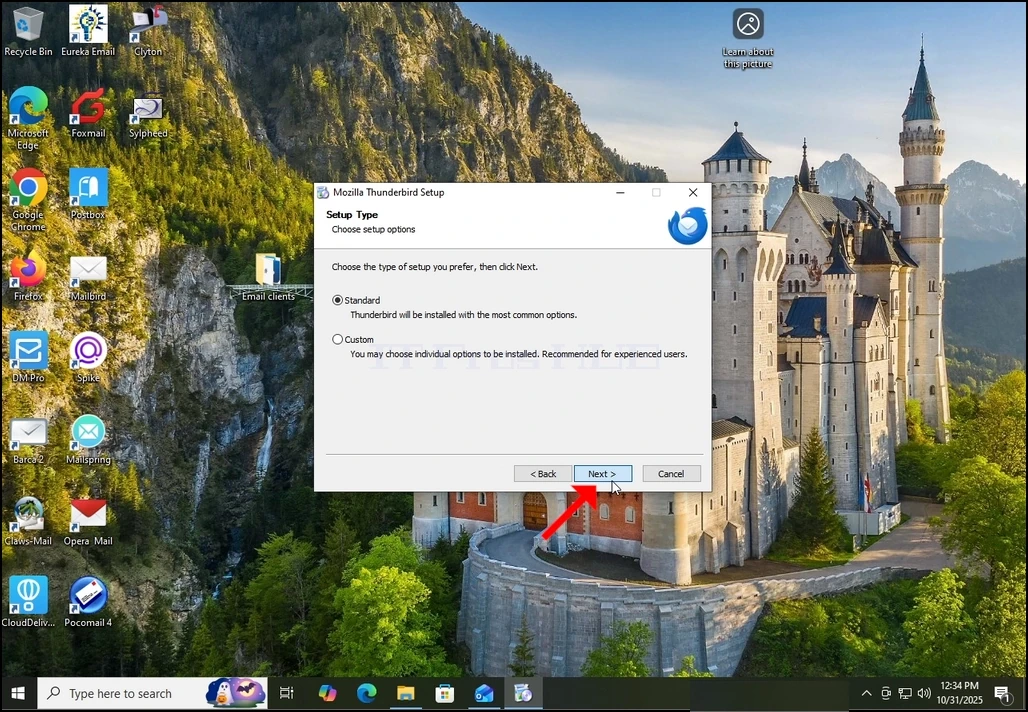
3. Elija la opción estándar y haga clic en NEXT.
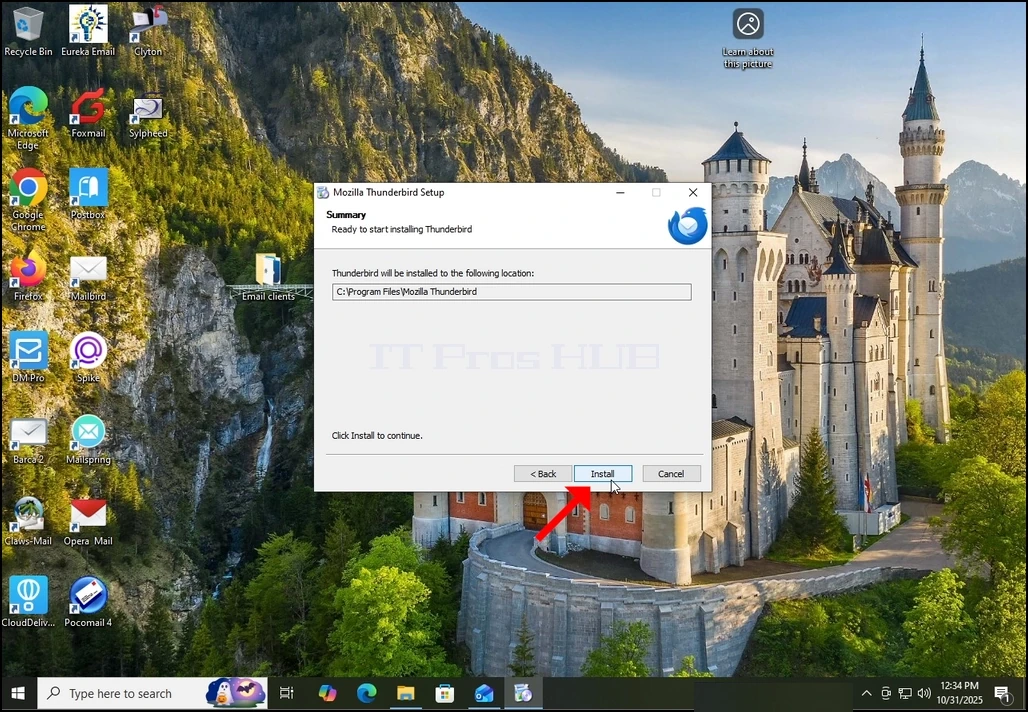
4. Haga clic en el botón Instalar.
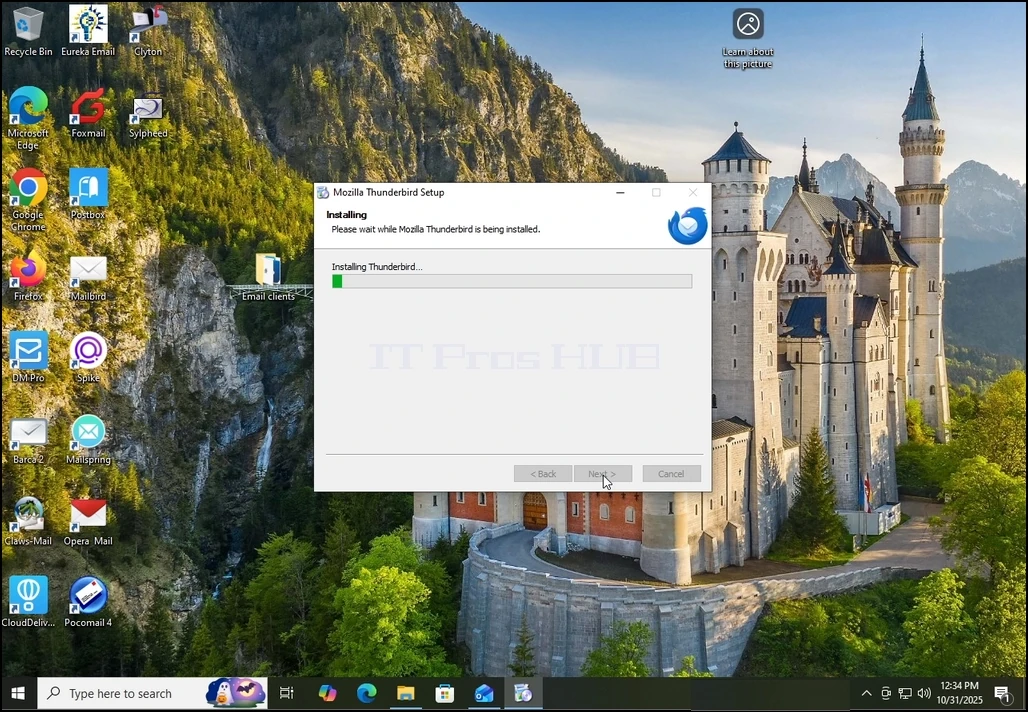
5. Espere pacientemente para que el proceso de instalación termine
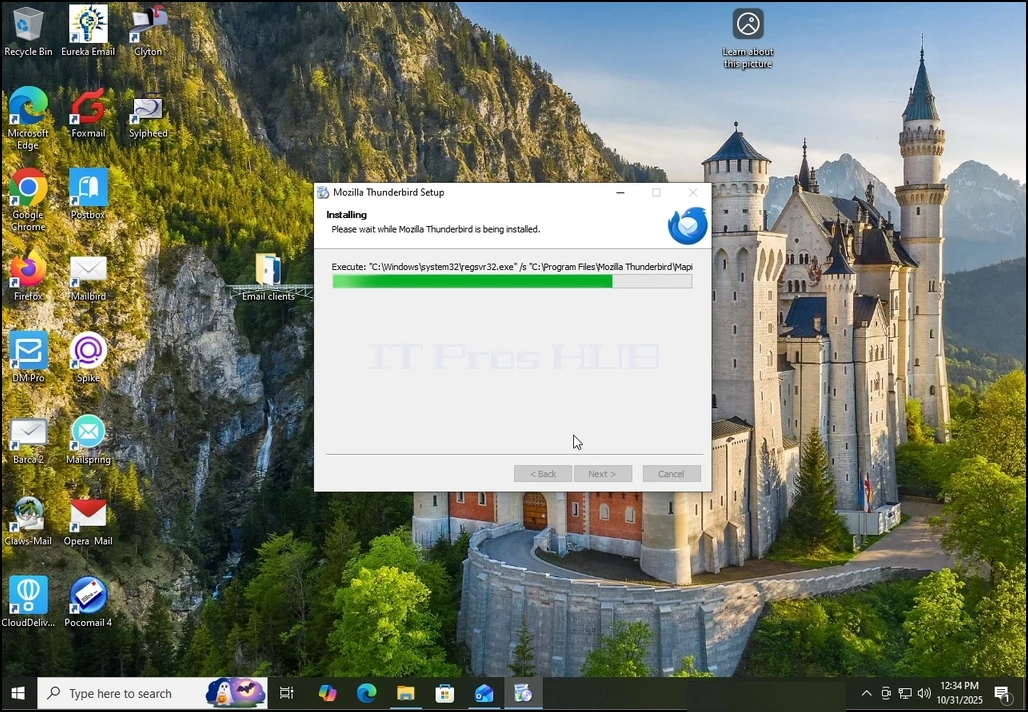
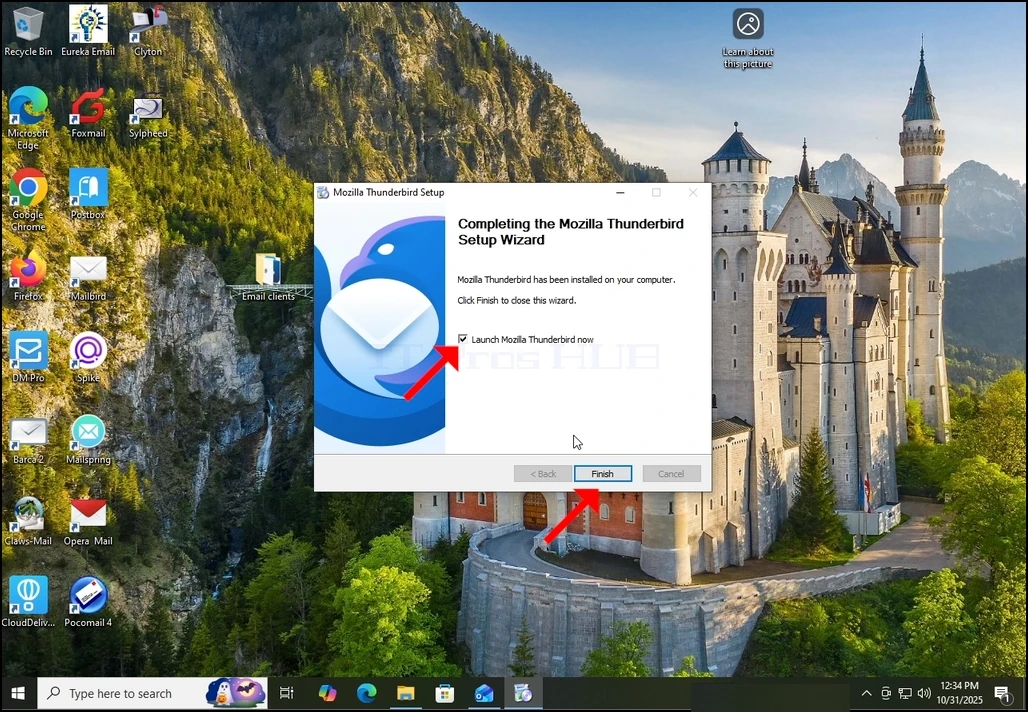
6. Destick la opción de lanzamiento de Mozilla Thunderbird ahora y golpear el botón Finalizar
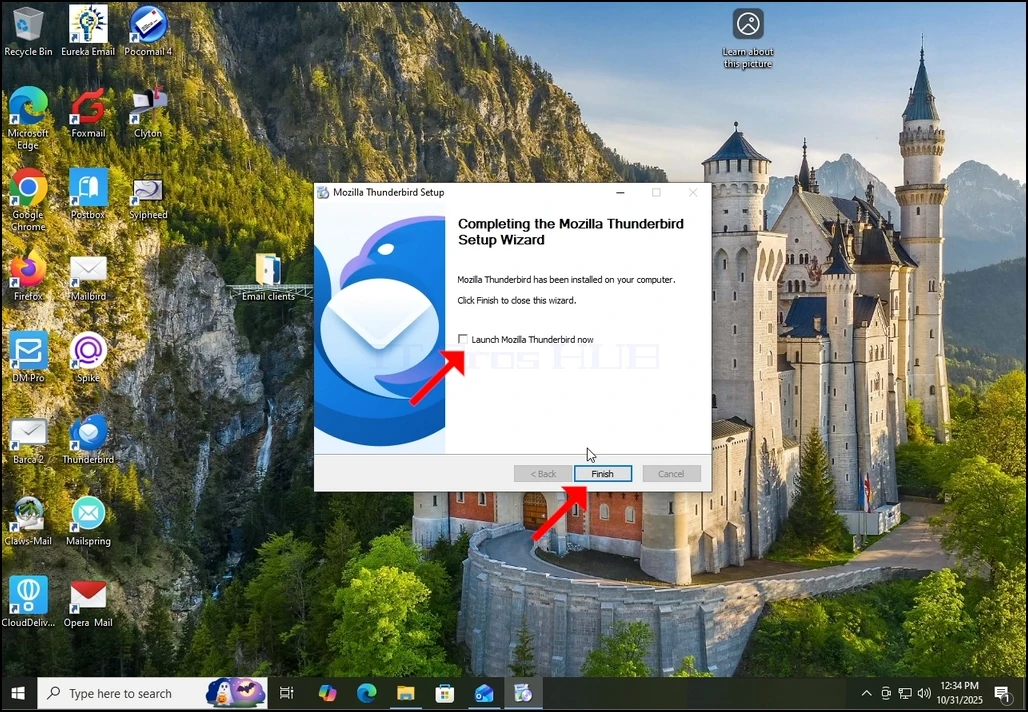
7. Mozilla Thunderbird está ahora instalado!