



- Üksikasjad
- Kirjutas: IT Pro
- Kategooria: How to Articles
- Klikke: 5925
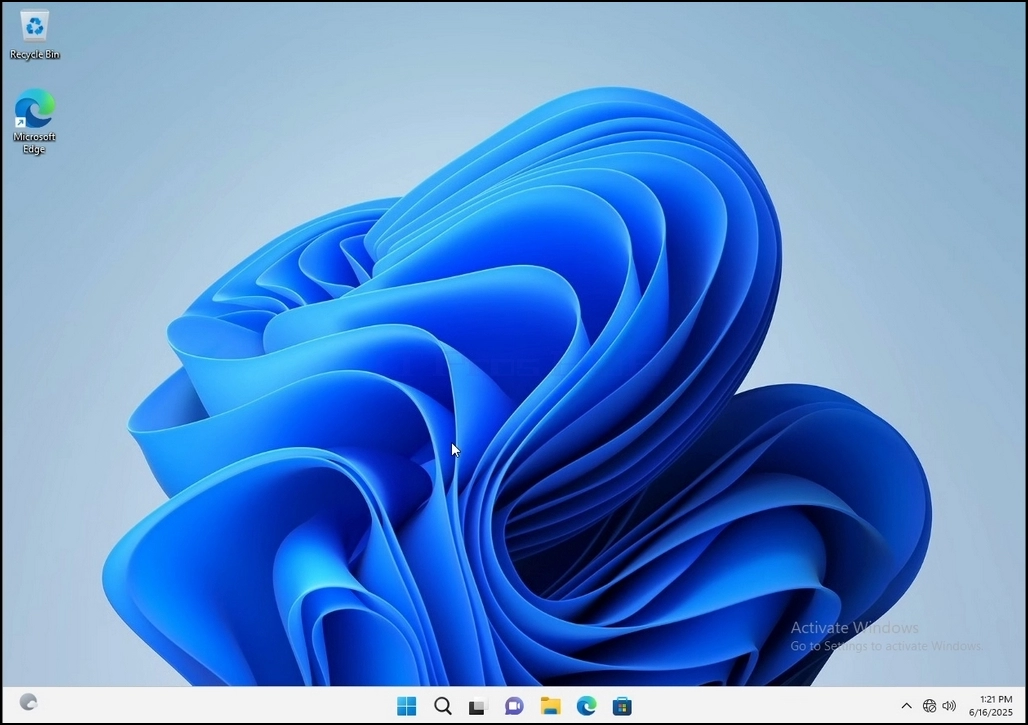
1. Go to Windows Desktop
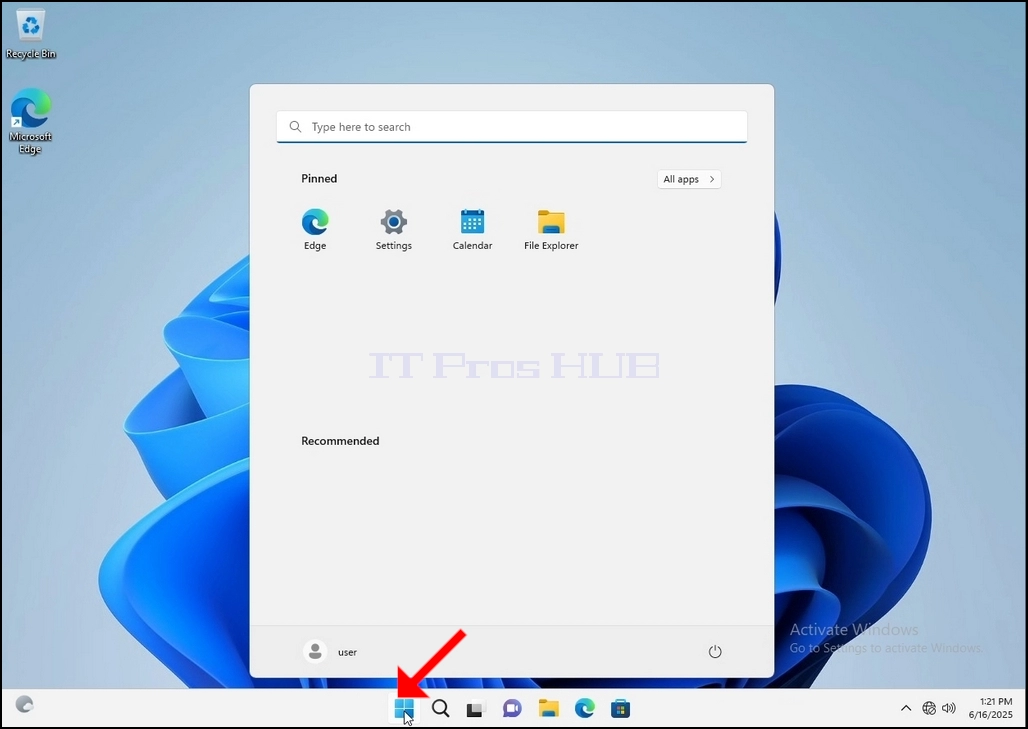
2. Click Start
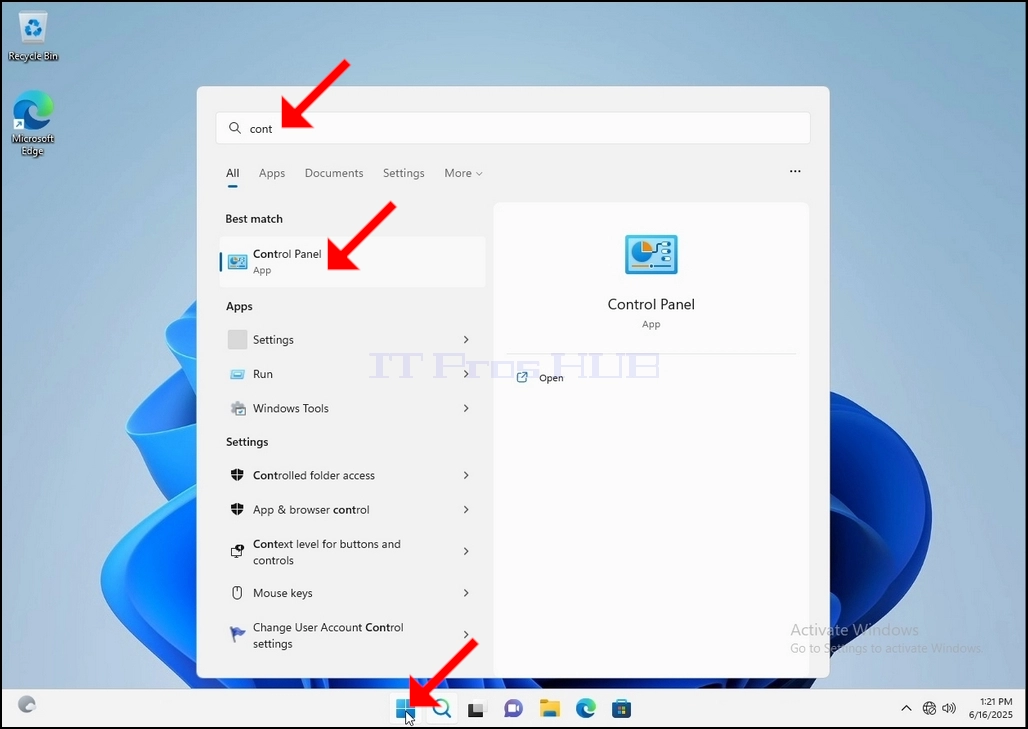
Once it finds it, click it and wait for the Control Panel window to appear.
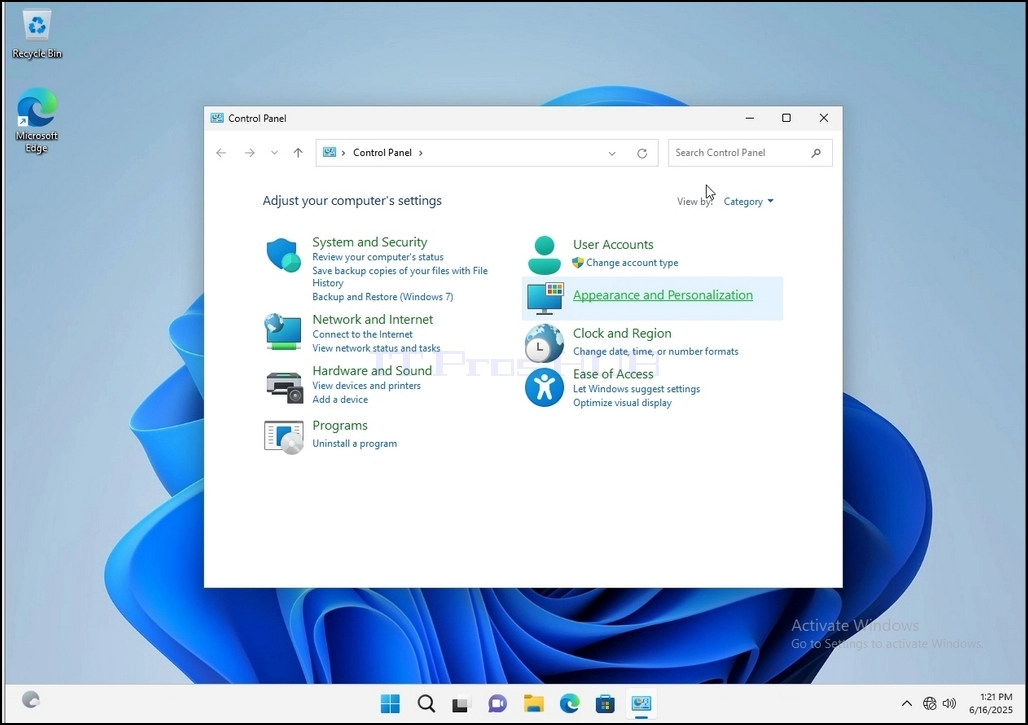
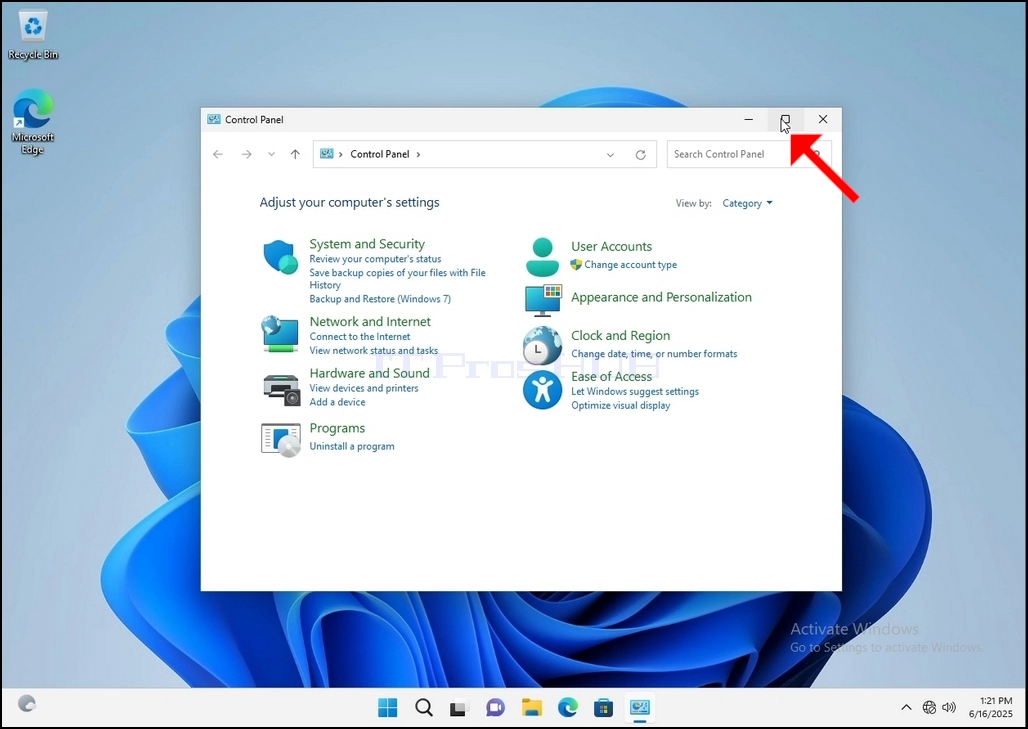
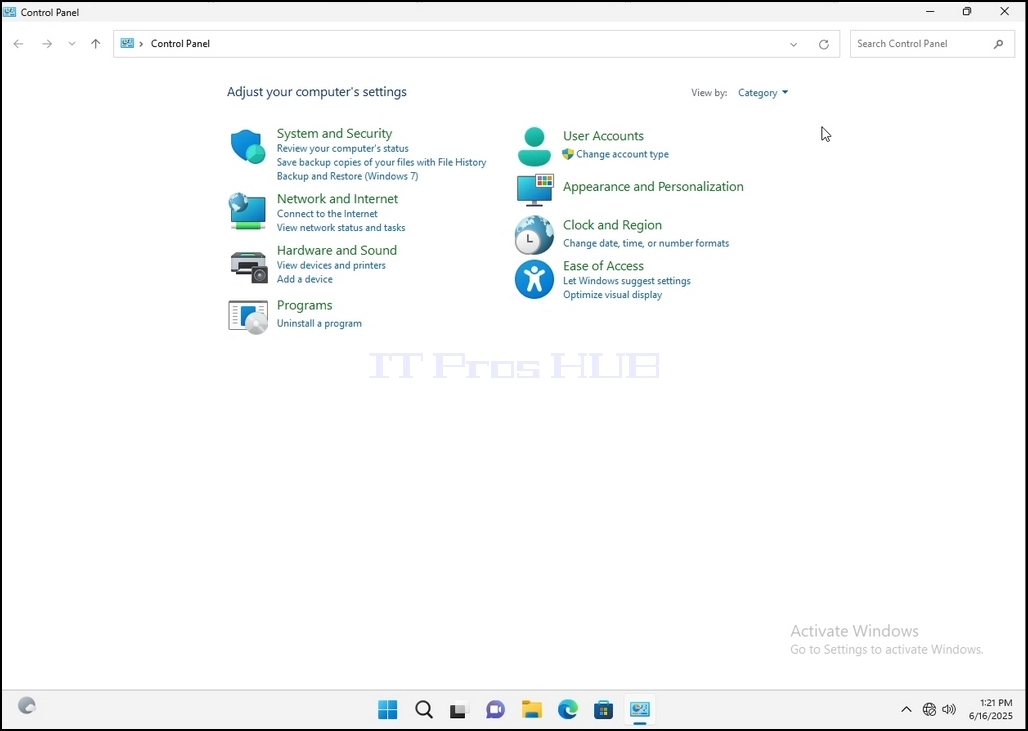
4. Once the Control Panel window is open, enlarge it by clicking the enlarging icon on the top right corner of that window.
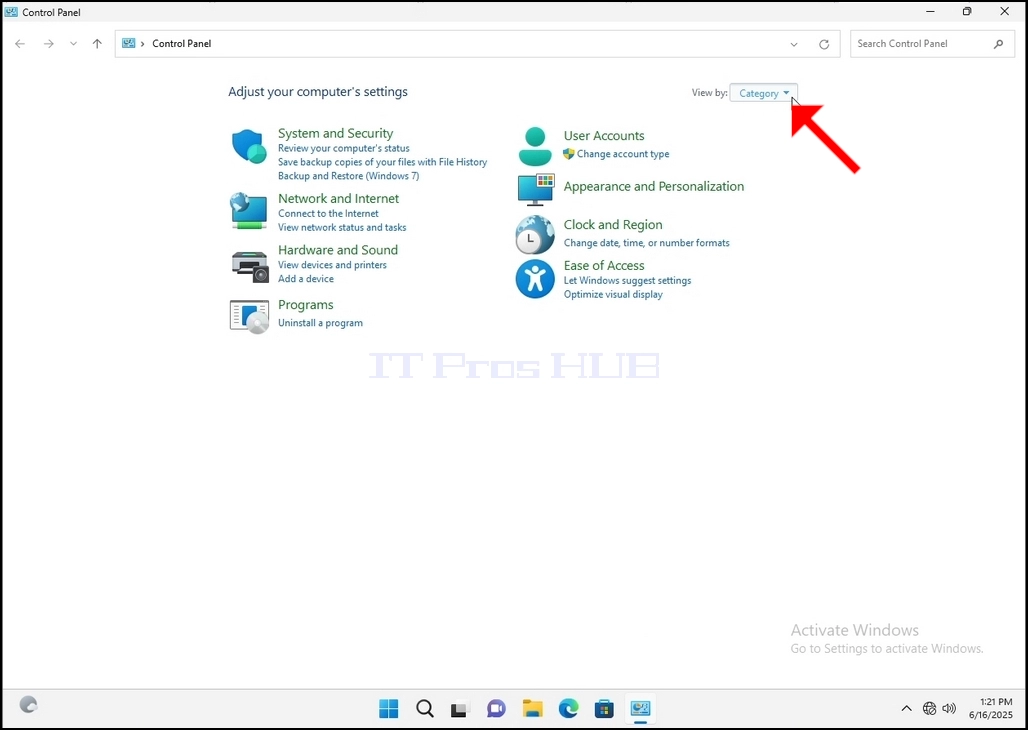
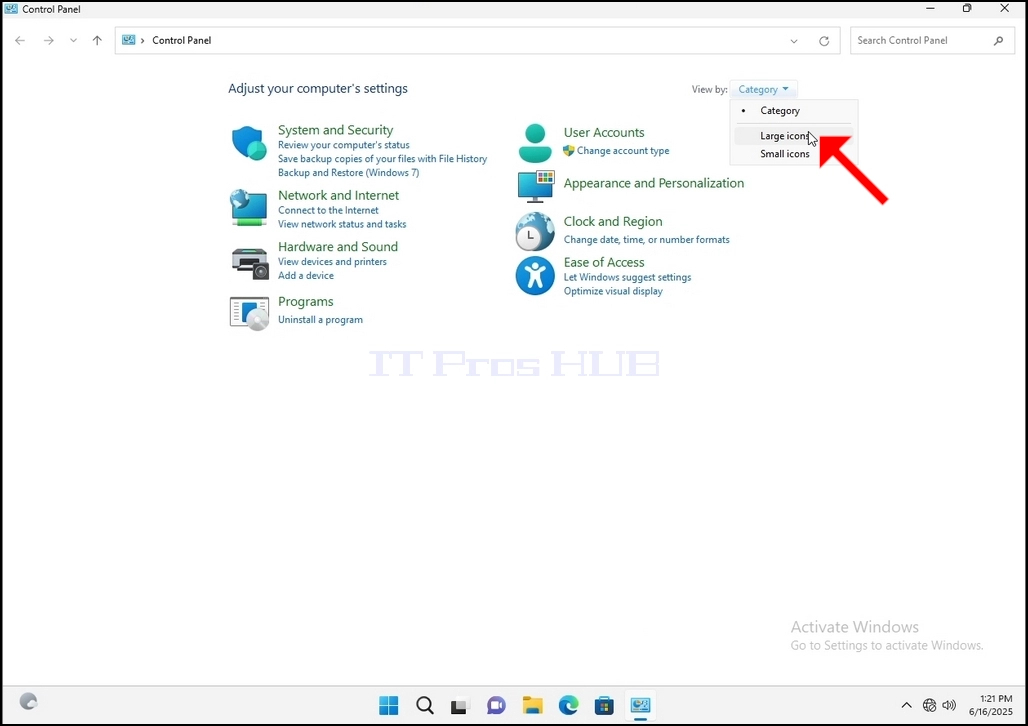
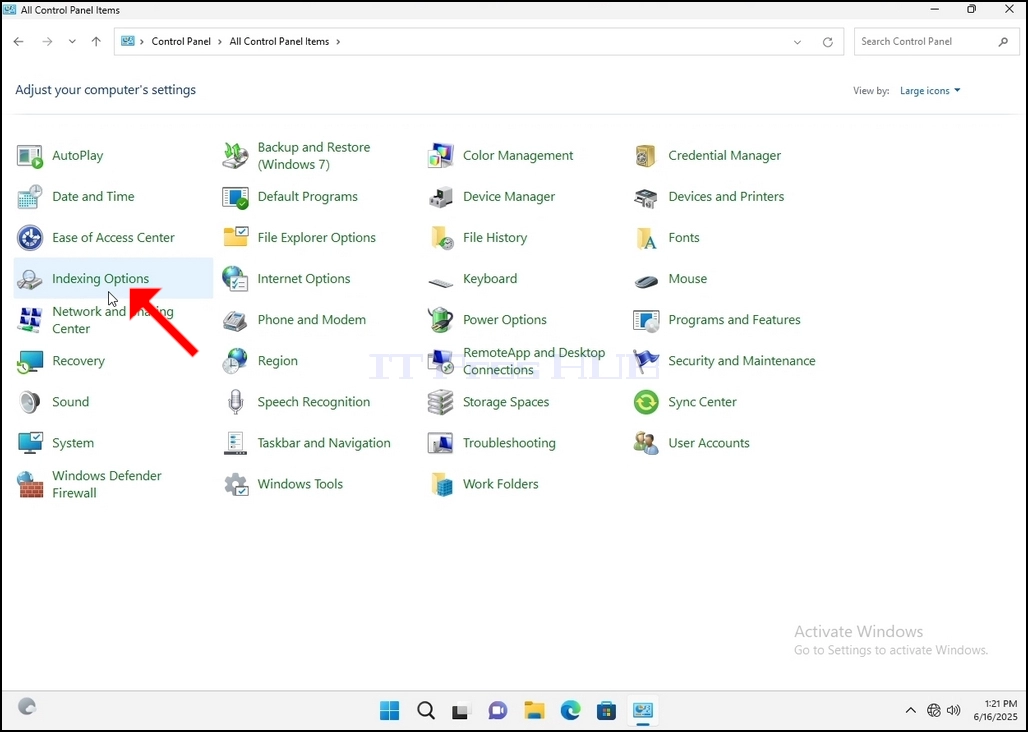
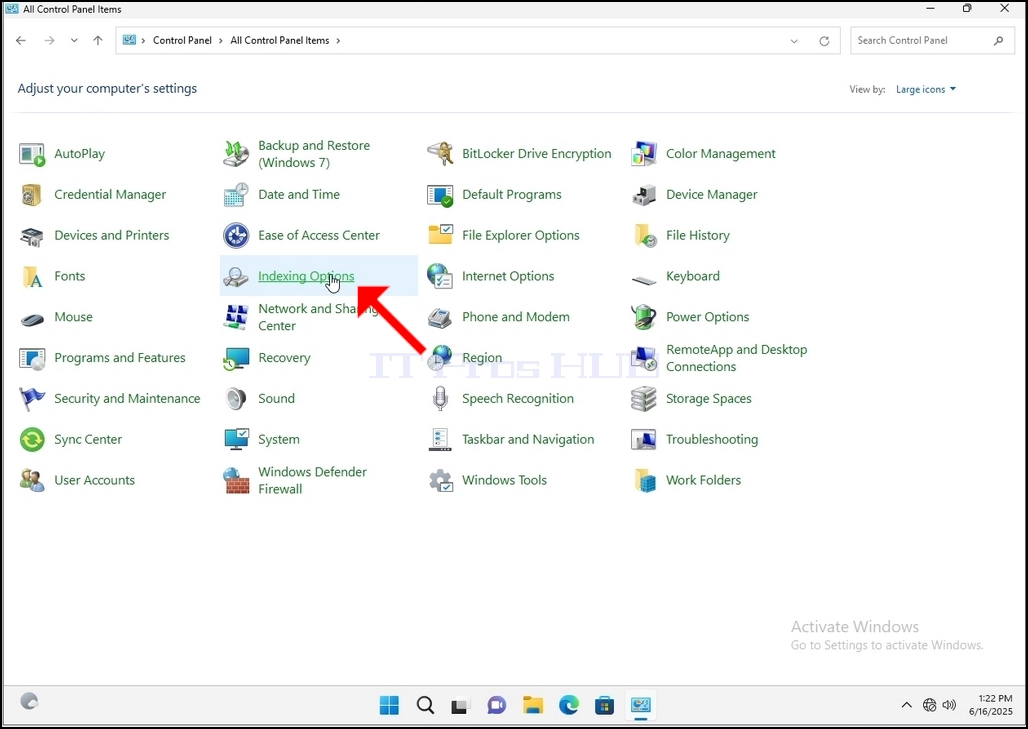
6. Look for the Indexing Options icon and click it. Wait for the Indexing Options window to appear.
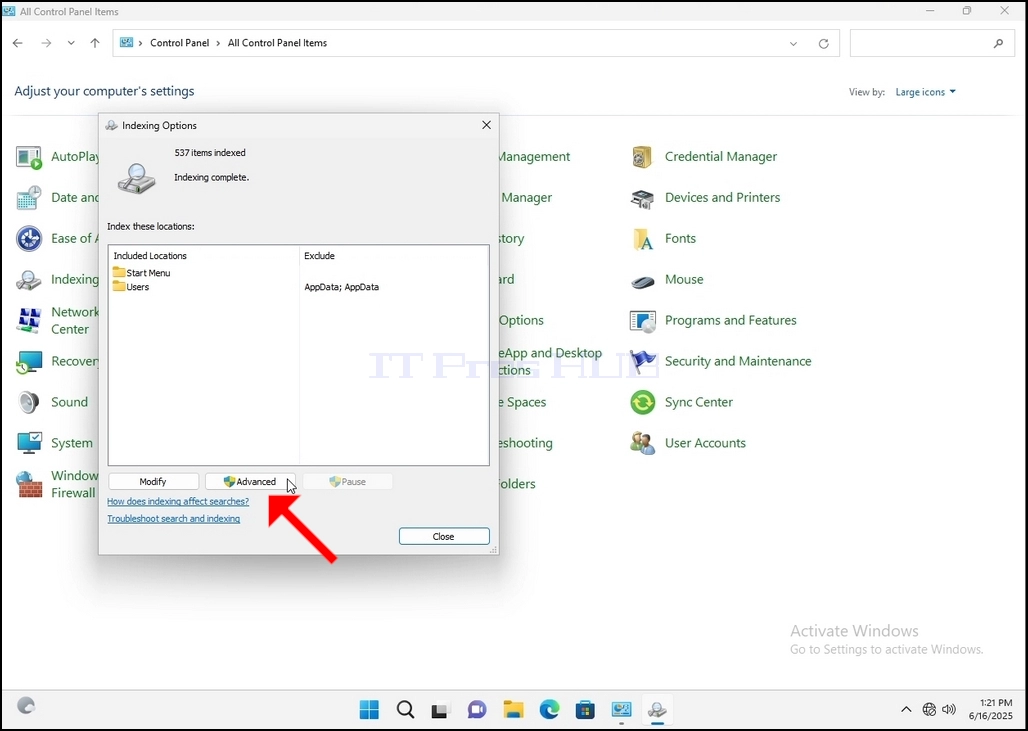
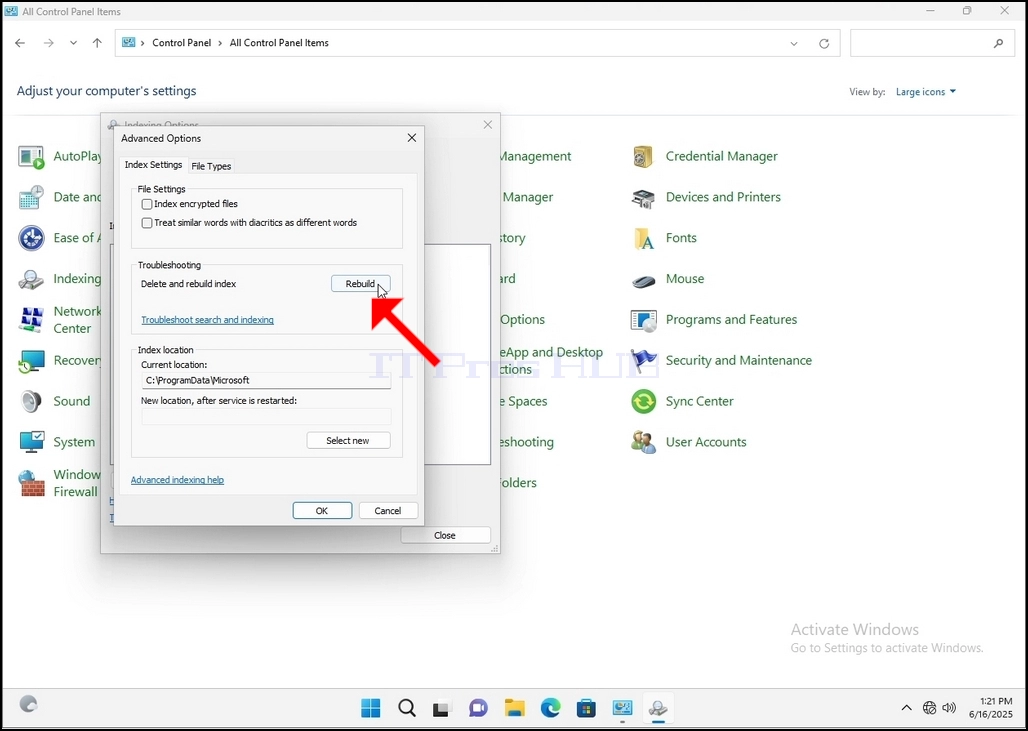
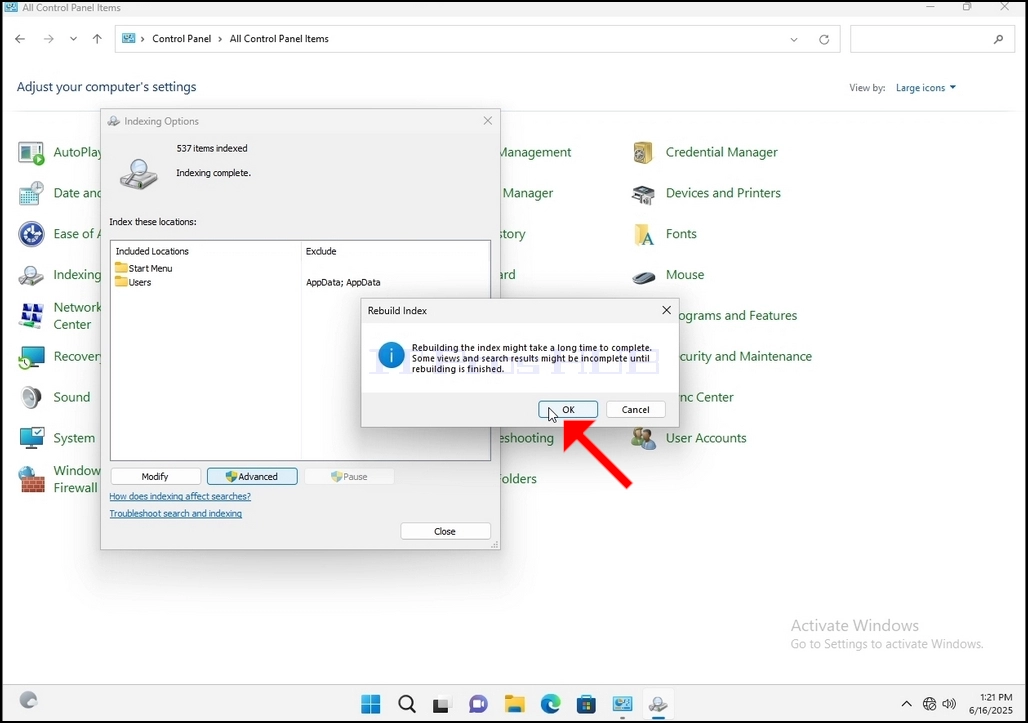
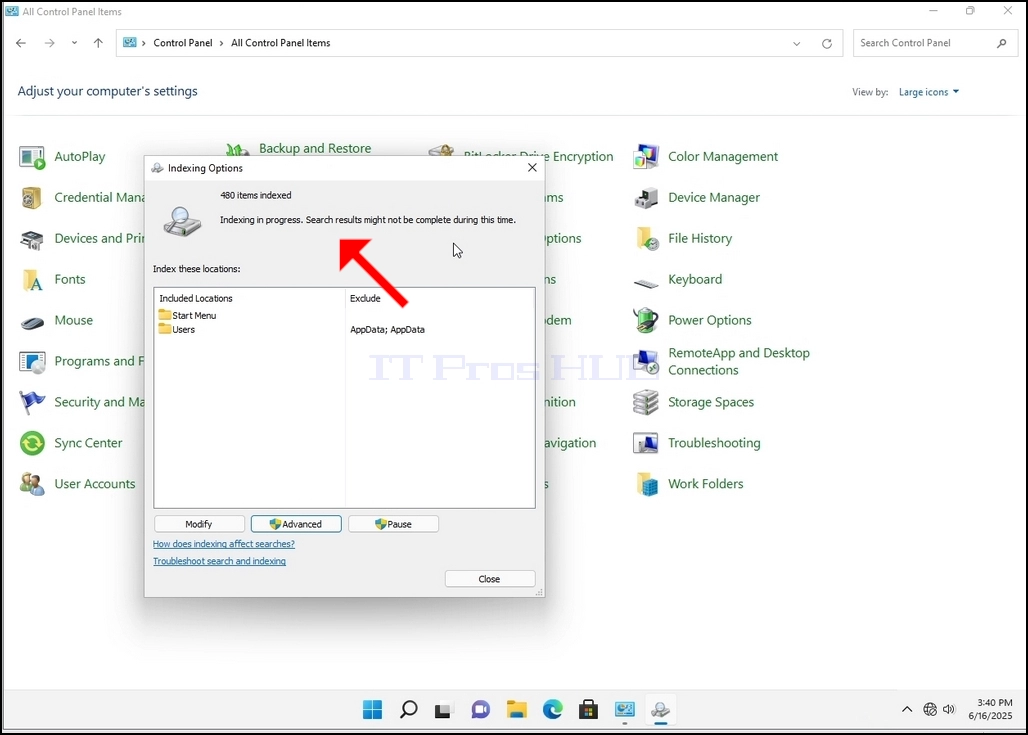
9. After clicking OK in the confirmation box, Windows will start rebuilding its index. It might take some time for the actual process to start, Wait patiently a few seconds to a few minutes. The moment the process starts, the "Indexing Complete" sentence will be replaced with "Indexing in progress. Search results might not be complete during this time."
In addition, the number of items indexed will be reset to 0 for a moment and then start to increase.
Note that All of the windows that are related to the Indexing process can now be closed and the rebuilding process would still be running the background.
Note that the Indexing process' speed might be reduced due to user activity on the computer. The more intense the activity the less the Indexing speed would be.
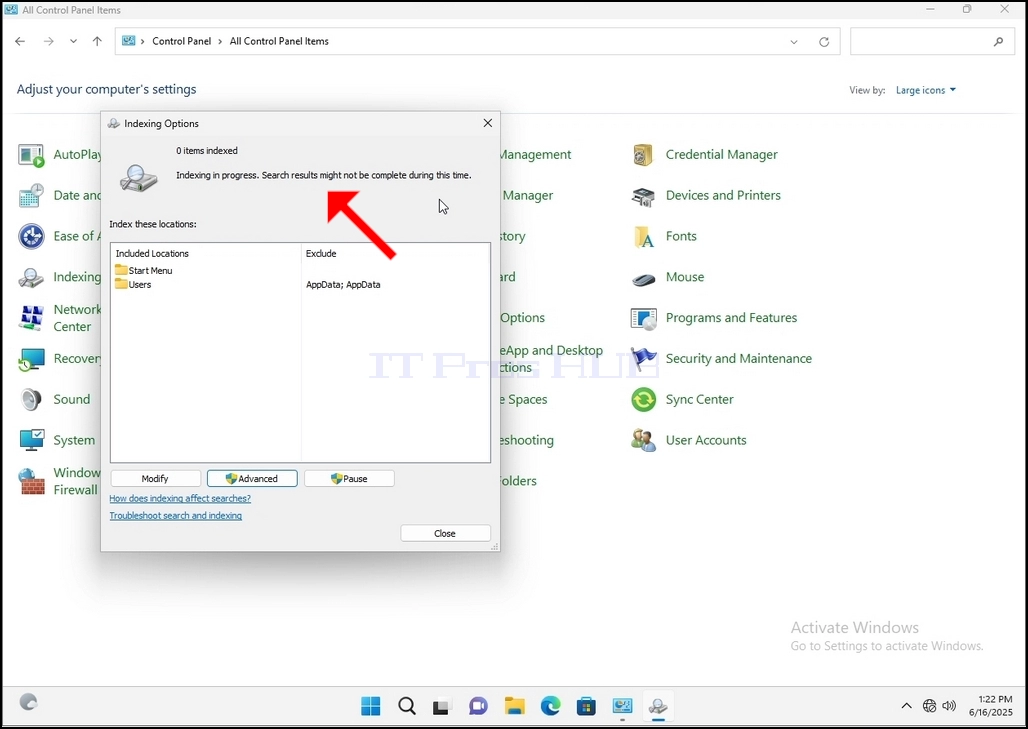
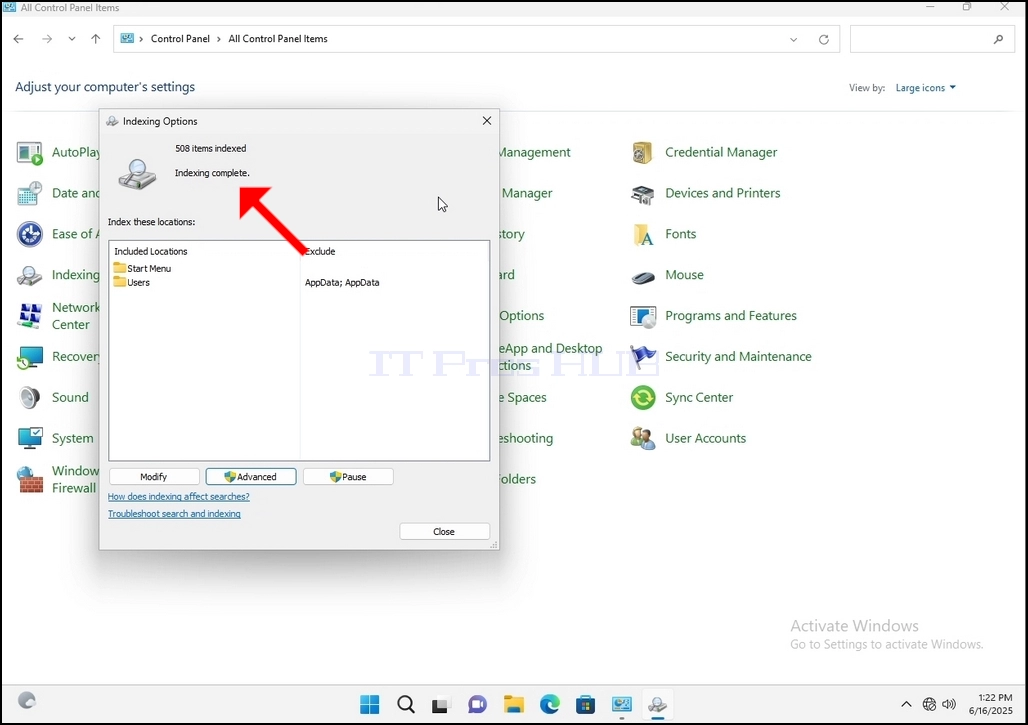
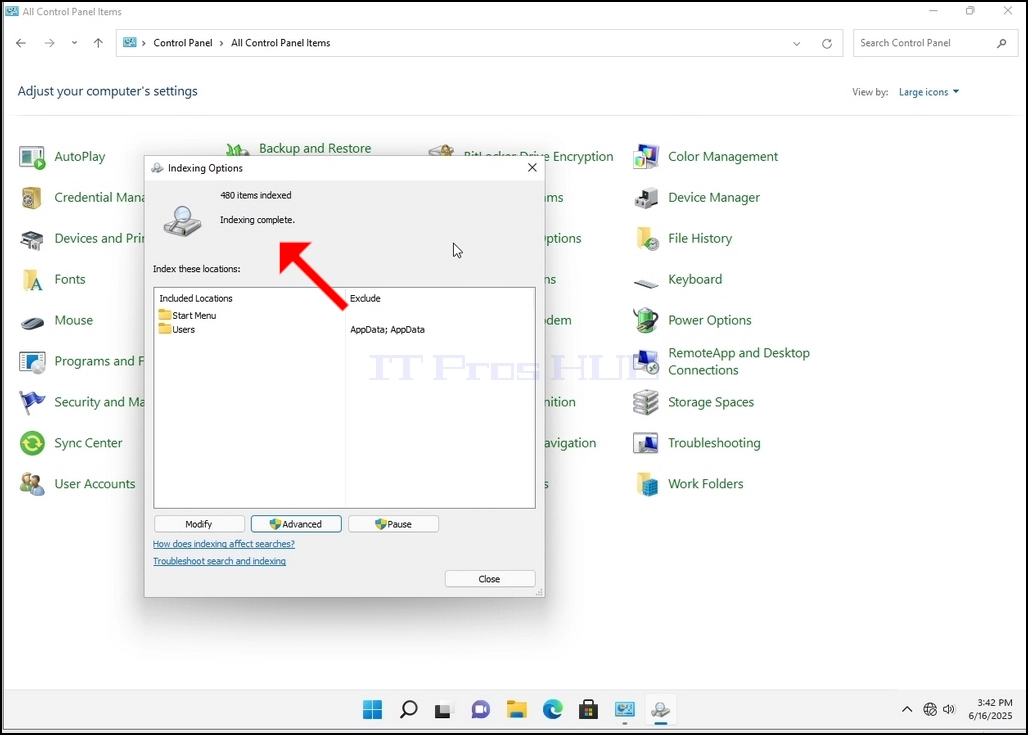
10. To check if the indexing process is done, go back to the Indexing Options through Control Panel as explained in the previous stages. If the process is complete, you would see the "Indexing Complete" sentence appears again.
Since Windows does not notify the user once this process is done, there is indeed a need to perform the latter mentioned. Depending on the number of files, folders, drivers and partitions marked for indexing, this process could take between a few minutes to a few hours.
- Üksikasjad
- Kirjutas: IT Pro
- Kategooria: How to Articles
- Klikke: 6359
1. Go to Windows Desktop
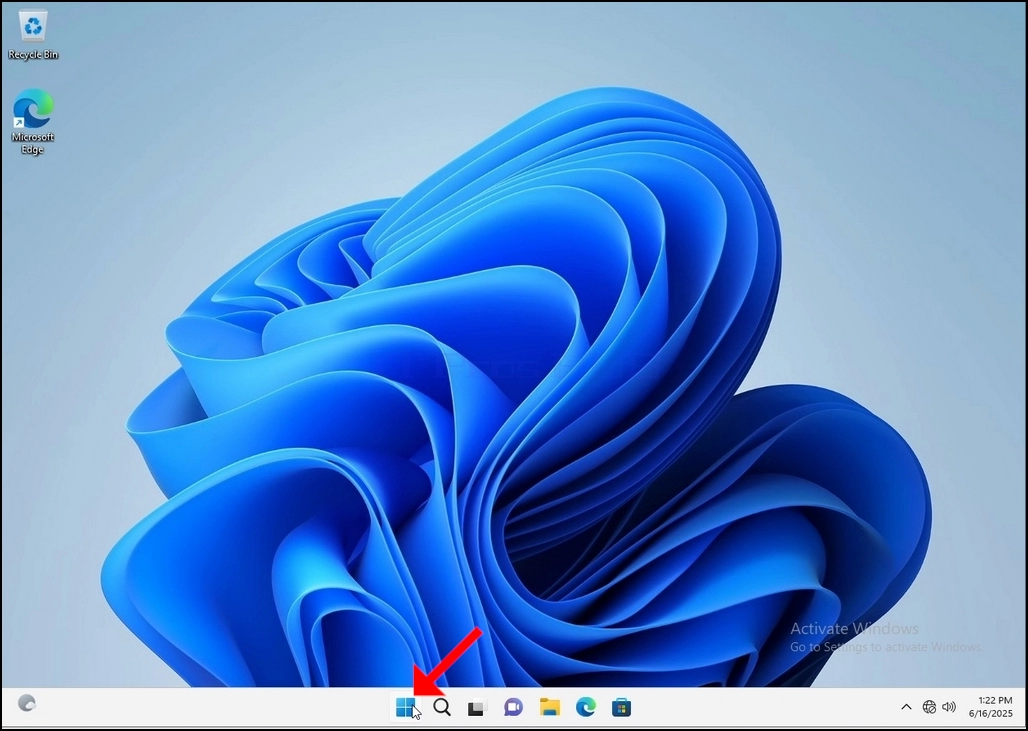
2. Click Start
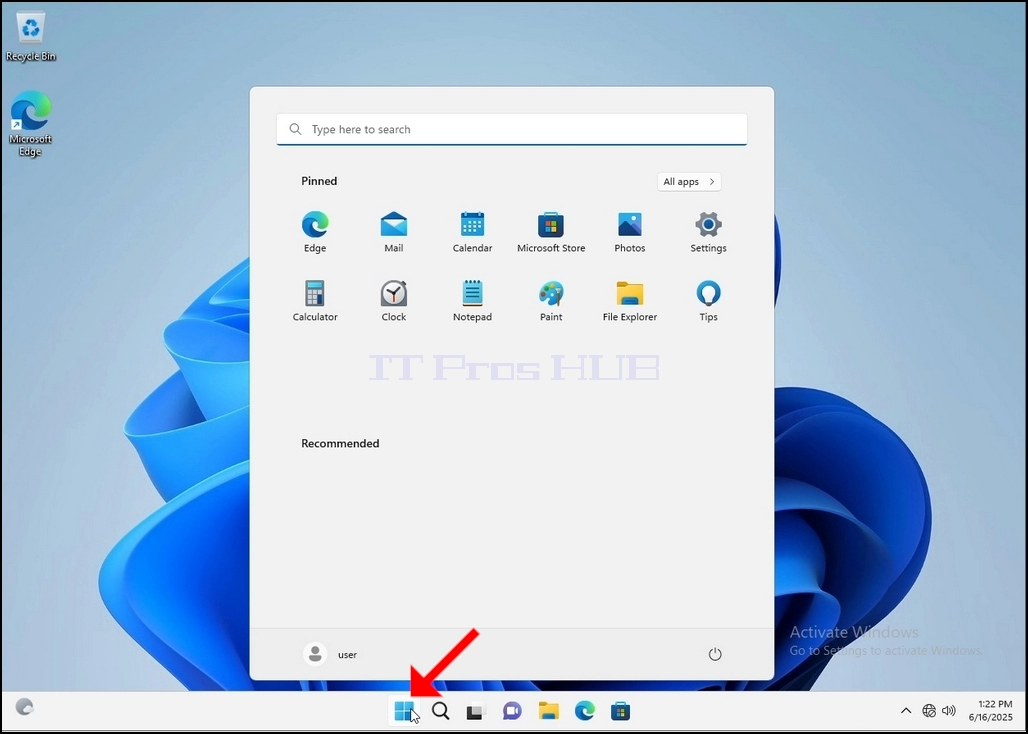
Once it finds it, click it and wait for the Control Panel window to appear.
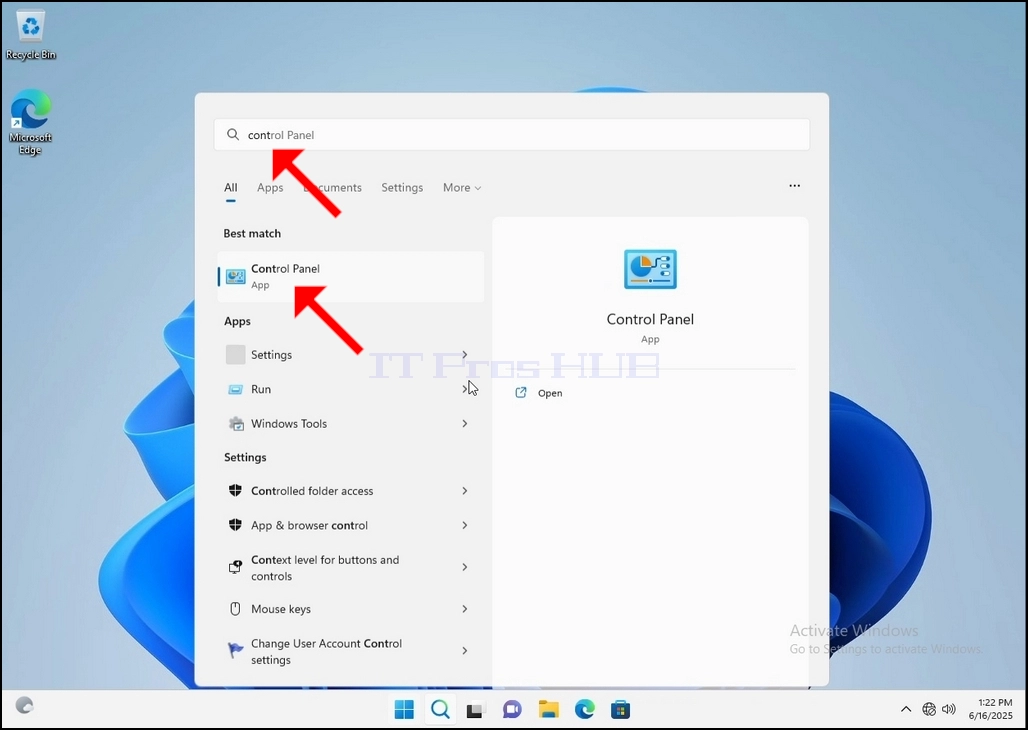
4. Once the Control Panel window is open, enlarge it by clicking the enlarging icon on the top right corner of that window.
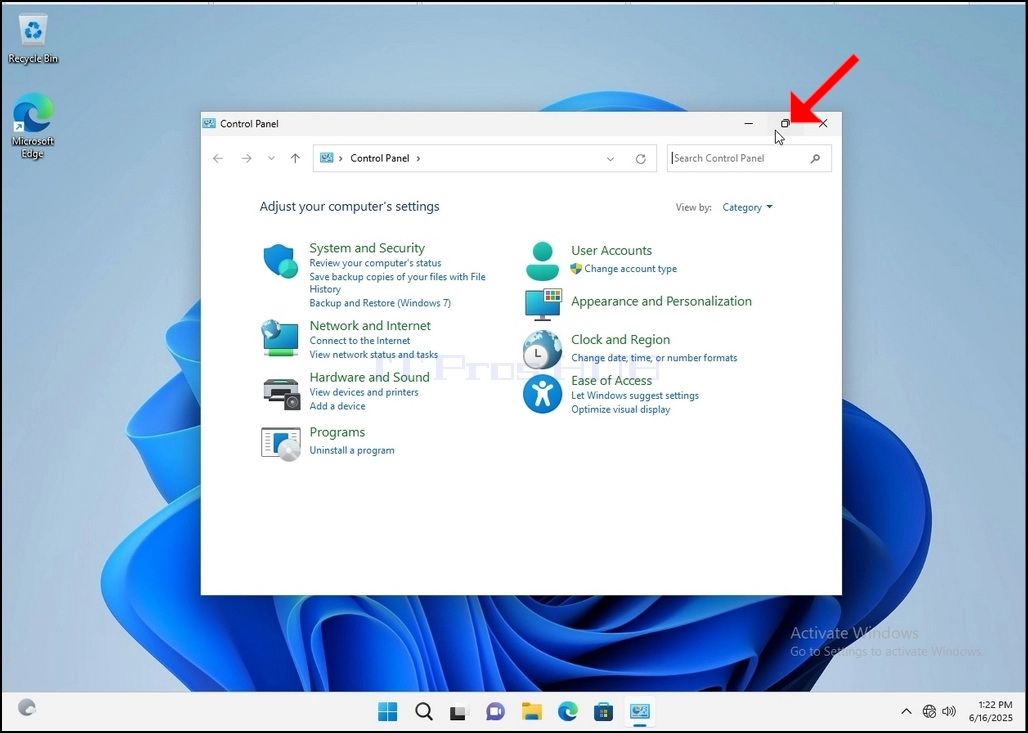
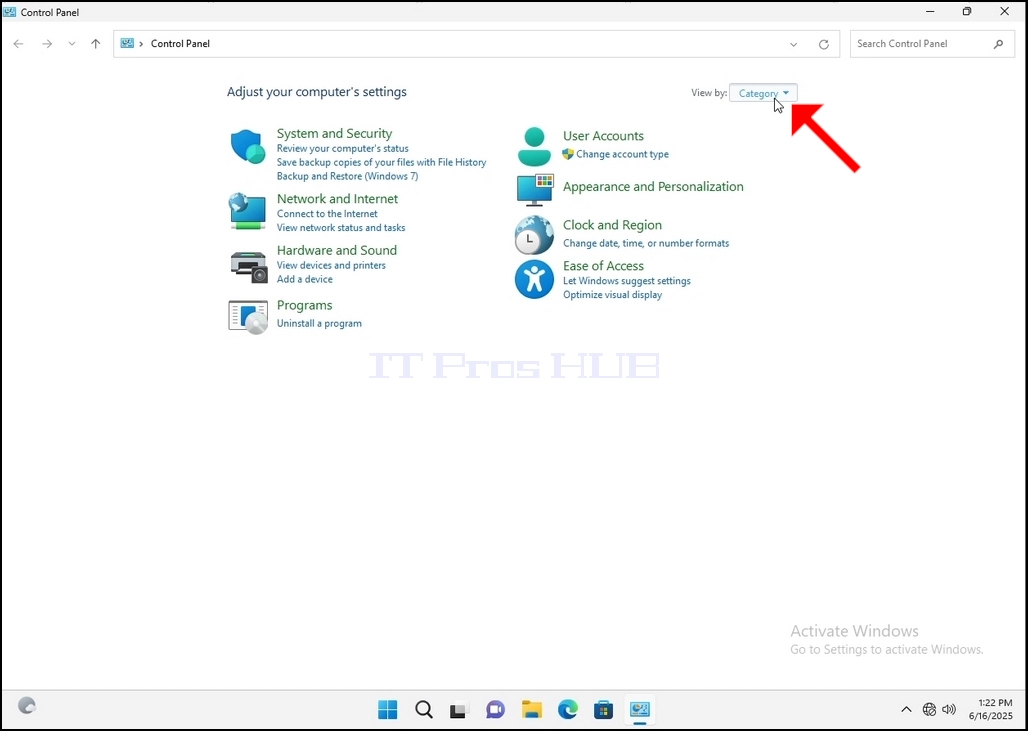
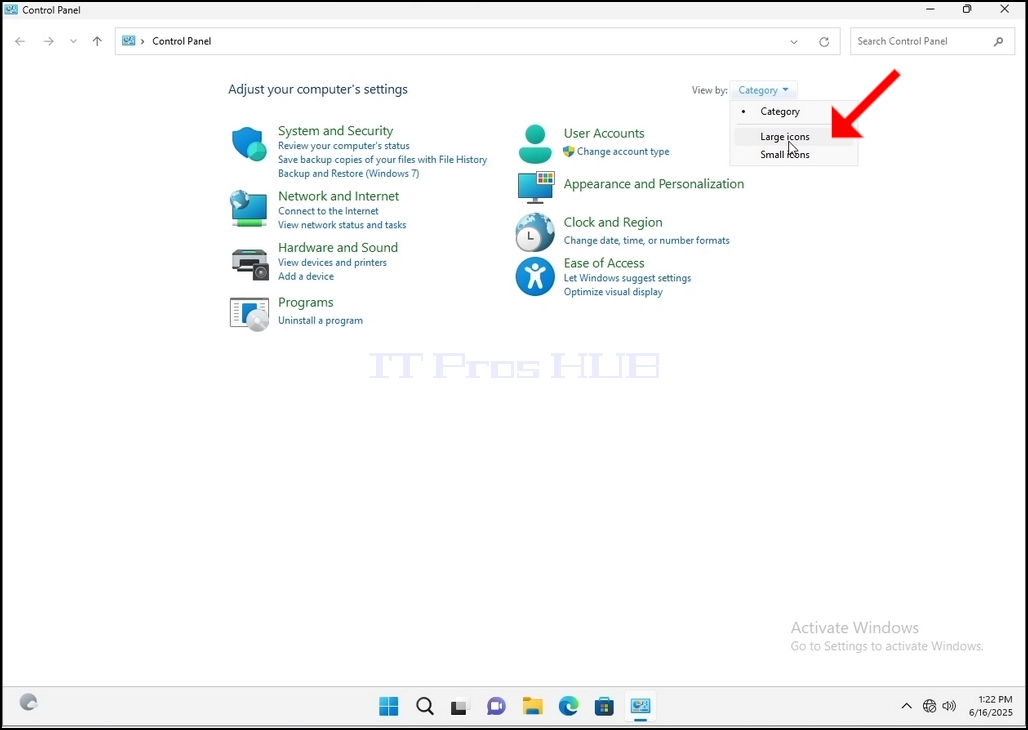
6. Look for the Indexing Options icon and click it. Wait for the Indexing Options window to appear.
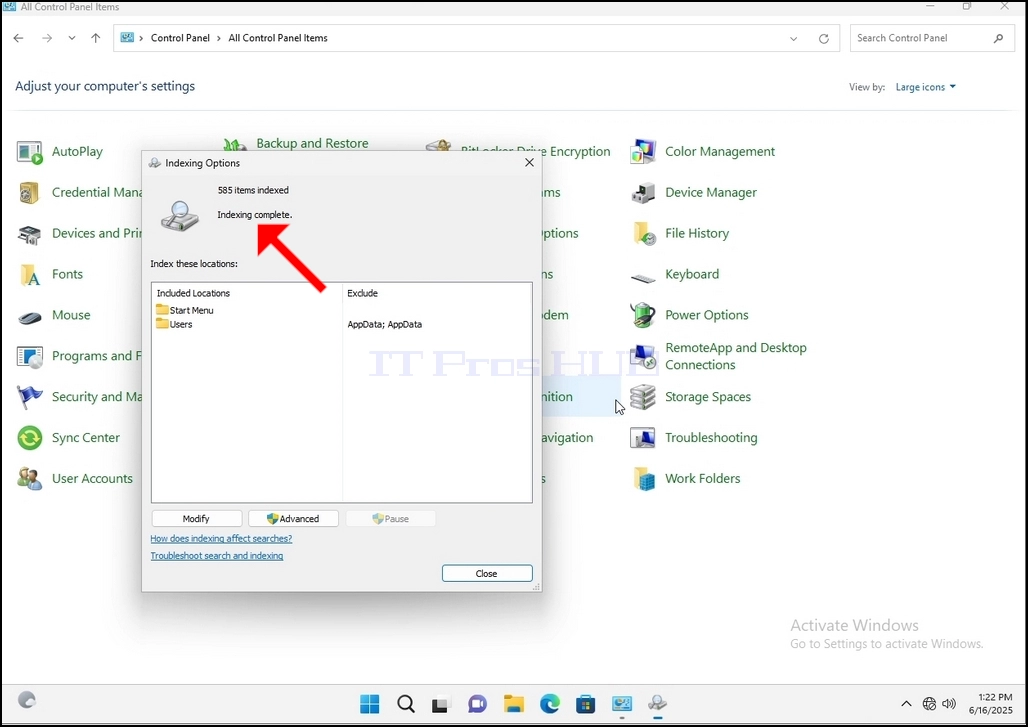
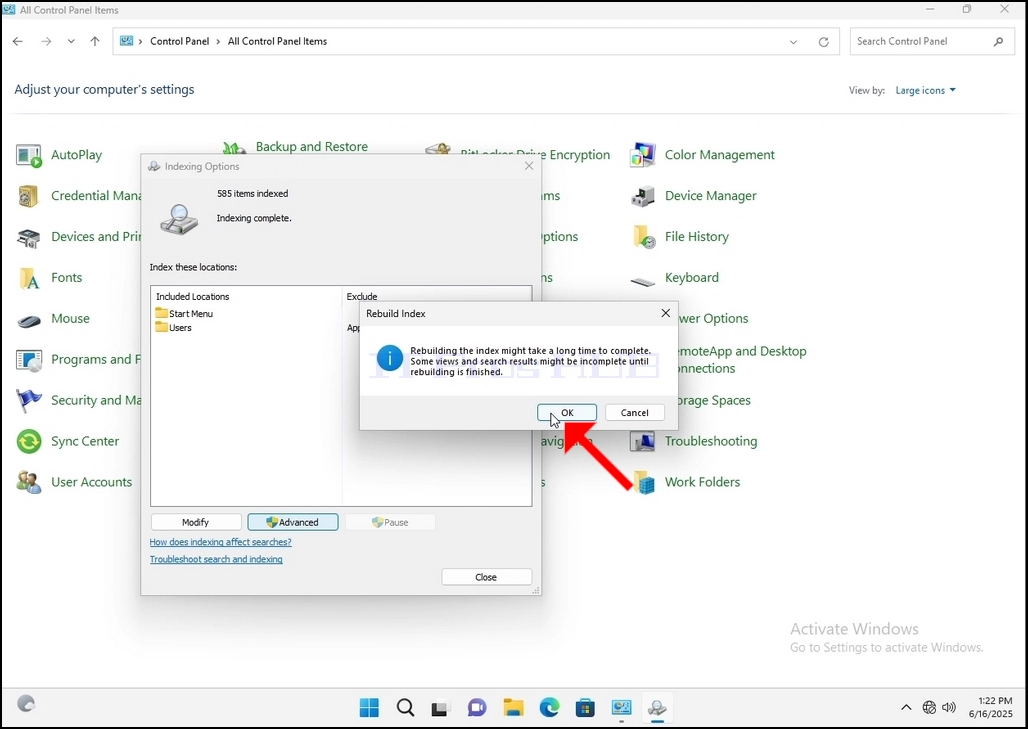
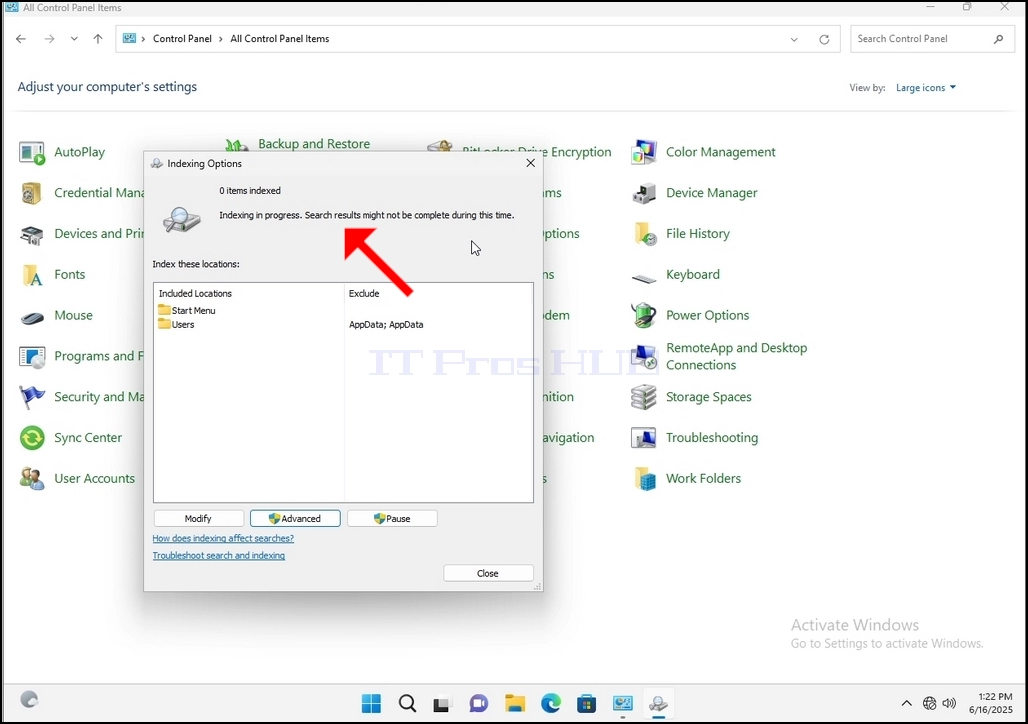
9. After clicking OK in the confirmation box, Windows will start rebuilding its index. It might take some time for the actual process to start, Wait patiently a few seconds to a few minutes. The moment the process starts, the "Indexing Complete" sentence will be replaced with "Indexing in progress. Search results might not be complete during this time."
In addition, the number of items indexed will be reset to 0 for a moment and then start to increase.
Note that All of the windows that are related to the Indexing process can now be closed and the rebuilding process would still be running the background.
Note that the Indexing process' speed might be reduced due to user activity on the computer. The more intense the activity the less the Indexing speed would be.
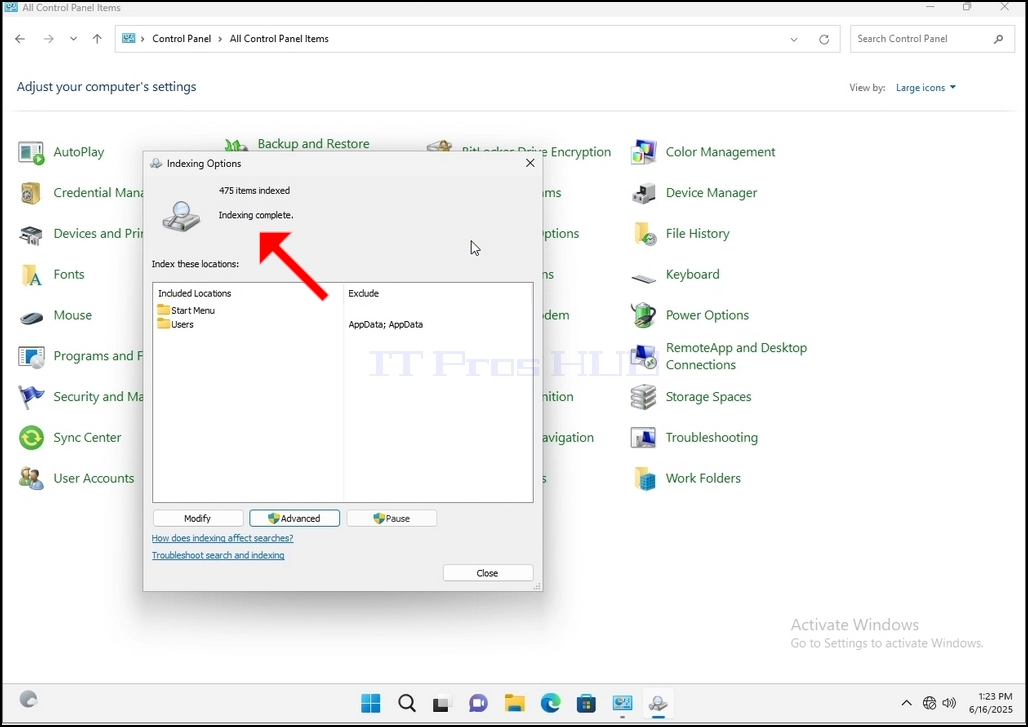
10. To check if the indexing process is done, go back to the Indexing Options through Control Panel as explained in the previous stages. If the process is complete, you would see the "Indexing Complete" sentence appears again.
Since Windows does not notify the user once this process is done, there is indeed a need to perform the latter mentioned. Depending on the number of files, folders, drivers and partitions marked for indexing, this process could take between a few minutes to a few hours.
- Üksikasjad
- Kirjutas: IT Pro
- Kategooria: How to Articles
- Klikke: 6307
1. Go to Windows Desktop
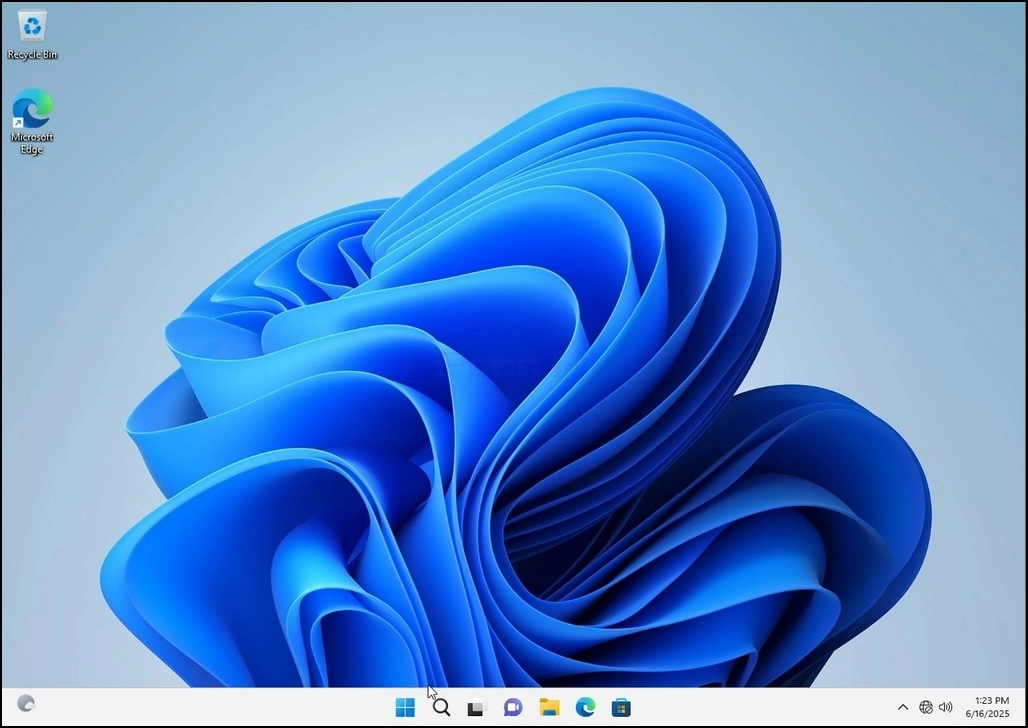
2. Click Start
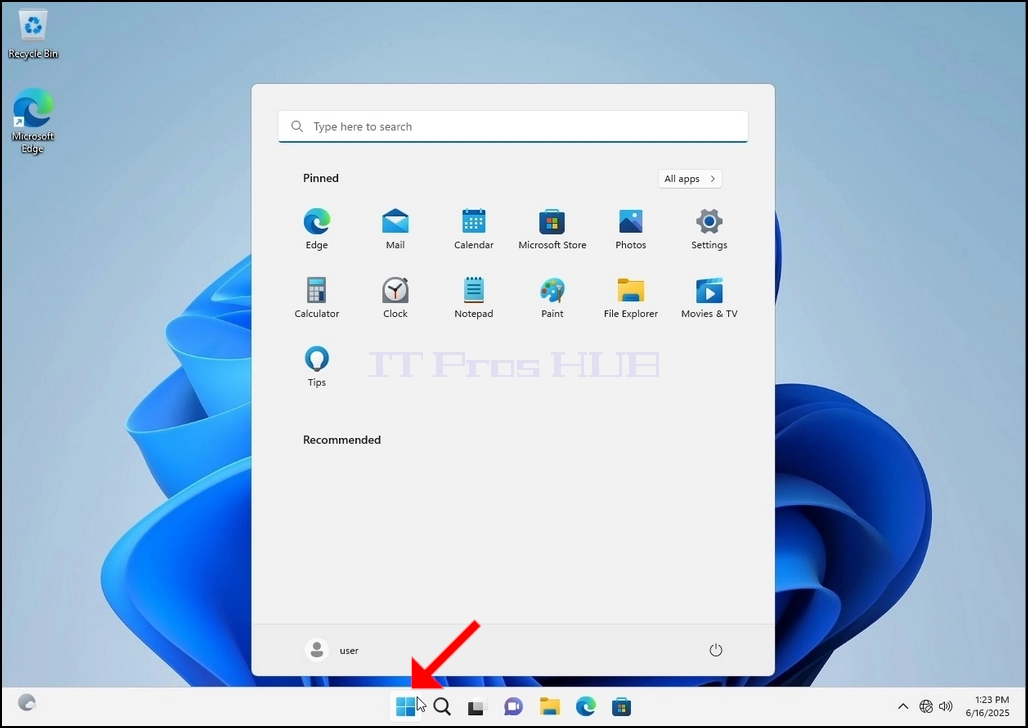
Once it finds it, click it and wait for the Control Panel window to appear.
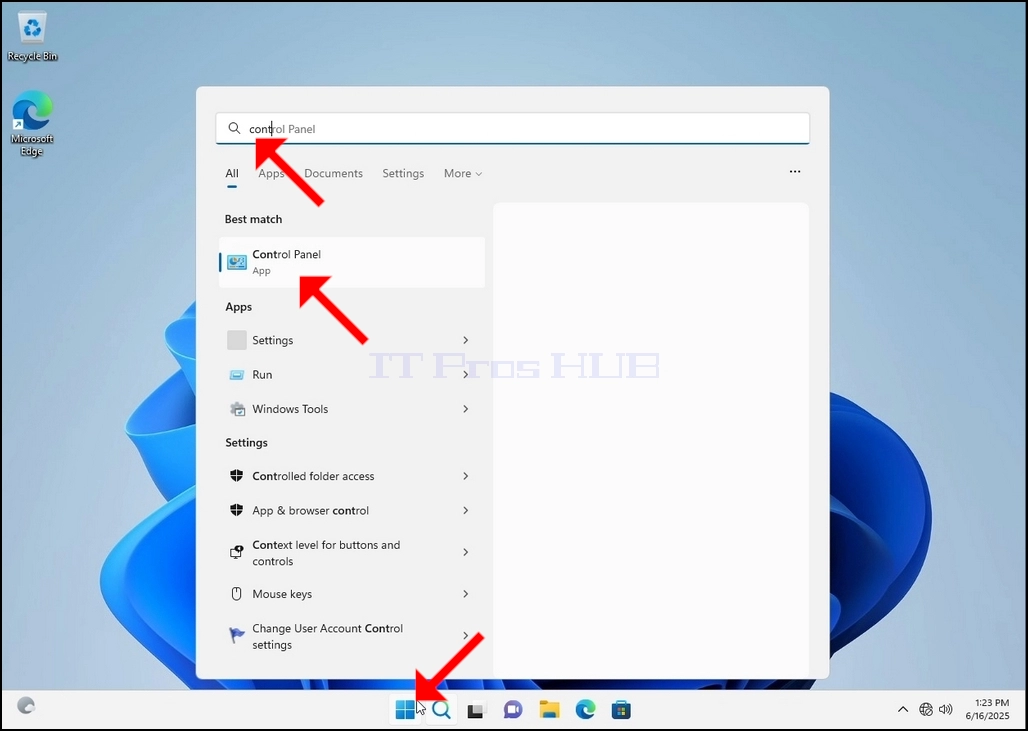
4. Once the Control Panel window is open, enlarge it by clicking the enlarging icon on the top right corner of that window.
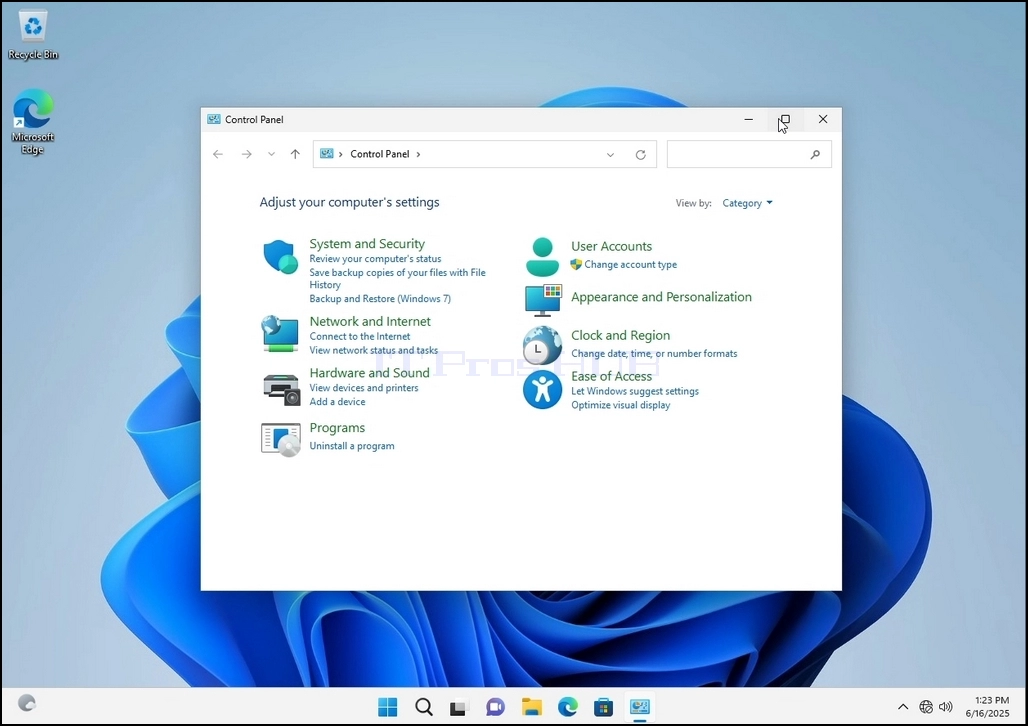
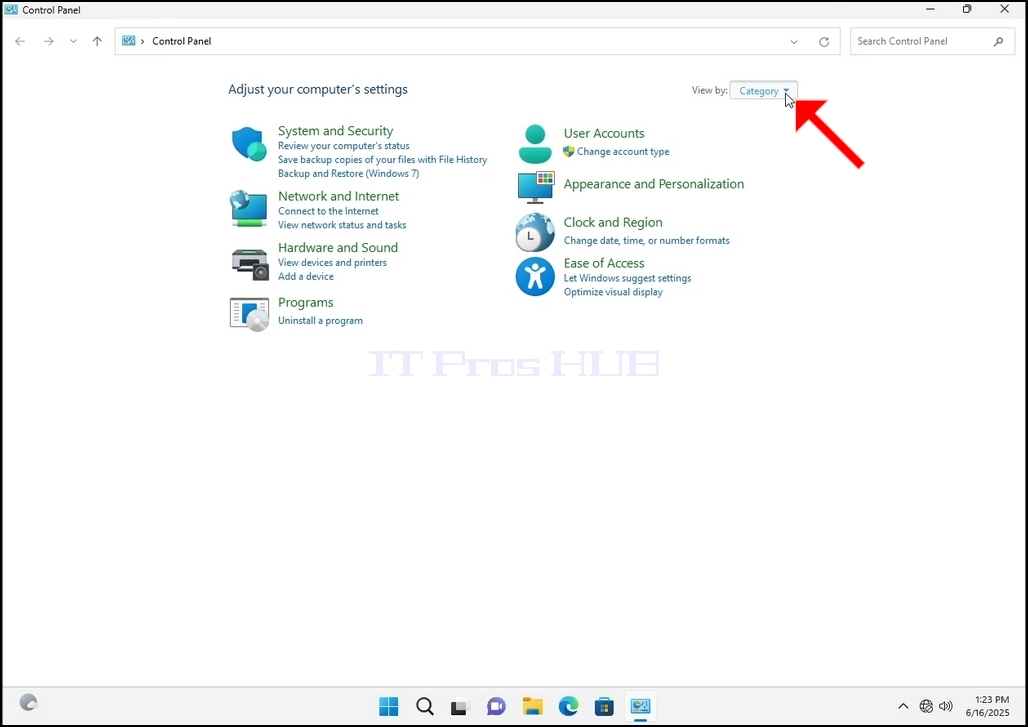
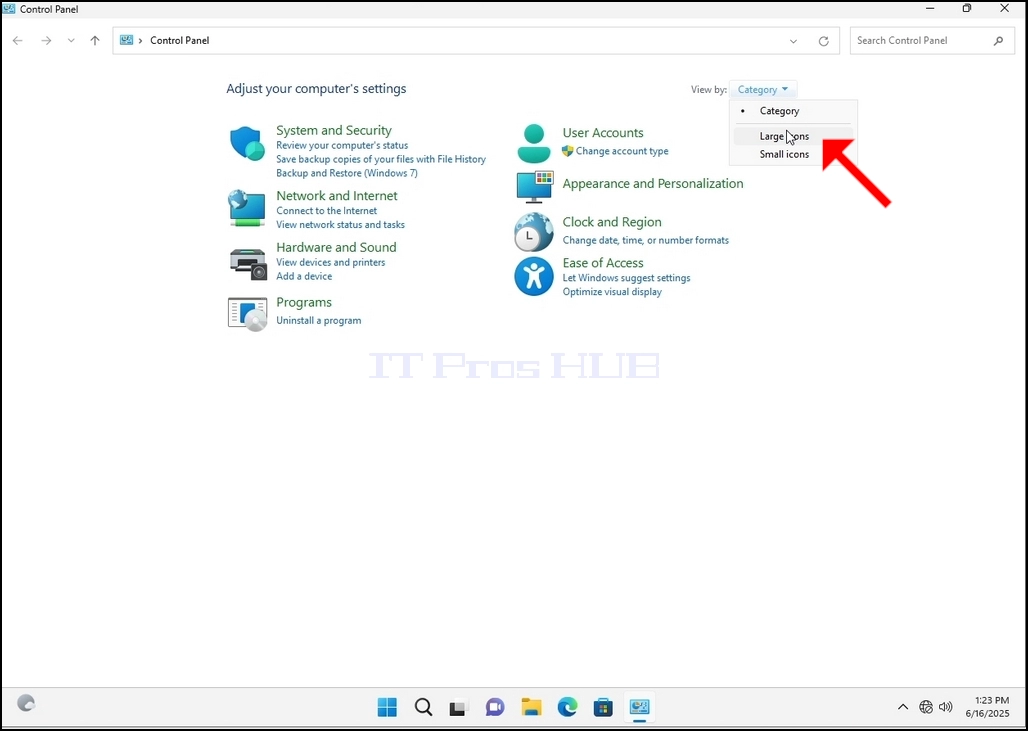
6. Look for the Indexing Options icon and click it. Wait for the Indexing Options window to appear.
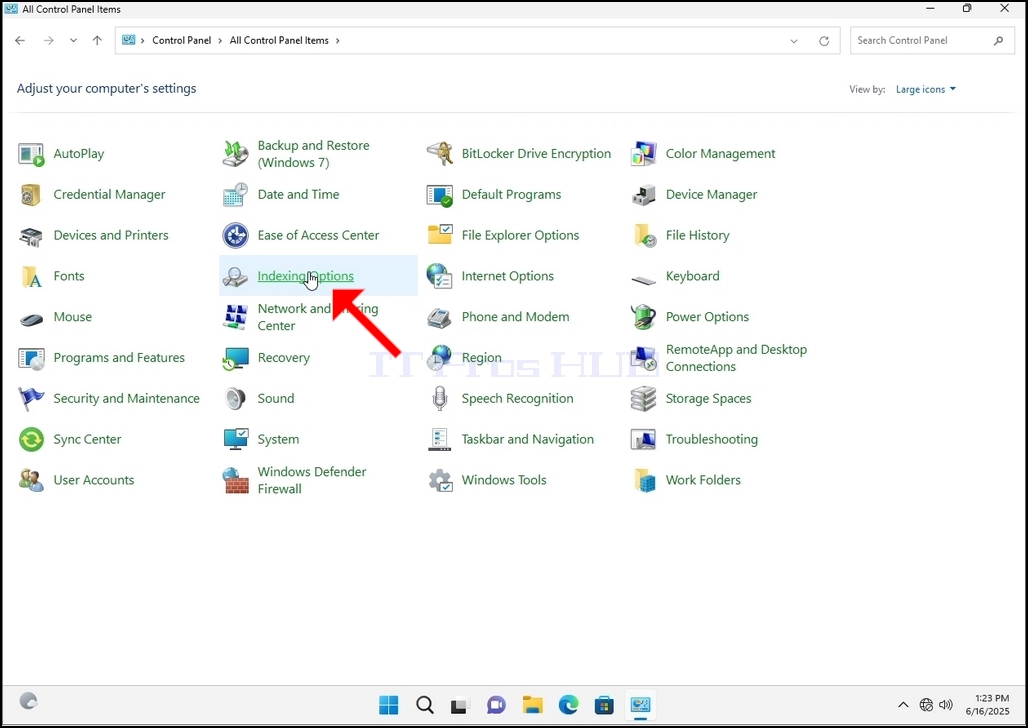
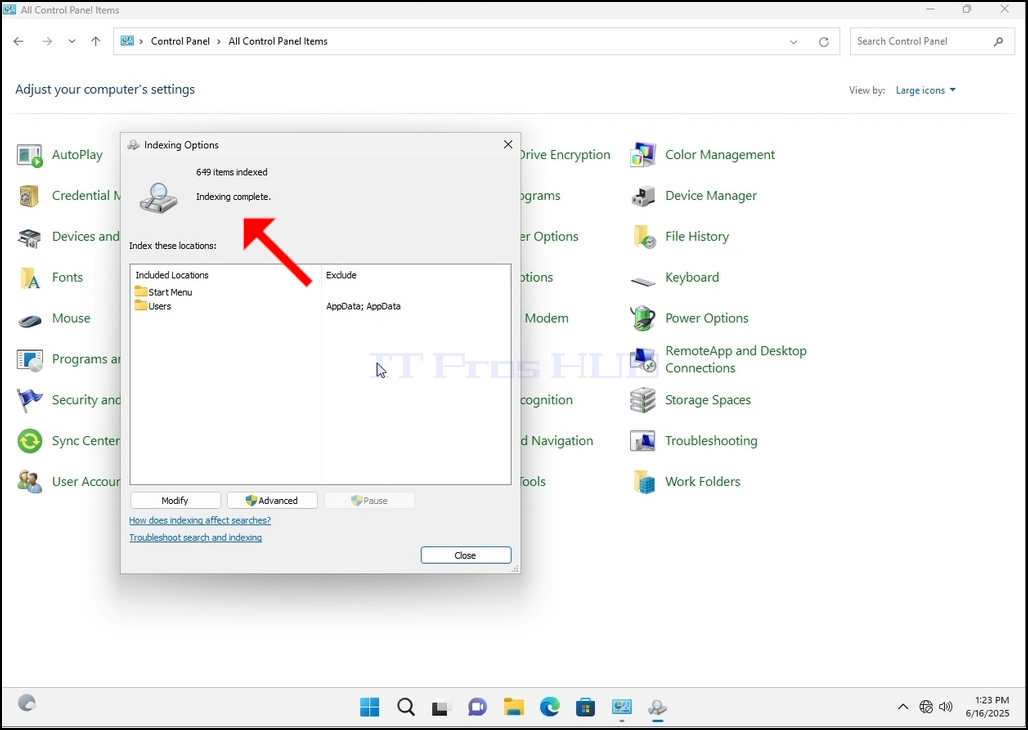
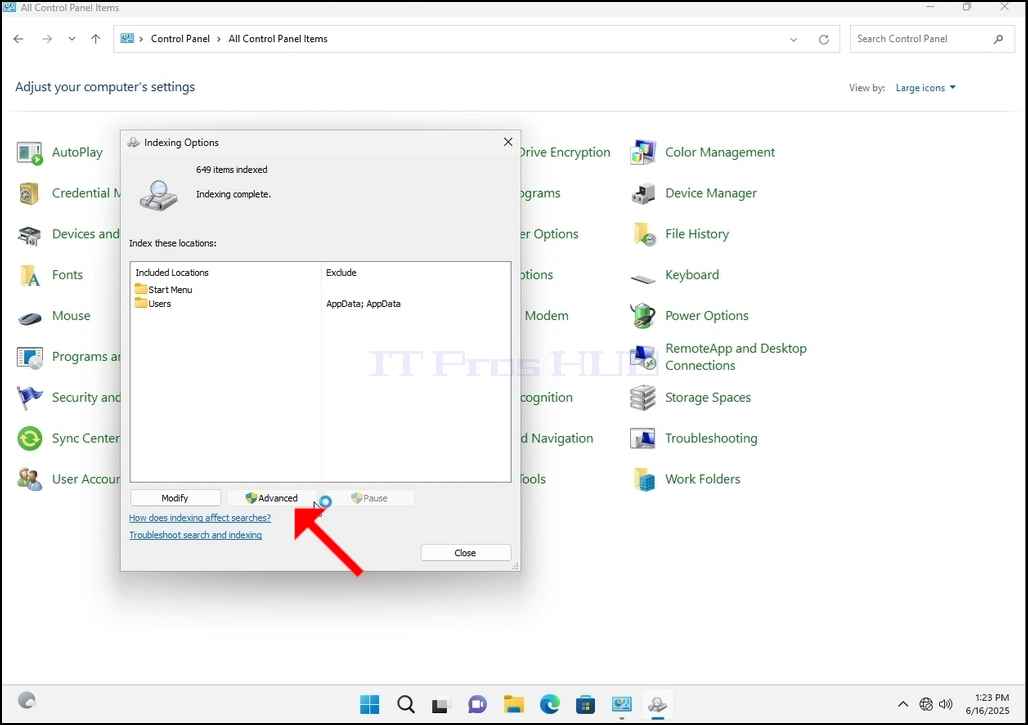
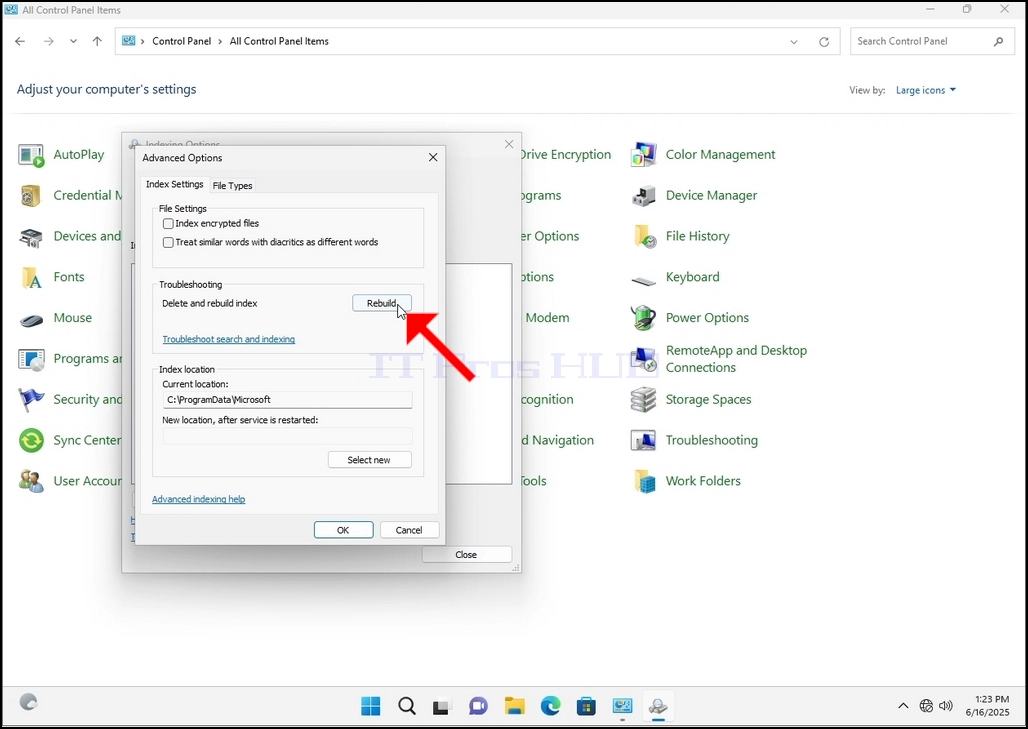
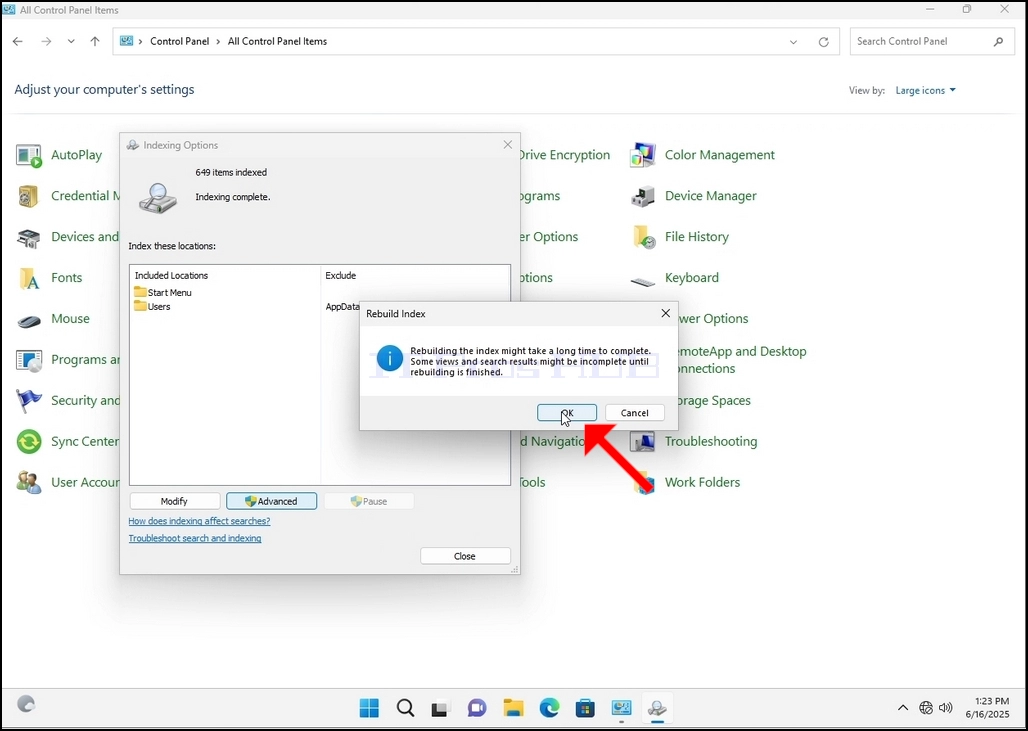
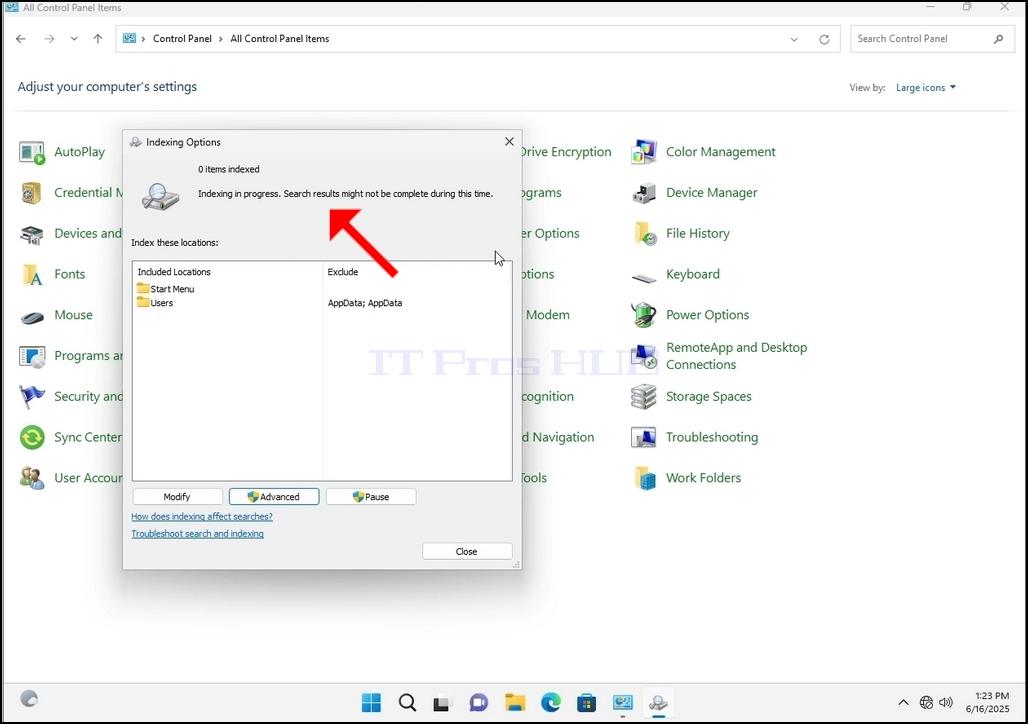
9. After clicking OK in the confirmation box, Windows will start rebuilding its index. It might take some time for the actual process to start, Wait patiently a few seconds to a few minutes. The moment the process starts, the "Indexing Complete" sentence will be replaced with "Indexing in progress. Search results might not be complete during this time."
In addition, the number of items indexed will be reset to 0 for a moment and then start to increase.
Note that All of the windows that are related to the Indexing process can now be closed and the rebuilding process would still be running the background.
Note that the Indexing process' speed might be reduced due to user activity on the computer. The more intense the activity the less the Indexing speed would be.
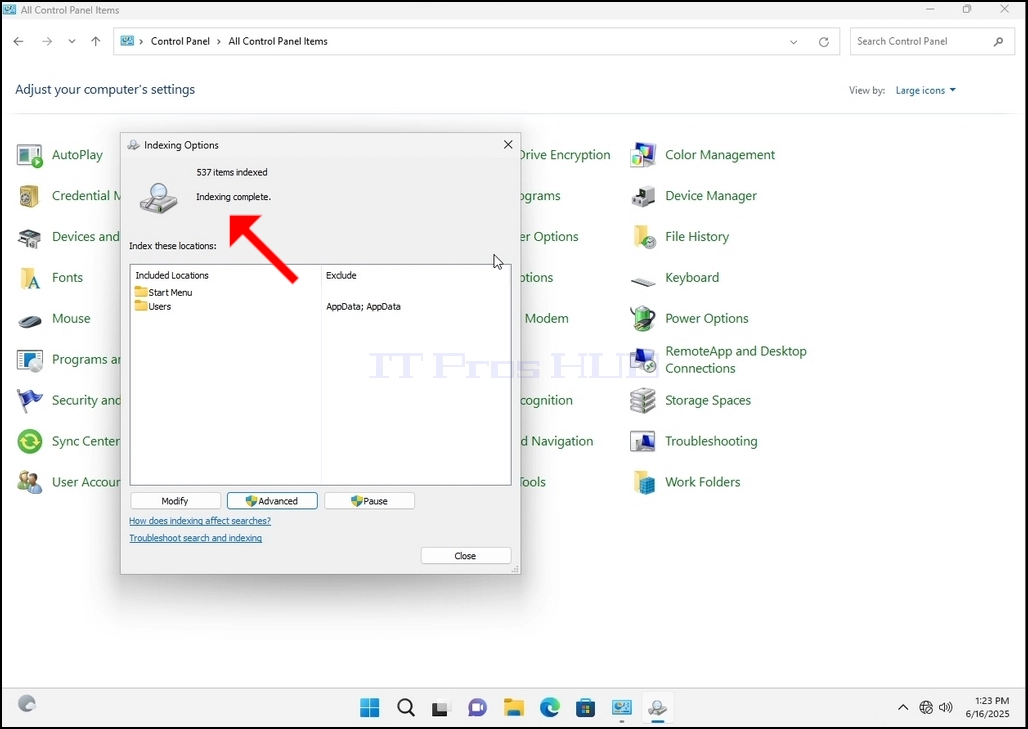
10. To check if the indexing process is done, go back to the Indexing Options through Control Panel as explained in the previous stages. If the process is complete, you would see the "Indexing Complete" sentence appears again.
Since Windows does not notify the user once this process is done, there is indeed a need to perform the latter mentioned. Depending on the number of files, folders, drivers and partitions marked for indexing, this process could take between a few minutes to a few hours.
- Üksikasjad
- Kirjutas: IT Pro
- Kategooria: How to Articles
- Klikke: 5230
1. Mine Windowsi töölauale
2. Klõpsa Käivita
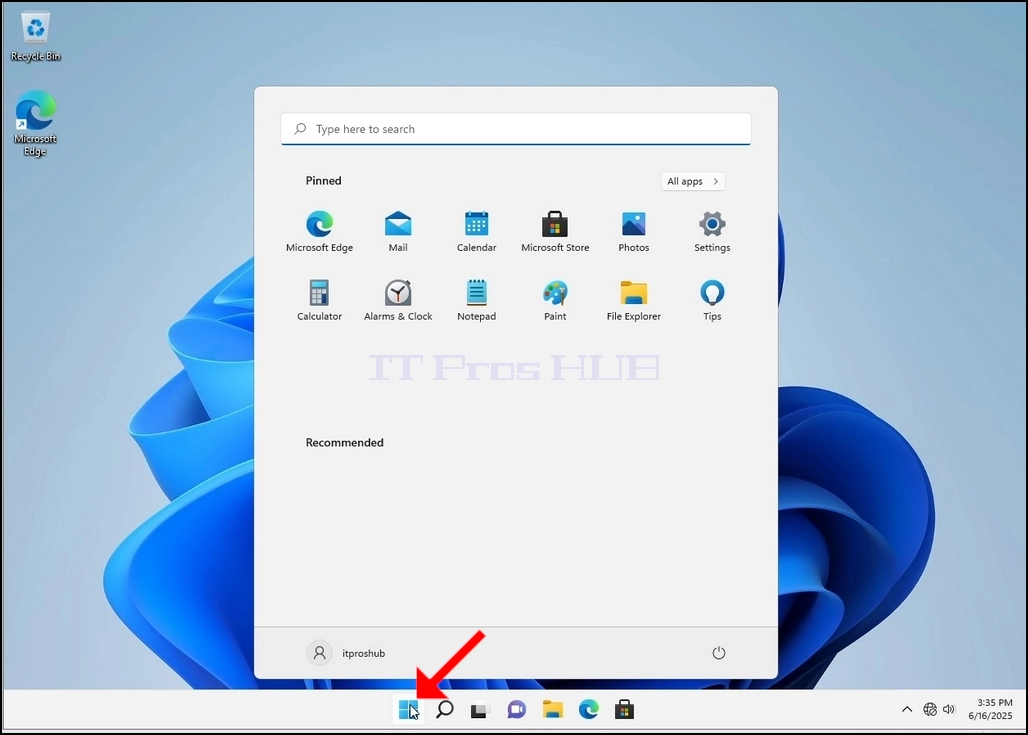
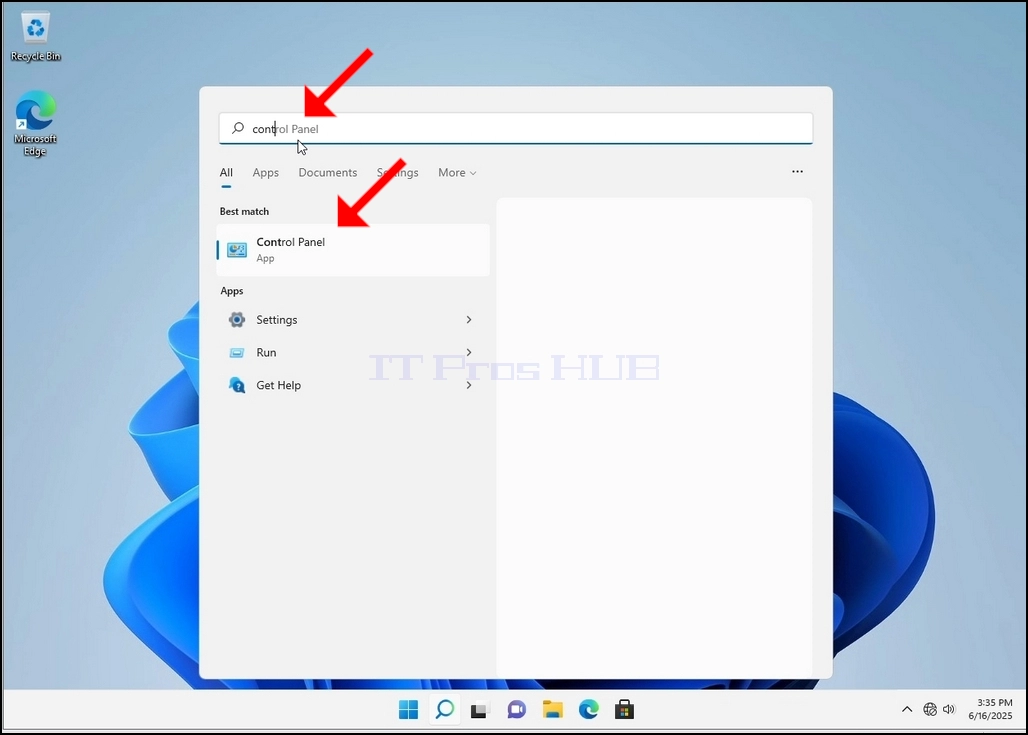
3. Pärast avamenüü avamist kirjuta "kontrollpaneel" ja oota menüüd Start, et leida juhtpaneeli ikoon. Pange tähele, et on võimalik lihtsalt kirjutada "jätkama" ja enamasti Start menüü leiaks ikka juhtpaneeli ikooni.
Kui see leiab selle, klõpsake seda ja oodake, kuni juhtpaneeli aken ilmub.
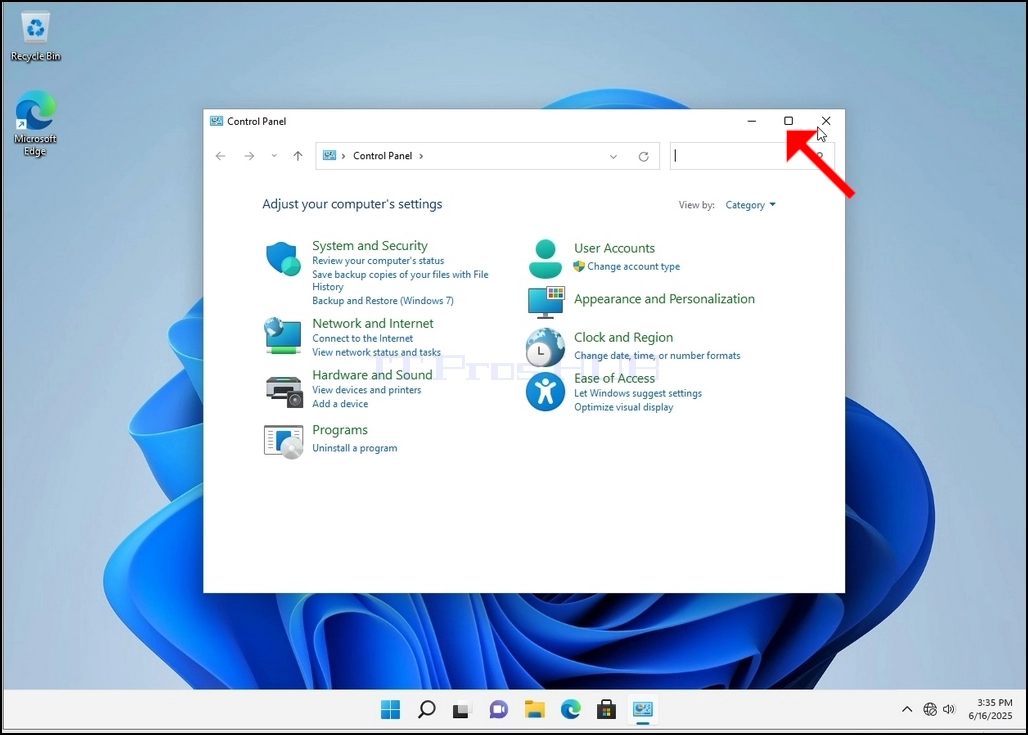
4. Kui juhtpaneeli aken on avatud, suurenda seda klõpsates selle akna ülemises paremas nurgas asuvale ikoonile.
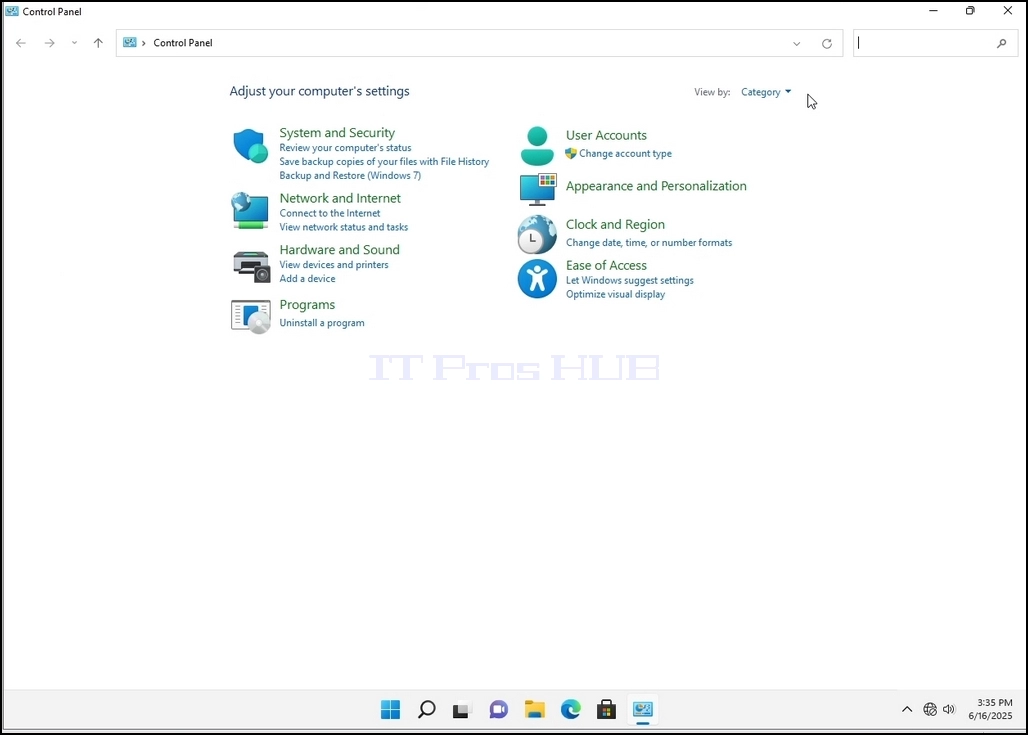
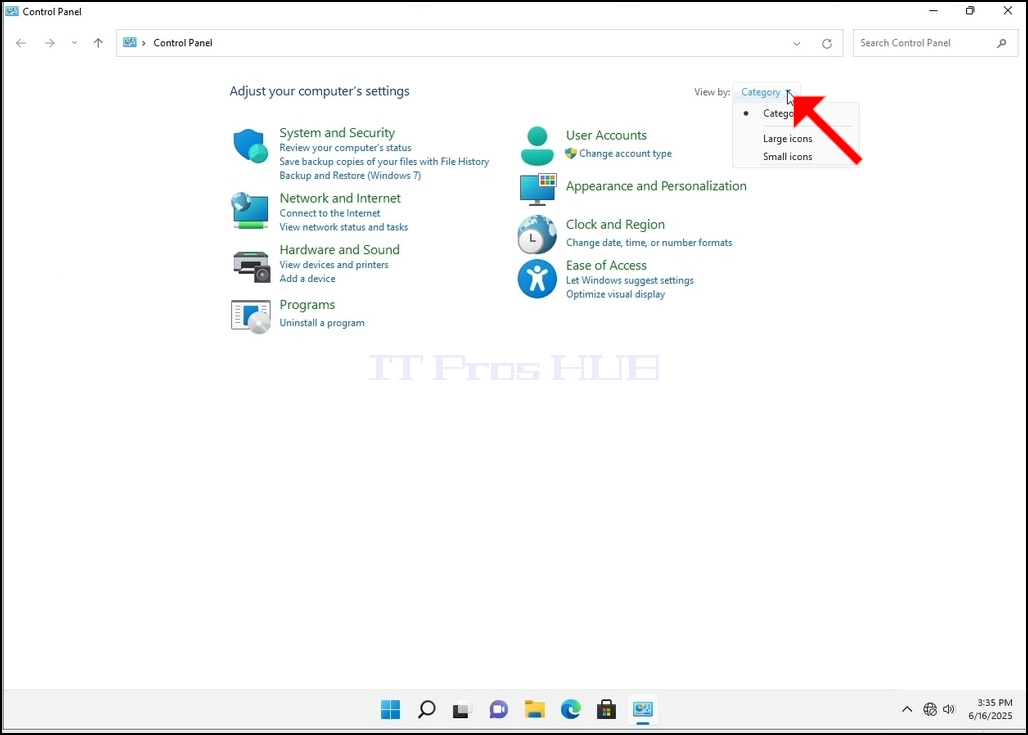
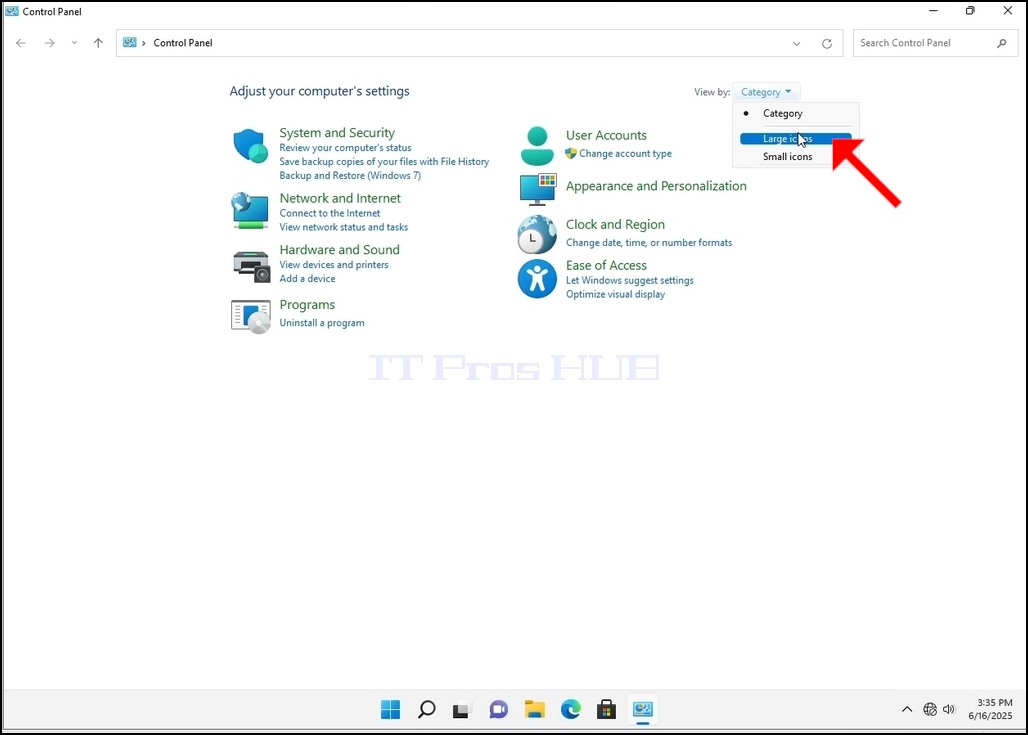
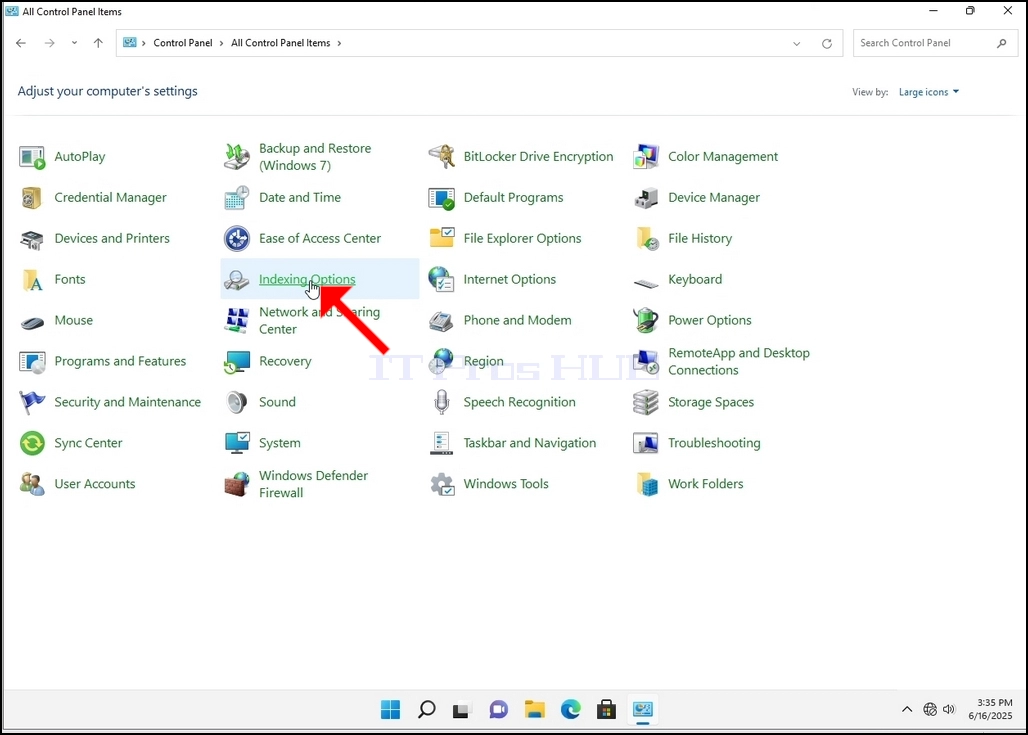
6. Vaadake indekseerimisvalikute ikooni ja klõpsake sellele. Oodake indekseerimisvalikute akna ilmumist.
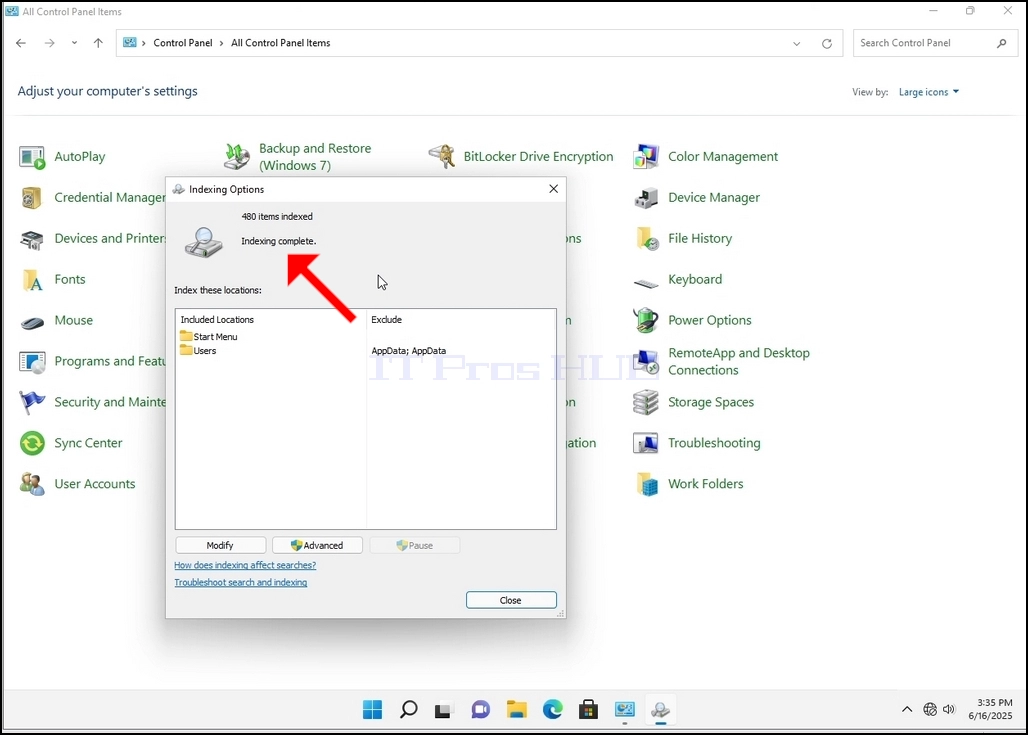
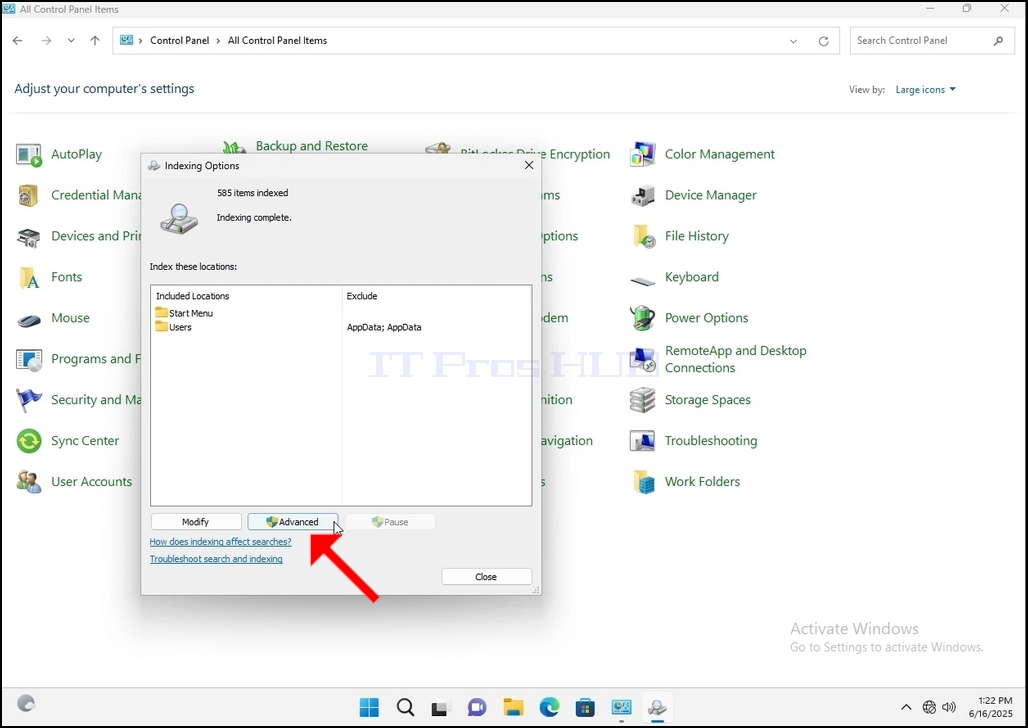
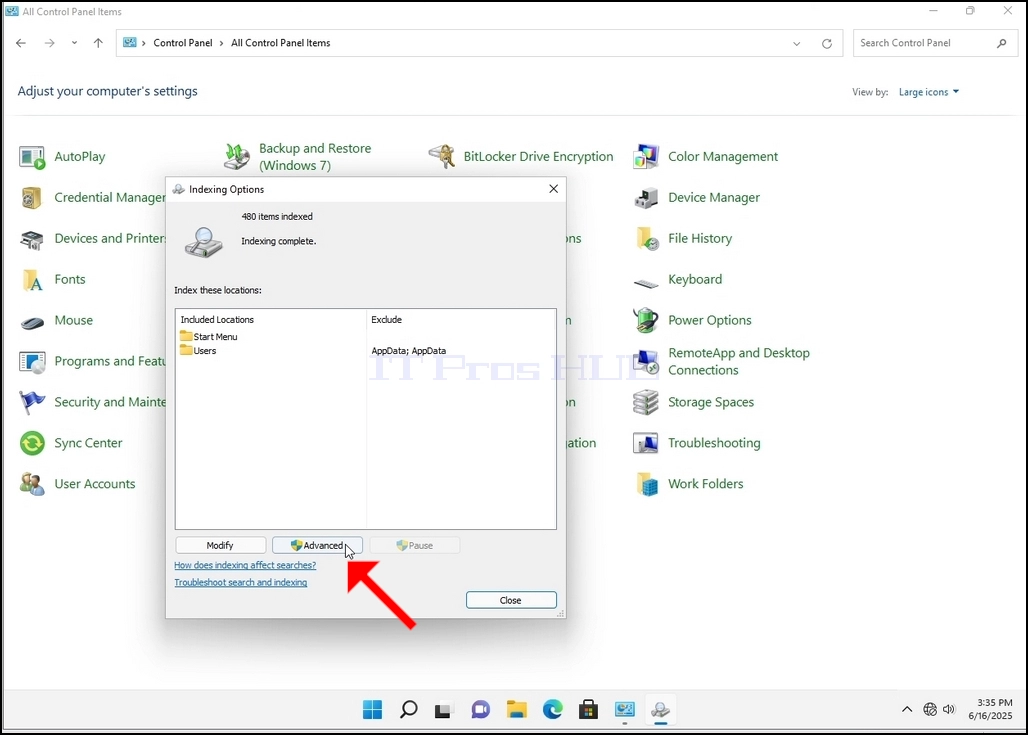
7. Kui indekseerimisvalikud on avatud, klõpsa akna allosas nupule Muud.
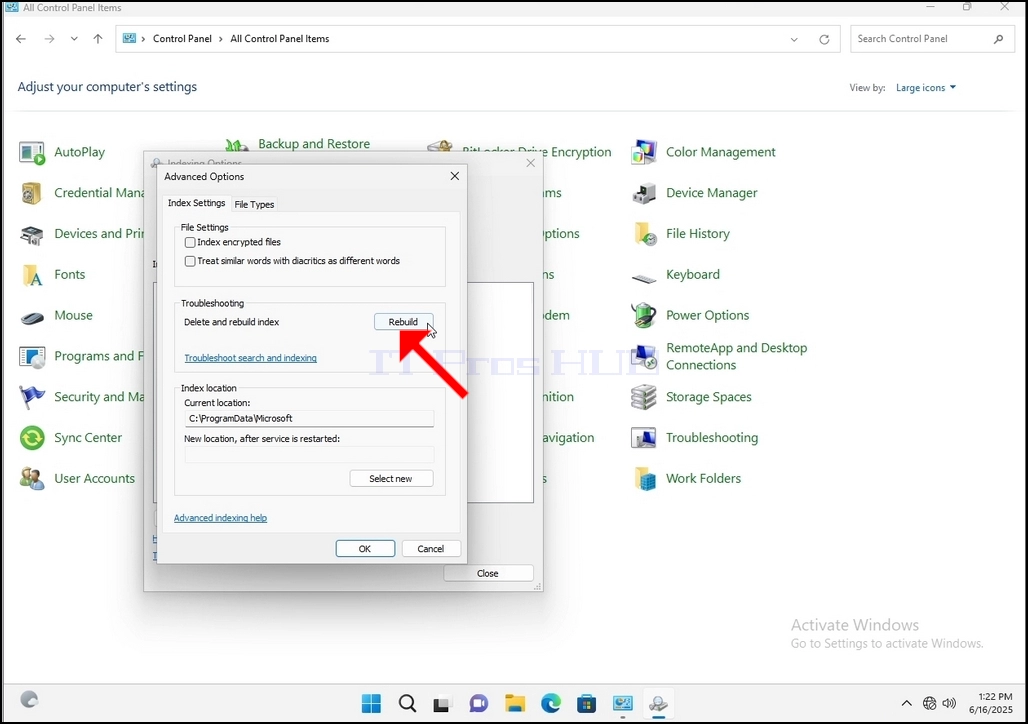
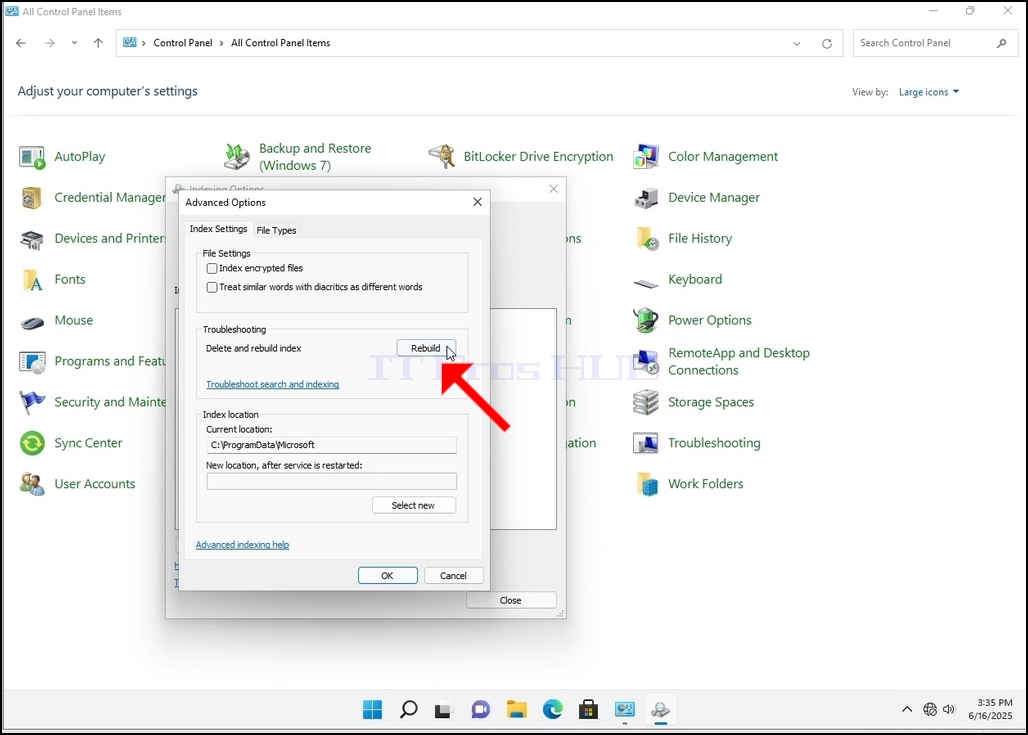
8. Uues aknas otsige nuppu Rebuild ja klõpsake seda. Hiljem ilmub kinnituskarp. Indeksi taastamiseks klõpsa nupule OK.
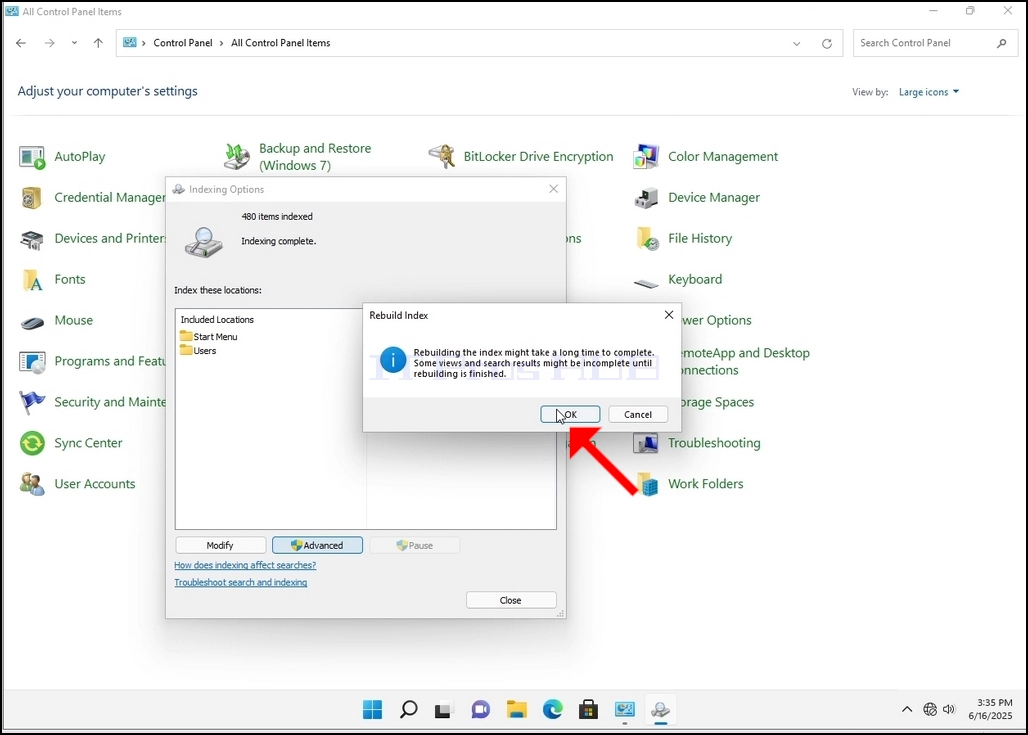
9. Pärast klõpsa OK kinnituskasti, Windows hakkab taastama oma indeks. See võib võtta aega tegelik protsess alustada, Oodake kannatlikult paar sekundit kuni paar minutit. Kohe, kui protsess algab, "Indekseerimine lõpetatud" lause asendatakse järgmisega "Testimine käib. Otsingu tulemused ei pruugi sel ajal olla täielikud."
Lisaks lähtestatakse indekseeritud kirjete arv hetkeks nulli ja seejärel hakatakse seda suurendama.
Pange tähele, et kõik indekseerimisprotsessiga seotud aknad saab nüüd sulgeda ja rekonstrueerimisprotsess ikka veel töötab.
Pange tähele, et indekseerimisprotsessi kiirust võib vähendada kasutaja tegevuse tõttu arvutis. Mida intensiivsem on aktiivsus, seda väiksem on indekseerimiskiirus.
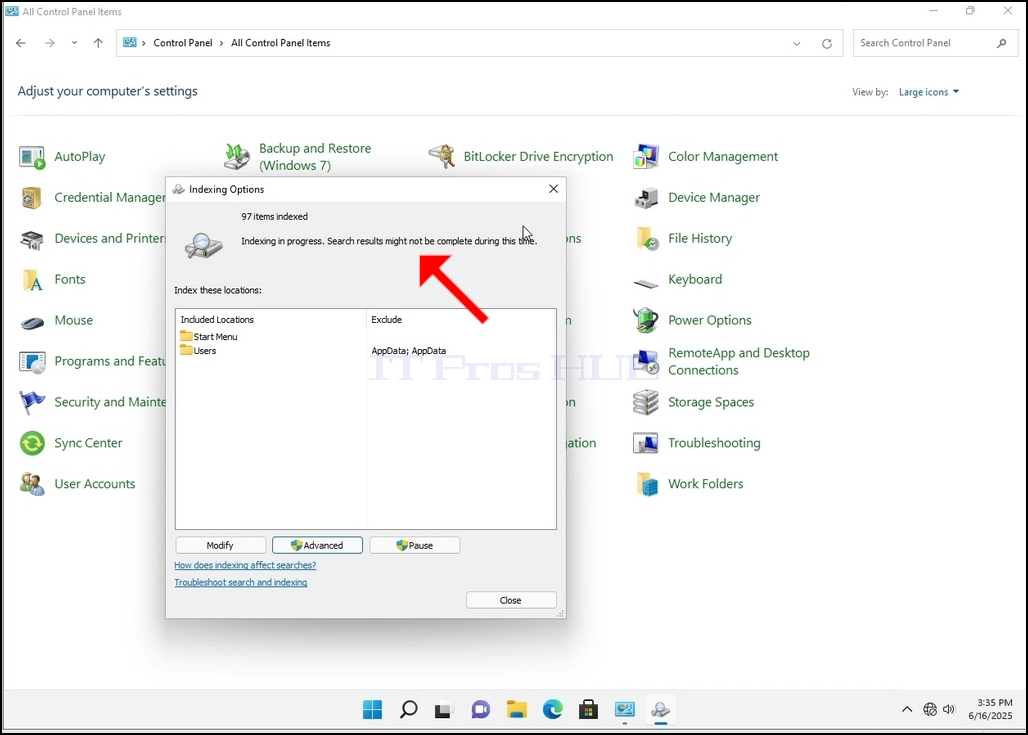
10. Kontrollida, kas indekseerimise protsess on tehtud, minna tagasi indekseerimise valikuid läbi juhtpaneeli, nagu on selgitatud eelmistes etappides. Kui protsess on lõppenud, näete "Indekseerimine lõpetatud" lause ilmub uuesti.
Kuna Windows ei teavita kasutajat, kui see protsess on tehtud, on tõepoolest vaja täita viimati nimetatud. Sõltuvalt indekseerimiseks märgitud failide, kataloogide, draiverite ja partitsioonide arvust võib see protsess kesta mõne minuti kuni mõne tunnini.
- Üksikasjad
- Kirjutas: IT Pro
- Kategooria: How to Articles
- Klikke: 5512
1. Mine Windowsi töölauale
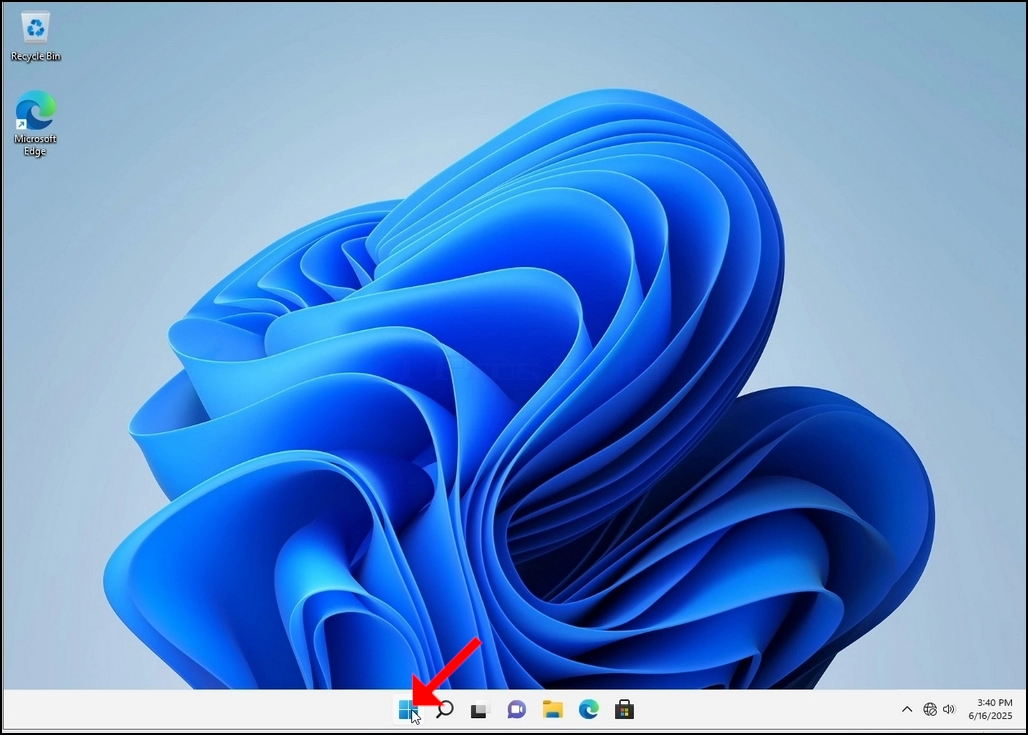
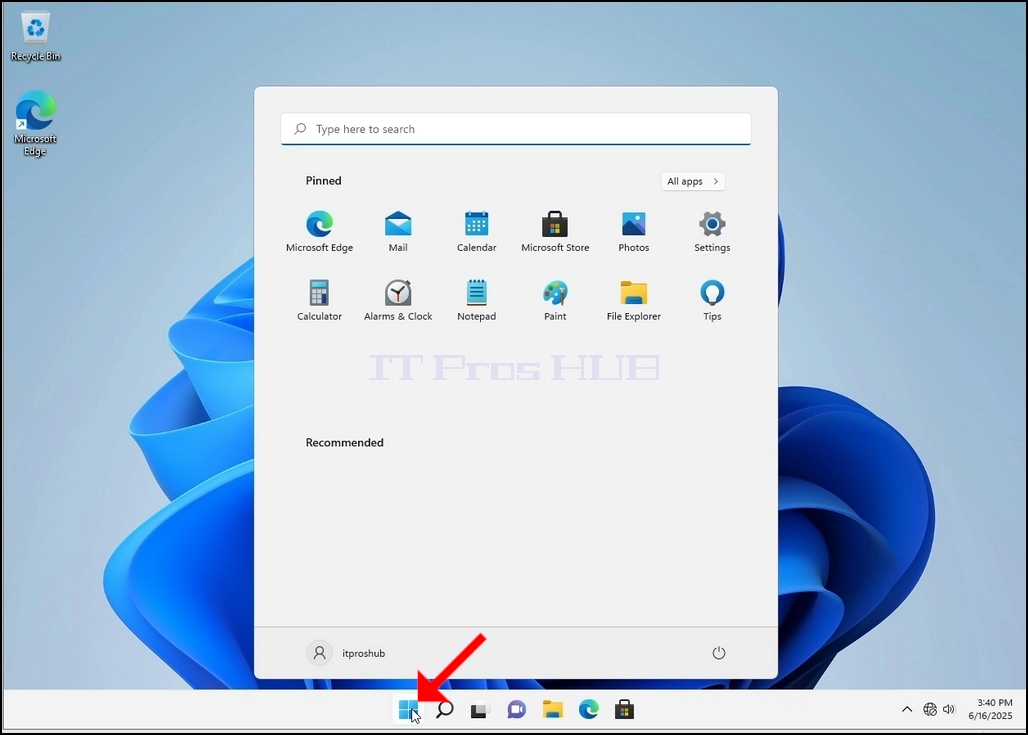
2. Klõpsa Käivita
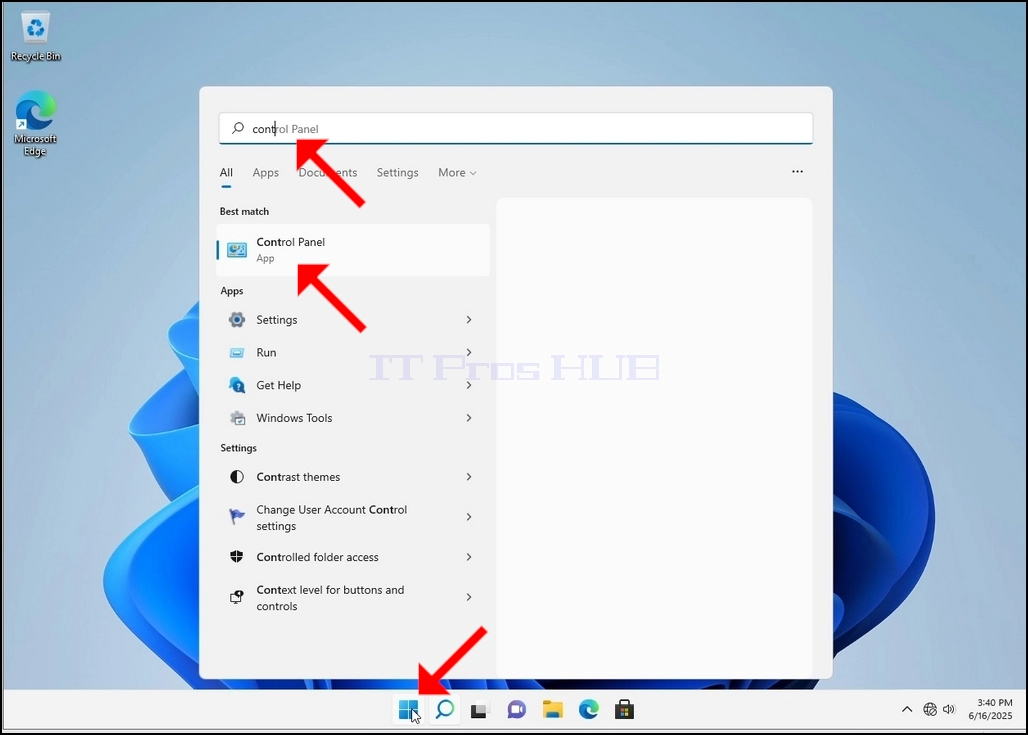
3. Pärast avamenüü avamist kirjuta "kontrollpaneel" ja oota menüüd Start, et leida juhtpaneeli ikoon. Pange tähele, et on võimalik lihtsalt kirjutada "jätkama" ja enamasti Start menüü leiaks ikka juhtpaneeli ikooni.
Kui see leiab selle, klõpsake seda ja oodake, kuni juhtpaneeli aken ilmub.
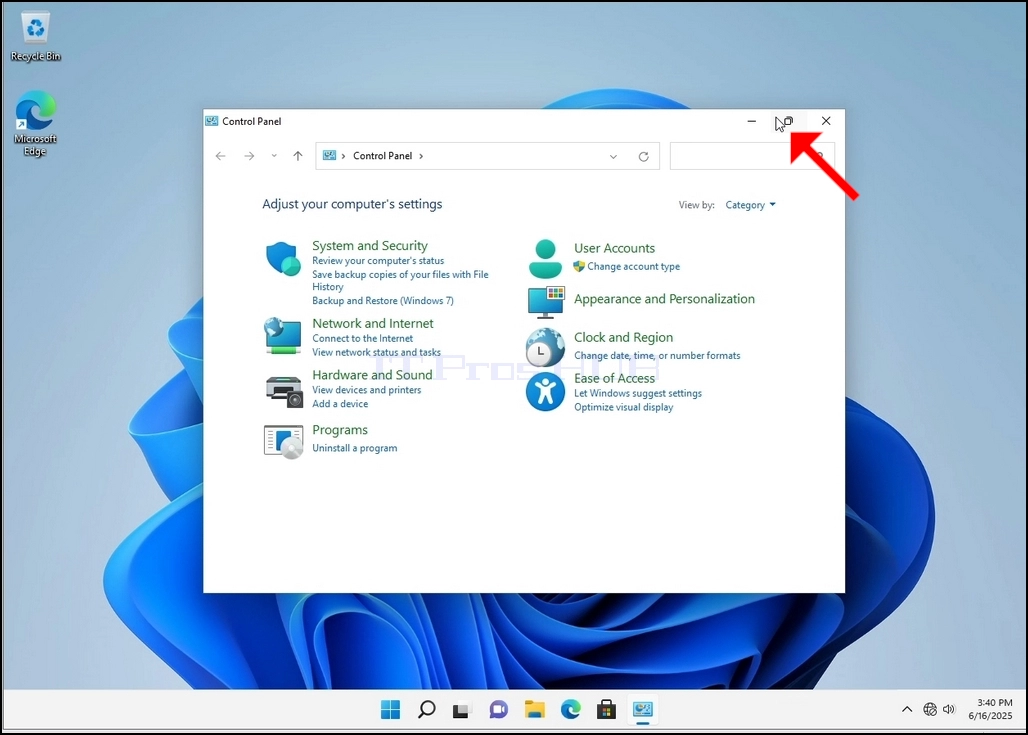
4. Kui juhtpaneeli aken on avatud, suurenda seda klõpsates selle akna ülemises paremas nurgas asuvale ikoonile.
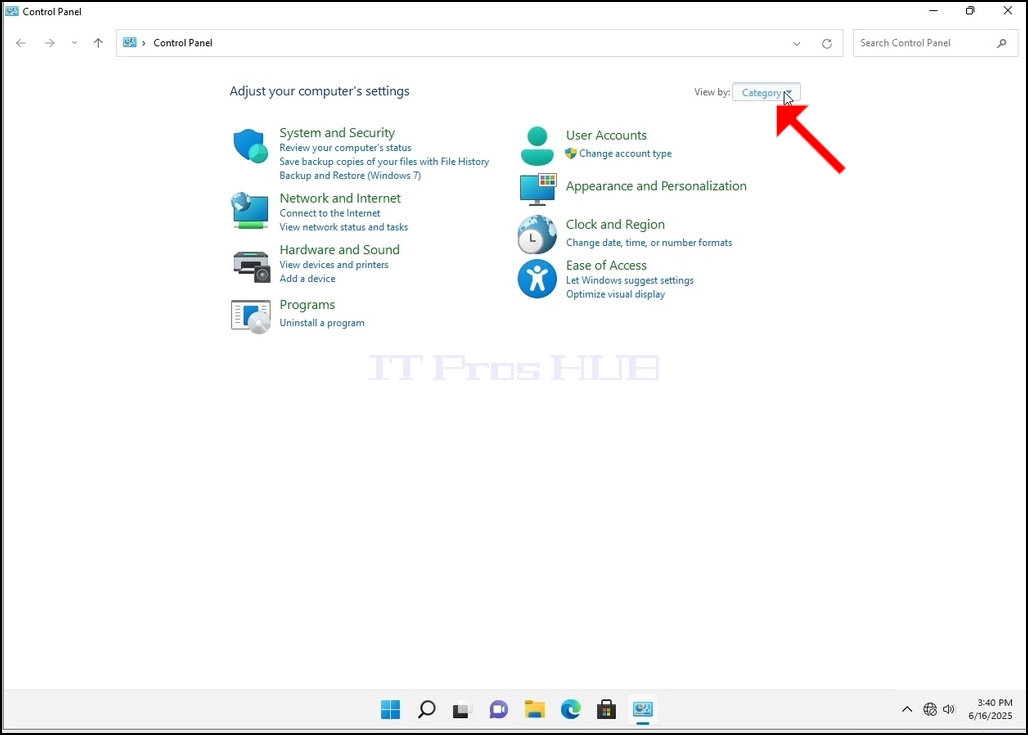
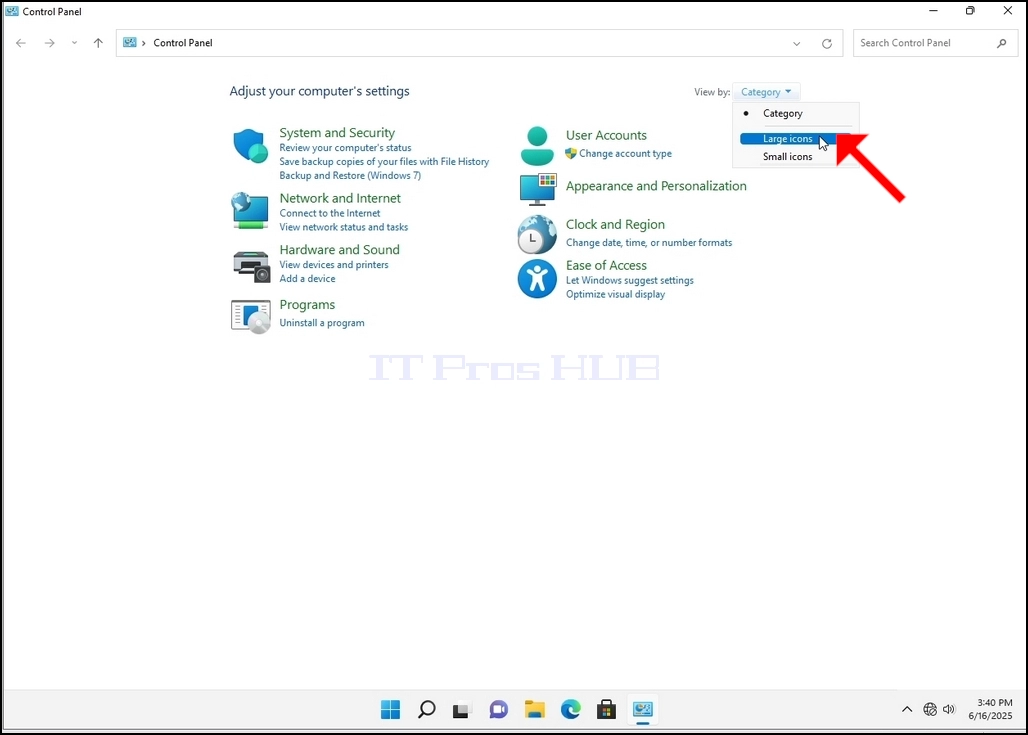
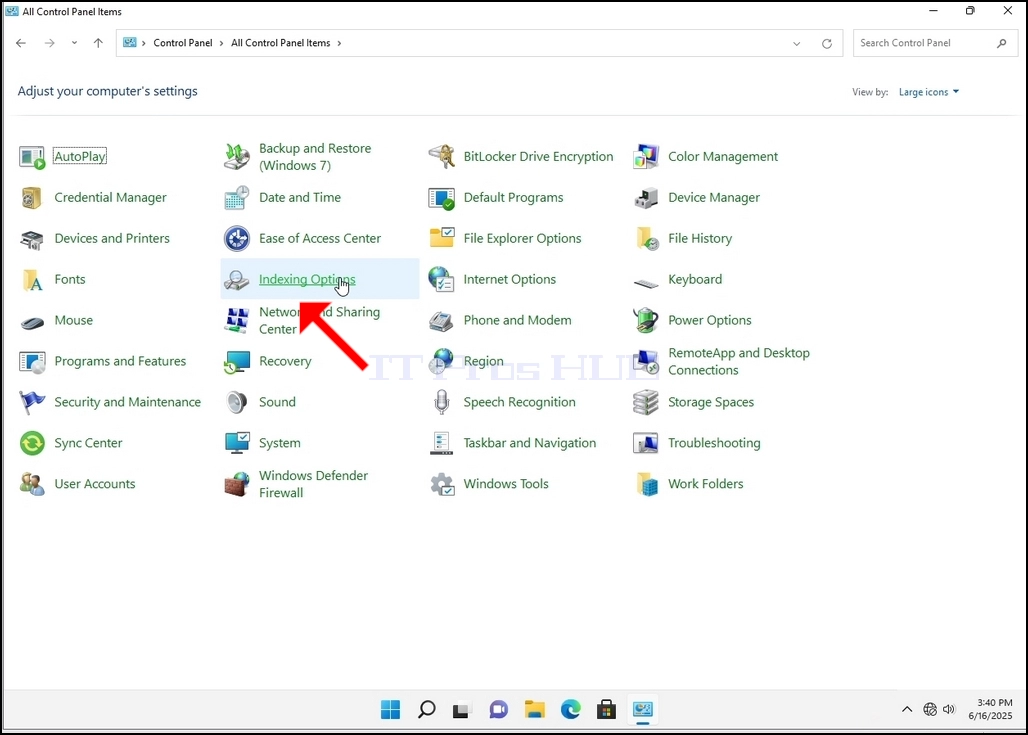
6. Vaadake indekseerimisvalikute ikooni ja klõpsake sellele. Oodake indekseerimisvalikute akna ilmumist.
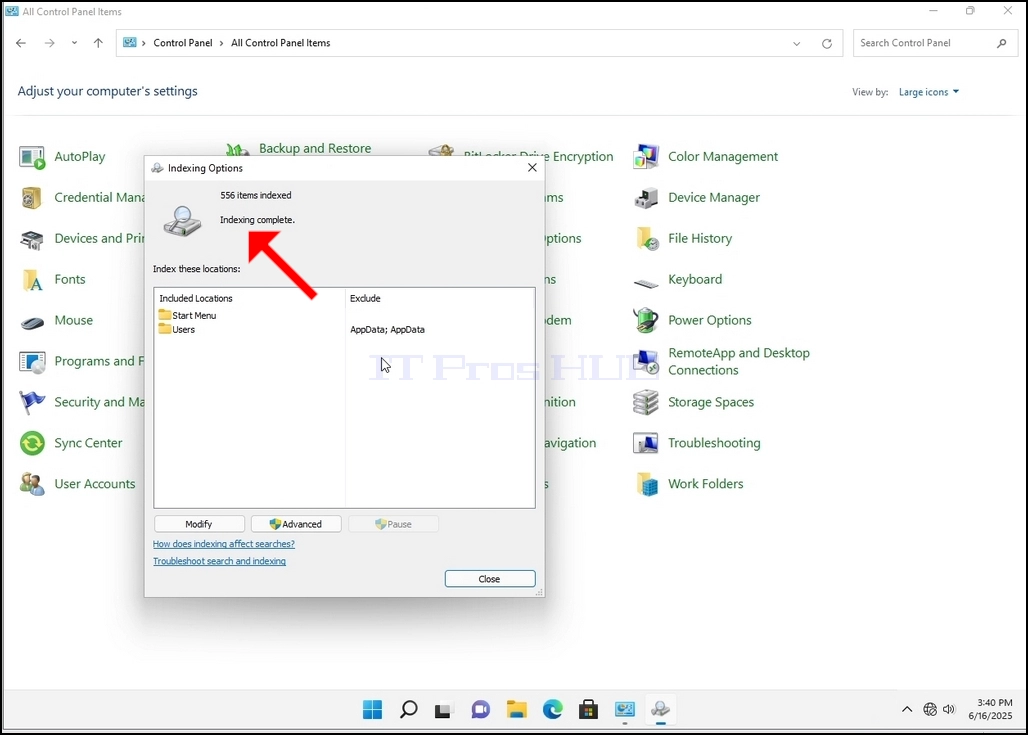
7. Kui indekseerimisvalikud on avatud, klõpsa akna allosas nupule Muud.
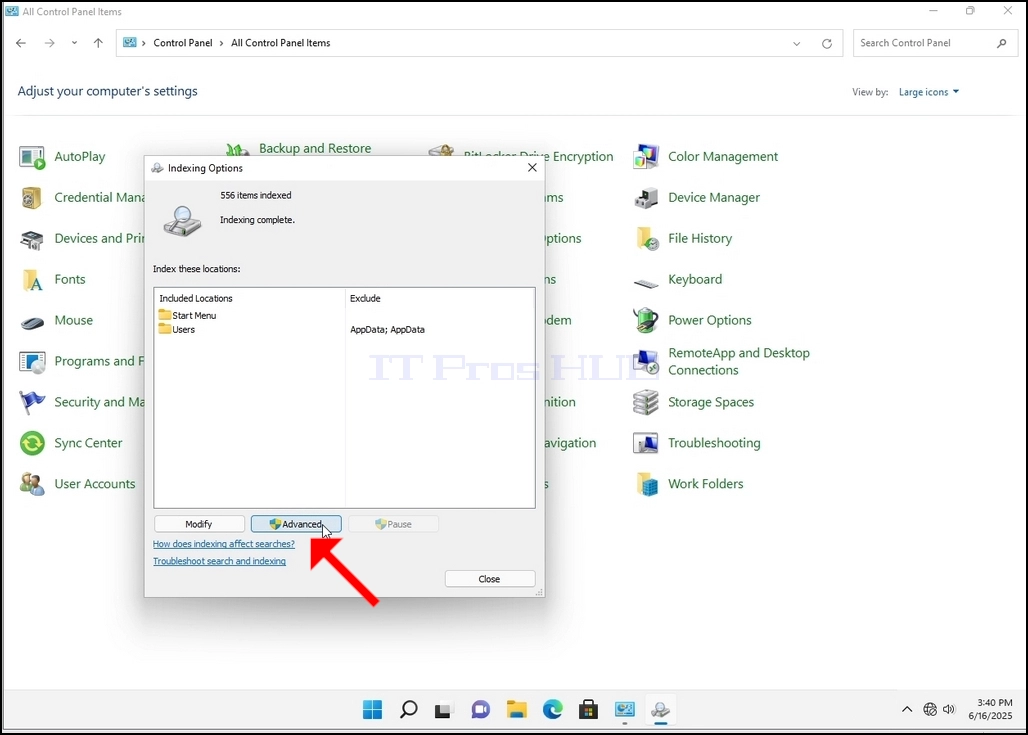
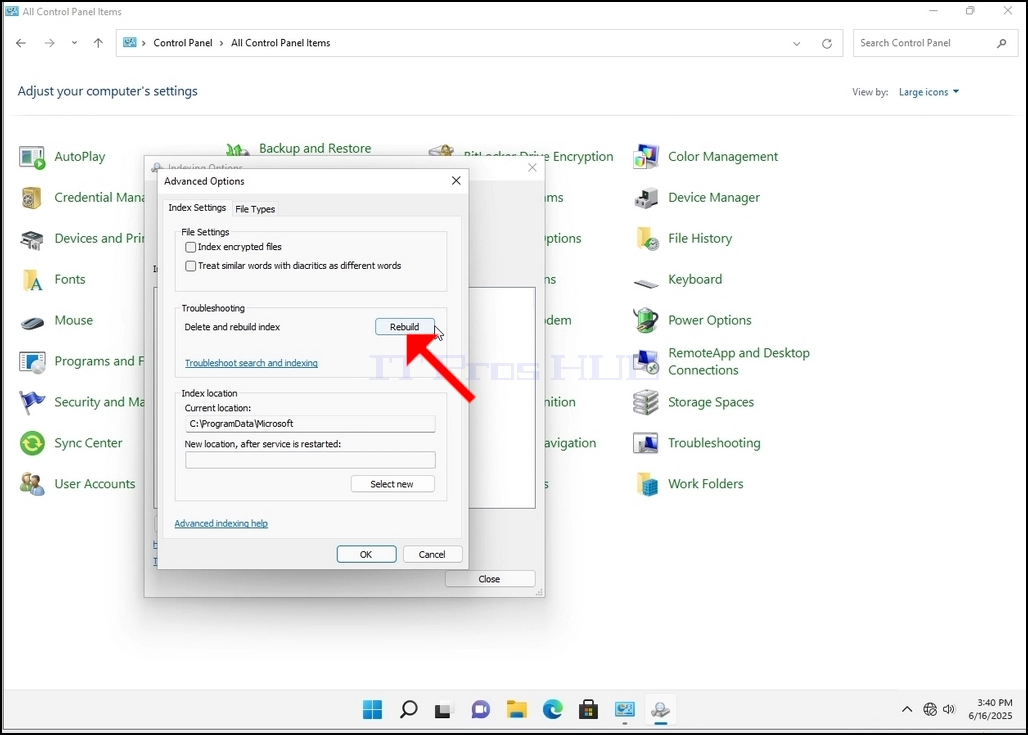
8. Uues aknas otsige nuppu Rebuild ja klõpsake seda. Hiljem ilmub kinnituskarp. Indeksi taastamiseks klõpsa nupule OK.
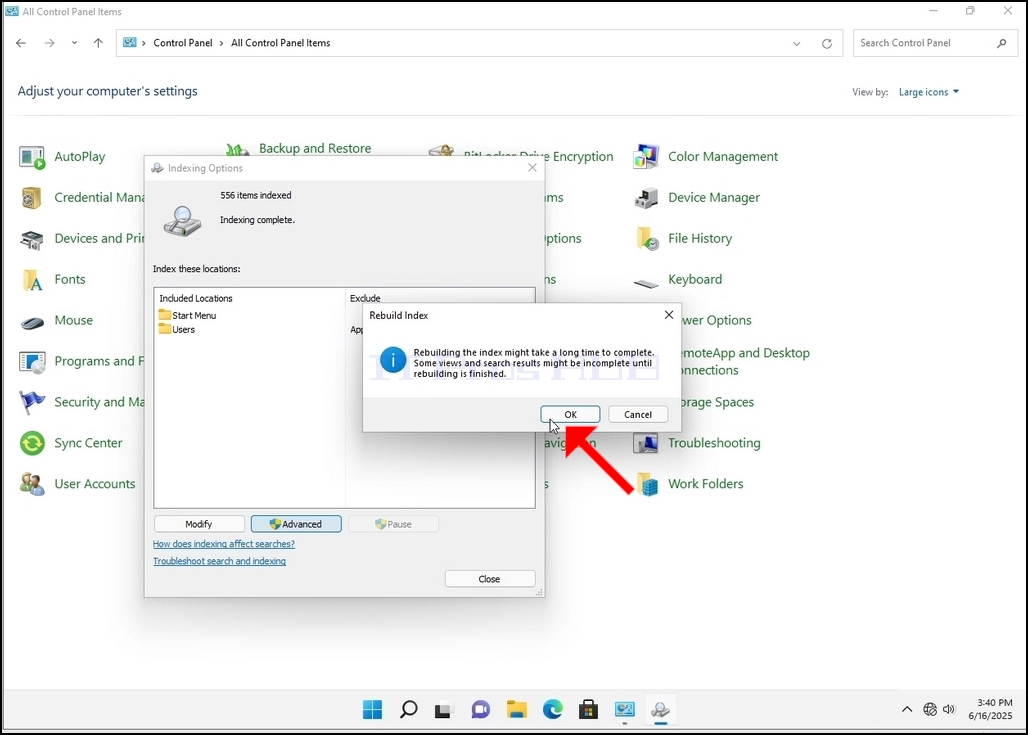
9. Pärast klõpsa OK kinnituskasti, Windows hakkab taastama oma indeks. See võib võtta aega tegelik protsess alustada, Oodake kannatlikult paar sekundit kuni paar minutit. Kohe, kui protsess algab, "Indekseerimine lõpetatud" lause asendatakse järgmisega "Testimine käib. Otsingu tulemused ei pruugi sel ajal olla täielikud."
Lisaks lähtestatakse indekseeritud kirjete arv hetkeks nulli ja seejärel hakatakse seda suurendama.
Pange tähele, et kõik indekseerimisprotsessiga seotud aknad saab nüüd sulgeda ja rekonstrueerimisprotsess ikka veel töötab.
Pange tähele, et indekseerimisprotsessi kiirust võib vähendada kasutaja tegevuse tõttu arvutis. Mida intensiivsem on aktiivsus, seda väiksem on indekseerimiskiirus.
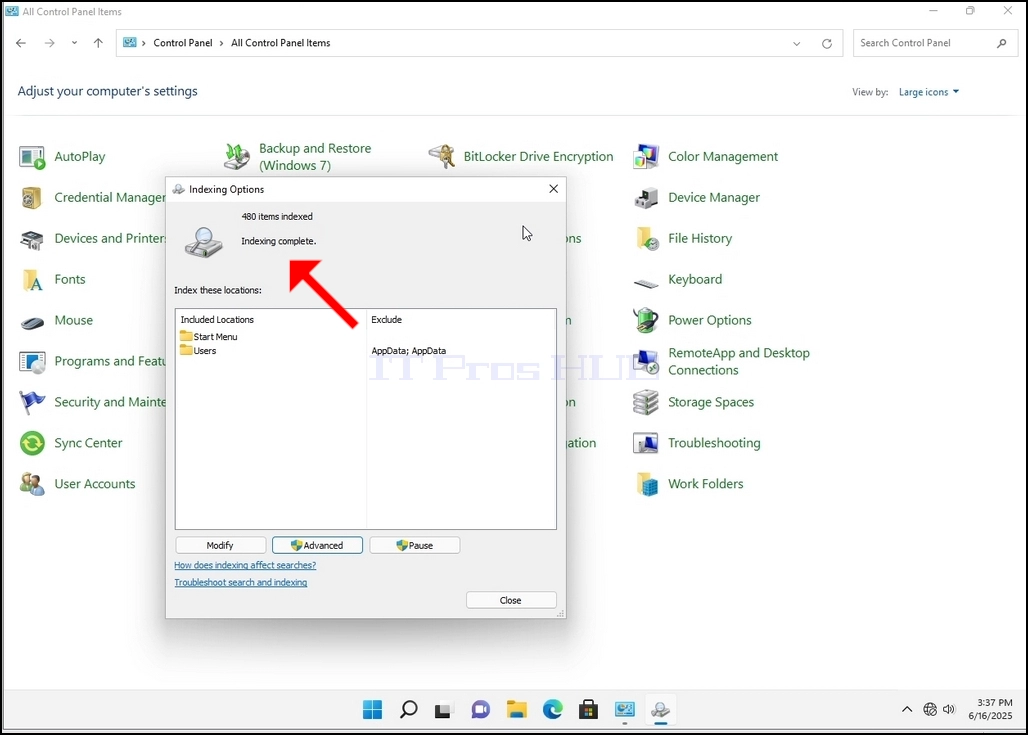
10. Kontrollida, kas indekseerimise protsess on tehtud, minna tagasi indekseerimise valikuid läbi juhtpaneeli, nagu on selgitatud eelmistes etappides. Kui protsess on lõppenud, näete "Indekseerimine lõpetatud" lause ilmub uuesti.
Kuna Windows ei teavita kasutajat, kui see protsess on tehtud, on tõepoolest vaja täita viimati nimetatud. Sõltuvalt indekseerimiseks märgitud failide, kataloogide, draiverite ja partitsioonide arvust võib see protsess kesta mõne minuti kuni mõne tunnini.
- Kuidas taastada indekseerimine Windows 11 21H2 x64 Pro Workstations Build 22000.194
- Kuidas taastada indekseerimine Windows 11 21H2 x64 Pro Haridus N Build 22000.194
- Kuidas taastada indekseerimine Windows 11 21H2 x64 Pro Haridus Build 22000.194
- Kuidas taastada indekseerimine Windows 11 21H2 x64 Pro Build 22000.194