



- Détails
- Écrit par : IT Pro
- Catégorie : How to Articles
- Clics : 5925
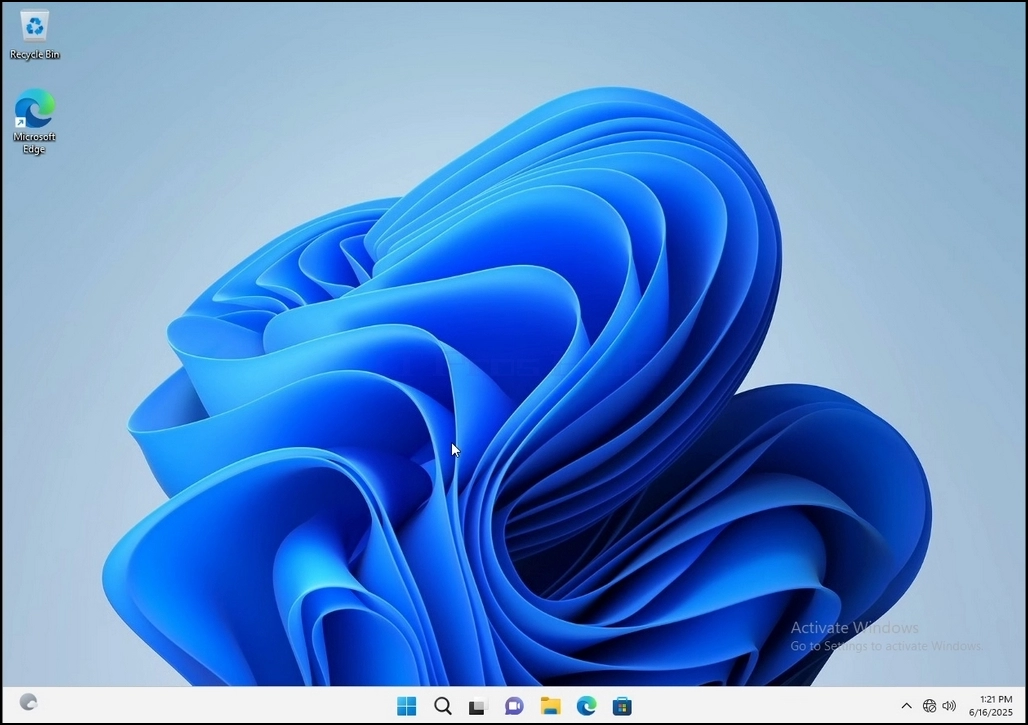
1. Go to Windows Desktop
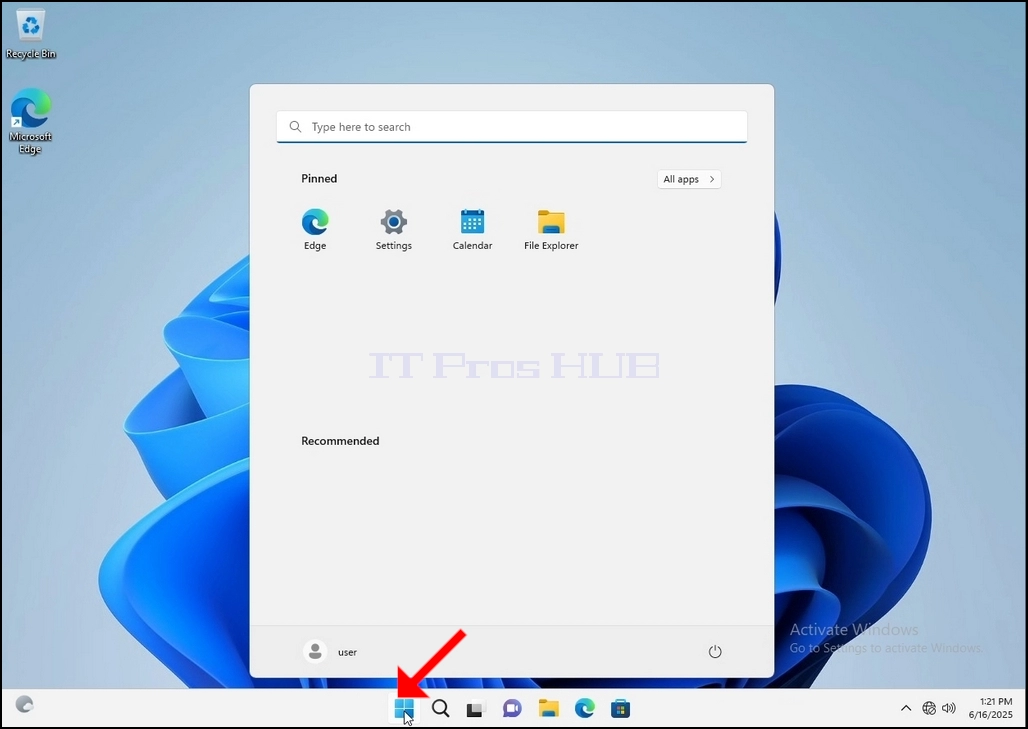
2. Click Start
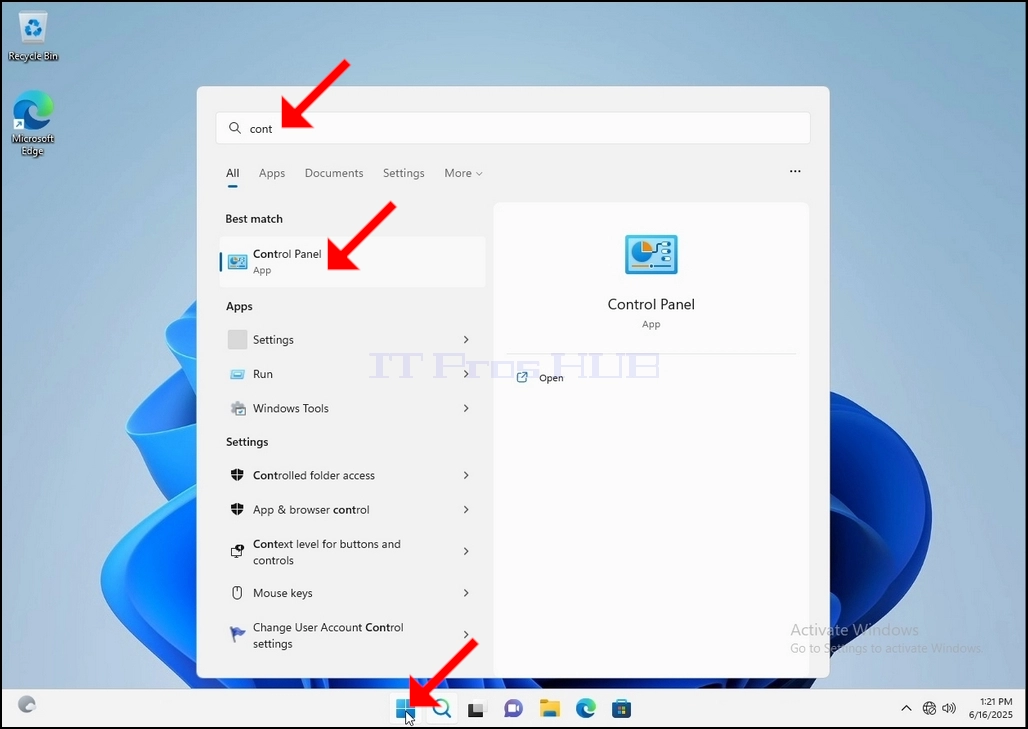
Once it finds it, click it and wait for the Control Panel window to appear.
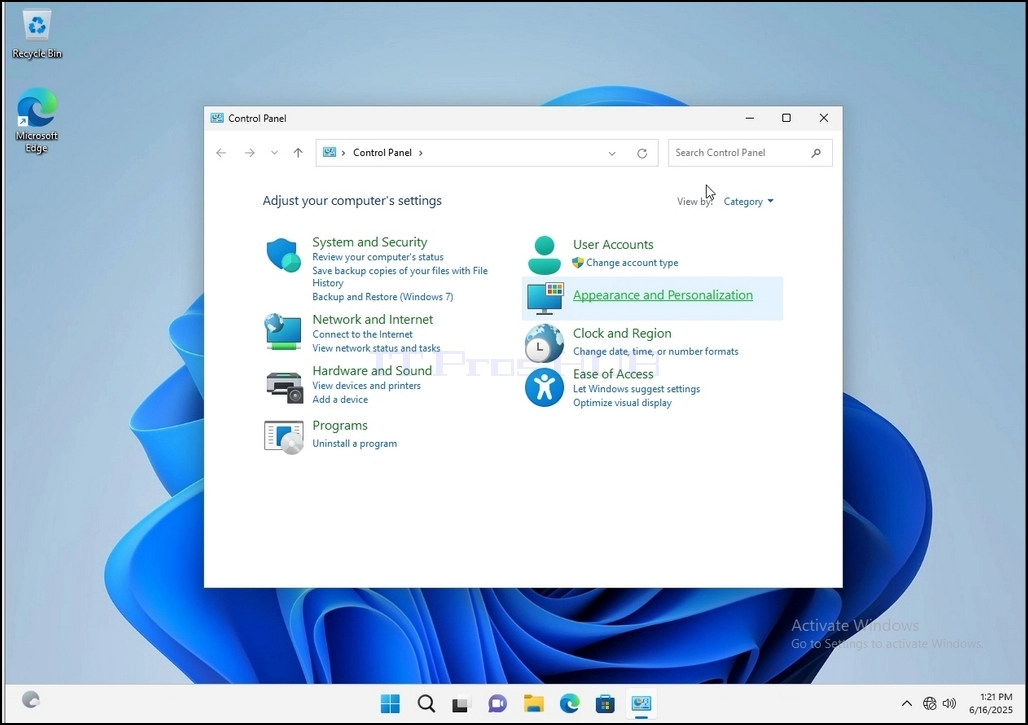
4. Once the Control Panel window is open, enlarge it by clicking the enlarging icon on the top right corner of that window.
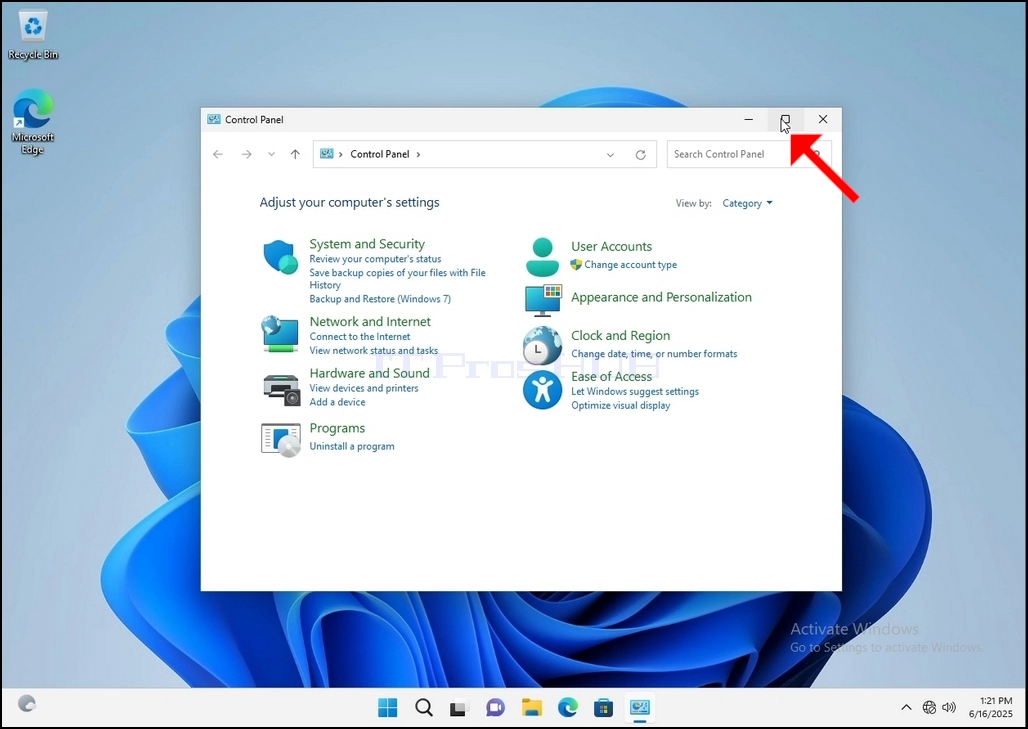
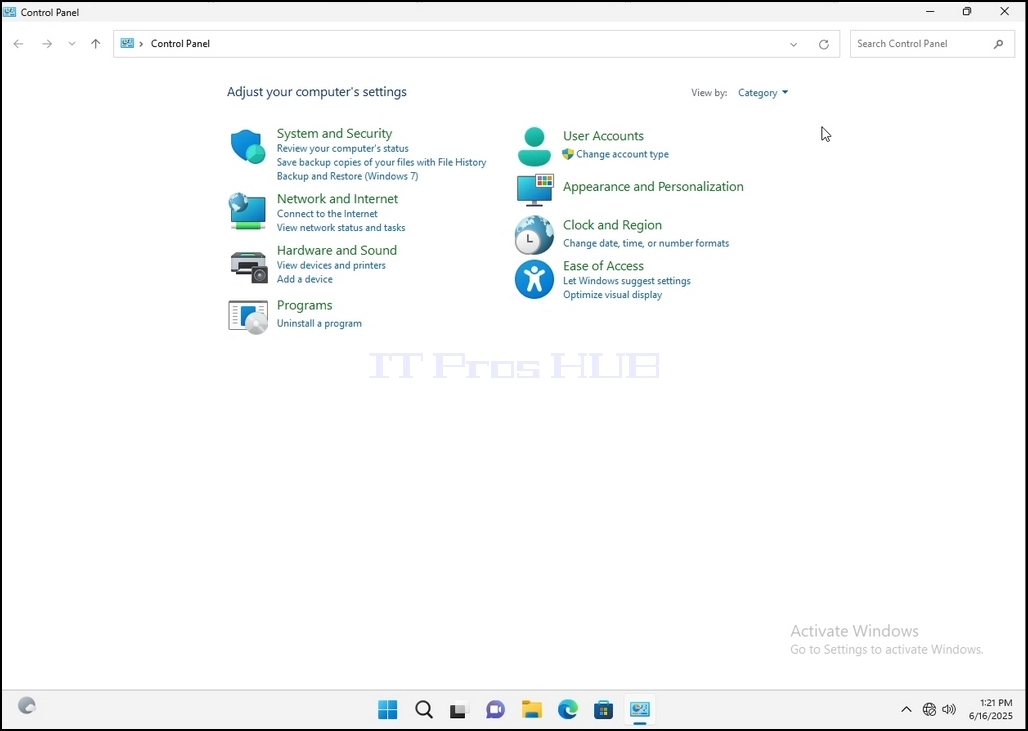
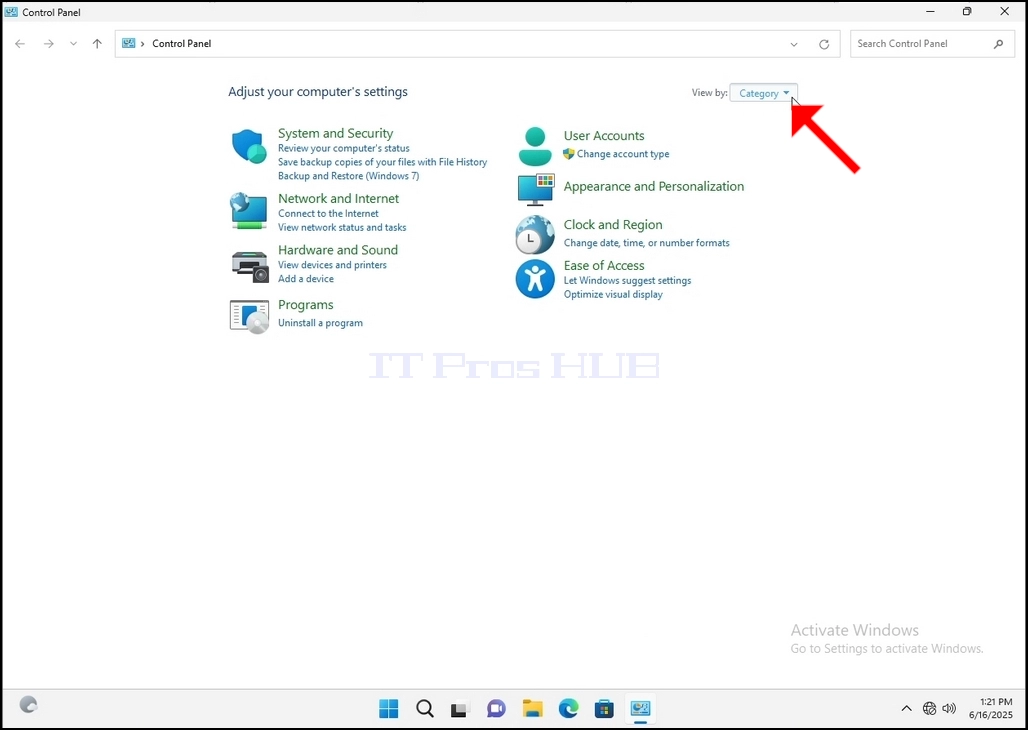
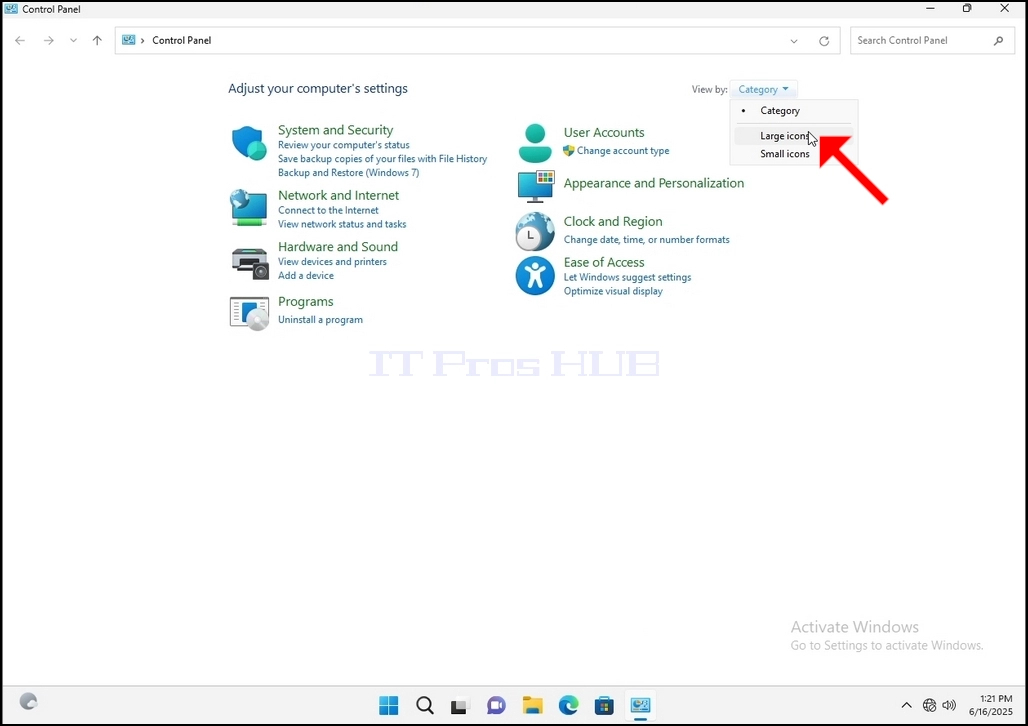
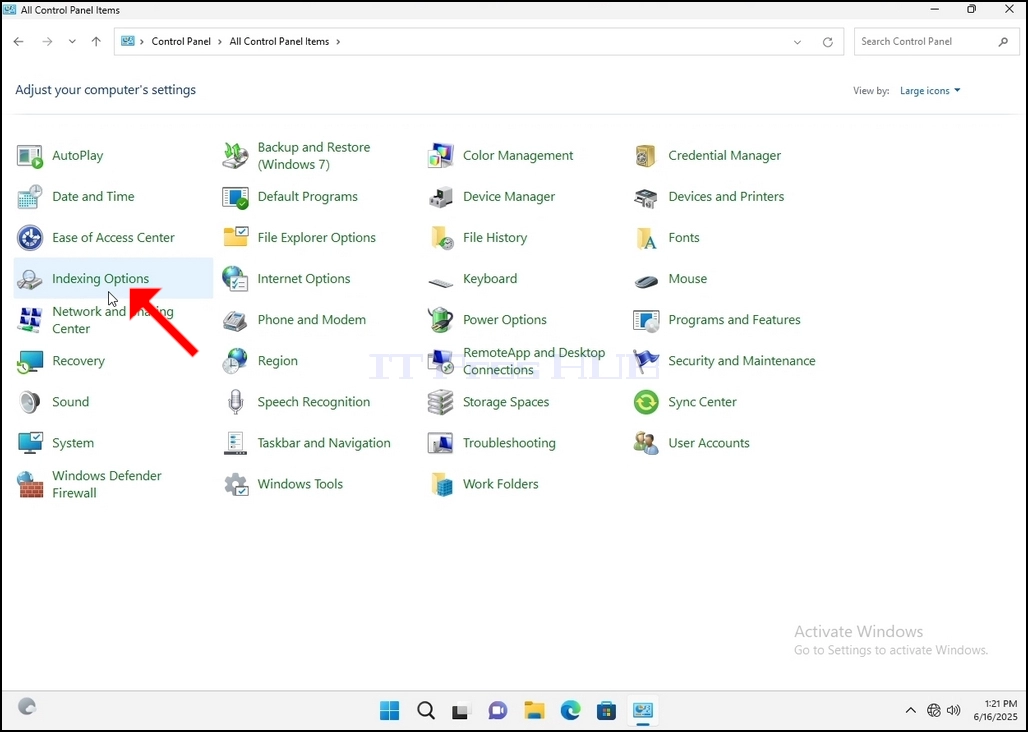
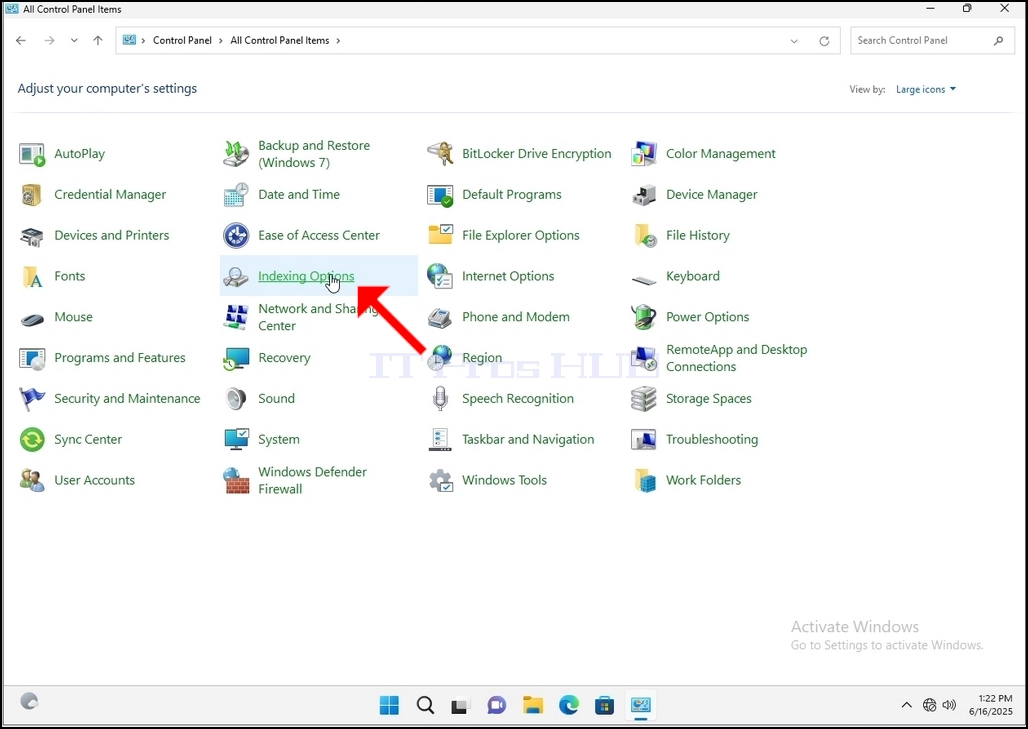
6. Look for the Indexing Options icon and click it. Wait for the Indexing Options window to appear.
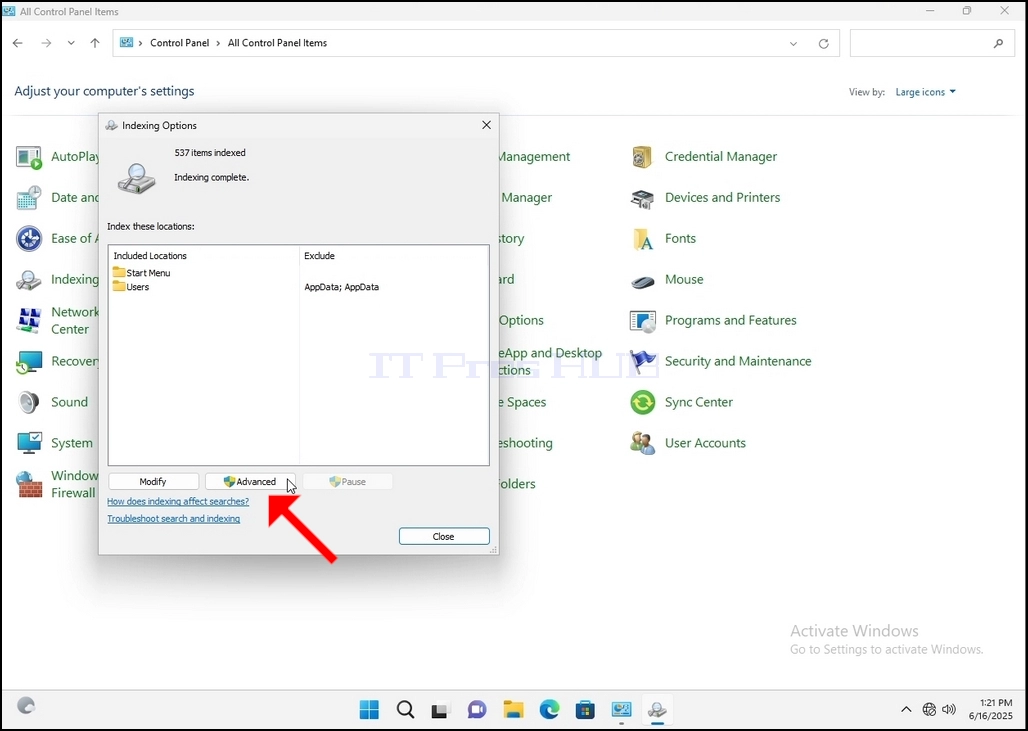
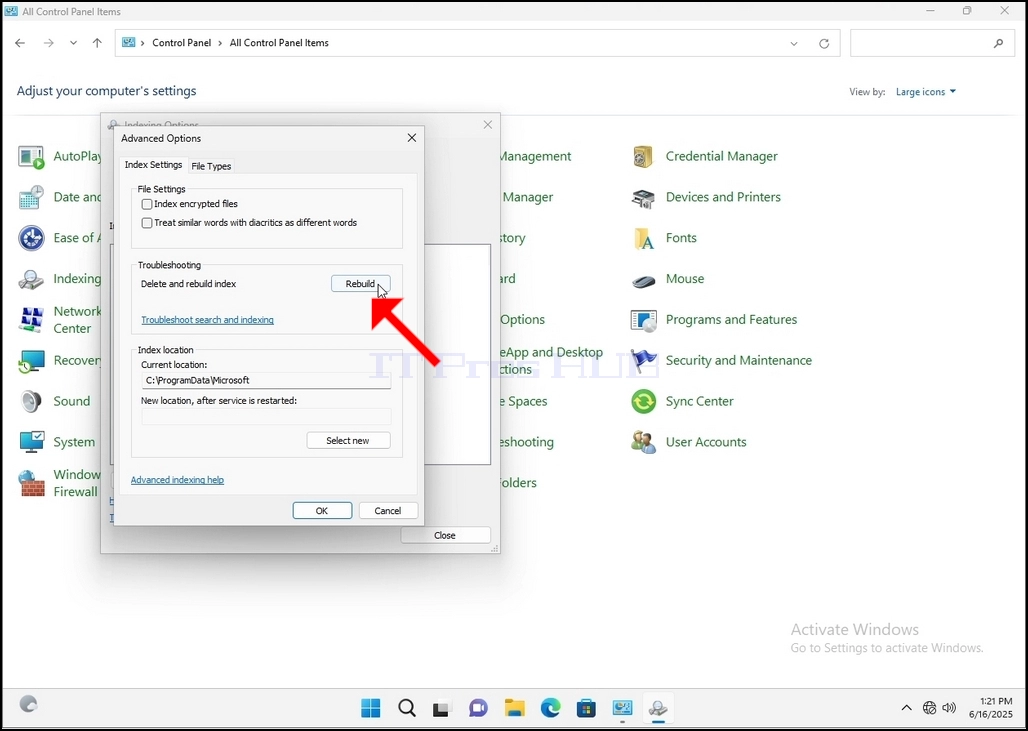
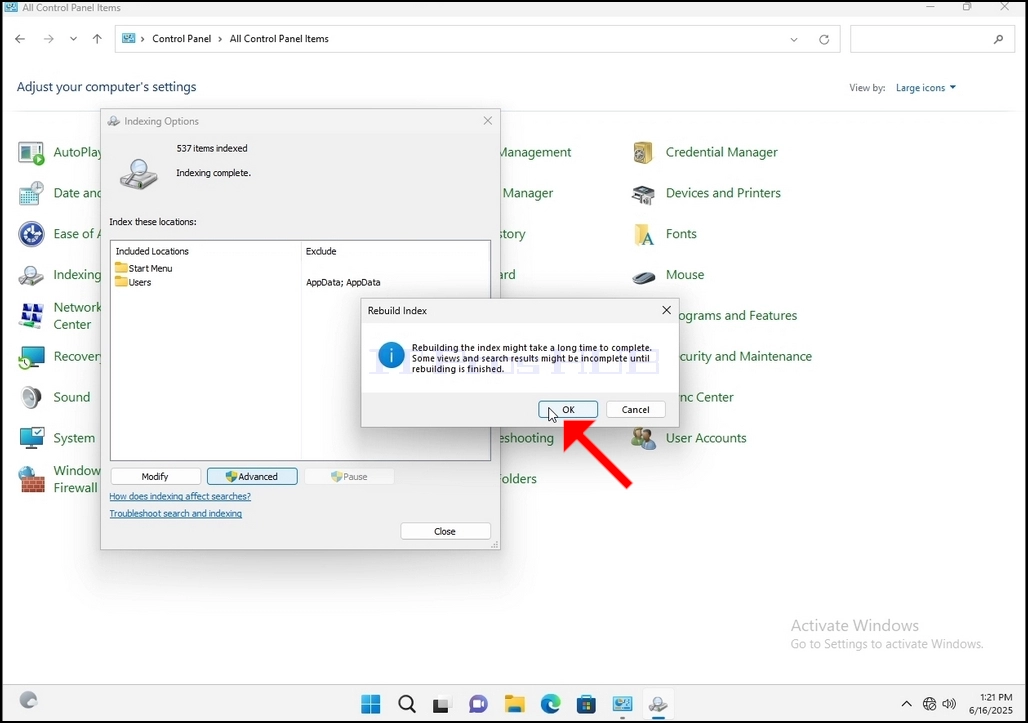
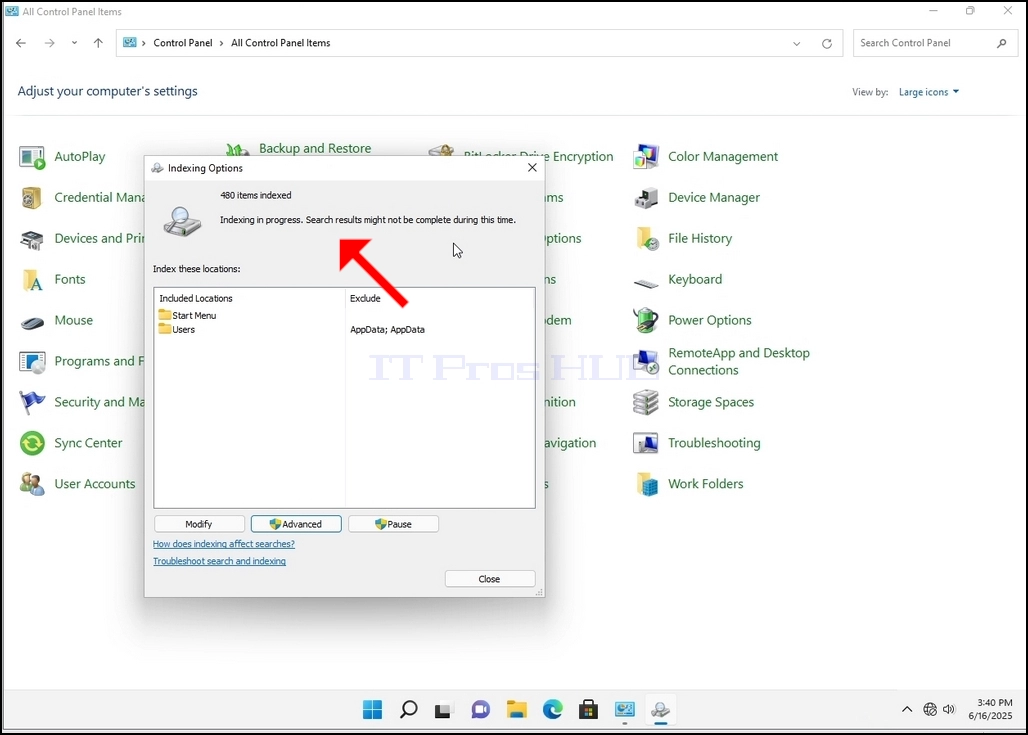
9. After clicking OK in the confirmation box, Windows will start rebuilding its index. It might take some time for the actual process to start, Wait patiently a few seconds to a few minutes. The moment the process starts, the "Indexing Complete" sentence will be replaced with "Indexing in progress. Search results might not be complete during this time."
In addition, the number of items indexed will be reset to 0 for a moment and then start to increase.
Note that All of the windows that are related to the Indexing process can now be closed and the rebuilding process would still be running the background.
Note that the Indexing process' speed might be reduced due to user activity on the computer. The more intense the activity the less the Indexing speed would be.
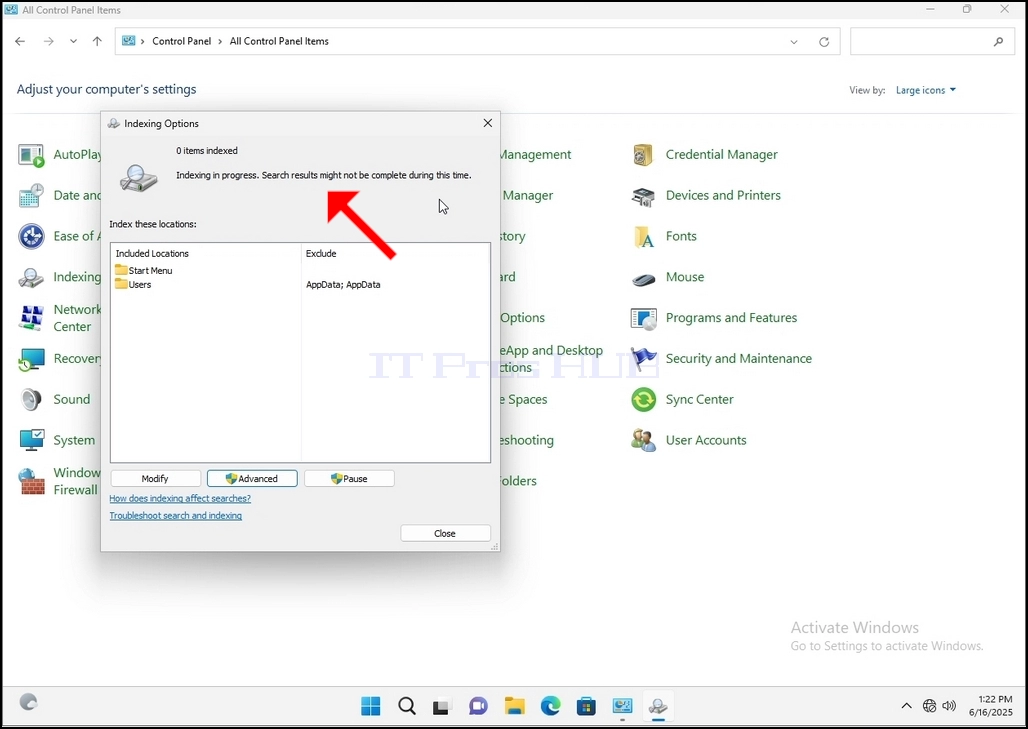
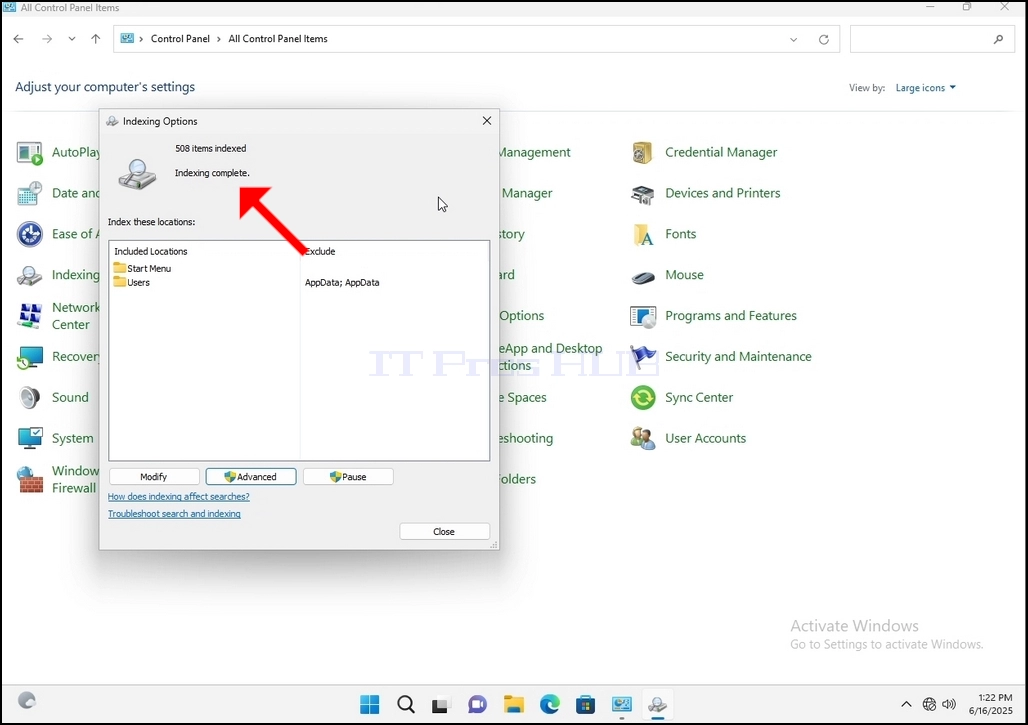
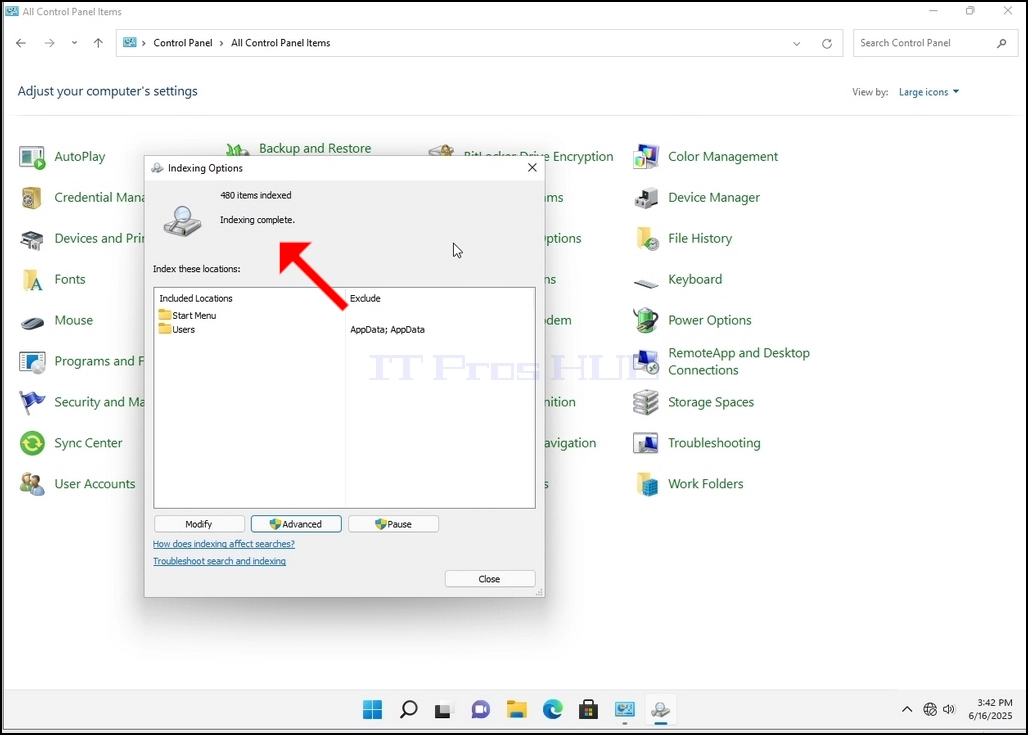
10. To check if the indexing process is done, go back to the Indexing Options through Control Panel as explained in the previous stages. If the process is complete, you would see the "Indexing Complete" sentence appears again.
Since Windows does not notify the user once this process is done, there is indeed a need to perform the latter mentioned. Depending on the number of files, folders, drivers and partitions marked for indexing, this process could take between a few minutes to a few hours.
- Détails
- Écrit par : IT Pro
- Catégorie : How to Articles
- Clics : 6359
1. Go to Windows Desktop
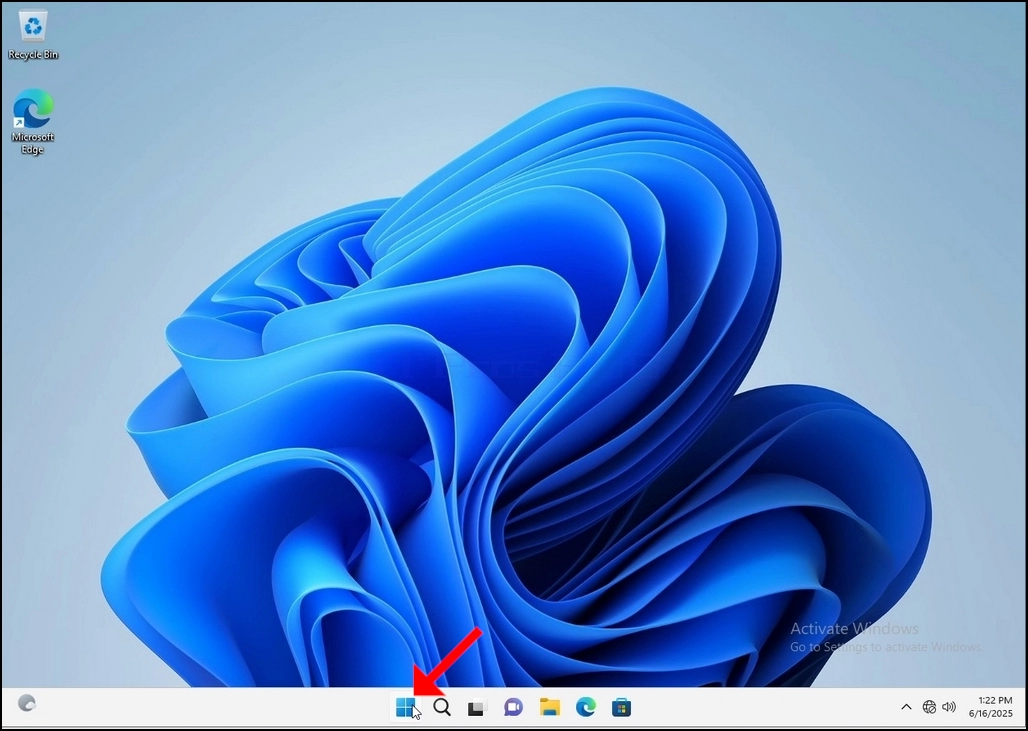
2. Click Start
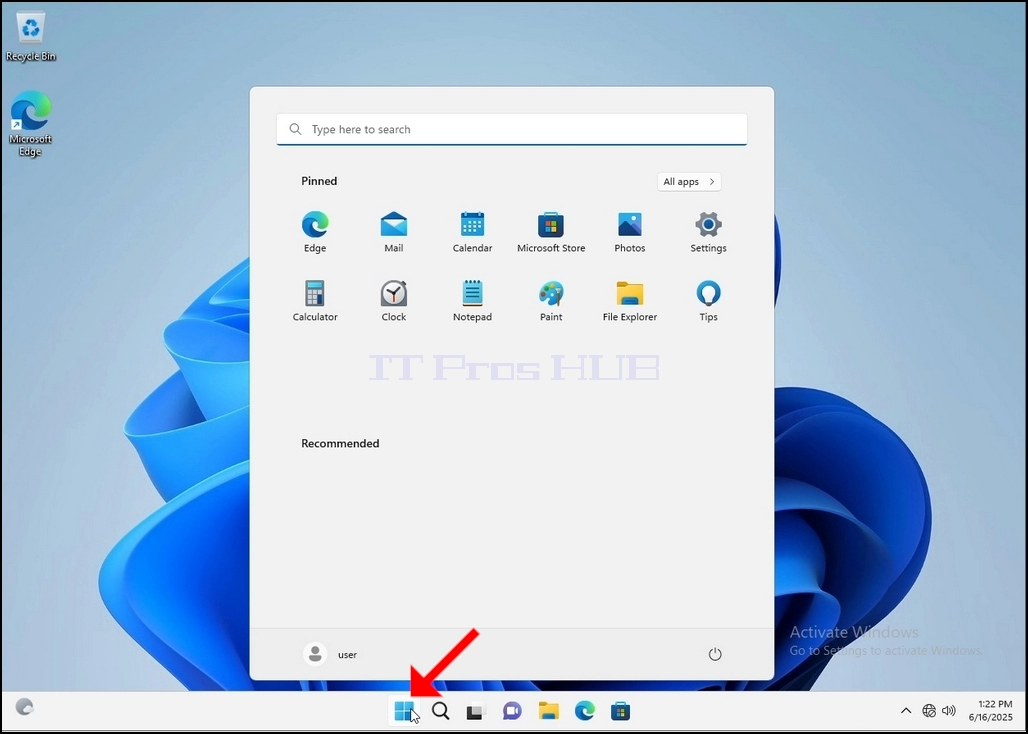
Once it finds it, click it and wait for the Control Panel window to appear.
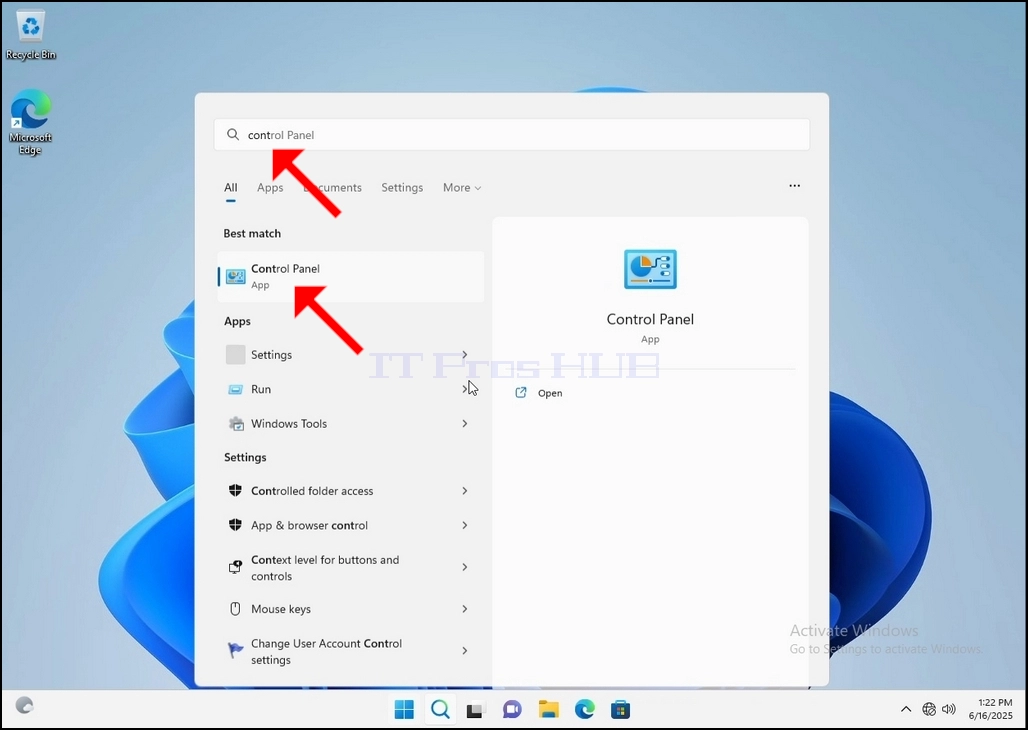
4. Once the Control Panel window is open, enlarge it by clicking the enlarging icon on the top right corner of that window.
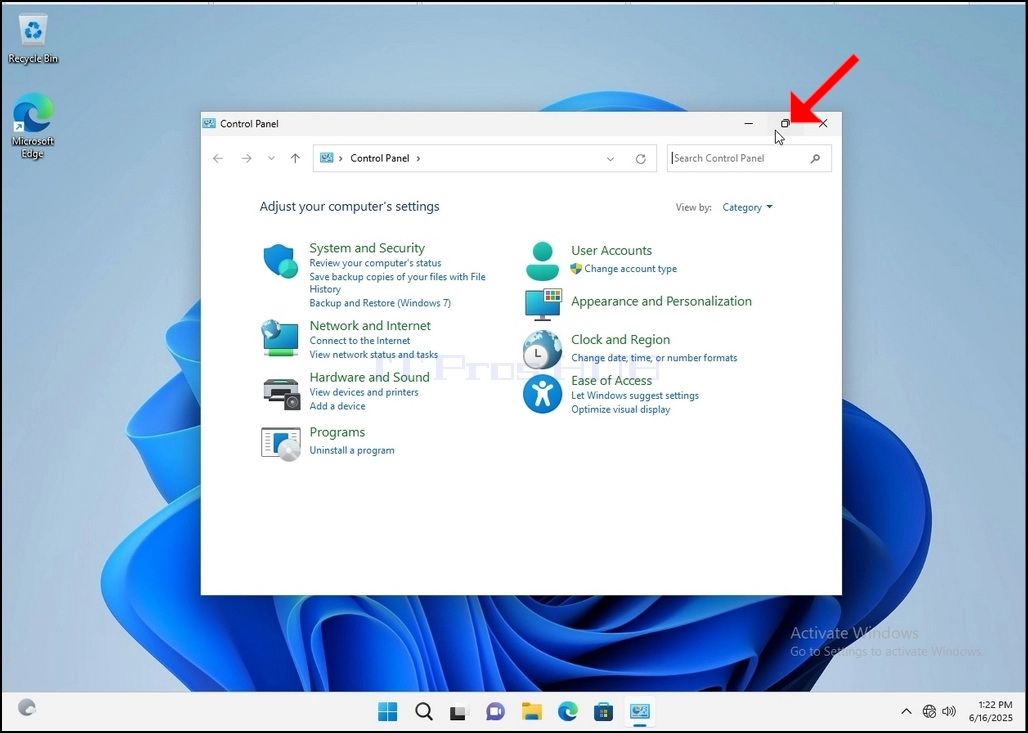
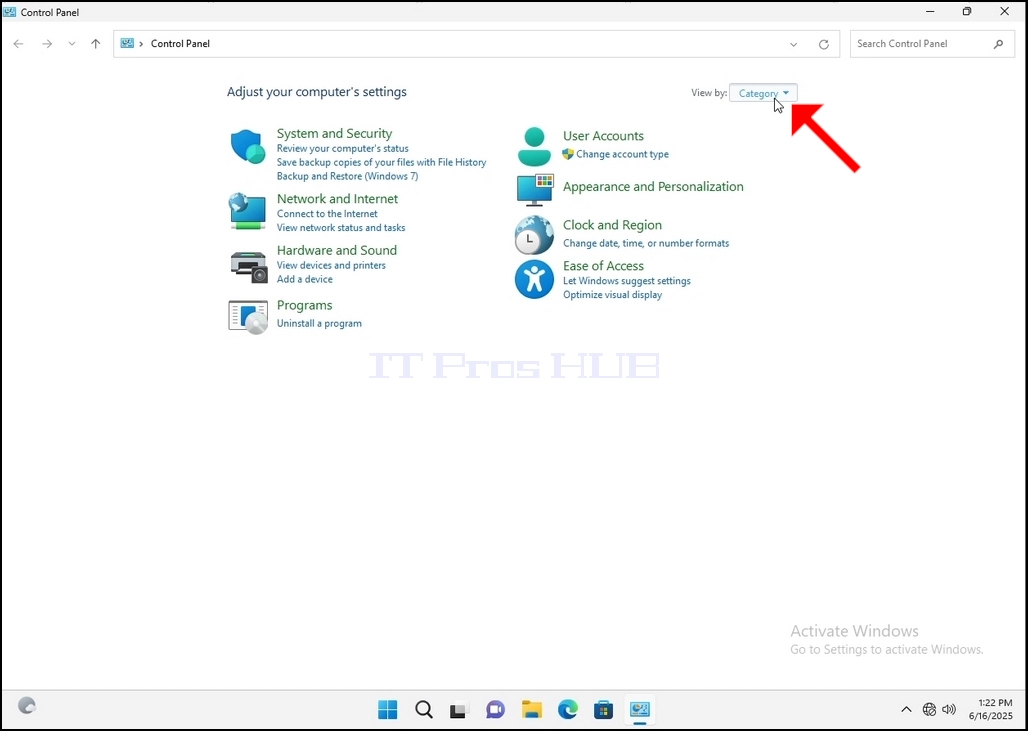
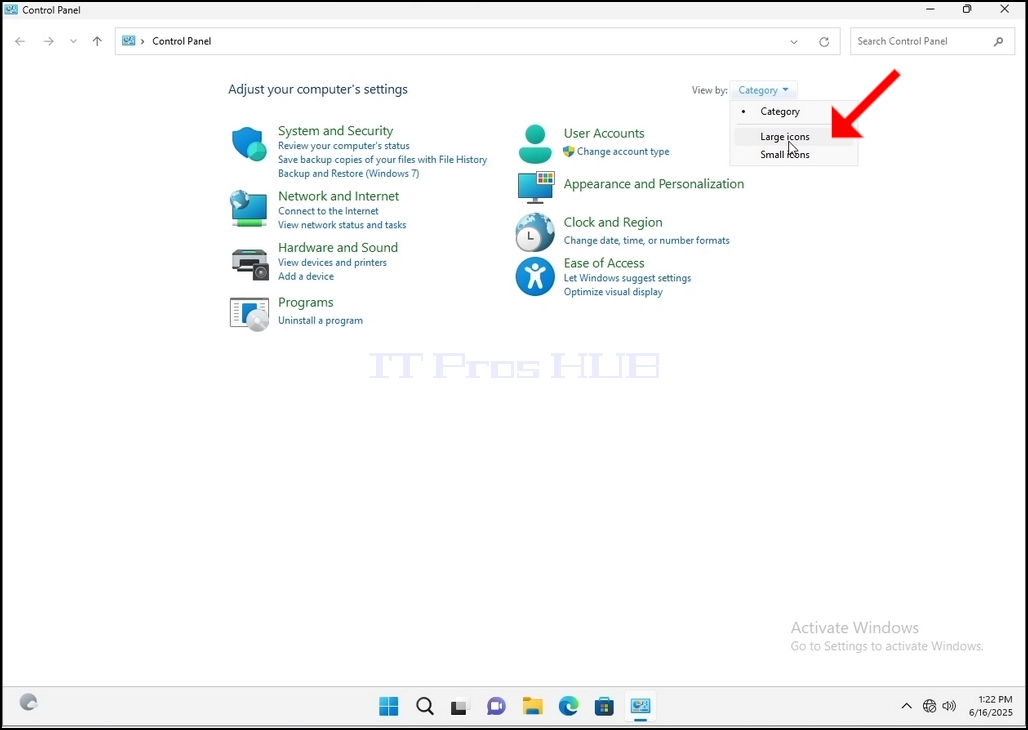
6. Look for the Indexing Options icon and click it. Wait for the Indexing Options window to appear.
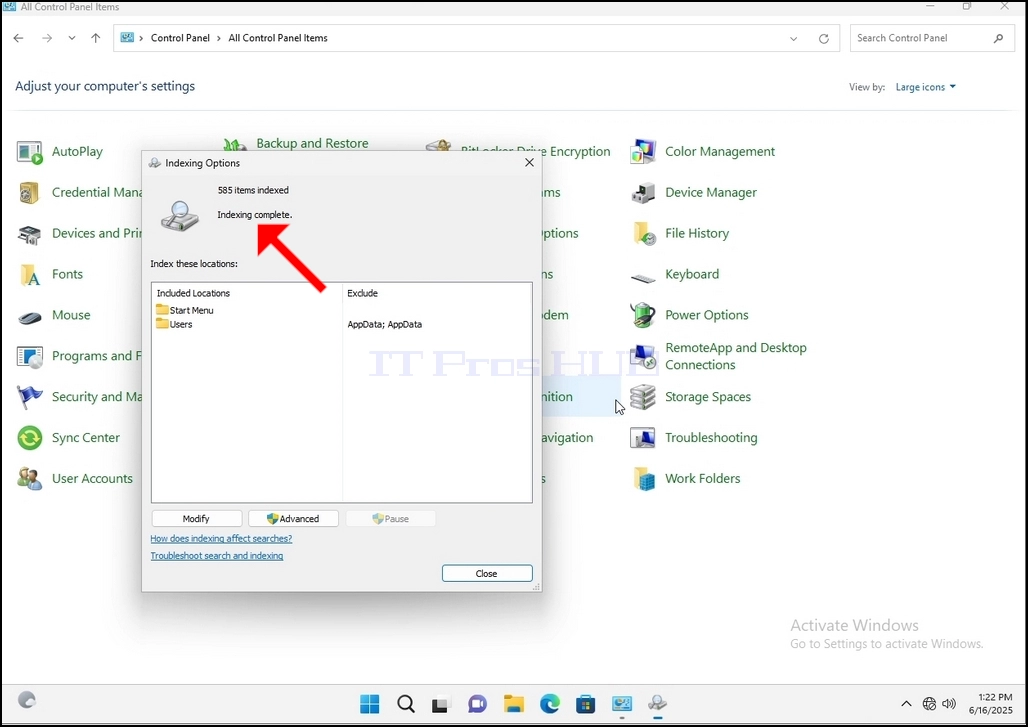
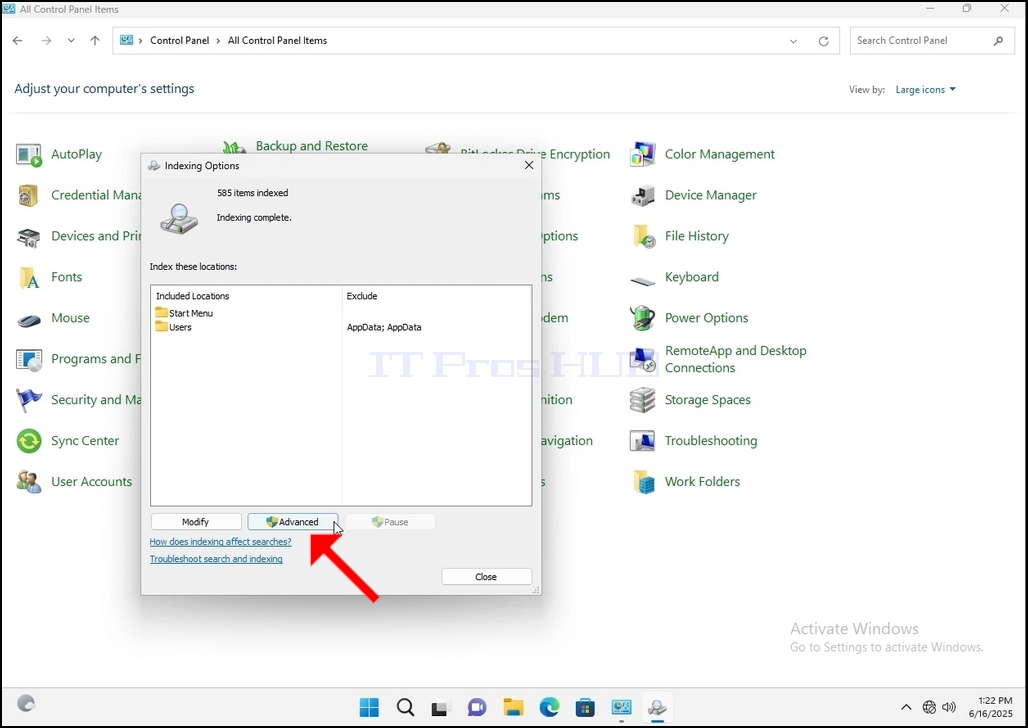
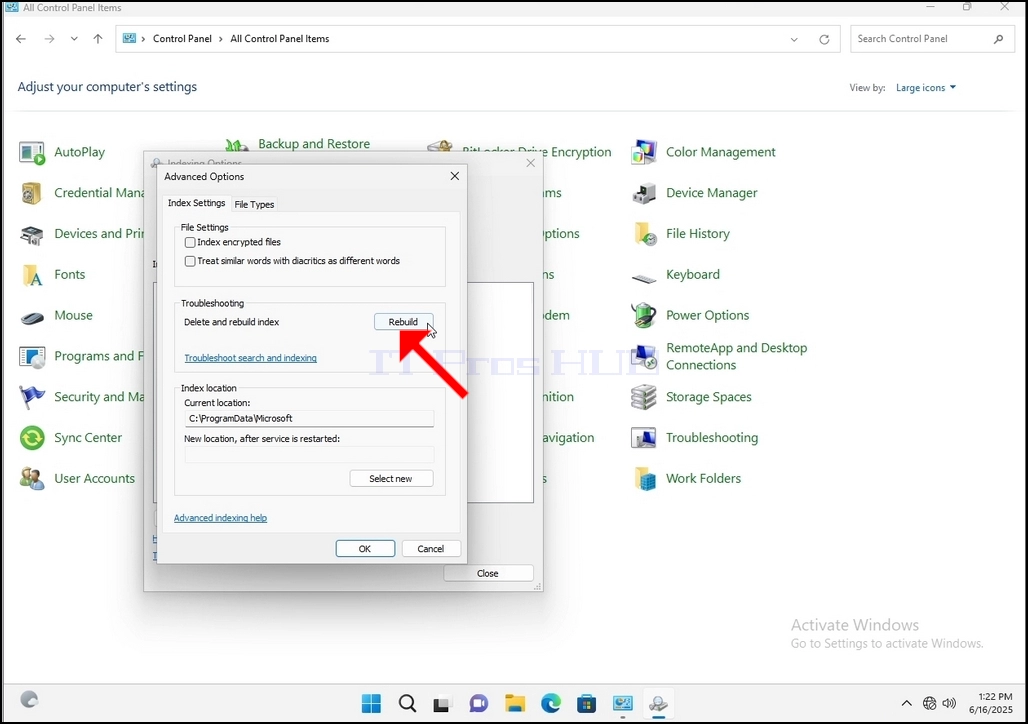
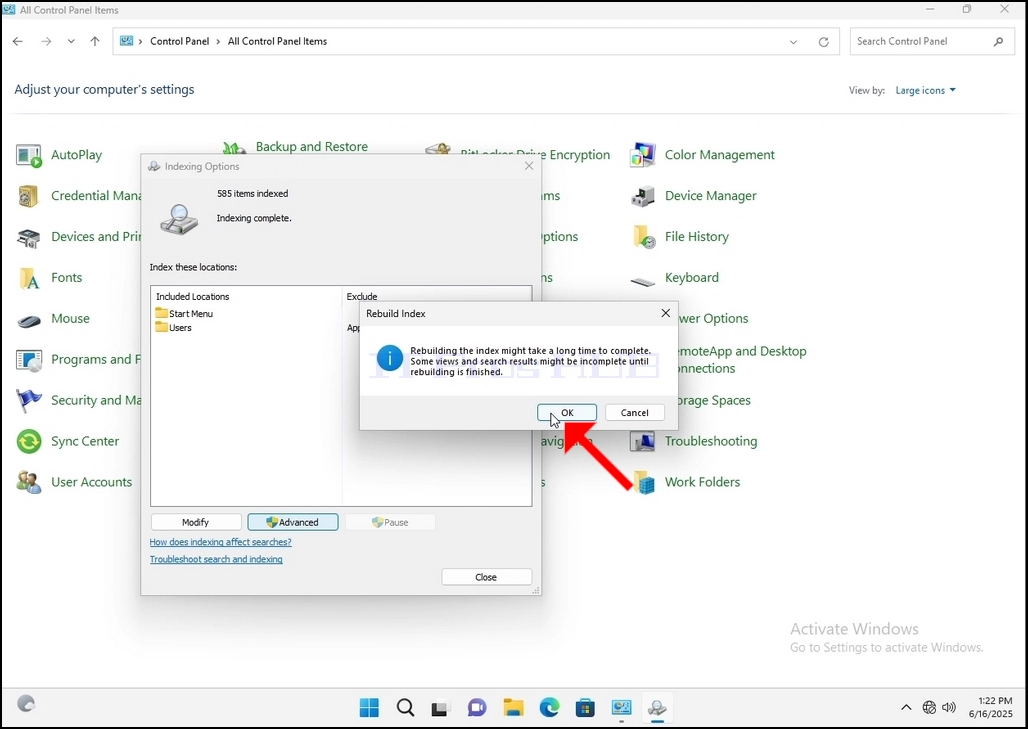
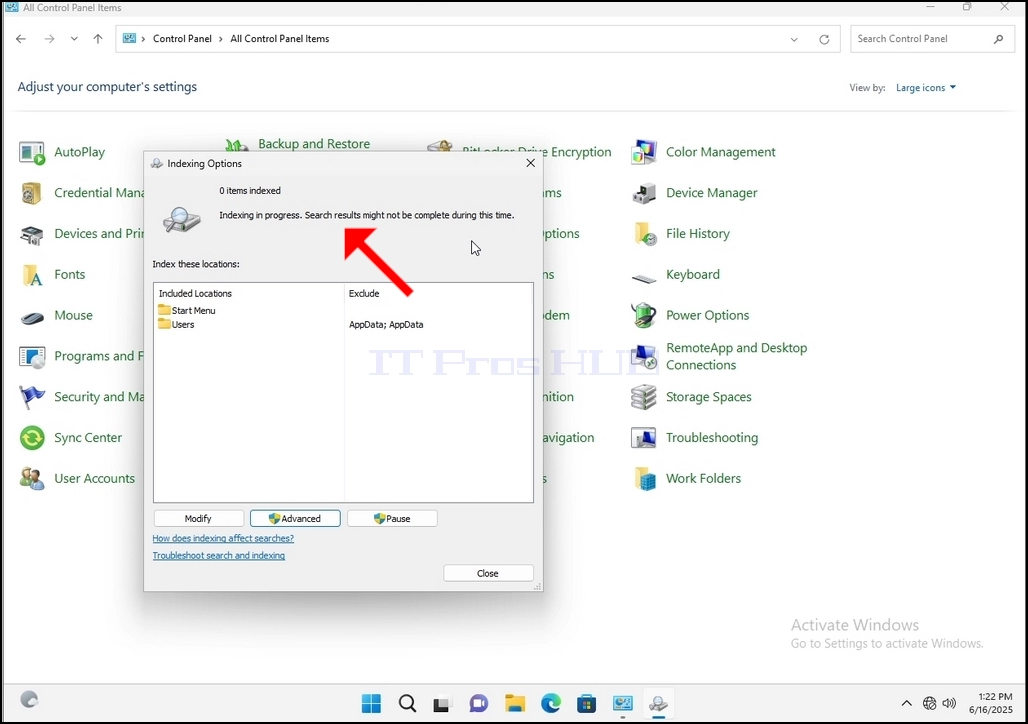
9. After clicking OK in the confirmation box, Windows will start rebuilding its index. It might take some time for the actual process to start, Wait patiently a few seconds to a few minutes. The moment the process starts, the "Indexing Complete" sentence will be replaced with "Indexing in progress. Search results might not be complete during this time."
In addition, the number of items indexed will be reset to 0 for a moment and then start to increase.
Note that All of the windows that are related to the Indexing process can now be closed and the rebuilding process would still be running the background.
Note that the Indexing process' speed might be reduced due to user activity on the computer. The more intense the activity the less the Indexing speed would be.
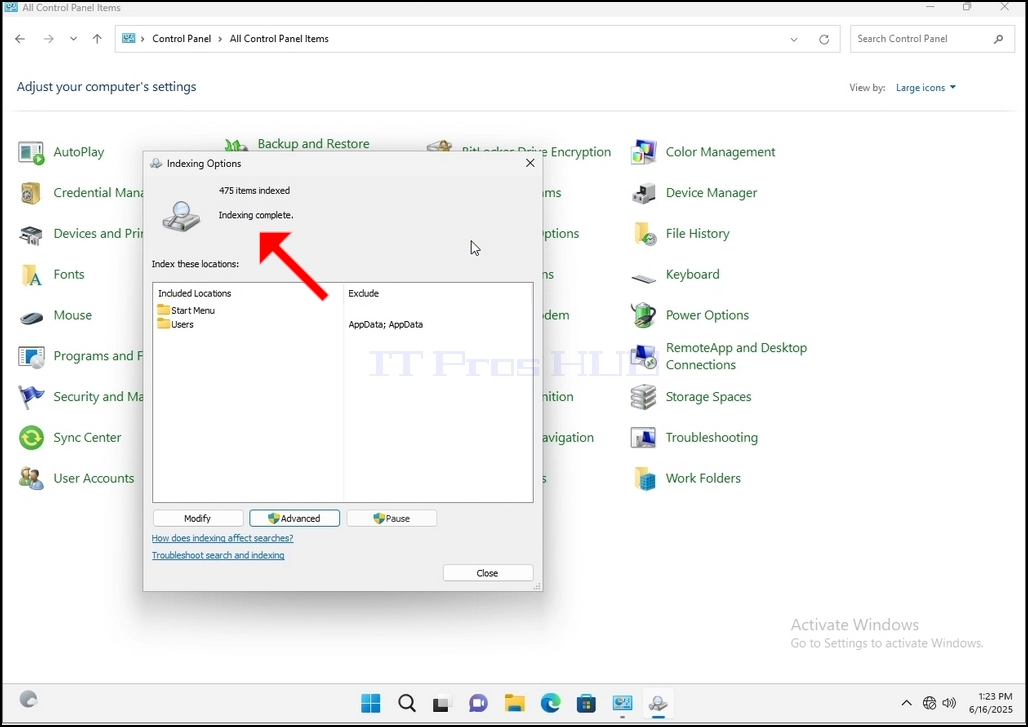
10. To check if the indexing process is done, go back to the Indexing Options through Control Panel as explained in the previous stages. If the process is complete, you would see the "Indexing Complete" sentence appears again.
Since Windows does not notify the user once this process is done, there is indeed a need to perform the latter mentioned. Depending on the number of files, folders, drivers and partitions marked for indexing, this process could take between a few minutes to a few hours.
- Détails
- Écrit par : IT Pro
- Catégorie : How to Articles
- Clics : 6307
1. Go to Windows Desktop
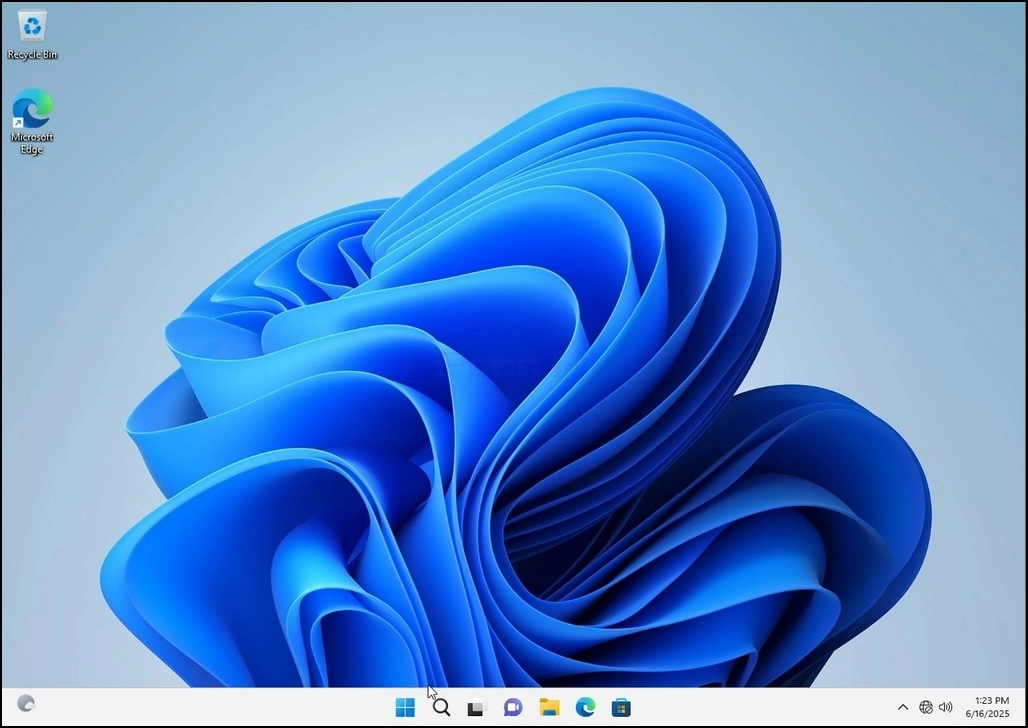
2. Click Start
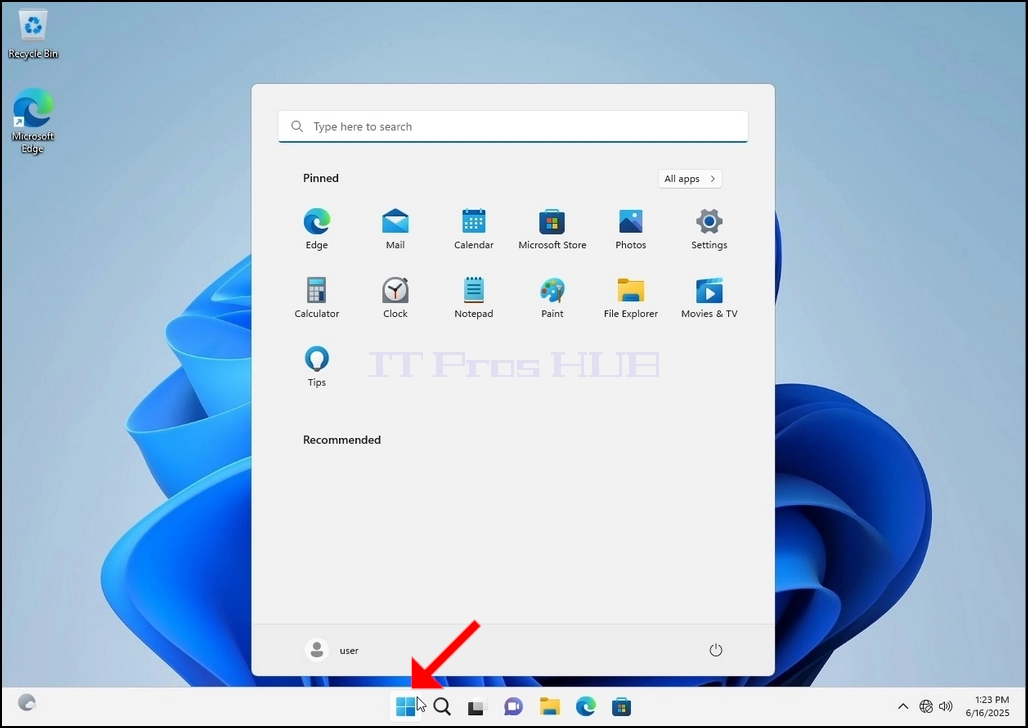
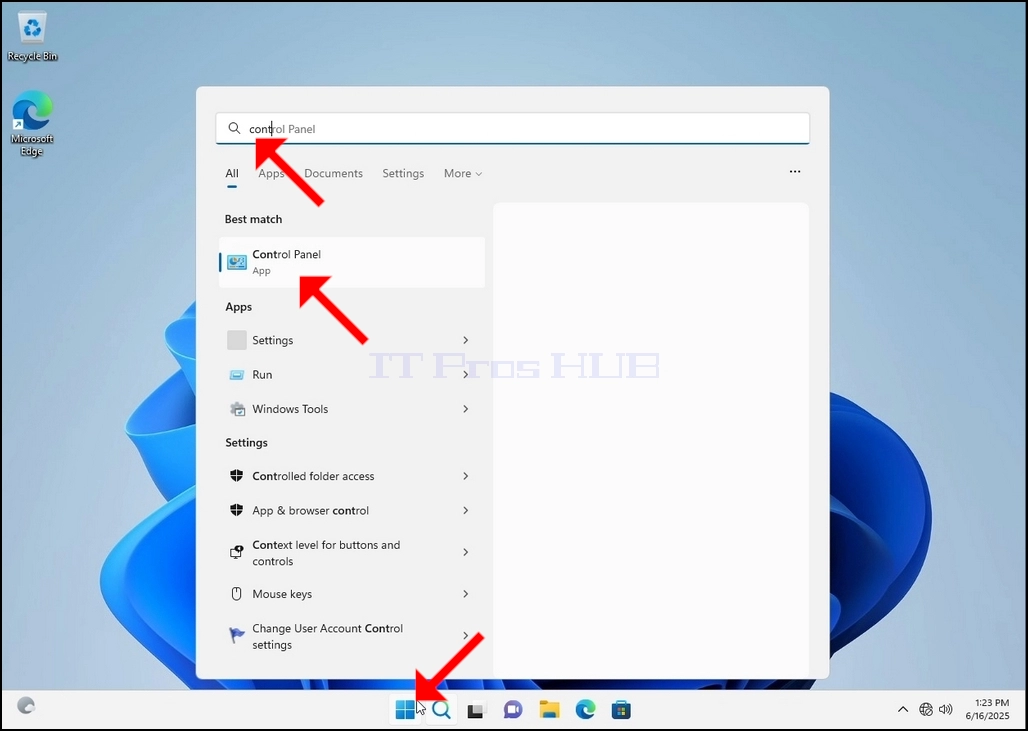
Once it finds it, click it and wait for the Control Panel window to appear.
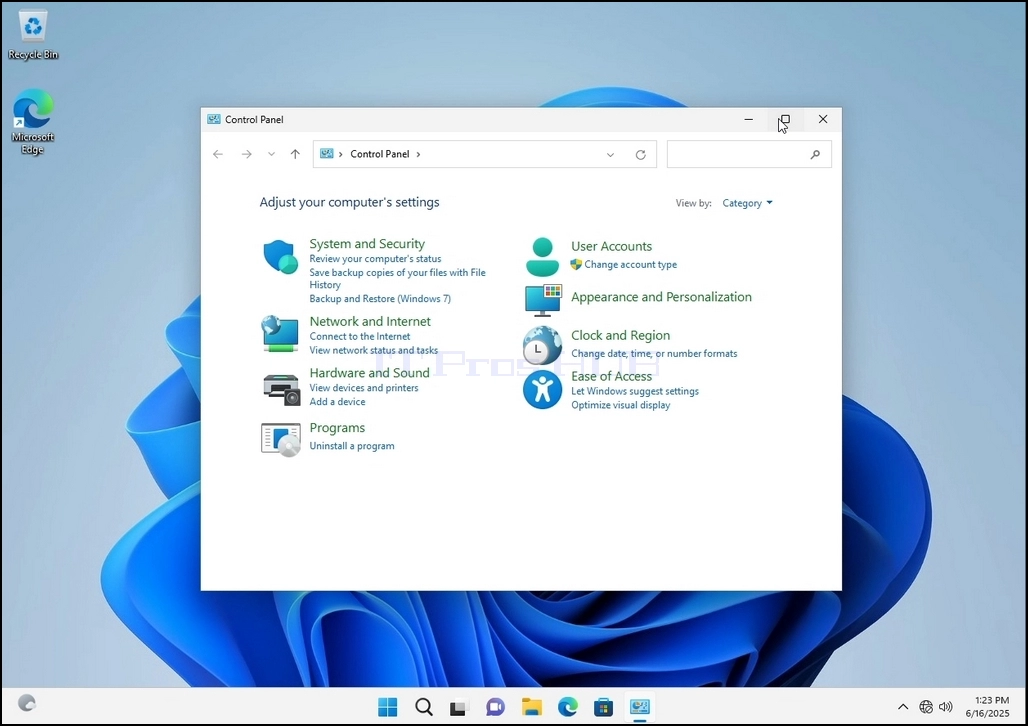
4. Once the Control Panel window is open, enlarge it by clicking the enlarging icon on the top right corner of that window.
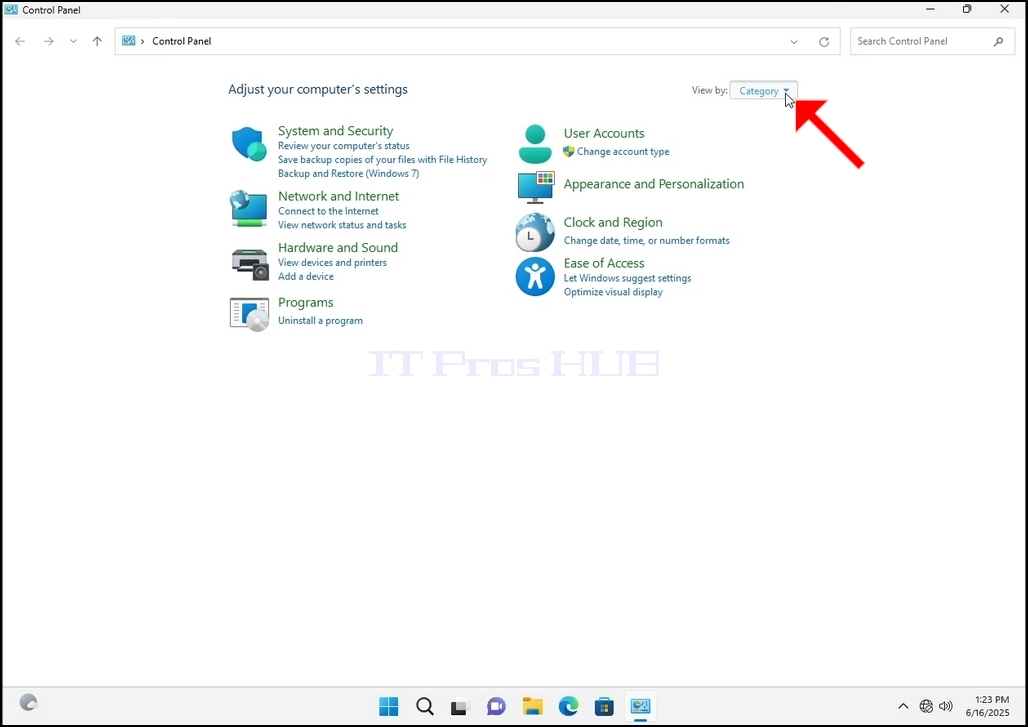
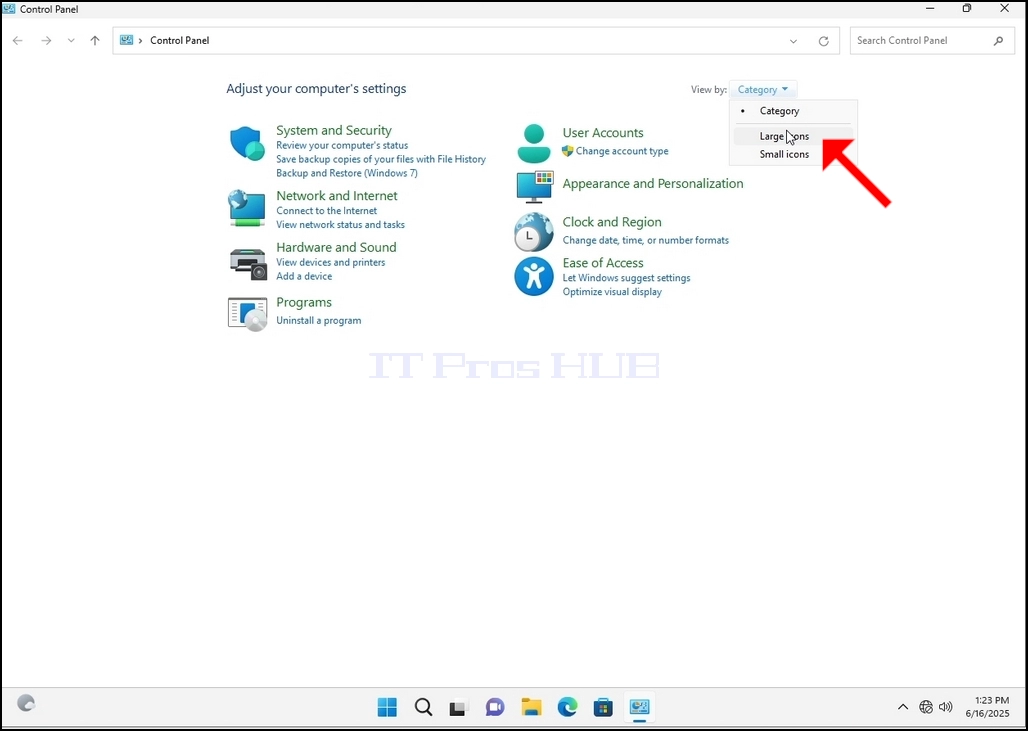
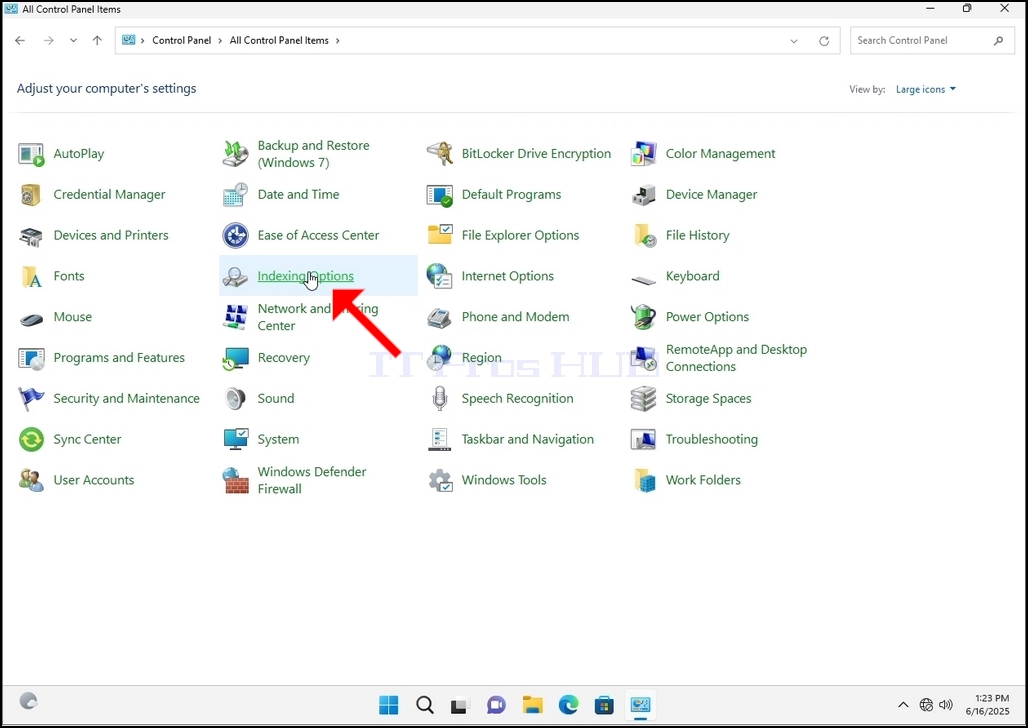
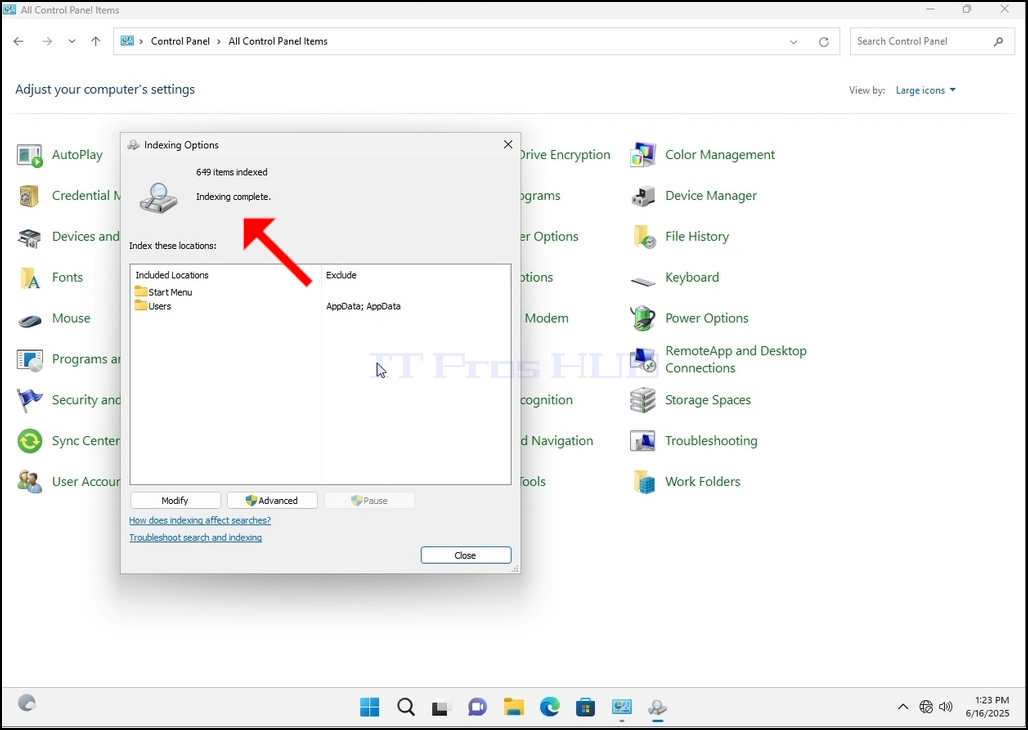
6. Look for the Indexing Options icon and click it. Wait for the Indexing Options window to appear.
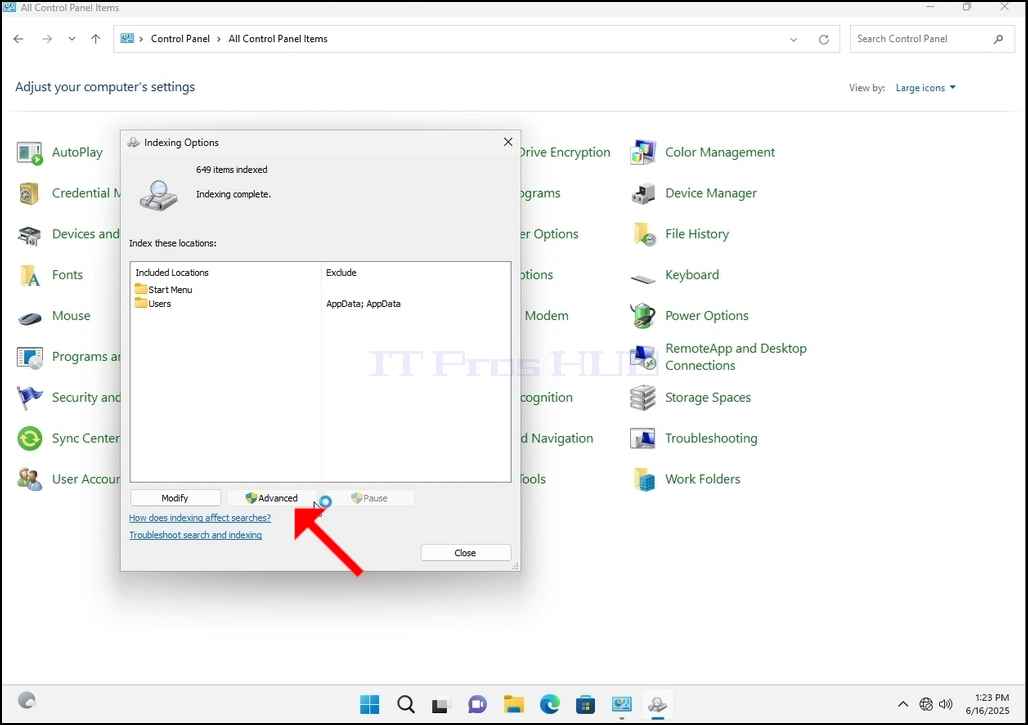
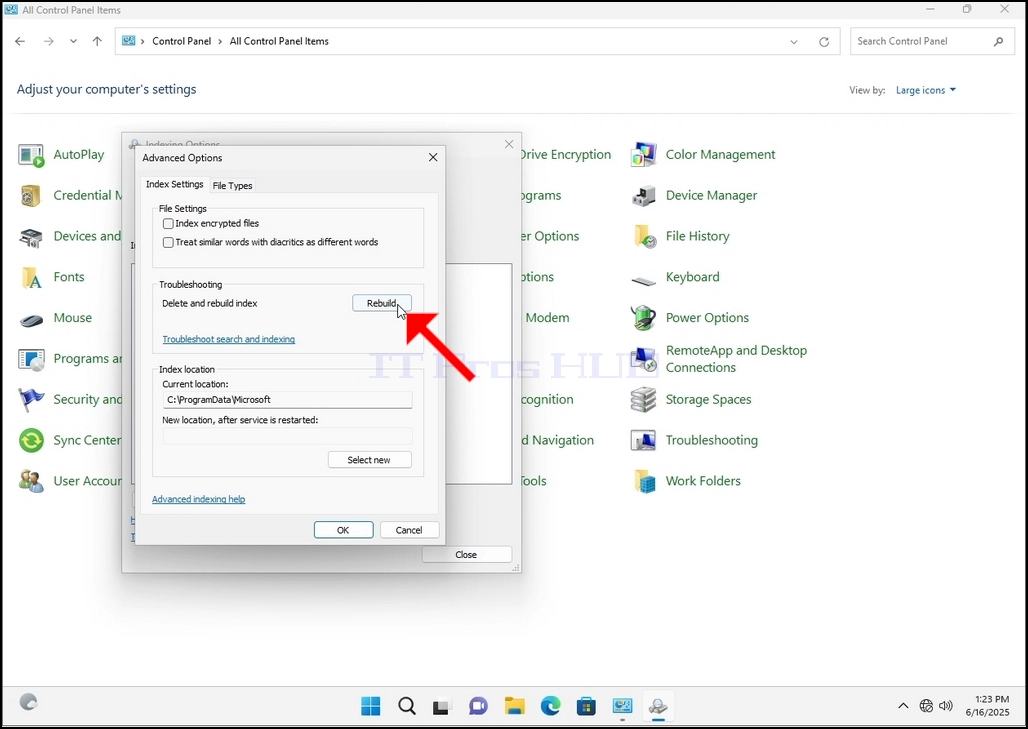
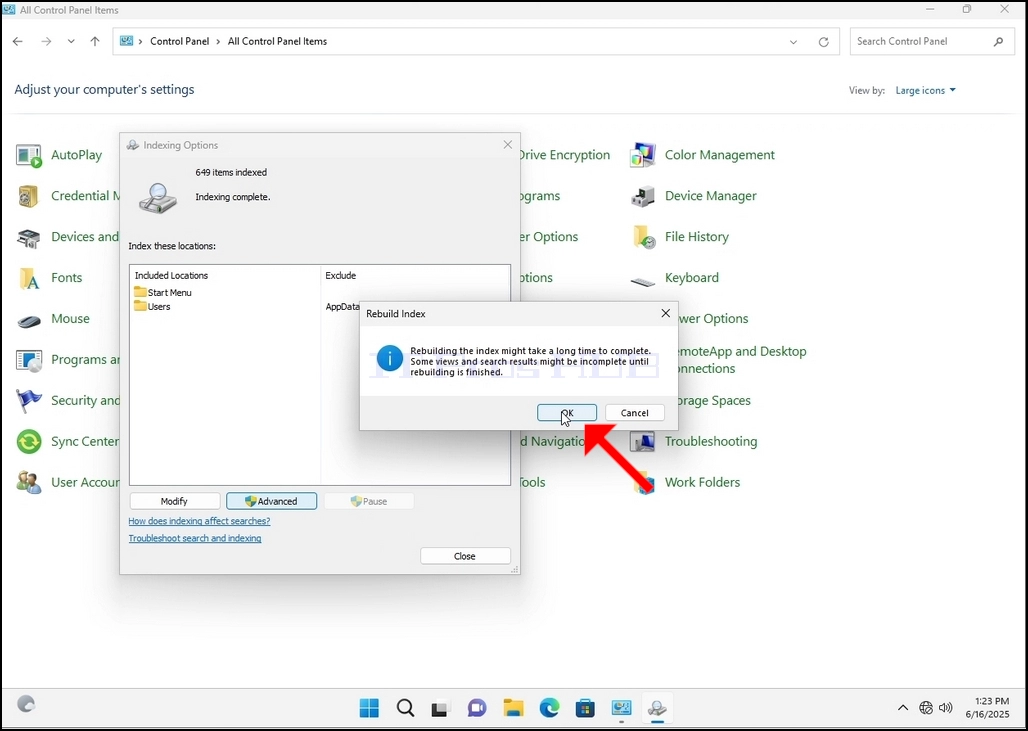
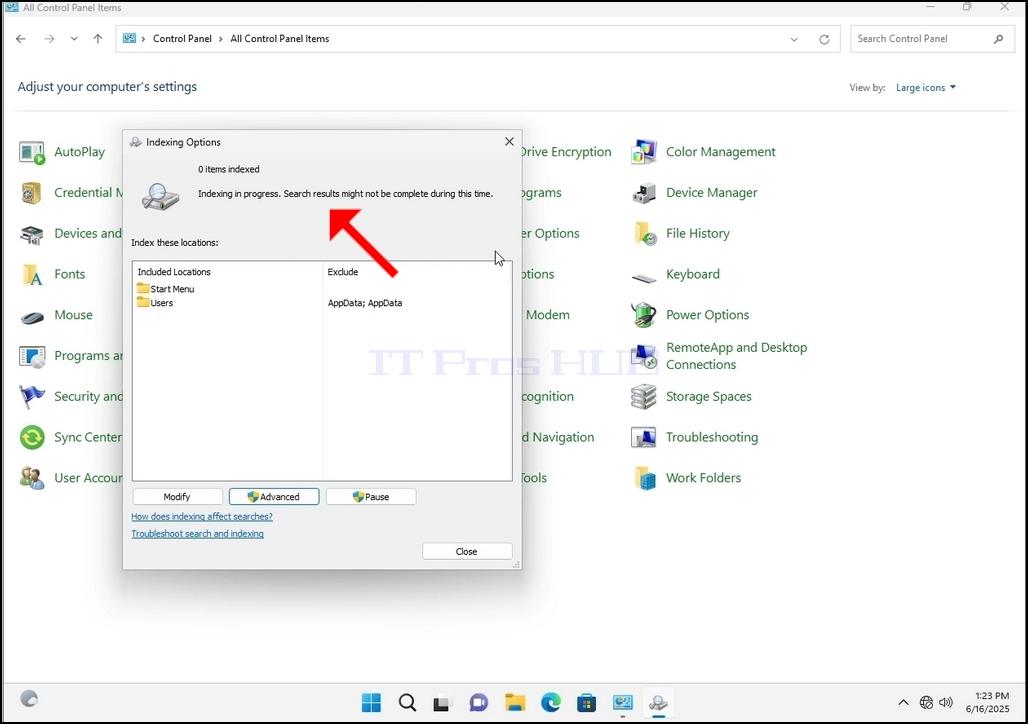
9. After clicking OK in the confirmation box, Windows will start rebuilding its index. It might take some time for the actual process to start, Wait patiently a few seconds to a few minutes. The moment the process starts, the "Indexing Complete" sentence will be replaced with "Indexing in progress. Search results might not be complete during this time."
In addition, the number of items indexed will be reset to 0 for a moment and then start to increase.
Note that All of the windows that are related to the Indexing process can now be closed and the rebuilding process would still be running the background.
Note that the Indexing process' speed might be reduced due to user activity on the computer. The more intense the activity the less the Indexing speed would be.
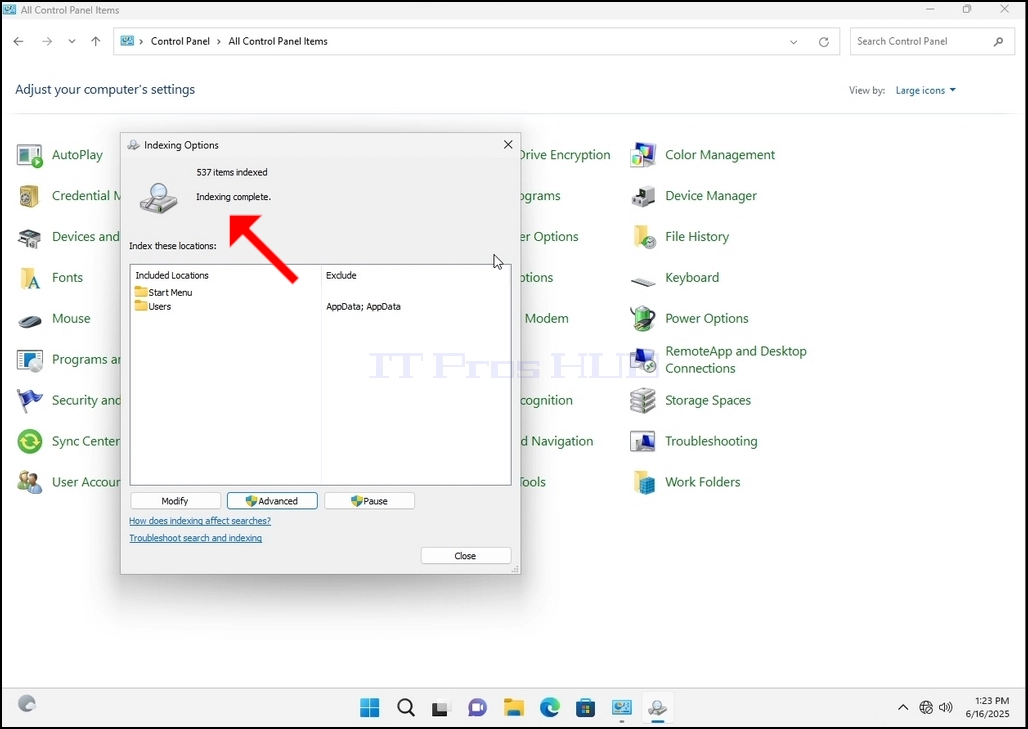
10. To check if the indexing process is done, go back to the Indexing Options through Control Panel as explained in the previous stages. If the process is complete, you would see the "Indexing Complete" sentence appears again.
Since Windows does not notify the user once this process is done, there is indeed a need to perform the latter mentioned. Depending on the number of files, folders, drivers and partitions marked for indexing, this process could take between a few minutes to a few hours.
- Détails
- Écrit par : IT Pro
- Catégorie : How to Articles
- Clics : 5230
1. Aller à Windows Desktop
2. Cliquez sur Démarrer
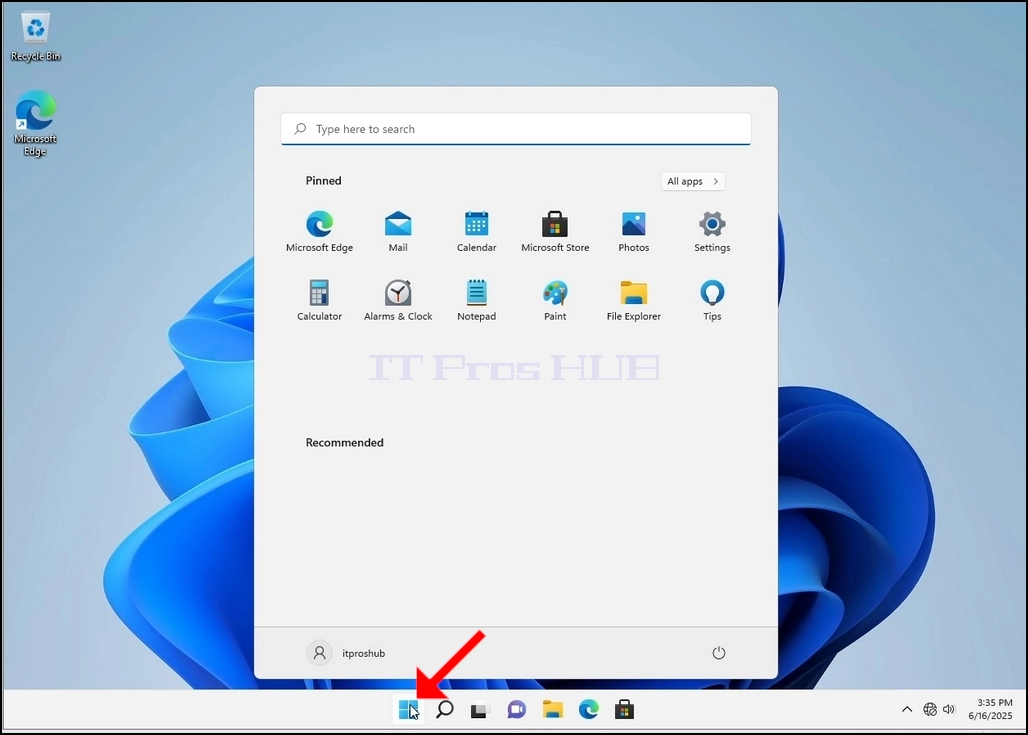
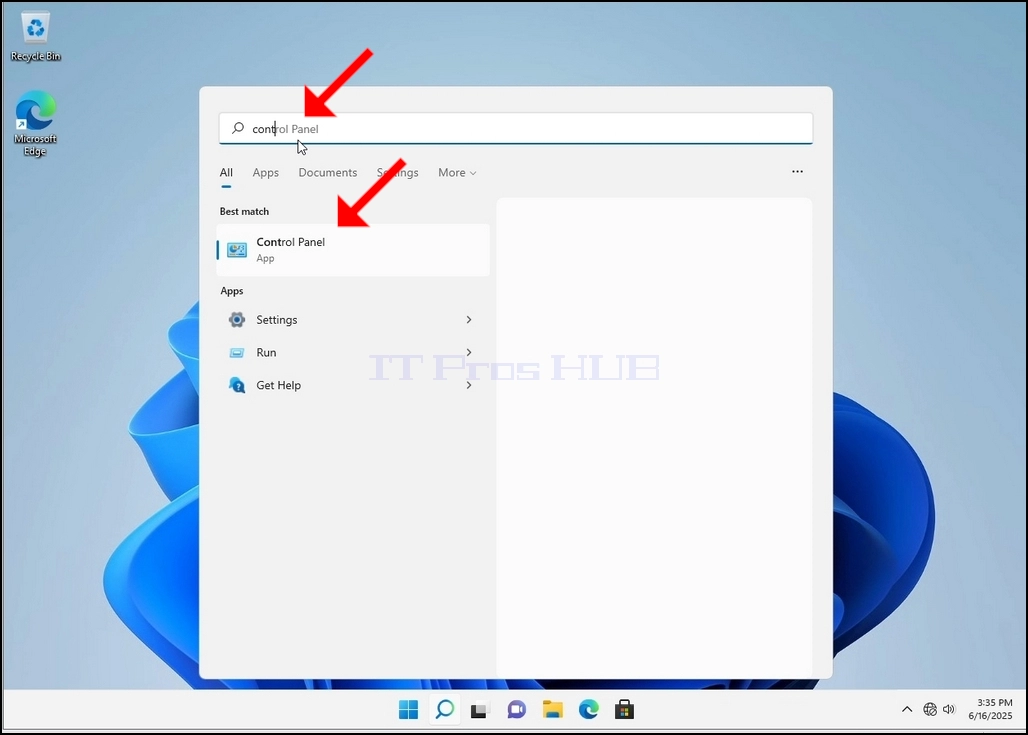
Une fois qu'il le trouve, cliquez dessus et attendez que la fenêtre du panneau de configuration apparaisse.
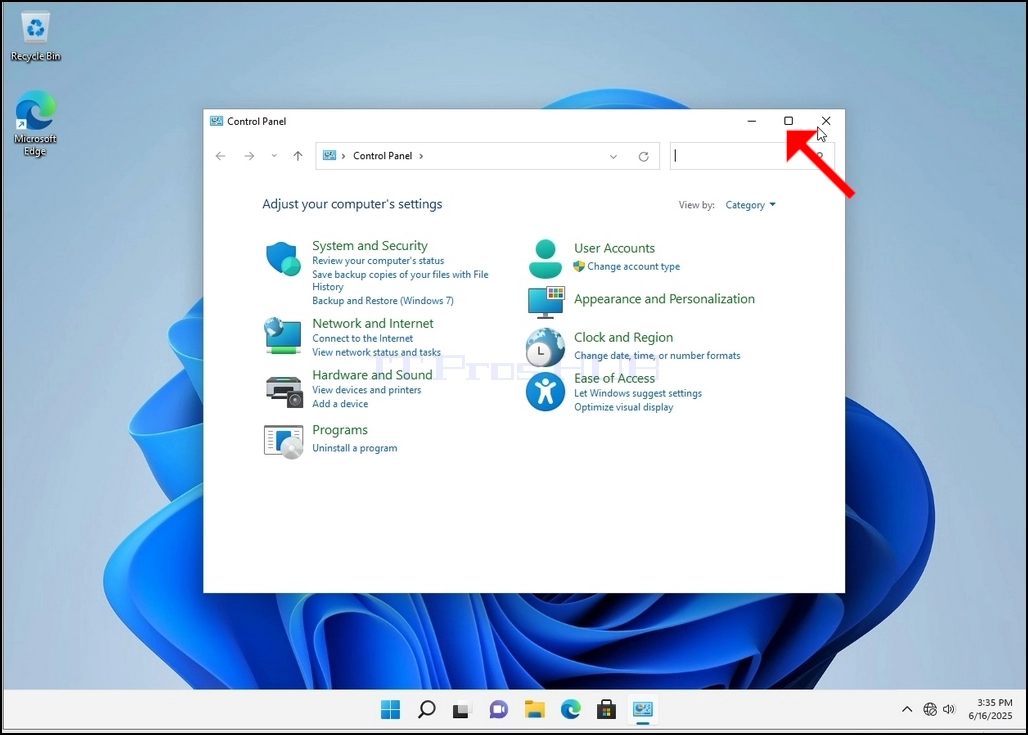
4. Lorsque la fenêtre du panneau de configuration est ouverte, l'agrandir en cliquant sur l'icône d'élargissement située en haut à droite de cette fenêtre.
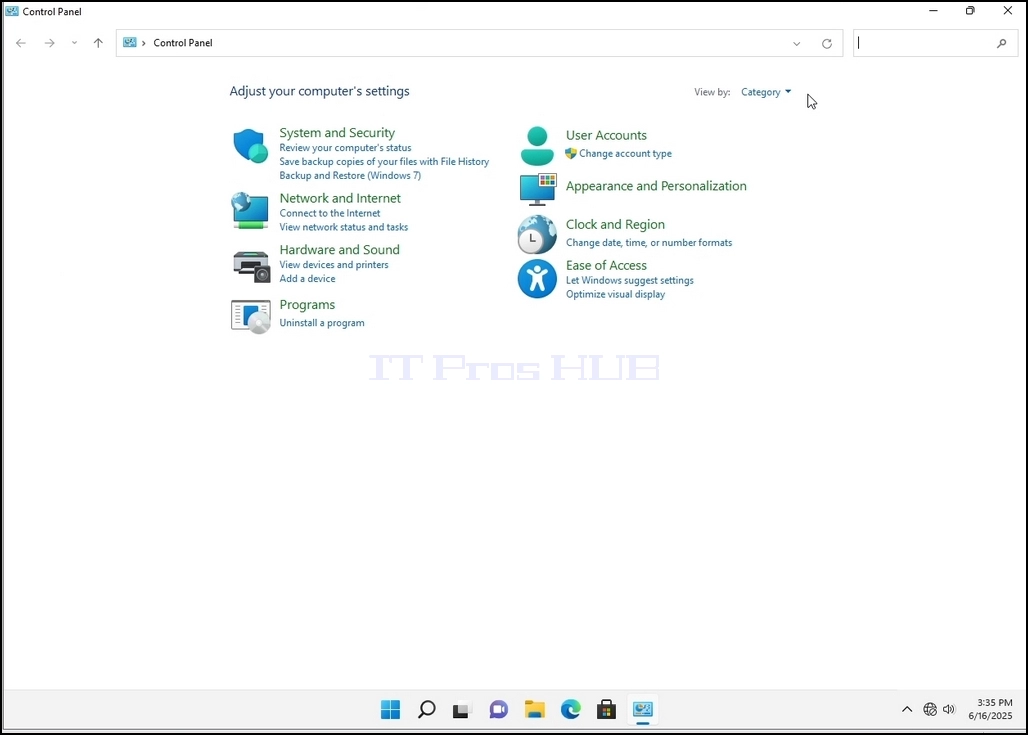
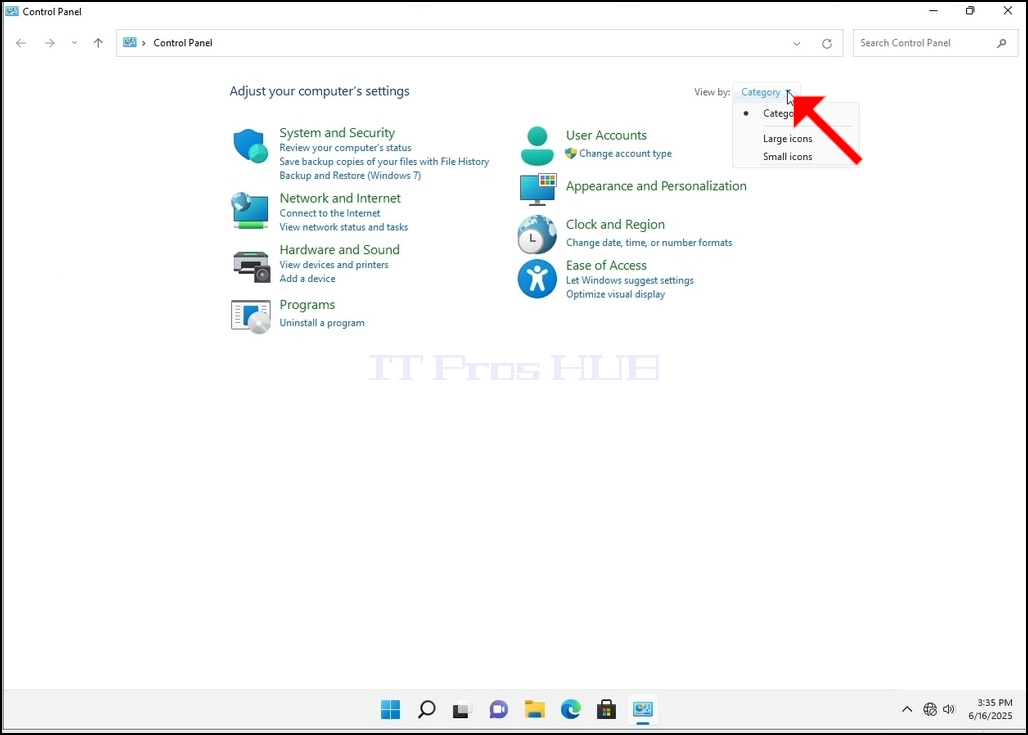
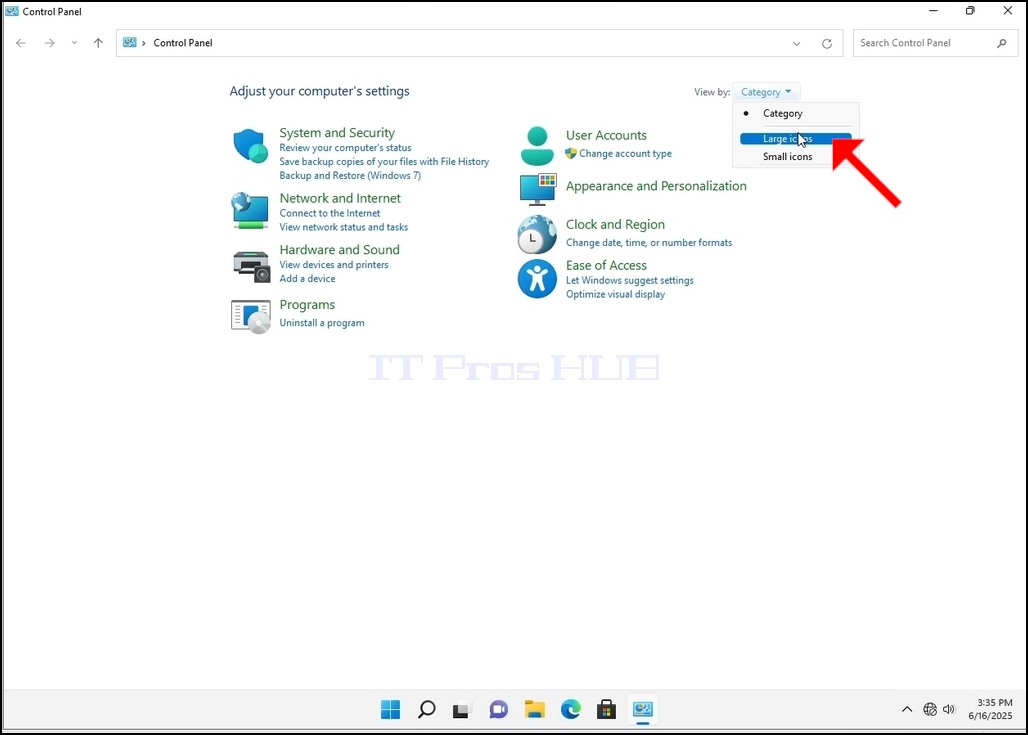
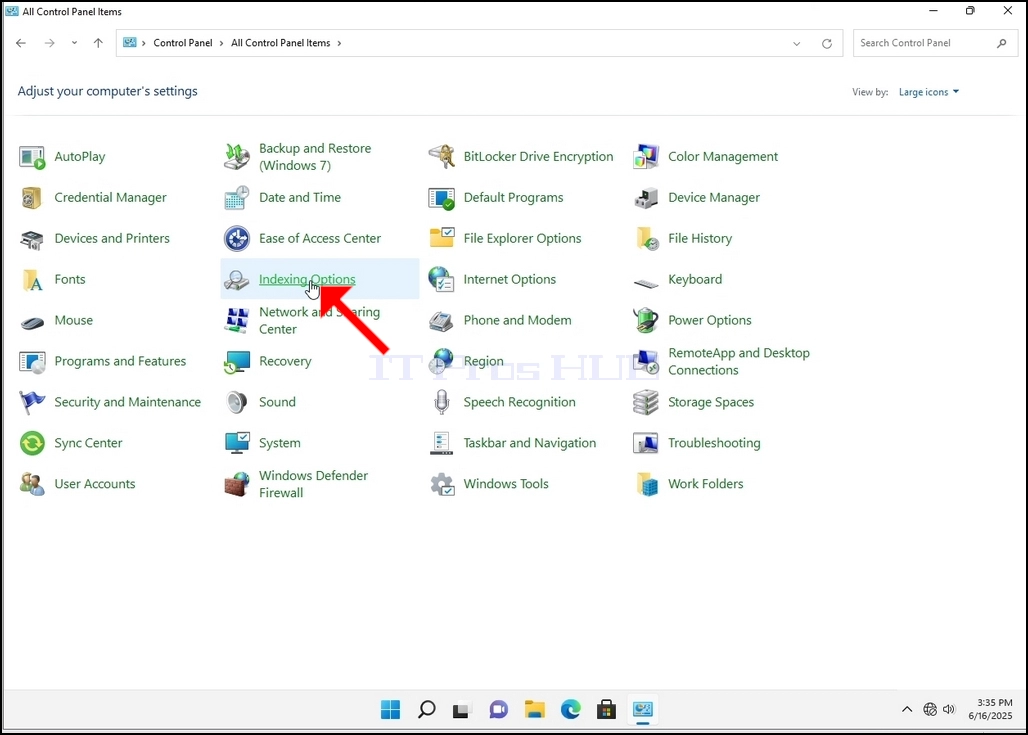
6. Recherchez l'icône Options d'indexation et cliquez dessus. Attendez que la fenêtre Options d'indexation apparaisse.
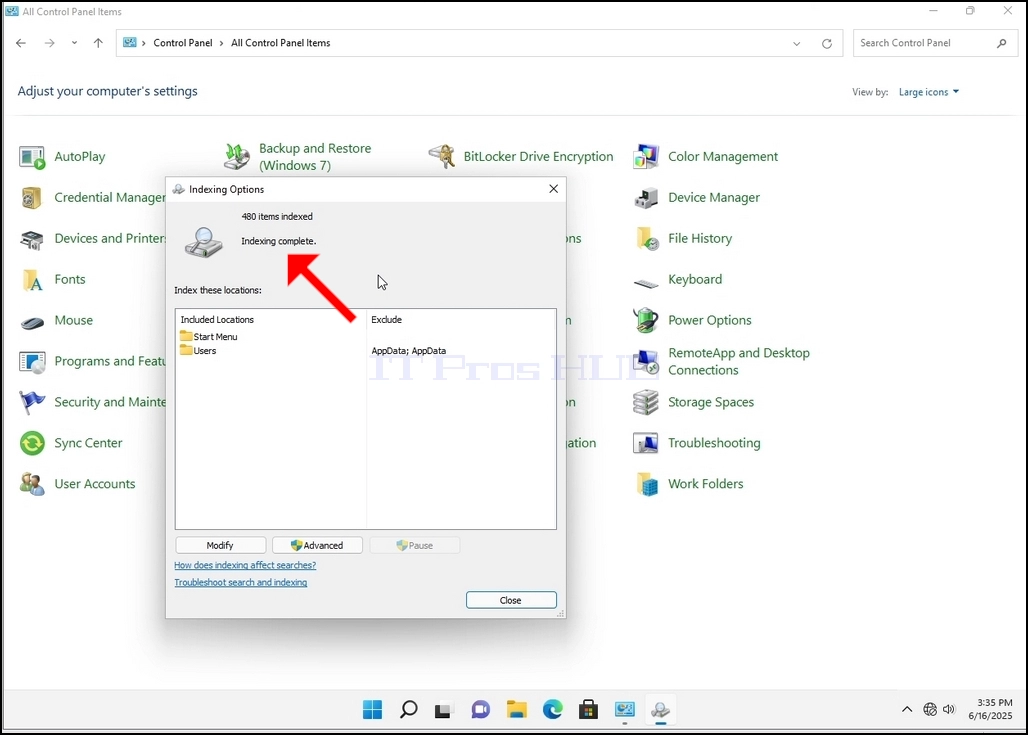
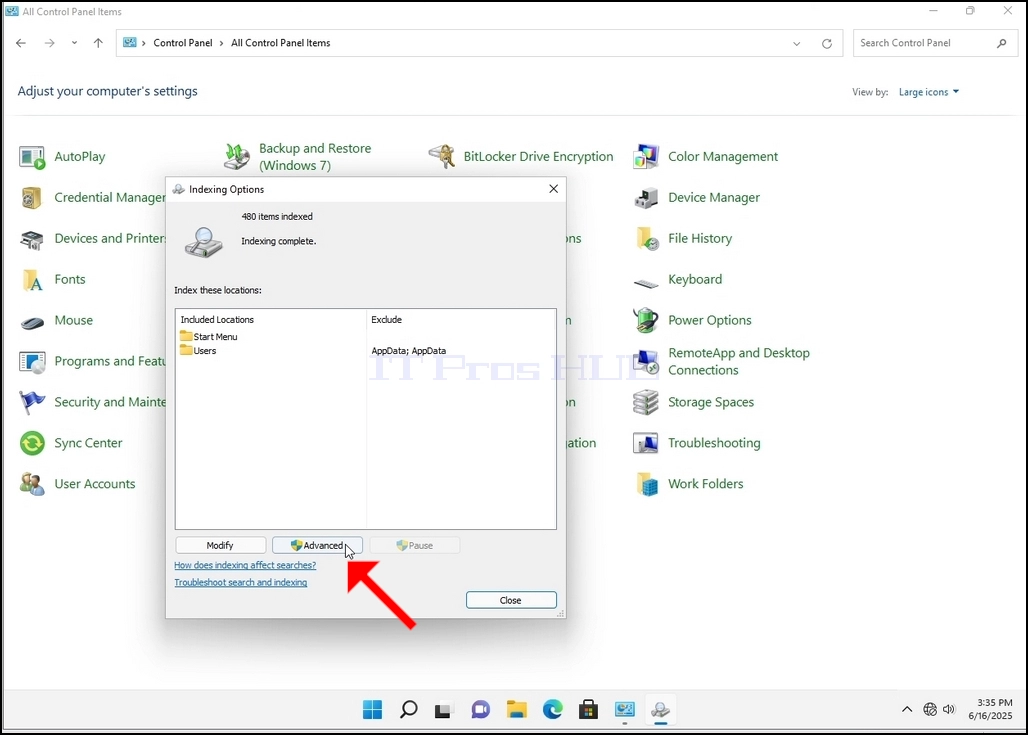
7. Une fois que la fenêtre Options d'indexation est ouverte, cliquez sur le bouton Avancé en bas de cette fenêtre.
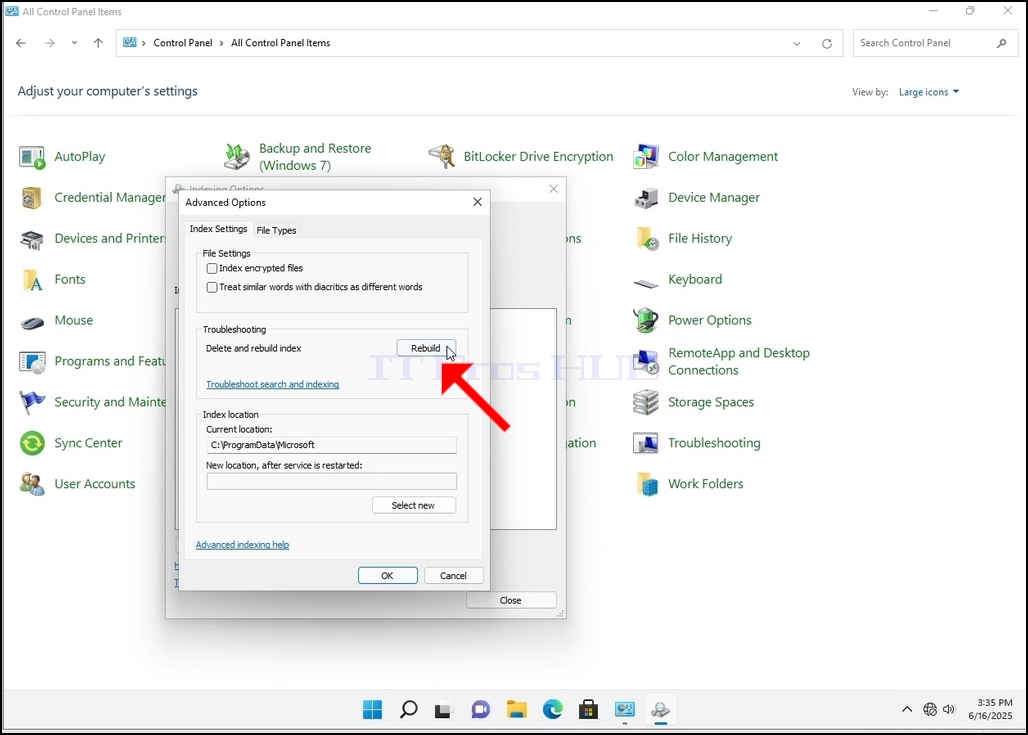
8. Dans la nouvelle fenêtre, recherchez le bouton Reconstruire et cliquez dessus. Ensuite, une boîte de confirmation apparaîtra. Cliquez sur le bouton OK pour commencer à reconstruire l'index.
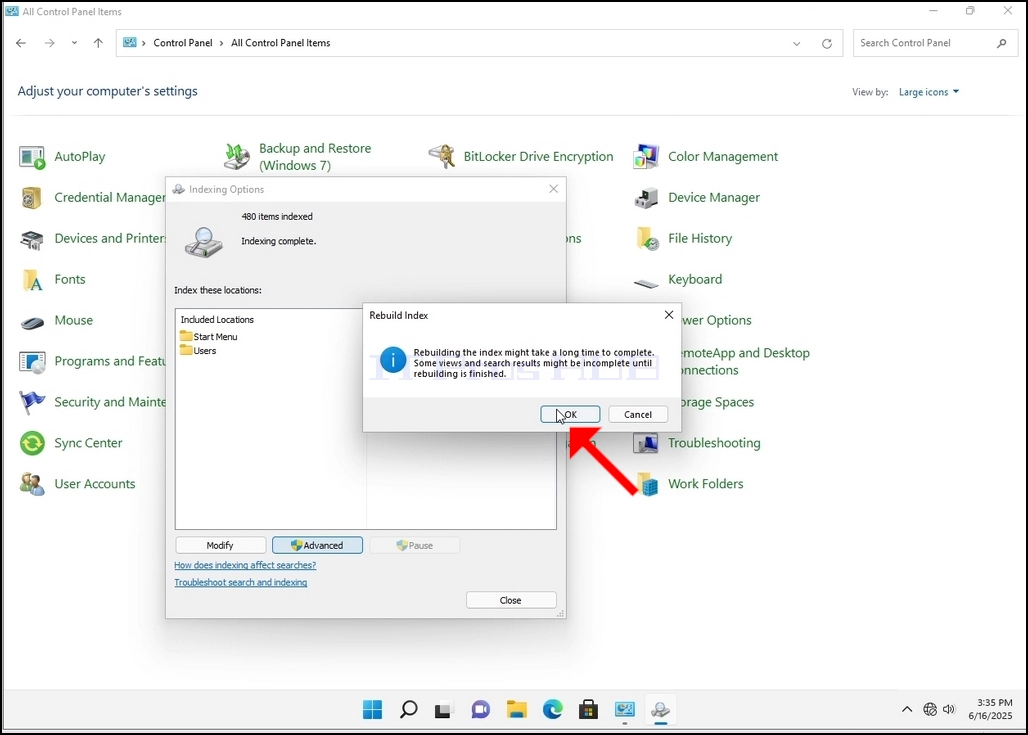
9. Après avoir cliqué sur OK dans la boîte de confirmation, Windows va commencer à reconstruire son index. Il pourrait prendre un certain temps pour le processus réel pour commencer, Attendez patiemment quelques secondes à quelques minutes. Au moment où le processus commence, le "Indexation terminée" la phrase sera remplacée par "Indexation en cours. Les résultats de la recherche pourraient ne pas être complets pendant cette période."
En outre, le nombre d'éléments indexés sera réinitialisé à 0 pour un moment, puis commencer à augmenter.
Notez que toutes les fenêtres qui sont liées au processus d'indexation peuvent maintenant être fermées et que le processus de reconstruction serait toujours en cours.
Notez que la vitesse du processus d'indexation pourrait être réduite en raison de l'activité de l'utilisateur sur l'ordinateur. Plus l'activité serait intense moins la vitesse d'indexation serait élevée.
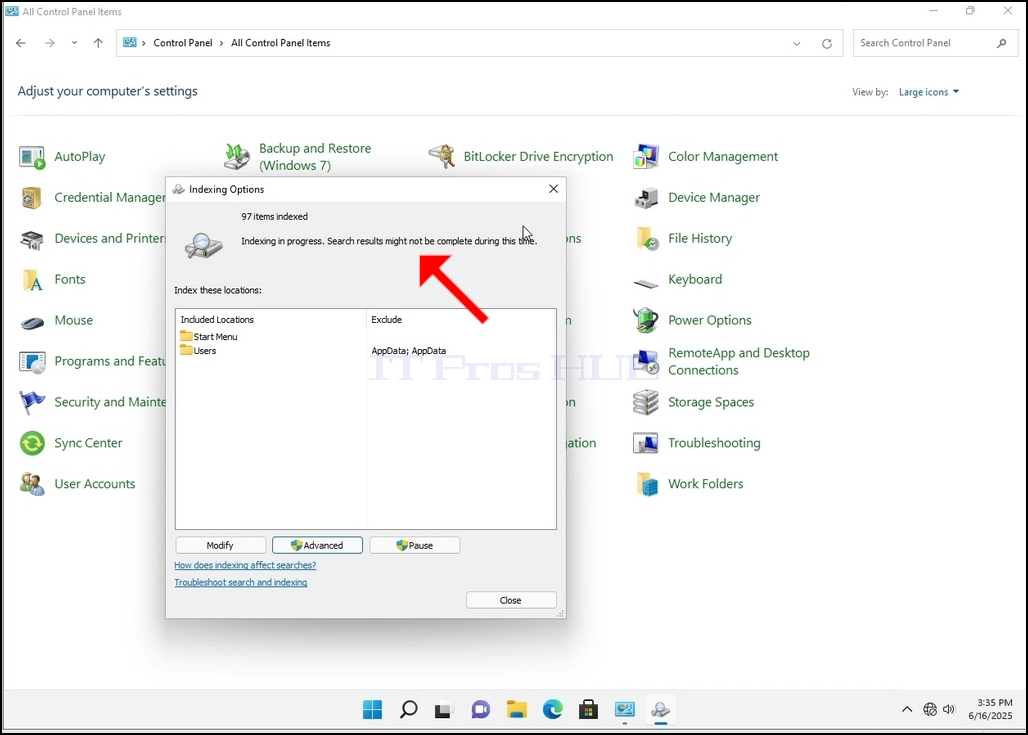
10. Pour vérifier si le processus d'indexation est effectué, retournez à l'indexage Options via le panneau de contrôle comme expliqué aux étapes précédentes. Si le processus est terminé, vous verrez le "Indexation terminée" la phrase apparaît à nouveau.
Puisque Windows n'avise pas l'utilisateur une fois ce processus fait, il est en effet nécessaire d'exécuter ce dernier mentionné. Selon le nombre de fichiers, dossiers, pilotes et partitions marqués pour l'indexation, ce processus pourrait prendre de quelques minutes à quelques heures.
- Détails
- Écrit par : IT Pro
- Catégorie : How to Articles
- Clics : 5512
1. Aller à Windows Desktop
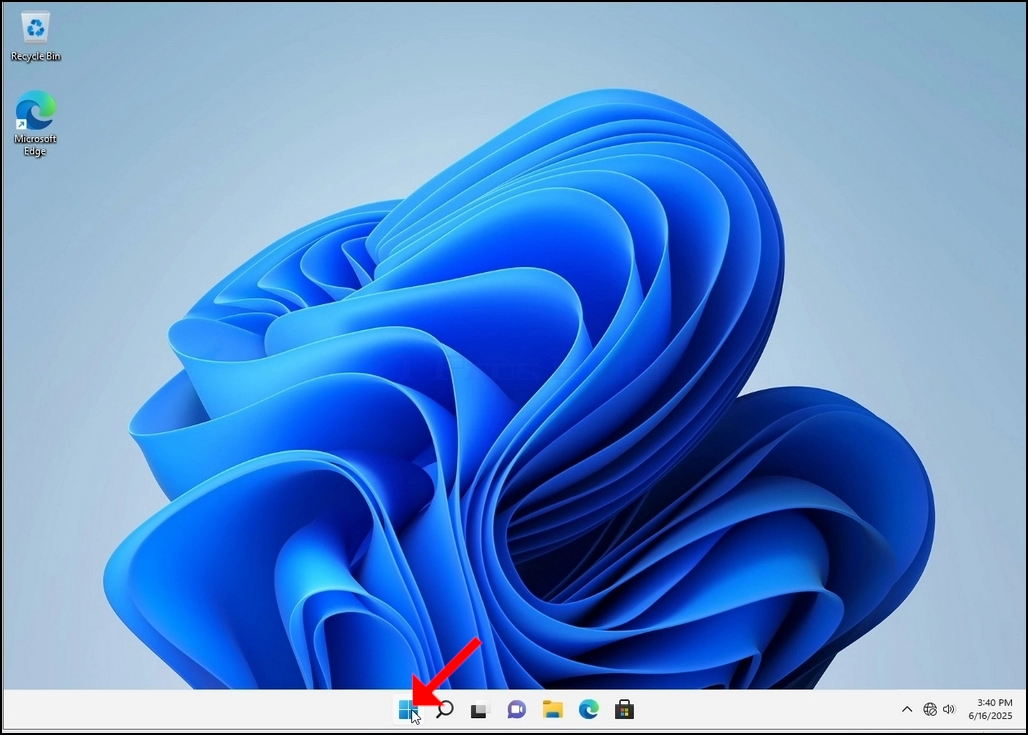
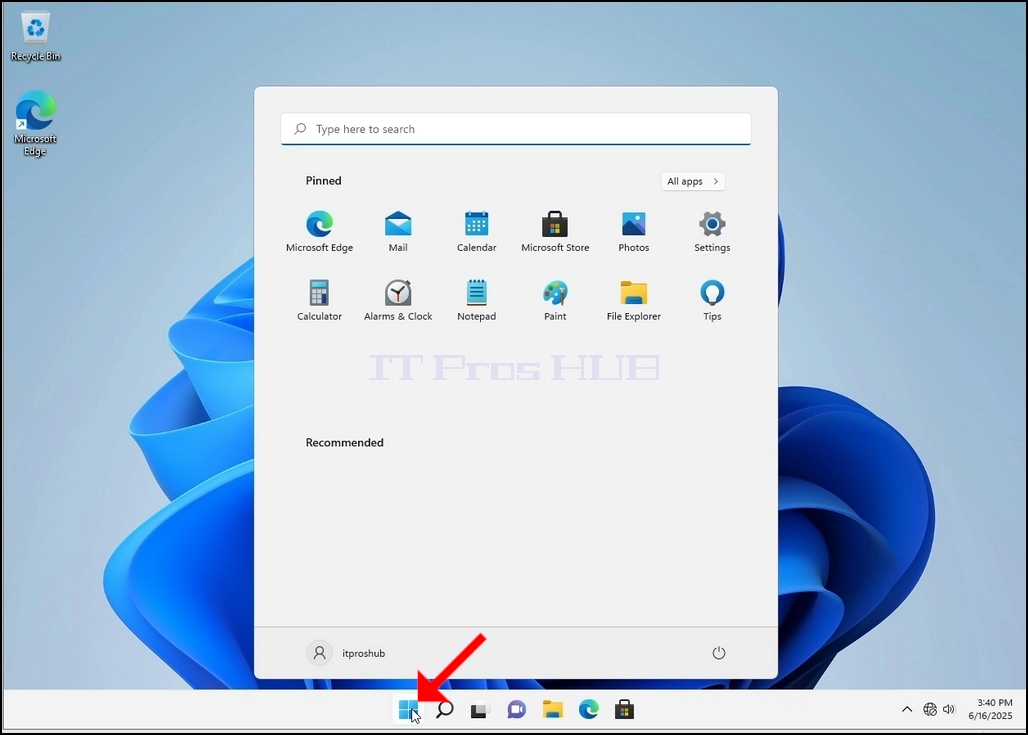
2. Cliquez sur Démarrer
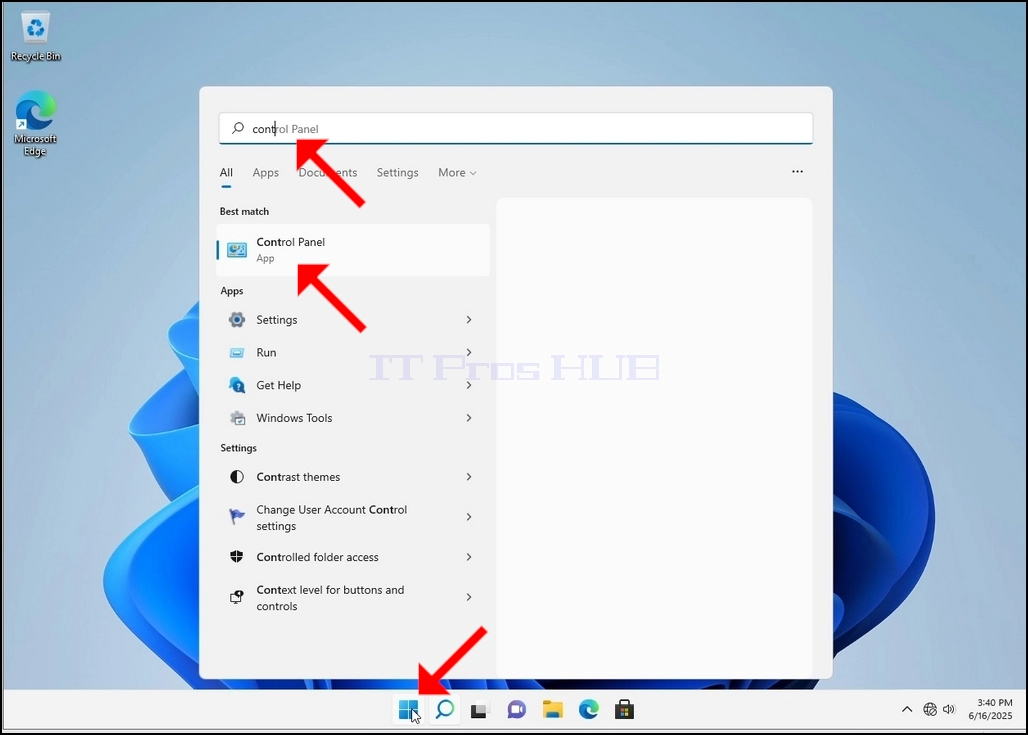
Une fois qu'il le trouve, cliquez dessus et attendez que la fenêtre du panneau de configuration apparaisse.
4. Lorsque la fenêtre du panneau de configuration est ouverte, l'agrandir en cliquant sur l'icône d'élargissement située en haut à droite de cette fenêtre.
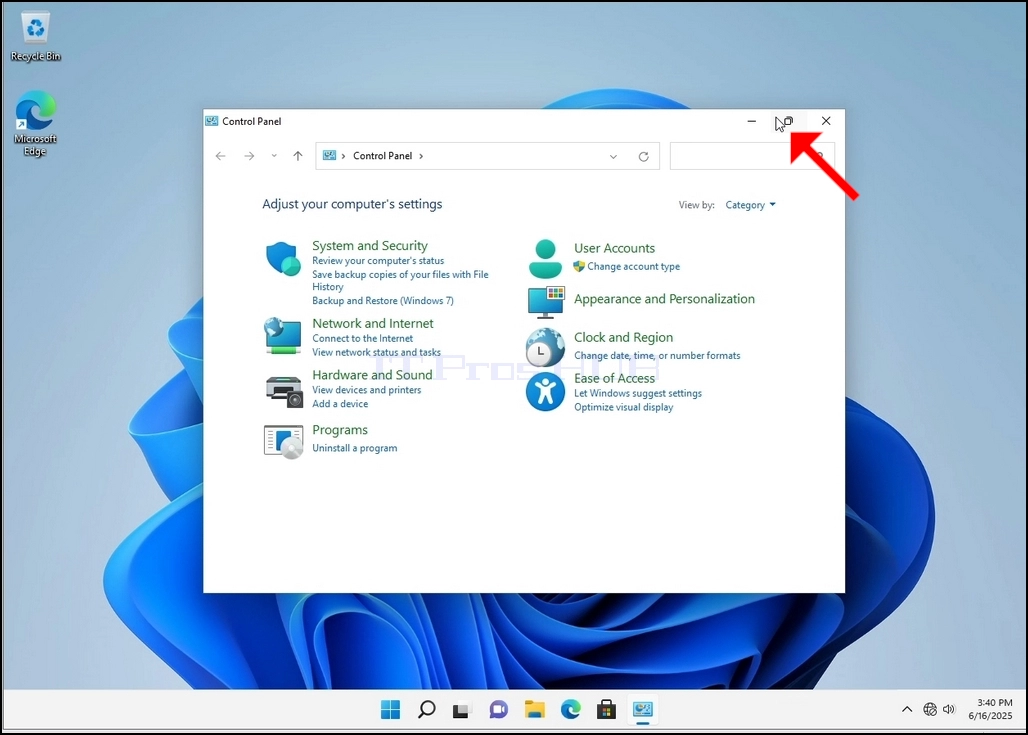
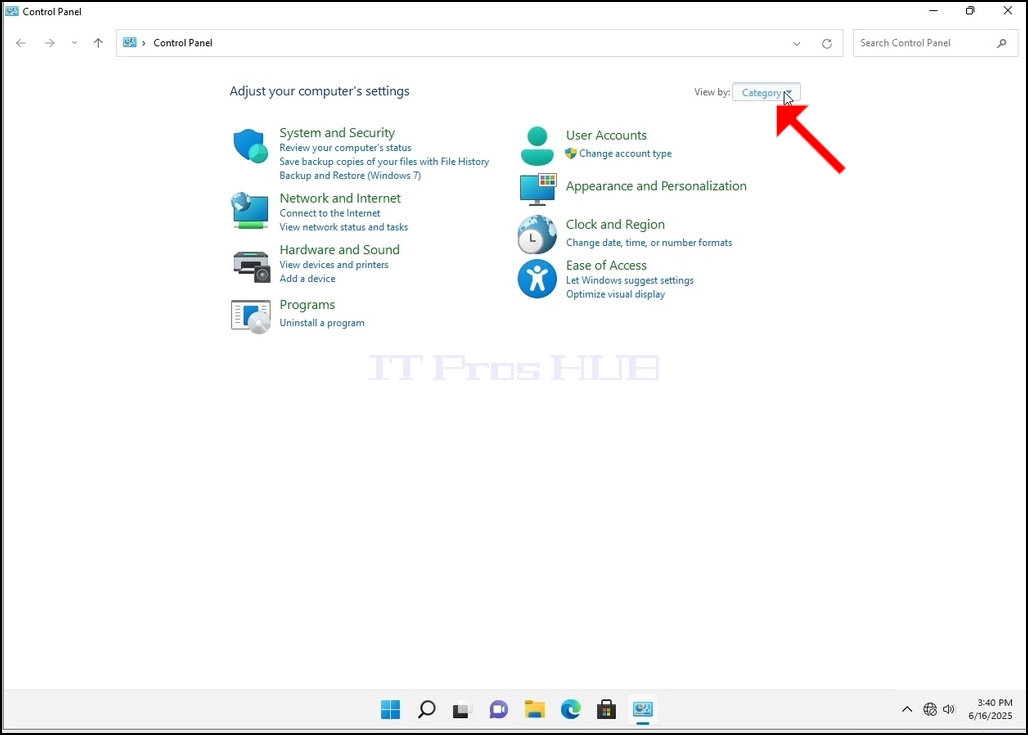
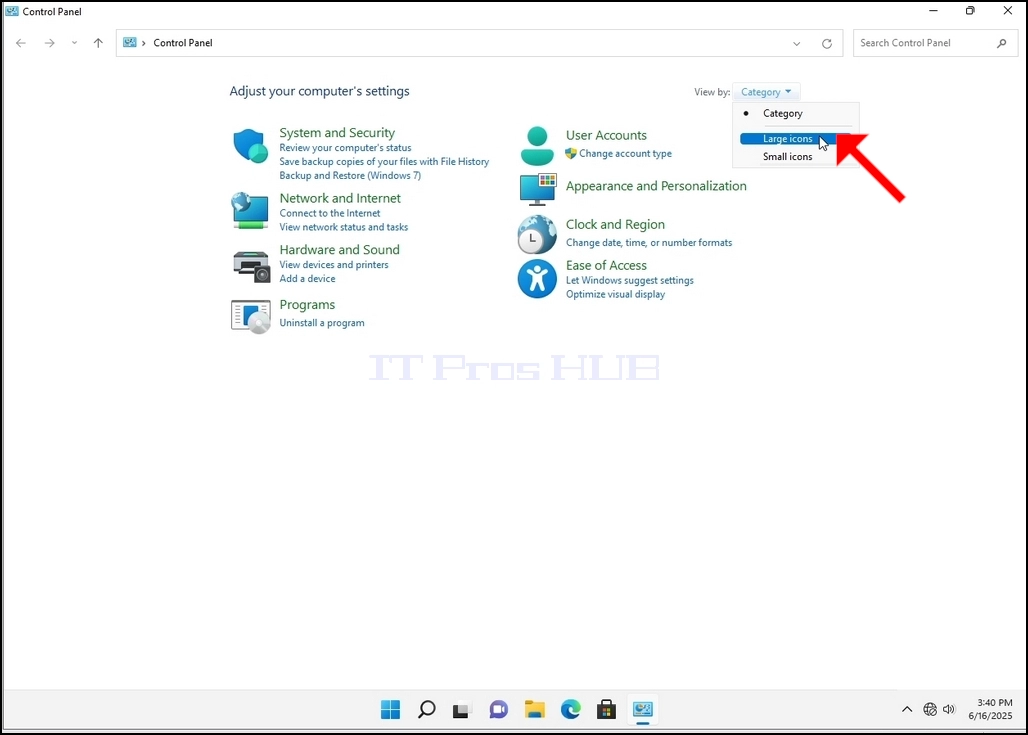
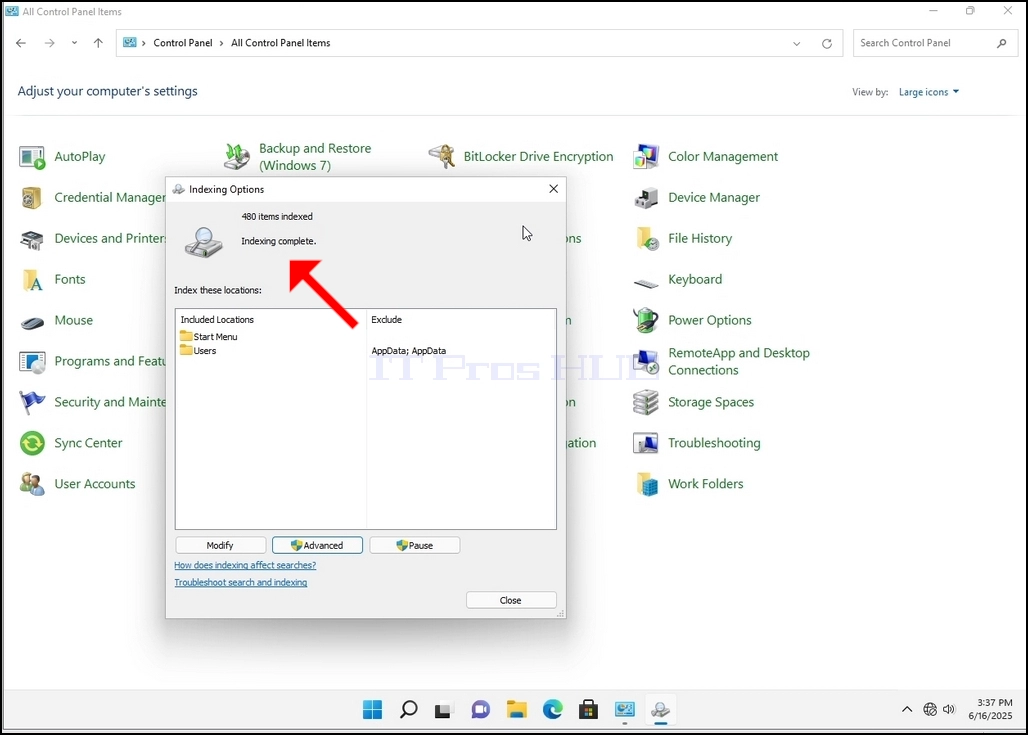
6. Recherchez l'icône Options d'indexation et cliquez dessus. Attendez que la fenêtre Options d'indexation apparaisse.
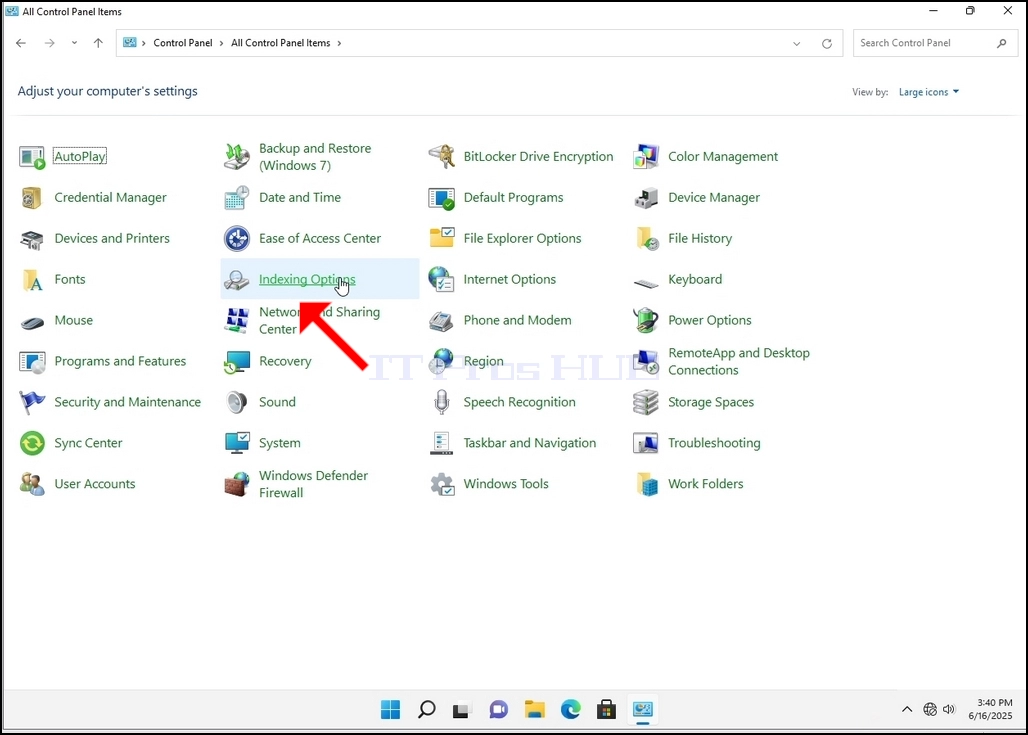
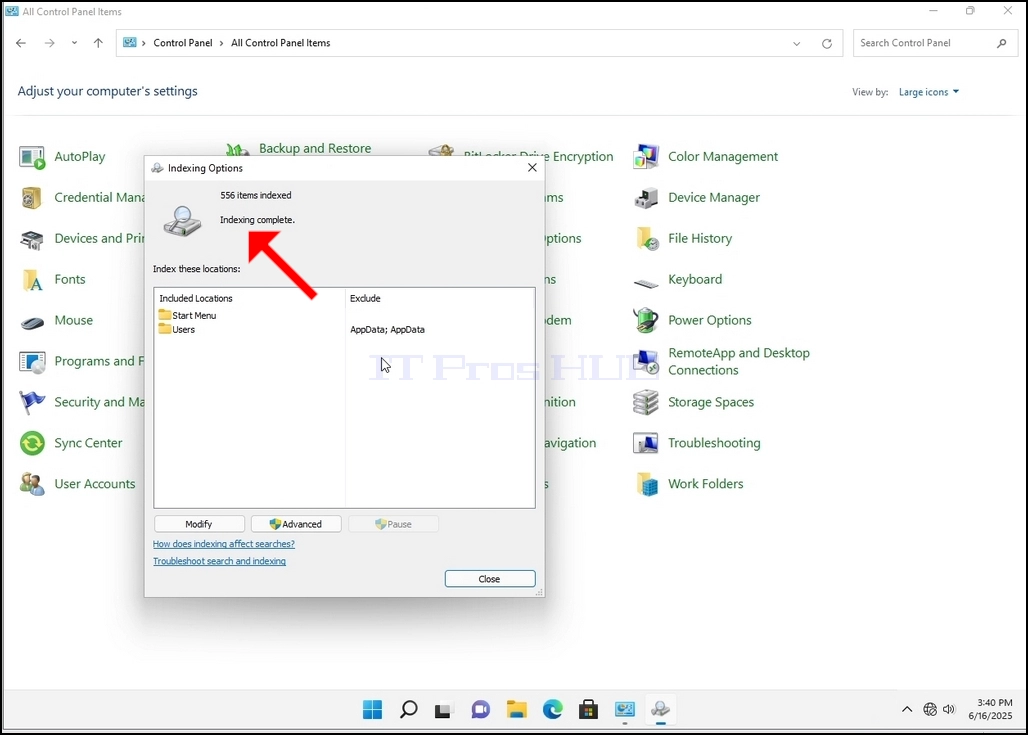
7. Une fois que la fenêtre Options d'indexation est ouverte, cliquez sur le bouton Avancé en bas de cette fenêtre.
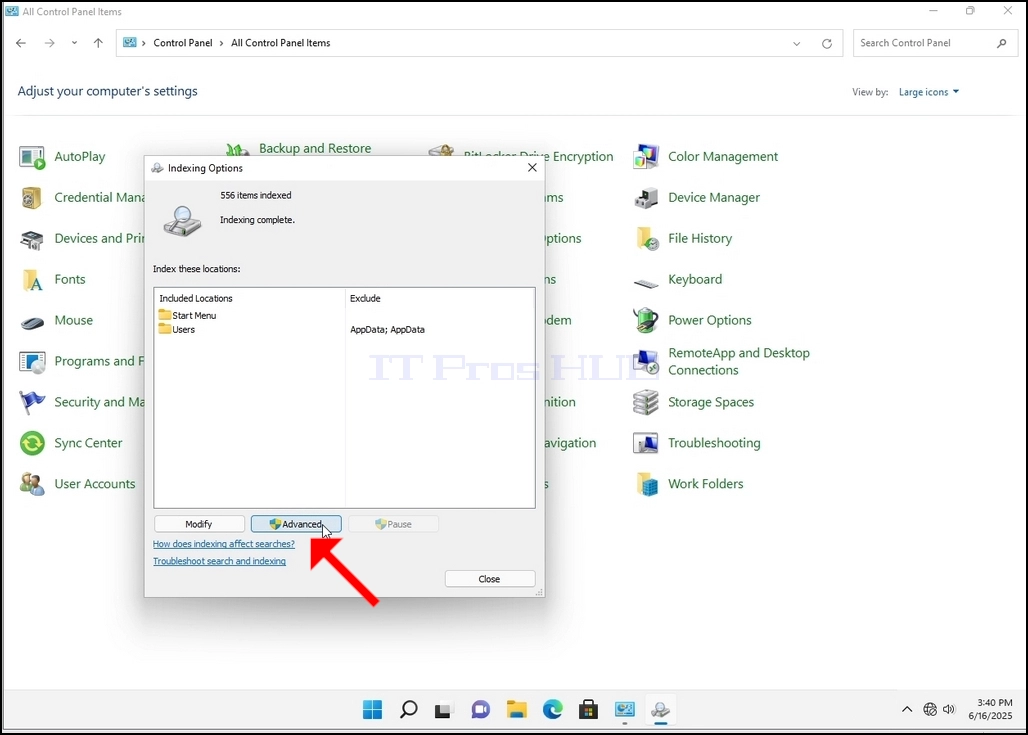
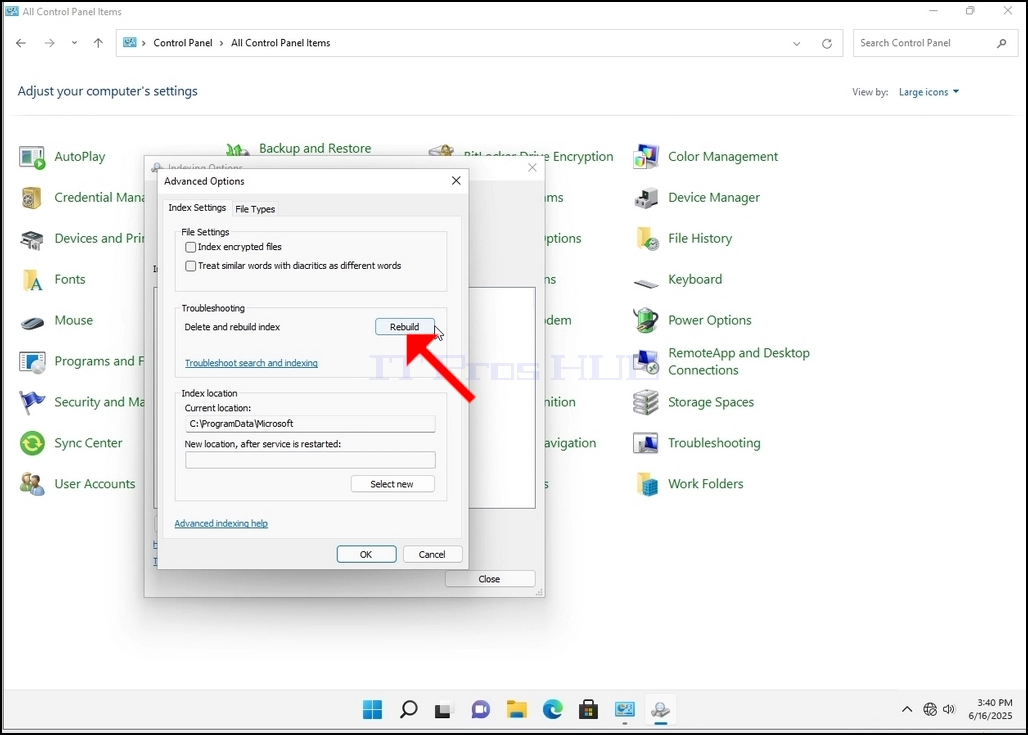
8. Dans la nouvelle fenêtre, recherchez le bouton Reconstruire et cliquez dessus. Ensuite, une boîte de confirmation apparaîtra. Cliquez sur le bouton OK pour commencer à reconstruire l'index.
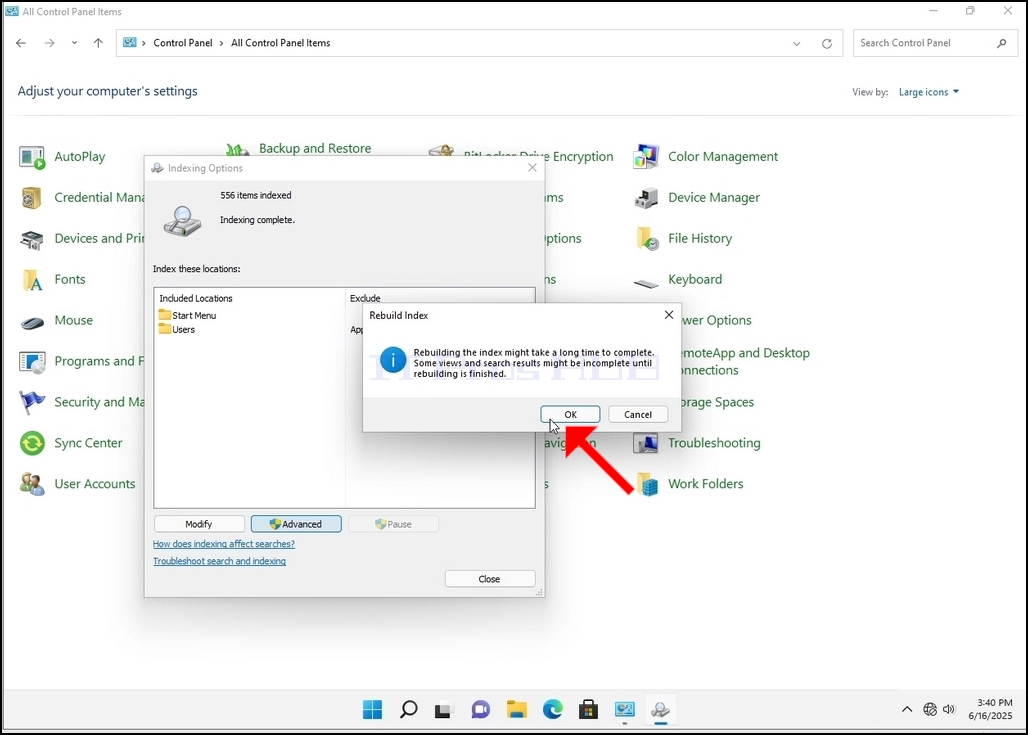
9. Après avoir cliqué sur OK dans la boîte de confirmation, Windows va commencer à reconstruire son index. Il pourrait prendre un certain temps pour le processus réel pour commencer, Attendez patiemment quelques secondes à quelques minutes. Au moment où le processus commence, le "Indexation terminée" la phrase sera remplacée par "Indexation en cours. Les résultats de la recherche pourraient ne pas être complets pendant cette période."
En outre, le nombre d'éléments indexés sera réinitialisé à 0 pour un moment, puis commencer à augmenter.
Notez que toutes les fenêtres qui sont liées au processus d'indexation peuvent maintenant être fermées et que le processus de reconstruction serait toujours en cours.
Notez que la vitesse du processus d'indexation pourrait être réduite en raison de l'activité de l'utilisateur sur l'ordinateur. Plus l'activité serait intense moins la vitesse d'indexation serait élevée.
10. Pour vérifier si le processus d'indexation est effectué, retournez à l'indexage Options via le panneau de contrôle comme expliqué aux étapes précédentes. Si le processus est terminé, vous verrez le "Indexation terminée" la phrase apparaît à nouveau.
Puisque Windows n'avise pas l'utilisateur une fois ce processus fait, il est en effet nécessaire d'exécuter ce dernier mentionné. Selon le nombre de fichiers, dossiers, pilotes et partitions marqués pour l'indexation, ce processus pourrait prendre de quelques minutes à quelques heures.
- Comment reconstruire l'indexation dans Windows 11 21H2 x64 Pro pour les postes de travail construire 22000.194
- Comment reconstruire l'indexation dans Windows 11 21H2 x64 Pro Education N construire 22000.194
- Comment reconstruire l'indexation dans Windows 11 21H2 x64 Pro Education Build 22000.194
- Comment reconstruire l'indexation dans Windows 11 21H2 x64 Pro Build 22000.194