



- Détails
- Écrit par : IT Pro
- Catégorie : How to Articles
- Clics : 5362
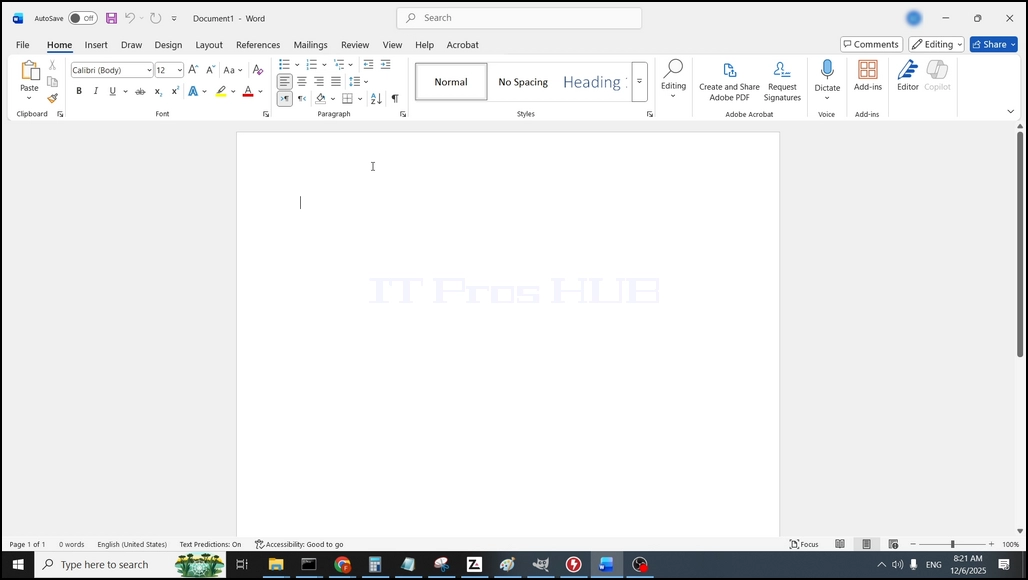
1. Ouvrez Microsoft Word
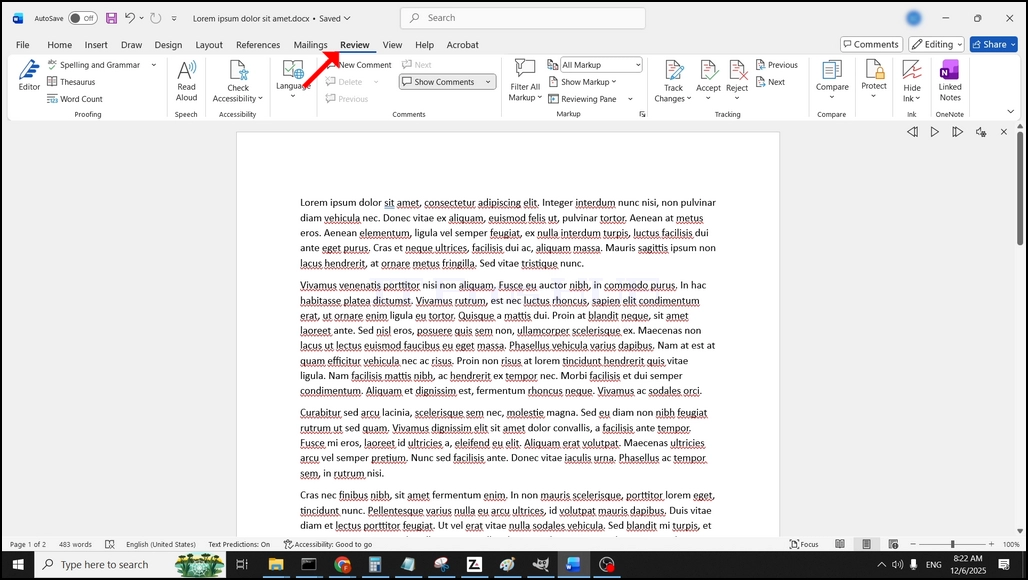
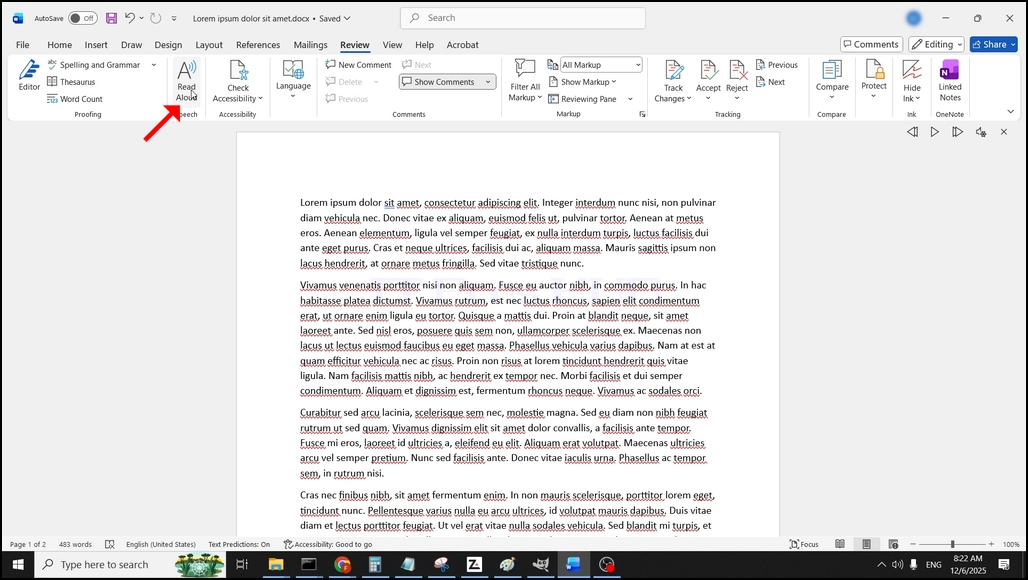
3. Sous examen, cherchez un grand "A" icône qui dit "Lire à haute voix"et cliquez dessus pour activer la fonction Texte à la parole de Word:
- Détails
- Écrit par : IT Pro
- Catégorie : How to Articles
- Clics : 5742
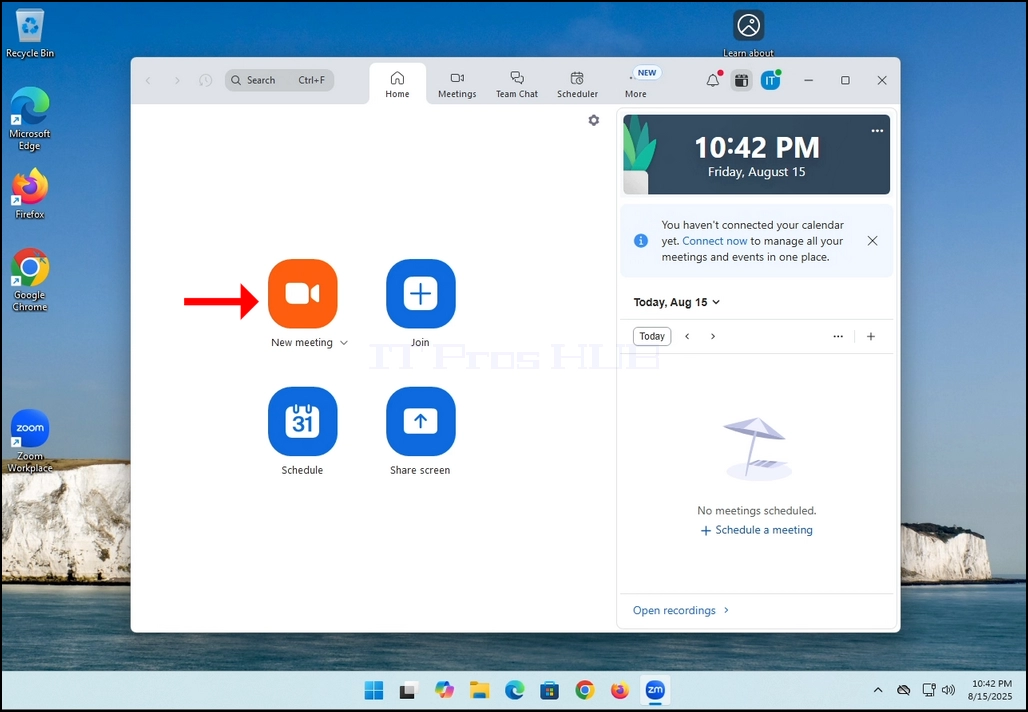
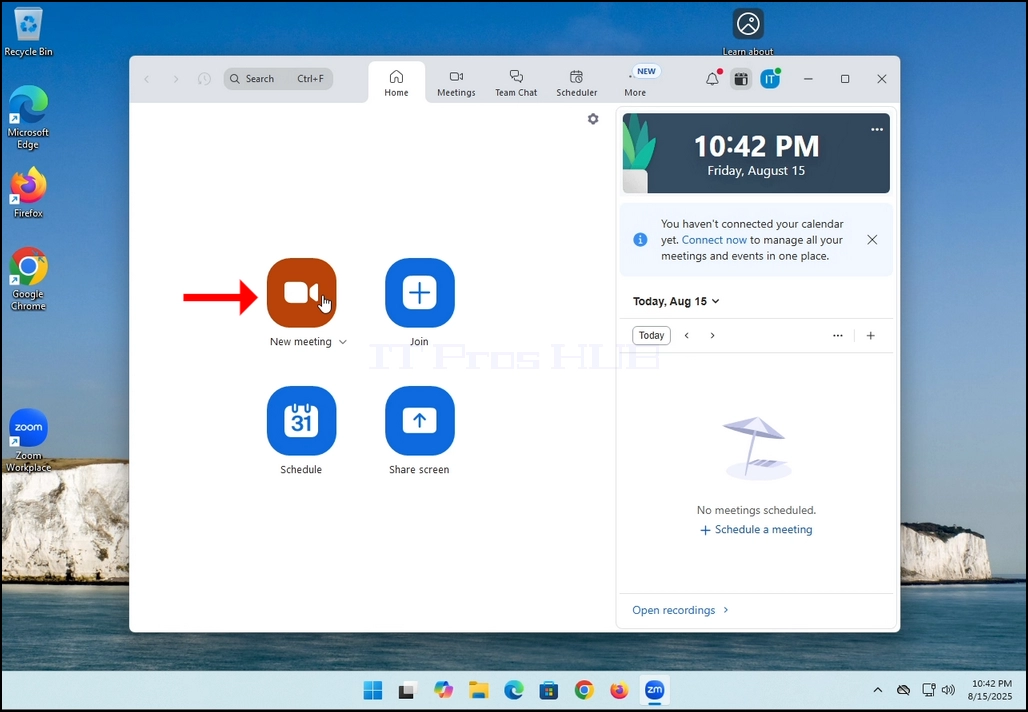
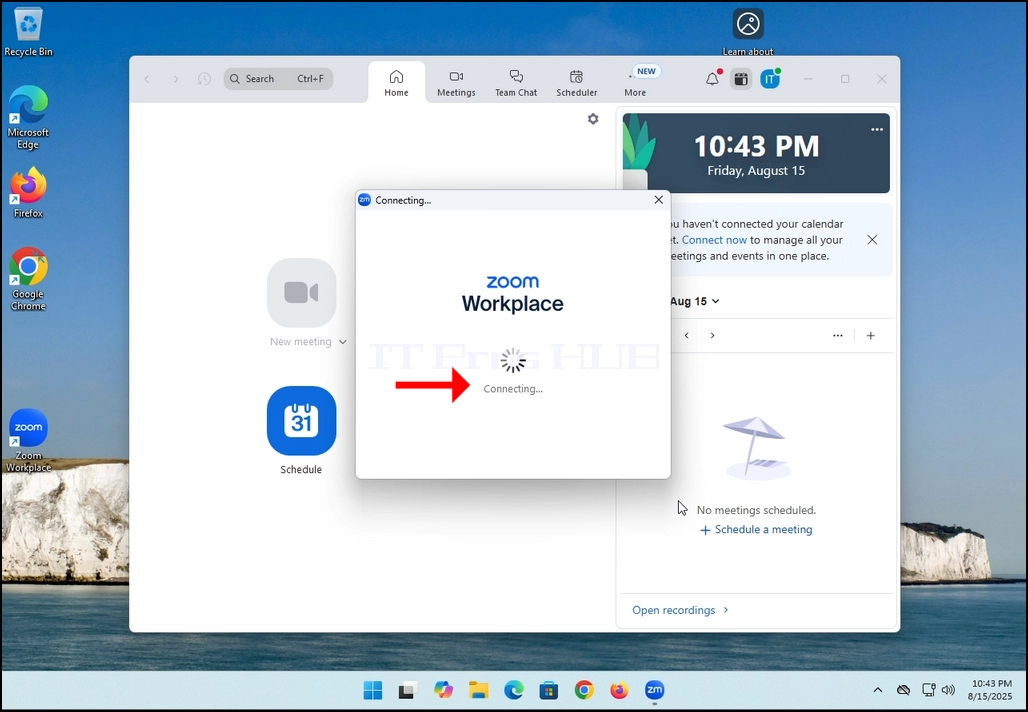
2. Once clicked, a new small window should appear. The window will show "connecting" and an animation progress circle.
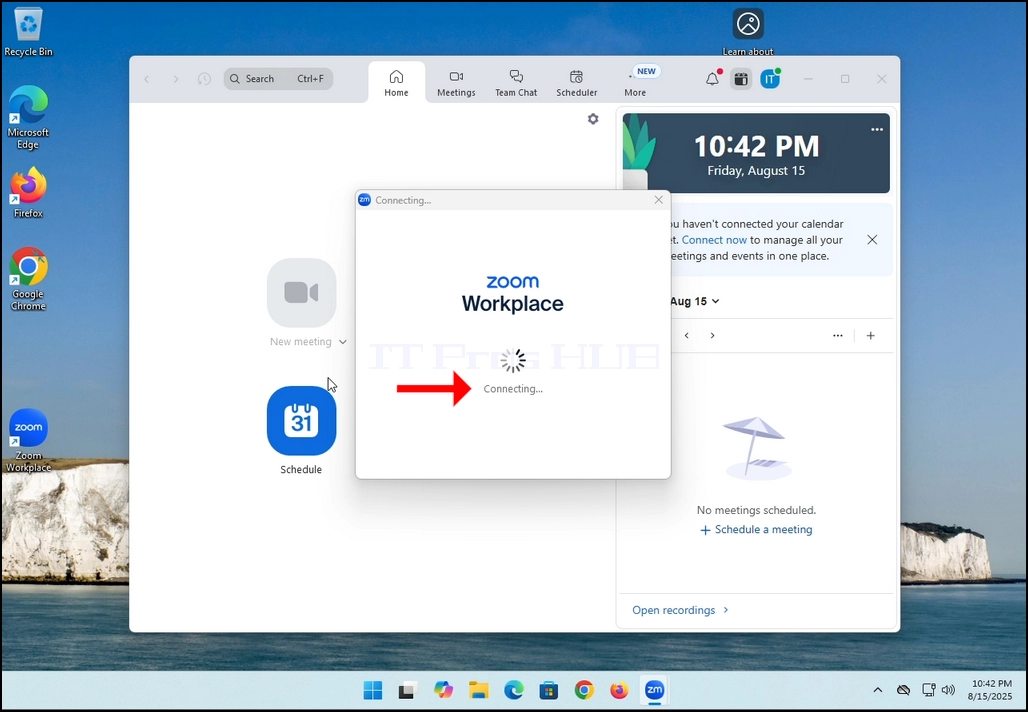
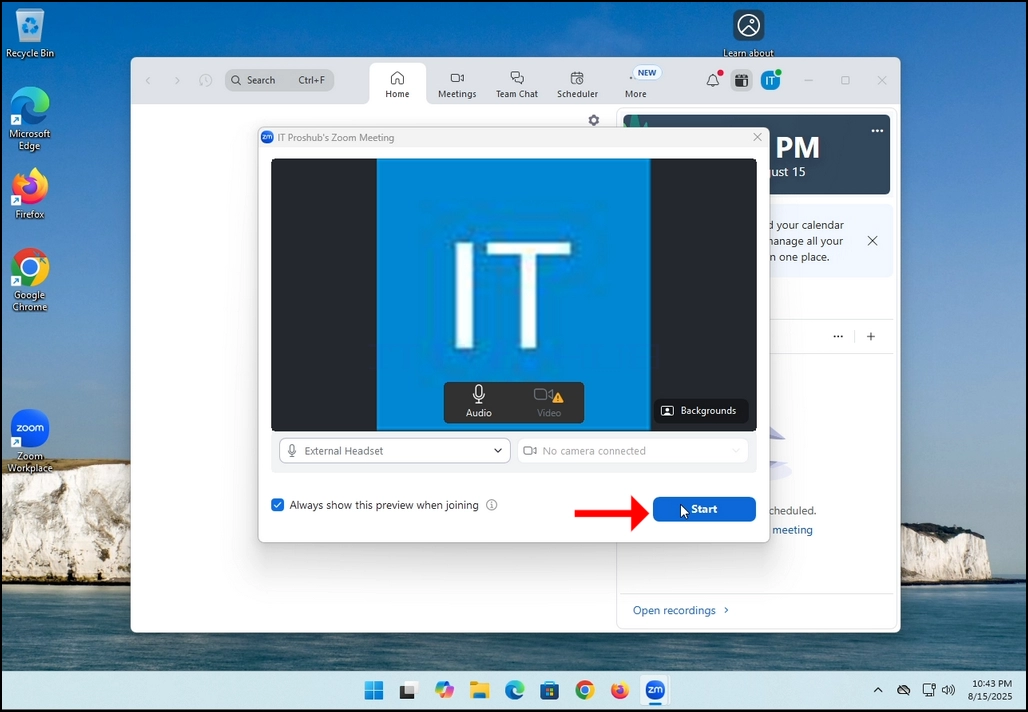
3. Once it's done loading, a new window will appear. Usually its title should say something along the lines of: "User's Zoom Meeting". In this article's case, it says "IT Proshub's Zoom Meeting" since the user that uses Zoom is called that way.
4. Here, you can mute your mic by clicking on the mic icon and you can also turn your camera off/on by clicking the Video icon.
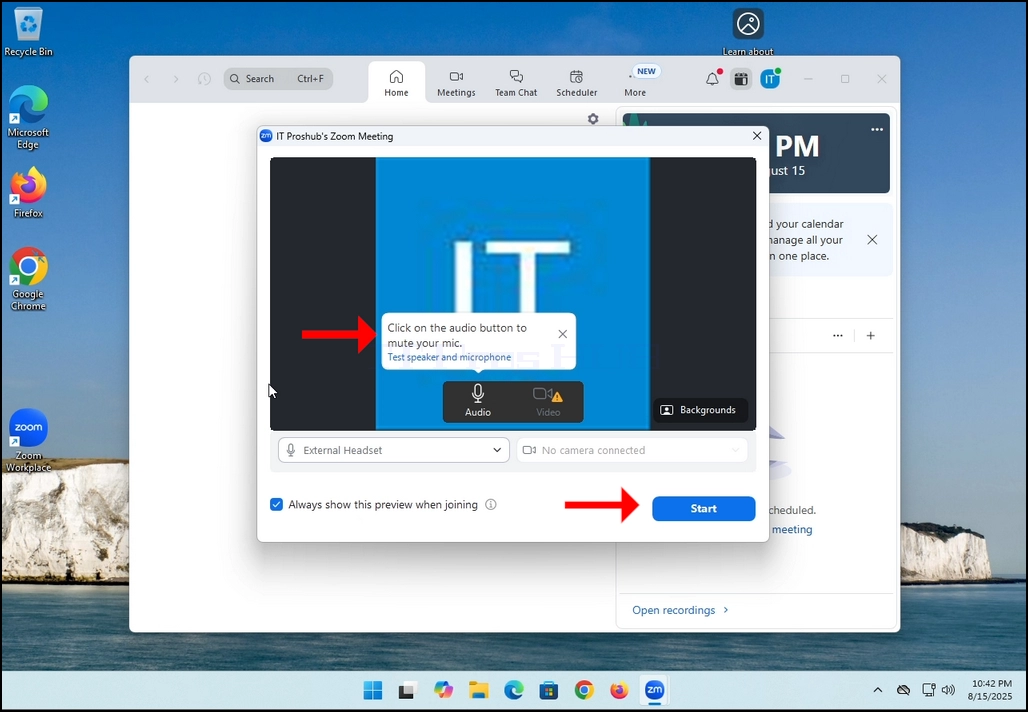
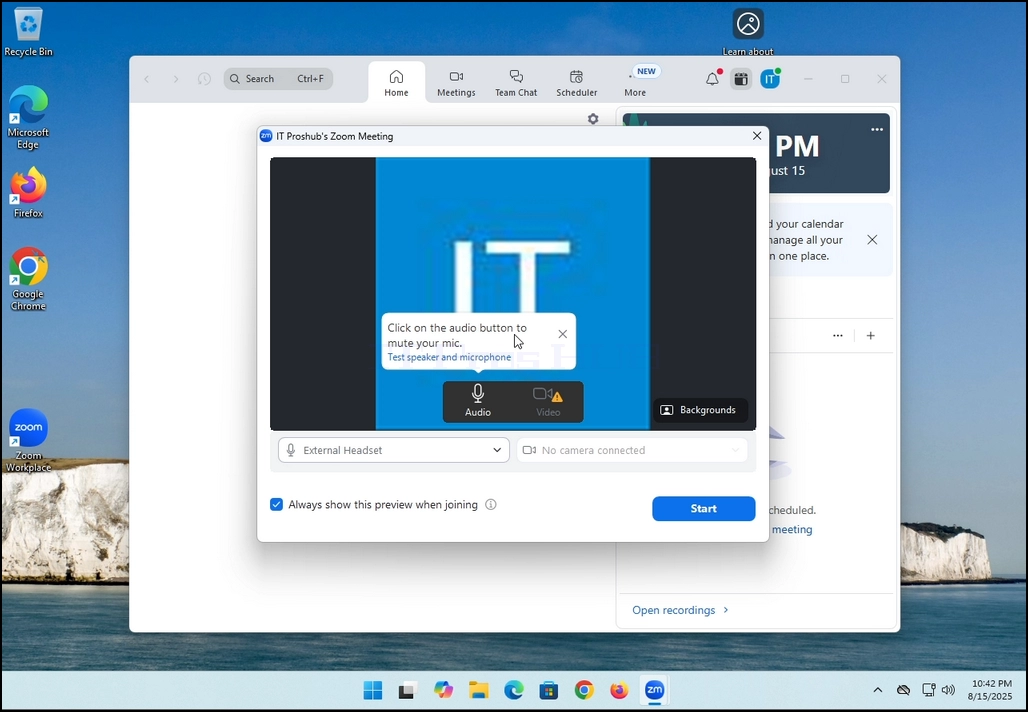
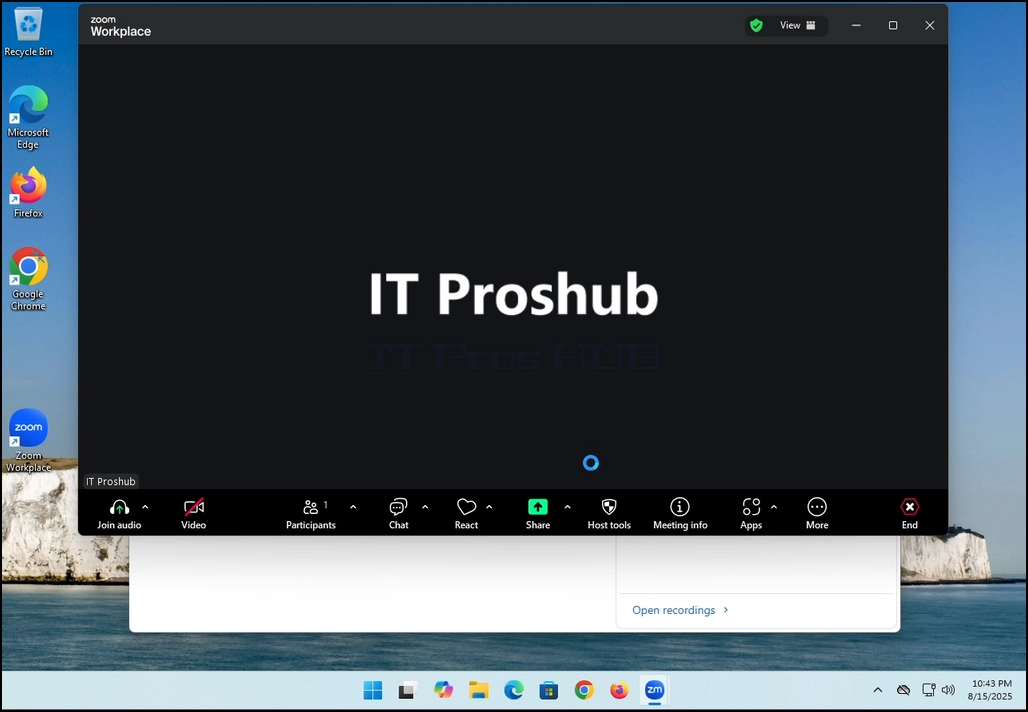
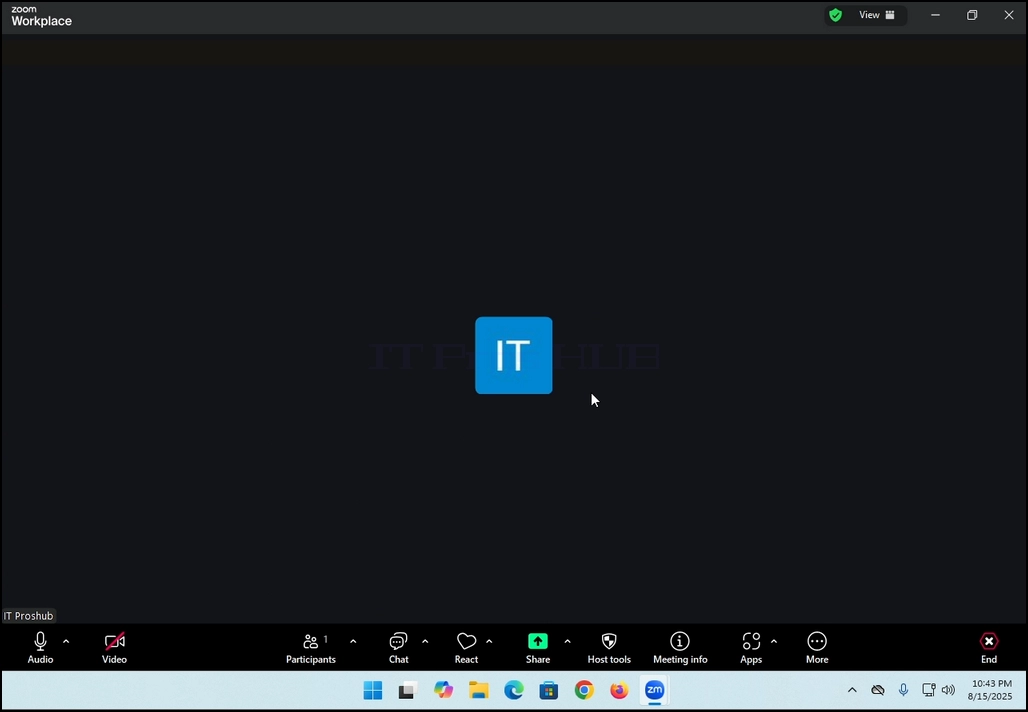
7. That's it! the new meeting is in progress. At this stage the meeting contains only the host which is IT Proshub in this article's case.
- Détails
- Écrit par : IT Pro
- Catégorie : How to Articles
- Clics : 5429
In this article we will demonstrate how to delete a stripped volume in Windows 11
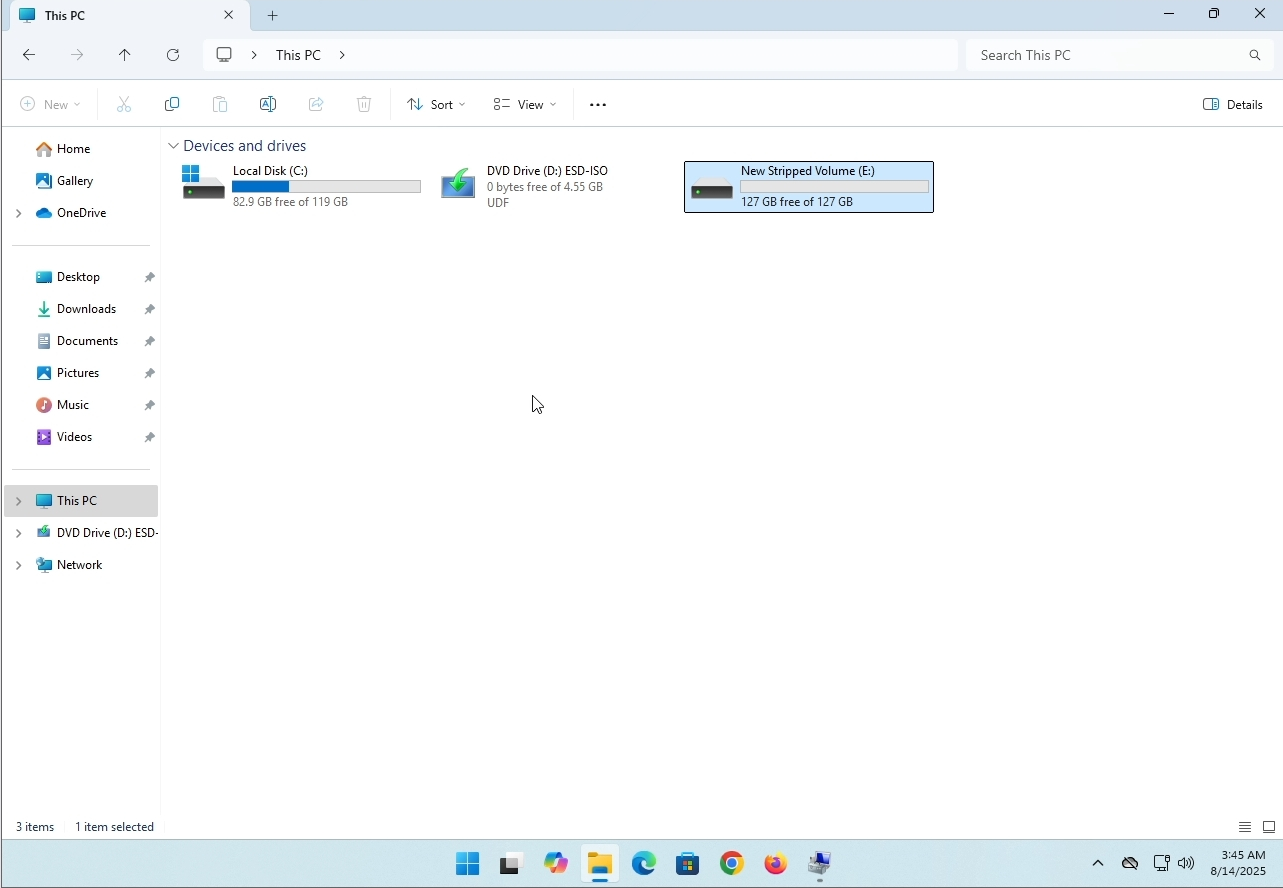
1. Make sure what is the stripped volume's drive letter is. In this case the drive letter is (E:):
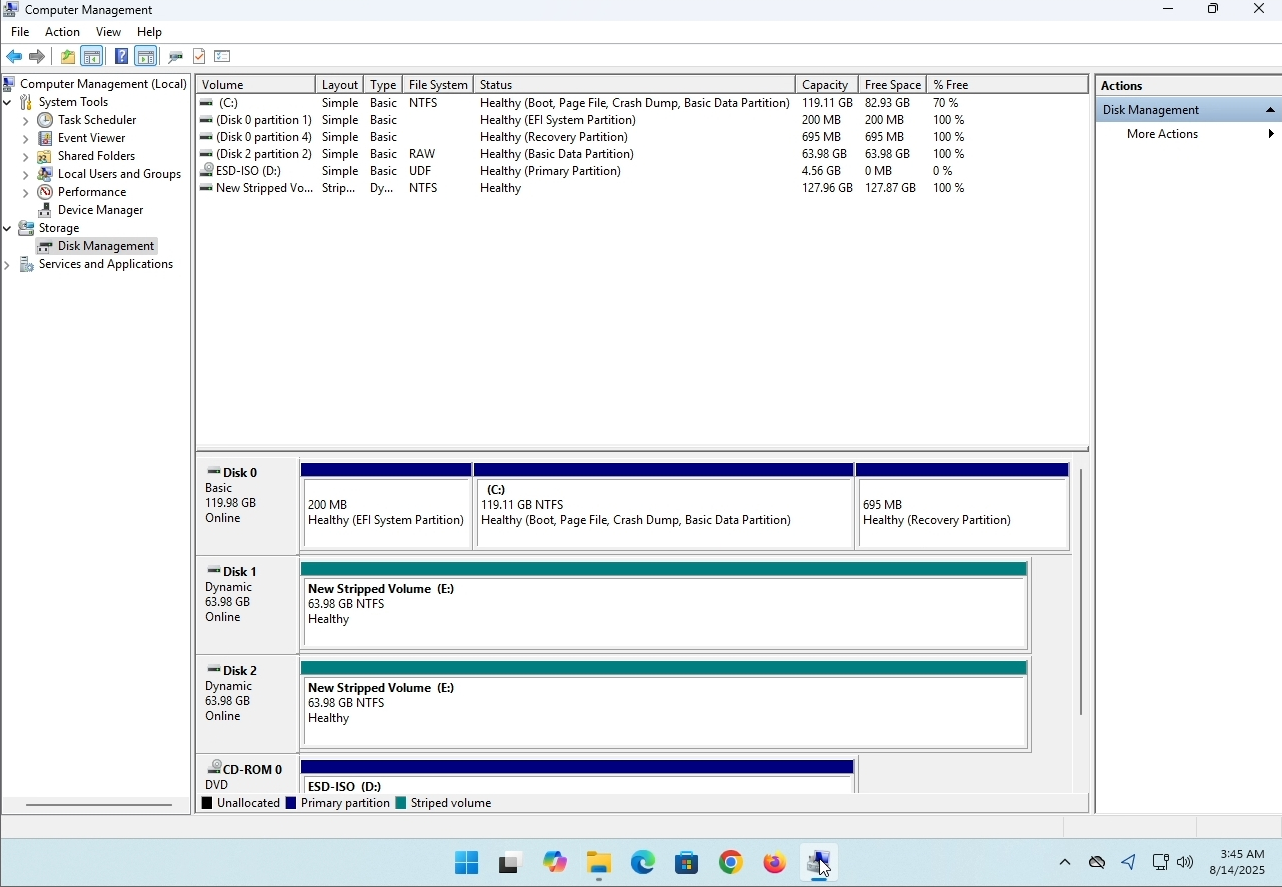
3. On the left pane. Look for Disk Management and click on it once.
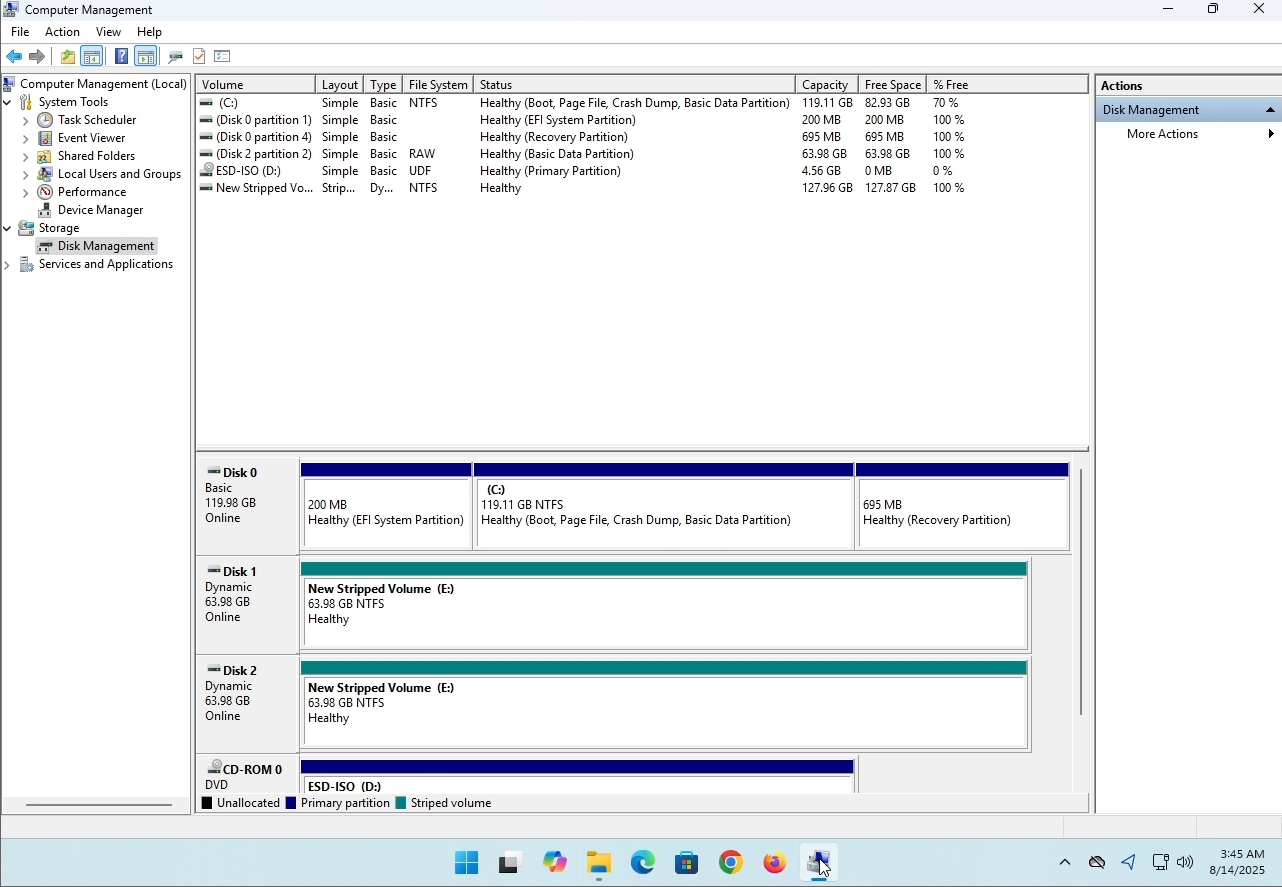
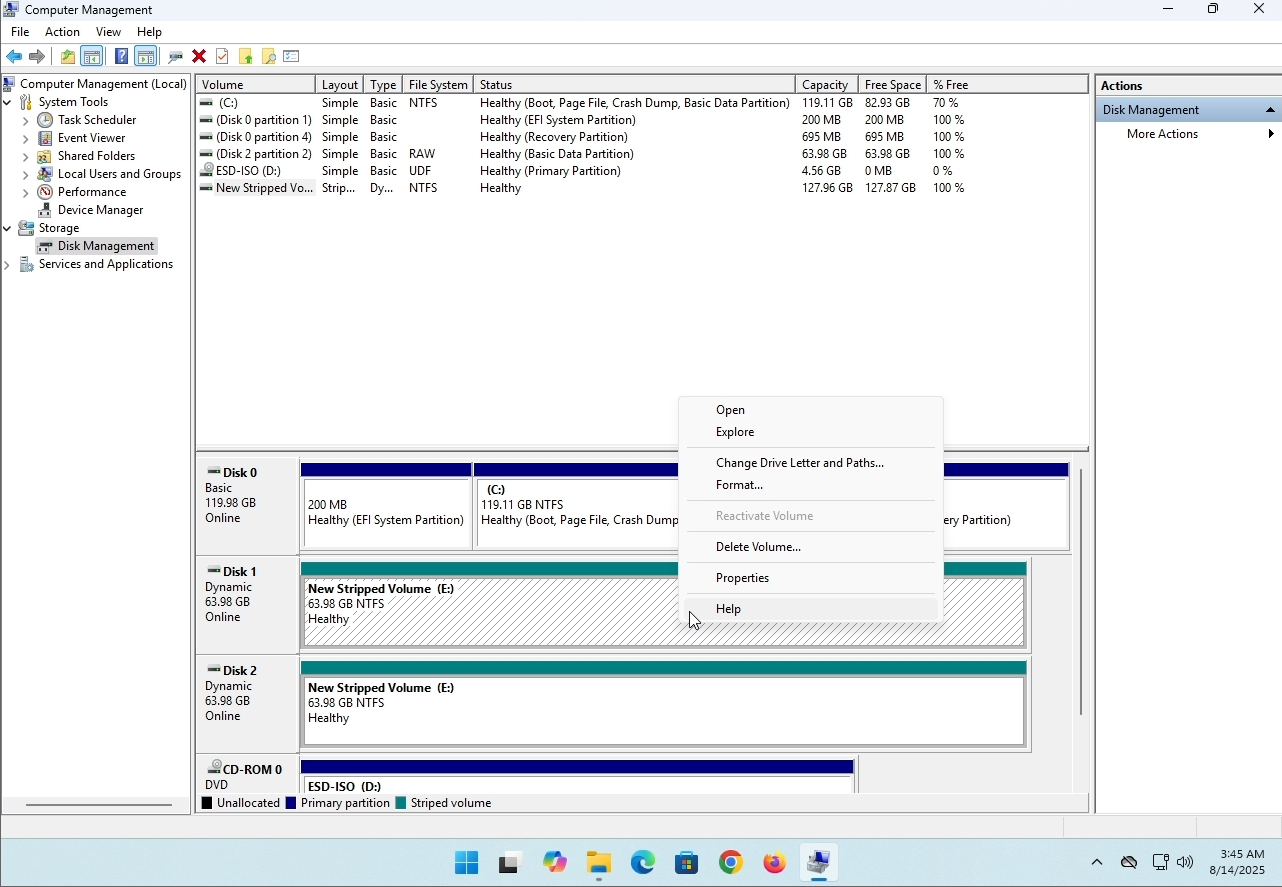
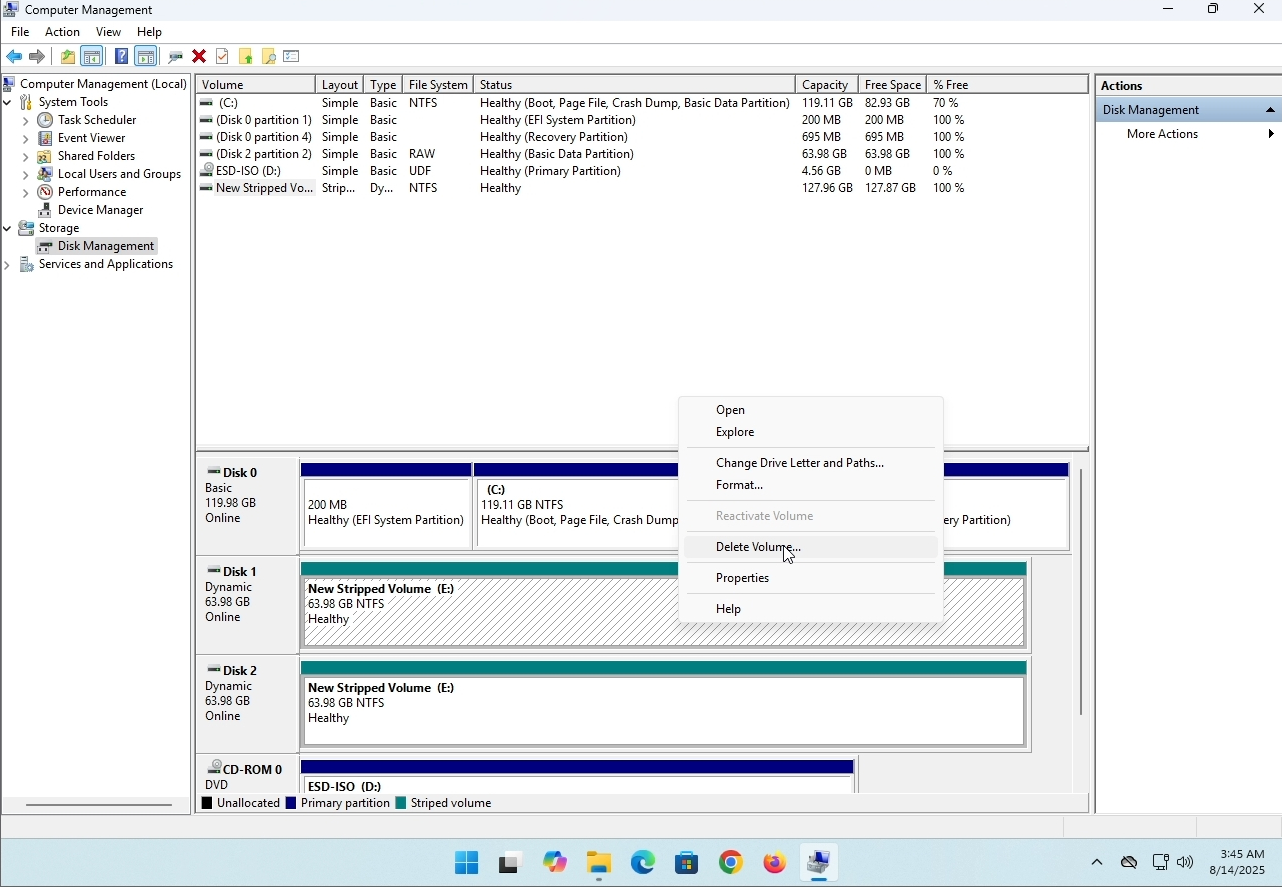
6. You will be shown a confirmation window. Click on Yes to confirm deleting the drive.
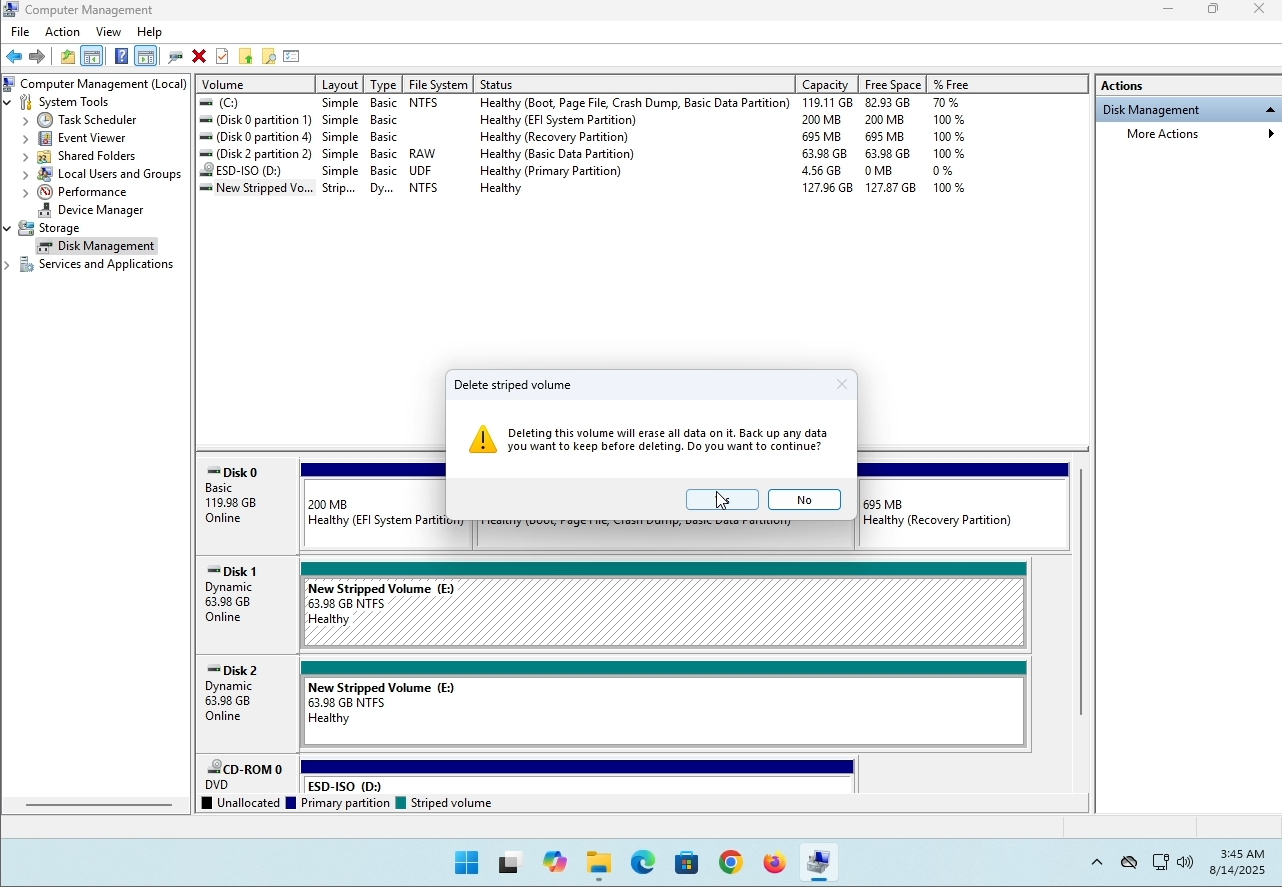
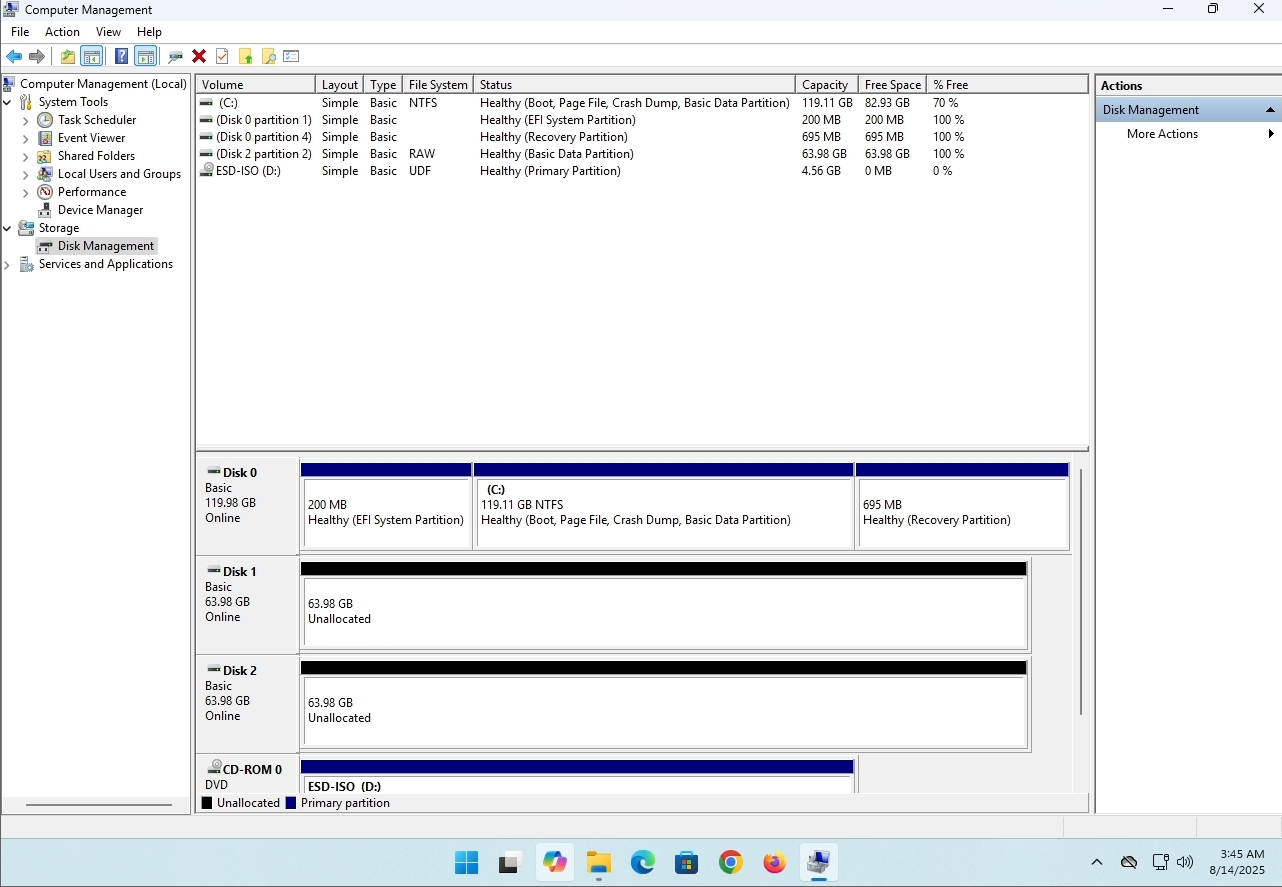
7. The drive is now deleted and the disks that were part of the stripped array are now unallocated.
- Détails
- Écrit par : IT Pro
- Catégorie : How to Articles
- Clics : 8229
Introduction:
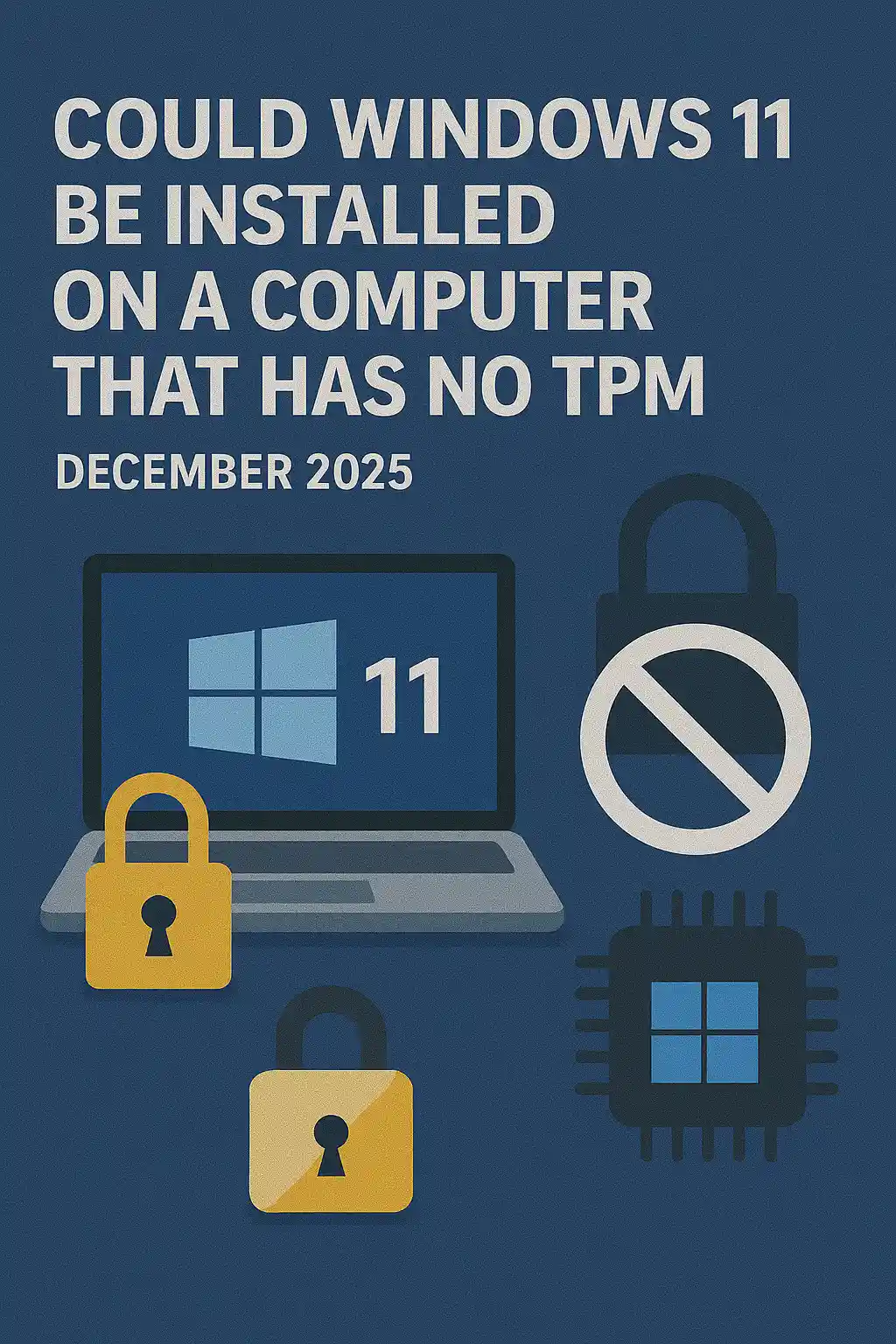
Dans cet article, nous examinerons si Windows 11 pourrait être installé sur un ordinateur qui n'a pas de puce TPM.
Bref: NON.
Windows 11 ne peut pas être installé sur un ordinateur sans un minimum de puce TPM version 2.0.
Voici une illustration d'une tentative d'installation de Windows 11 sur un tel ordinateur.
La version Windows qui a été tenté d'être installé était 24H2.
1. Démarrage dans l'installation de Windows


2. Configuration du langage

3. Méthode d'installation de configuration

4. Étape clé du produit


5. Choisir Windows 11 Pro


6. Vérification de l'étape PC

7. Bloceur

Conclusion:
Pas grand chose à dire ici. Nous devions le voir par nous-mêmes. Il y a un grand discours sur ce sujet, et il semble retenir l'eau dans ce cas. Installation – Windows 11 ne peut pas être installé sur un ordinateur ou un système sans puce TPM version 2.0.
Cela ne signifie pas que Windows 11 ne peut pas être RUN sur ledit système. Pour plus de détails, veuillez consulter notre article sur ce sujet: https://itproshub.com/fr/windows/can-windows-11-run-on-a-ordinateur-qui-a-pas-tpm-chip-at-all-decembet-2025
- Détails
- Écrit par : IT Pro
- Catégorie : How to Articles
- Clics : 7279
1. Commencez l'installation de Thunderbird en cliquant sur son fichier d'installation
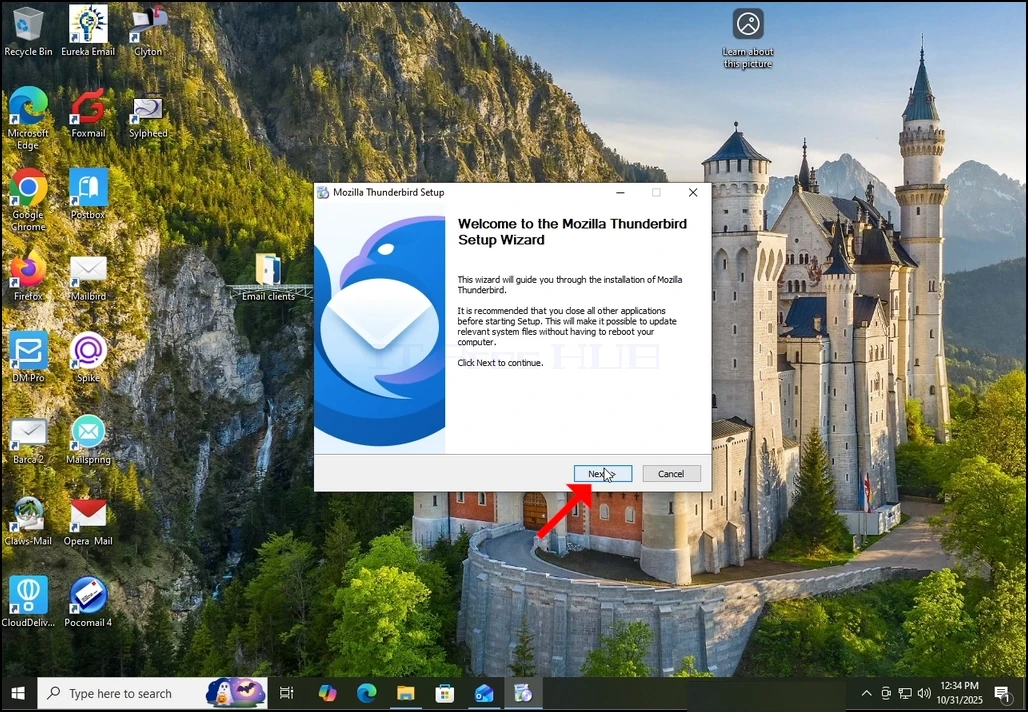
2. Dans l'écran de bienvenue, cliquez sur SUIVANT.
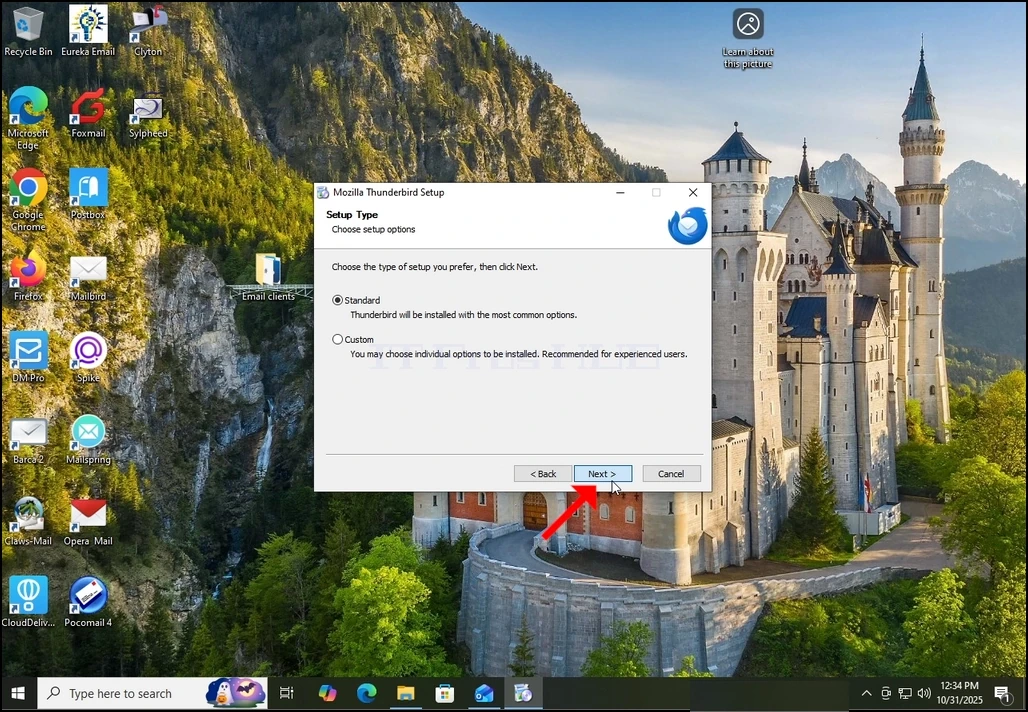
3. Choisissez l'option Standard et cliquez sur NEXT.
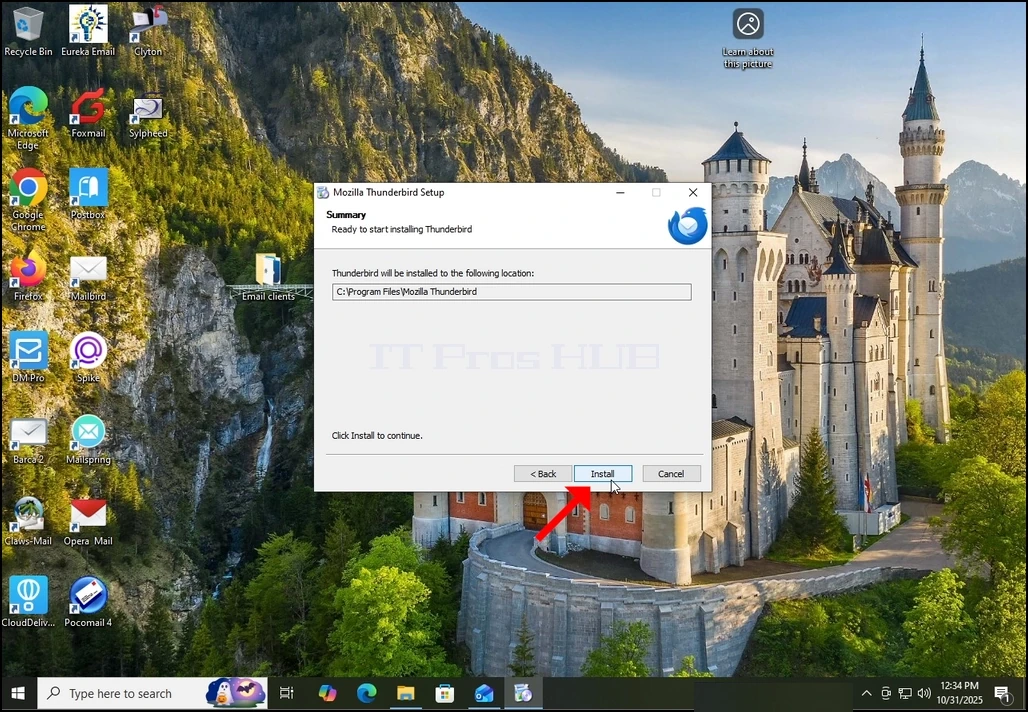
4. Cliquez sur le bouton Installer.
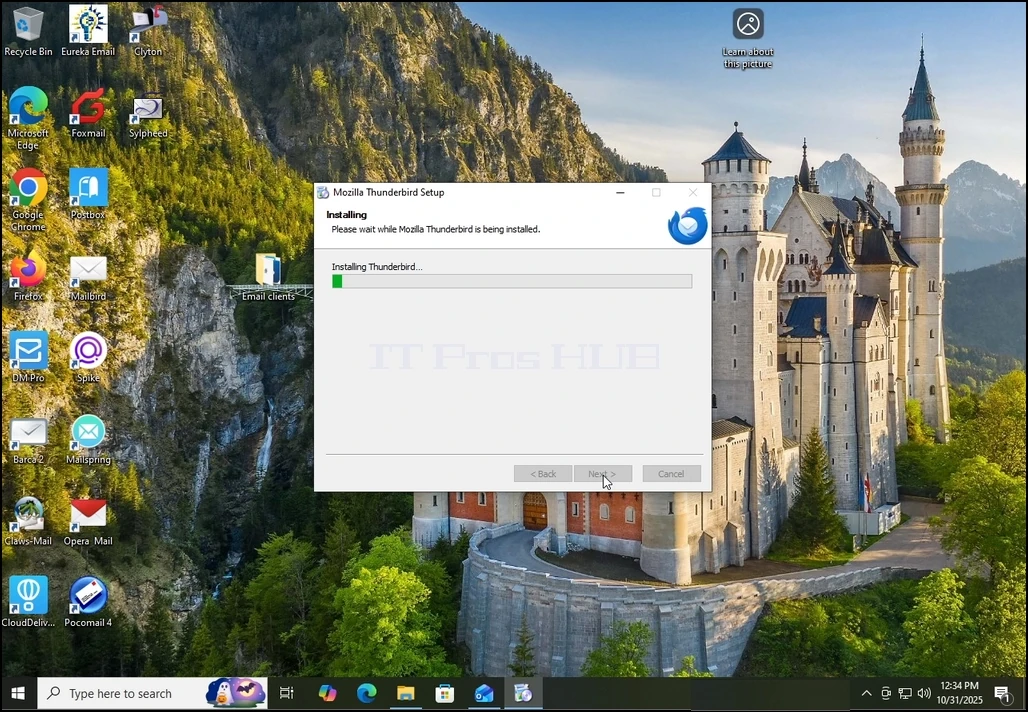
5. Attendez patiemment que le processus d'installation finisse
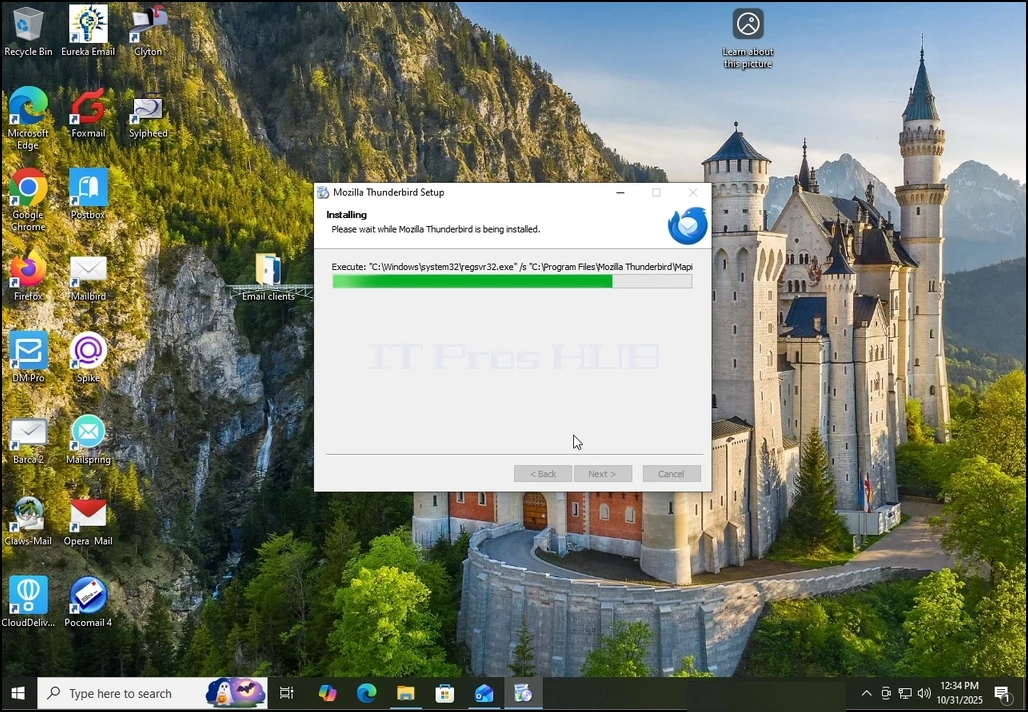
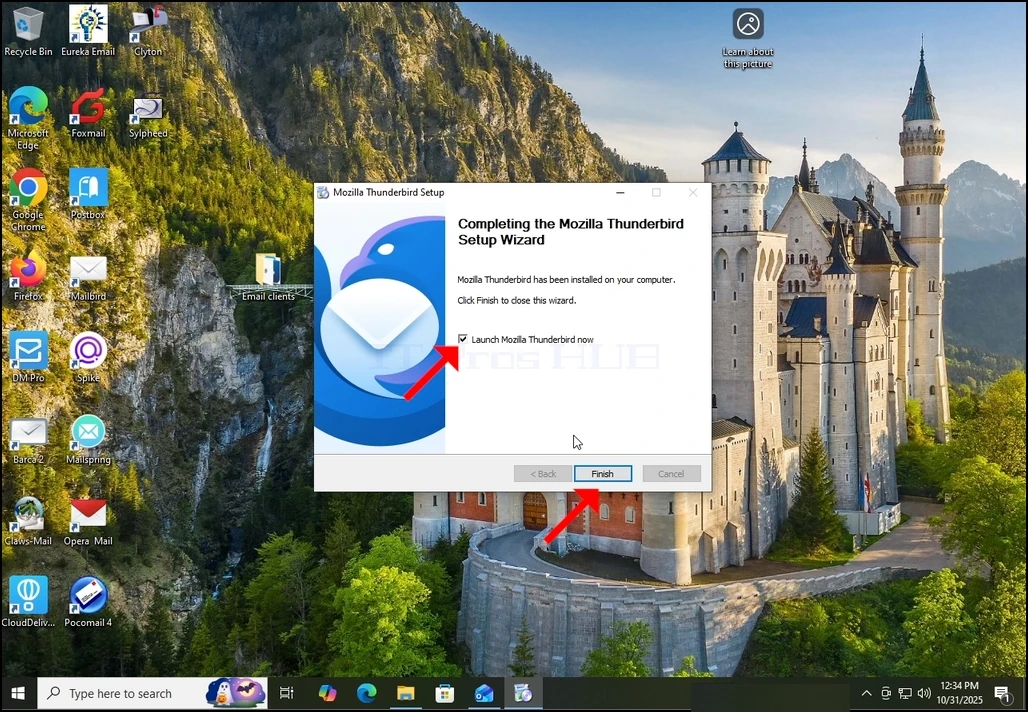
6. Décochez l'option Lancer Mozilla Thunderbird maintenant et appuyez sur le bouton Terminer
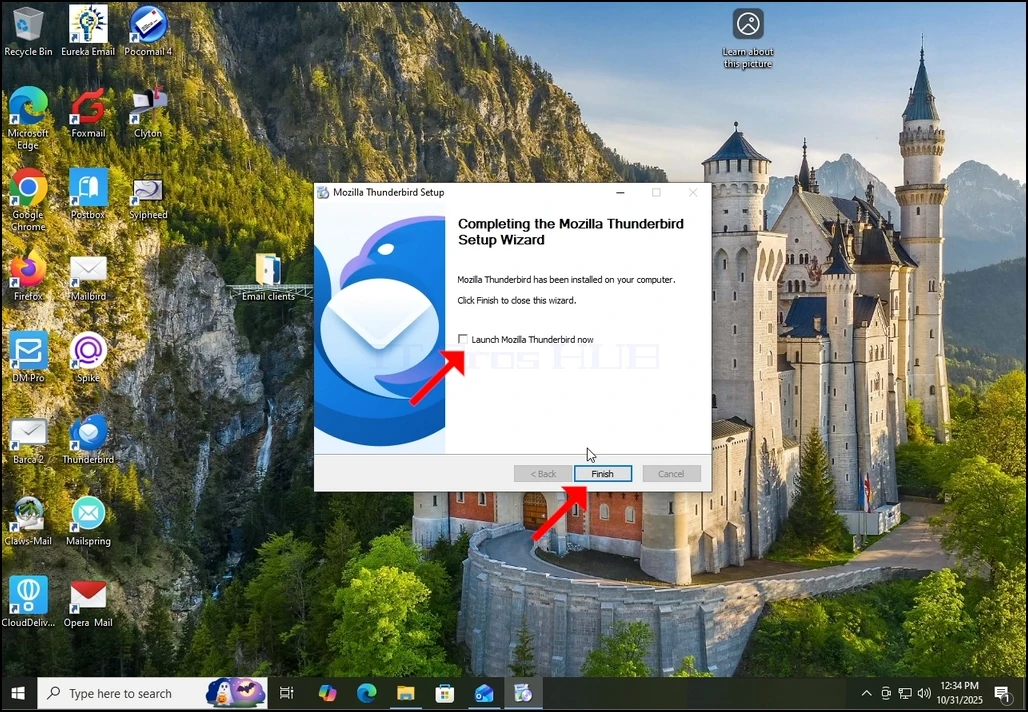
7. Mozilla Thunderbird est maintenant installé!