



- Butiran
- Ditulis oleh IT Pro
- Kategori: How to Articles
- Jumlah paparan: 6227
KANIN 1. Name

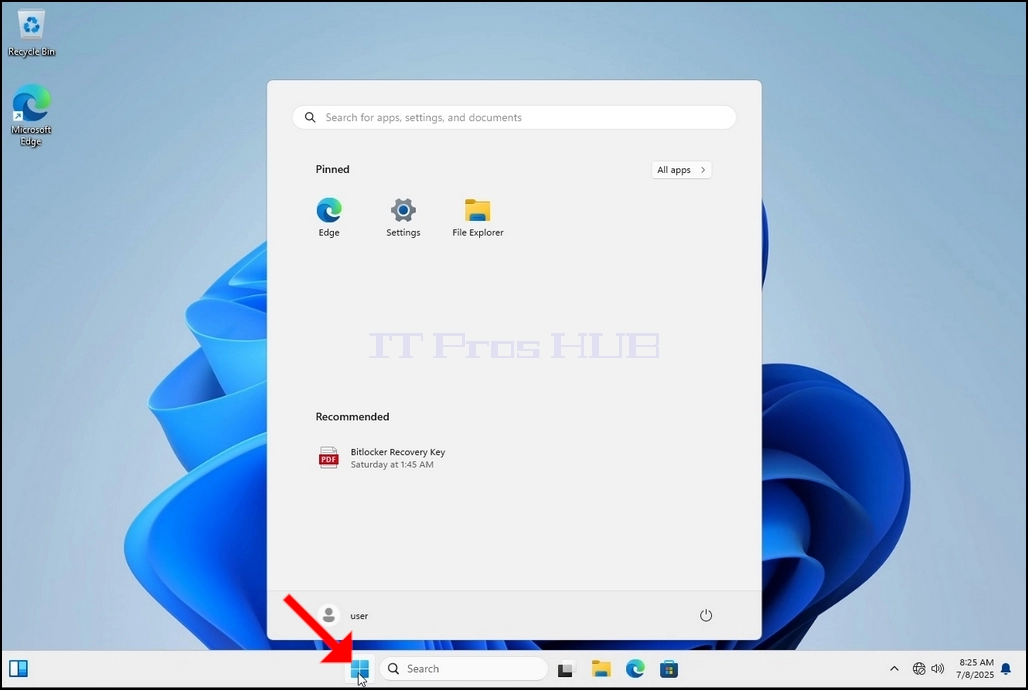
Kampung 2. Klik pada tombol Mulai

Kampung 3. Setelah menu Mula didirikan, jenis Ӧ bitlockerDan tunggu sampai ia menemukan ikon Bitlocker Control Panel. Setelah menemukannya, klik dan tunggu jendela enkripsi Bitlocker Drive untuk dibuka.

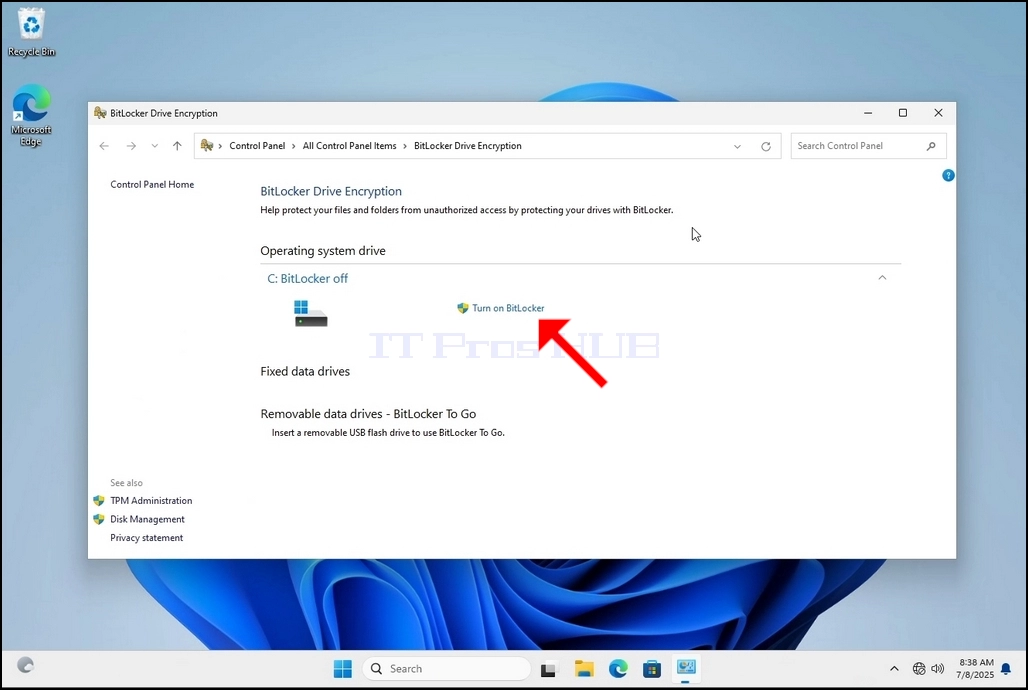
^ a b c d e f g h i j k l m n o p q r s t u v w x y z a b c d e f g h i j k l m n o p q r s t u v w x y z a b c d e f g h i j k l m x y z a b c d e f g h i j k l j k l j k l m n j k l j k l j k l m j k l m n o j k l j k l m j k l m j k l j k l m l m j k l m j k l m j k l m j k l m j k l m j k l m j k l m j k l m j k l m j k l m j k l m j k l m j k l m j k l m j k l m j k l m j k l m j k l m j k l m j k l m j k l m j k l m j k l m j k l m j k l m m j k l m j k l m j k l m j k l m j k l m m m j k l m m m m m Once Bitlocker Pengenkripsian Drive Gagal Dibuka, cari Hidup Bitlocker Kalimat dan klik di atasnya dan menunggu Enkripsikan Dan Tandatangan Pemacu Bitlocker Penyihir muncul.
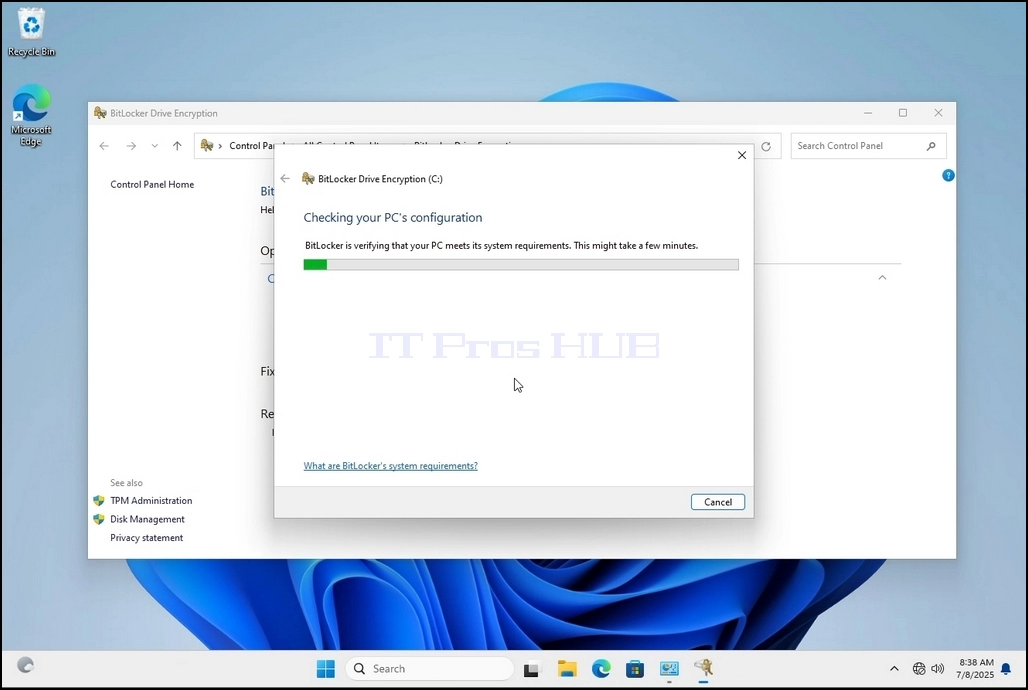
A. Setelah wizard muncul akan secara otomatis memverifikasi jika komputer memenuhi persyaratan sistem yang diperlukan untuk mengenkripsi data menggunakan Bitlocker.
1 b. Meskipun katanya butuh beberapa menit, dalam kebanyakan kasus dibutuhkan waktu hingga 30 detik pada setup komputer modern.


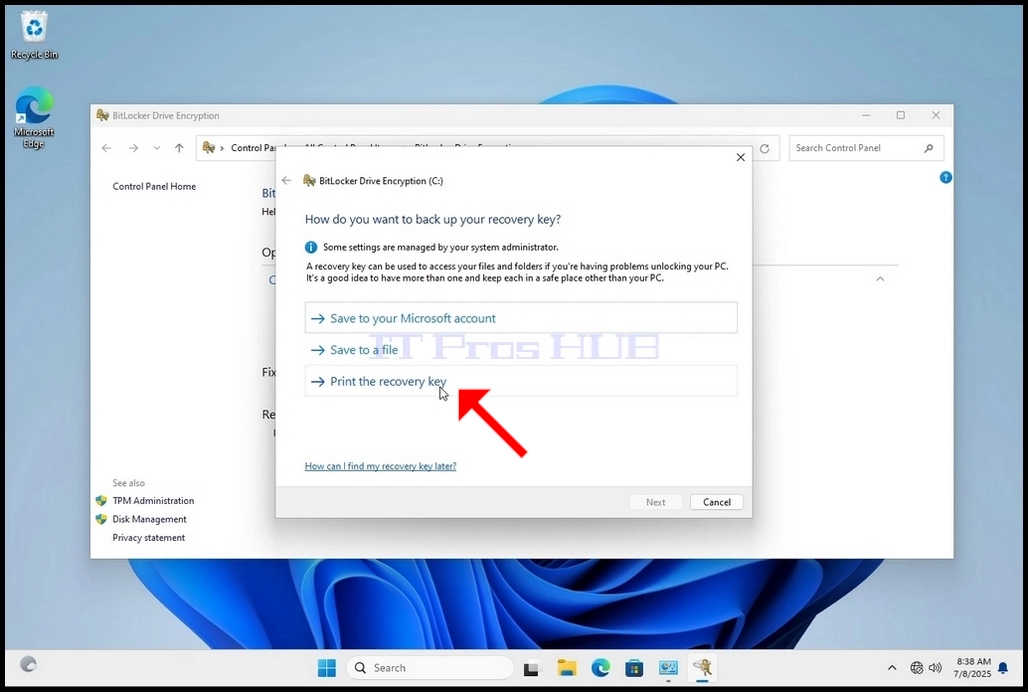
X. X. 5. Setelah tahap verifikasi dilakukan dan wizard menemukan komputer Bitlocker mampu, ia akan bertanya bagaimana Anda ingin menyimpan kunci pemulihan Bitlocker Anda
a. akun Microsoft – simpan dalam akun Microsoft Anda
1 b. Simpan ke file – simpan kunci pemulihan ke file teks
c. Cetak Kunci Pemulihan – mencetak kunci pemulihan Bitlocker, bahkan ke pencetak virtual.
Zakhan 6. Dalam artikel ini kita akan memilih pilihan terakhir yang adalah Cetak Pemulihan Kunci Kami akan menyimpannya secara lokal.
a. Perhatikan bahwa Bitlocker tidak mengizinkan penyimpanan file kunci pemulihan ke drive yang sama yang akan dienkripsi.
1 b. Namun, ia memang memungkinkan mencetak kunci pemulihan tersebut ke file pada drive yang sama yang akan dienkripsi. Metode ini tidak dianjurkan juga tetapi demi kepentingan artikel ini kita akan melakukannya dengan cara ini.
Catatan – Jangan simpan file kode pemulihan ke drive yang sama yang akan dienkripsi. Jika untuk beberapa alasan bahwa drive mendapat terkunci keluar, file kunci pemulihan akan terkunci keluar bersama dengan itu.

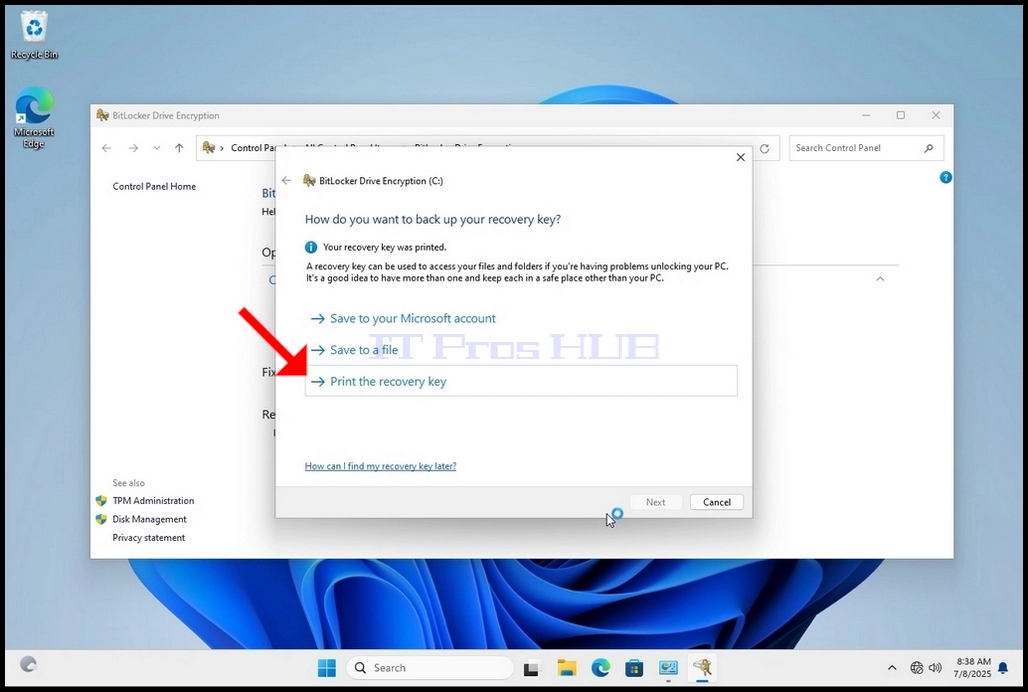
BAHWA 7. Setelah pilihan itu dipilih, wizard akan meminta printer mana yang digunakan untuk mencetak kunci pemulihan Bitlocker. Dalam artikel ini, seperti yang disebutkan di panggung 6, kita akan memilih Microsoft Print to PDF PDF file.

25. ^ (Inggris) Werner 8. Setelah memilih pencetak, klik Cetakan

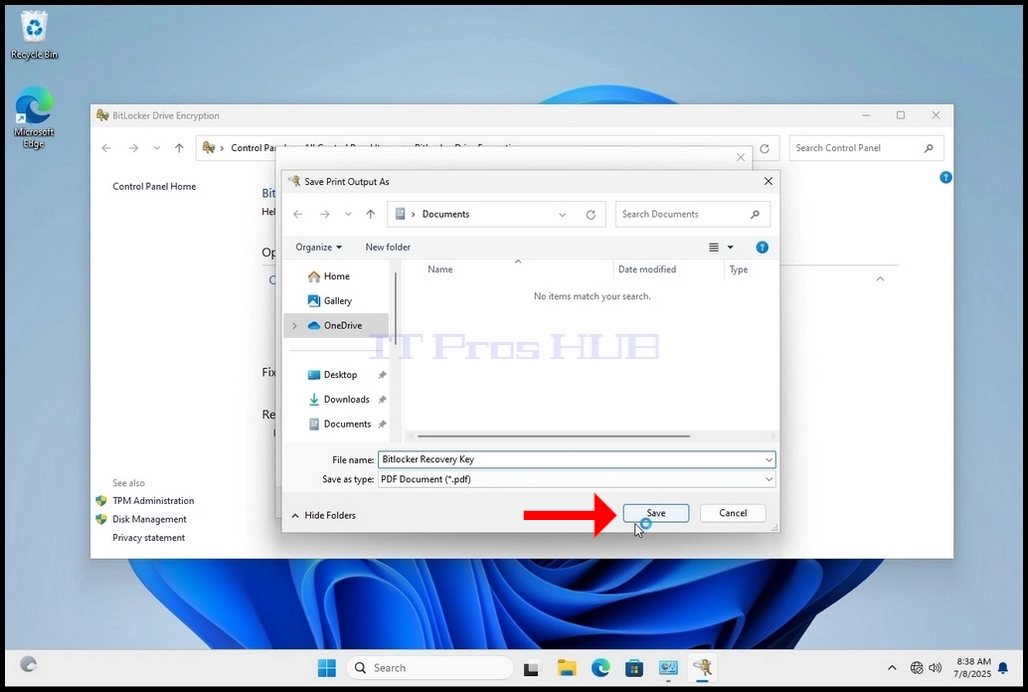
9. ^ a b c d e f g h i j k l m n o p. Sebuah jendela baru akan muncul. Gunakan jendela ini untuk menamai file PDF kunci pemulihan Bitlocker dan untuk memilih di mana Anda ingin menyimpannya. Dalam kasus ini, kami menamainya ”Kunci Pemulihan BitlockerTidak. ”


/ 10. KlikTolak Simpan
A. Setelah tombol Save diklik, jendela akan ditutup dan kita akan kembali ke wizard, hanya kali ini, tombol Next akan menjadi dapat diklik.
Mayor 11. Klik Berikutnya

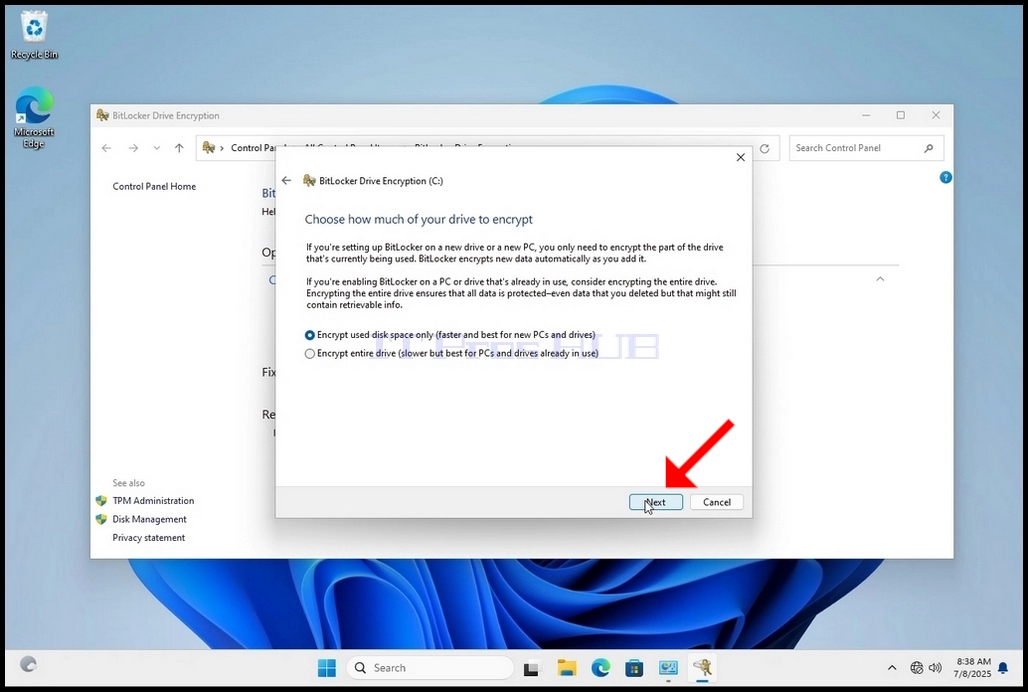
^ a b c d e f g h i j k l m n Pada tahap saat ini, Anda akan diminta untuk memilih berapa banyak drive Anda ingin mengenkripsi
A. Dalam artikel ini, kita akan memilih pilihan pertama yang lebih cepat untuk dicapai
b. Klik Berikutnya

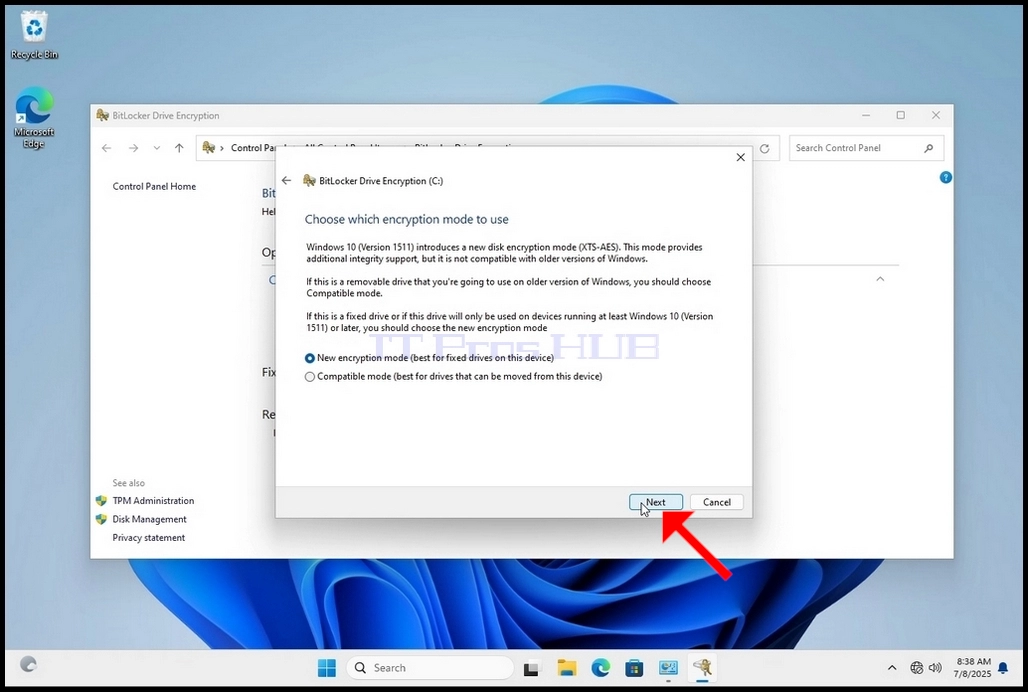
2011-10-13. Pada tahap saat ini, Anda akan diminta untuk memilih mode enkripsi mana yang akan digunakan
A. Dalam artikel ini kita akan memilih pilihan pertama, yaitu Enkripsi Baru Pilihan Mode. Pilih dan klik Selanjutnya

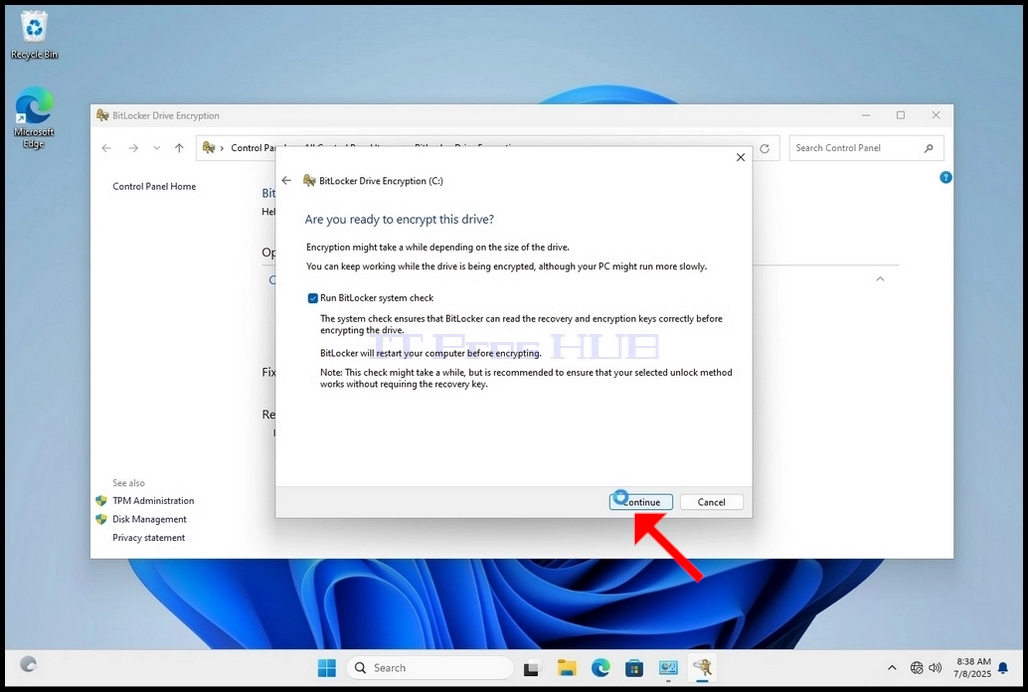
14. 14. ^ a b c d e f g h i j k l m n o p. Meskipun tidak wajib tetapi disarankan, kita akan menandai Periksa Sistem Bitlocker Jalankan Pilihan.
A. Pemeriksaan sistem memastikan Bitlocker dapat membaca pemulihan dan enkripsi kunci dengan benar sebelum mengenkripsikan drive.
1 b. Setelah pilihan itu ditandai, tombol akan berubah dari \"mulai enkripsi\" menjadi \"Teruskan\".
c. Klik Lanjutkan

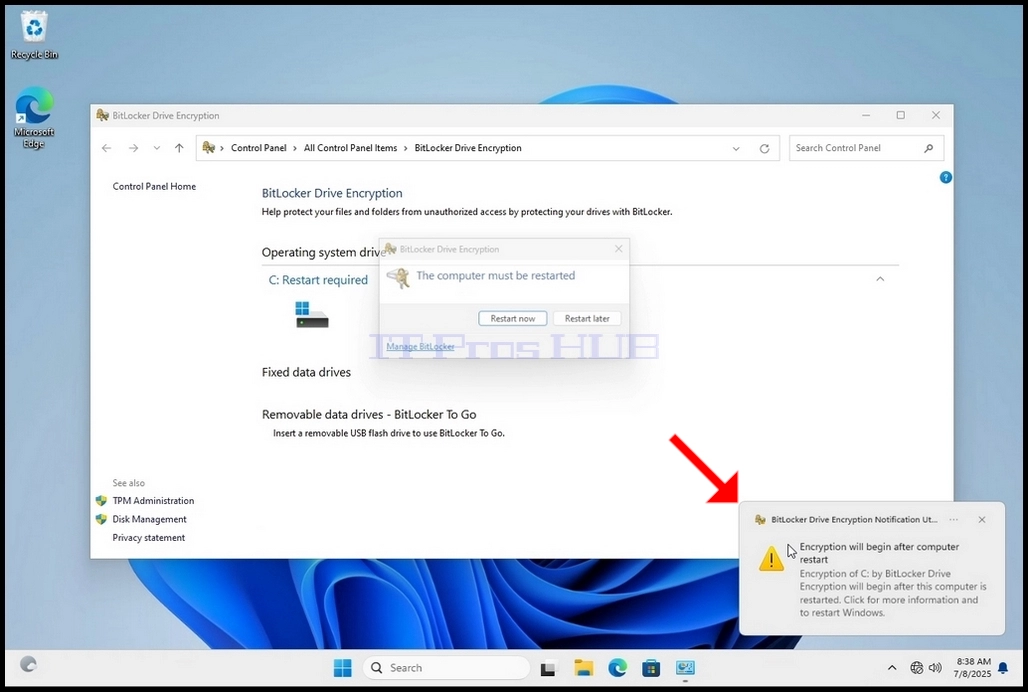
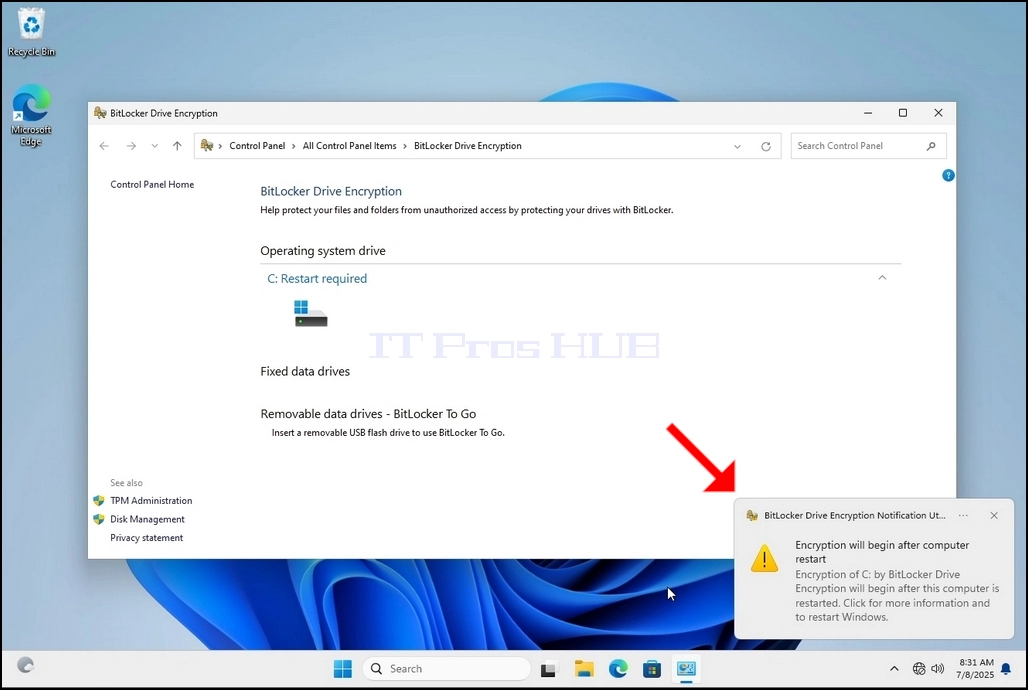
/ 15 tahun. Beberapa detik setelah mengklik Teruskan, jendela pemberitahuan samping akan muncul dari sisi kanan-bawah jendela.
Klik di atasnya sekali
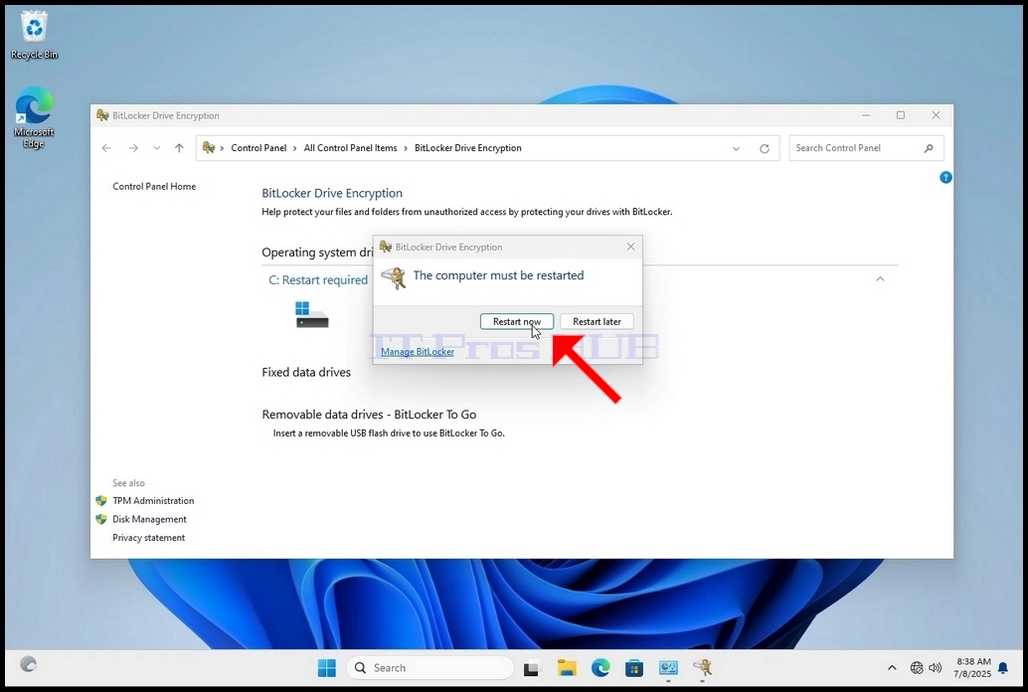
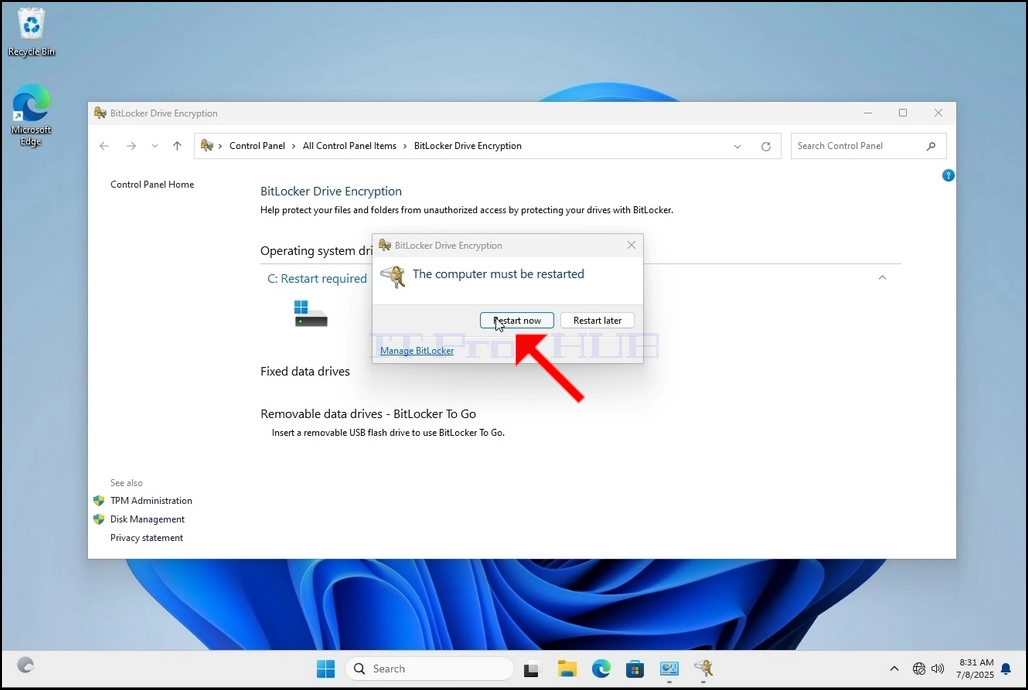
1 b. Setelah diklik, jendela pop-up lain akan muncul yang akan bertanya apakah akan memulai kembali sekarang untuk memulai proses enkripsi atau nanti.
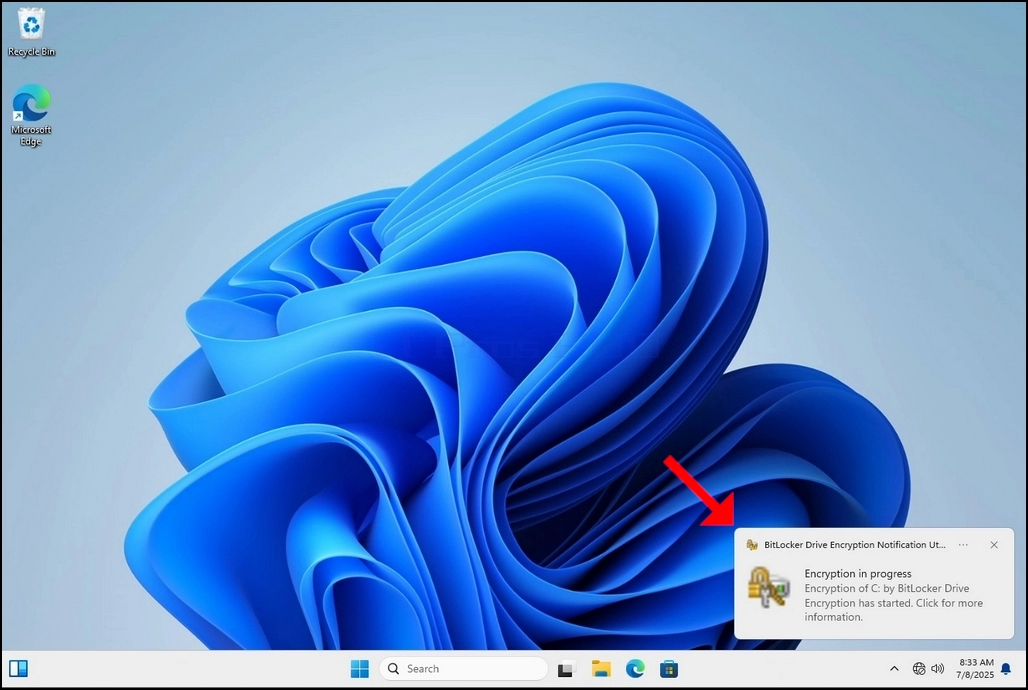
CO. Klik tombol Restart Now dan tunggu komputer untuk menghidupkan kembali dirinya sepenuhnya.


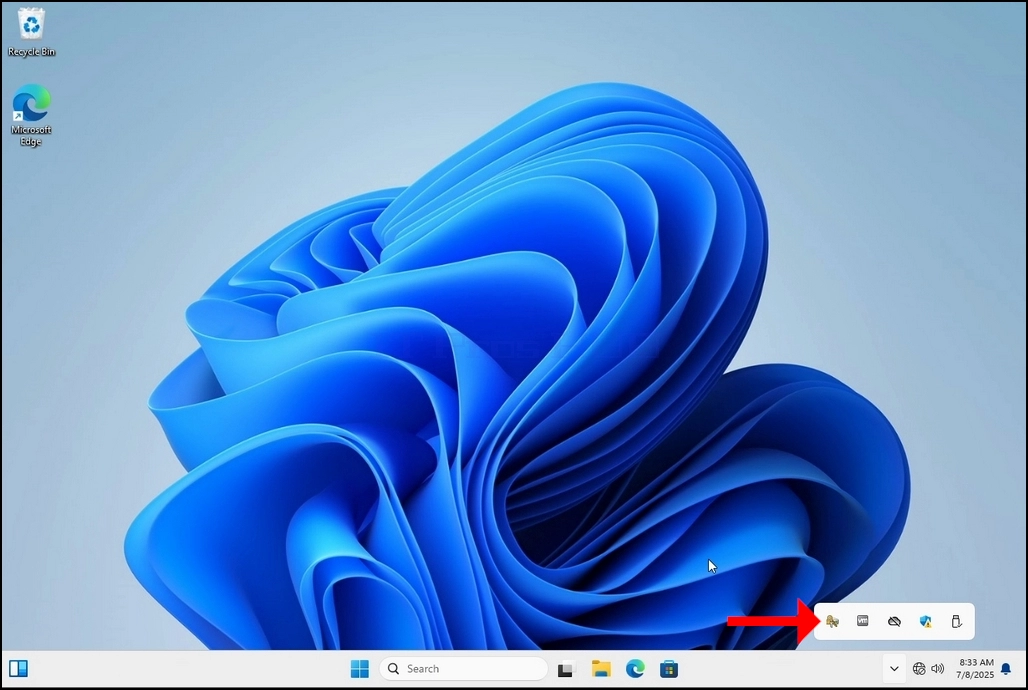
Ç 16. Setelah komputer dihidupkan ulang sepenuhnya, klik anak panah taskbar ke atas (Notifikasi area overflow icon).
Cari ikon Bitlocker dan klik dua kali lipat
1 b. Setelah diklik, jendela proses enkripsi drive Bitlocker akan muncul, menunjukkan status proses enkripsi
c. Setelah bar proses penuh 100%, proses enkripsi selesai


No 17. Cara lain untuk memeriksa status proses enkripsi adalah dengan menggunakan CLI dari Bitlocker melalui CMD
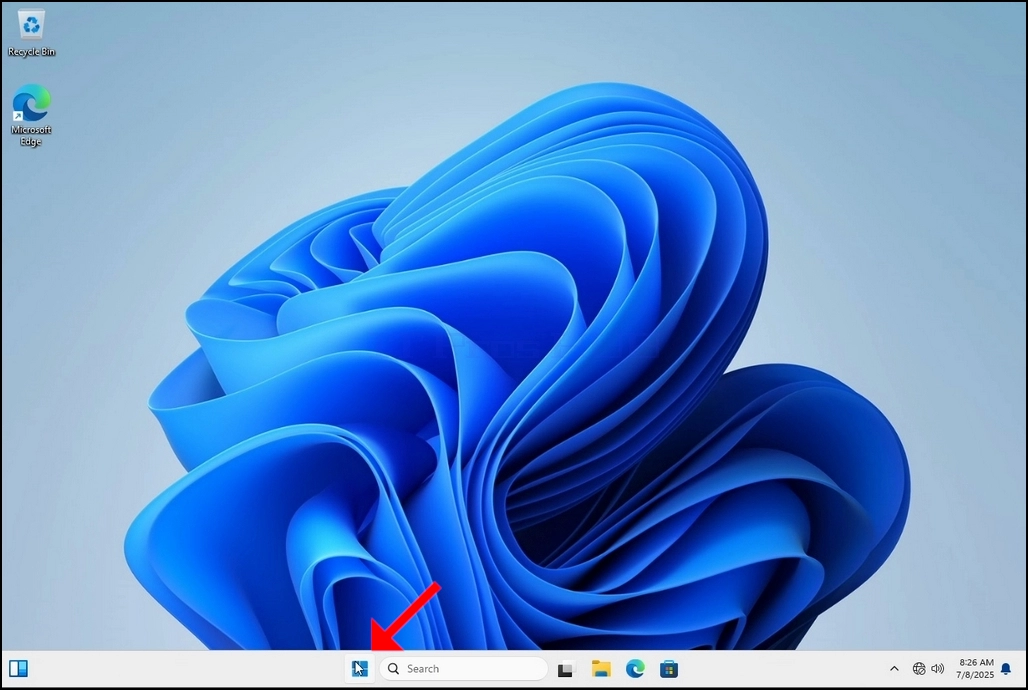
a. Klik tombol Mulai
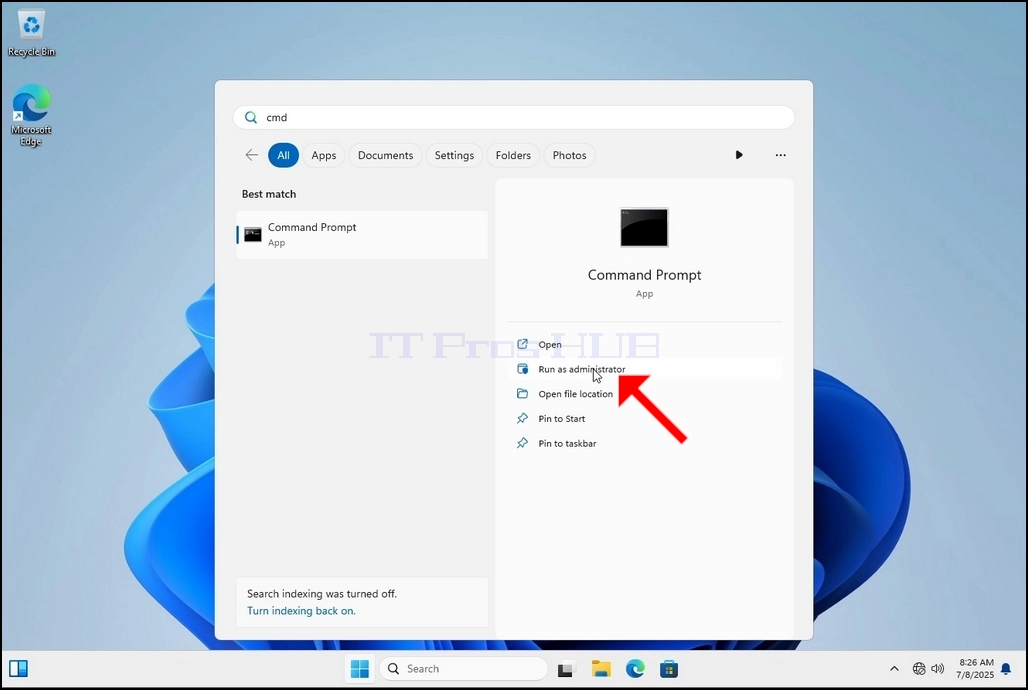
b. Tipe CMD
c. Klik Laksana sebagai administrator


18. Klik YA di jendela UAC


No. 19. Jenis cmd type -status enter klik

/ 20. Jalur yang akan muncul akan menyajikan informasi tentang proses enkripsi:
A. ukuran - Ukuran drive yang dienkripsi
1 b. Versi Bitlocker – Versi Bitlocker yang digunakan untuk mengenkripsikan drive
c. Status Penukaran Bahasa – Menunjukkan keadaan enkripsi drive saat ini
D. Peratusan Persentase Dienkripsi – Menunjukkan berapa banyak dari drive yang dipilih telah dienkripsi
- Tidak. Enkripsi Metode – Menunjukkan metode enkripsi yang digunakan
f. Status Perlindungan Hewan – Menunjukkan apakah perlindungan Bitlocker sedang off atau on
g. Status Kunci Woi – Menunjukkan apakah drive yang dipilih terkunci atau tidak terkunci (dapat diakses atau tidak dapat diakses)
Wh. Identifikasi Medan graphies - merujuk ke label atau string opsional yang dapat anda umpukkan ke sebuah volume yang dilindungi oleh BitLocker untuk membantu mengidentifikasinya, terutama ketika mengelola multiple drive atau kunci pemulihan
i. Pelindung Kunci – Menunjukkan mekanisme autentikasi yang melindungi kunci enkripsi yang digunakan untuk membuka kunci sebuah drive. Ketika Anda mengenkripsi drive, BitLocker menggunakan satu atau lebih pelindung kunci untuk menjaga akses ke dalamnya


22. ^ Nafiz 22. Ini bisa diverifikasi melalui CMD dengan mengetik -status Klik lagi dan klik enter
Perhatikan bahwa nilai - nilai berikut sekarang diubah:
Aku. Status Penukaran Egois: Ruang Digunakan Hanya Dienkripsi
Aku. Peratusan Persentasi: 10.0%
Aku. Status Perlindungan Hewan: Perlindungan pada

^ a b c d e f g h i j k l m n o p q r. Dalam langkah berikutnya kita akan melihat file Bitlocker recovery key PDF
/ 24. Pergi ke jalan di mana awalnya disimpan dan membukanya


25 tahun. Perhatikan 2 nilai penting:
Pengenal A.
1 b. Kunci Pemulihan Kemuliaan
No. 26. Hal ini sangat disarankan untuk menyimpan nilai ini dalam lebih dari satu medium dan lokasi seperti:
a. Format dicetak
b. Pengurus Sandi

- Butiran
- Ditulis oleh IT Pro
- Kategori: How to Articles
- Jumlah paparan: 5957
1. Go to Windows Desktop
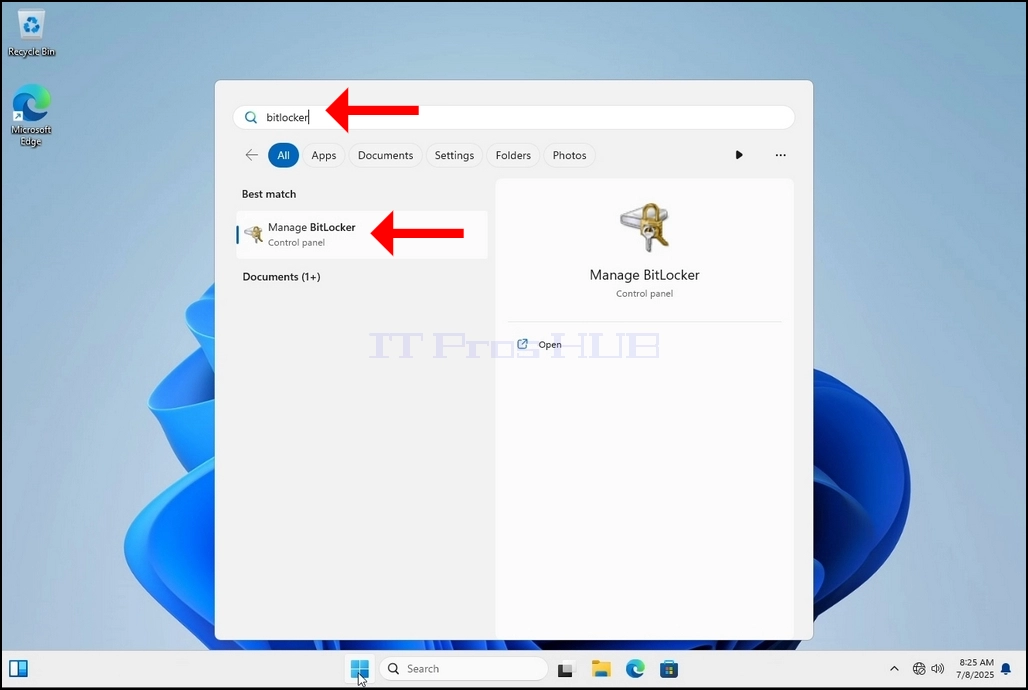
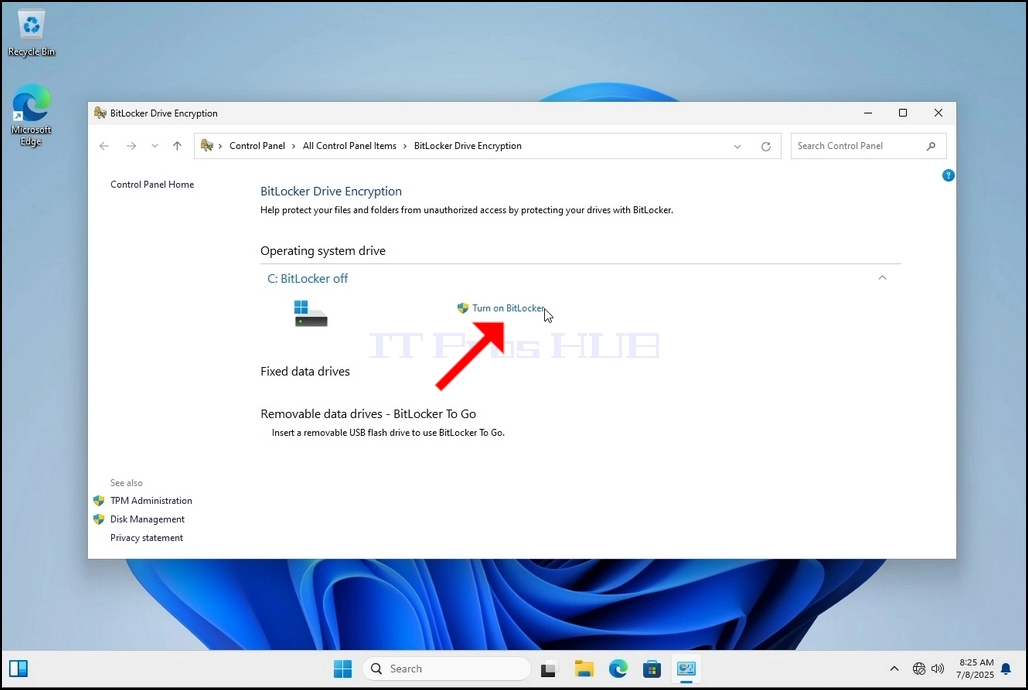
4. Once Bitlocker Drive Encryption is open, look for the Turn on Bitlocker sentence and click on it and wait for the Bitlocker Drive Encryption wizard to appear.
a. Once the wizard appears it will automatically verify if the computer meets the system requirements required to encrypt data using Bitlocker.
b. Though it says it takes a few minutes, in most cases it takes a up to 30 seconds on a modern computer setup.
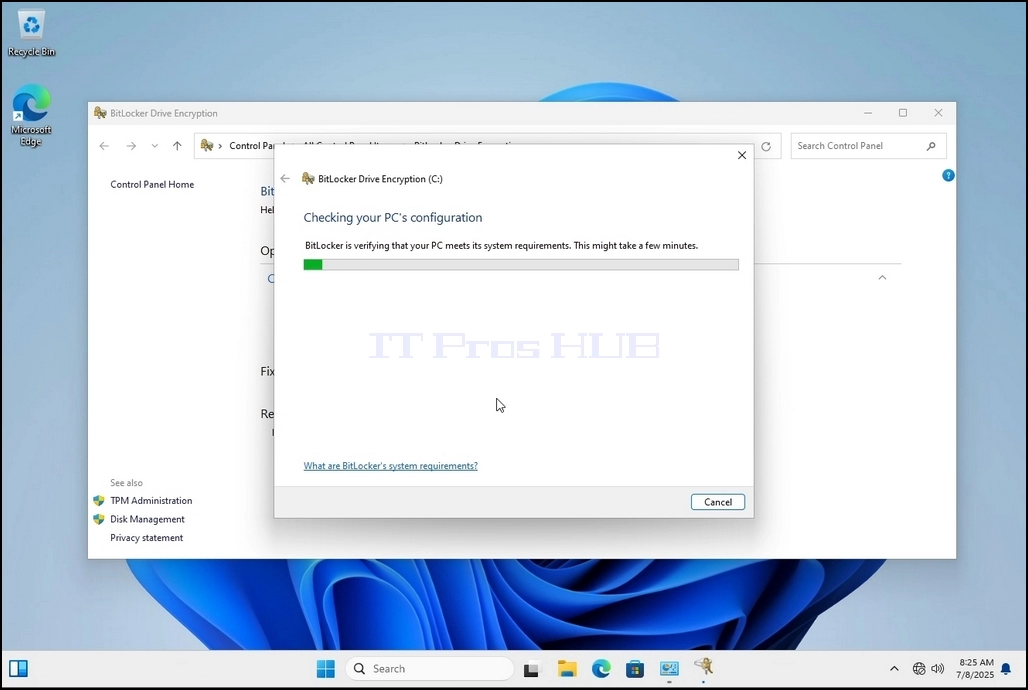
5. Once the verification stage is done and the wizard finds the computer Bitlocker capable, it will ask how would you like to save your Bitlocker recovery key
a. Microsoft account – saves it in your Microsoft account
b. Save to a file – saves the recovery key to a text file
c. Print the Recovery Key – prints the Bitlocker recovery key, even to a virtual printer.
6. In this article we will choose the last option which is Print the Recovery Key and we will save it locally.
a. Note that Bitlocker doesn’t allow saving a recovery key file onto the same drive that is about to be encrypted.
b. However, it does allow printing that recovery key to a file on the same drive that is about to be encrypted. This method is not recommended as well but for the sake of this article we will do it this way.
c. Note – Never save the recovery code file onto the same drive that is about to be encrypted. If for some reason that drive gets locked out, the recovery key file would be locked out along with it.
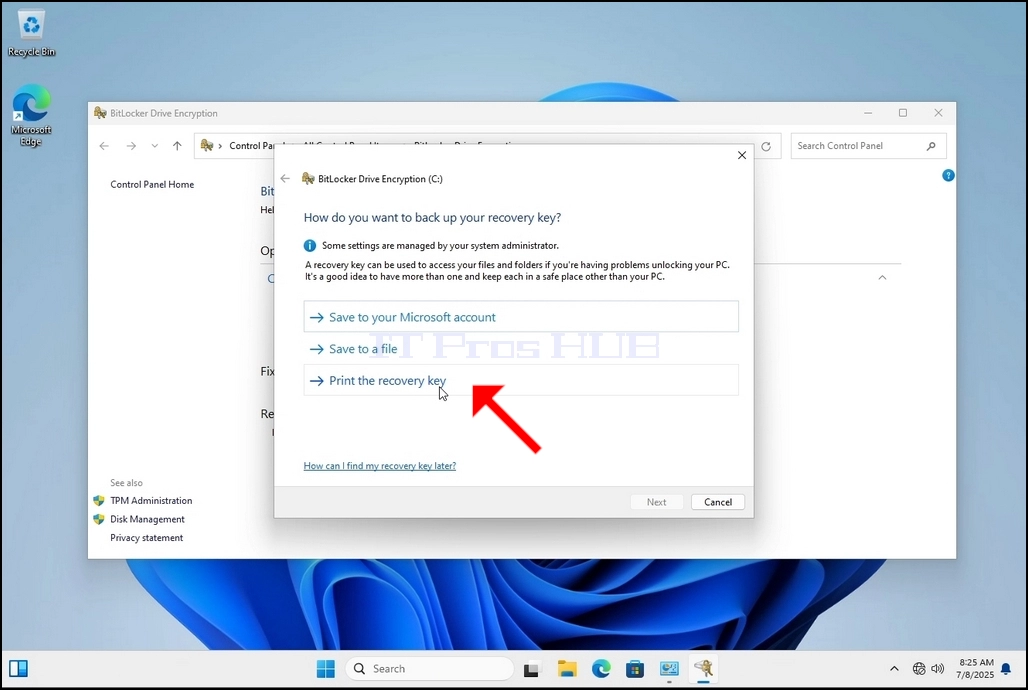
7. Once that option is chosen, the wizard will ask which printer to use to print the Bitlocker recovery key. In this article, as mentioned in stage 6, we will choose the Microsoft Print to PDF printer, which will print the recovery key into a PDF file.
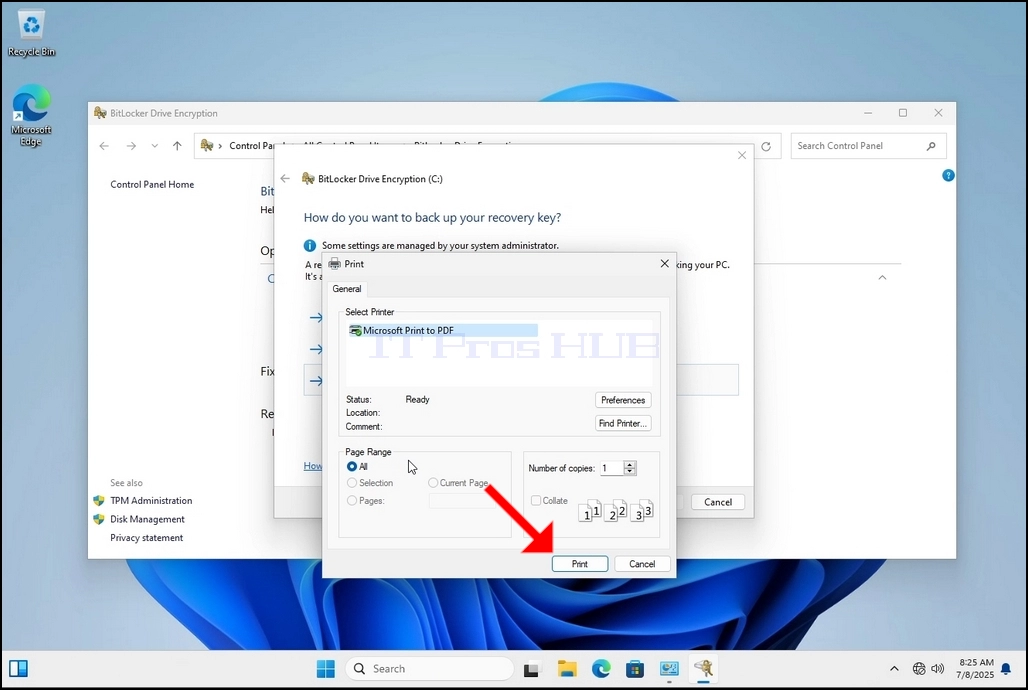
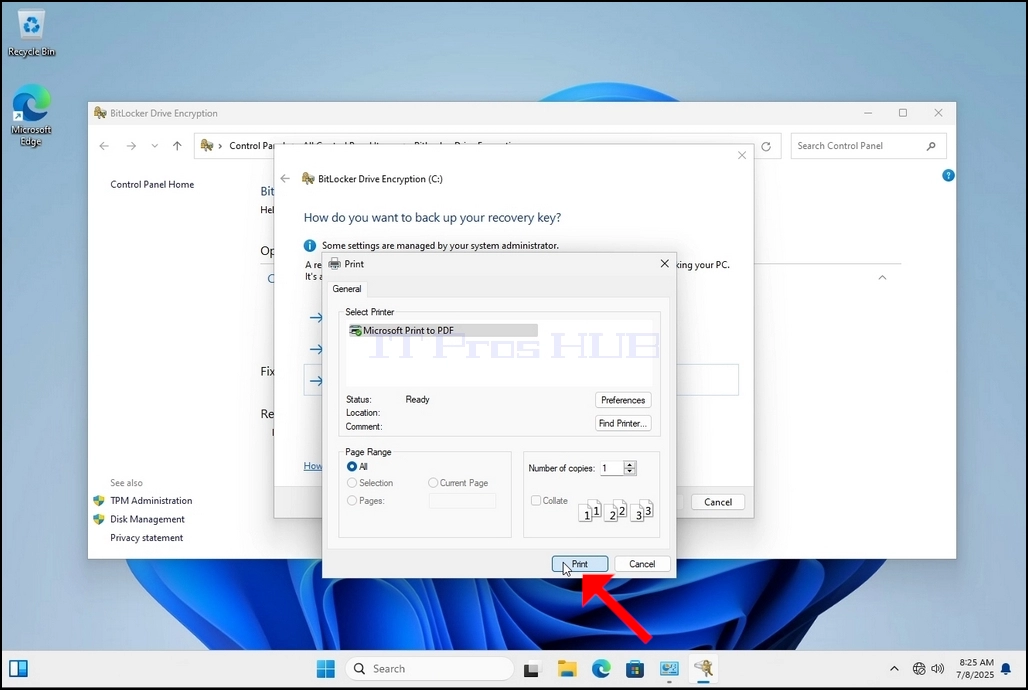
8. After choosing the printer, click Print
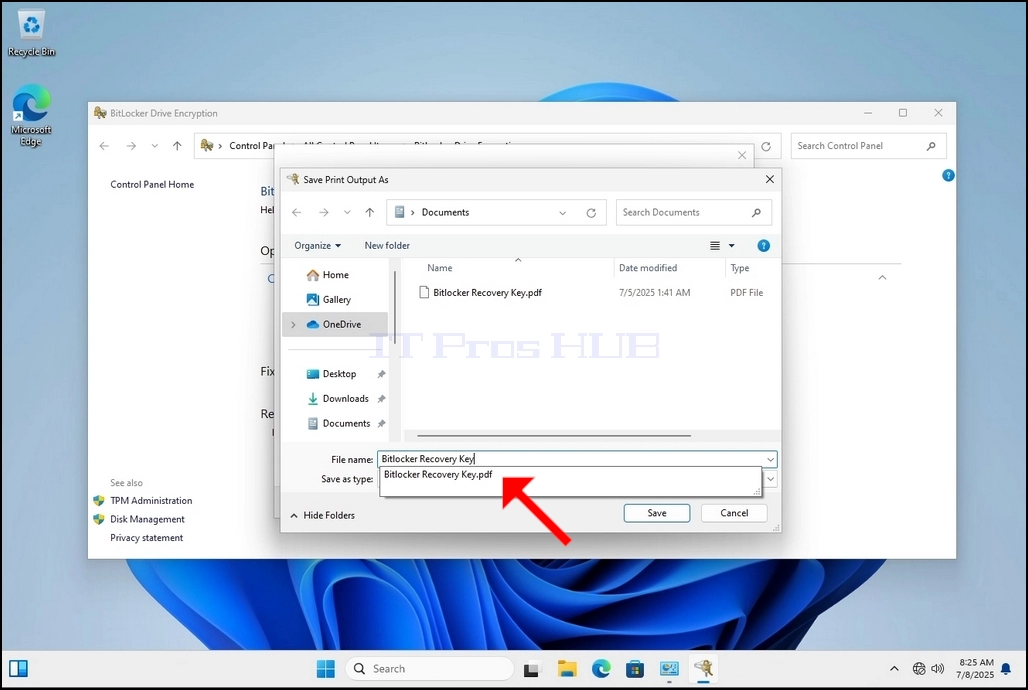
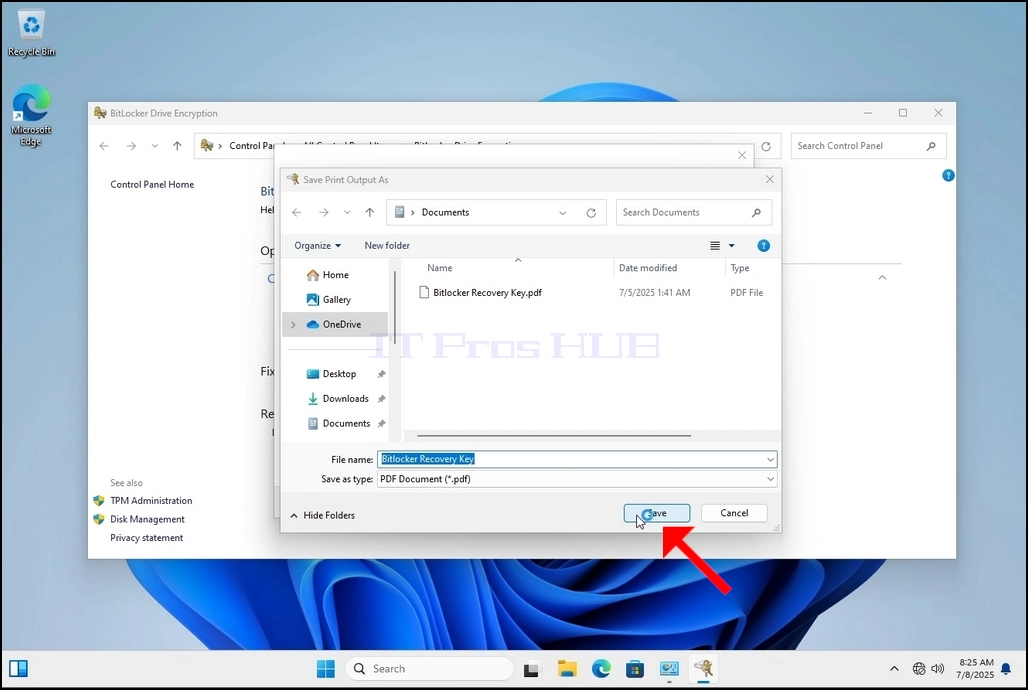
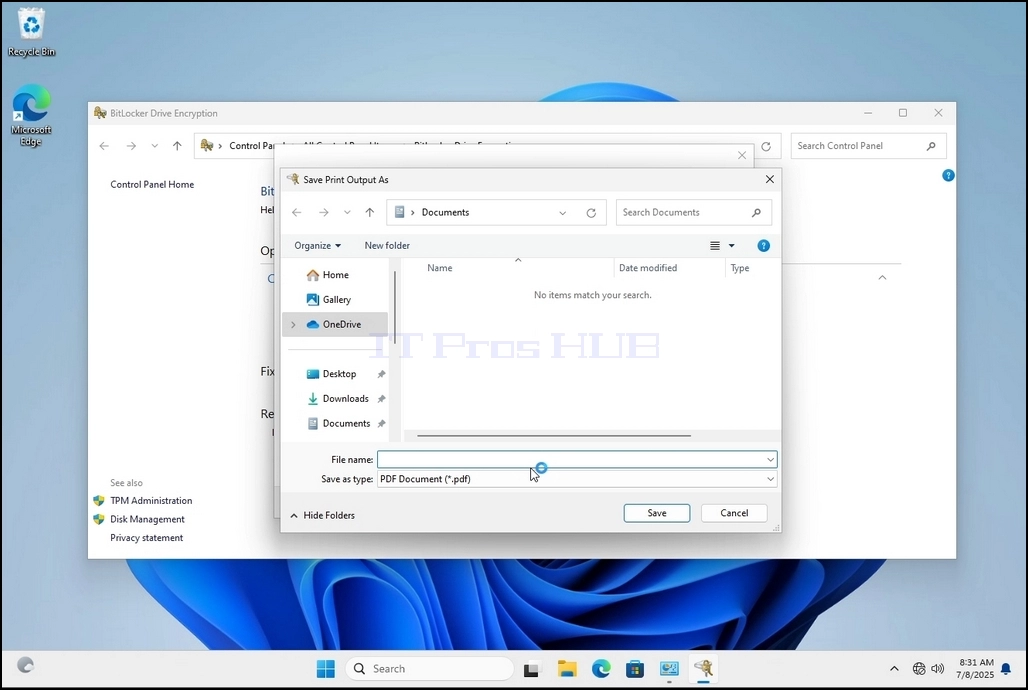
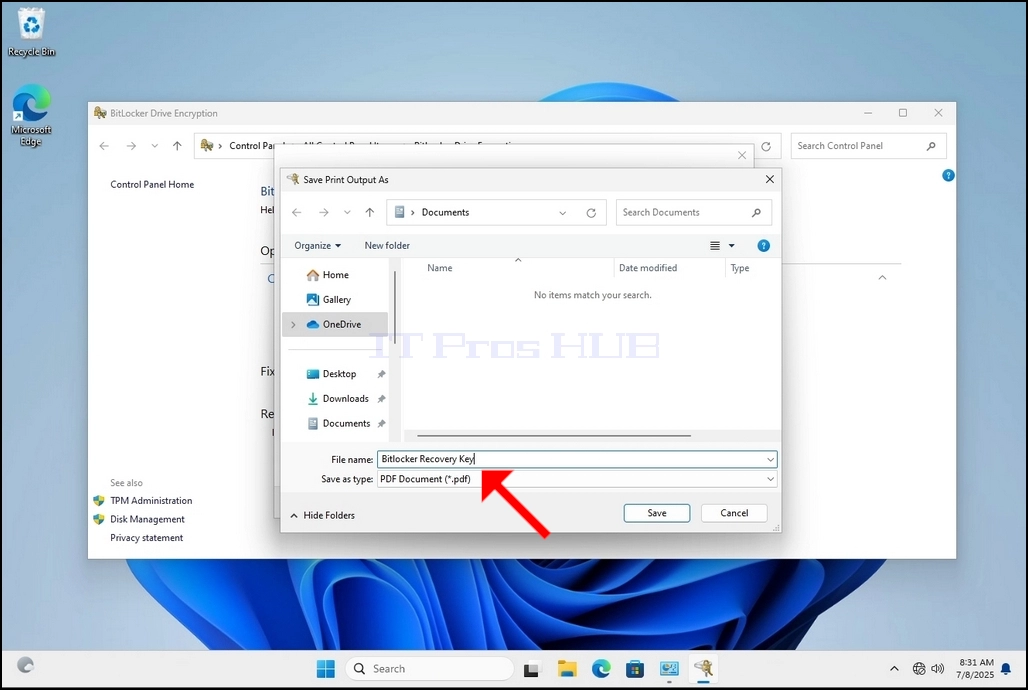
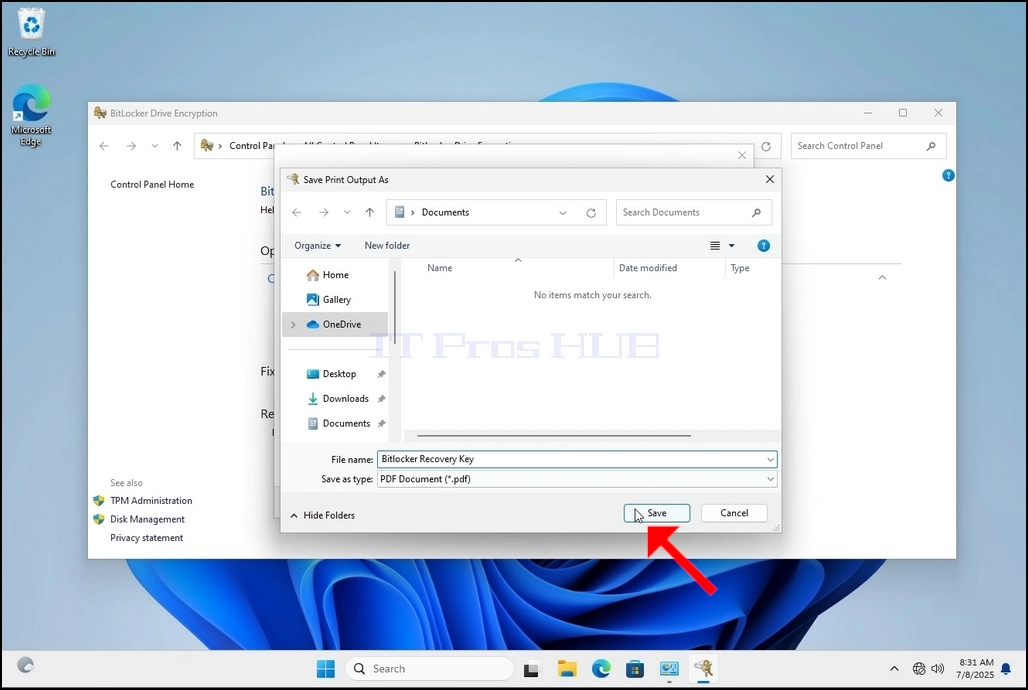
9. A new window will pop up. Use this window to name the Bitlocker recovery key PDF file and to choose where you would like you save it. In this case we named it “Bitlocker Recovery Key”.
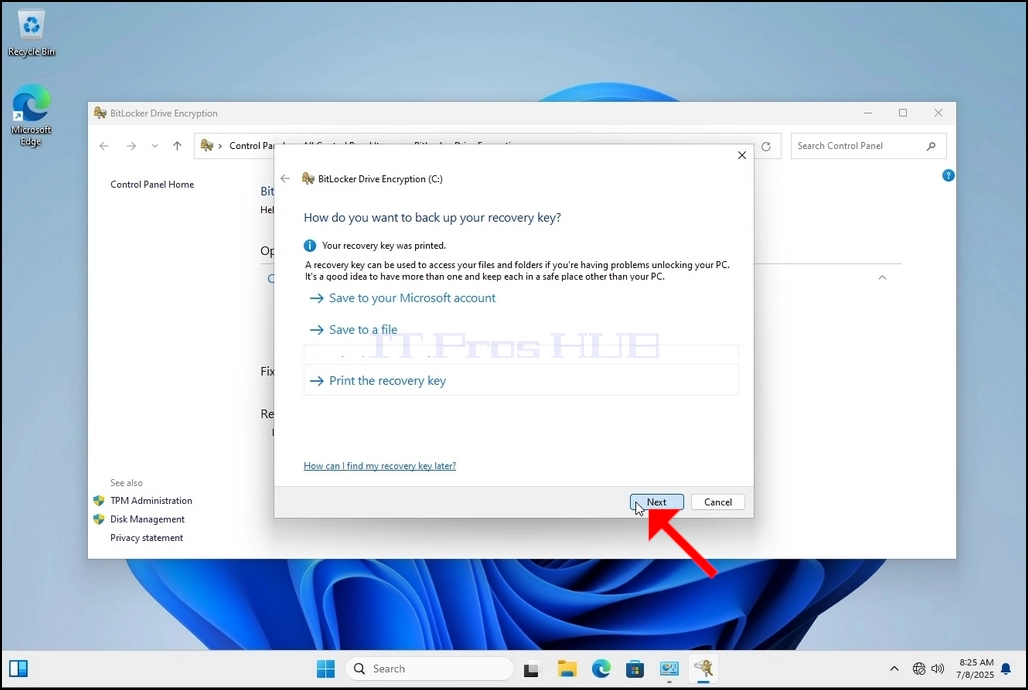
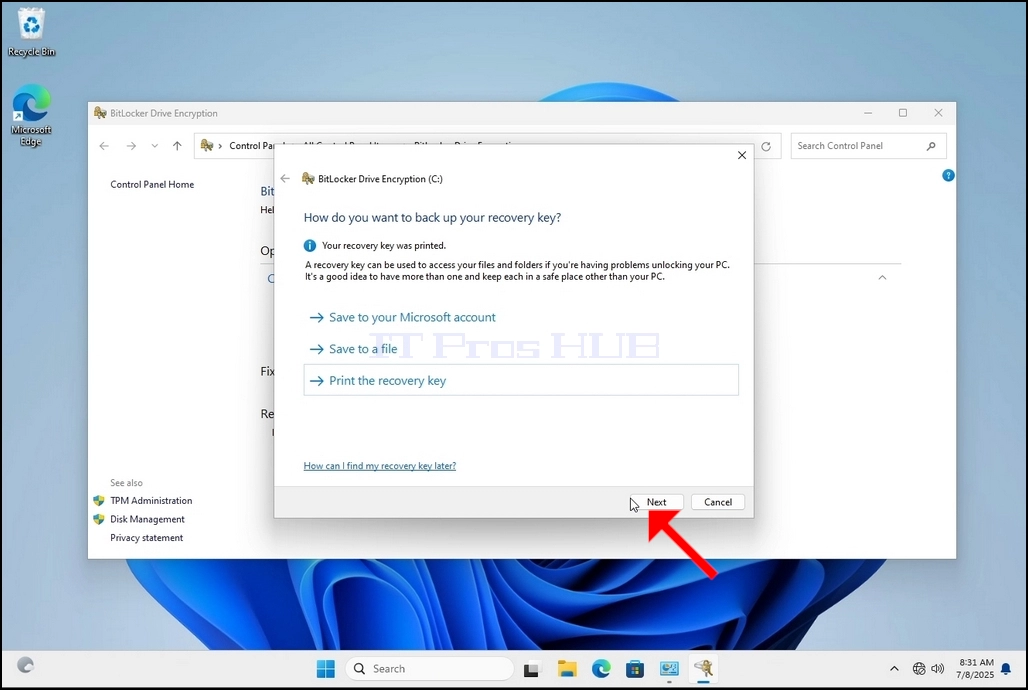
11. Click Next
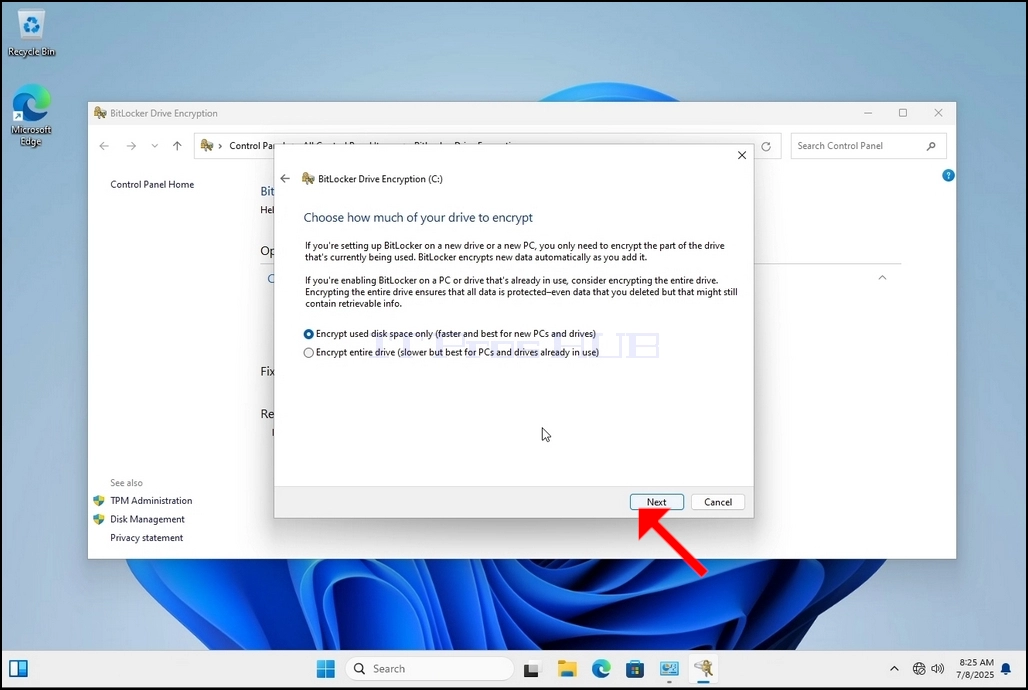
12. In the current stage, you will be asked to choose how much of your drive you would like to encrypt
a. In this article we will choose the first option which is faster to accomplish
b. Click Next
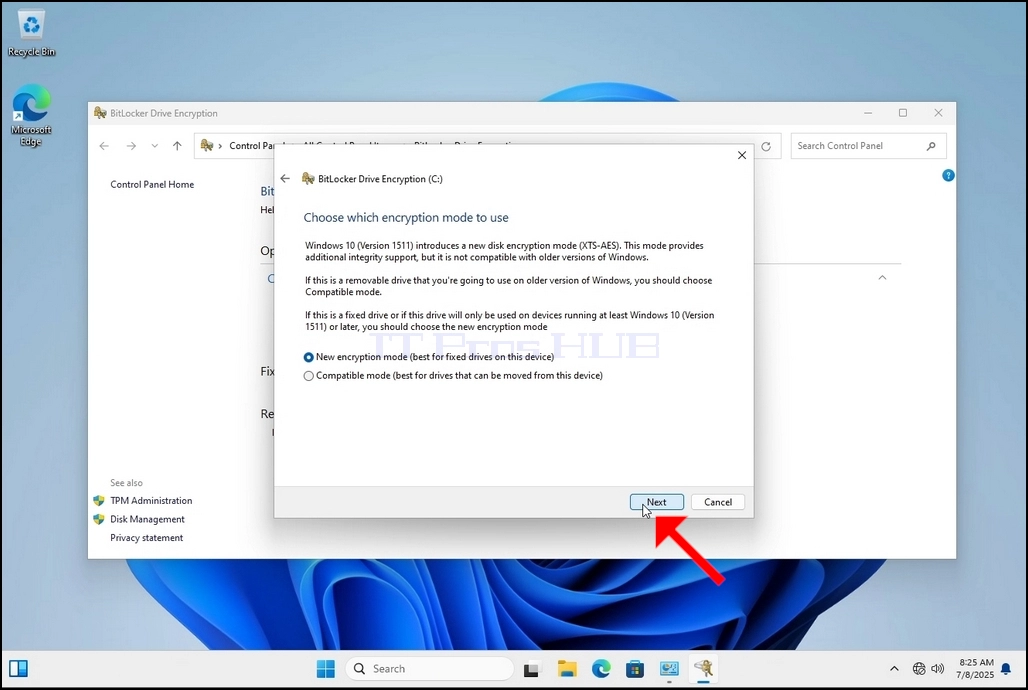
13. In the current stage, you will be asked to choose which encryption mode to use
a. In this article we will choose the first option, which is the New Encryption Mode option. Choose it and click Next
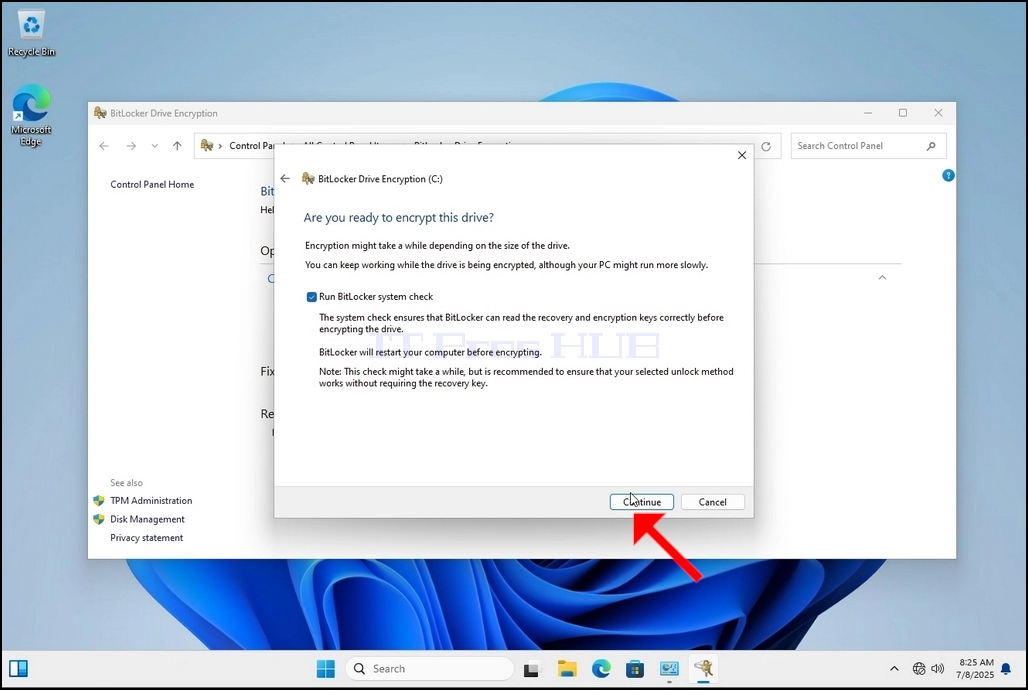
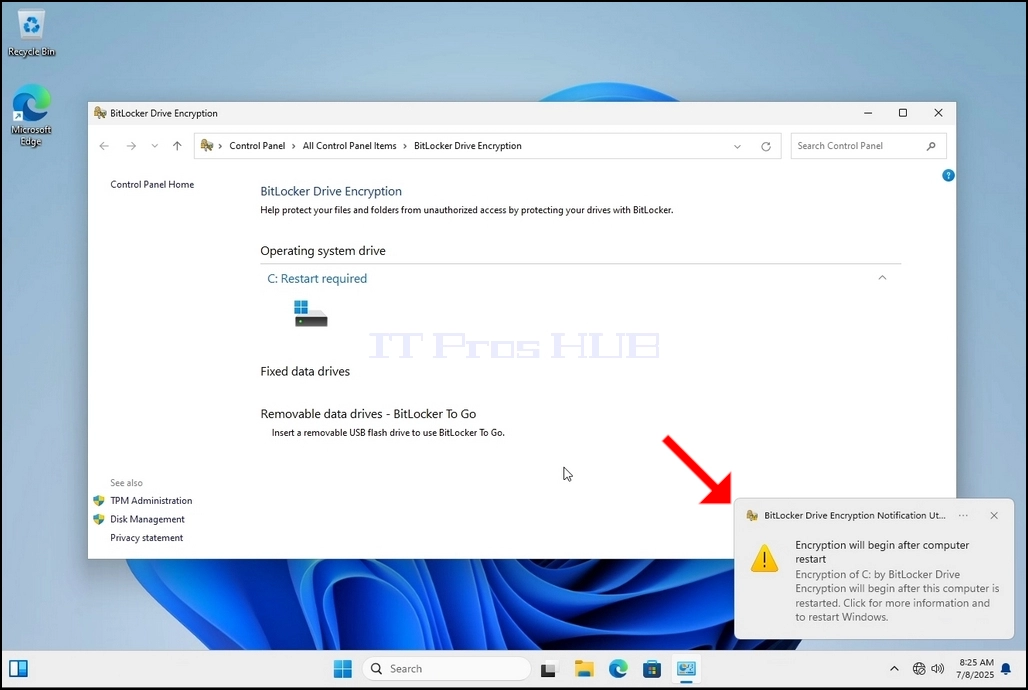
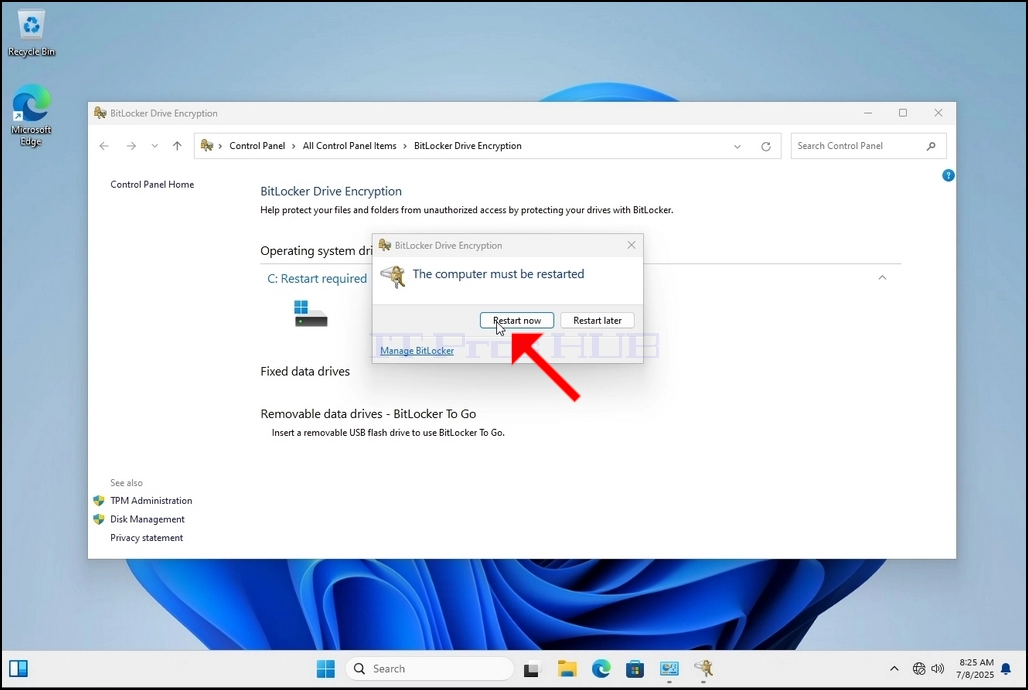


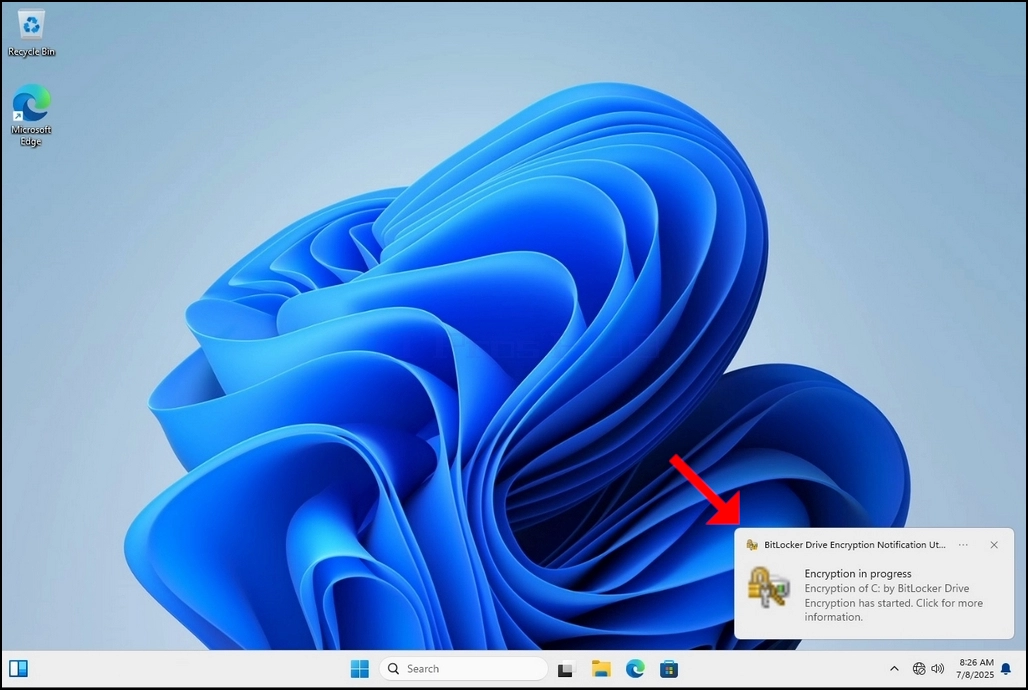
16. Once the computer is fully restarted, click the taskbar’s upward arrow (Notification area overflow icon).
a. Look for the Bitlocker icon and double click it
b. Once clicked, the Bitlocker drive encryption process window will appear, showing the status of the encryption process
c. Once that process bar is full at 100%, the encryption process is done
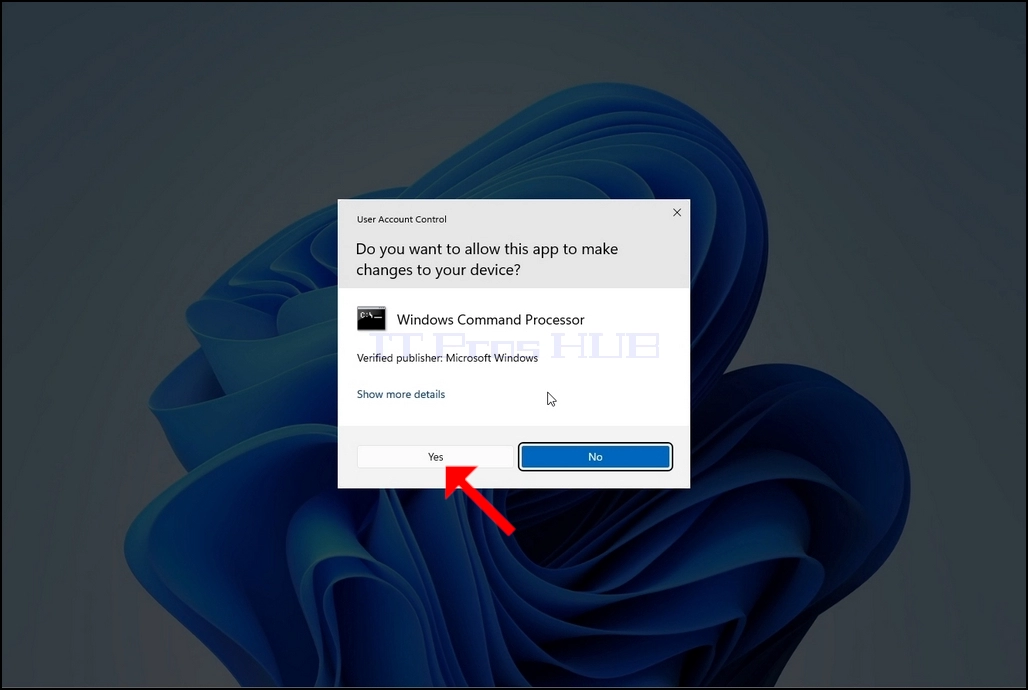
18. Click YES in the UAC window
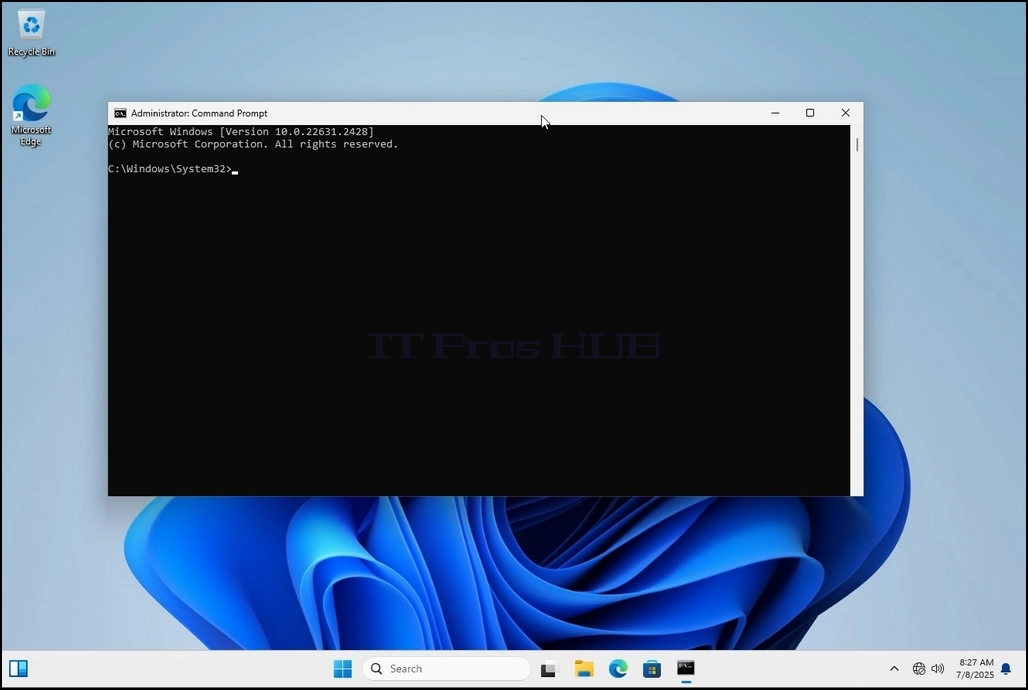
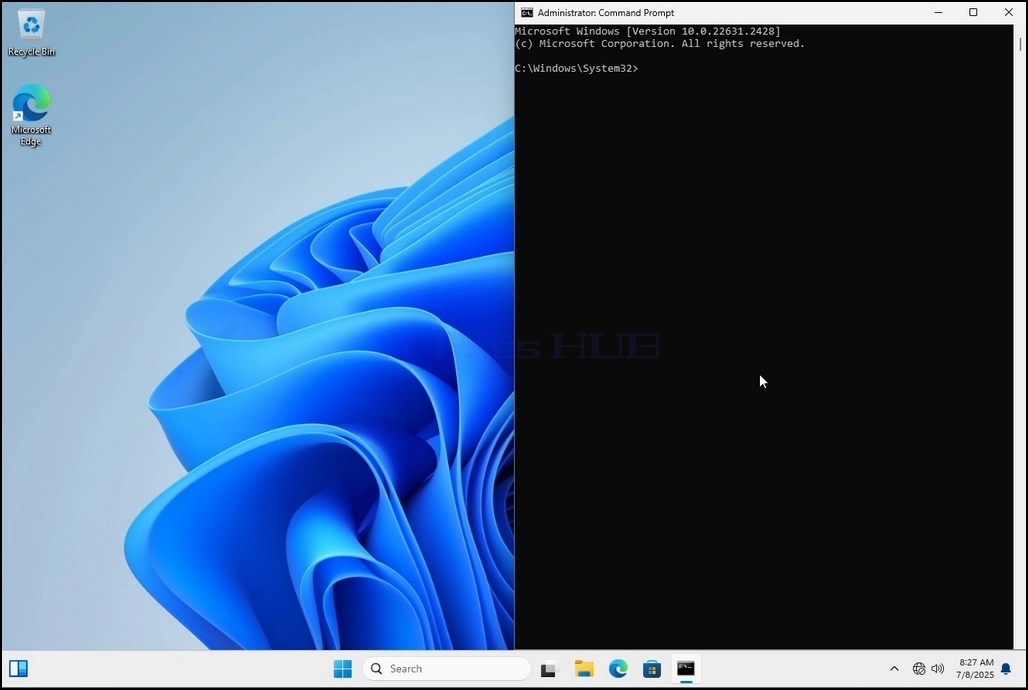
19. In cmd type manage-bde -status and click enter
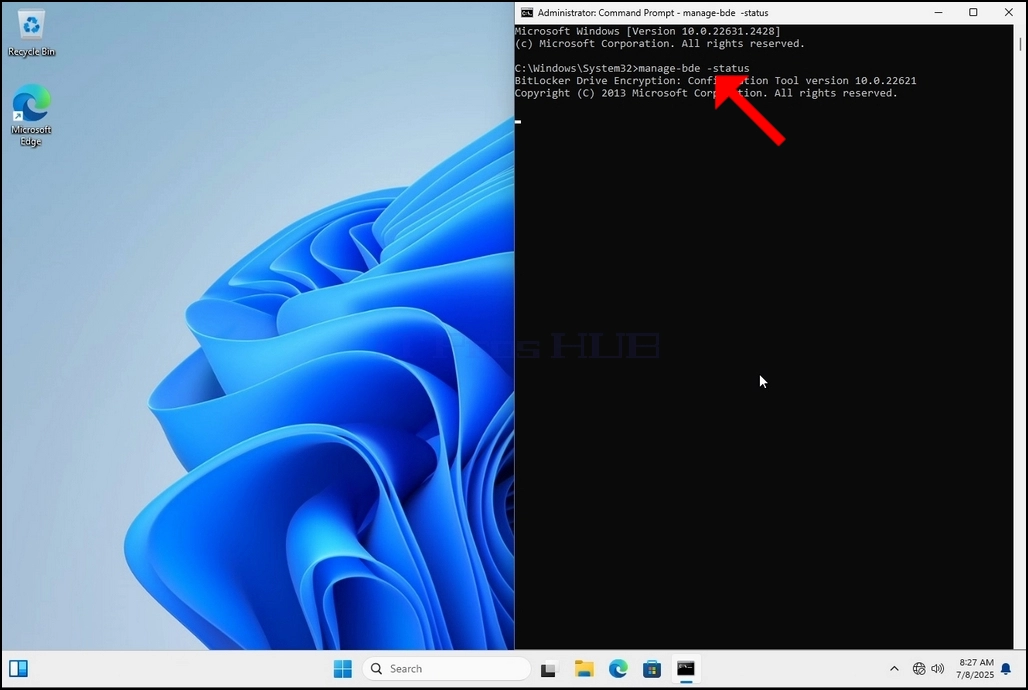
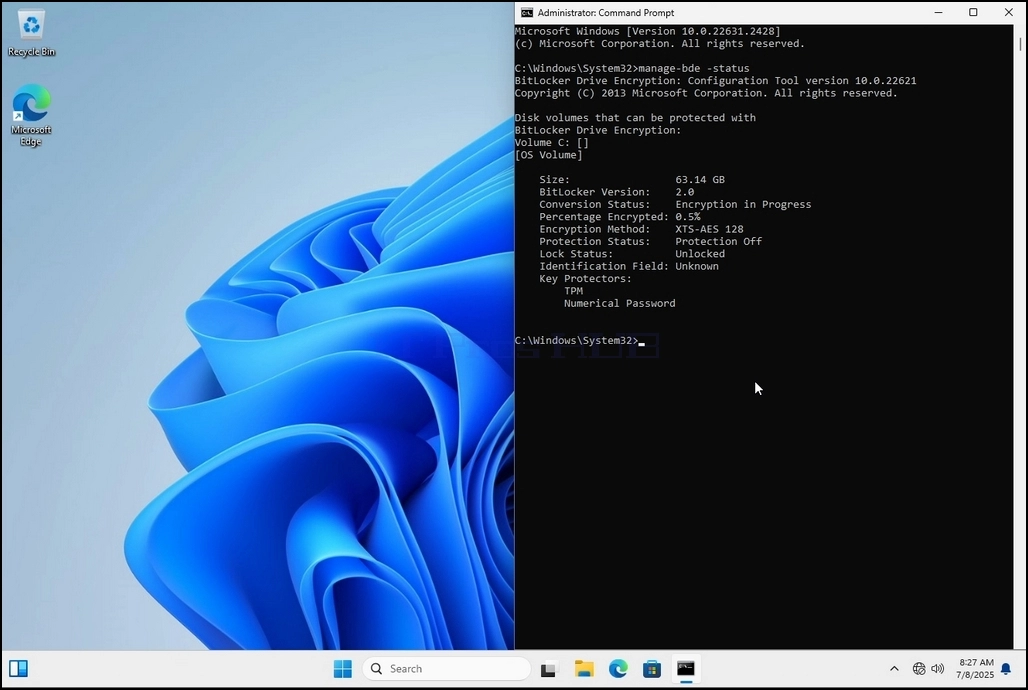
20. The lines that will appear will present information about the encryption process:
a. Size - The size of the drive being encrypted
b. Bitlocker Version – The version of Bitlocker used to encrypt the drive
c. Conversion Status – Shows the current encryption state of a drive
d. Percentage Encrypted – Shows the how much of the selected drive has been encrypted
e. Encryption Method – Shows the encryption method being used
f. Protection Status – Shows if the Bitlocker protection is currently off or on
g. Lock Status – Shows if the selected drive is locked or unlocked (accessible or not accessible)
h. Identification Field - refers to a label or optional string you can assign to a BitLocker-protected volume to help identify it, especially when managing multiple drives or recovery key
i. Key Protectors – Shows the authentication mechanisms that protect the encryption keys used to unlock a drive. When you encrypt a drive, BitLocker uses one or more key protectors to guard access to it
21. Once the encryption process is done for the selected drive, the small window that previously showed a process bar will now show:” Encryption of C: is complete”
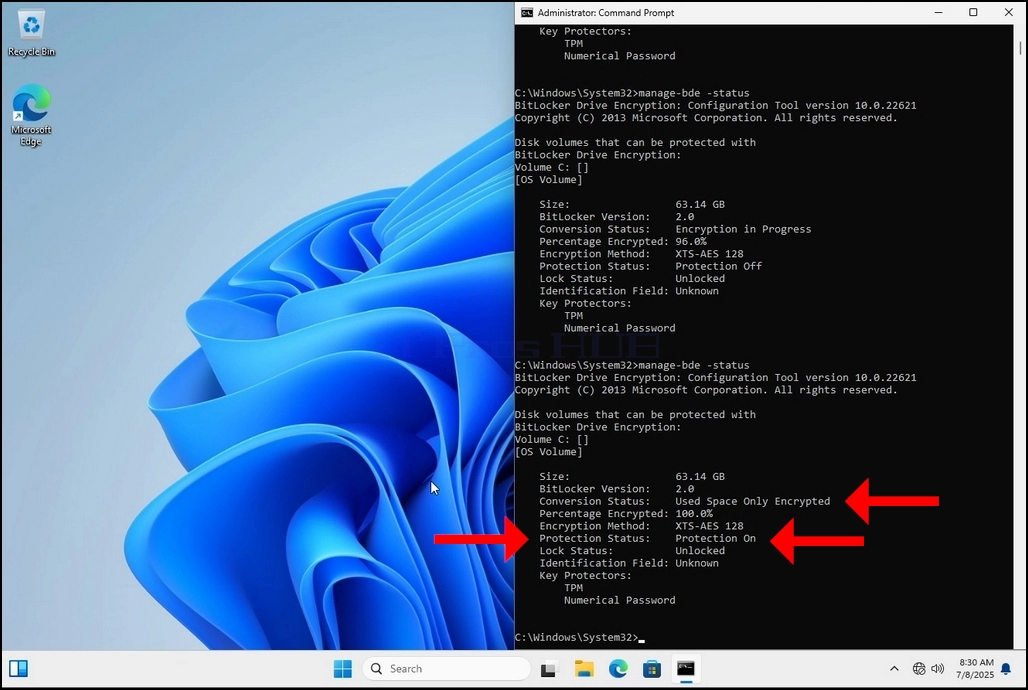
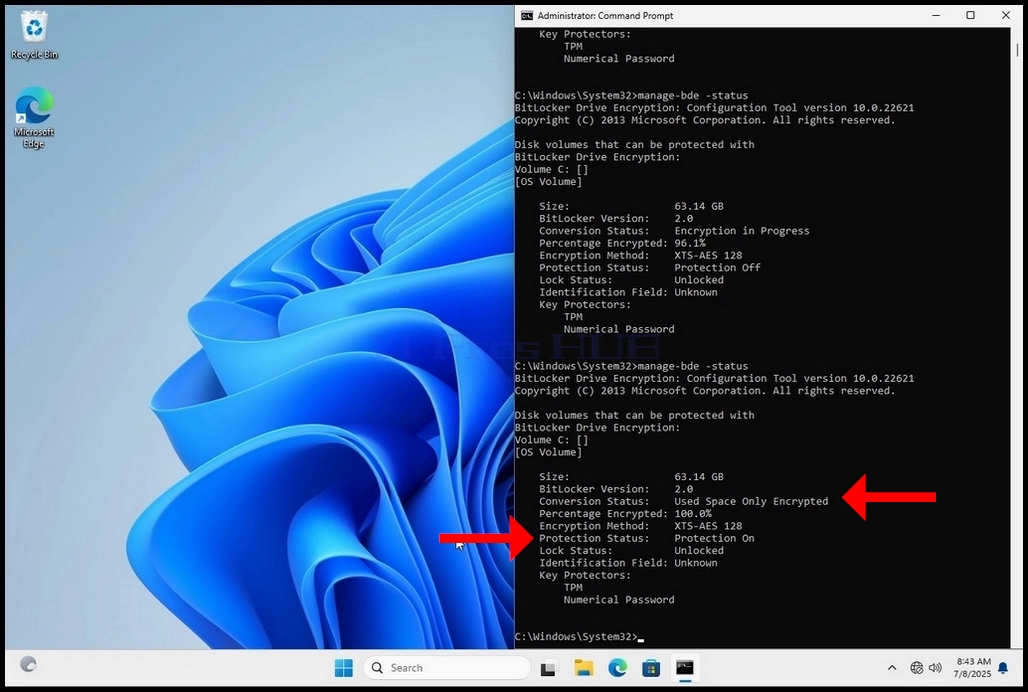
22. This could be verified through CMD by typing manage-bde -status again and clicking enter
a. Notice that the following values are now changed:
i. Conversion Status: Used Space Only Encrypted
ii. Percentage Encrypted: 100.0%
iii. Protection Status: Protection On
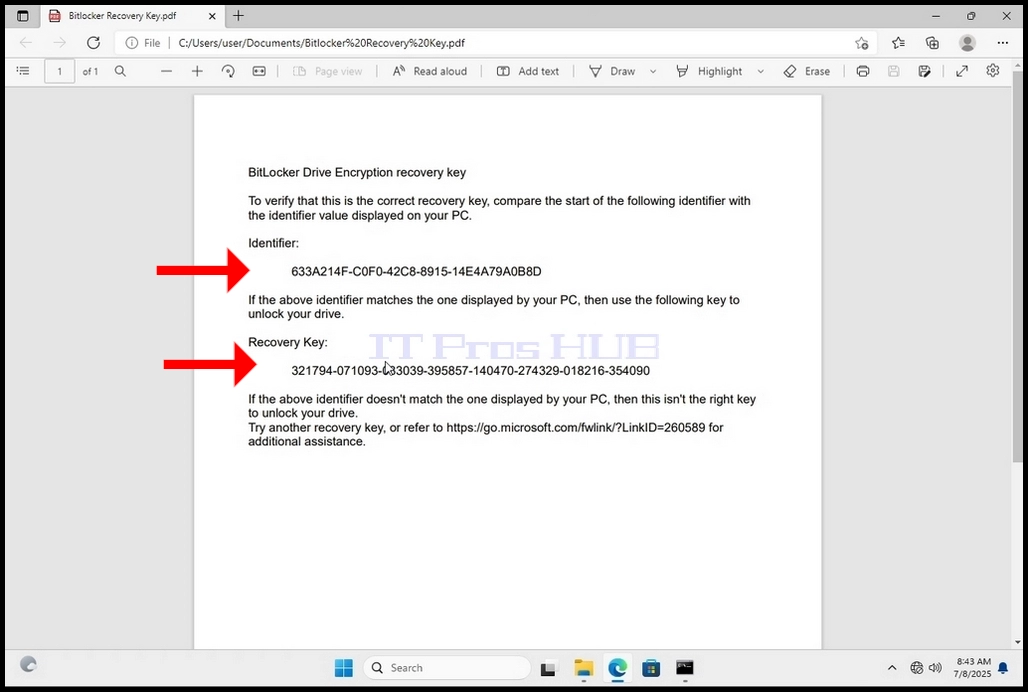
23. In the next step we will take a look at the Bitlocker recovery key PDF file
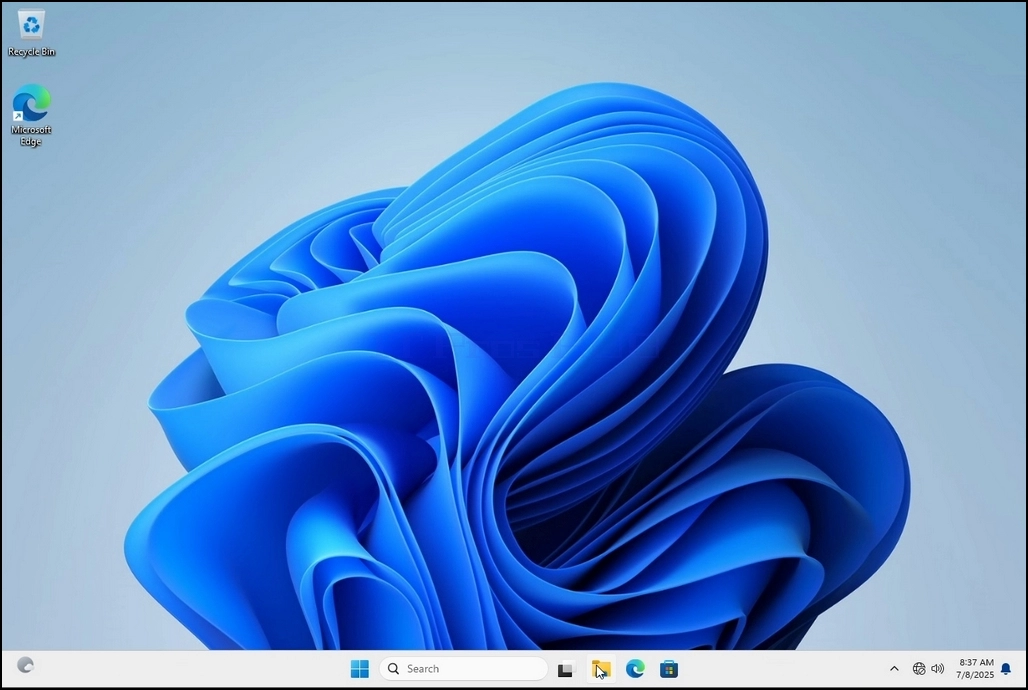
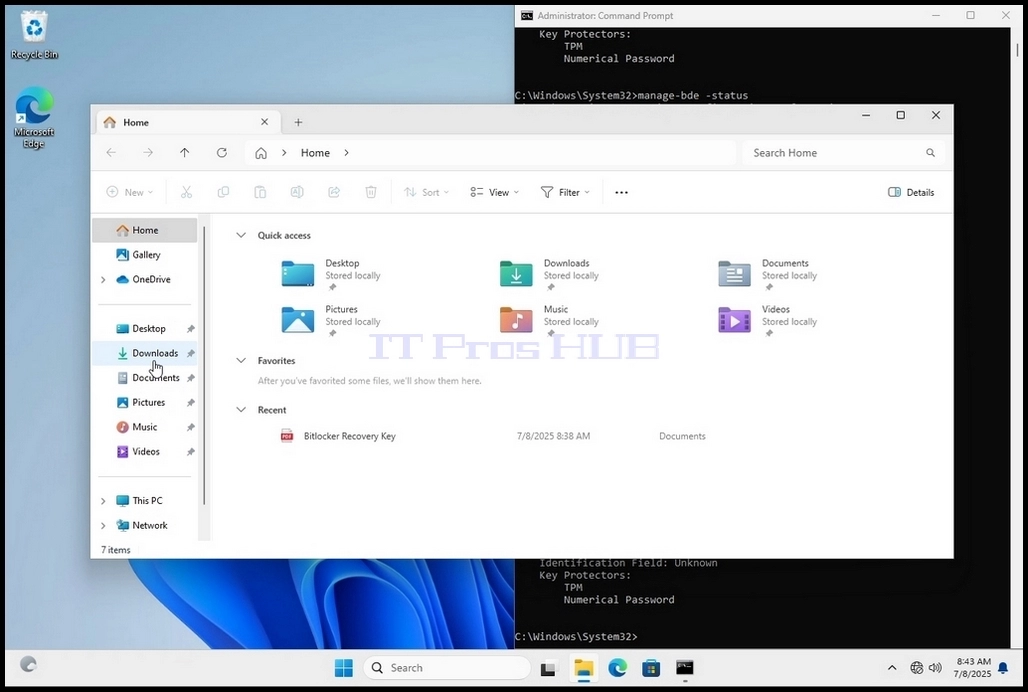
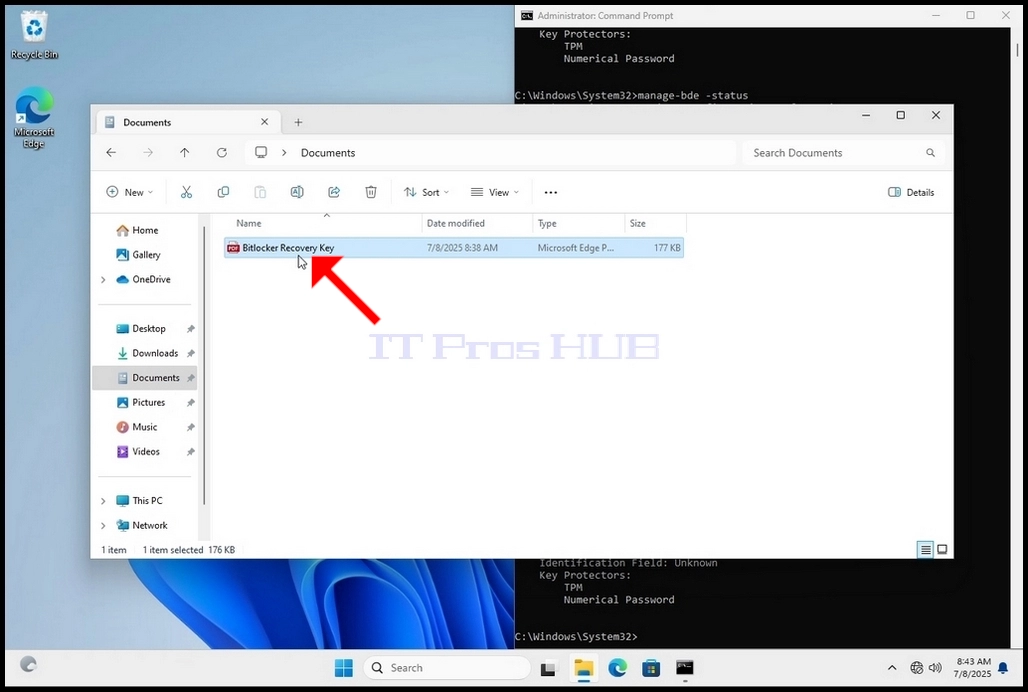
24. Go to the path in which it was originally saved and open it
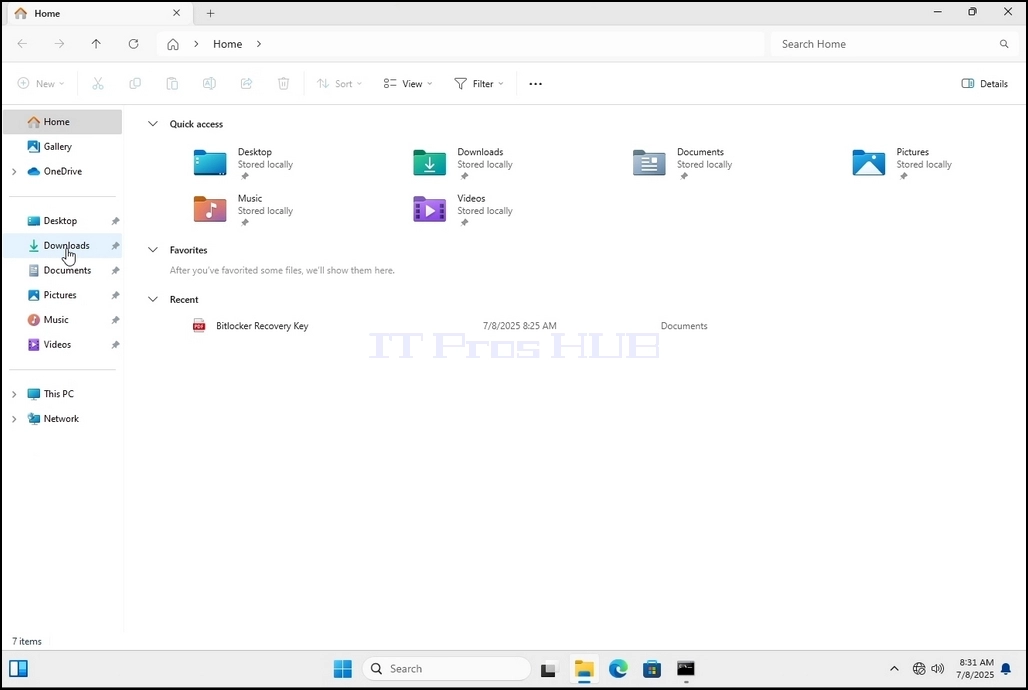
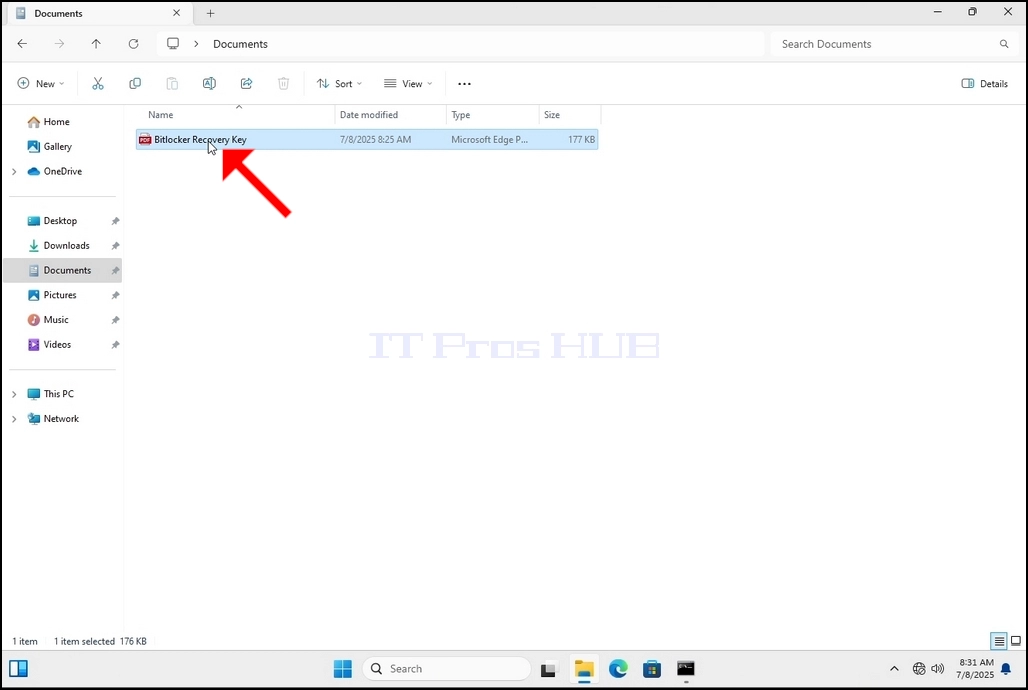
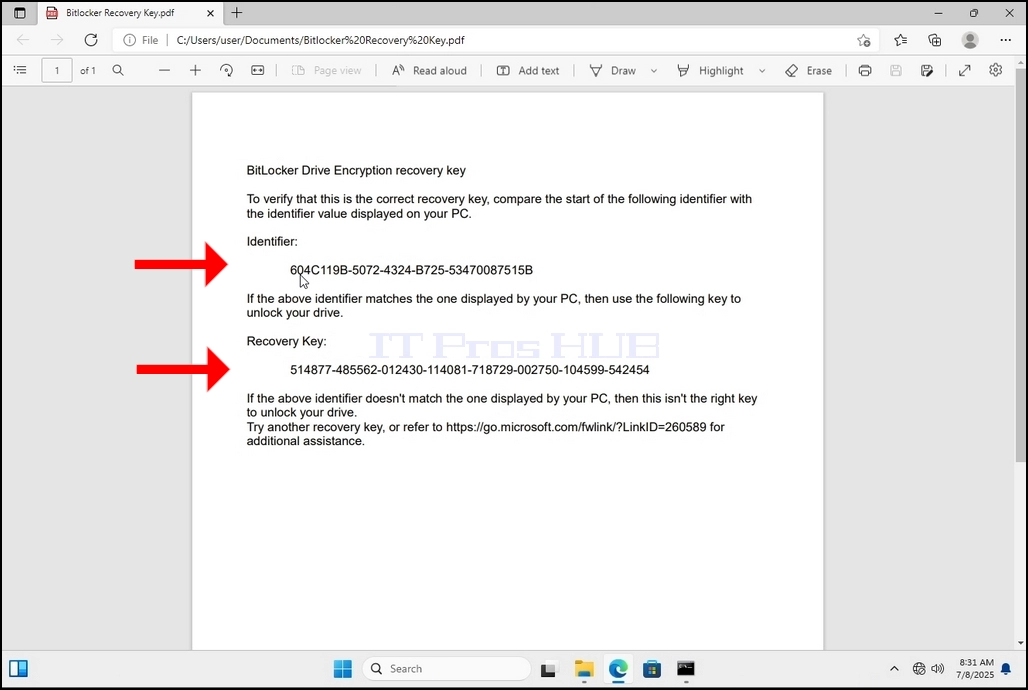
25. Notice the 2 important values:
a. Identifier
b. Recovery Key
26. It is highly recommended to save these values in more than one medium and location such as:
a. Printed format
b. Password manager
- Butiran
- Ditulis oleh IT Pro
- Kategori: How to Articles
- Jumlah paparan: 5753
KANIN 1. Name
Kampung 2. Klik pada tombol Mulai
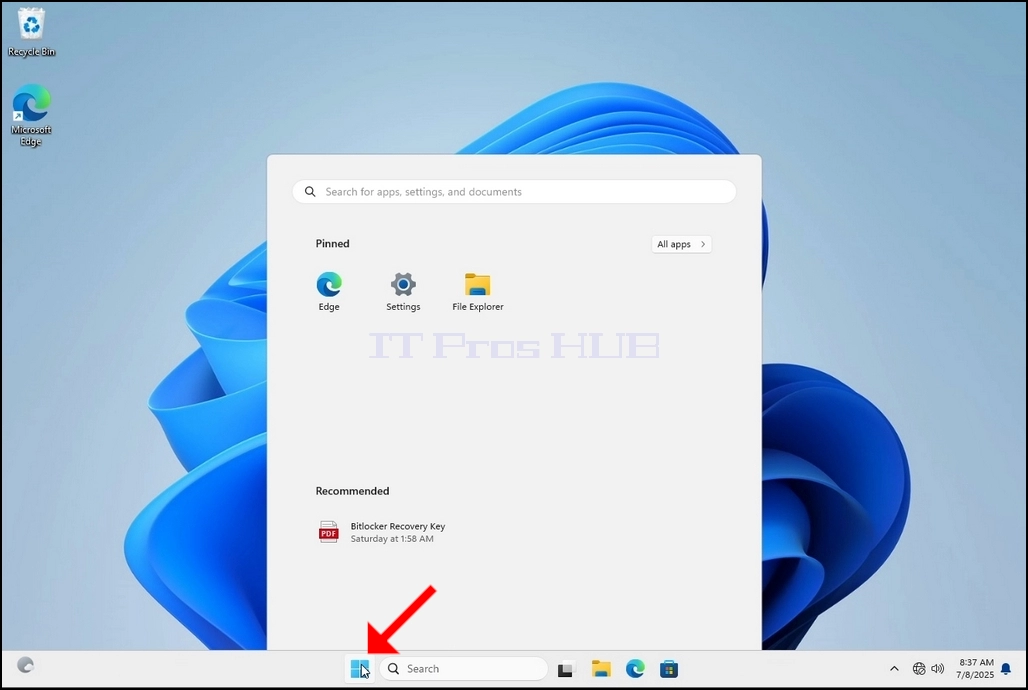
Kampung 3. Setelah menu Mula didirikan, jenis Ӧ bitlockerDan tunggu sampai ia menemukan ikon Bitlocker Control Panel. Setelah menemukannya, klik dan tunggu jendela enkripsi Bitlocker Drive untuk dibuka.
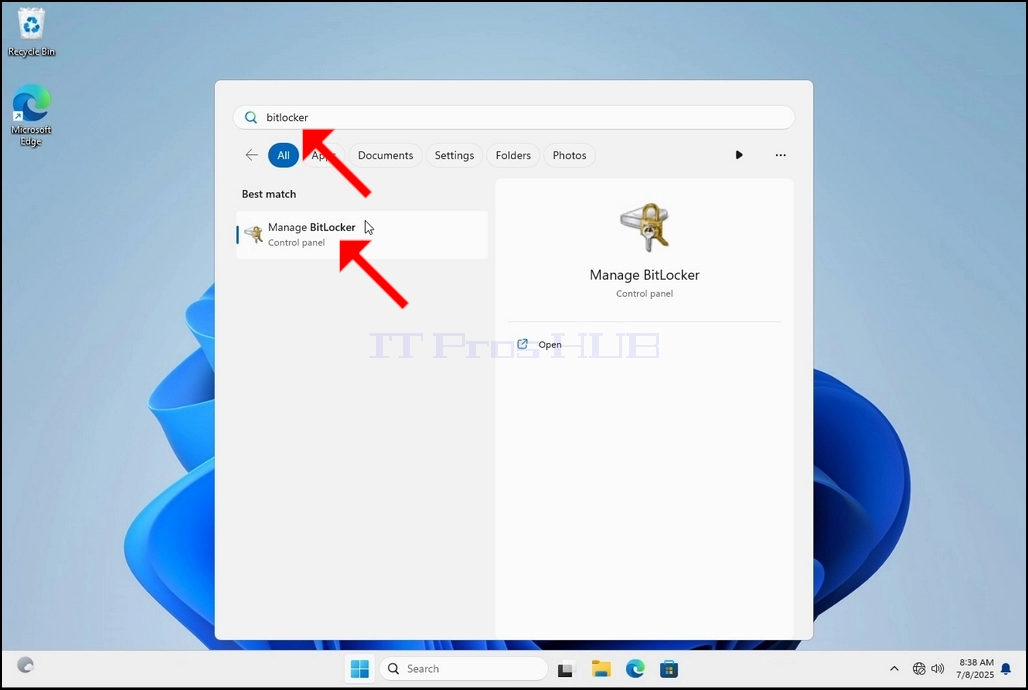
^ a b c d e f g h i j k l m n o p q r s t u v w x y z a b c d e f g h i j k l m n o p q r s t u v w x y z a b c d e f g h i j k l m x y z a b c d e f g h i j k l j k l j k l m n j k l j k l j k l m j k l m n o j k l j k l m j k l m j k l j k l m l m j k l m j k l m j k l m j k l m j k l m j k l m j k l m j k l m j k l m j k l m j k l m j k l m j k l m j k l m j k l m j k l m j k l m j k l m j k l m j k l m j k l m j k l m j k l m j k l m j k l m m j k l m j k l m j k l m j k l m j k l m m m j k l m m m m m Once Bitlocker Pengenkripsian Drive Gagal Dibuka, cari Hidup Bitlocker Kalimat dan klik di atasnya dan menunggu Enkripsikan Dan Tandatangan Pemacu Bitlocker Penyihir muncul.
A. Setelah wizard muncul akan secara otomatis memverifikasi jika komputer memenuhi persyaratan sistem yang diperlukan untuk mengenkripsi data menggunakan Bitlocker.
1 b. Meskipun katanya butuh beberapa menit, dalam kebanyakan kasus dibutuhkan waktu hingga 30 detik pada setup komputer modern.
X. X. 5. Setelah tahap verifikasi dilakukan dan wizard menemukan komputer Bitlocker mampu, ia akan bertanya bagaimana Anda ingin menyimpan kunci pemulihan Bitlocker Anda
a. akun Microsoft – simpan dalam akun Microsoft Anda
1 b. Simpan ke file – simpan kunci pemulihan ke file teks
c. Cetak Kunci Pemulihan – mencetak kunci pemulihan Bitlocker, bahkan ke pencetak virtual.
Zakhan 6. Dalam artikel ini kita akan memilih pilihan terakhir yang adalah Cetak Pemulihan Kunci Kami akan menyimpannya secara lokal.
a. Perhatikan bahwa Bitlocker tidak mengizinkan penyimpanan file kunci pemulihan ke drive yang sama yang akan dienkripsi.
1 b. Namun, ia memang memungkinkan mencetak kunci pemulihan tersebut ke file pada drive yang sama yang akan dienkripsi. Metode ini tidak dianjurkan juga tetapi demi kepentingan artikel ini kita akan melakukannya dengan cara ini.
Catatan – Jangan simpan file kode pemulihan ke drive yang sama yang akan dienkripsi. Jika untuk beberapa alasan bahwa drive mendapat terkunci keluar, file kunci pemulihan akan terkunci keluar bersama dengan itu.
BAHWA 7. Setelah pilihan itu dipilih, wizard akan meminta printer mana yang digunakan untuk mencetak kunci pemulihan Bitlocker. Dalam artikel ini, seperti yang disebutkan di panggung 6, kita akan memilih Microsoft Print to PDF PDF file.
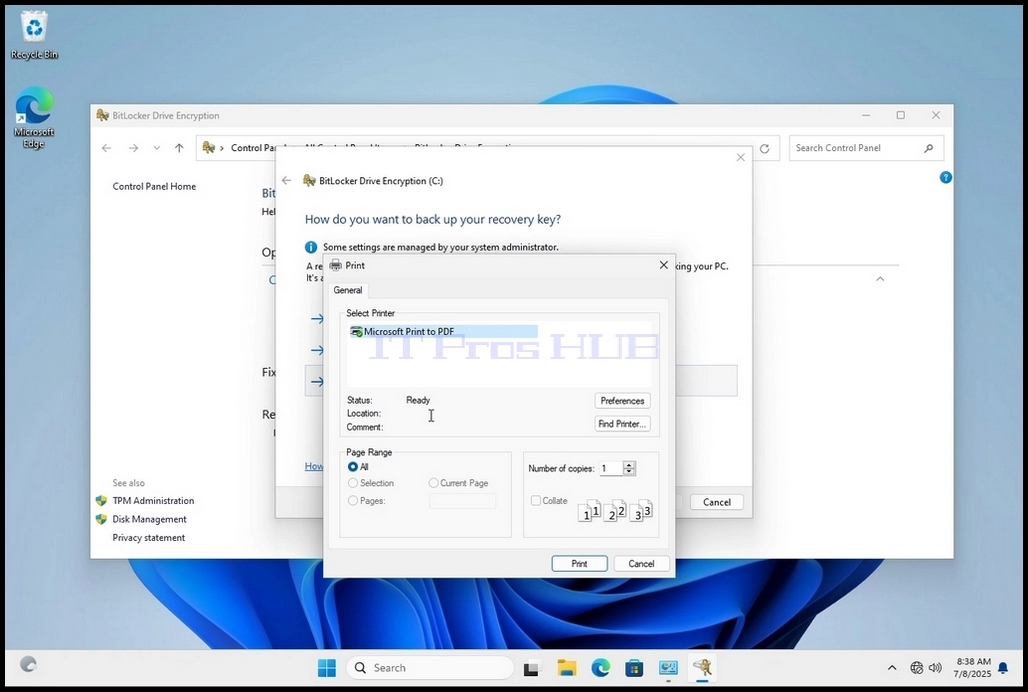
25. ^ (Inggris) Werner 8. Setelah memilih pencetak, klik Cetakan
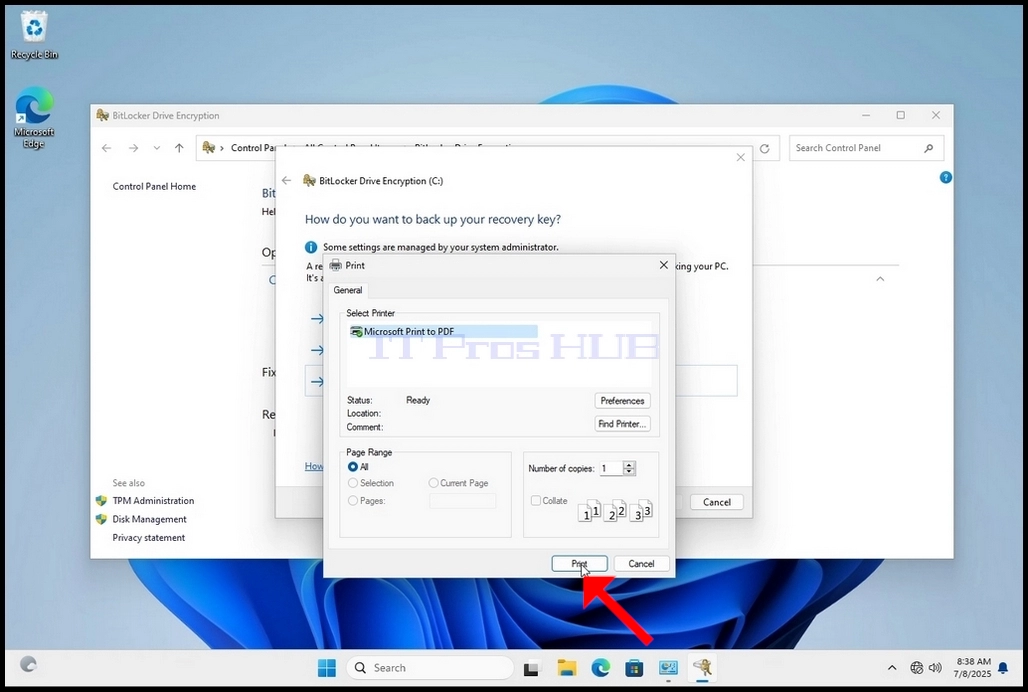
9. ^ a b c d e f g h i j k l m n o p. Sebuah jendela baru akan muncul. Gunakan jendela ini untuk menamai file PDF kunci pemulihan Bitlocker dan untuk memilih di mana Anda ingin menyimpannya. Dalam kasus ini, kami menamainya ”Kunci Pemulihan BitlockerTidak. ”
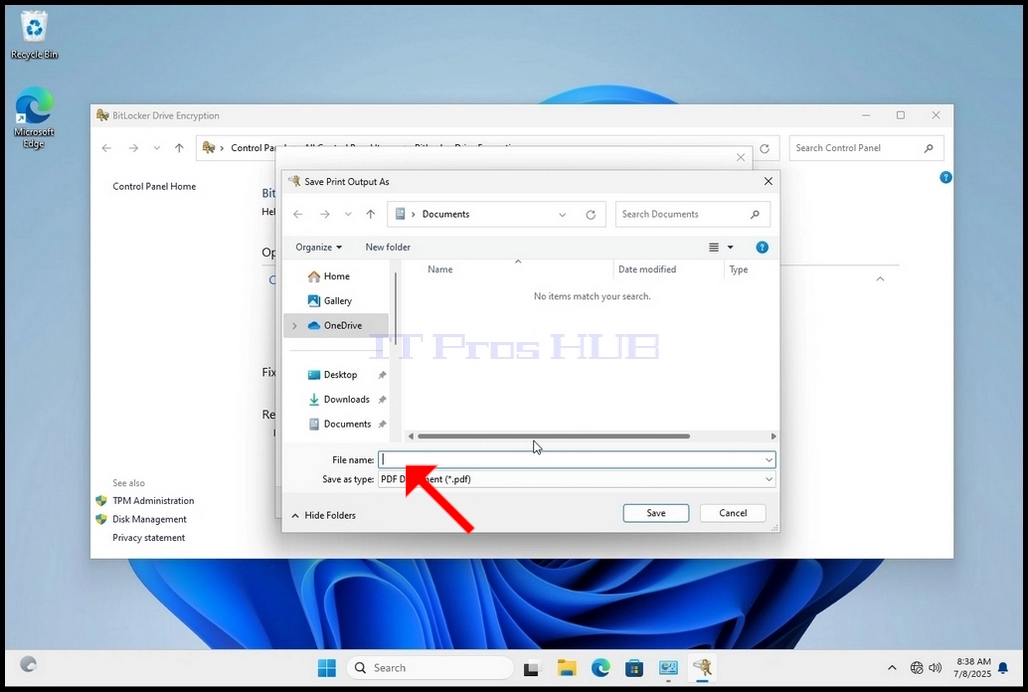
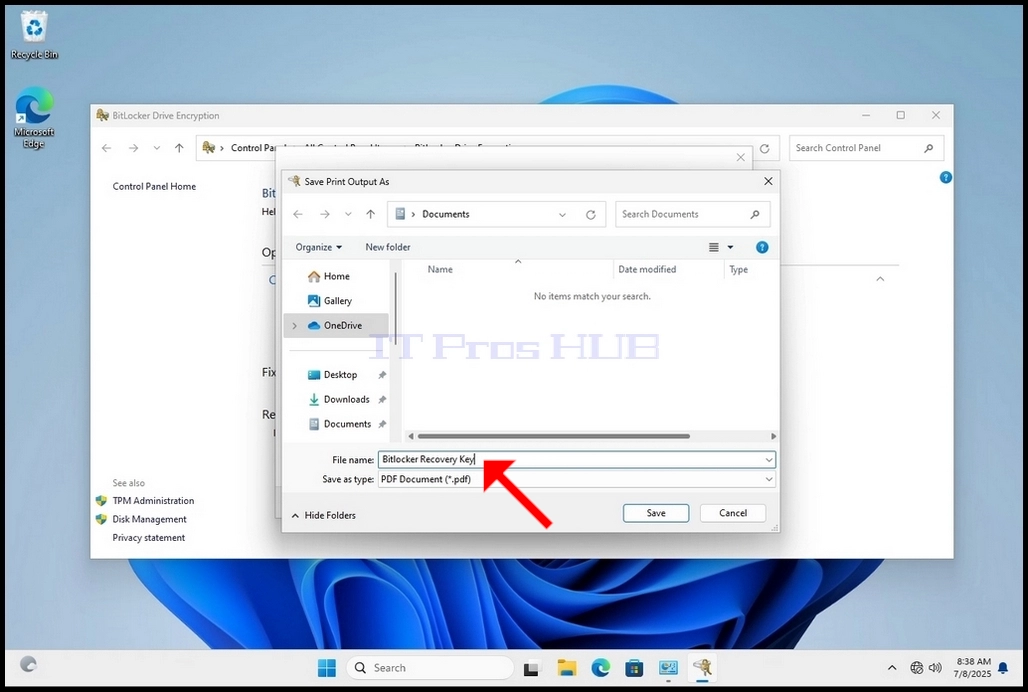
/ 10. KlikTolak Simpan
A. Setelah tombol Save diklik, jendela akan ditutup dan kita akan kembali ke wizard, hanya kali ini, tombol Next akan menjadi dapat diklik.
Mayor 11. Klik Berikutnya
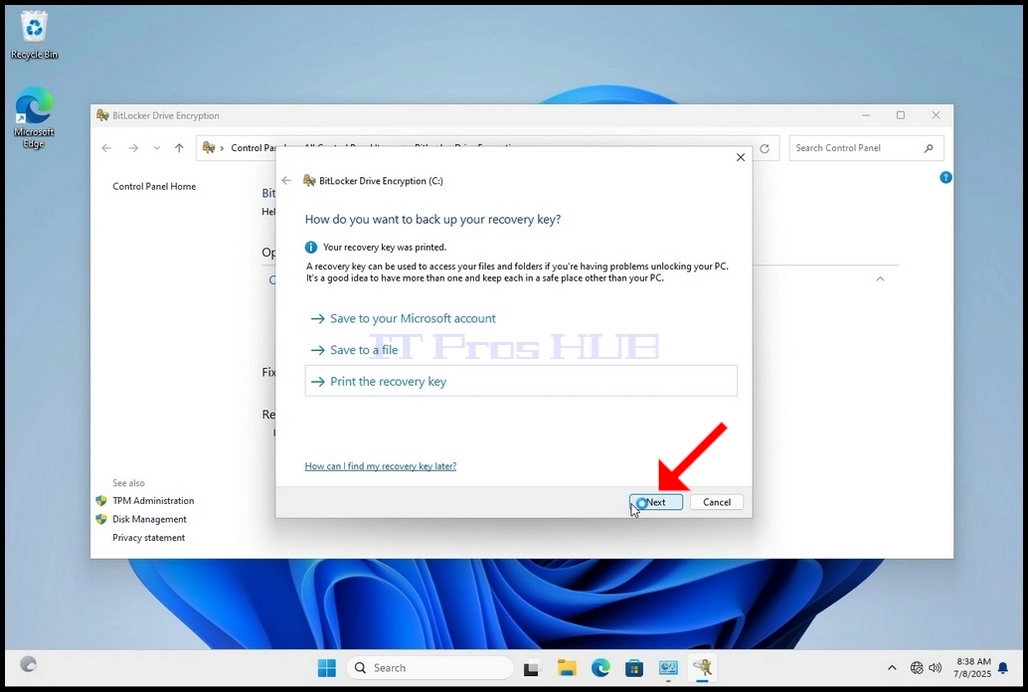
^ a b c d e f g h i j k l m n Pada tahap saat ini, Anda akan diminta untuk memilih berapa banyak drive Anda ingin mengenkripsi
A. Dalam artikel ini, kita akan memilih pilihan pertama yang lebih cepat untuk dicapai
b. Klik Berikutnya
2011-10-13. Pada tahap saat ini, Anda akan diminta untuk memilih mode enkripsi mana yang akan digunakan
A. Dalam artikel ini kita akan memilih pilihan pertama, yaitu Enkripsi Baru Pilihan Mode. Pilih dan klik Selanjutnya
14. 14. ^ a b c d e f g h i j k l m n o p. Meskipun tidak wajib tetapi disarankan, kita akan menandai Periksa Sistem Bitlocker Jalankan Pilihan.
A. Pemeriksaan sistem memastikan Bitlocker dapat membaca pemulihan dan enkripsi kunci dengan benar sebelum mengenkripsikan drive.
1 b. Setelah pilihan itu ditandai, tombol akan berubah dari \"mulai enkripsi\" menjadi \"Teruskan\".
c. Klik Lanjutkan
/ 15 tahun. Beberapa detik setelah mengklik Teruskan, jendela pemberitahuan samping akan muncul dari sisi kanan-bawah jendela.
Klik di atasnya sekali
1 b. Setelah diklik, jendela pop-up lain akan muncul yang akan bertanya apakah akan memulai kembali sekarang untuk memulai proses enkripsi atau nanti.
CO. Klik tombol Restart Now dan tunggu komputer untuk menghidupkan kembali dirinya sepenuhnya.

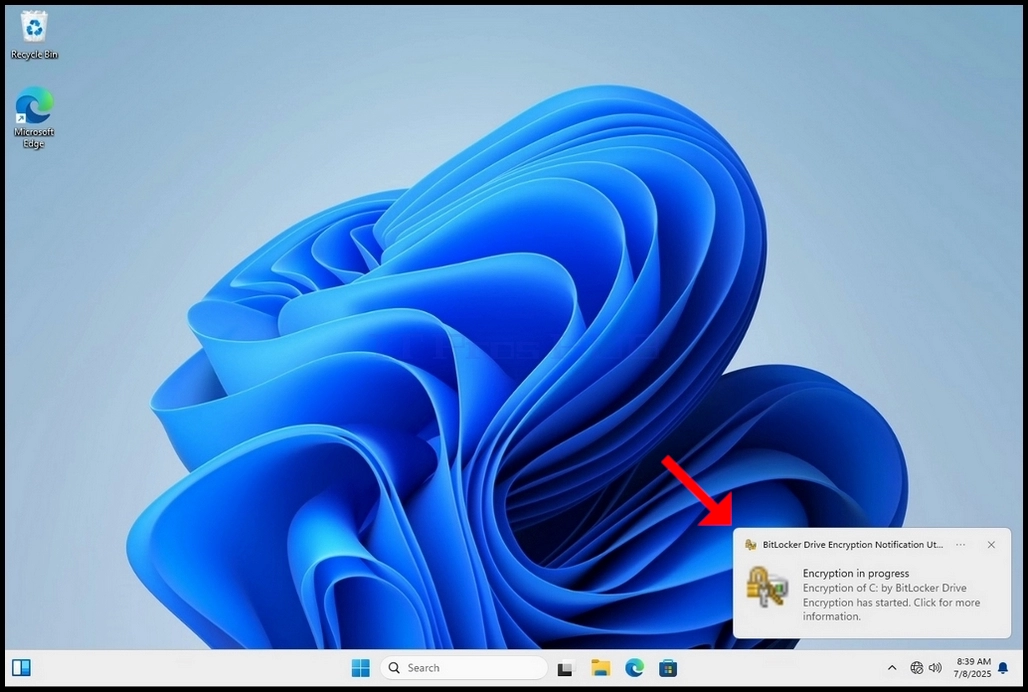
Ç 16. Setelah komputer dihidupkan ulang sepenuhnya, klik anak panah taskbar ke atas (Notifikasi area overflow icon).
Cari ikon Bitlocker dan klik dua kali lipat
1 b. Setelah diklik, jendela proses enkripsi drive Bitlocker akan muncul, menunjukkan status proses enkripsi
c. Setelah bar proses penuh 100%, proses enkripsi selesai
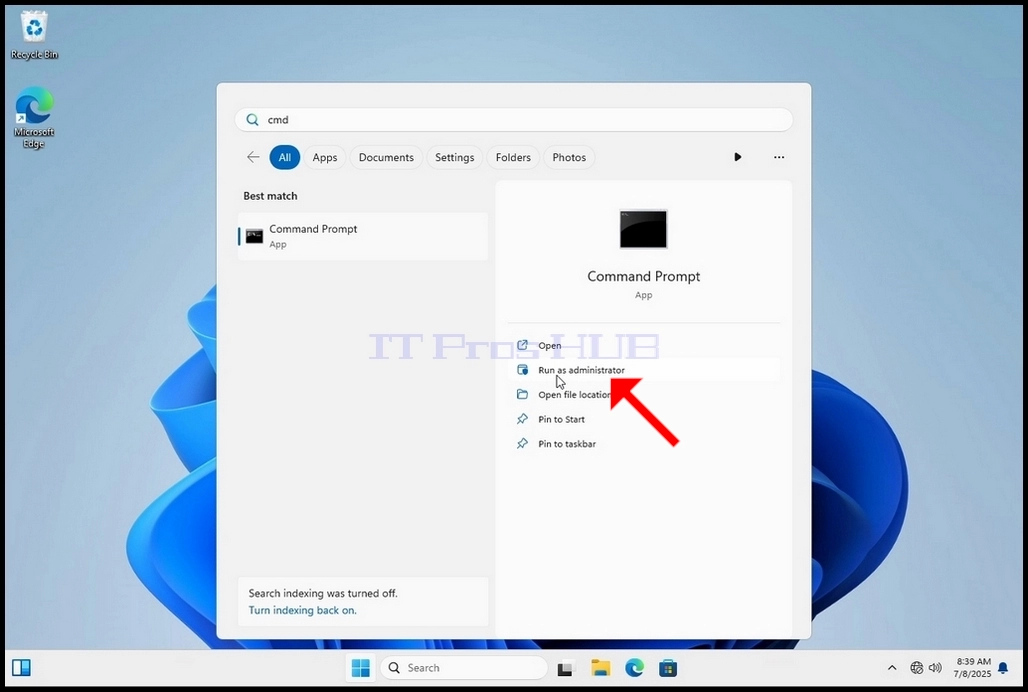
No 17. Cara lain untuk memeriksa status proses enkripsi adalah dengan menggunakan CLI dari Bitlocker melalui CMD
a. Klik tombol Mulai
b. Tipe CMD
c. Klik Laksana sebagai administrator
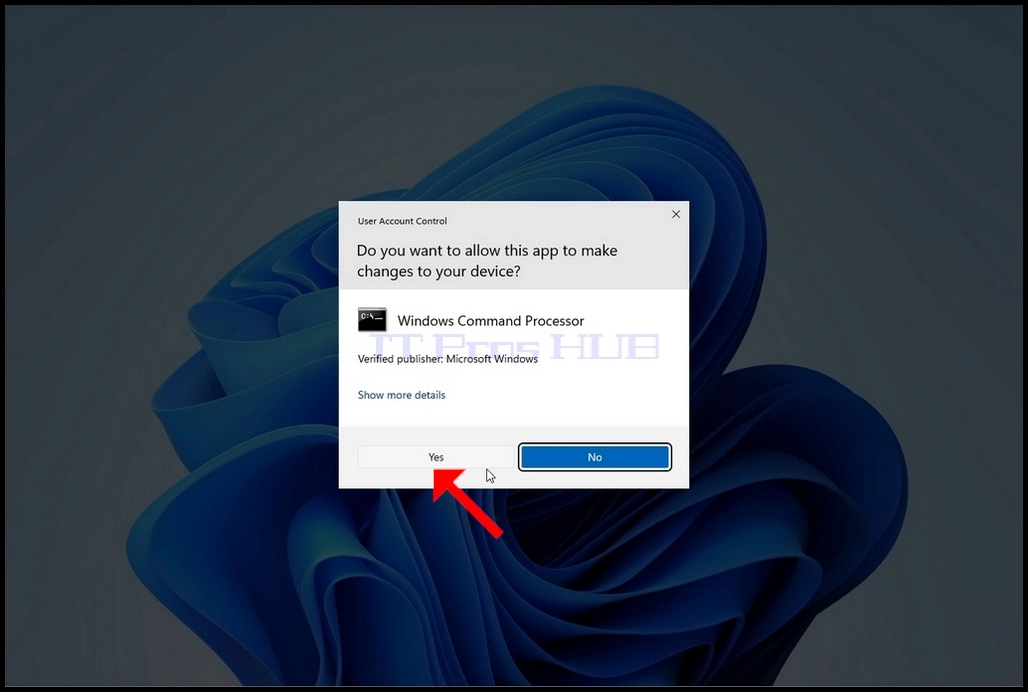
18. Klik YA di jendela UAC
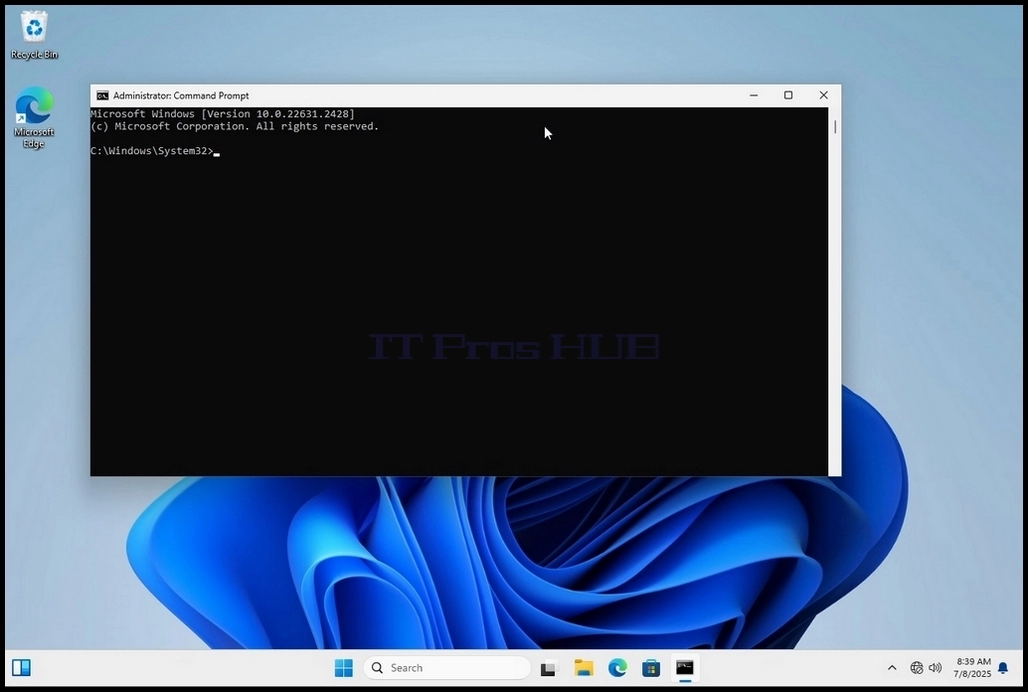
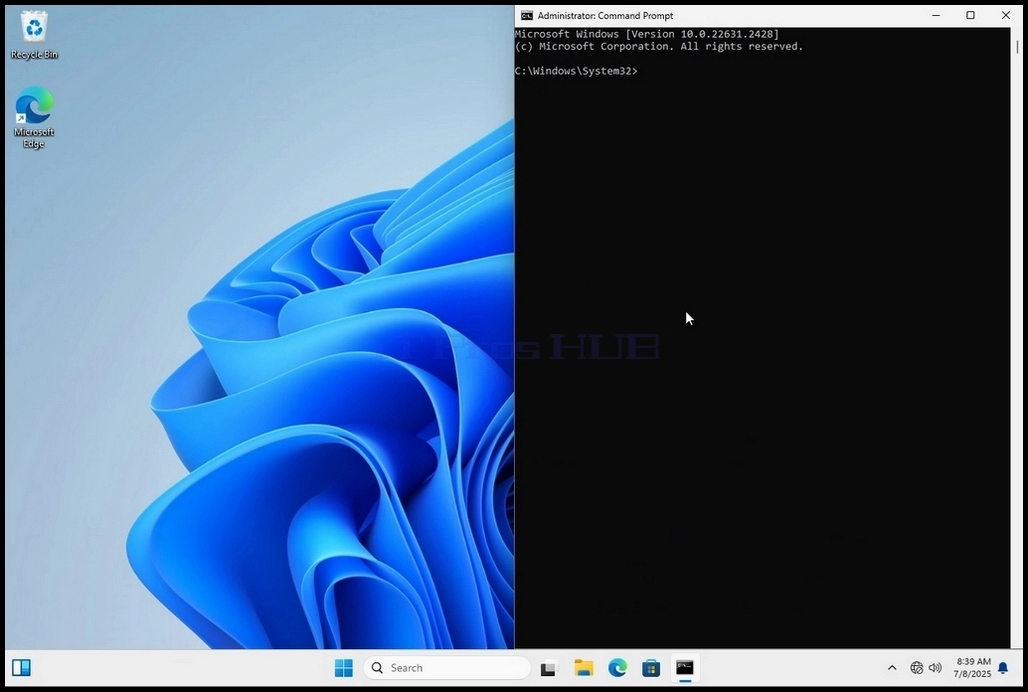
No. 19. Jenis cmd type -status enter klik
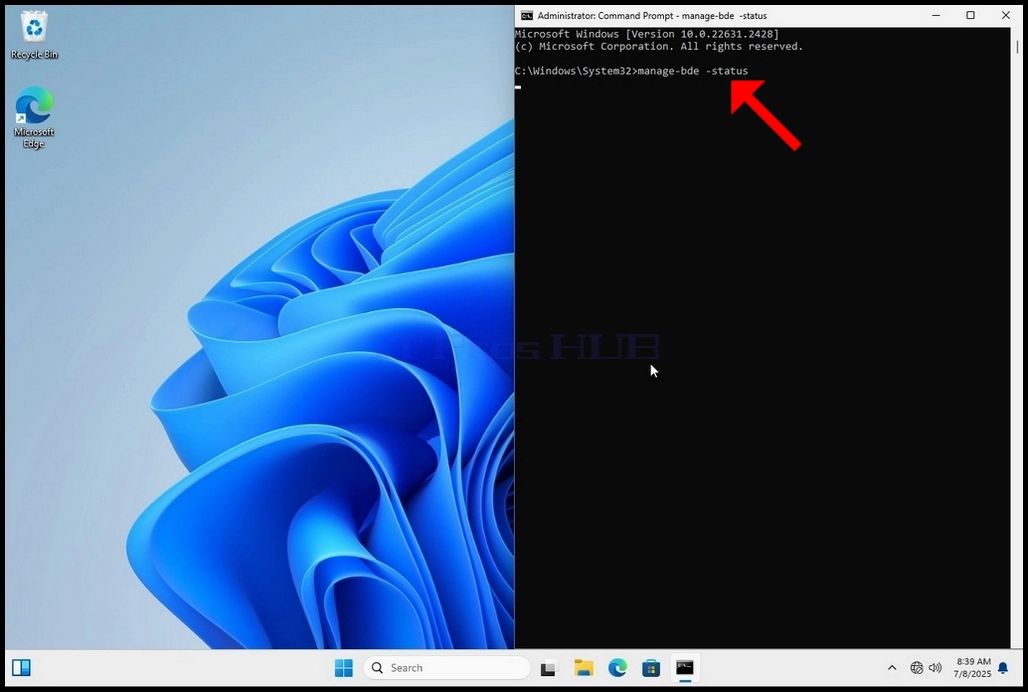
/ 20. Jalur yang akan muncul akan menyajikan informasi tentang proses enkripsi:
A. ukuran - Ukuran drive yang dienkripsi
1 b. Versi Bitlocker – Versi Bitlocker yang digunakan untuk mengenkripsikan drive
c. Status Penukaran Bahasa – Menunjukkan keadaan enkripsi drive saat ini
D. Peratusan Persentase Dienkripsi – Menunjukkan berapa banyak dari drive yang dipilih telah dienkripsi
- Tidak. Enkripsi – Menunjukkan metode enkripsi yang digunakan
f. Status Perlindungan Hewan – Menunjukkan apakah perlindungan Bitlocker sedang off atau on
g. Status Kunci Woi – Menunjukkan apakah drive yang dipilih terkunci atau tidak terkunci (dapat diakses atau tidak dapat diakses)
Wh. Medan Identifikasi Identifikasi - commanded mengacu ke label atau string opsional yang dapat anda umpukkan ke volume yang dilindungi-BitLocker untuk membantu mengidentifikasinya, terutama ketika mengelola multiple drive atau kunci pemulihan
Aku. Pelindung Kunci – Menunjukkan th
Mekanisme pengesahihan pengesahihan pemberian autentikasi yang melindungi kunci enkripsi yang digunakan untuk membuka kunci sebuah drive. Ketika Anda mengenkripsi drive, BitLocker menggunakan satu atau lebih pelindung kunci untuk menjaga akses ke dalamnya
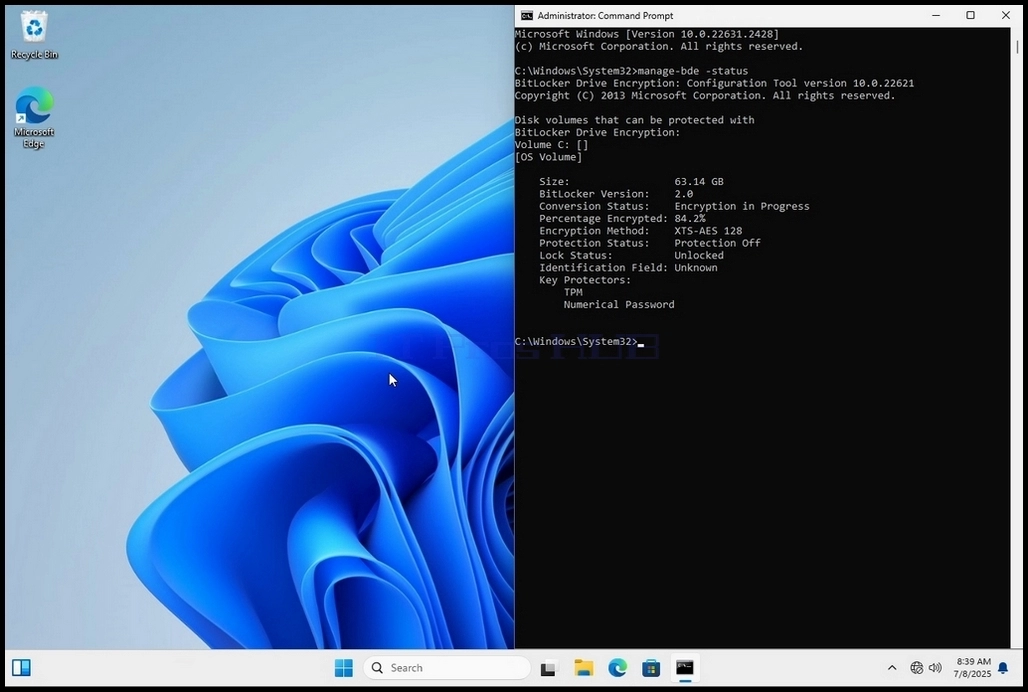
22. ^ Nafiz 22. Ini bisa diverifikasi melalui CMD dengan mengetik -status Klik lagi dan klik enter
Perhatikan bahwa nilai - nilai berikut sekarang diubah:
Aku. Status Penukaran BahasaRuang Digunakan Hanya Terenkripsi
Aku. Peratusan Persentase Dienkripsi:10,0%
Aku. Status Perlindungan HewanPerlindungan Pada
^ a b c d e f g h i j k l m n o p q r. Dalam langkah berikutnya kita akan melihat file Bitlocker recovery key PDF
/ 24. Pergi ke jalan di mana awalnya disimpan dan membukanya
25 tahun. Perhatikan 2 nilai penting:
Pengenal A.
1 b. Kunci Pemulihan Kemuliaan
No. 26. Hal ini sangat disarankan untuk menyimpan nilai ini dalam lebih dari satu medium dan lokasi seperti:
a. Format dicetak
b. Pengurus Sandi
How to Use Bitlocker To Encrypt C Drive in Windows 11 23H2 x64 Pro For Workstations Build 22631.2428
- Butiran
- Ditulis oleh IT Pro
- Kategori: How to Articles
- Jumlah paparan: 5643
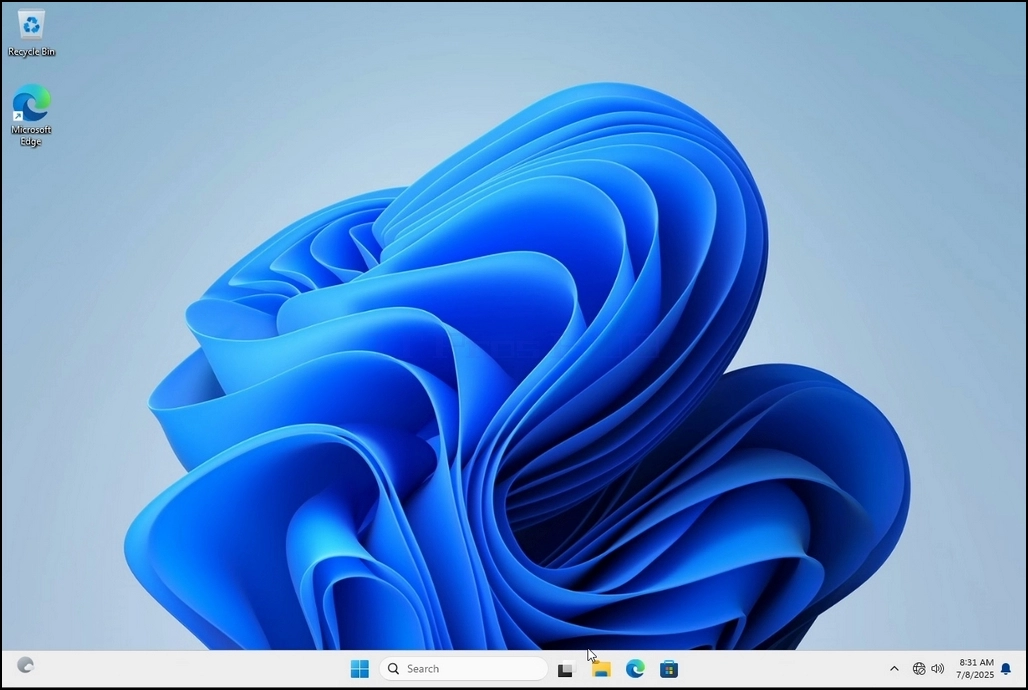
1. Go to Windows Desktop
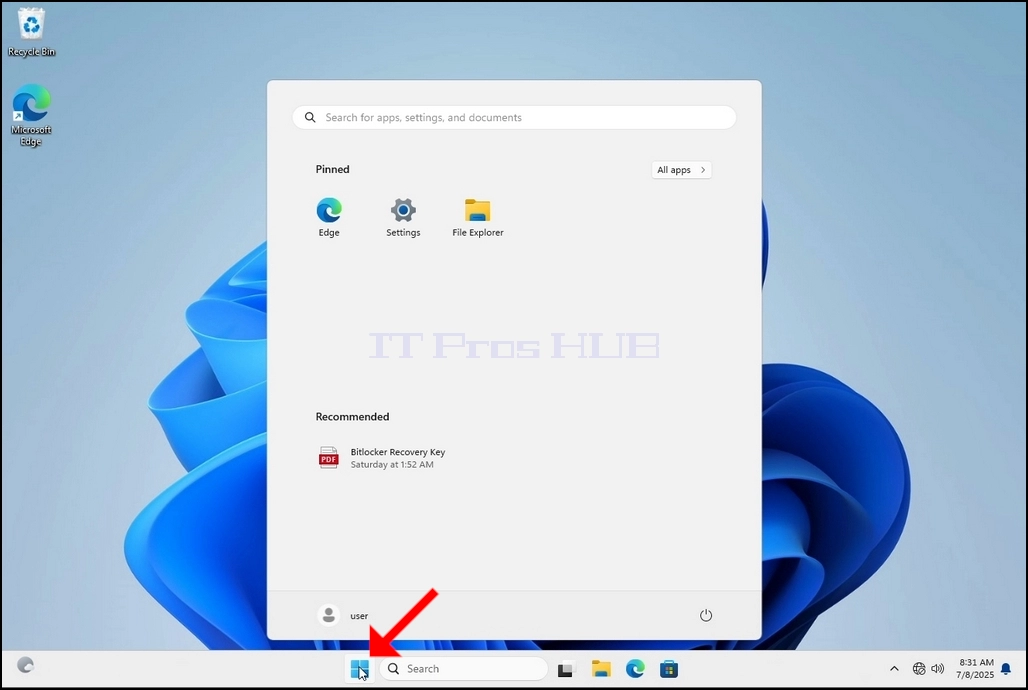
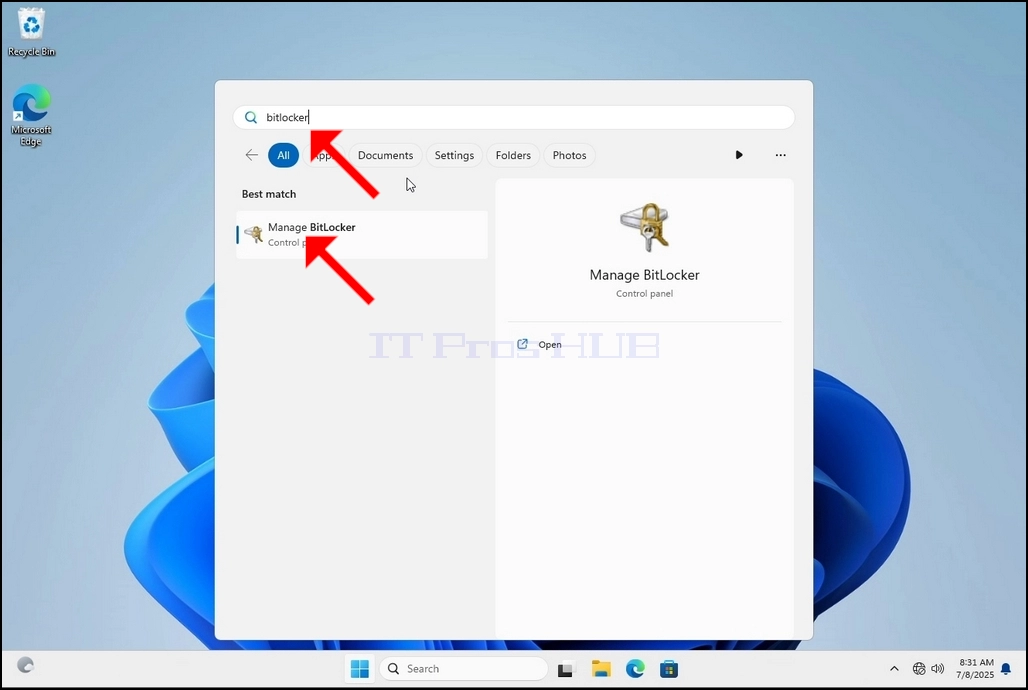
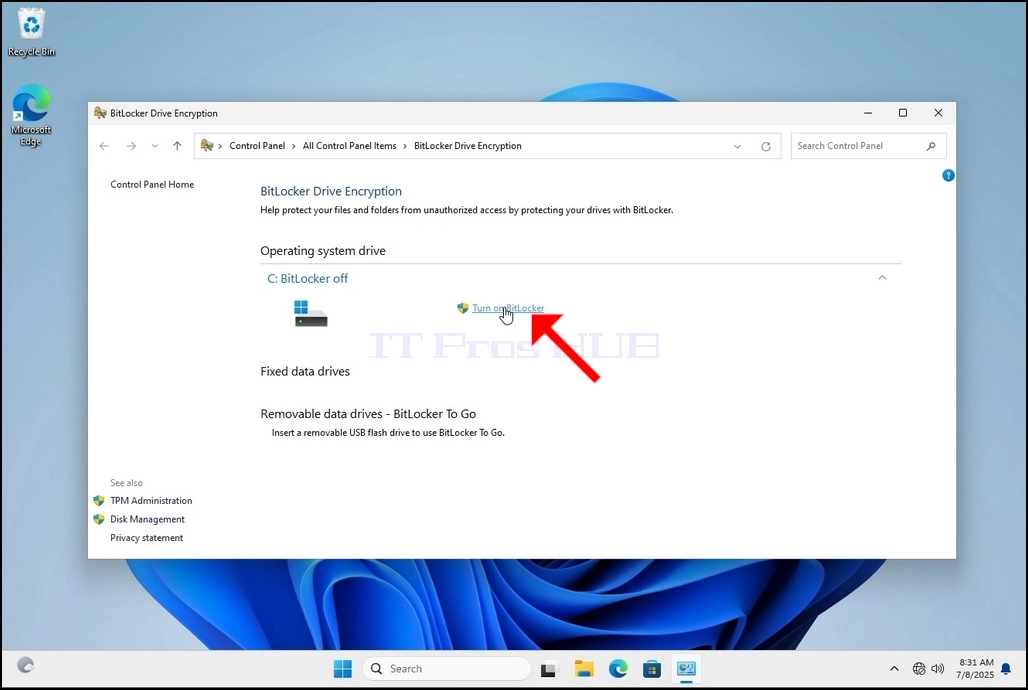
4. Once Bitlocker Drive Encryption is open, look for the Turn on Bitlocker sentence and click on it and wait for the Bitlocker Drive Encryption wizard to appear.
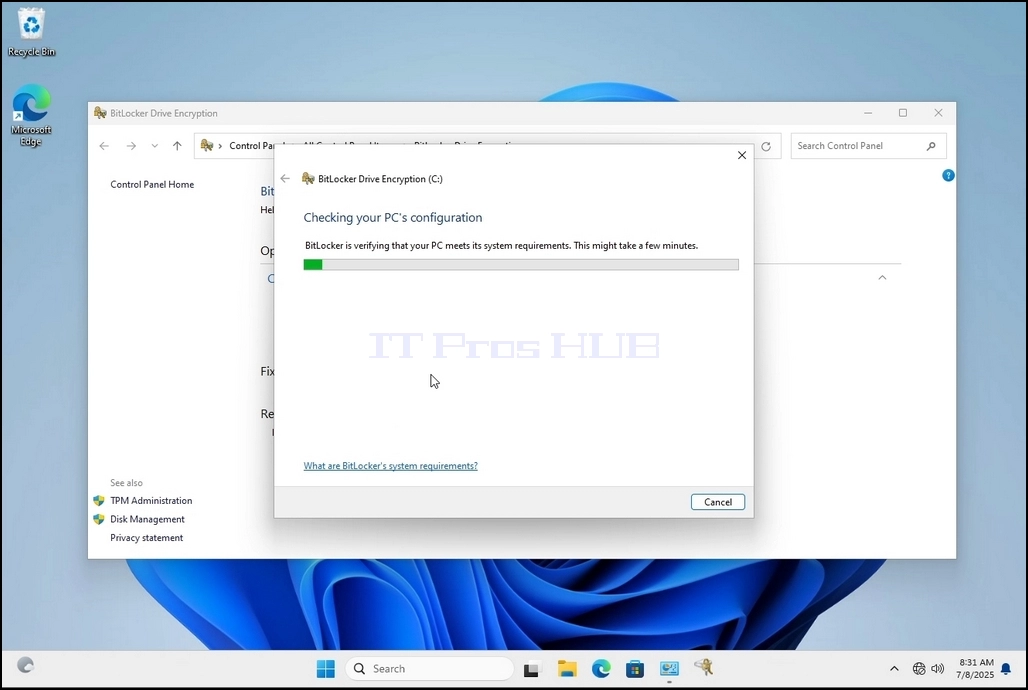
a. Once the wizard appears it will automatically verify if the computer meets the system requirements required to encrypt data using Bitlocker.
b. Though it says it takes a few minutes, in most cases it takes a up to 30 seconds on a modern computer setup.
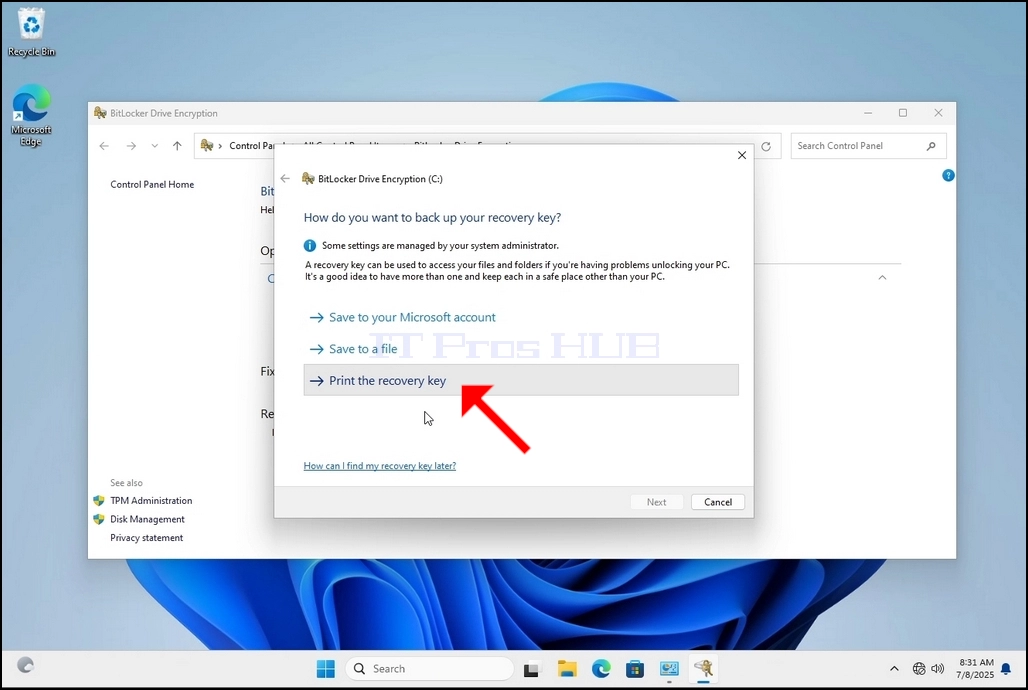
5. Once the verification stage is done and the wizard finds the computer Bitlocker capable, it will ask how would you like to save your Bitlocker recovery key
a. Microsoft account – saves it in your Microsoft account
b. Save to a file – saves the recovery key to a text file
c. Print the Recovery Key – prints the Bitlocker recovery key, even to a virtual printer.
6. In this article we will choose the last option which is Print the Recovery Key and we will save it locally.
a. Note that Bitlocker doesn’t allow saving a recovery key file onto the same drive that is about to be encrypted.
b. However, it does allow printing that recovery key to a file on the same drive that is about to be encrypted. This method is not recommended as well but for the sake of this article we will do it this way.
c. Note – Never save the recovery code file onto the same drive that is about to be encrypted. If for some reason that drive gets locked out, the recovery key file would be locked out along with it.
7. Once that option is chosen, the wizard will ask which printer to use to print the Bitlocker recovery key. In this article, as mentioned in stage 6, we will choose the Microsoft Print to PDF printer, which will print the recovery key into a PDF file.
8. After choosing the printer, click Print
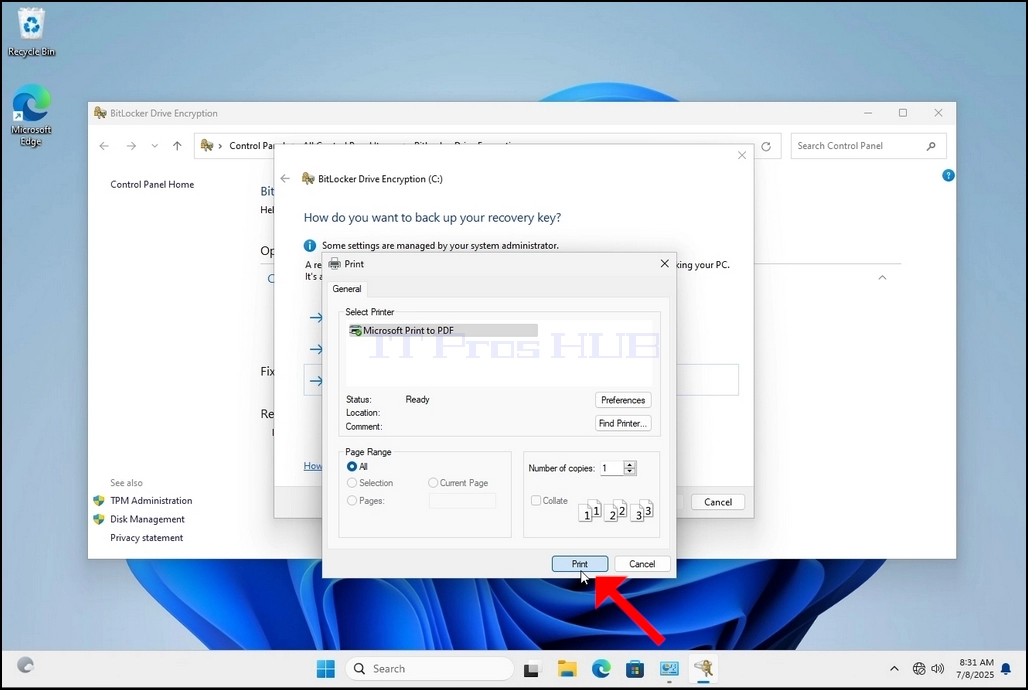
9. A new window will pop up. Use this window to name the Bitlocker recovery key PDF file and to choose where you would like you save it. In this case we named it “Bitlocker Recovery Key”.
11. Click Next
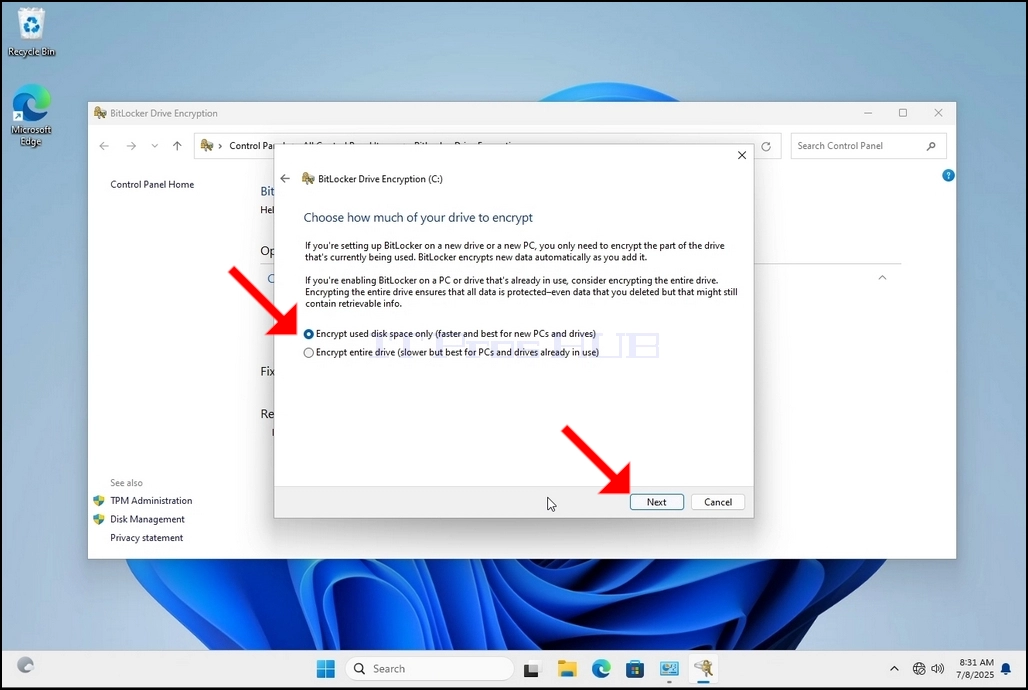
12. In the current stage, you will be asked to choose how much of your drive you would like to encrypt
a. In this article we will choose the first option which is faster to accomplish
b. Click Next
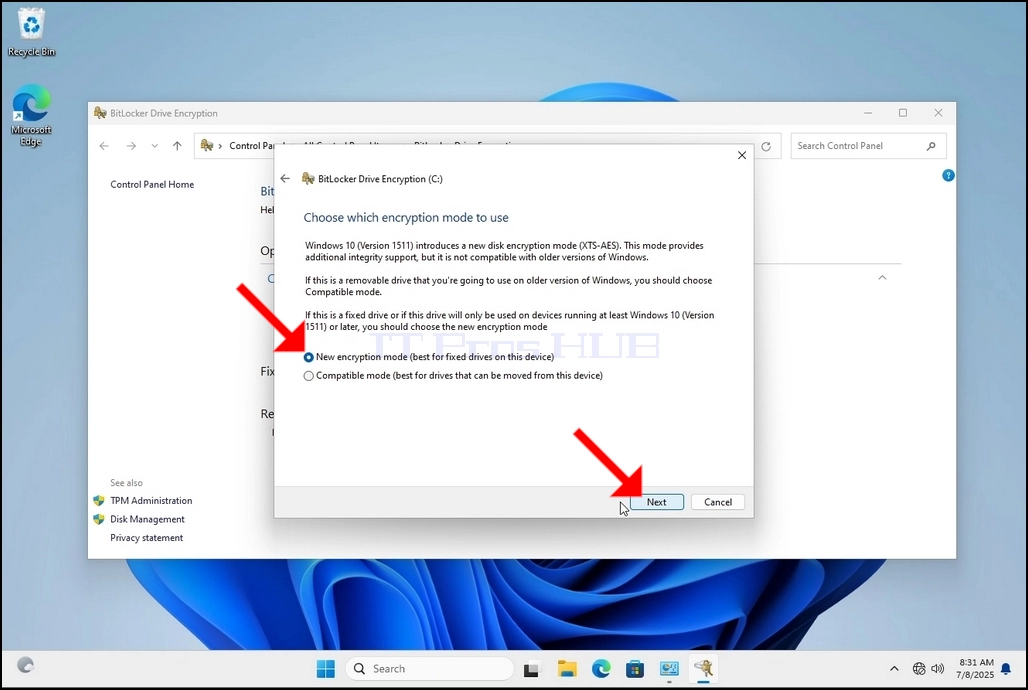
13. In the current stage, you will be asked to choose which encryption mode to use
a. In this article we will choose the first option, which is the New Encryption Mode option. Choose it and click Next
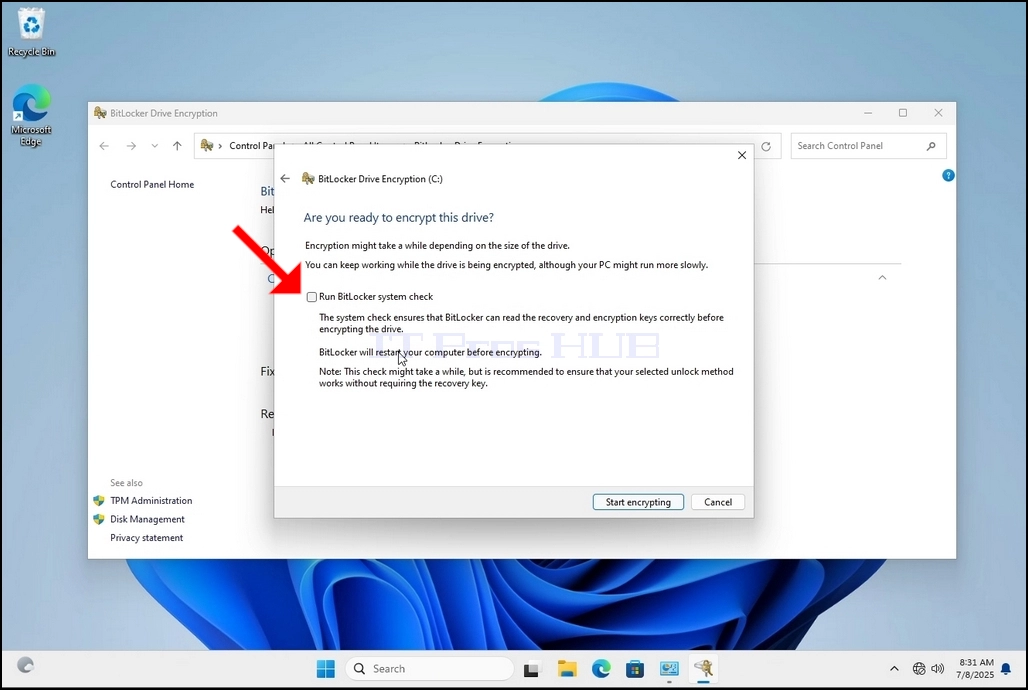
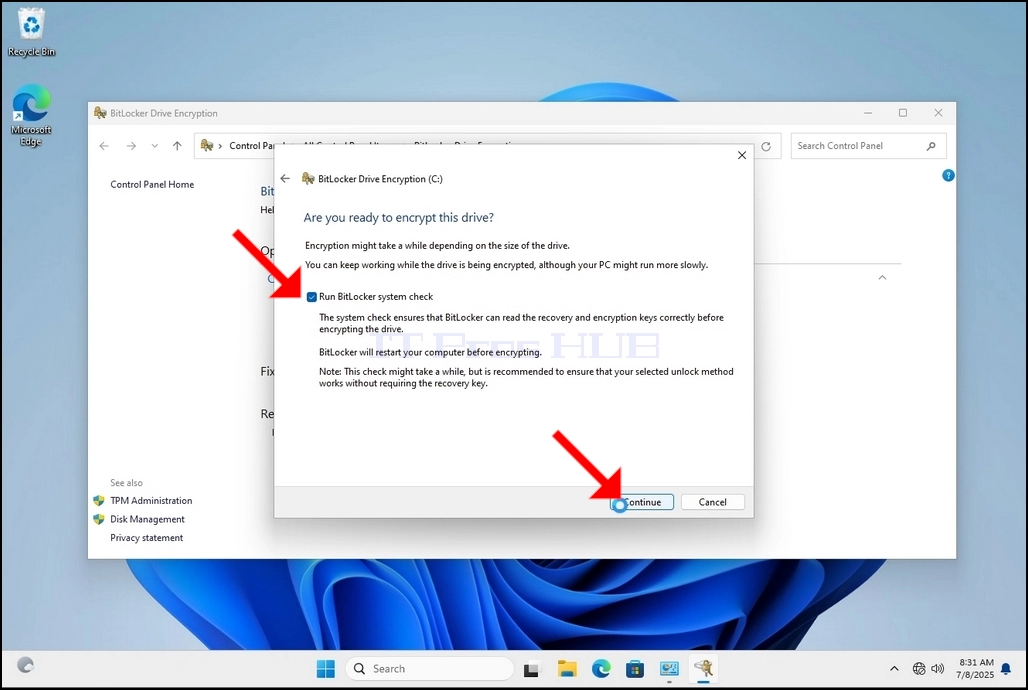


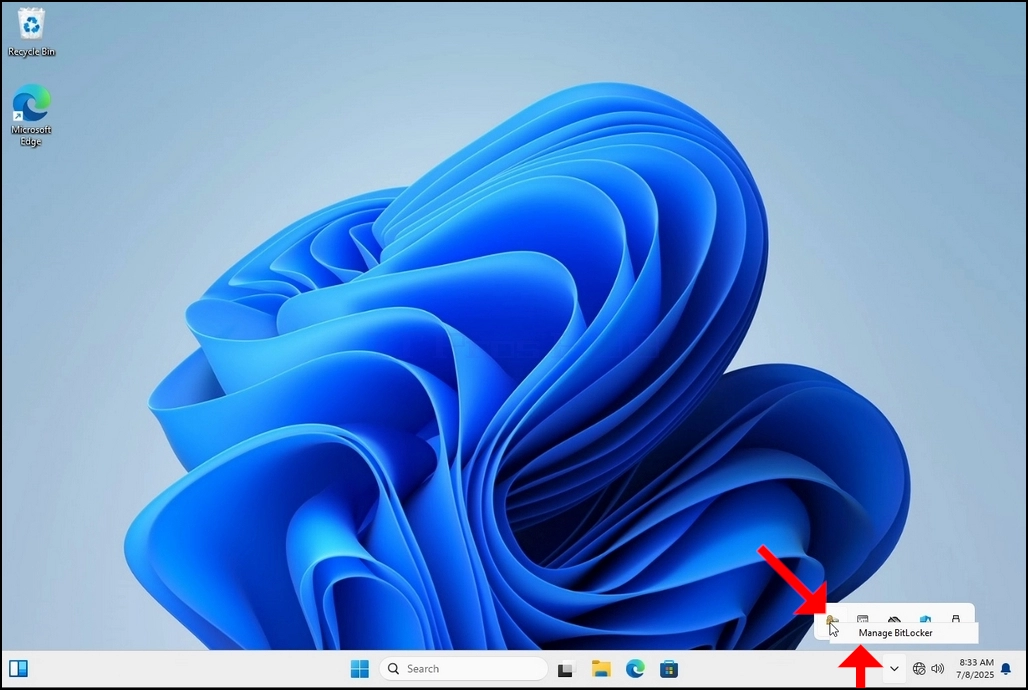
16. Once the computer is fully restarted, click the taskbar’s upward arrow (Notification area overflow icon).
a. Look for the Bitlocker icon and double click it
b. Once clicked, the Bitlocker drive encryption process window will appear, showing the status of the encryption process
c. Once that process bar is full at 100%, the encryption process is done
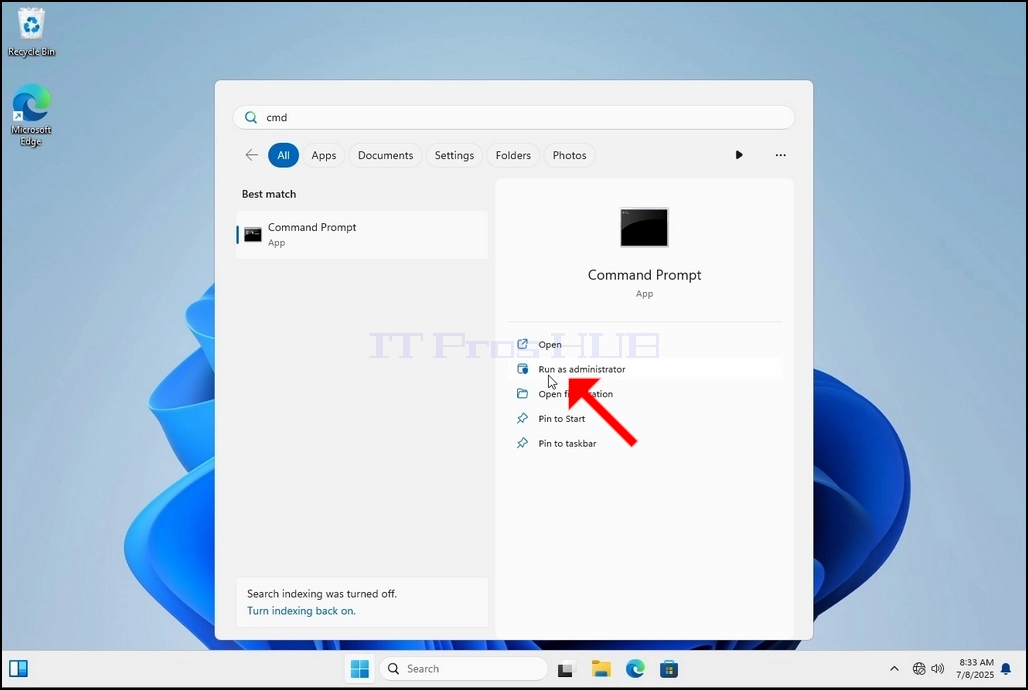
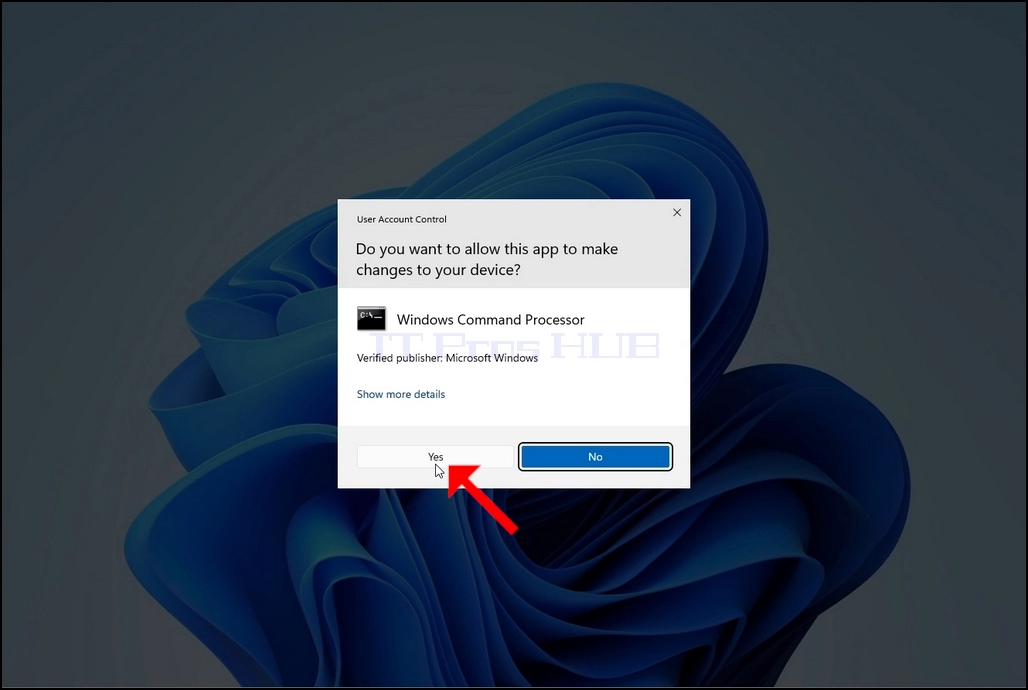
18. Click YES in the UAC window
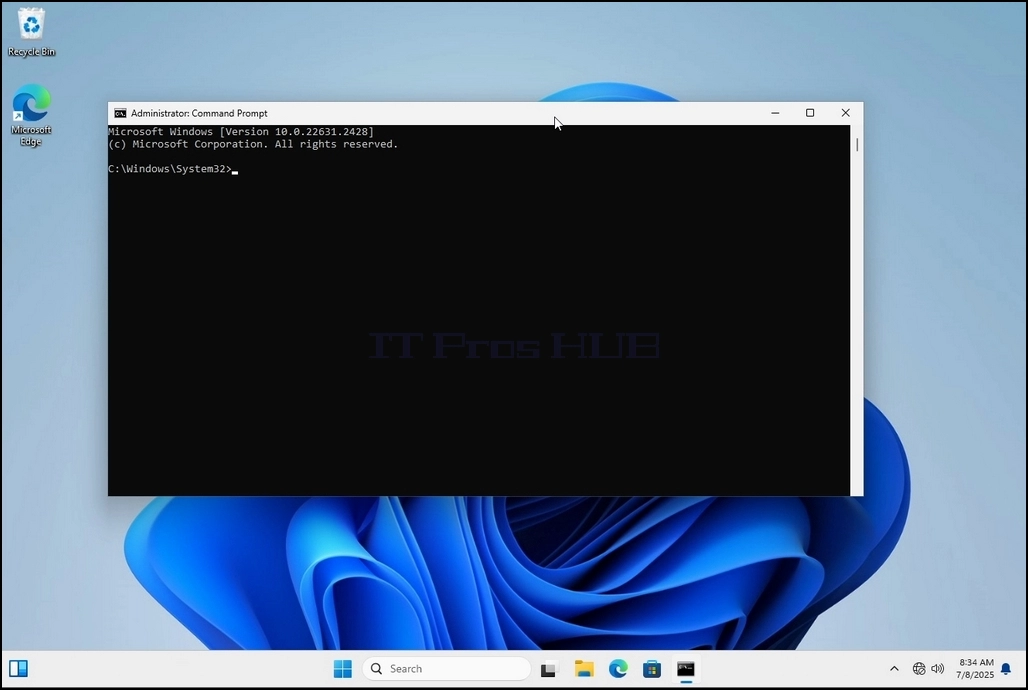
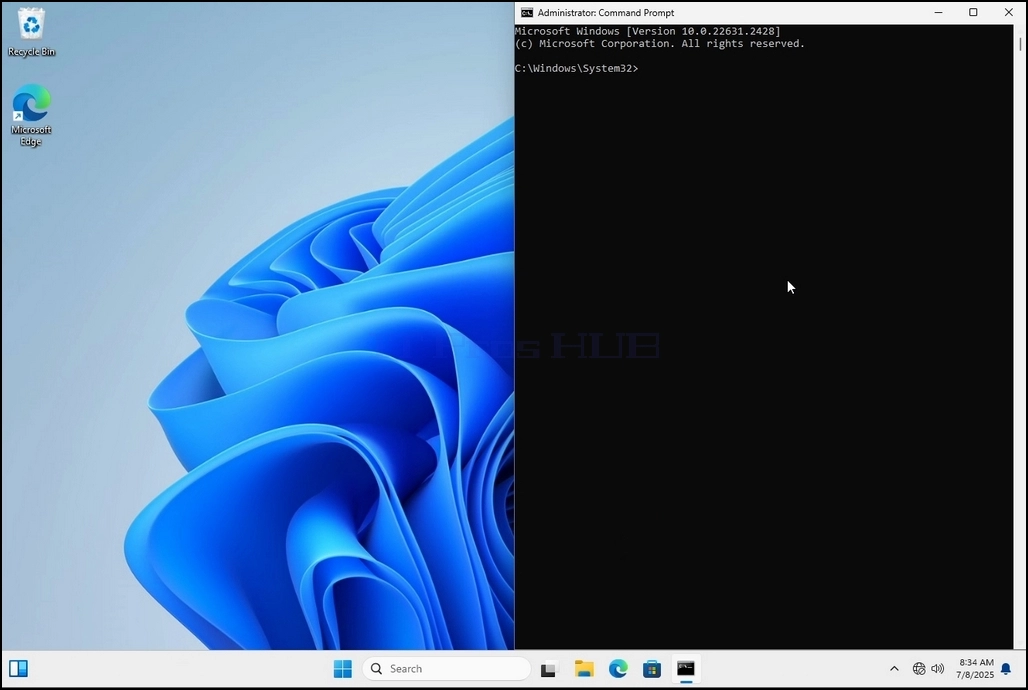
19. In cmd type manage-bde -status and click enter
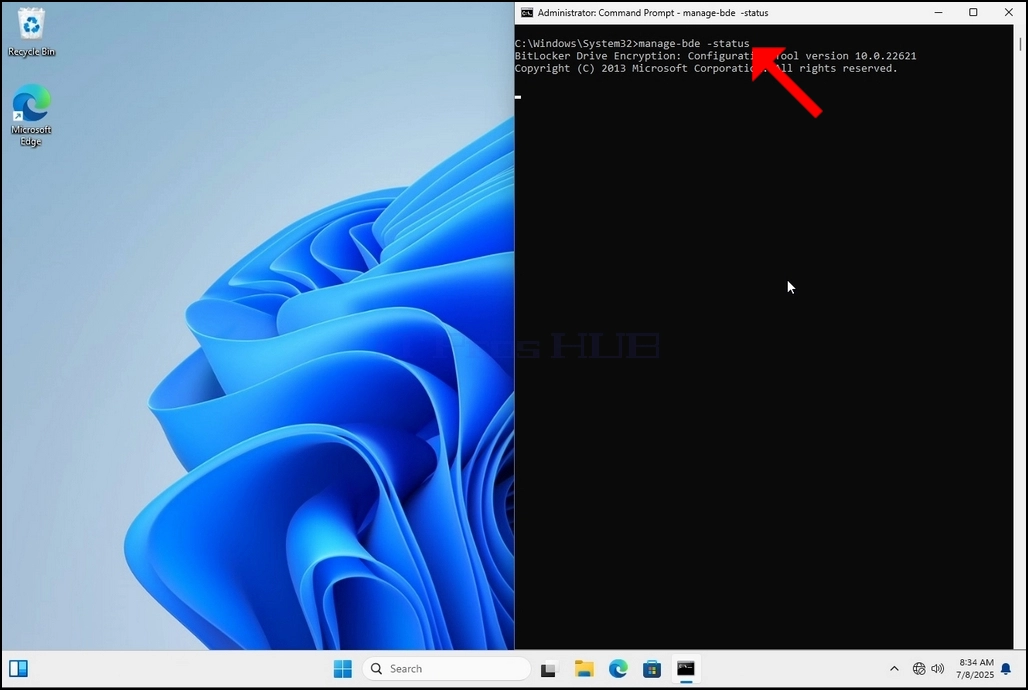
20. The lines that will appear will present information about the encryption process:
a. Size - The size of the drive being encrypted
b. Bitlocker Version – The version of Bitlocker used to encrypt the drive
c. Conversion Status – Shows the current encryption state of a drive
d. Percentage Encrypted – Shows the how much of the selected drive has been encrypted
e. Encryption Method – Shows the encryption method being used
f. Protection Status – Shows if the Bitlocker protection is currently off or on
g. Lock Status – Shows if the selected drive is locked or unlocked (accessible or not accessible)
h. Identification Field - refers to a label or optional string you can assign to a BitLocker-protected volume to help identify it, especially when managing multiple drives or recovery key
i. Key Protectors – Shows the authentication mechanisms that protect the encryption keys used to unlock a drive. When you encrypt a drive, BitLocker uses one or more key protectors to guard access to it
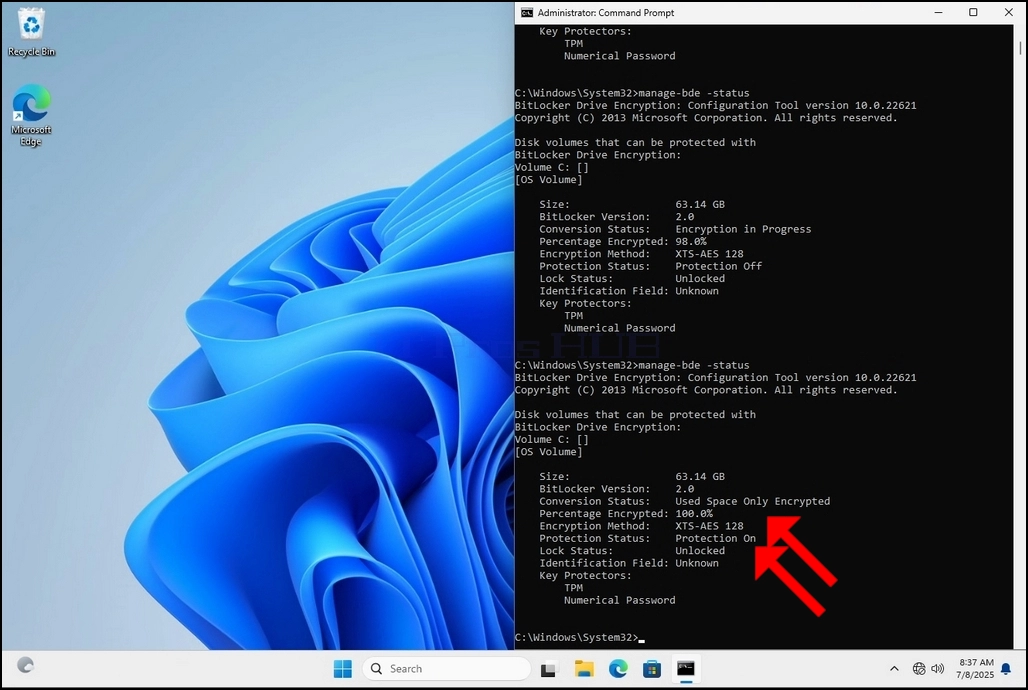
22. This could be verified through CMD by typing manage-bde -status again and clicking enter
a. Notice that the following values are now changed:
i. Conversion Status: Used Space Only Encrypted
ii. Percentage Encrypted: 100.0%
iii. Protection Status: Protection On
21. Once the encryption process is done for the selected drive, the small window that previously showed a process bar will now show:” Encryption of C: is complete”
23. In the next step we will take a look at the Bitlocker recovery key PDF file
24. Go to the path in which it was originally saved and open it
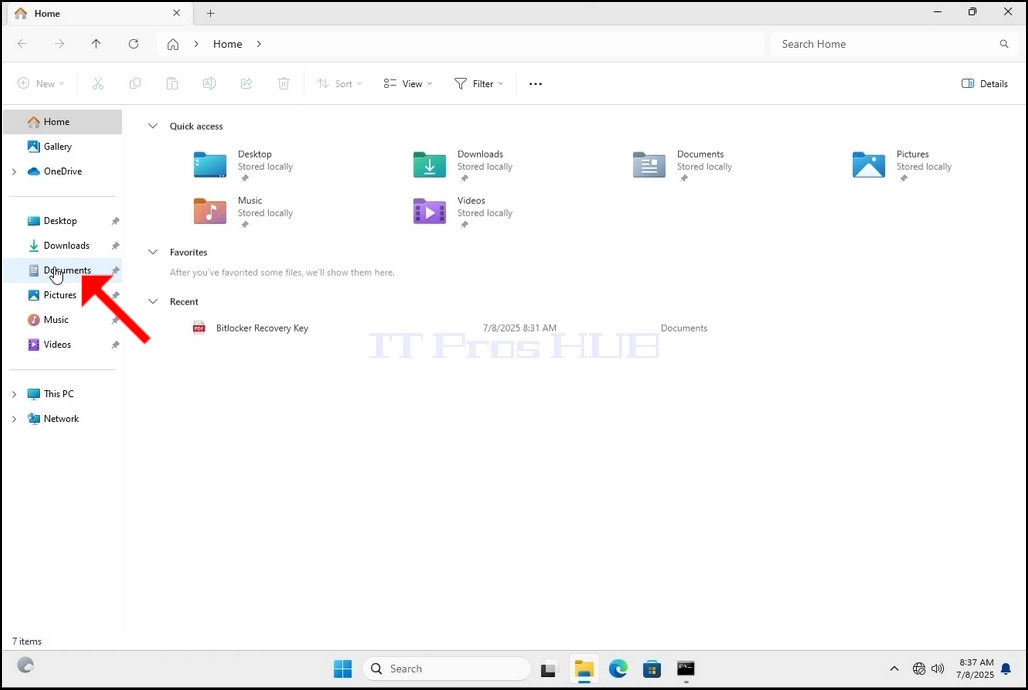
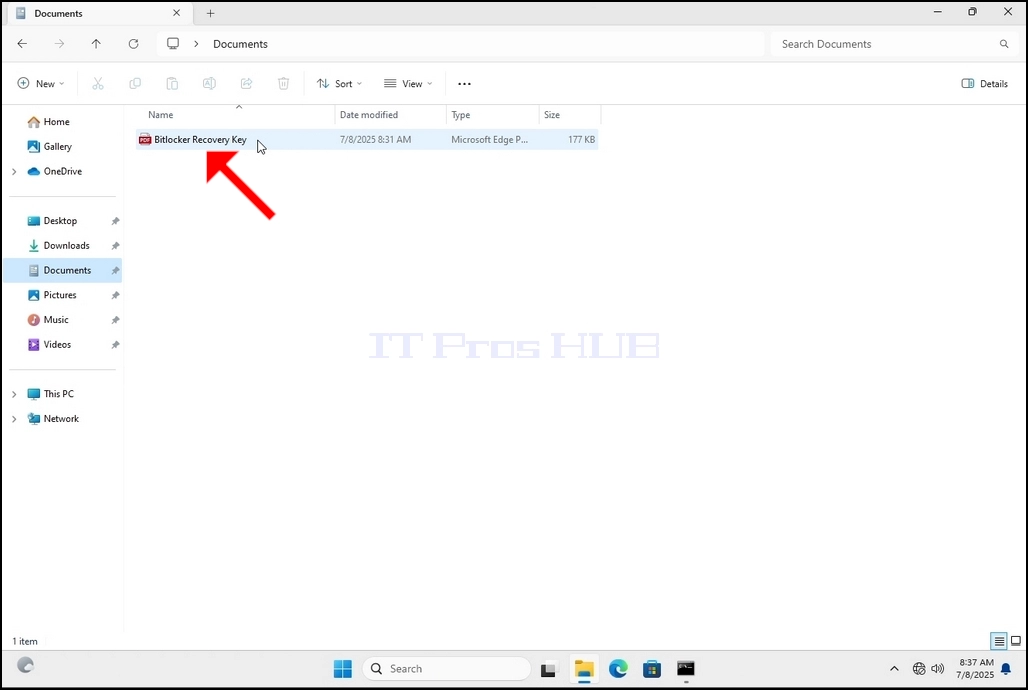
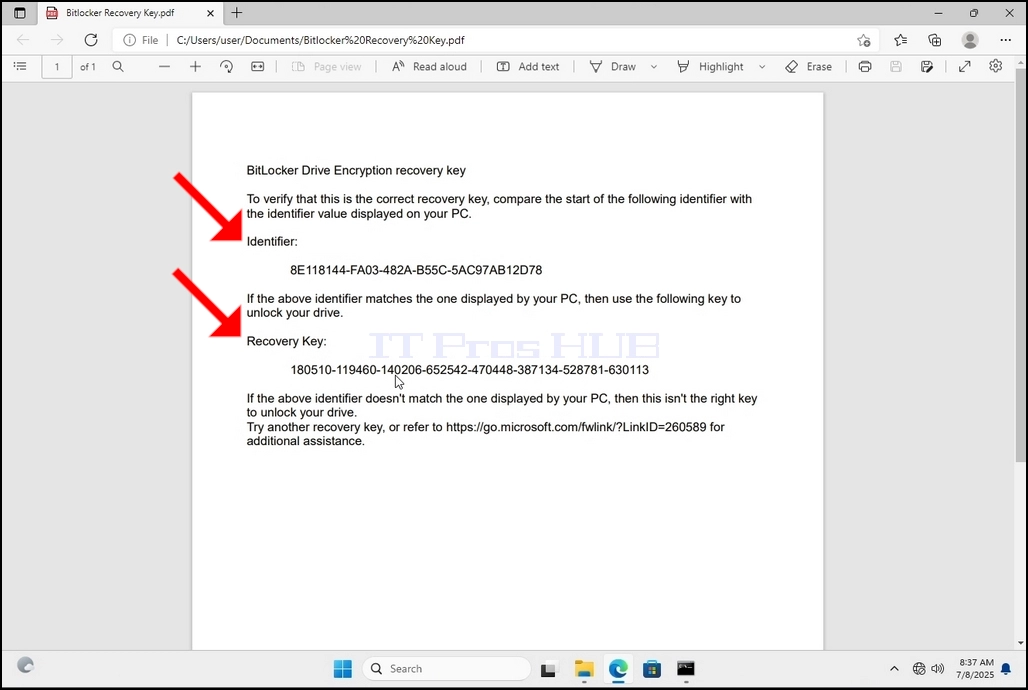
25. Notice the 2 important values:
a. Identifier
b. Recovery Key
26. It is highly recommended to save these values in more than one medium and location such as:
a. Printed format
b. Password manager
- Butiran
- Ditulis oleh IT Pro
- Kategori: How to Articles
- Jumlah paparan: 5987
1. Go to Windows Desktop
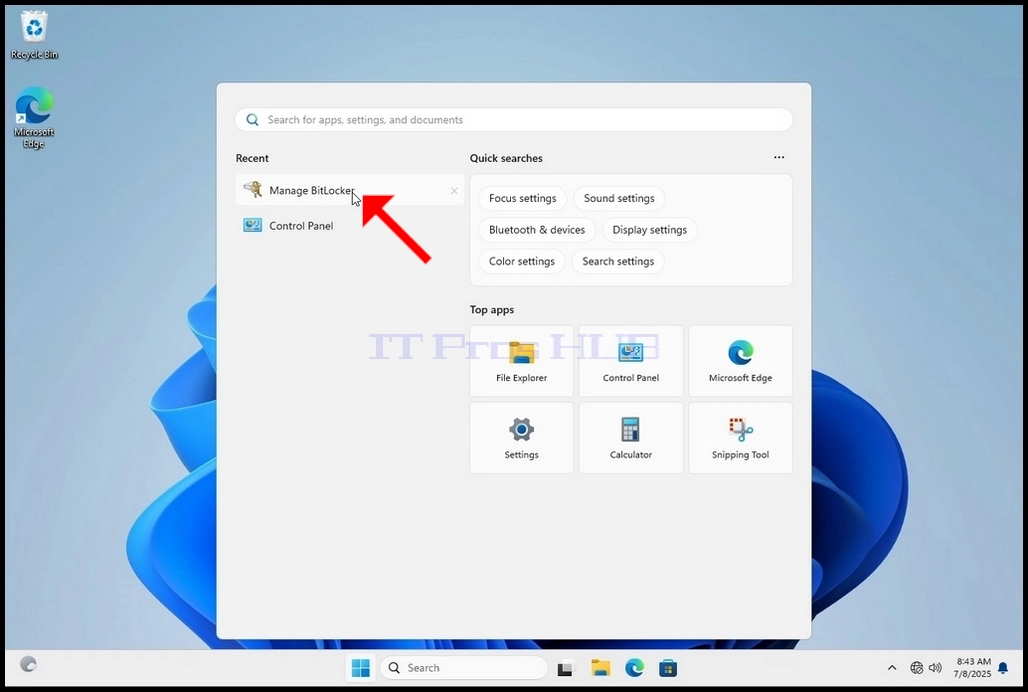
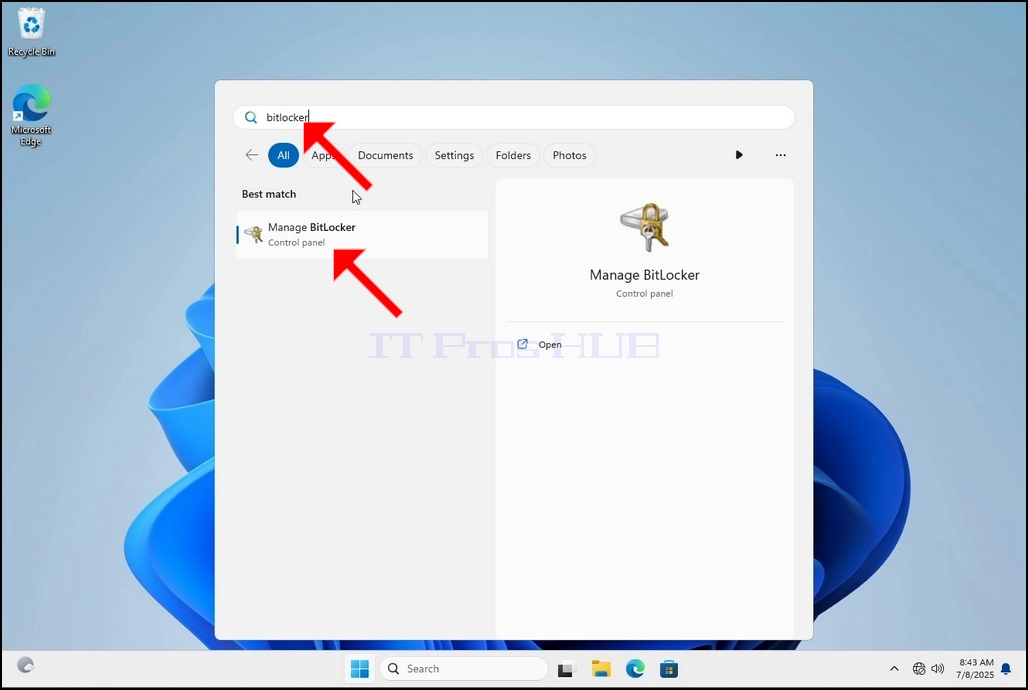
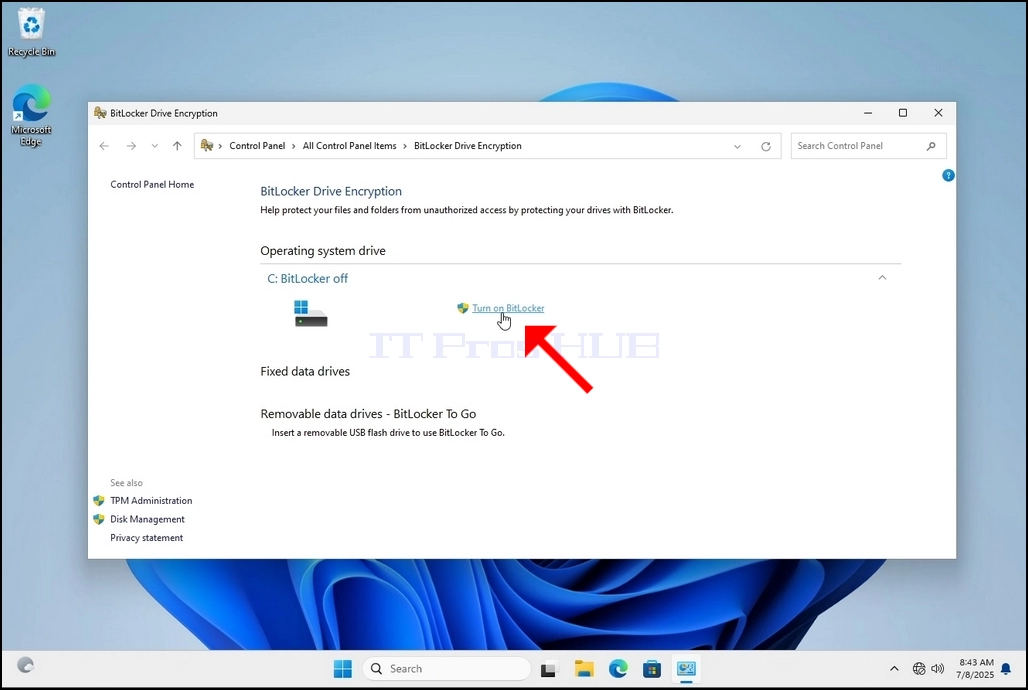
4. Once Bitlocker Drive Encryption is open, look for the Turn on Bitlocker sentence and click on it and wait for the Bitlocker Drive Encryption wizard to appear.
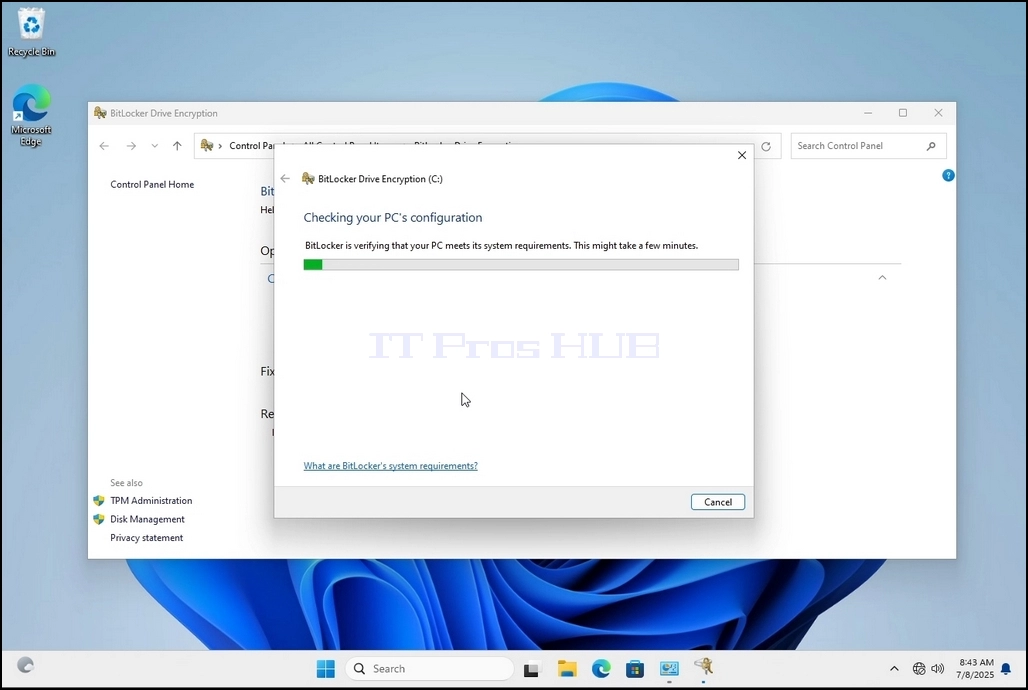
a. Once the wizard appears it will automatically verify if the computer meets the system requirements required to encrypt data using Bitlocker.
b. Though it says it takes a few minutes, in most cases it takes a up to 30 seconds on a modern computer setup.
5. Once the verification stage is done and the wizard finds the computer Bitlocker capable, it will ask how would you like to save your Bitlocker recovery key
a. Microsoft account – saves it in your Microsoft account
b. Save to a file – saves the recovery key to a text file
c. Print the Recovery Key – prints the Bitlocker recovery key, even to a virtual printer.
6. In this article we will choose the last option which is Print the Recovery Key and we will save it locally.
a. Note that Bitlocker doesn’t allow saving a recovery key file onto the same drive that is about to be encrypted.
b. However, it does allow printing that recovery key to a file on the same drive that is about to be encrypted. This method is not recommended as well but for the sake of this article we will do it this way.
c. Note – Never save the recovery code file onto the same drive that is about to be encrypted. If for some reason that drive gets locked out, the recovery key file would be locked out along with it.
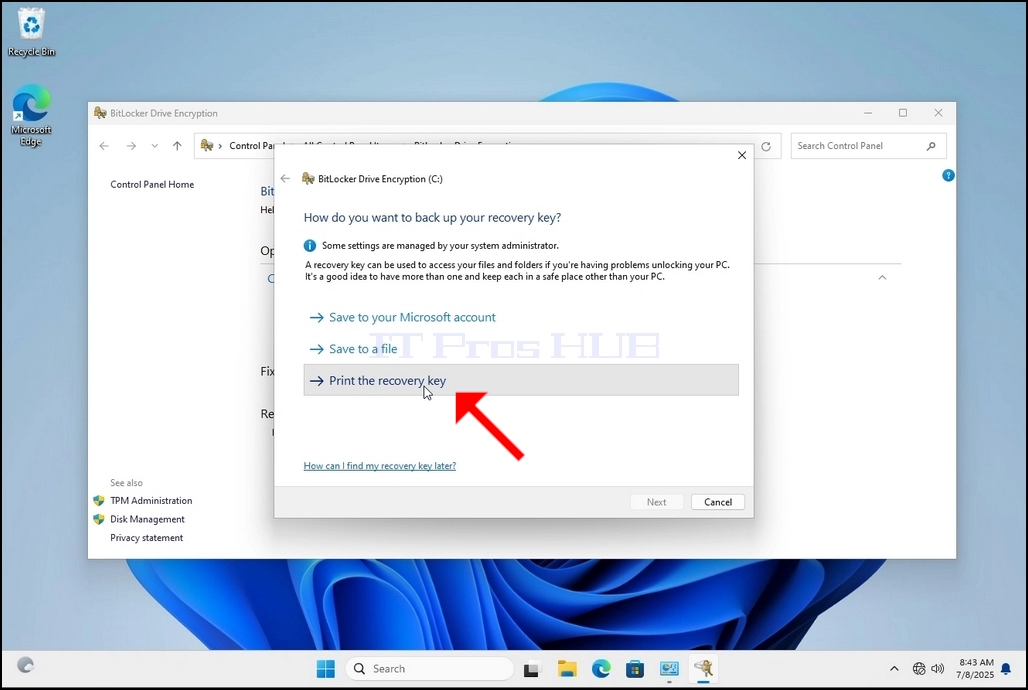
7. Once that option is chosen, the wizard will ask which printer to use to print the Bitlocker recovery key. In this article, as mentioned in stage 6, we will choose the Microsoft Print to PDF printer, which will print the recovery key into a PDF file.
8. After choosing the printer, click Print
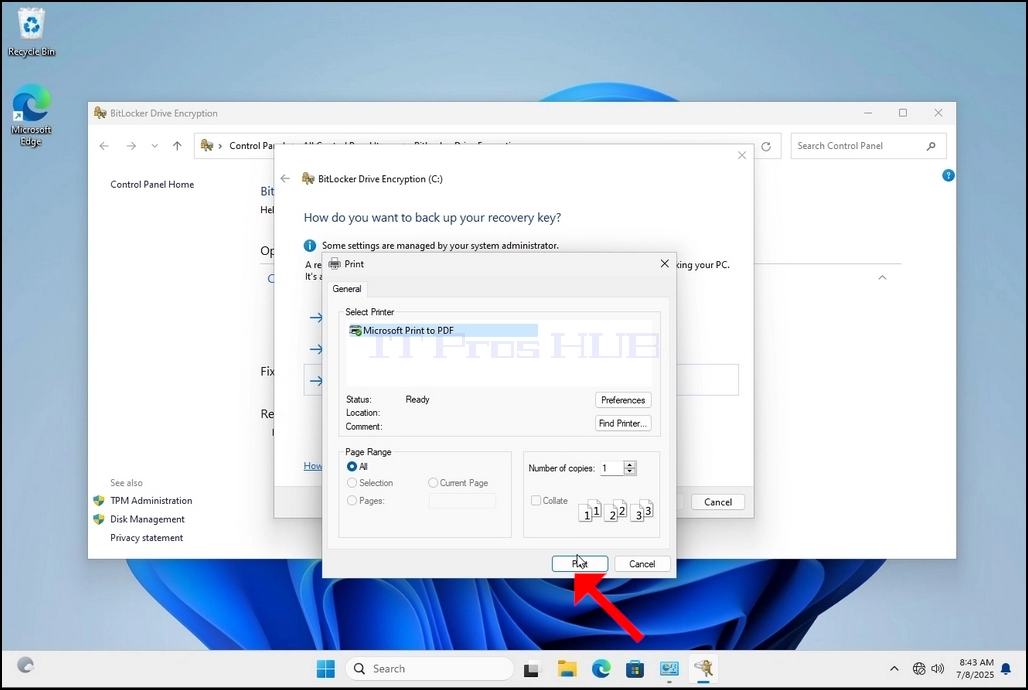
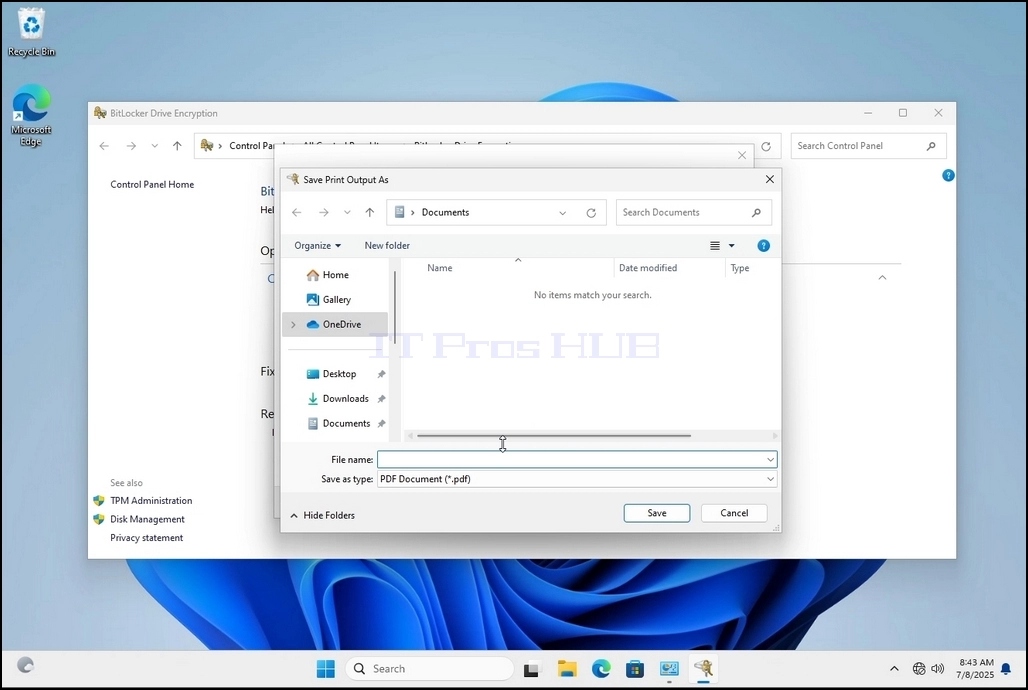
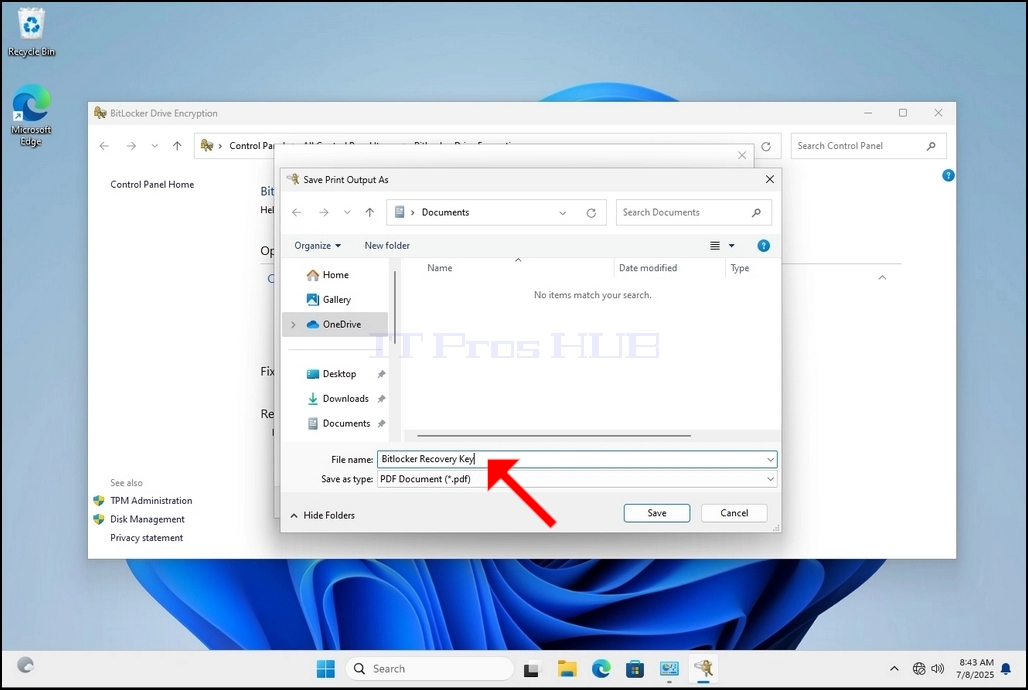
9. A new window will pop up. Use this window to name the Bitlocker recovery key PDF file and to choose where you would like you save it. In this case we named it “Bitlocker Recovery Key”.
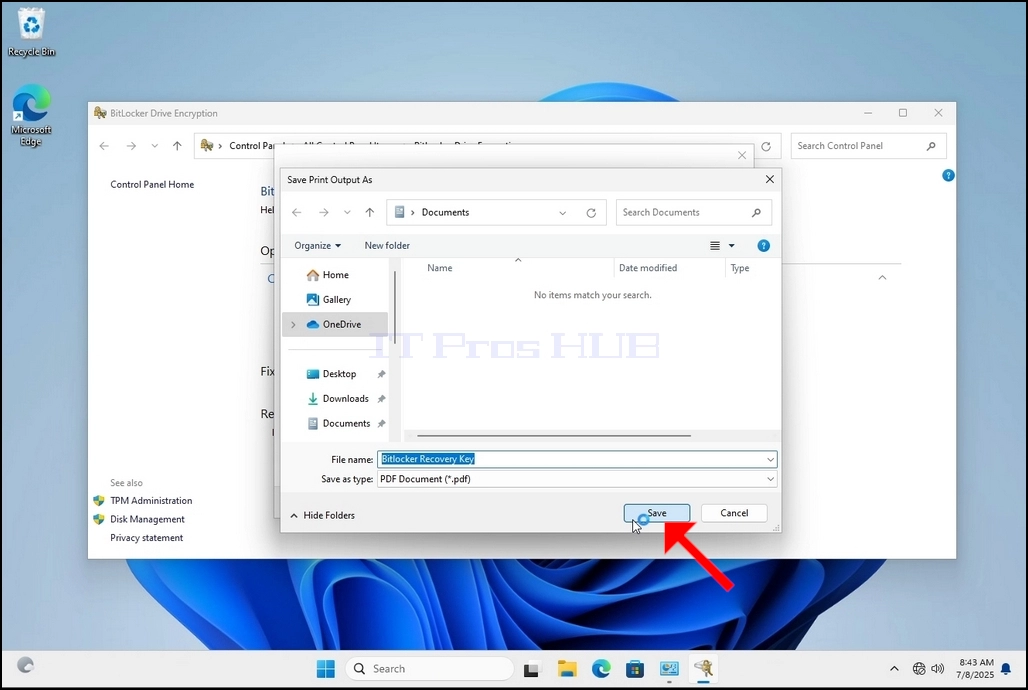
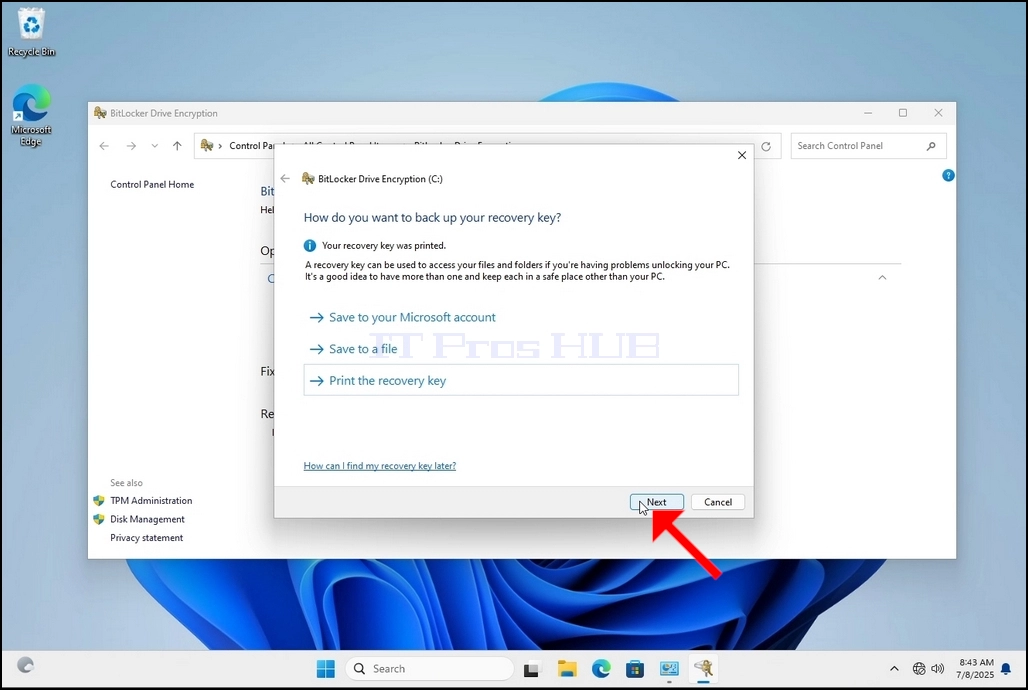
11. Click Next
12. In the current stage, you will be asked to choose how much of your drive you would like to encrypt
a. In this article we will choose the first option which is faster to accomplish
b. Click Next
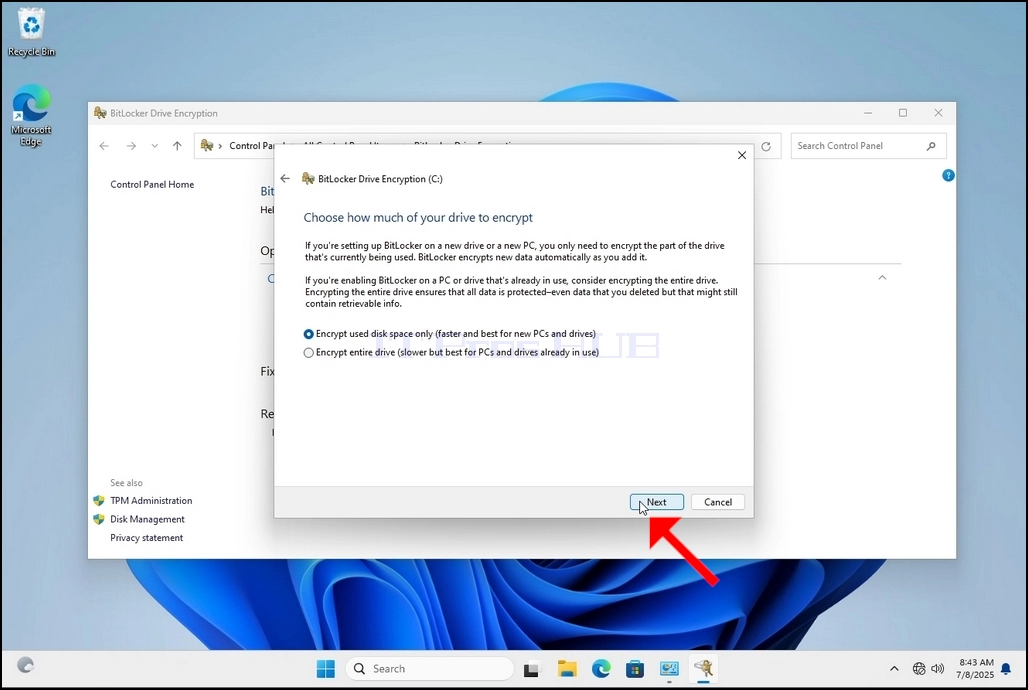
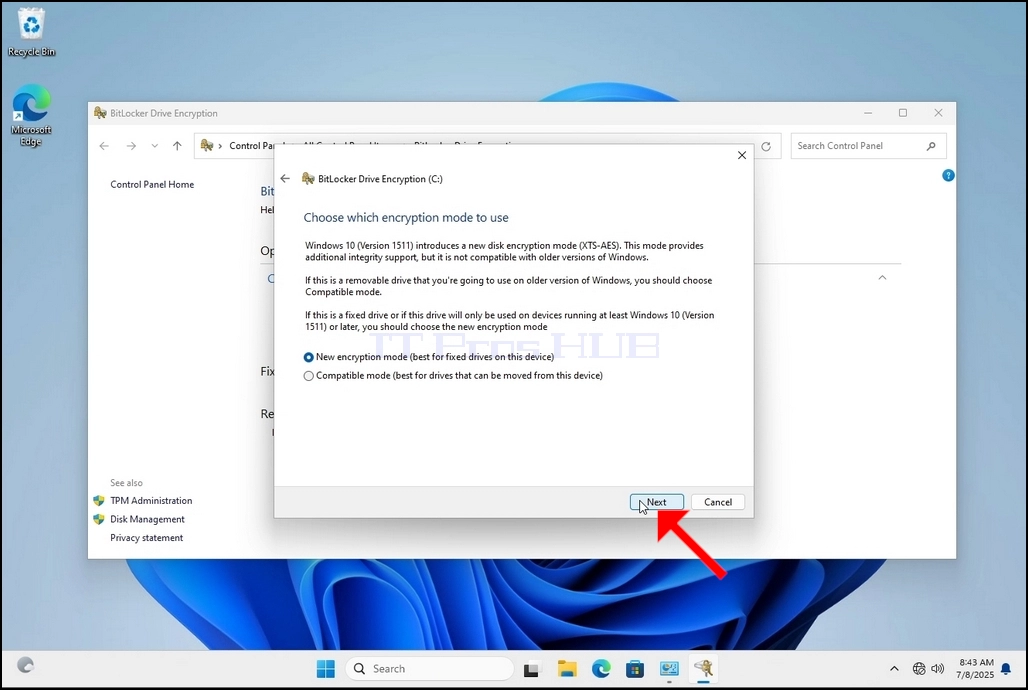
13. In the current stage, you will be asked to choose which encryption mode to use
a. In this article we will choose the first option, which is the New Encryption Mode option. Choose it and click Next
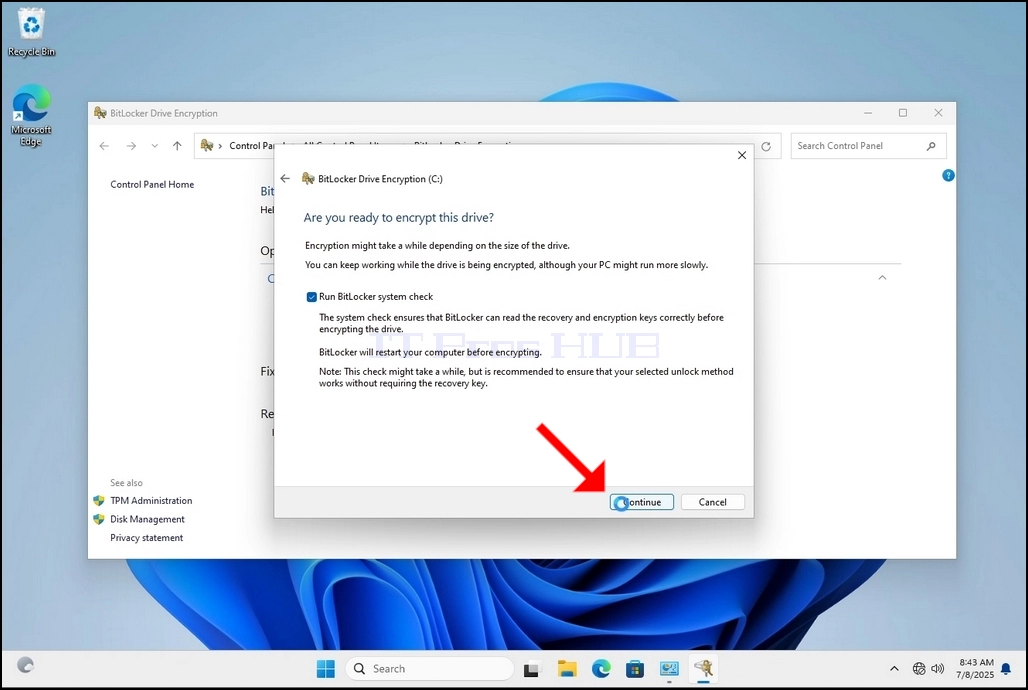
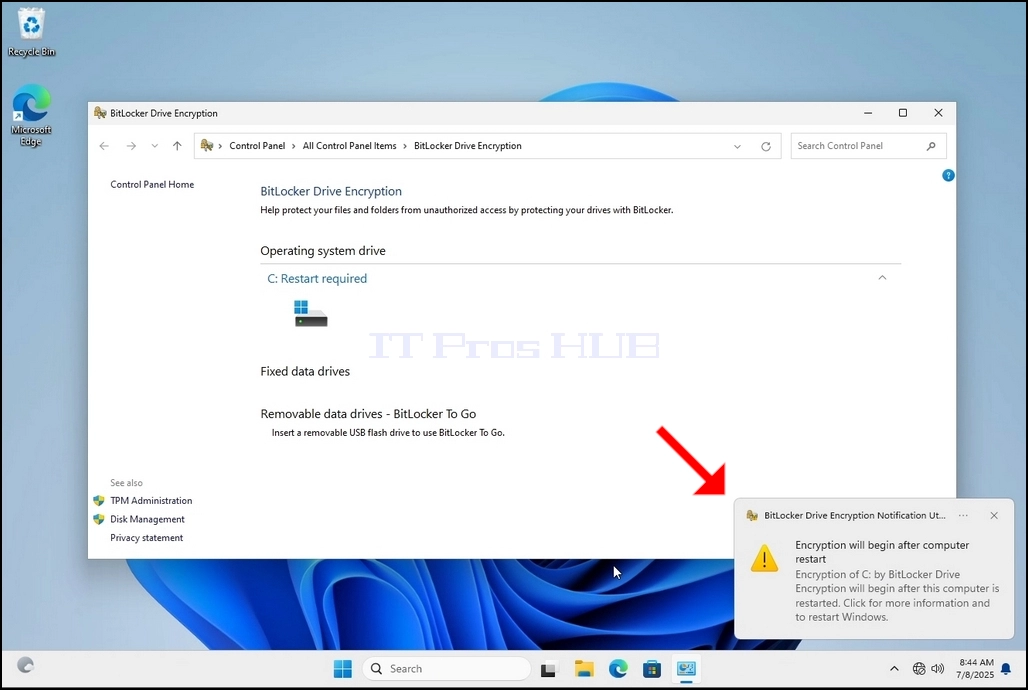
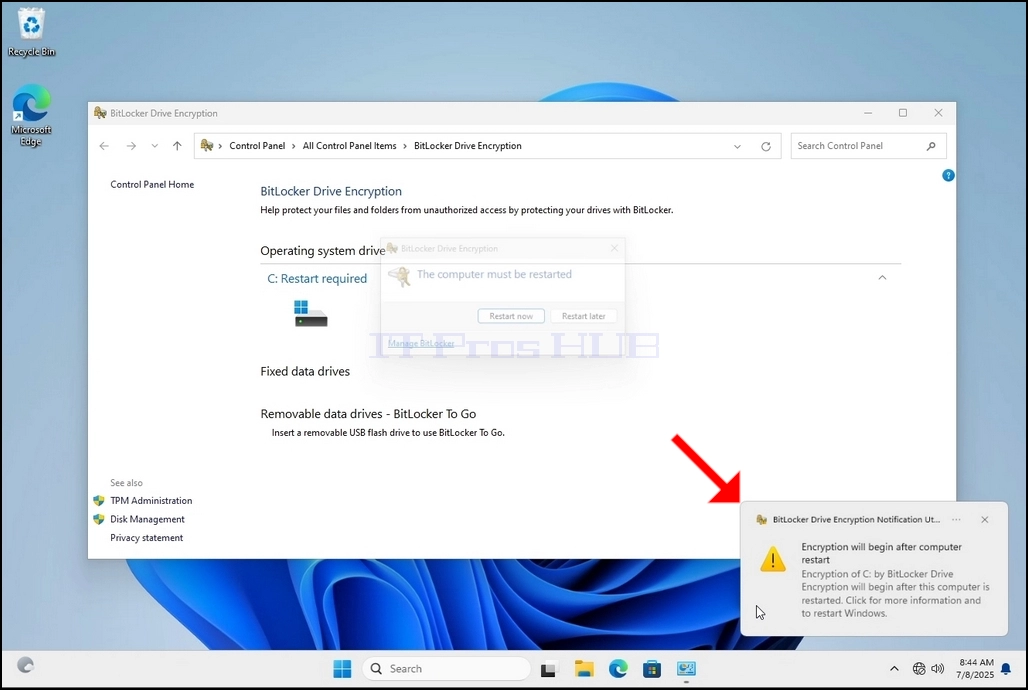
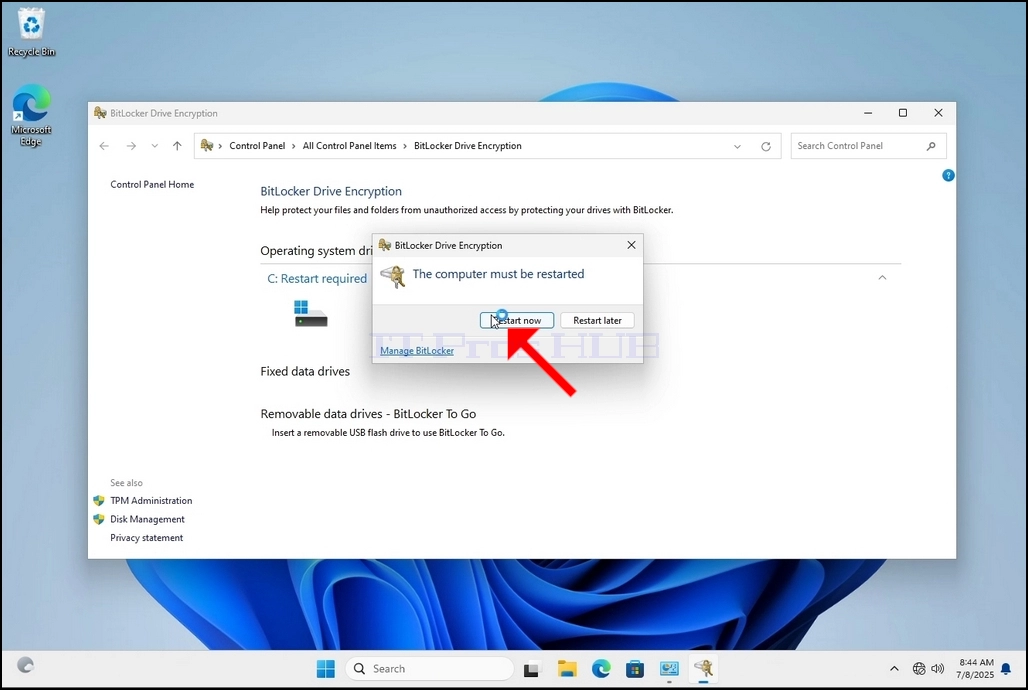


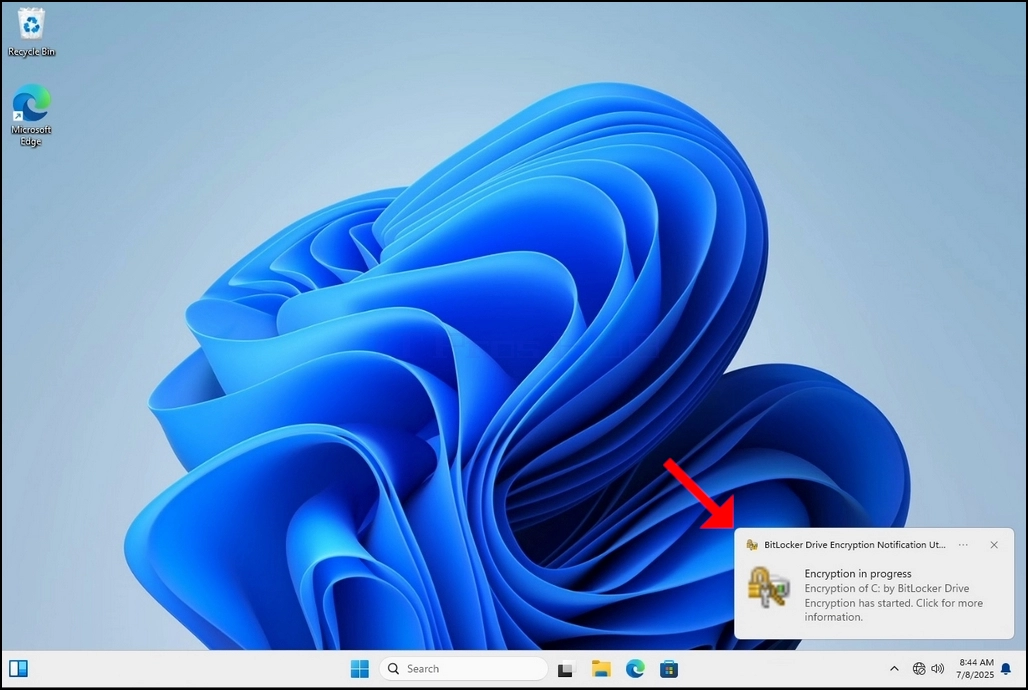
16. Once the computer is fully restarted, click the taskbar’s upward arrow (Notification area overflow icon).
a. Look for the Bitlocker icon and double click it
b. Once clicked, the Bitlocker drive encryption process window will appear, showing the status of the encryption process
c. Once that process bar is full at 100%, the encryption process is done
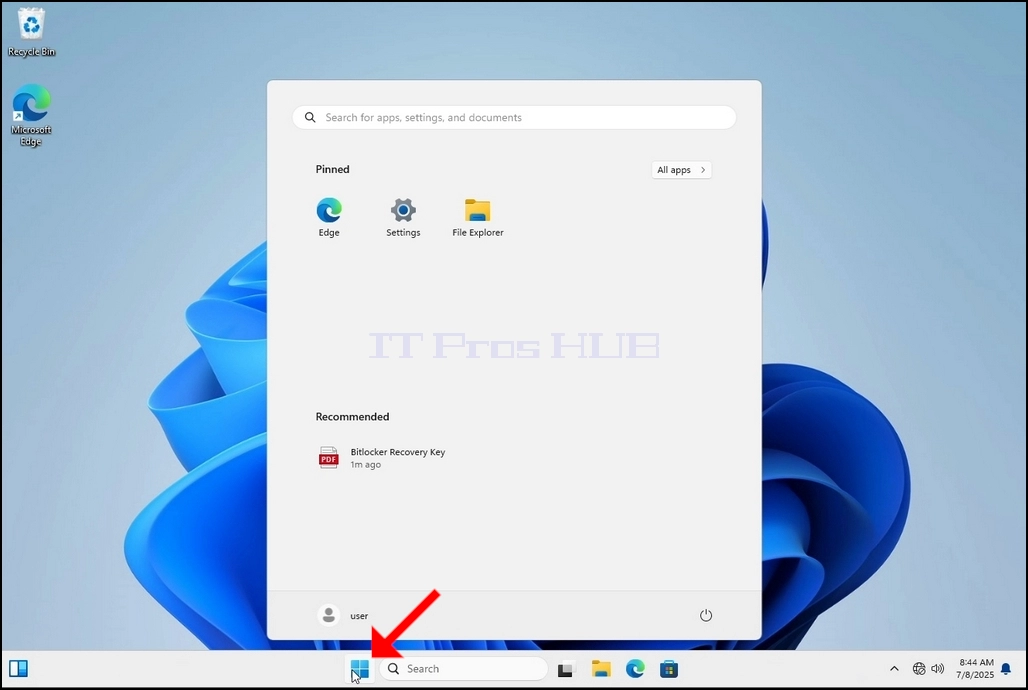
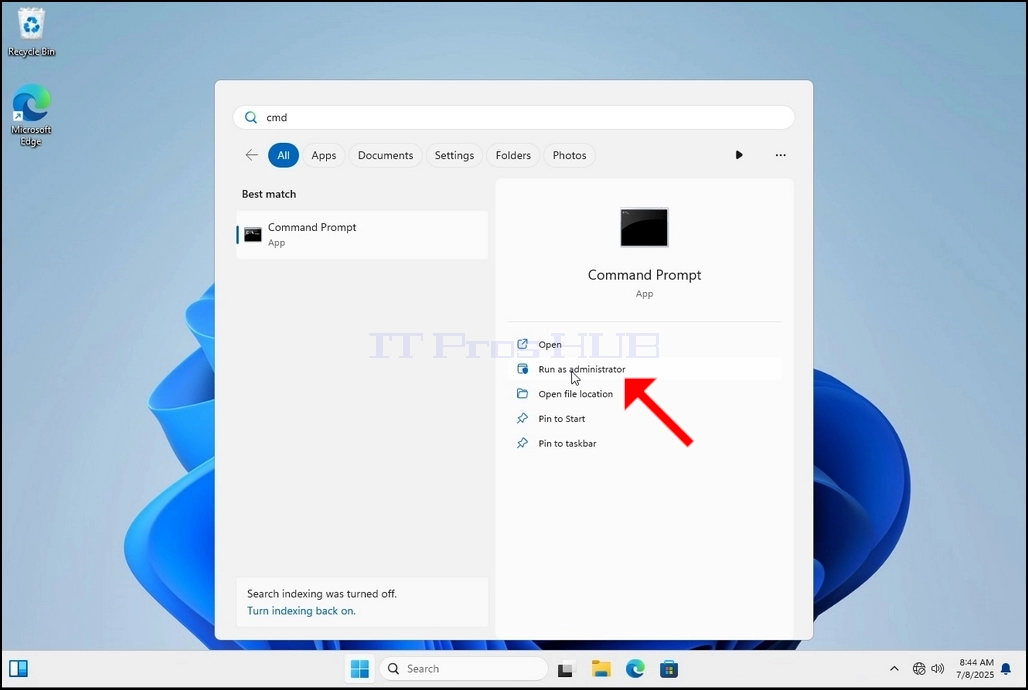
18. Click YES in the UAC window
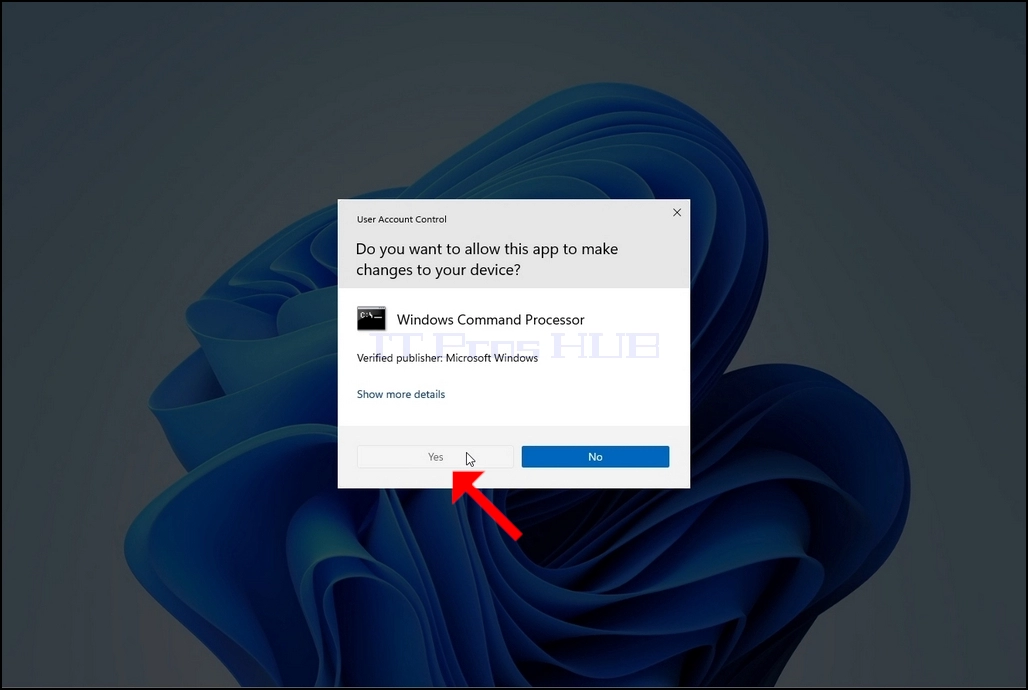
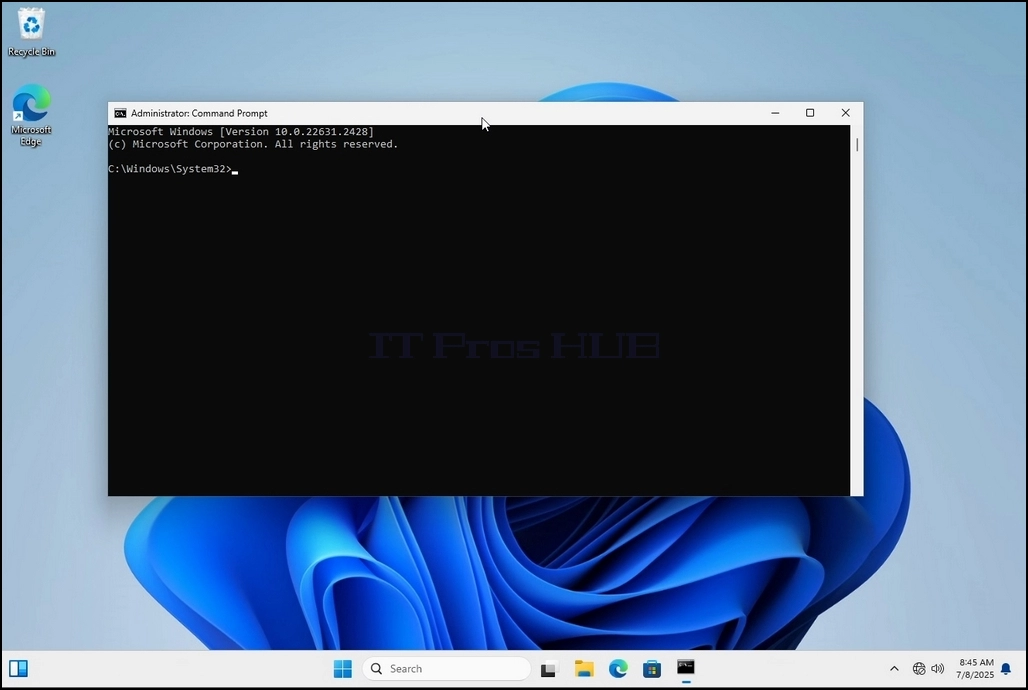
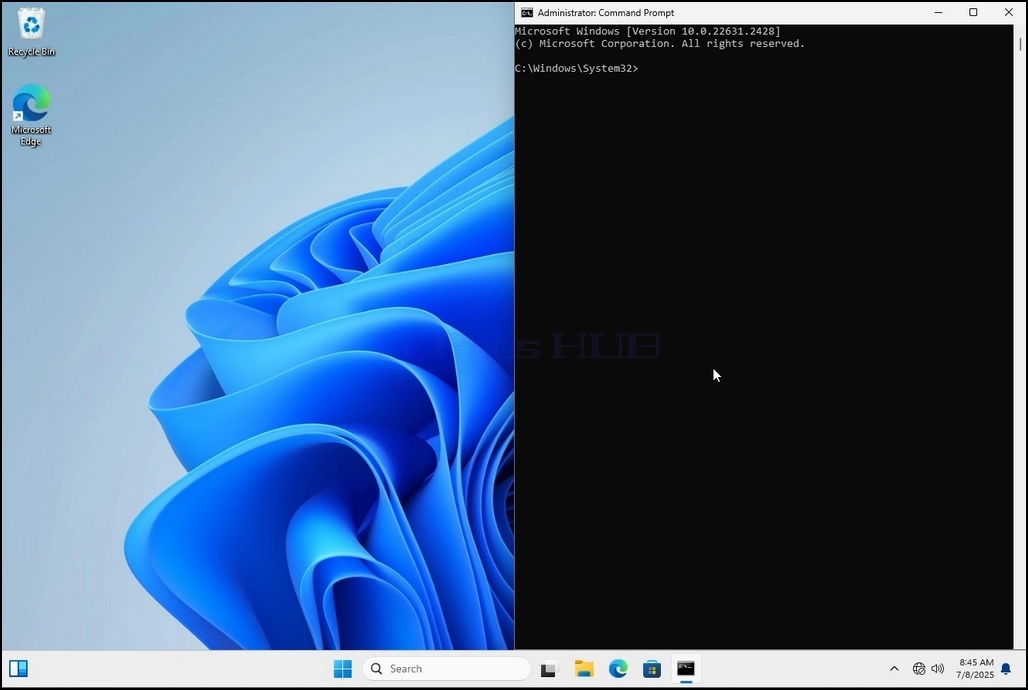
19. In cmd type manage-bde -status and click enter
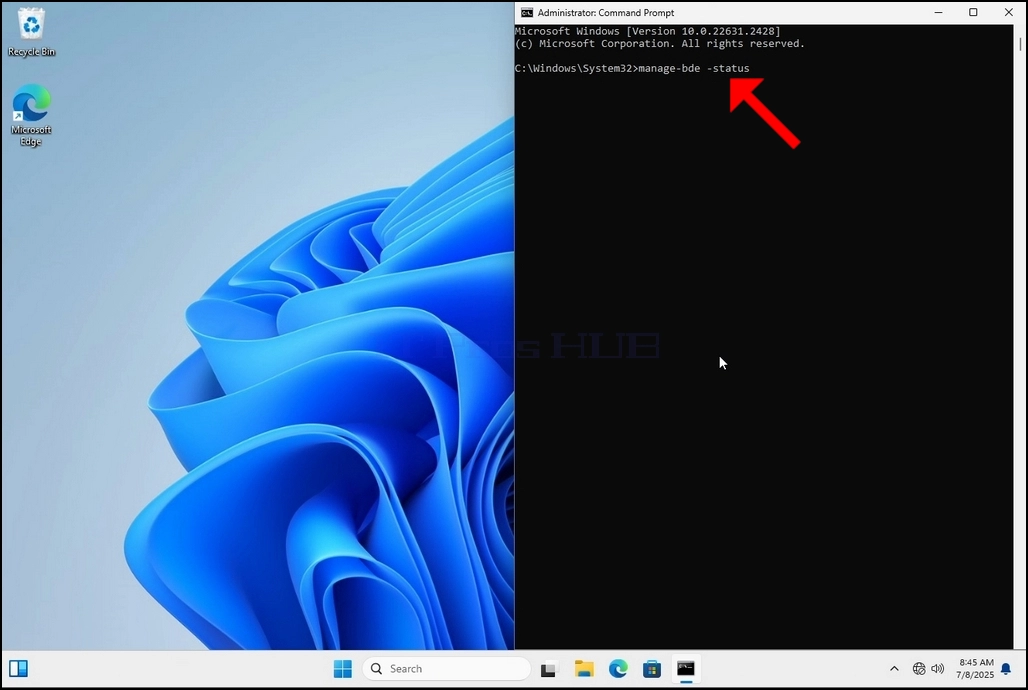
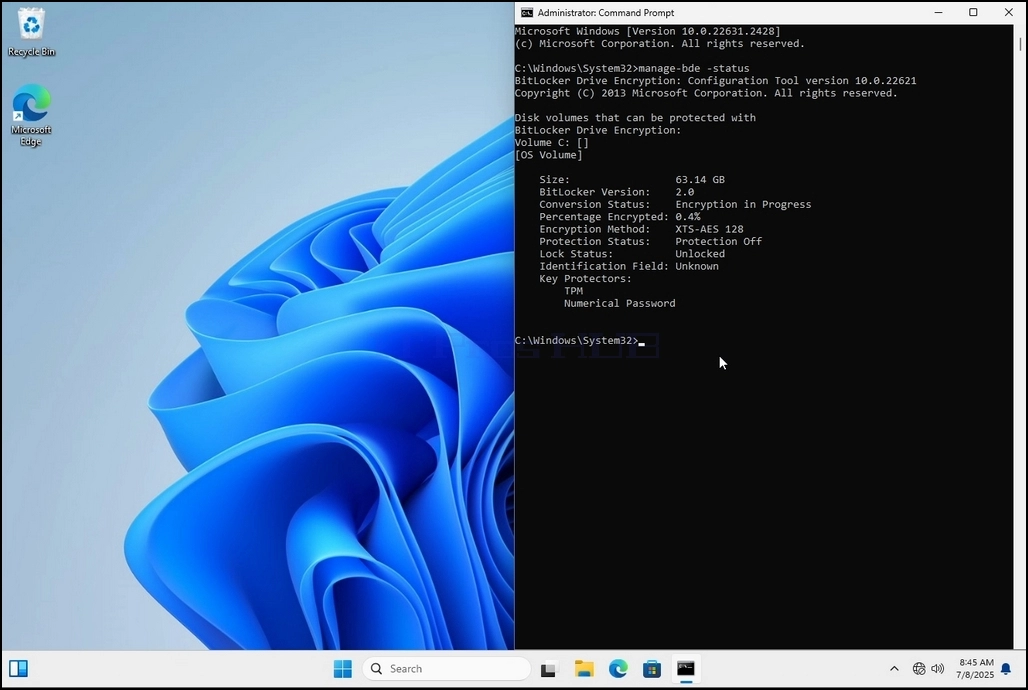
20. The lines that will appear will present information about the encryption process:
a. Size - The size of the drive being encrypted
b. Bitlocker Version – The version of Bitlocker used to encrypt the drive
c. Conversion Status – Shows the current encryption state of a drive
d. Percentage Encrypted – Shows the how much of the selected drive has been encrypted
e. Encryption Method – Shows the encryption method being used
f. Protection Status – Shows if the Bitlocker protection is currently off or on
g. Lock Status – Shows if the selected drive is locked or unlocked (accessible or not accessible)
h. Identification Field - refers to a label or optional string you can assign to a BitLocker-protected volume to help identify it, especially when managing multiple drives or recovery key
i. Key Protectors – Shows the authentication mechanisms that protect the encryption keys used to unlock a drive. When you encrypt a drive, BitLocker uses one or more key protectors to guard access to it
21. Once the encryption process is done for the selected drive, the small window that previously showed a process bar will now show:” Encryption of C: is complete”
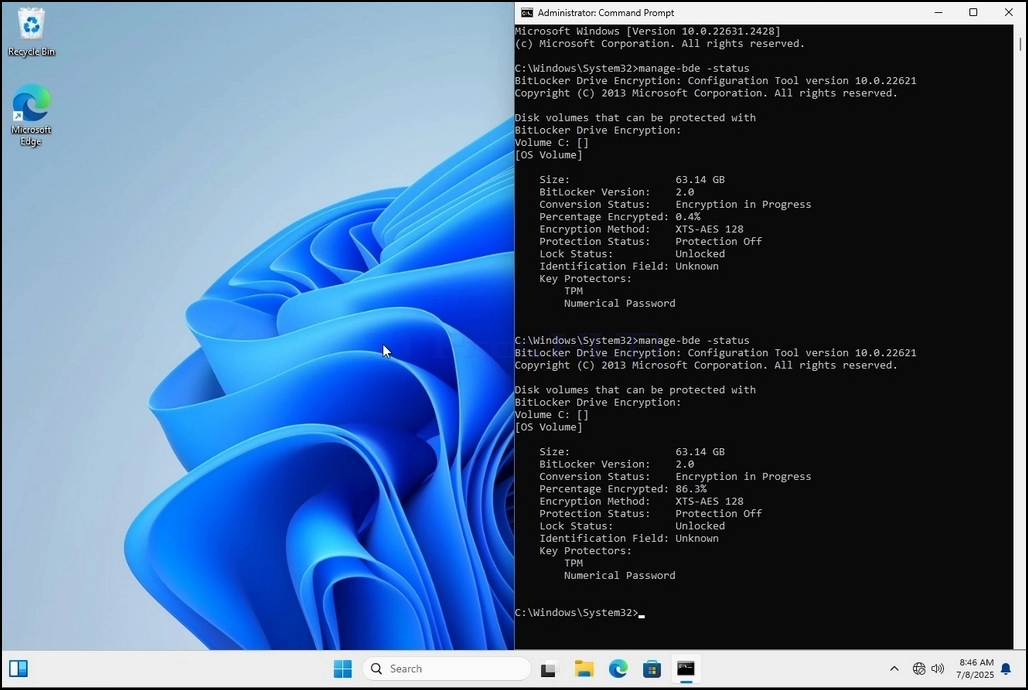
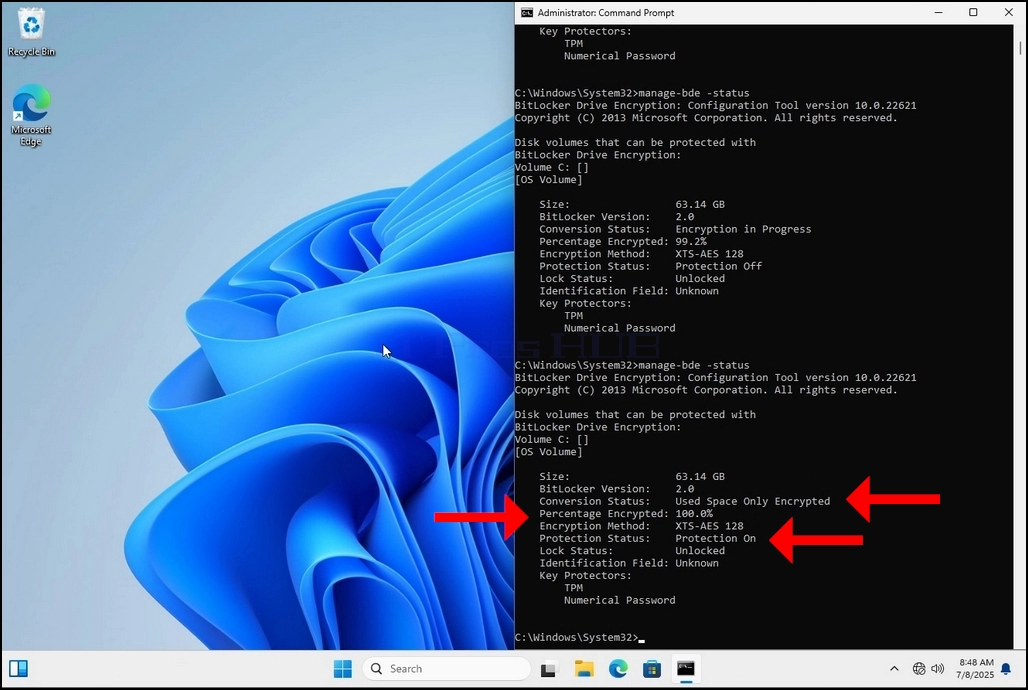
22. This could be verified through CMD by typing manage-bde -status again and clicking enter
a. Notice that the following values are now changed:
i. Conversion Status: Used Space Only Encrypted
ii. Percentage Encrypted: 100.0%
iii. Protection Status: Protection On
23. In the next step we will take a look at the Bitlocker recovery key PDF file
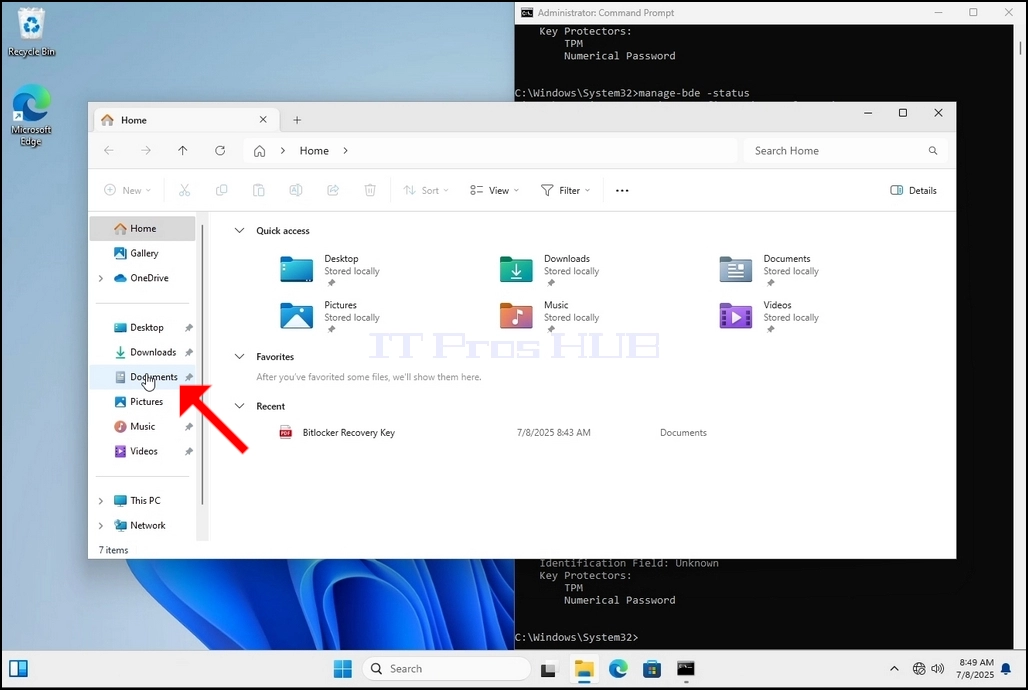
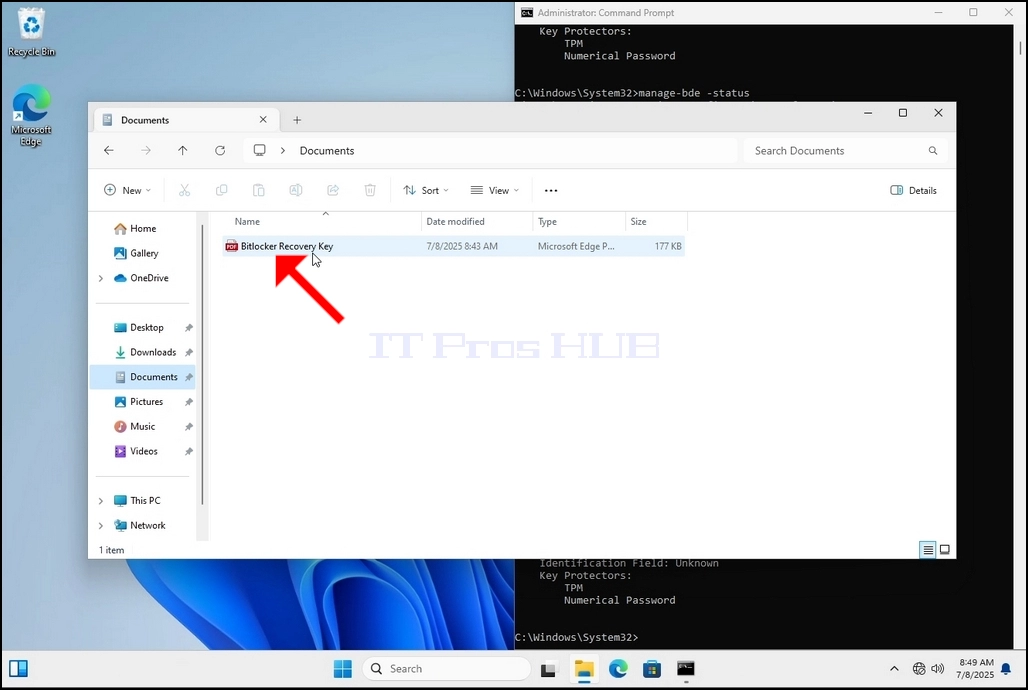
24. Go to the path in which it was originally saved and open it
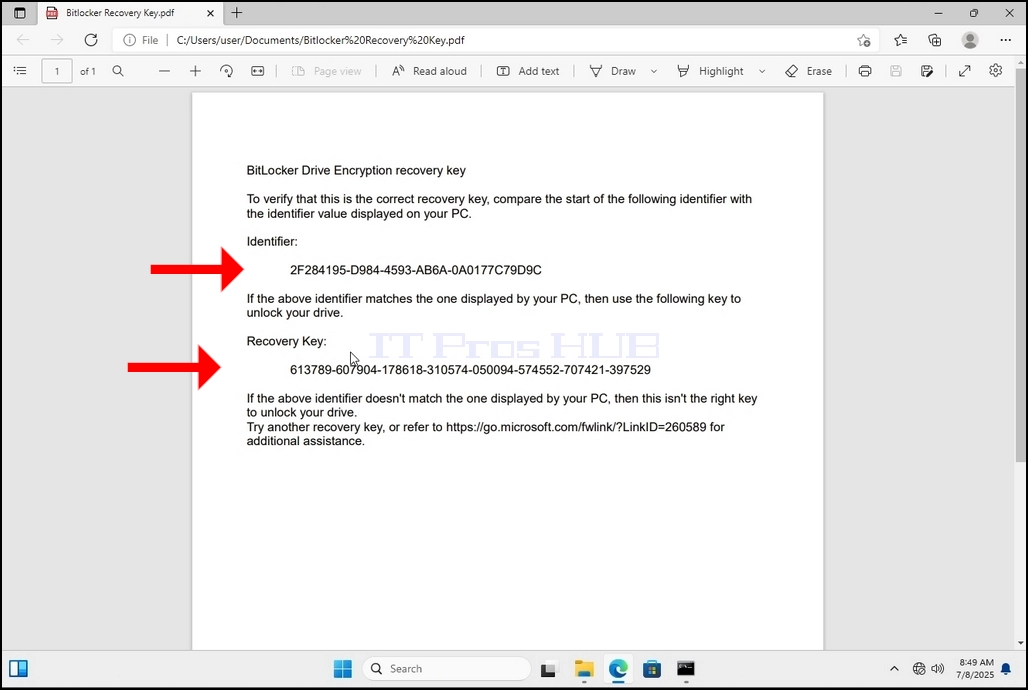
25. Notice the 2 important values:
a. Identifier
b. Recovery Key
26. It is highly recommended to save these values in more than one medium and location such as:
a. Printed format
b. Password manager
- How to Use Bitlocker To Encrypt C Drive in Windows 11 23H2 x64 Pro Education Build 22631.2428
- How to Use Bitlocker To Encrypt C Drive in Windows 11 23H2 x64 Pro Build 22631.2428
- How to Use Bitlocker To Encrypt C Drive in Windows 11 22H2 x64 Pro For Workstations Build 22621.525
- How to Use Bitlocker To Encrypt C Drive in Windows 11 22H2 x64 Pro Education N Build 22621.525