



- Butiran
- Ditulis oleh IT Pro
- Kategori: How to Articles
- Jumlah paparan: 6693
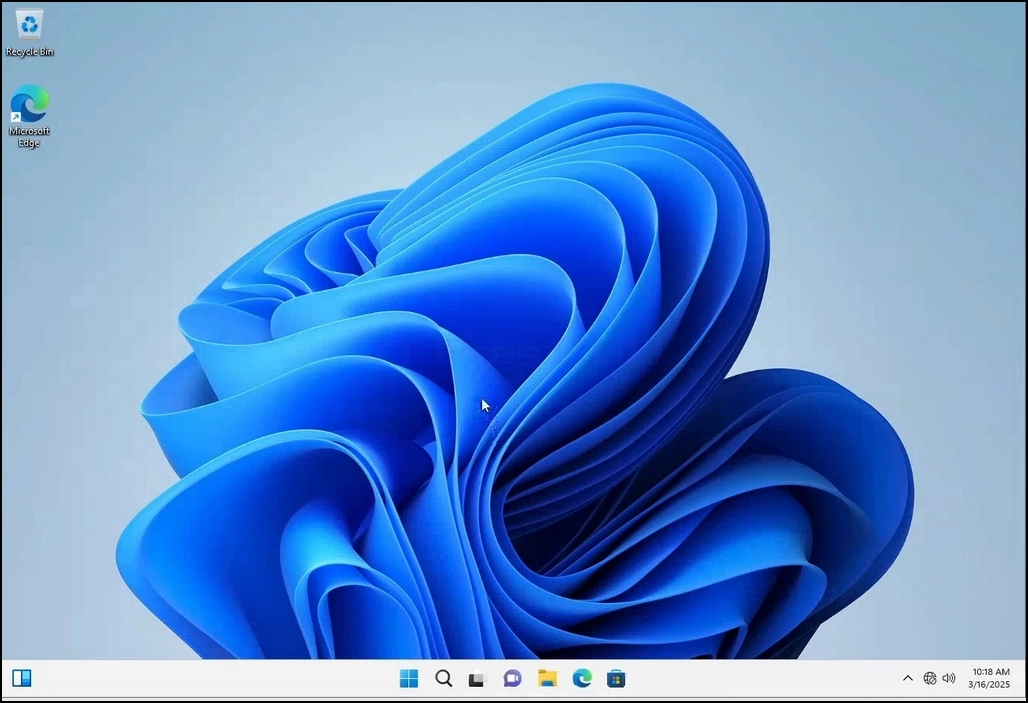
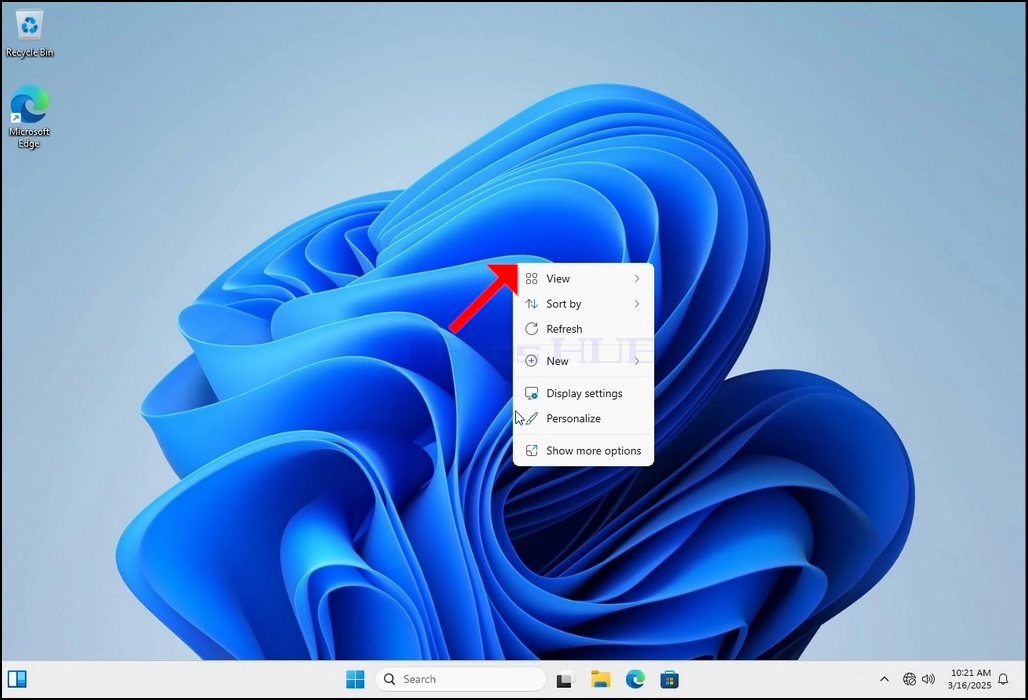
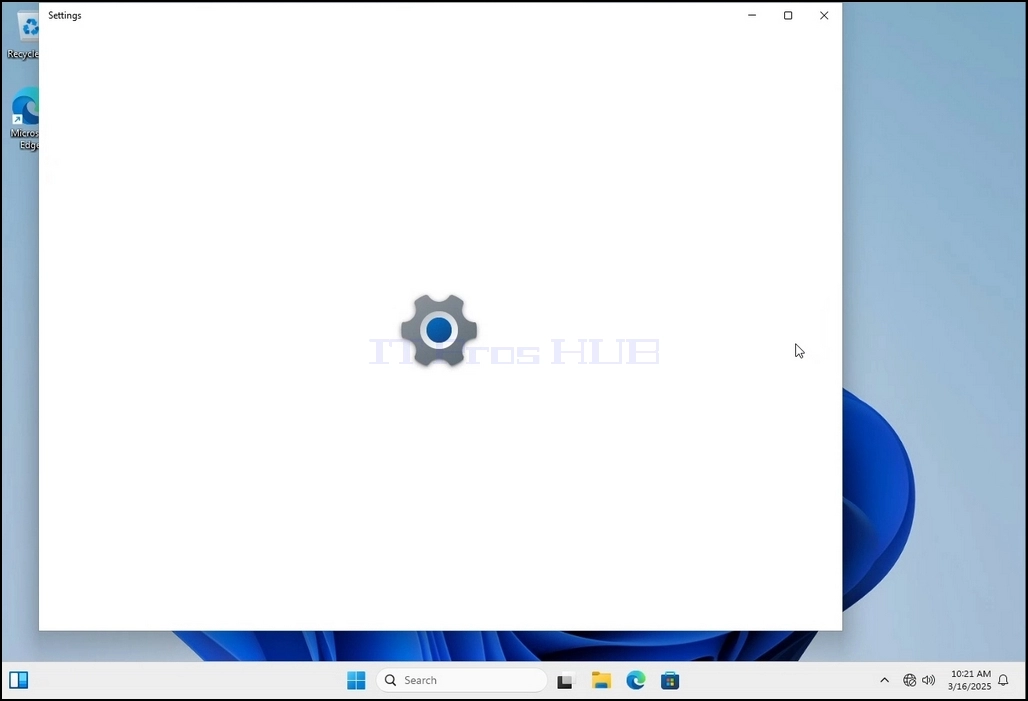
Kampung 2. Pada tahun 2013, menu baru mencari opsi Pengaturan Tampilan dan klik dan tunggu jendela Seting muncul
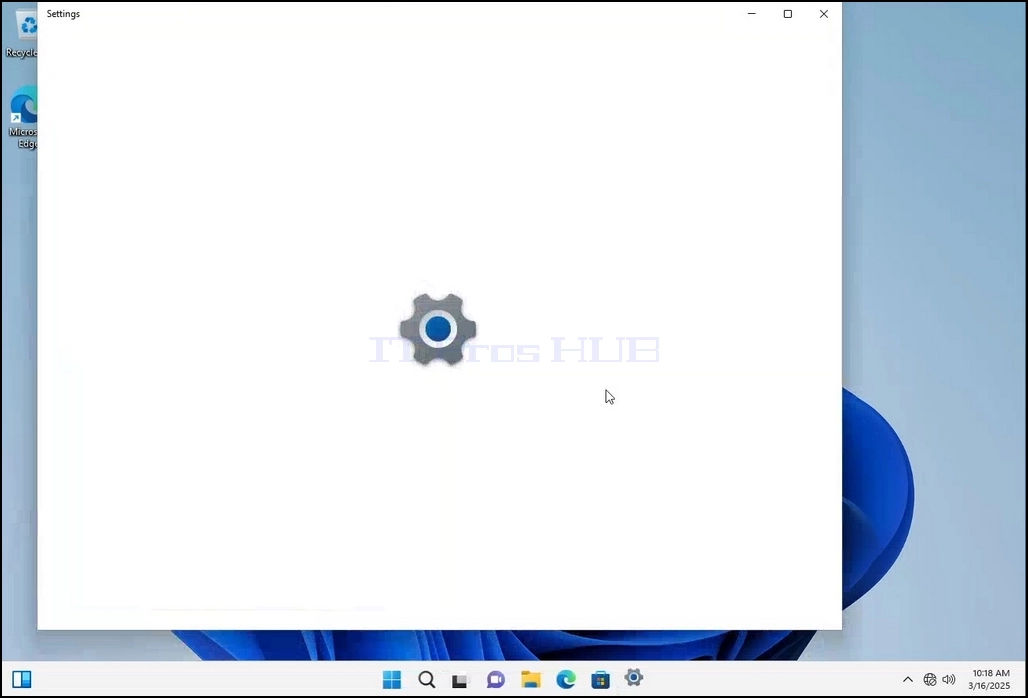
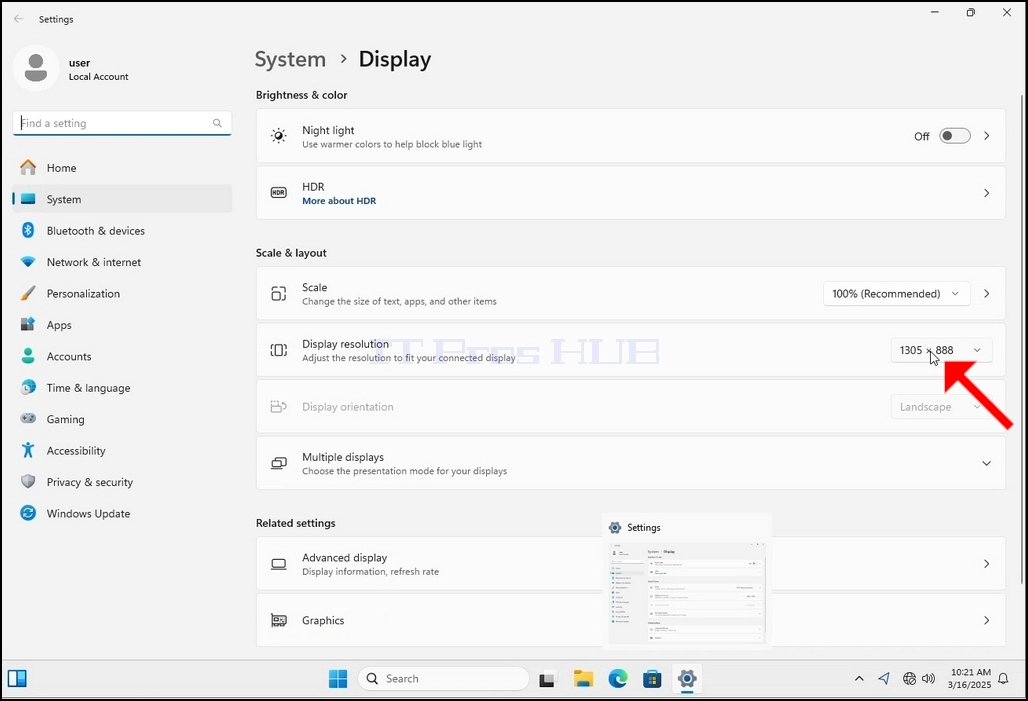
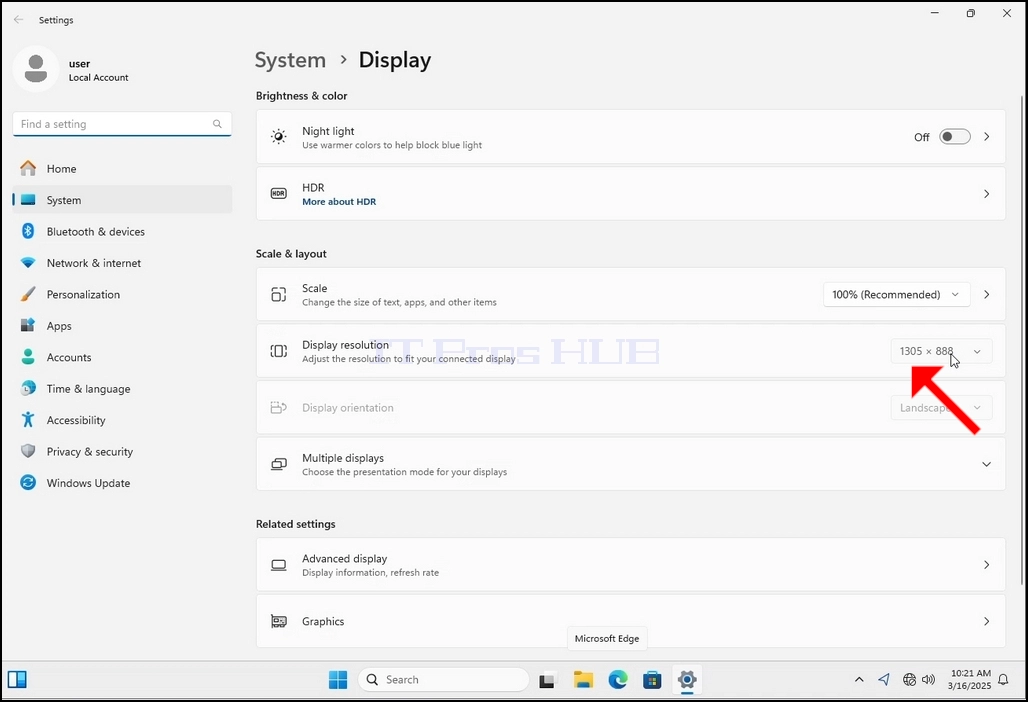
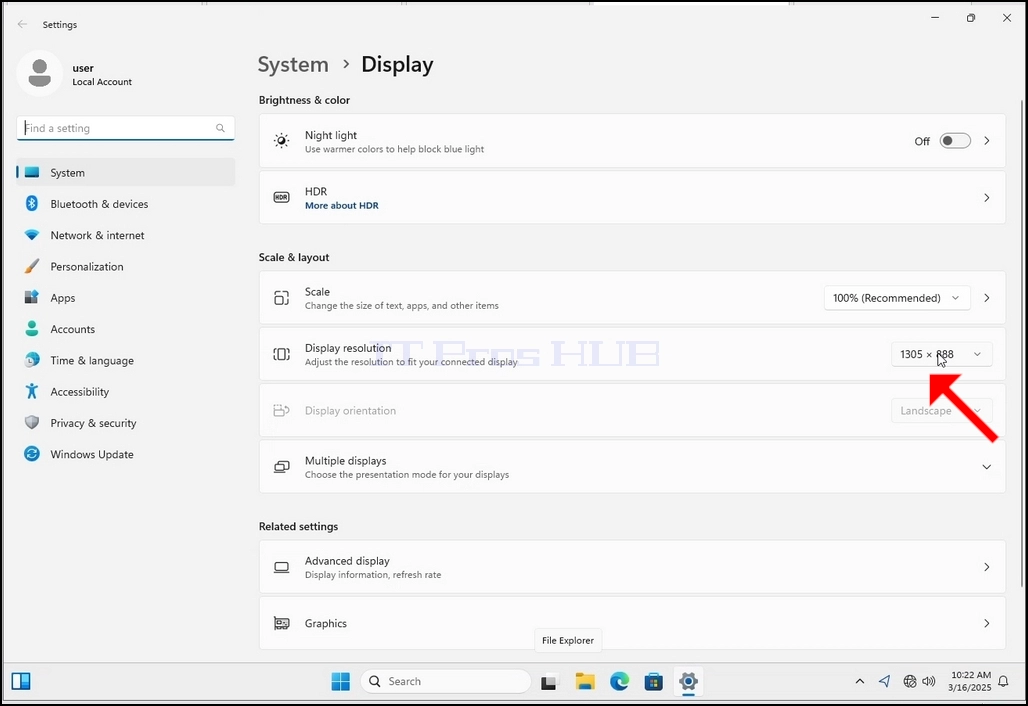
Kampung 3. Di jendela pengaturan, di bawah Sistem > Opsi tampilan, cari pilihan Resolusi Tampilan
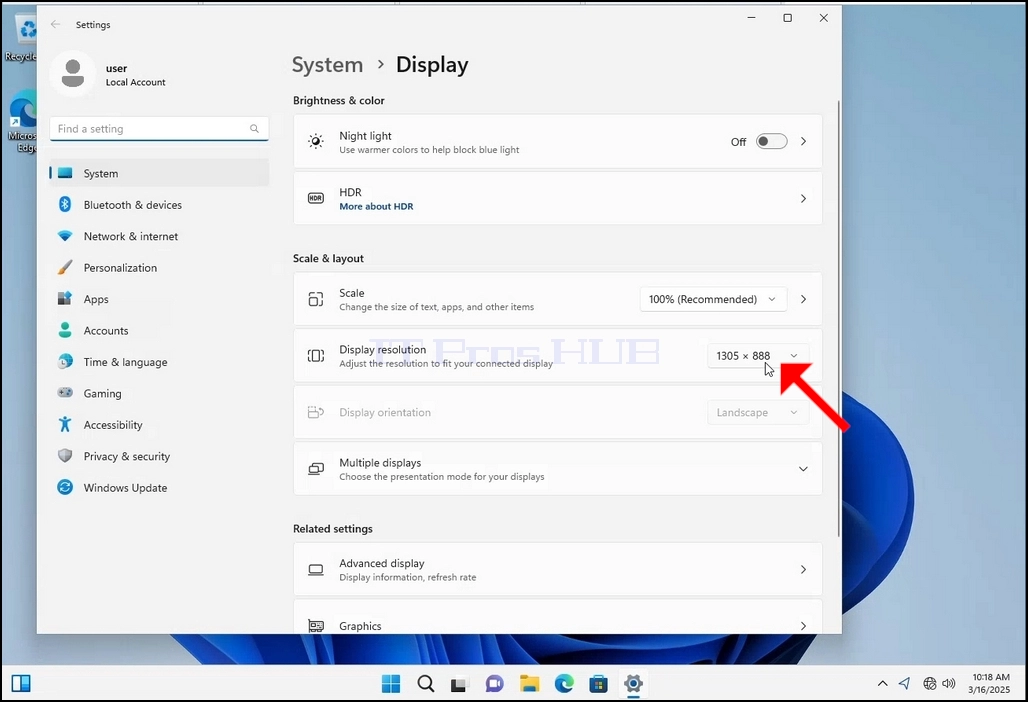
^ a b c d e f g h i j k l m n o p q r s t u v w x y z a b c d e f g h i j k l m n o p q r s t u v w x y z a b c d e f g h i j k l m x y z a b c d e f g h i j k l j k l j k l m n j k l j k l j k l m j k l m n o j k l j k l m j k l m j k l j k l m l m j k l m j k l m j k l m j k l m j k l m j k l m j k l m j k l m j k l m j k l m j k l m j k l m j k l m j k l m j k l m j k l m j k l m j k l m j k l m j k l m j k l m j k l m j k l m j k l m j k l m m j k l m j k l m j k l m j k l m j k l m m m j k l m m m m m Pada baris yang sama dari Resolusi Paparan, klik resolusi saat ini menetapkan menu drop down untuk memperluas menu tersebut.
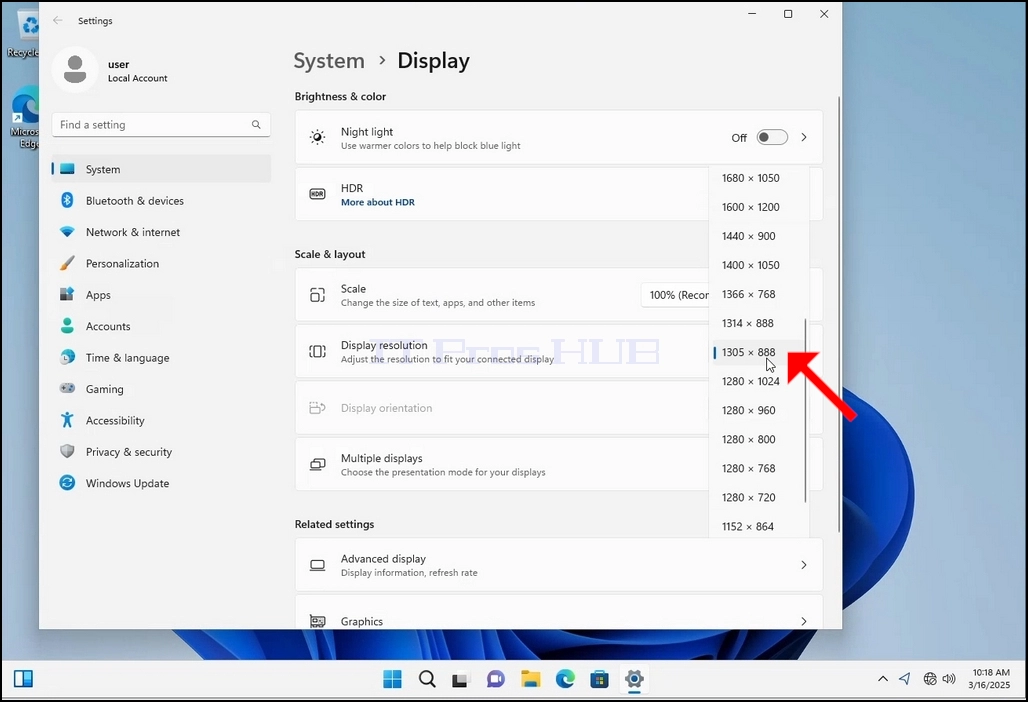
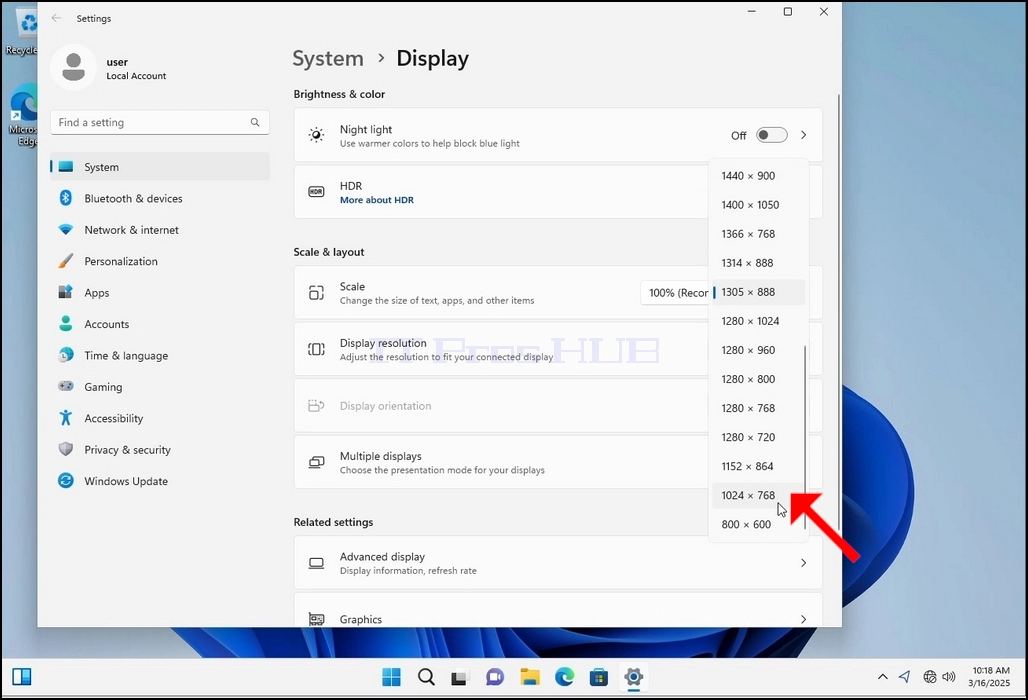
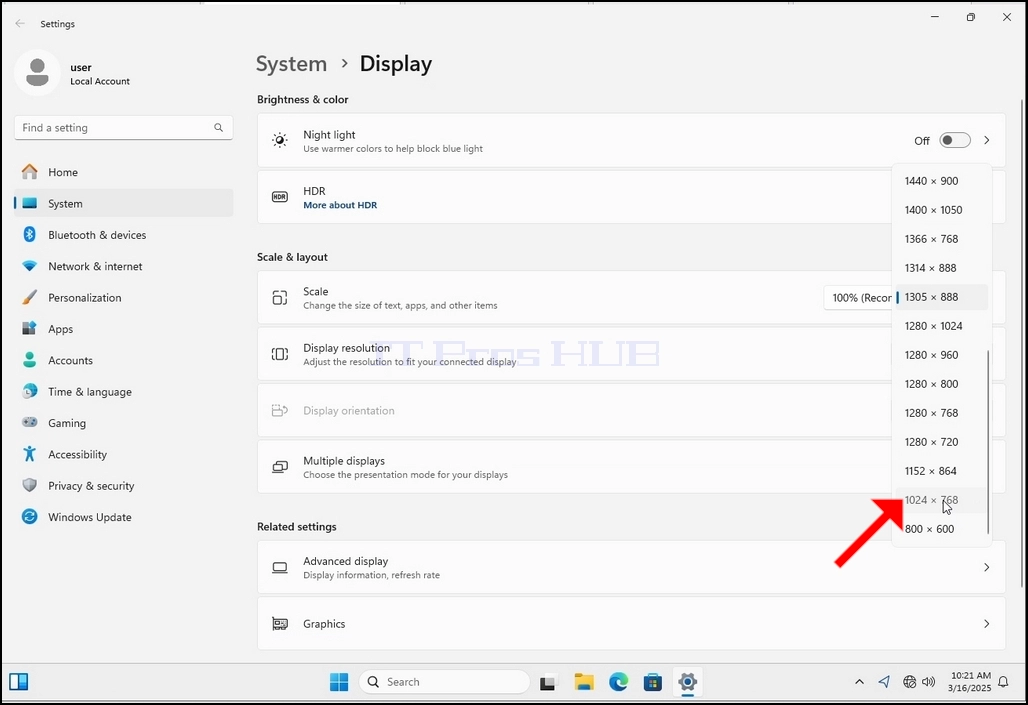
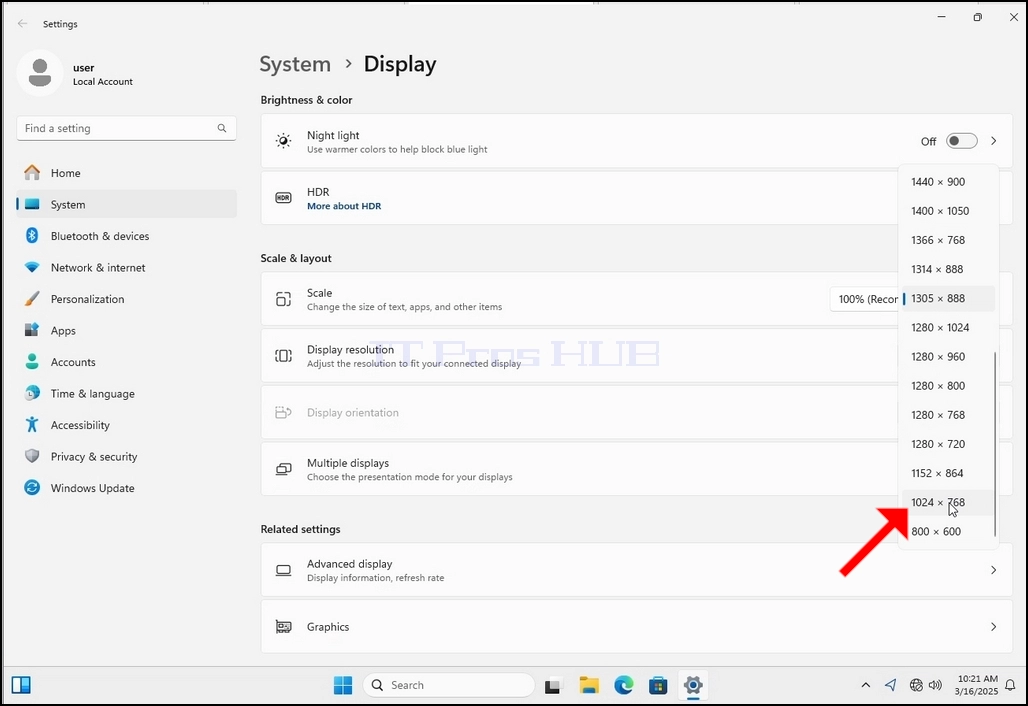
X. X. 5. Dari berbagai pilihan resolusi, pilih yang terbaik sesuai dengan kebutuhan Anda dengan klik kiri di atasnya (Di contoh ini yang dipilih adalah 1024x768)
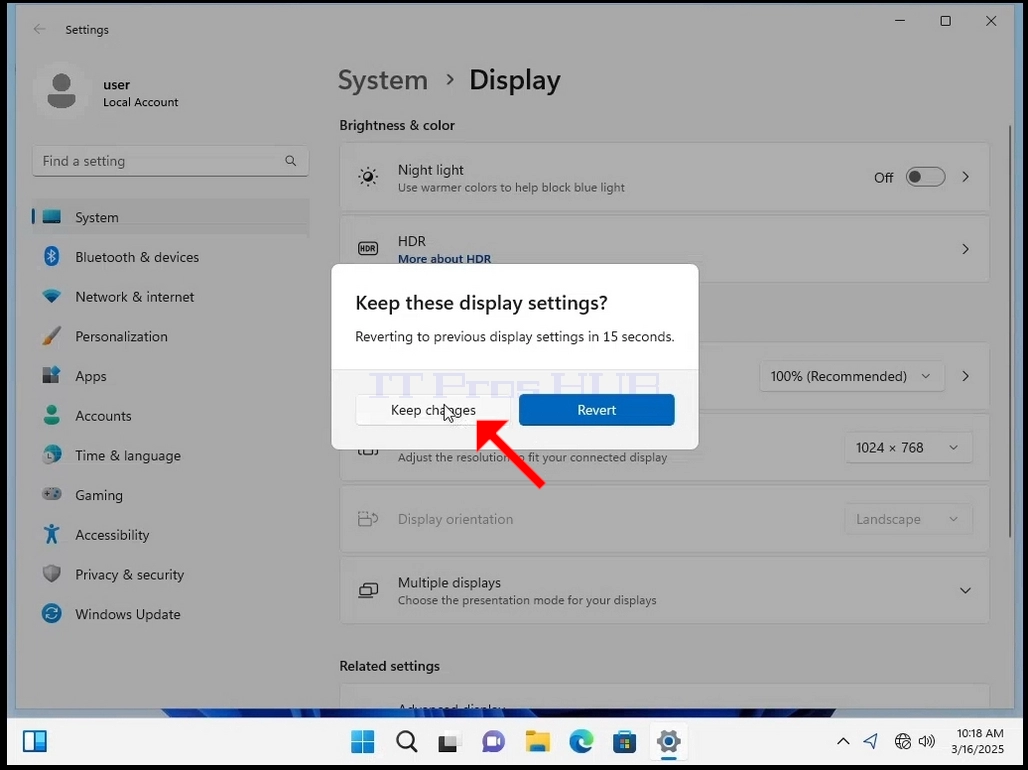
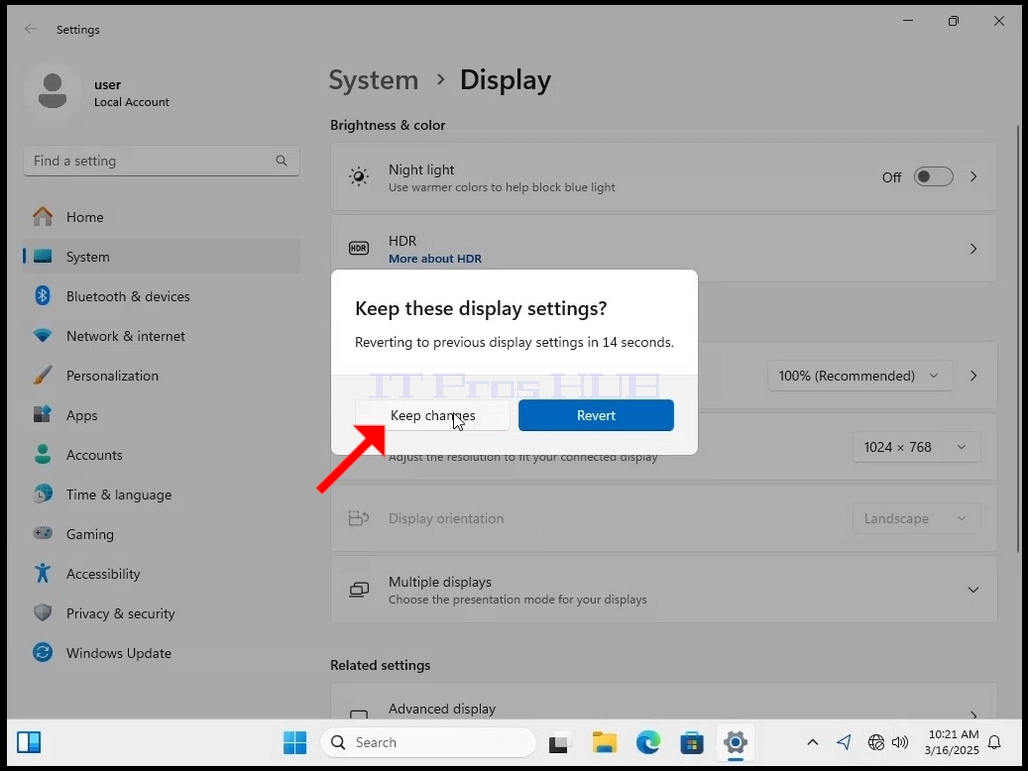
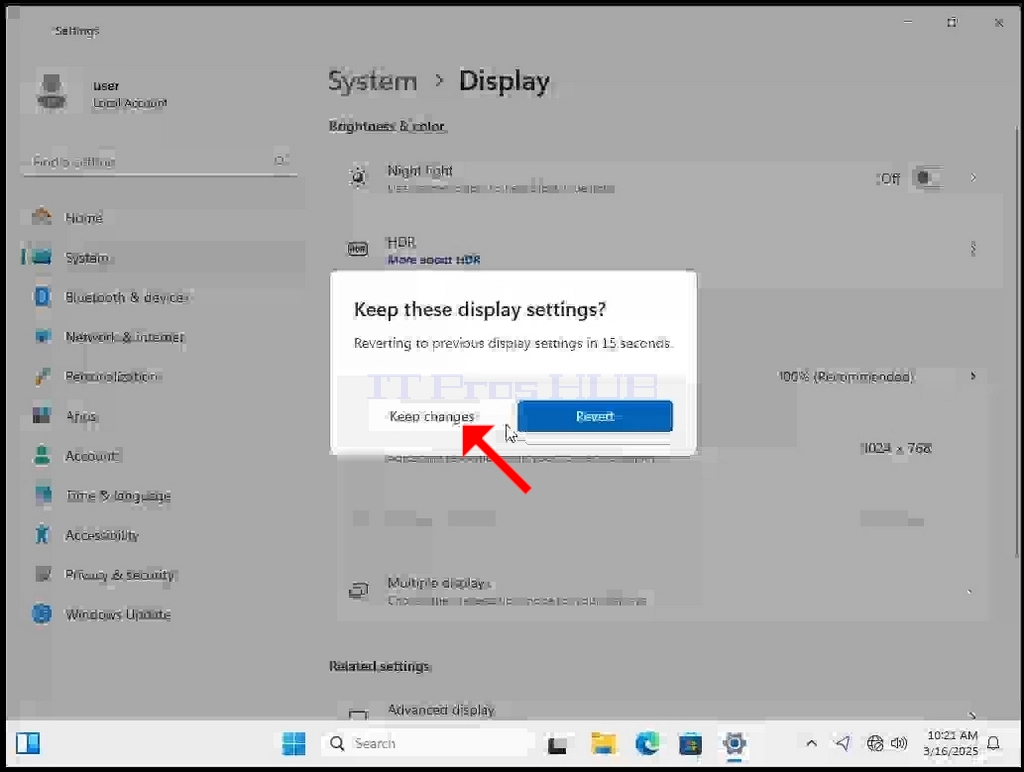
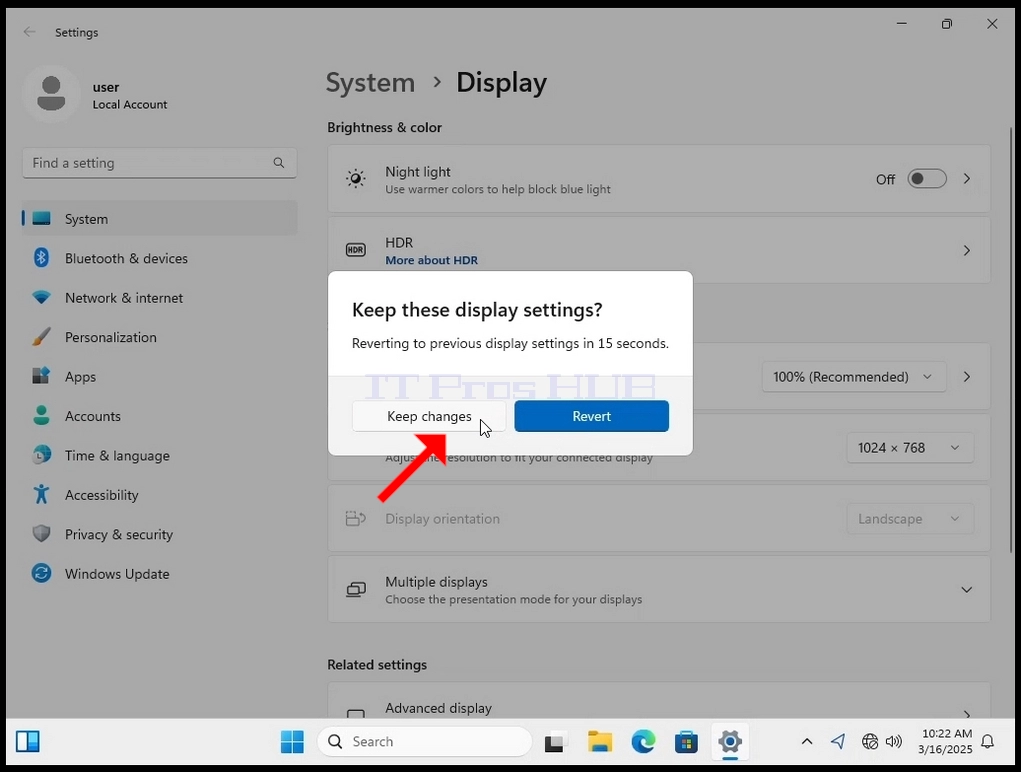
Zakhan 6. Setelah memilih pengaturan resolusi baru, Windows akan menanyakan apakah Anda ingin Menyimpan Perubahan atau untuk mengembalikannya. Jika sebuah opsi tidak dipilih dengan dalam jumlah detik yang dialokasikan, Windows akan kembali ke resolusi yang telah dikonfigurasi sebelumnya. Ini dilakukan jika monitor tidak mendukung resolusi yang dipilih dan pengguna tidak dapat melihat atau melihat keluaran video saat ini agar dapat mengembalikan resolusi yang baru dipilih secara manual.
Jika resolusi yang baru dipilih sejalan dengan monitor, pilih Keep Changes, dan klik.
- Butiran
- Ditulis oleh IT Pro
- Kategori: How to Articles
- Jumlah paparan: 5897
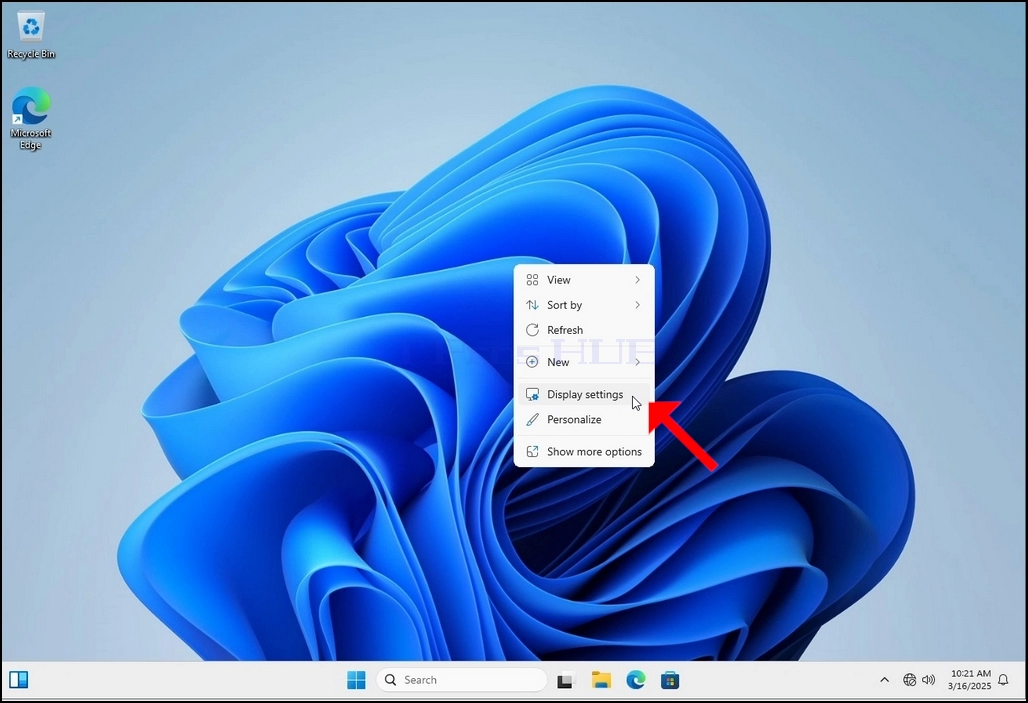
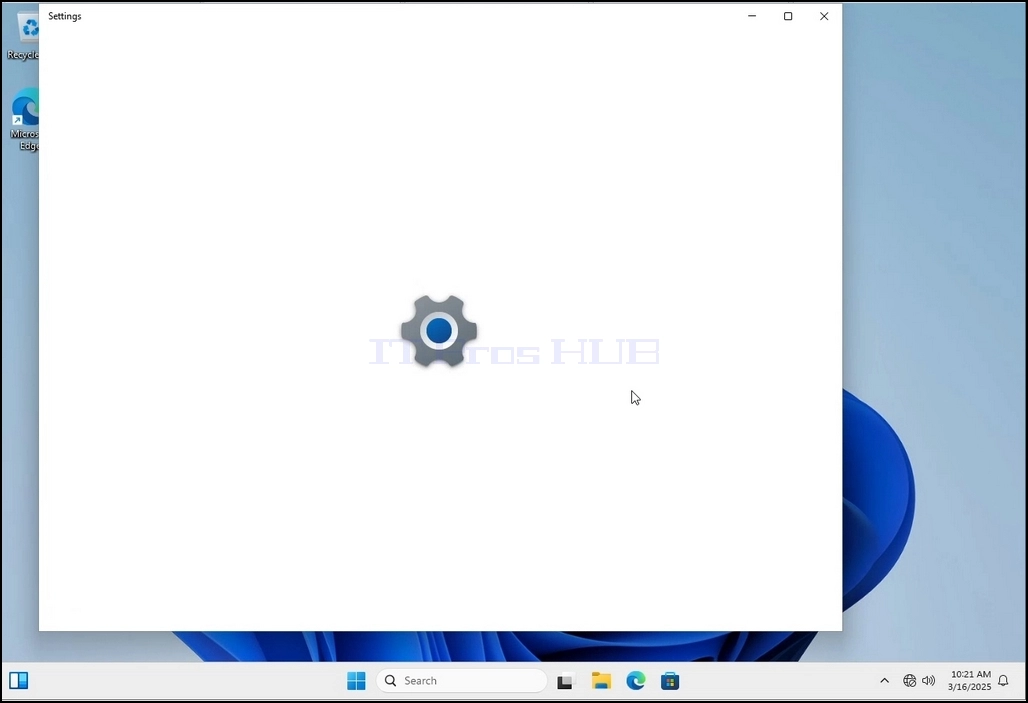
3. In the Settings window, under the System > Display options, look for the Display Resolution option
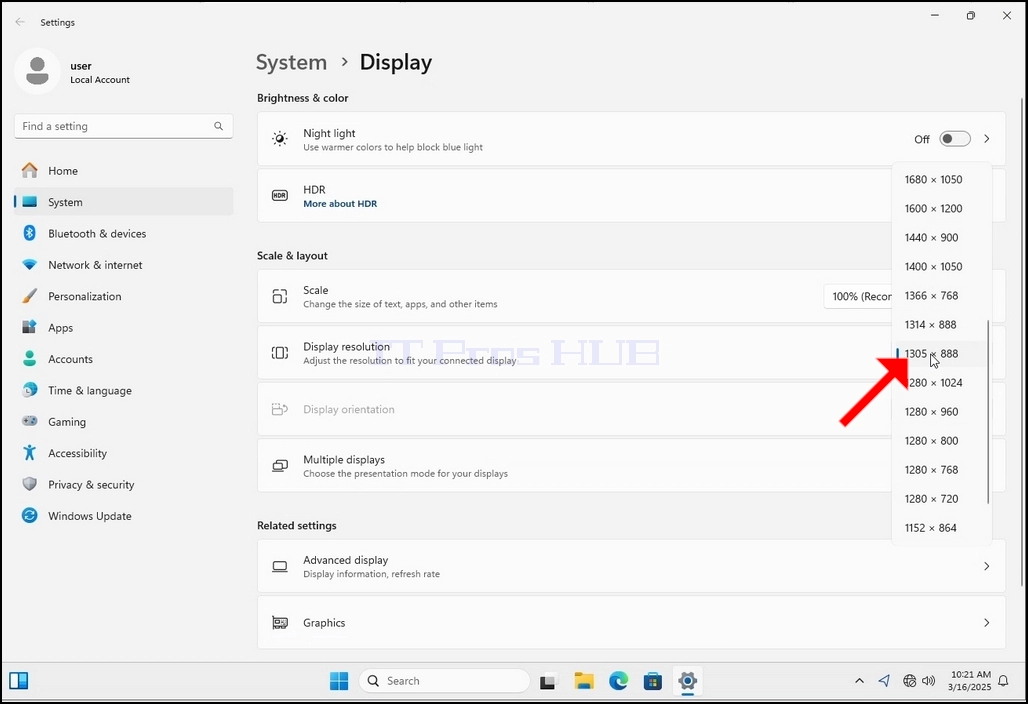
5. From the various resolution options, choose the one best suits your needs by left clicking on it ( In this example the chosen one is 1024x768)
6. After choosing the new resolution setting, Windows will ask you whether you like to Keep Changes or to Revert them. If an option is not chosen with in an allocated amount of seconds, Windows will revert back to the previously configured resolution. This is done in case the monitor doesn't support the selected resolution and the user is unable to either see or see currently the video output in order to manually revert the newly selected resolution.
If the newly chosen resolution is compatible with the monitor, choose Keep Changes, and click it.
- Butiran
- Ditulis oleh IT Pro
- Kategori: How to Articles
- Jumlah paparan: 6019
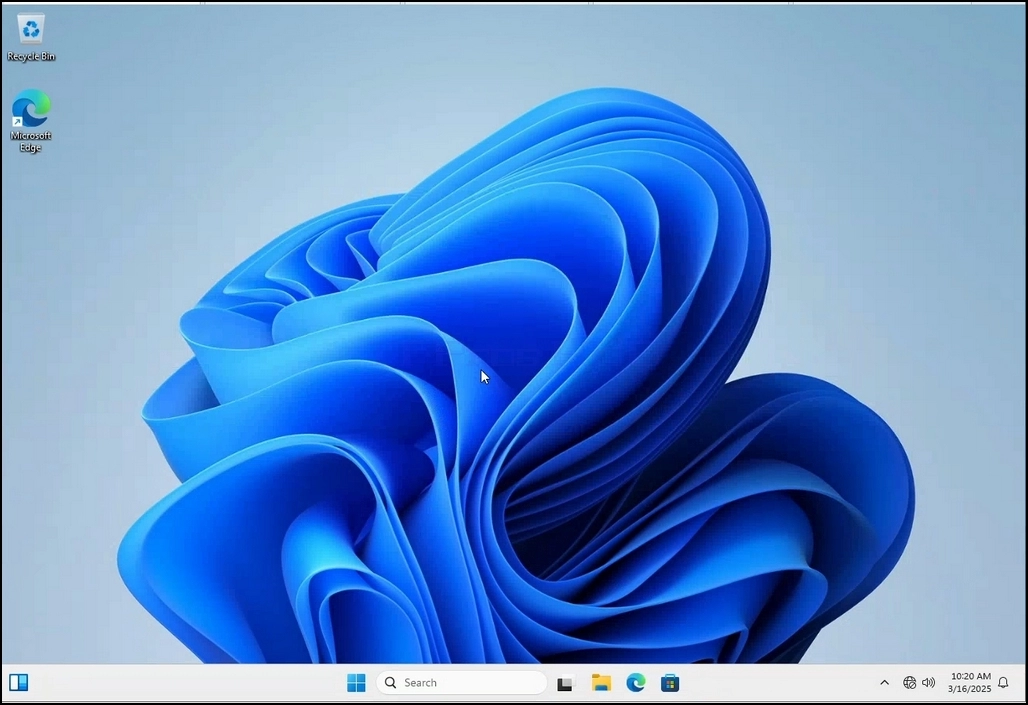
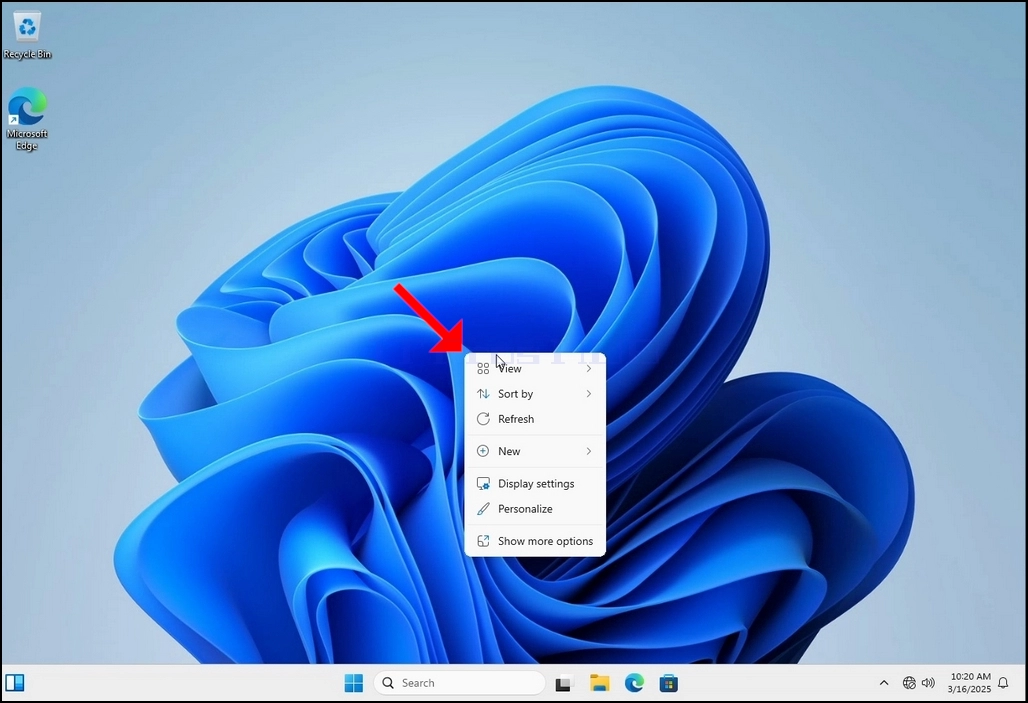
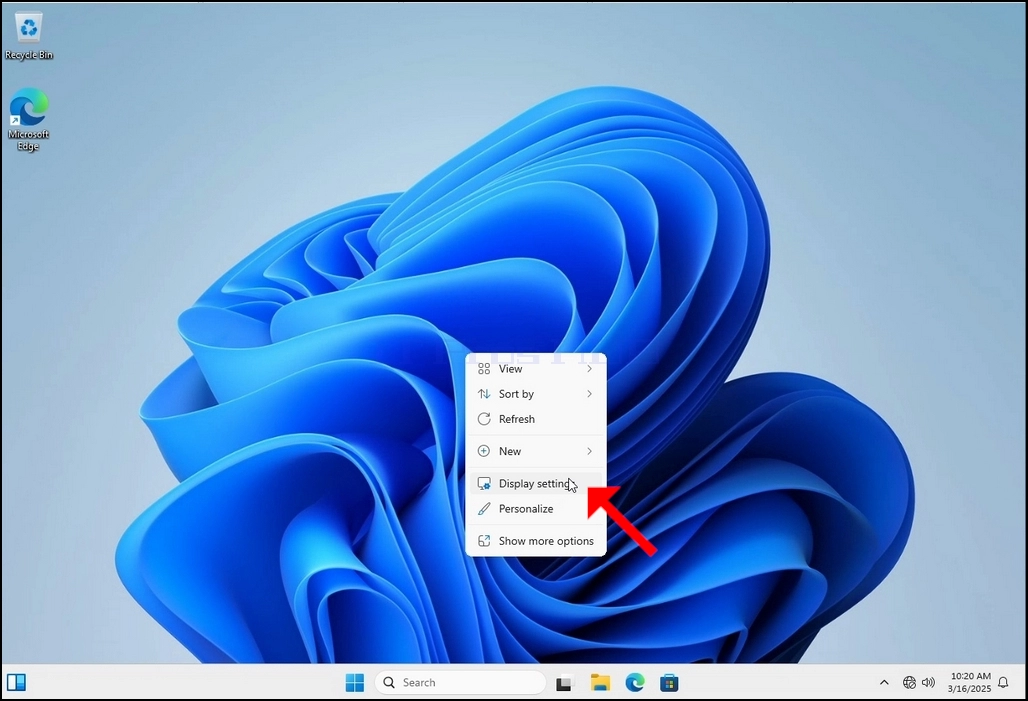
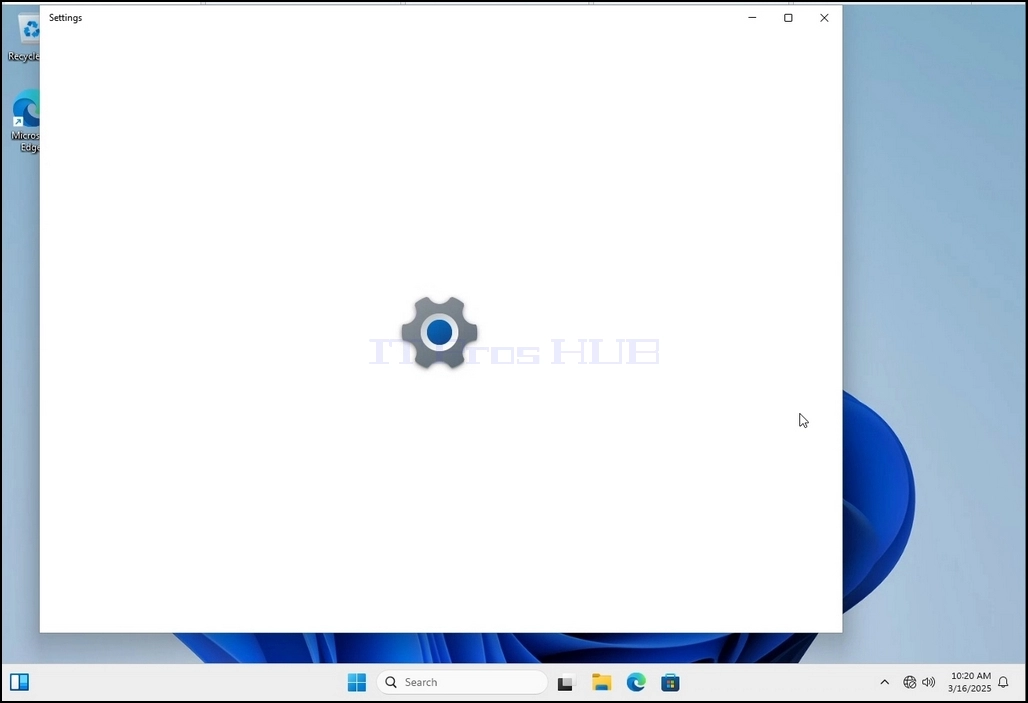
Kampung 2. Pada tahun 2013, menu baru mencari opsi Pengaturan Tampilan dan klik dan tunggu jendela Seting muncul
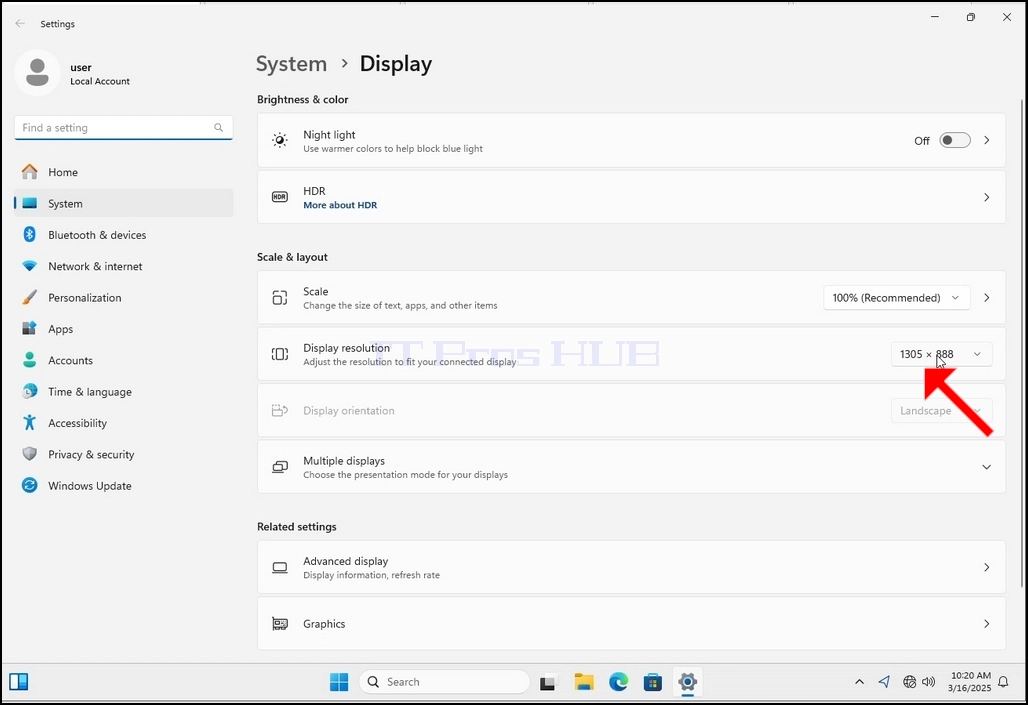
Kampung 3. Di jendela pengaturan, di bawah Sistem > Opsi tampilan, cari pilihan Resolusi Tampilan
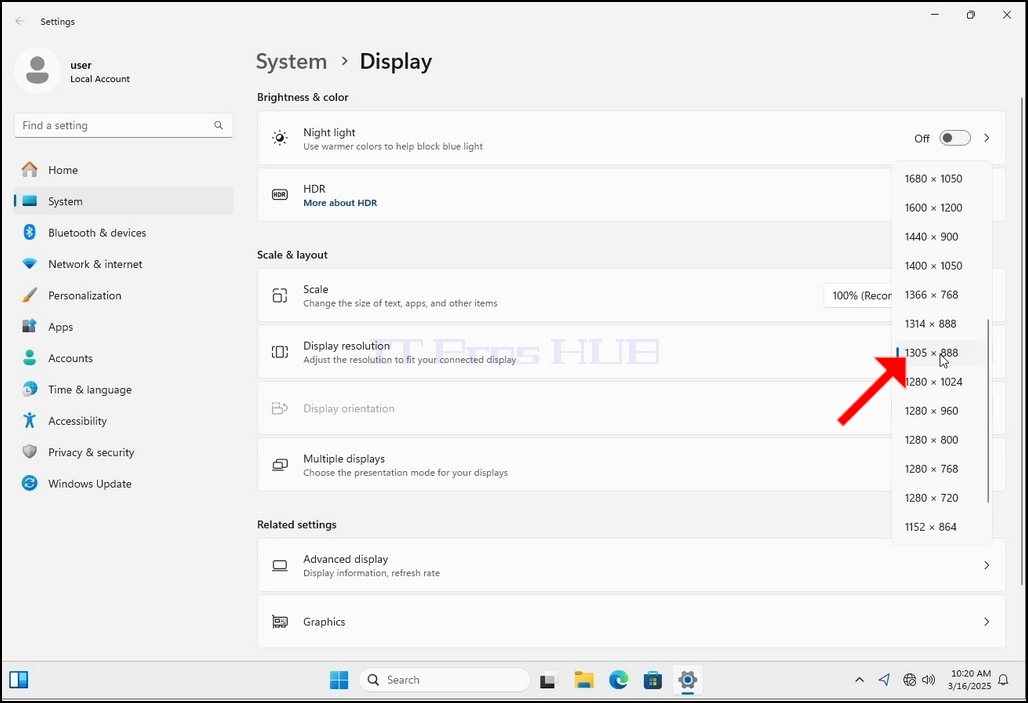
^ a b c d e f g h i j k l m n o p q r s t u v w x y z a b c d e f g h i j k l m n o p q r s t u v w x y z a b c d e f g h i j k l m x y z a b c d e f g h i j k l j k l j k l m n j k l j k l j k l m j k l m n o j k l j k l m j k l m j k l j k l m l m j k l m j k l m j k l m j k l m j k l m j k l m j k l m j k l m j k l m j k l m j k l m j k l m j k l m j k l m j k l m j k l m j k l m j k l m j k l m j k l m j k l m j k l m j k l m j k l m j k l m m j k l m j k l m j k l m j k l m j k l m m m j k l m m m m m Pada baris yang sama dari Resolusi Paparan, klik resolusi saat ini menetapkan menu drop down untuk memperluas menu tersebut.
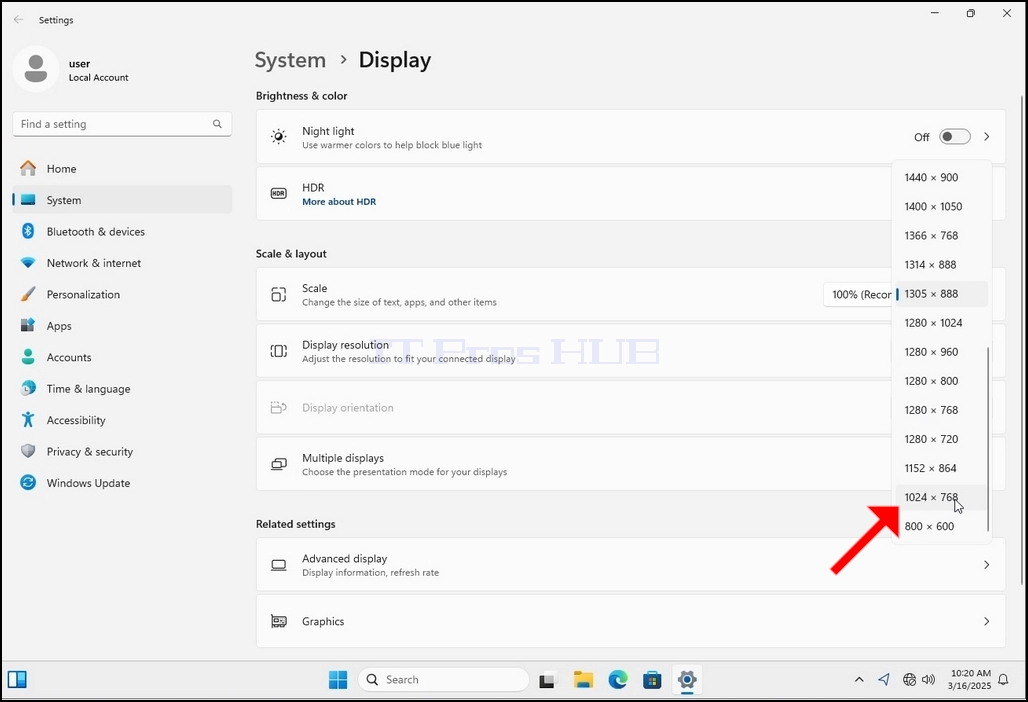
X. X. 5. Dari berbagai pilihan resolusi, pilih yang terbaik sesuai dengan kebutuhan Anda dengan klik kiri di atasnya (Di contoh ini yang dipilih adalah 1024x768)
Zakhan 6. Setelah memilih pengaturan resolusi baru, Windows akan menanyakan apakah Anda ingin Menyimpan Perubahan atau untuk mengembalikannya. Jika sebuah opsi tidak dipilih dengan dalam jumlah detik yang dialokasikan, Windows akan kembali ke resolusi yang telah dikonfigurasi sebelumnya. Ini dilakukan jika monitor tidak mendukung resolusi yang dipilih dan pengguna tidak dapat melihat atau melihat keluaran video saat ini agar dapat mengembalikan resolusi yang baru dipilih secara manual.
Jika resolusi yang baru dipilih sejalan dengan monitor, pilih Keep Changes, dan klik.
- Butiran
- Ditulis oleh IT Pro
- Kategori: How to Articles
- Jumlah paparan: 6184
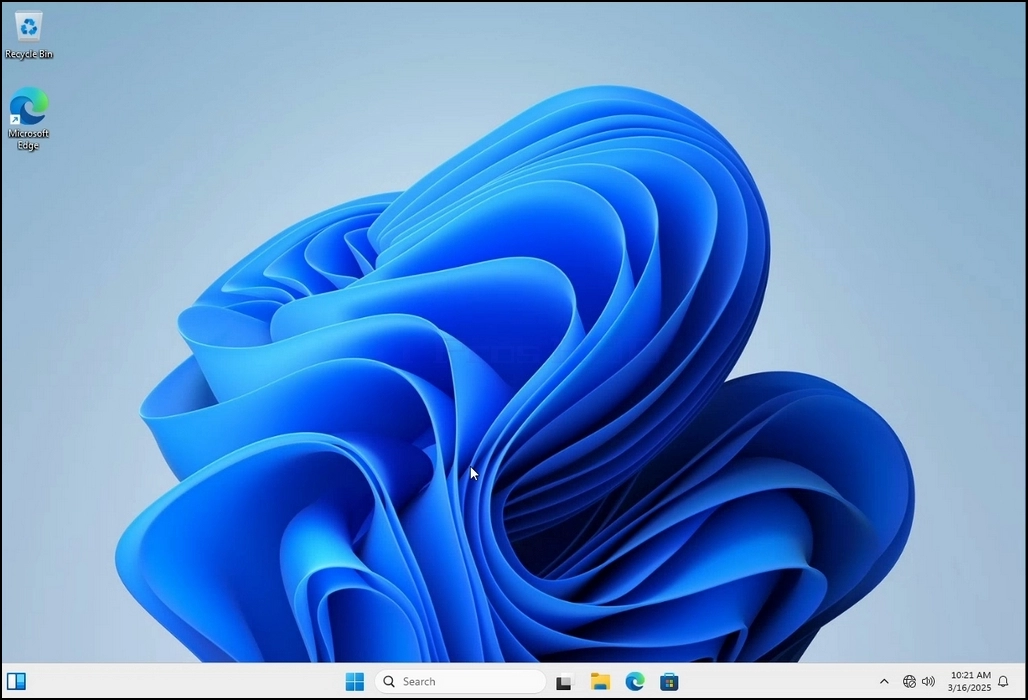
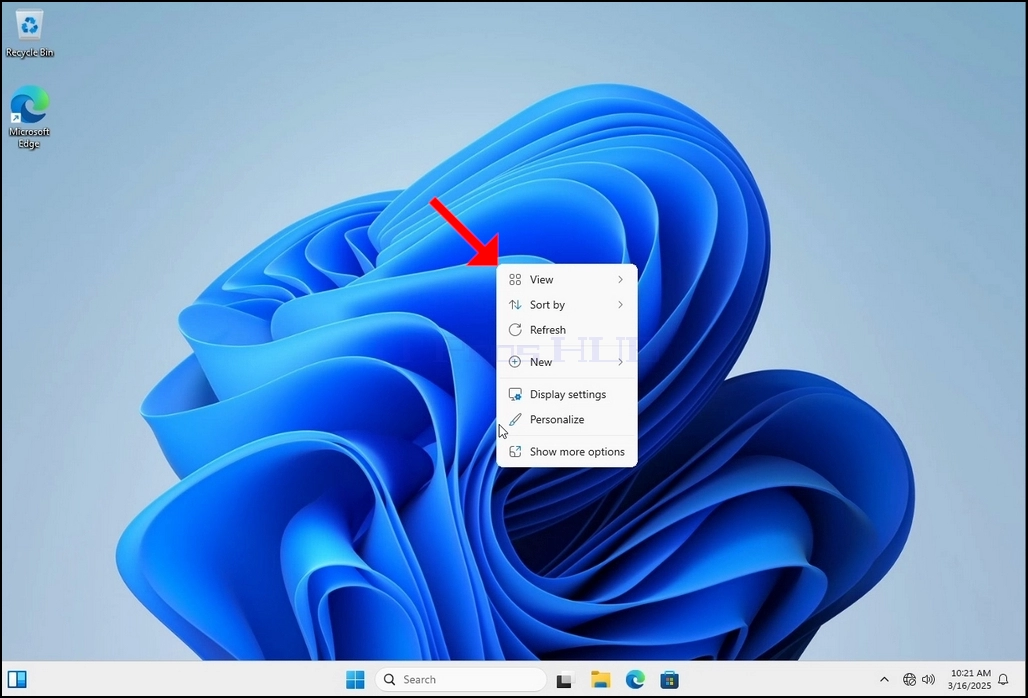
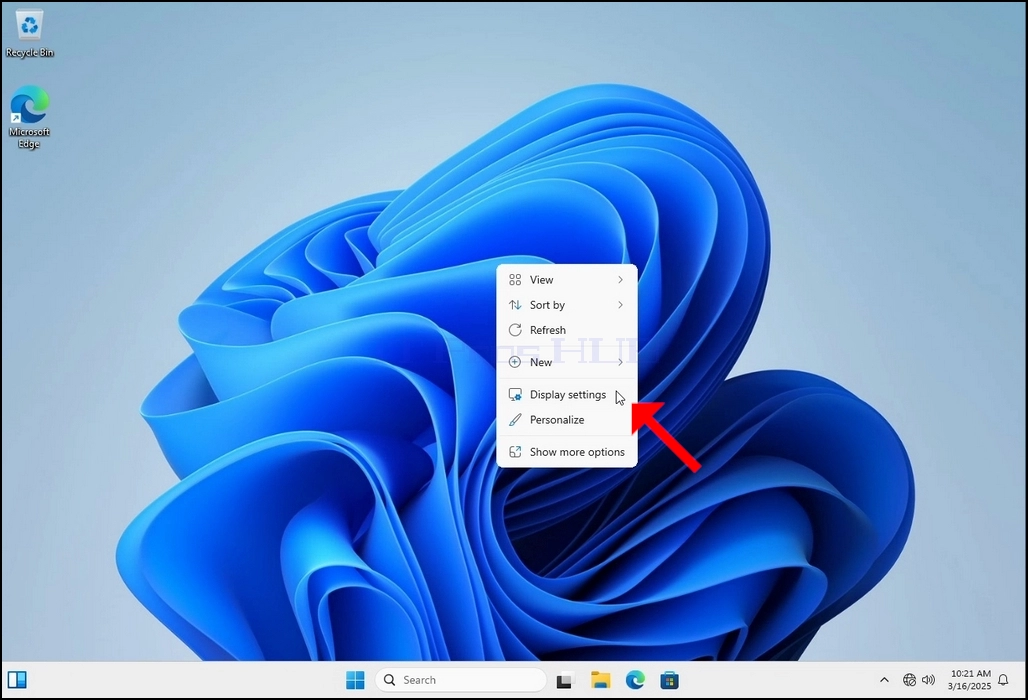
3. In the Settings window, under the System > Display options, look for the Display Resolution option
5. From the various resolution options, choose the one best suits your needs by left clicking on it ( In this example the chosen one is 1024x768)
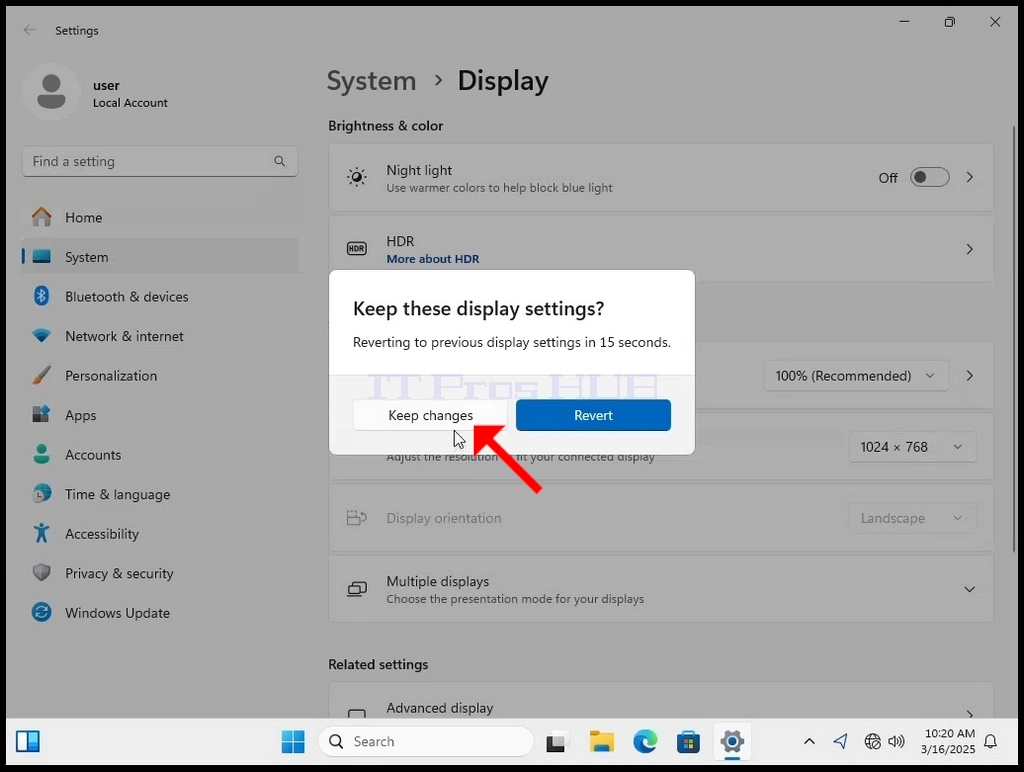
6. After choosing the new resolution setting, Windows will ask you whether you like to Keep Changes or to Revert them. If an option is not chosen with in an allocated amount of seconds, Windows will revert back to the previously configured resolution. This is done in case the monitor doesn't support the selected resolution and the user is unable to either see or see currently the video output in order to manually revert the newly selected resolution.
If the newly chosen resolution is compatible with the monitor, choose Keep Changes, and click it.
- Butiran
- Ditulis oleh IT Pro
- Kategori: How to Articles
- Jumlah paparan: 5031
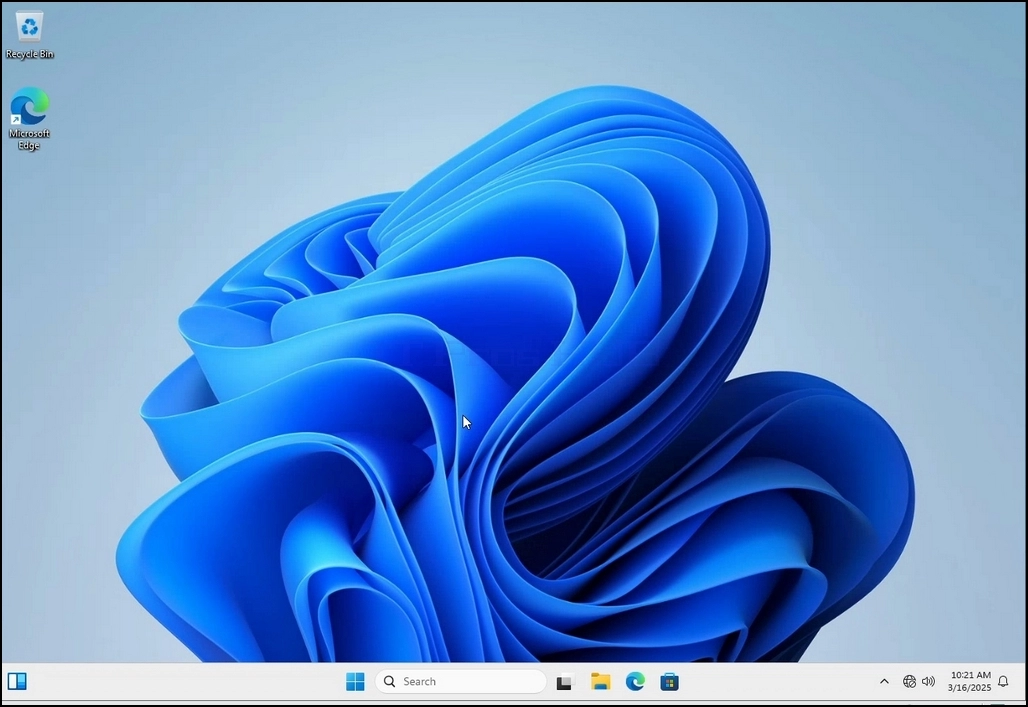
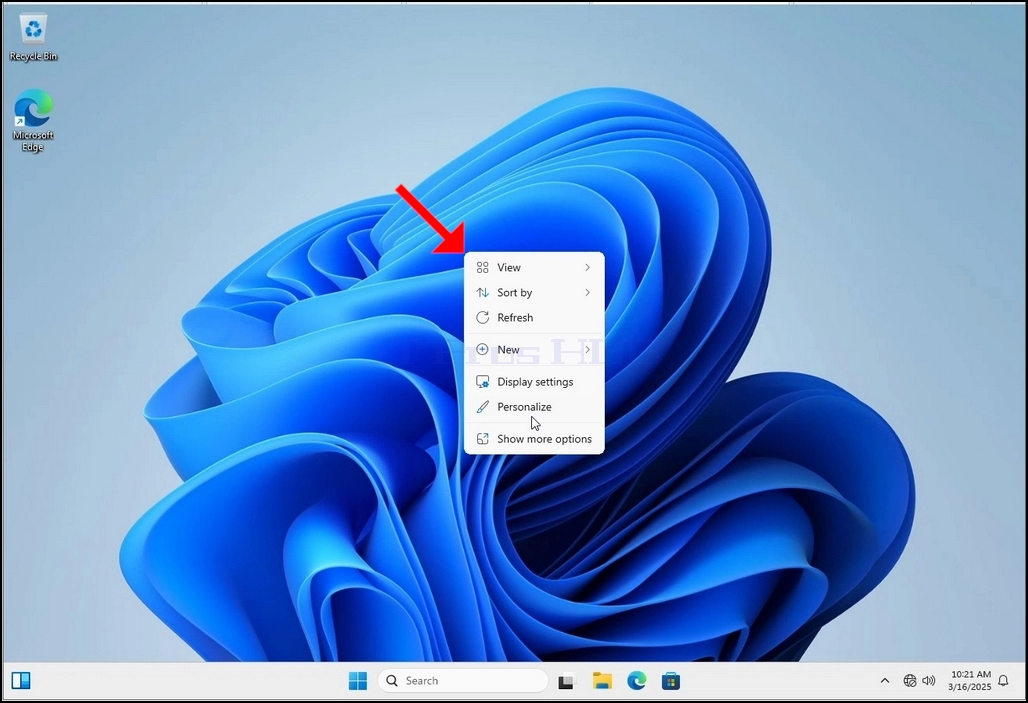
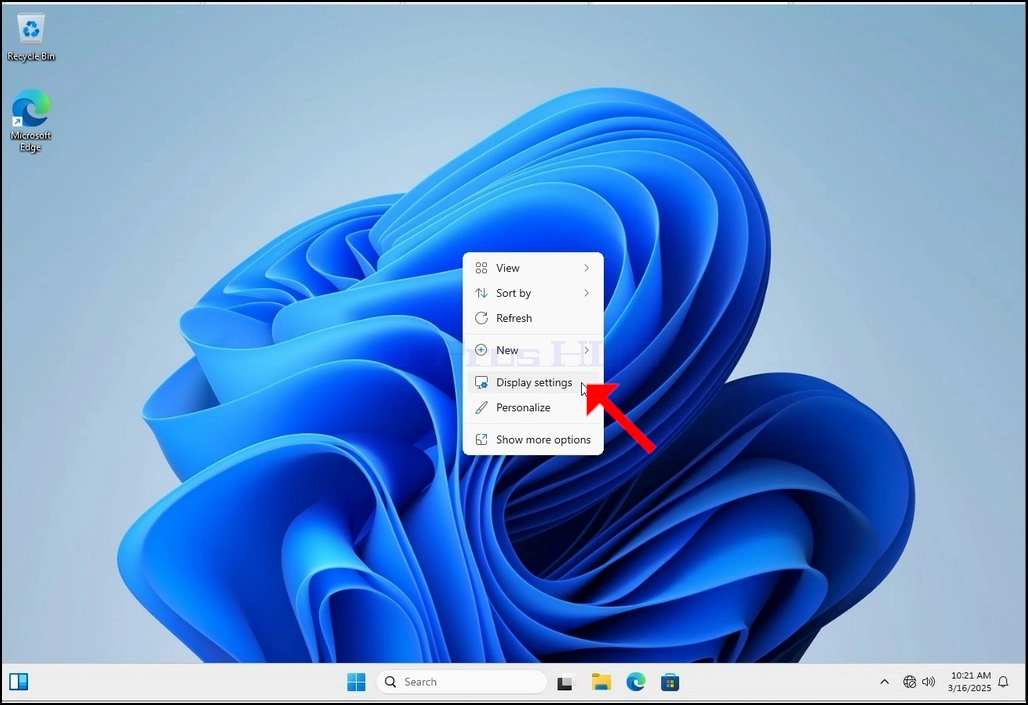
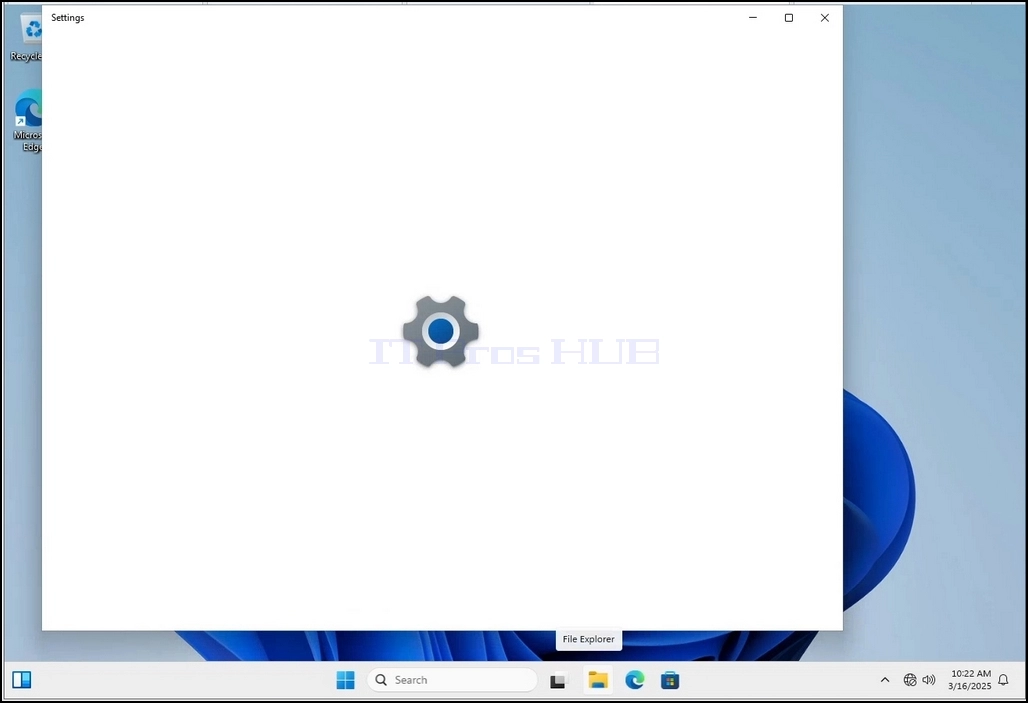
3. In the Settings window, under the System > Display options, look for the Display Resolution option
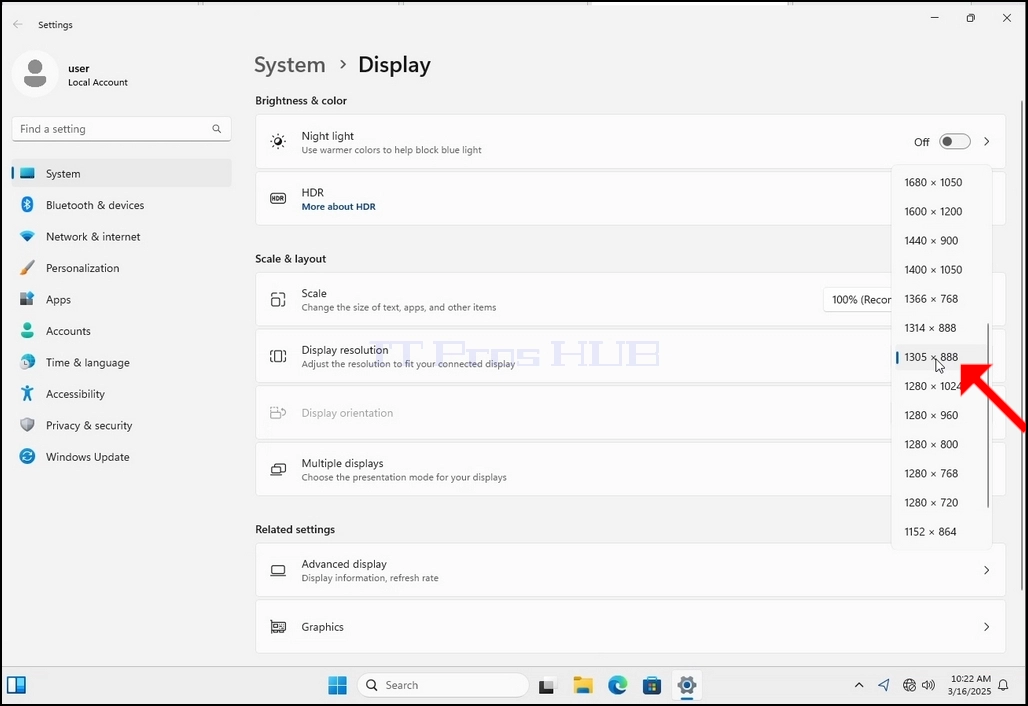
5. From the various resolution options, choose the one best suits your needs by left clicking on it ( In this example the chosen one is 1024x768)
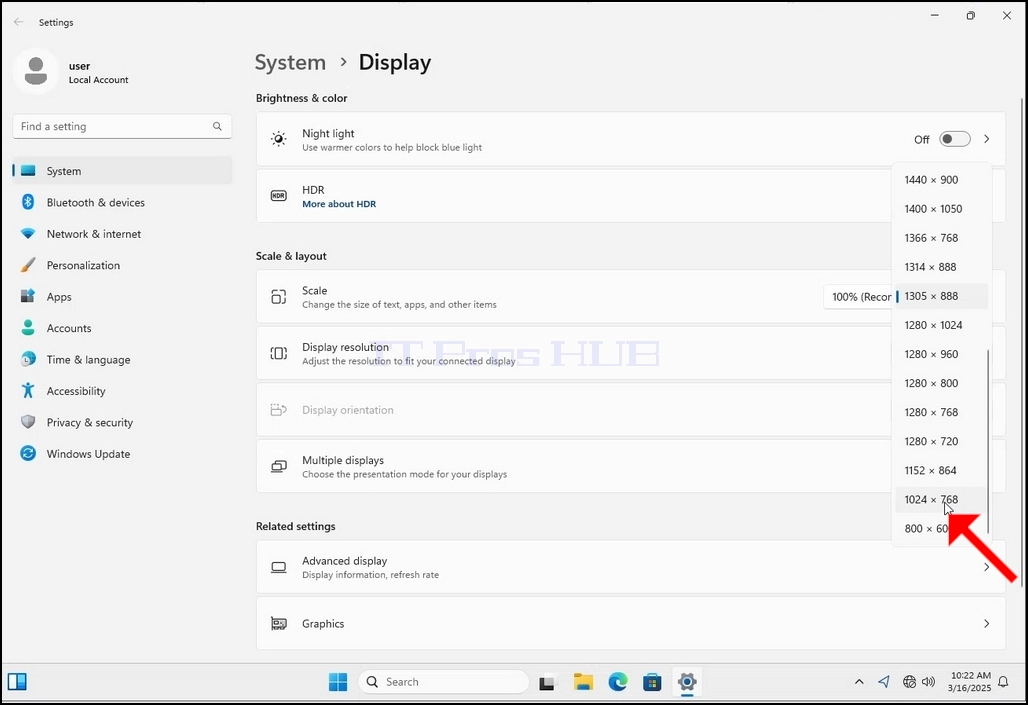
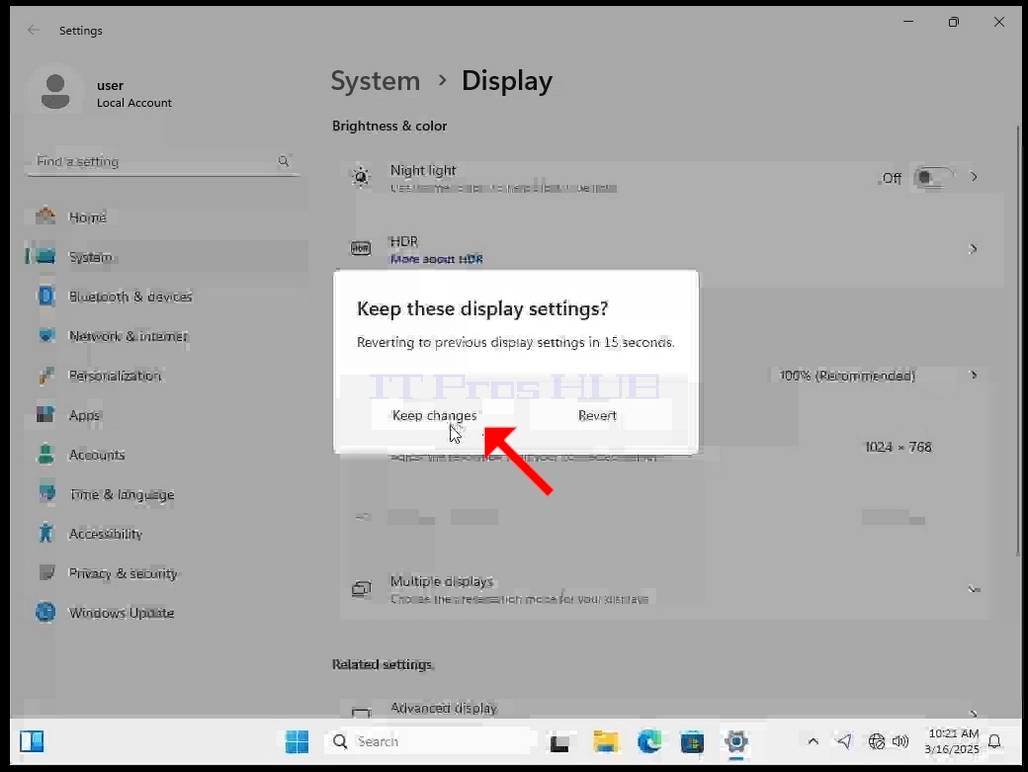
6. After choosing the new resolution setting, Windows will ask you whether you like to Keep Changes or to Revert them. If an option is not chosen with in an allocated amount of seconds, Windows will revert back to the previously configured resolution. This is done in case the monitor doesn't support the selected resolution and the user is unable to either see or see currently the video output in order to manually revert the newly selected resolution.
If the newly chosen resolution is compatible with the monitor, choose Keep Changes, and click it.
- Cara Mengubah Resolusi pada Windows 11 23H2 x64 Pro Education Build 22631.2428
- Cara Mengubah Resolusi pada Windows 11 23H2 x64 Pro Build 22631.2428
- Cara Mengganti Resolusi pada Windows 11 23H2 x64 Bahasa Tunggal Rumah Membangun 22631.2428
- Cara Mengubah Resolusi pada Windows 11 23H2 Home N Build 22631.2428