



- Detalii
- Scris de: IT Pro
- Categorie: How to Articles
- Accesări: 5925
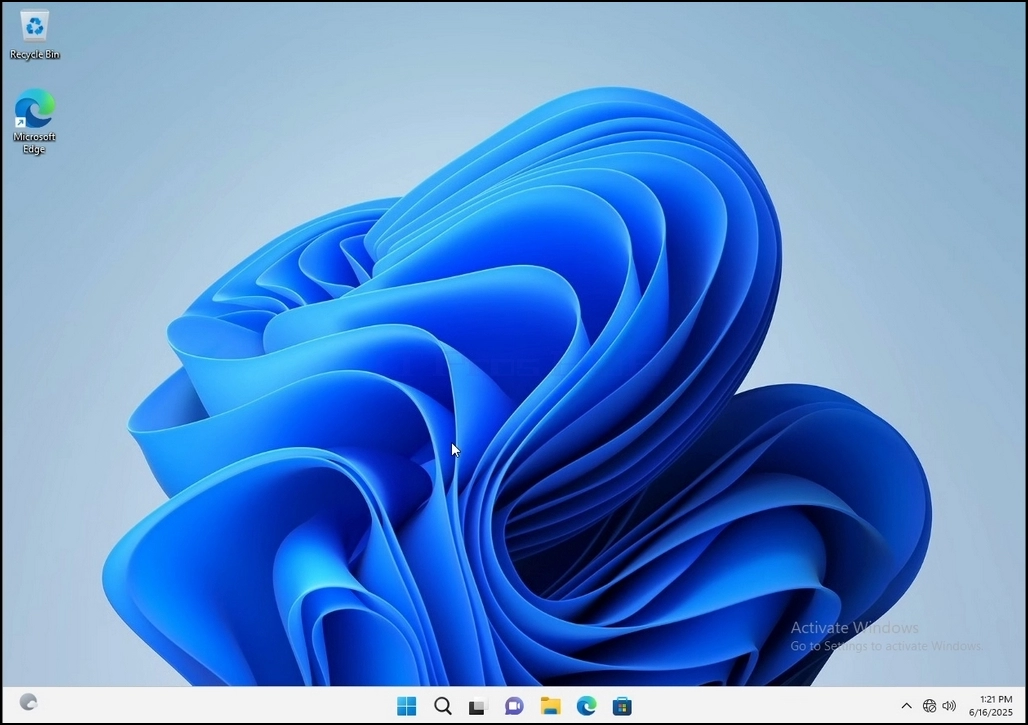
1. Go to Windows Desktop
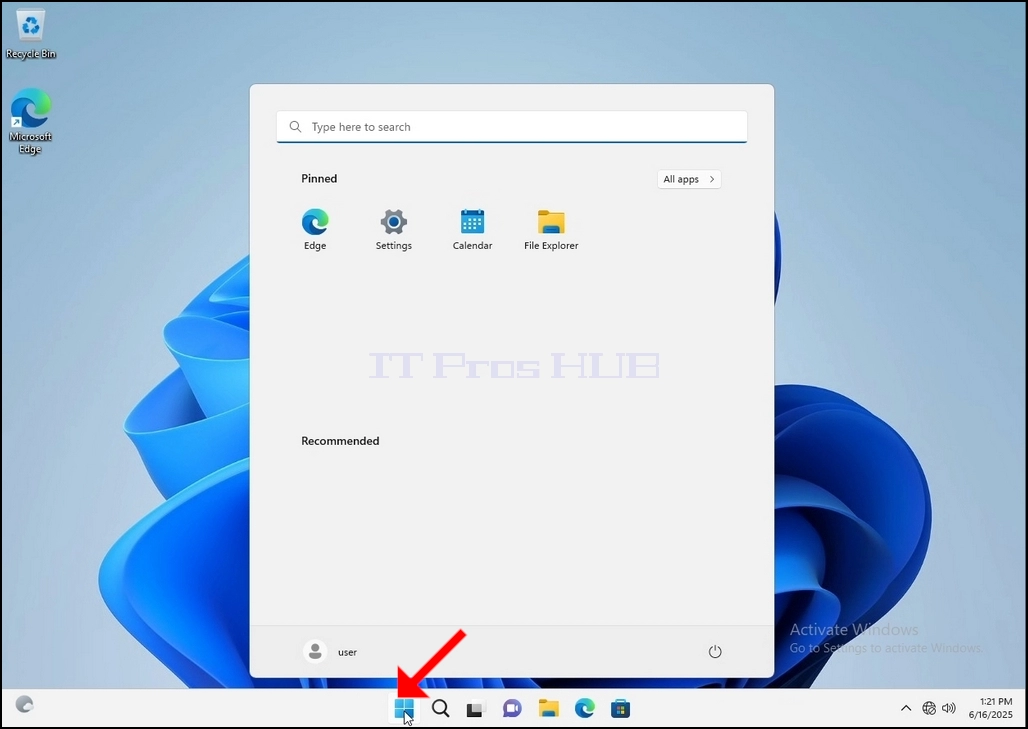
2. Click Start
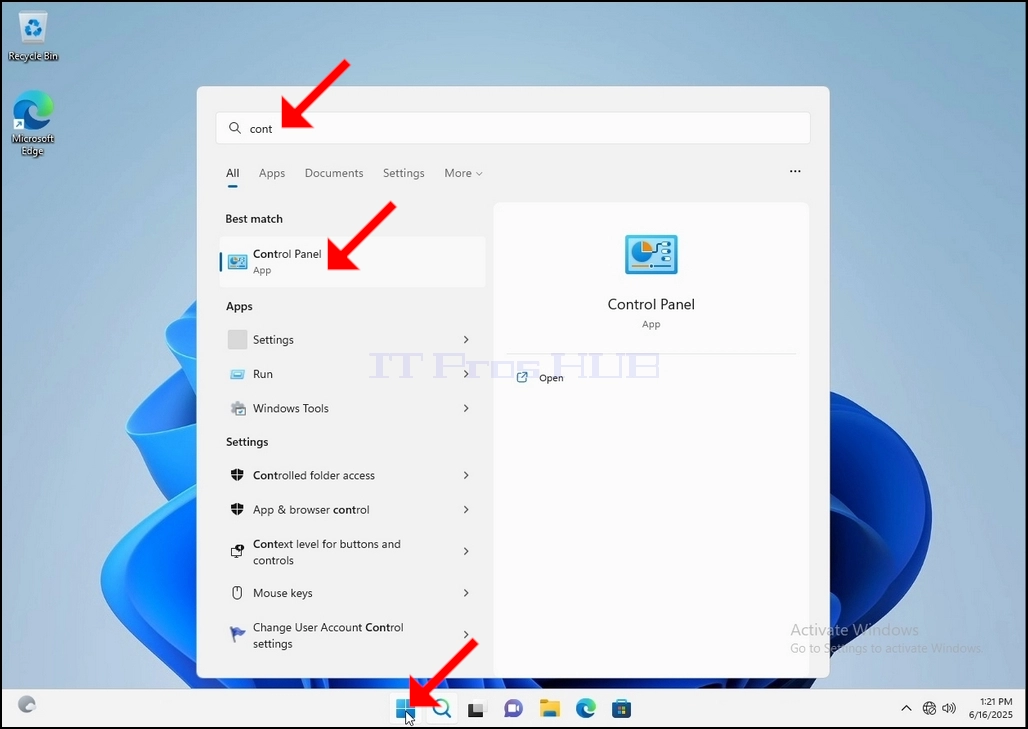
Once it finds it, click it and wait for the Control Panel window to appear.
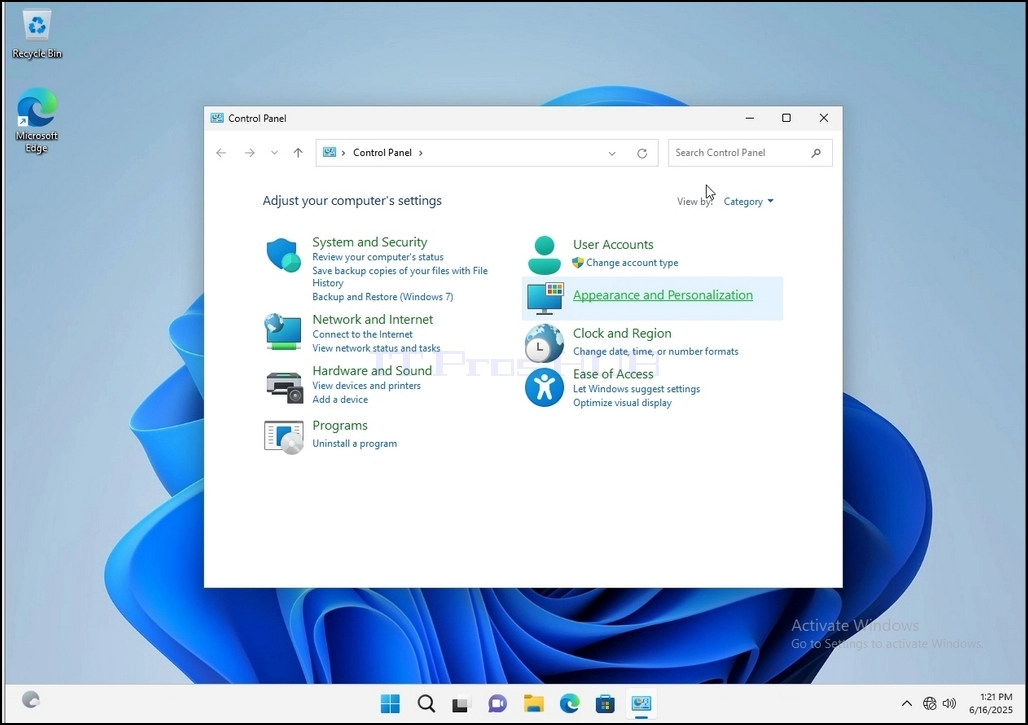
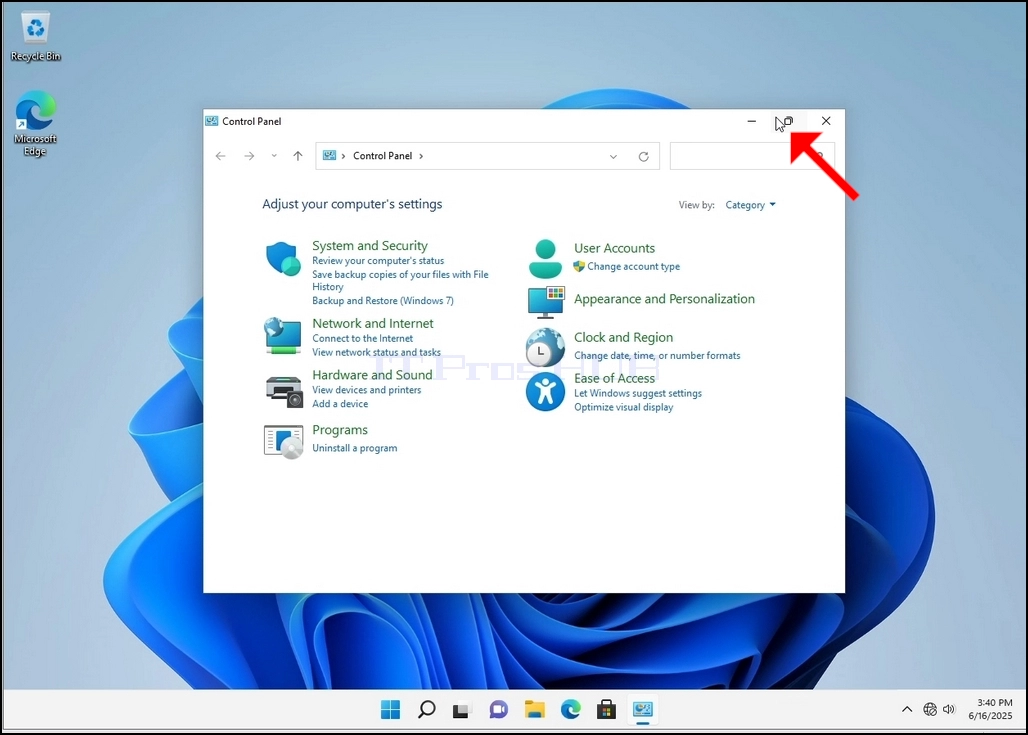
4. Once the Control Panel window is open, enlarge it by clicking the enlarging icon on the top right corner of that window.
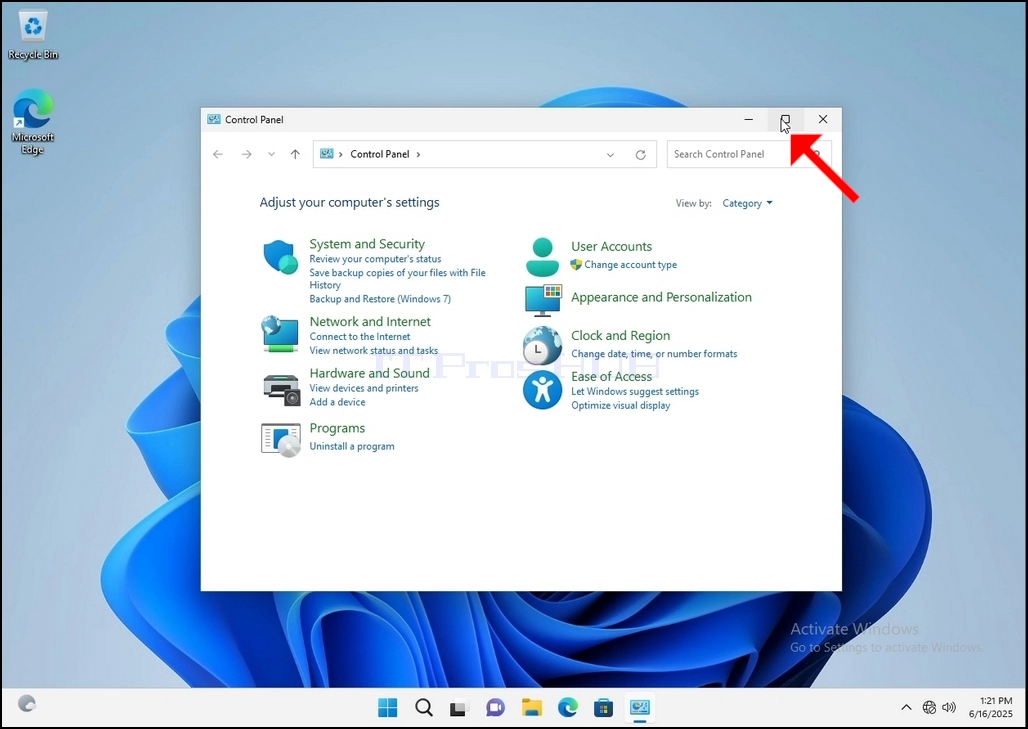
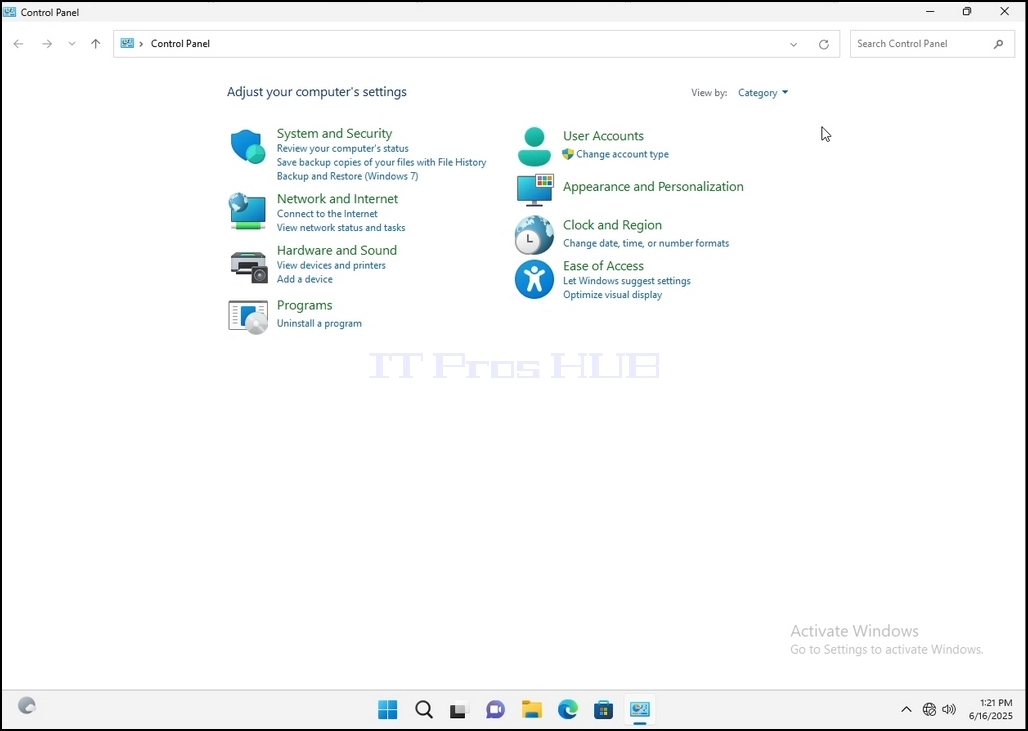
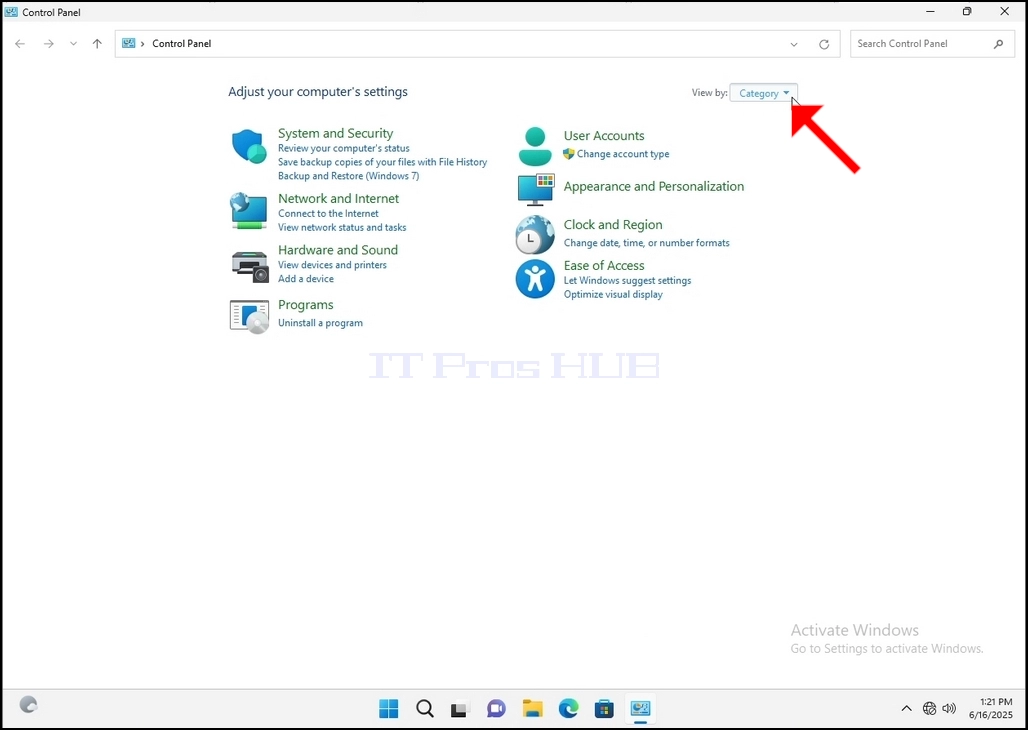
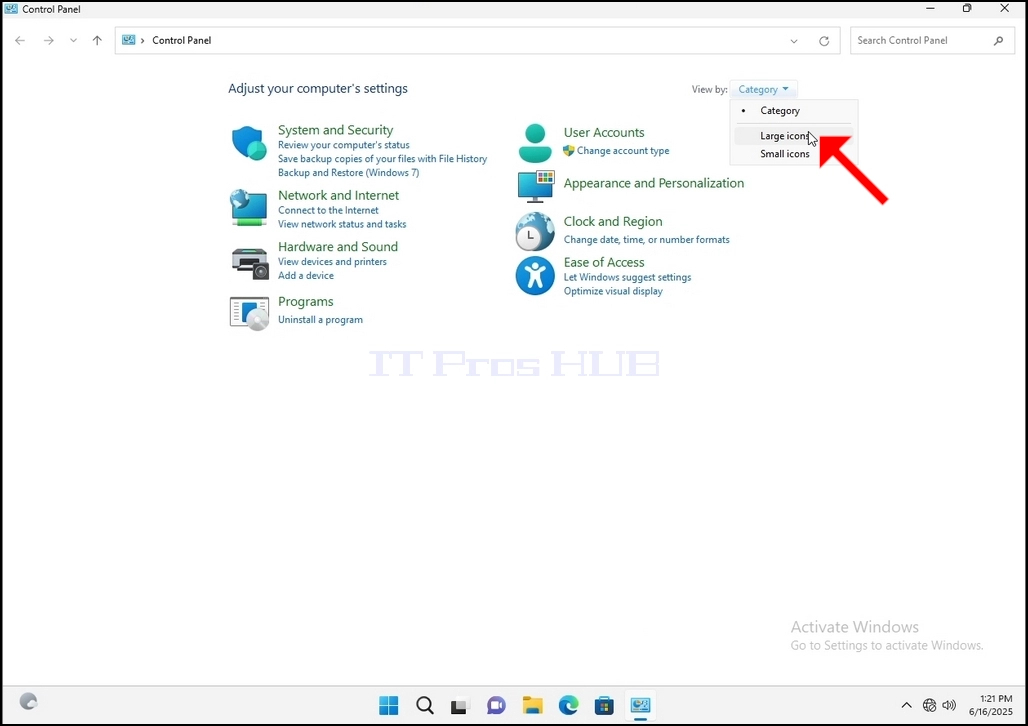
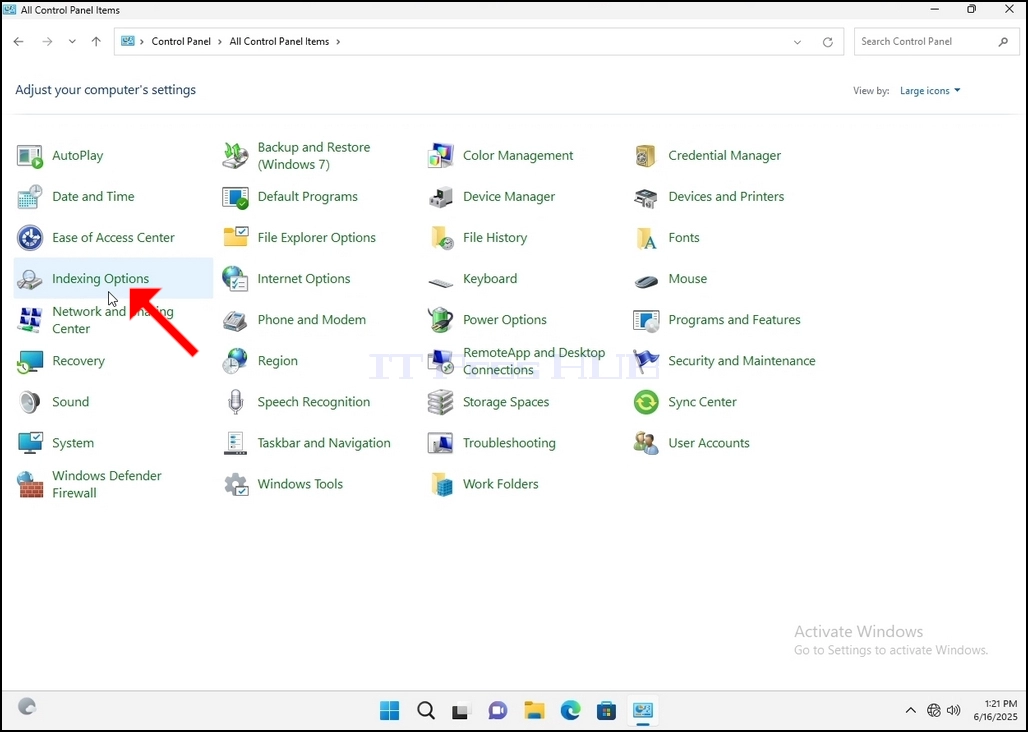
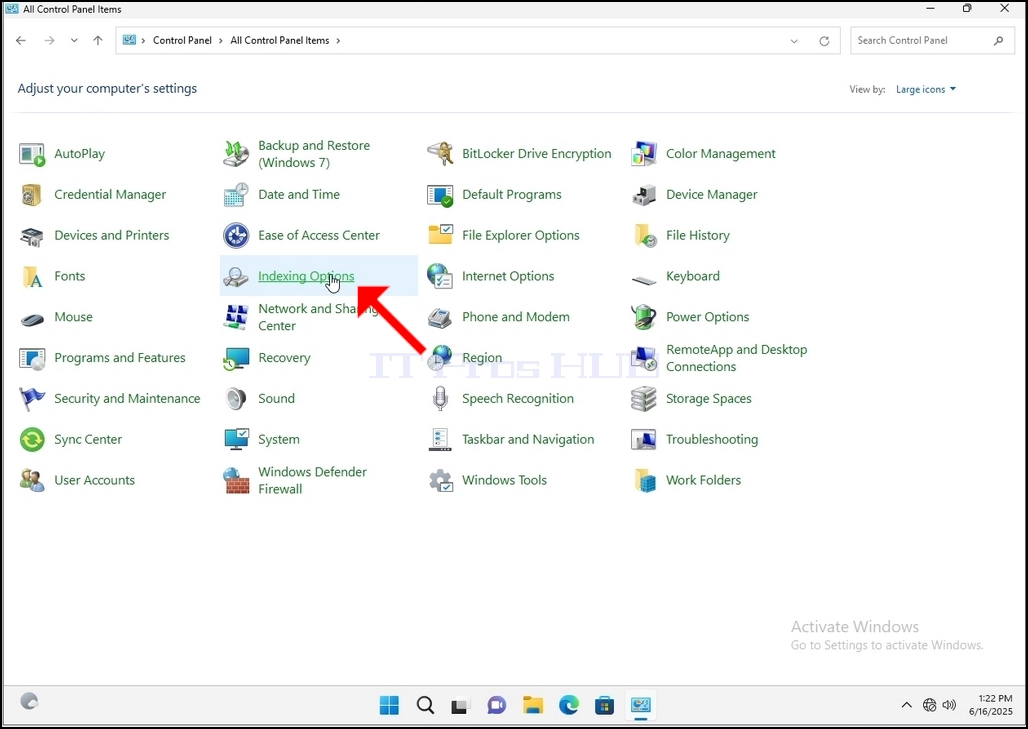
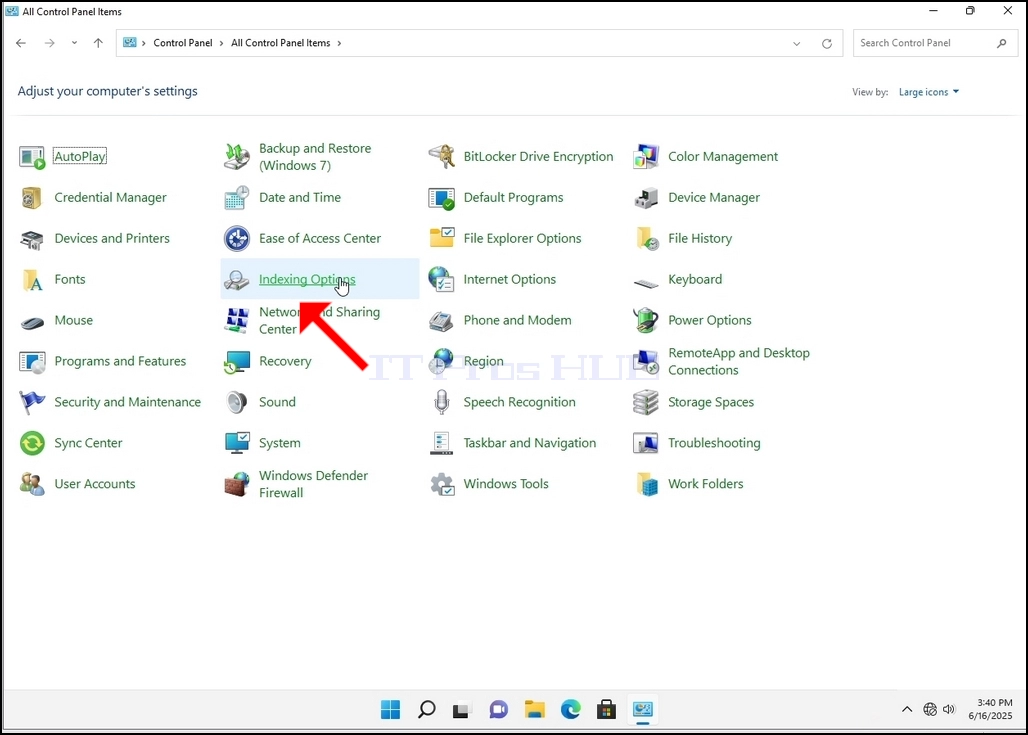
6. Look for the Indexing Options icon and click it. Wait for the Indexing Options window to appear.
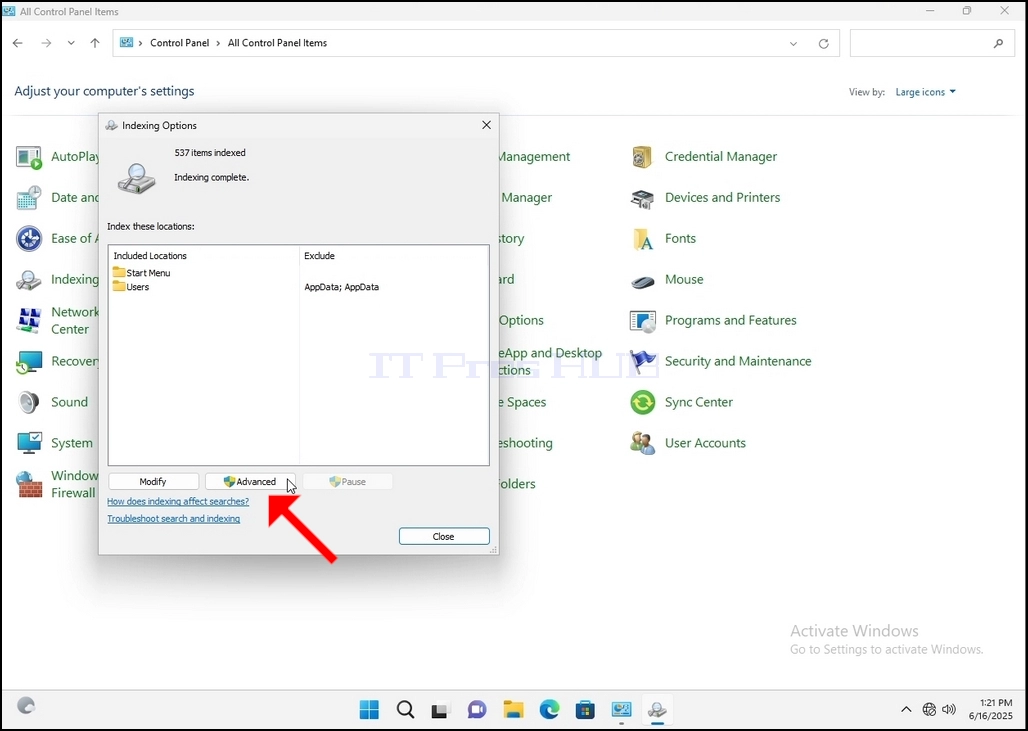
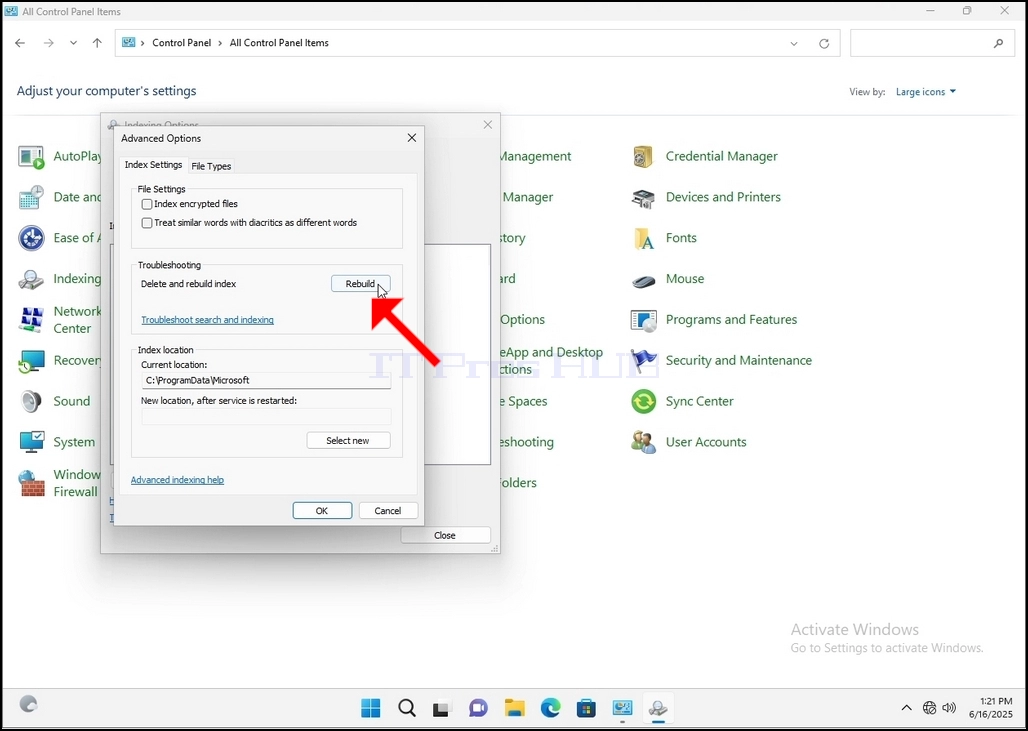
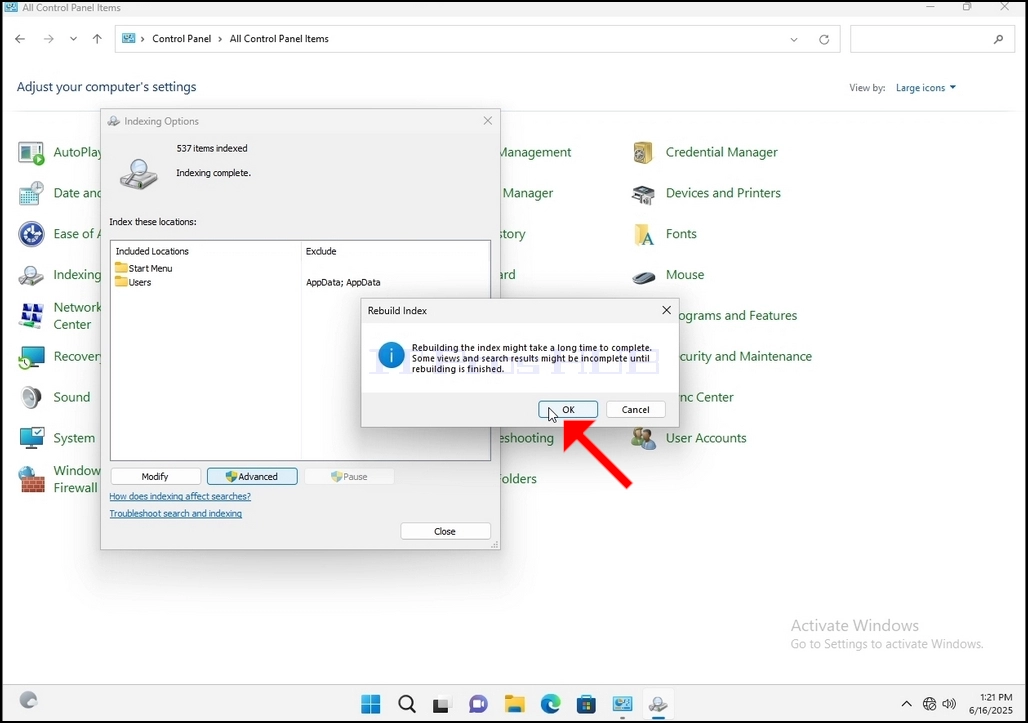
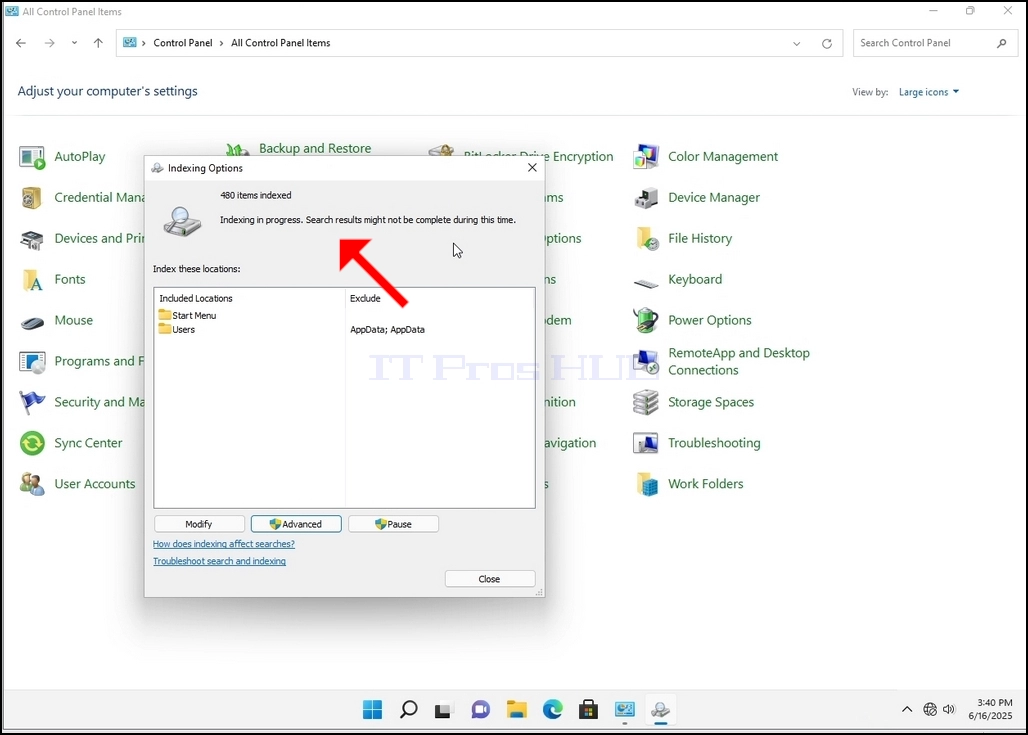
9. After clicking OK in the confirmation box, Windows will start rebuilding its index. It might take some time for the actual process to start, Wait patiently a few seconds to a few minutes. The moment the process starts, the "Indexing Complete" sentence will be replaced with "Indexing in progress. Search results might not be complete during this time."
In addition, the number of items indexed will be reset to 0 for a moment and then start to increase.
Note that All of the windows that are related to the Indexing process can now be closed and the rebuilding process would still be running the background.
Note that the Indexing process' speed might be reduced due to user activity on the computer. The more intense the activity the less the Indexing speed would be.
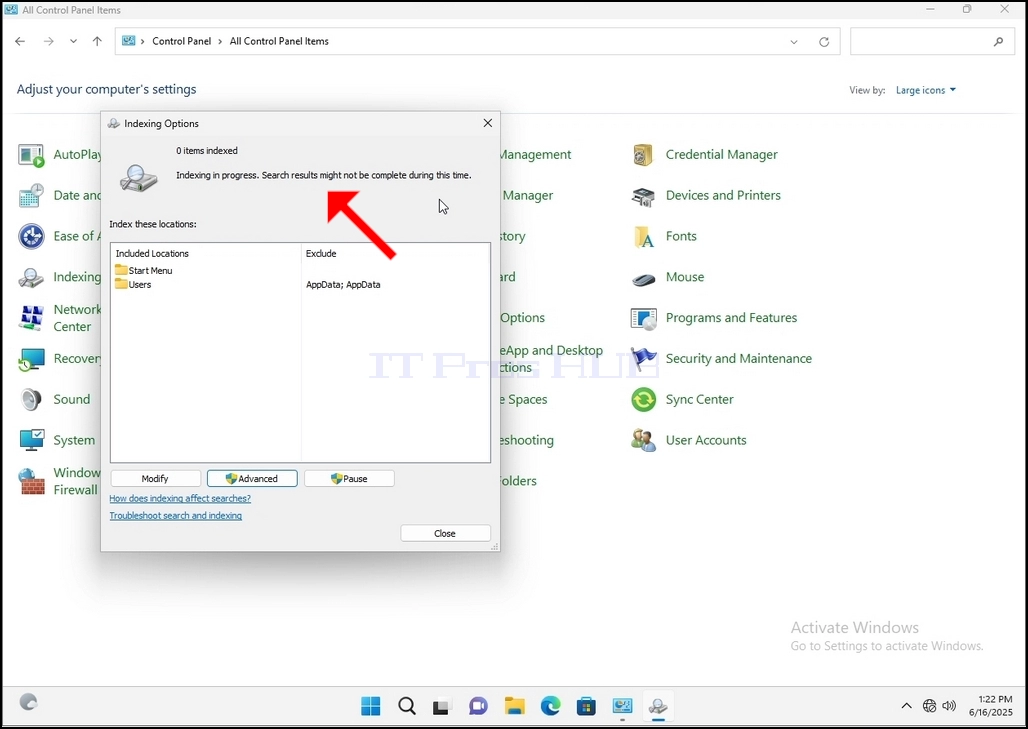
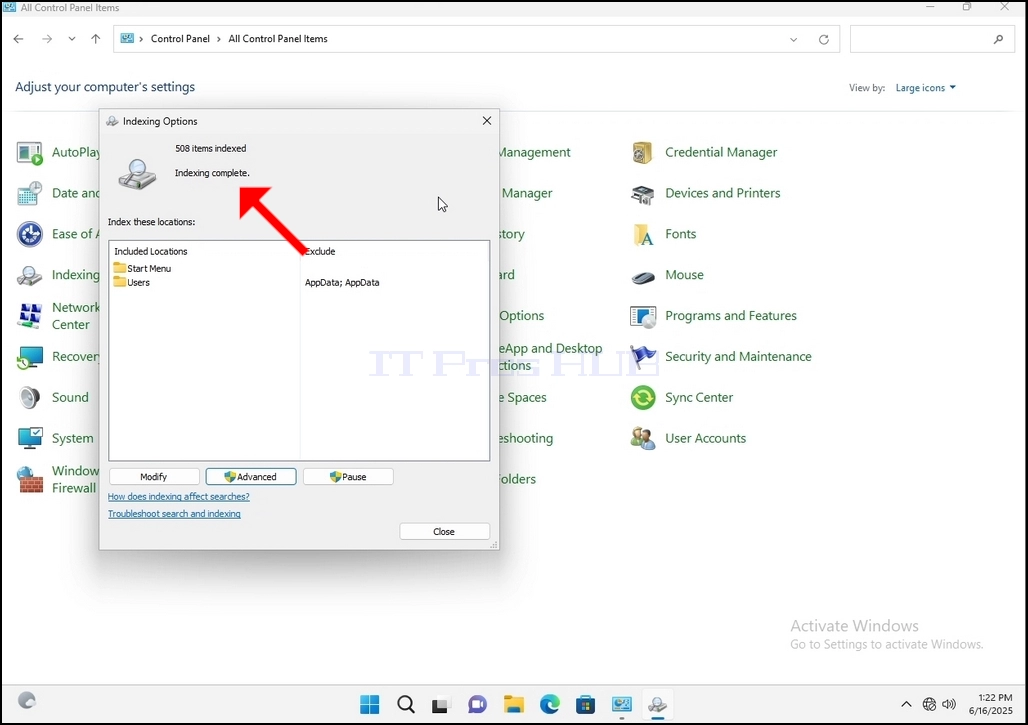
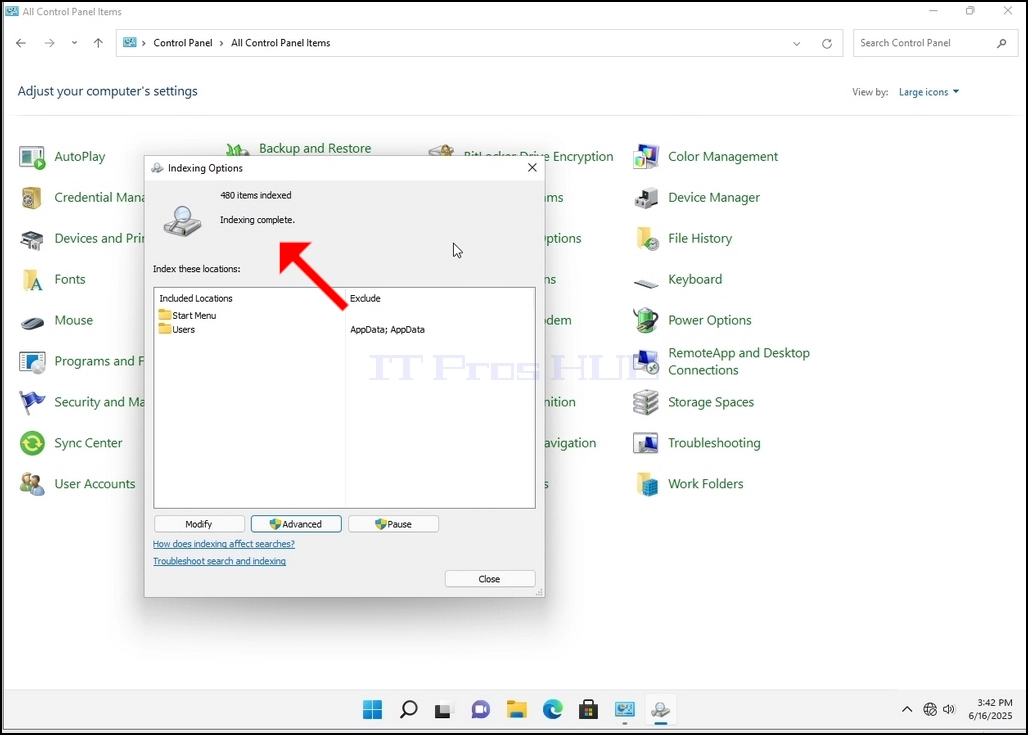
10. To check if the indexing process is done, go back to the Indexing Options through Control Panel as explained in the previous stages. If the process is complete, you would see the "Indexing Complete" sentence appears again.
Since Windows does not notify the user once this process is done, there is indeed a need to perform the latter mentioned. Depending on the number of files, folders, drivers and partitions marked for indexing, this process could take between a few minutes to a few hours.
- Detalii
- Scris de: IT Pro
- Categorie: How to Articles
- Accesări: 6344
1. Go to Windows Desktop
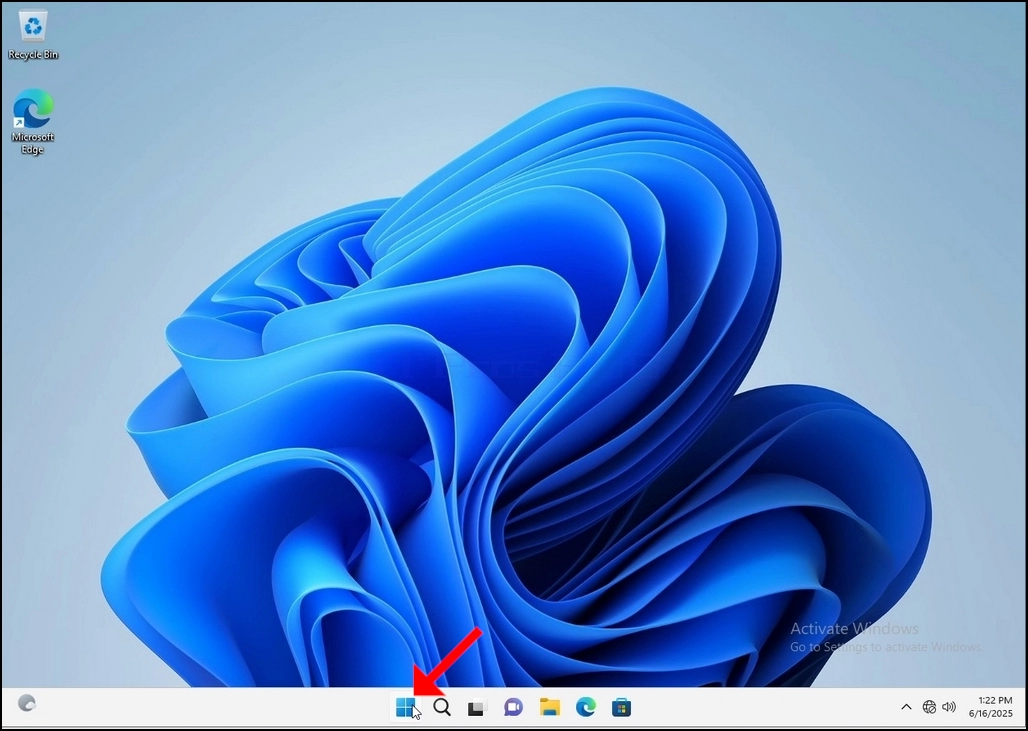
2. Click Start
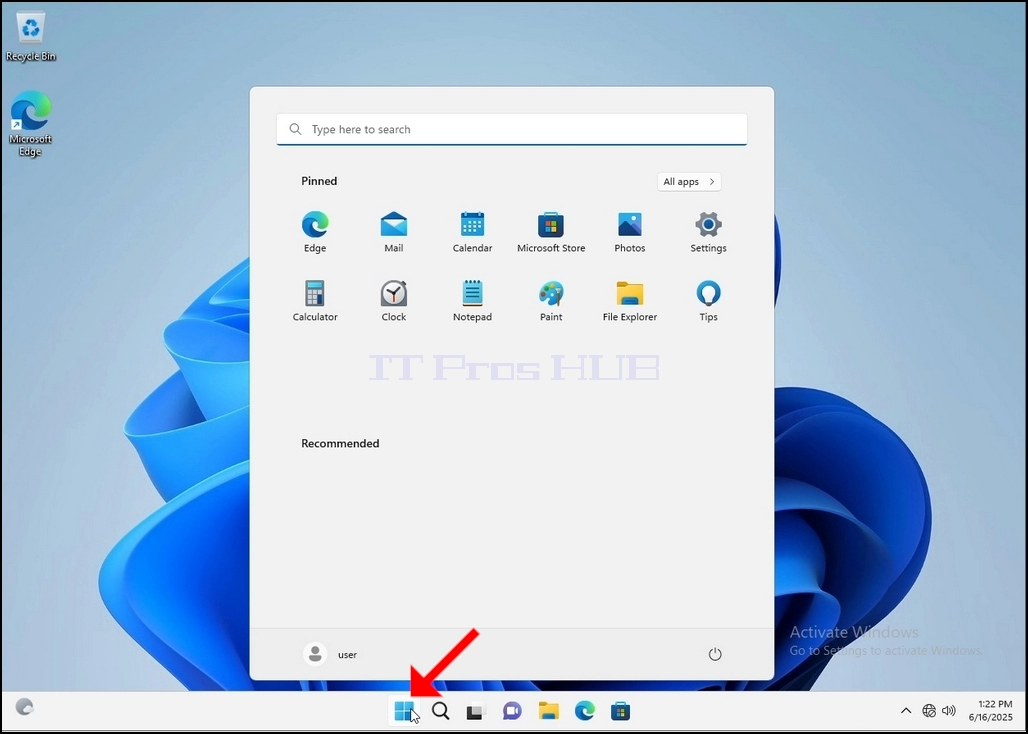
Once it finds it, click it and wait for the Control Panel window to appear.
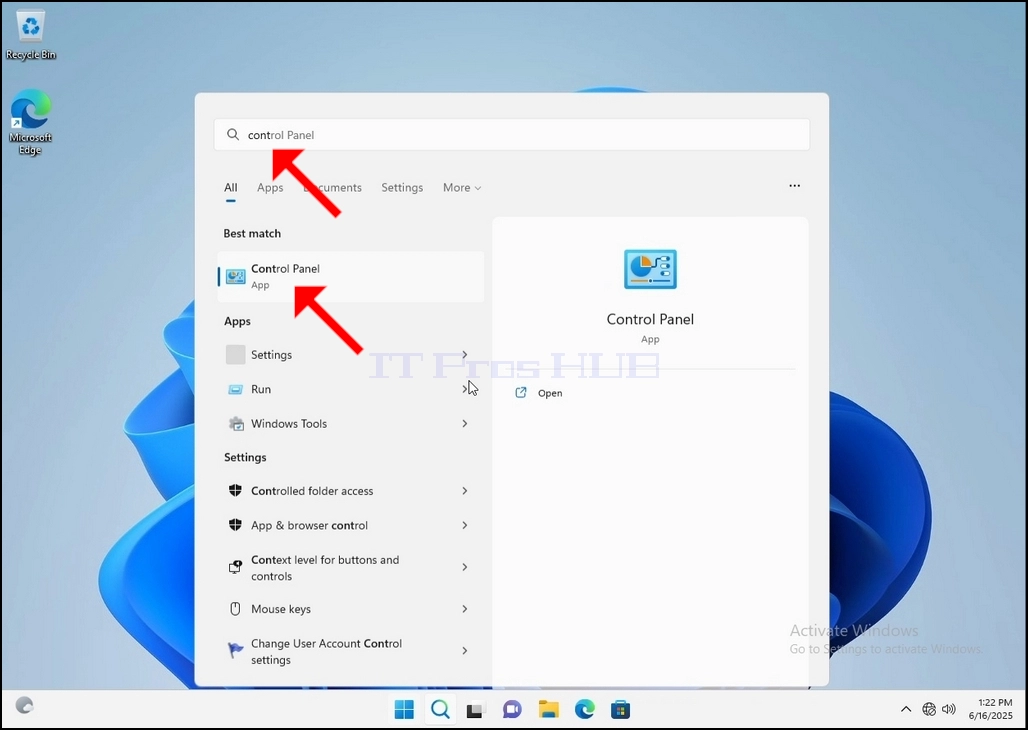
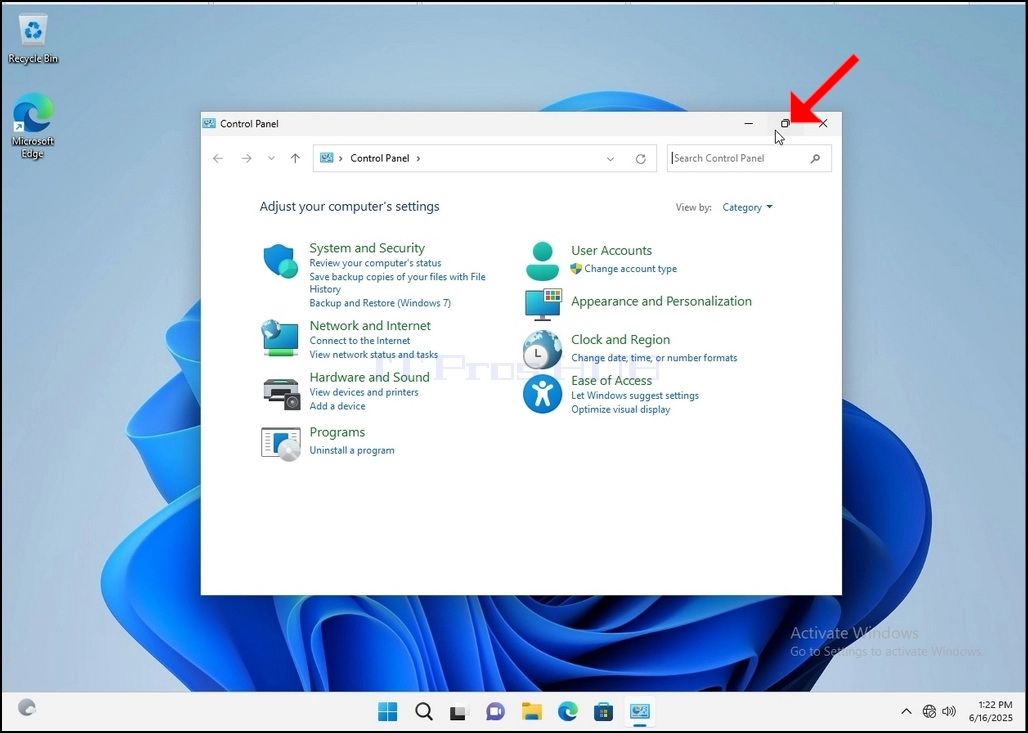
4. Once the Control Panel window is open, enlarge it by clicking the enlarging icon on the top right corner of that window.
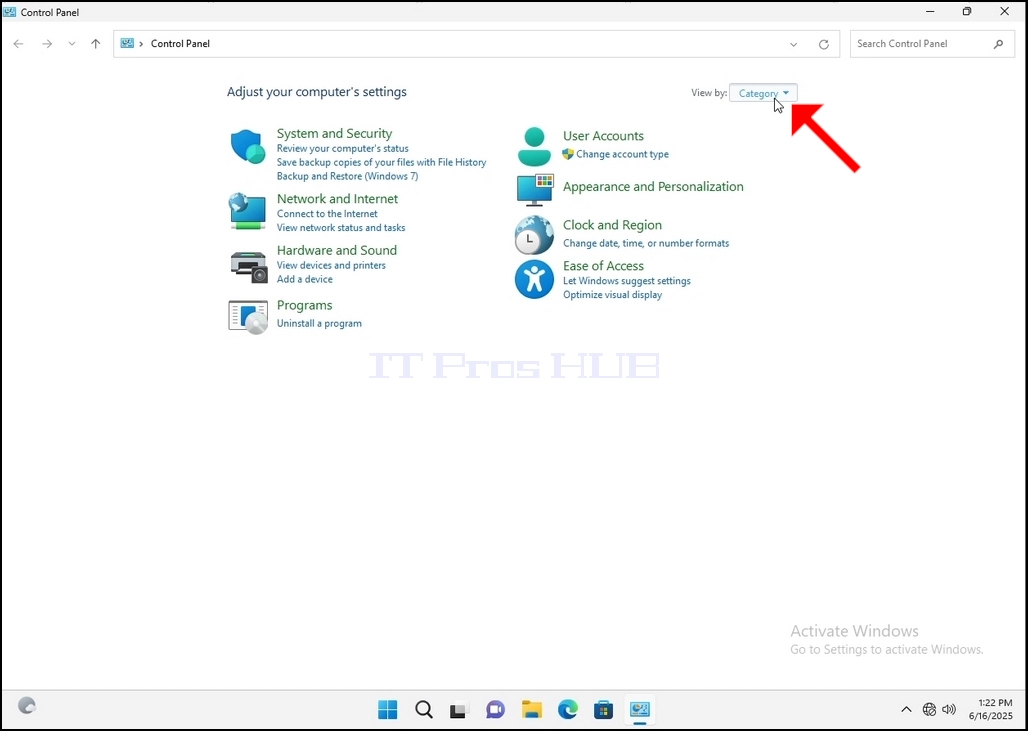
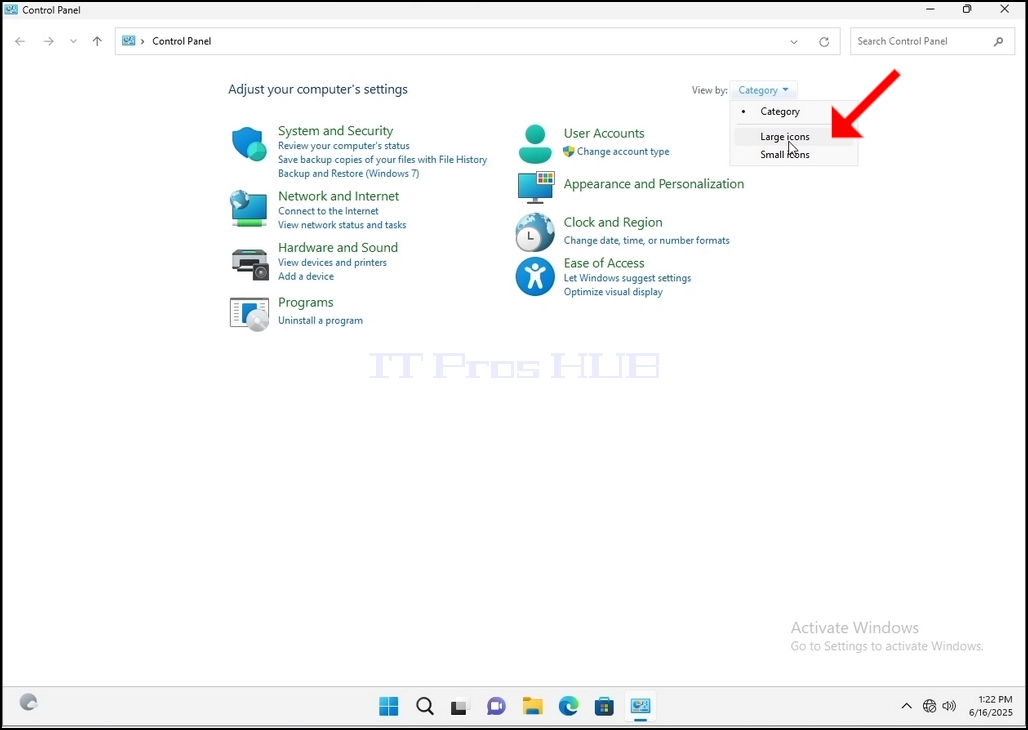
6. Look for the Indexing Options icon and click it. Wait for the Indexing Options window to appear.
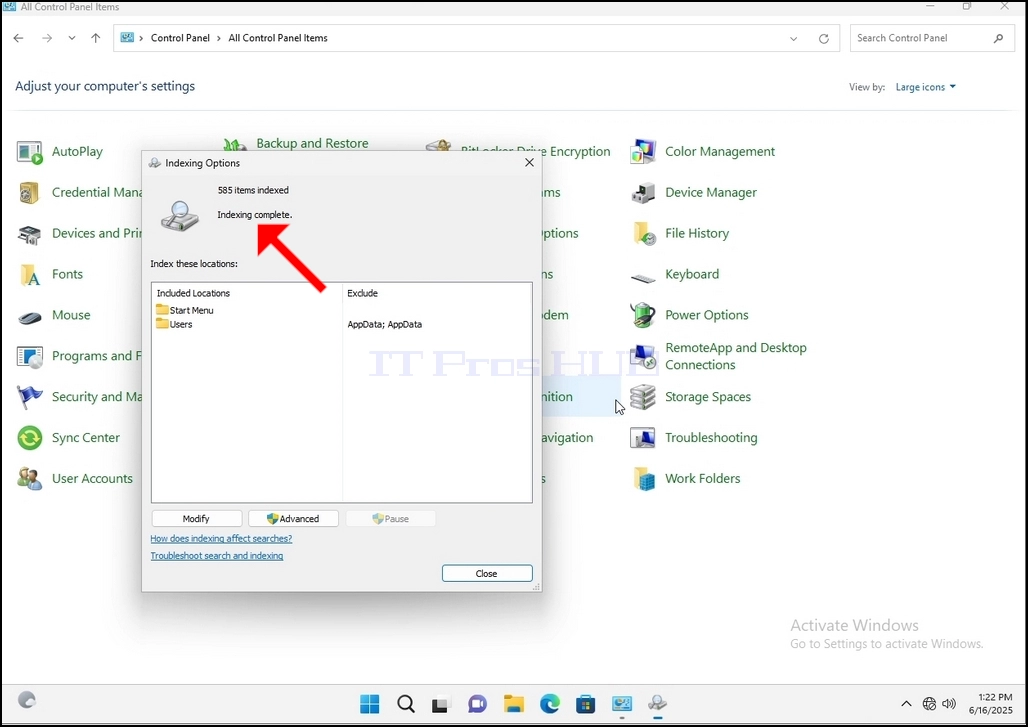
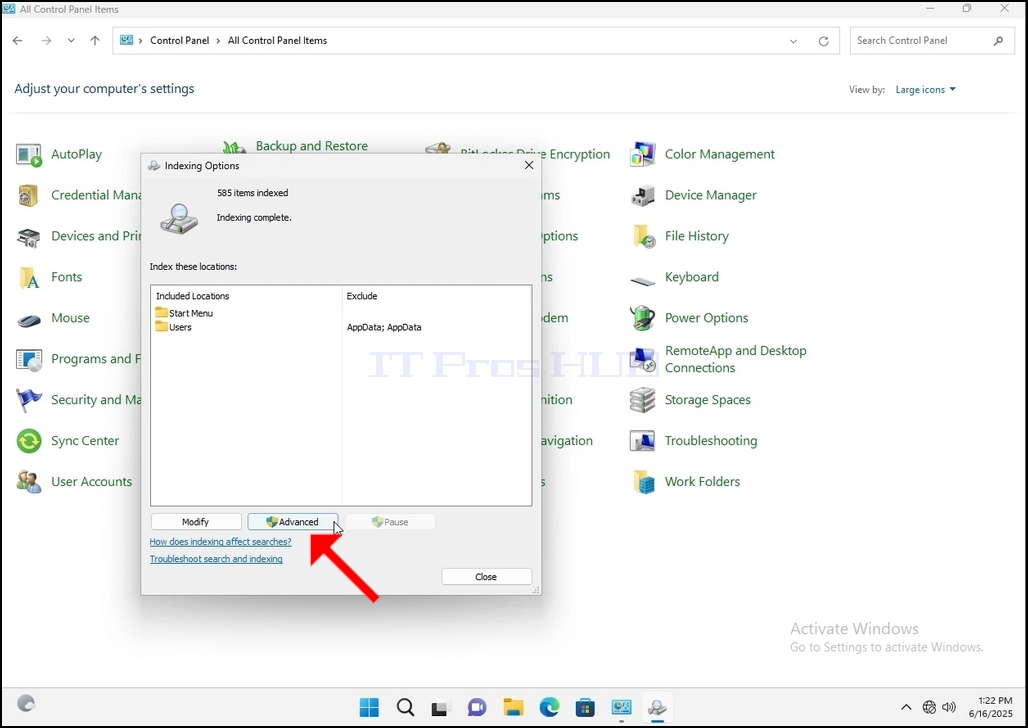
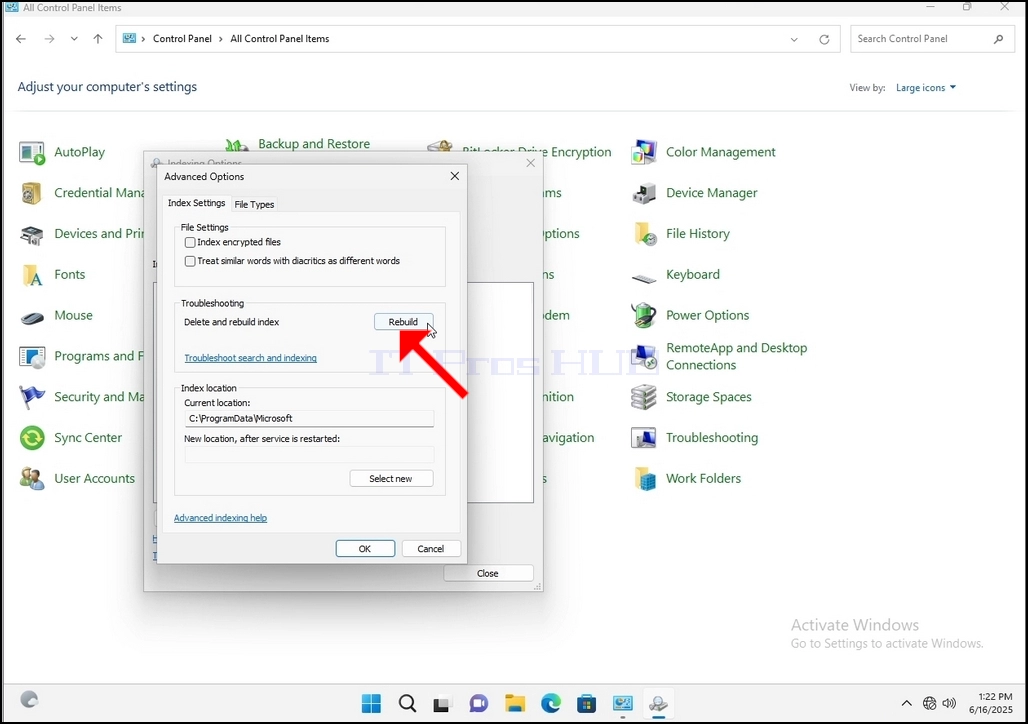
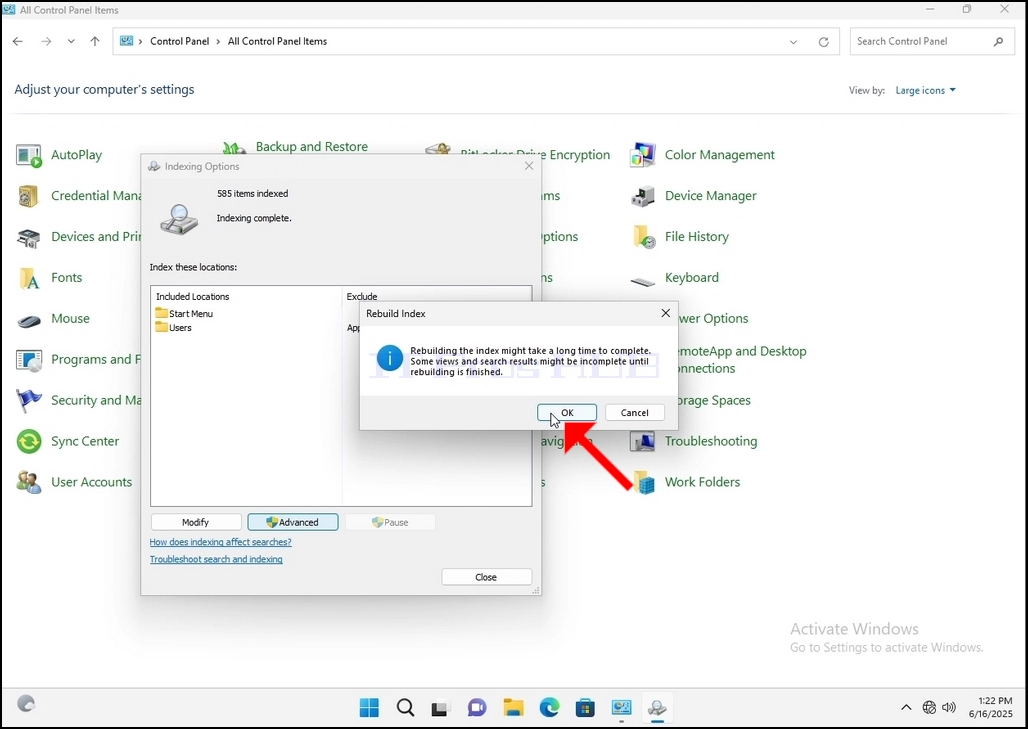
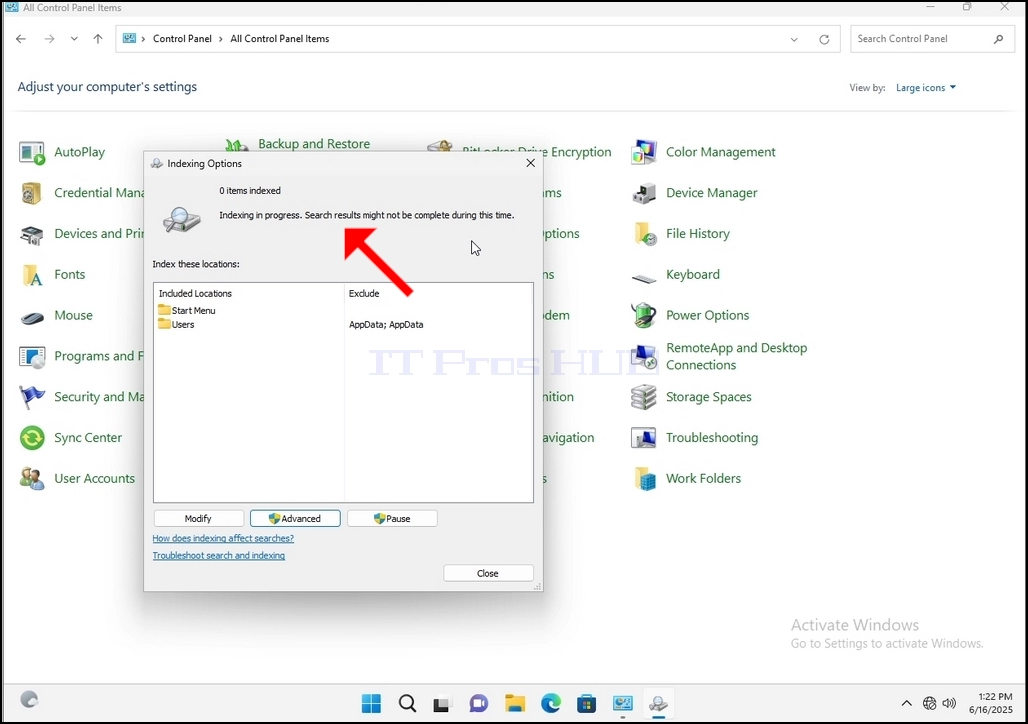
9. After clicking OK in the confirmation box, Windows will start rebuilding its index. It might take some time for the actual process to start, Wait patiently a few seconds to a few minutes. The moment the process starts, the "Indexing Complete" sentence will be replaced with "Indexing in progress. Search results might not be complete during this time."
In addition, the number of items indexed will be reset to 0 for a moment and then start to increase.
Note that All of the windows that are related to the Indexing process can now be closed and the rebuilding process would still be running the background.
Note that the Indexing process' speed might be reduced due to user activity on the computer. The more intense the activity the less the Indexing speed would be.
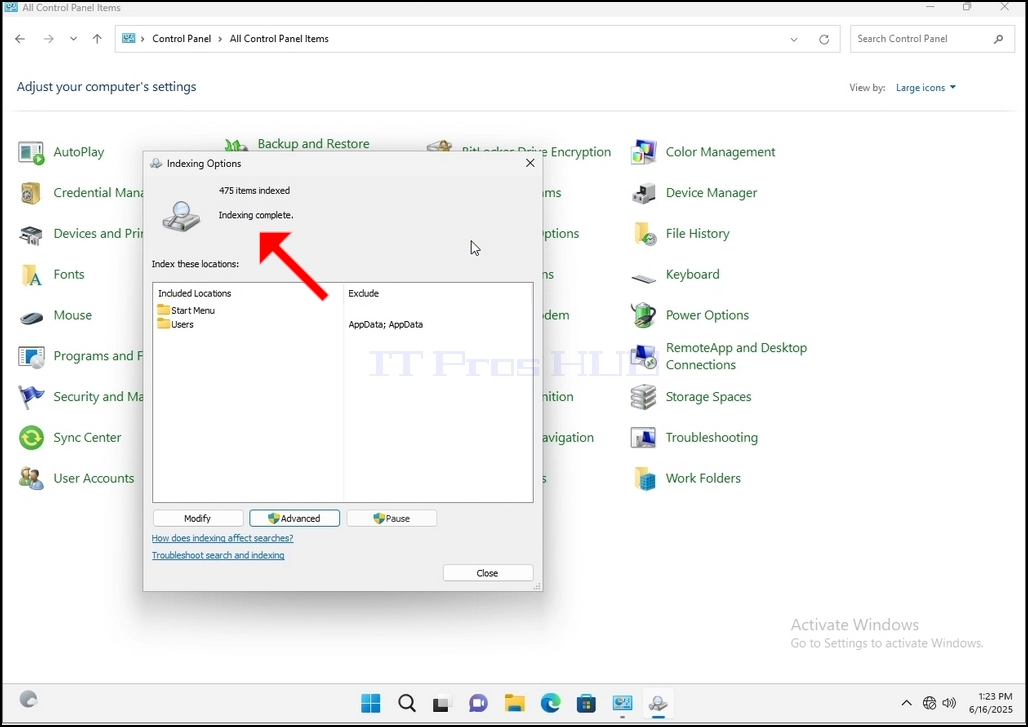
10. To check if the indexing process is done, go back to the Indexing Options through Control Panel as explained in the previous stages. If the process is complete, you would see the "Indexing Complete" sentence appears again.
Since Windows does not notify the user once this process is done, there is indeed a need to perform the latter mentioned. Depending on the number of files, folders, drivers and partitions marked for indexing, this process could take between a few minutes to a few hours.
- Detalii
- Scris de: IT Pro
- Categorie: How to Articles
- Accesări: 6255
1. Go to Windows Desktop
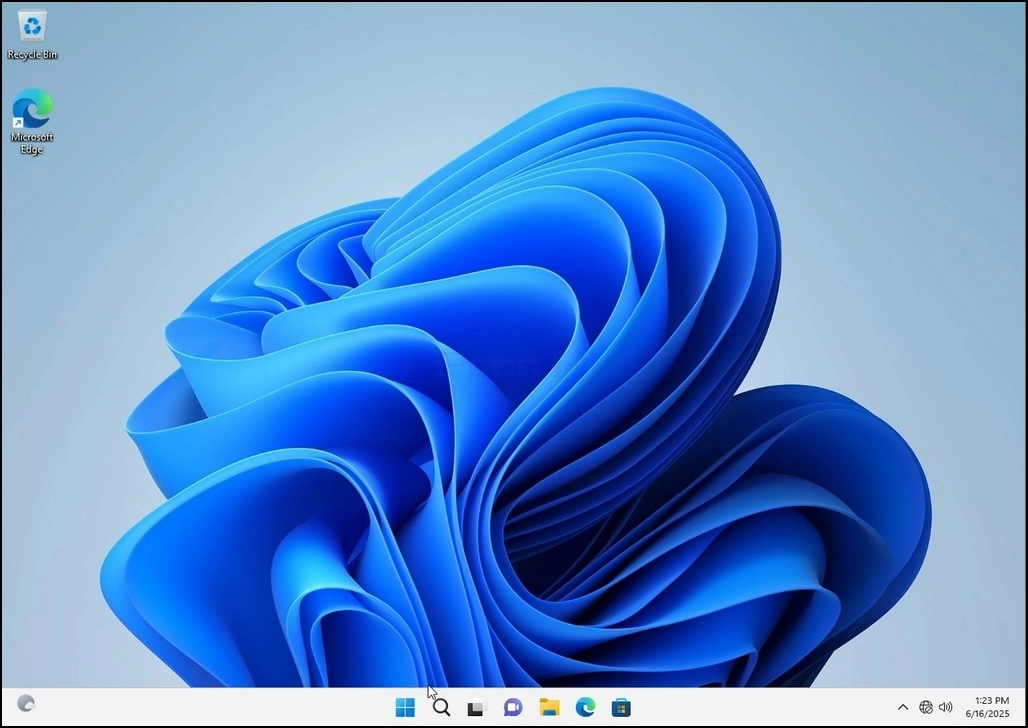
2. Click Start
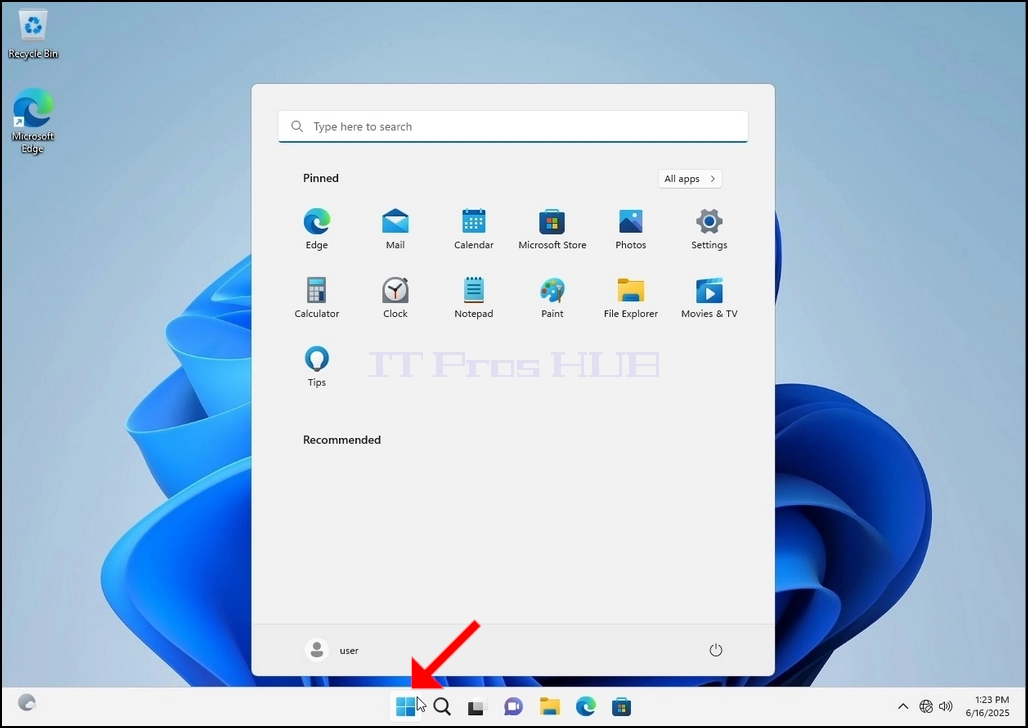
Once it finds it, click it and wait for the Control Panel window to appear.
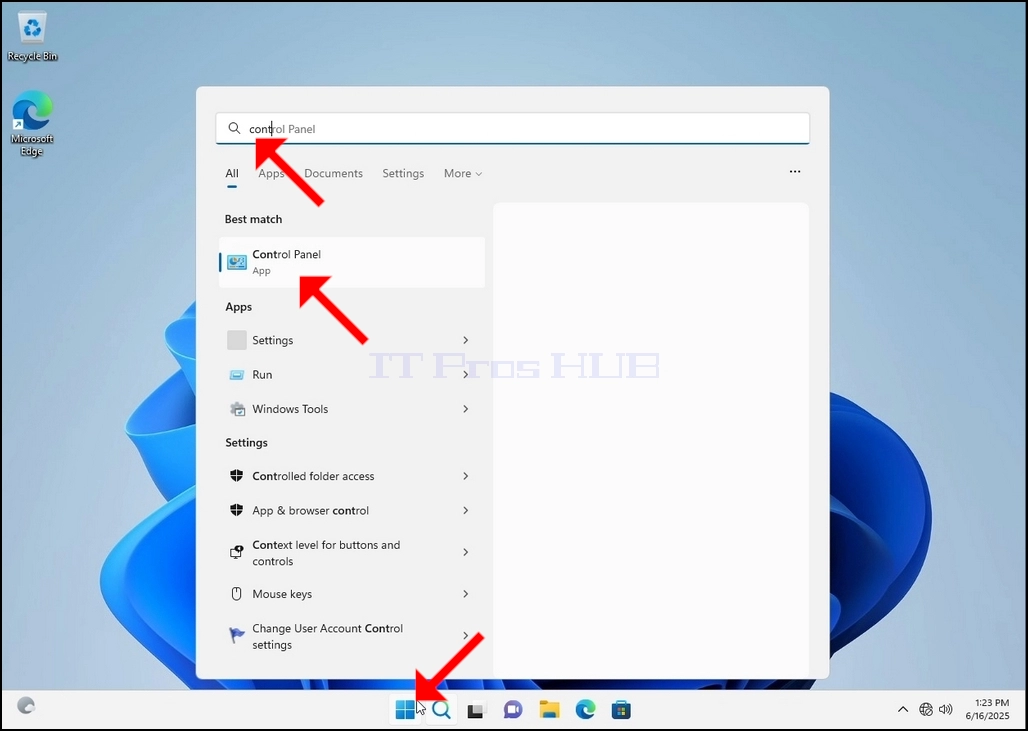
4. Once the Control Panel window is open, enlarge it by clicking the enlarging icon on the top right corner of that window.
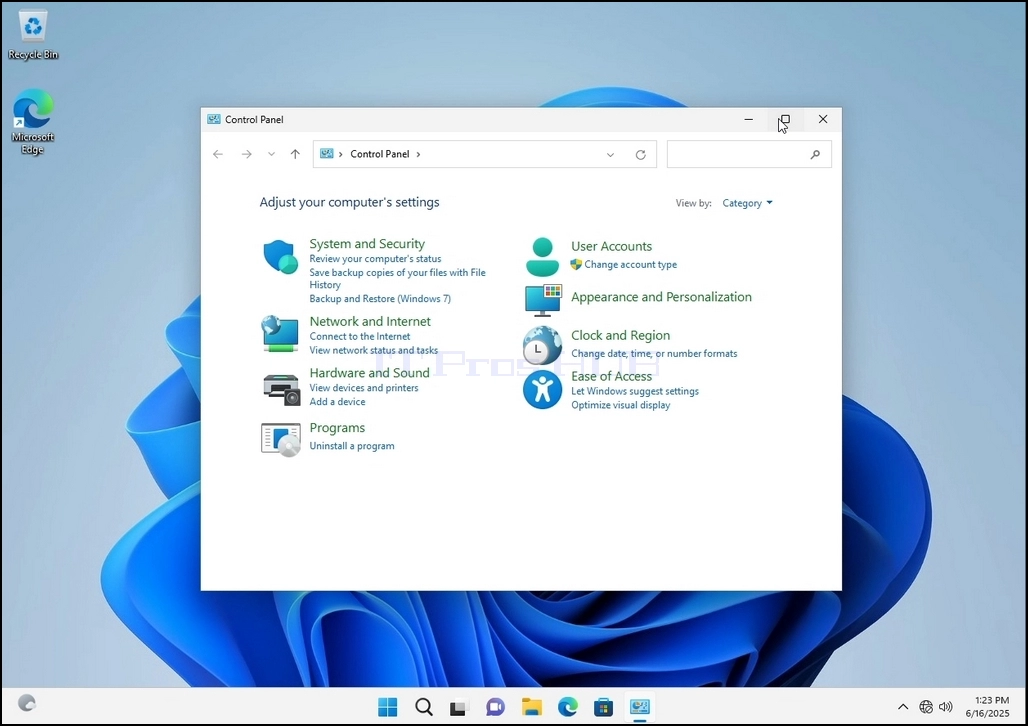
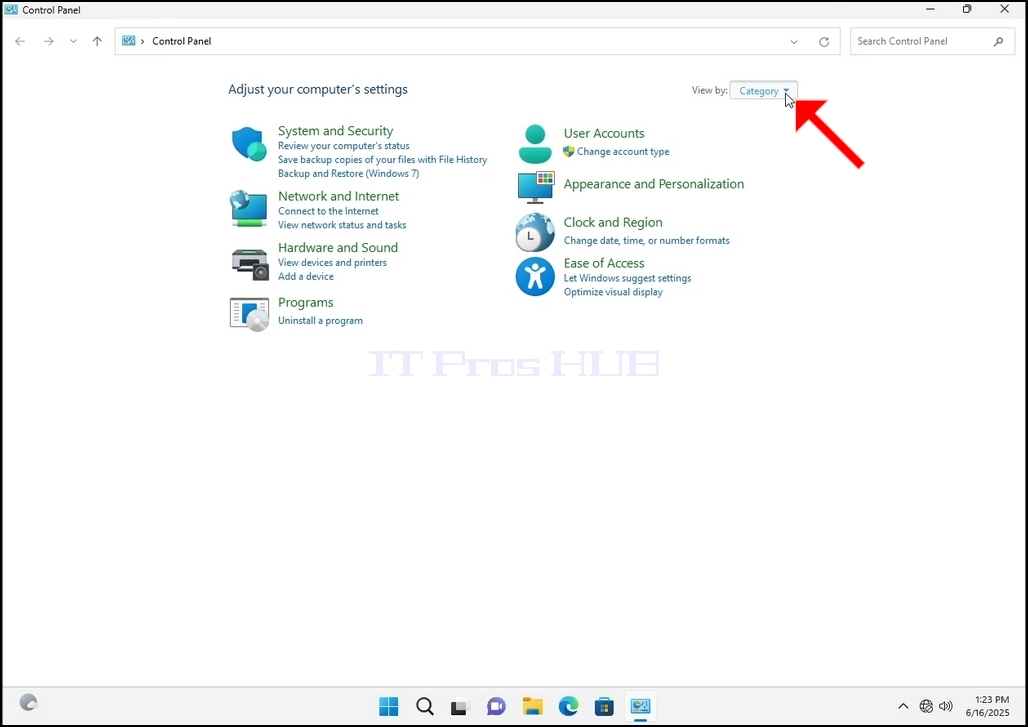
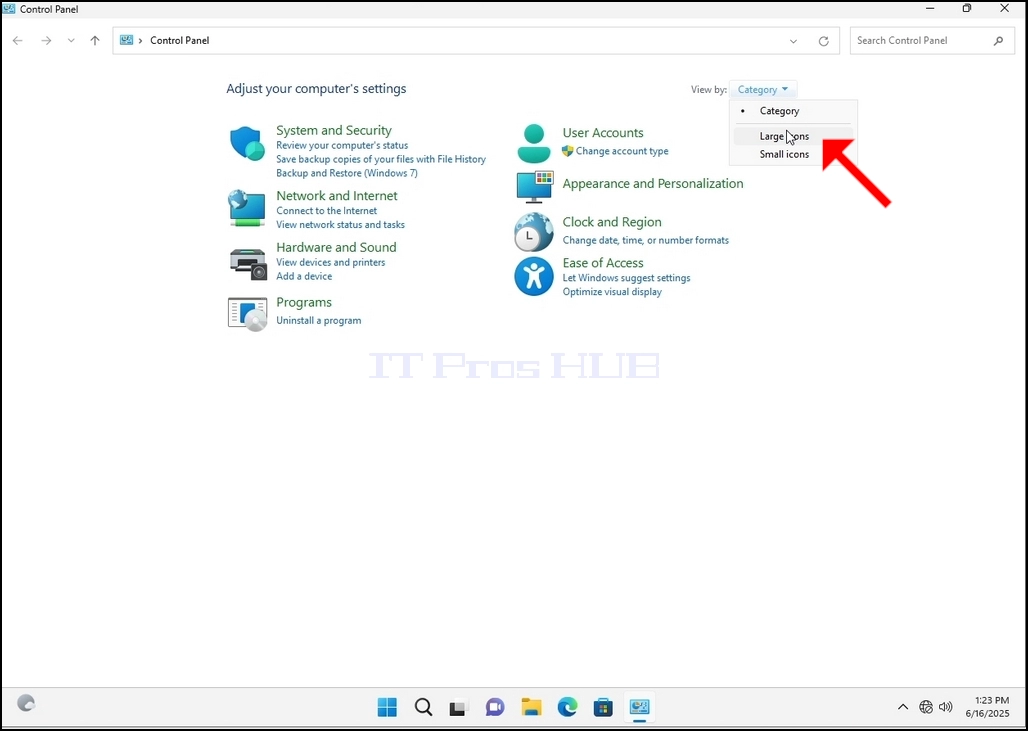
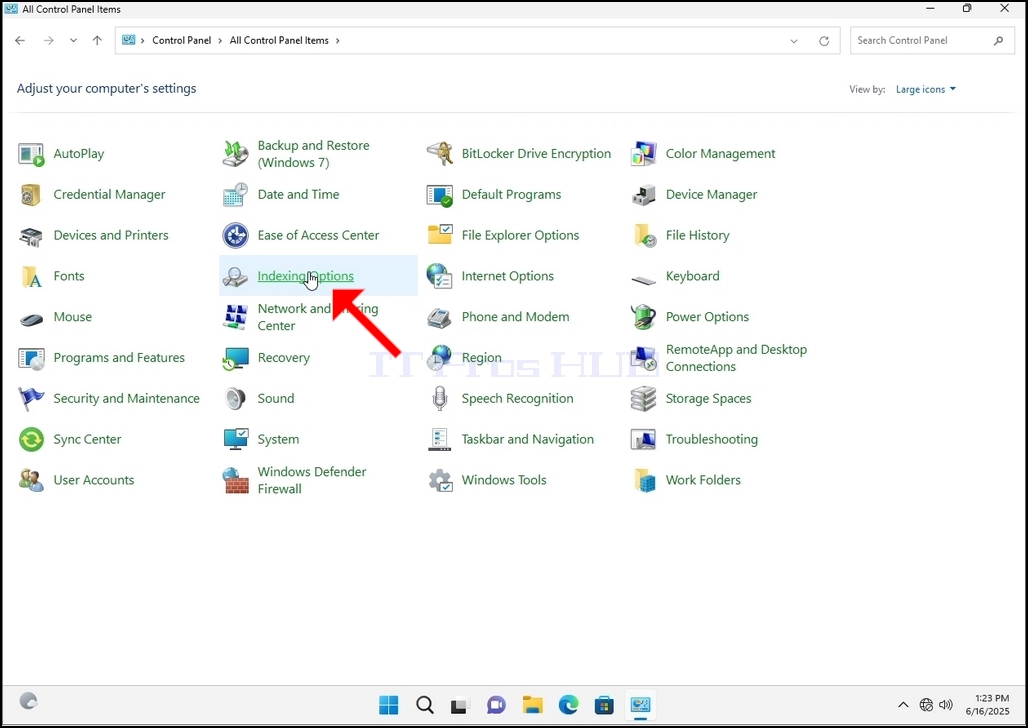
6. Look for the Indexing Options icon and click it. Wait for the Indexing Options window to appear.
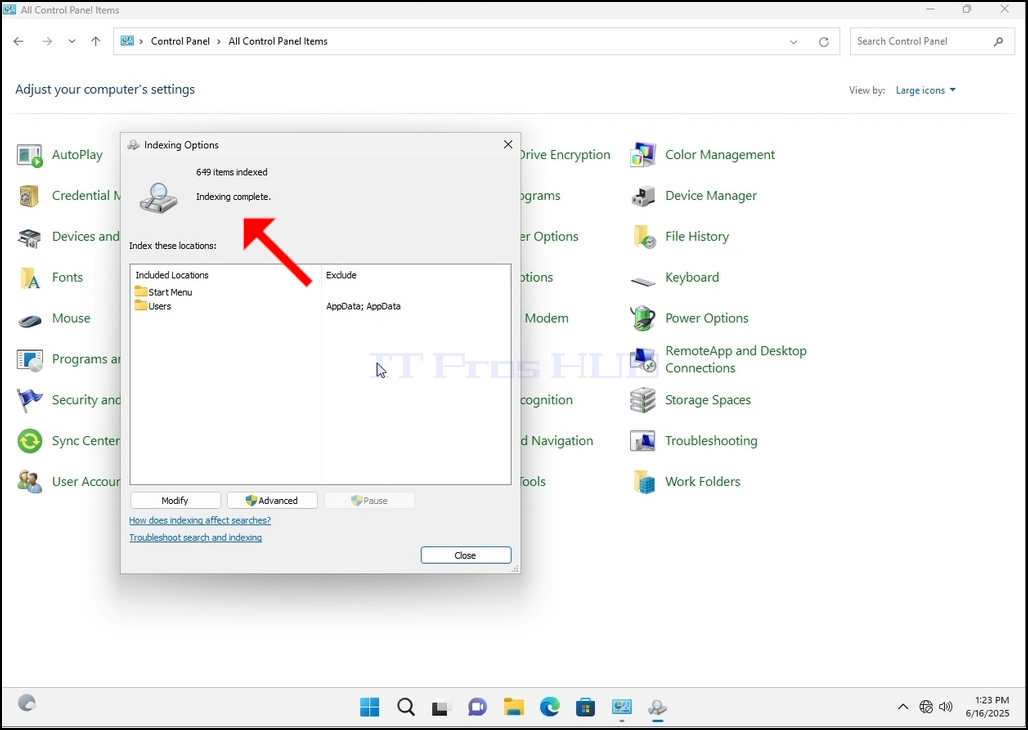
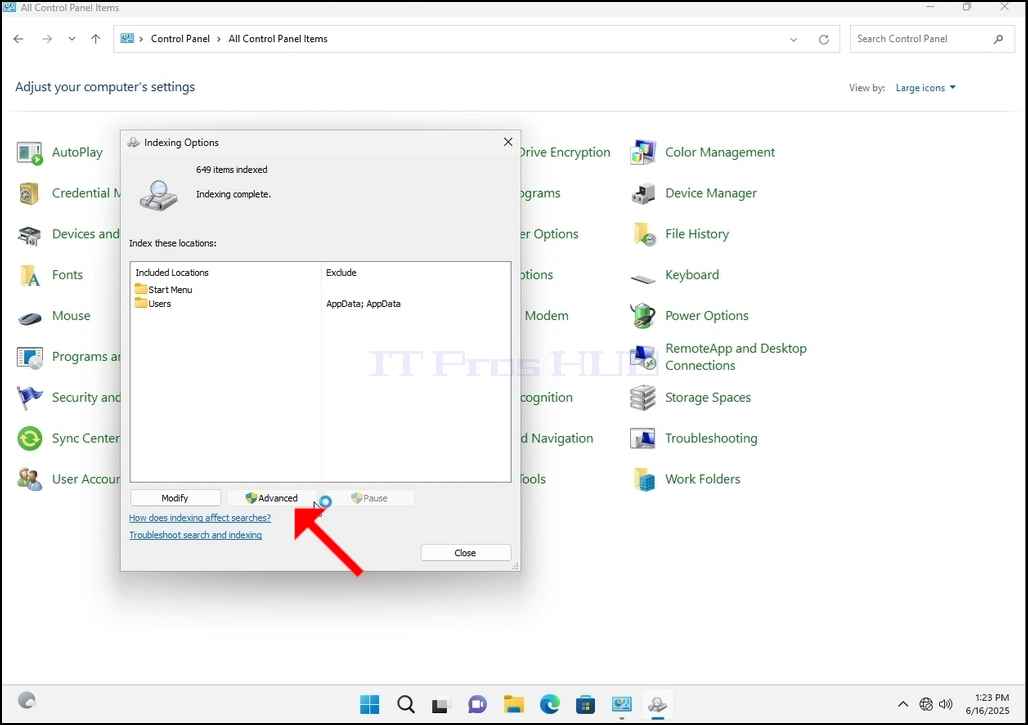
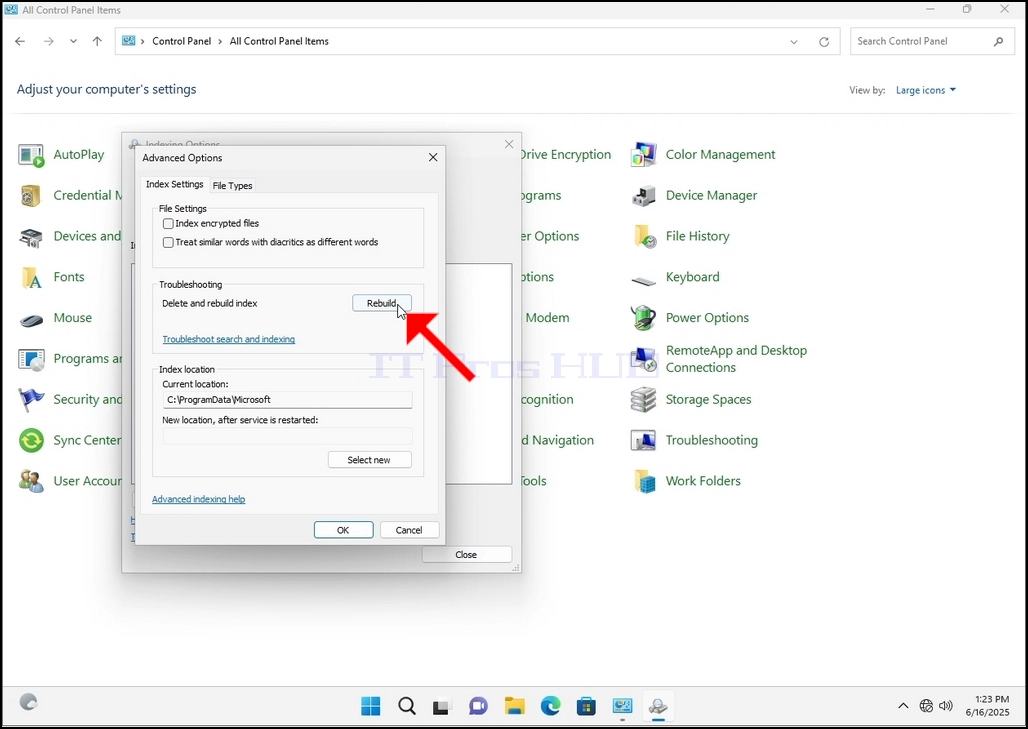
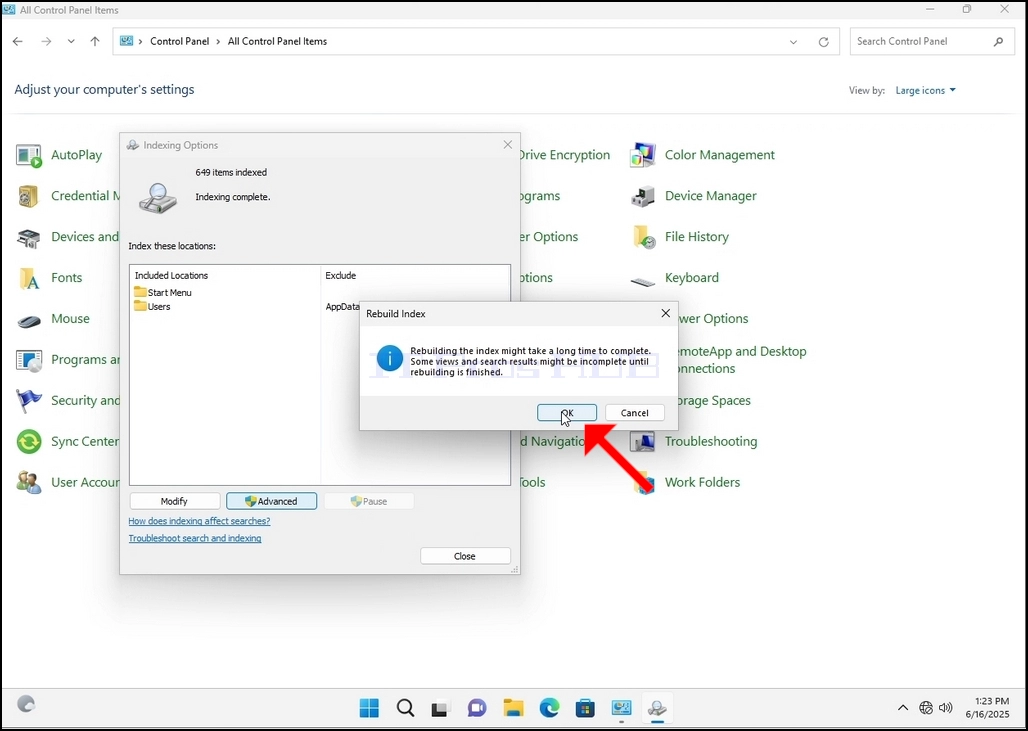
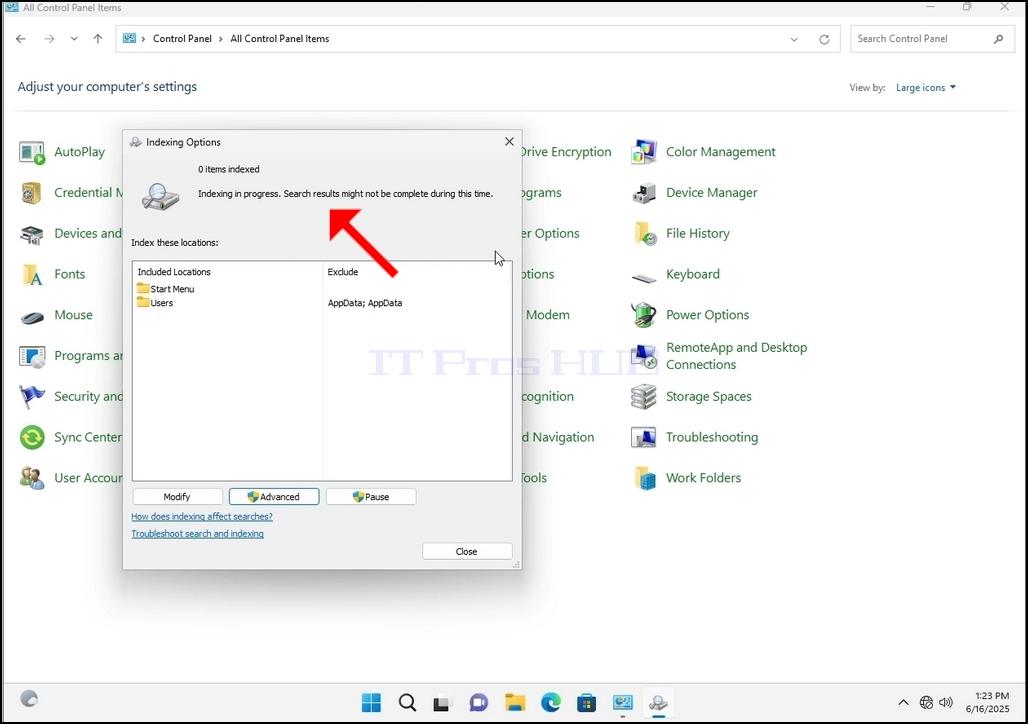
9. After clicking OK in the confirmation box, Windows will start rebuilding its index. It might take some time for the actual process to start, Wait patiently a few seconds to a few minutes. The moment the process starts, the "Indexing Complete" sentence will be replaced with "Indexing in progress. Search results might not be complete during this time."
In addition, the number of items indexed will be reset to 0 for a moment and then start to increase.
Note that All of the windows that are related to the Indexing process can now be closed and the rebuilding process would still be running the background.
Note that the Indexing process' speed might be reduced due to user activity on the computer. The more intense the activity the less the Indexing speed would be.
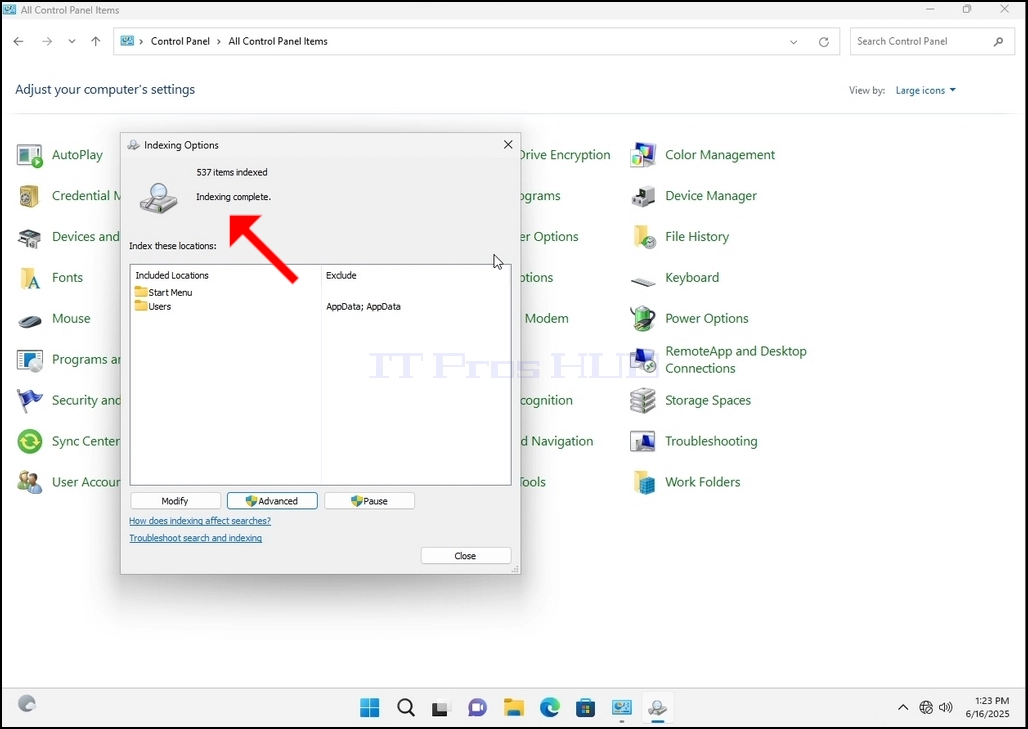
10. To check if the indexing process is done, go back to the Indexing Options through Control Panel as explained in the previous stages. If the process is complete, you would see the "Indexing Complete" sentence appears again.
Since Windows does not notify the user once this process is done, there is indeed a need to perform the latter mentioned. Depending on the number of files, folders, drivers and partitions marked for indexing, this process could take between a few minutes to a few hours.
- Detalii
- Scris de: IT Pro
- Categorie: How to Articles
- Accesări: 5229
1. Go to Windows Desktop
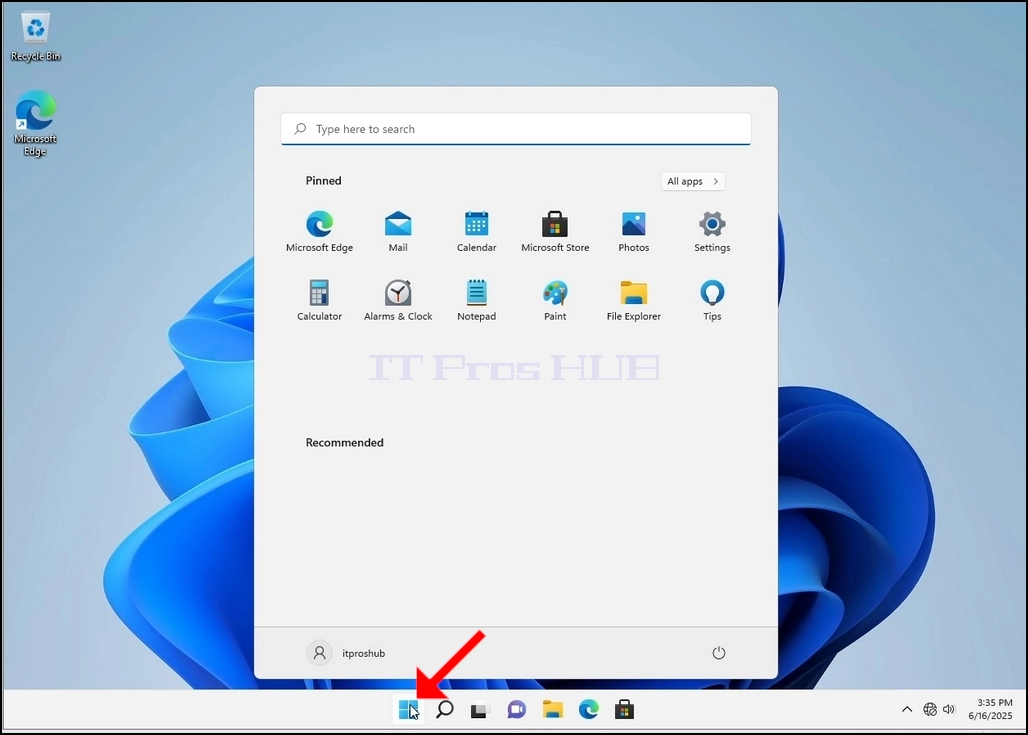
2. Click Start
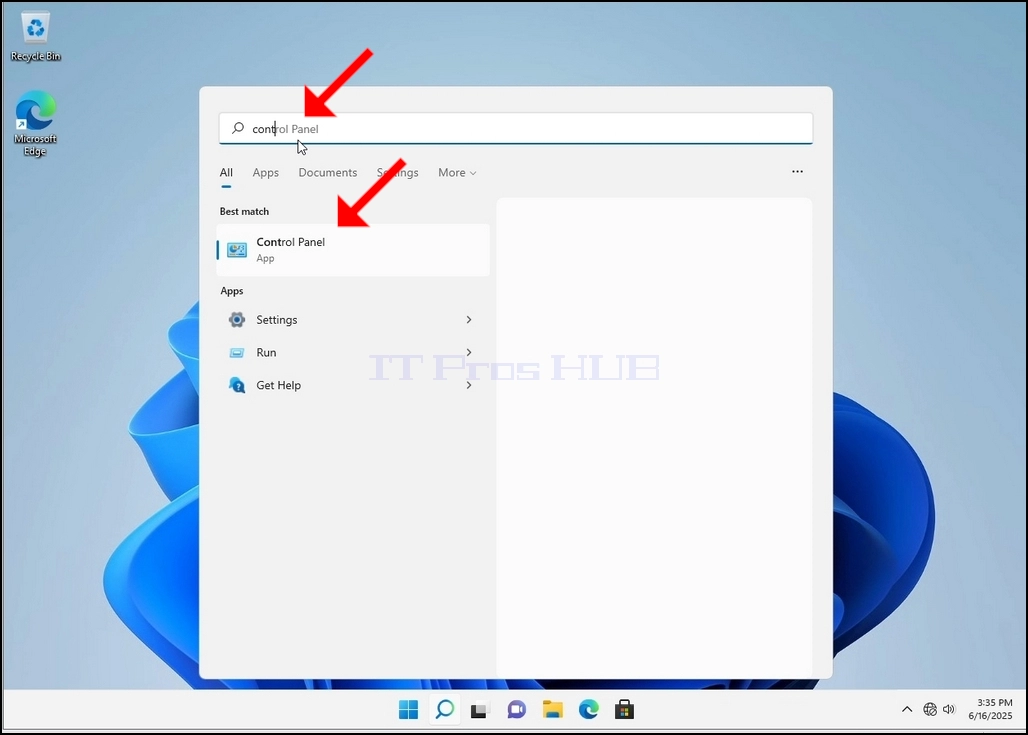
Once it finds it, click it and wait for the Control Panel window to appear.
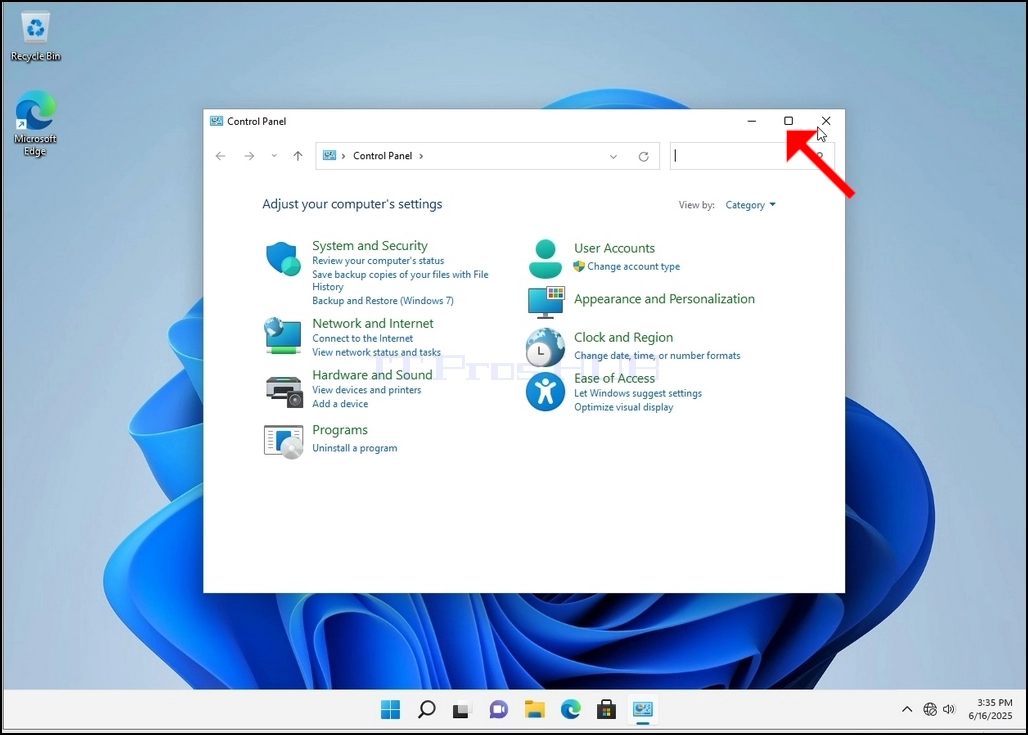
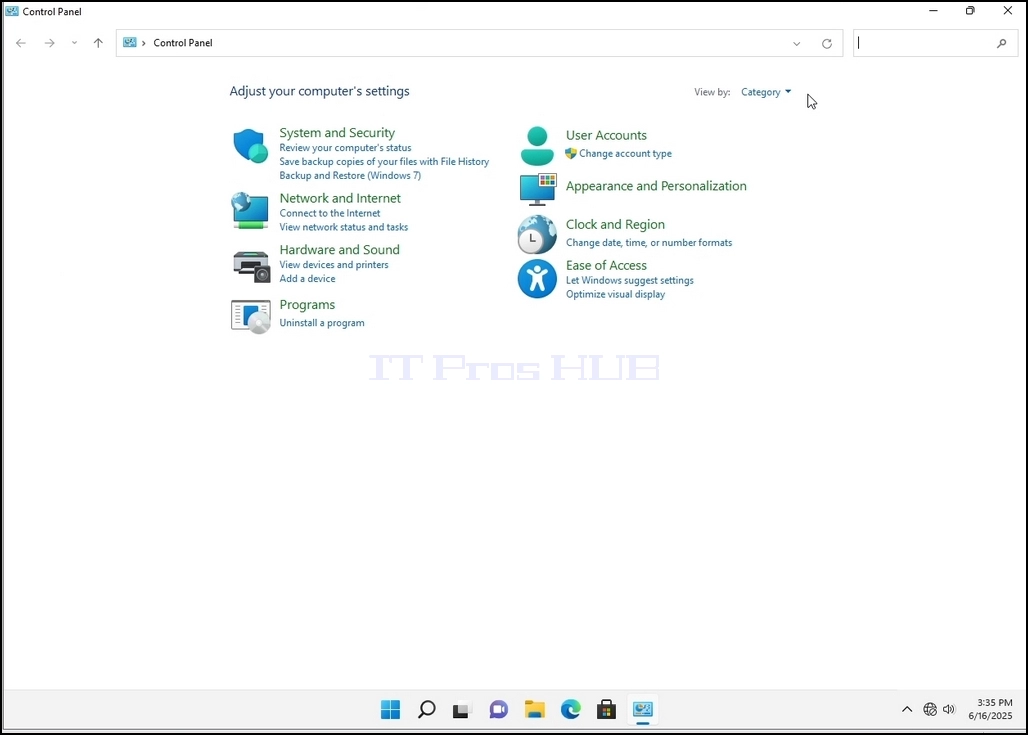
4. Once the Control Panel window is open, enlarge it by clicking the enlarging icon on the top right corner of that window.
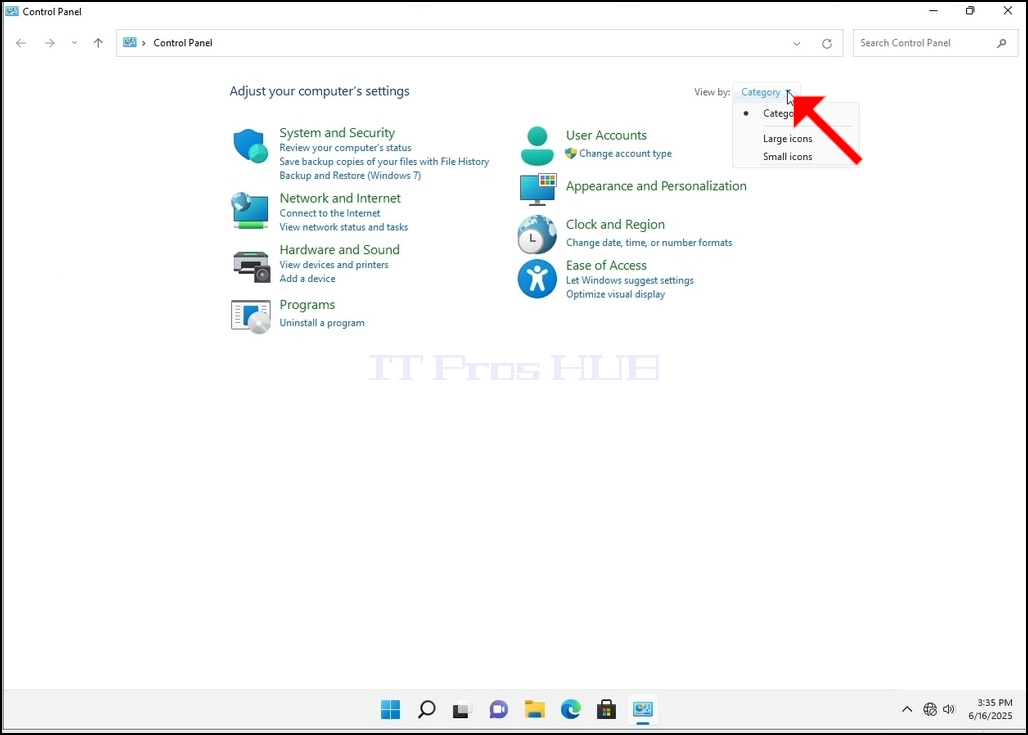
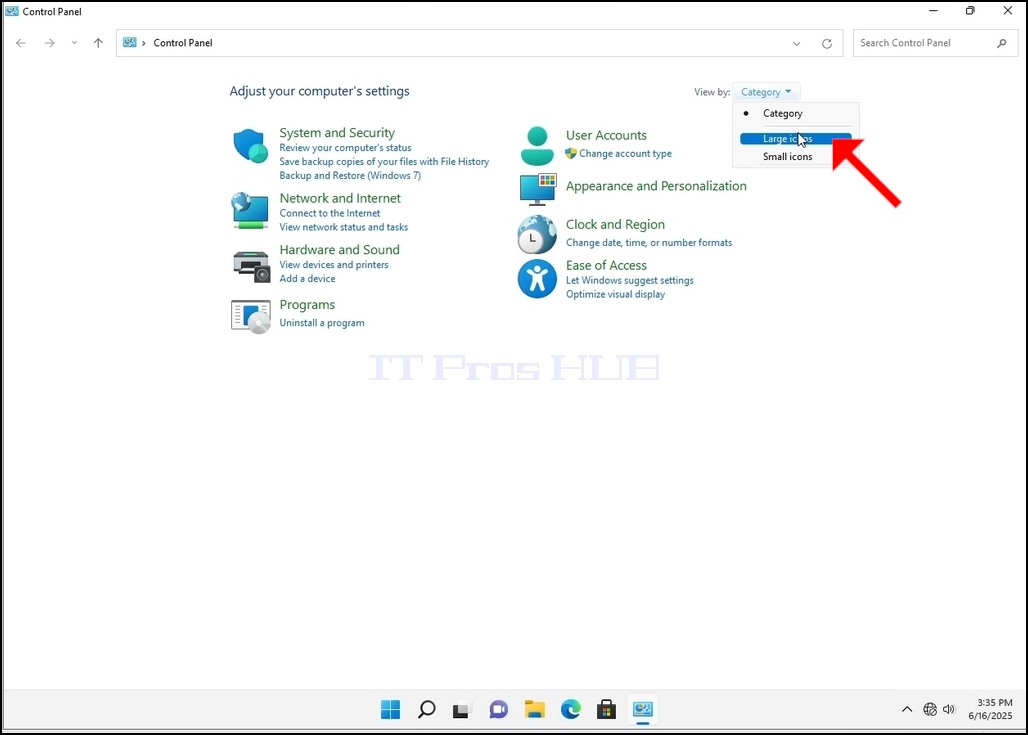
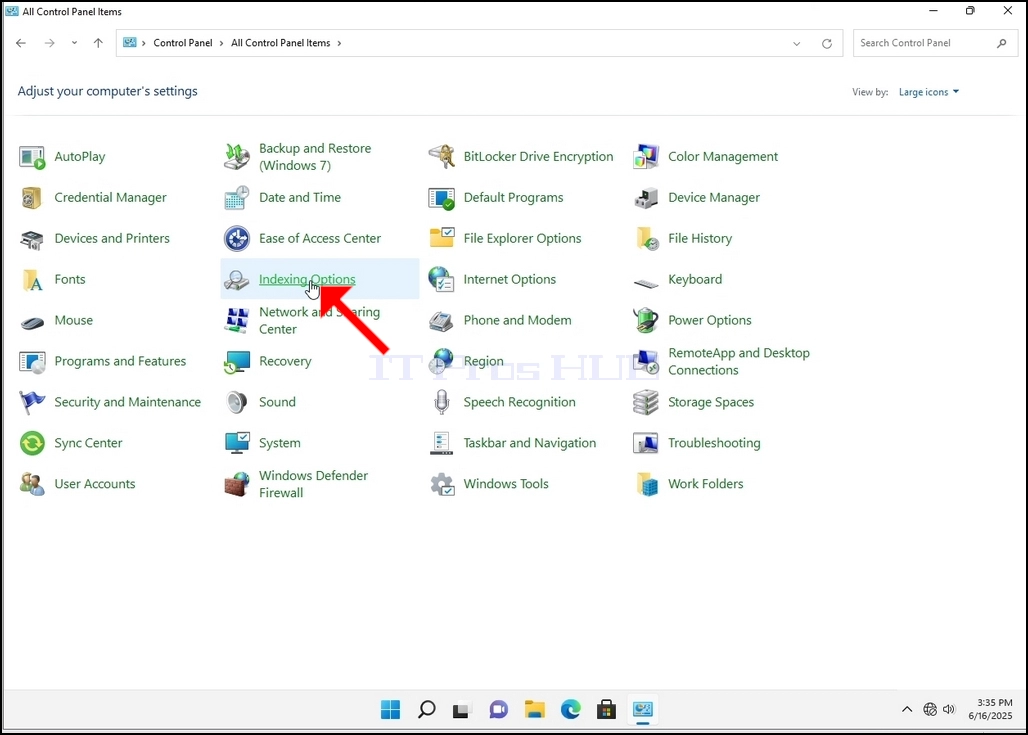
6. Look for the Indexing Options icon and click it. Wait for the Indexing Options window to appear.
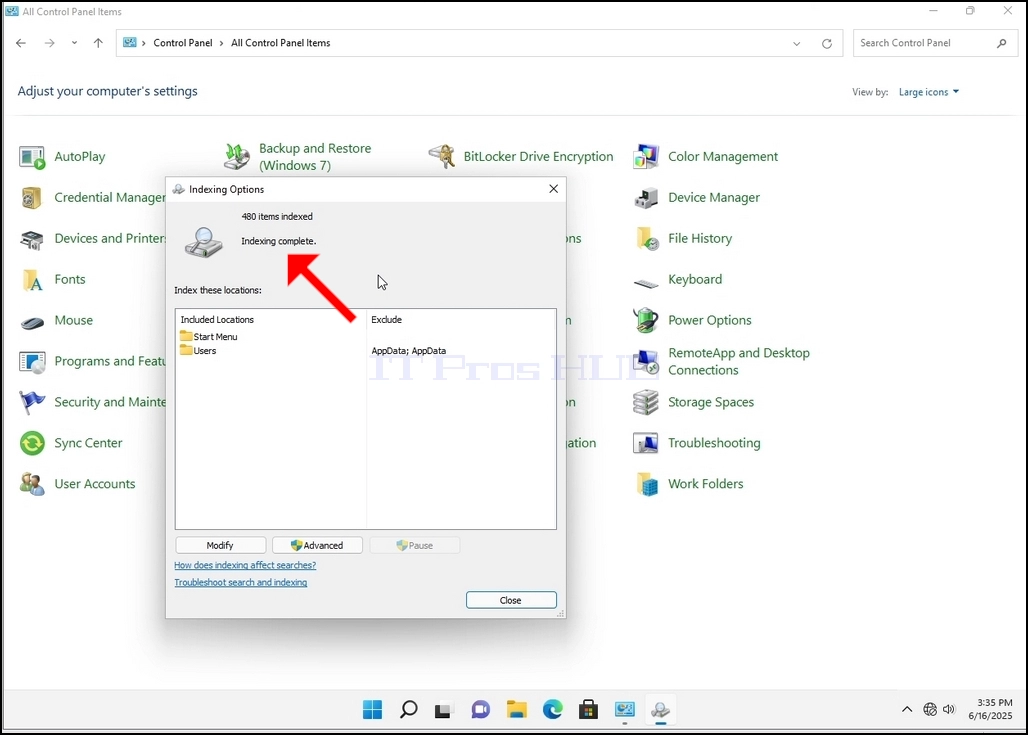
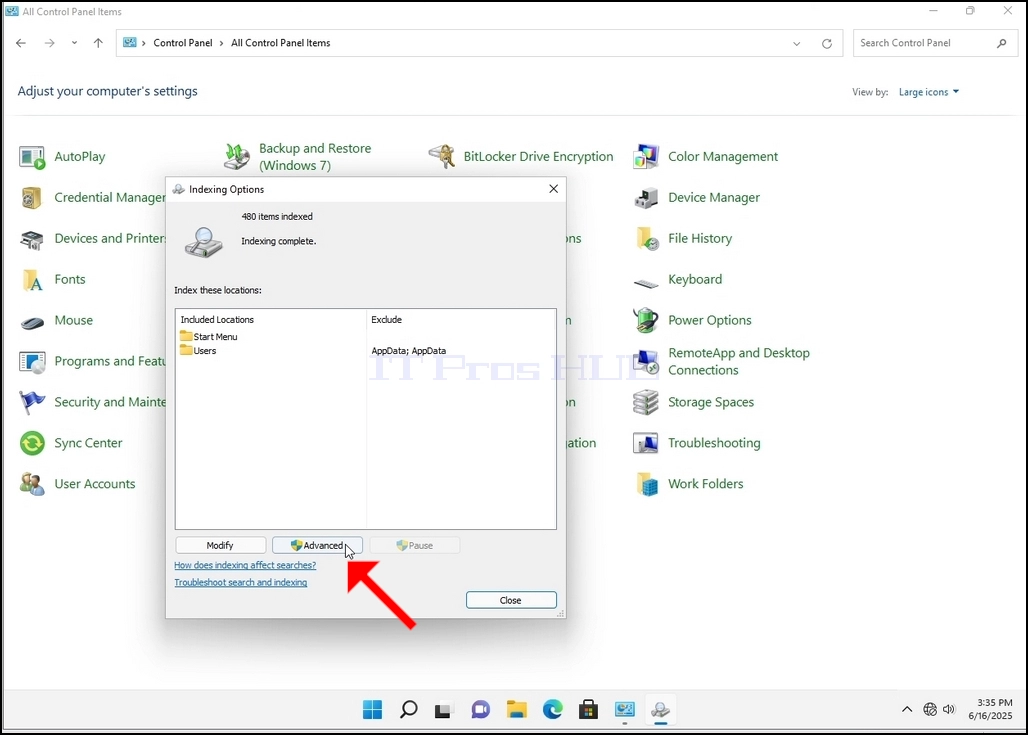
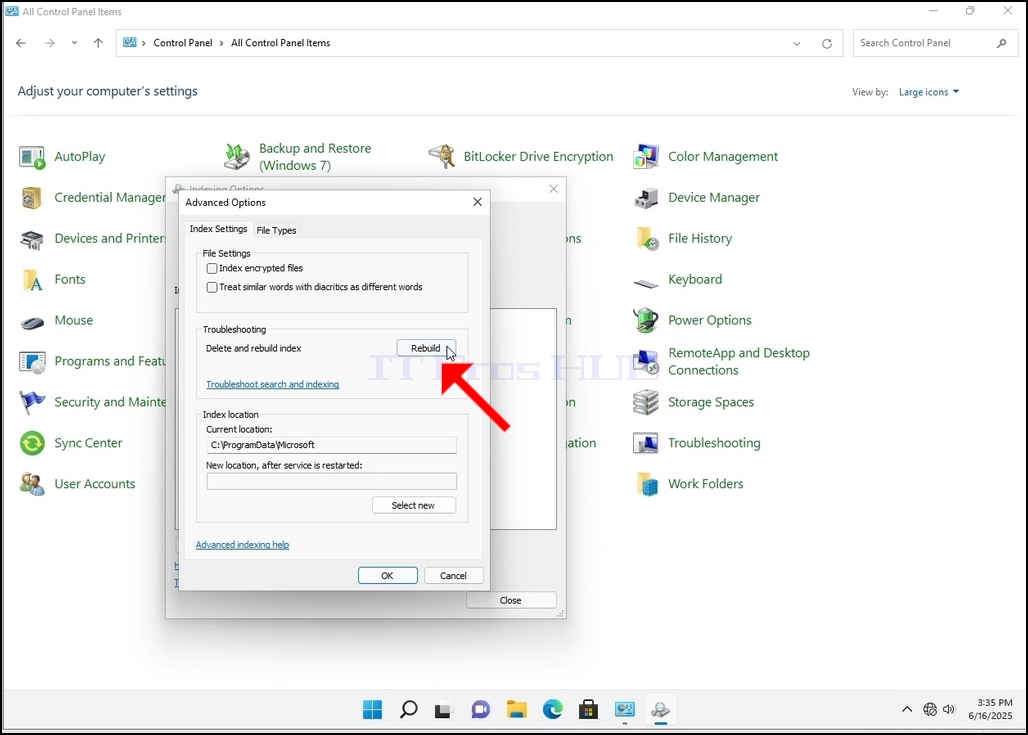
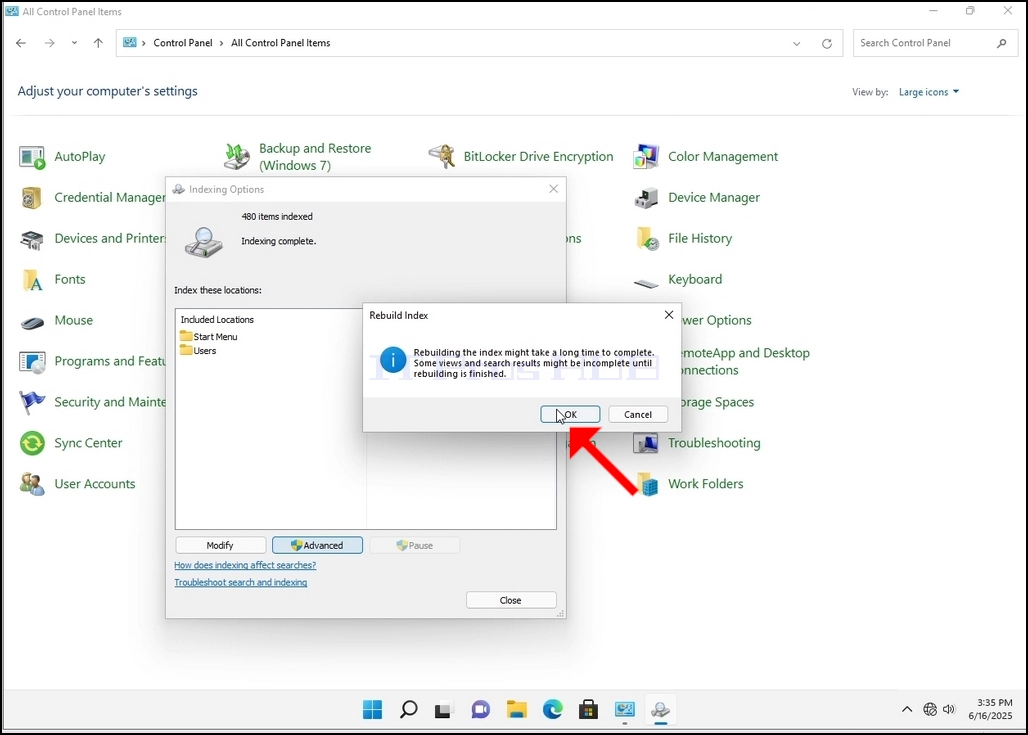
9. After clicking OK in the confirmation box, Windows will start rebuilding its index. It might take some time for the actual process to start, Wait patiently a few seconds to a few minutes. The moment the process starts, the "Indexing Complete" sentence will be replaced with "Indexing in progress. Search results might not be complete during this time."
In addition, the number of items indexed will be reset to 0 for a moment and then start to increase.
Note that All of the windows that are related to the Indexing process can now be closed and the rebuilding process would still be running the background.
Note that the Indexing process' speed might be reduced due to user activity on the computer. The more intense the activity the less the Indexing speed would be.
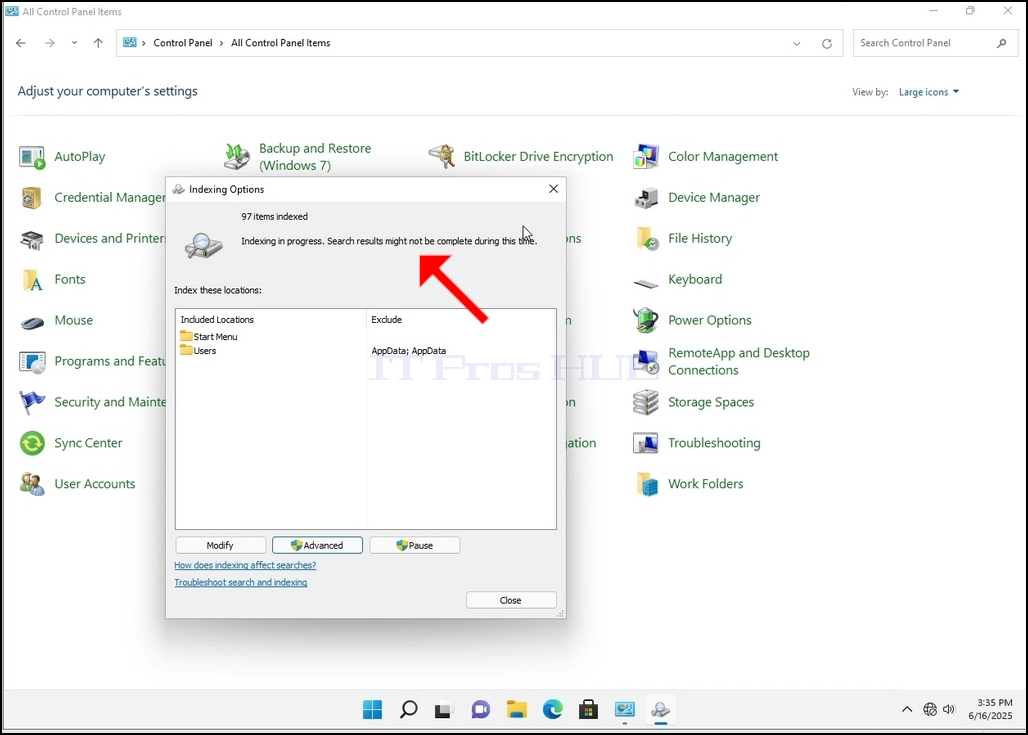
10. To check if the indexing process is done, go back to the Indexing Options through Control Panel as explained in the previous stages. If the process is complete, you would see the "Indexing Complete" sentence appears again.
Since Windows does not notify the user once this process is done, there is indeed a need to perform the latter mentioned. Depending on the number of files, folders, drivers and partitions marked for indexing, this process could take between a few minutes to a few hours.
- Detalii
- Scris de: IT Pro
- Categorie: How to Articles
- Accesări: 5506
1. Du-te la biroul Windows
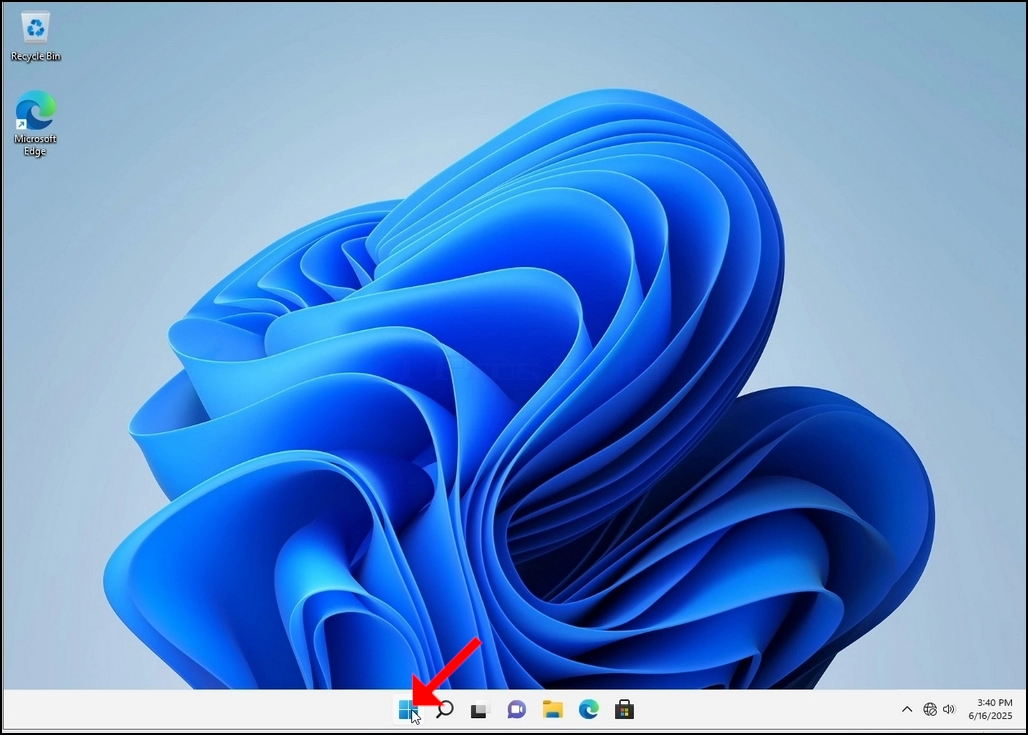
2. Faceți clic pe Start
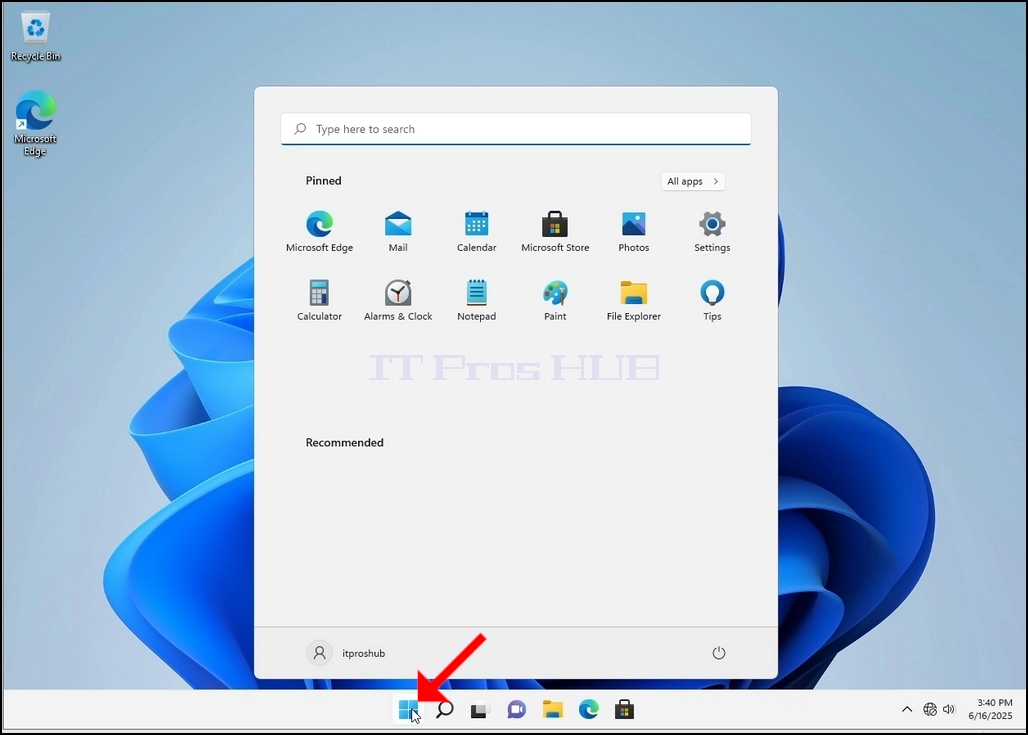
3. După ce se deschide meniul de pornire, tastaţi "panou de control" şi aşteptaţi meniul Start pentru a găsi pictograma Panel de Control. Vă rugăm să rețineți că este posibil să tastați doar "cont" și, în majoritatea cazurilor, meniul Start va găsi încă pictograma Panelului de Control.
Odată ce o găsește, faceți clic pe ea și așteptați ca fereastra Panou de control să apară.
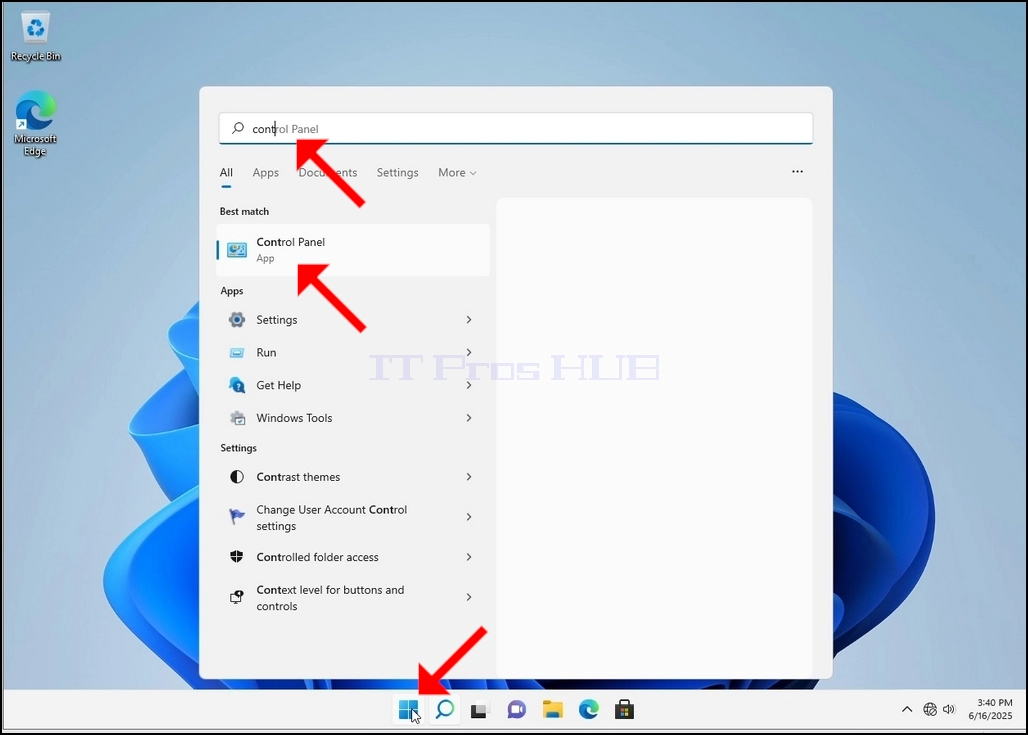
4. Odată ce fereastra Panou de control este deschisă, măriți-l făcând clic pe pictograma lărgire pe colțul din dreapta sus al ferestrei.
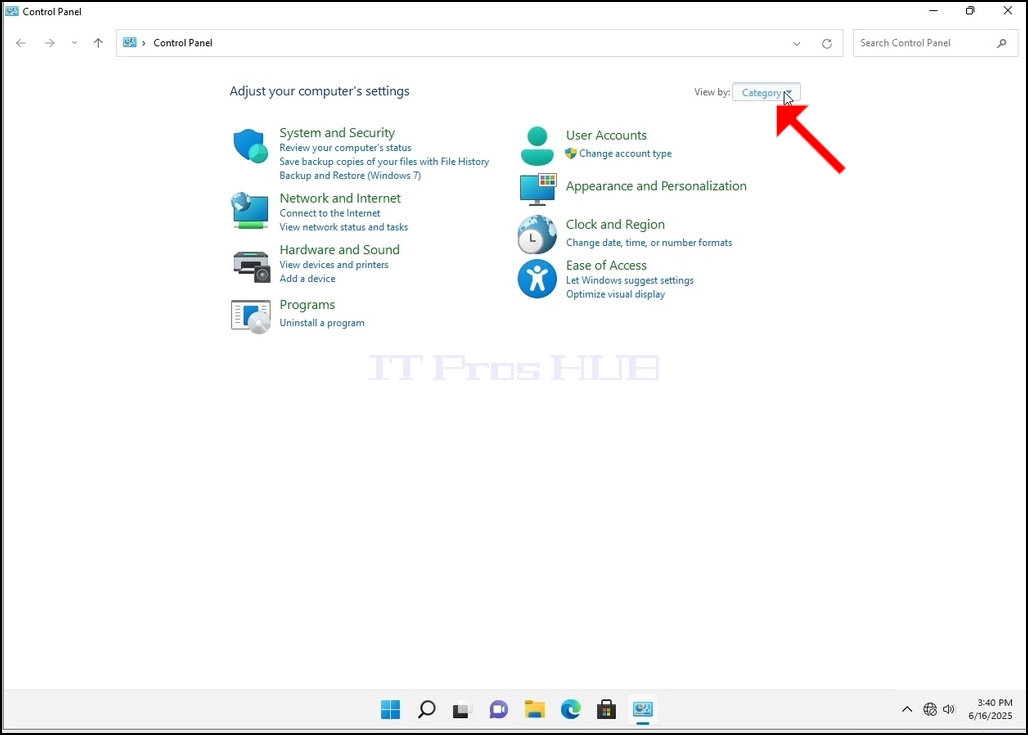
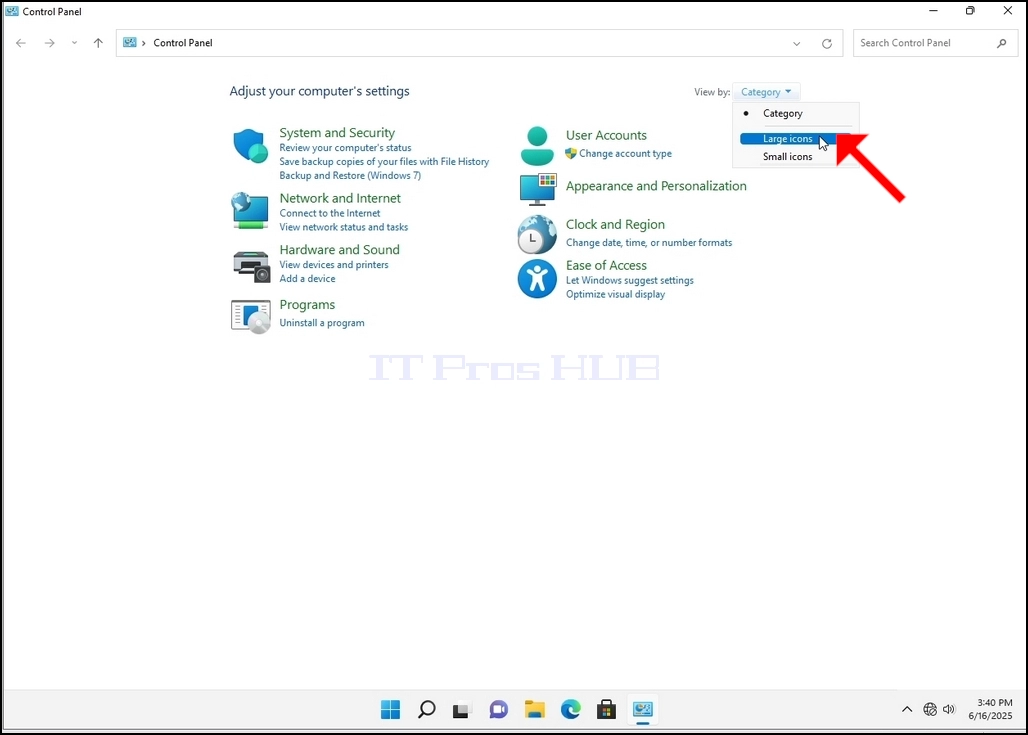
6. Uita-te pentru pictograma Opțiuni de Indexare și faceți clic pe ea. Aşteptaţi să apară fereastra Opţiunilor de Indexare.
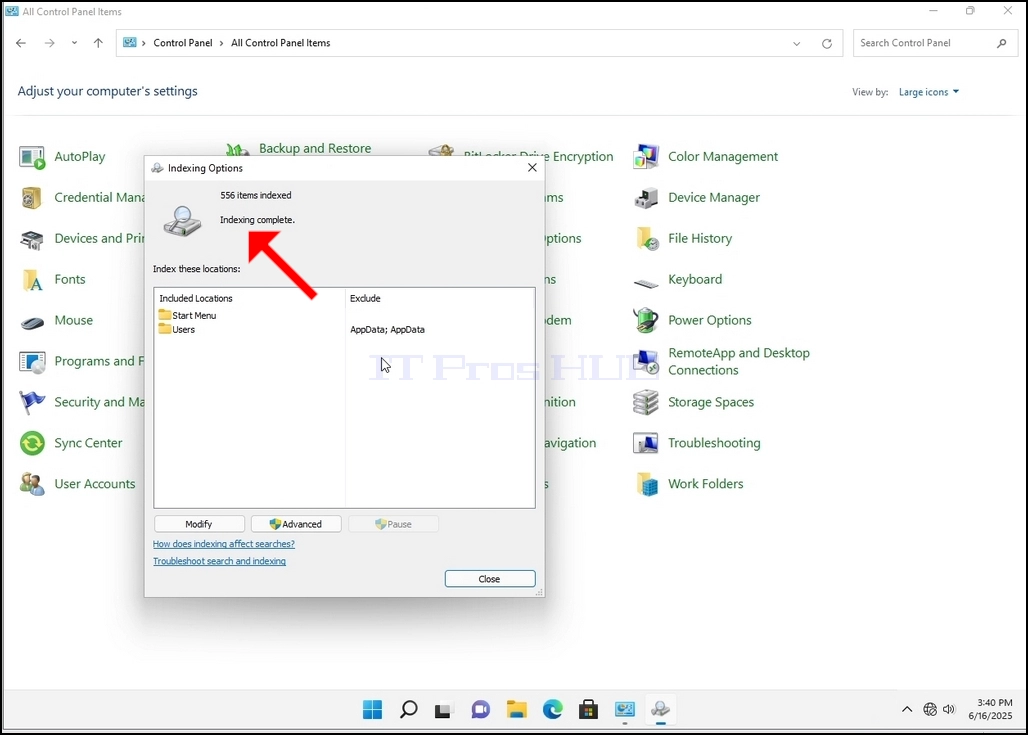
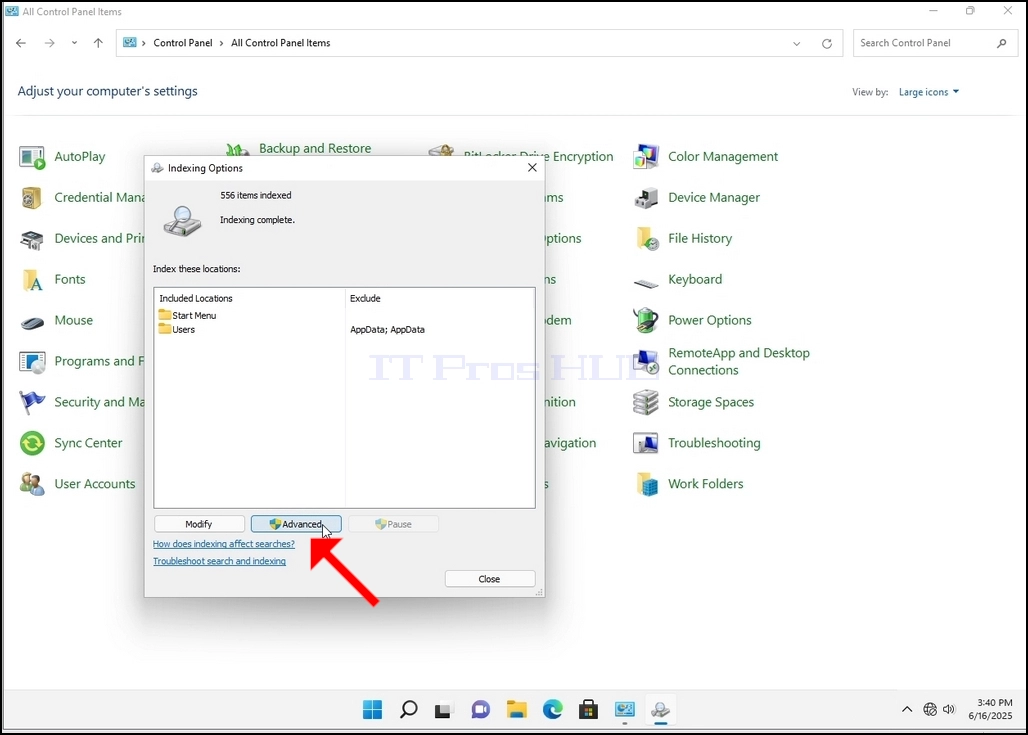
7. Odată ce fereastra Opţiuni de Indexare este deschisă, faceţi clic pe butonul avansat din partea de jos a ferestrei.
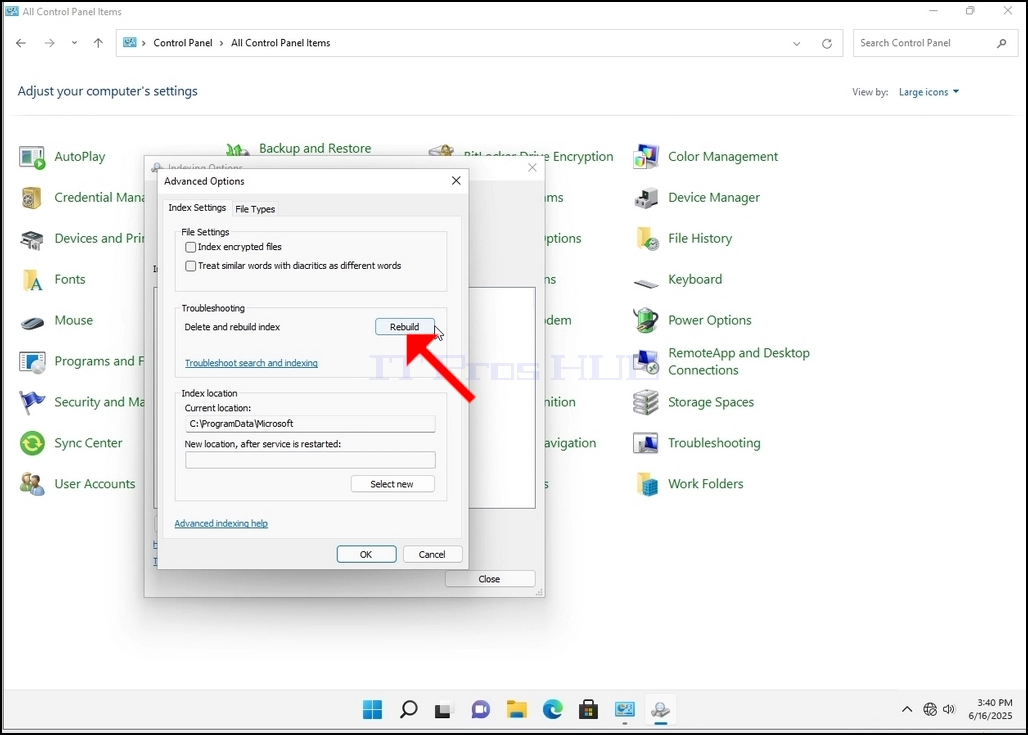
8. În fereastra nouă, căutați butonul Reconstruiește și faceți clic pe el. După aceea va apărea o cutie de confirmare. Faceţi clic pe butonul OK în ea pentru a începe reconstruirea indicelui.
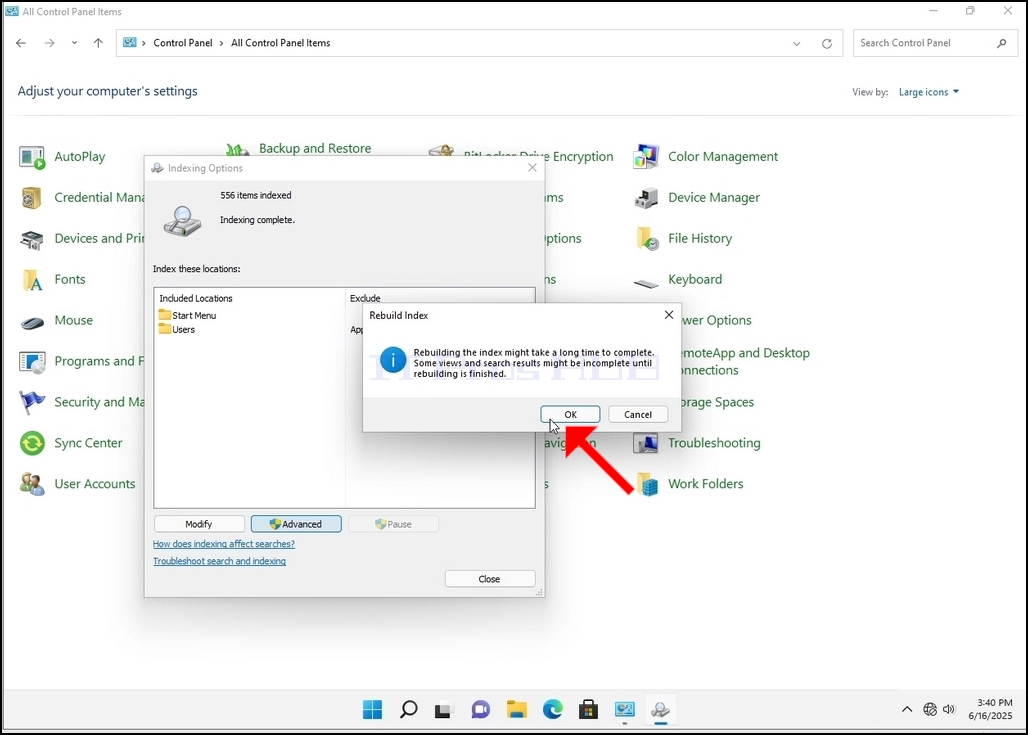
9. După ce faceți clic pe OK în caseta de confirmare, Windows va începe reconstruirea indicelui său. S-ar putea să dureze ceva timp până începe procesul, să aşteptăm cu răbdare câteva secunde până la câteva minute. În momentul în care procesul începe, "Indexare completă"sentinţa va fi înlocuită cu "Indexare în curs. Rezultatele căutării nu ar putea fi complete în acest timp.."
În plus, numărul de elemente indexate va fi resetat la 0 pentru un moment și apoi începe să crească.
Rețineți că toate ferestrele care sunt legate de procesul de indexare pot fi acum închise, iar procesul de reconstrucție ar fi încă pe fundal.
Rețineți că viteza procesului de indexare ar putea fi redusă din cauza activității utilizatorului pe calculator. Cu cât activitatea este mai intensă, cu atât viteza de indexare este mai mică.
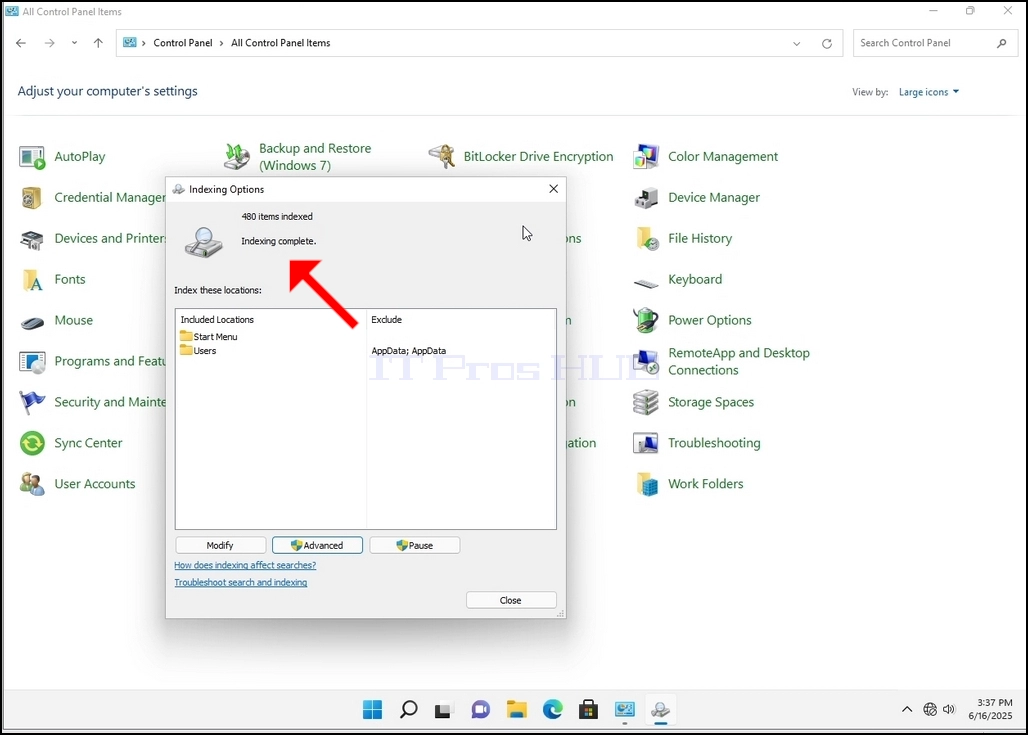
10. Pentru a verifica dacă procesul de indexare se face, du-te înapoi la Opțiunile de Indexare prin intermediul panoului de control, astfel cum se explică în etapele anterioare. Dacă procesul este complet, ai vedea "Indexare completă"propoziţia apare din nou.
Deoarece Windows nu notifică utilizatorul odată ce acest proces este făcut, există într-adevăr o nevoie de a efectua ultima menționat. În funcție de numărul de fișiere, foldere, drivere și partiții marcate pentru indexare, acest proces ar putea dura între câteva minute și câteva ore.
- Cum de a reconstrui indexarea în Windows 11 21H2 x64 Pro pentru stații de lucru Construiește 22000.194
- Cum de a reconstrui Indexing în Windows 11 21H2 x64 Pro Education N construi 22000.194
- Cum de a reconstrui Indexing în Windows 11 21H2 x64 Pro Education Build 22000.194
- Cum de a reconstrui Indexing în Windows 11 21H2 x64 Pro Build 22000.194