



- Details
- Written by: IT Pro
- Category: Windows
- Hits: 5069
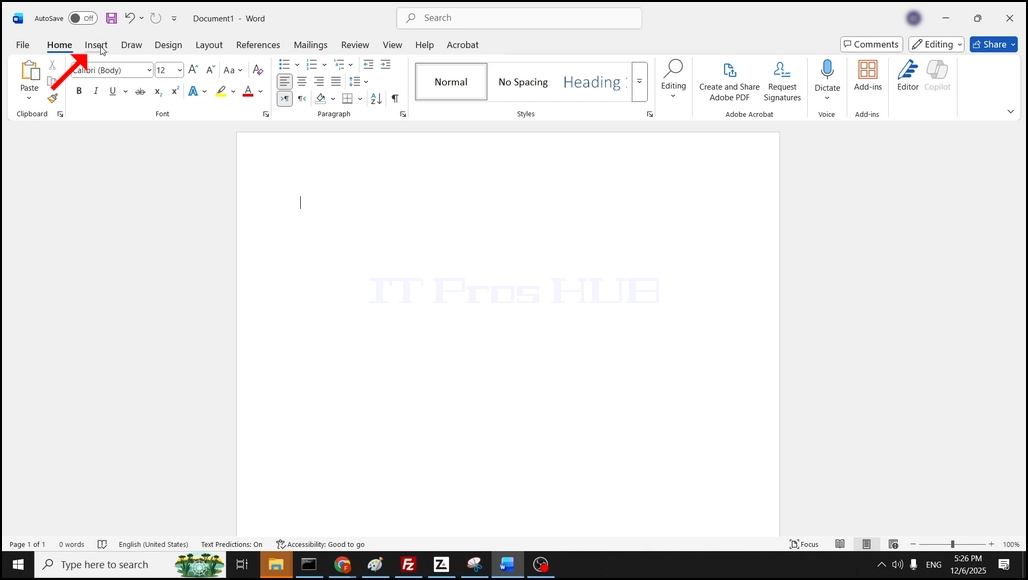
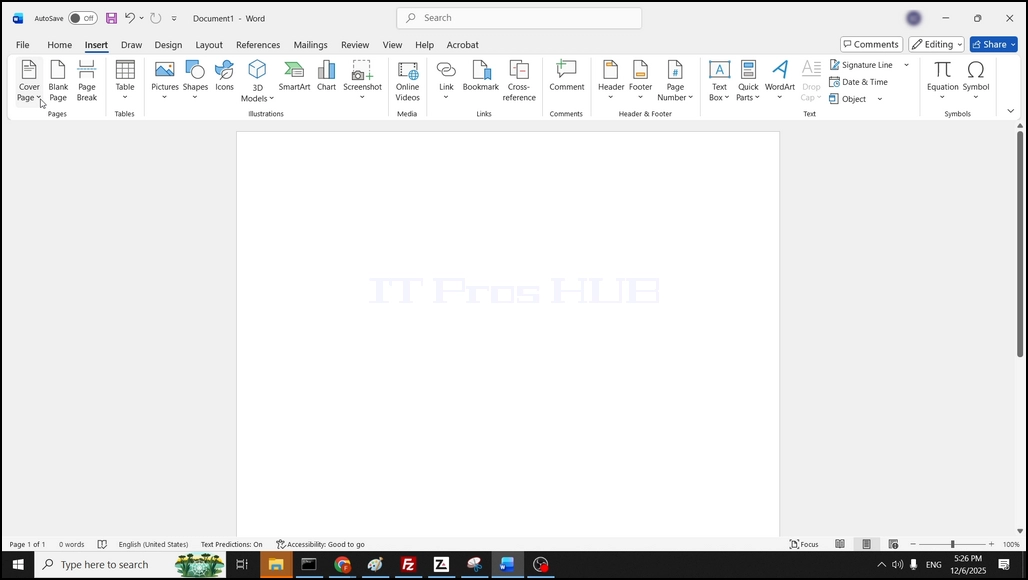
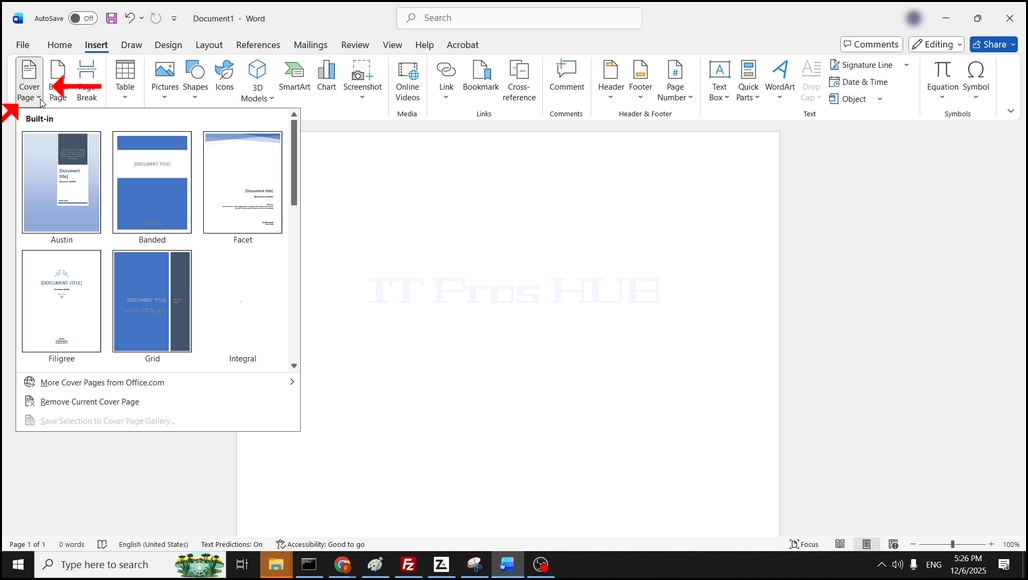
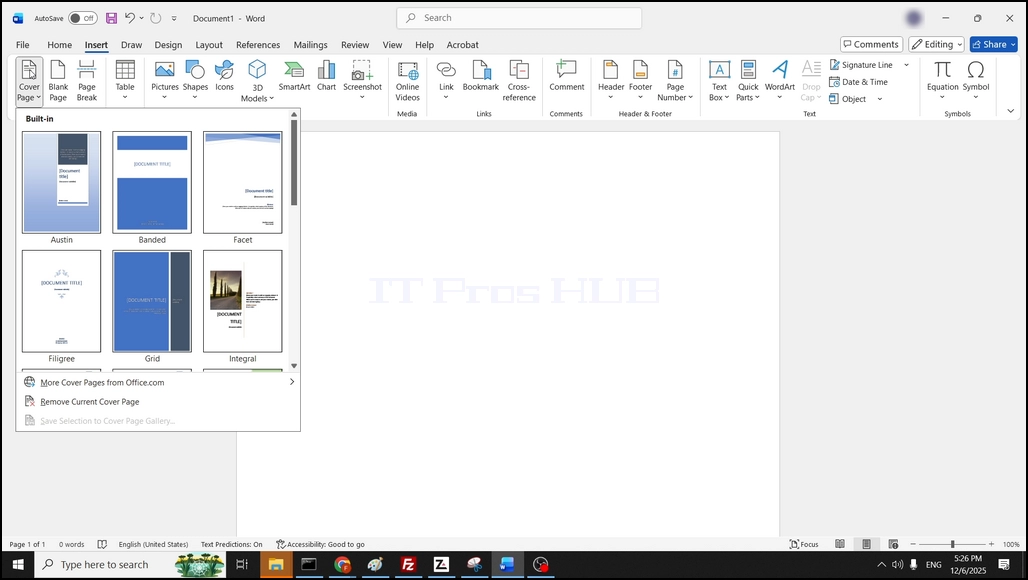
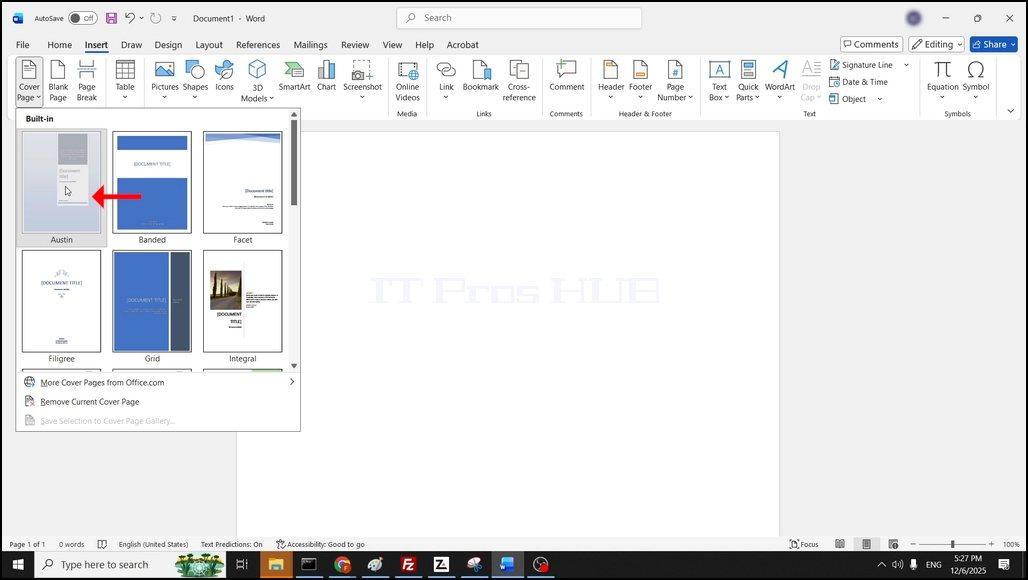
4. In the case of this article, we will choose the Austin cover page by clicking on it once:
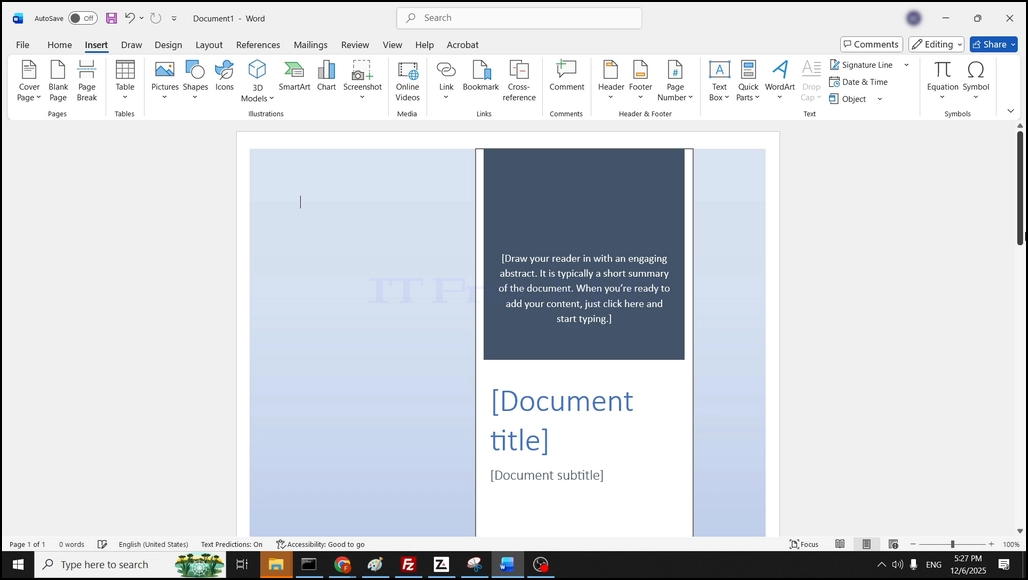
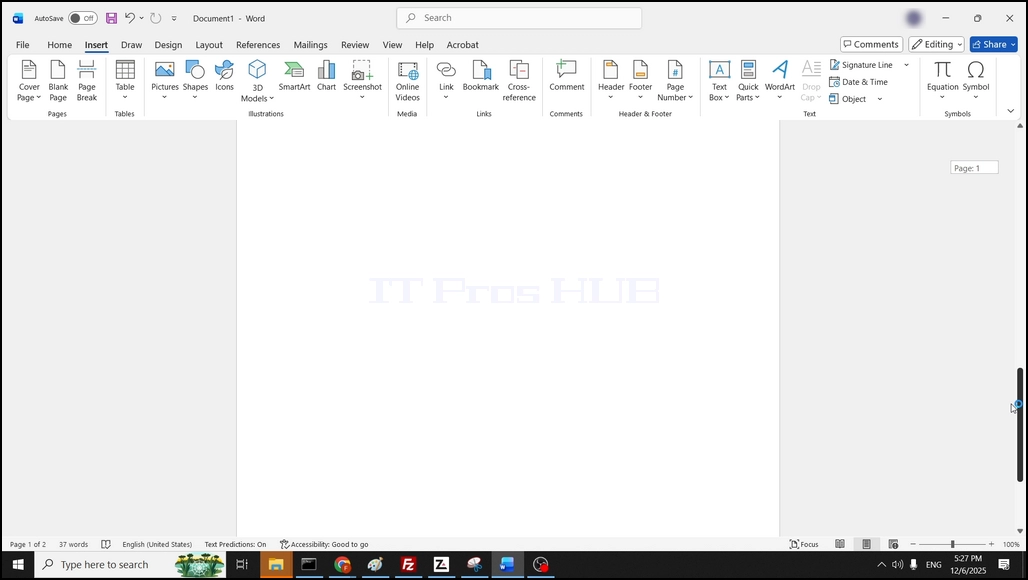
5. Once clicked, Word has added the cover page as a separate page before the initial page of Word so now we have 2 pages - a cover page and a blank page:
- Details
- Written by: IT Pro
- Category: Windows
- Hits: 5135
Introduction:
In this article we will explore if Windows 11 could run on a single core cpu based computer.
For this purpose we will use a single virtual machine that initially has 2 cores, install Windows 11 on it and then remove one of the cores and see if Windows 1 still runs.
1.Installing Windows 11 on a 2 core cpu Virtual machine:




2. A fresh copy of Windows 11 is now installed.

3. Now let's go to Device Manager and see the number of CPU cores. It should be 2:

4. As you can see, this computer has 2 AMD Ryzen 7 7435HS processor cores present:

5. Let's shutdown Windows and change the number of cores from 2 to 1:

6. Notice the single core and notice that Windows 11 booted up without any issues:

7. Conclution:
- Althought Microsoft blocks Windows 11 from being installed on a computer with a single core CPU it by no means blocks it from running on one if deployed to one whether by an image or by clonning a hard drive with a preinstalled version of Windows 11 and connecting to such a computer.
Windows 11 can be run on a computer with a single core, but not installed onto one.
- Details
- Written by: IT Pro
- Category: Windows
- Hits: 5672
In this article we will find out of running Windows 11 without the Windows.old folder is possible or not.
1. Setting up the conditions that create a Windows.old folder.
- We will reinstall Windows 11 using Microsoft's Windows Installation Assistant. First by downloading it:
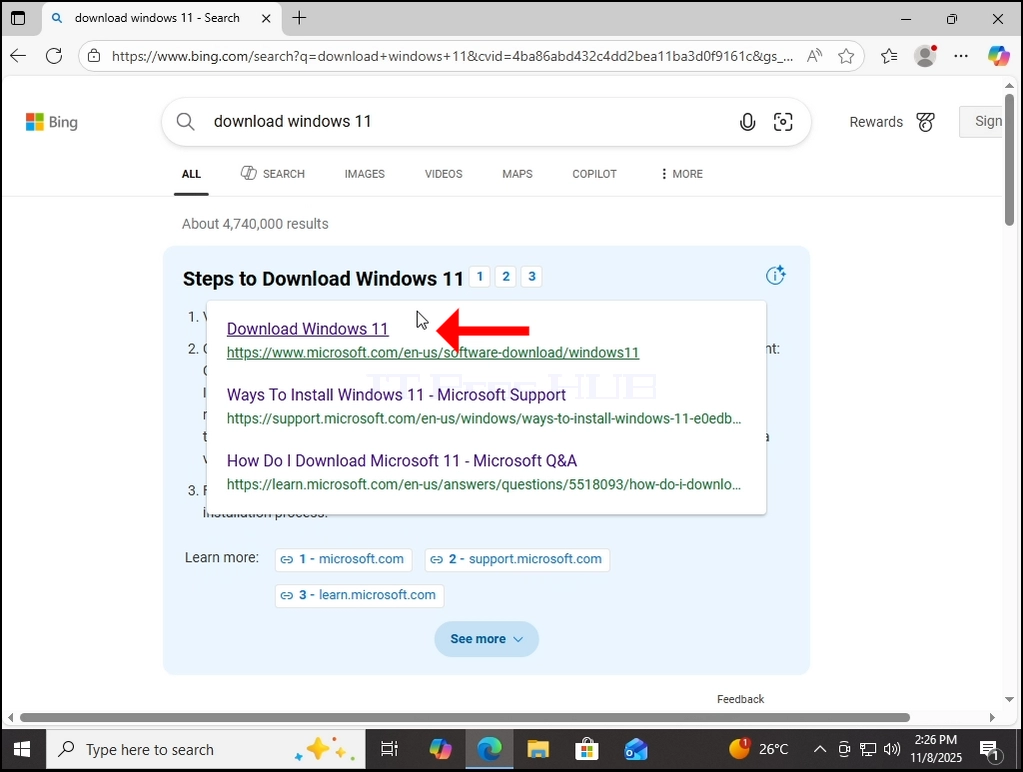
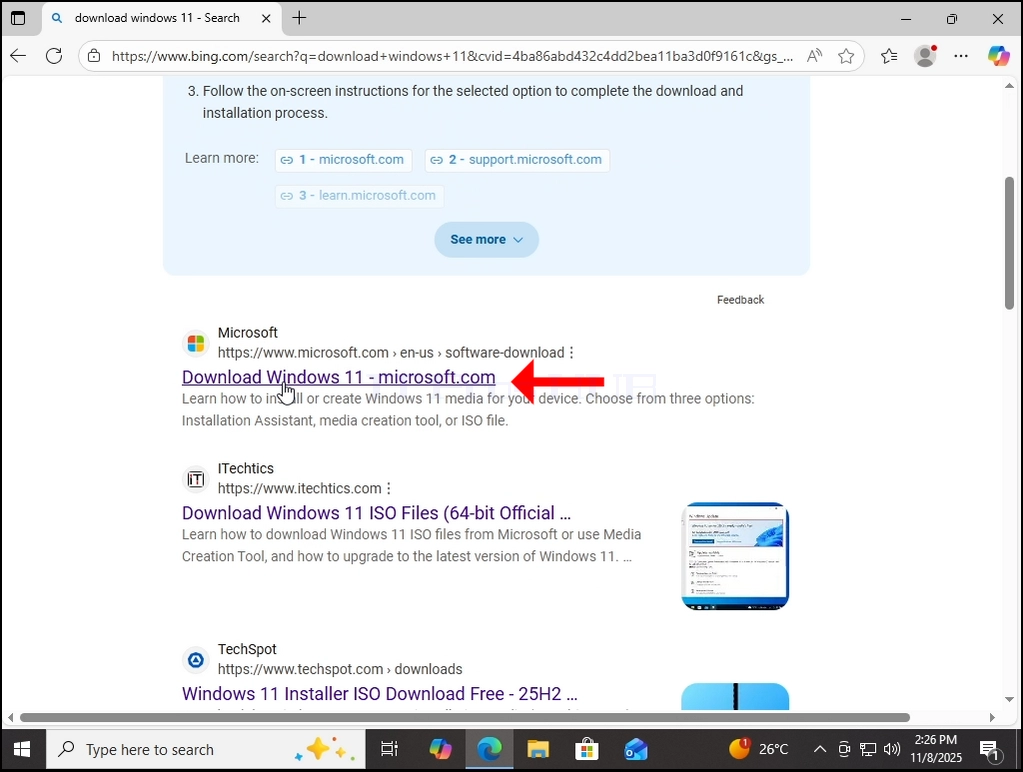
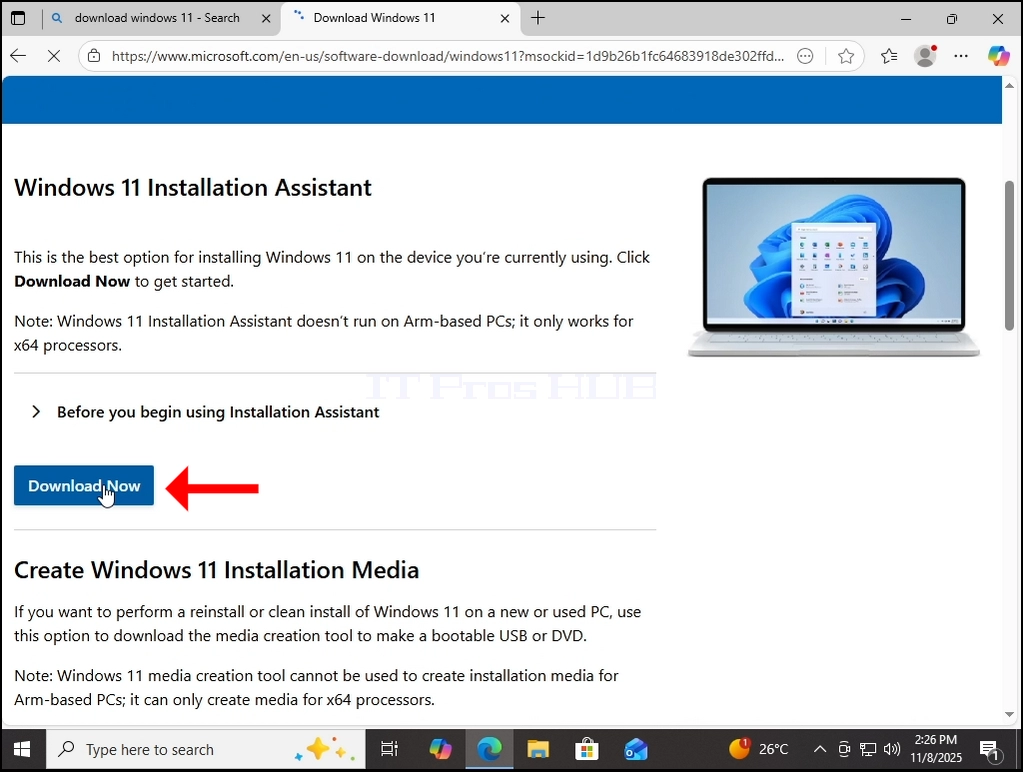
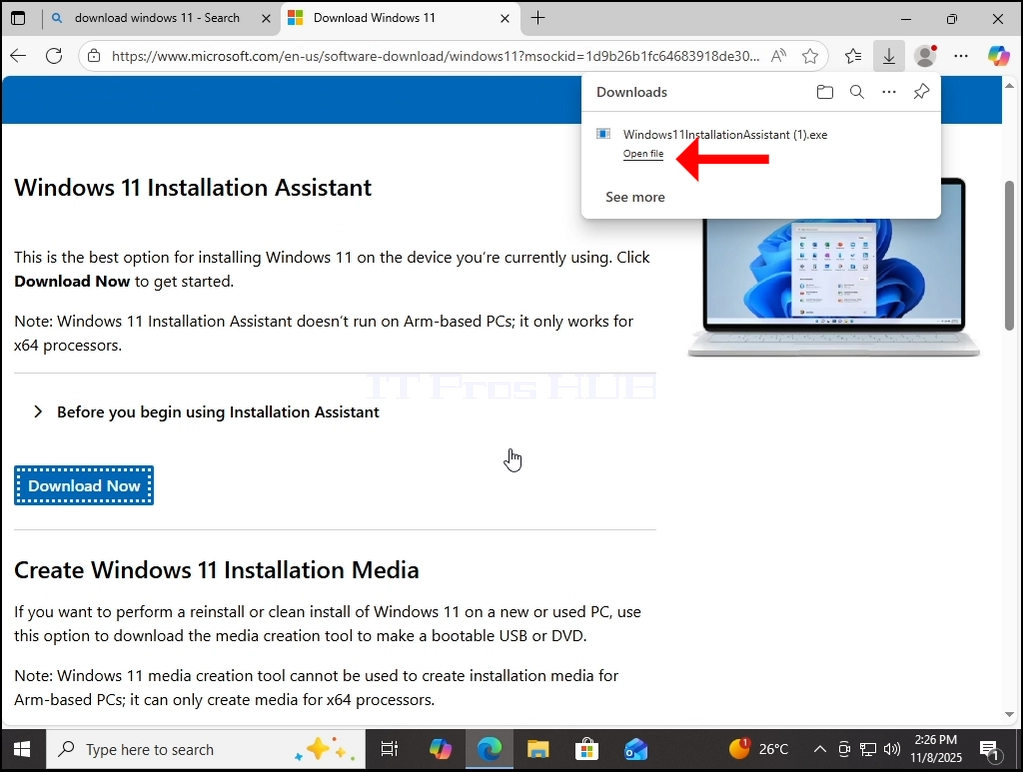
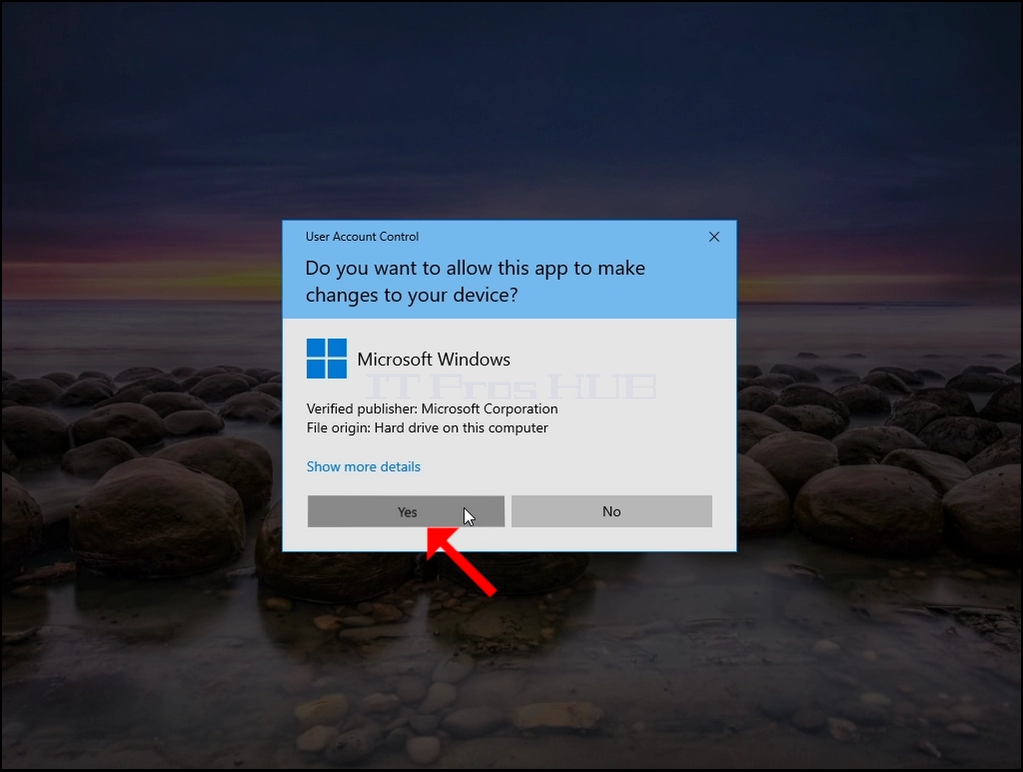
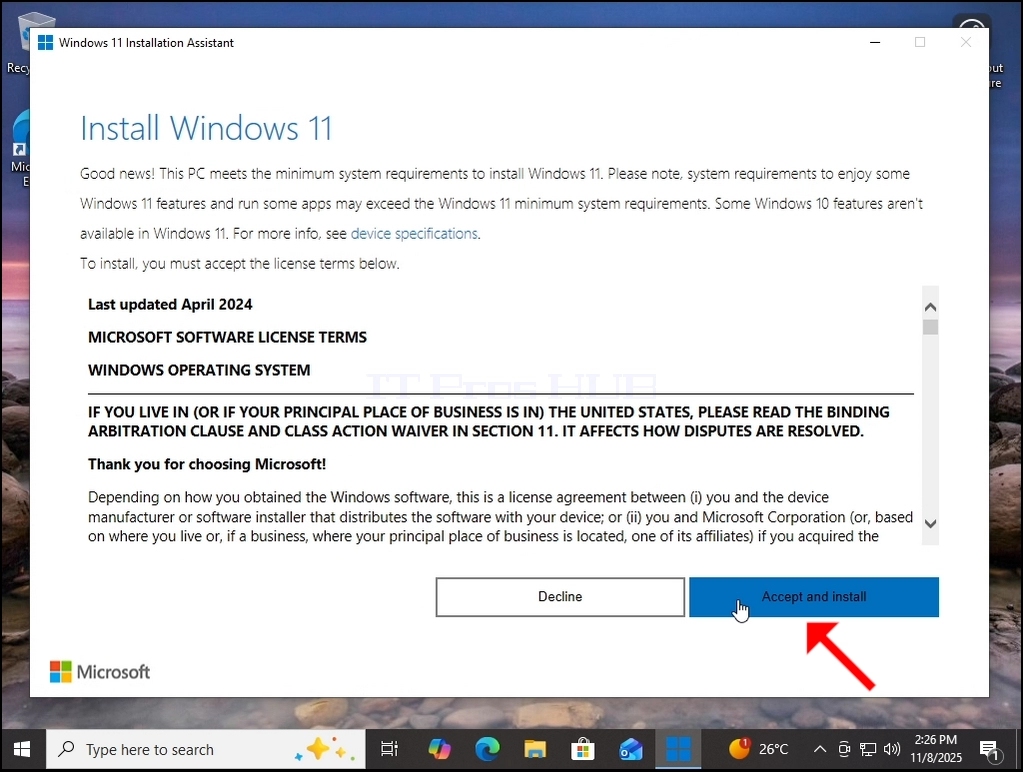
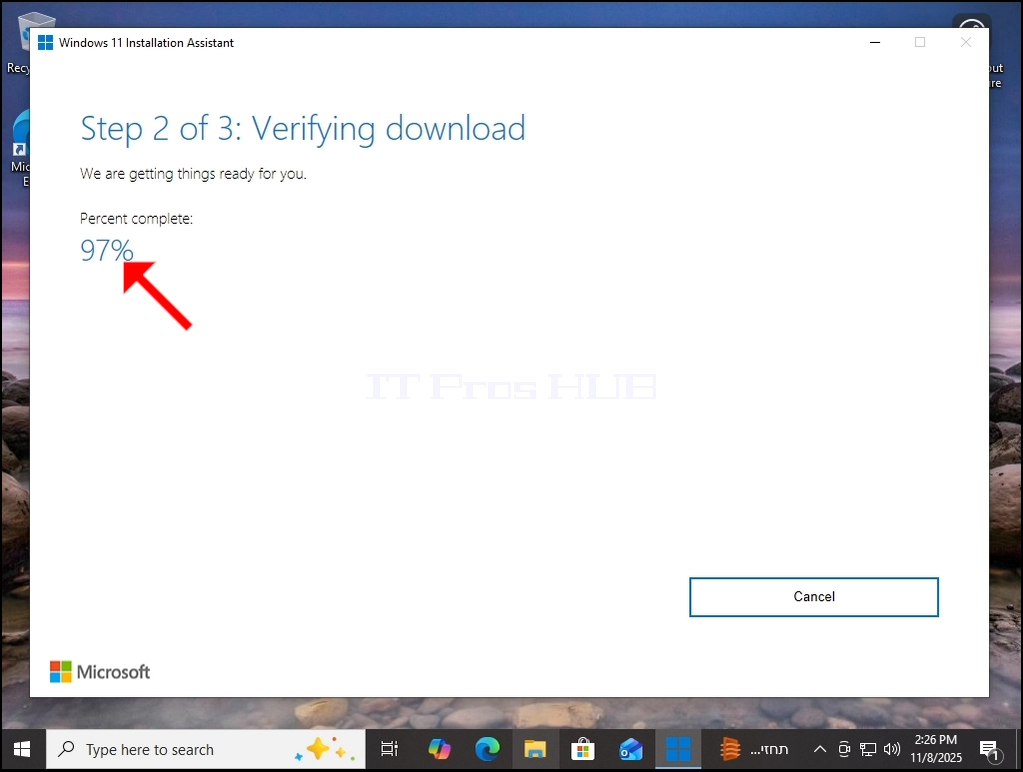
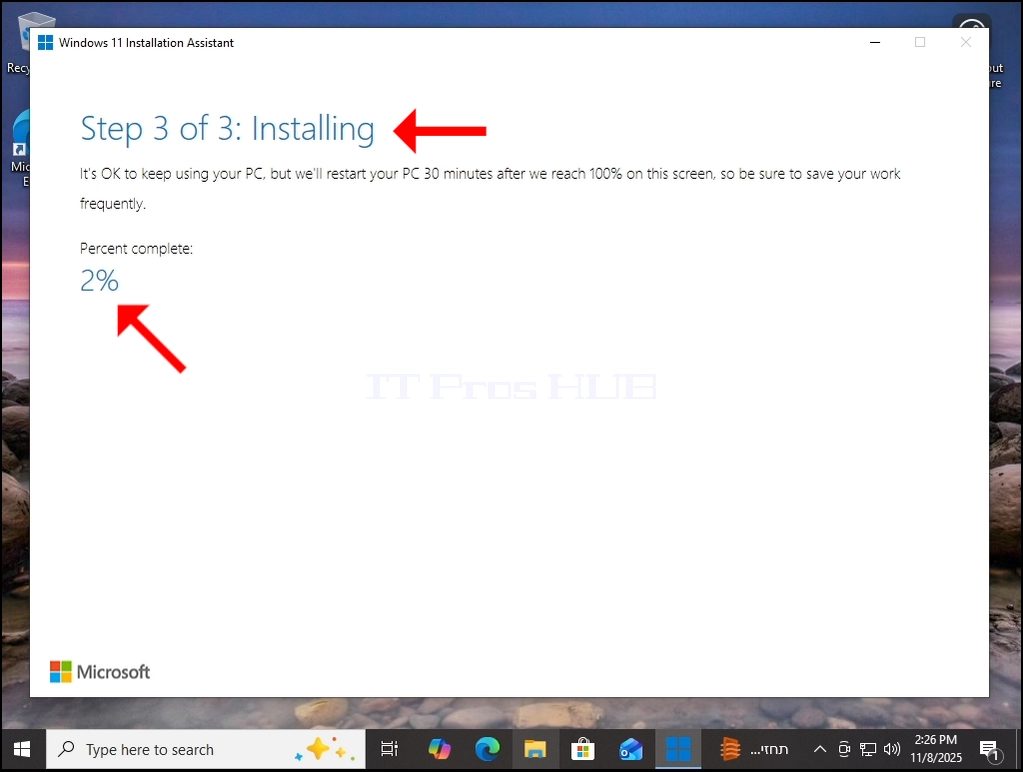
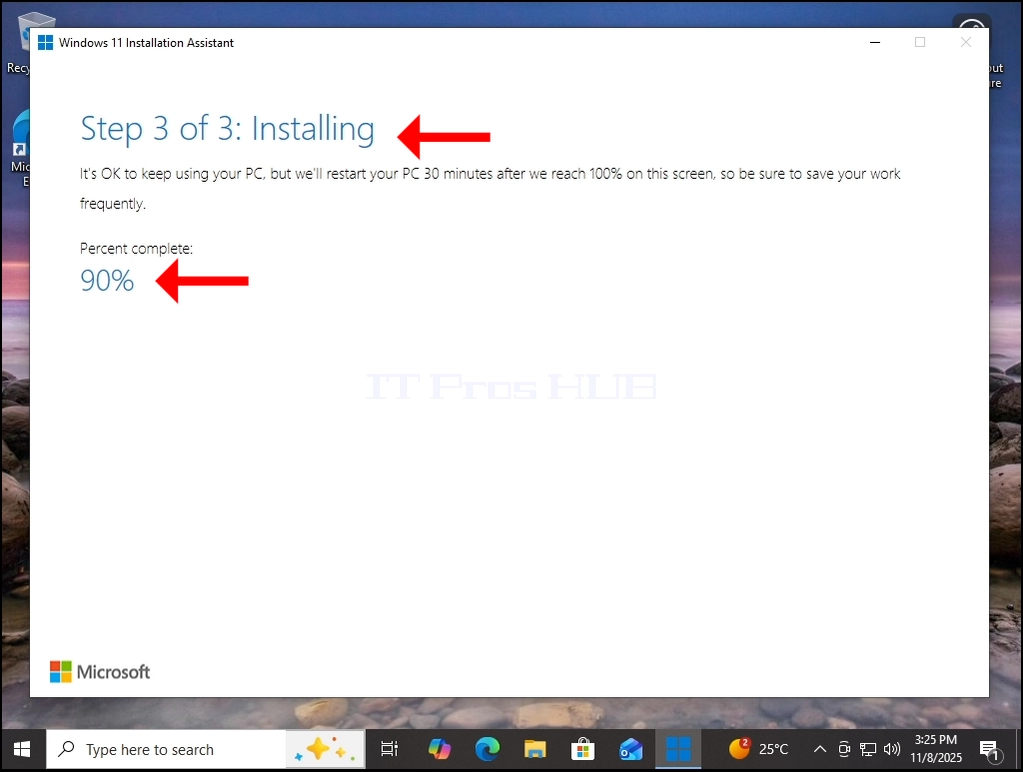
2. After the installation process is done - restart Windows.
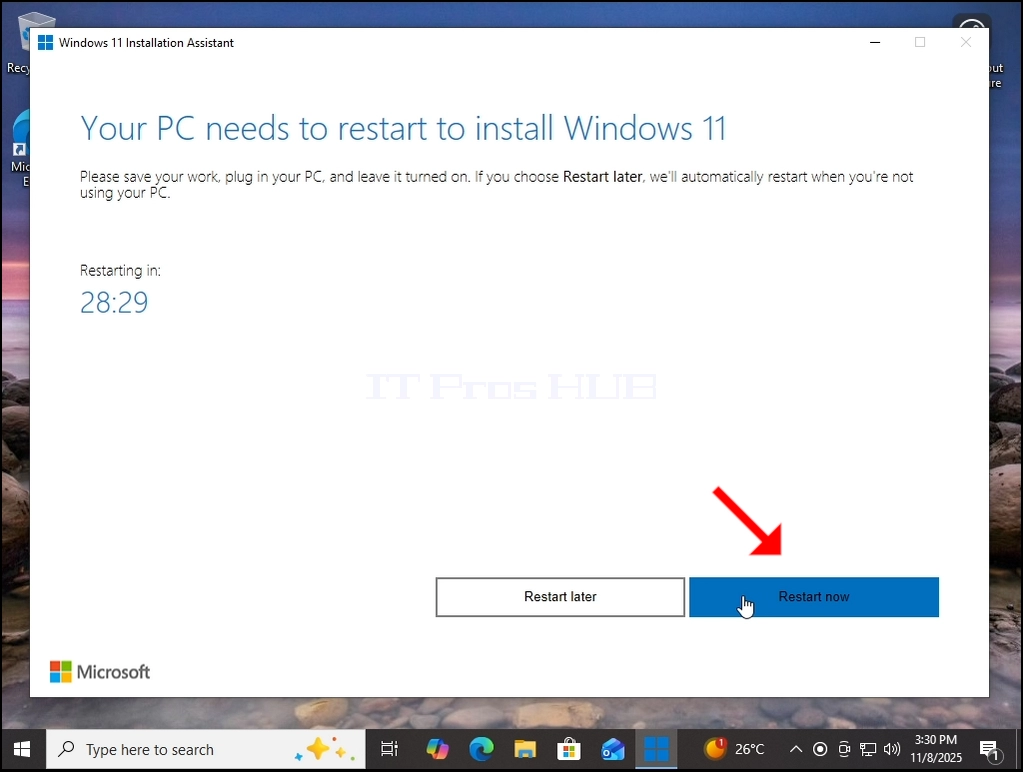
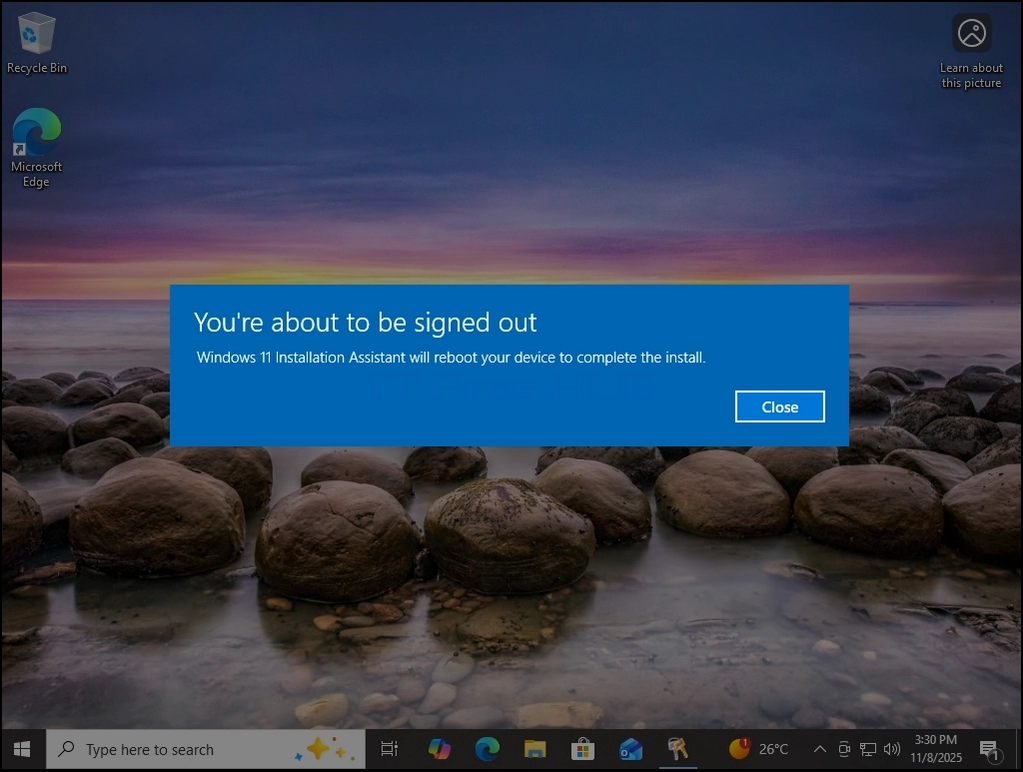

3. Windows is now reinstalled. The previous version of Windows is now stored in the Windows.old folder.

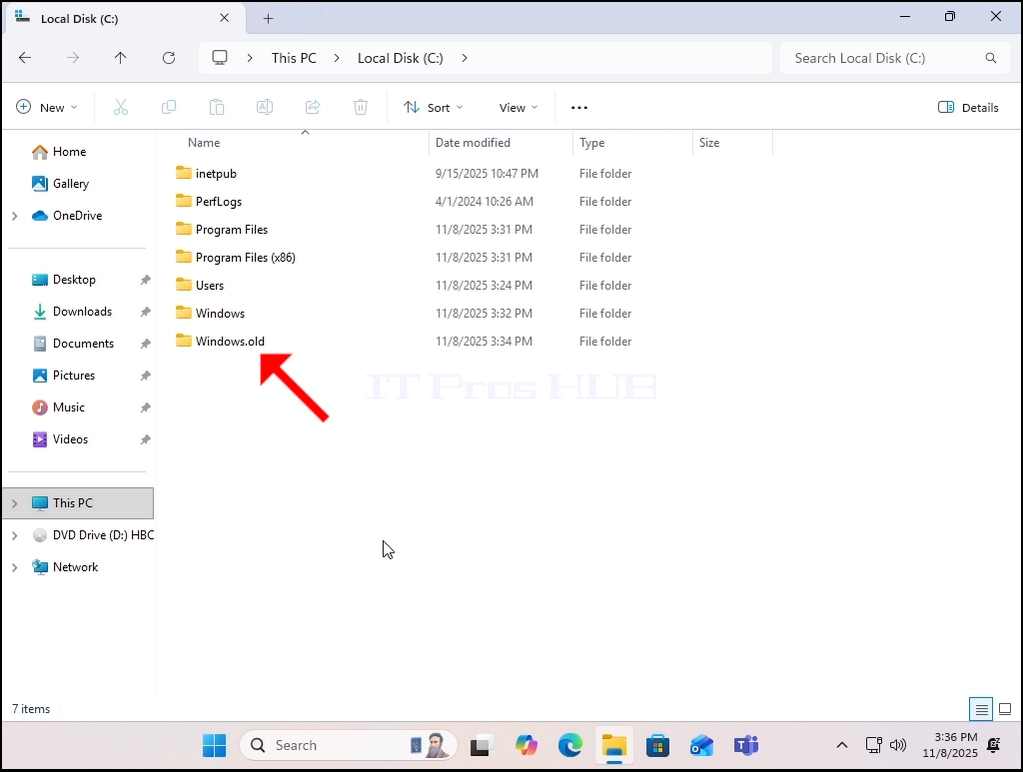
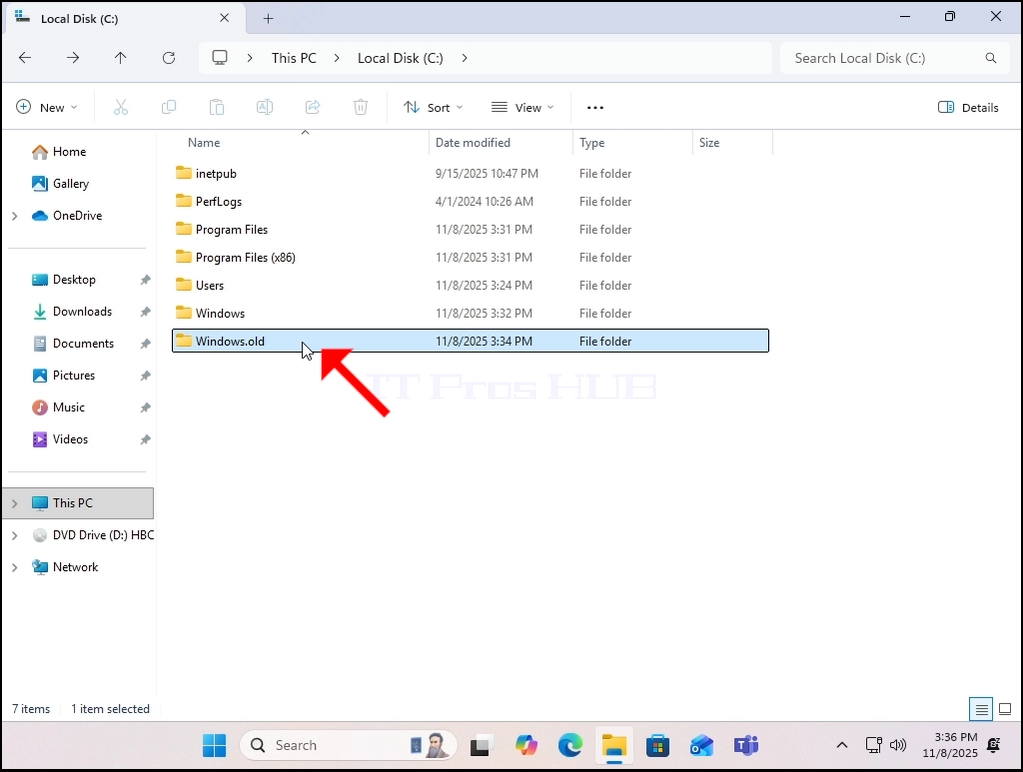
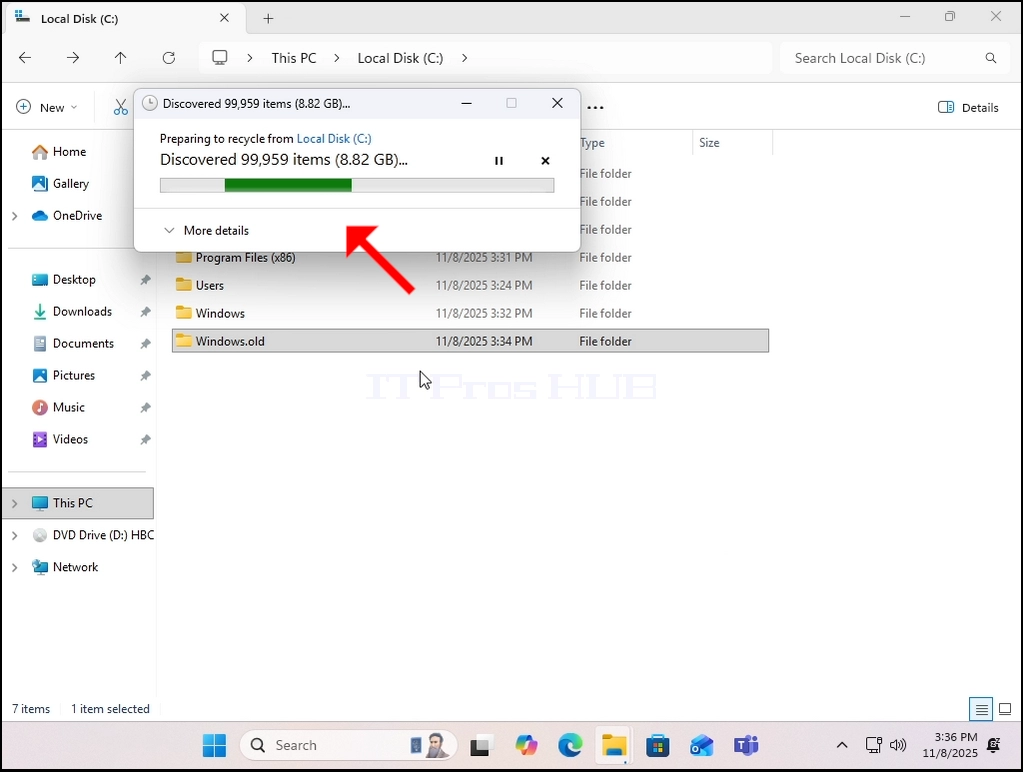
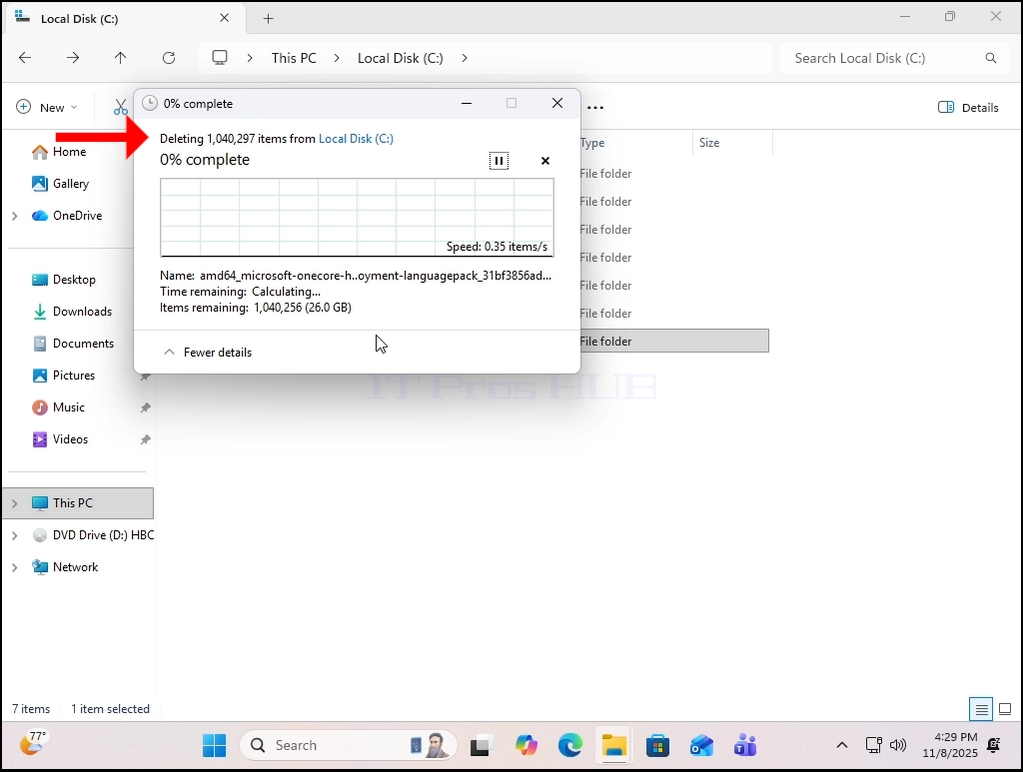
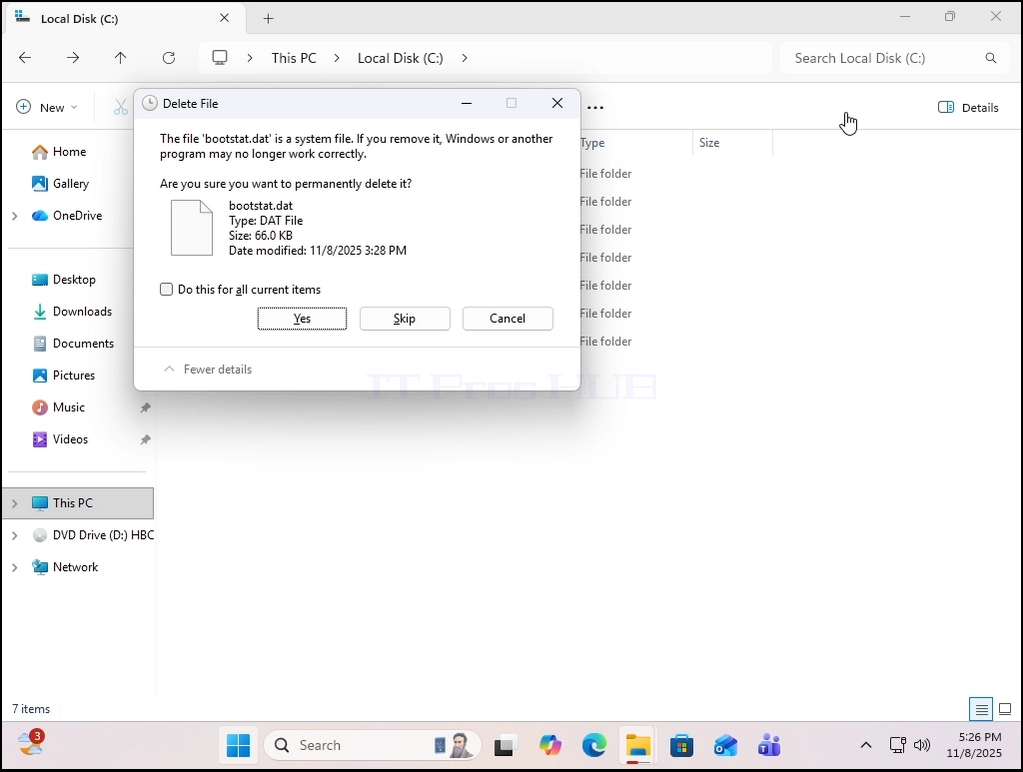
4. As you can see, deleting Windows.old folder entirely from witnin Windows is not possible in this case:
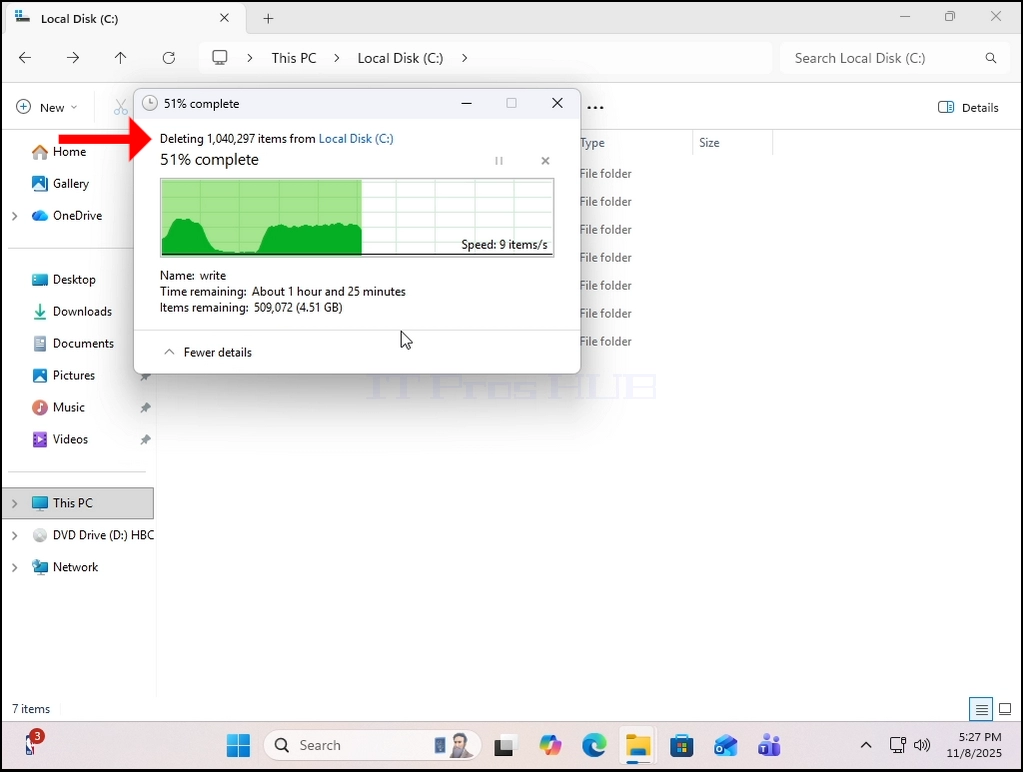
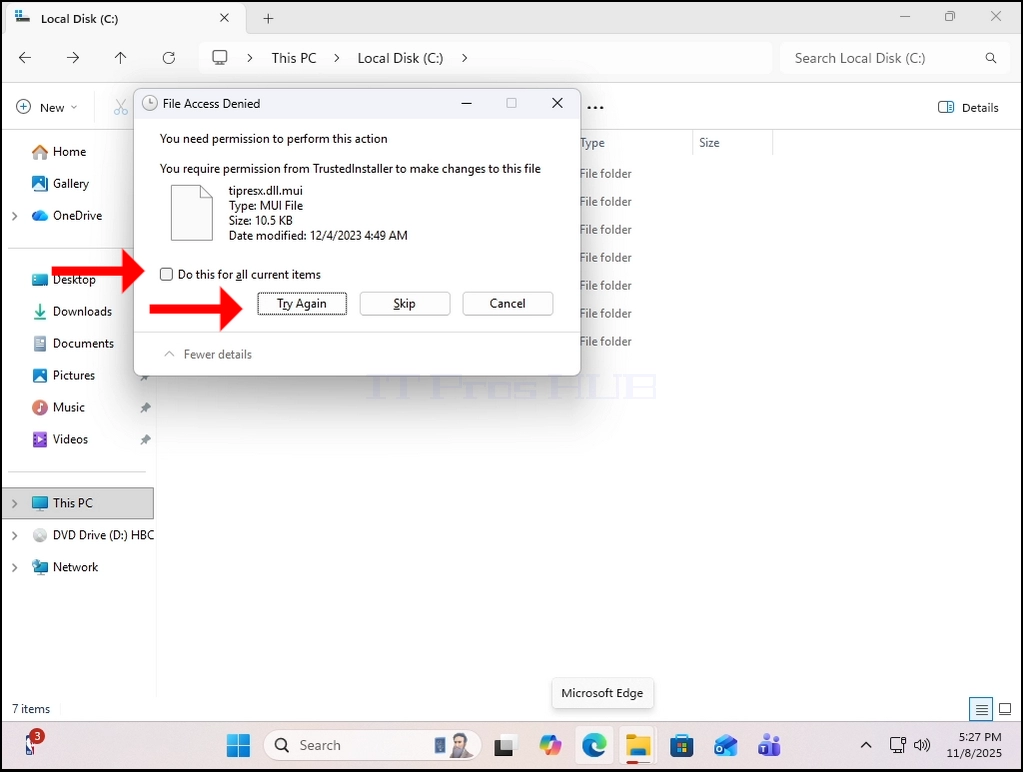
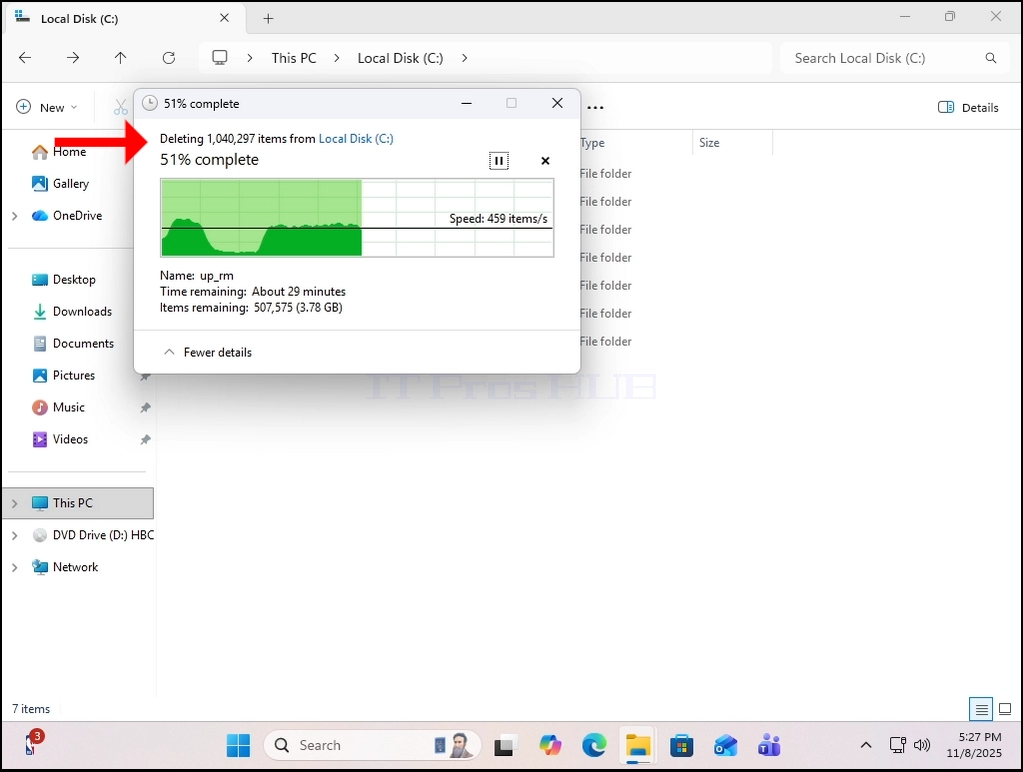
5. In order to perform that, we will have to use an offline version of Windows called Windows PE called HBCD in this case.
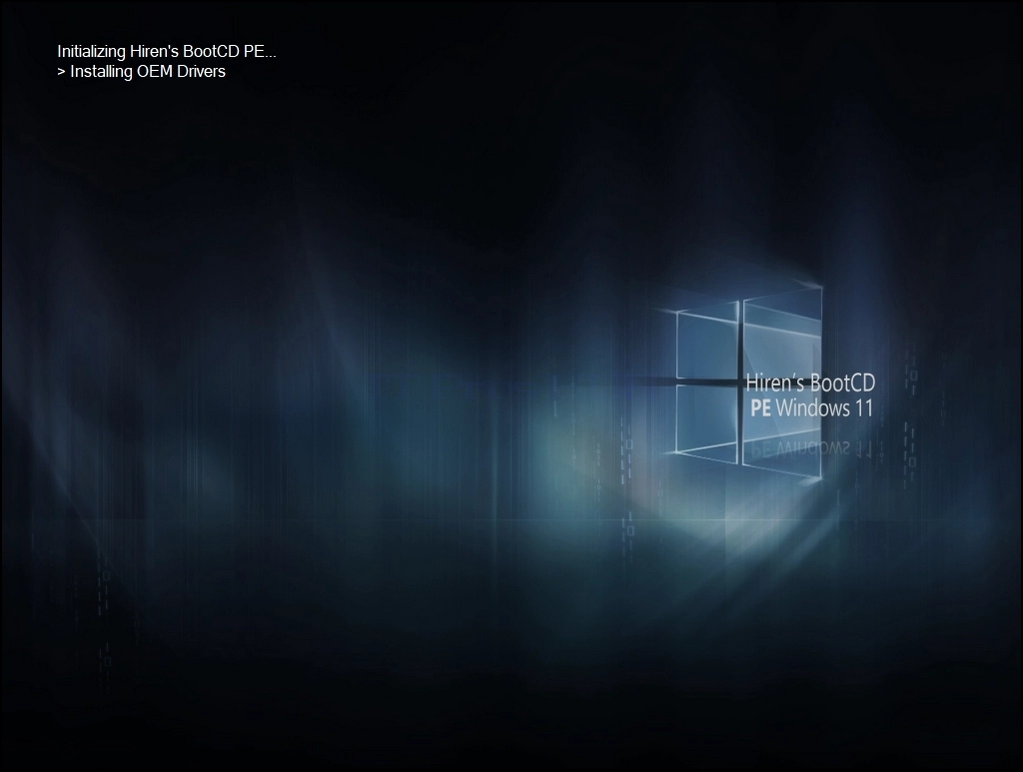
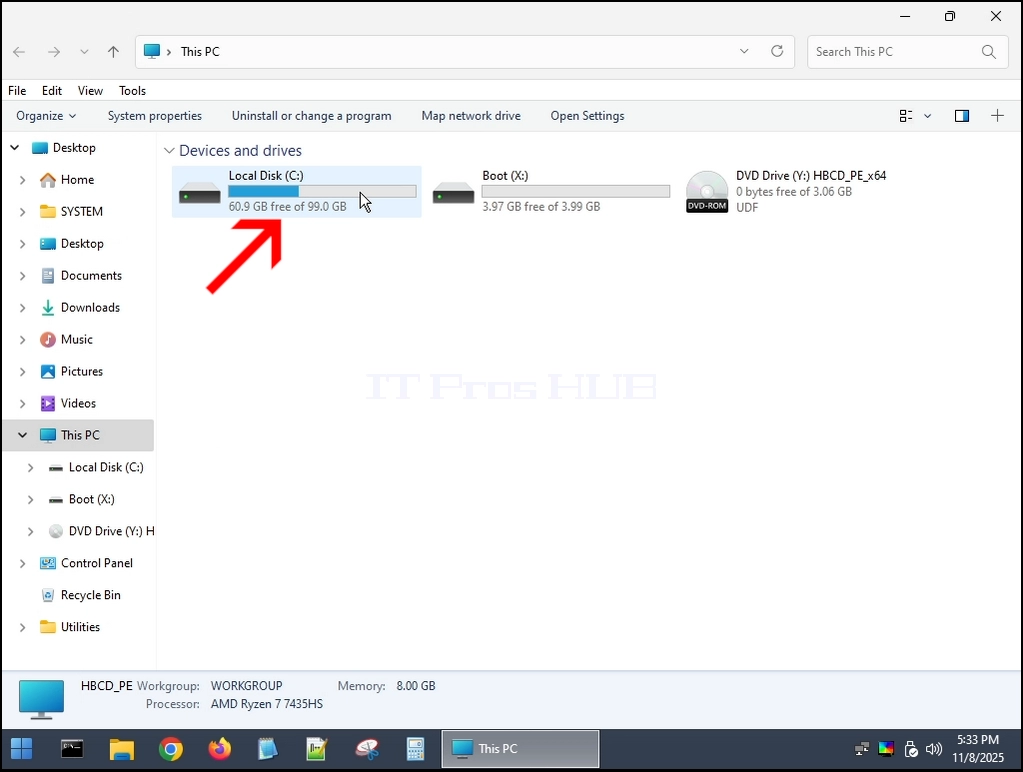
6. We will delete the Windows.old folder from within Windows PE (HBCD):
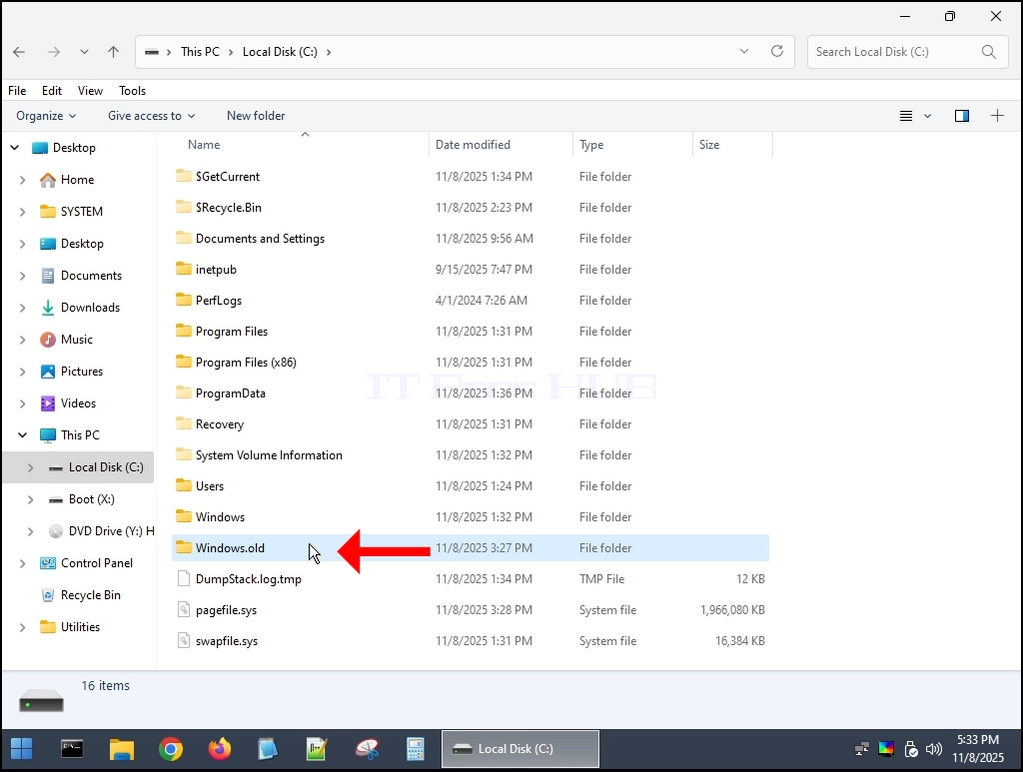
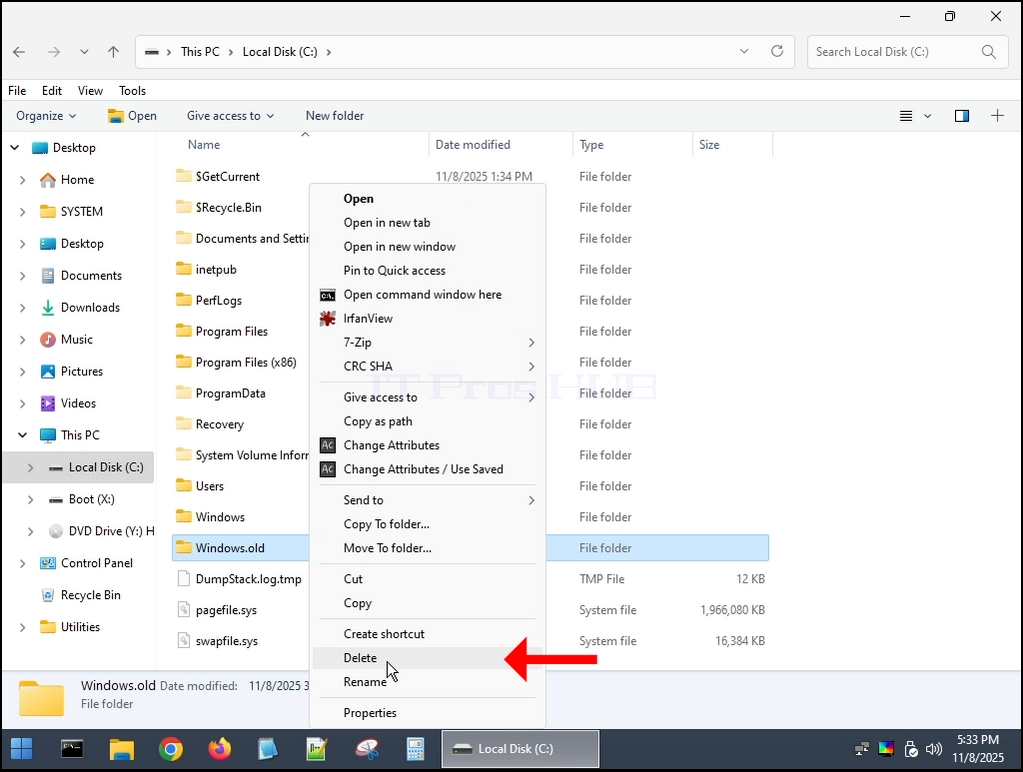
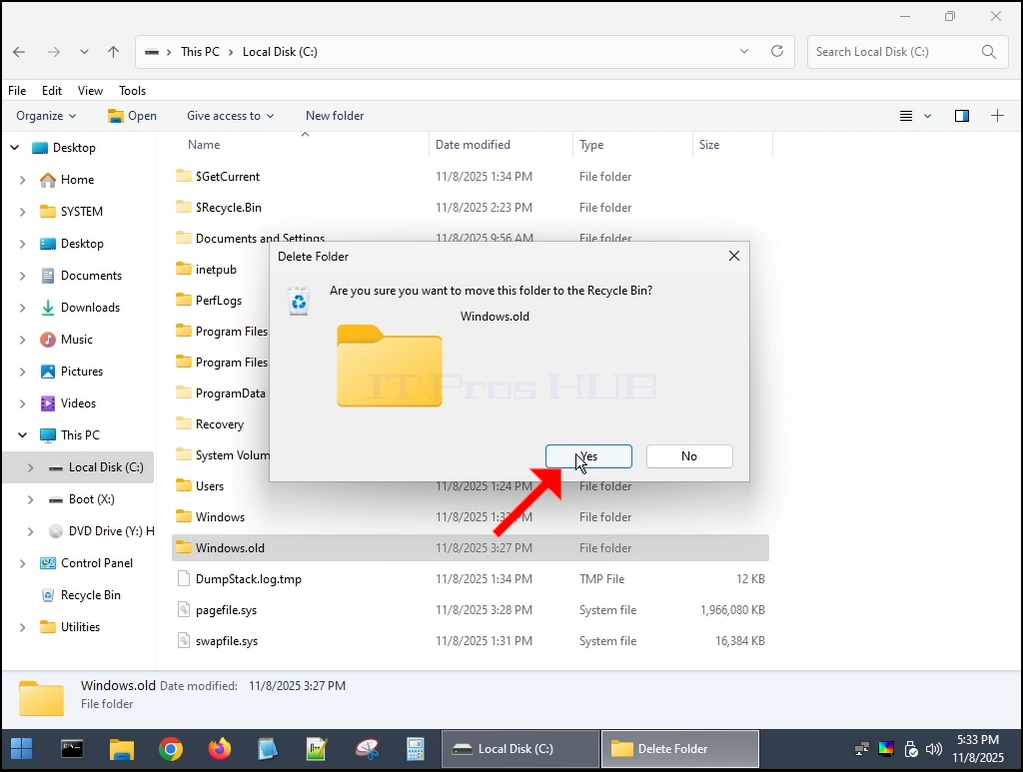
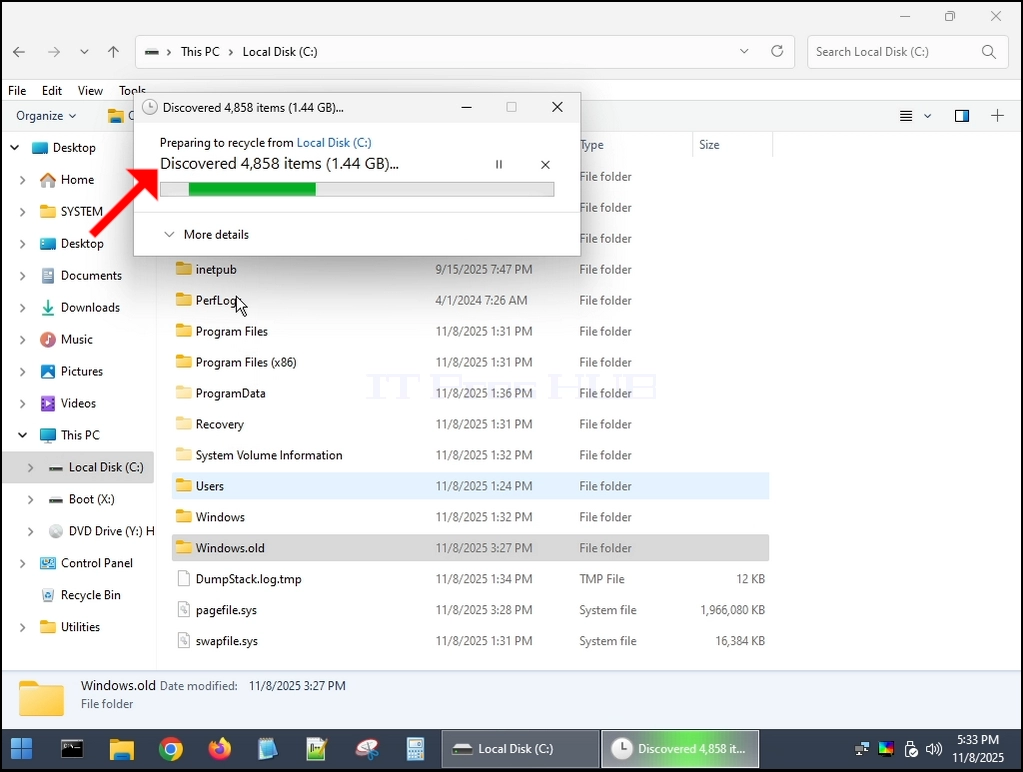
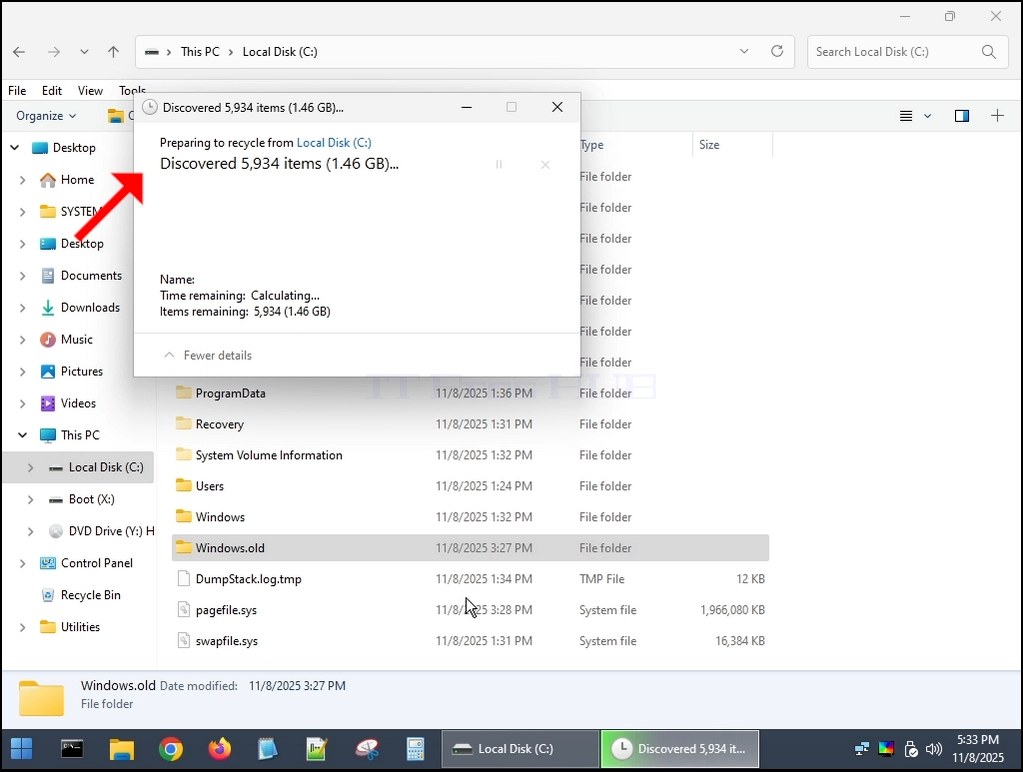
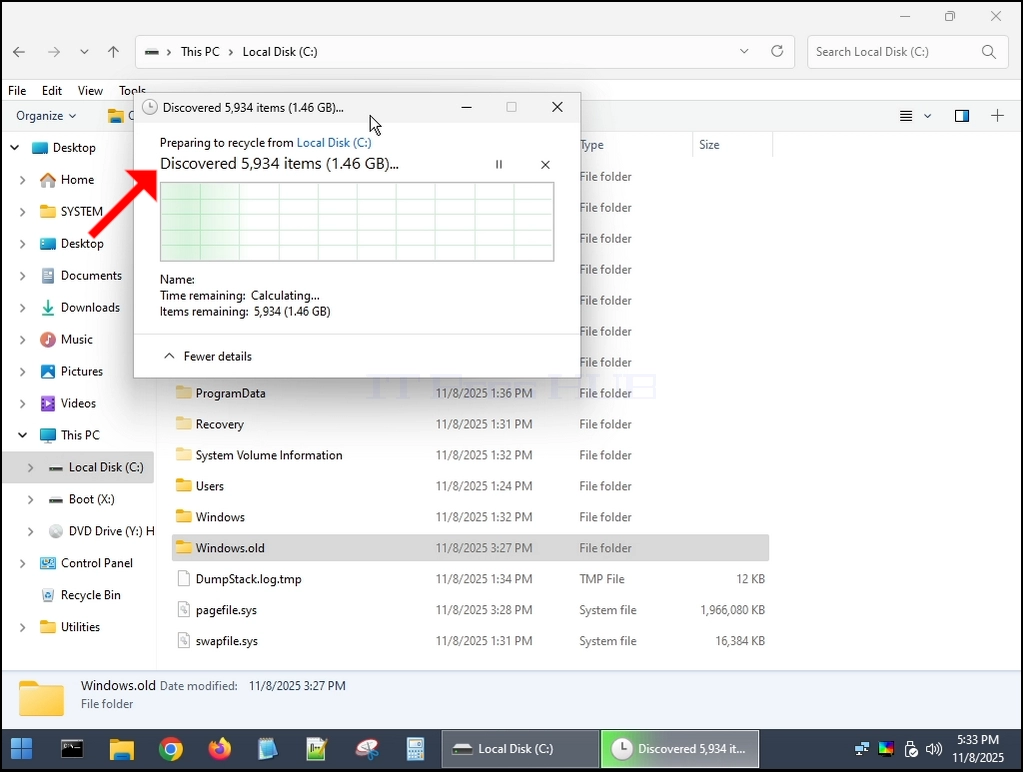
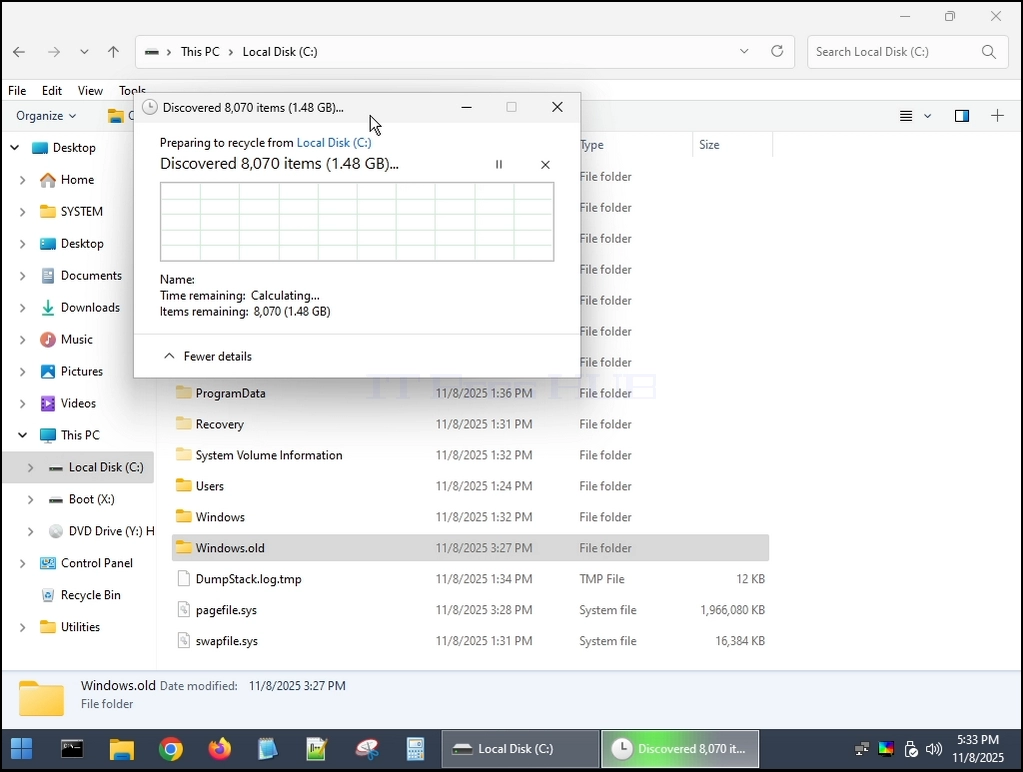
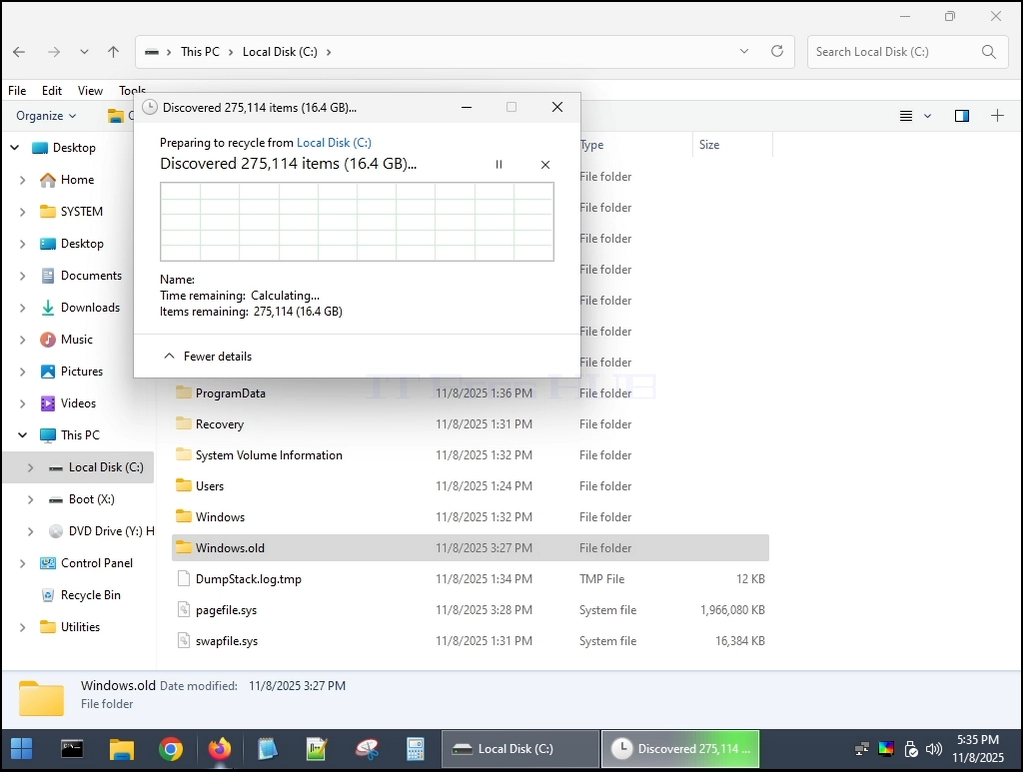
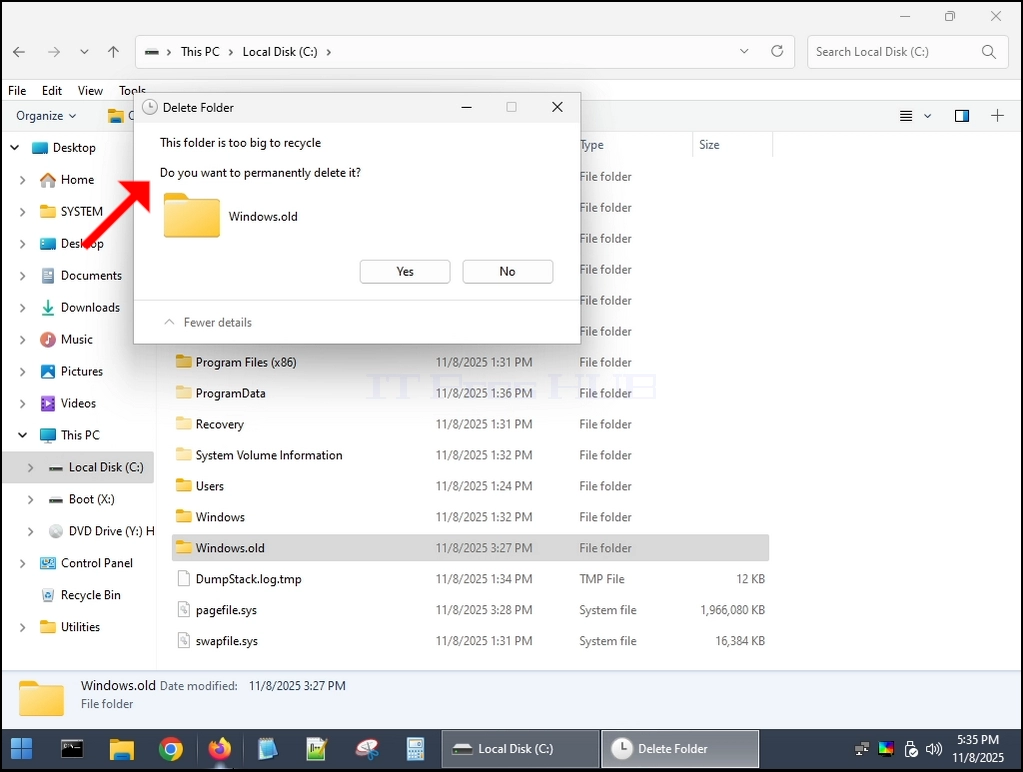
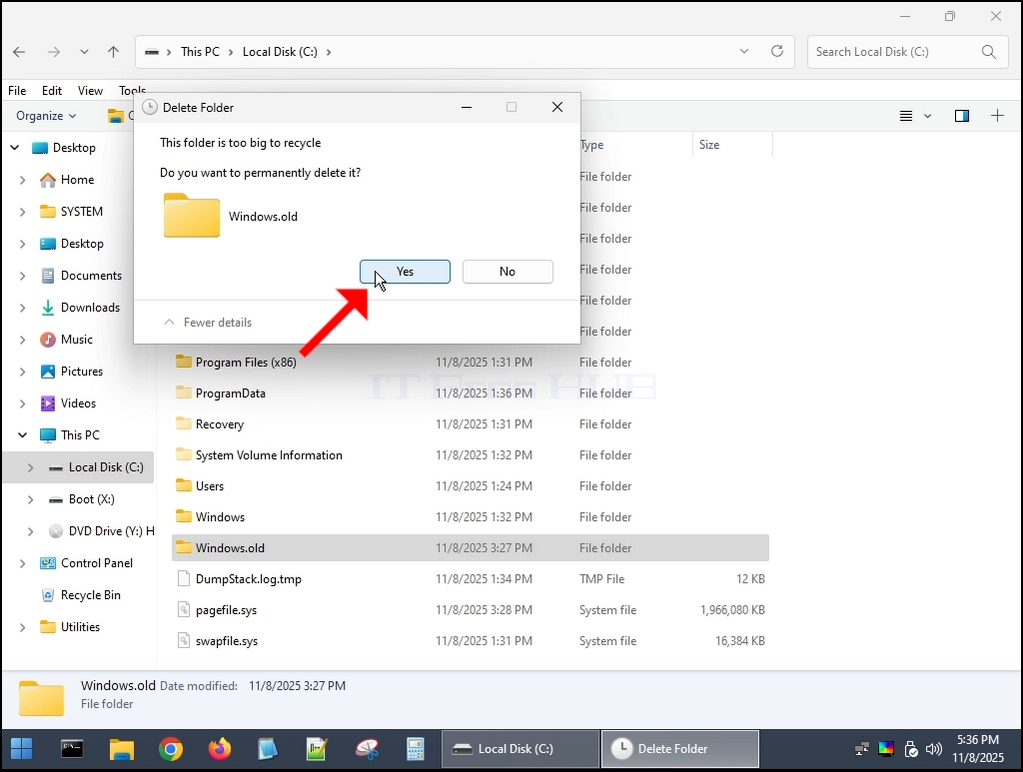
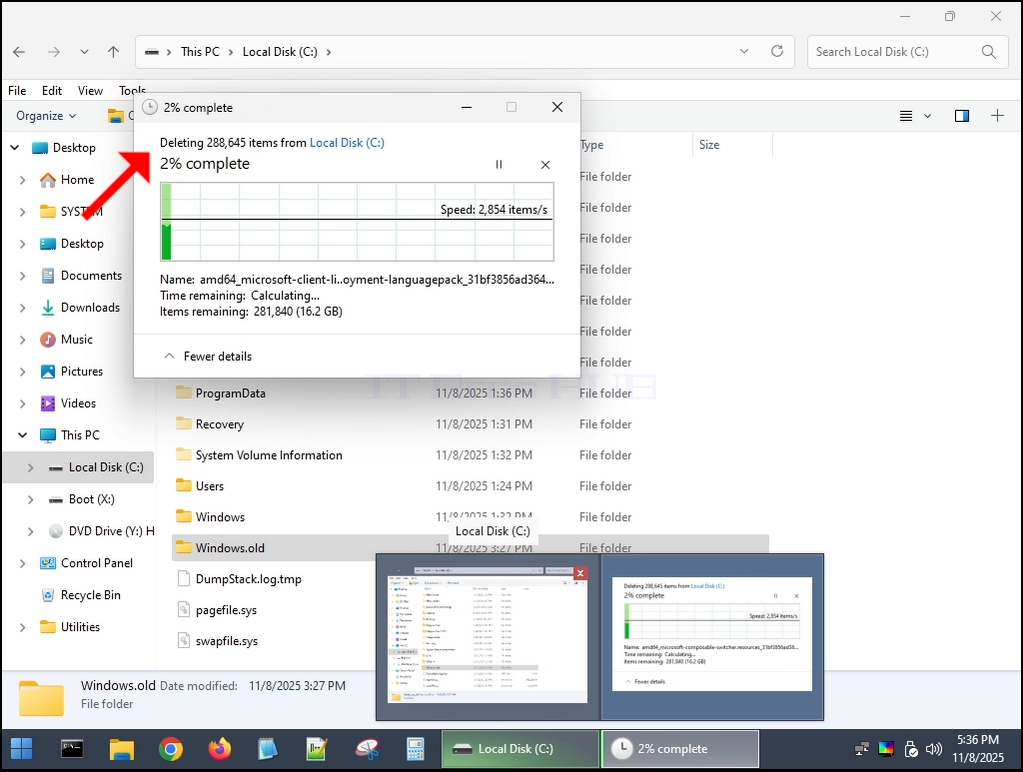
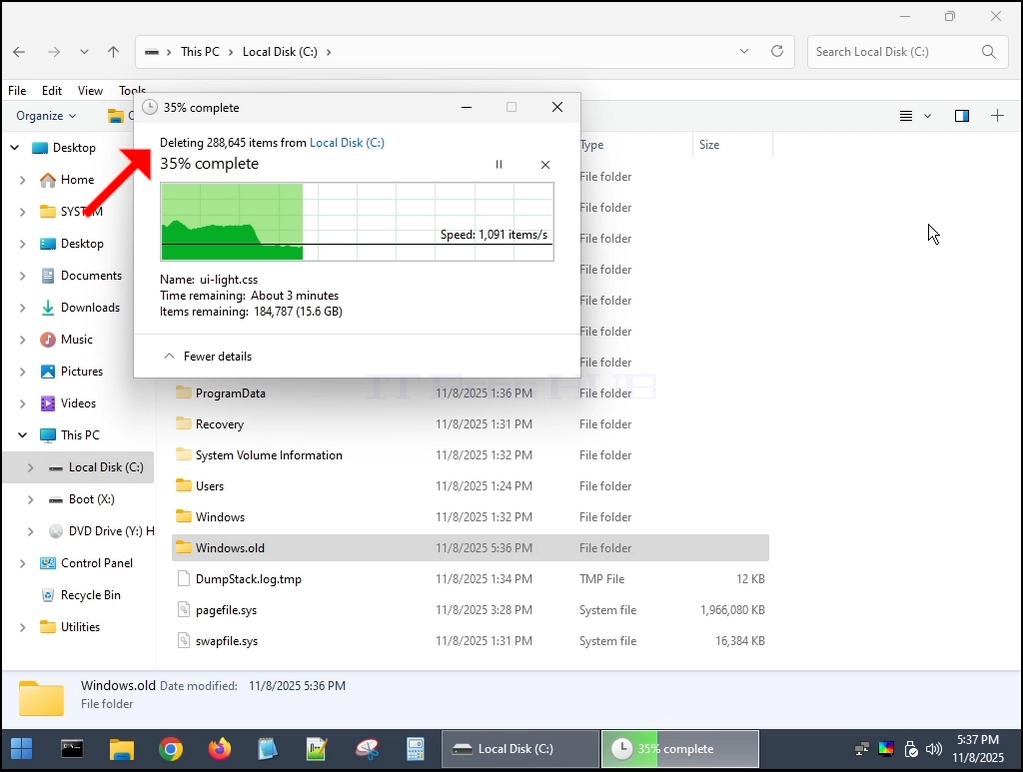
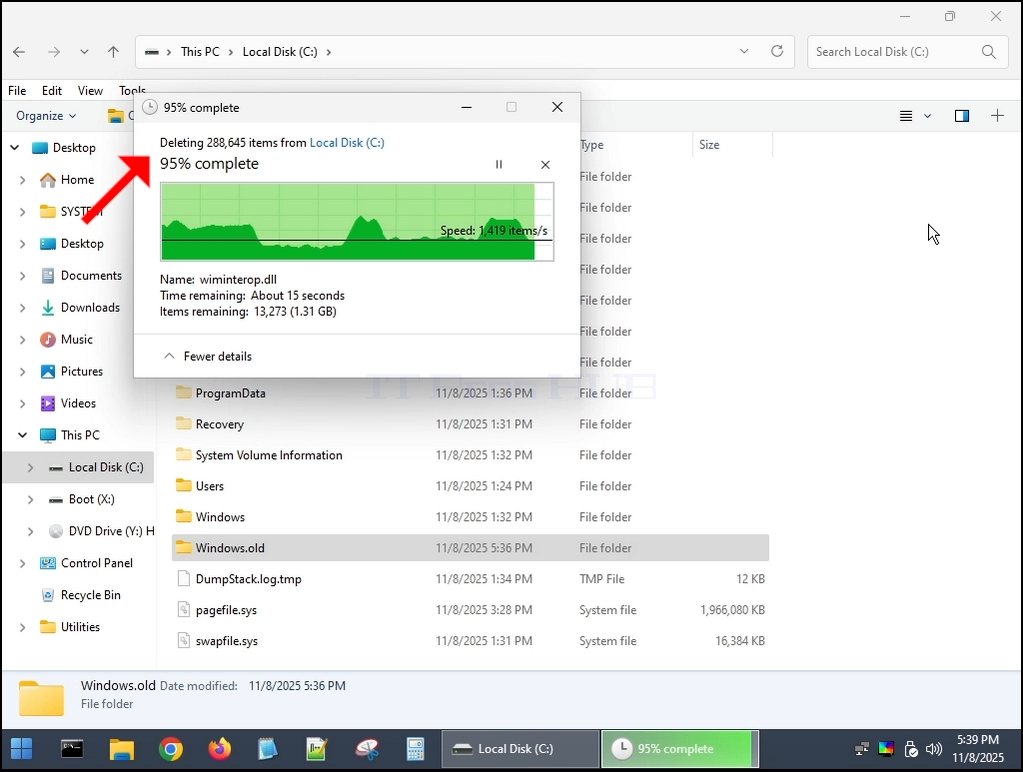
7. If any dialogs arise - Mark them as "Do this for all current items" and click on Yes
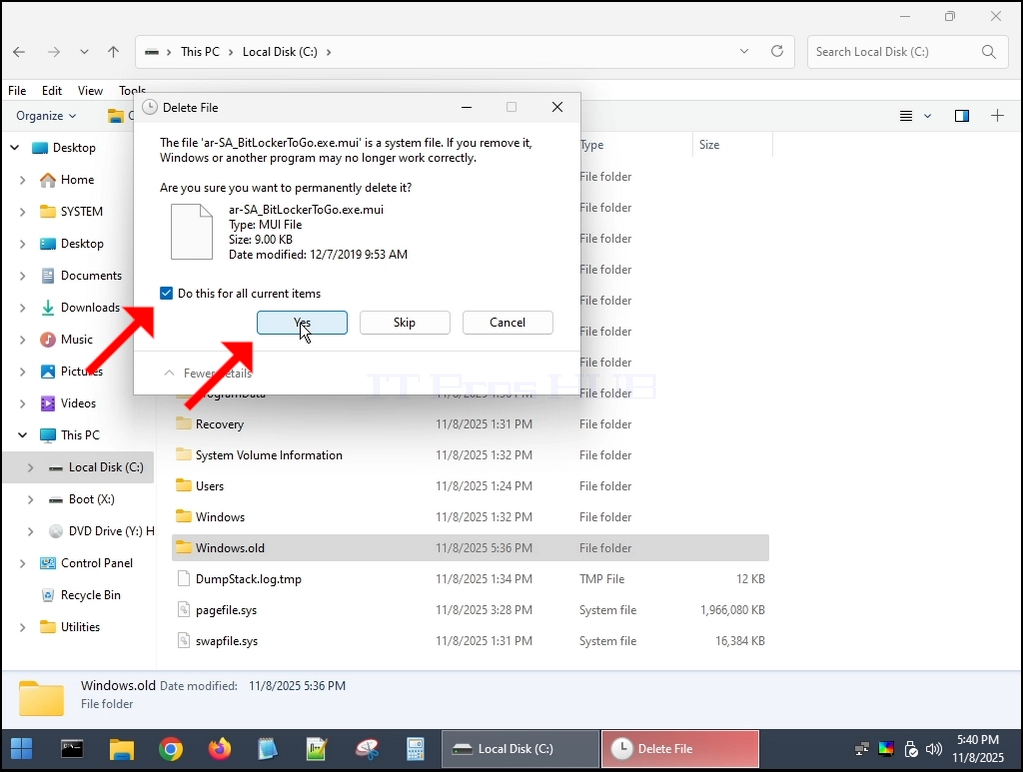
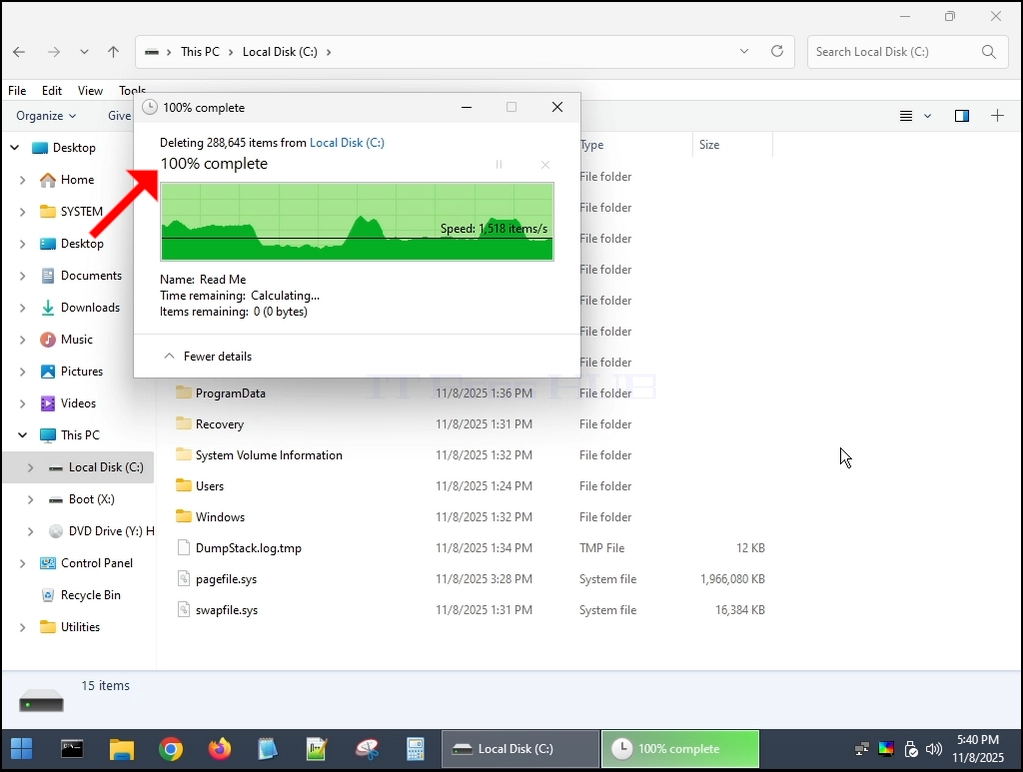
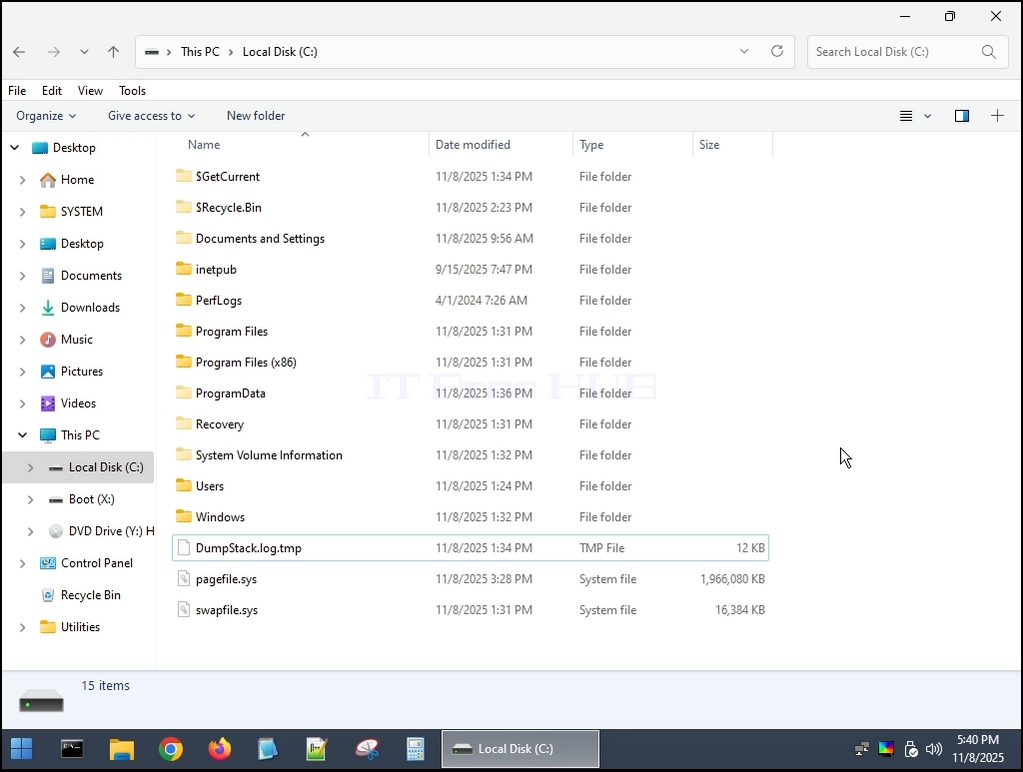
8. Windows.old folder is now completely deleted:
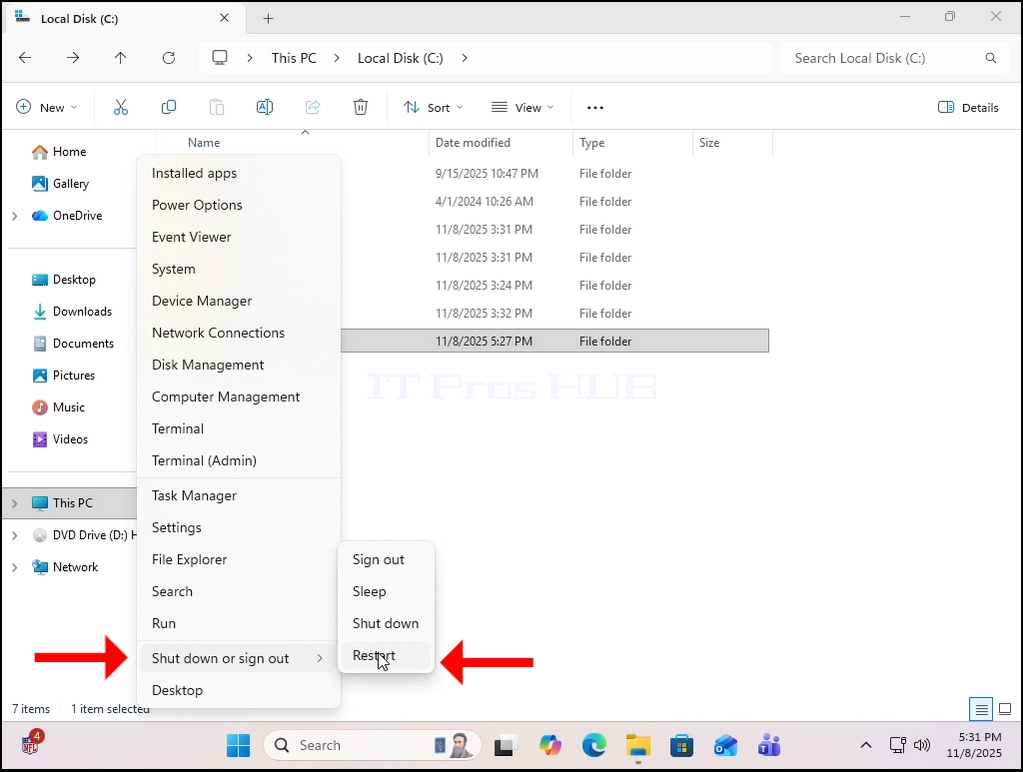
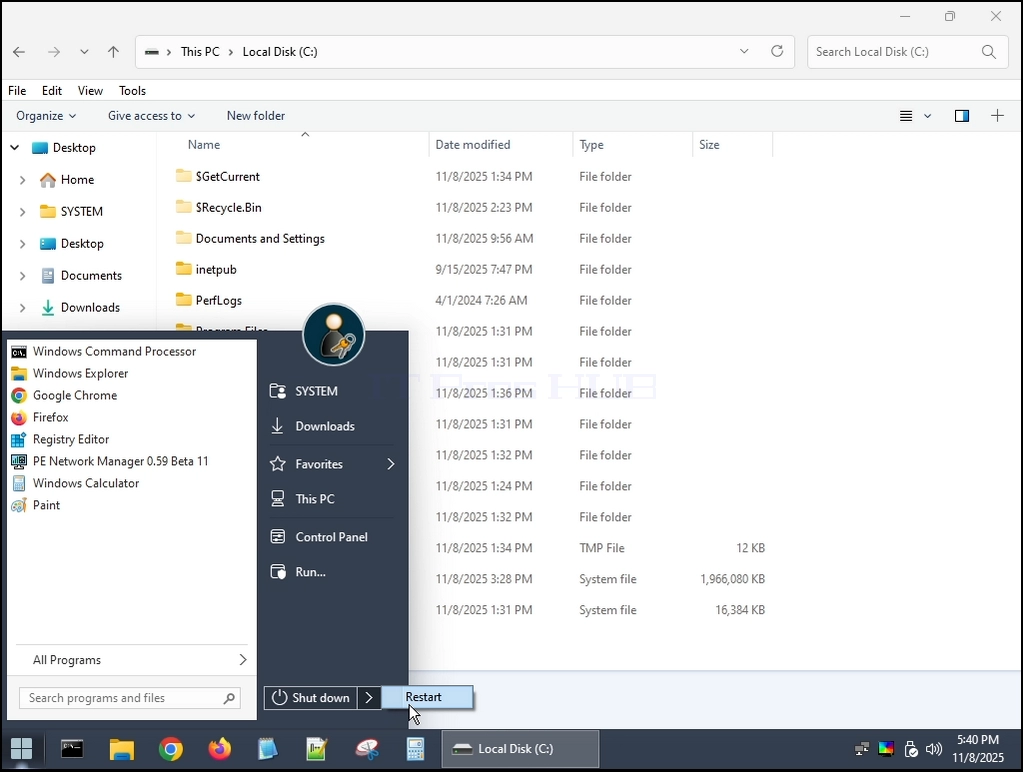
9. Rebooting back to Windows 11:
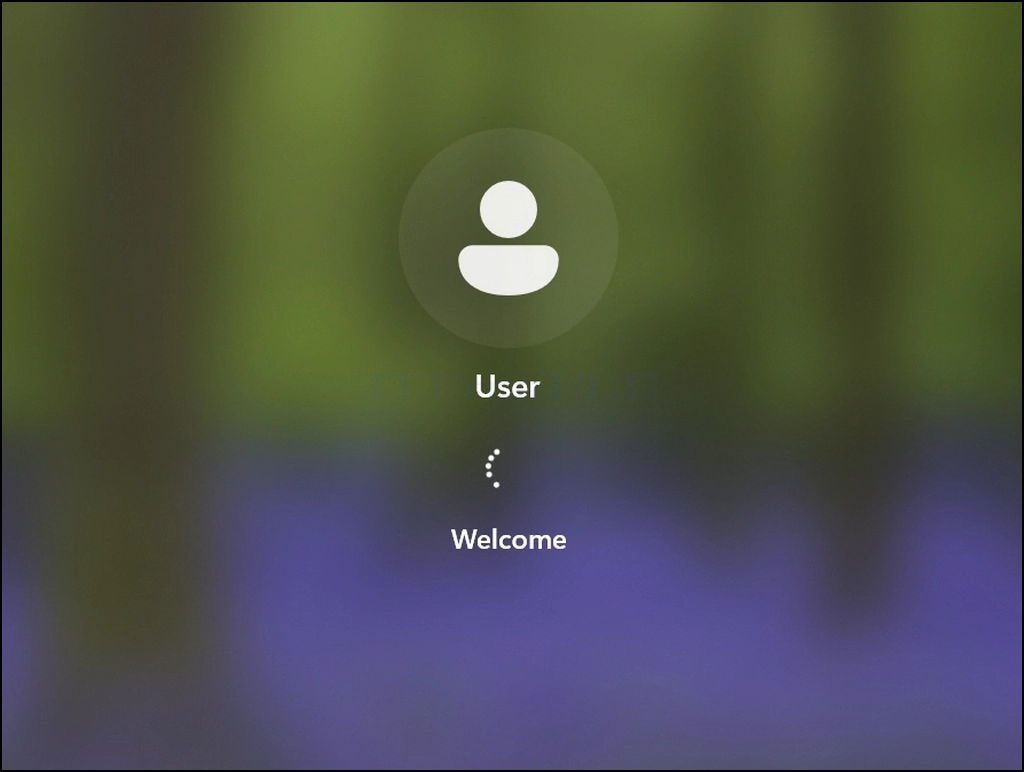
10. Windows 11 has been booted successfully.
11. Conclusion:
Windows.old folder can be deleted without concequences regarding Windows 11's boot up.
- Details
- Written by: IT Pro
- Category: Windows
- Hits: 10113
Introduction:
In this article we will answer the title’s very simple question whether Windows 11 could run in a computer that has no TPM chip at all.
Short Answer – Yes.
How? – By not installing it on it at all, but by forcing Windows onto it.
Let us explain with a long answer:
- We have tested Windows 11 24H2 and 25H1 on a VM that has a TPM 2.0 chip. A virtual one of course, but based on a real physical bare metal one
- 24H2 was installed on that VM with the TPM 2.0 chip already there – after the installation was done – we shut down that VM, removed the TPM 2.0 chip from the VMWARE and powered it back up – Windows started up normally.
- Later-on, we updated from 24H2 to 25H1 – same result. Windows worked fine.
- After that we tried installing Windows 11 24H2 on that very same VM, without a TPM – it did not work. Windows refused to be installed on that VM that had no TPM chip.
In the following steps we will demonstrate how we conducted our experiment:
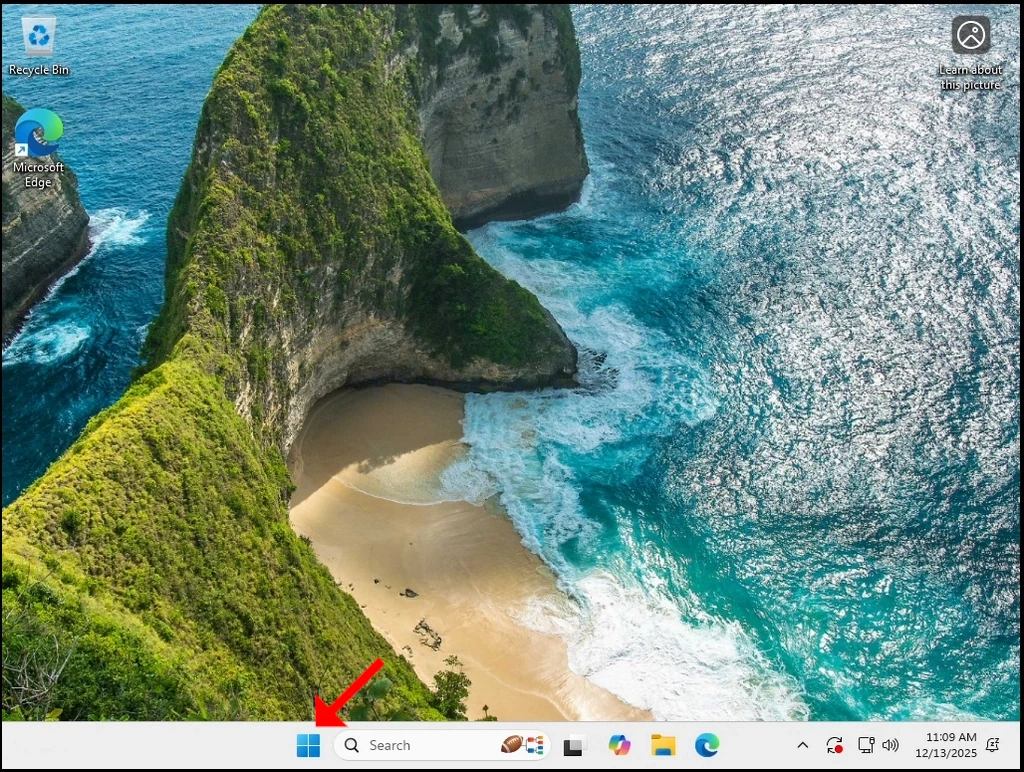
1. First let’s go and check Windows’ version by going to the Start menu and typing winver and hitting the ENTER key.
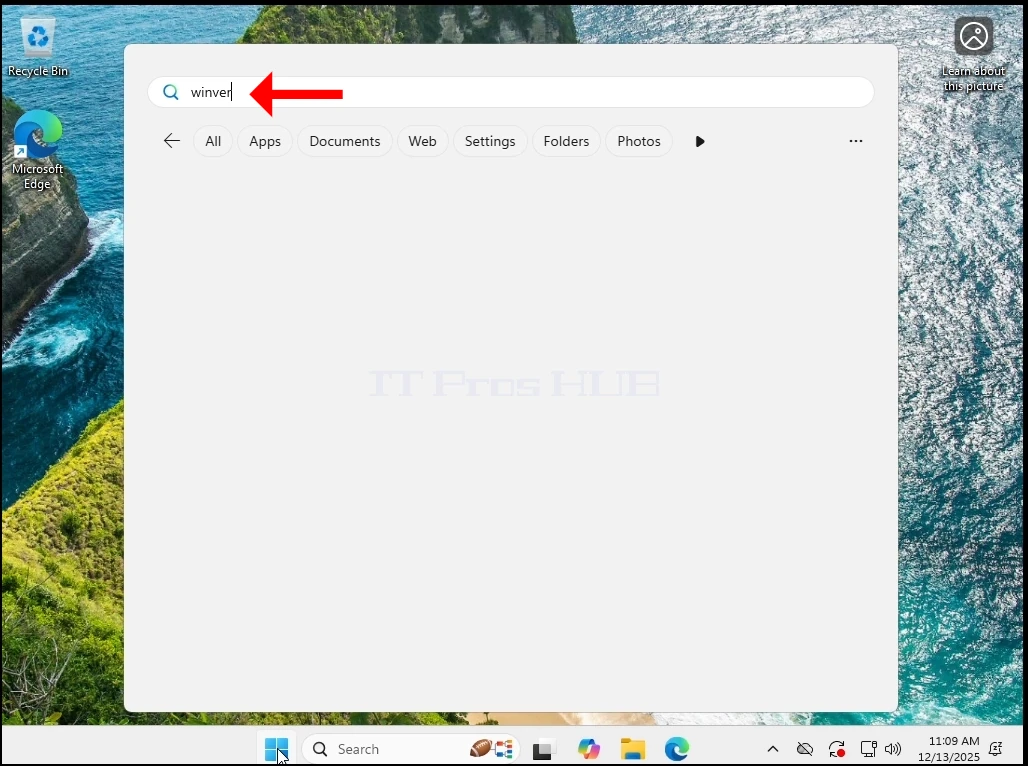
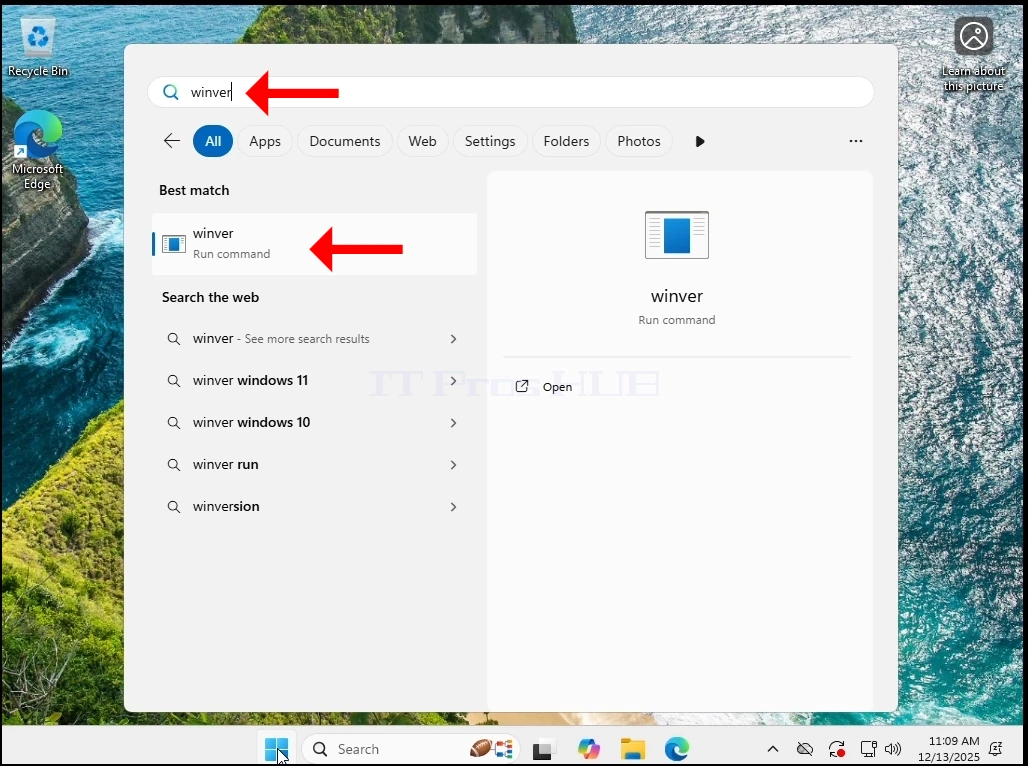
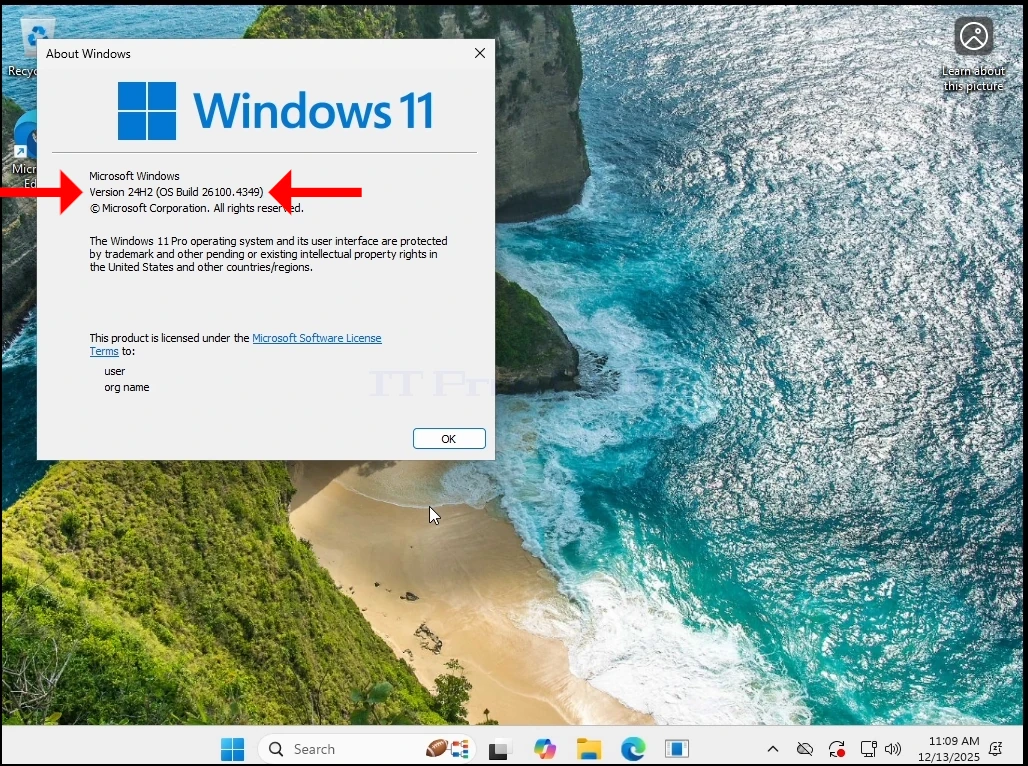
2. As you can see, the current version is 24H2
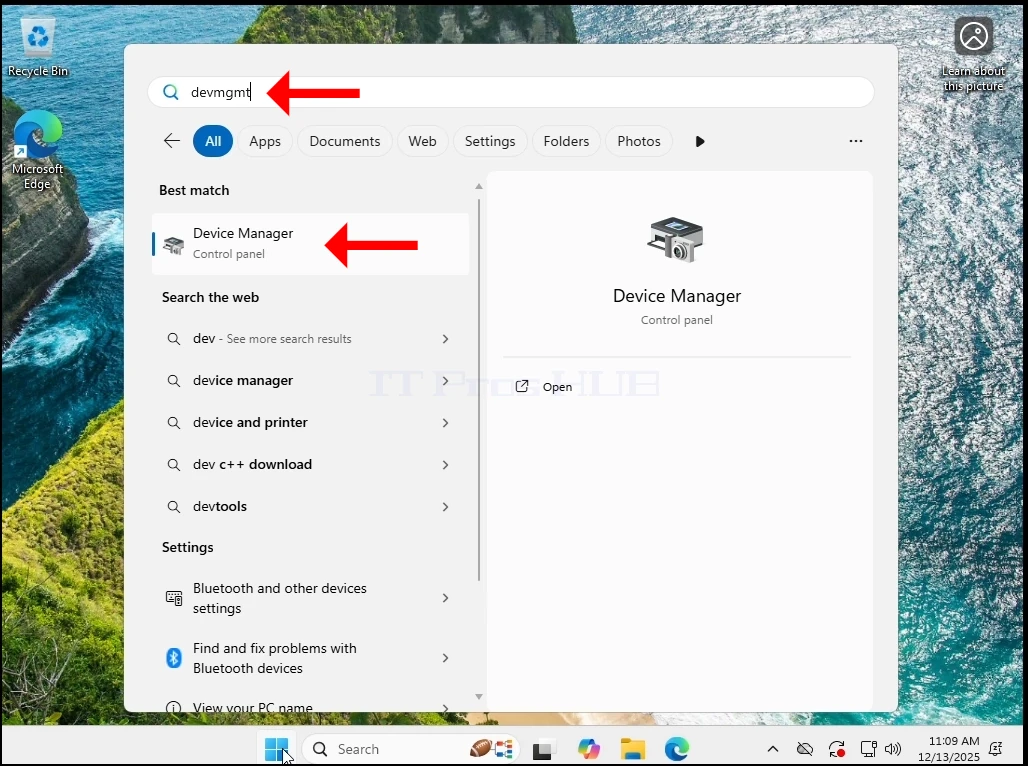
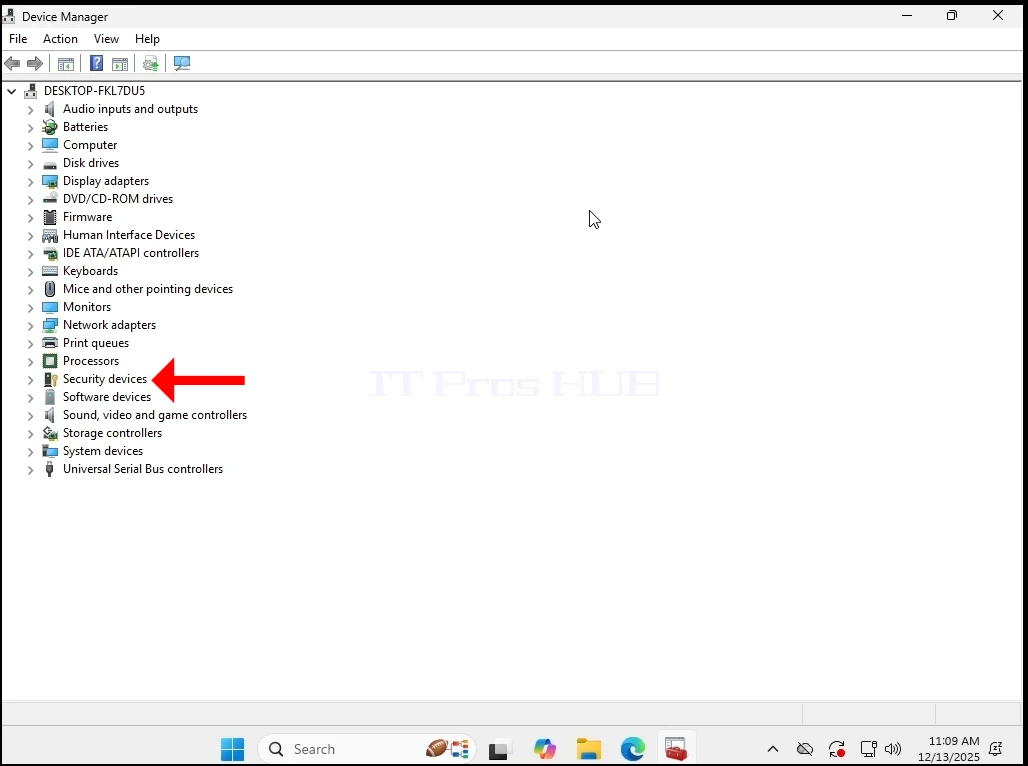
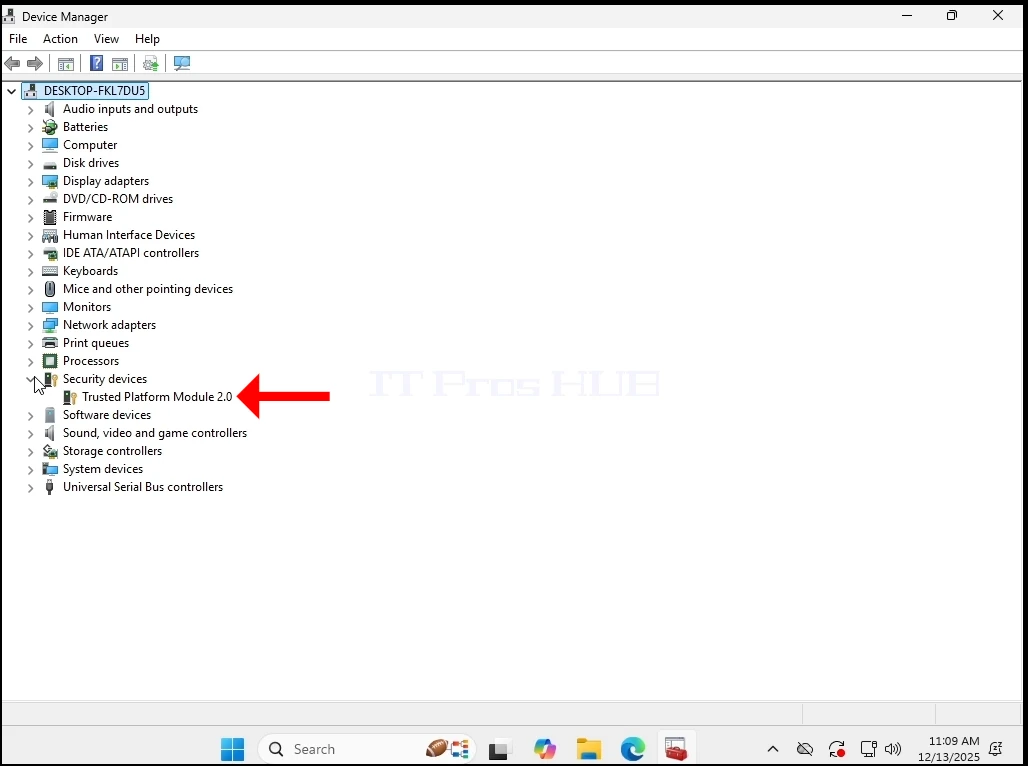
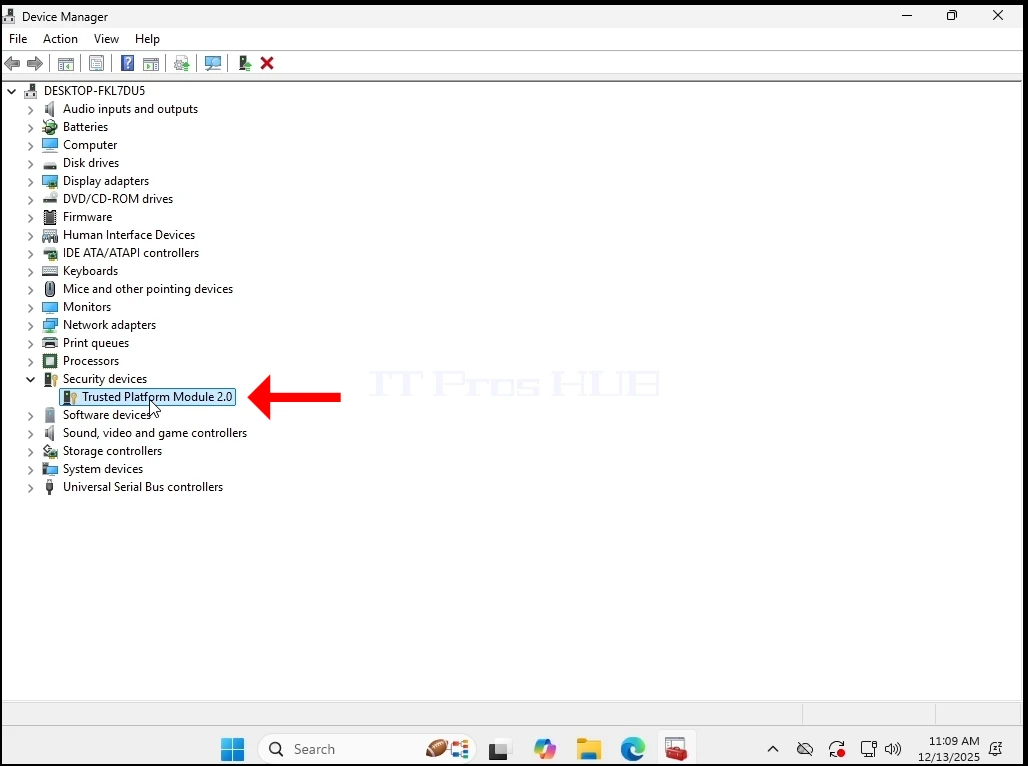
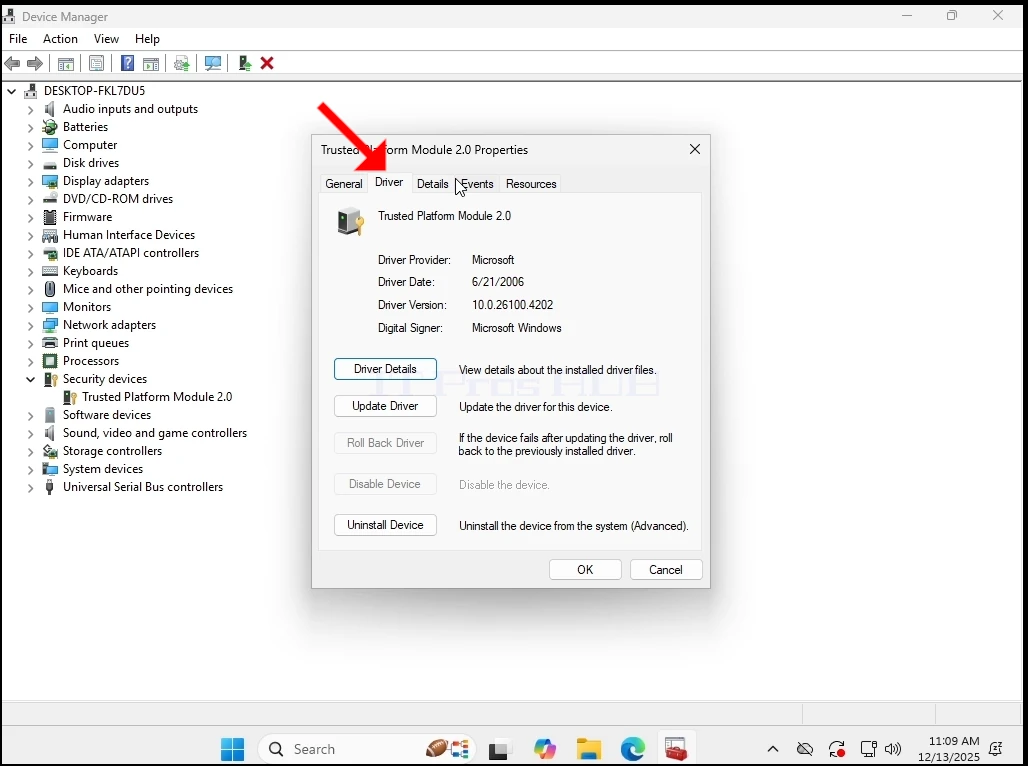
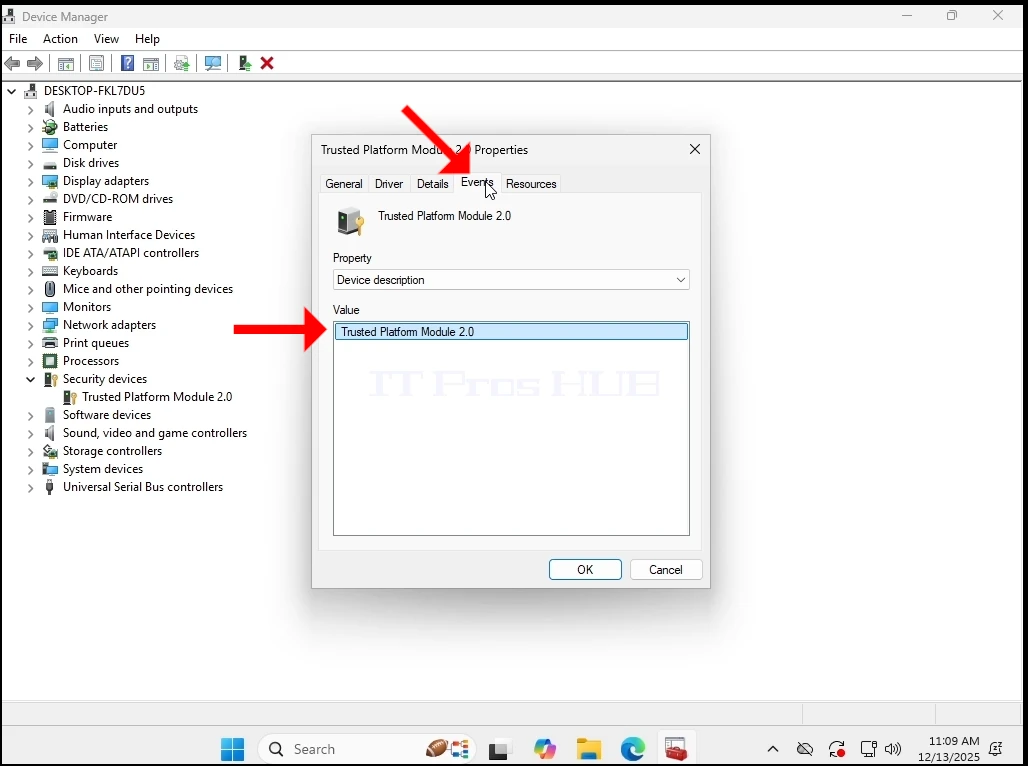
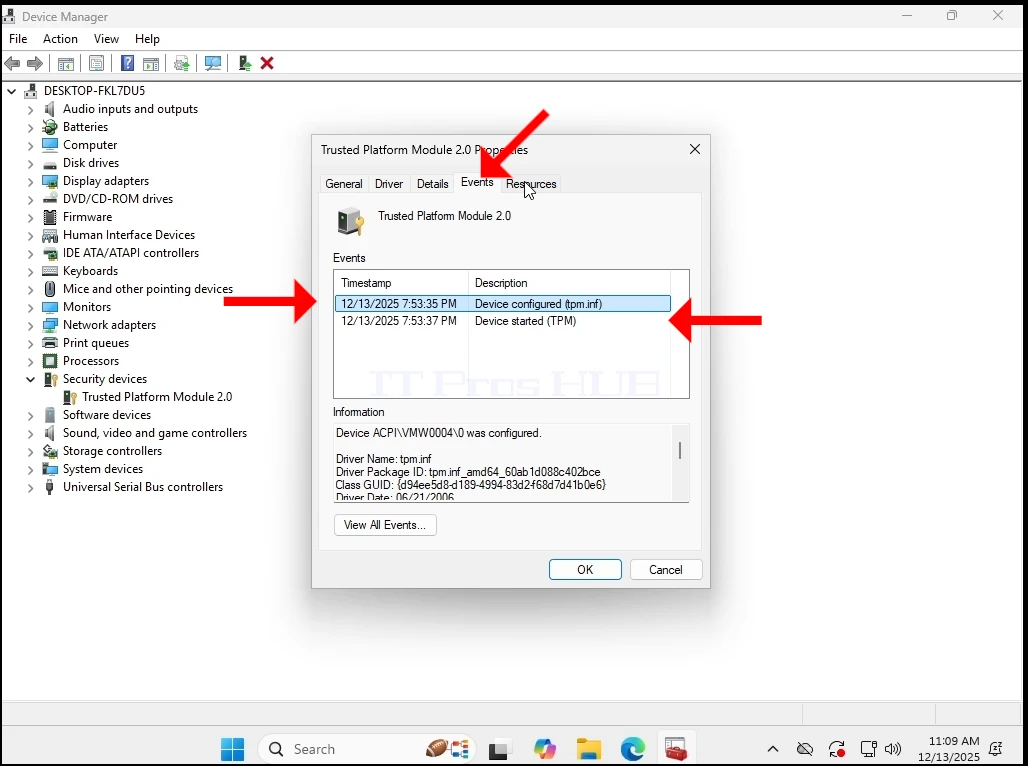
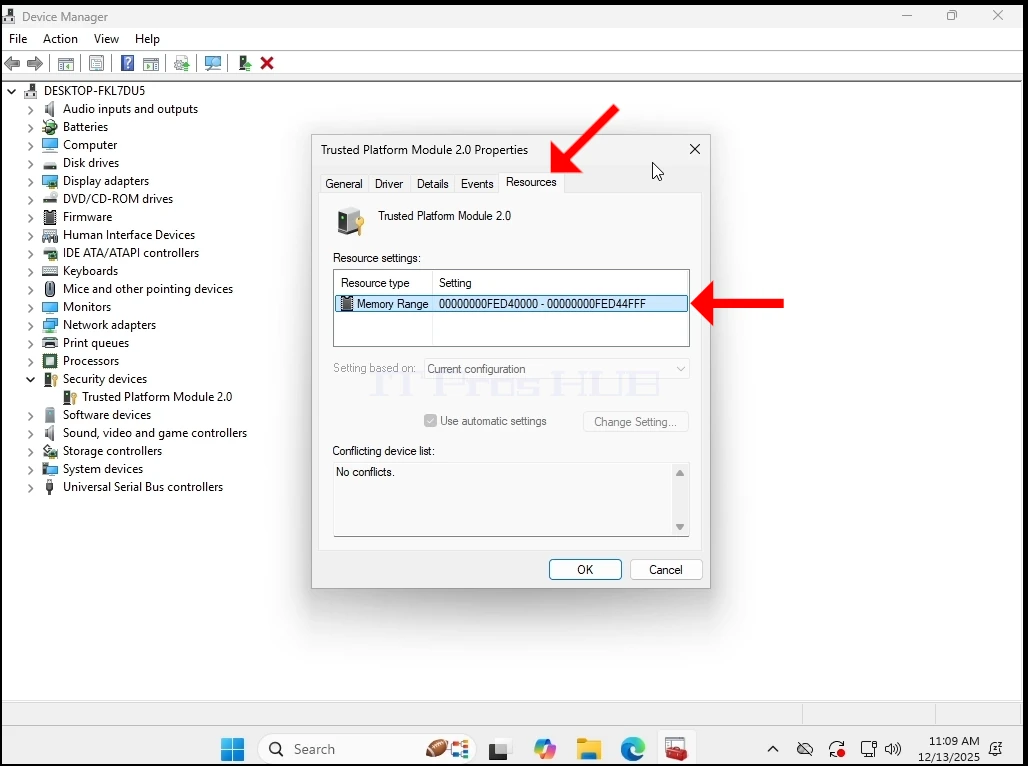
4. In Device Manager, we want to make sure that the TPM 2.0 chip is indeed present and functional.
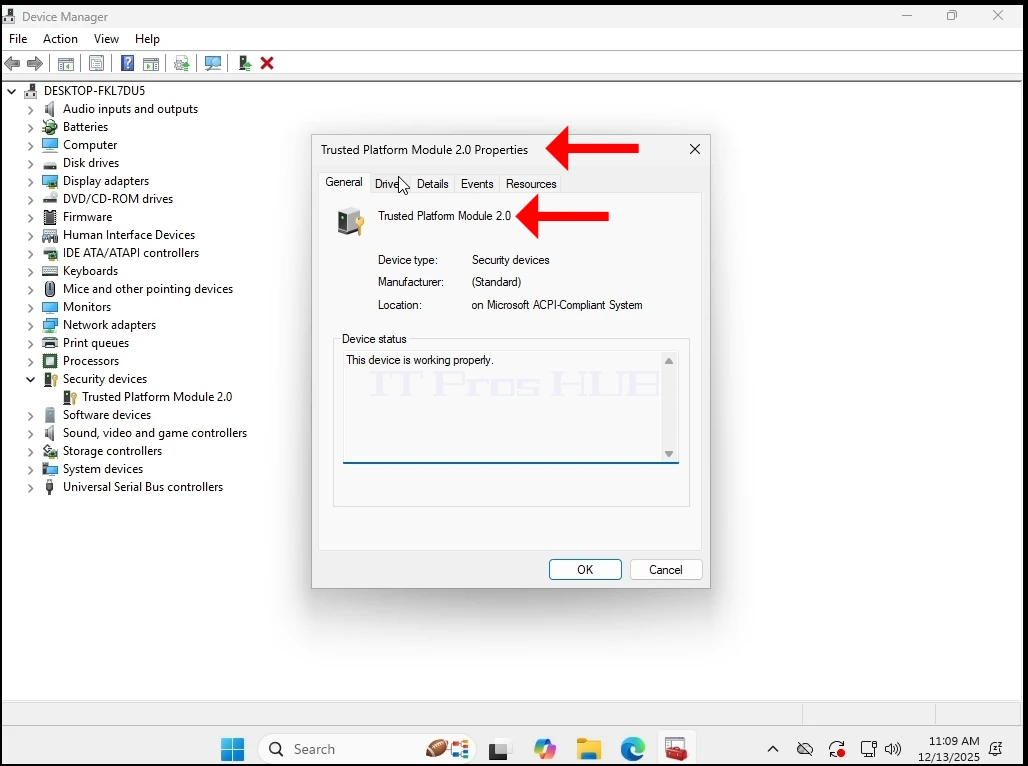
5. We checked the various tabs for any issues
6. Now we shut down Windows in order to power-off the VM
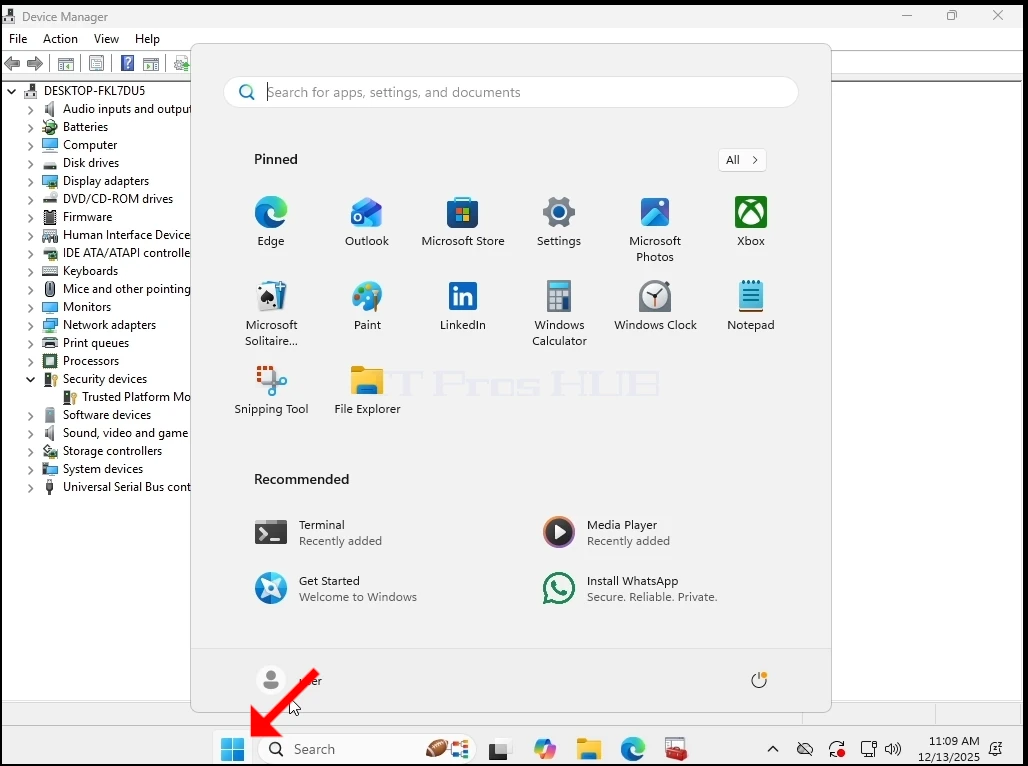
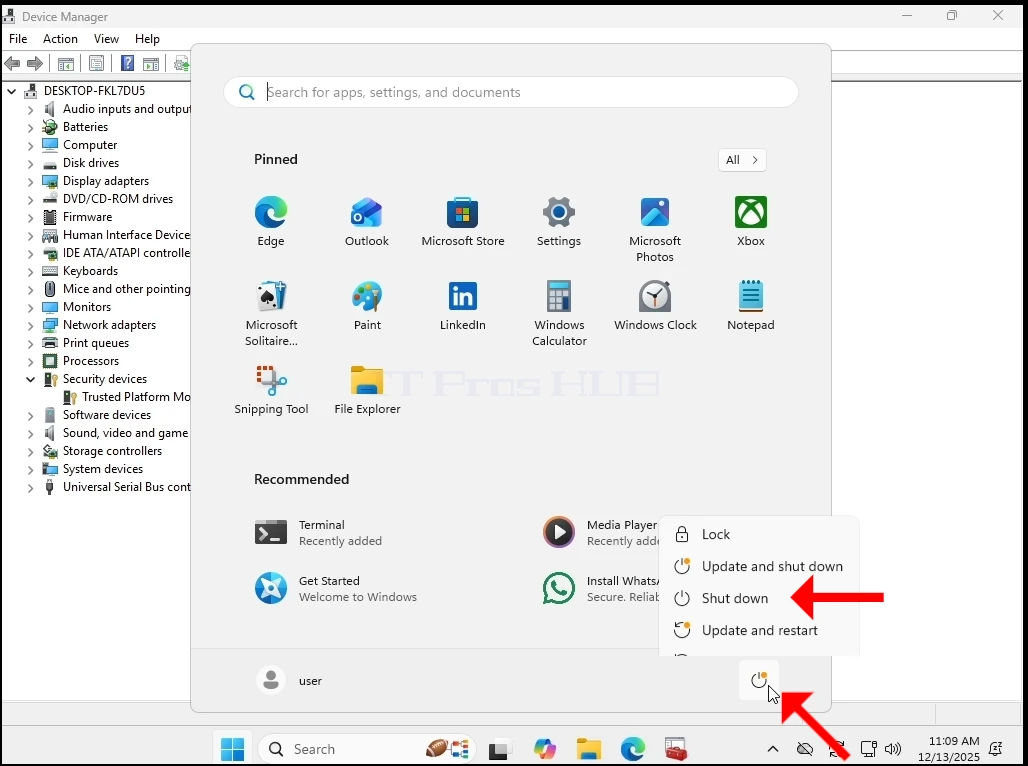
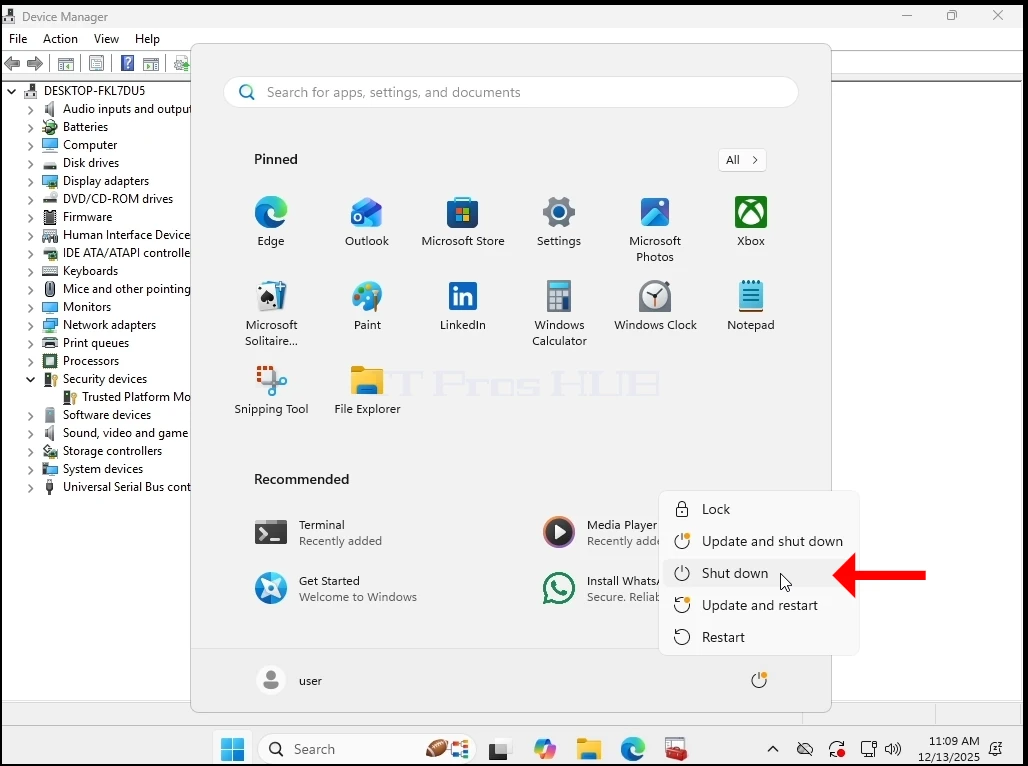

7. We have removed the TPM chip from the VM’s hardware list and powered it again
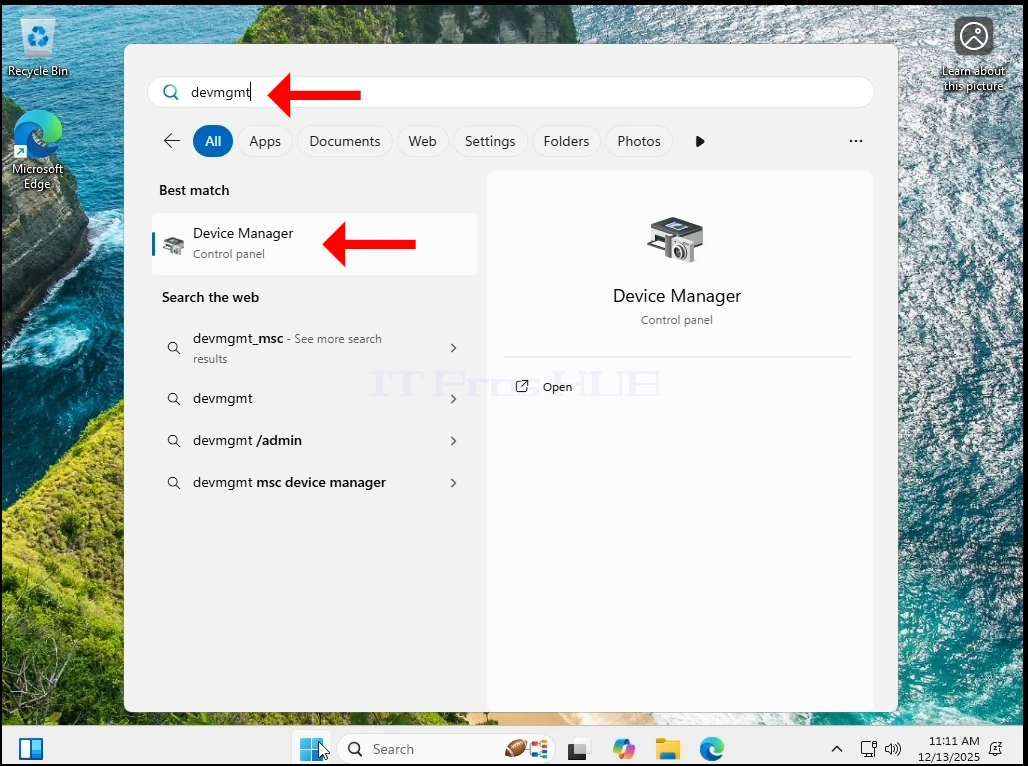
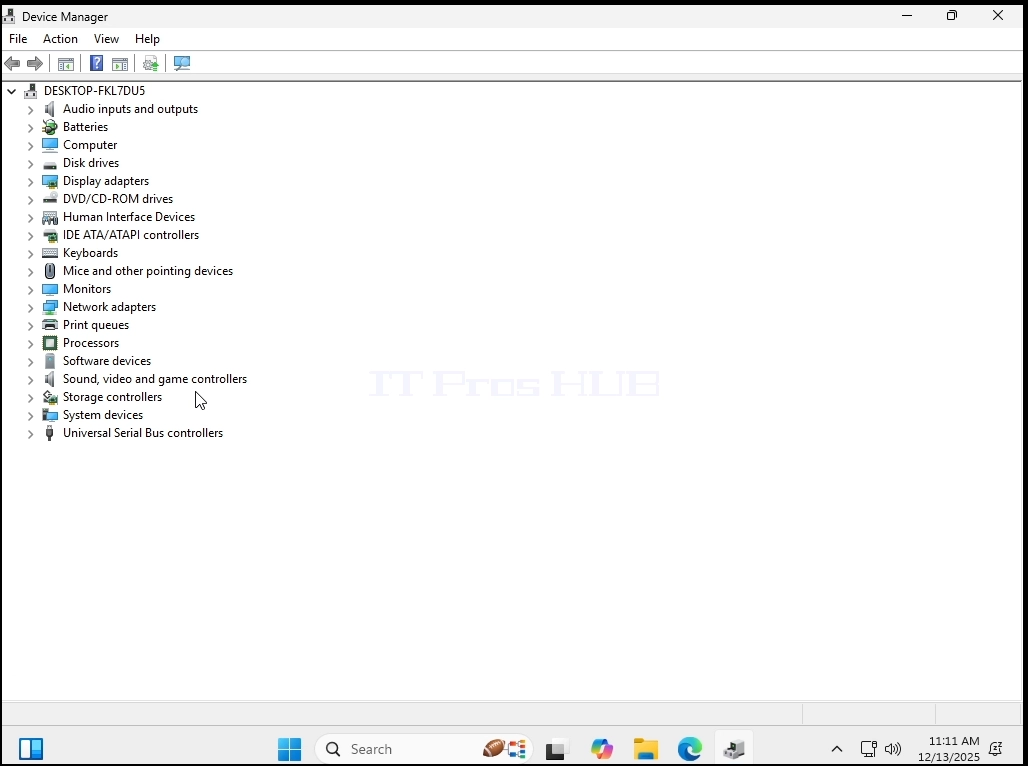
8. Let’s go again to Device Manager to make sure the TPM chip is not there anymore
9. As you can see below – the TPM chip is gone a well as the Security Devices category.
10. To make sure the TPM chip is not present on this VM, let’s go to Bitlocker and try tampering with it.
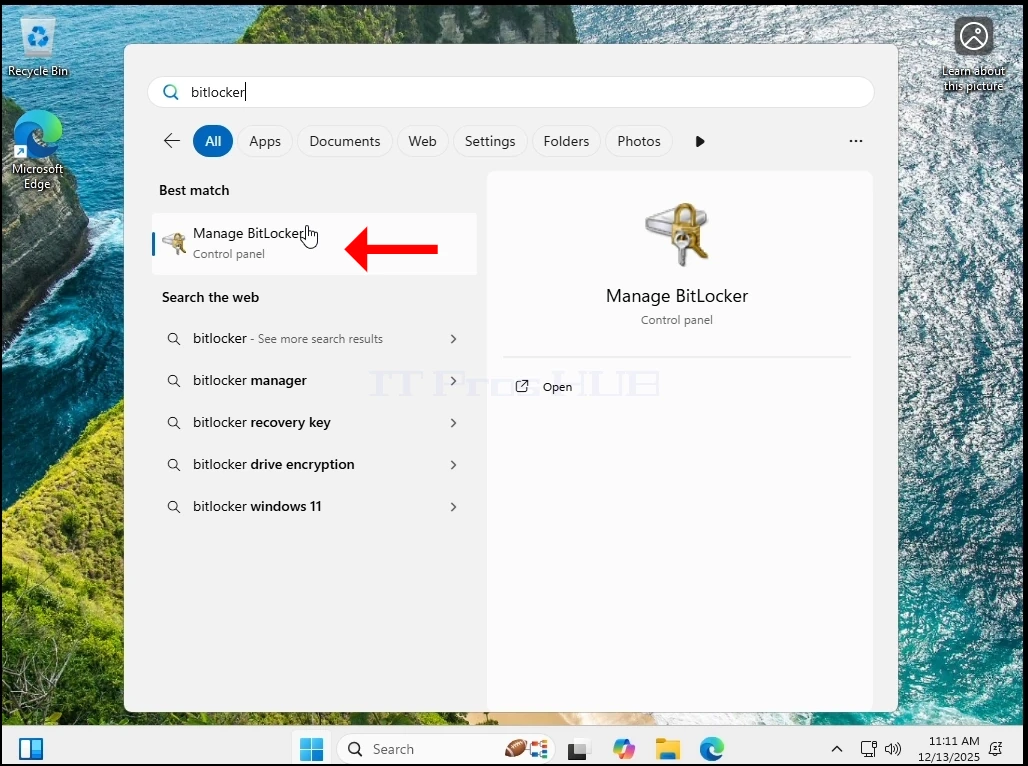
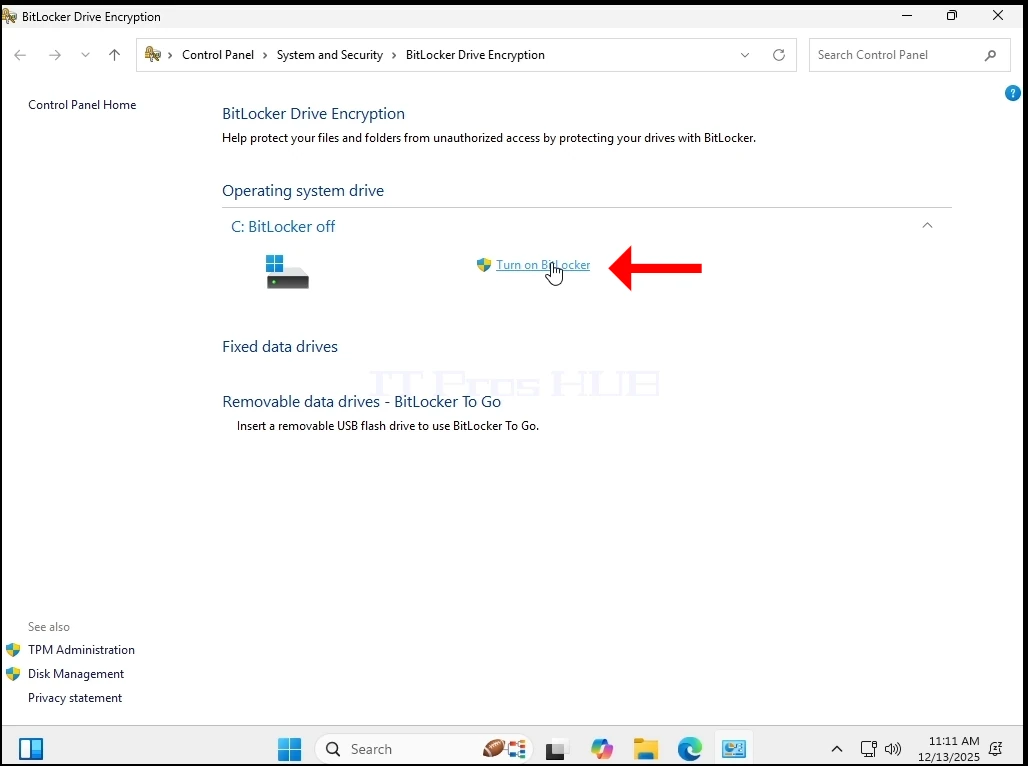
11. As you can see below, we are unable to turn Bitlocker on due to the absence of a TPM chip.
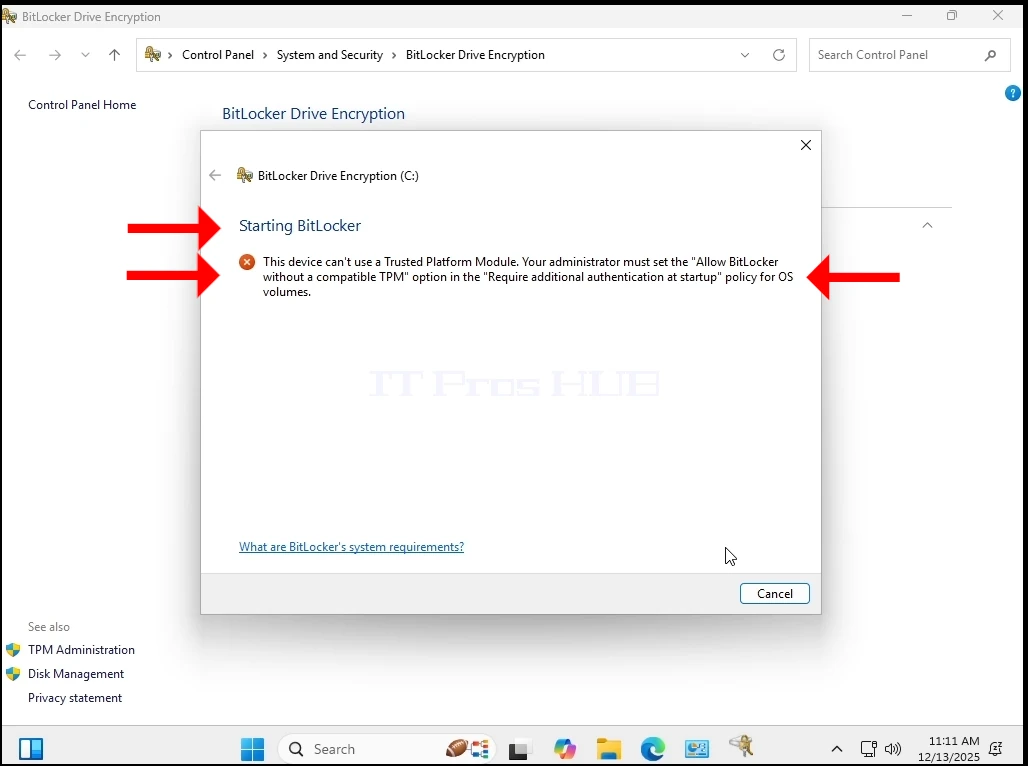
12. As you can still see, Windows 11 has been working normally this entire time. No BSODs, no errors, no prompts, no warnings.
- Now let’s update it from 24H2 to 25H2.
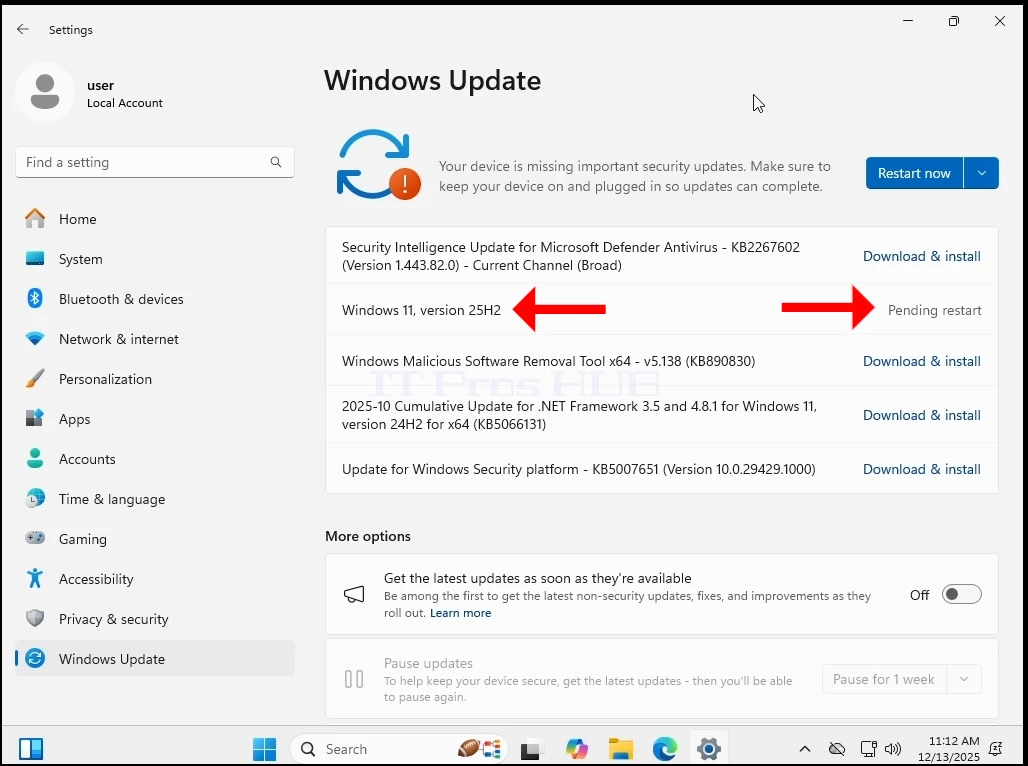
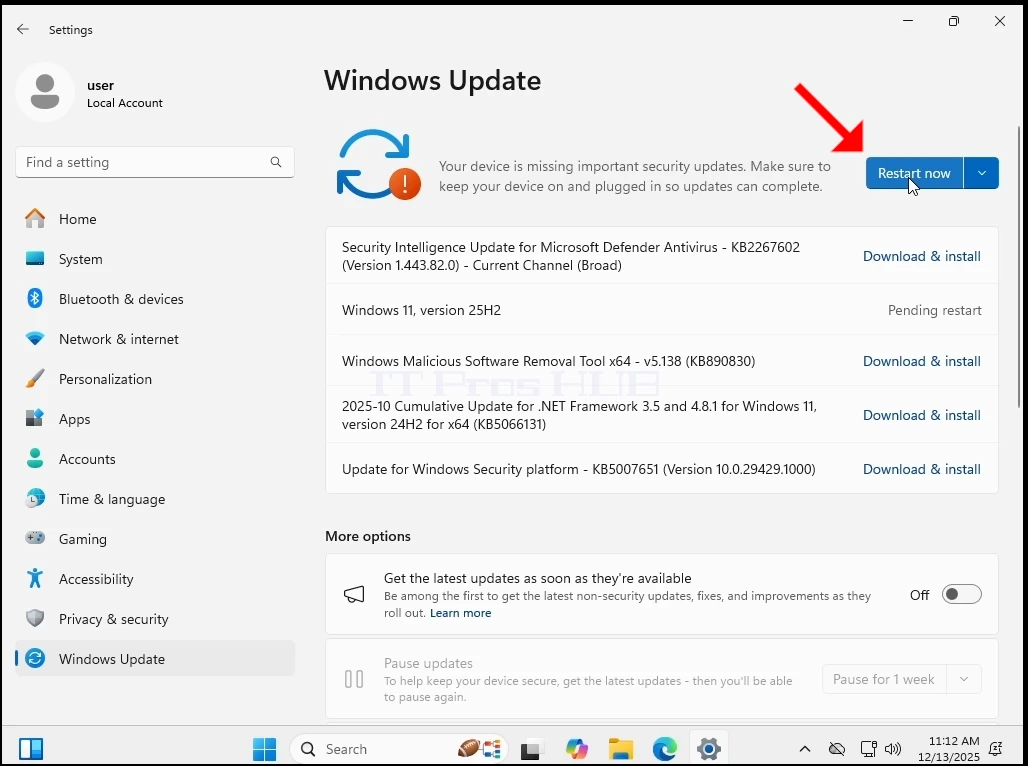




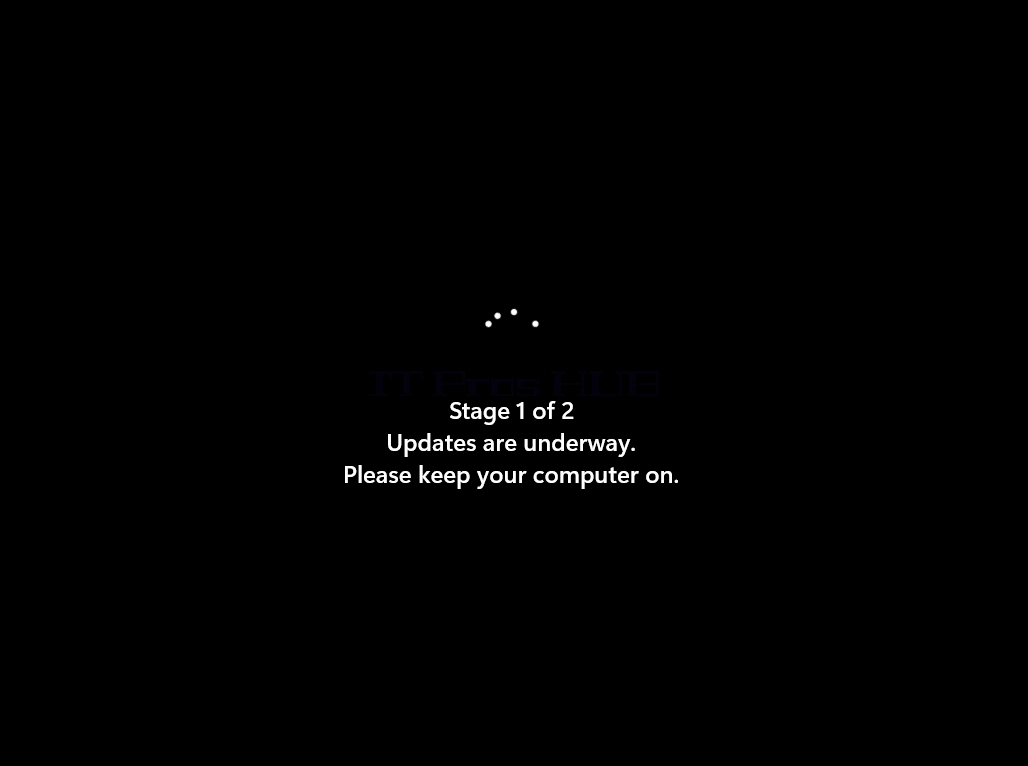

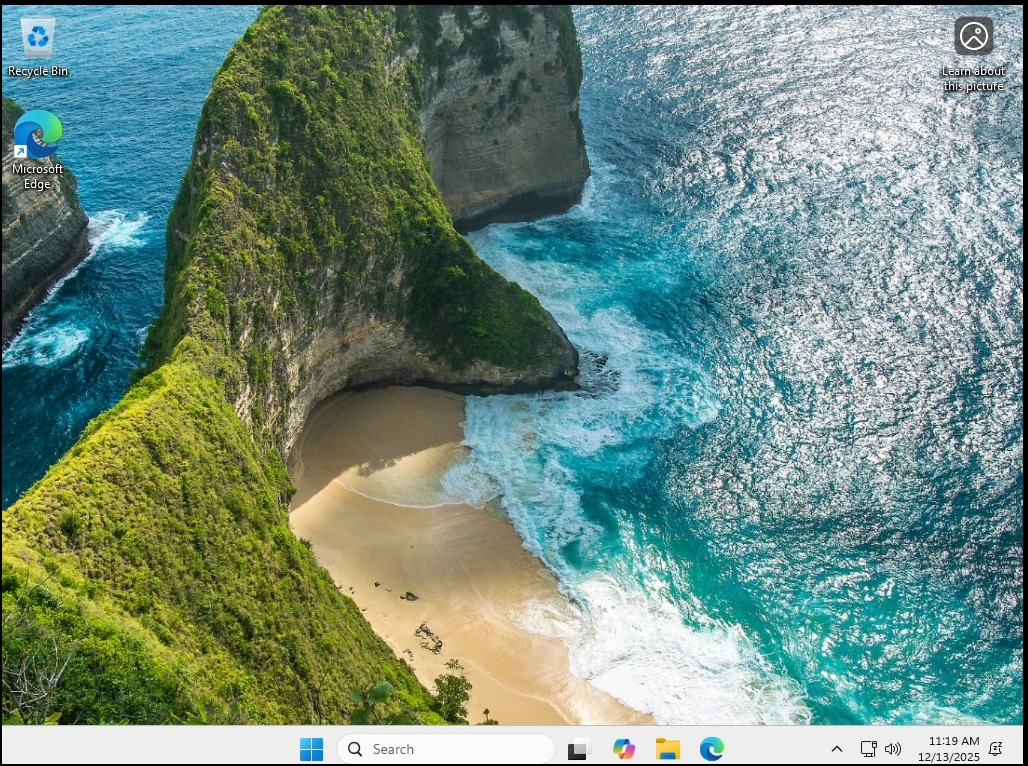
14. Windows has been upgraded to 25H2
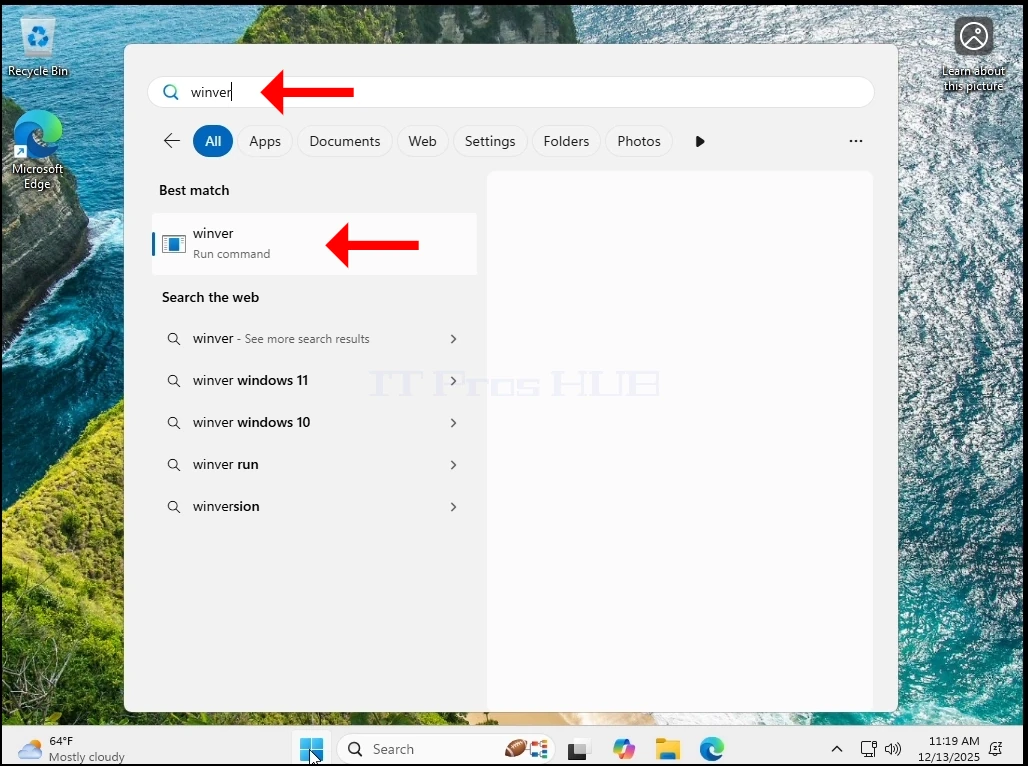
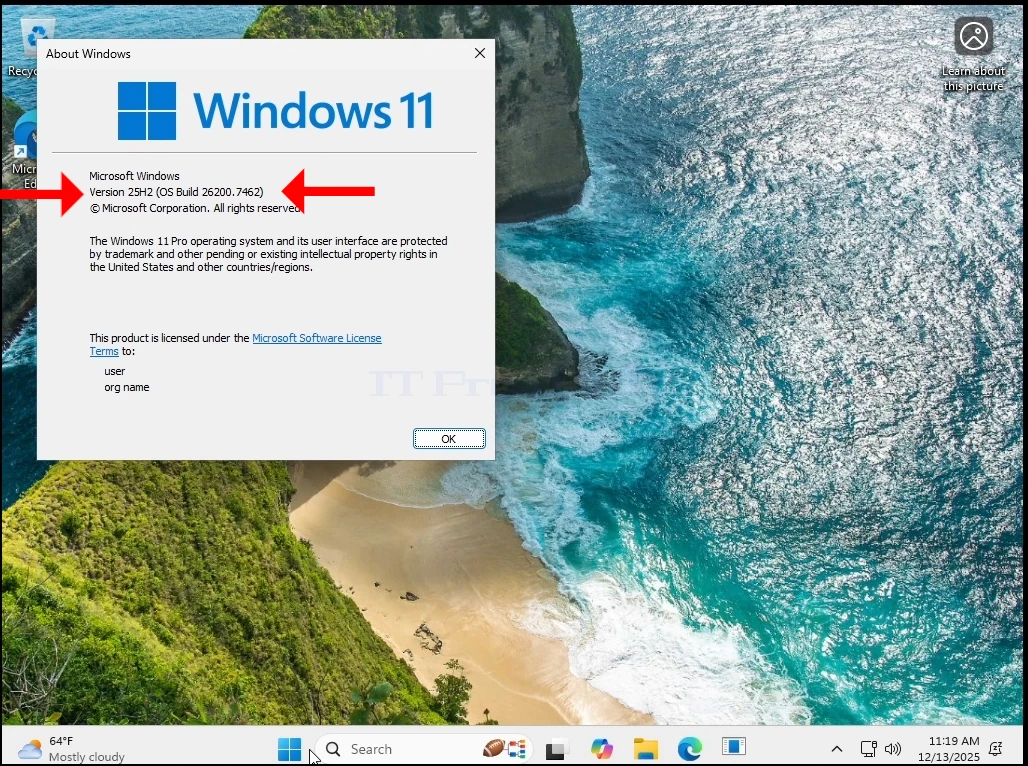
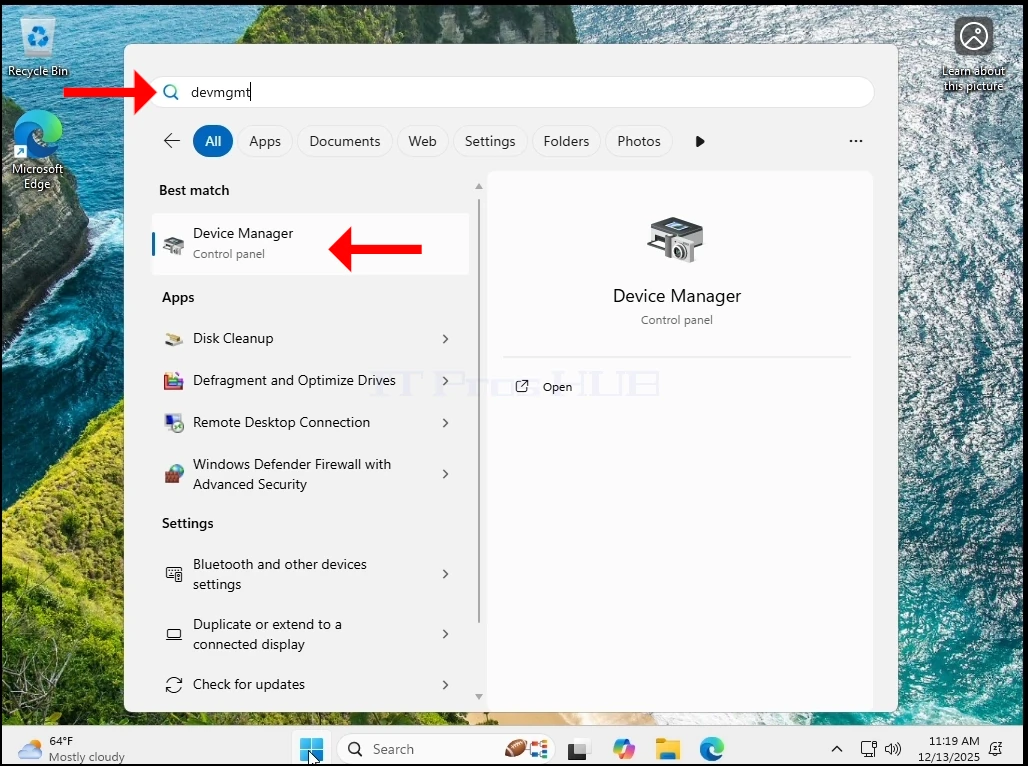
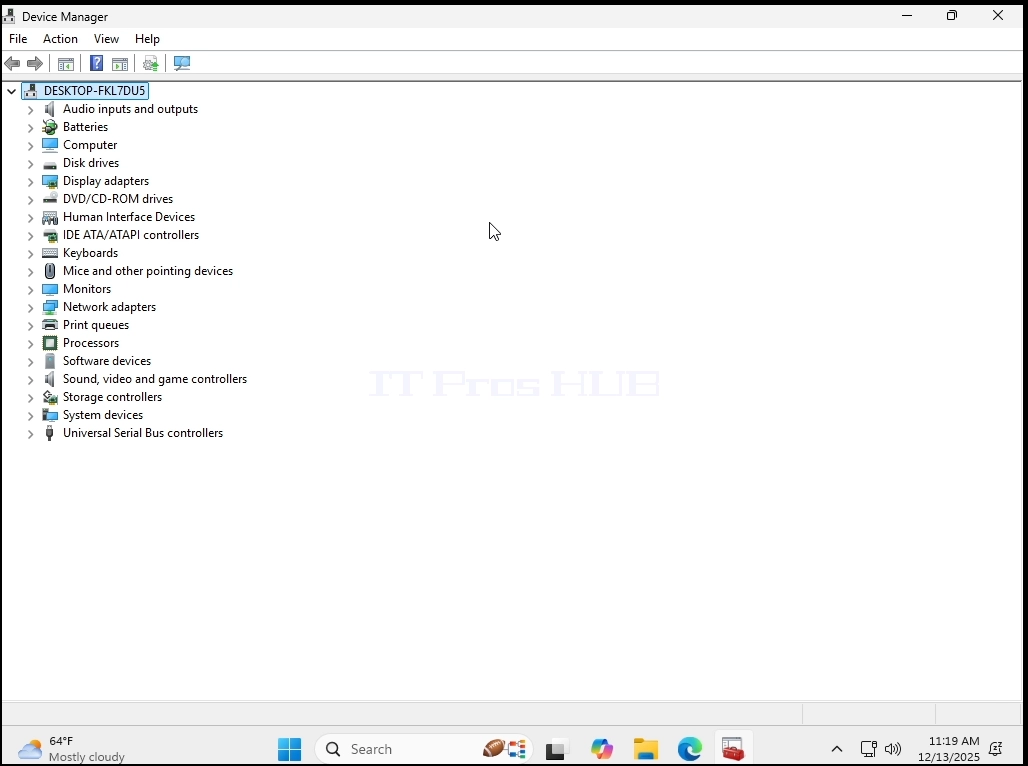
15. Still, Windows 11 has been working normally this entire time. No BSODs, no errors, no prompts, no warnings. And as you can see, no TPM chip is present in the system.
Conclusion:
We were very surprised at first to see Windows starts up at all. There has been such a big fuss about this TPM requirement that we have become under the notion that running Windows without a TPM was impossible.
Yet, the bigger issue still exists – Windows 11 cannot be INSTALLED on a system without a TPM chip, specifically TPM version 2.0. it is like that by design. What we did here was very simple – we installed Windows 11 on a system, in this case, a virtual system, with a TPM and then just removed it. Windows kept running normally.
What would it mean in the real world?
It would mean that if you have a computer/computers that have a TPM chip older than version 2.0 or no TPM at all then the only ways to install Windows 11 onto these machines would be to:
1. Deploy an image of Windows 11 onto those computers
2. Clone a Windows 11 disk/partitions onto those computers
3. In terms of upgrade from Windows 10 to 11 you could:
a. Take the hard drive with Windows 10 out of the computer, install it on a placeholder computer with a TPM 2.0 chip - perform the upgrade to Windows 11 and then return the hard drive to the old computer
b. Do the same thing described in Stage A, but use a P2V solution and then use a V2P back to the old computer
In any case, it’s a head ache to perform on one computer let alone an array of computers, but it is not impossible. The ROI would be worth it for those would cannot afford or would not want to invest in new IT equipment (ie – computers with a TPM 2.0 chip).
IT might be worth for IT professionals and/or companies who maintain an array of computers with incompatible TPM chips to just buy a single new computer that has a TPM 2.0 chip that will be used as a placeholder and perform these upgrades one by one instead of investing in an array of new computers.
- Details
- Written by: IT Pro
- Category: Windows
- Hits: 8984
Introduction:
In this article we will demonstrate what happens when the entire Users folder is deleted from Windows 11.
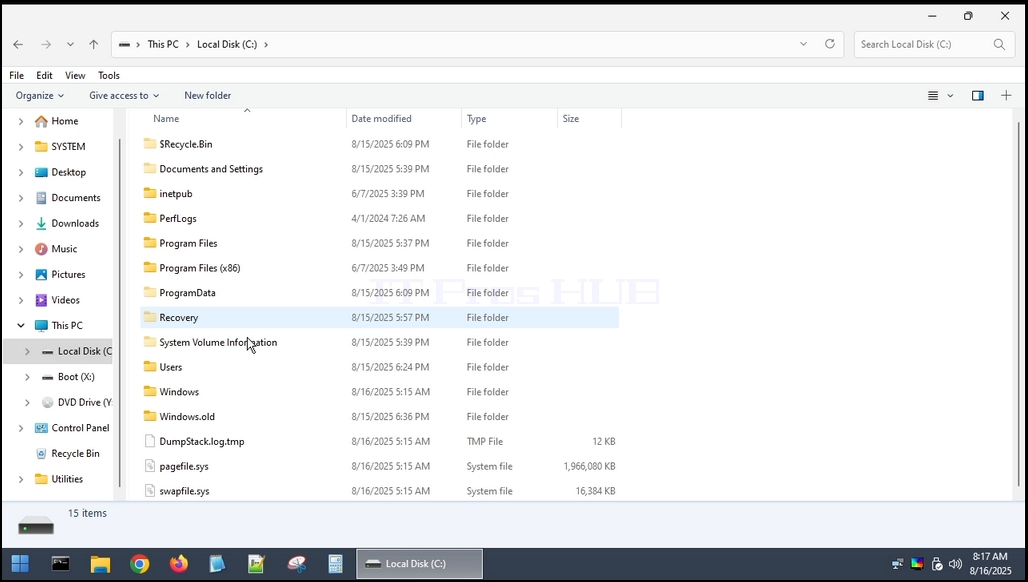
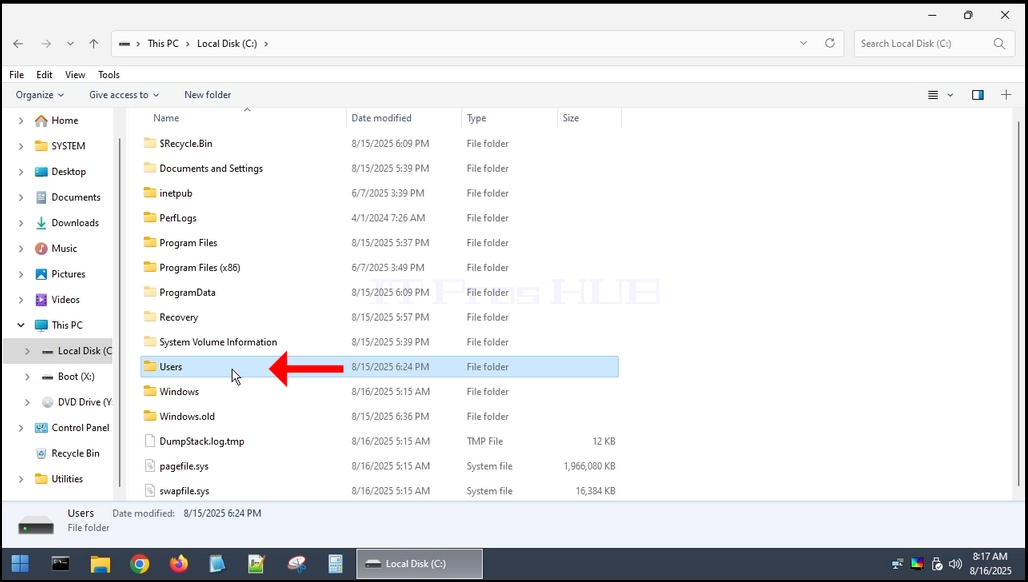
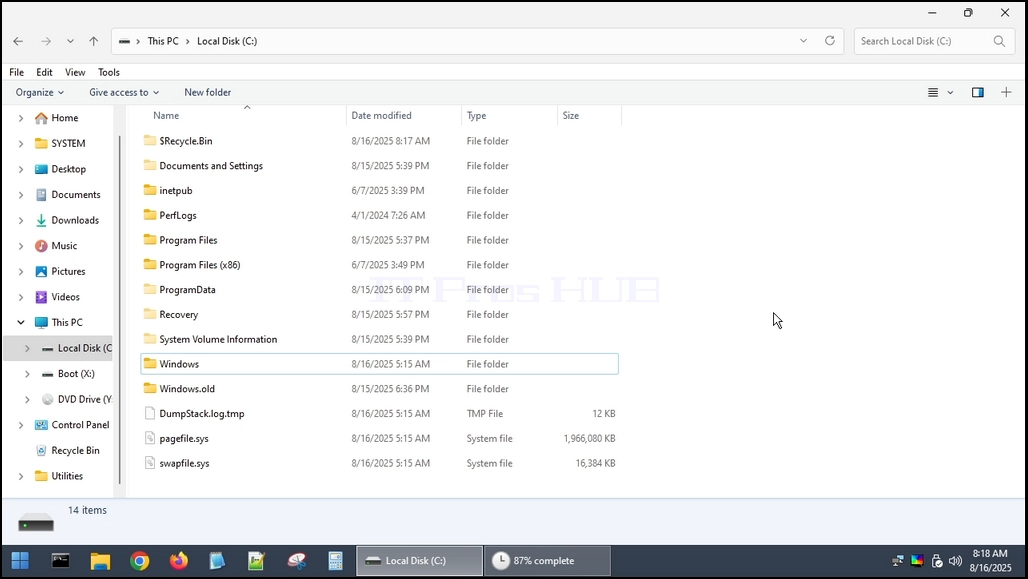
1. The Users folder resides in the root of where Windows was installed. In most cases it would be the C: drive as can be seen below:
2. Like a lot of other system folders and files, the Users folder cannot be deleted entirely from within Windows itself. We would need to use another operating system for that. In this article we will use the Hiren Boot CE WINPE (HBCD) OS.
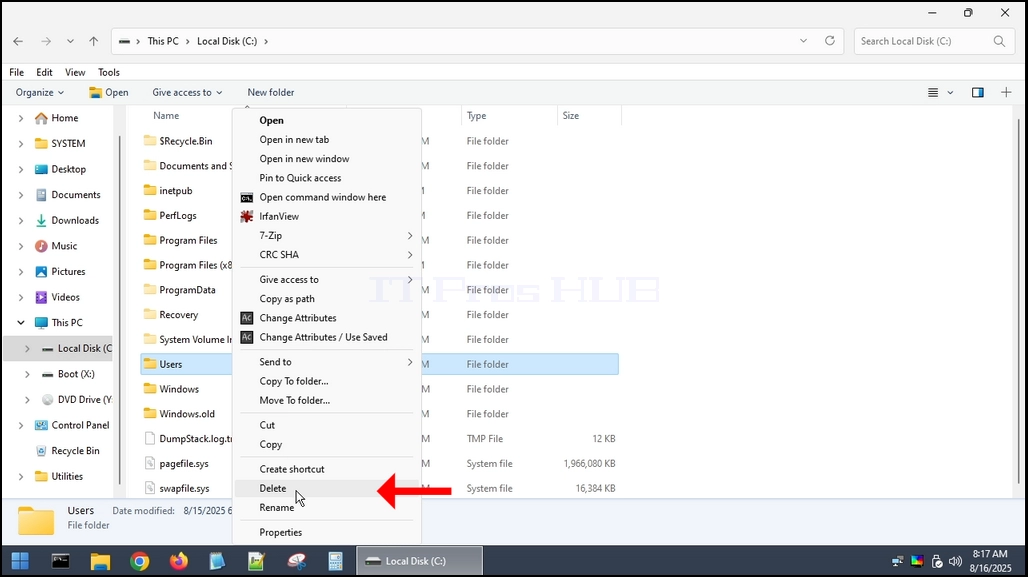
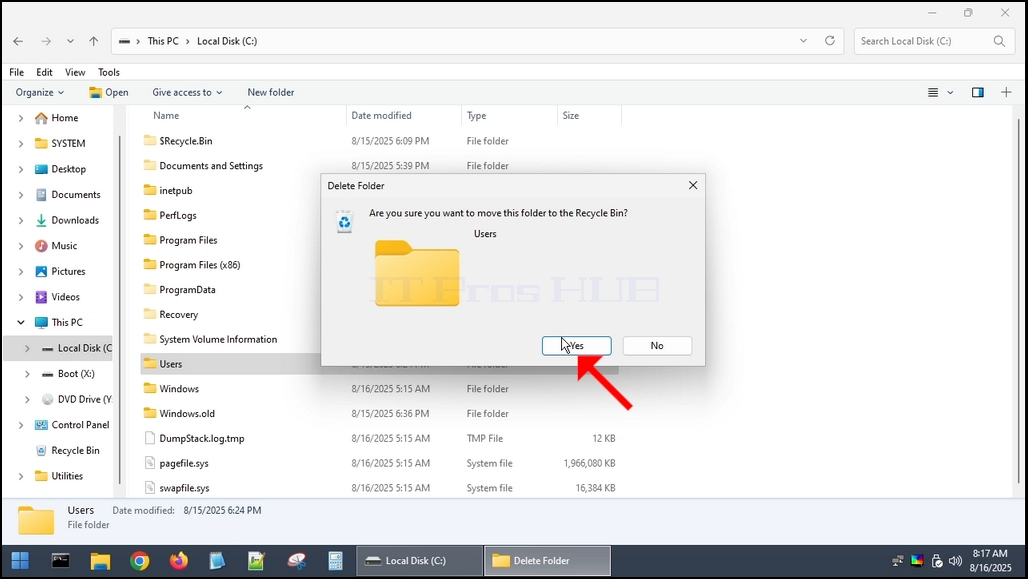
3. Deleting the Users folder from within HBCD
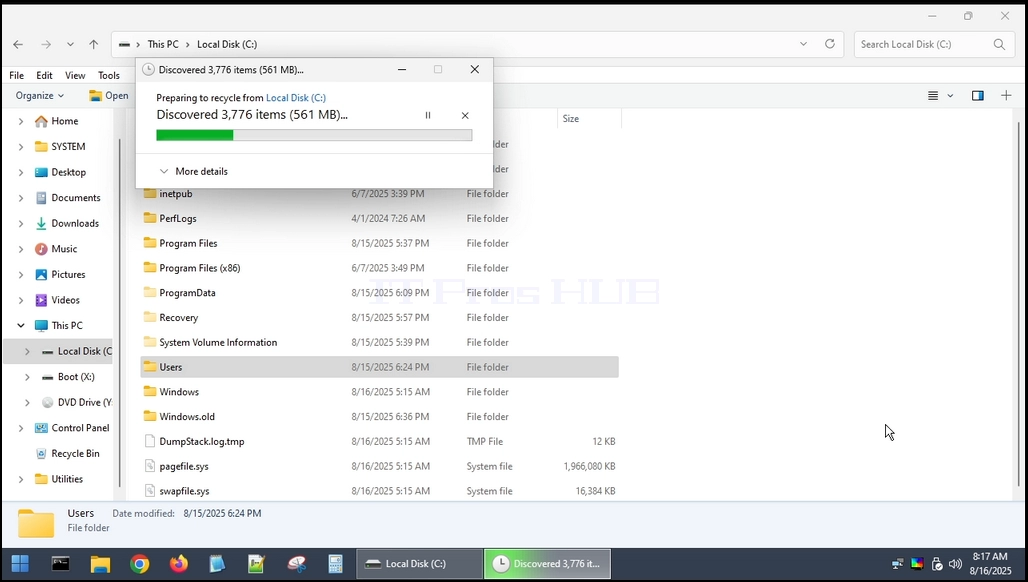
4. The Users folder is deleted.
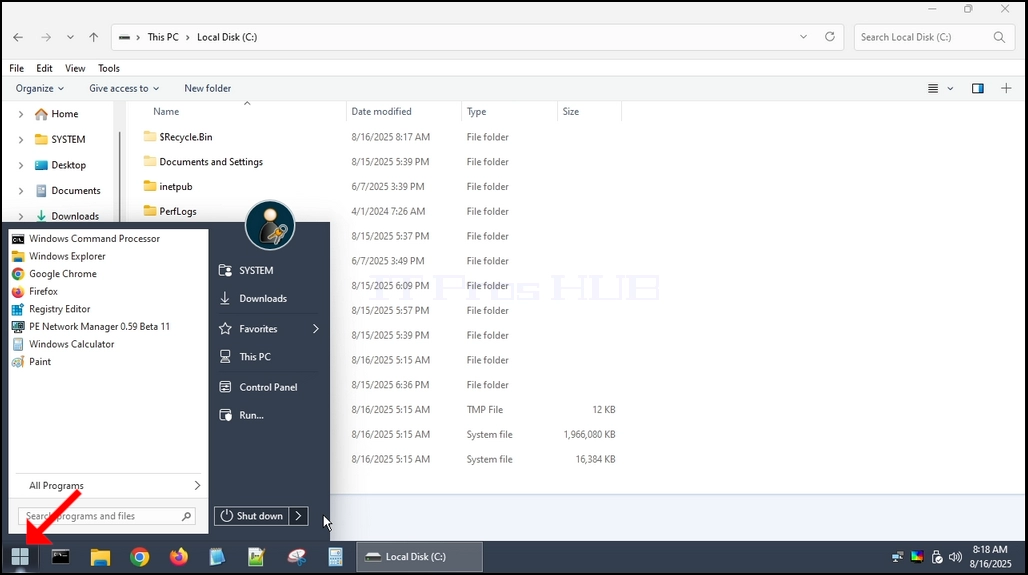
5. Restarting the computer and booting back into Windows.
6. As you can see, Windows is able to boot up but NOT TO START UP.
7. We can see the following error:
a. The ProSvc service failed the sign-in
b. User profile cannot be loaded.
8. Those two lines are usually one single Windows logon error — the service is actually ProfSvc (User Profile Service), and it typically fails when the user profile is corrupted or Windows logged you into a temporary profile and can’t stitch the real one back.
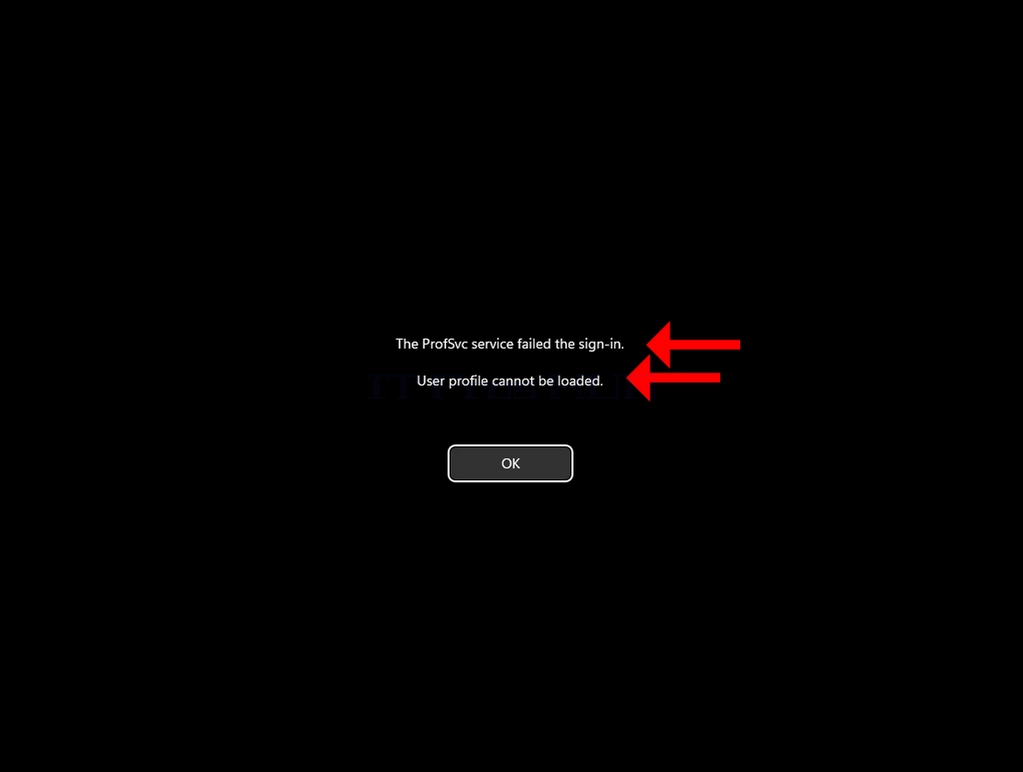
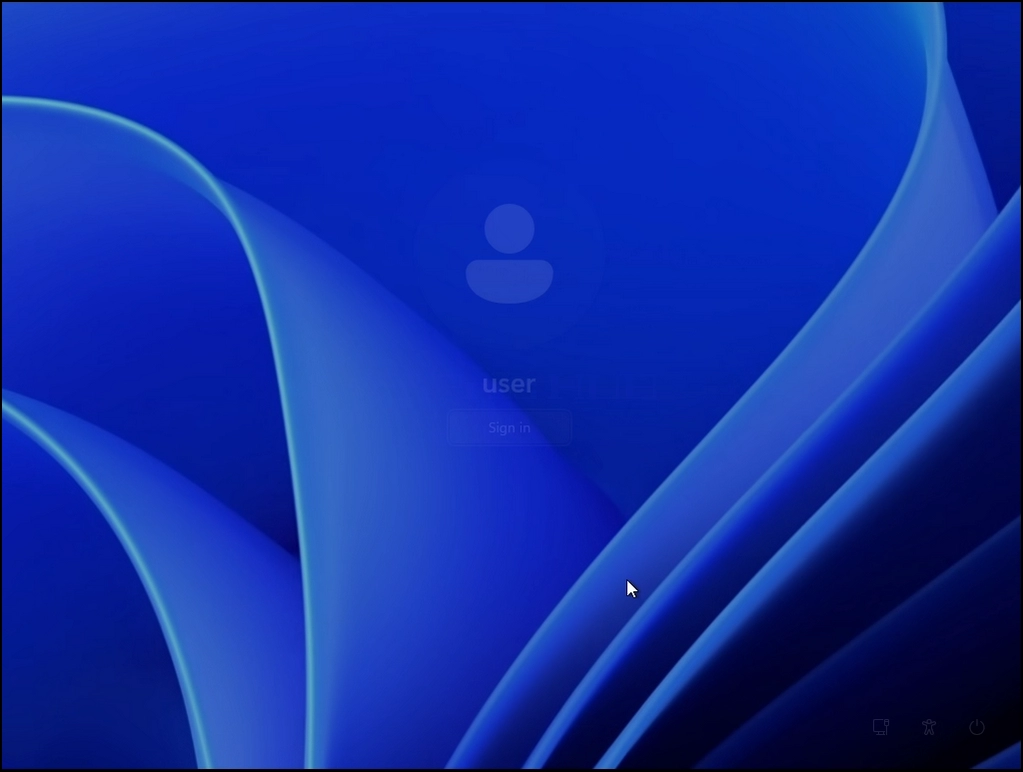
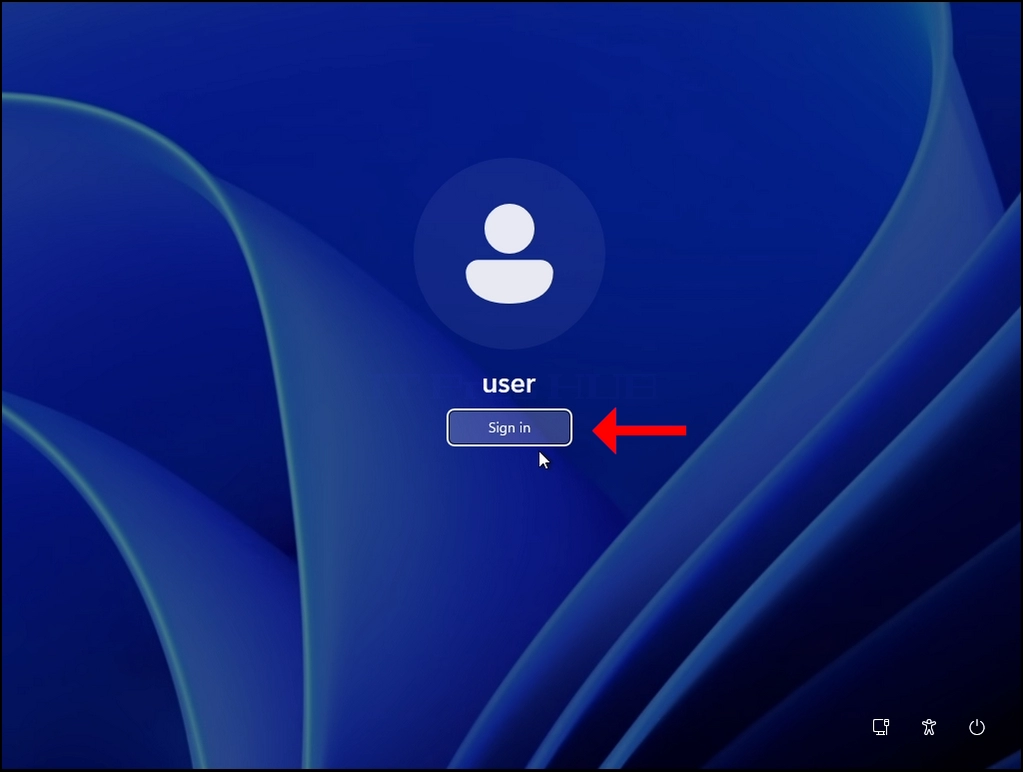

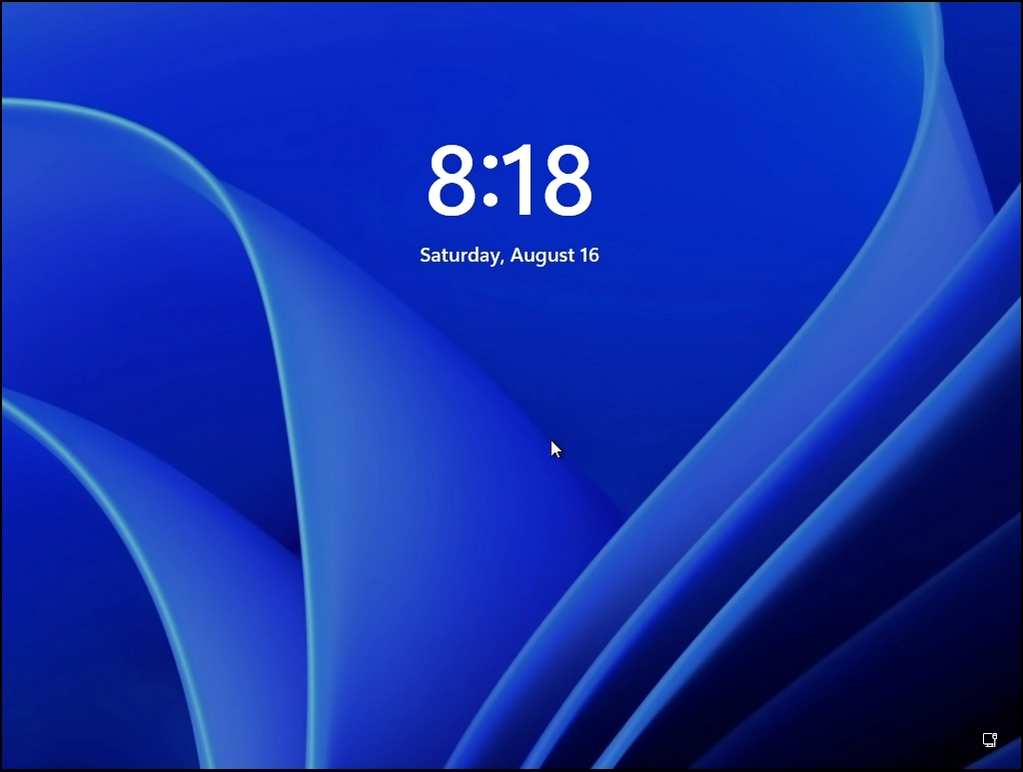
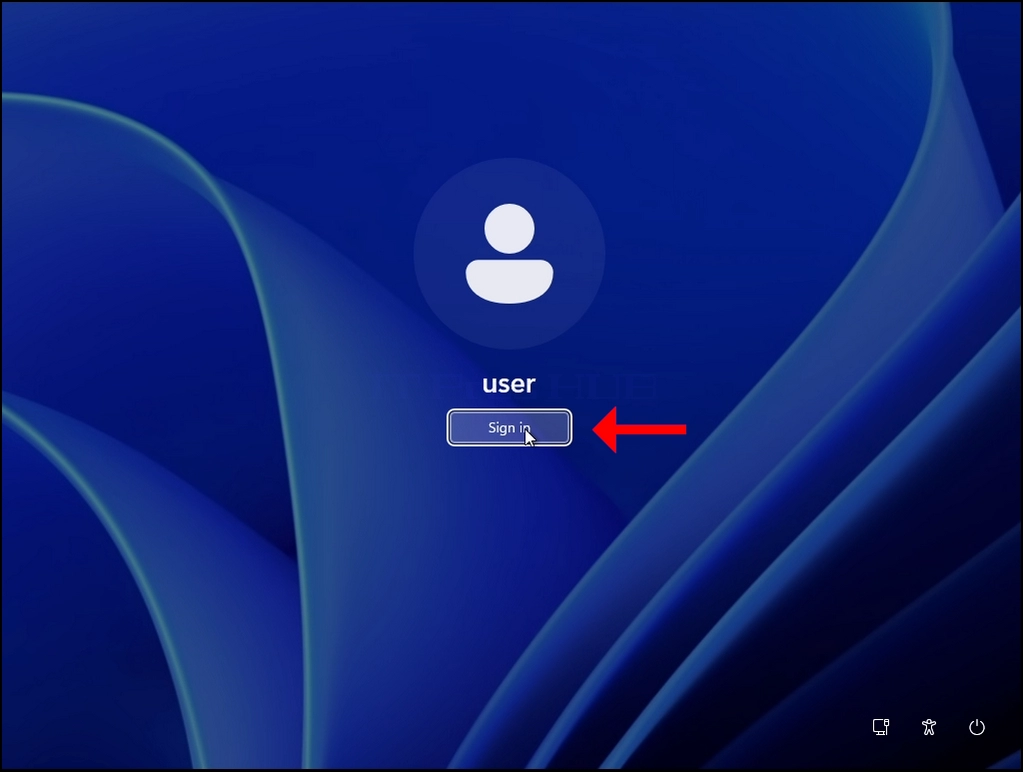


9. As you can see, after we click OK on the error, Windows goes back to the logon screen and no matter how many times we try to sign in, the result is the same.