



- Ayrıntılar
- Yazan: IT Pro
- Kategori: How to Articles
- Görüntüleme: 4827
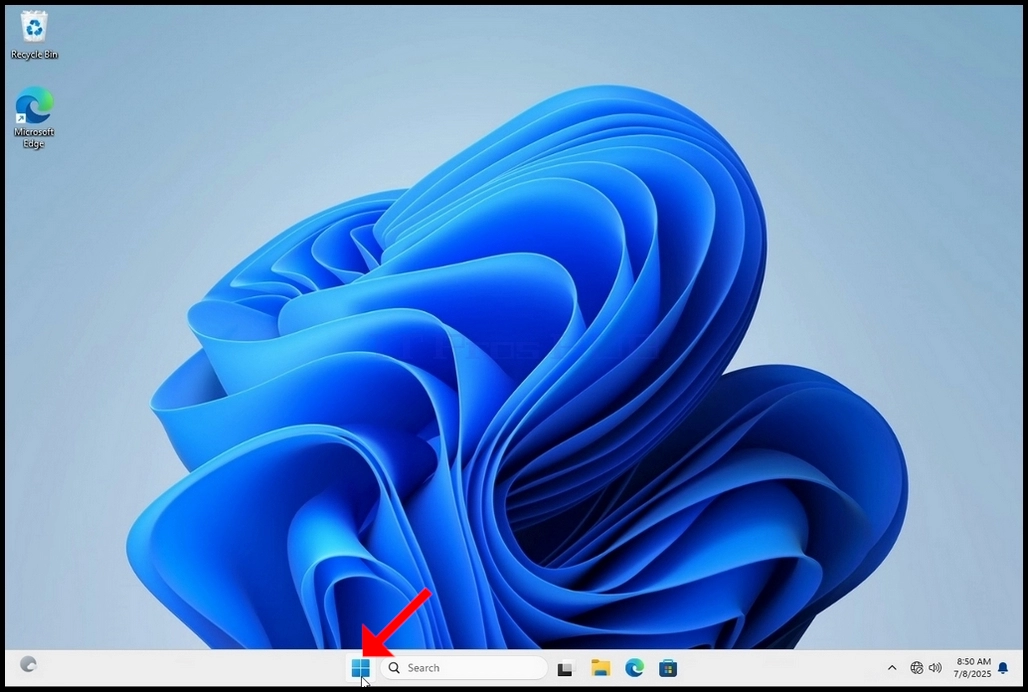
1. Go to Windows Desktop
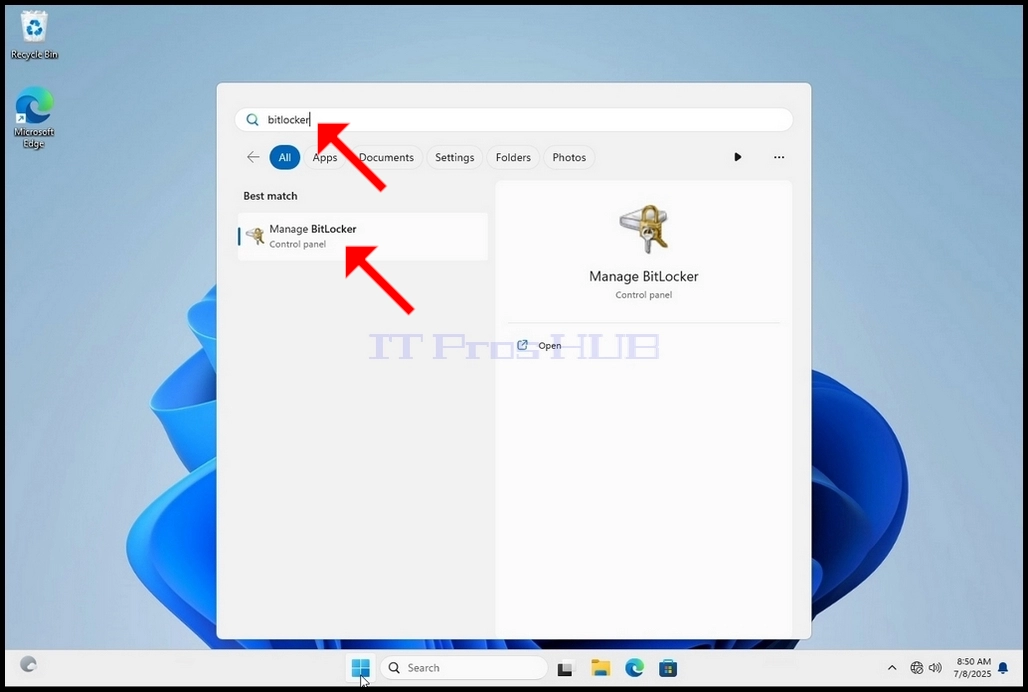
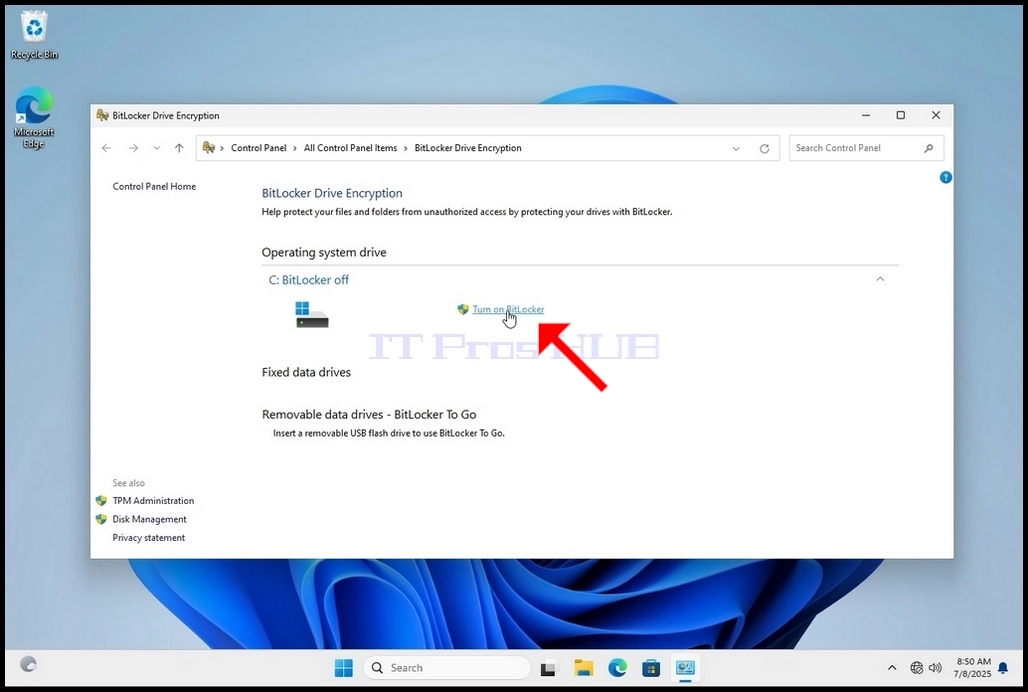
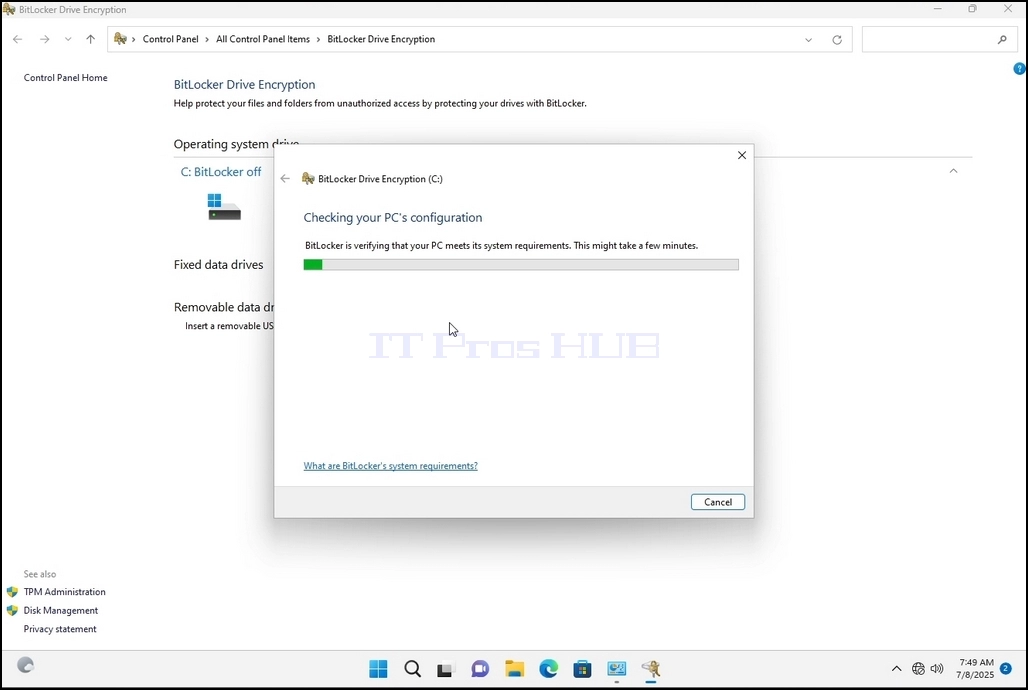
4. Once Bitlocker Drive Encryption is open, look for the Turn on Bitlocker sentence and click on it and wait for the Bitlocker Drive Encryption wizard to appear.
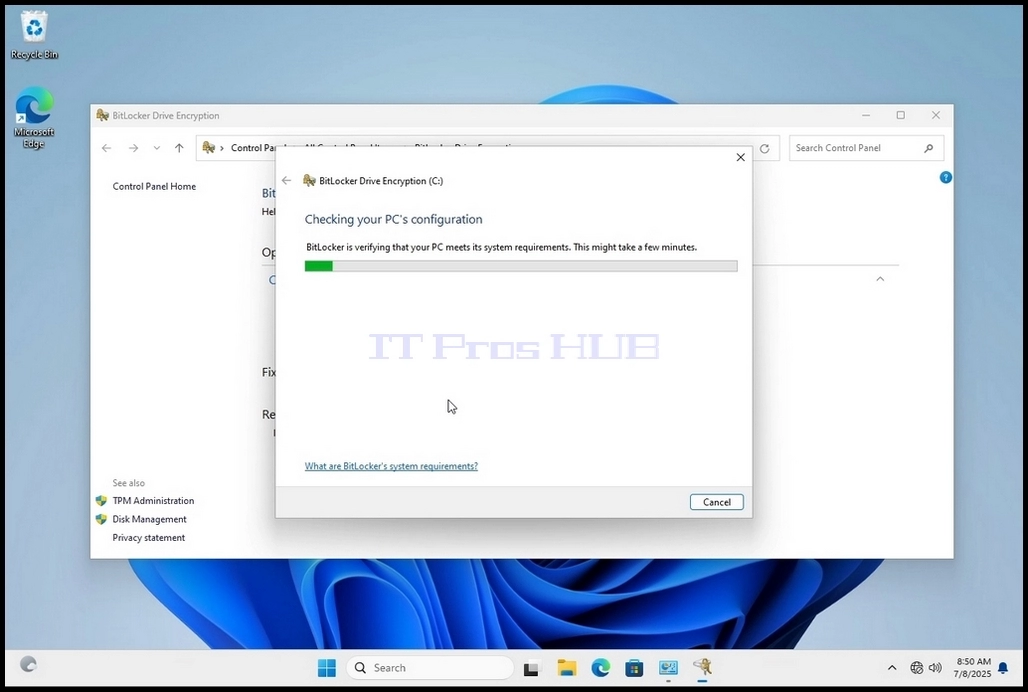
a. Once the wizard appears it will automatically verify if the computer meets the system requirements required to encrypt data using Bitlocker.
b. Though it says it takes a few minutes, in most cases it takes a up to 30 seconds on a modern computer setup.
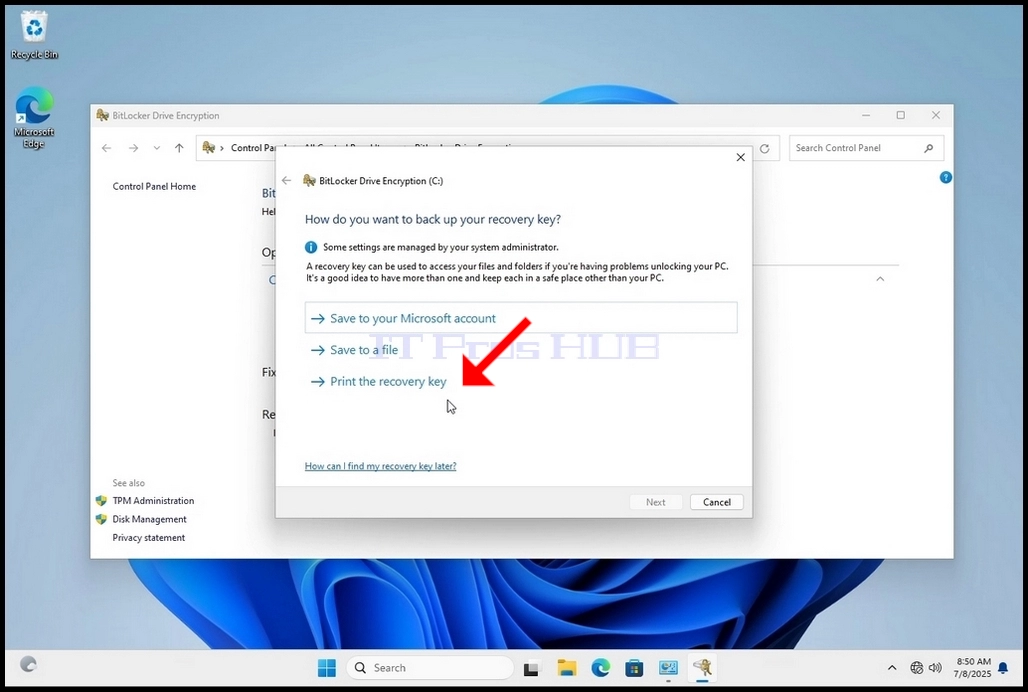
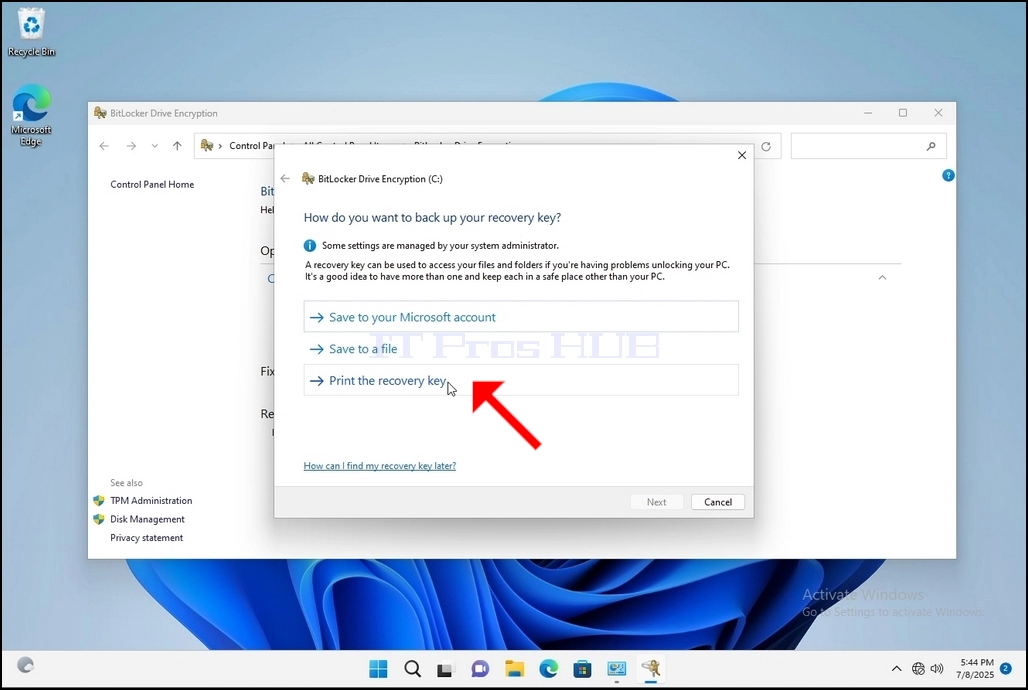
5. Once the verification stage is done and the wizard finds the computer Bitlocker capable, it will ask how would you like to save your Bitlocker recovery key
a. Microsoft account – saves it in your Microsoft account
b. Save to a file – saves the recovery key to a text file
c. Print the Recovery Key – prints the Bitlocker recovery key, even to a virtual printer.
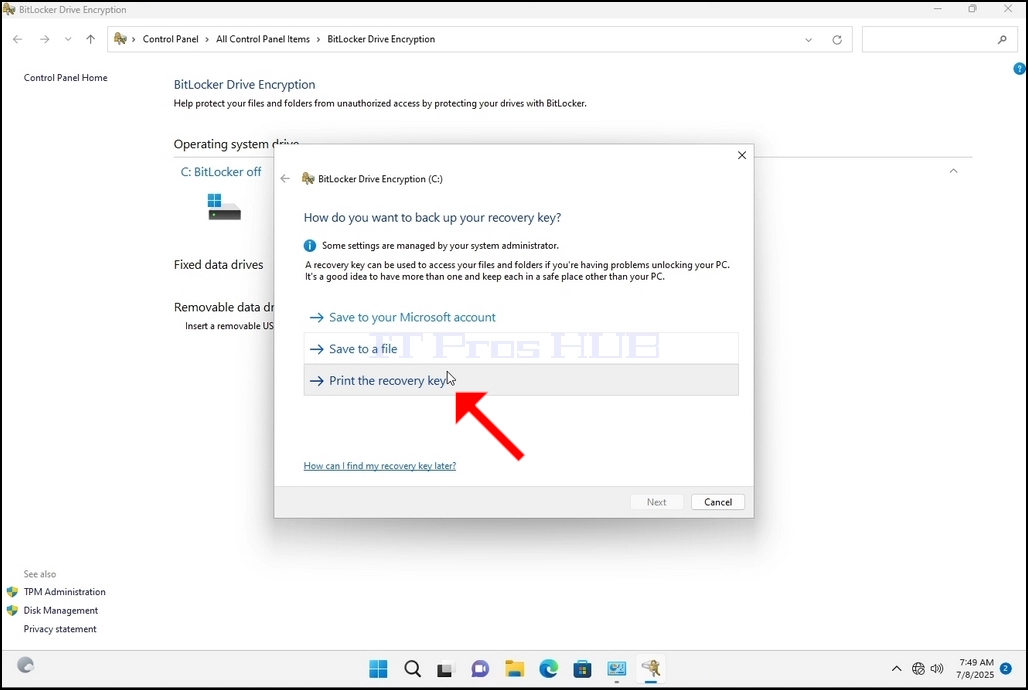
6. In this article we will choose the last option which is Print the Recovery Key and we will save it locally.
a. Note that Bitlocker doesn’t allow saving a recovery key file onto the same drive that is about to be encrypted.
b. However, it does allow printing that recovery key to a file on the same drive that is about to be encrypted. This method is not recommended as well but for the sake of this article we will do it this way.
c. Note – Never save the recovery code file onto the same drive that is about to be encrypted. If for some reason that drive gets locked out, the recovery key file would be locked out along with it.
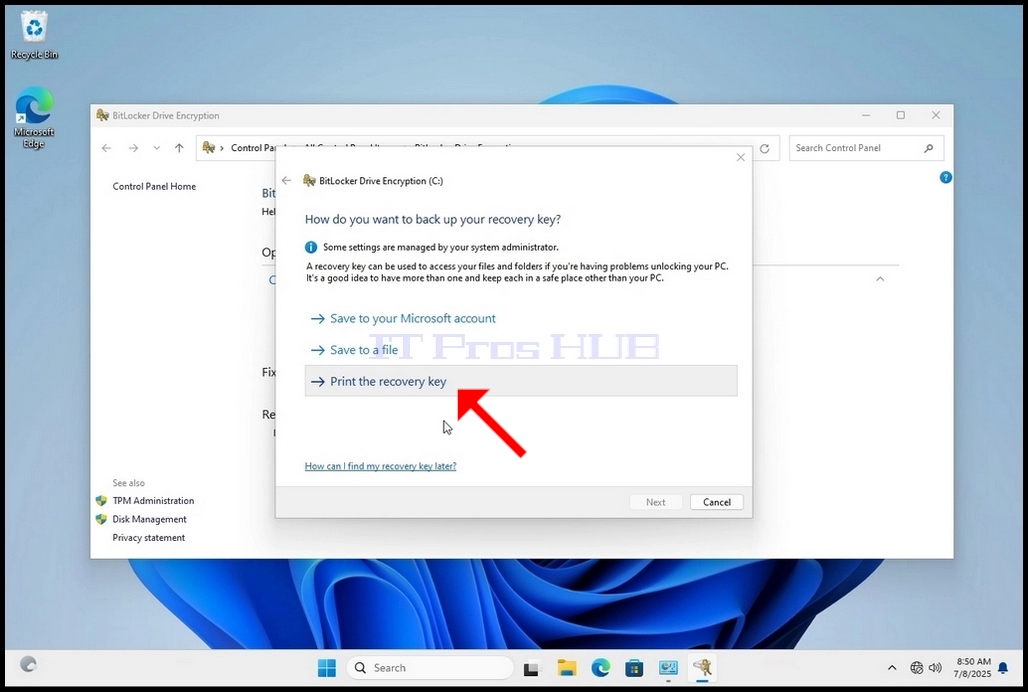
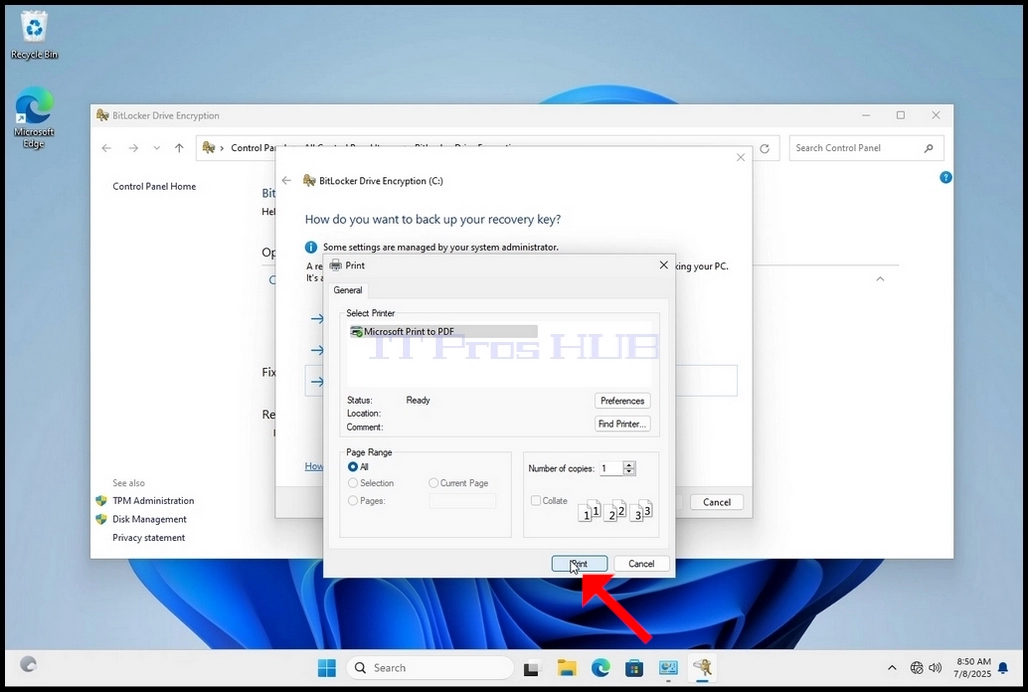
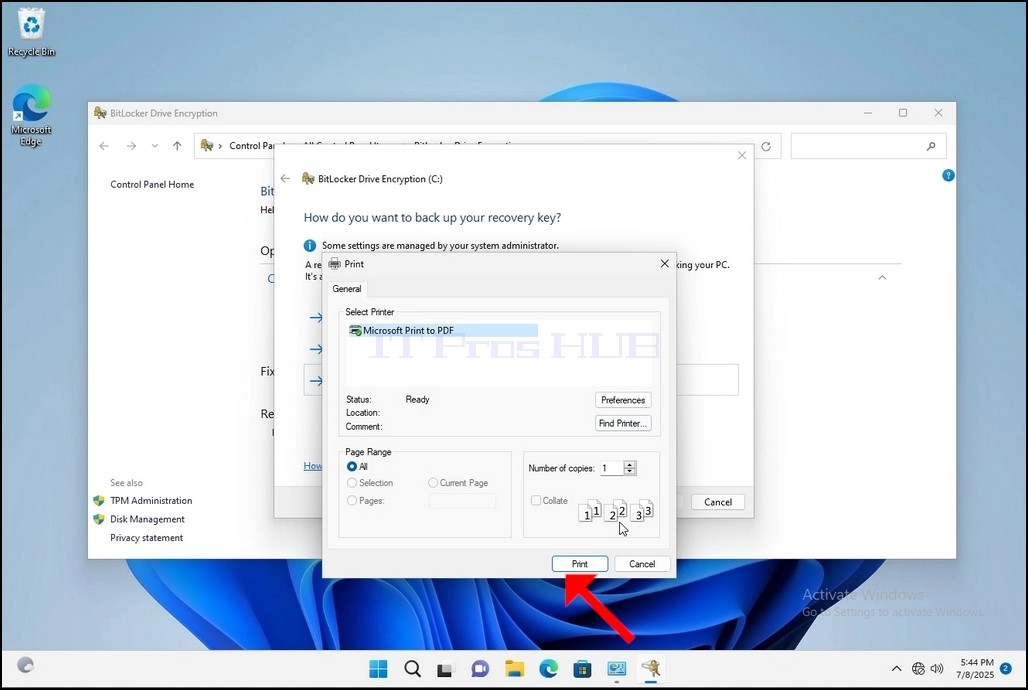
7. Once that option is chosen, the wizard will ask which printer to use to print the Bitlocker recovery key. In this article, as mentioned in stage 6, we will choose the Microsoft Print to PDF printer, which will print the recovery key into a PDF file.
8. After choosing the printer, click Print
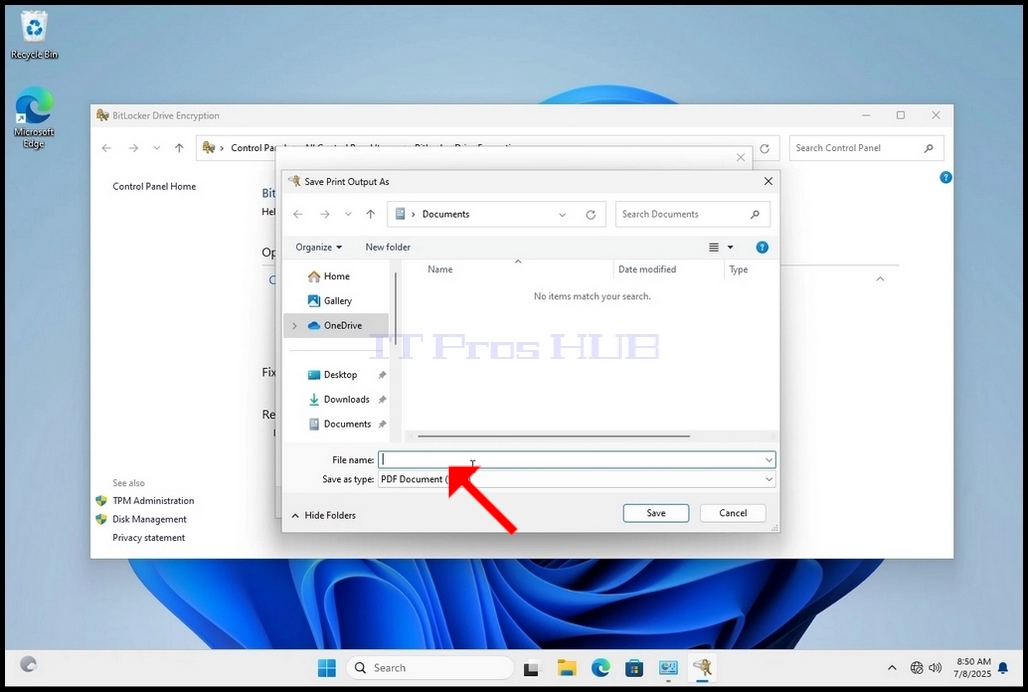
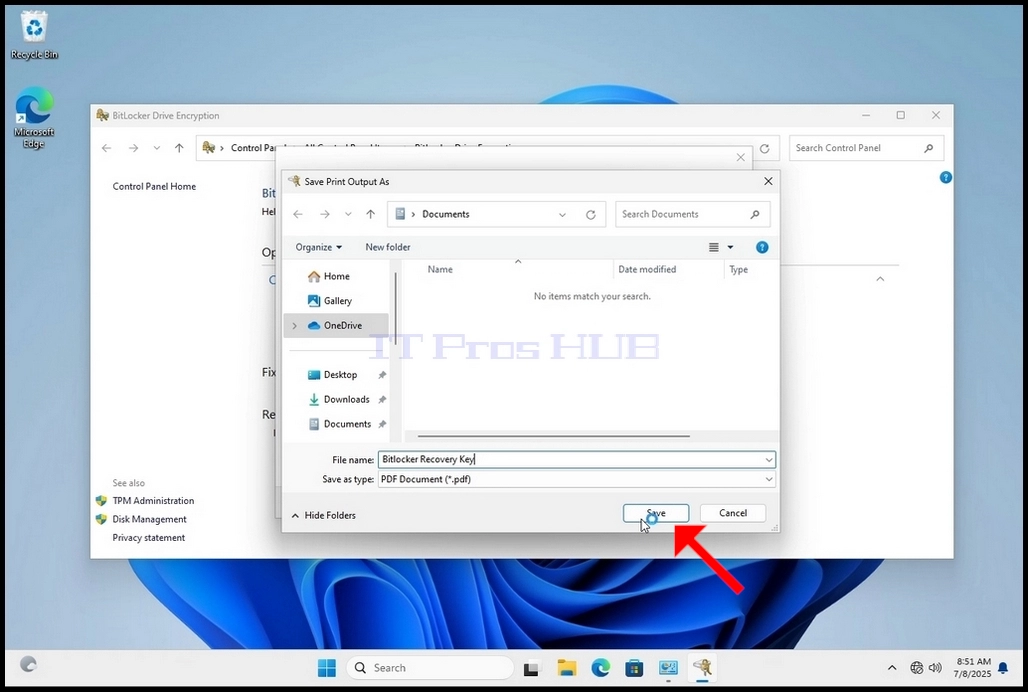
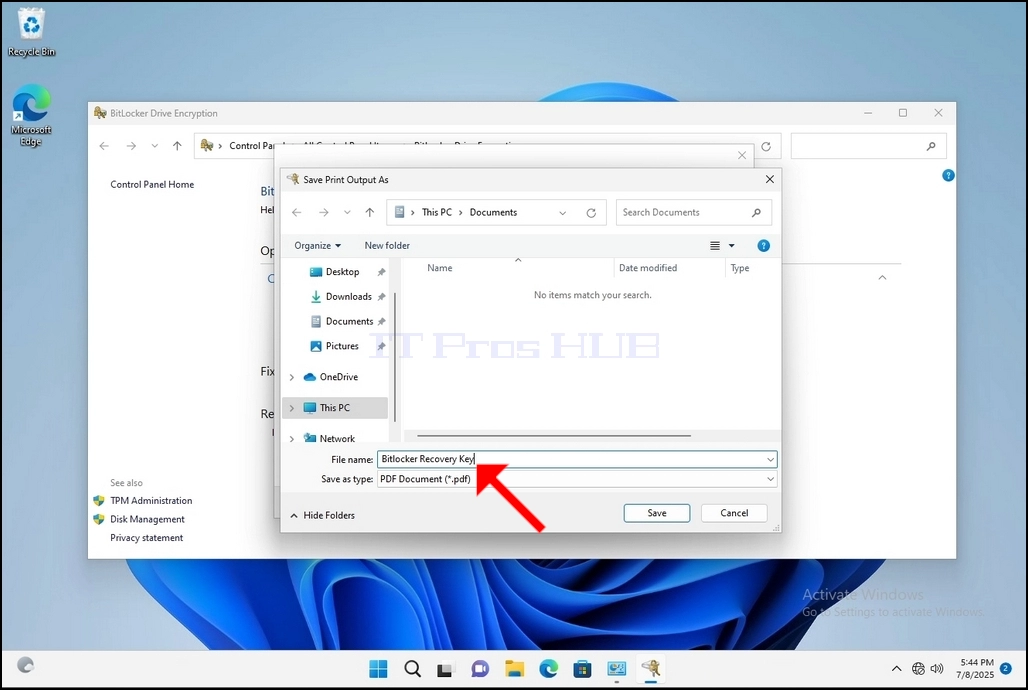
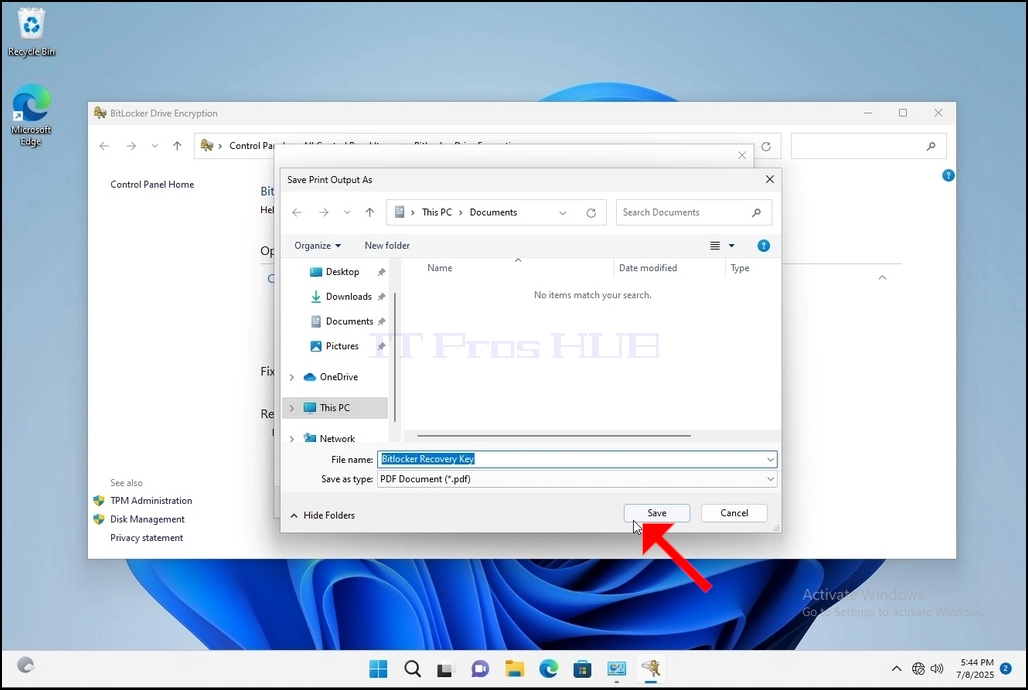
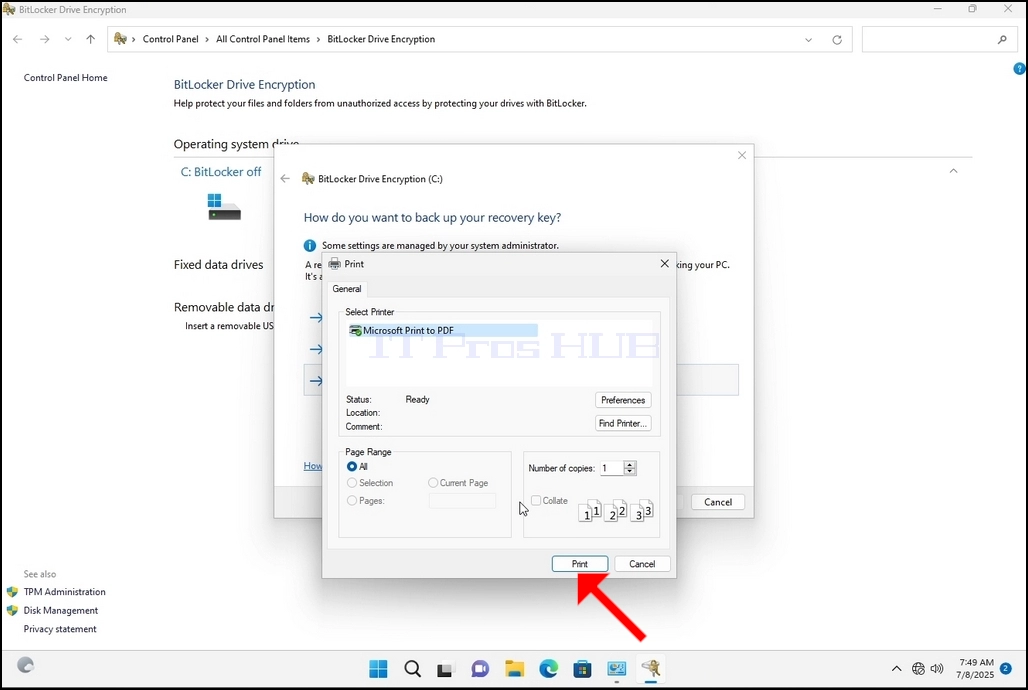
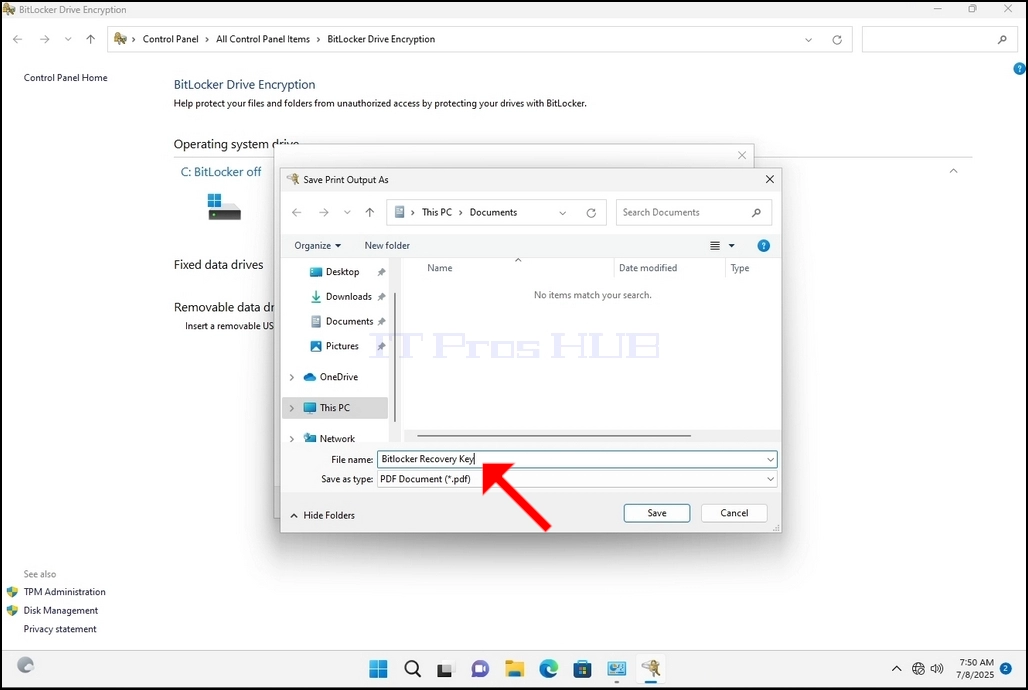
9. A new window will pop up. Use this window to name the Bitlocker recovery key PDF file and to choose where you would like you save it. In this case we named it “Bitlocker Recovery Key”.
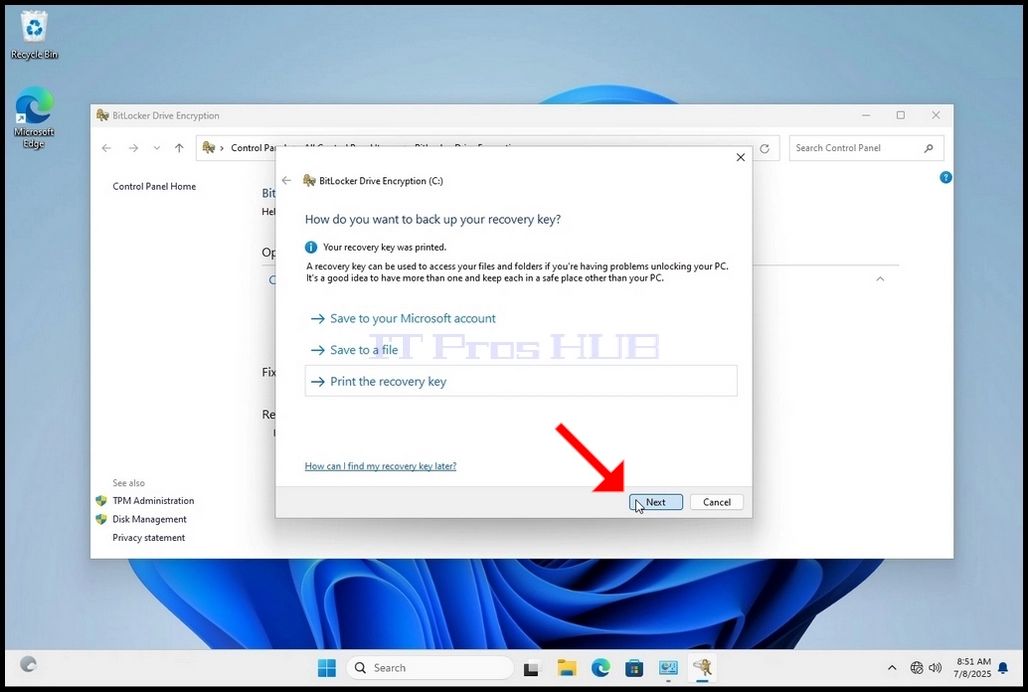
11. Click Next
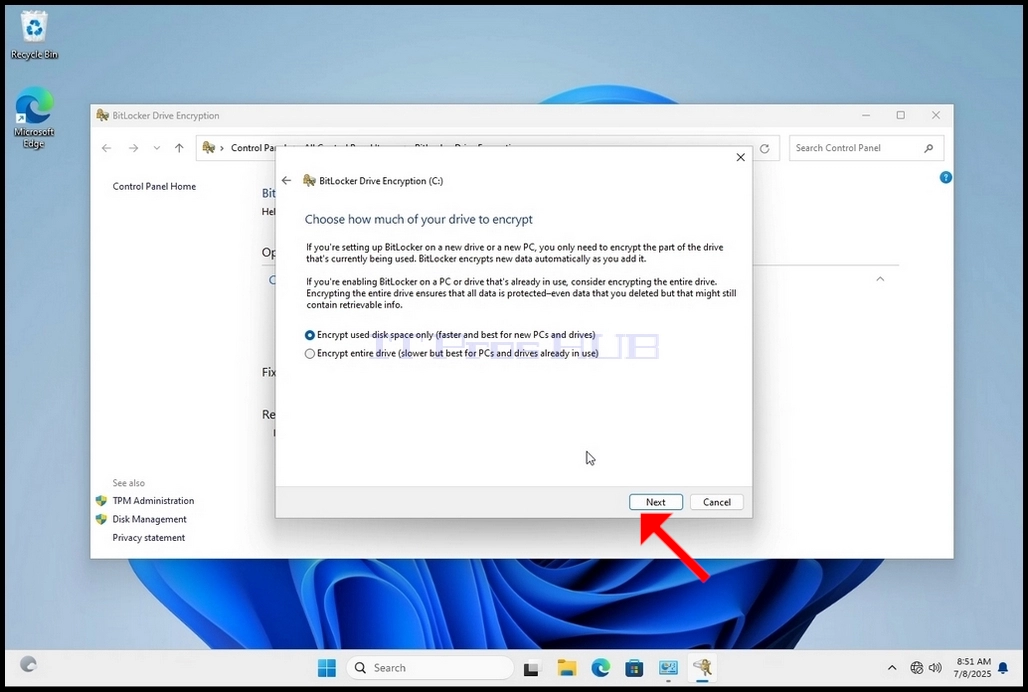
12. In the current stage, you will be asked to choose how much of your drive you would like to encrypt
a. In this article we will choose the first option which is faster to accomplish
b. Click Next
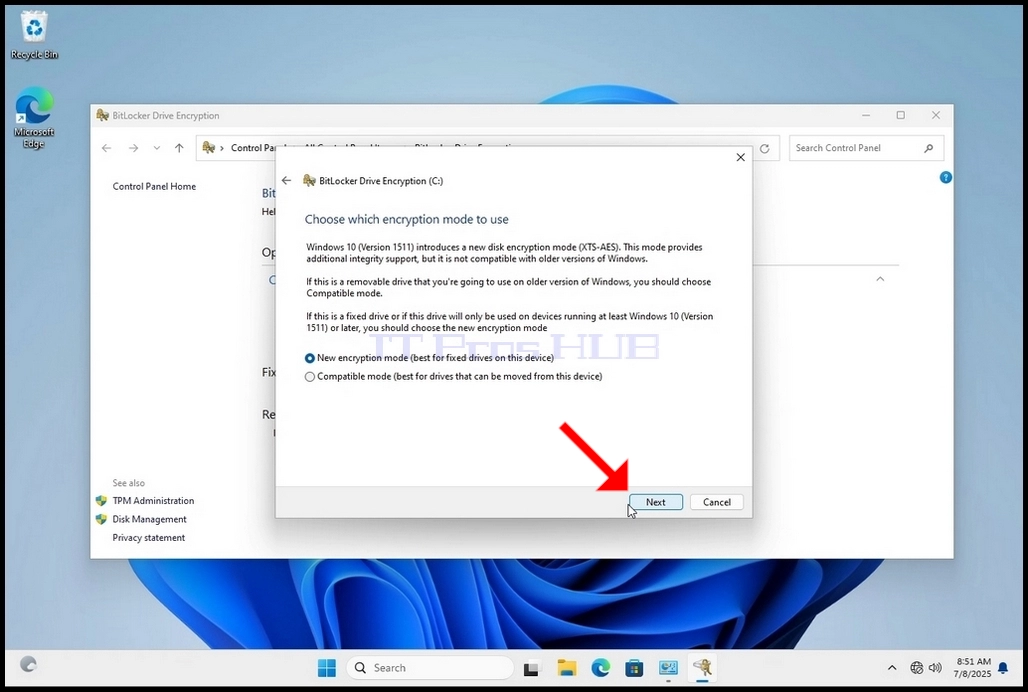
13. In the current stage, you will be asked to choose which encryption mode to use
a. In this article we will choose the first option, which is the New Encryption Mode option. Choose it and click Next


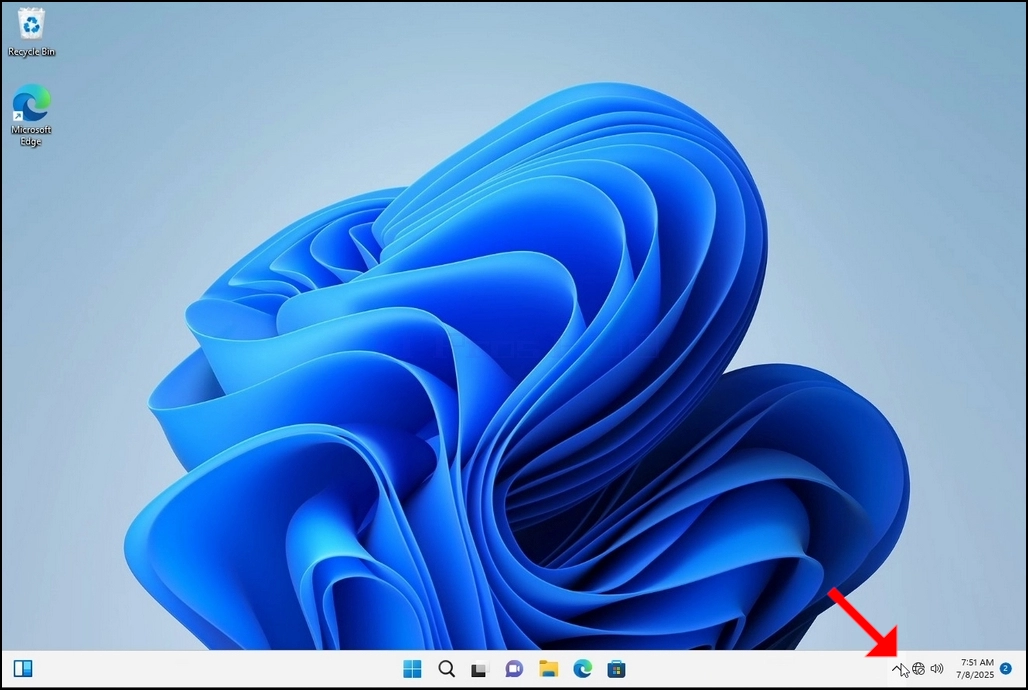
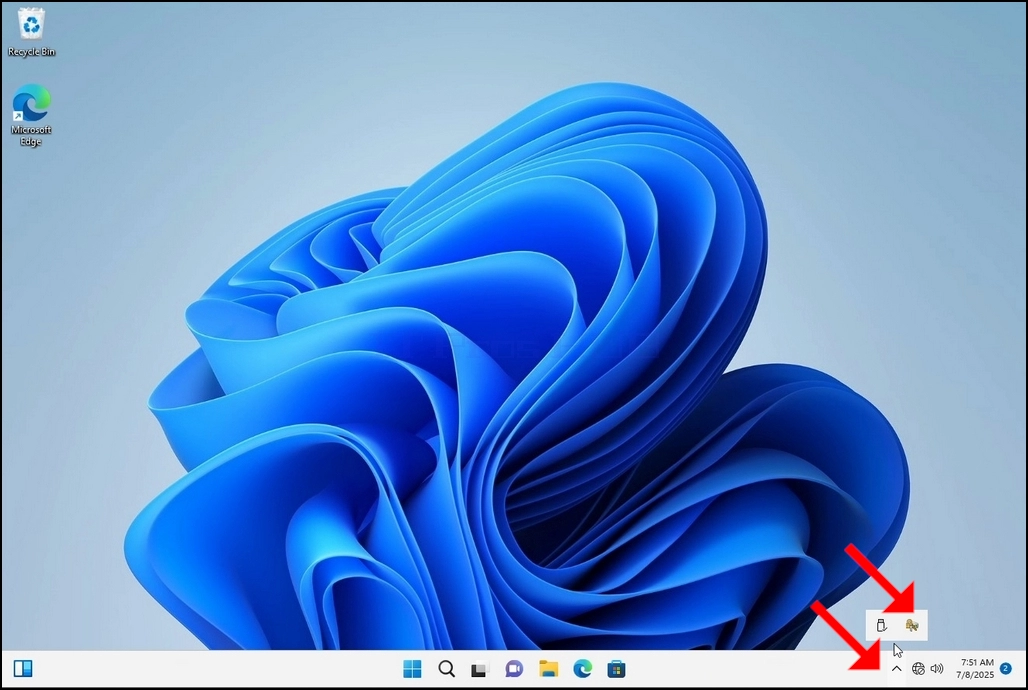
16. Once the computer is fully restarted, click the taskbar’s upward arrow (Notification area overflow icon).
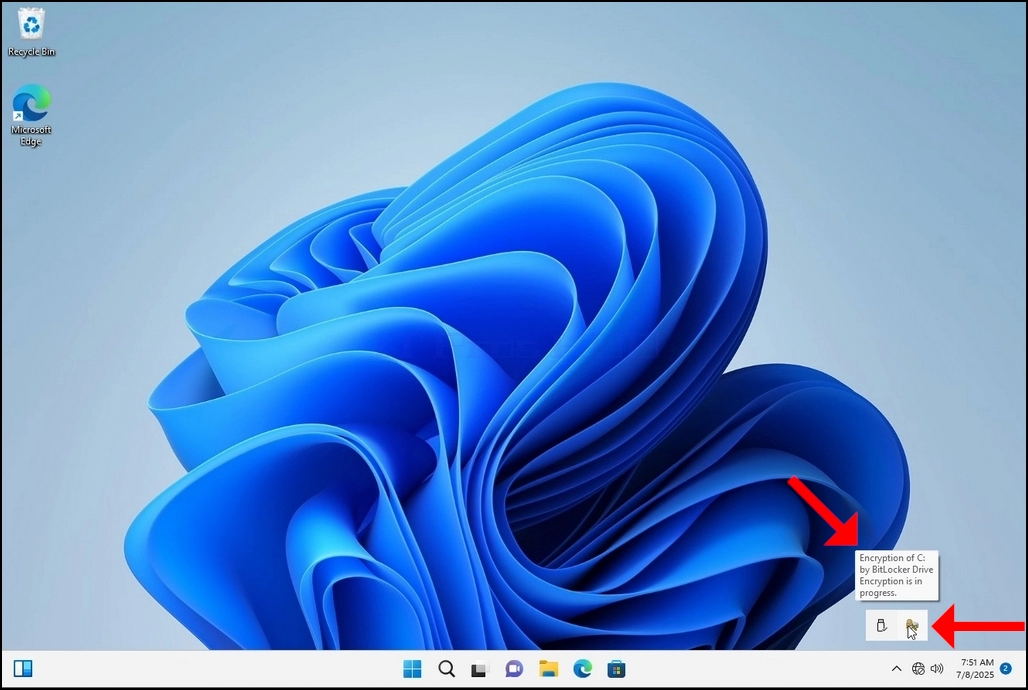
a. Look for the Bitlocker icon and double click it
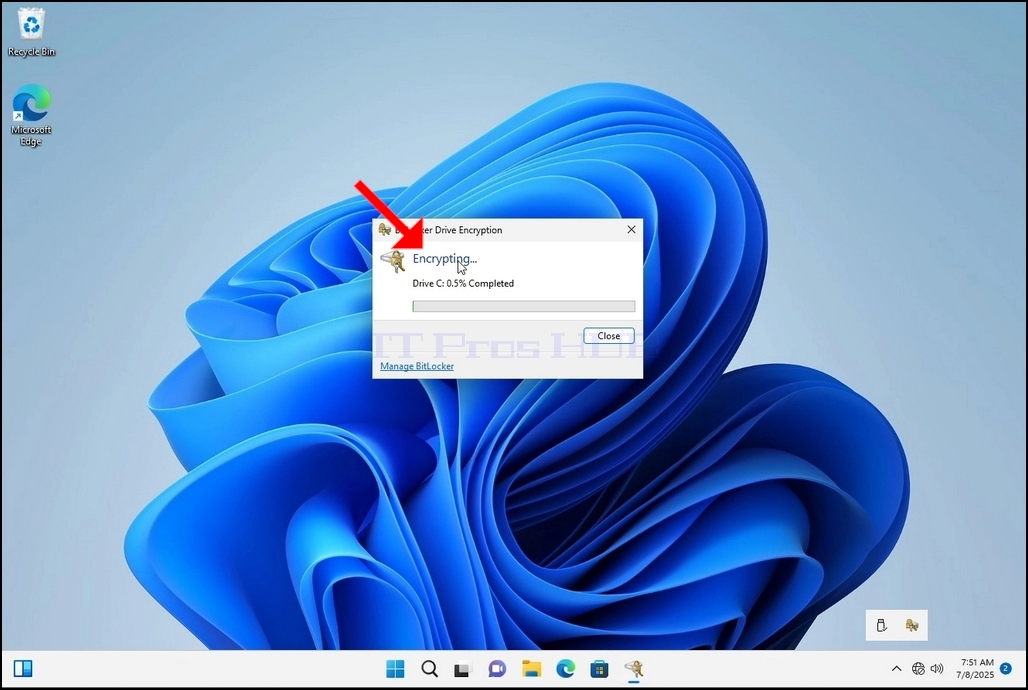
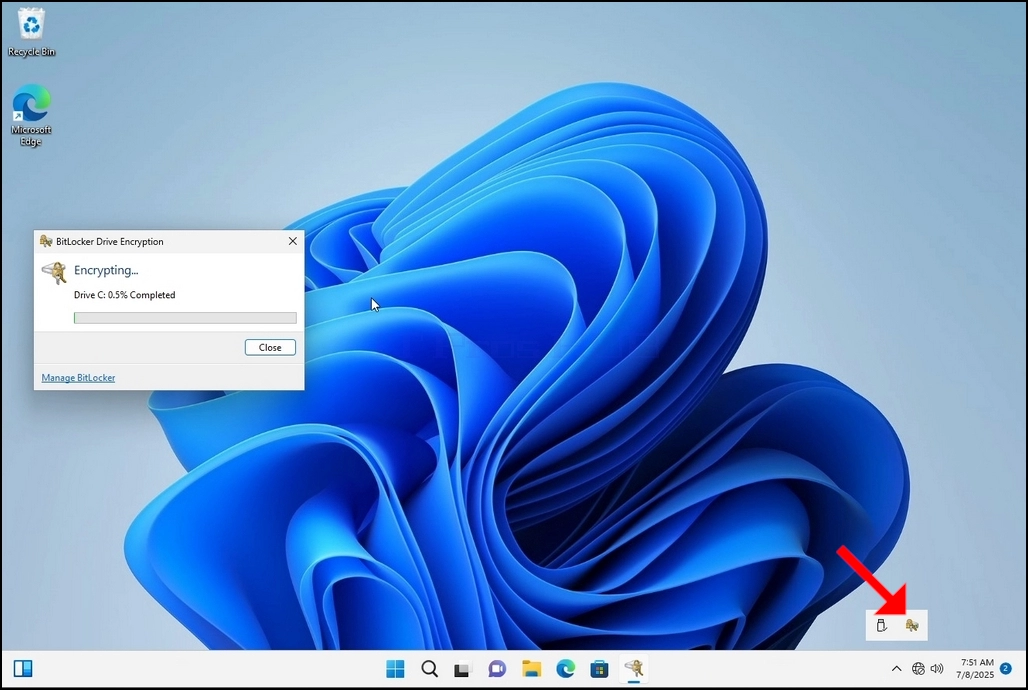
b. Once clicked, the Bitlocker drive encryption process window will appear, showing the status of the encryption process
c. Once that process bar is full at 100%, the encryption process is done
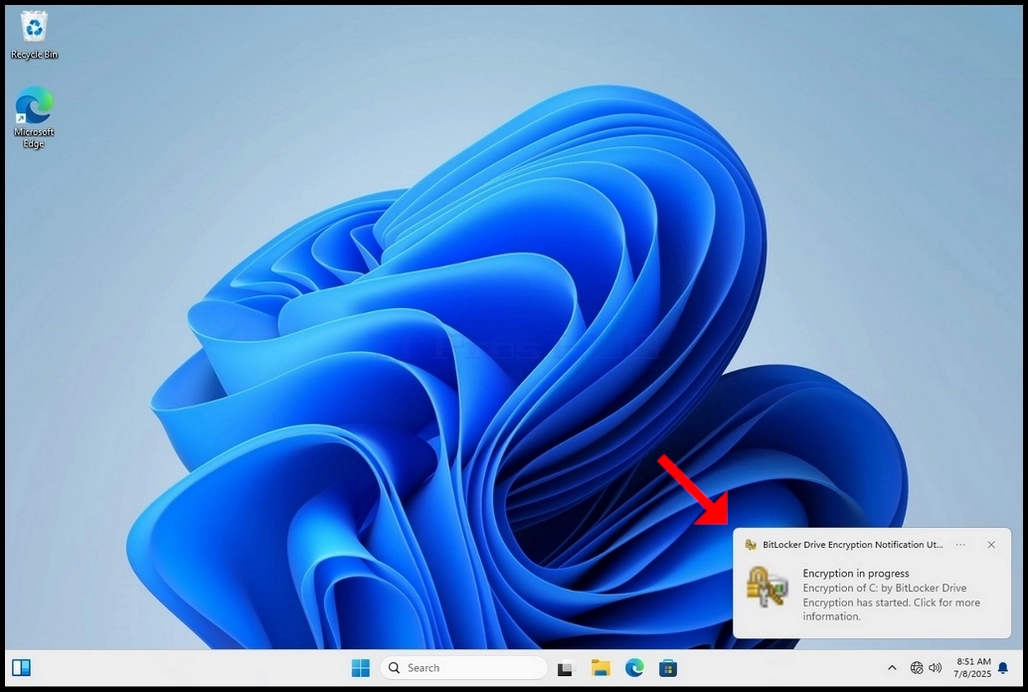
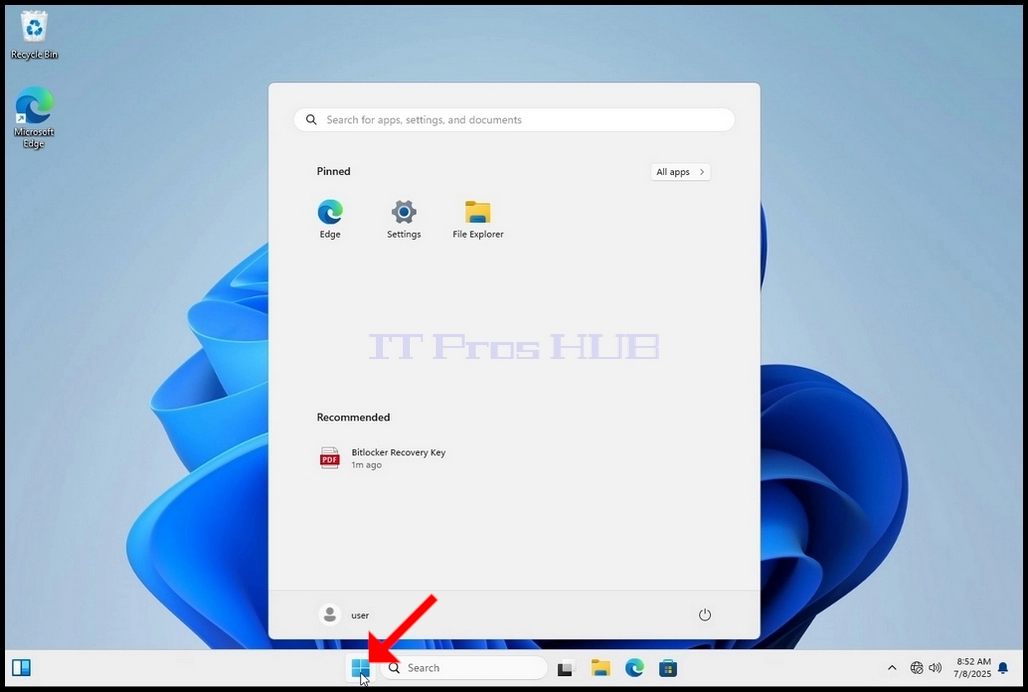
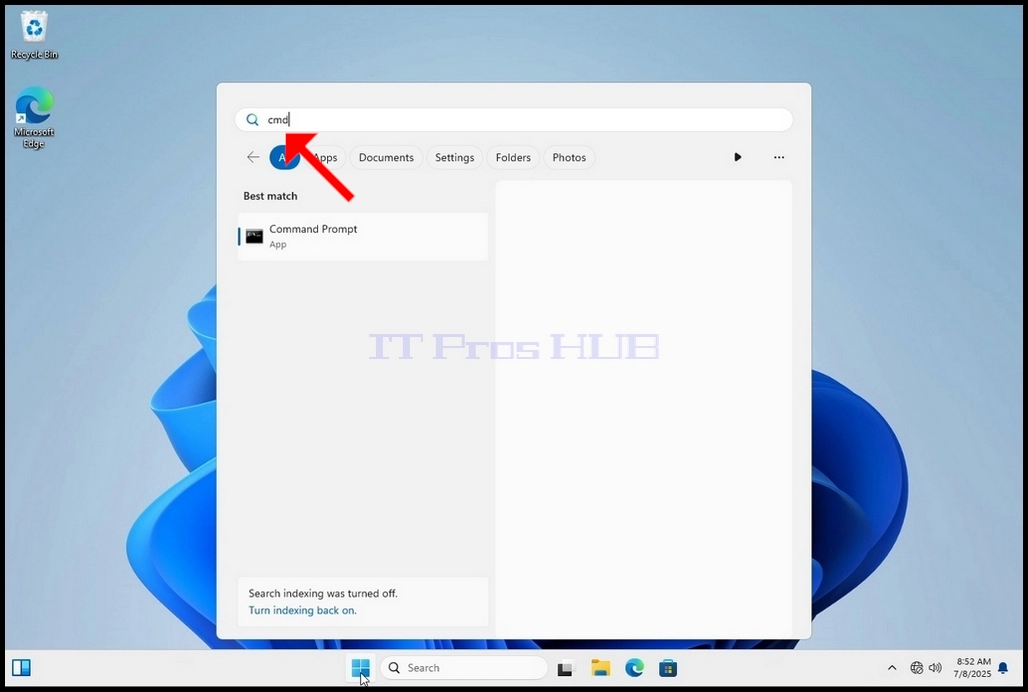
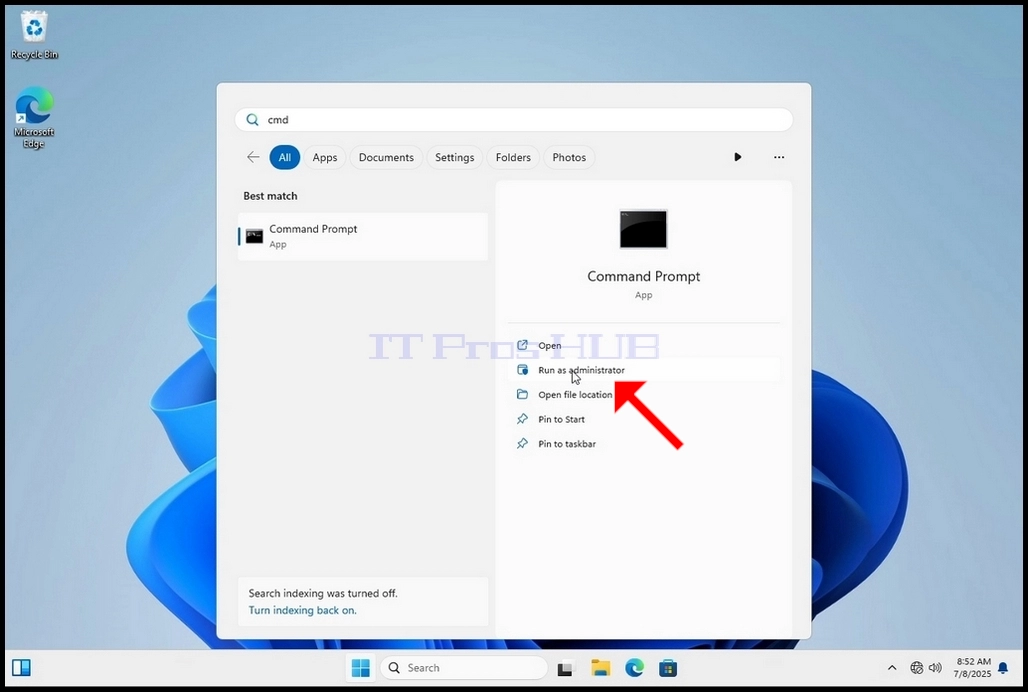
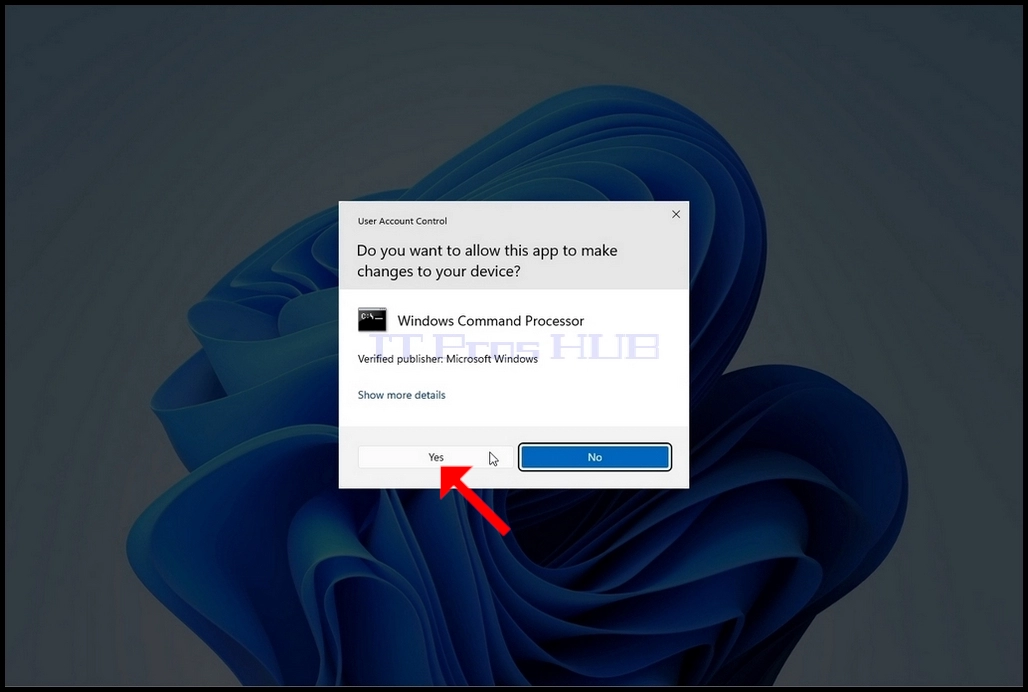
18. Click YES in the UAC window
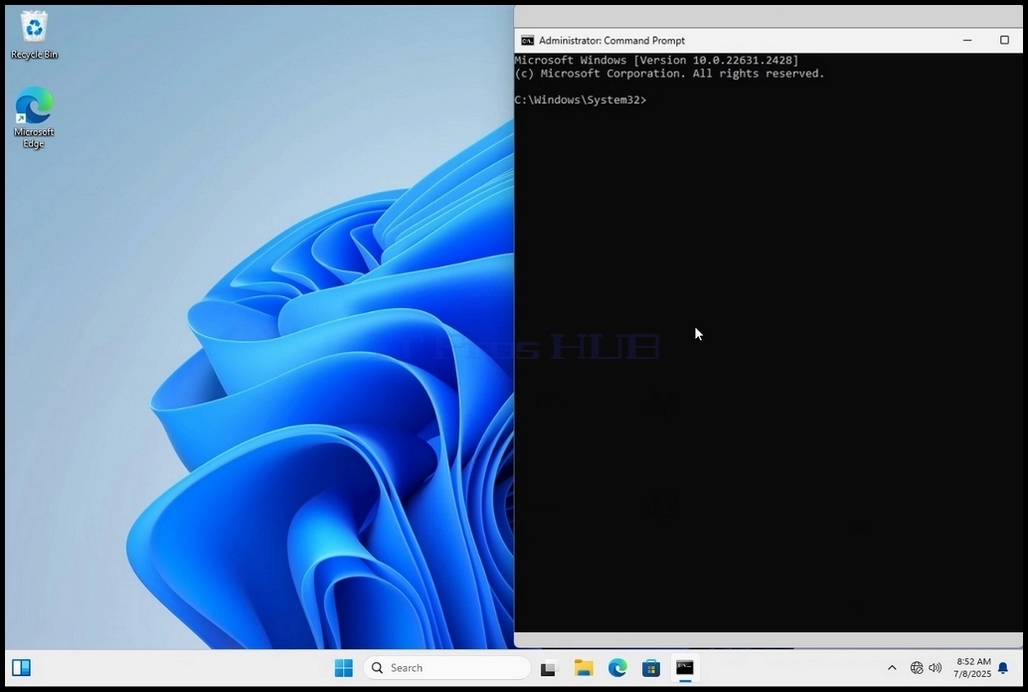
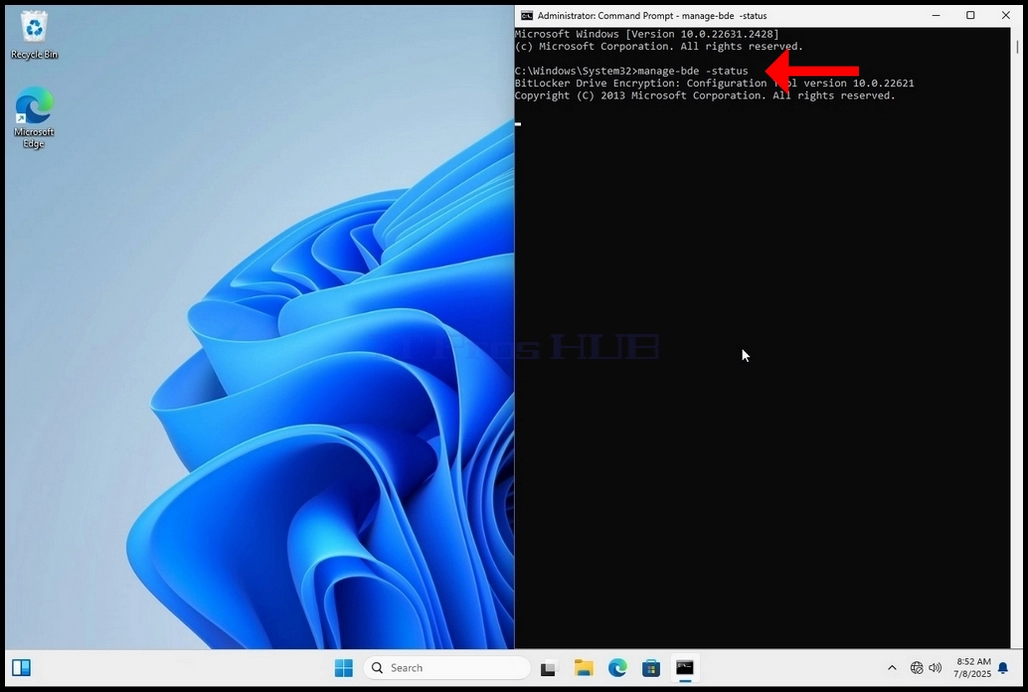
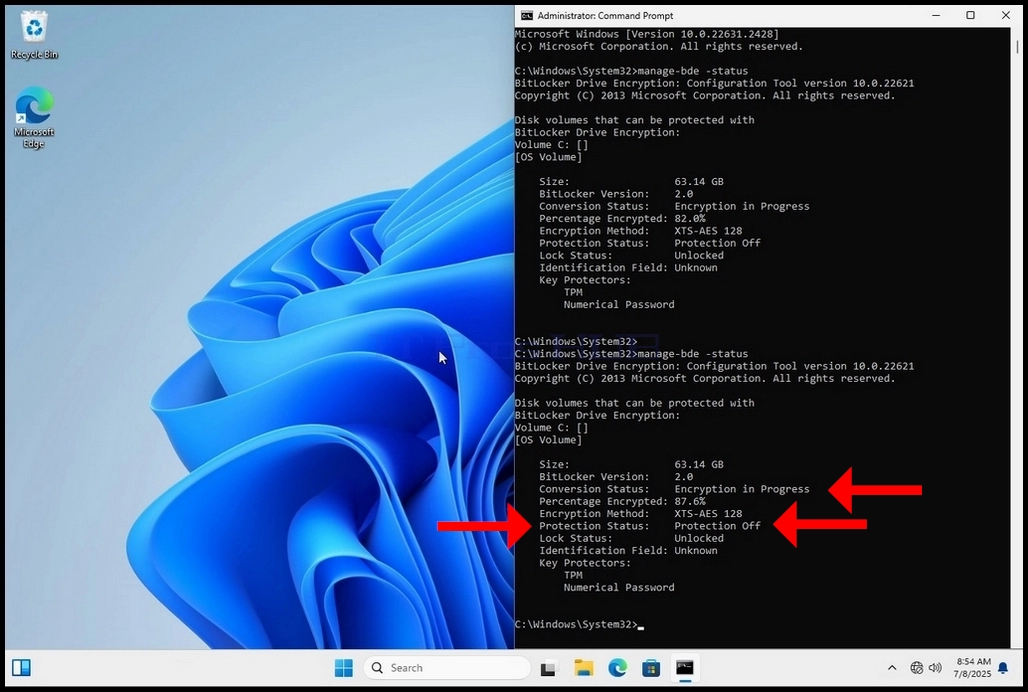
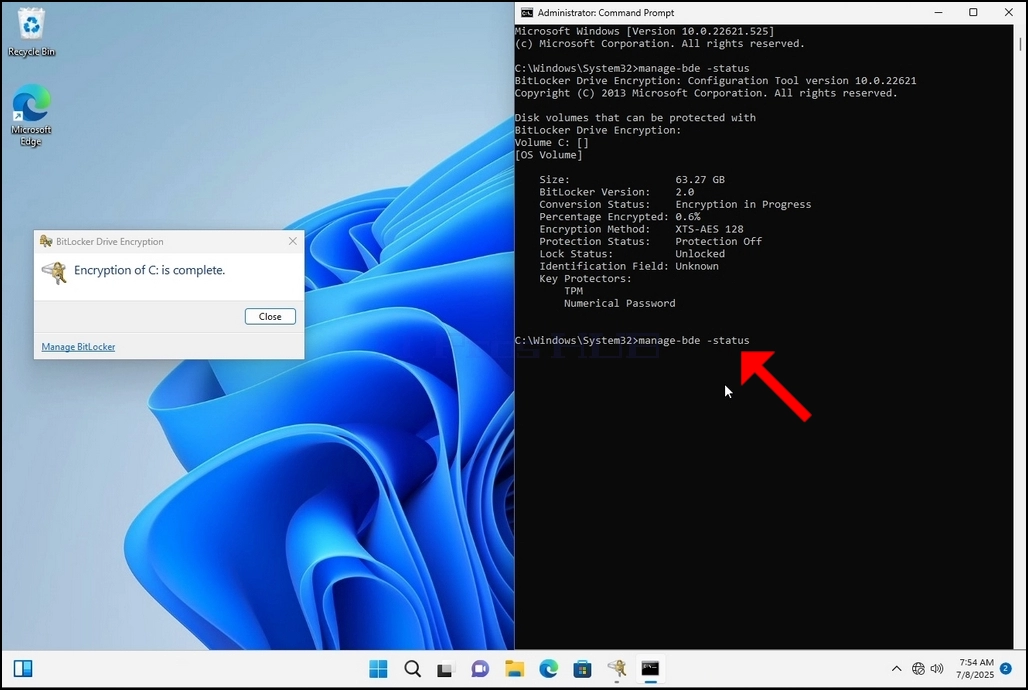
19. In cmd type manage-bde -status and click enter
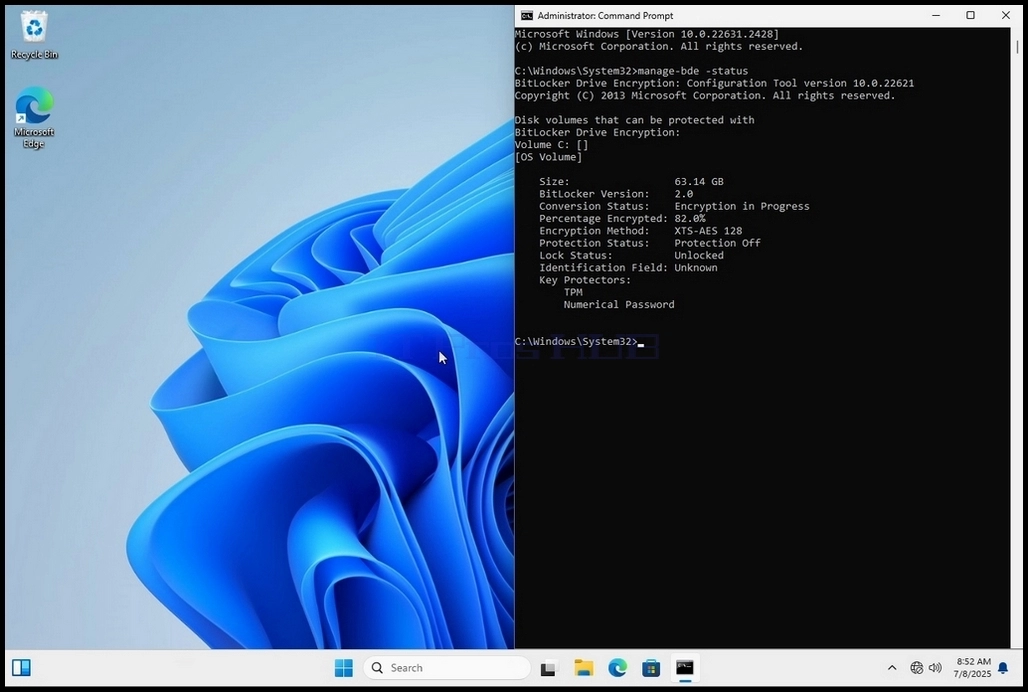
20. The lines that will appear will present information about the encryption process:
a. Size - The size of the drive being encrypted
b. Bitlocker Version – The version of Bitlocker used to encrypt the drive
c. Conversion Status – Shows the current encryption state of a drive
d. Percentage Encrypted – Shows the how much of the selected drive has been encrypted
e. Encryption Method – Shows the encryption method being used
f. Protection Status – Shows if the Bitlocker protection is currently off or on
g. Lock Status – Shows if the selected drive is locked or unlocked (accessible or not accessible)
h. Identification Field - refers to a label or optional string you can assign to a BitLocker-protected volume to help identify it, especially when managing multiple drives or recovery key
i. Key Protectors – Shows the authentication mechanisms that protect the encryption keys used to unlock a drive. When you encrypt a drive, BitLocker uses one or more key protectors to guard access to it
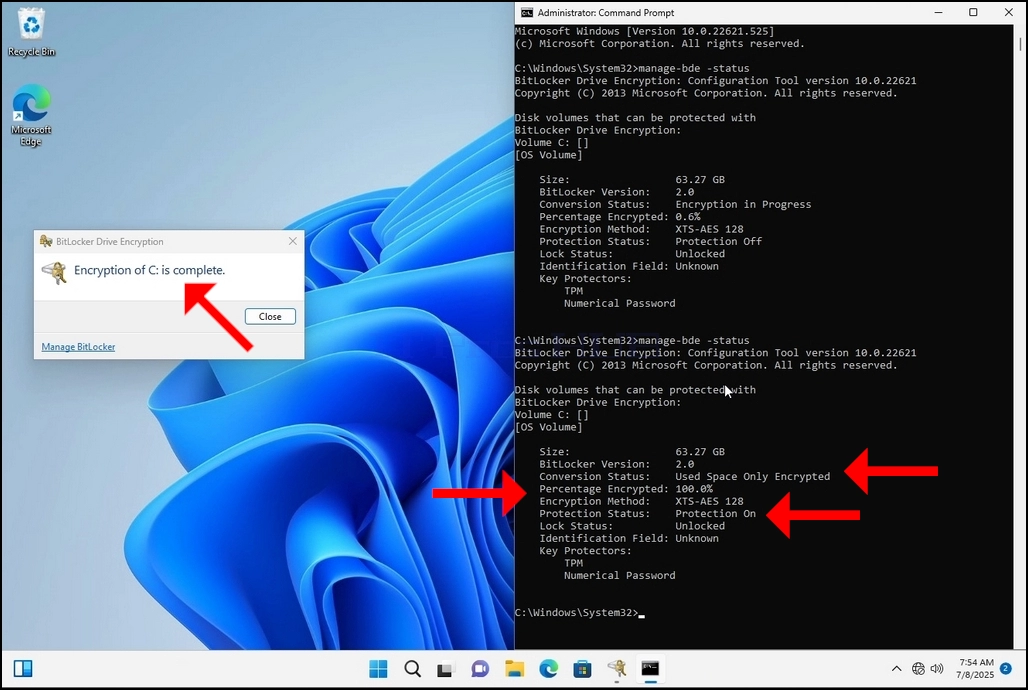
21. Once the encryption process is done for the selected drive, the small window that previously showed a process bar will now show:” Encryption of C: is complete”
22. This could be verified through CMD by typing manage-bde -status again and clicking enter
a. Notice that the following values are now changed:
i. Conversion Status: Used Space Only Encrypted
ii. Percentage Encrypted: 100.0%
iii. Protection Status: Protection On
23. In the next step we will take a look at the Bitlocker recovery key PDF file
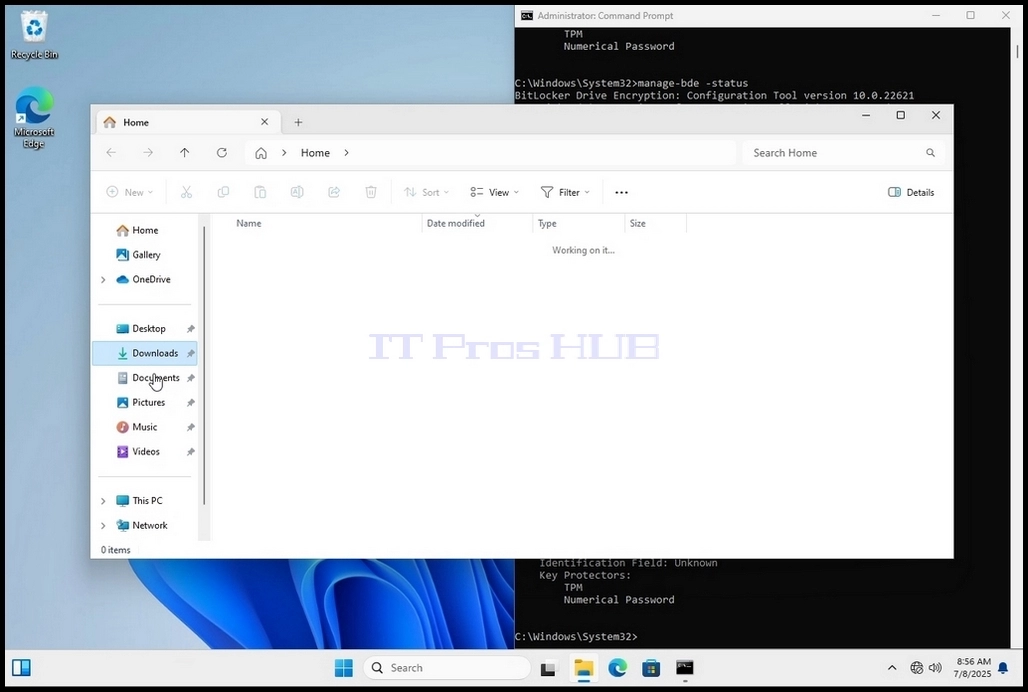
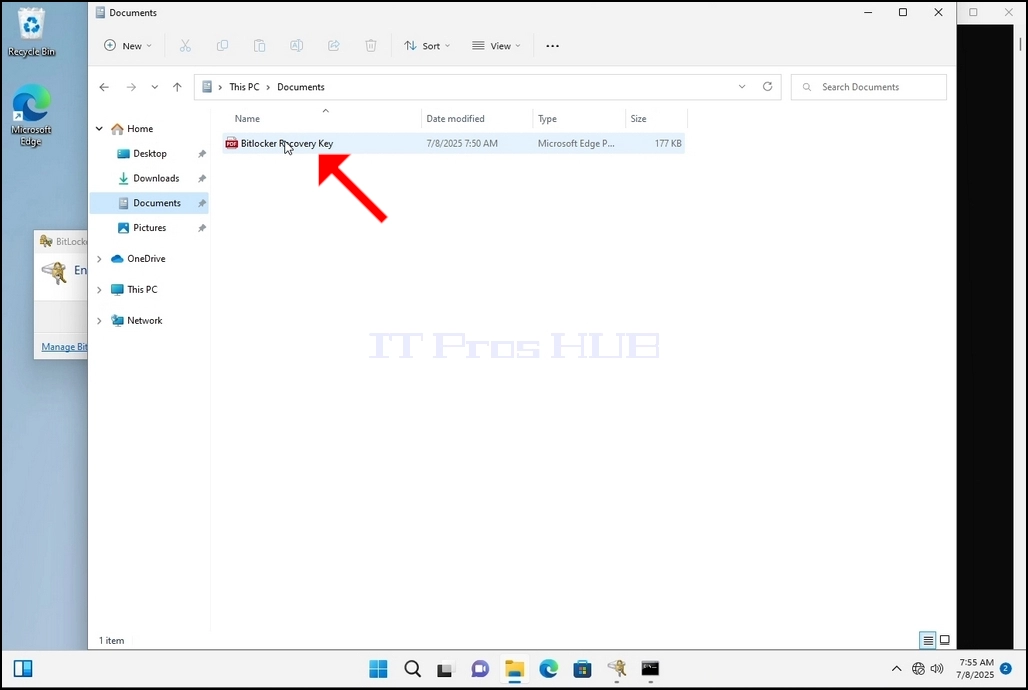
24. Go to the path in which it was originally saved and open it
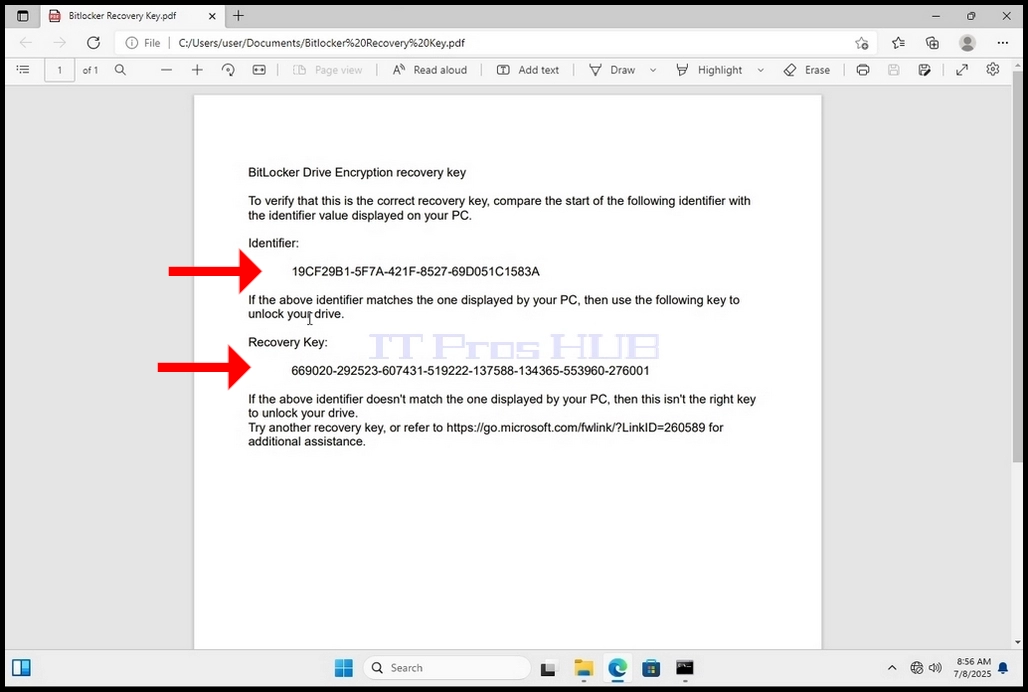
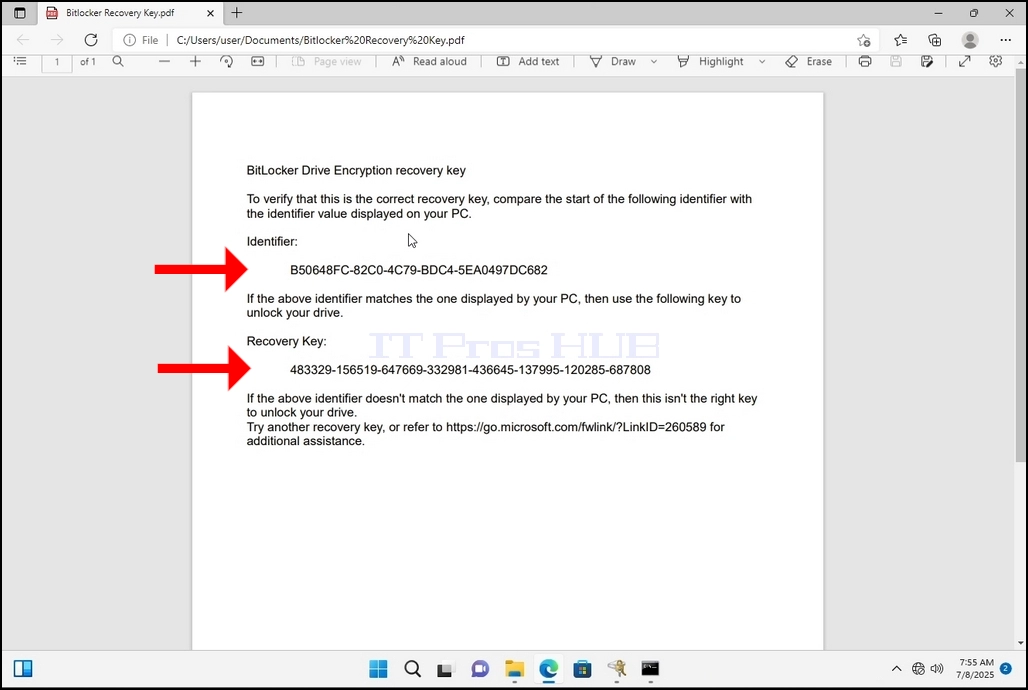
25. Notice the 2 important values:
a. Identifier
b. Recovery Key
26. It is highly recommended to save these values in more than one medium and location such as:
a. Printed format
b. Password manager
 1. Windows Masaüstü'ne gidin
2. Başlat düğmesine tıklayın
3. Başlat menüsü açıldıktan sonra "bitlocker" yazın ve Bitlocker Denetim Masası simgesini görene kadar bekleyin. Bulduğunda, tıklayın ve Bitlocker Sürücü Şifreleme penceresinin açılmasını bekleyin.
4. Bitlocker Sürücü Şifrelemesi açıldıktan sonra, Bitlocker'ı Aç cümlesini bulun, üzerine tıklayın ve Bitlocker Sürücü Şifrelemesi sihirbazının görünmesini bekleyin.
a. Sihirbaz göründüğünde, bilgisayarın Bitlocker kullanarak veri şifrelemek için gereken sistem gereksinimlerini karşılayıp karşılamadığı otomatik olarak doğrulanacaktır.
b. Birkaç dakika sürdüğü söylense de, modern bir bilgisayar kurulumunda çoğu durumda 30 saniyeye kadar sürebilir.

5. Doğrulama aşaması tamamlandıktan ve sihirbaz bilgisayarın Bitlocker uyumlu olduğunu tespit ettikten sonra, Bitlocker kurtarma anahtarınızı nasıl kaydetmek istediğinizi soracaktır.
a. Microsoft hesabı – Microsoft hesabınıza kaydeder.
b. Dosyaya kaydet – Kurtarma anahtarını bir metin dosyasına kaydeder.
c. Kurtarma Anahtarını Yazdır – Bitlocker kurtarma anahtarını sanal bir yazıcıya bile yazdırır.
6. Bu makalede son seçenek olan Kurtarma Anahtarını Yazdır seçeneğini seçeceğiz ve bunu yerel olarak kaydedeceğiz.
a. Bitlocker'ın, şifrelenmek üzere olan aynı sürücüye kurtarma anahtarı dosyasının kaydedilmesine izin vermediğini unutmayın.
b. Ancak, kurtarma anahtarının şifrelenmek üzere olan aynı sürücüdeki bir dosyaya yazdırılmasına izin verir. Şifrelenecek. Bu yöntem de önerilmemektedir, ancak bu makalenin amacı doğrultusunda bu şekilde yapacağız.
c. Not: Kurtarma kodu dosyasını asla şifrelenecek sürücüye kaydetmeyin. Herhangi bir nedenle sürücü kilitlenirse, kurtarma anahtarı dosyası da onunla birlikte kilitlenir.
7. Bu seçenek belirlendiğinde, sihirbaz Bitlocker kurtarma anahtarını yazdırmak için hangi yazıcının kullanılacağını soracaktır. Bu makalede, 6. aşamada belirtildiği gibi, kurtarma anahtarını bir PDF dosyasına yazdıracak olan Microsoft Print to PDFyazıcısını seçeceğiz.
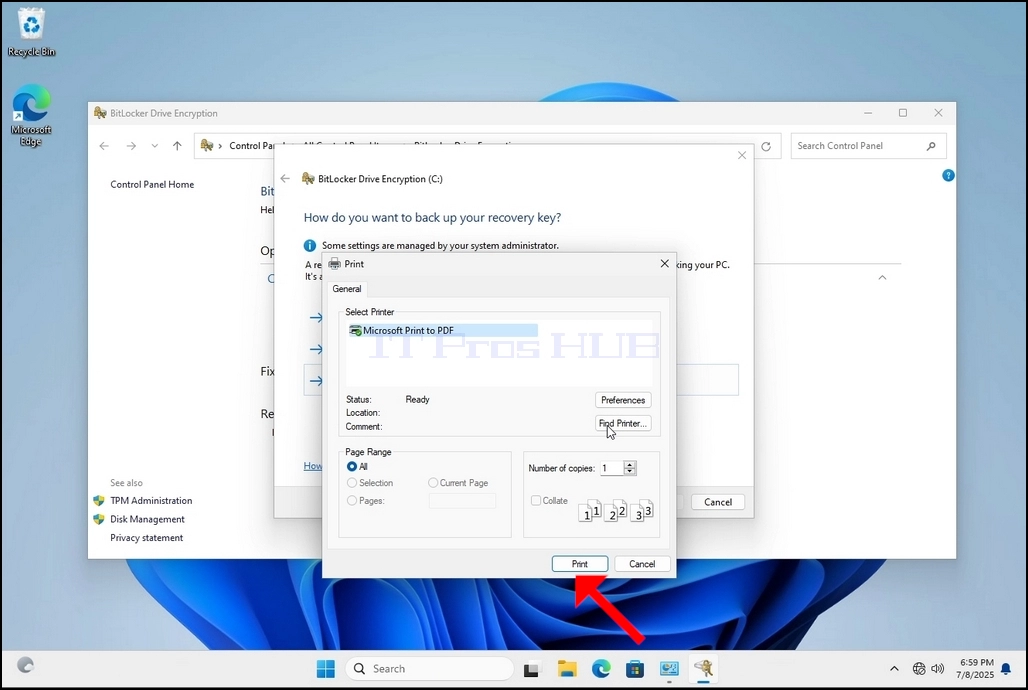
8. Yazıcıyı seçtikten sonra Yazdır
- Ayrıntılar
- Yazan: IT Pro
- Kategori: How to Articles
- Görüntüleme: 5894
1. Windows Masaüstü'ne gidin
2. Başlat düğmesine tıklayın
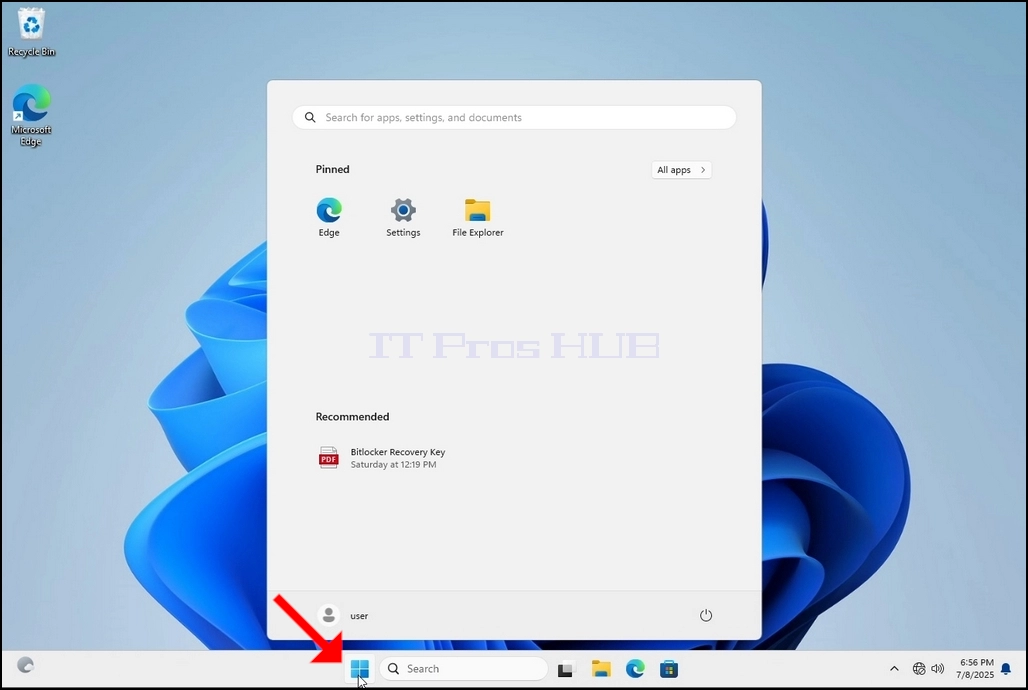
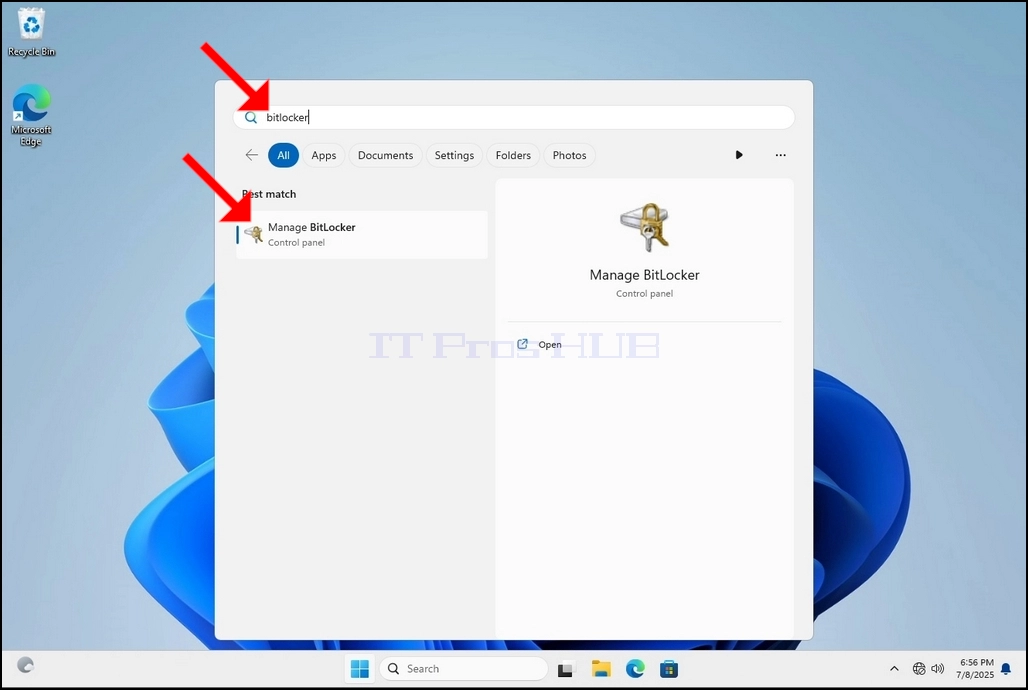
3. Başlat menüsü açıldıktan sonra “bitlocker” yazın ve Bitlocker Denetim Masası simgesini görene kadar bekleyin. Bulduğunda, tıklayın ve Bitlocker Sürücü Şifreleme penceresinin açılmasını bekleyin.
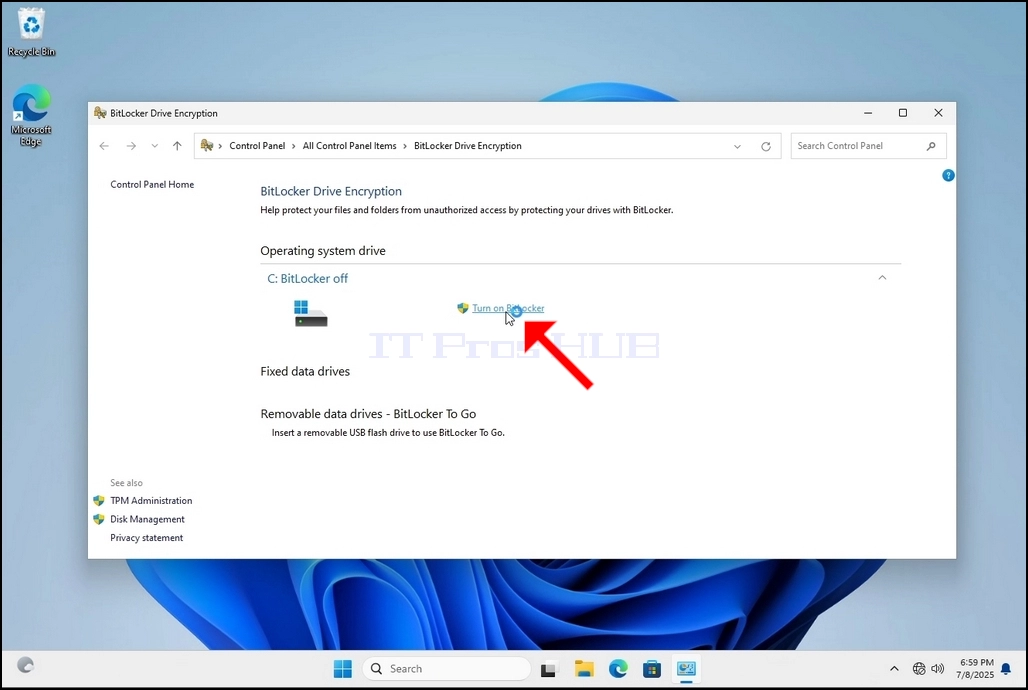
4. Bitlocker Sürücü Şifrelemesi açıldıktan sonra, Bitlocker'ı Aç cümlesini bulun, üzerine tıklayın ve Bitlocker Sürücü Şifrelemesi sihirbazının görünmesini bekleyin.
a. Sihirbaz göründüğünde, bilgisayarın Bitlocker kullanarak veri şifrelemek için gereken sistem gereksinimlerini karşılayıp karşılamadığı otomatik olarak doğrulanacaktır.
b. Birkaç dakika sürdüğü söylense de, modern bir bilgisayar kurulumunda çoğu durumda 30 saniyeye kadar sürebilir.
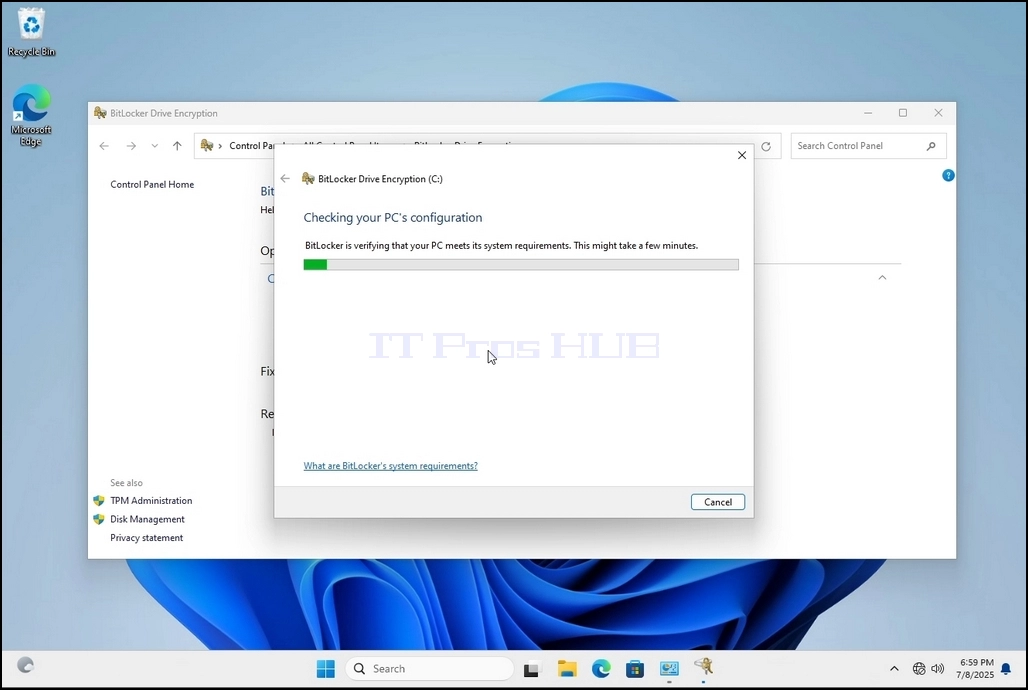
5. Doğrulama aşaması tamamlandıktan ve sihirbaz bilgisayarın Bitlocker uyumlu olduğunu tespit ettikten sonra, Bitlocker kurtarma anahtarınızı nasıl kaydetmek istediğinizi soracaktır.
a. Microsoft hesabı – Microsoft hesabınıza kaydeder
b. Dosyaya kaydet – Kurtarma anahtarını bir metin dosyasına kaydeder
c. Kurtarma Anahtarını Yazdır – Bitlocker kurtarma anahtarını sanal bir yazıcıya bile yazdırır.
6. Bu makalede son seçenek olan Kurtarma Anahtarını Yazdır seçeneğini seçeceğiz ve bunu yerel olarak kaydedeceğiz.
a. Bitlocker'ın, şifrelenmek üzere olan aynı sürücüye kurtarma anahtarı dosyasının kaydedilmesine izin vermediğini unutmayın.
b. Ancak, kurtarma anahtarının şifrelenmek üzere olan aynı sürücüdeki bir dosyaya yazdırılmasına izin verir. Şifrelenecek. Bu yöntem de önerilmemektedir, ancak bu makalenin amacı doğrultusunda bu şekilde yapacağız.
c. Not: Kurtarma kodu dosyasını asla şifrelenecek sürücüye kaydetmeyin. Herhangi bir nedenle sürücü kilitlenirse, kurtarma anahtarı dosyası da onunla birlikte kilitlenir.
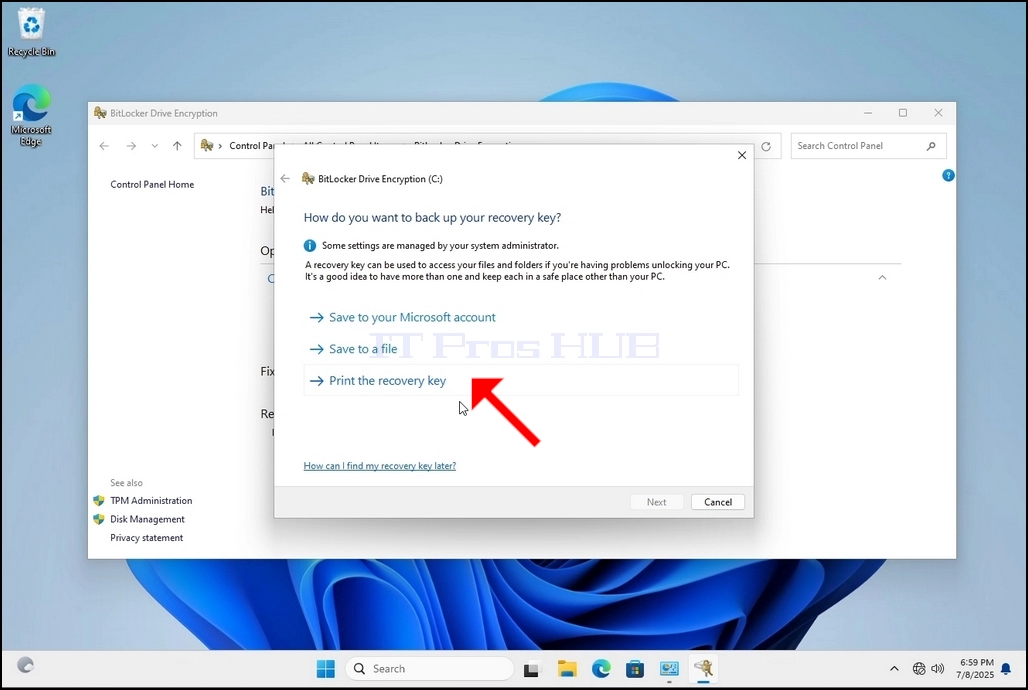
7. Bu seçenek belirlendiğinde, sihirbaz Bitlocker kurtarma anahtarını yazdırmak için hangi yazıcının kullanılacağını soracaktır. Bu makalede, 6. aşamada belirtildiği gibi, kurtarma anahtarını bir PDF dosyasına yazdıracak olan Microsoft Print to PDFyazıcısını seçeceğiz.
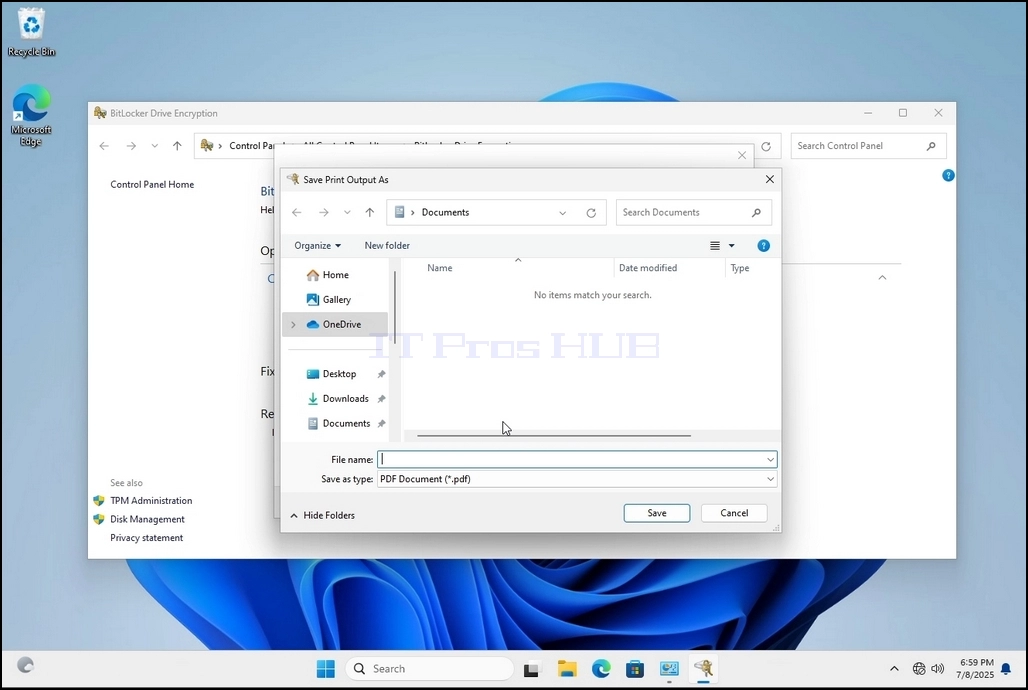
9. Yeni bir pencere açılacaktır. Bu pencereyi kullanarak Bitlocker kurtarma anahtarı PDF dosyasına bir ad verin ve dosyayı nereye kaydetmek istediğinizi seçin. Bu durumda buna "Bitlocker Kurtarma Anahtarı" adını verdik.
10. Kaydet'e tıklayın
a. Kaydet düğmesine tıklandığında pencere kapanacak ve sihirbaza geri döneceğiz, ancak bu sefer İleri tuşu tıklanabilir hale gelecek.
11. İleri'ye tıklayın

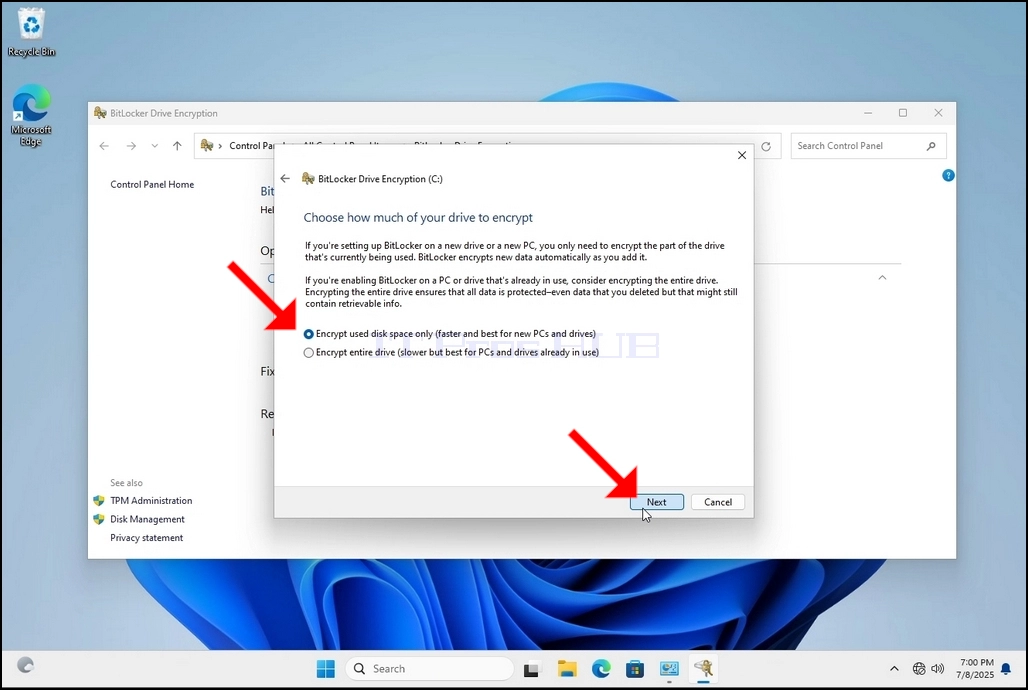
12. Mevcut aşamada, sürücünüzün ne kadarını şifrelemek istediğinizi seçmeniz istenecektir.
a. Bu makalede, daha hızlı gerçekleştirilebilen ilk seçeneği seçeceğiz.
b. İleri'ye tıklayın
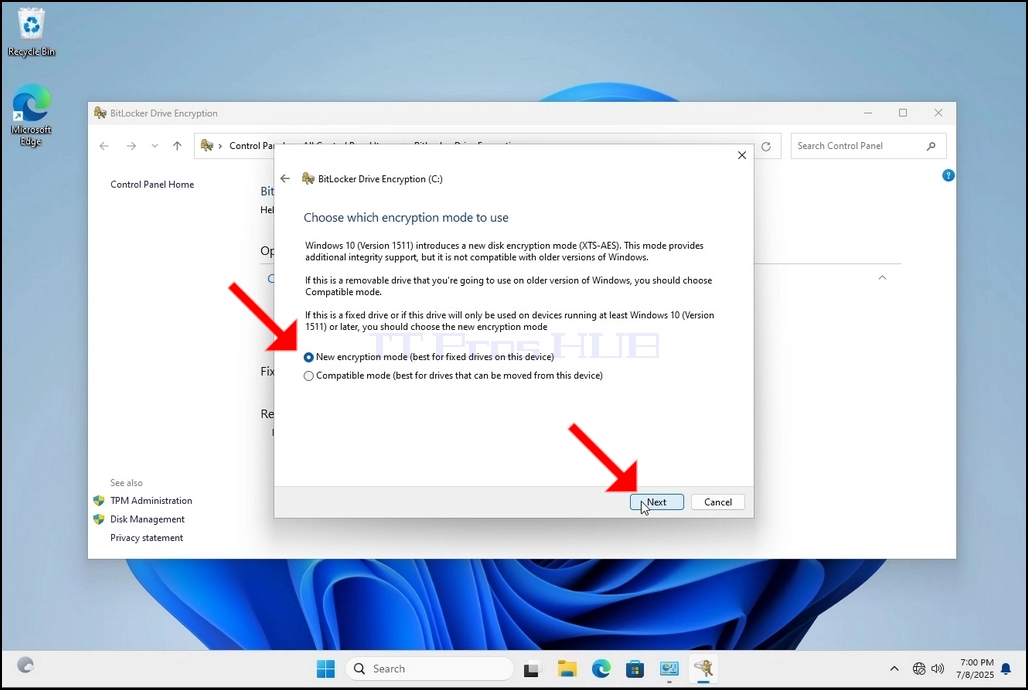
13. Mevcut aşamada, hangi şifreleme modunu kullanacağınızı seçmeniz istenecektir.
a. Bu makalede, ilk seçenek olan Yeni Şifreleme Modu seçeneğini seçeceğiz. Seçin ve İleri'ye tıklayın
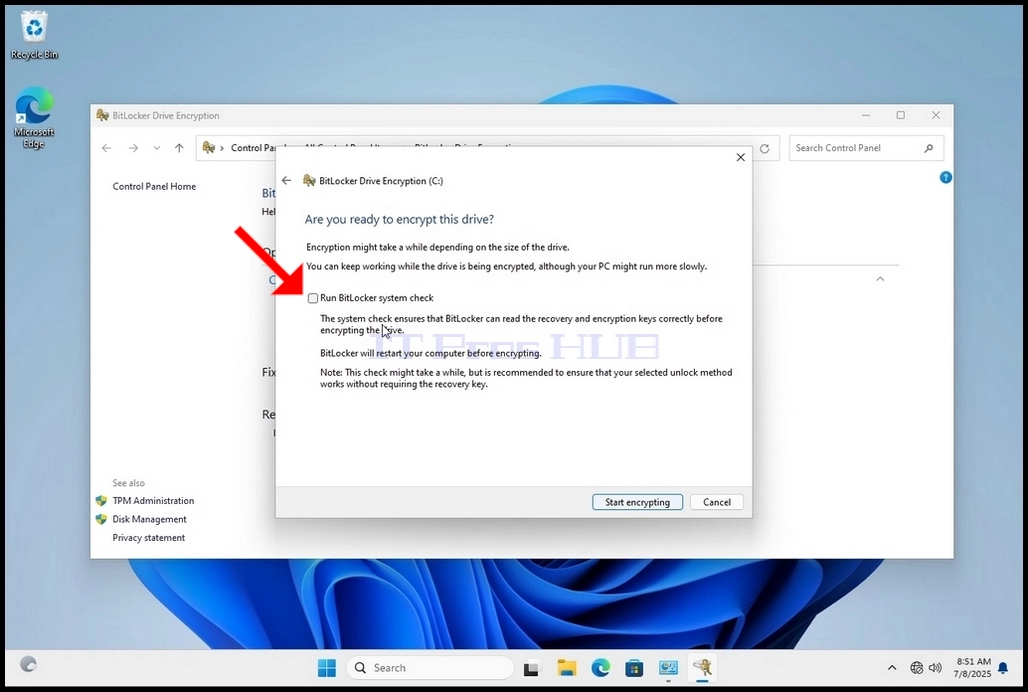
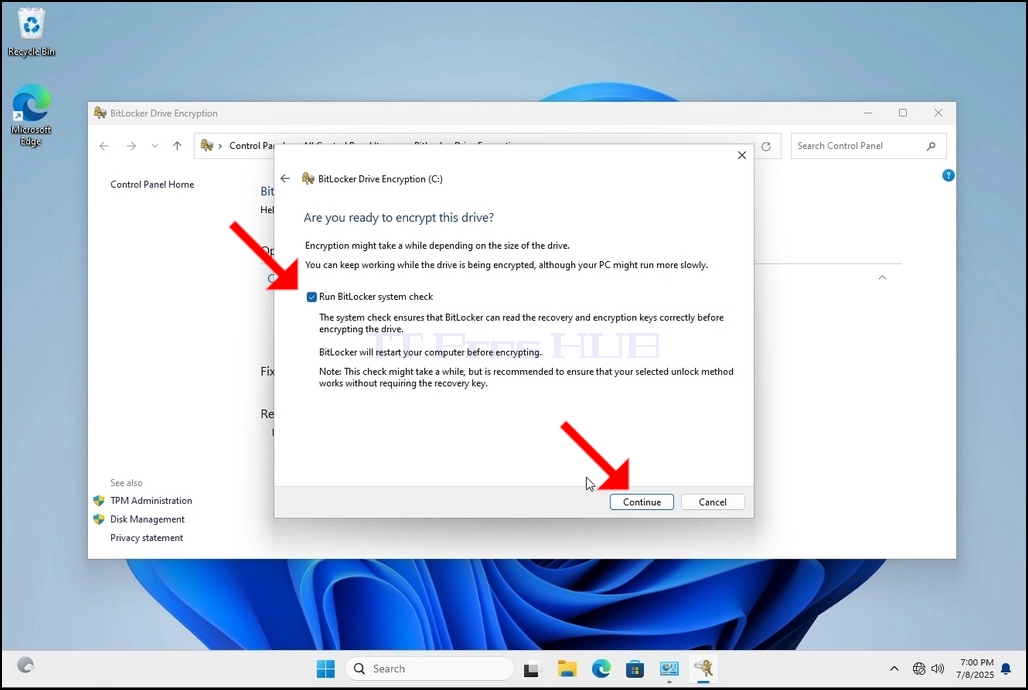
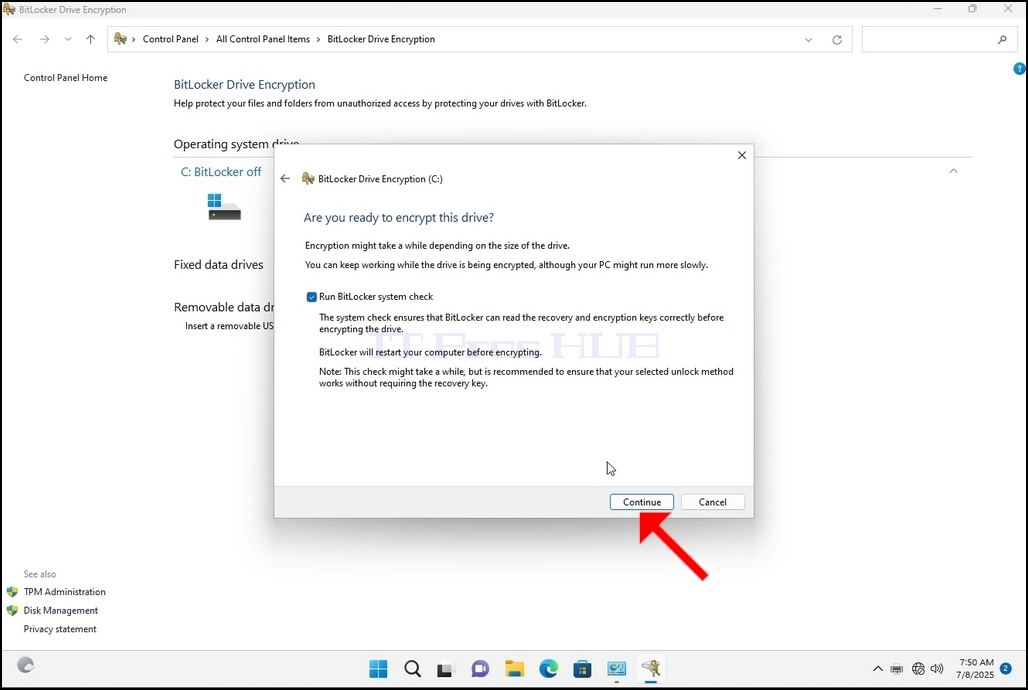
14. Zorunlu olmasa da önerilen Bitlocker Sistem Denetimini Çalıştır seçeneğini işaretleyeceğiz.
a. Sistem denetimi, Bitlocker'ın sürücüyü şifrelemeden önce kurtarma ve şifreleme anahtarlarını doğru bir şekilde okuyabildiğinden emin olur.
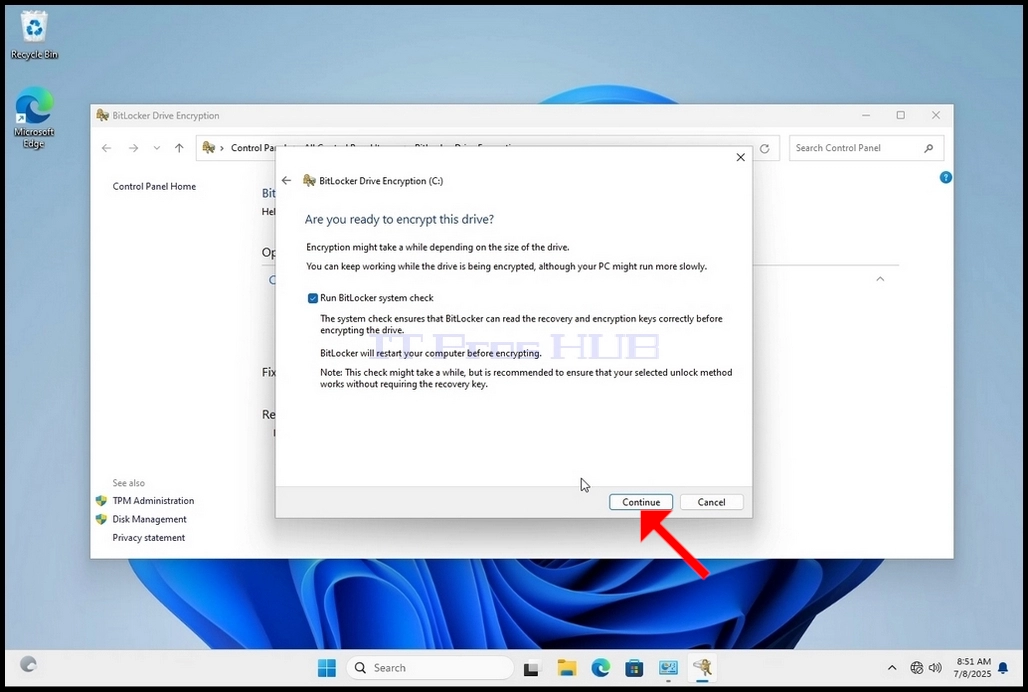
b. Bu seçenek işaretlendiğinde, düğme "şifrelemeye başla"dan "Devam"a dönüşür.
c. Devam'a tıklayın
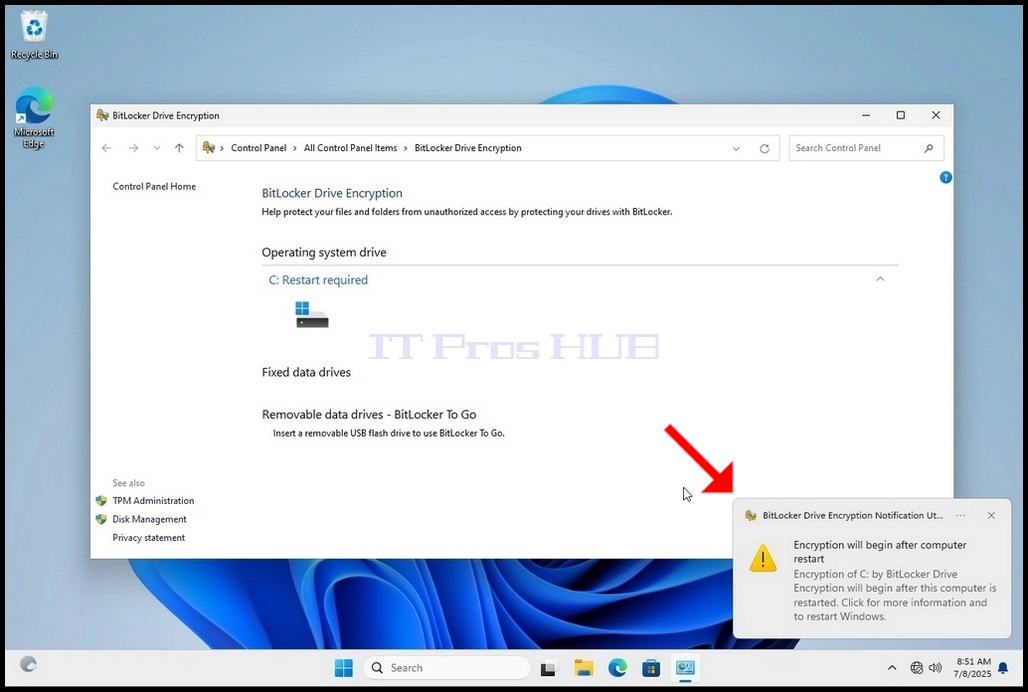
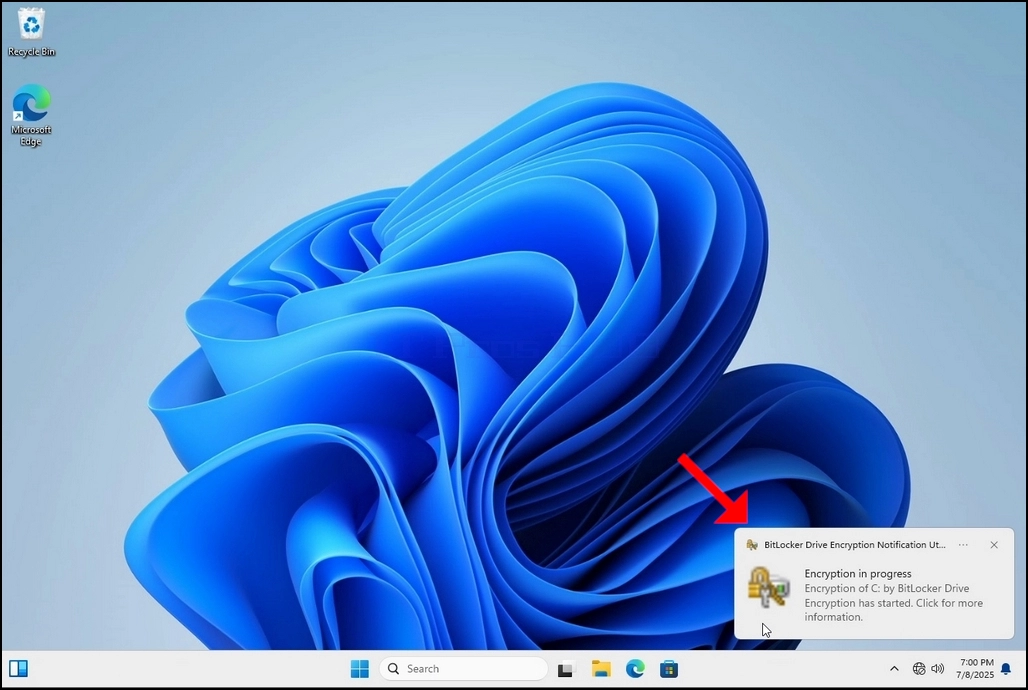
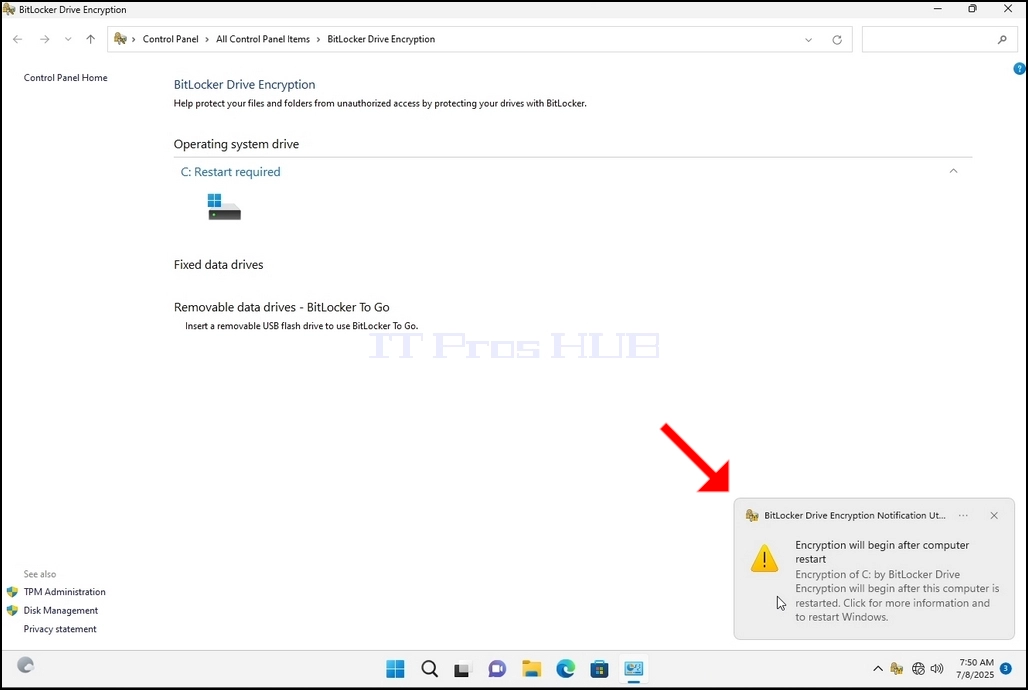
15. Devam'a tıkladıktan birkaç saniye sonra, pencerenin sağ alt tarafında bir yan bildirim penceresi görünecektir.
a. Üzerine bir kez tıklayın
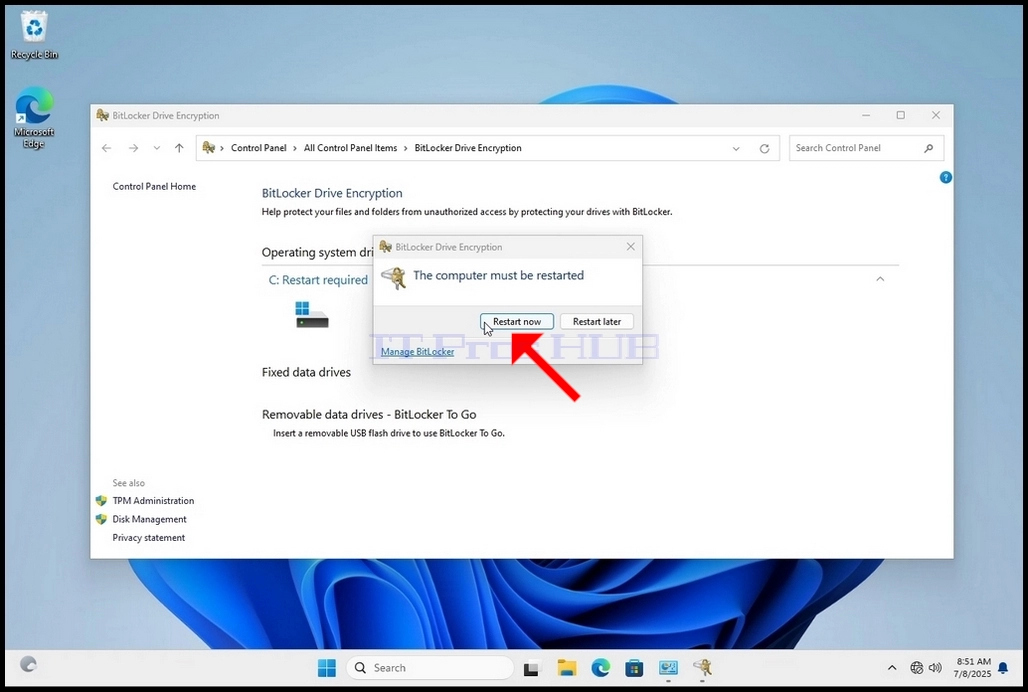
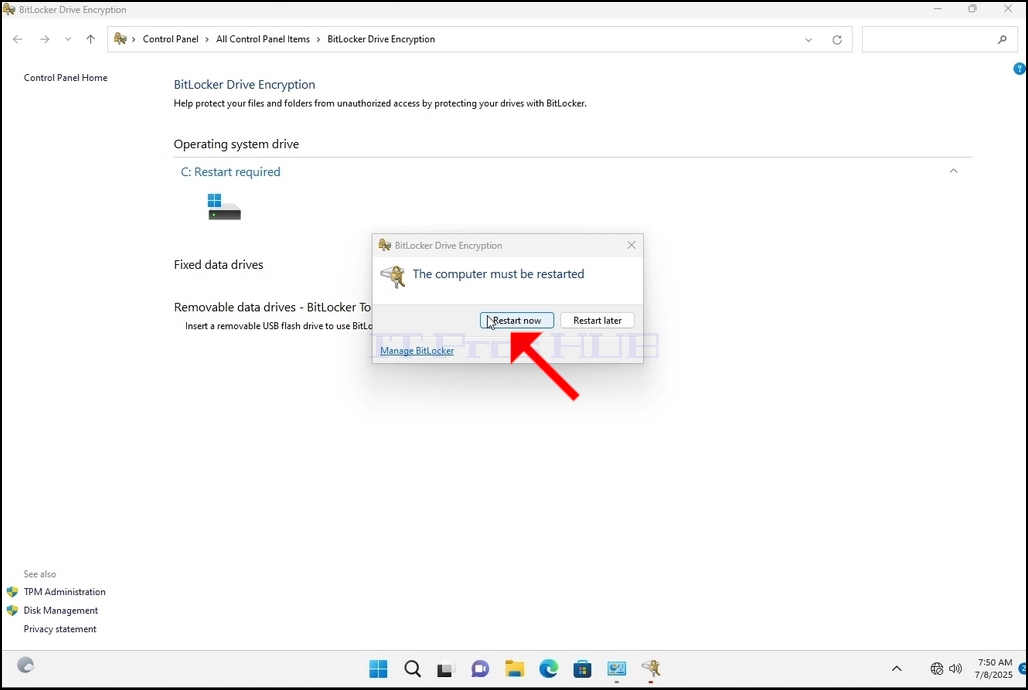
b. Tıklandığında, şifreleme işlemini başlatmak için şimdi mi yoksa daha sonra mı yeniden başlatılacağını soran başka bir açılır pencere görünecektir.
c. Şimdi Yeniden Başlat düğmesine tıklayın ve bilgisayarın tamamen yeniden başlamasını bekleyin.

- Ayrıntılar
- Yazan: IT Pro
- Kategori: How to Articles
- Görüntüleme: 5687
1. Windows Masaüstü'ne gidin

2. Başlat düğmesine tıklayın
3. Başlat menüsü açıldıktan sonra "bitlocker" yazın ve Bitlocker Denetim Masası simgesini görene kadar bekleyin. Bulduğunda, tıklayın ve Bitlocker Sürücü Şifreleme penceresinin açılmasını bekleyin.

4. Bitlocker Sürücü Şifrelemesi açıldıktan sonra, Bitlocker'ı Aç cümlesini bulun, üzerine tıklayın ve Bitlocker Sürücü Şifrelemesi sihirbazının görünmesini bekleyin.
a. Sihirbaz göründüğünde, bilgisayarın Bitlocker kullanarak veri şifrelemek için gereken sistem gereksinimlerini karşılayıp karşılamadığı otomatik olarak doğrulanacaktır.
b. Birkaç dakika sürdüğü söylense de, modern bir bilgisayar kurulumunda çoğu durumda 30 saniyeye kadar sürebilir.


5. Doğrulama aşaması tamamlandıktan ve sihirbaz bilgisayarın Bitlocker uyumlu olduğunu tespit ettikten sonra, Bitlocker kurtarma anahtarınızı nasıl kaydetmek istediğinizi soracaktır.
a. Microsoft hesabı – Microsoft hesabınıza kaydeder.
b. Dosyaya kaydet – Kurtarma anahtarını bir metin dosyasına kaydeder.
c. Kurtarma Anahtarını Yazdır – Bitlocker kurtarma anahtarını sanal bir yazıcıya bile yazdırır.
6. Bu makalede son seçenek olan Kurtarma Anahtarını Yazdır seçeneğini seçeceğiz ve bunu yerel olarak kaydedeceğiz.
a. Bitlocker'ın, şifrelenmek üzere olan aynı sürücüye kurtarma anahtarı dosyasının kaydedilmesine izin vermediğini unutmayın.
b. Ancak, kurtarma anahtarının şifrelenmek üzere olan aynı sürücüdeki bir dosyaya yazdırılmasına izin verir. Şifrelenecek. Bu yöntem de önerilmemektedir, ancak bu makalenin amacı doğrultusunda bu şekilde yapacağız.
c. Not: Kurtarma kodu dosyasını asla şifrelenecek sürücüye kaydetmeyin. Herhangi bir nedenle sürücü kilitlenirse, kurtarma anahtarı dosyası da onunla birlikte kilitlenir.

7. Bu seçenek belirlendiğinde, sihirbaz Bitlocker kurtarma anahtarını yazdırmak için hangi yazıcının kullanılacağını soracaktır. Bu makalede, 6. aşamada belirtildiği gibi, kurtarma anahtarını bir PDF dosyasına yazdıracak olan Microsoft Print to PDFyazıcısını seçeceğiz.
8. Yazıcıyı seçtikten sonra Yazdır
seçeneğine tıklayın.

9. Yeni bir pencere açılacaktır. Bu pencereyi kullanarak Bitlocker kurtarma anahtarı PDF dosyasını adlandırın ve nereye kaydetmek istediğinizi seçin. Biz bu örnekte "Bitlocker Kurtarma Anahtarı" adını verdik.
10. Kaydet'e tıklayın.
a. Kaydet düğmesine tıklandığında pencere kapanacak ve geri döneceğiz. Sihirbazda, yalnızca bu sefer İleri tuşu tıklanabilir hale gelecek.
11. İleri'ye tıklayın

12. Mevcut aşamada, sürücünüzün ne kadarını şifrelemek istediğinizi seçmeniz istenecektir.
a. Bu makalede, daha hızlı gerçekleştirilen ilk seçeneği seçeceğiz.
b. İleri'ye tıklayın.

13. Mevcut aşamada, hangi şifreleme modunu kullanacağınızı seçmeniz istenecektir.
a. Bu makalede, İlk seçenek olan Yeni Şifreleme Modu seçeneğini seçin. Seçin ve İleri'ye tıklayın.

14. Zorunlu olmasa da önerilir, Bitlocker Sistem Denetimini Çalıştır seçeneğini işaretleyeceğiz.
a. Sistem denetimi, Bitlocker'ın sürücüyü şifrelemeden önce kurtarma ve şifreleme anahtarlarını doğru bir şekilde okuyabilmesini sağlar.
b. Bu seçenek işaretlendiğinde, düğme "şifrelemeyi başlat"tan "Devam"a dönüşecektir.
c. Devam'a tıklayın

15. Devam'a tıkladıktan birkaç saniye sonra, pencerenin sağ alt tarafında bir yan bildirim penceresi görünecektir.
a. Bir kez tıklayın
b. Tıklandığında, şifreleme işlemini başlatmak için şimdi mi yoksa daha sonra mı yeniden başlatılacağını soran başka bir açılır pencere görünecektir.
c. Şimdi Yeniden Başlat düğmesine tıklayın ve bilgisayarın tamamen yeniden başlamasını bekleyin.


- Ayrıntılar
- Yazan: IT Pro
- Kategori: How to Articles
- Görüntüleme: 4961
1. Windows Masaüstü'ne gidin
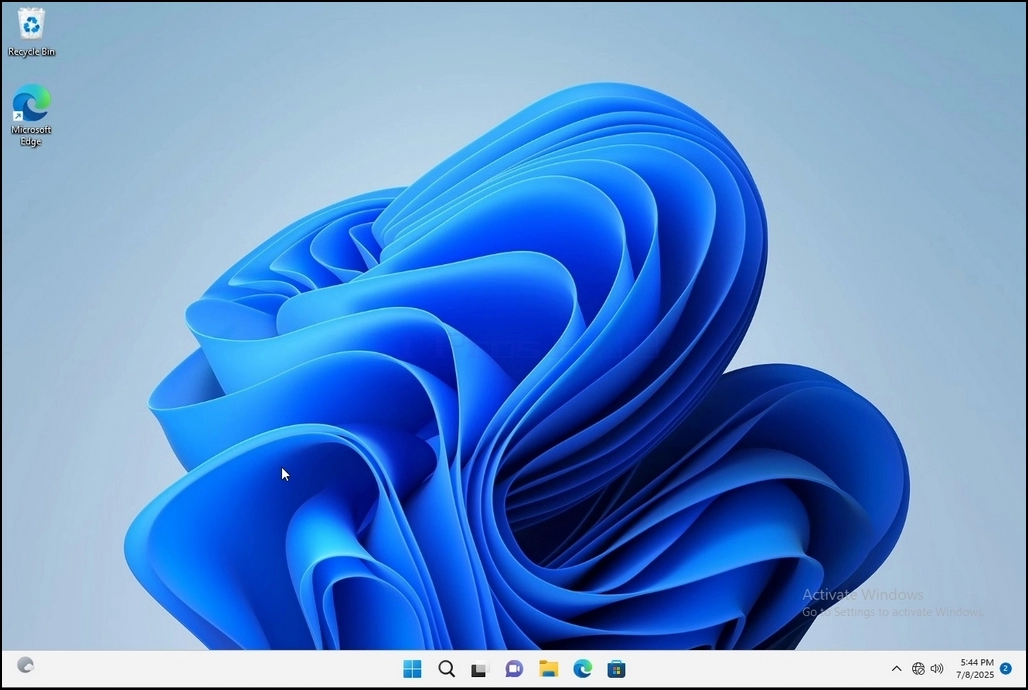
2. Başlat düğmesine tıklayın
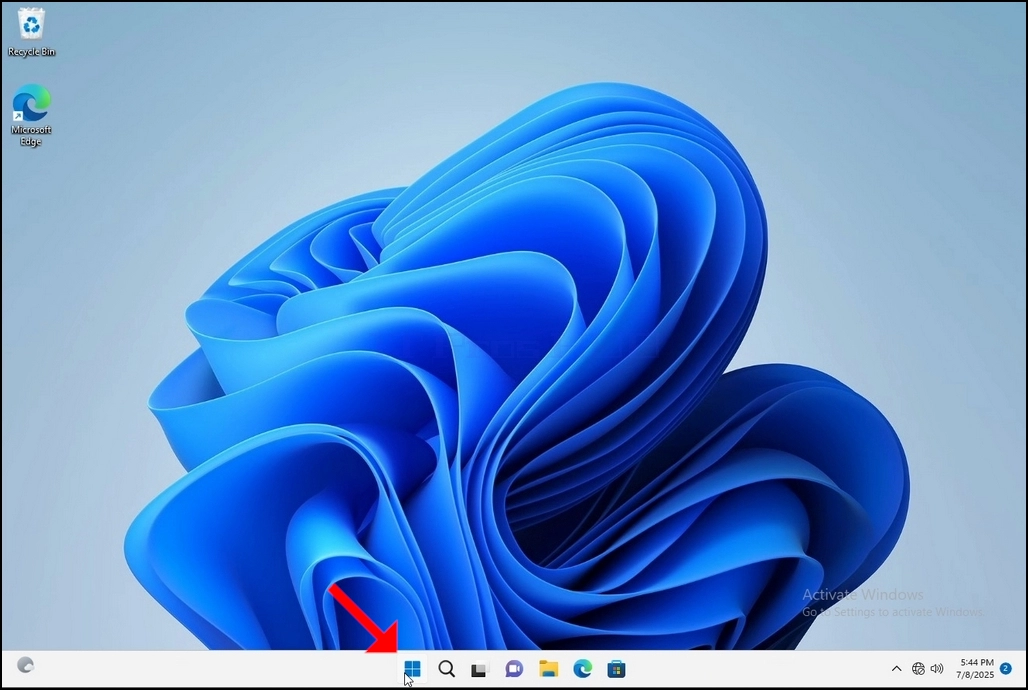
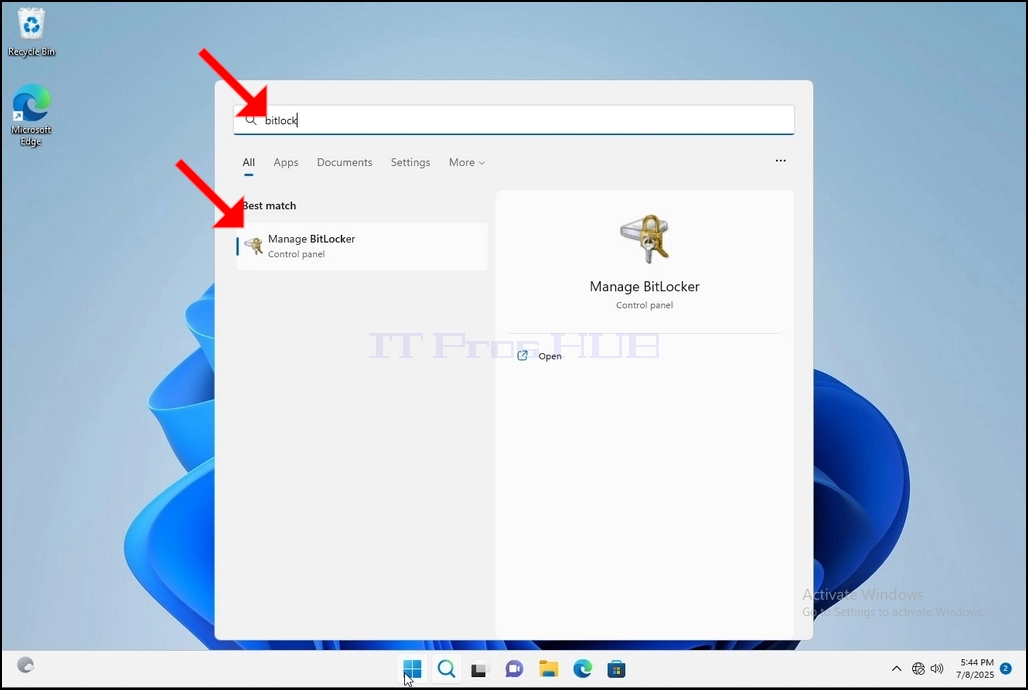
3. Başlat menüsü açıldıktan sonra "bitlocker" yazın ve Bitlocker Denetim Masası simgesini bulana kadar bekleyin. Bulduktan sonra, simgeye tıklayın ve Bitlocker Sürücü Şifreleme penceresinin açılmasını bekleyin.
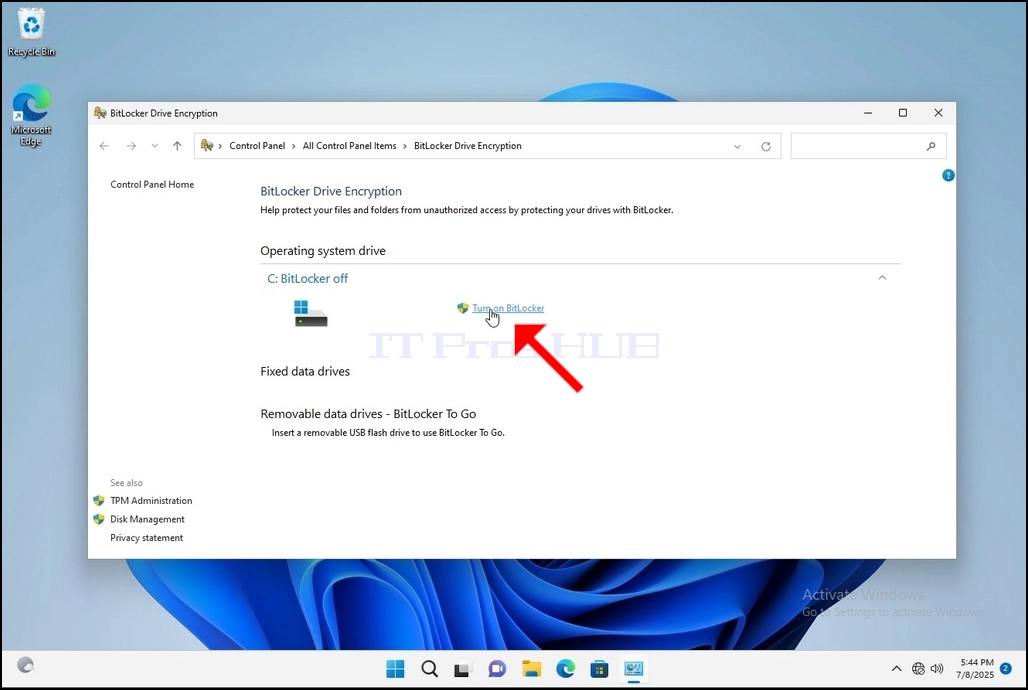
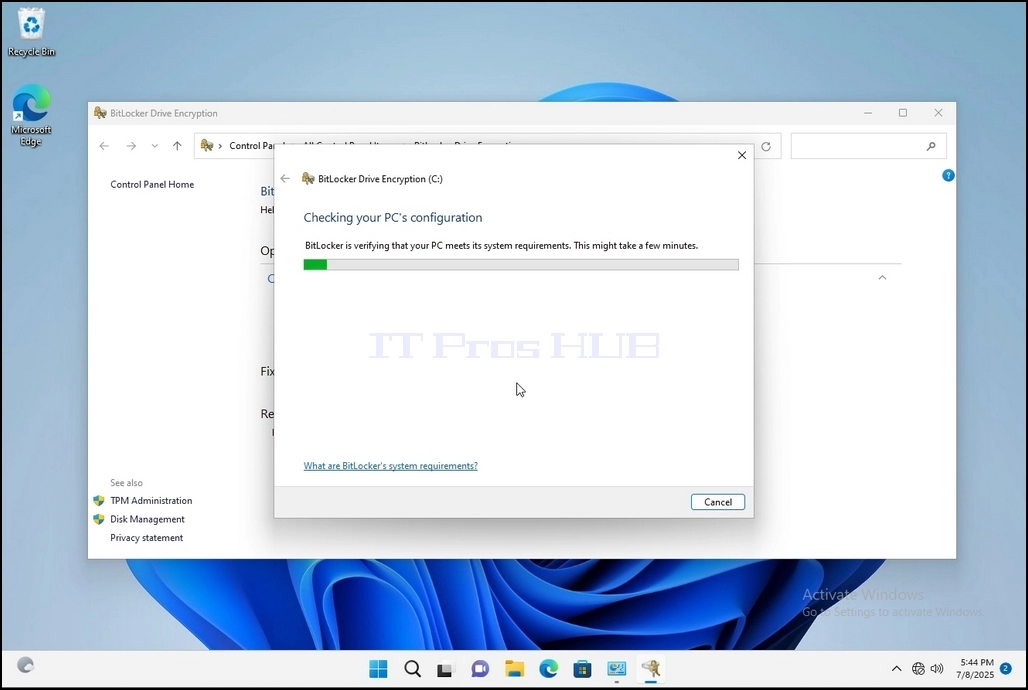
4. Bitlocker Sürücü Şifrelemesi açıldıktan sonra, Bitlocker'ı Aç cümlesini bulun, üzerine tıklayın ve Bitlocker Sürücü Şifrelemesi sihirbazının görünmesini bekleyin.
a. Sihirbaz açıldığında, bilgisayarın Bitlocker kullanarak veri şifrelemek için gereken sistem gereksinimlerini karşılayıp karşılamadığı otomatik olarak doğrulanacaktır.
b. Birkaç dakika sürdüğü söylense de, modern bir bilgisayar kurulumunda çoğu durumda 30 saniyeye kadar sürebilir.
5. Doğrulama aşaması tamamlandıktan ve sihirbaz bilgisayarın Bitlocker'ı desteklediğini tespit ettikten sonra, Bitlocker kurtarma anahtarınızı nasıl kaydetmek istediğinizi soracaktır.
a. Microsoft hesabı – Microsoft hesabınıza kaydeder.
b. Dosyaya kaydet – kurtarma anahtarını bir metin dosyasına kaydeder.
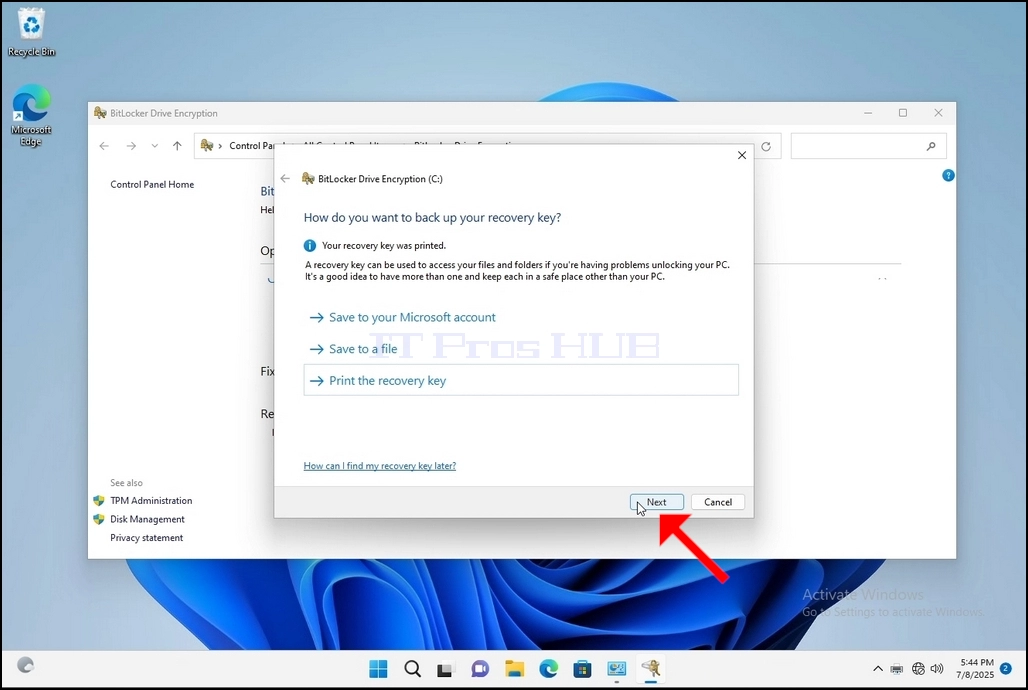
c. Kurtarma Anahtarını Yazdır – Bitlocker kurtarma anahtarını sanal bir yazıcıya bile yazdırır.
6. Bu makalede, son seçenek olan Kurtarma Anahtarını Yazdır seçeneğini seçeceğiz ve bunu yerel olarak kaydedeceğiz.
a. Bitlocker'ın, kurtarma anahtarı dosyasının şifrelenmek üzere olan aynı sürücüye kaydedilmesine izin vermediğini unutmayın.
b. Ancak, kurtarma anahtarının şifrelenmek üzere olan aynı sürücüdeki bir dosyaya yazdırılmasına izin verir. Bu yöntem de önerilmez, ancak bu makalenin amacı doğrultusunda bu şekilde yapacağız.
c. Not: Kurtarma kodu dosyasını asla şifrelenmek üzere olan aynı sürücüye kaydetmeyin. Herhangi bir nedenle sürücü kilitlenirse, kurtarma anahtarı dosyası da onunla birlikte kilitlenir.
7. Bu seçenek seçildiğinde, sihirbaz Bitlocker kurtarma anahtarını yazdırmak için hangi yazıcının kullanılacağını soracaktır. Bu makalede, 6. aşamada belirtildiği gibi, kurtarma anahtarını bir PDF dosyasına yazdıracak ol PDF dosyası.
8. Yazıcıyı seçtikten sonra Yazdır
9. Yeni bir pencere açılacaktır. Bitlocker kurtarma anahtarı PDF dosyasını adlandırmak ve nereye kaydetmek istediğinizi seçmek için bu pencereyi kullanın. Bu örnekte dosyaya "Bitlocker Kurtarma Anahtarı" adını verdik.
10. Kaydet'e tıklayın
a. Kaydet düğmesine tıklandığında pencere kapanacak ve sihirbaza geri döneceğiz. Ancak bu sefer İleri tuşu tıklanabilir olacak.
11. İleri'ye tıklayın
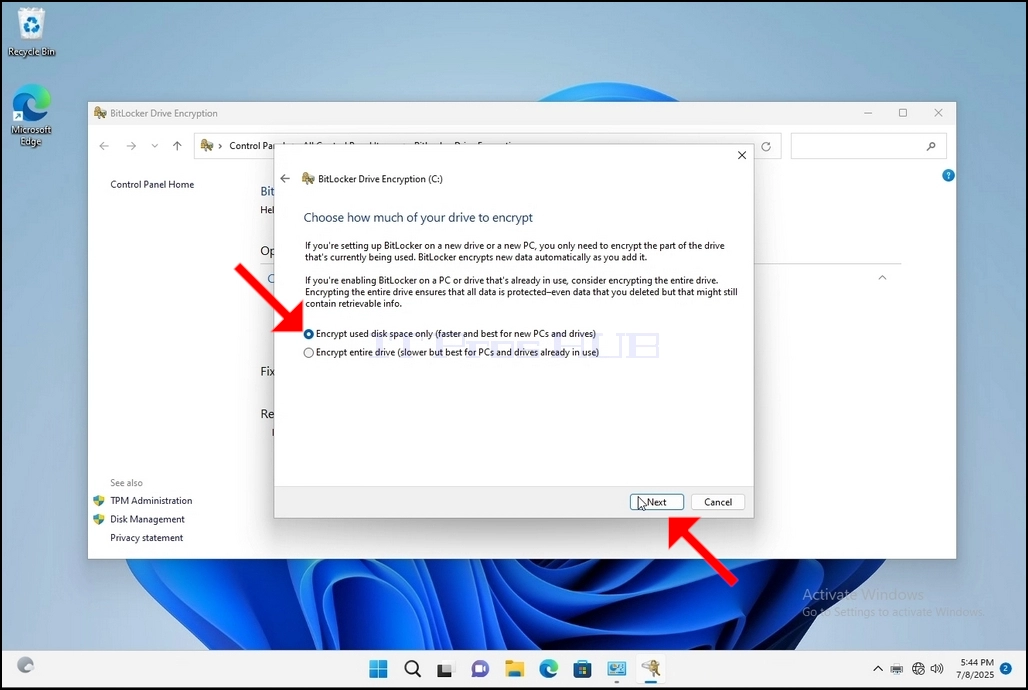
12. Mevcut aşamada, sürücünüzün ne kadarını şifrelemek istediğinizi seçmeniz istenecektir.
a. Bu makalede, daha hızlı gerçekleştirilebilen ilk seçeneği seçeceğiz.
b. İleri'ye tıklayın
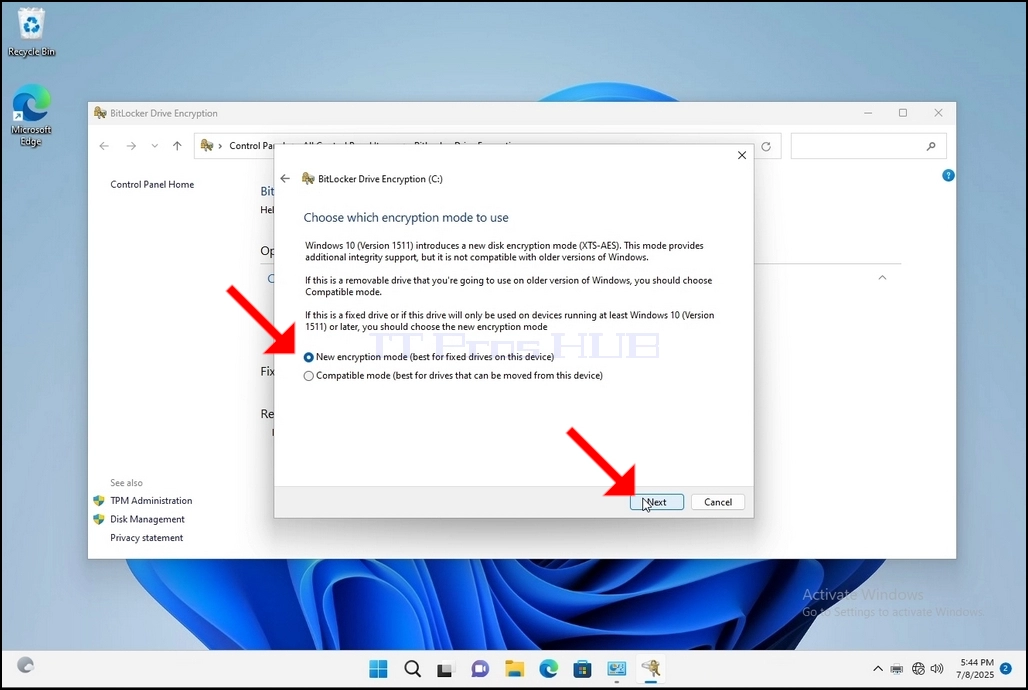
13. Mevcut aşamada, hangi şifreleme modunu kullanacağınızı seçmeniz istenecektir.
a. Bu makalede, ilk seçenek olan Yeni Şifreleme Modu seçeneğini seçeceğiz. Seçin ve İleri'ye tıklayın
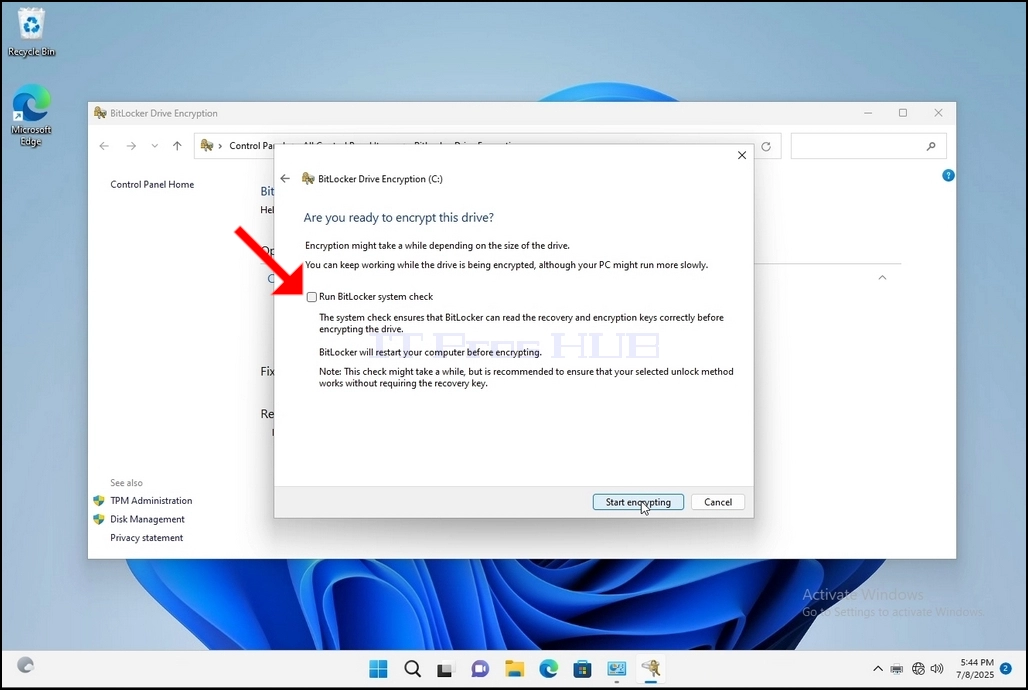
14. Zorunlu olmasa da önerilen Bitlocker Sistem Denetimini Çalıştır seçeneğini işaretleyeceğiz.
a. Sistem denetimi, Bitlocker'ın sürücüyü şifrelemeden önce kurtarma ve şifreleme anahtarlarını doğru bir şekilde okuyabildiğinden emin olur.
b. Bu seçenek işaretlendiğinde, düğme "şifrelemeye başla"dan "Devam"a dönüşür.
c. Devam'a tıklayın
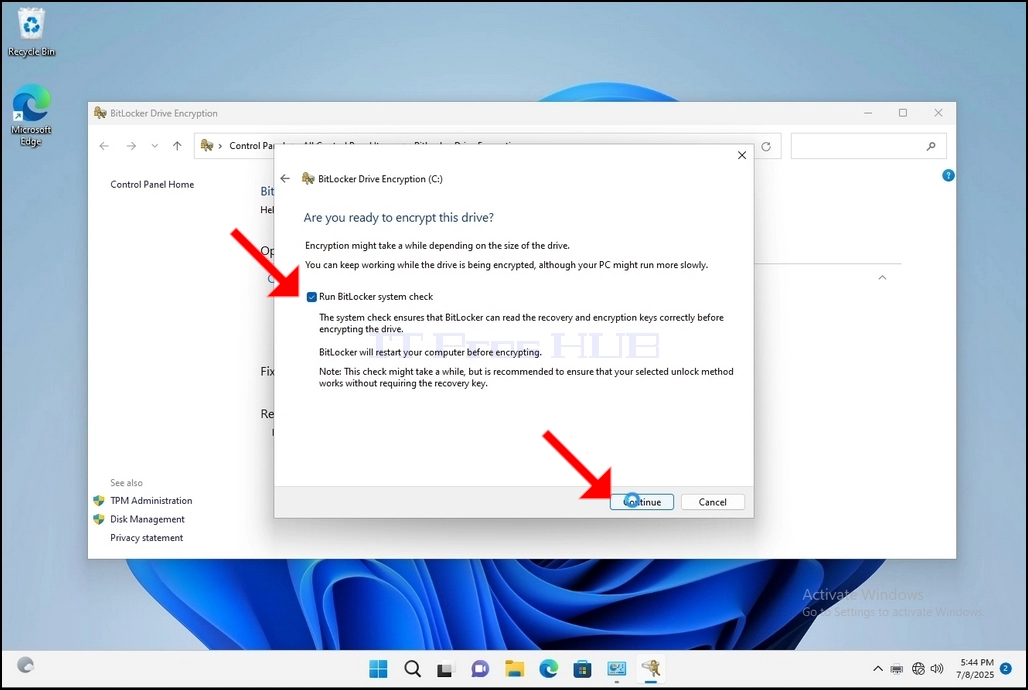
15. Devam'a tıkladıktan birkaç saniye sonra, pencerenin sağ alt tarafında bir yan bildirim penceresi görünecektir.
a. Üzerine bir kez tıklayın
b. Bir kez tıklandığında, başka biran Microsoft Print to PDFyazıcısını seçeceğiz.
- Ayrıntılar
- Yazan: IT Pro
- Kategori: How to Articles
- Görüntüleme: 5235
1. Go to Windows Desktop
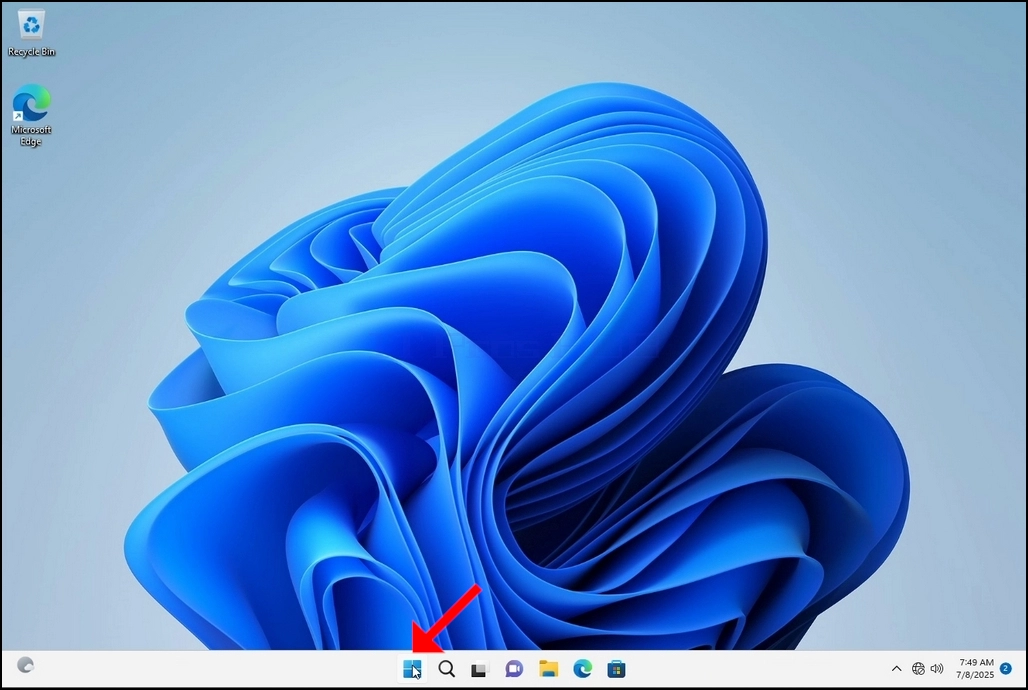
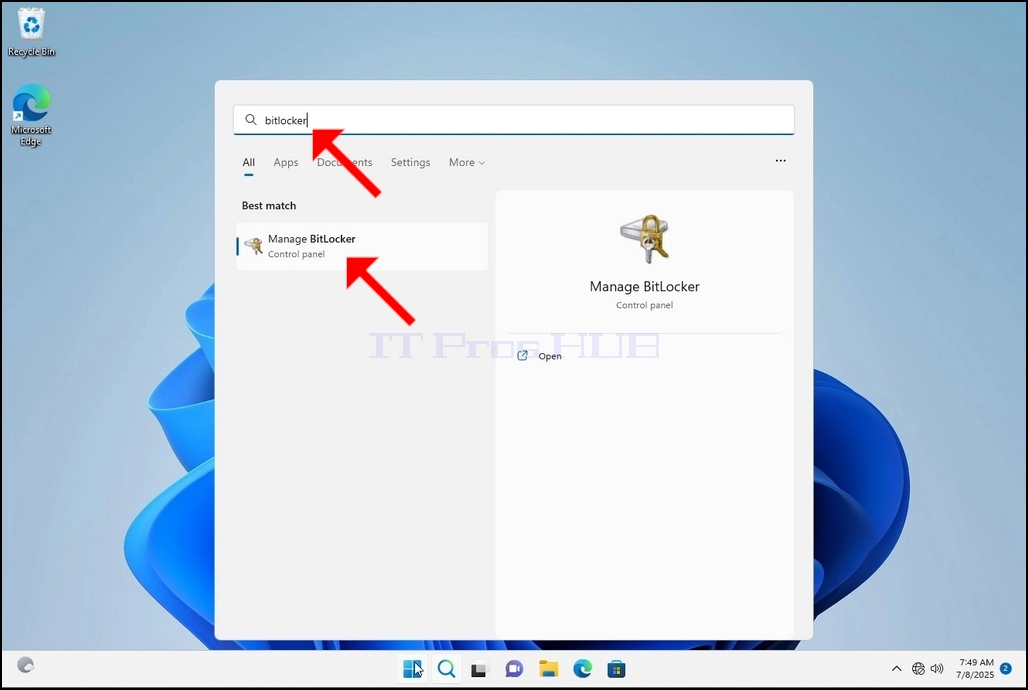
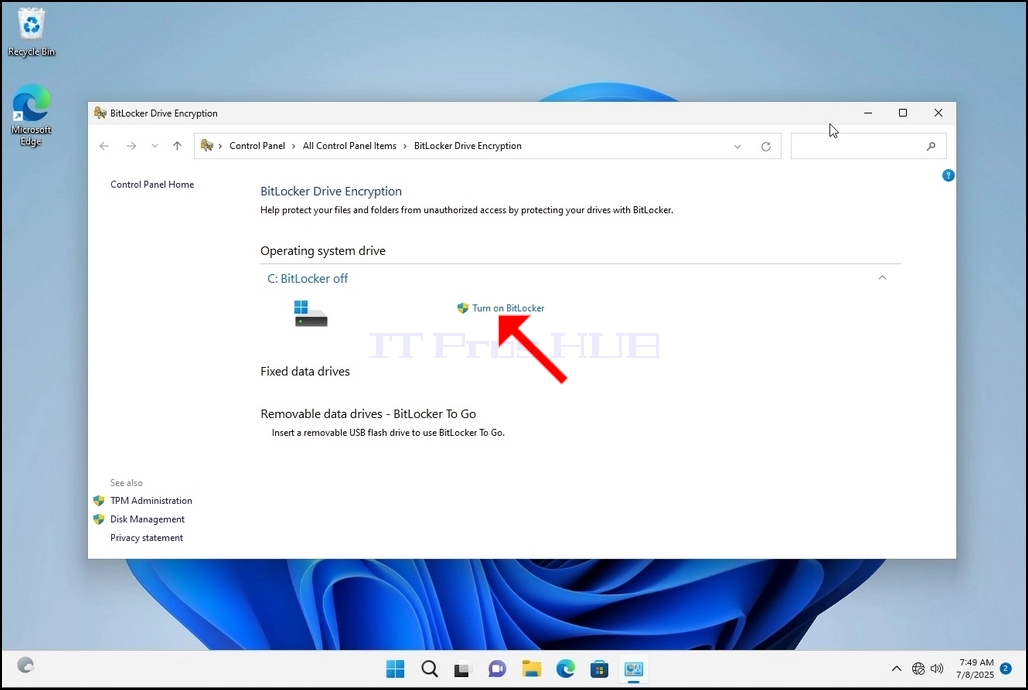
4. Once Bitlocker Drive Encryption is open, look for the Turn on Bitlocker sentence and click on it and wait for the Bitlocker Drive Encryption wizard to appear.
a. Once the wizard appears it will automatically verify if the computer meets the system requirements required to encrypt data using Bitlocker.
b. Though it says it takes a few minutes, in most cases it takes a up to 30 seconds on a modern computer setup.
5. Once the verification stage is done and the wizard finds the computer Bitlocker capable, it will ask how would you like to save your Bitlocker recovery key
a. Microsoft account – saves it in your Microsoft account
b. Save to a file – saves the recovery key to a text file
c. Print the Recovery Key – prints the Bitlocker recovery key, even to a virtual printer.
6. In this article we will choose the last option which is Print the Recovery Key and we will save it locally.
a. Note that Bitlocker doesn’t allow saving a recovery key file onto the same drive that is about to be encrypted.
b. However, it does allow printing that recovery key to a file on the same drive that is about to be encrypted. This method is not recommended as well but for the sake of this article we will do it this way.
c. Note – Never save the recovery code file onto the same drive that is about to be encrypted. If for some reason that drive gets locked out, the recovery key file would be locked out along with it.
7. Once that option is chosen, the wizard will ask which printer to use to print the Bitlocker recovery key. In this article, as mentioned in stage 6, we will choose the Microsoft Print to PDF printer, which will print the recovery key into a PDF file.
8. After choosing the printer, click Print
9. A new window will pop up. Use this window to name the Bitlocker recovery key PDF file and to choose where you would like you save it. In this case we named it “Bitlocker Recovery Key”.
11. Click Next
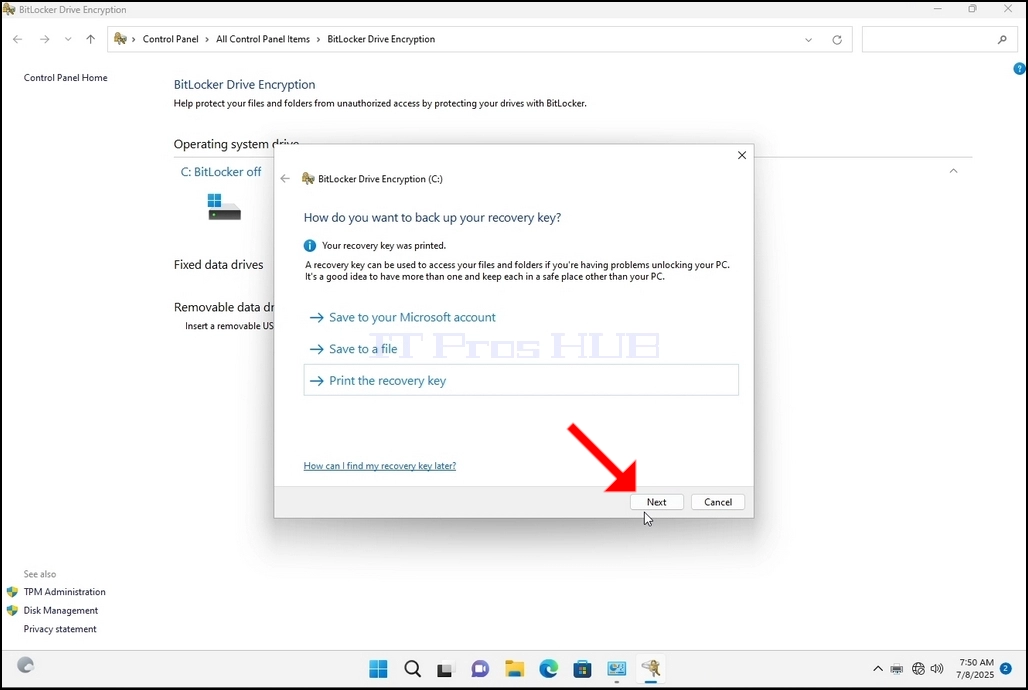
12. In the current stage, you will be asked to choose how much of your drive you would like to encrypt
a. In this article we will choose the first option which is faster to accomplish
b. Click Next
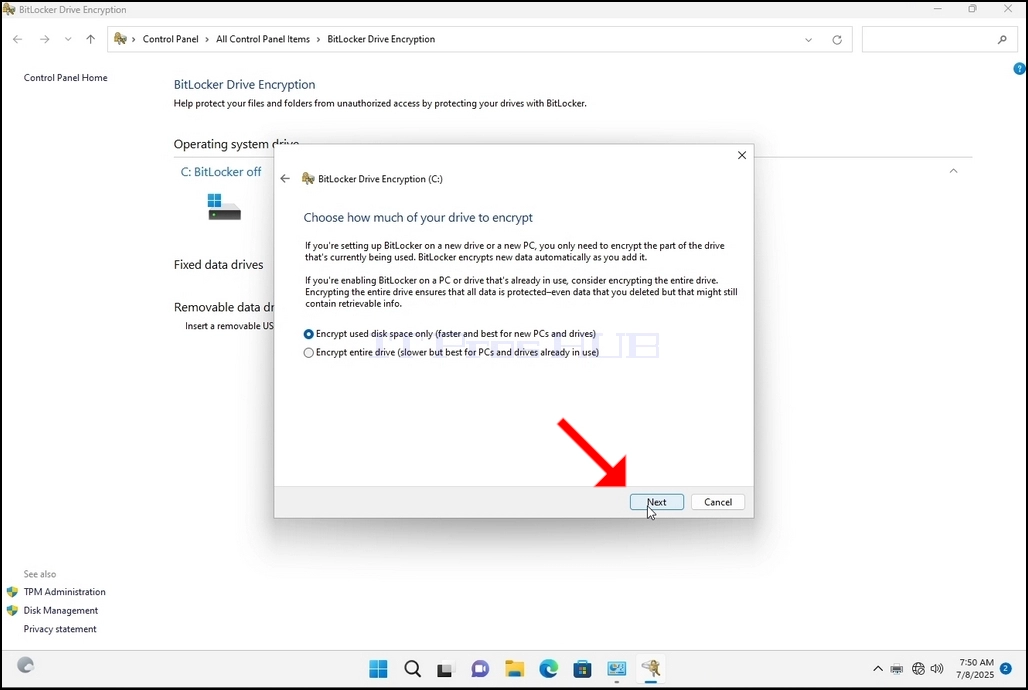
13. In the current stage, you will be asked to choose which encryption mode to use
a. In this article we will choose the first option, which is the New Encryption Mode option. Choose it and click Next
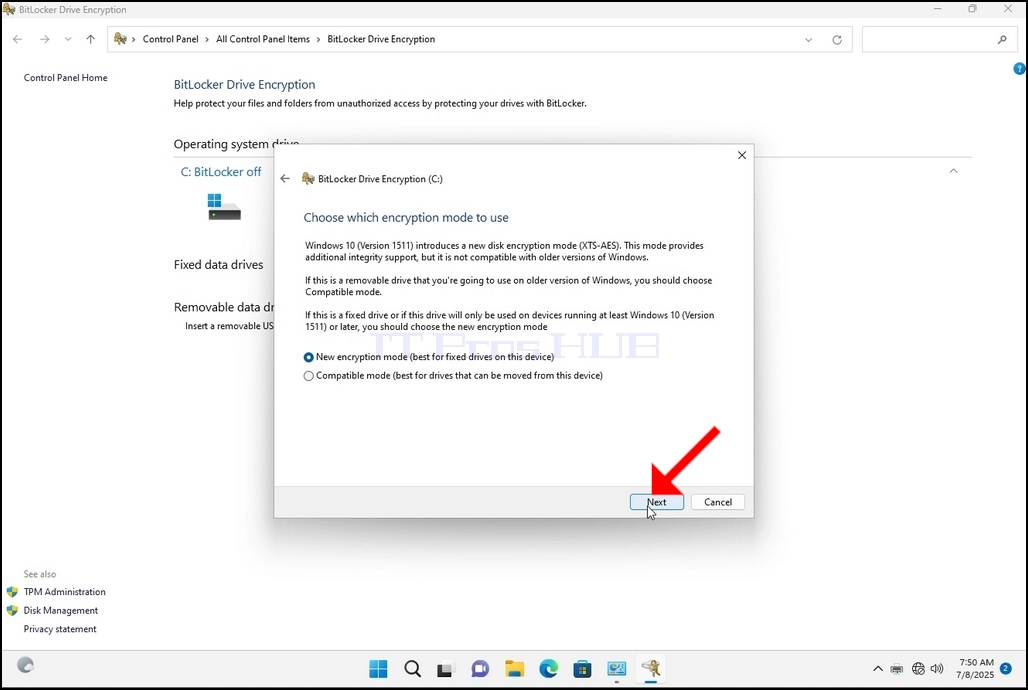
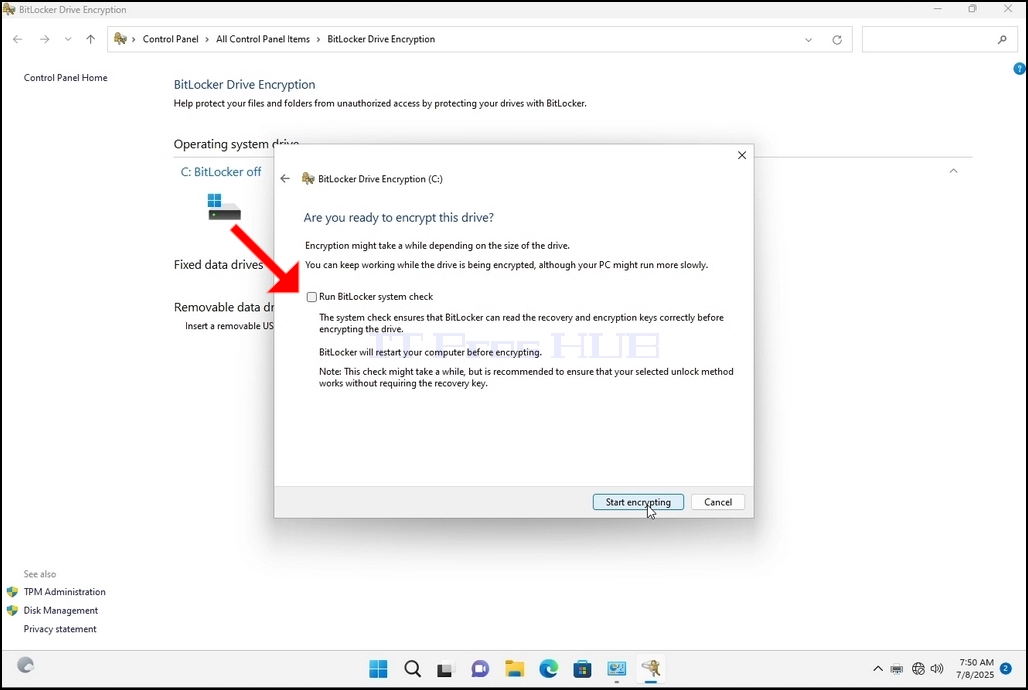


16. Once the computer is fully restarted, click the taskbar’s upward arrow (Notification area overflow icon).
a. Look for the Bitlocker icon and double click it
b. Once clicked, the Bitlocker drive encryption process window will appear, showing the status of the encryption process
c. Once that process bar is full at 100%, the encryption process is done
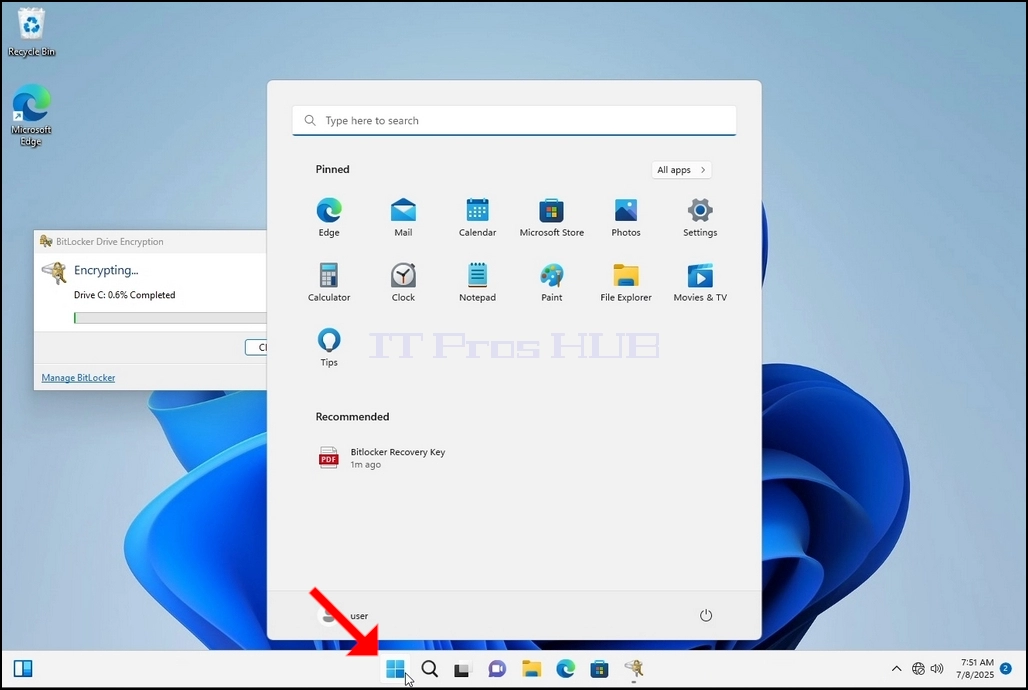
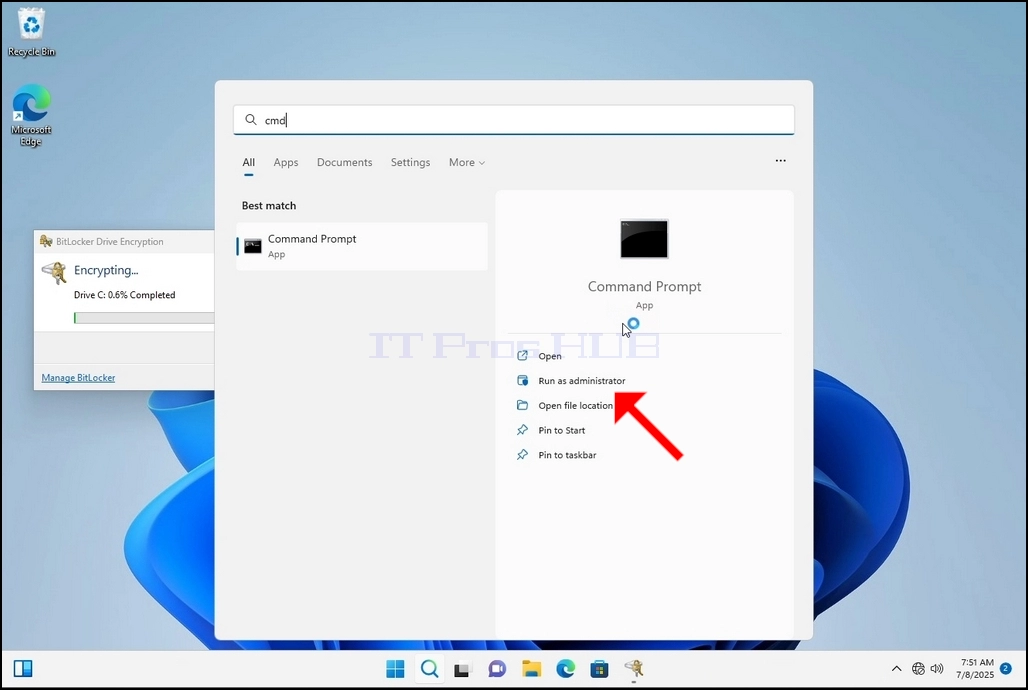
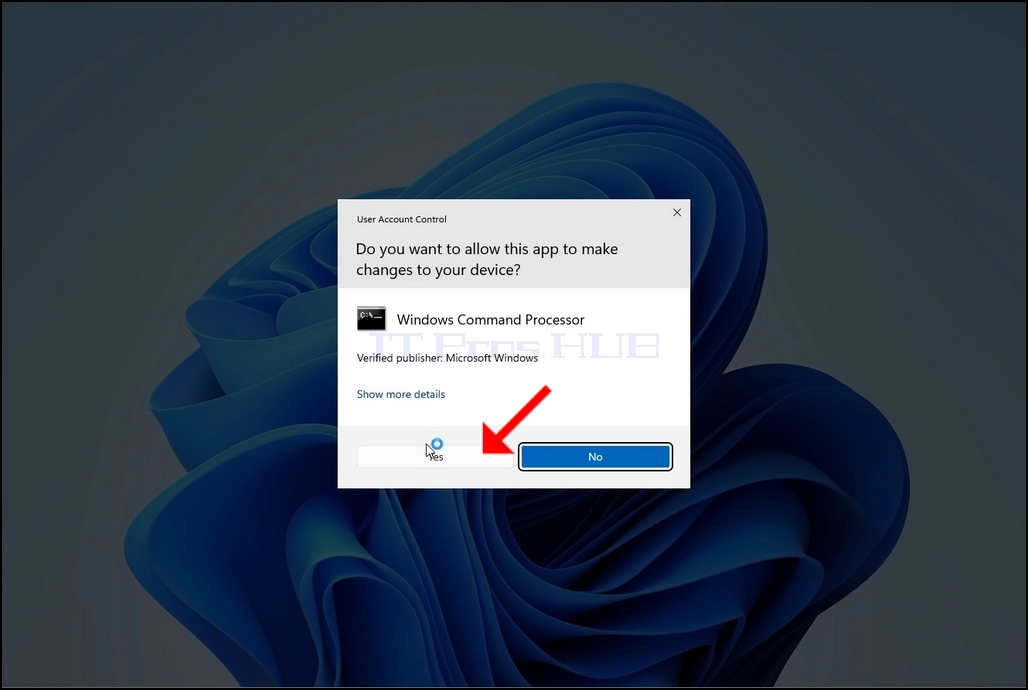
18. Click YES in the UAC window
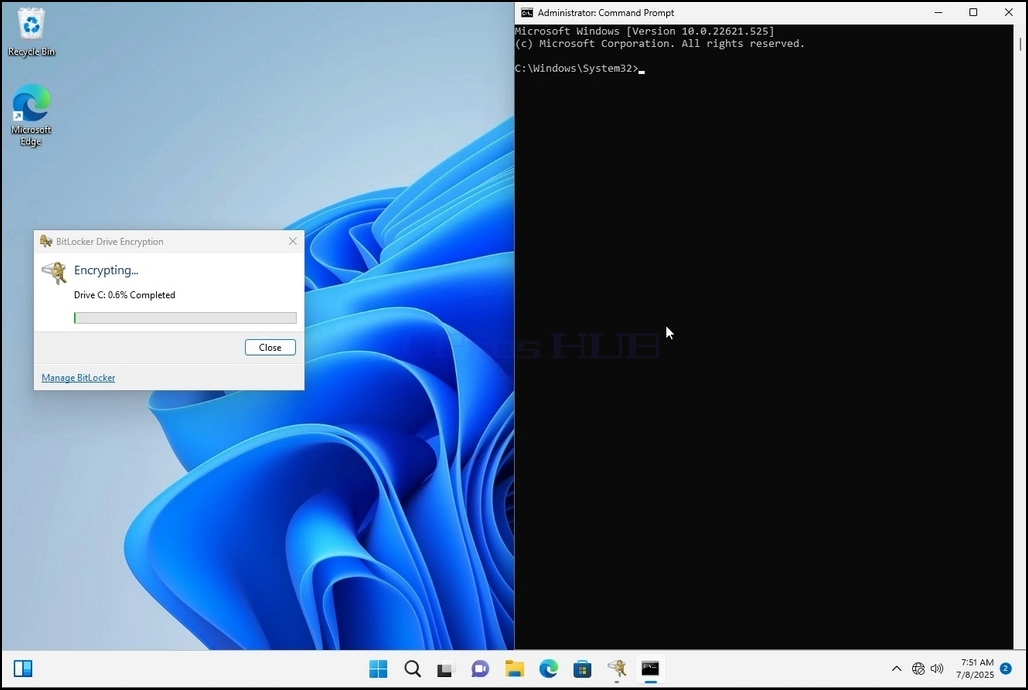
19. In cmd type manage-bde -status and click enter
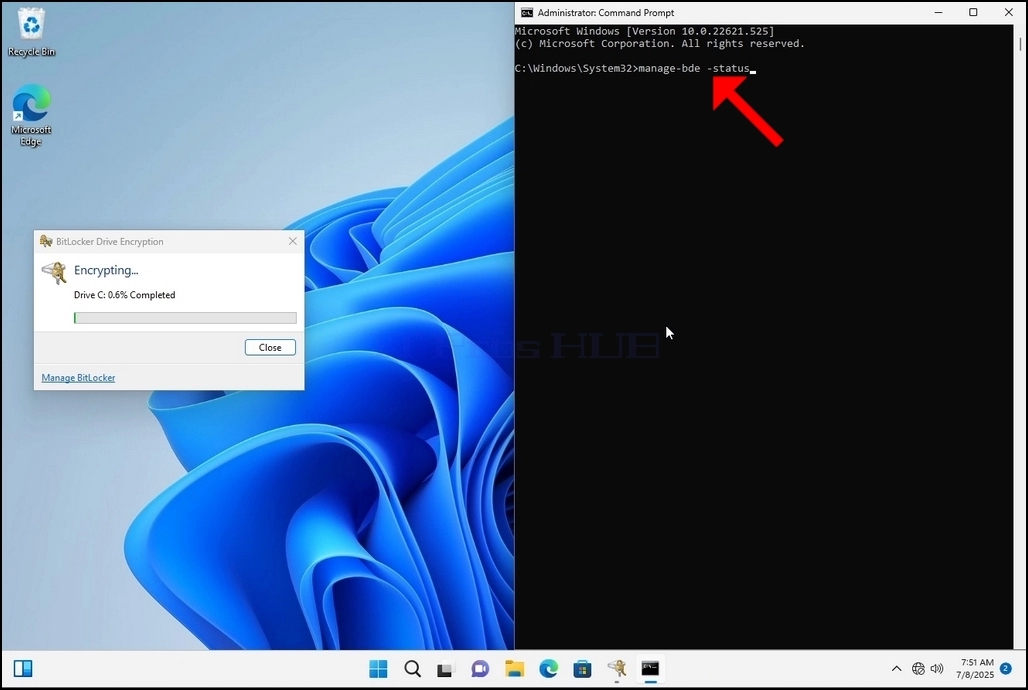
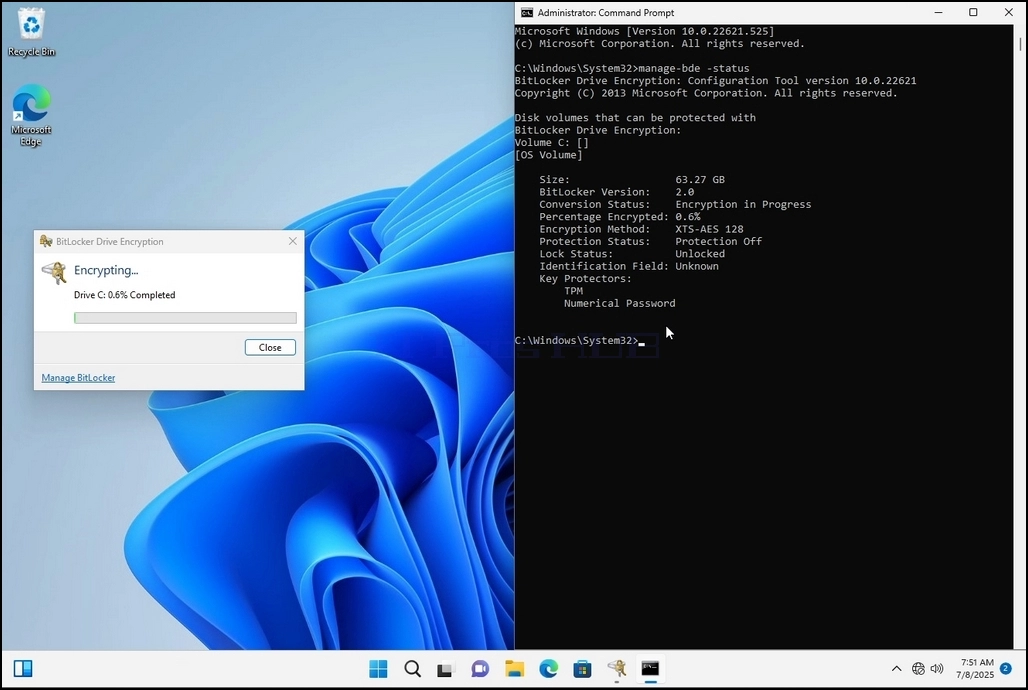
20. The lines that will appear will present information about the encryption process:
a. Size - The size of the drive being encrypted
b. Bitlocker Version – The version of Bitlocker used to encrypt the drive
c. Conversion Status – Shows the current encryption state of a drive
d. Percentage Encrypted – Shows the how much of the selected drive has been encrypted
e. Encryption Method – Shows the encryption method being used
f. Protection Status – Shows if the Bitlocker protection is currently off or on
g. Lock Status – Shows if the selected drive is locked or unlocked (accessible or not accessible)
h. Identification Field - refers to a label or optional string you can assign to a BitLocker-protected volume to help identify it, especially when managing multiple drives or recovery key
i. Key Protectors – Shows the authentication mechanisms that protect the encryption keys used to unlock a drive. When you encrypt a drive, BitLocker uses one or more key protectors to guard access to it
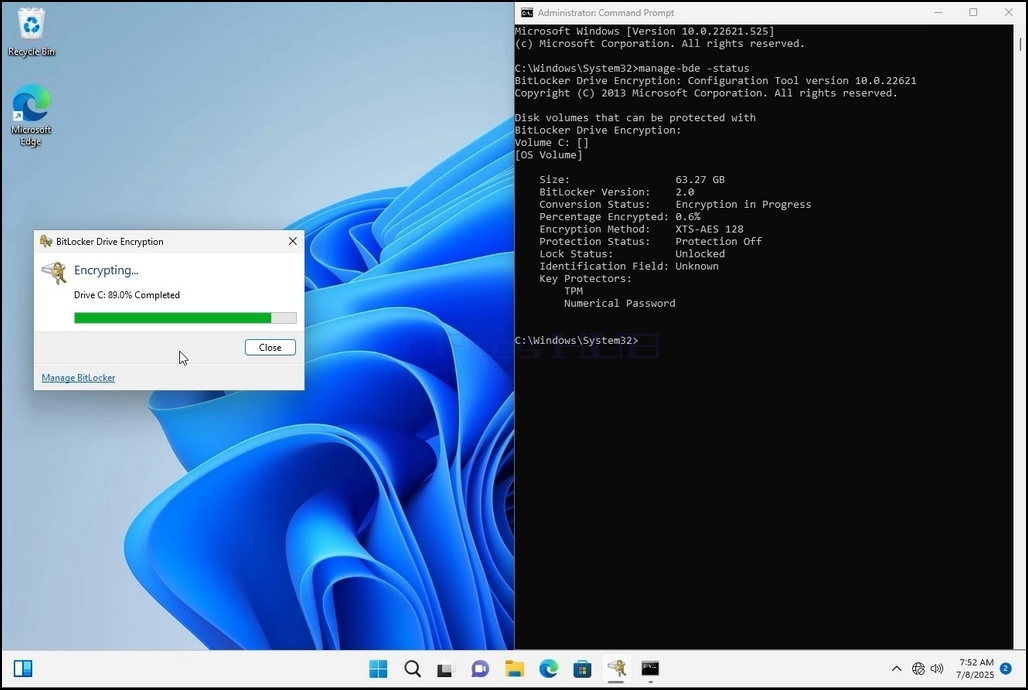
21. Once the encryption process is done for the selected drive, the small window that previously showed a process bar will now show:” Encryption of C: is complete”
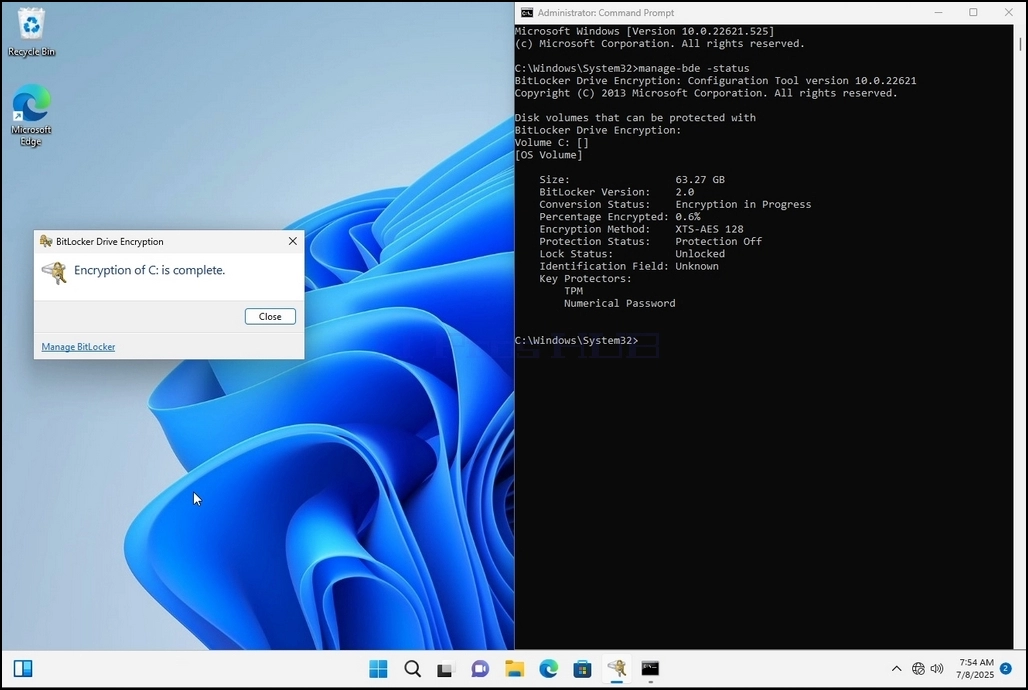
22. This could be verified through CMD by typing manage-bde -status again and clicking enter
a. Notice that the following values are now changed:
i. Conversion Status: Used Space Only Encrypted
ii. Percentage Encrypted: 100.0%
iii. Protection Status: Protection On
23. In the next step we will take a look at the Bitlocker recovery key PDF file
24. Go to the path in which it was originally saved and open it
25. Notice the 2 important values:
a. Identifier
b. Recovery Key
26. It is highly recommended to save these values in more than one medium and location such as:
a. Printed format
b. Password manager
 1. Go to Windows Desktop
4. Once Bitlocker Drive Encryption is open, look for the Turn on Bitlocker sentence and click on it and wait for the Bitlocker Drive Encryption wizard to appear.
a. Once the wizard appears it will automatically verify if the computer meets the system requirements required to encrypt data using Bitlocker.
b. Though it says it takes a few minutes, in most cases it takes a up to 30 seconds on a modern computer setup.
5. Once the verification stage is done and the wizard finds the computer Bitlocker capable, it will ask how would you like to save your Bitlocker recovery key
a. Microsoft account – saves it in your Microsoft account
b. Save to a file – saves the recovery key to a text file
c. Print the Recovery Key – prints the Bitlocker recovery key, even to a virtual printer.
6. In this article we will choose the last option which is Print the Recovery Key and we will save it locally.
a. Note that Bitlocker doesn’t allow saving a recovery key file onto the same drive that is about to be encrypted.
b. However, it does allow printing that recovery key to a file on the same drive that is about to be encrypted. This method is not recommended as well but for the sake of this article we will do it this way.
c. Note – Never save the recovery code file onto the same drive that is about to be encrypted. If for some reason that drive gets locked out, the recovery key file would be locked out along with it.
7. Once that option is chosen, the wizard will ask which printer to use to print the Bitlocker recovery key. In this article, as mentioned in stage 6, we will choose the Microsoft Print to PDF printer, which will print the recovery key into a PDF file.
8. After choosing the printer, click Print
9. A new window will pop up. Use this window to name the Bitlocker recovery key PDF file and to choose where you would like you save it. In this case we named it “Bitlocker Recovery Key”.
11. Click Next
12. In the current stage, you will be asked to choose how much of your drive you would like to encrypt
a. In this article we will choose the first option which is faster to accomplish
b. Click Next
13. In the current stage, you will be asked to choose which encryption mode to use
a. In this article we will choose the first option, which is the New Encryption Mode option. Choose it and click Next
16. Once the computer is fully restarted, click the taskbar’s upward arrow (Notification area overflow icon).
a. Look for the Bitlocker icon and double click it
b. Once clicked, the Bitlocker drive encryption process window will appear, showing the status of the encryption process
c. Once that process bar is full at 100%, the encryption process is done
18. Click YES in the UAC window
19. In cmd type manage-bde -status and click enter
20. The lines that will appear will present information about the encryption process:
a. Size - The size of the drive being encrypted
b. Bitlocker Version – The version of Bitlocker used to encrypt the drive
c. Conversion Status – Shows the current encryption state of a drive
d. Percentage Encrypted – Shows the how much of the selected drive has been encrypted
e. Encryption Method – Shows the encryption method being used
f. Protection Status – Shows if the Bitlocker protection is currently off or on
g. Lock Status – Shows if the selected drive is locked or unlocked (accessible or not accessible)
h. Identification Field - refers to a label or optional string you can assign to a BitLocker-protected volume to help identify it, especially when managing multiple drives or recovery key
i. Key Protectors – Shows the authentication mechanisms that protect the encryption keys used to unlock a drive. When you encrypt a drive, BitLocker uses one or more key protectors to guard access to it
21. Once the encryption process is done for the selected drive, the small window that previously showed a process bar will now show:” Encryption of C: is complete”
22. This could be verified through CMD by typing manage-bde -status again and clicking enter
a. Notice that the following values are now changed:
i. Conversion Status: Used Space Only Encrypted
ii. Percentage Encrypted: 100.0%
iii. Protection Status: Protection On
23. In the next step we will take a look at the Bitlocker recovery key PDF file
24. Go to the path in which it was originally saved and open it
25. Notice the 2 important values:
a. Identifier
b. Recovery Key
26. It is highly recommended to save these values in more than one medium and location such as:
a. Printed format
b. Password manager
.jpg" width="1024" height="686" style="margin-bottom: 50px;" />
- Windows 11 22H2 x64 Pro Build 22621.525'te C Sürücüsünü Şifrelemek İçin Bitlocker Nasıl Kullanılır?
- Windows 11 22H2 x64 Education Build 22621.525'te C Sürücüsünü Şifrelemek İçin Bitlocker Nasıl Kullanılır?
- Windows 11 22H2 x64 Pro N Yapı 22621.525'te C Sürücüsünü Şifrelemek İçin Bitlocker Nasıl Kullanılır?
- Windows 11 21H2 x64 Pro N Build 22000.194'te C Sürücüsünü Şifrelemek İçin Bitlocker Nasıl Kullanılır?