- تفصیل
- تحریر کردہ: IT Pro
- زمرہ: How to Articles
- مشاہدات: 6544
1. Go to Windows Desktop
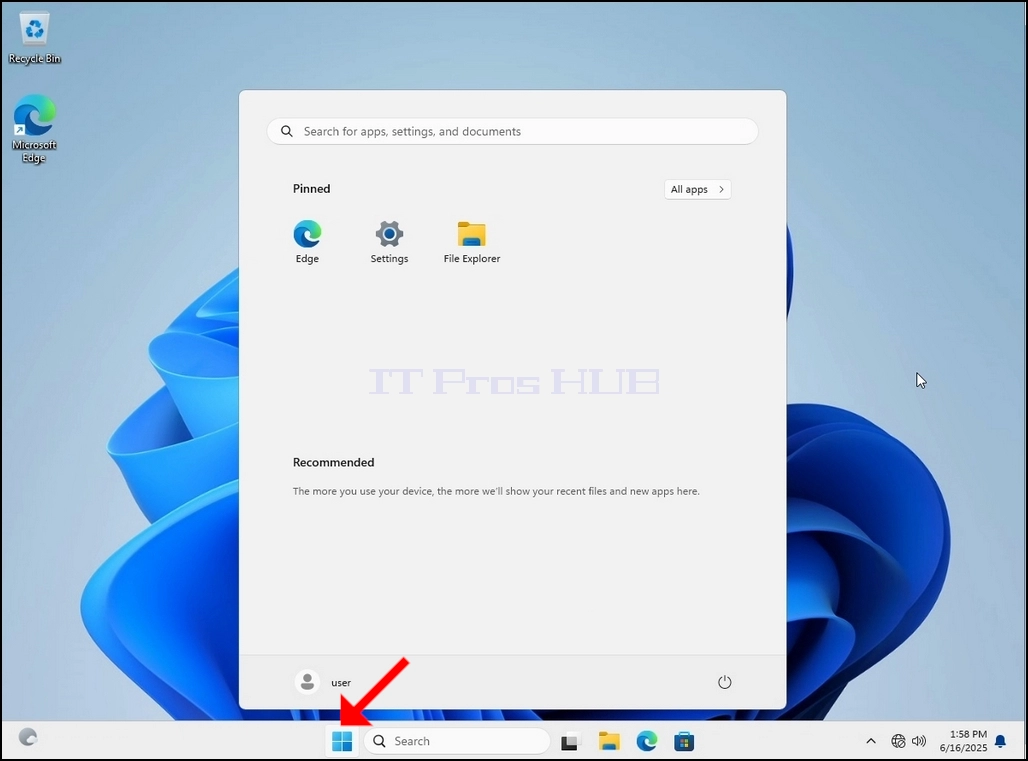
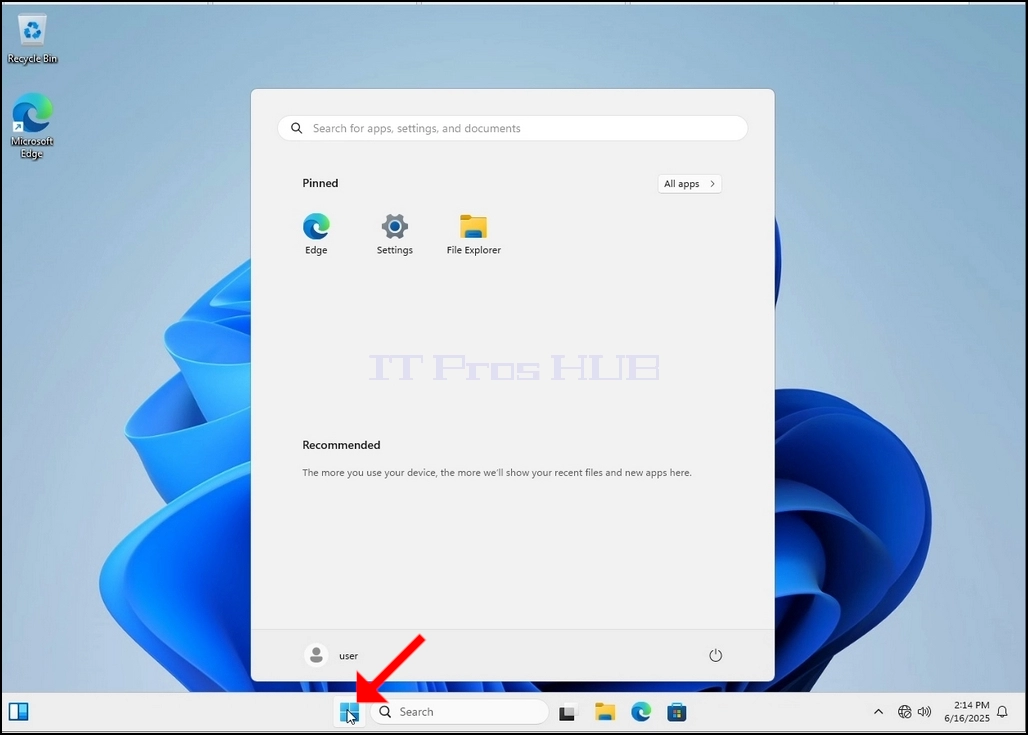
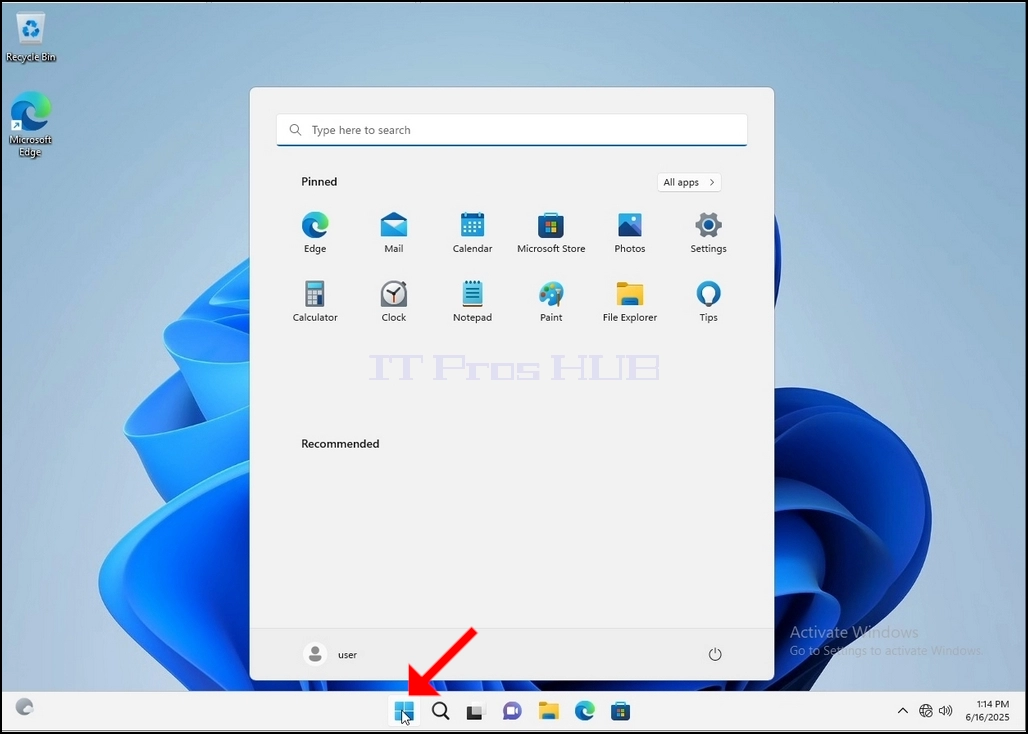
2. Click Start
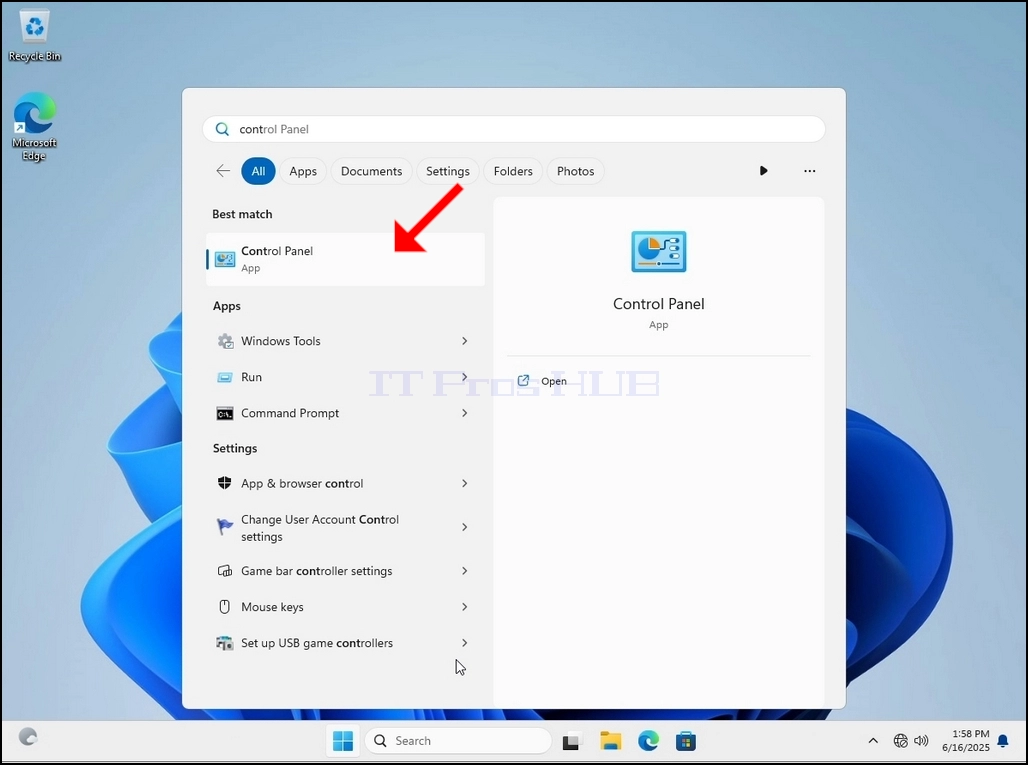
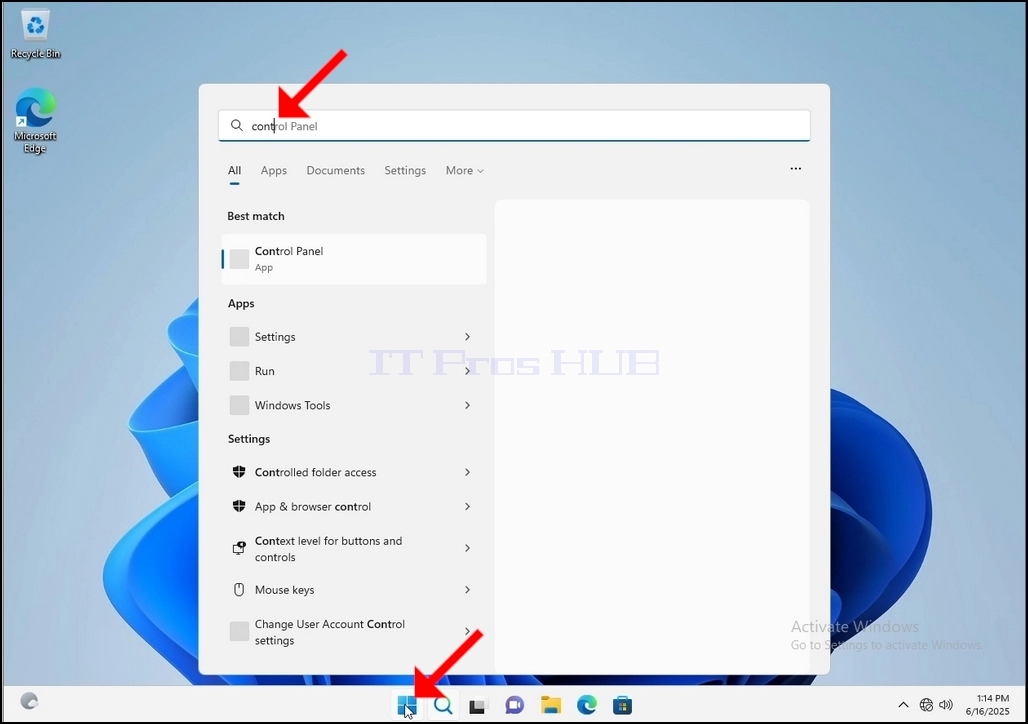
Once it finds it, click it and wait for the Control Panel window to appear.
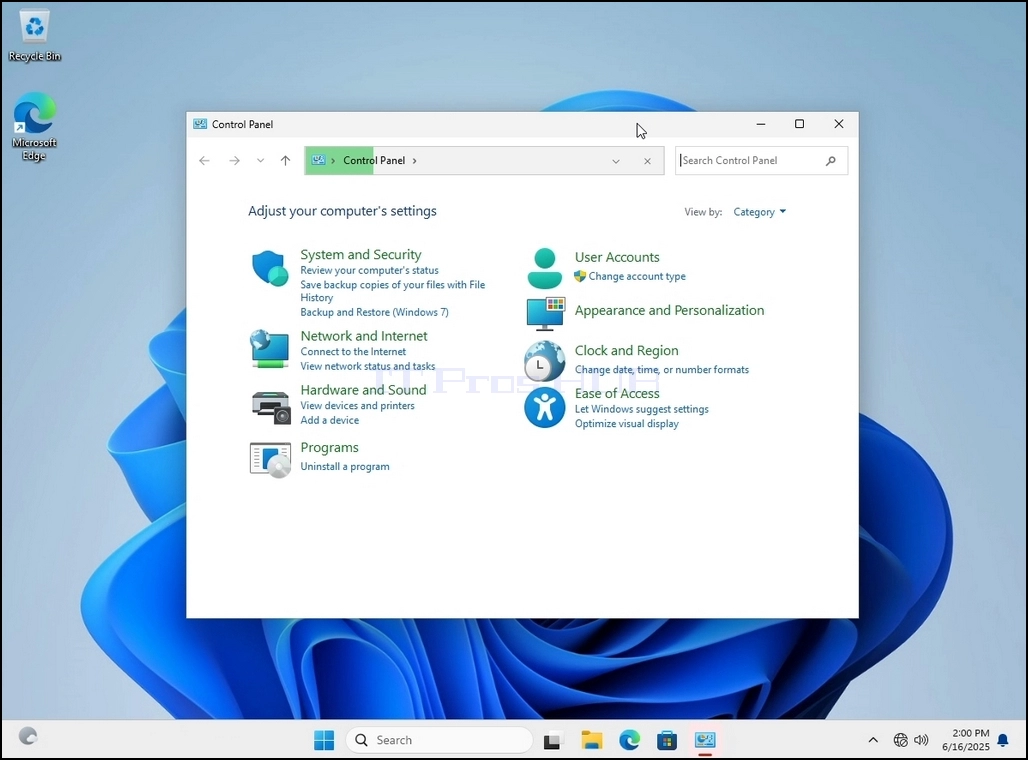
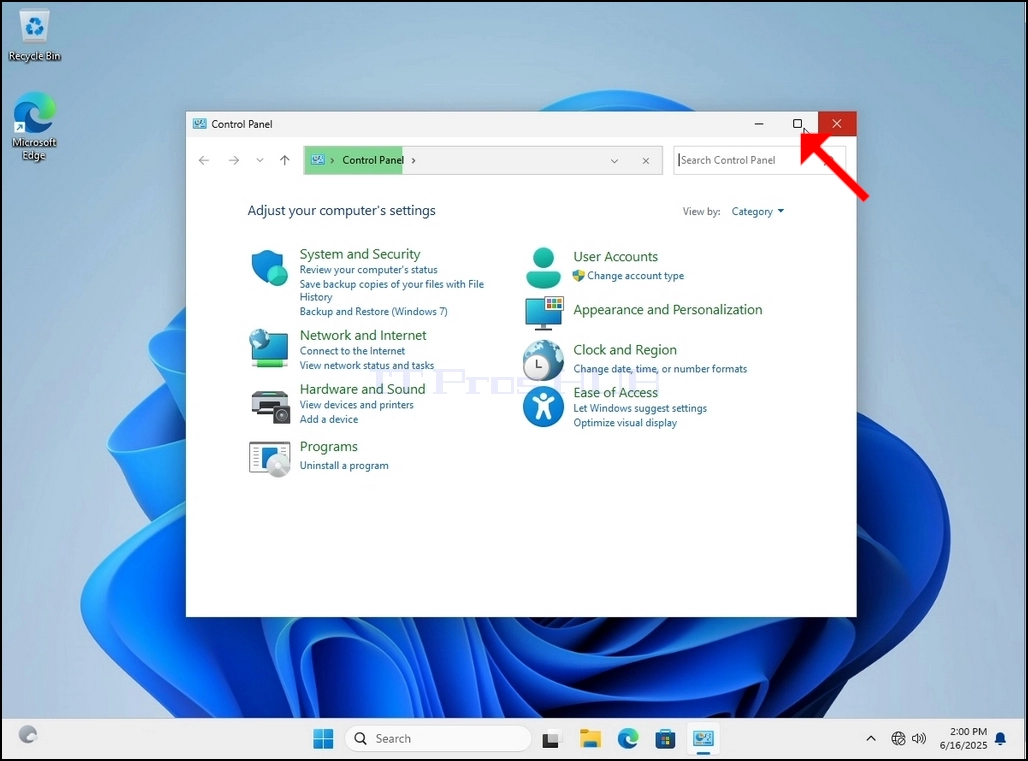
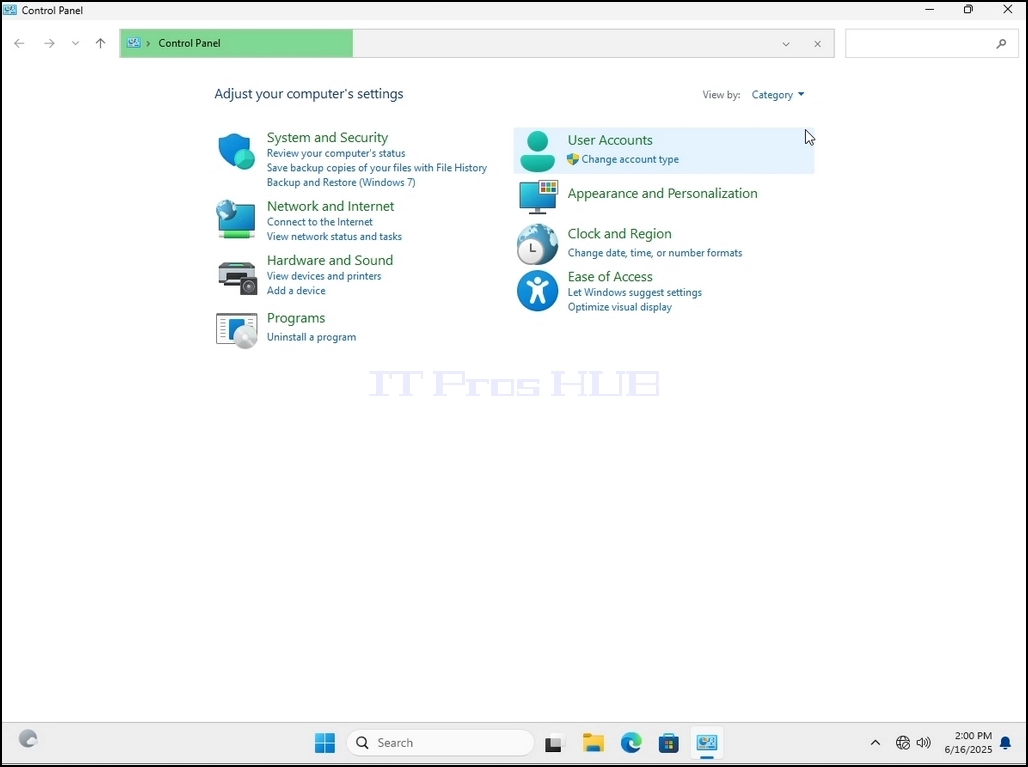
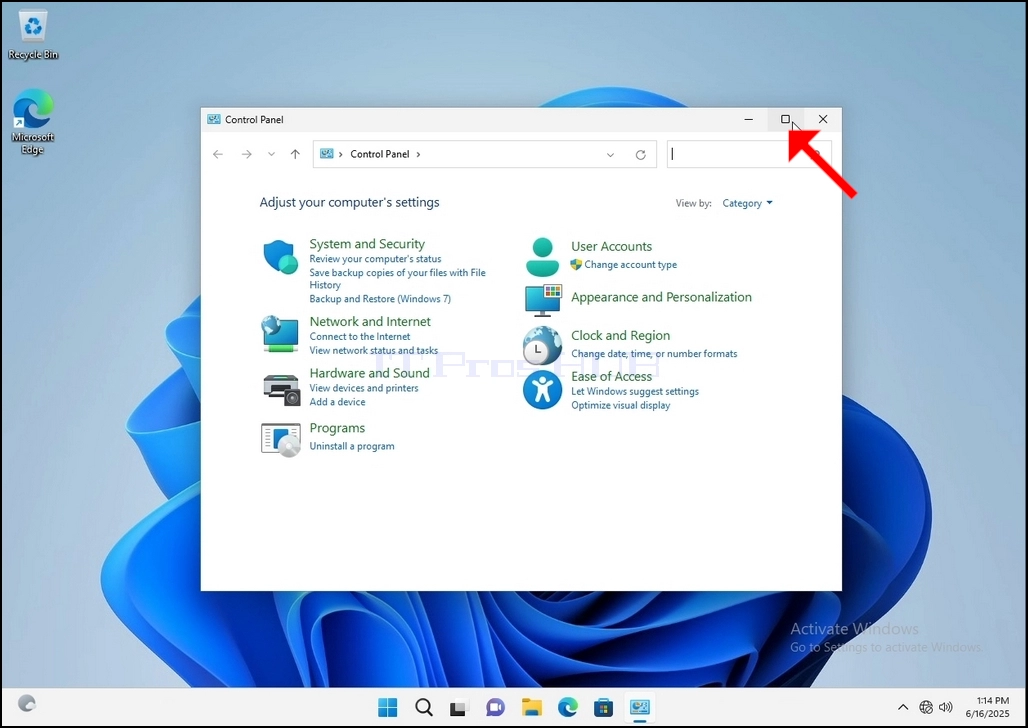
4. Once the Control Panel window is open, enlarge it by clicking the enlarging icon on the top right corner of that window.
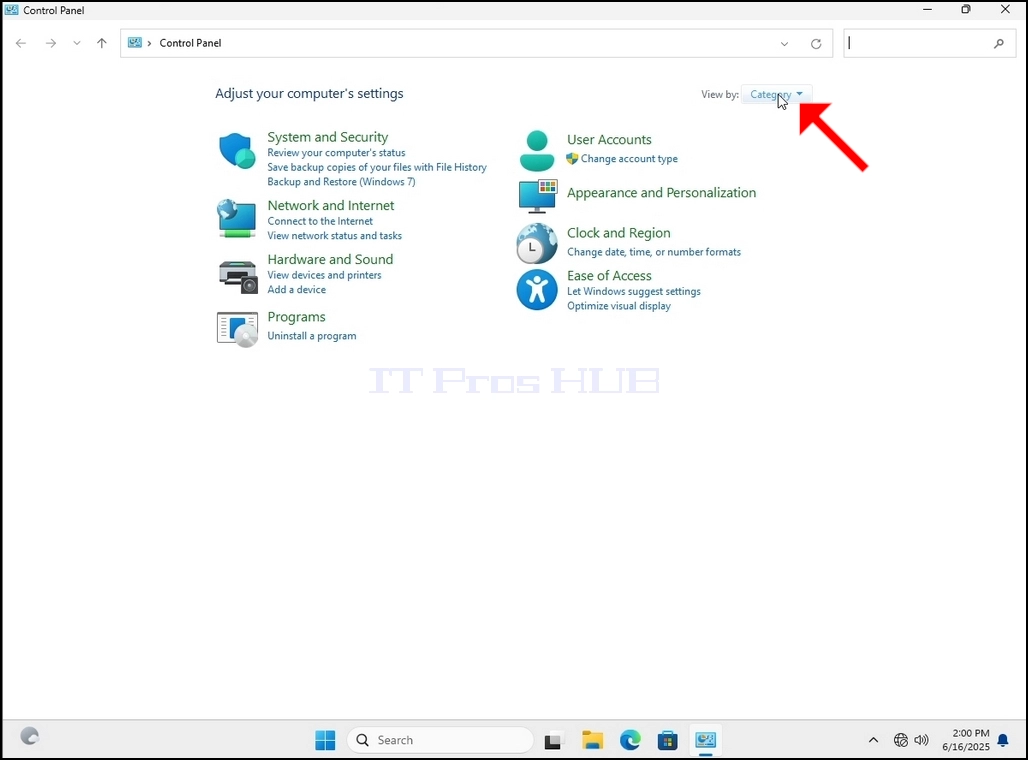
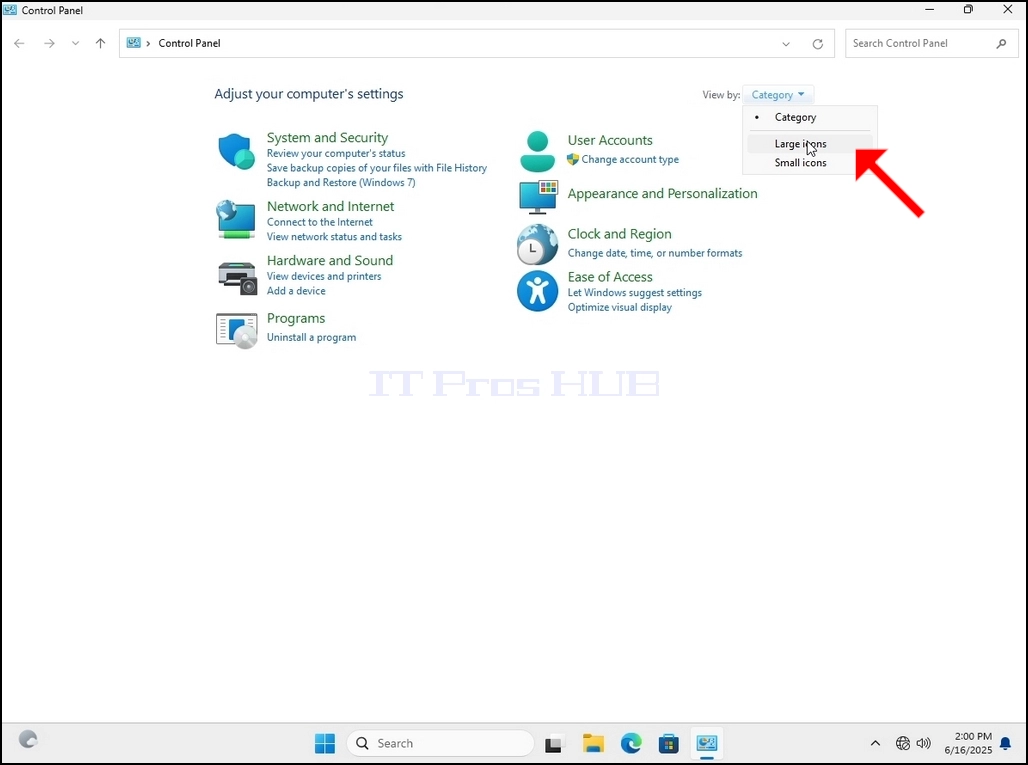
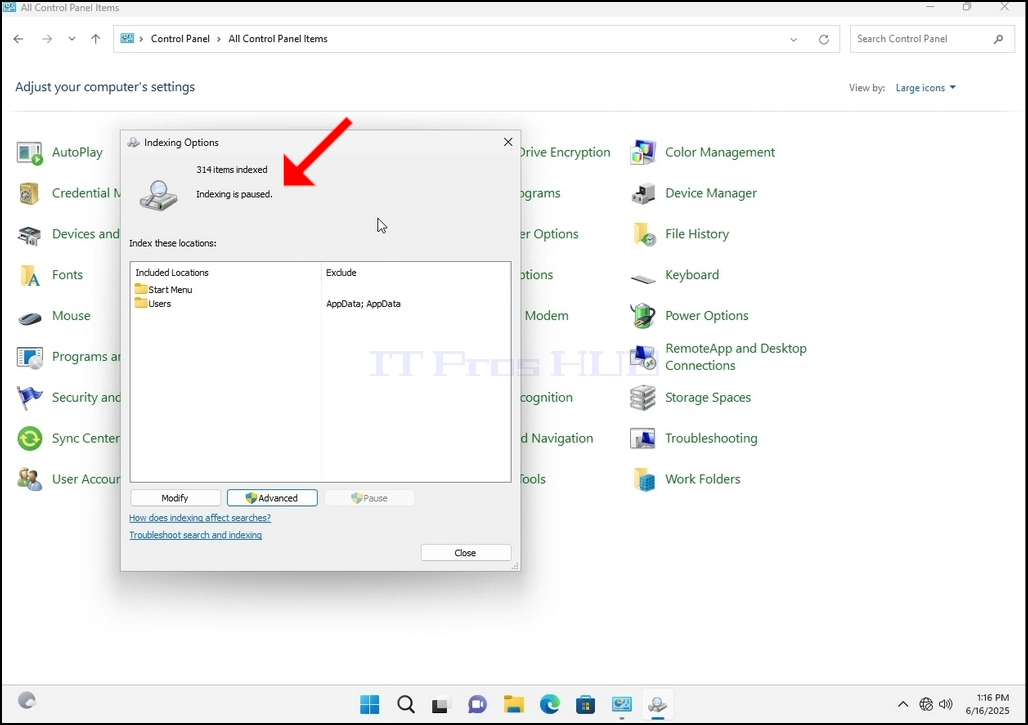
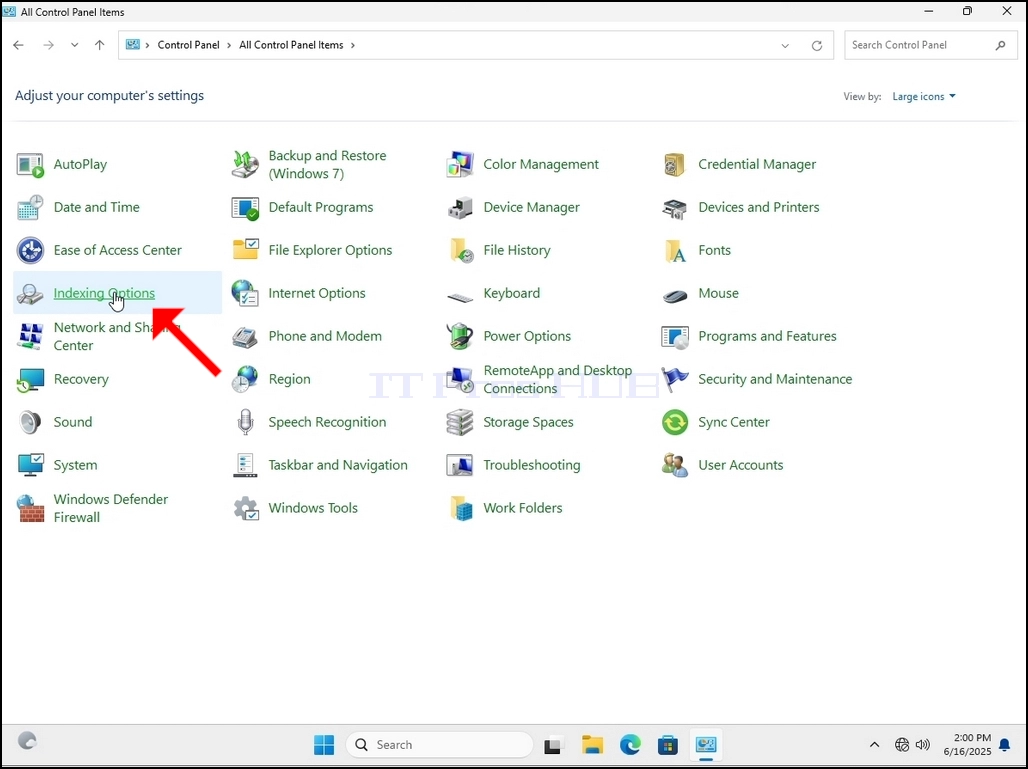
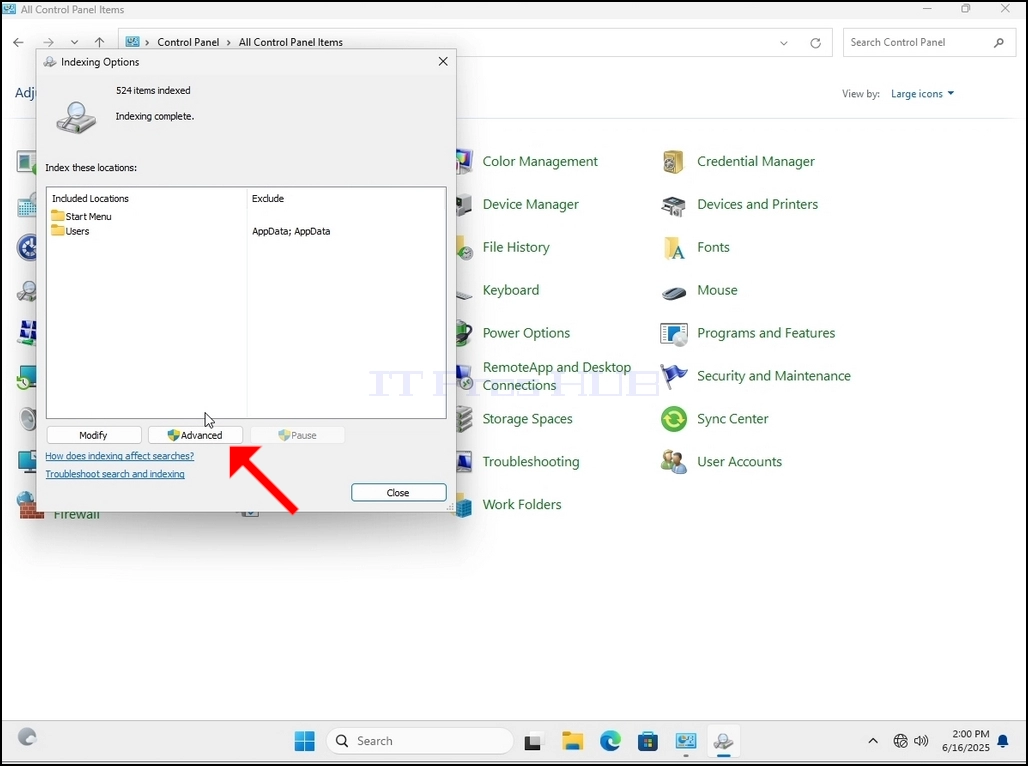
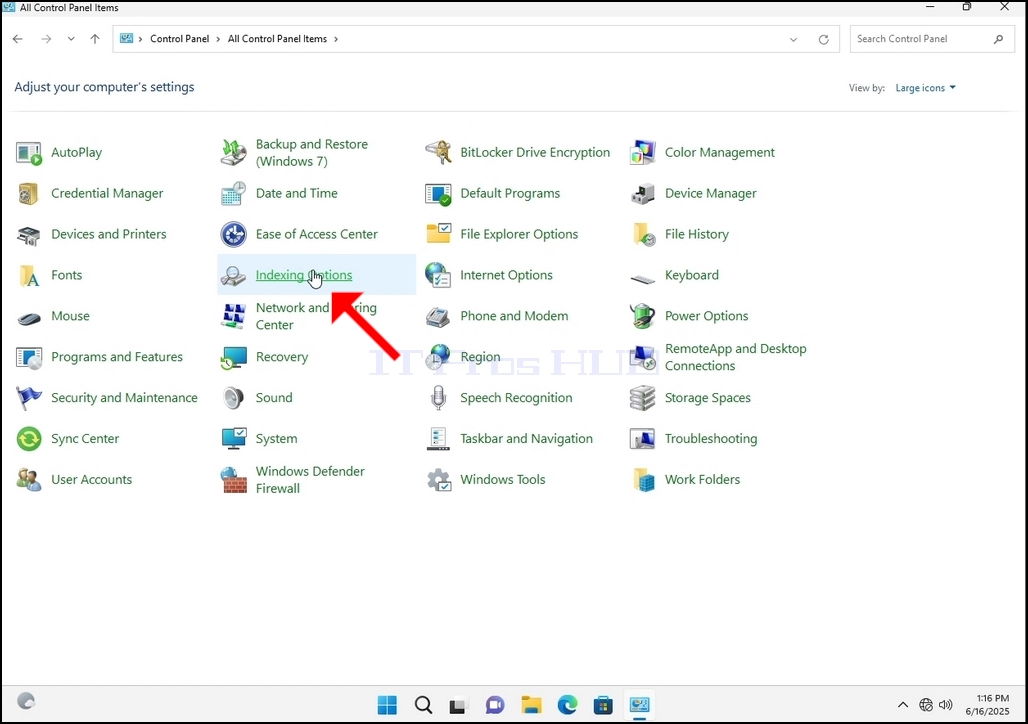
6. Look for the Indexing Options icon and click it. Wait for the Indexing Options window to appear.
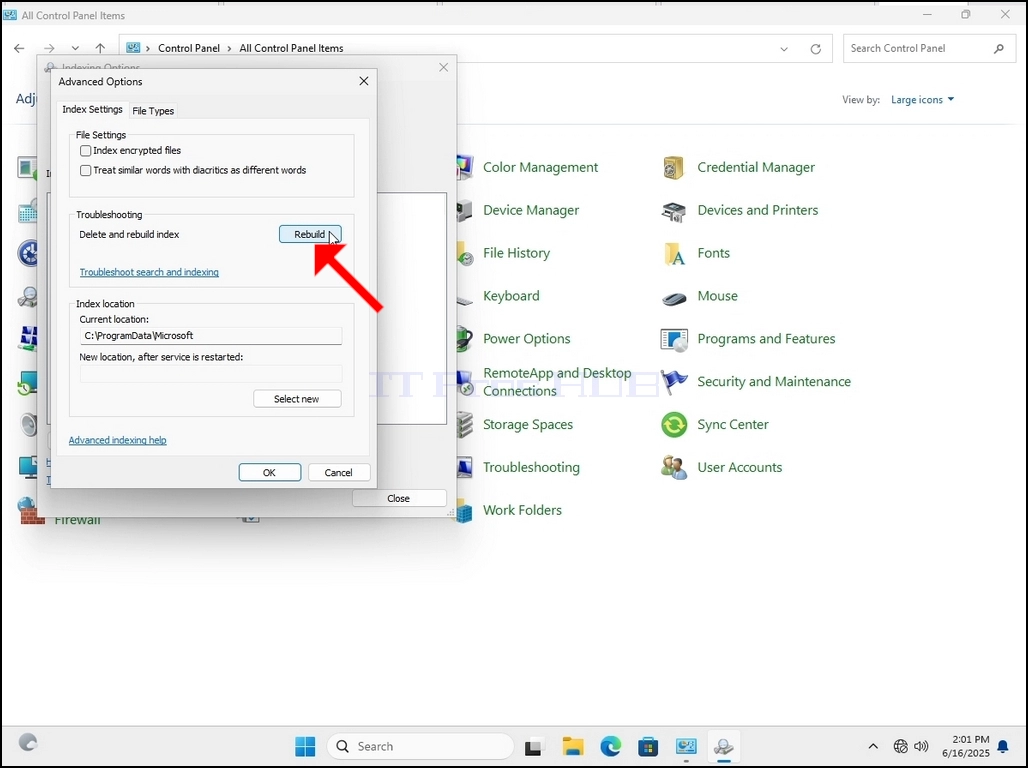
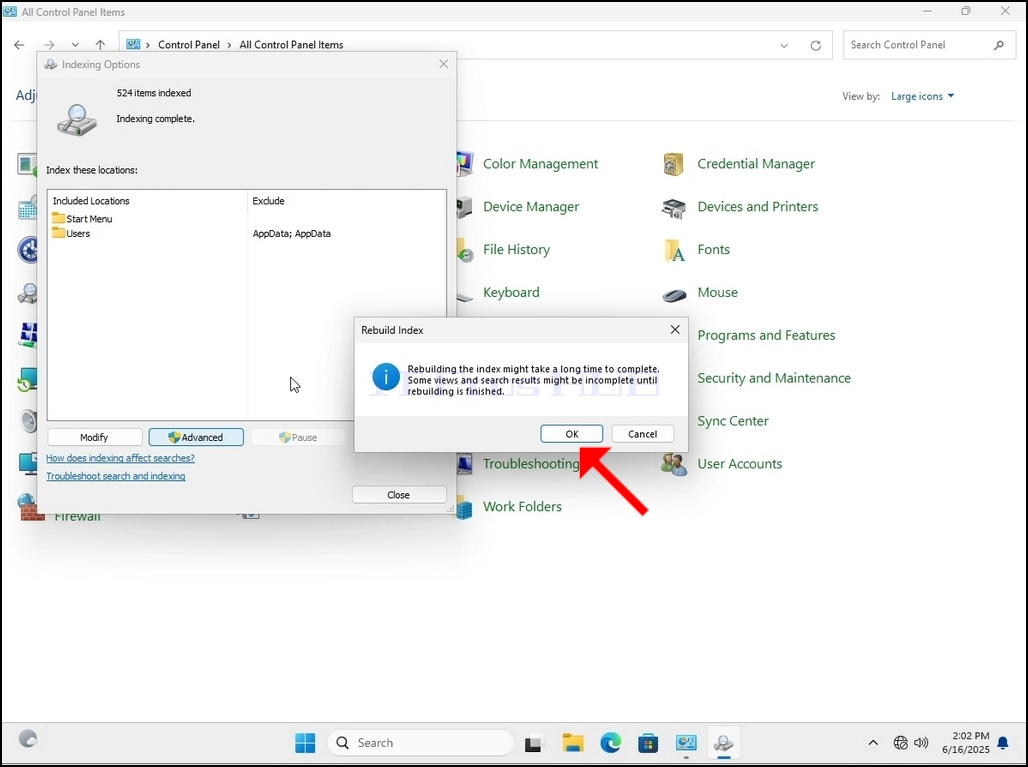
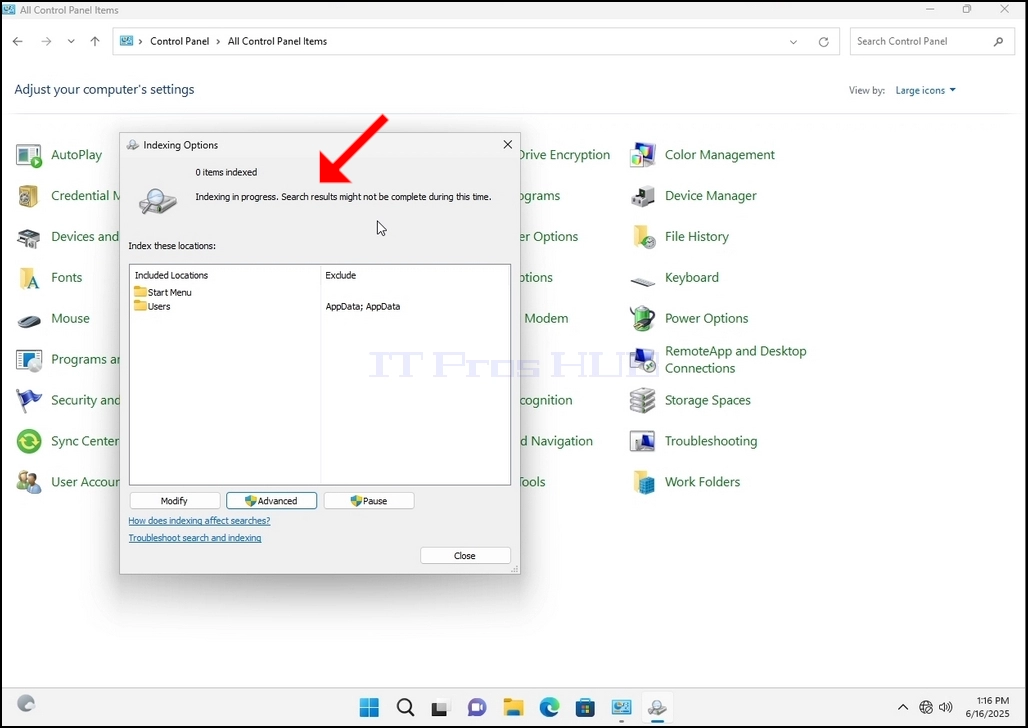
9. After clicking OK in the confirmation box, Windows will start rebuilding its index. It might take some time for the actual process to start, Wait patiently a few seconds to a few minutes. The moment the process starts, the "Indexing Complete" sentence will be replaced with "Indexing in progress. Search results might not be complete during this time."
In addition, the number of items indexed will be reset to 0 for a moment and then start to increase.
Note that All of the windows that are related to the Indexing process can now be closed and the rebuilding process would still be running the background.
Note that the Indexing process' speed might be reduced due to user activity on the computer. The more intense the activity the less the Indexing speed would be.
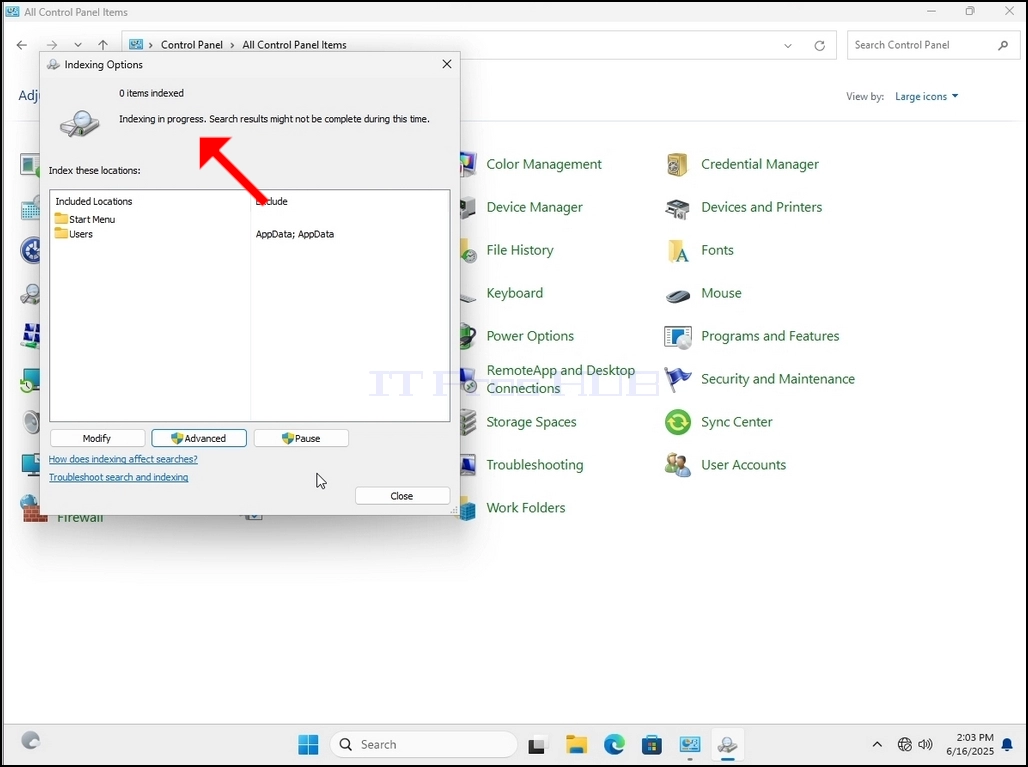
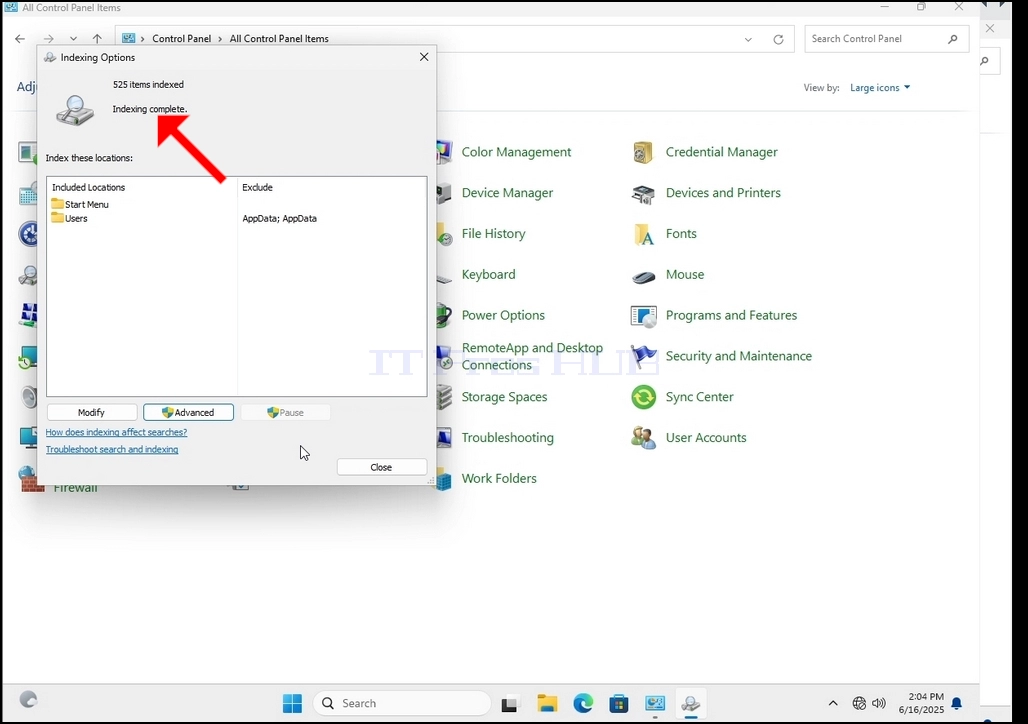
10. To check if the indexing process is done, go back to the Indexing Options through Control Panel as explained in the previous stages. If the process is complete, you would see the "Indexing Complete" sentence appears again.
Since Windows does not notify the user once this process is done, there is indeed a need to perform the latter mentioned. Depending on the number of files, folders, drivers and partitions marked for indexing, this process could take between a few minutes to a few hours.
- تفصیل
- تحریر کردہ: IT Pro
- زمرہ: How to Articles
- مشاہدات: 6219
1۔ ونڈوز ڈیٹنگ میں جائیں
۲۔ ۲۔ پر کلک کريں
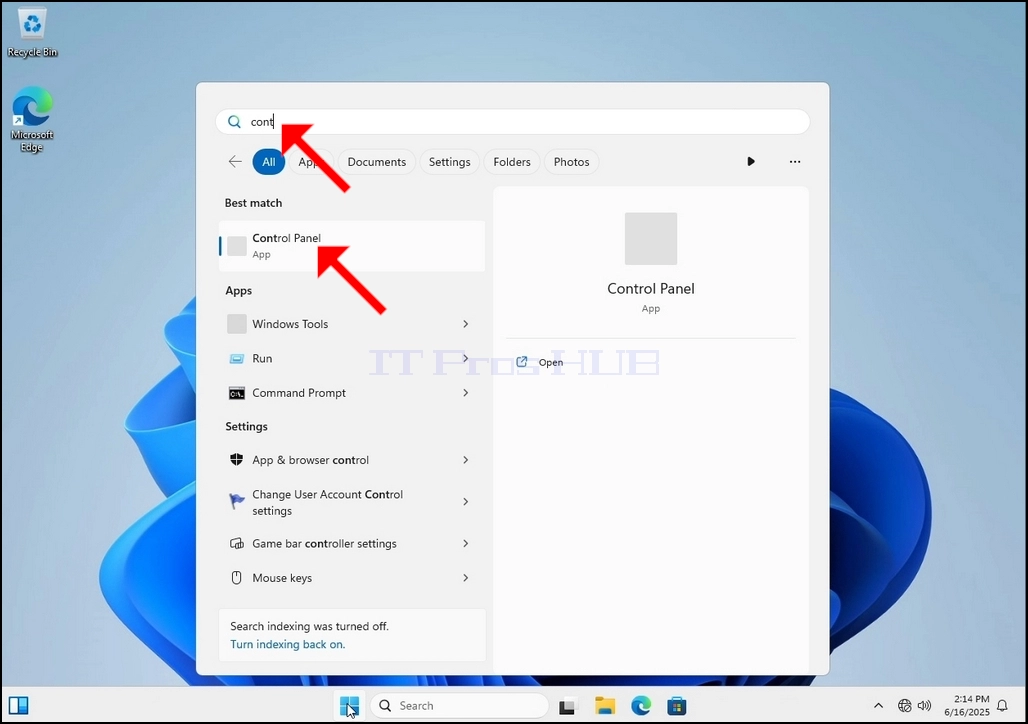
3۔ شروع شروع مین کھلنے کے بعد، کنٹرول پینل کو تلاش کرنے کے لیے "انڈر پینل" ٹائپ کریں اور اس کے بعد شروع شروع مینو کا انتظار کریں براہ مہربانی یہ نوٹ کیا جاسکتا ہے کہ صرف "cont" ٹائپ کرنا ممکن ہے اور اکثر صورتوں میں اسٹیج مینو کو کنٹرول پینل انصرام ملتا ہے۔
اسے ڈھونڈنے کے بعد اسے کلک کریں اور سامنے آنے کے لیے کنٹرول پینل کھڑکی کا انتظار کریں۔
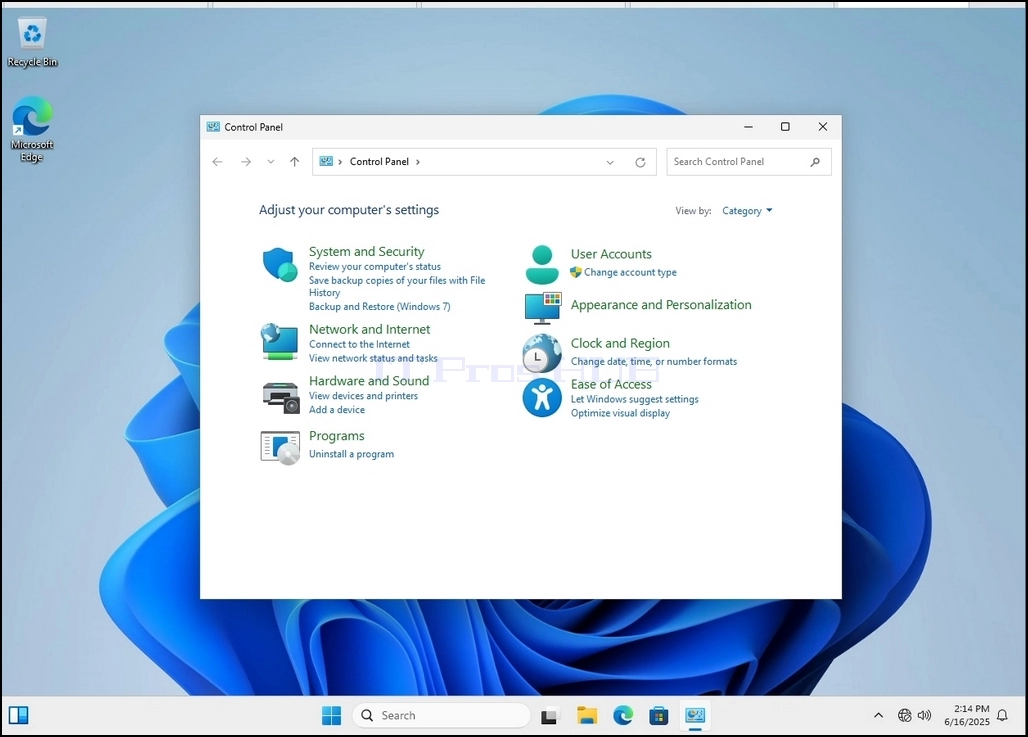
4۔ جب کنٹرول پینل کھڑکی کھلی ہے تو اس کھڑکی کے اوپری کونے پر انفلرنگ تصاویر پر کلک کر کے اسے وسعت دی جاتی ہے۔
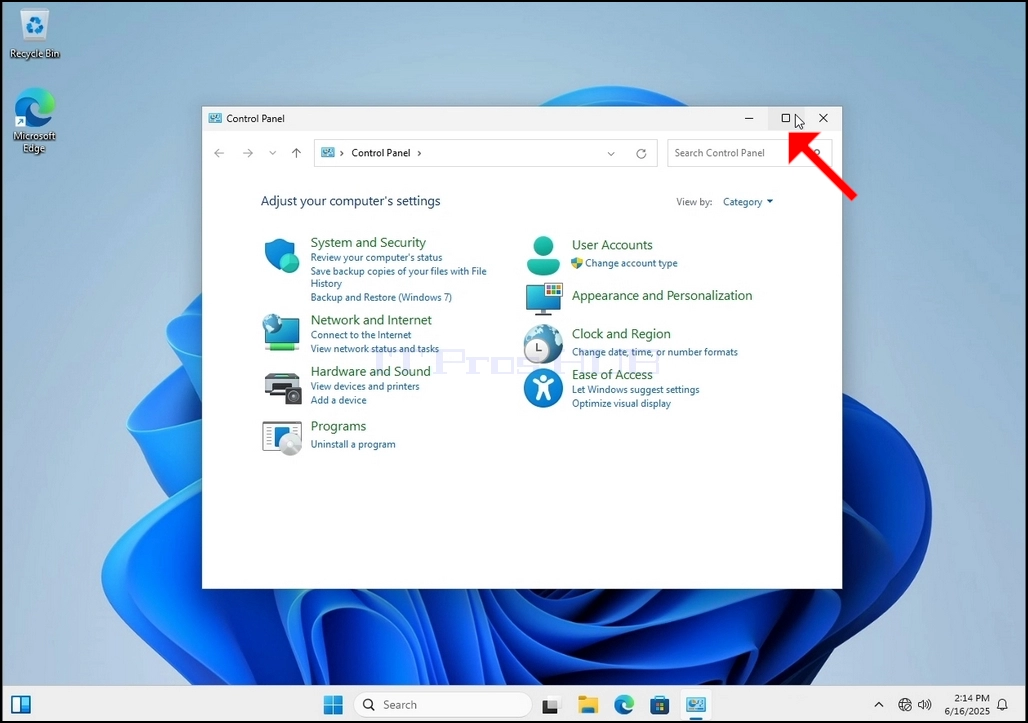
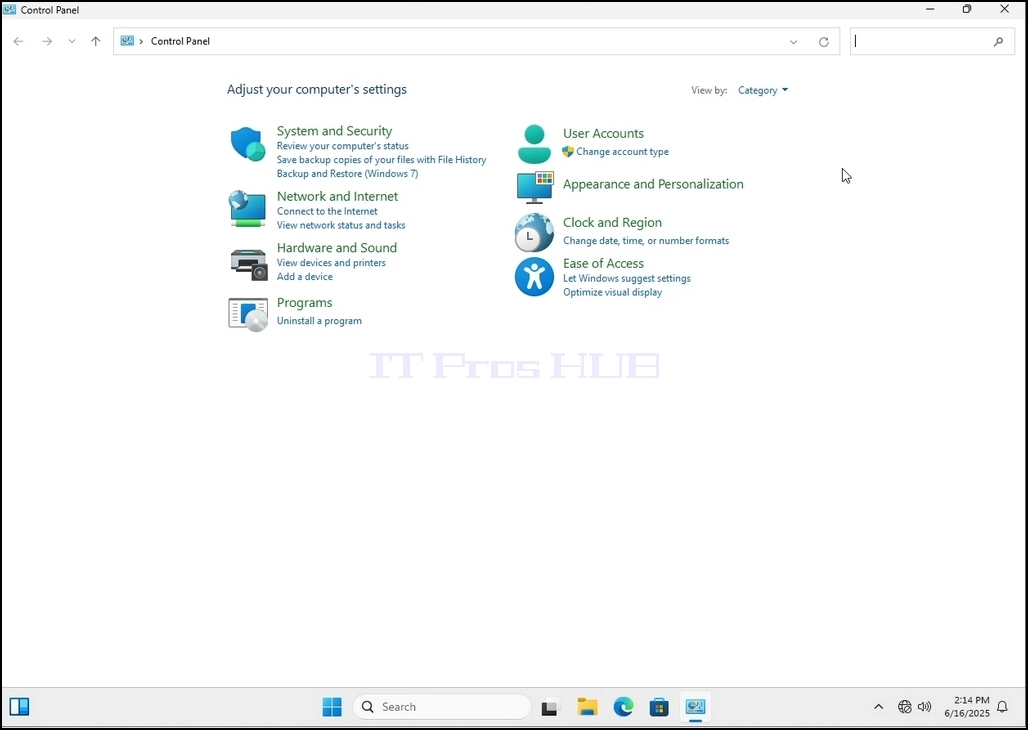
5۔ بہتر بنانے کے لیے کلک کریں کیٹیگری کنٹرول پینل کھڑکی کے اوپری جانب سے دائیں طرف اور "سے منتخب کرتے ہیں۔بڑے نام" چھوٹے نئے مینو سے جو ظاہر ہوتا ہے۔
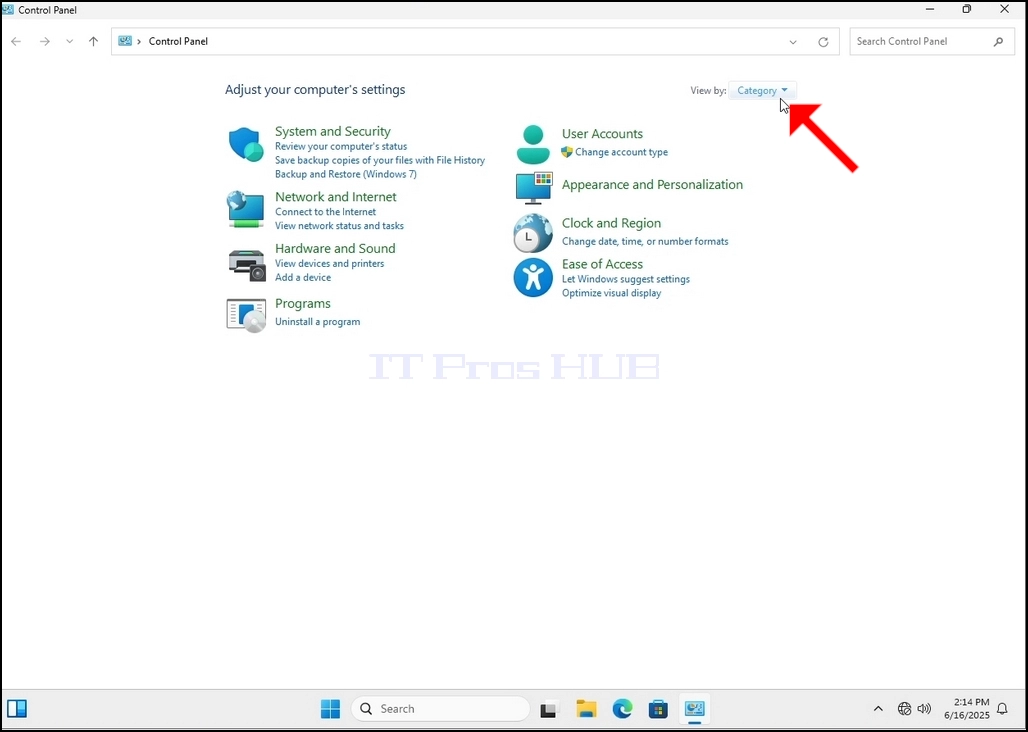
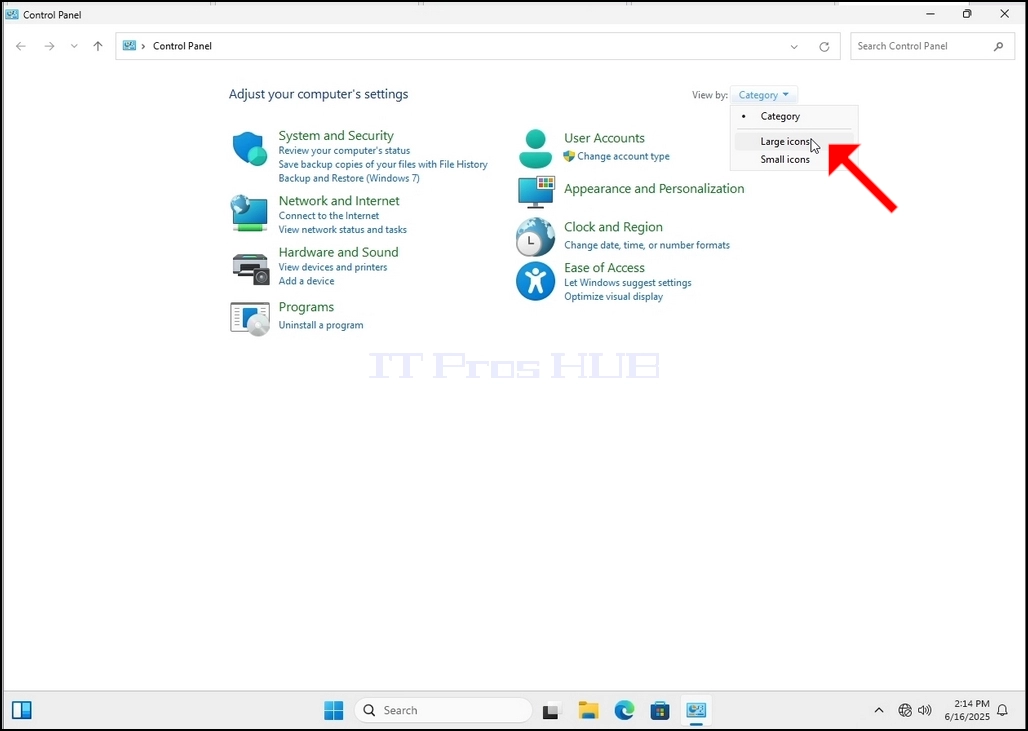
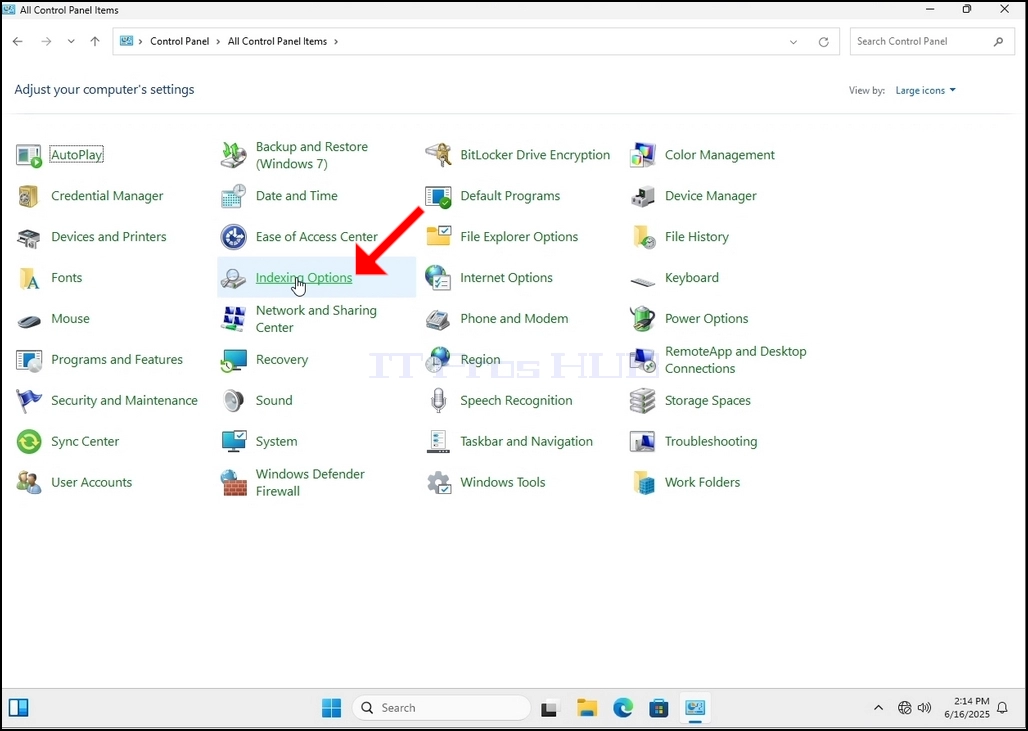
6۔ انڈیکس انسائکس کو ڈھونڈے اور اس پر کلک کریں۔ ظاہر ہونے کے لئے انڈیکس ونڈو کے لئے انتظار کریں.
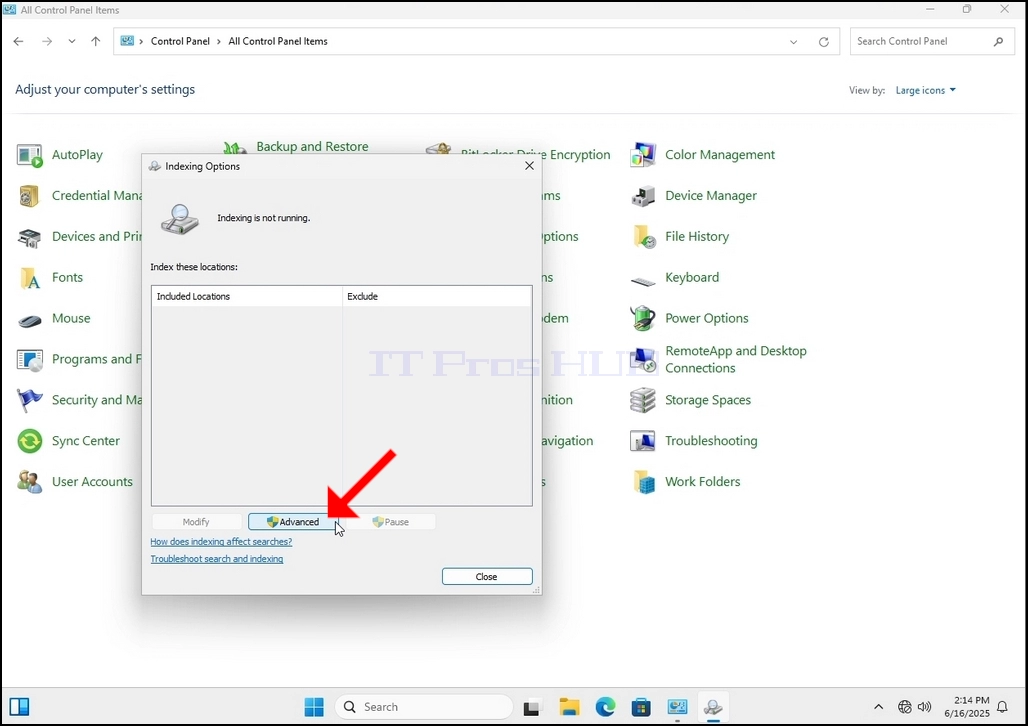
7۔ جب انڈیکسس ونڈو کھول دیا جائے تو اس ونڈو کے نچلے جانب ایبٹ آباد بٹن کلک کریں۔
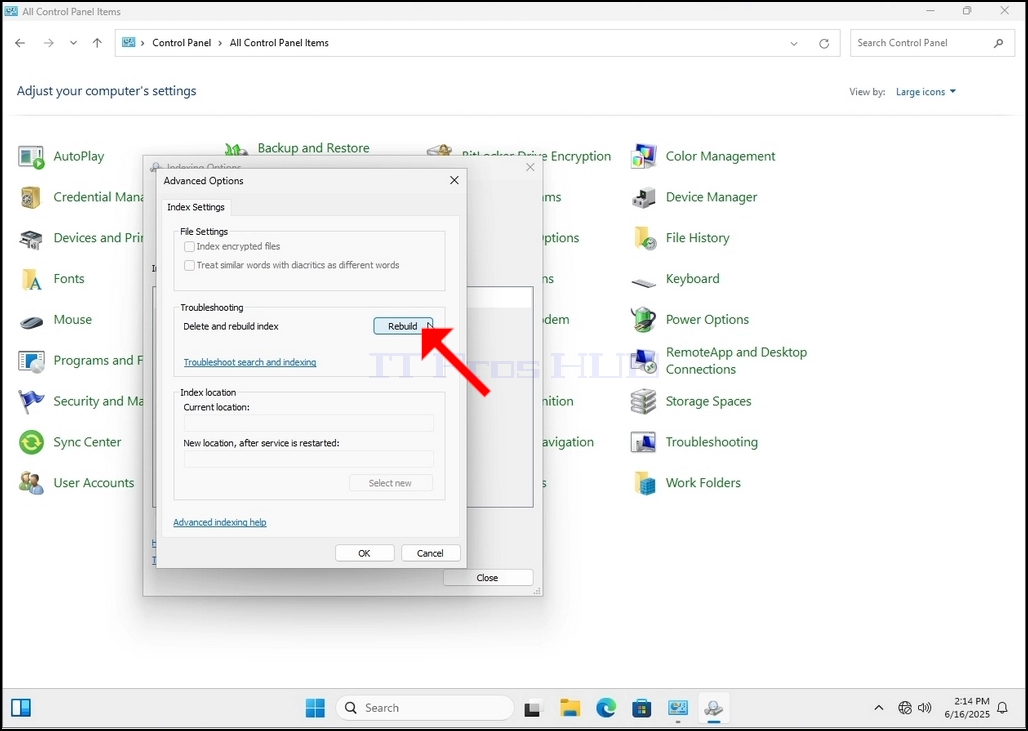
8۔ نئی ونڈو میں، کنول بٹن ڈھونڈ کر کلک کريں اس کے بعد تصدیقی باکس پوپ کرے گا. انڈیکس دوبارہ شروع کرنے کے ليے اس میں بٹن کلک کريں
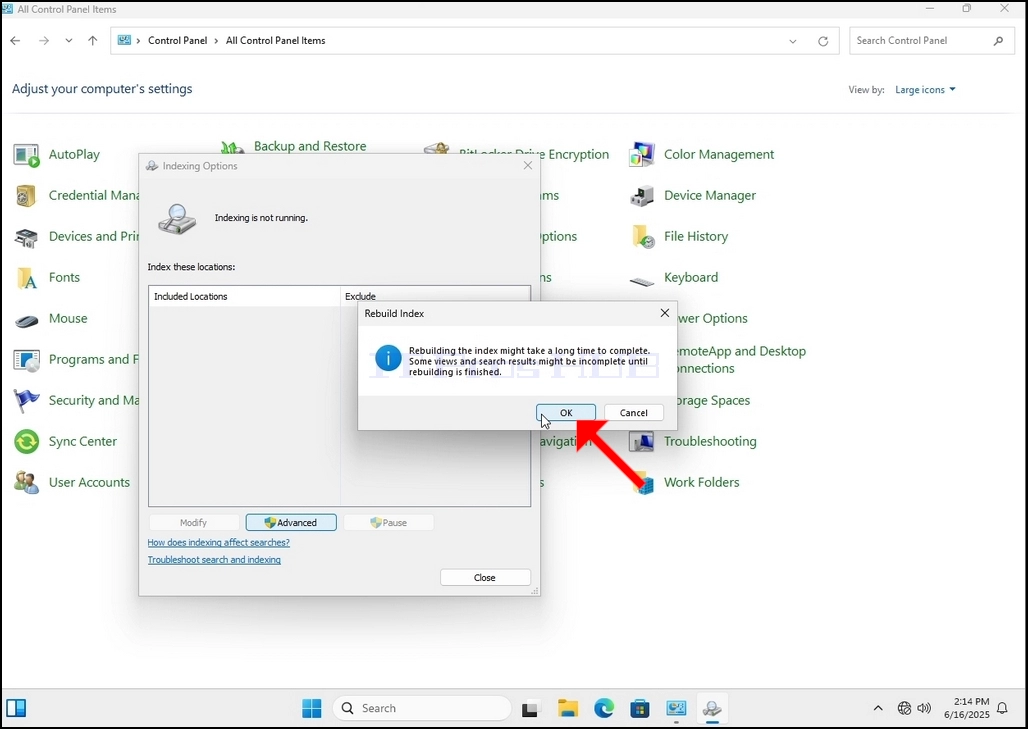
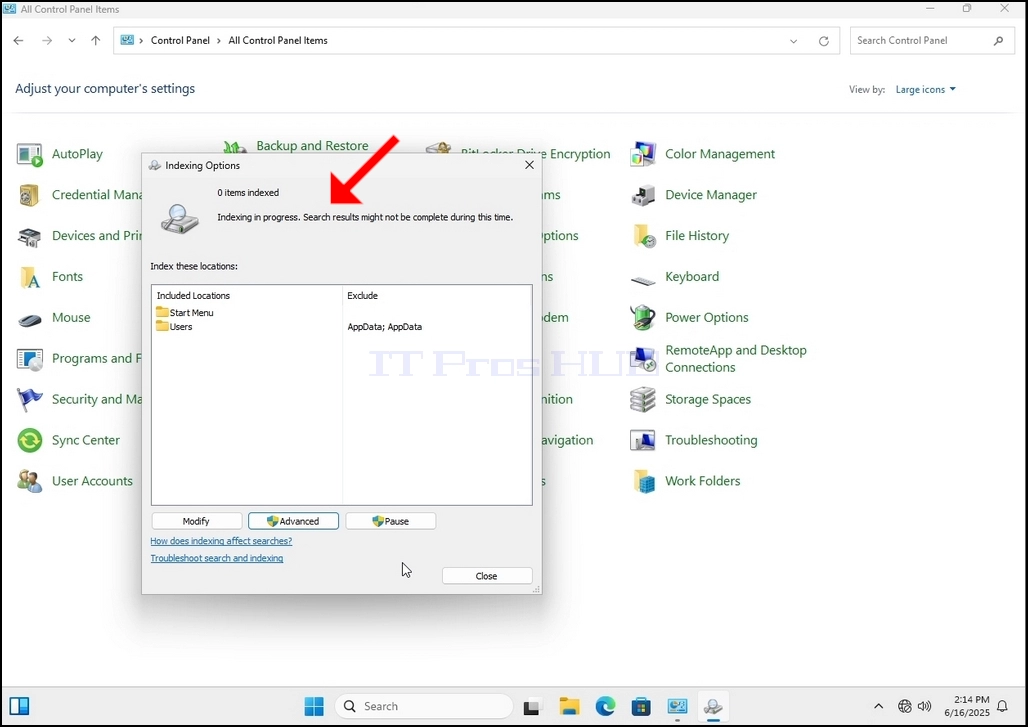
9۔ تصدیق شدہ باکس میں ٹھیک کلک کرنے کے بعد ونڈوز اپنے انڈیکس کو دوبارہ شروع کریں گے۔ اس عمل کو شروع کرنے میں کچھ وقت لگ سکتا ہے، چند منٹ تک صبر سے کام لیں. لمحے کا عمل شروع ہوتا ہے، "مکمل" قول بدل دیا جائے "۔ترقی میں شامل. تلاش کے نتائج اس دوران مکمل نہیں ہو سکتے ہیں۔"۔
اس کے علاوہ آئٹمس انڈیکس کی تعداد ایک لمحے کے لیے 0 تک دوبارہ شروع کی جائے گی اور پھر اضافہ شروع ہو جائے گا۔
غور کریں کہ انڈیکسنگ کے عمل سے تعلق رکھنے والے تمام ونڈوز اب بند ہو سکتے ہیں اور تعمیری عمل اب بھی پس منظر کو چل رہا ہوگا۔
غور کریں کہ کمپیوٹر پر صارف کی سرگرمی کی وجہ سے انڈیکسنگ عمل کی رفتار کم ہو سکتی ہے۔ اس عمل کی زیادہ سے زیادہ شدت انڈیکس کی رفتار کم ہوگی۔
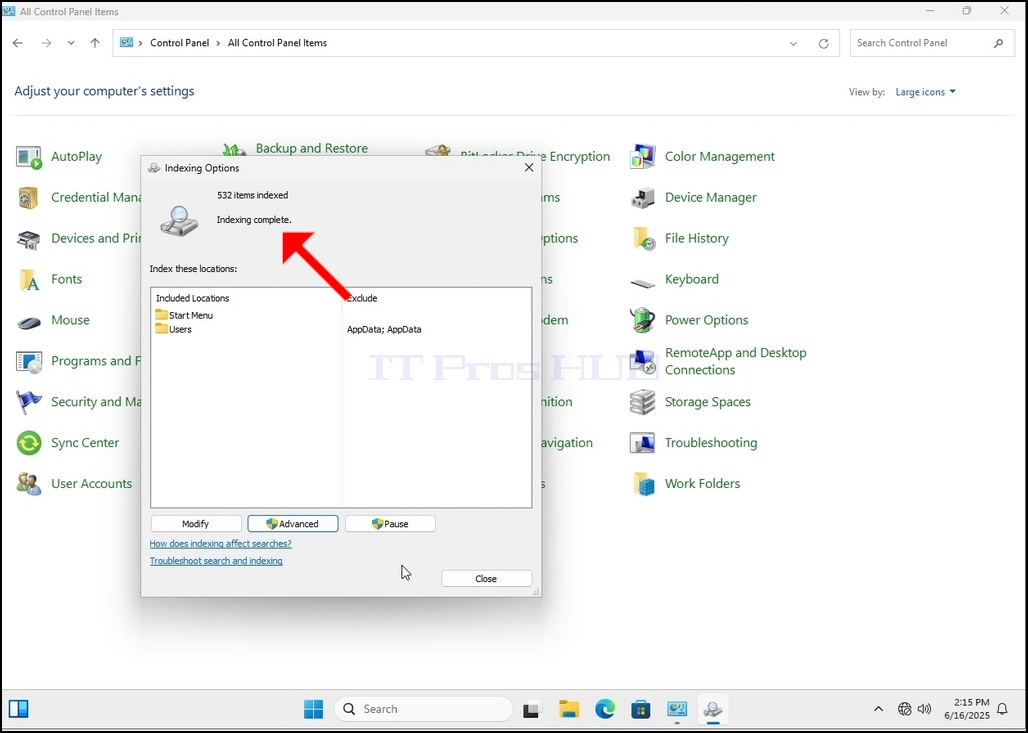
10۔ اس بات کا جائزہ لینے کے لیے کہ آیا انڈیکسنگ کا عمل کیا جاتا ہے، کنٹرول پینل کے ذریعے انڈیکس کو واپس چلے جائیں جیسا کہ سابقہ مراحل میں وضاحت کی گئی ہے۔ اگر عمل مکمل ہو جائے تو آپ دیکھیں گے "مکمل" سزا دوبارہ ظاہر ہوتی ہے۔
چونکہ ونڈوز اس عمل کو ایک بار شروع کرنے کے بعد صارف کو غیر فعال نہیں کرتا اس لیے یقیناً مذکورہ بالا عمل کو انجام دینے کی ضرورت ہے۔ فائلوں کی تعداد کے مطابق انڈیکس کے لئے نشان دہی کے لئے منتظمین، ڈرائیور اور تقسیم کاروں کی نشان دہی کی گئی تھی، یہ عمل چند منٹ سے چند گھنٹوں کے درمیان ہو سکتا ہے۔
- تفصیل
- تحریر کردہ: IT Pro
- زمرہ: How to Articles
- مشاہدات: 6832
1. Go to Windows Desktop
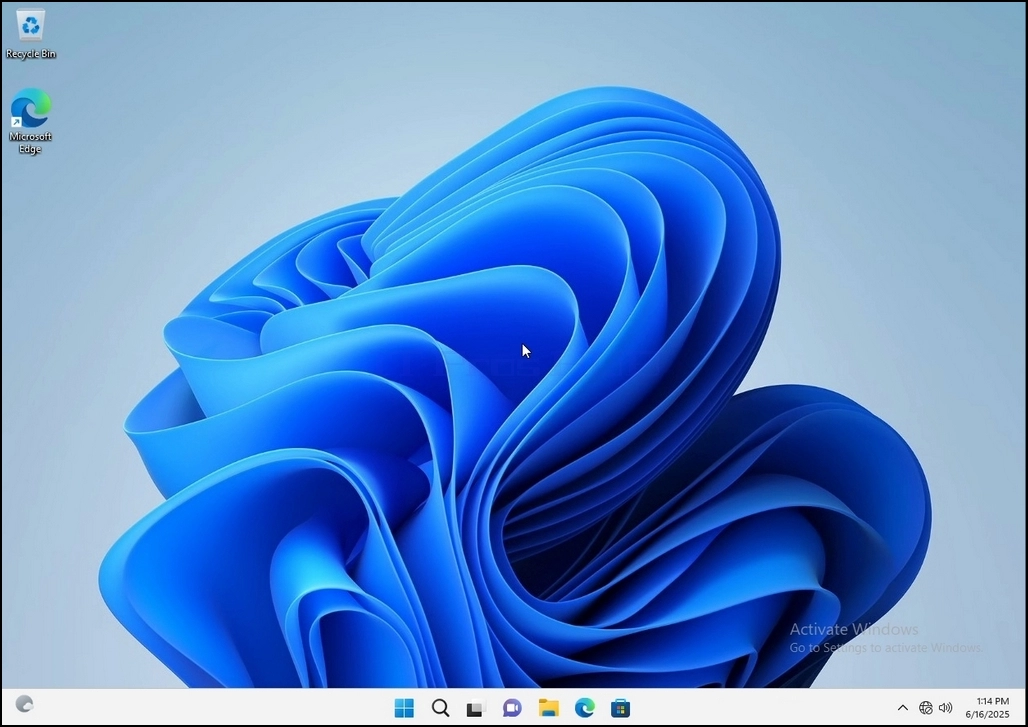
2. Click Start
Once it finds it, click it and wait for the Control Panel window to appear.
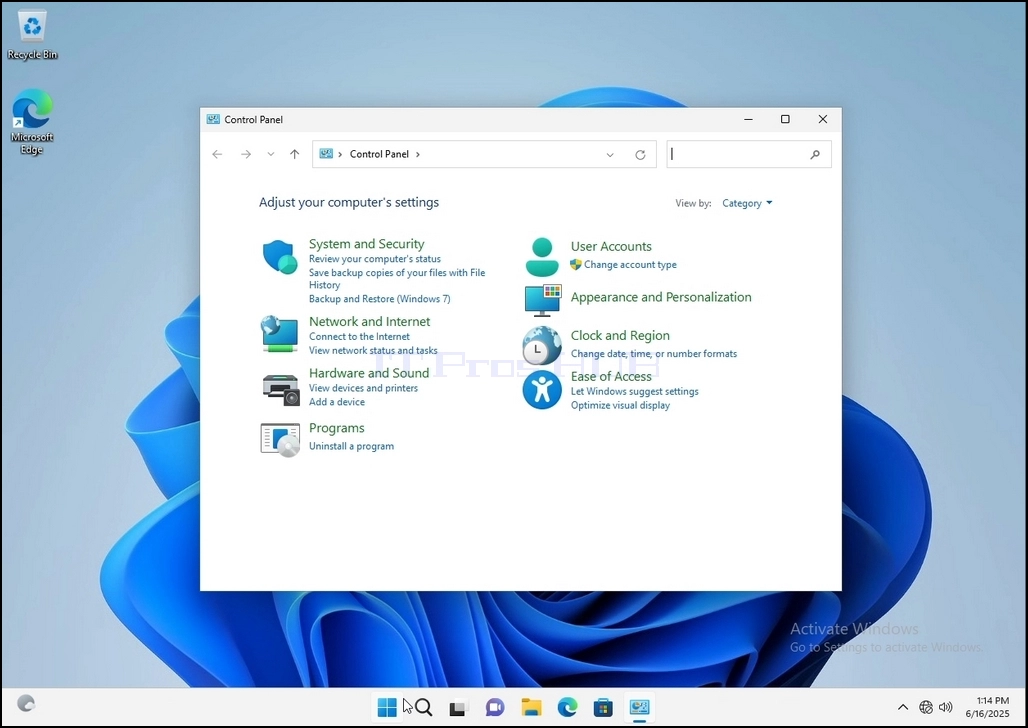
4. Once the Control Panel window is open, enlarge it by clicking the enlarging icon on the top right corner of that window.
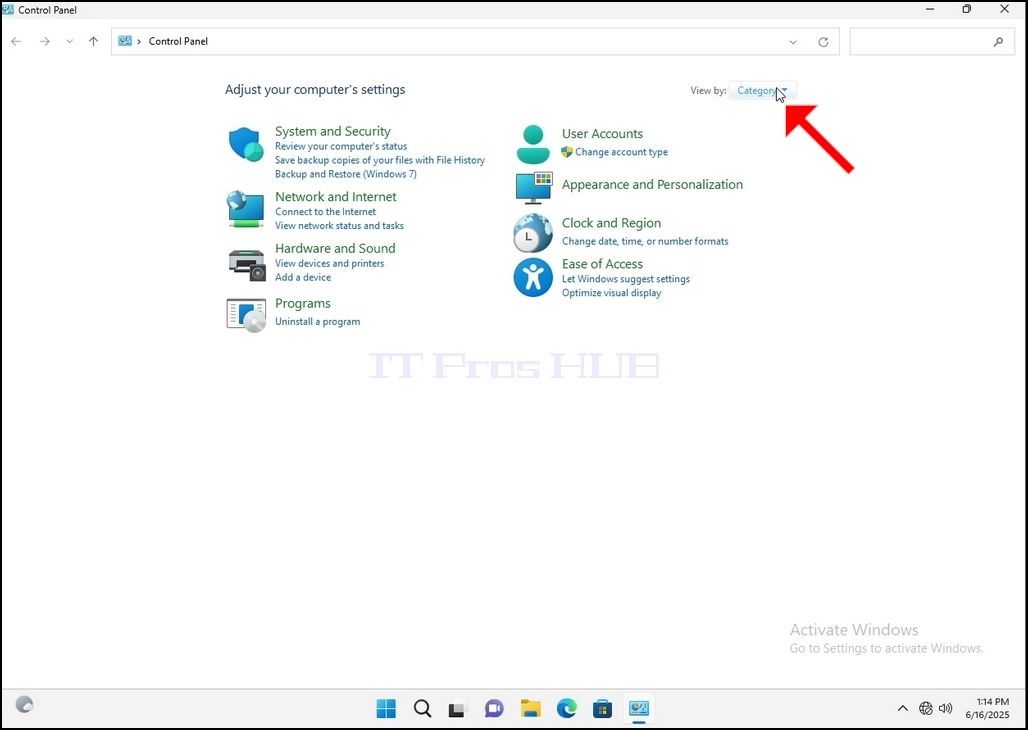
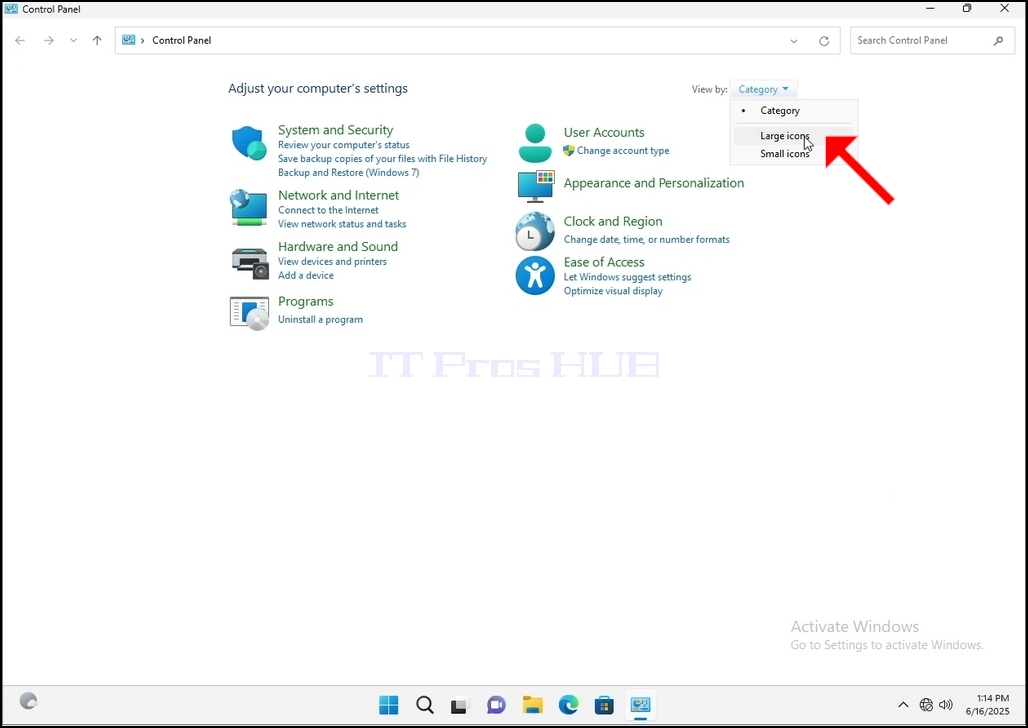
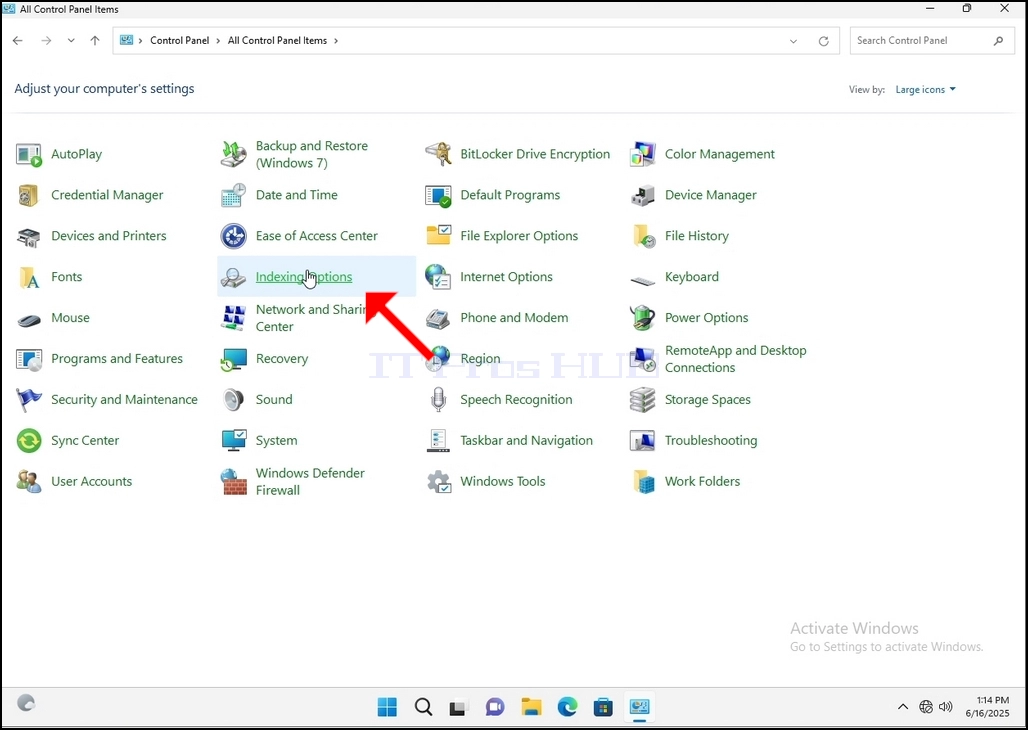
6. Look for the Indexing Options icon and click it. Wait for the Indexing Options window to appear.
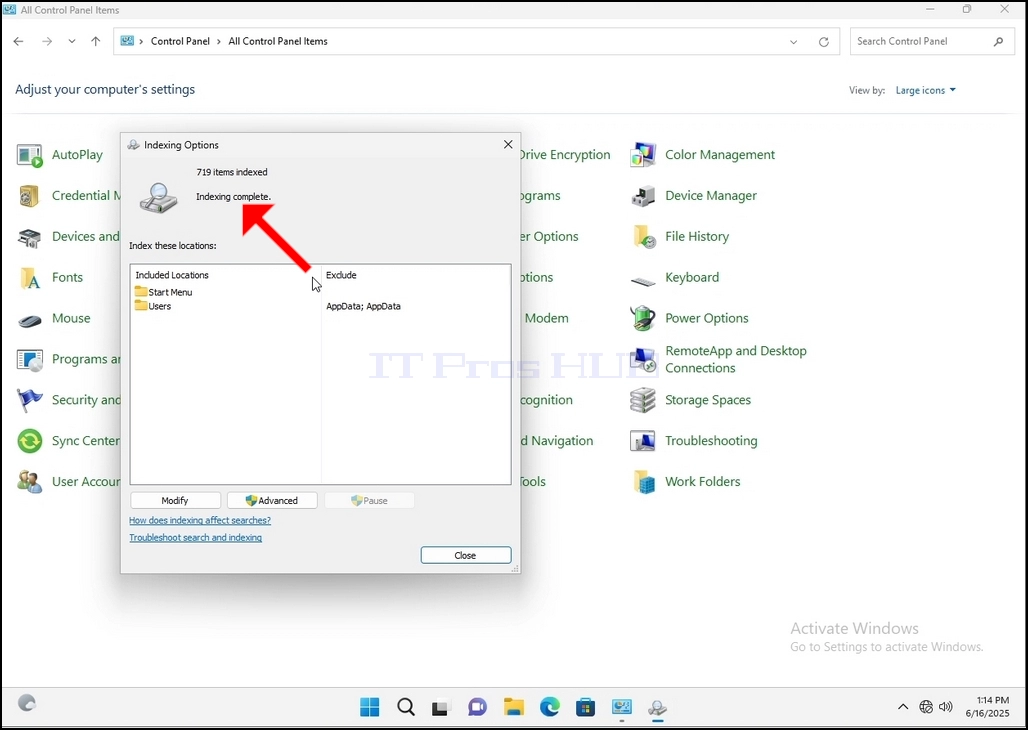
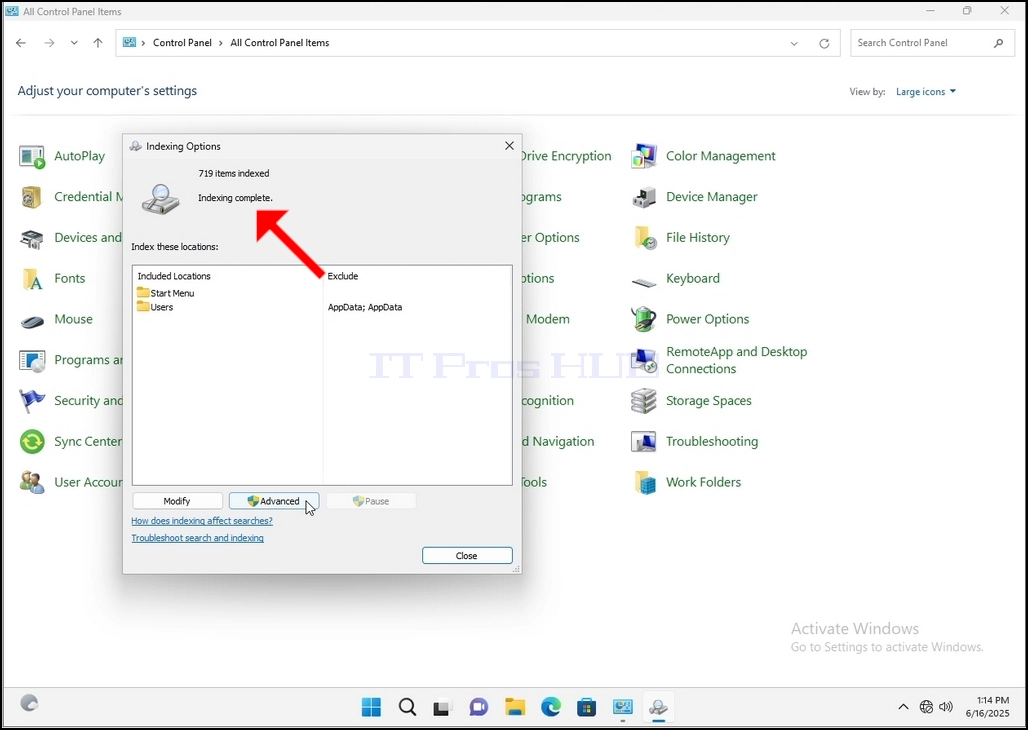
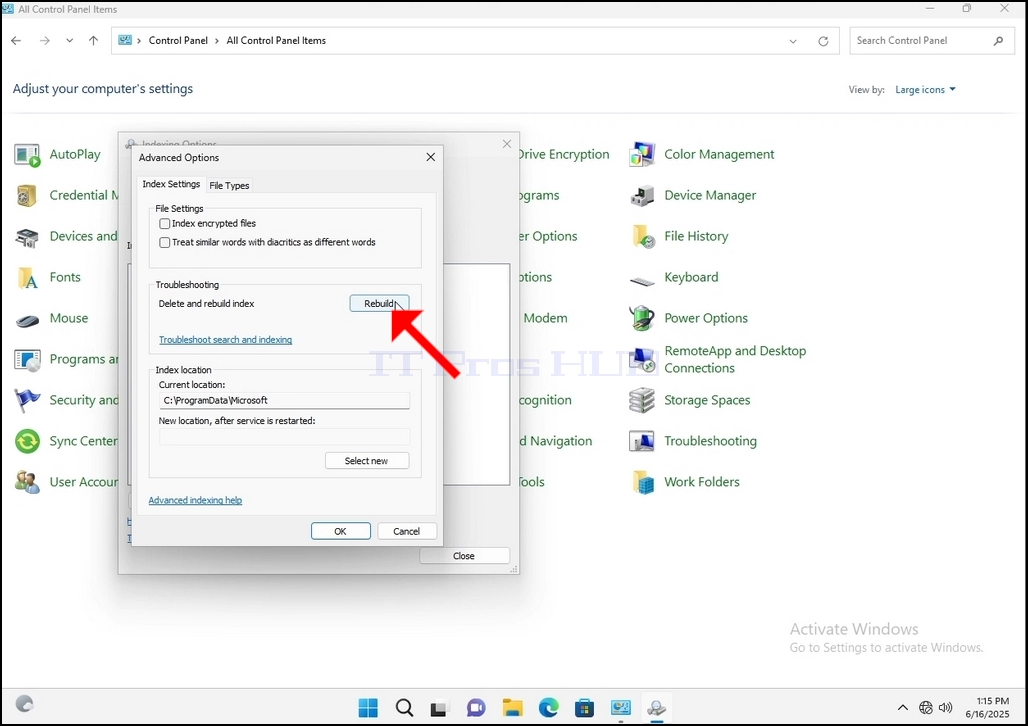
9. After clicking OK in the confirmation box, Windows will start rebuilding its index. It might take some time for the actual process to start, Wait patiently a few seconds to a few minutes. The moment the process starts, the "Indexing Complete" sentence will be replaced with "Indexing in progress. Search results might not be complete during this time."
In addition, the number of items indexed will be reset to 0 for a moment and then start to increase.
Note that All of the windows that are related to the Indexing process can now be closed and the rebuilding process would still be running the background.
Note that the Indexing process' speed might be reduced due to user activity on the computer. The more intense the activity the less the Indexing speed would be.
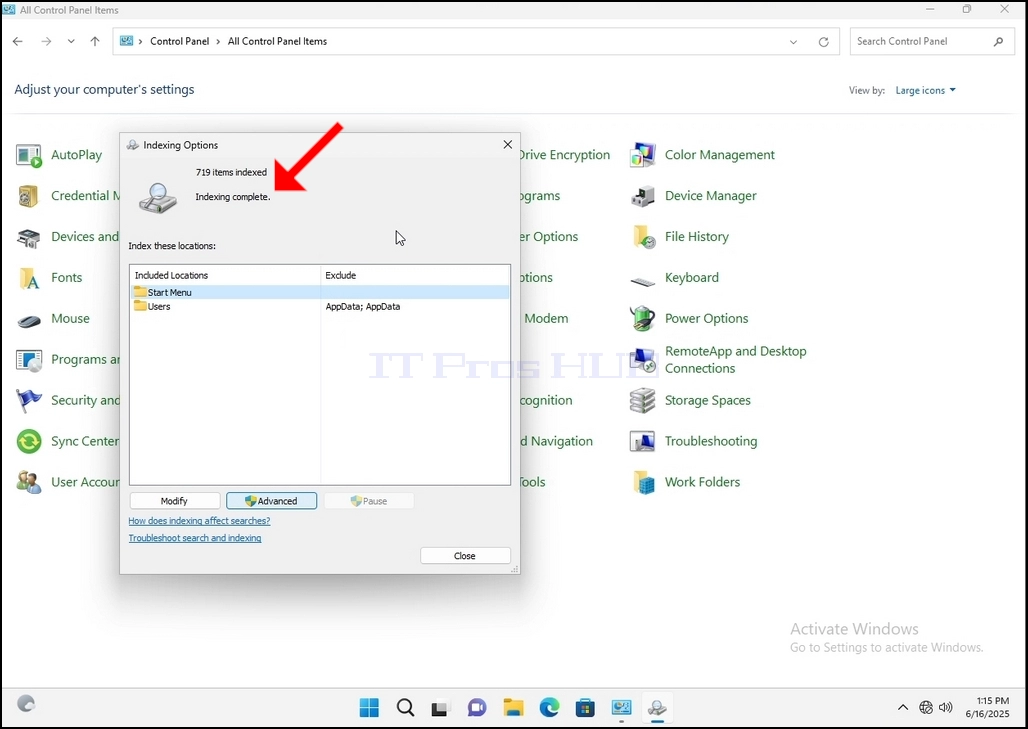
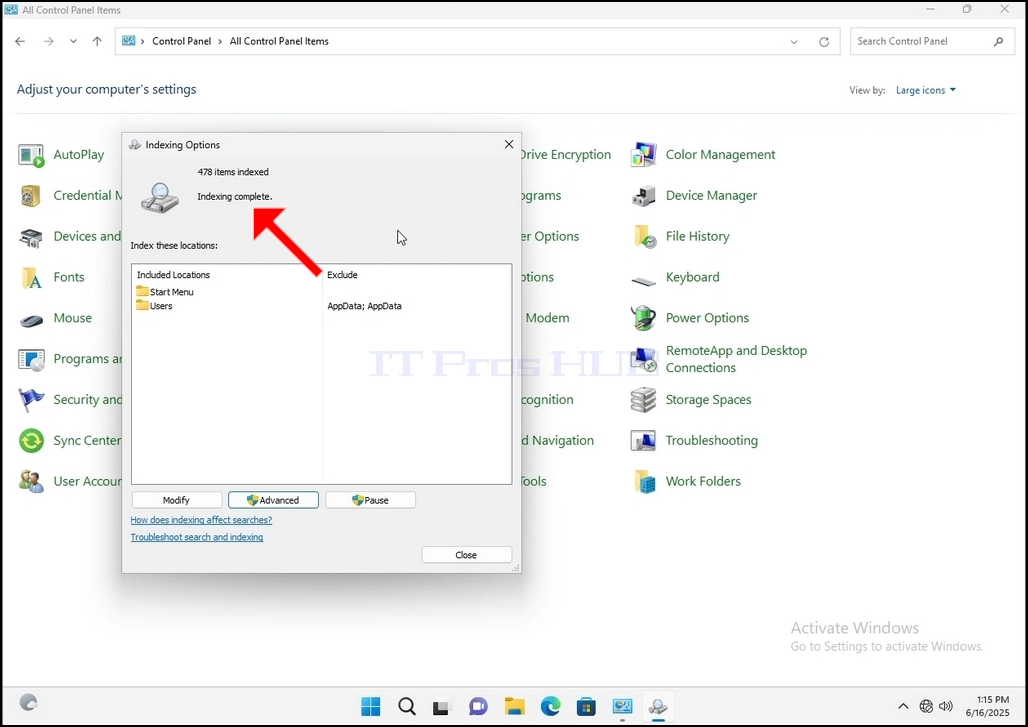
10. To check if the indexing process is done, go back to the Indexing Options through Control Panel as explained in the previous stages. If the process is complete, you would see the "Indexing Complete" sentence appears again.
Since Windows does not notify the user once this process is done, there is indeed a need to perform the latter mentioned. Depending on the number of files, folders, drivers and partitions marked for indexing, this process could take between a few minutes to a few hours.
- تفصیل
- تحریر کردہ: IT Pro
- زمرہ: How to Articles
- مشاہدات: 7509
1. Go to Windows Desktop
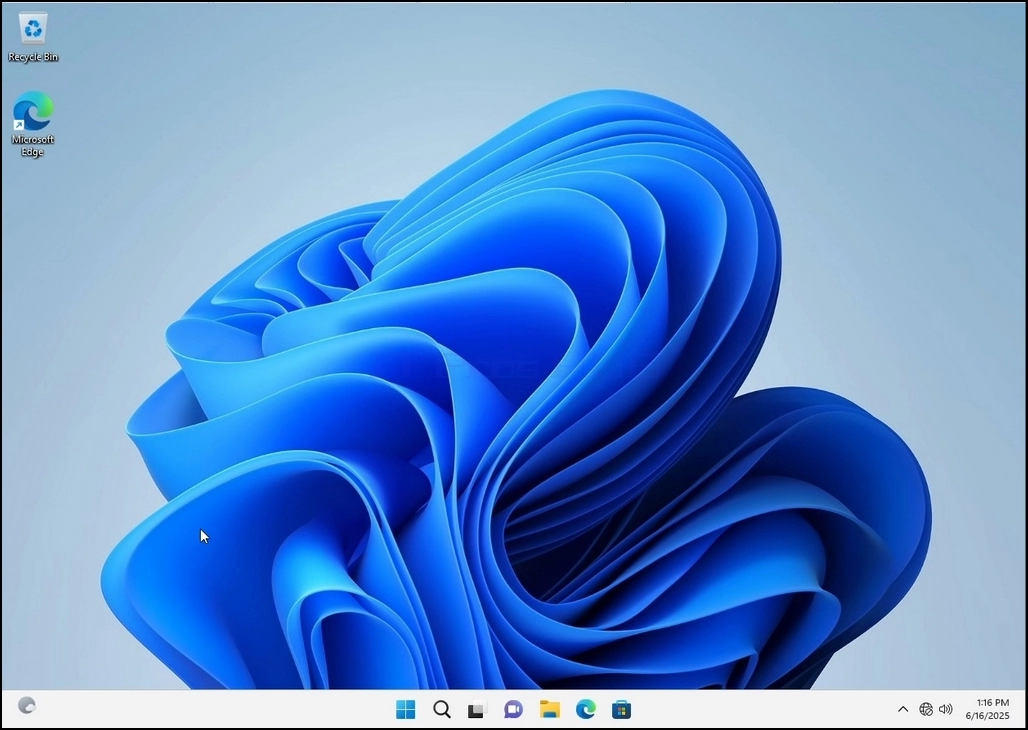
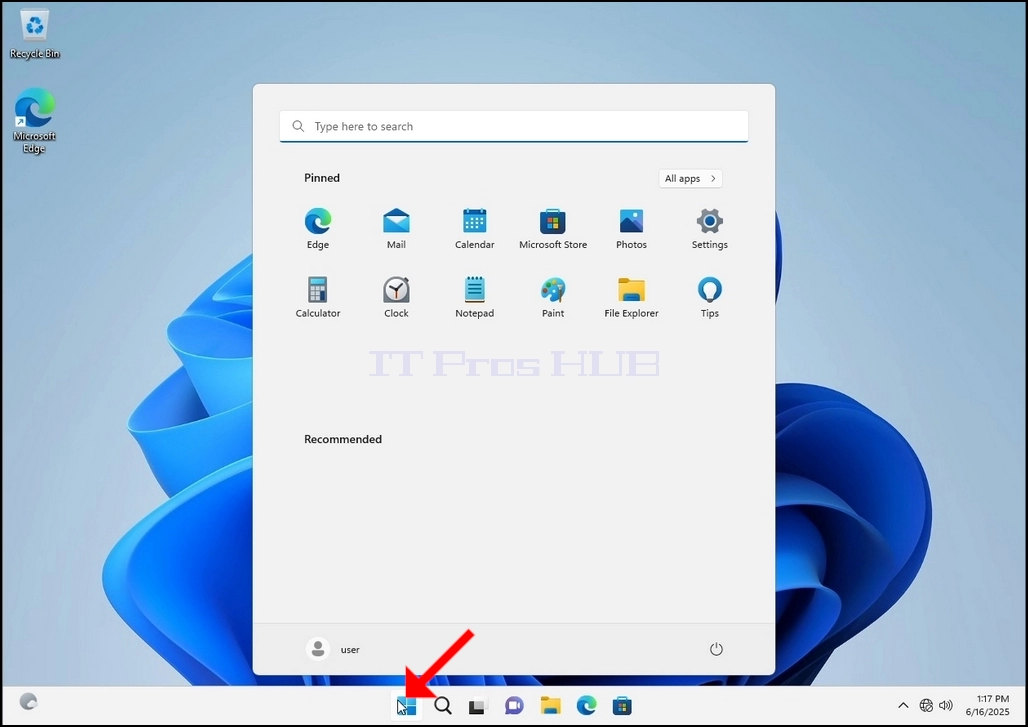
2. Click Start
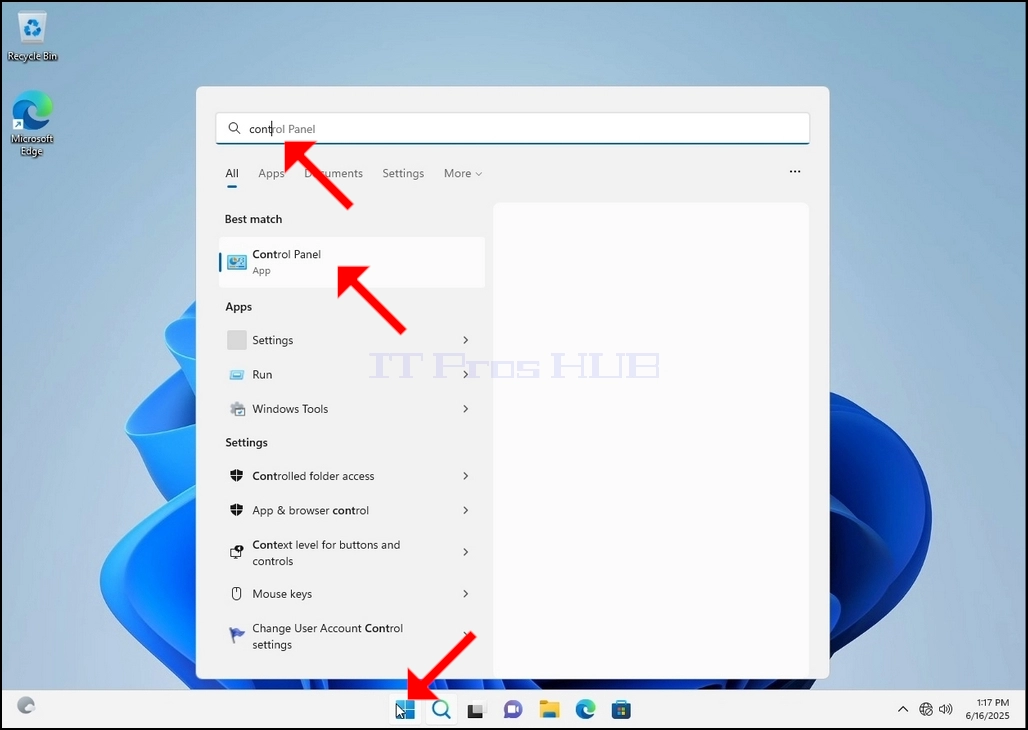
Once it finds it, click it and wait for the Control Panel window to appear.
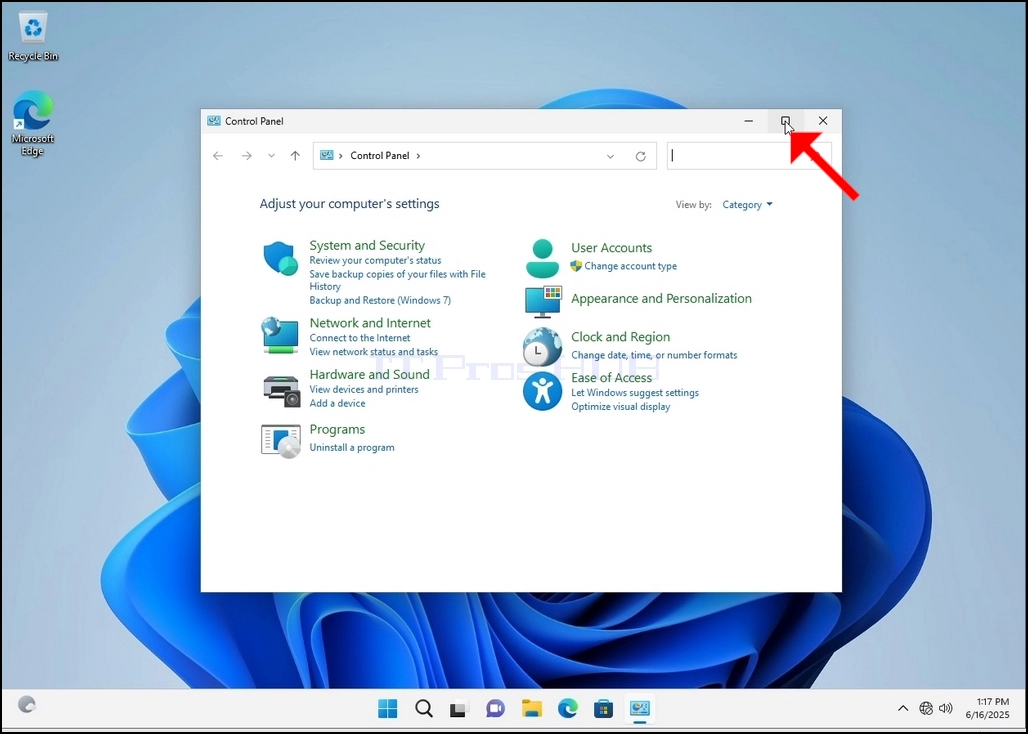
4. Once the Control Panel window is open, enlarge it by clicking the enlarging icon on the top right corner of that window.
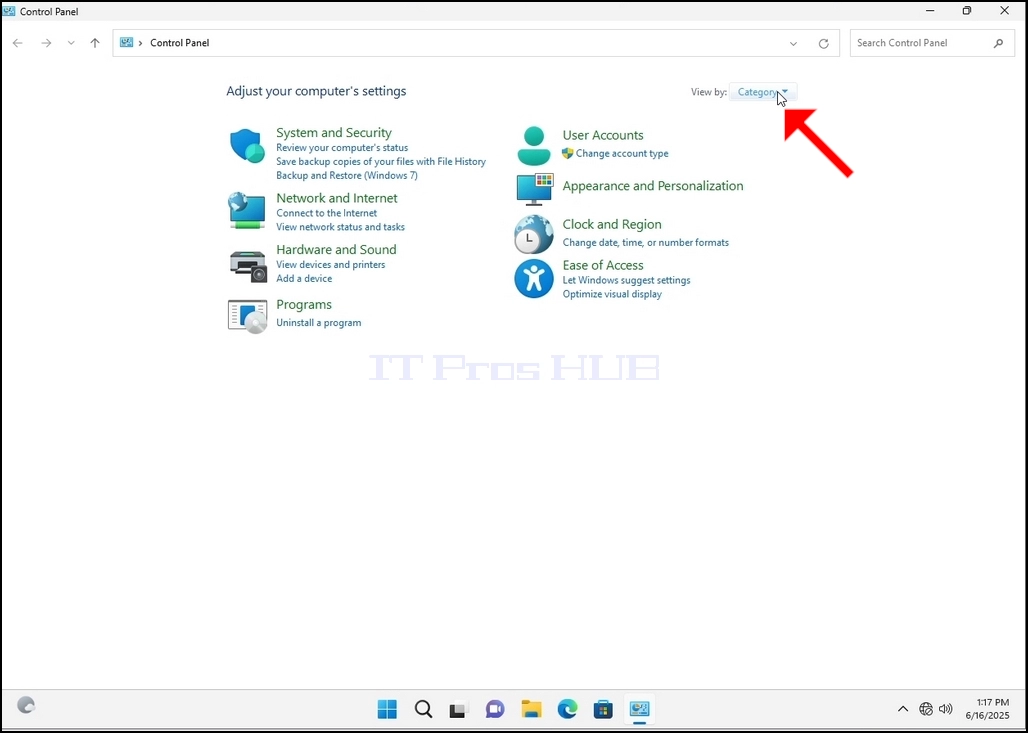
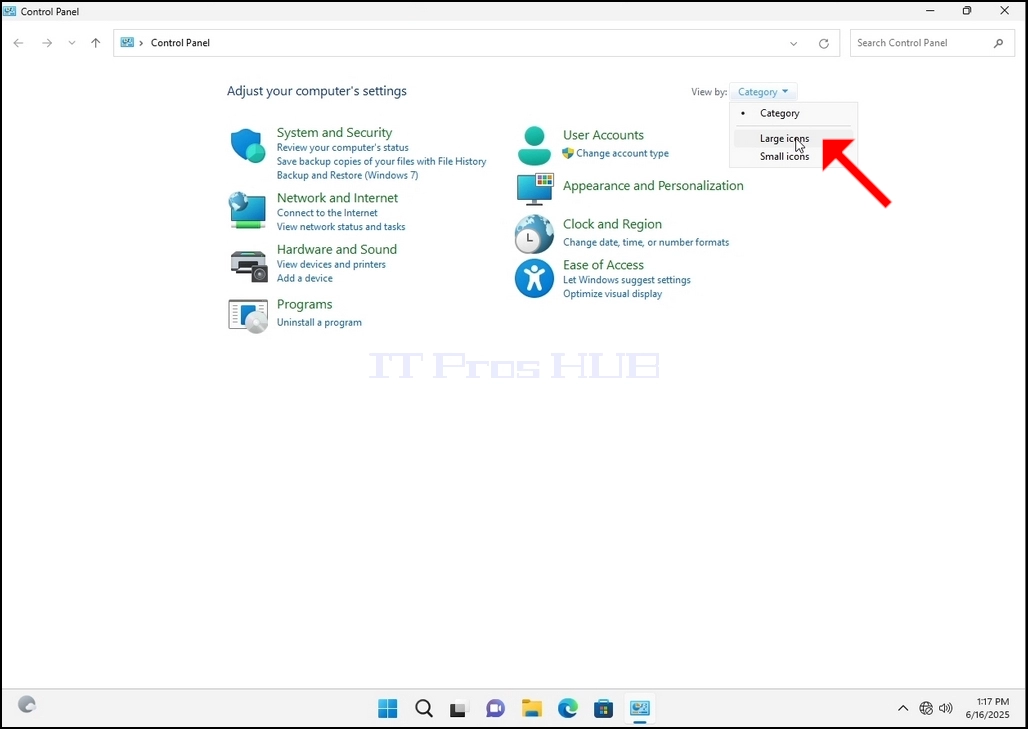
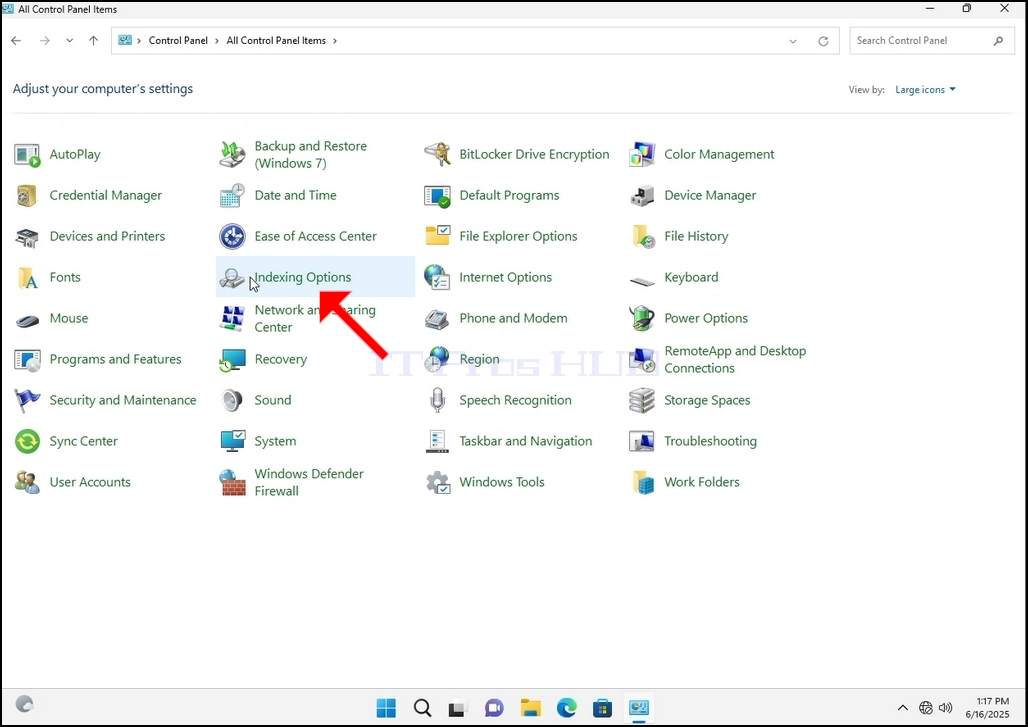
6. Look for the Indexing Options icon and click it. Wait for the Indexing Options window to appear.
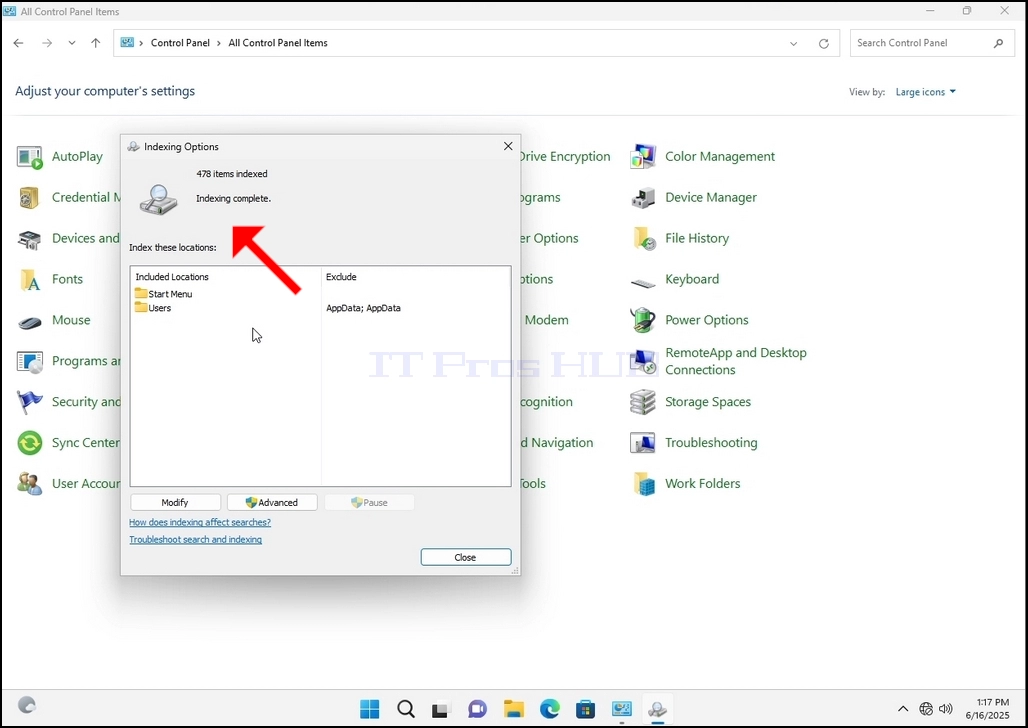
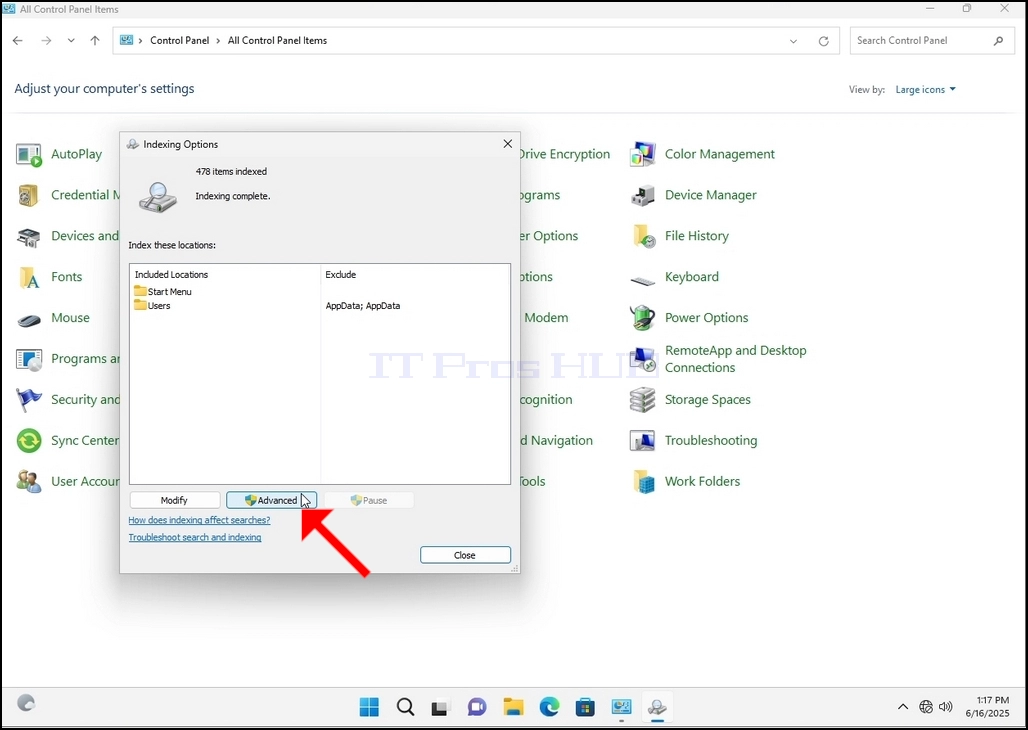
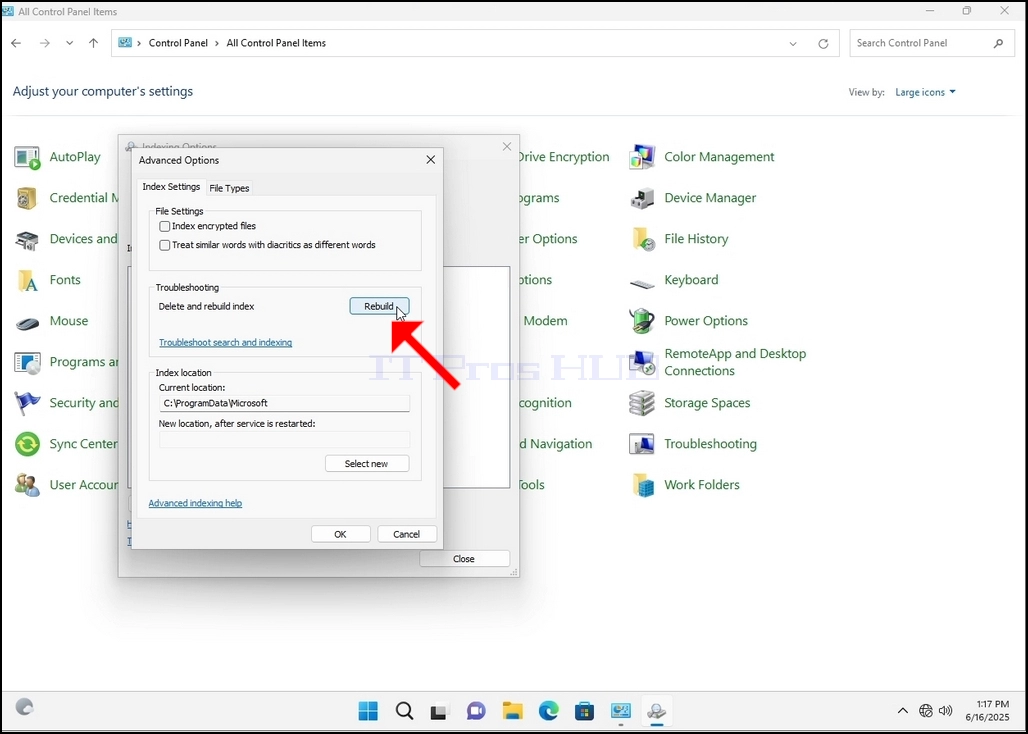
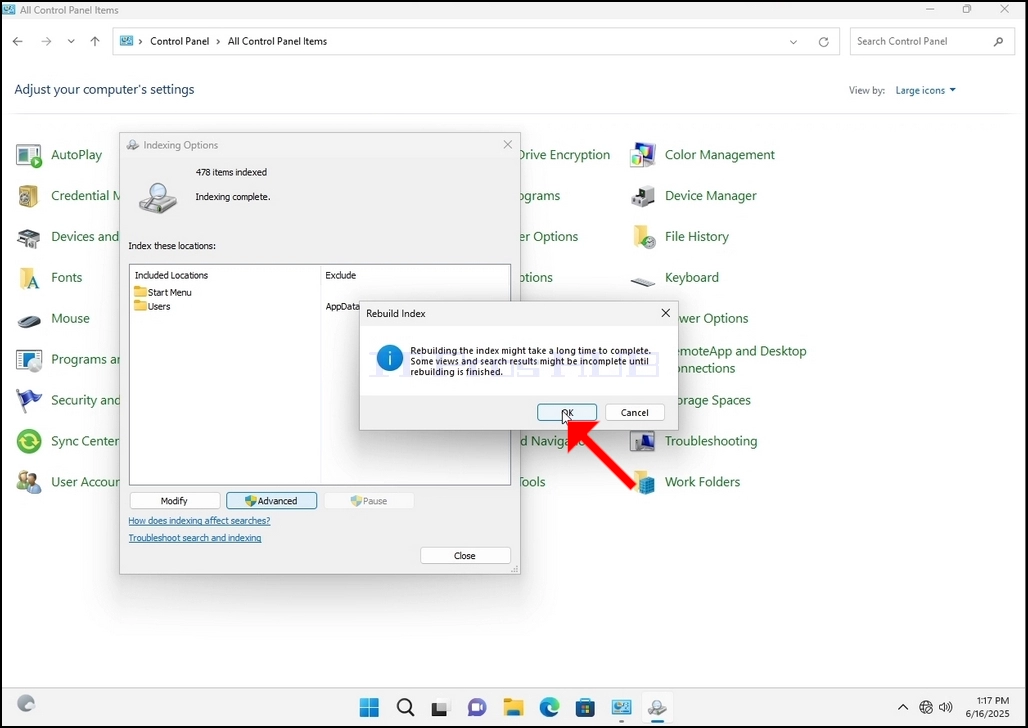
9. After clicking OK in the confirmation box, Windows will start rebuilding its index. It might take some time for the actual process to start, Wait patiently a few seconds to a few minutes. The moment the process starts, the "Indexing Complete" sentence will be replaced with "Indexing in progress. Search results might not be complete during this time."
In addition, the number of items indexed will be reset to 0 for a moment and then start to increase.
Note that All of the windows that are related to the Indexing process can now be closed and the rebuilding process would still be running the background.
Note that the Indexing process' speed might be reduced due to user activity on the computer. The more intense the activity the less the Indexing speed would be.
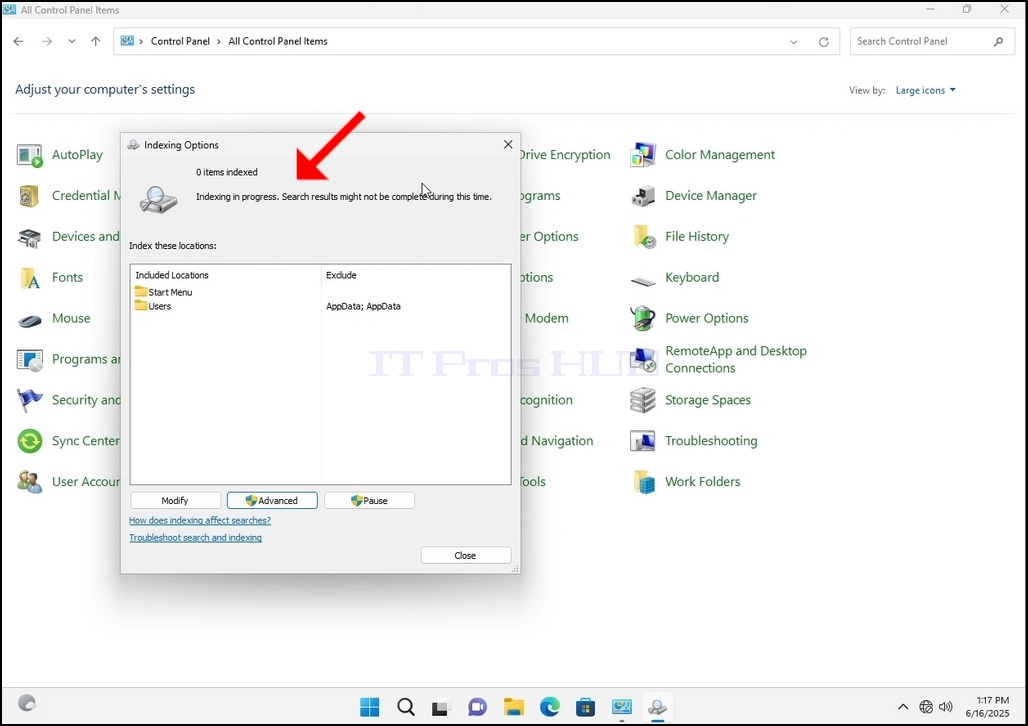
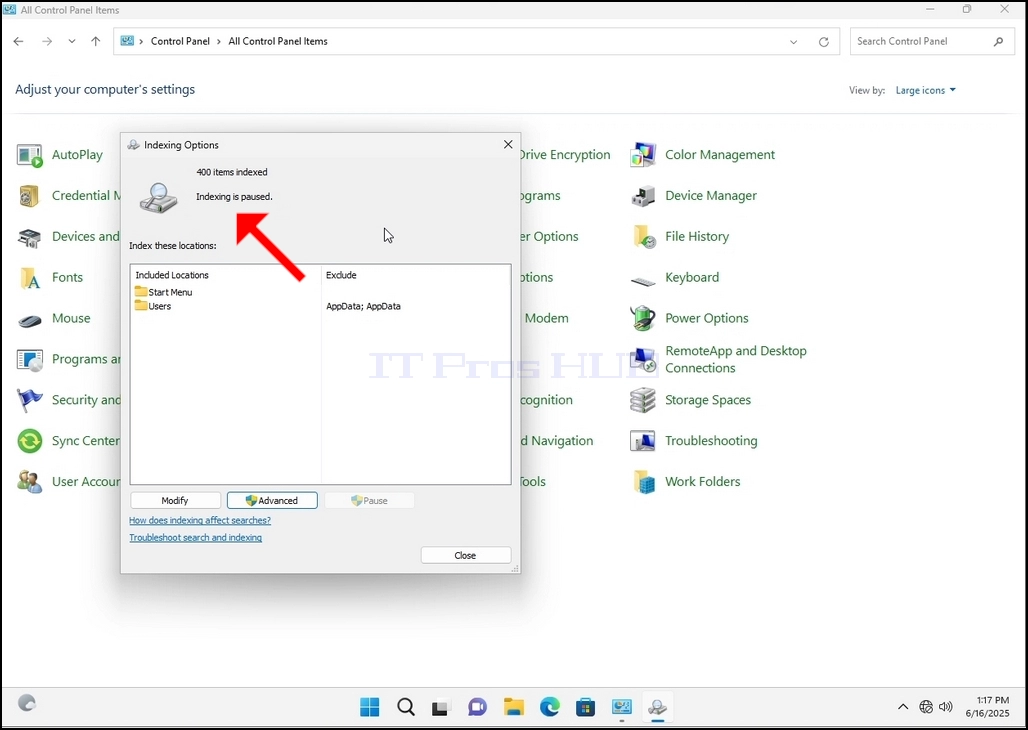
10. To check if the indexing process is done, go back to the Indexing Options through Control Panel as explained in the previous stages. If the process is complete, you would see the "Indexing Complete" sentence appears again.
Since Windows does not notify the user once this process is done, there is indeed a need to perform the latter mentioned. Depending on the number of files, folders, drivers and partitions marked for indexing, this process could take between a few minutes to a few hours.
- تفصیل
- تحریر کردہ: IT Pro
- زمرہ: How to Articles
- مشاہدات: 5597
1۔ ونڈوز ڈیٹنگ میں جائیں
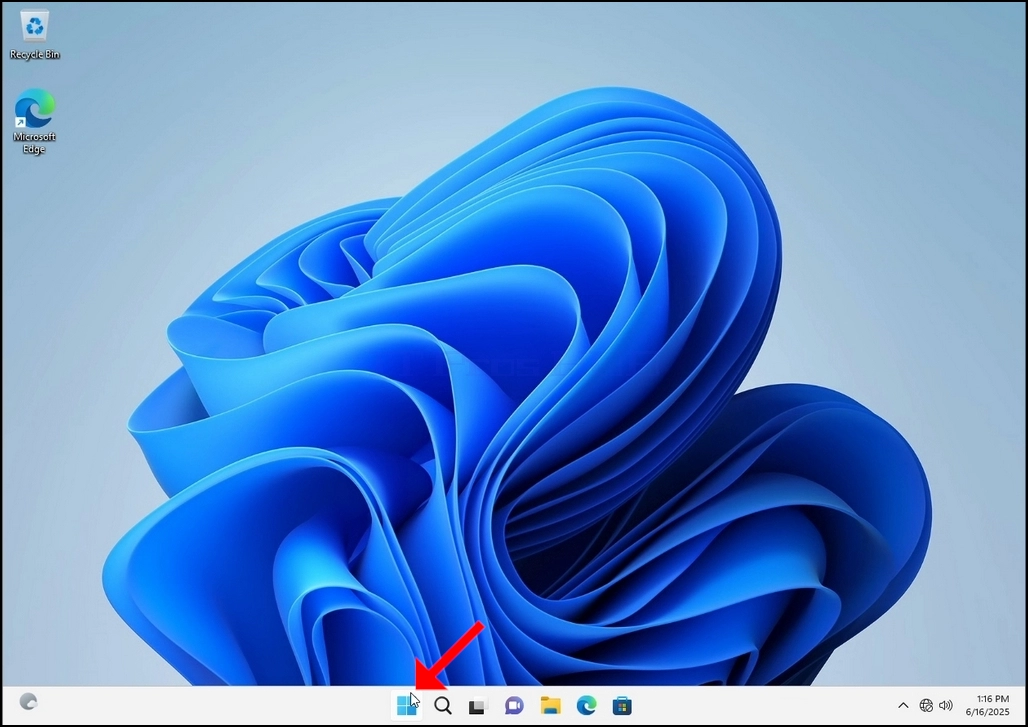
۲۔ ۲۔ پر کلک کريں
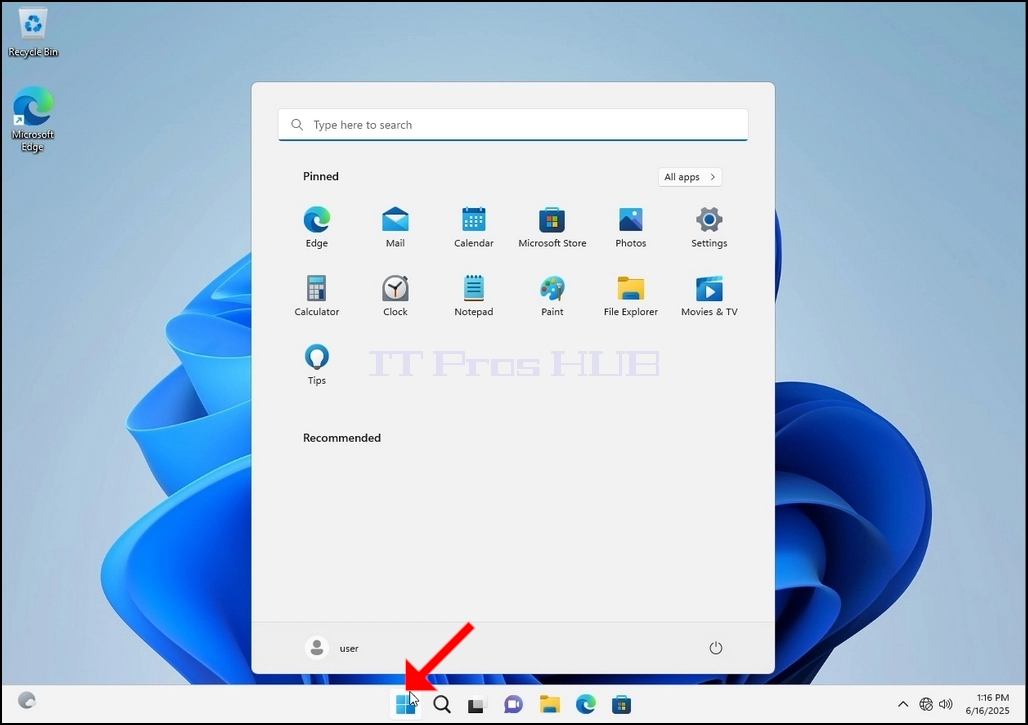
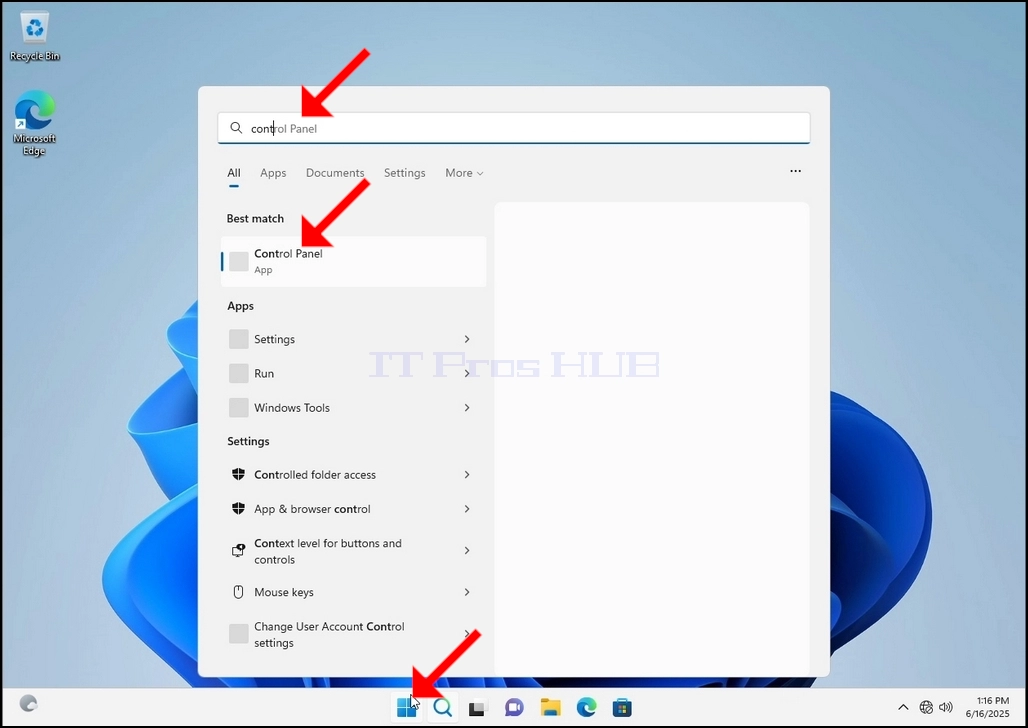
3۔ شروع شروع مین کھلنے کے بعد، کنٹرول پینل کو تلاش کرنے کے لیے "انڈر پینل" ٹائپ کریں اور اس کے بعد شروع شروع مینو کا انتظار کریں براہ مہربانی یہ نوٹ کیا جاسکتا ہے کہ صرف "cont" ٹائپ کرنا ممکن ہے اور اکثر صورتوں میں اسٹیج مینو کو کنٹرول پینل انصرام ملتا ہے۔
اسے ڈھونڈنے کے بعد اسے کلک کریں اور سامنے آنے کے لیے کنٹرول پینل کھڑکی کا انتظار کریں۔
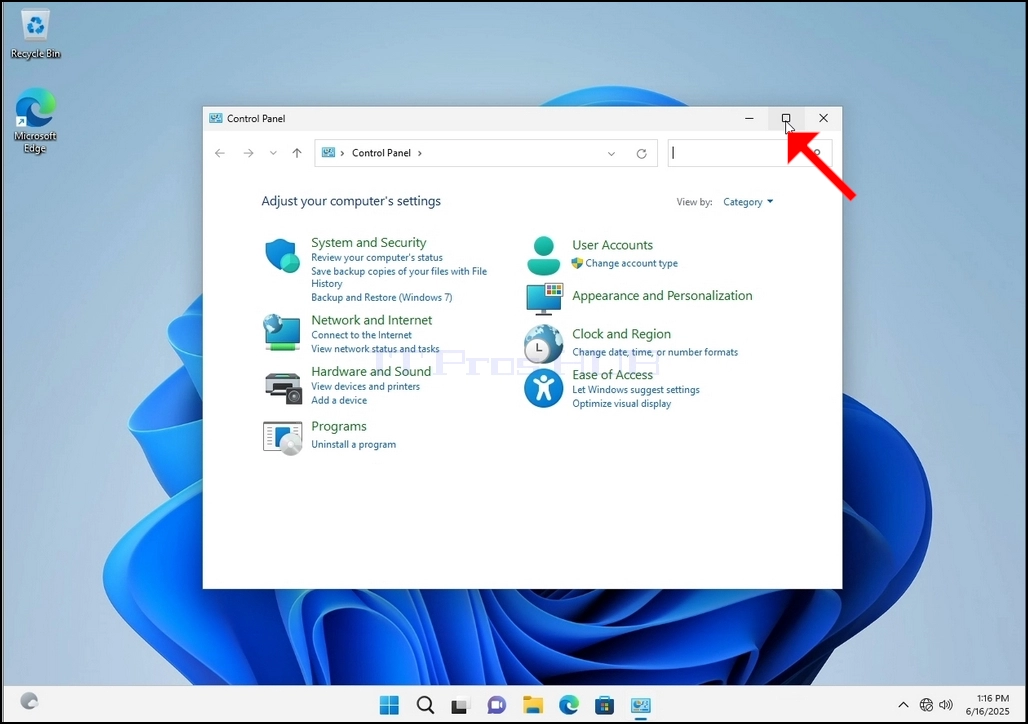
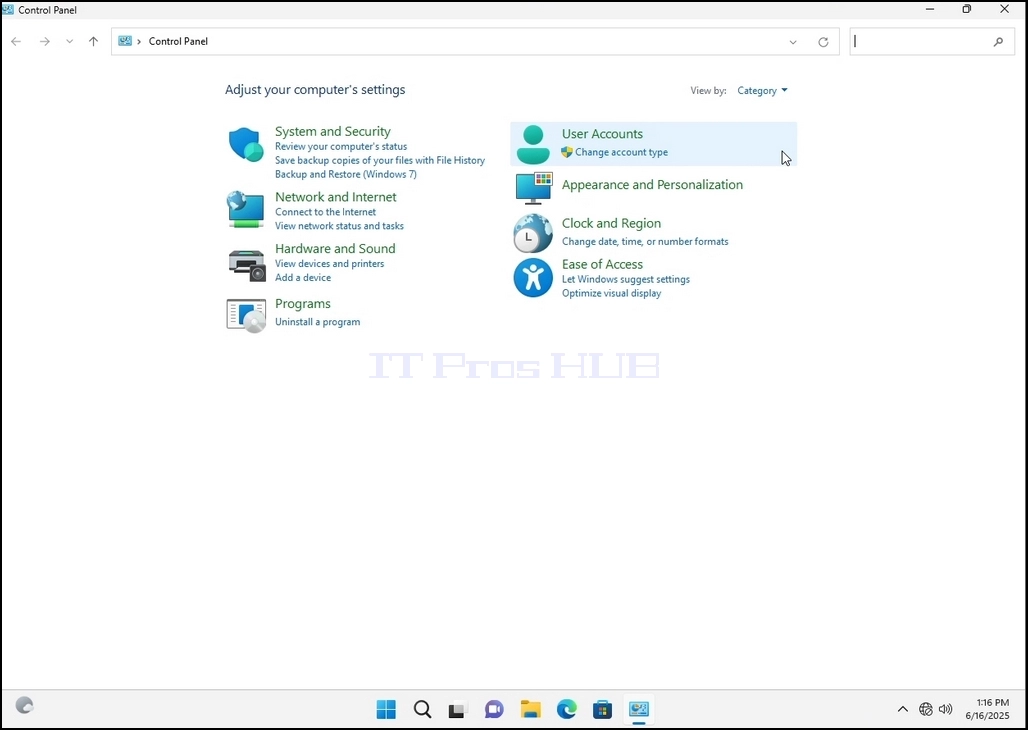
4۔ جب کنٹرول پینل کھڑکی کھلی ہے تو اس کھڑکی کے اوپری کونے پر انفلرنگ تصاویر پر کلک کر کے اسے وسعت دی جاتی ہے۔
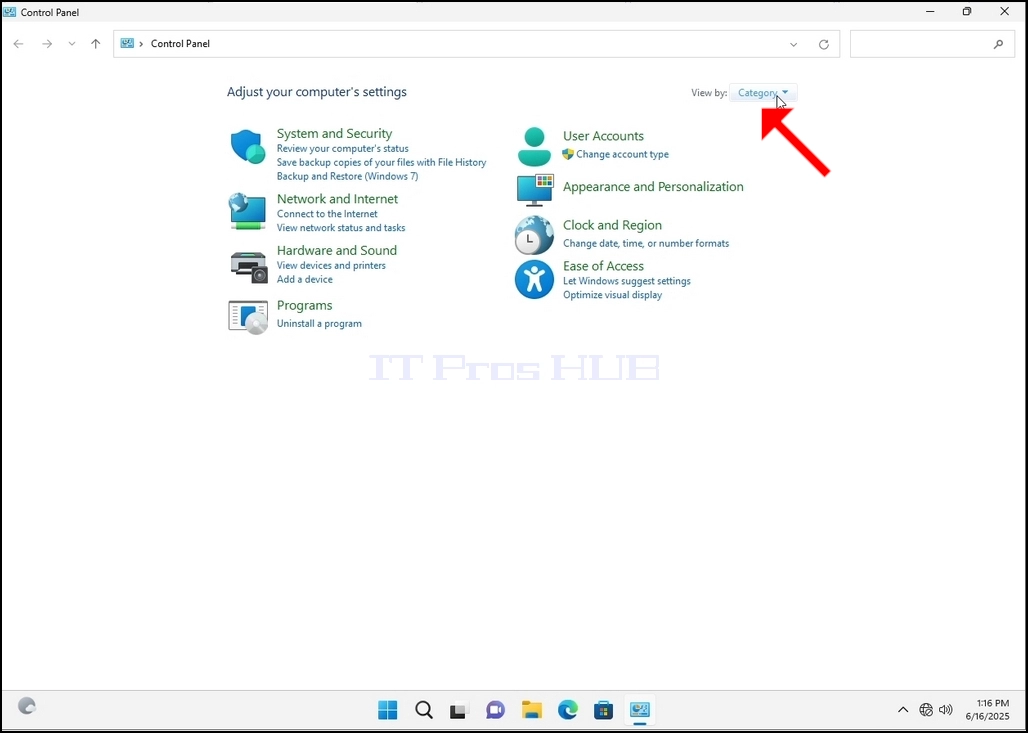
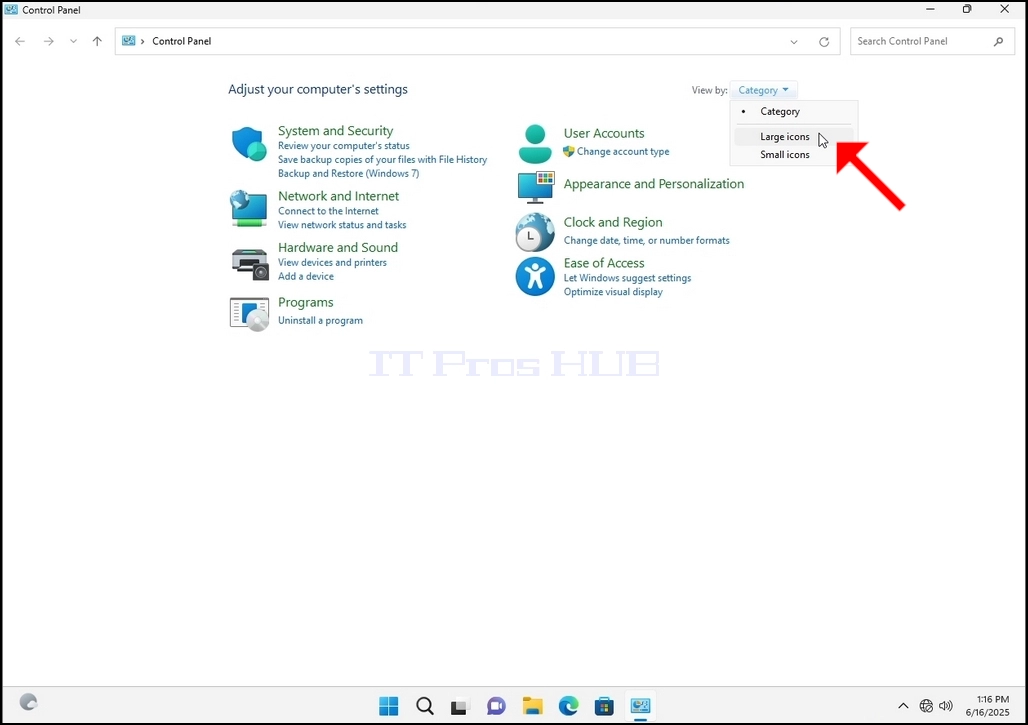
5۔ بہتر بنانے کے لیے کلک کریں کیٹیگری کنٹرول پینل کھڑکی کے اوپری جانب سے دائیں طرف اور "سے منتخب کرتے ہیں۔بڑے نام" چھوٹے نئے مینو سے جو ظاہر ہوتا ہے۔
6۔ انڈیکس انسائکس کو ڈھونڈے اور اس پر کلک کریں۔ ظاہر ہونے کے لئے انڈیکس ونڈو کے لئے انتظار کریں.
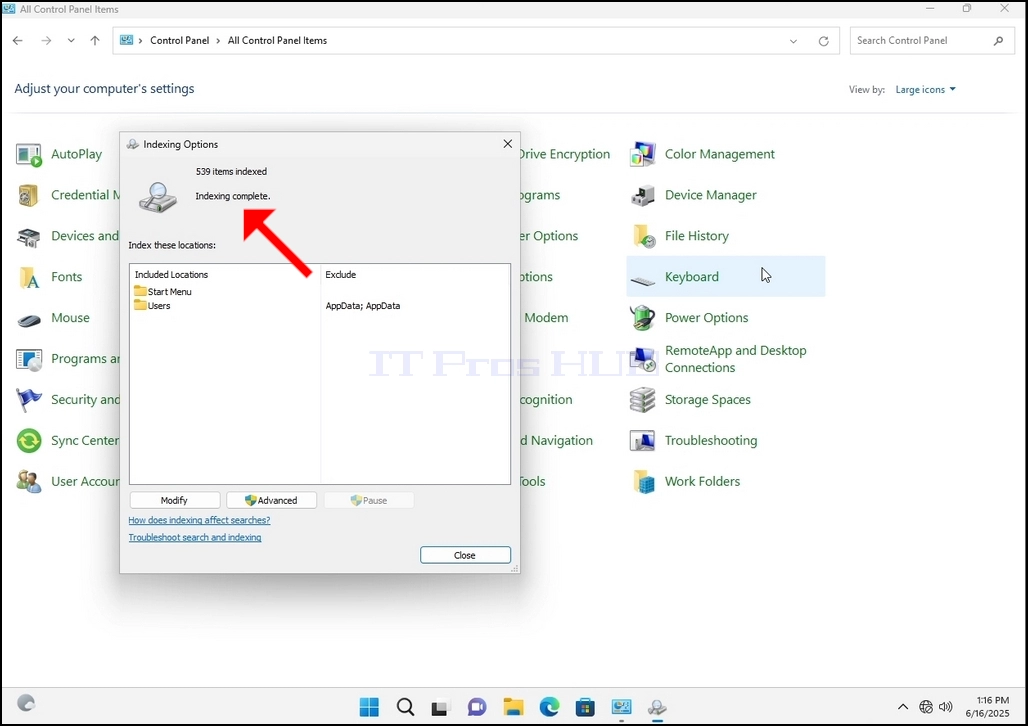
7۔ جب انڈیکسس ونڈو کھول دیا جائے تو اس ونڈو کے نچلے جانب ایبٹ آباد بٹن کلک کریں۔
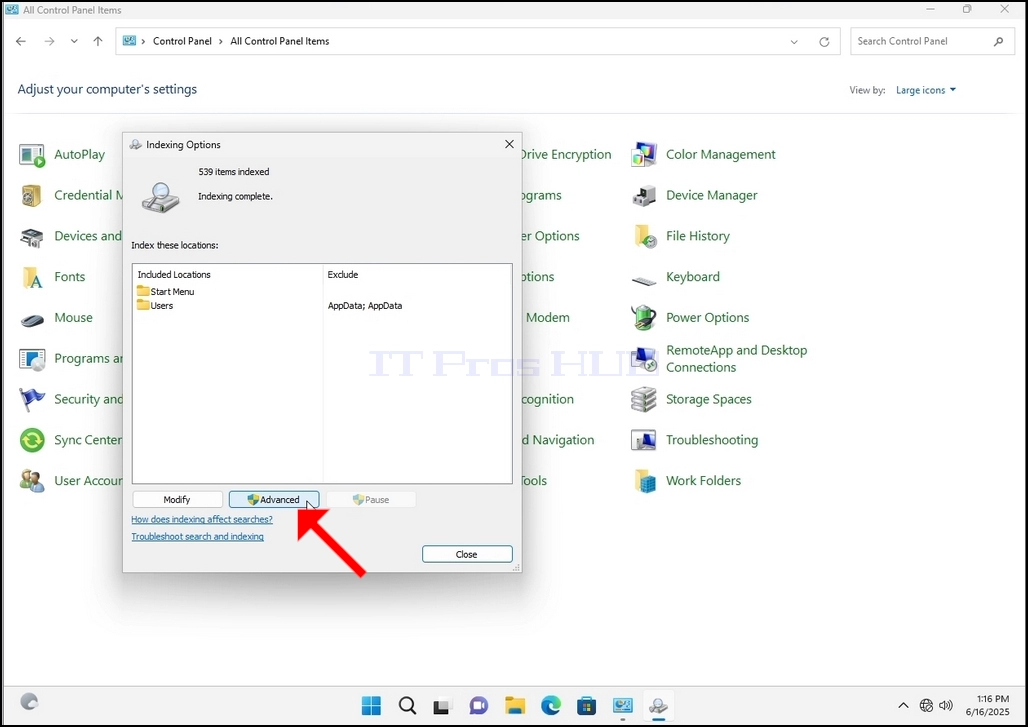
8۔ نئی ونڈو میں، کنول بٹن ڈھونڈ کر کلک کريں اس کے بعد تصدیقی باکس پوپ کرے گا. انڈیکس دوبارہ شروع کرنے کے ليے اس میں بٹن کلک کريں
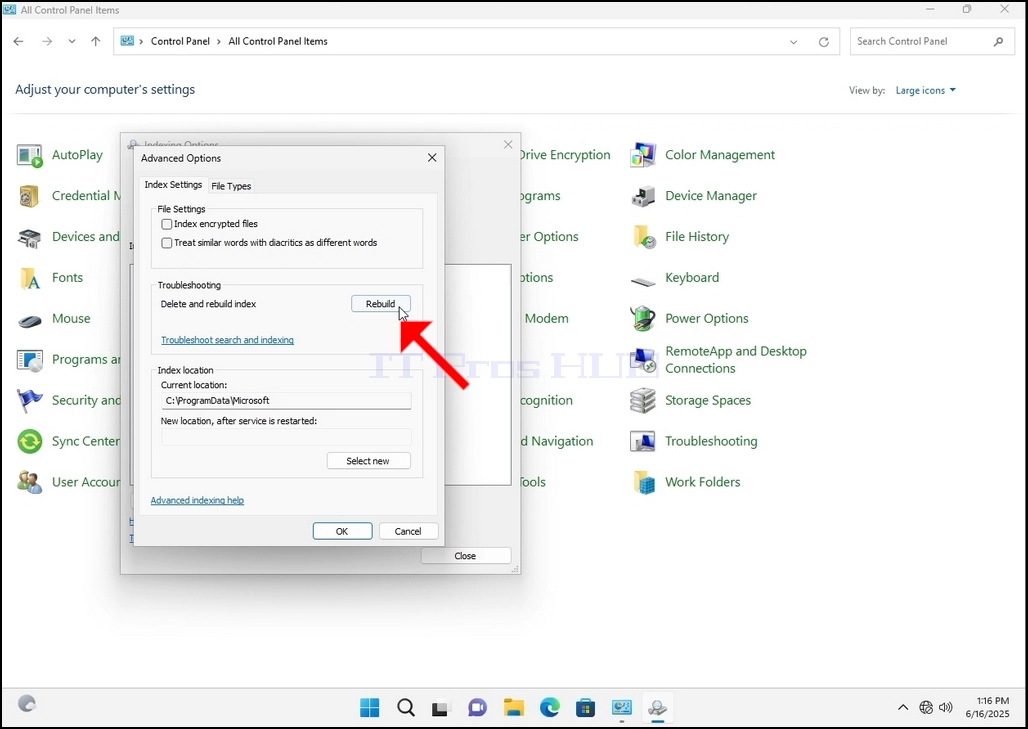
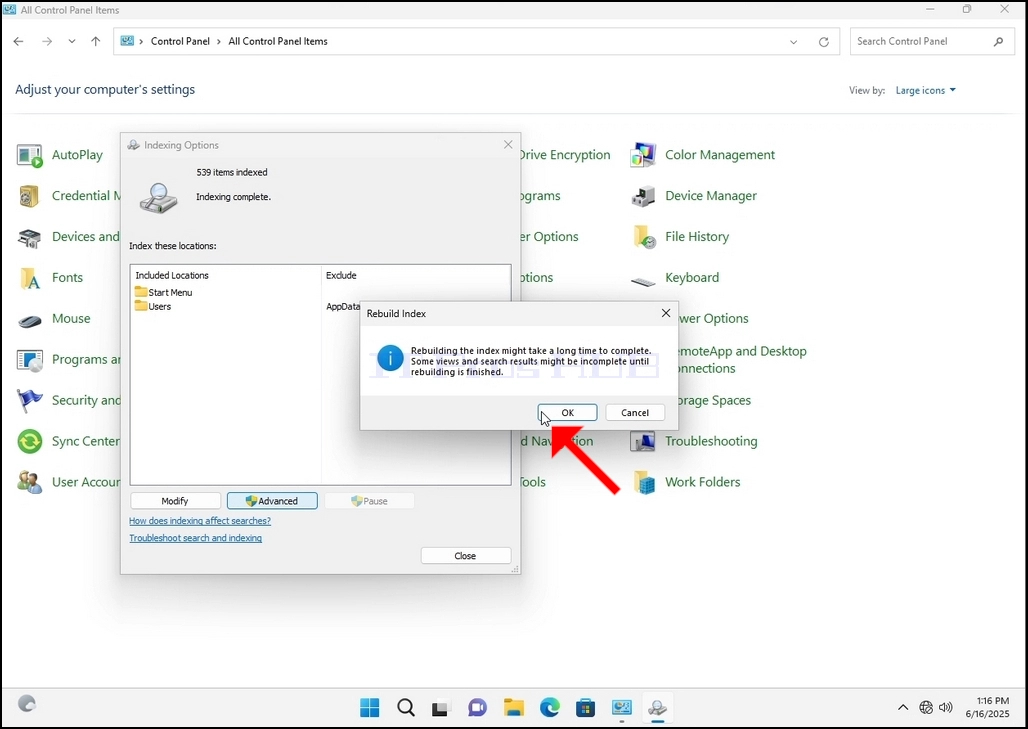
9۔ تصدیق شدہ باکس میں ٹھیک کلک کرنے کے بعد ونڈوز اپنے انڈیکس کو دوبارہ شروع کریں گے۔ اس عمل کو شروع کرنے میں کچھ وقت لگ سکتا ہے، چند منٹ تک صبر سے کام لیں. لمحے کا عمل شروع ہوتا ہے، "مکمل" قول بدل دیا جائے "۔ترقی میں شامل. تلاش کے نتائج اس دوران مکمل نہیں ہو سکتے ہیں۔"۔
اس کے علاوہ آئٹمس انڈیکس کی تعداد ایک لمحے کے لیے 0 تک دوبارہ شروع کی جائے گی اور پھر اضافہ شروع ہو جائے گا۔
غور کریں کہ انڈیکسنگ کے عمل سے تعلق رکھنے والے تمام ونڈوز اب بند ہو سکتے ہیں اور تعمیری عمل اب بھی پس منظر کو چل رہا ہوگا۔
غور کریں کہ کمپیوٹر پر صارف کی سرگرمی کی وجہ سے انڈیکسنگ عمل کی رفتار کم ہو سکتی ہے۔ اس عمل کی زیادہ سے زیادہ شدت انڈیکس کی رفتار کم ہوگی۔
10۔ اس بات کا جائزہ لینے کے لیے کہ آیا انڈیکسنگ کا عمل کیا جاتا ہے، کنٹرول پینل کے ذریعے انڈیکس کو واپس چلے جائیں جیسا کہ سابقہ مراحل میں وضاحت کی گئی ہے۔ اگر عمل مکمل ہو جائے تو آپ دیکھیں گے "مکمل" سزا دوبارہ ظاہر ہوتی ہے۔
چونکہ ونڈوز اس عمل کو ایک بار شروع کرنے کے بعد صارف کو غیر فعال نہیں کرتا اس لیے یقیناً مذکورہ بالا عمل کو انجام دینے کی ضرورت ہے۔ فائلوں کی تعداد کے مطابق انڈیکس کے لئے نشان دہی کے لئے منتظمین، ڈرائیور اور تقسیم کاروں کی نشان دہی کی گئی تھی، یہ عمل چند منٹ سے چند گھنٹوں کے درمیان ہو سکتا ہے۔