- 細節
- 作者 IT Pro
- 分類: How to Articles
- 點擊數: 6811
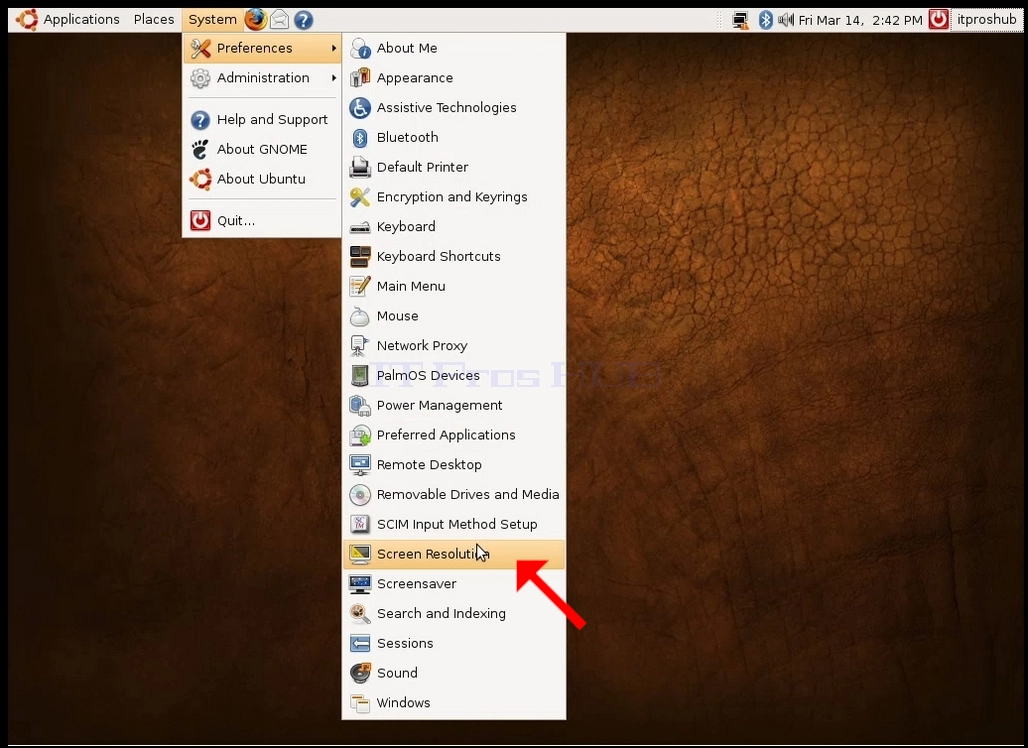
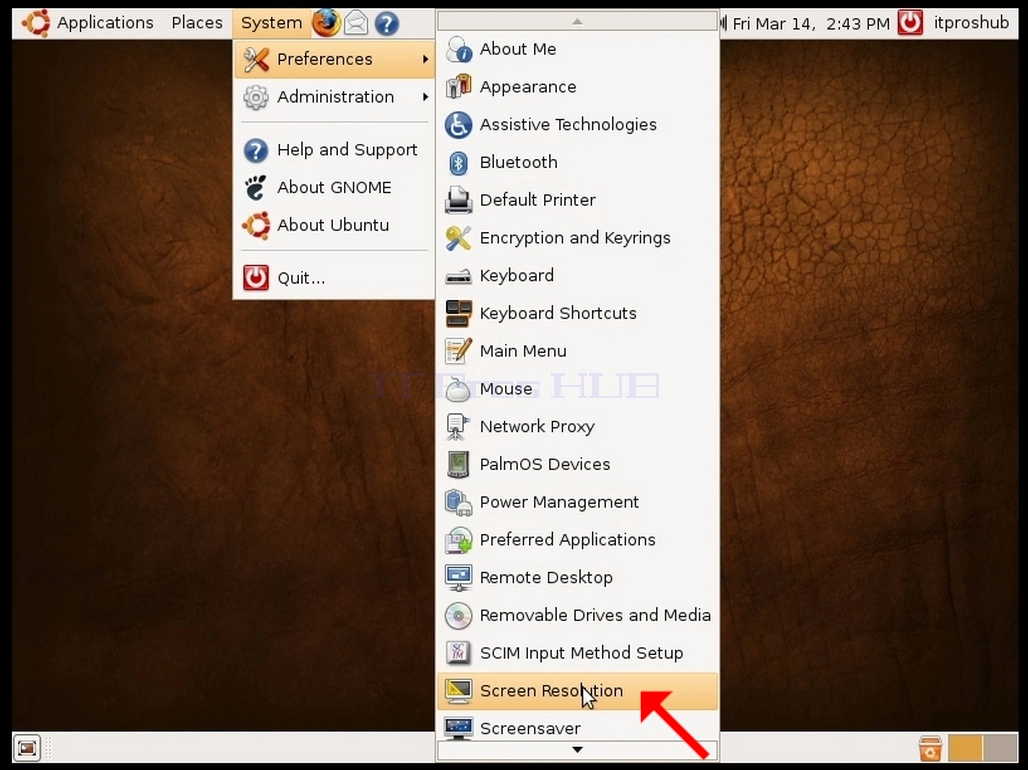
1. 在上行,点击系统,然后在新的下放菜单中,点击首选项,然后点击屏幕分辨率
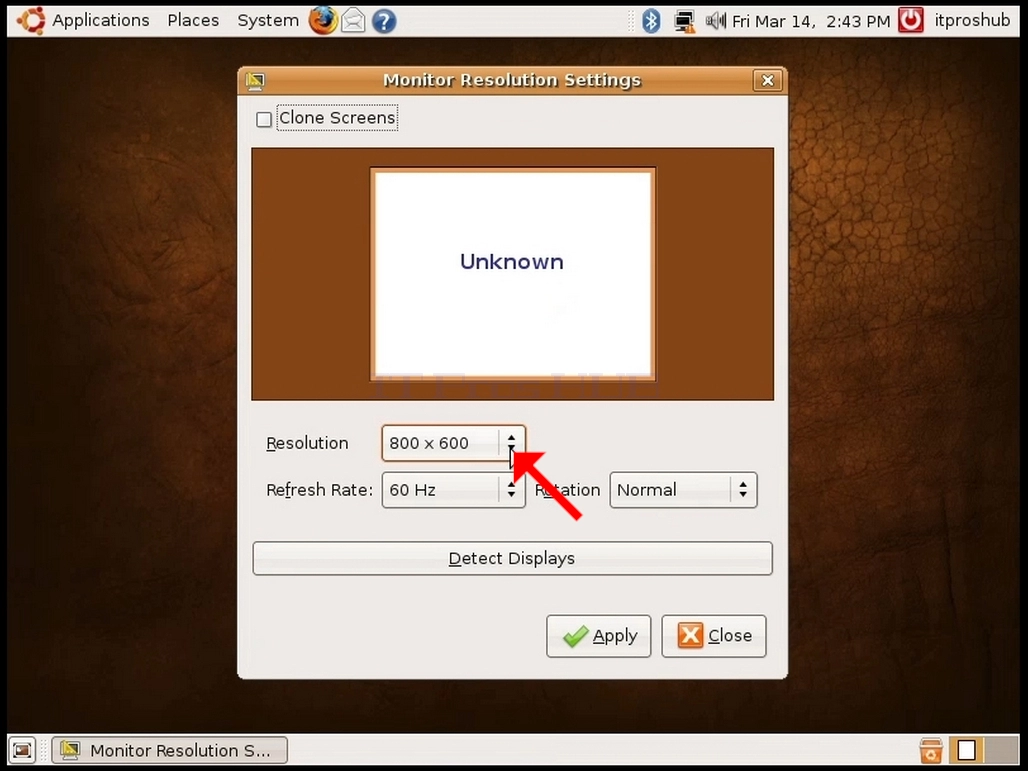
2. 在新打开的屏幕分辨率窗口中,查找分辨率。
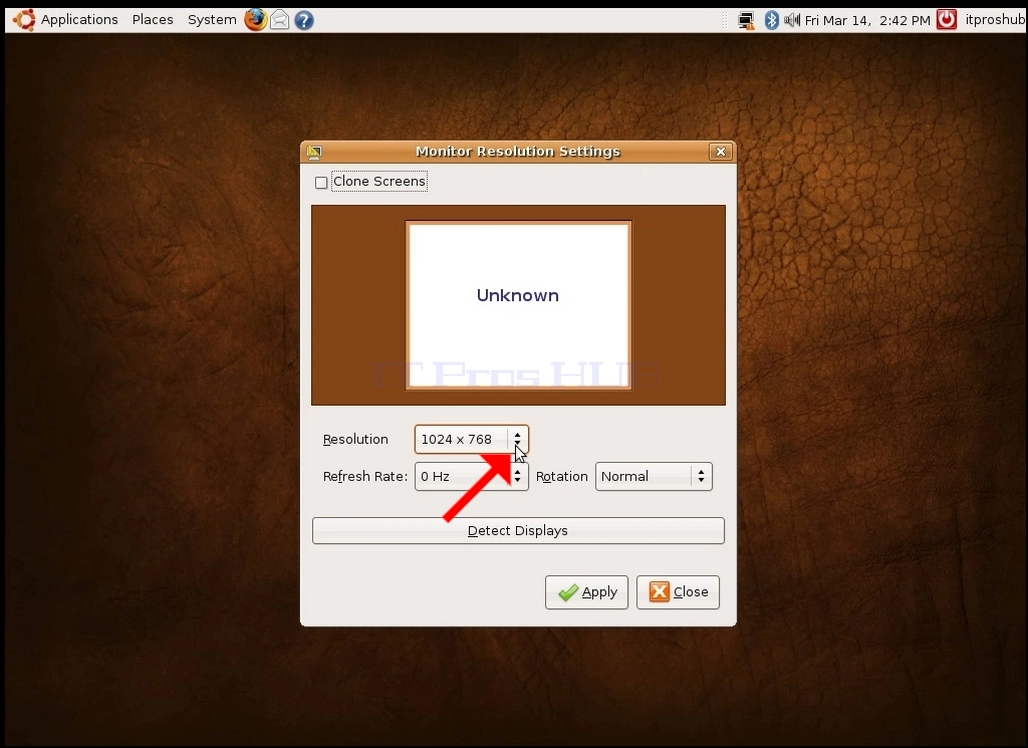
3. 点击当前分辨率设置来扩展下拉菜单并查看可用的分辨率取自。
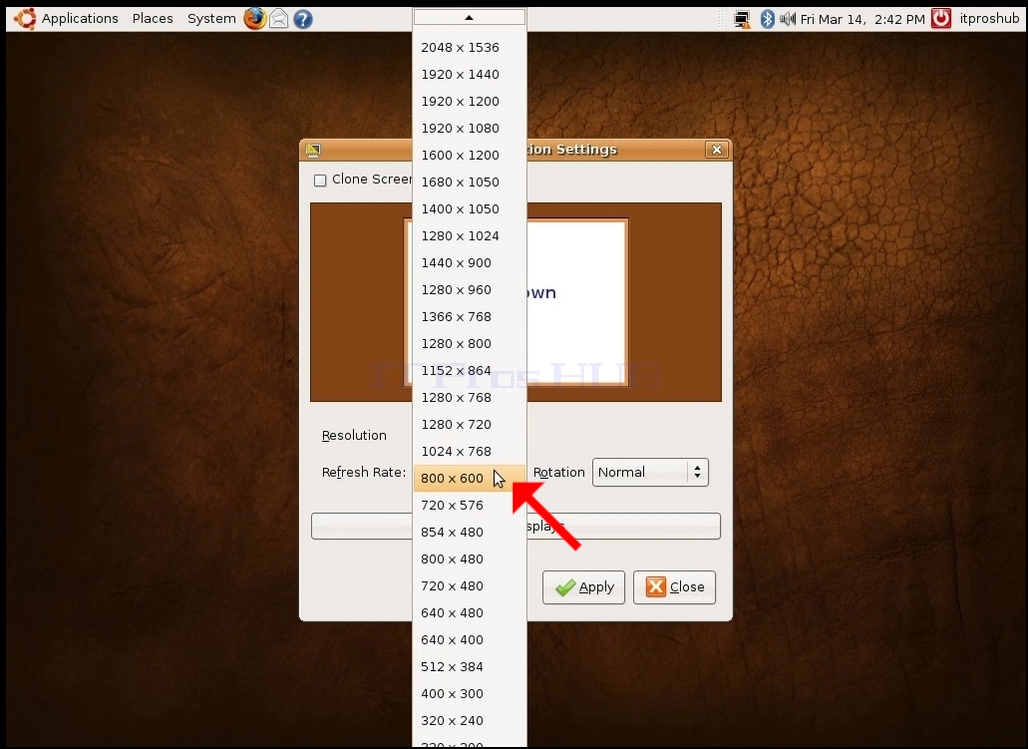
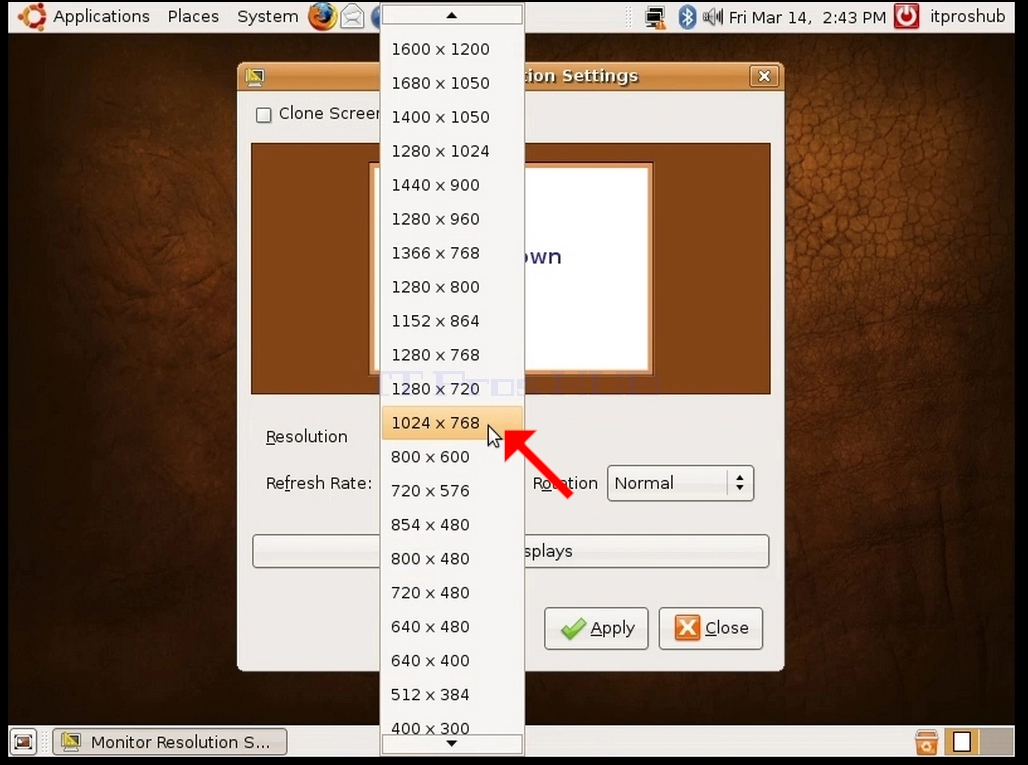
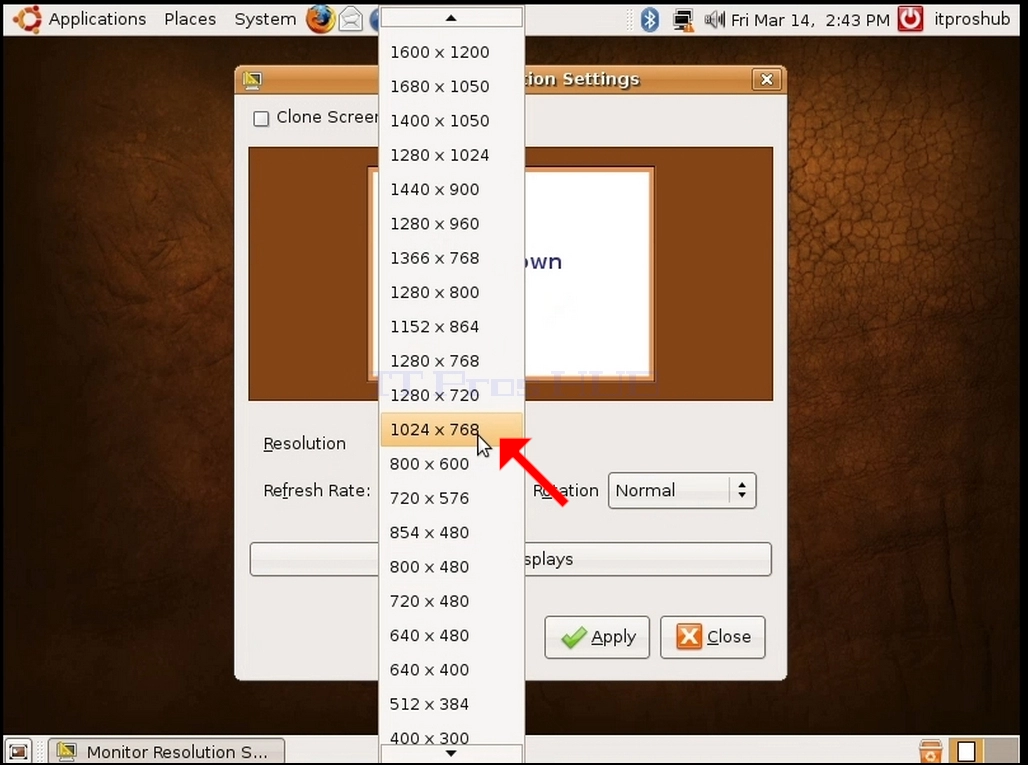
4. 从各种分辨率选项中选择最适合您需要的选项,请左键点击(在此示例中,选择的选项为1024x768)
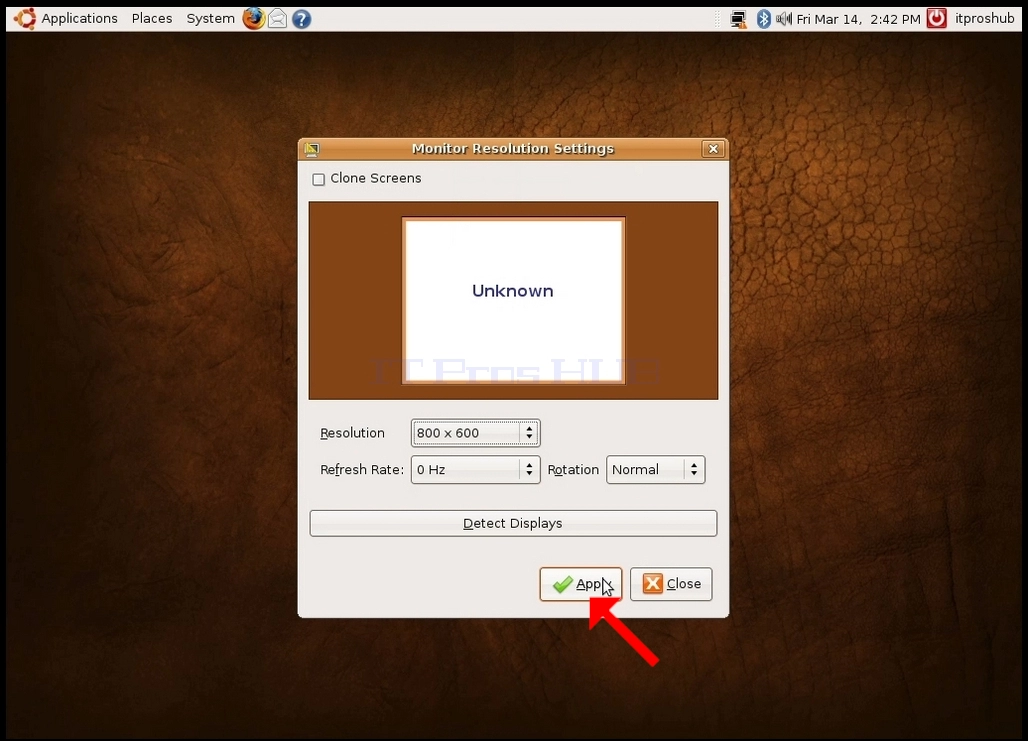
5. 点击应用
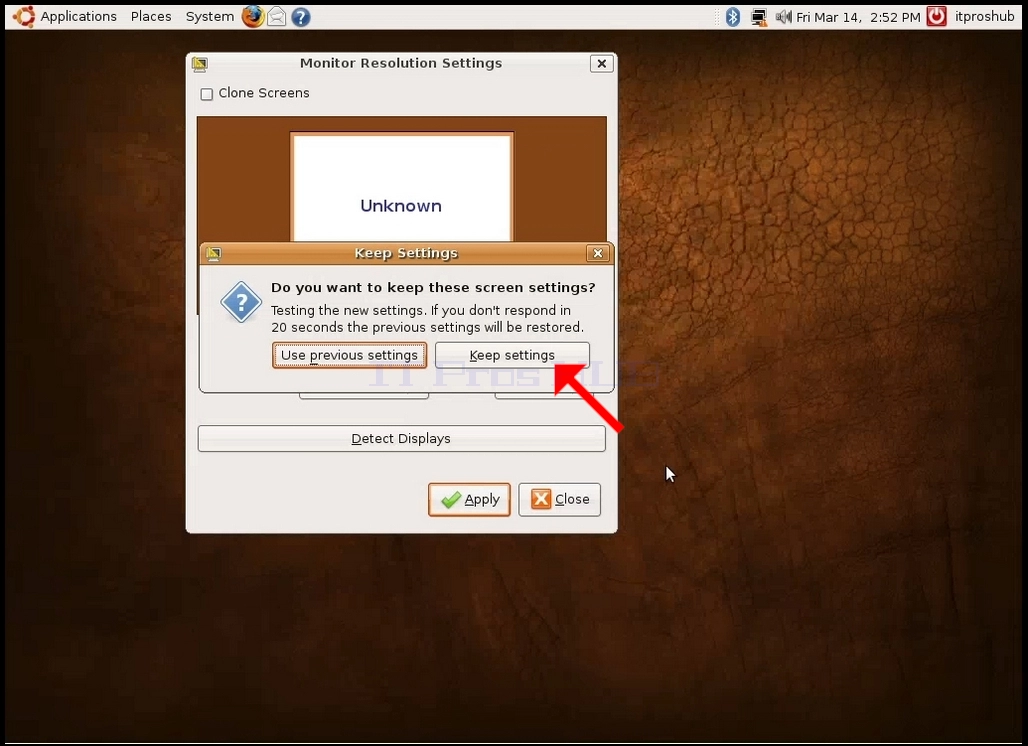
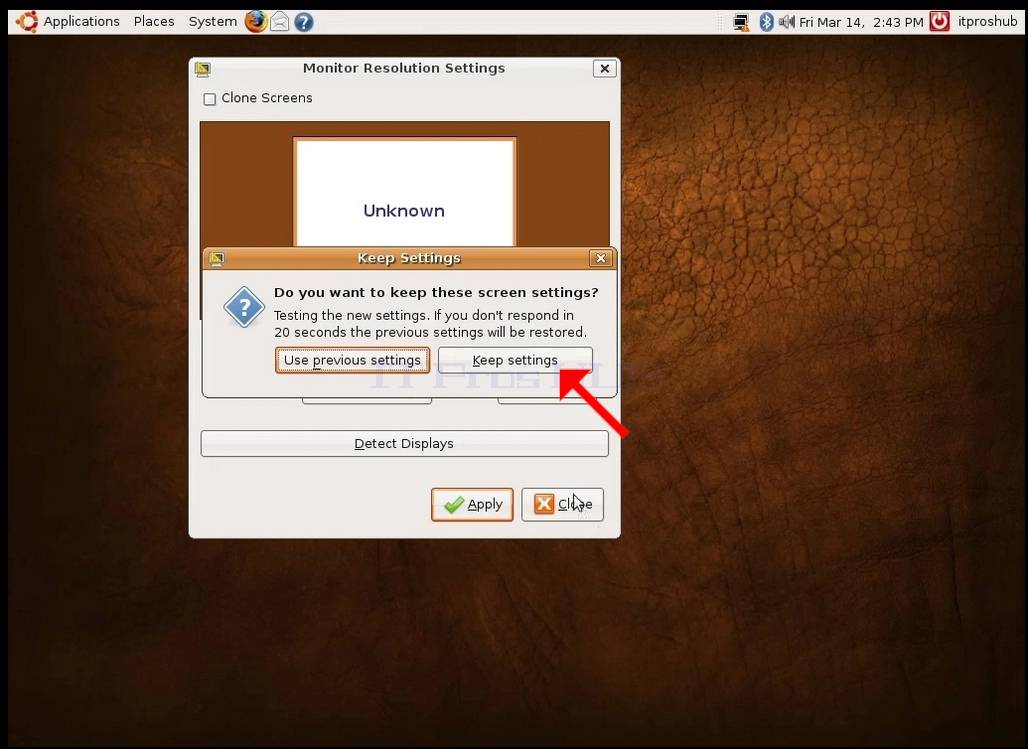
6. 在选择新的解析设置后, Ubuntu 将询问您是否想要保留设置或使用以前的设置 。 如果在指定的秒数内没有选择一个选项, Ubuntu 将返回到先前配置的分辨率 。 这是在显示器不支持所选解析度,用户无法看到或看到当前视频输出来手动返回所选新解析度的情况下进行的.
如果新选择的解析度与显示器相容,请选择Keep Changes并单击.
- 細節
- 作者 IT Pro
- 分類: How to Articles
- 點擊數: 7299
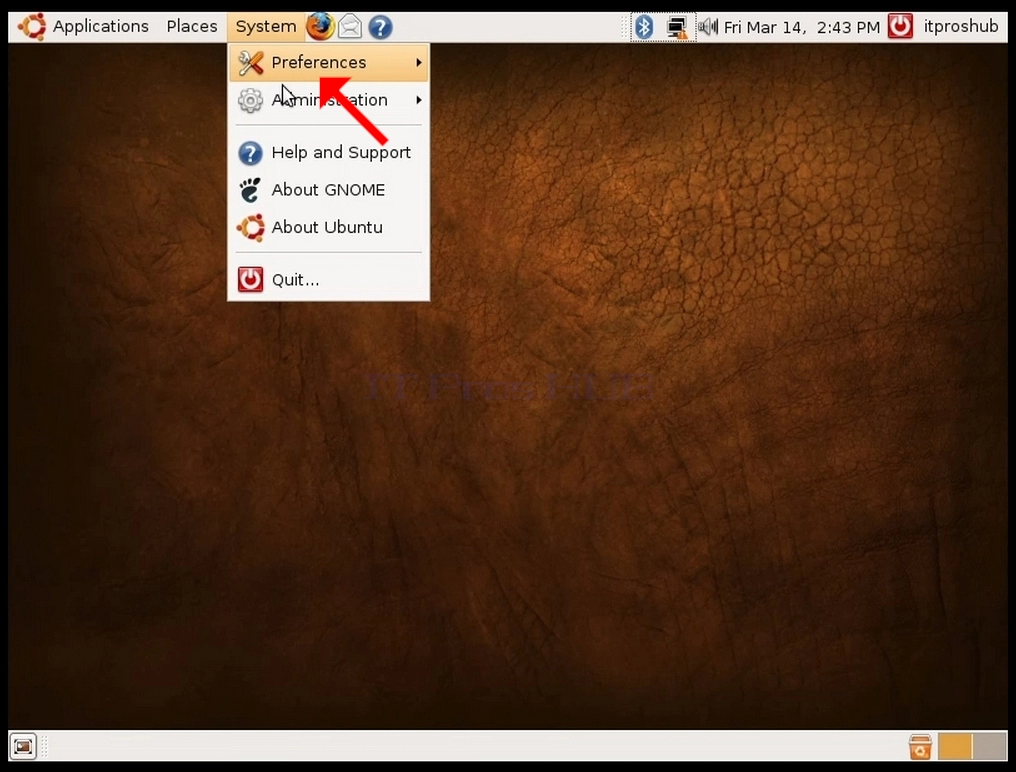
1. 在上行,点击系统,然后在新的下放菜单中,点击首选项,然后点击屏幕分辨率
2. 在新打开的屏幕分辨率窗口中,查找分辨率。
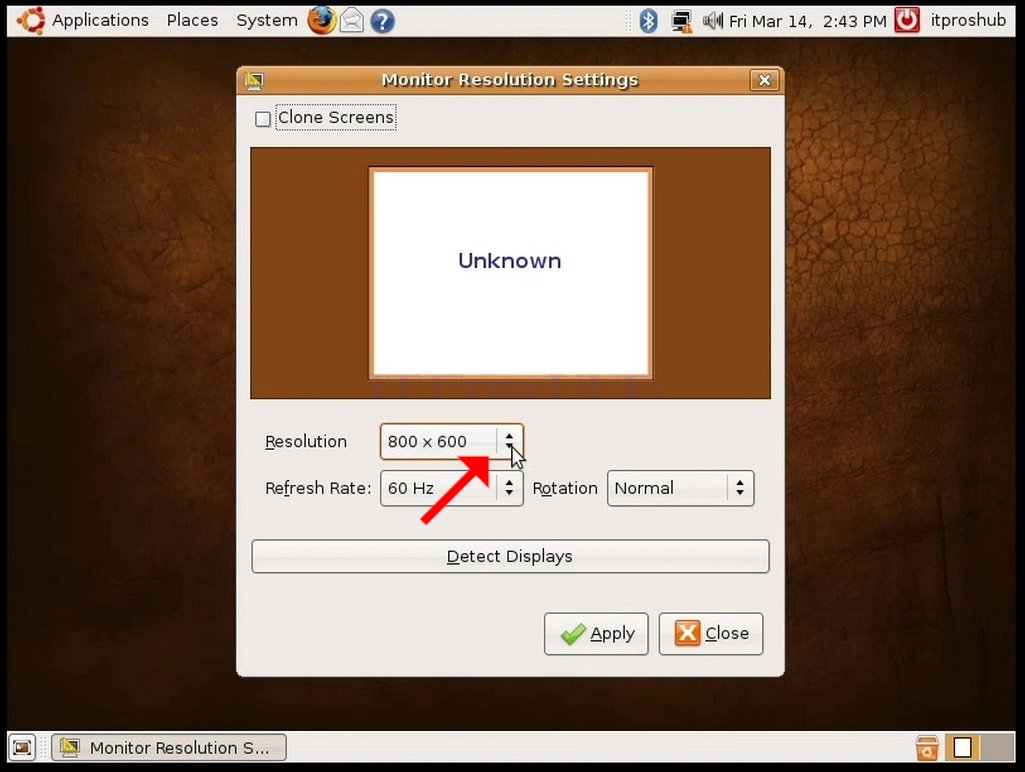
3. 点击当前分辨率设置来扩展下拉菜单并查看可用的分辨率取自。
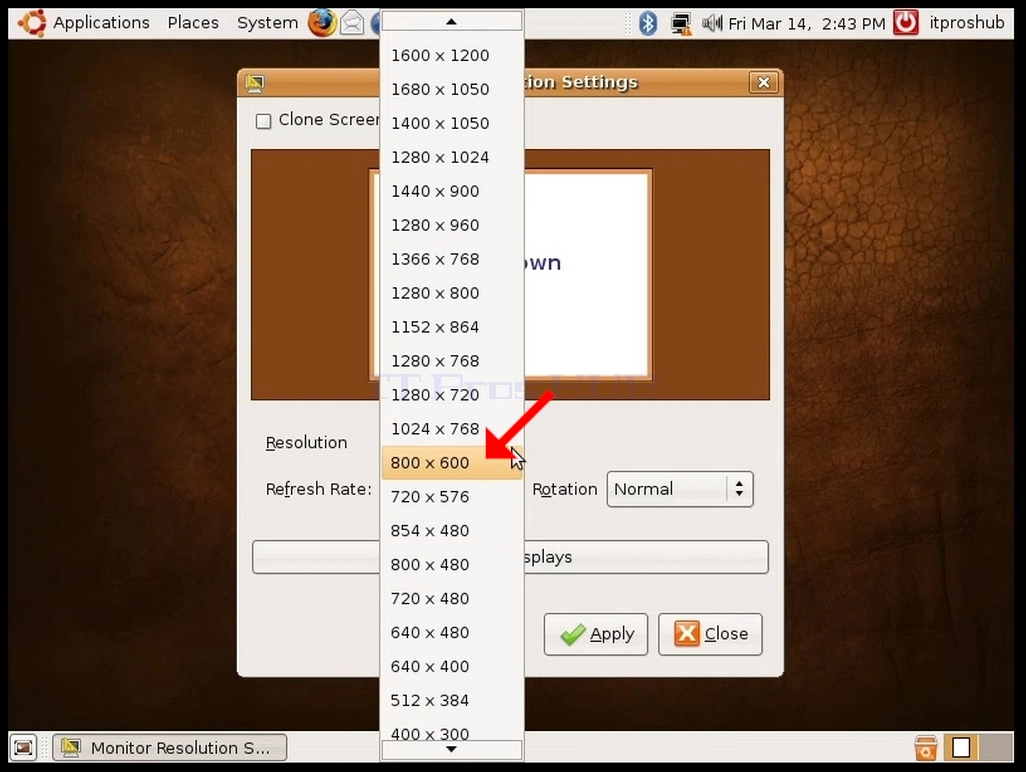
4. 从各种分辨率选项中选择最适合您需要的选项,请左键点击(在此示例中,选择的选项为1024x768)
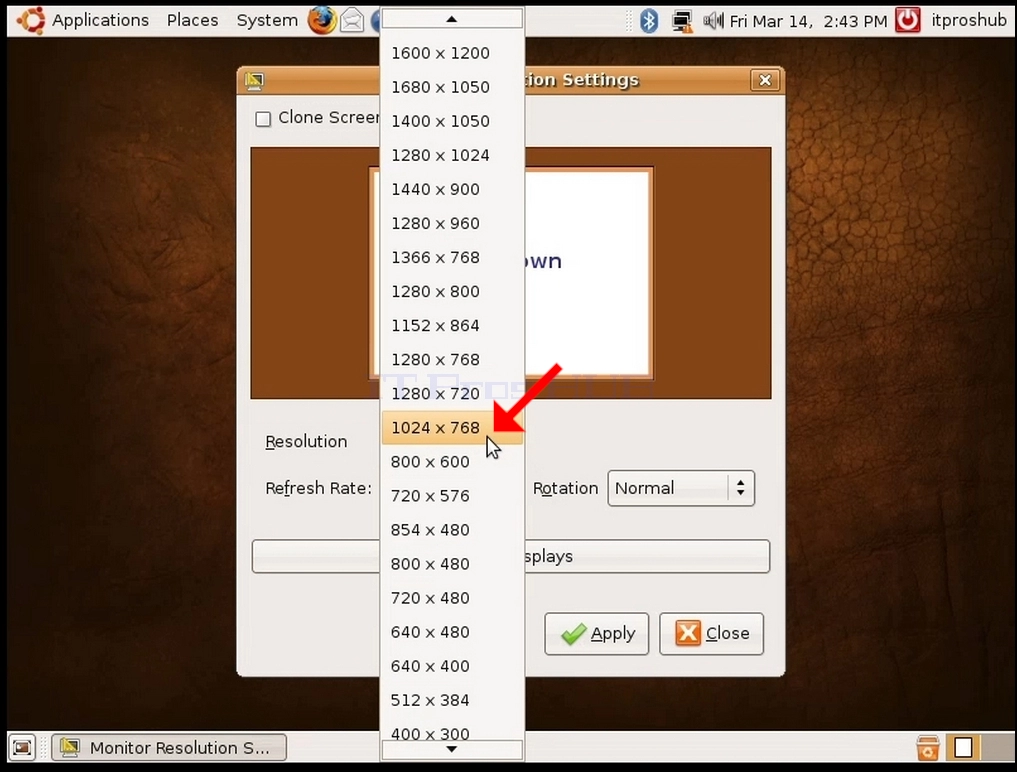
5. 点击应用
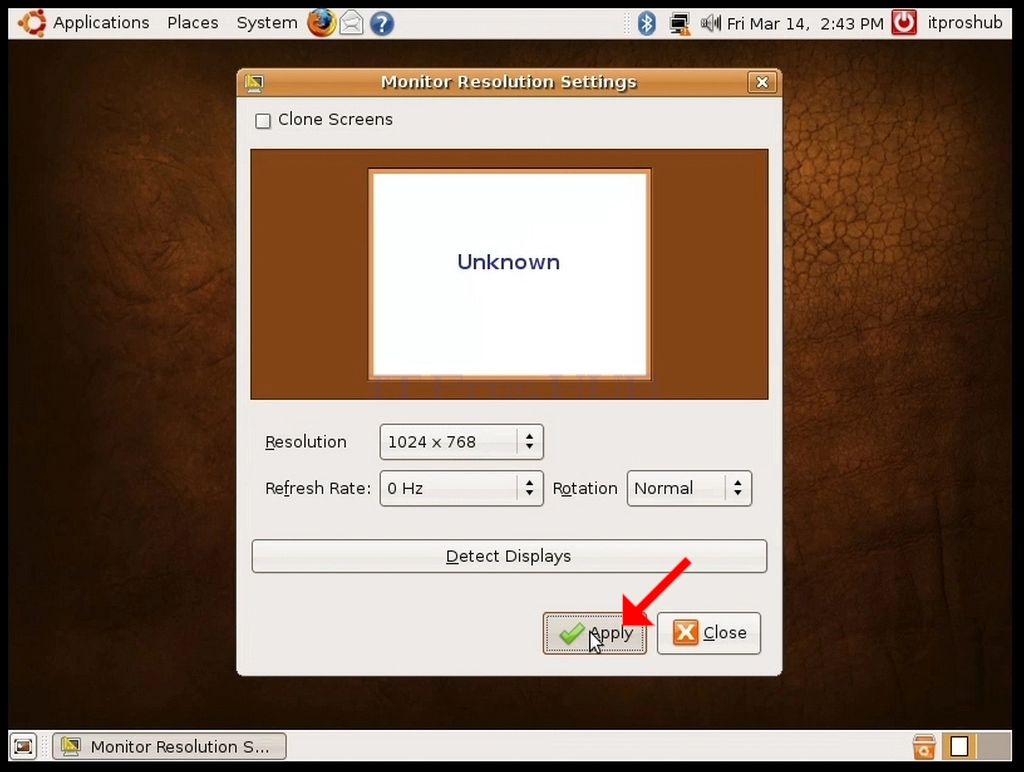
6. 在选择新的解析设置后, Ubuntu 将询问您是否想要保留设置或使用以前的设置 。 如果在指定的秒数内没有选择一个选项, Ubuntu 将返回到先前配置的分辨率 。 这是在显示器不支持所选解析度,用户无法看到或看到当前视频输出来手动返回所选新解析度的情况下进行的.
如果新选择的解析度与显示器相容,请选择Keep Changes并单击.
- 細節
- 作者 IT Pro
- 分類: How to Articles
- 點擊數: 6641
2. In the newly opened Screen Resolution window, look for Resolution.
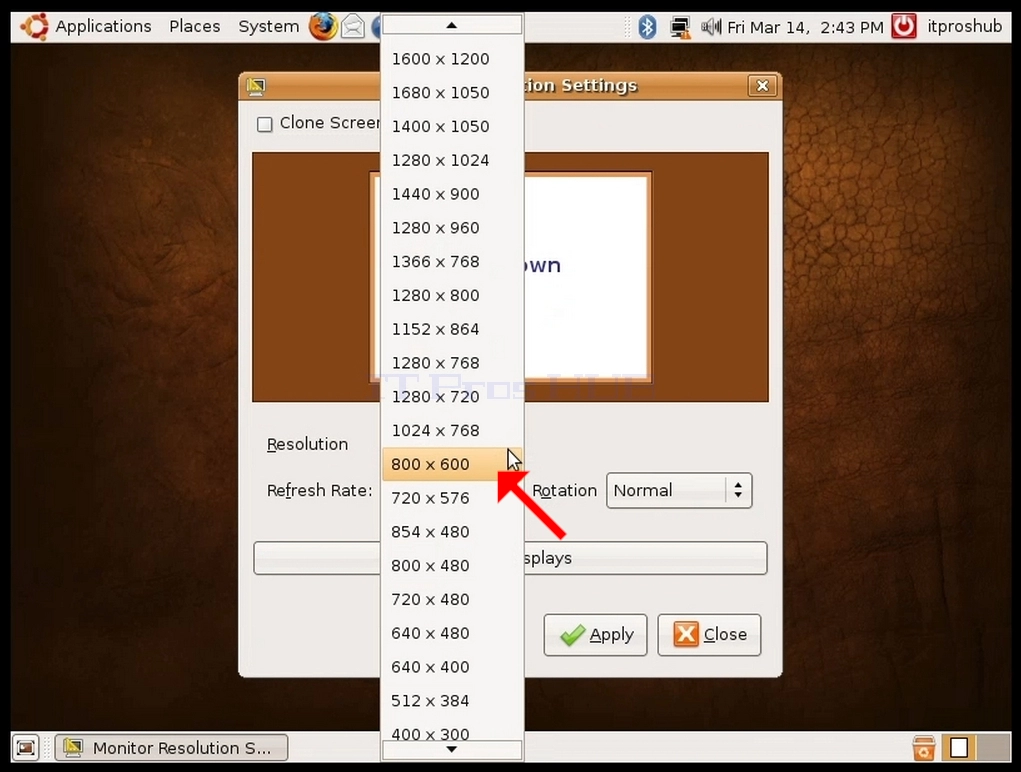
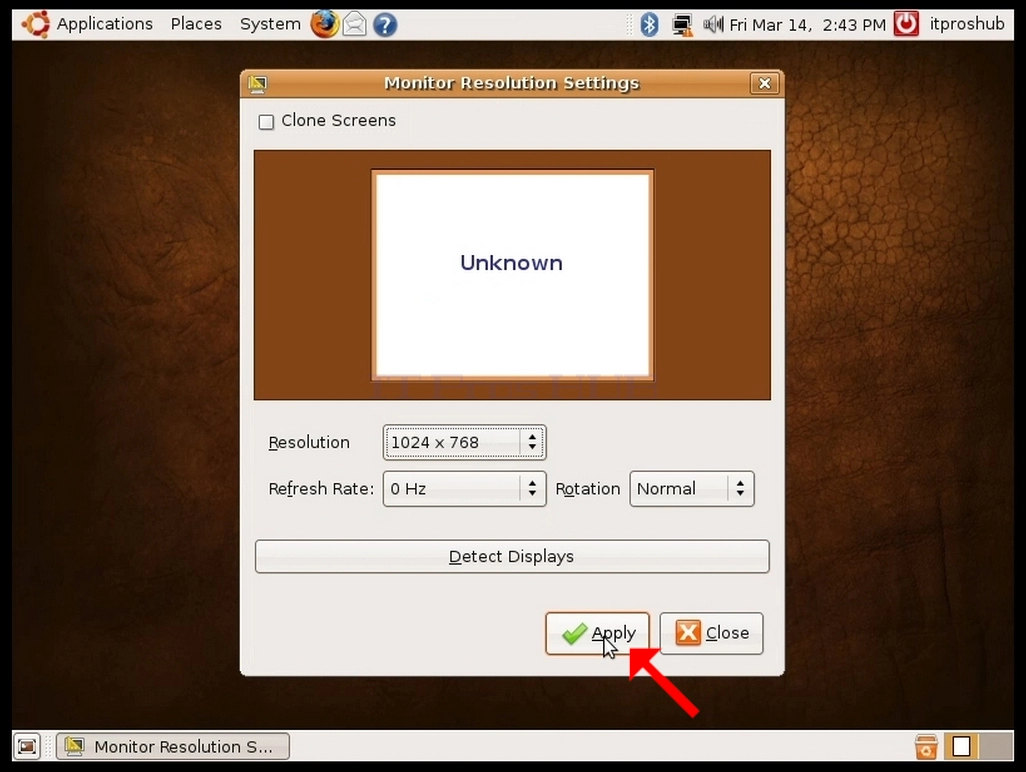
4. From the various resolution options, choose the one that best suits your needs by left clicking on it (In this example the chosen one is 1024x768)
5. Click Apply
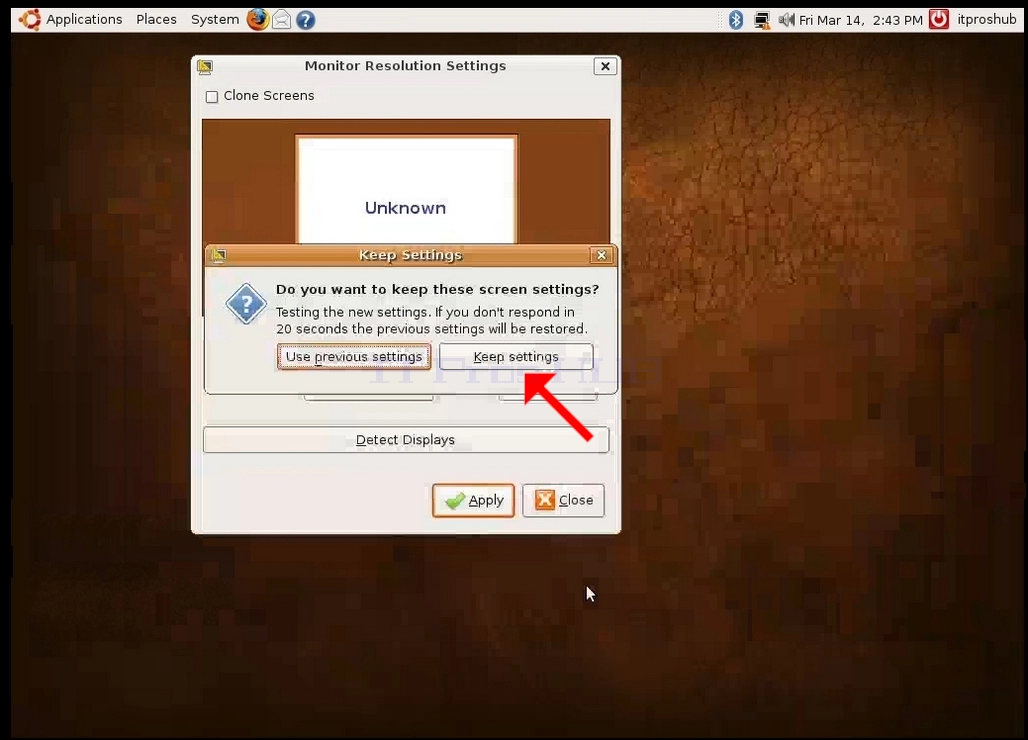
6. After choosing the new resolution setting, Ubuntu will ask you whether you would like to Keep Settings or to Use Previous Settings. If an option is not chosen within an allocated number of seconds, Ubuntu will revert back to the previously configured resolution. This is done in case the monitor doesn't support the selected resolution, and the user is unable to either see or see the current video output to manually revert the newly selected resolution.
If the newly chosen resolution is compatible with the monitor, choose Keep Changes, and click it.
- 細節
- 作者 IT Pro
- 分類: How to Articles
- 點擊數: 7258
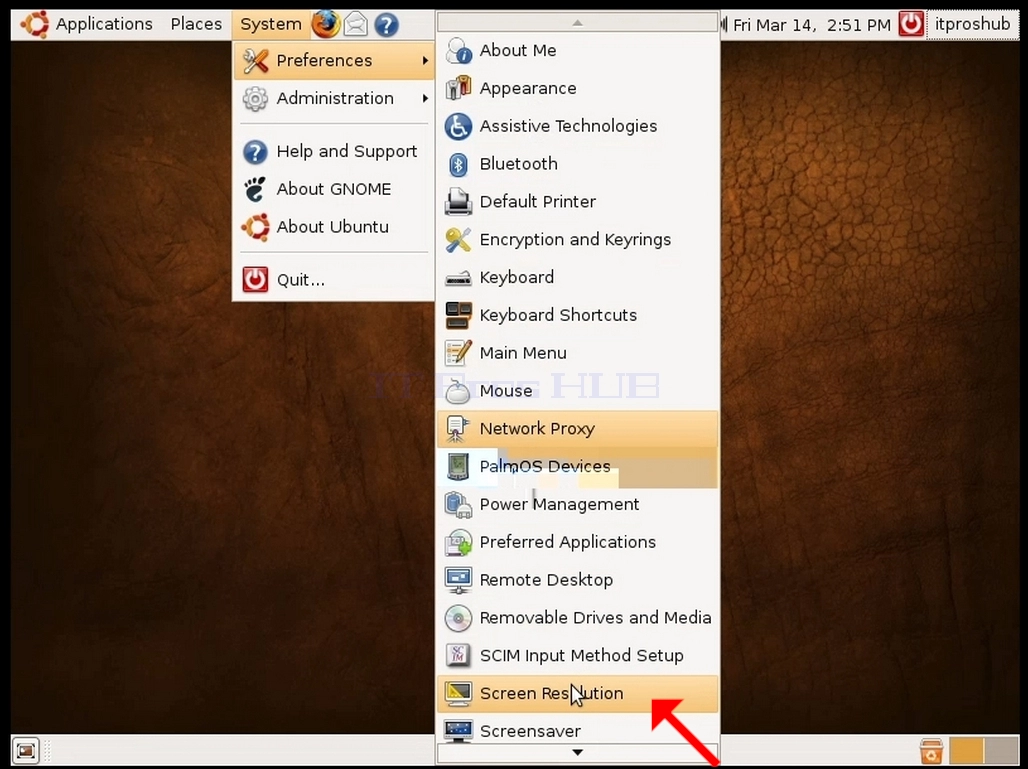
2. In the newly opened Screen Resolution window, look for Resolution.
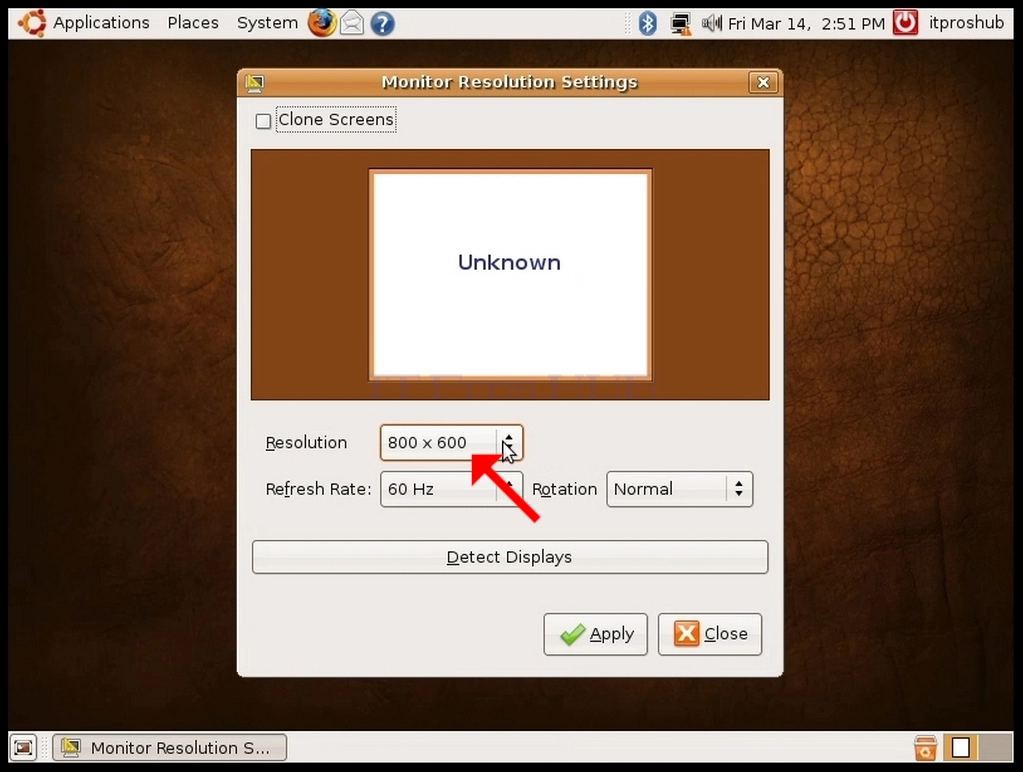
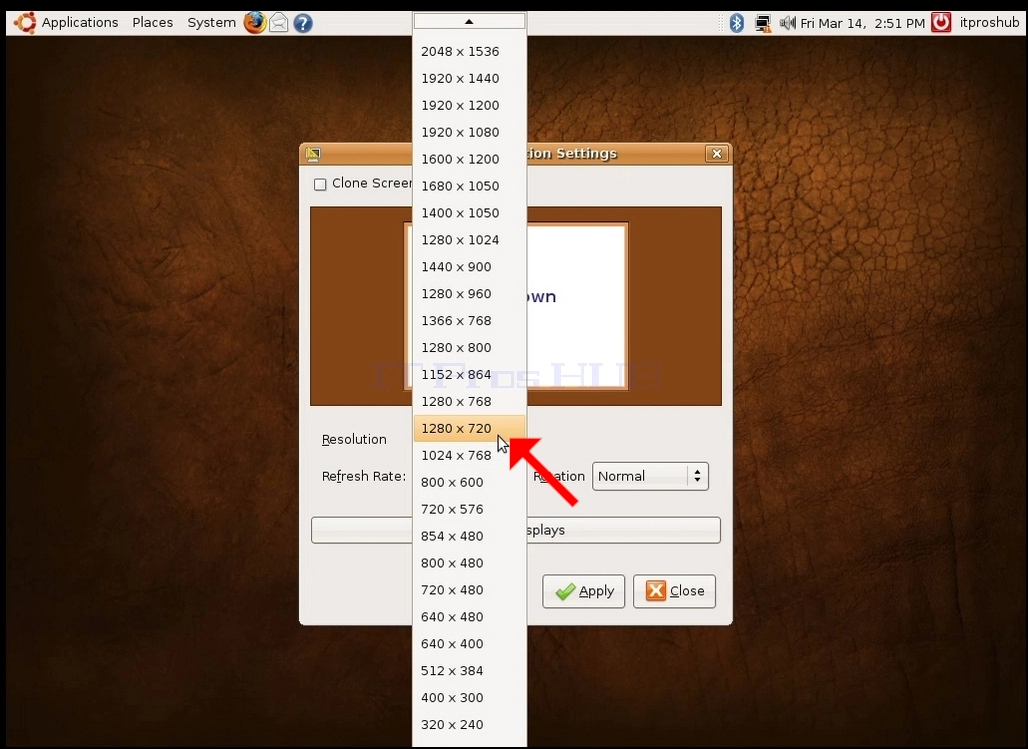
4. From the various resolution options, choose the one that best suits your needs by left clicking on it (In this example the chosen one is 1024x768)
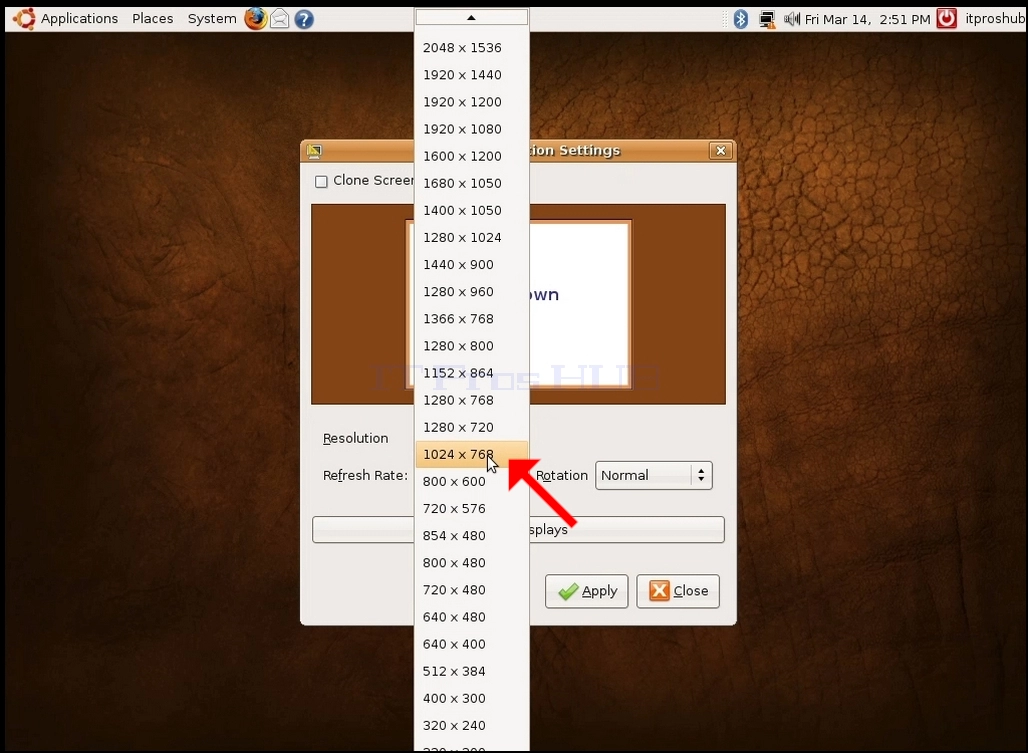
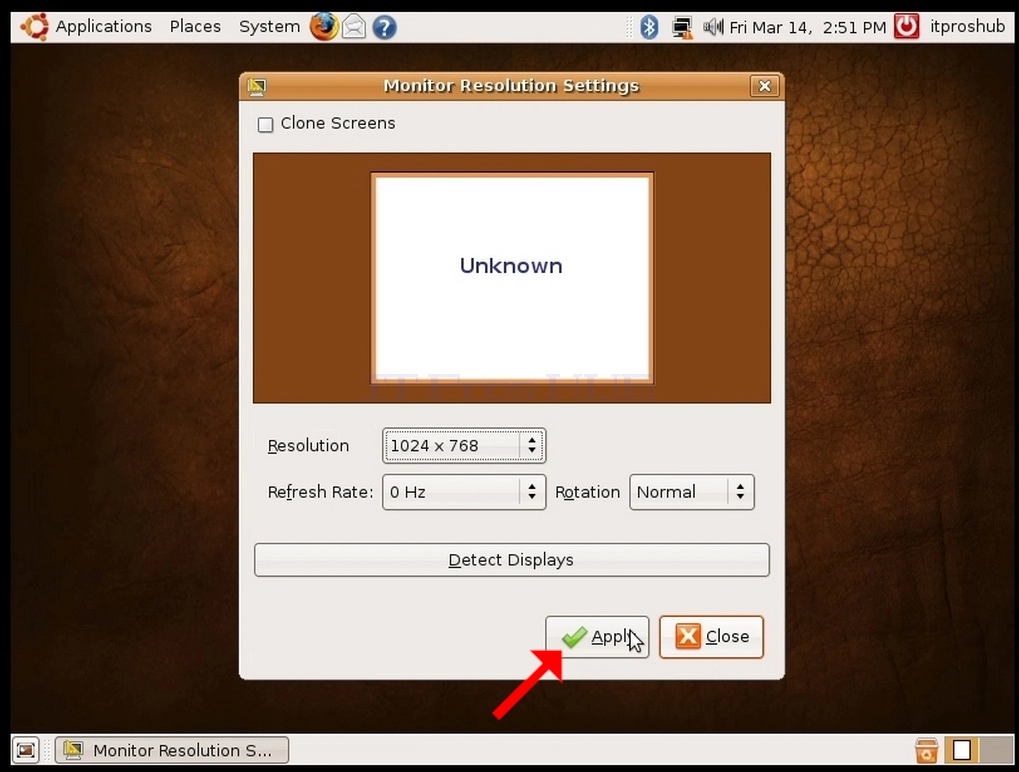
5. Click Apply
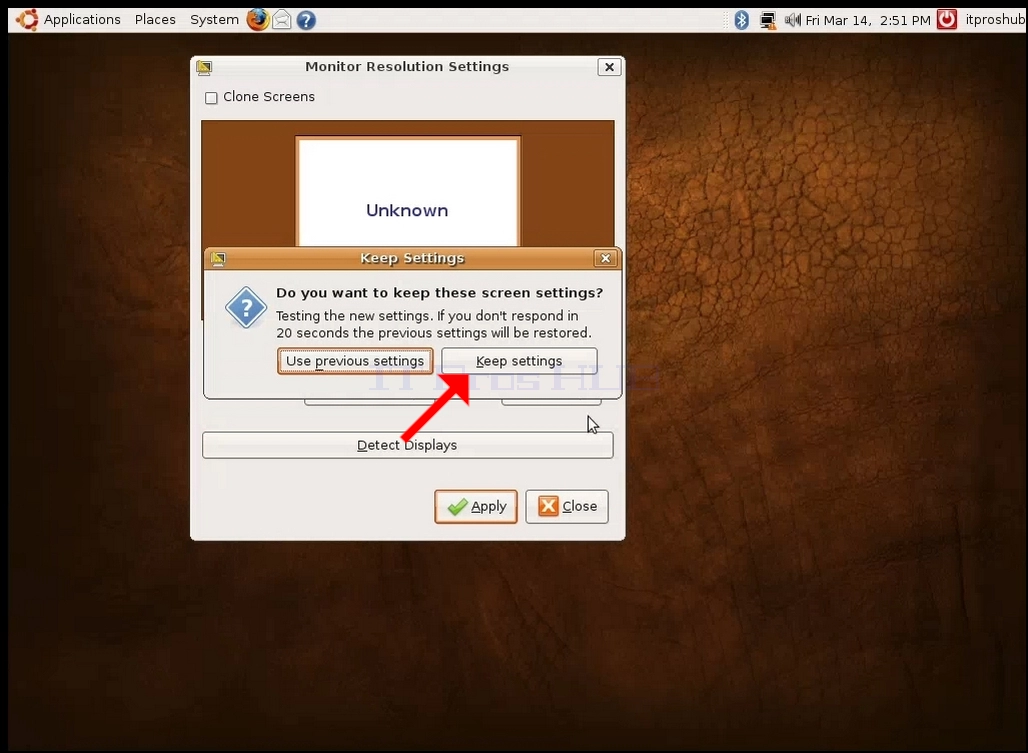
6. After choosing the new resolution setting, Ubuntu will ask you whether you would like to Keep Settings or to Use Previous Settings. If an option is not chosen within an allocated number of seconds, Ubuntu will revert back to the previously configured resolution. This is done in case the monitor doesn't support the selected resolution, and the user is unable to either see or see the current video output to manually revert the newly selected resolution.
If the newly chosen resolution is compatible with the monitor, choose Keep Changes, and click it.
- 細節
- 作者 IT Pro
- 分類: How to Articles
- 點擊數: 5851
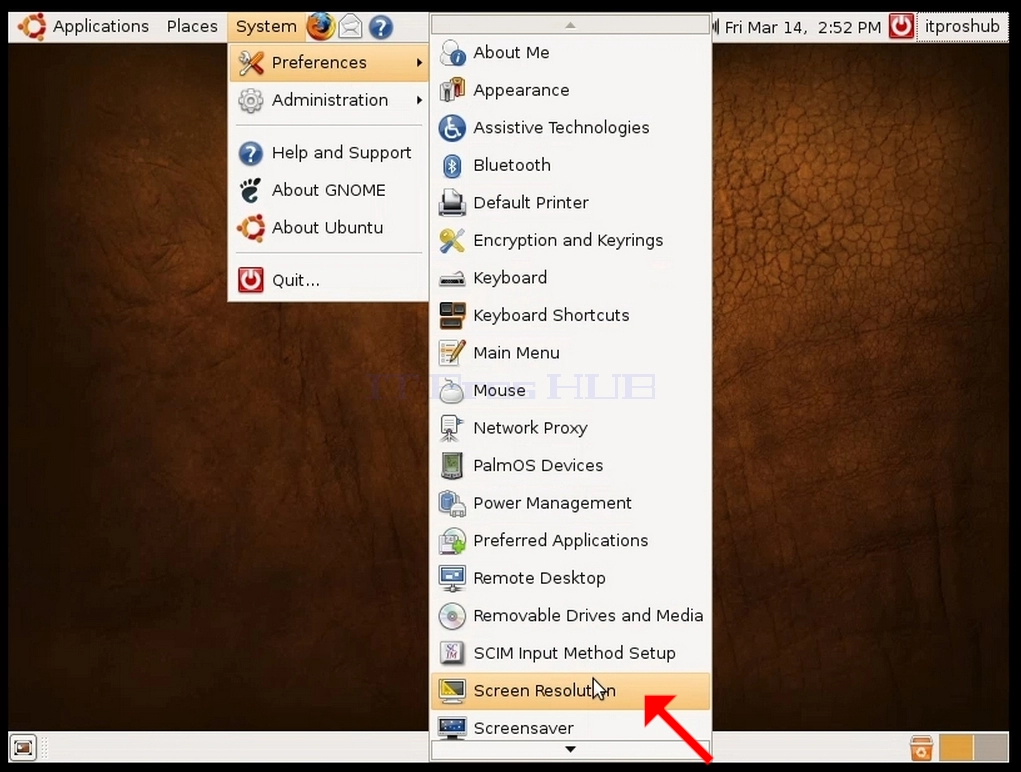
1. 在上行,点击系统,然后在新的下拉菜单中,点击
首选项,然后单击屏幕分辨率
2. 在新打开的屏幕分辨率窗口中,查找分辨率。
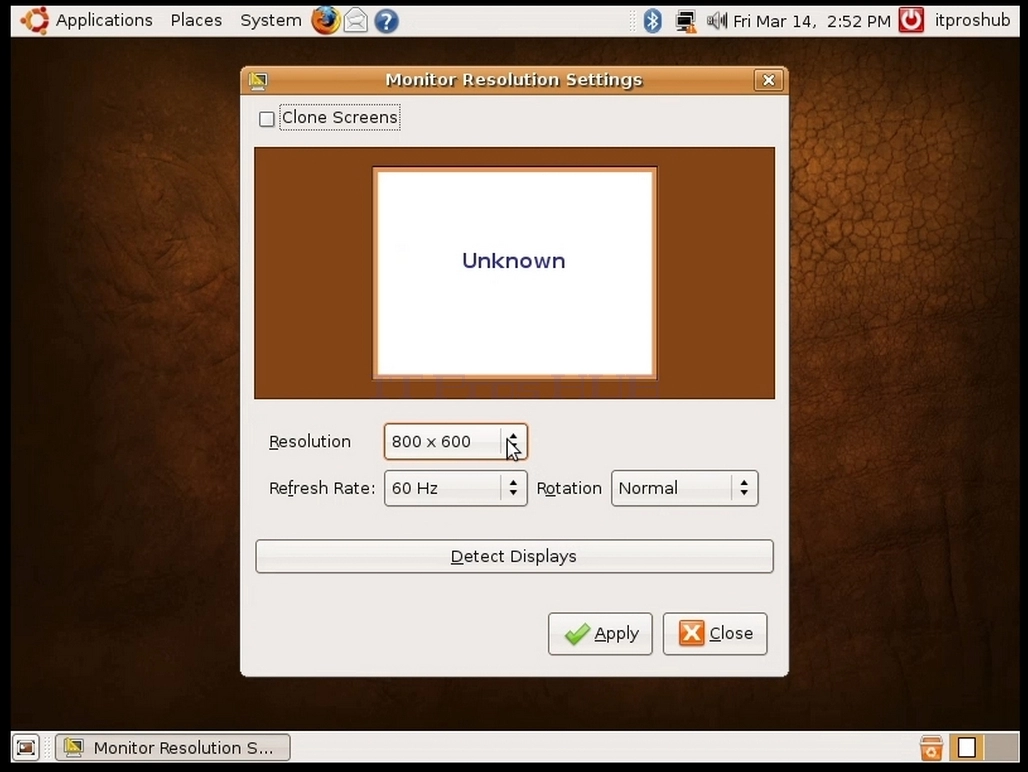
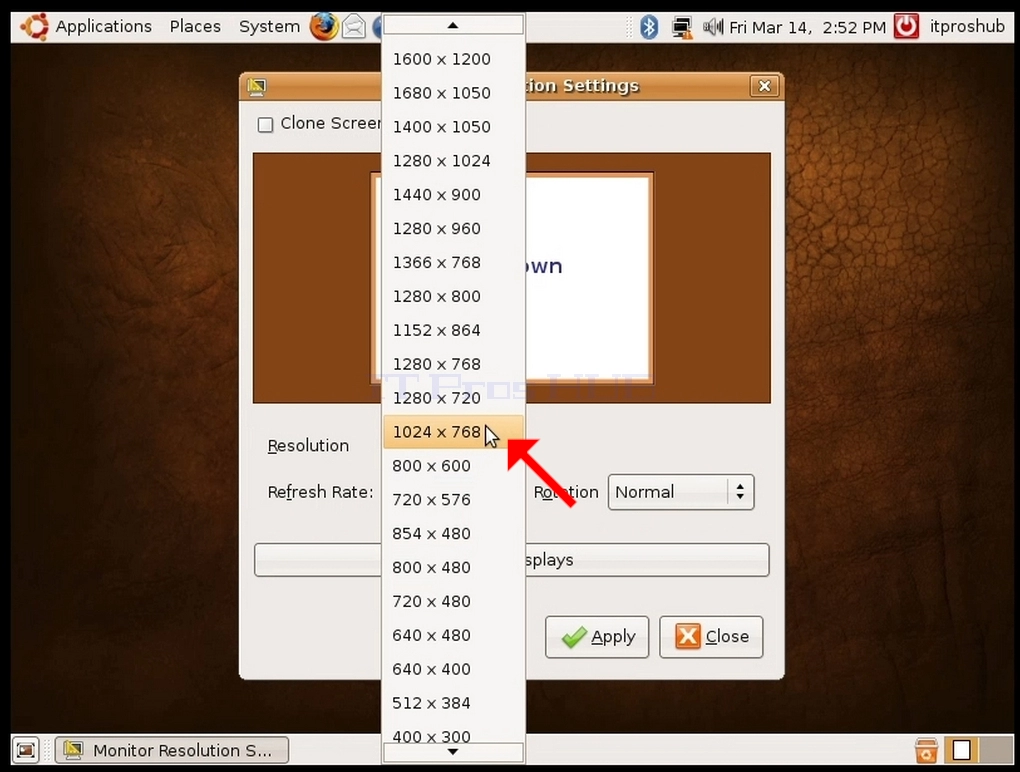
3. 点击当前分辨率设置来扩展下拉菜单并查看可用的分辨率取自。
4. 从各种分辨率选项中选择最适合您需要的选项,请左键点击(在此示例中,选择的选项为1024x768)
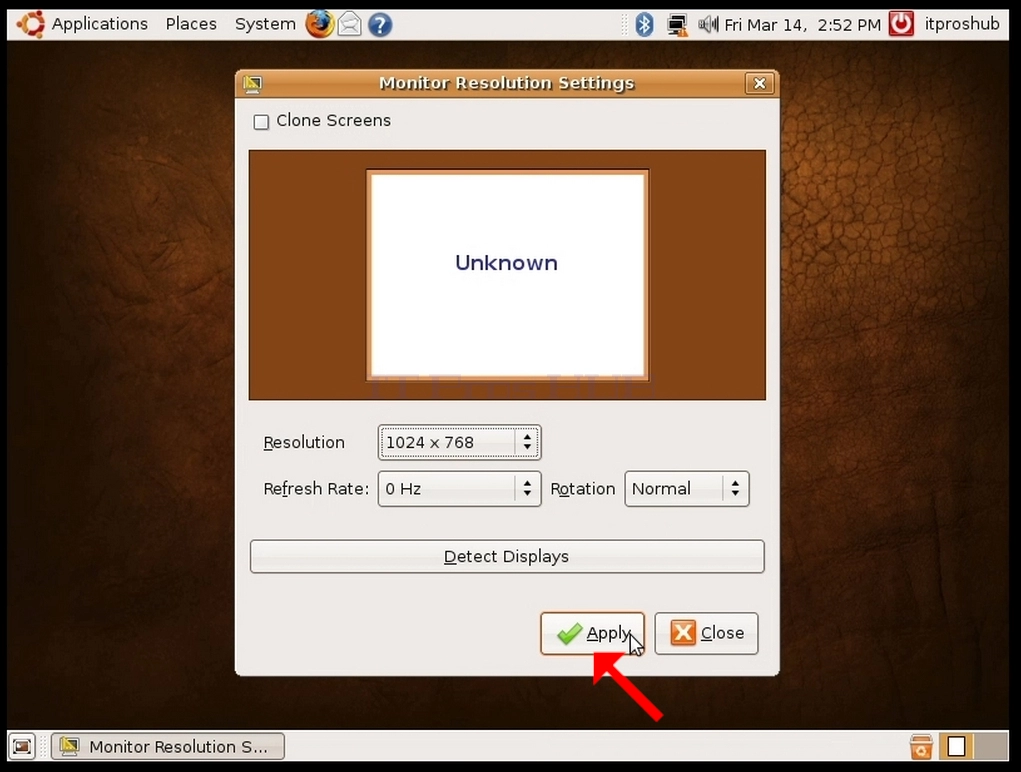
5. 点击应用
6. 在选择新的解析设置后, Ubuntu 将询问您是否想要保留设置或使用以前的设置 。 如果在指定的秒数内没有选择一个选项, Ubuntu 将返回到先前配置的分辨率 。 这是在显示器不支持所选解析度,用户无法看到或看到当前视频输出来手动返回所选新解析度的情况下进行的.
如果新选择的解析度与显示器相容,请选择Keep Changes并单击.