



- 文章信息
- 作者: IT Pro
- 分类:How to Articles
- 点击数:6704
1. Go to Windows Explorer and from there, go to the left pane of the window and look for This PC. Click on it once, wait for the page to load.


2. Once This PC is loaded you should see your disks and partitions
3. Choose the partition/disk you would like to compress by marking it once by left clicking on it.
5. In the newly opened side menu, look for Properties and click on it once. Wait for the Properties window to load.
6. The properties window should be loaded with the General tab chosen. If it’s not chosen, please choose it by clicking on it once.
7. In the General tab, in the bottom part, look for the Compress the drive to save disk space sentence. Tag that option by clicking once on tagging box left to it. Once tagged, you should see a blue B sign in that box

8. Click on the Apply button to apply the change
9. Once clicked, a pop-up window titled Confirm Attribute Changes will appear.
10. In that confirmation window there should be 2 options:
a. Apply changes to drive C:\ only
b. Apply changes to drive C:\, subfolders and files
- In this article we will choose the latter option (b) since this option saves the most space by default.

12. Once this option is chosen, click the OK button.
13. In most cases, Windows Security feature will prompt you to allow access to this action. As you can see here, in this case of this article, it does indeed ask for permission to do so.

15. In most cases, Windows will prompt you for an error compressing the selected attributes by popping up a warning window titled Error Applying Attributes. In that case, click on the Ignore All button.
16. After clicking the Ignore All button, Windows will start compressing the disk/partition based on the attribute selected. This process will be represented by a window titled “Applying attributes…” with an process indicator bar. Note that you can continue working on your computer while the compression process is being done. Take into account that the more intensive your work would be the more time it would take for the compression process to finish.
17. By most accounts, this process takes a lot of time, even on fast NVMEs. This length of this process also depends on the number of files and folders present on the selected disk/partition. The more files and folders – the more time it would take to compress them.
18. It is recommended to perform this process as early as possible after installing Windows so it takes less time.
19. Another very important note – compressing the disk/partition slows down read/write times of the disk. You must take that into account before performing this action and do the ROIs. If saving space is more important than performance – do it. If the degradation of performance is negligible considering your work – do it.
20. Once the process is done, the compressing indicator process window will disappear and you should notice a change in your free space for the better.
21. Note that before we started the compression process, free space was 85GB, now it’s 86.1GB. it might not seem much but if there were significantly more files on that disk, the space saving would have been much more apparant
- 文章信息
- 作者: IT Pro
- 分类:How to Articles
- 点击数:7002
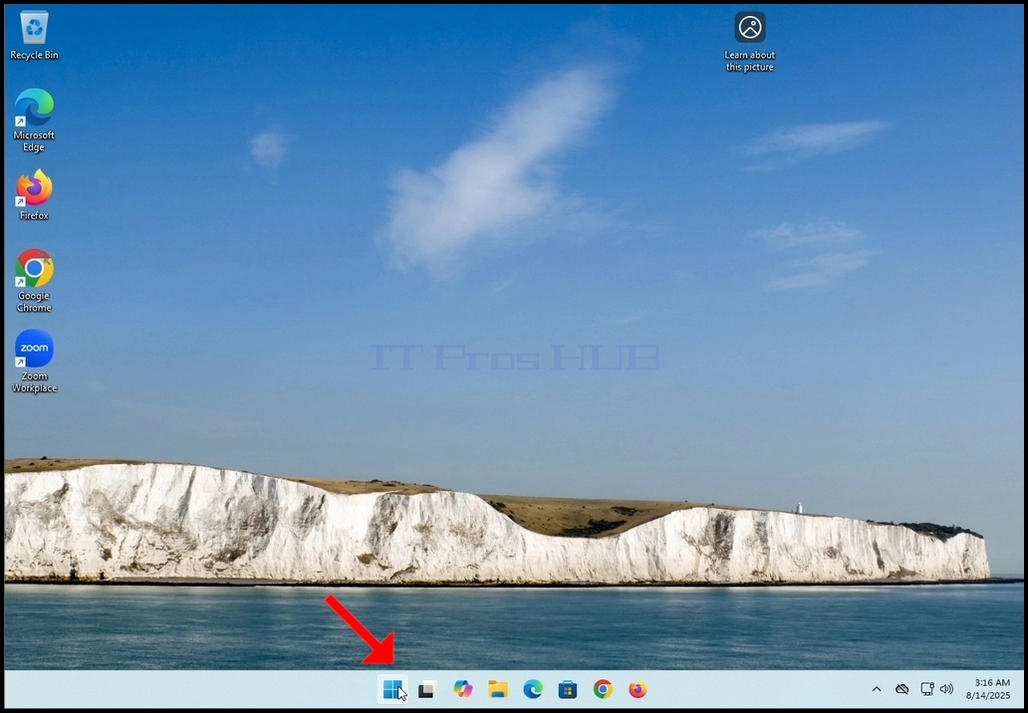
1. Go to Windows Desktop


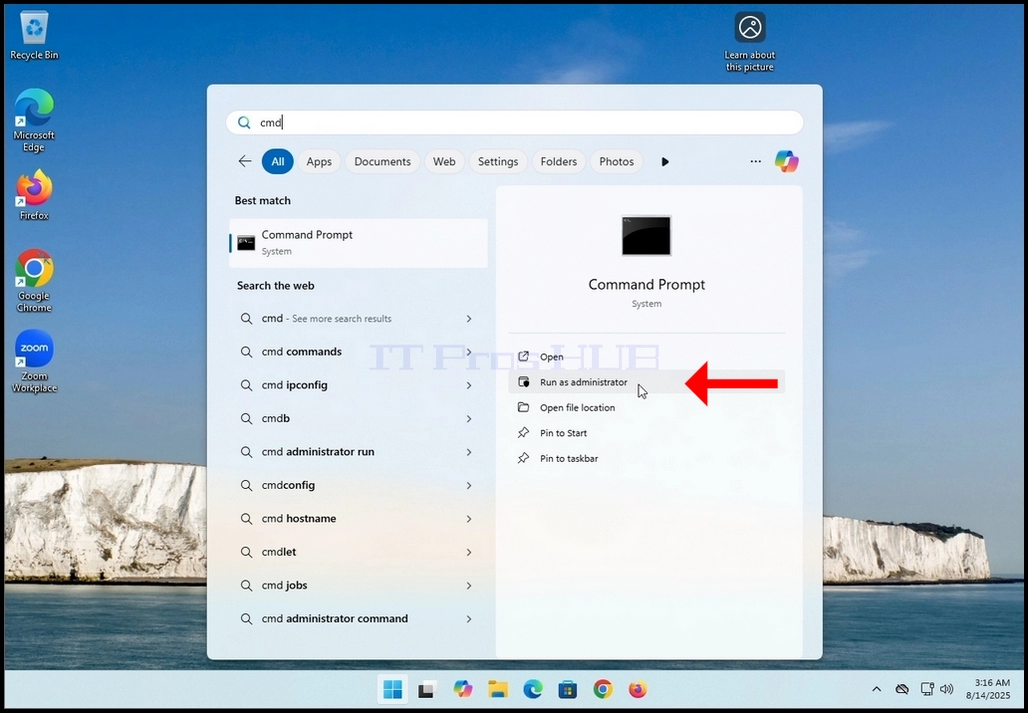


6. In the Command Prompt window type: “sfc /scannow” and hit the ENTER key.

7. After hitting the ENTER key a sentence will appear in the row below. The sentence would say: “Beginning system scan. This process will take some time..”

8. A few seconds after the latter sentence appears, a progress indicator should appear as well saying : “Verification 1% complete”.

9. Wait until the percentage reaches 100.


10. After the progress indicator shows 100% a new sentence in the row below will appear saying either:
a. Windows Resource Protection did not find any integrity violations – that means there were no errors in the system.
b. Windows Resource Protection found corrupt files and successfully repaired them – this means that Some files were damaged but fixed.
c. Windows Resource Protection found corrupt files but was unable to fix some of them – this means that Corruption detected but not repaired.
d. Windows Resource Protection could not perform the requested operation – this means that Scan couldn’t complete (offline repair or file system problem).

- 文章信息
- 作者: IT Pro
- 分类:How to Articles
- 点击数:8363
1.通过 Windows开始菜单进入 "计算机管理"。输入 "世界计算机",然后等待 "开始 "菜单找到 "计算机管理"应用程序。找到后,点击它。
2.在"计算机管理 "左侧窗格中,查找 " 磁盘管理 "并点击一次。
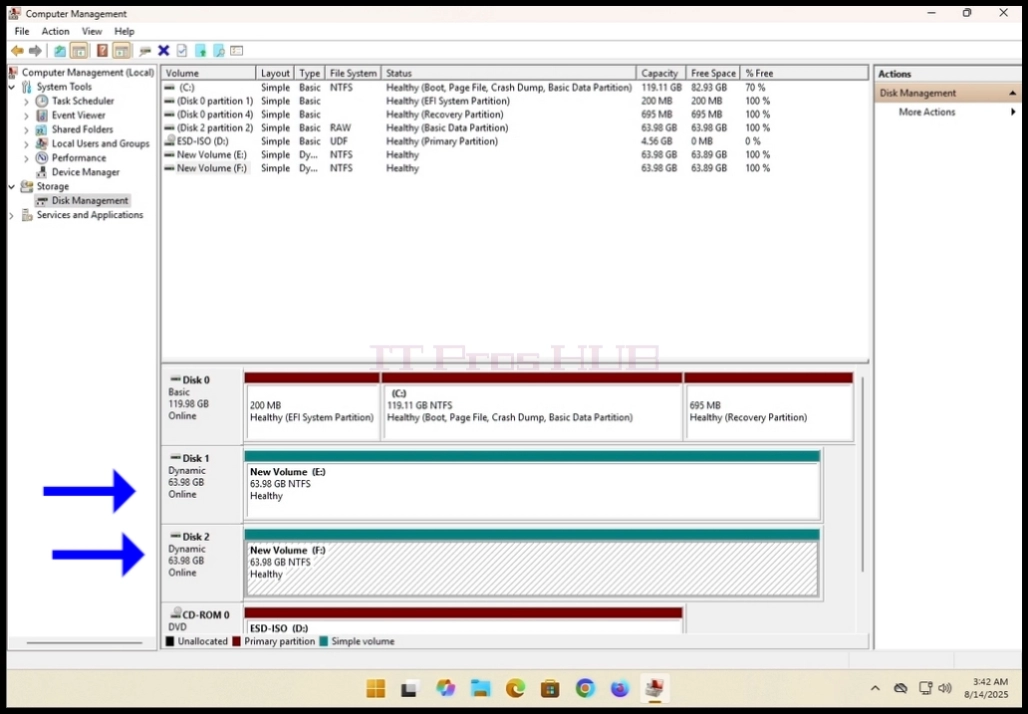
3.3. 查找您希望成为扫描卷一部分的磁盘,然后右键单击该磁盘。
右键单击该磁盘。等待侧边菜单出现。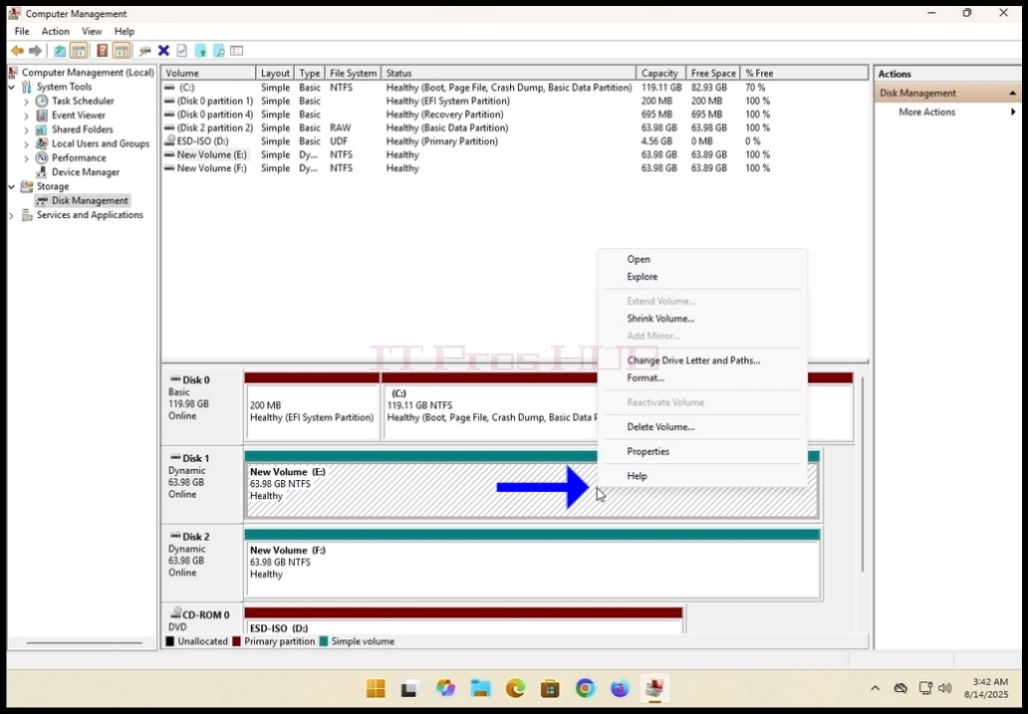
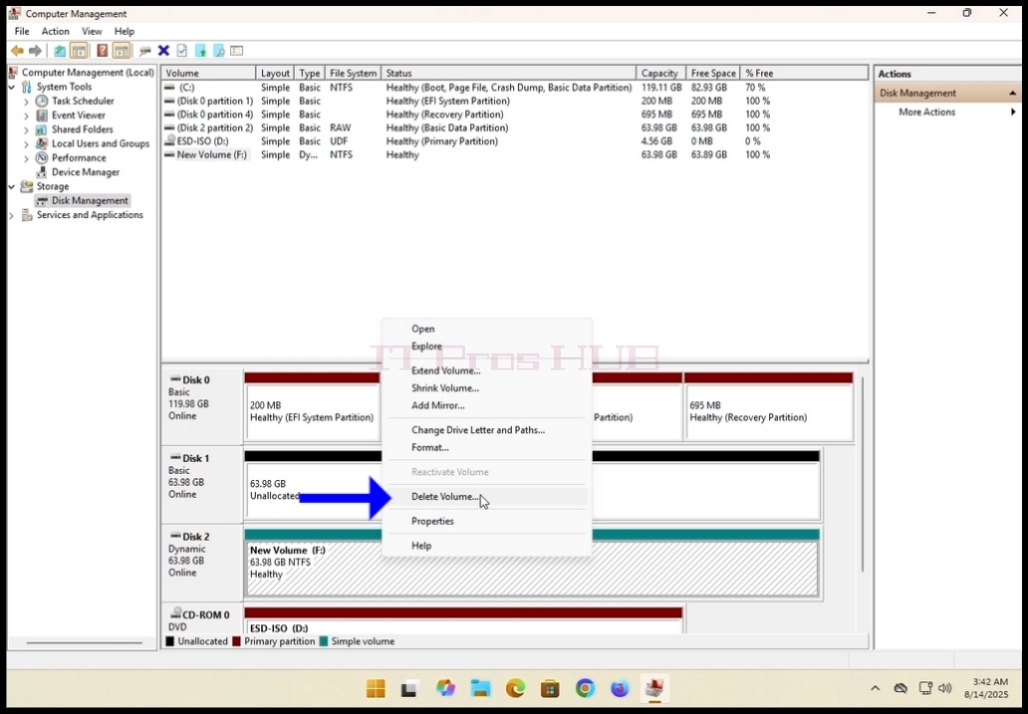
4.4. 在本文中,我们将删除我们希望在扫描卷中使用的磁盘上的现有卷。
4. 在本文中,我们将删除我们要在扫描卷中使用的磁盘上的现有卷。如您所见,虽然
磁盘 1和磁盘 2虽然都是动态磁盘,但它们目前的配置不是扫描卷。
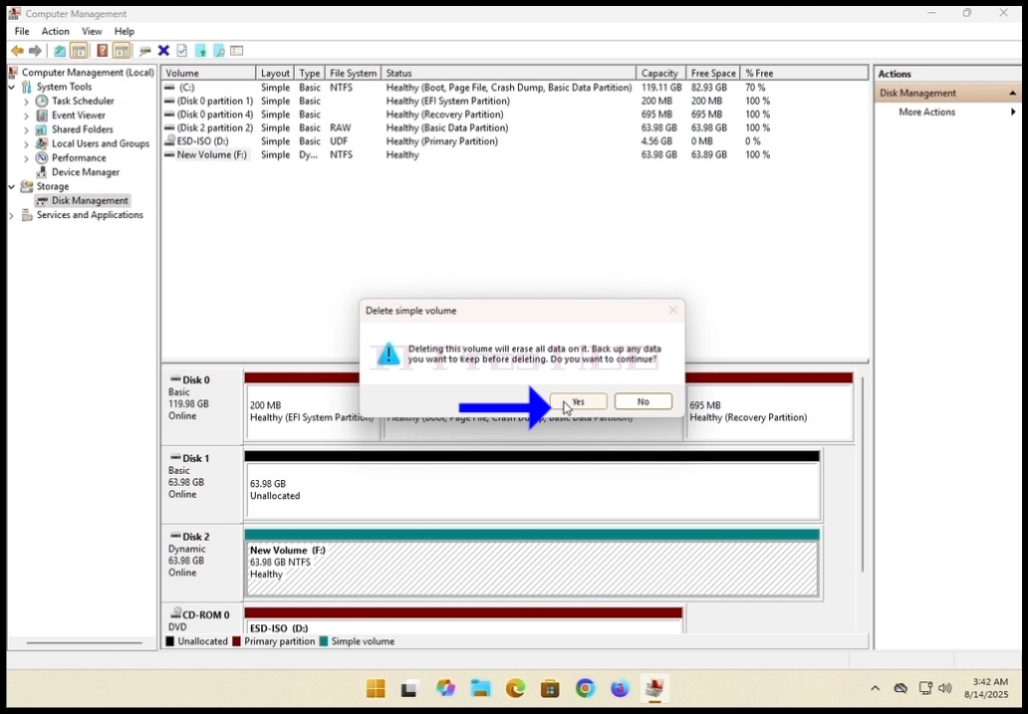
5.5. 在侧菜单中单击 " 删除加密卷",并在出现的警告窗口中点击 "是 "按钮。
警告窗口时点击 "是 "按钮。
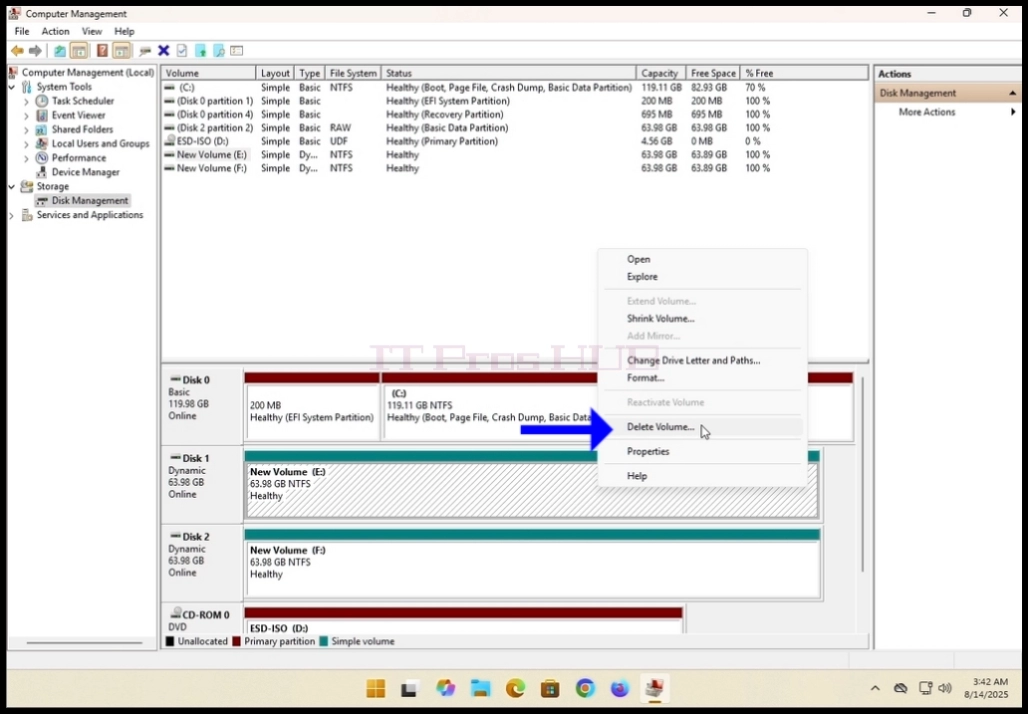
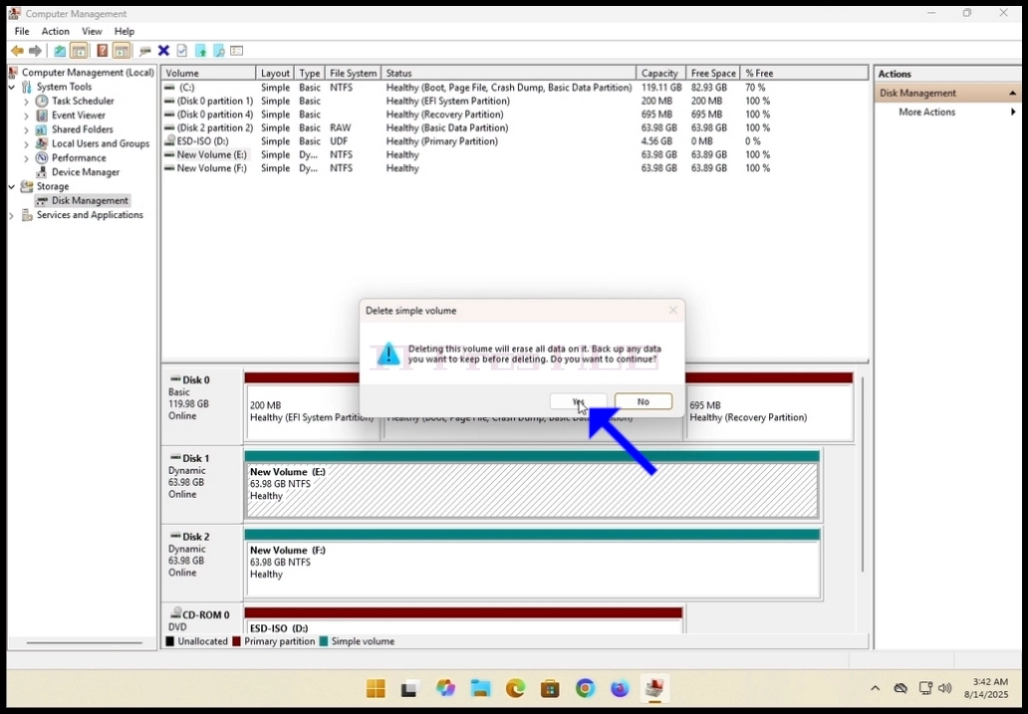
6.6. 点击 "是"按钮后,等待棕色条纹变为黑色。
黑色,这意味着卷未分配。
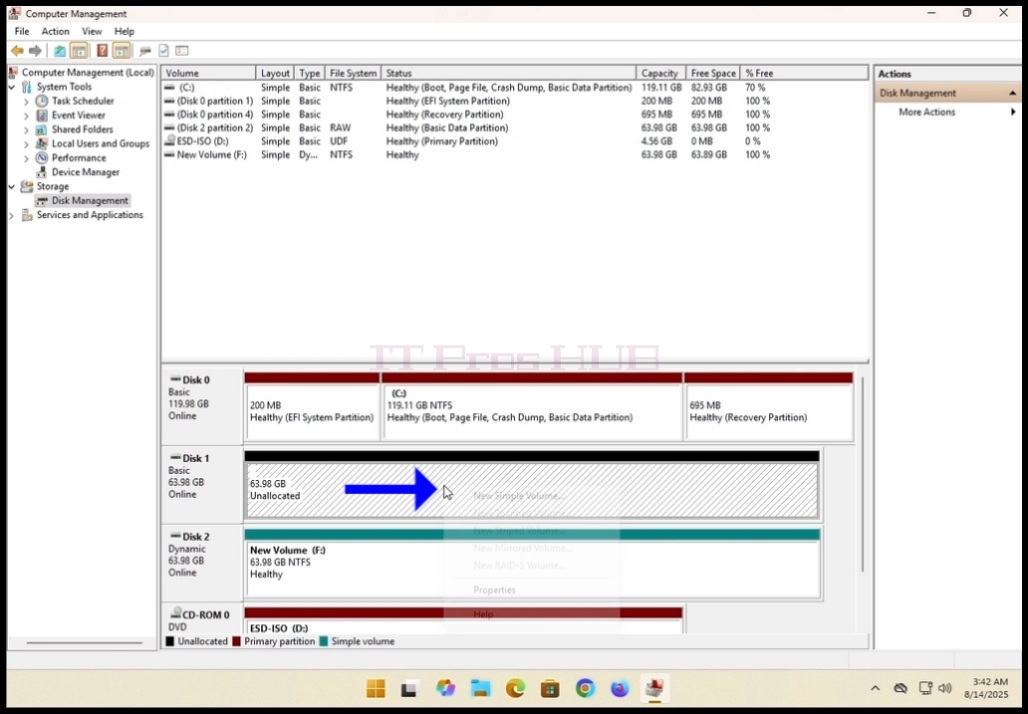
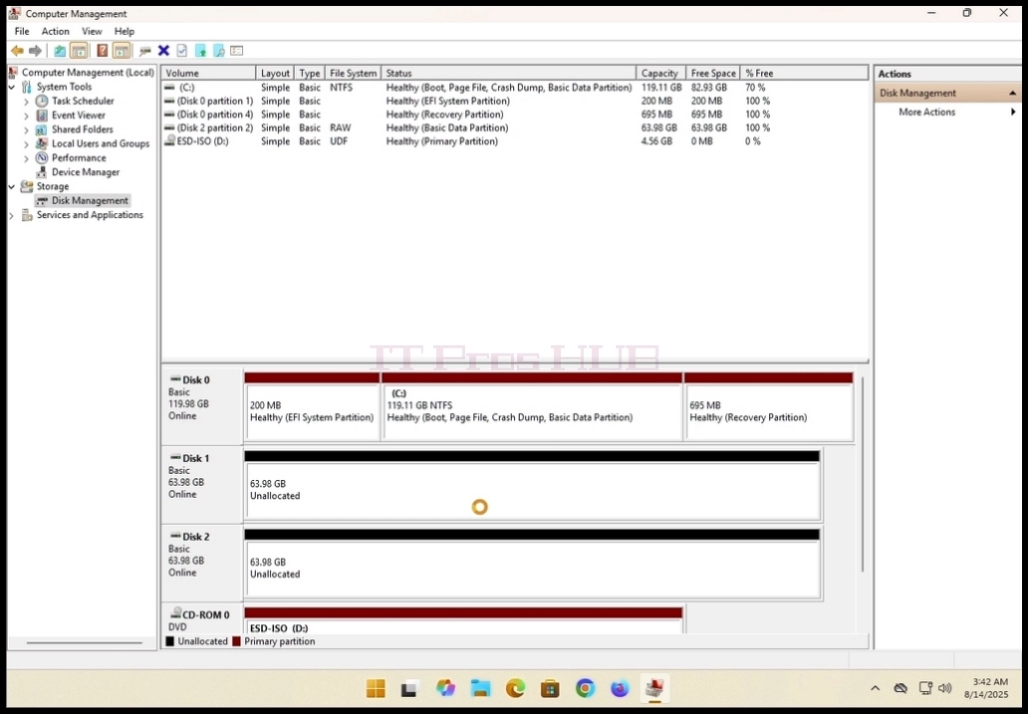
7.对阵列中的第二个磁盘执行同样的操作。
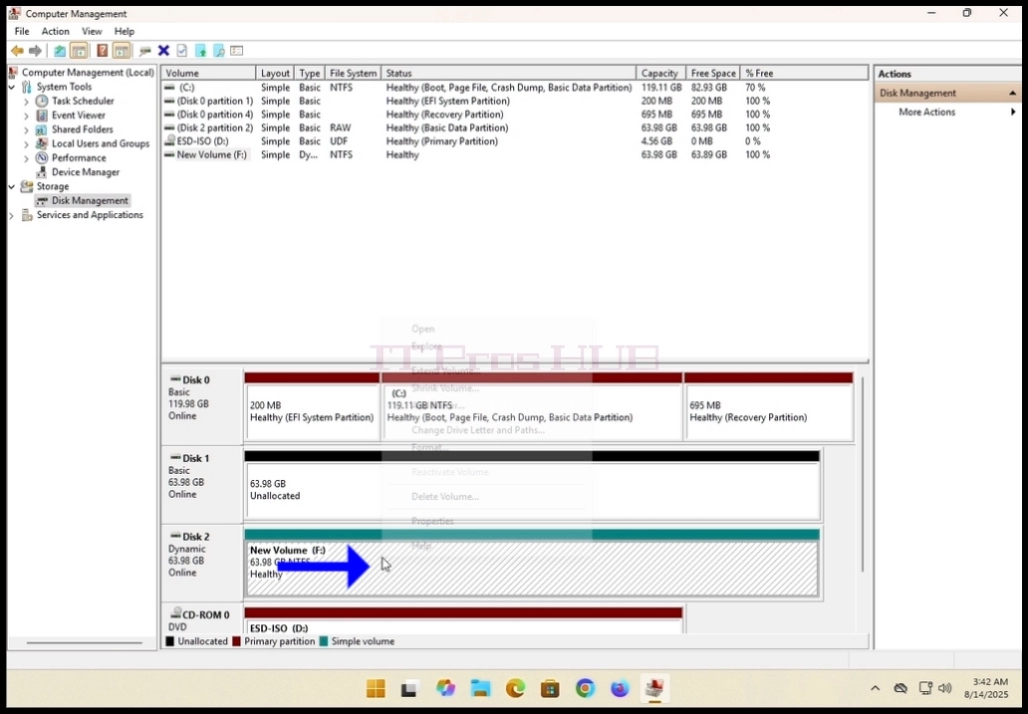
8.确保两个磁盘都只有未分配的卷。
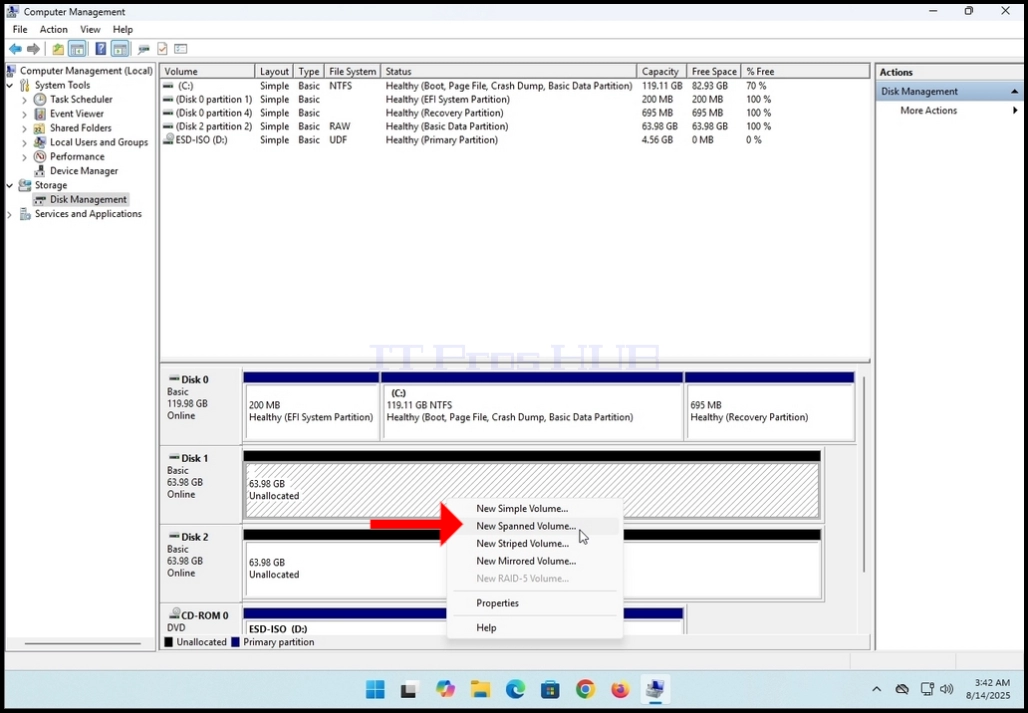
9.9. 右键单击其中一个卷,等待侧边菜单出现。查找
New Spanned Volume...(新建跨卷...)选项并点击一次。等待新建跨卷
向导出现。
10.单击下一步。
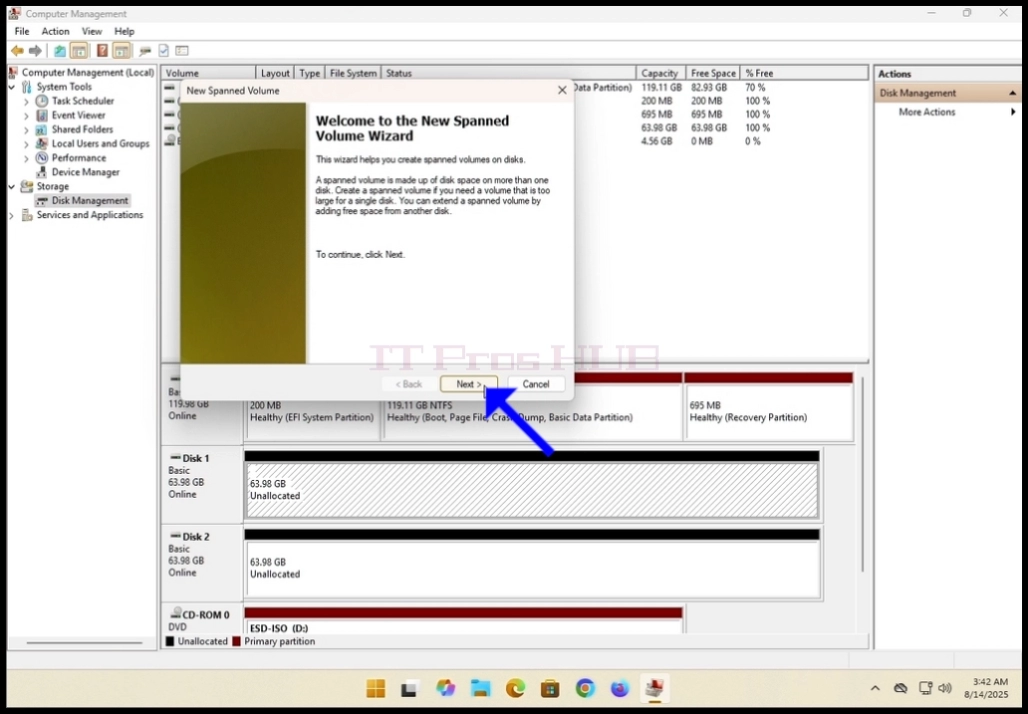
11.在当前的 "选择磁盘"窗口中,注意 2 个方框。右边的方框包含
的磁盘,而左边的方框f 则包含所有可用磁盘。
包含要添加到扫描卷阵列的所有可用磁盘。
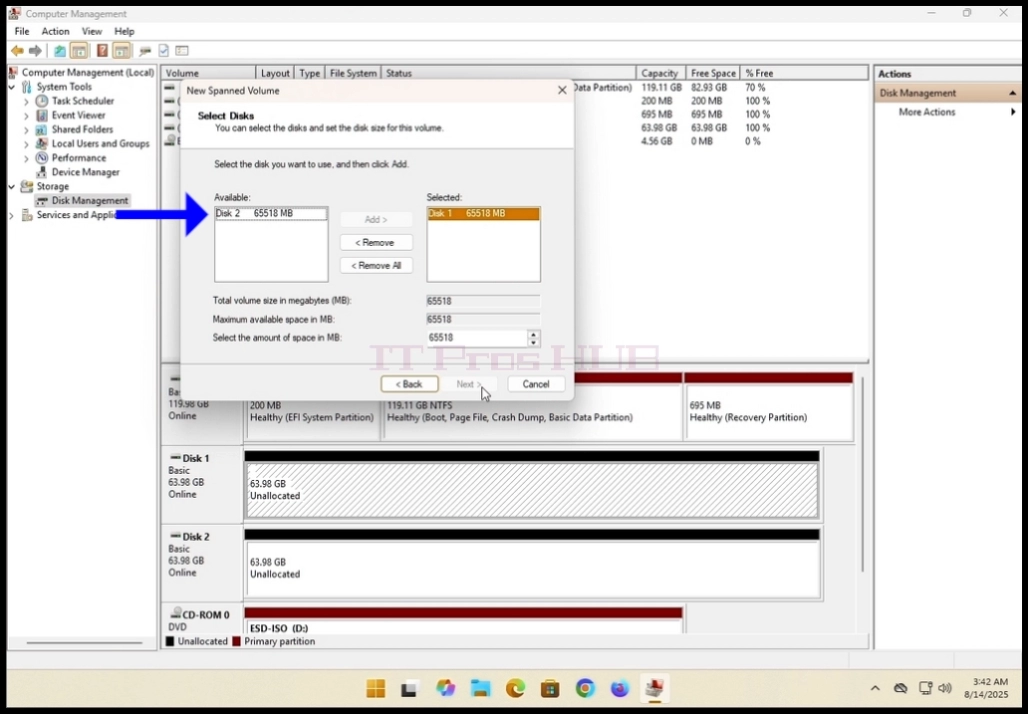
12.在本文中,如前所述,我们将使用磁盘 1 和 2。
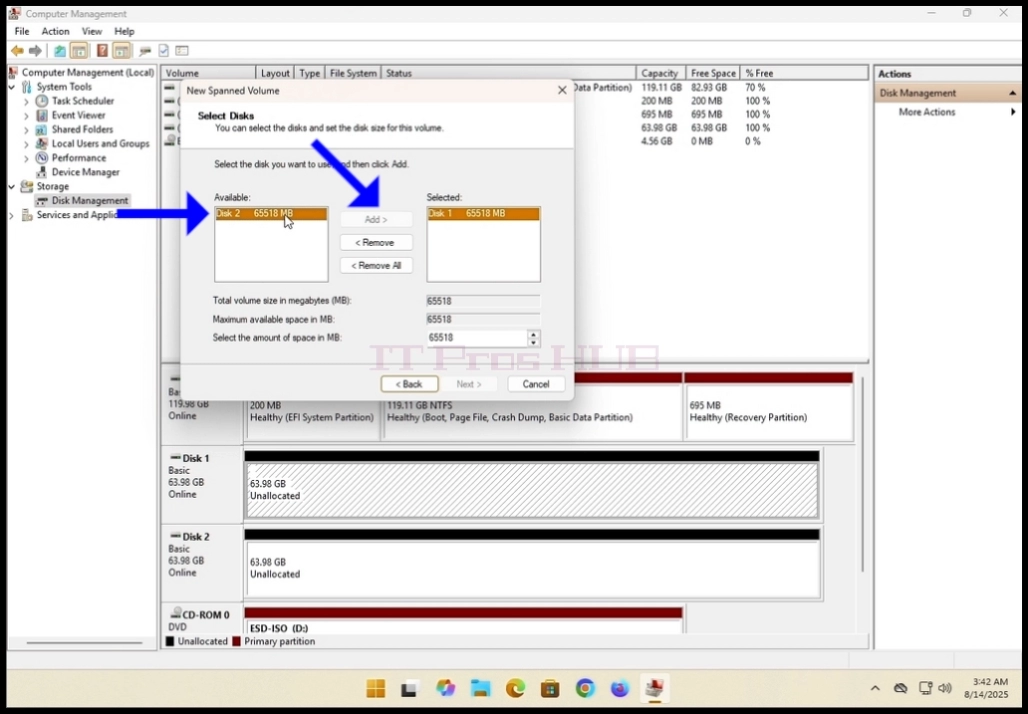
13.13. 选择阵列中的第二个磁盘(本例中为磁盘 2),然后点击中间的 "添加 "按钮。
方框中间的Add>按钮 。
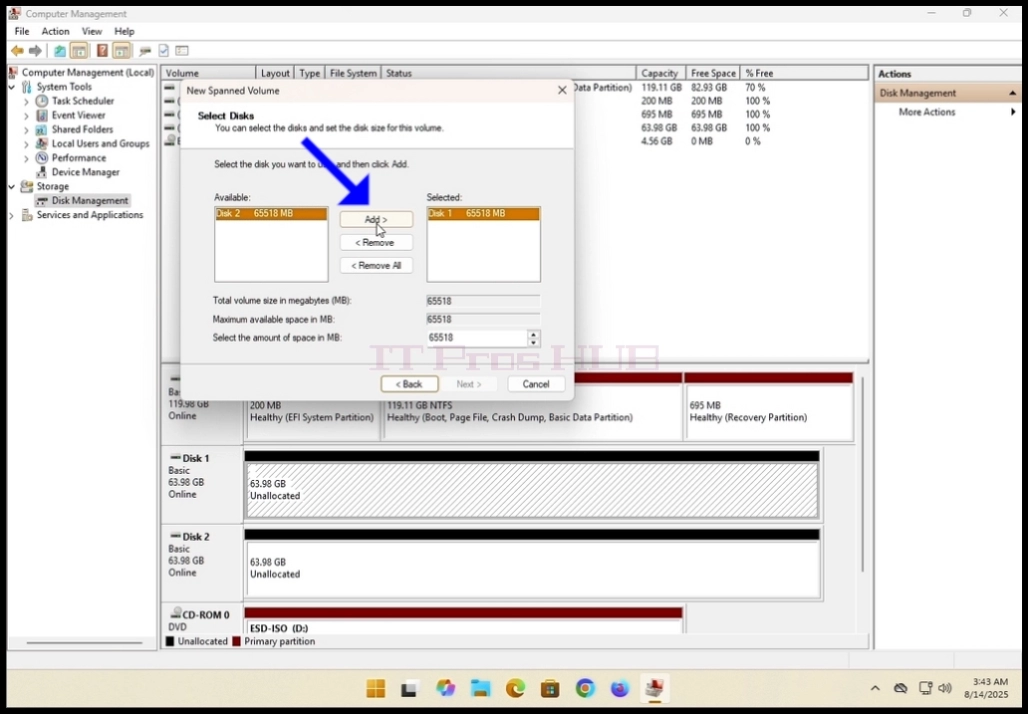
14.点击Add>按钮后,你会看到两个磁盘都在右边的 "Selected"(已选中)框中。
右侧方框标题为 "已选择"。
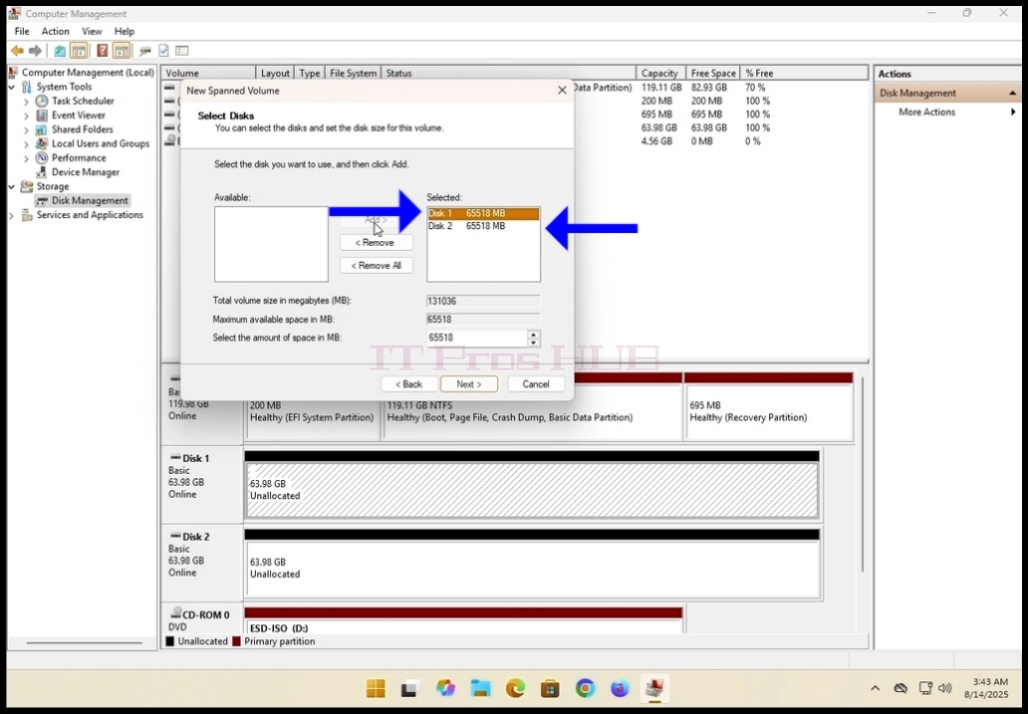
15.单击 "下一步"按钮。
16.现在您已经配置了一个跨卷!
- 文章信息
- 作者: IT Pro
- 分类:How to Articles
- 点击数:6095
1. 开放 谷歌颜色 浏览器
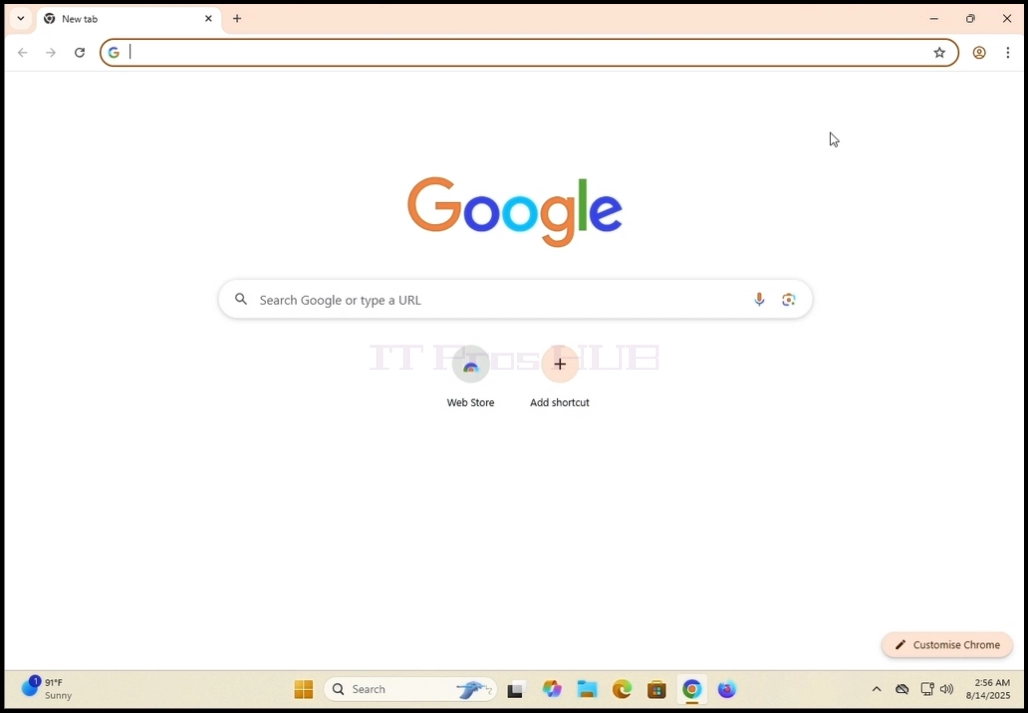
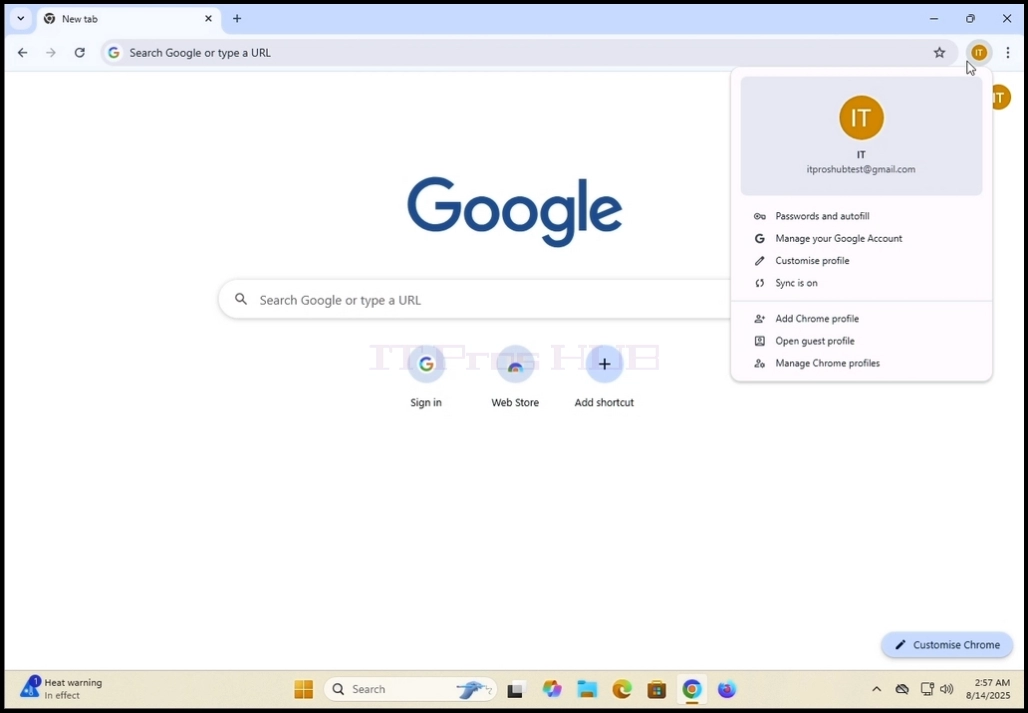
2.寻找Google Chrome浏览器右上角的配置图标. 点击它
一次,等待一个弹出窗口出现。 窗户叫做 你的克罗姆。 。 。 。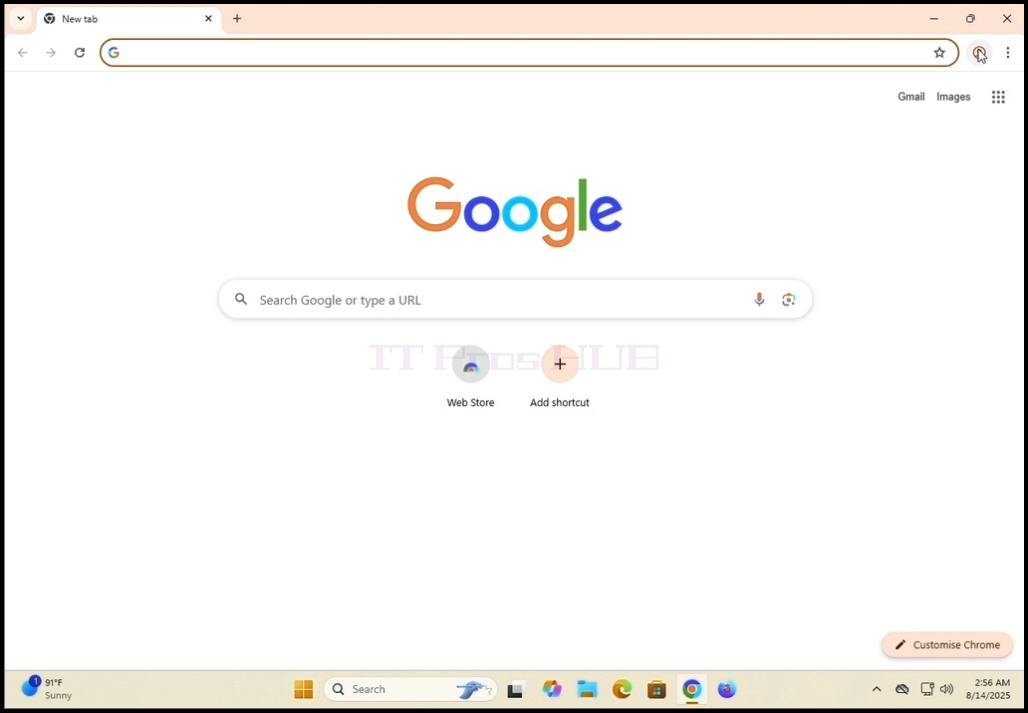
3. 在你的克罗姆窗口,寻找 签入 Chrome 按钮并点击一次。
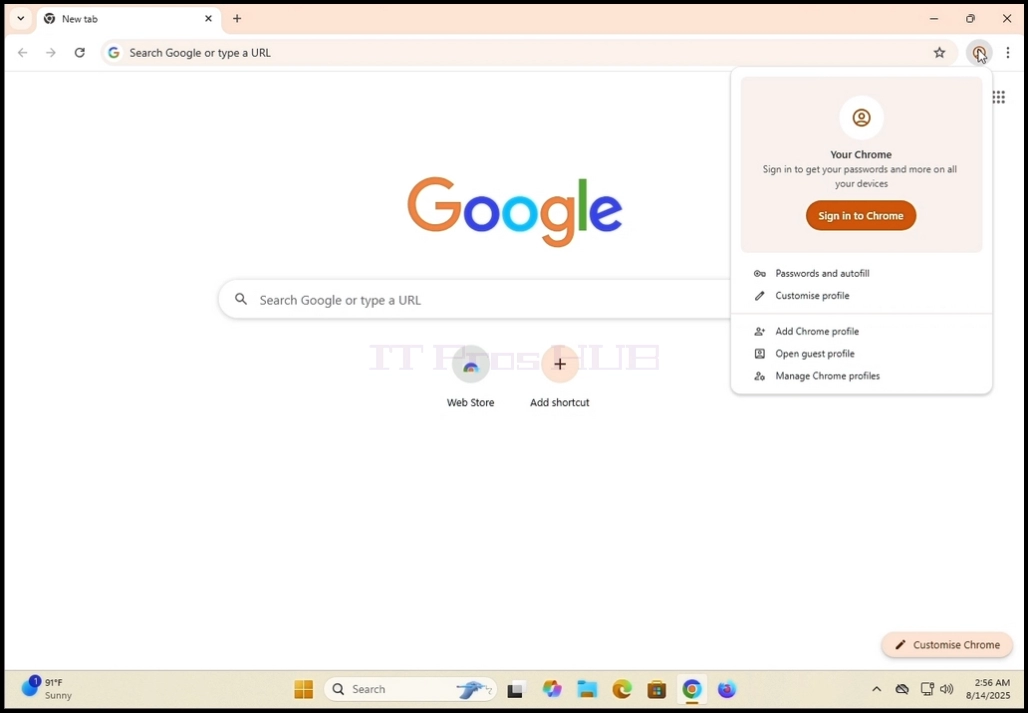
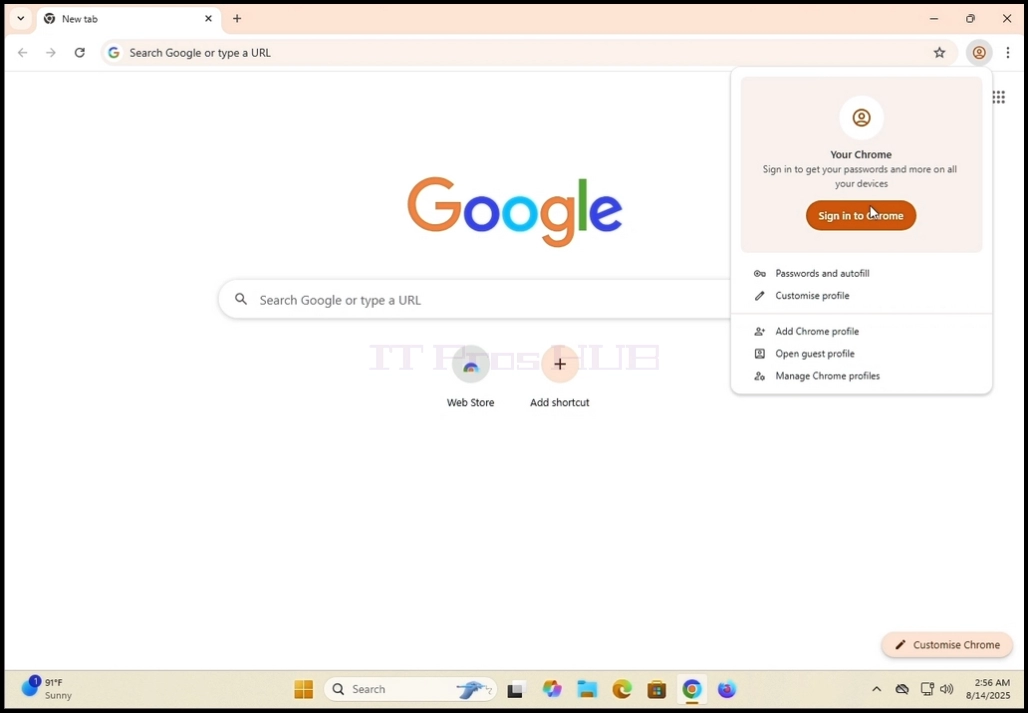
4. 点击后,弹出窗口将关闭,Google Chrome的页面将改为 签到Chrome页面。
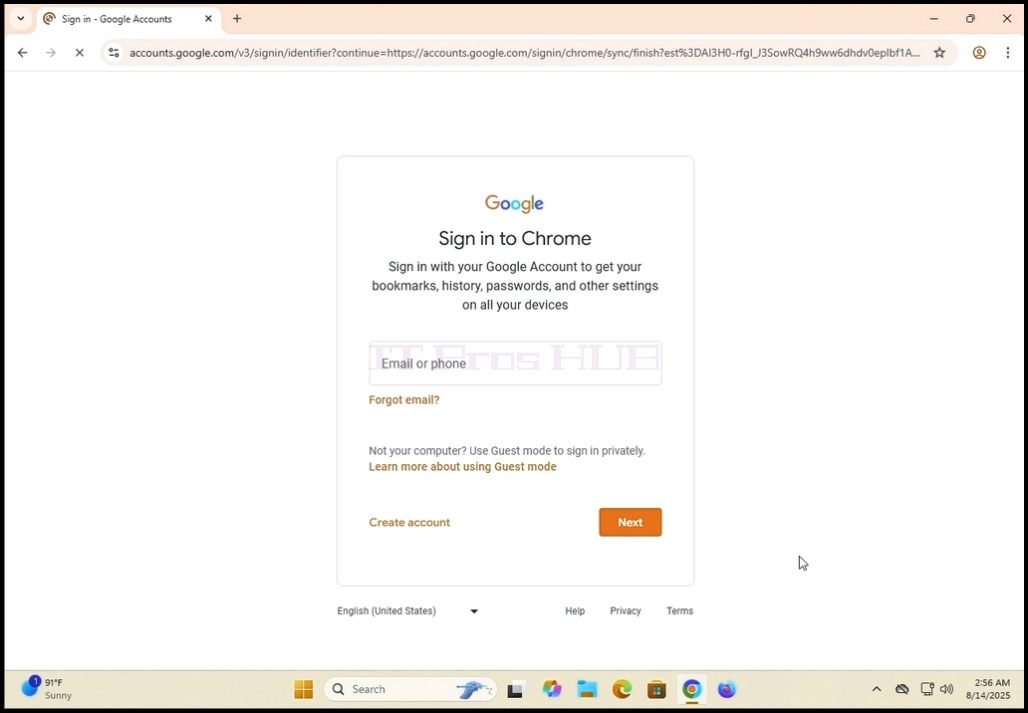
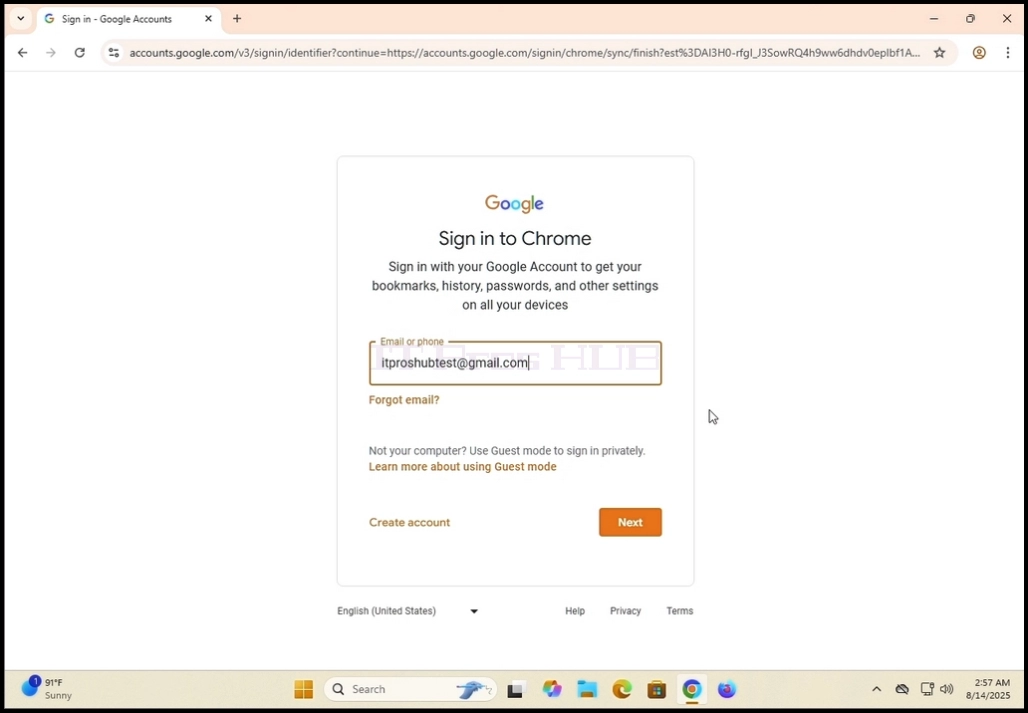
5. 在该页面中,在您的Gmail地址或您的手机中输入与您相关的
Gmail 地址并点击 输入 键 OR 单击 下一个 按钮。
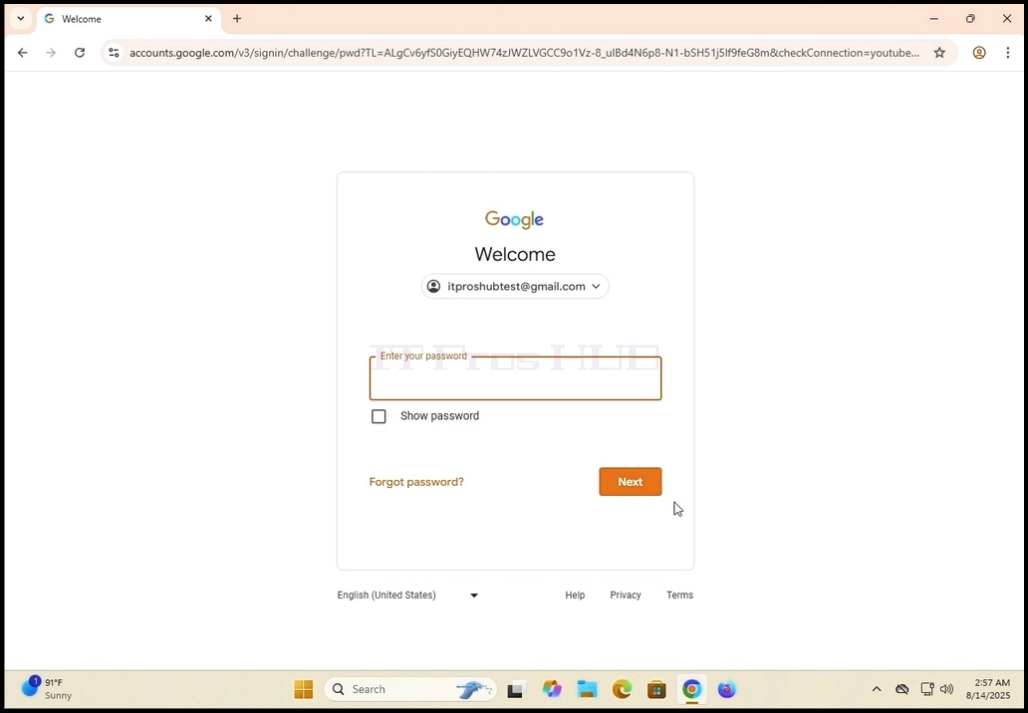
6. 等待密码窗口装入. 输入您的 Gmail 密码并点击 环境 键或
单击 下一个 键。 等着 打开同步 弹出窗口以显示 。
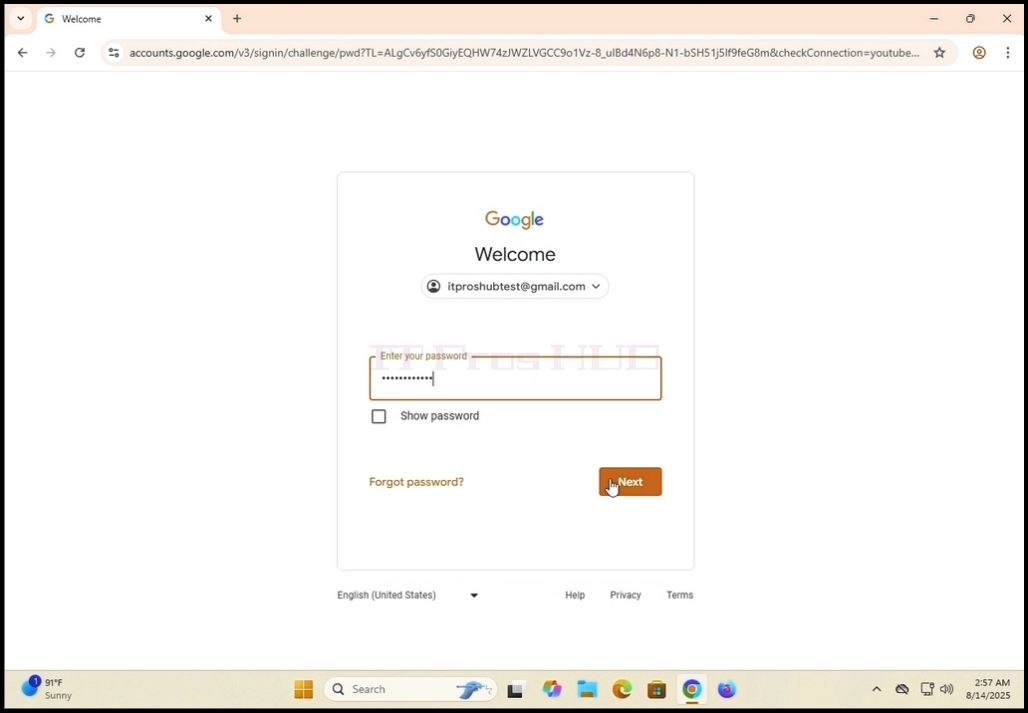
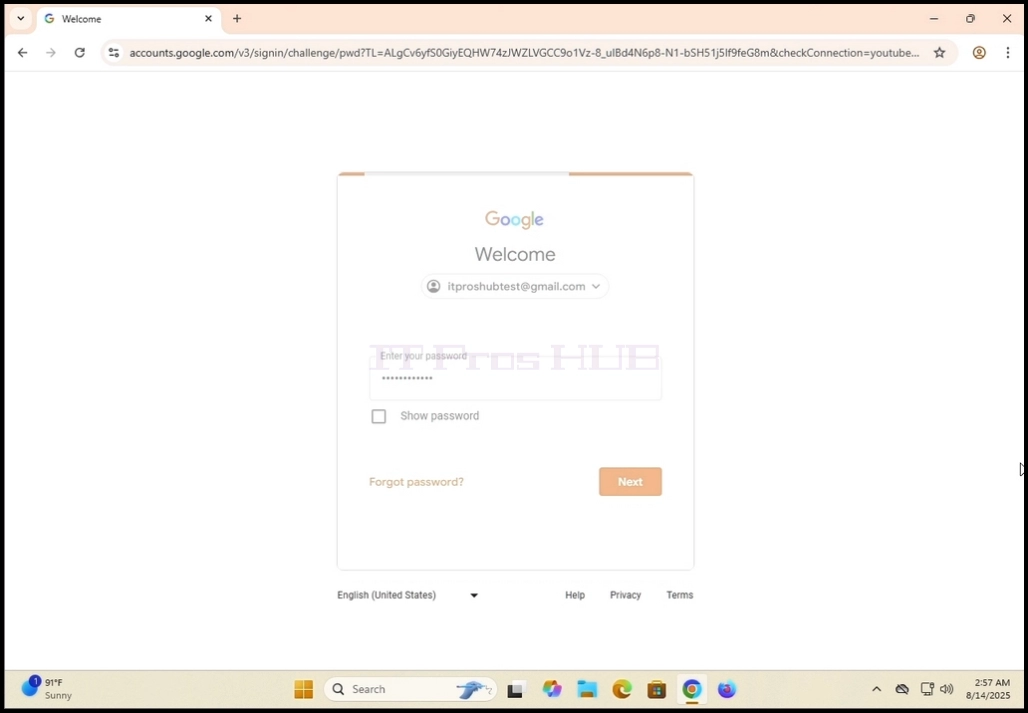
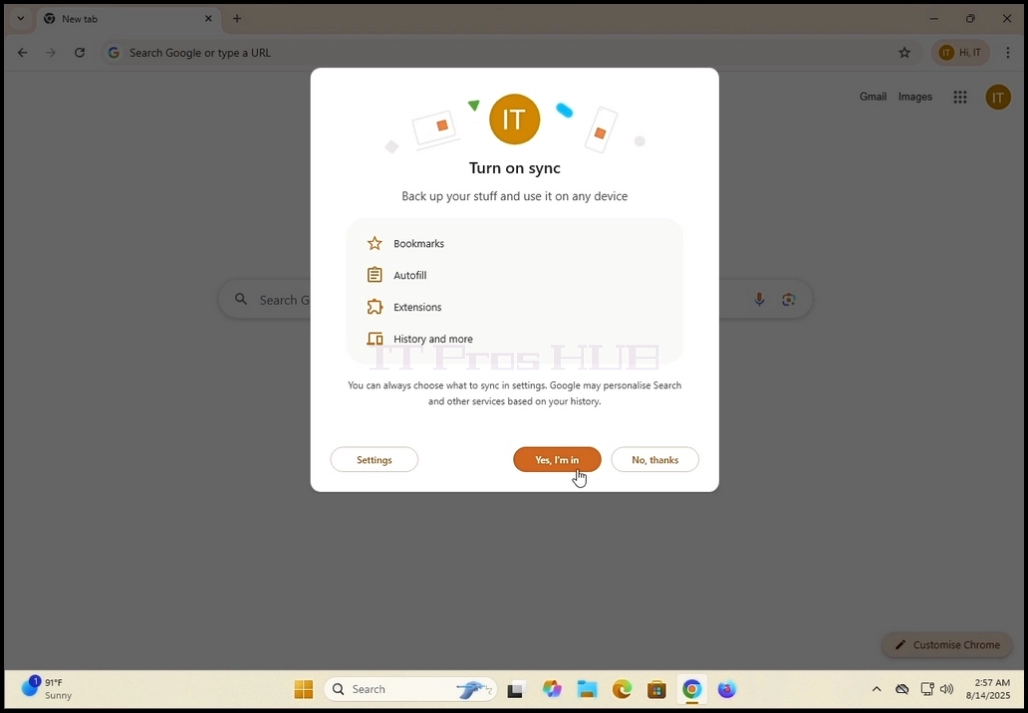
7. 在 打开同步 窗口中,您可以选择是否将 Google Chrome 本地浏览器同步到
你的Google账户一起。
点击 对,用于同步
点击 没有 感谢通过同步。
我们的建议 - 同步,这是我们将展示在本篇文章。
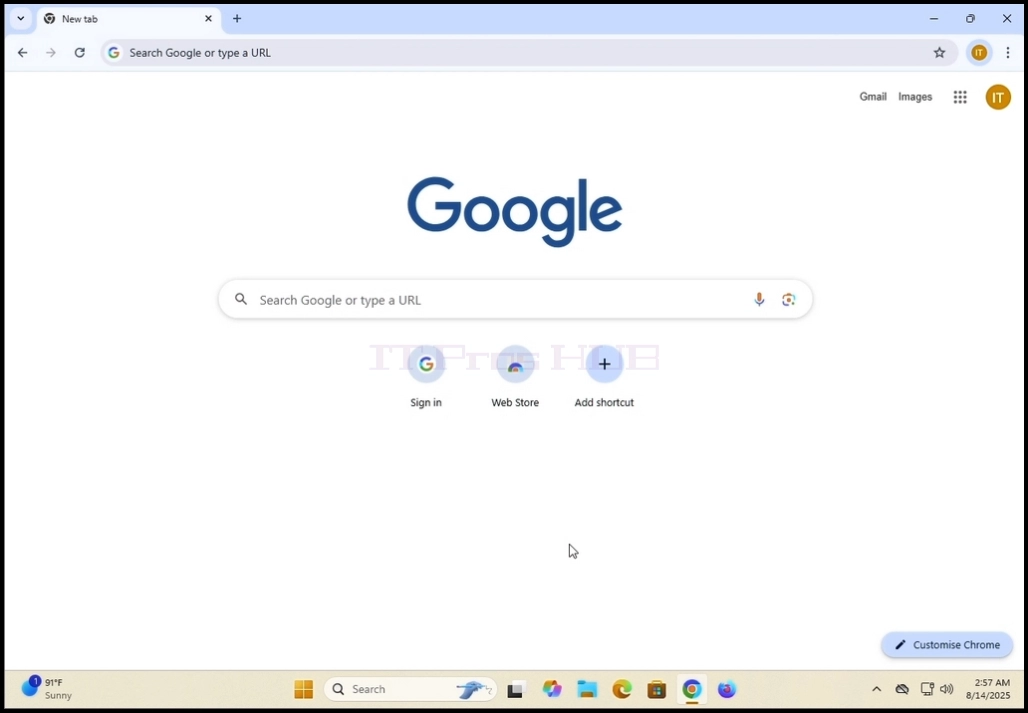
8. Google Chrome现在与你的Google账户连接,并与该账户同步。 你们所有的人
在您的 Google 账户下保存在 Google Chrome 中的数据应在本地显示于此浏览器 。
- 文章信息
- 作者: IT Pro
- 分类:How to Articles
- 点击数:6530
点击 "开始 "菜单按钮。等待开始菜单出现。


2.出现后,在开始菜单搜索框中输入计算机,进入计算机管理。
框。开始 "菜单只需键入 "计算机 "一词即可为您找到它。


3.找到后,单击 "计算机管理"图标,等待 "计算机管理"窗口加载。
管理 "窗口加载

4.在 "计算机管理 "窗口左侧窗格中,查找 "磁盘管理"。
句子。它应该在 "存储 "主分支下。找到后,点击一次。
等待窗口更改为 "磁盘管理"。

5.加载磁盘管理后,你会看到磁盘列表。查找
最近插入电脑的磁盘。确保磁盘大小
与连接到计算机的磁盘一致。大多数情况下,该磁盘应该
标有红圈,红圈内有一个 "X",这意味着它不是初始化磁盘。
6.6. 为了初始化磁盘,请右键单击该磁盘,等待侧边菜单出现。出现后
点击菜单顶部的第一个选项 -初始化。
7.点击 "初始化 "后,会弹出一个新窗口,标题为 " Initizlie Disk"。
8.在该窗口中,标出需要初始化的磁盘。确保磁盘编号
与之前列表中的磁盘编号相同。
9.选择分区样式。选项有MBR(主引导记录)和GPT(GUID分区表。
分区表。在本文中,我们将选择GPT选项 ,然后单击
确定按钮。


10.单击 "确定"按钮后,所选初始化磁盘上的红圈 X 标记将被移除。
红圈X图标,其状态应从 "未初始化 "变为"在线"。
联机。
11.现在磁盘已初始化,可随时使用

12.下一步,我们将对磁盘进行加固,以便开始在其上存储数据。
13.13. 转到磁盘行,右键单击标题中带有大长黑色条纹的大矩形。
黑色长条。等待子菜单出现。

14.14. 在子菜单中选择 "新建简单加密卷"选项,等待 "新建简单加密 卷"向导出现。
卷向导出现。

15.单击 "下一步"。

16. 选择分区的理想大小。在本文中,我们
在本文中,我们将使用磁盘的所有可用大小来创建分区。单击下一步。

17.在此,为新分区选择所需的驱动器代号。在本文中
单击下一步

18.在此,您可以选择是否格式化新分区,或将其留待以后完成。
无论如何,要在分区上存储数据,就必须以某种方式格式化分区。
在本文中,我们将选择格式化分区。因此,我们将选择
第二个选项;"使用以下设置格式化此卷:"。
19.选择后一个选项后,我们将看到以下选项:
文件系统、分配单元大小、卷标、执行快速格式化以及启用文件和文件夹压缩。
20.在本文中,我们将保留并使用默认的预选选项:
文件系统:NTFS
分配单元大小默认
卷标签新加密卷
执行快速格式化 -是
启用文件和文件夹压缩 -是。
21.解释一下这些选项:
文件系统:NTFS、exFAT 或 FAT32 - 最常用的是 NTFS,exFAT 主要用于非常大的外部卷。
FAT32 用于旧系统
分配单元大小:分配单元大小(也称为群集大小)是文件系统(如 NTFS、FAT32 或 exFAT)用于在驱动器上存储数据的最小磁盘空间块。
卷标:仅为新卷/分区命名,以便更好更快地识别。
执行快速格式化:节省准备新卷的时间。完整格式化需要大量时间,因此
对于较大的卷,则需要更多时间。
快速格式化:
作用
删除文件系统的索引("目录")。
将所有扇区标记为空,但实际上不会删除数据。
只需重新创建一个空白文件系统(如 NTFS、FAT32、exFAT)。
数据恢复:在数据被覆盖之前,仍可使用恢复工具恢复数据。
所需时间:非常快,通常只需几秒或几分钟,即使在大型硬盘上也是如此。
使用案例:
重复使用健康的硬盘。
匆忙且不需要深度清理时。
完全格式化:
作用
删除文件系统的索引,检查磁盘上的每个扇区是否有错误(坏扇区)。
在现代 Windows 版本中,会向整个磁盘写入 0(或其他模式),从而有效删除数据。
数据恢复:非常困难 - 数据已被覆盖,因此不太可能恢复。
所需时间:时间更长--可能需要数小时,具体取决于硬盘大小。
使用案例:
准备首次使用新硬盘时。
硬盘出现问题或坏扇区时。
启用文件夹和文件压缩:仅适用于 NTFS 文件系统。压缩文件和文件夹以节省空间。
有利于节省空间,但不利于提高性能。
22.点击 "下一步"按钮,等待结论窗口出现。

23.查看设置,确保它们符合你的要求。点击完成按钮。

24.等待磁盘管理应用程序执行任务。完成后
将出现在屏幕右下方,宣布操作系统发现了一个新卷。


25.您可以进入"这台电脑",仔细检查卷是否存在。


