Online: 1084 online | Members: 0 | Guests: 1084
Wednesday, June 3, 2026
Page Minimap
Reading time: 4 min read
Tagline:HowtoPerformUpdatesinWindows11viaGraphicalUserInterface
There is no translation available.

1. Click the Start button and look for the Settings icon and click it.

How_to_Perform_Updates_in_Windows_11_1.jpg

  1. Wait for the Settings window to load

How_to_Perform_Updates_in_Windows_11_2.jpgHow_to_Perform_Updates_in_Windows_11_3.jpg

3. In the Settings window, on the left pane, go to the last option, Windows Update, and click it once

How_to_Perform_Updates_in_Windows_11_5.jpg

4. Wait for the Windows Update window to load

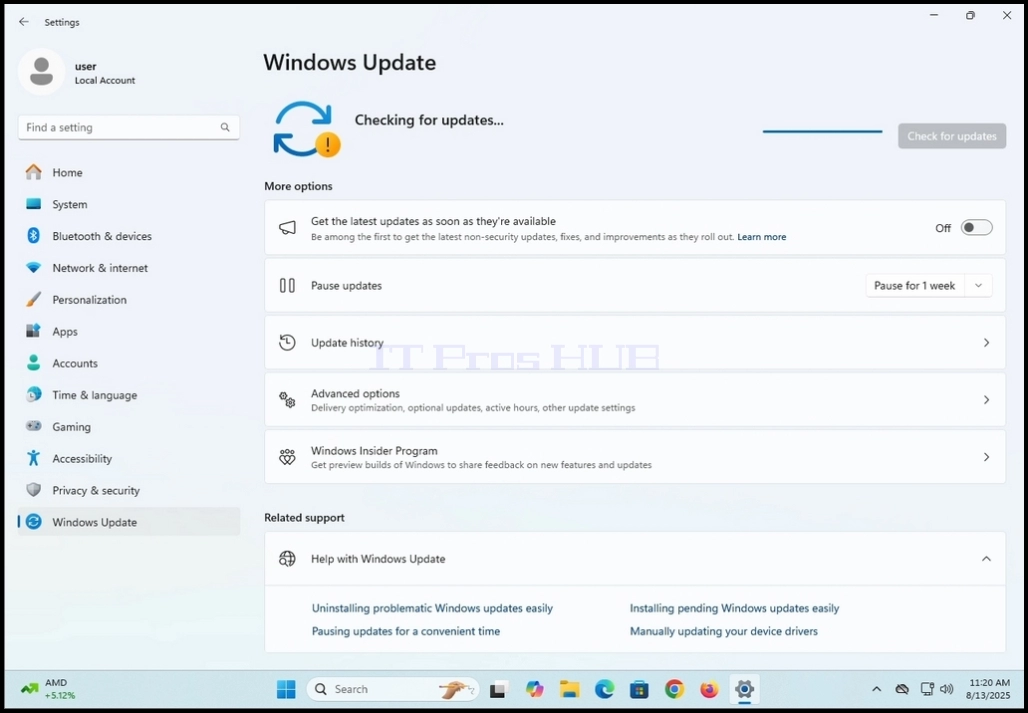
5. After it loads, click once on the Check for updates button on the right

How_to_Perform_Updates_in_Windows_11_7.jpg

6. Right after clicking the Check for updates button Windows will start looking for updates. This will be represented by an animation in the top middle part of the window
7. Wait for the animation to stop

How_to_Perform_Updates_in_Windows_11_8.jpgHow_to_Perform_Updates_in_Windows_11_10.jpg

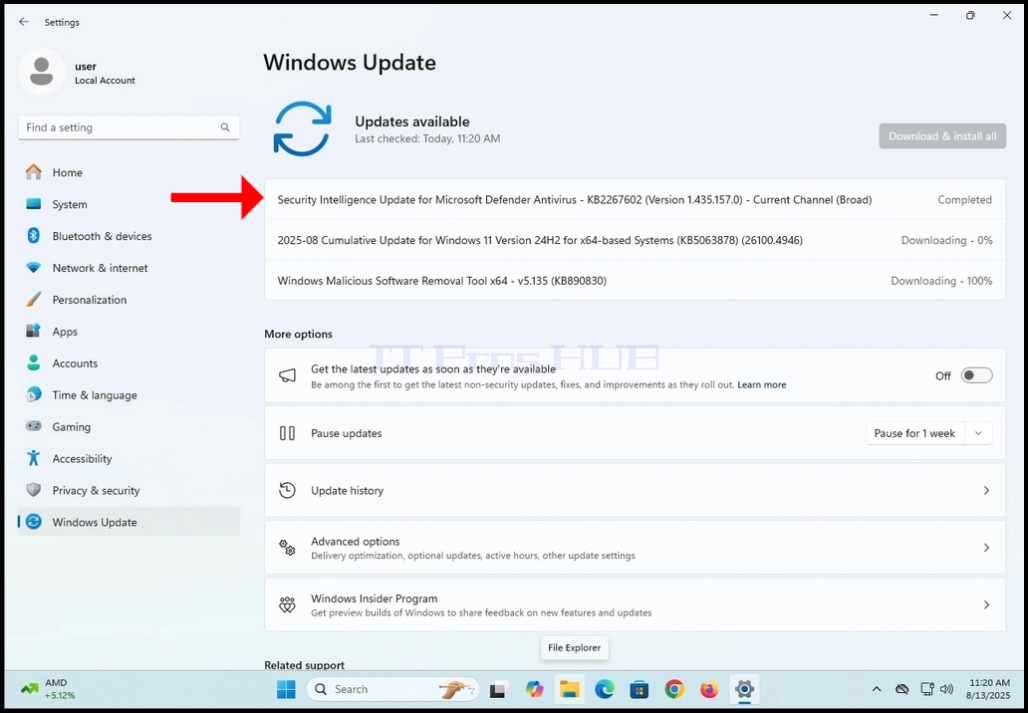
8. When the animation stops, Windows Update will show a list of the updates

9. The Check for updates button will change to Download & install all

10. Click the Download & install all button and wait for it to become greyed out

How_to_Perform_Updates_in_Windows_11_11.jpg

11. After clicking the Download & install all button, the found updates on the list’ status will change individually.

How_to_Perform_Updates_in_Windows_11_13.jpg

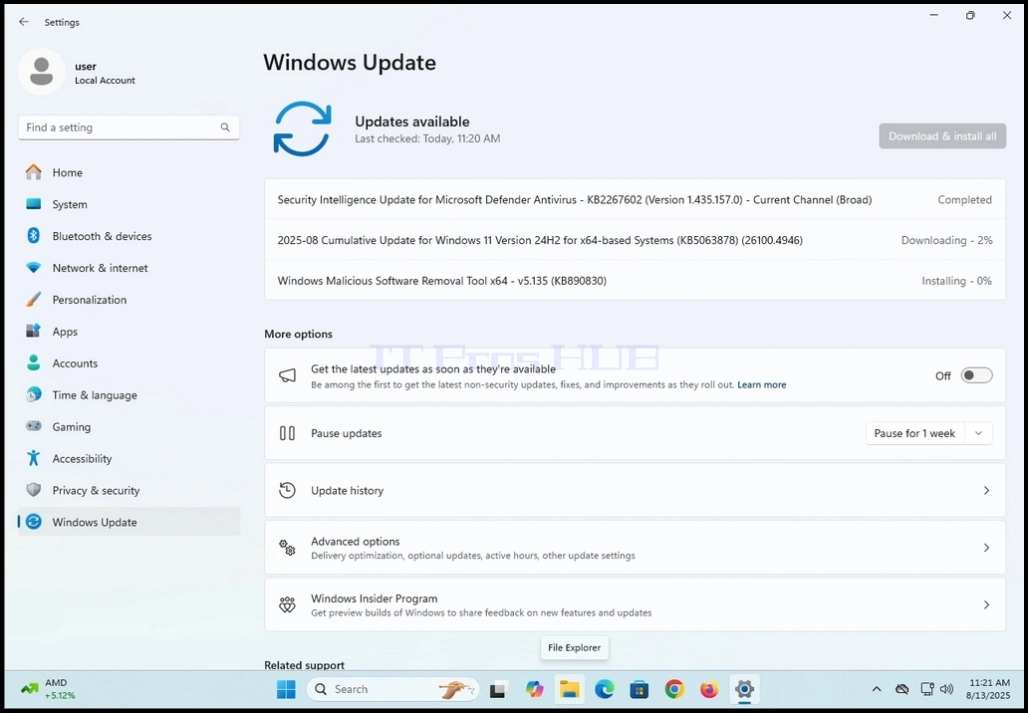
12. Their statuses will start with Downloading and will gradually and individually change to /Installing/Completed/Pending restart

How_to_Perform_Updates_in_Windows_11_14.jpg

13. Wait for all of the updates on the list to finish the logical order of updating which is Downloading >> Installing >> Completed / Pending restart
How_to_Perform_Updates_in_Windows_11_16.jpgHow_to_Perform_Updates_in_Windows_11_17.jpgHow_to_Perform_Updates_in_Windows_11_18.jpg

14. Notice in this example that we have a total of 3 updates, 2 were already finished being installed and the last one needs the computer to be restarted in order to be fully installed
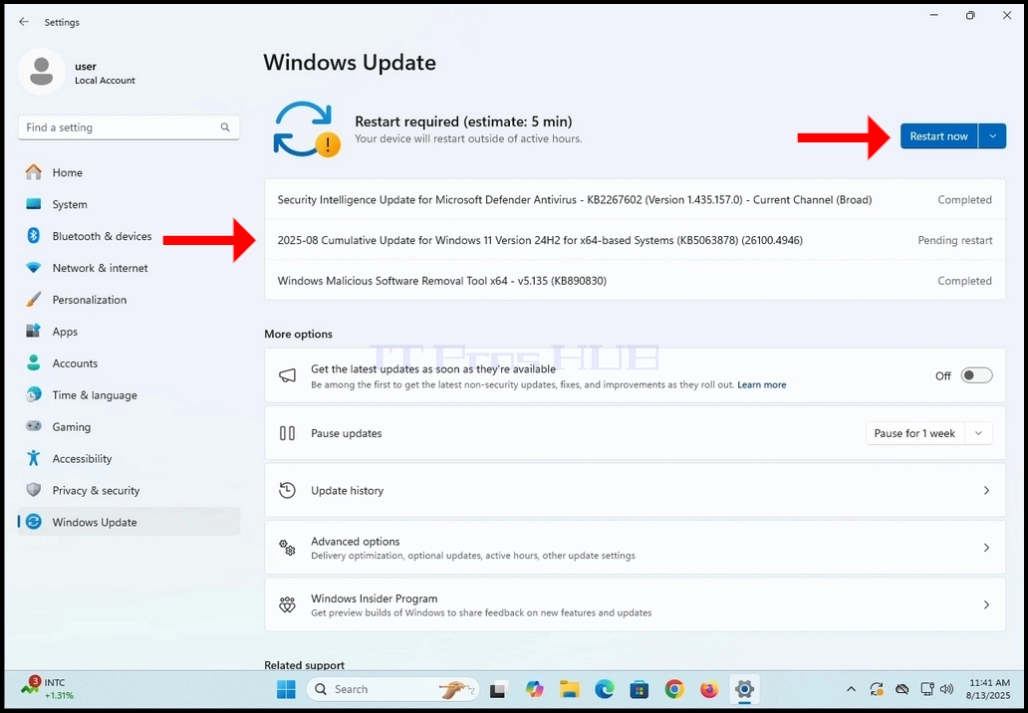
15. In order to achieve that we need to restart the computer. Notice that the greyed out Download & install all button has changed to a blue Restart now

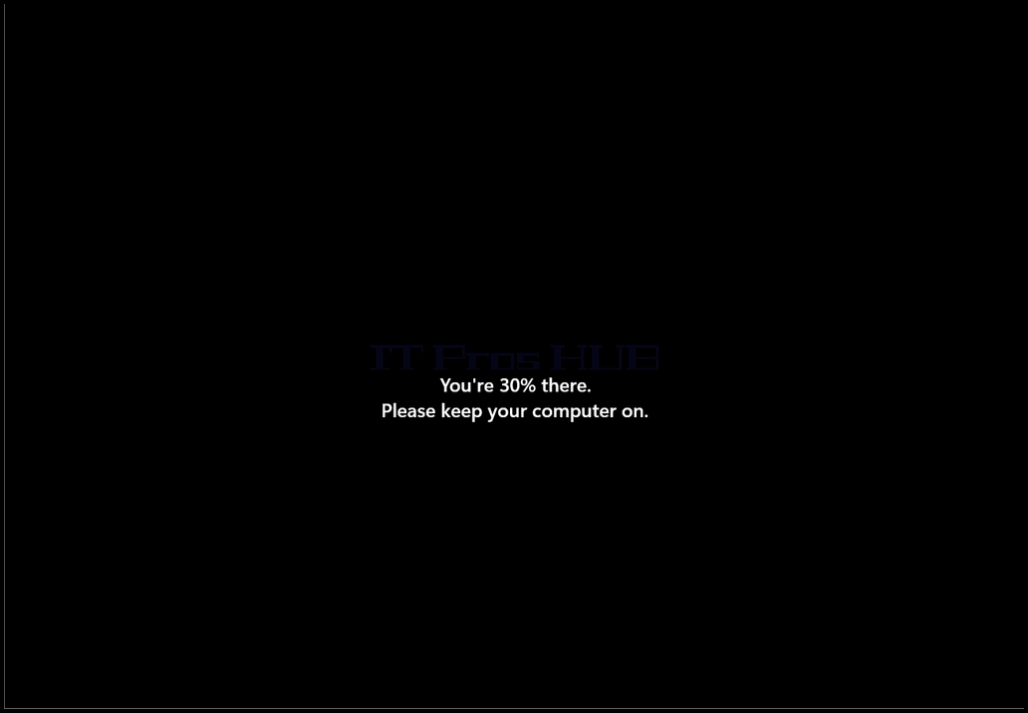
16. Click the Restart now button in order to restart Windows and finish the update process

How_to_Perform_Updates_in_Windows_11_26.jpgHow_to_Perform_Updates_in_Windows_11_27.jpgHow_to_Perform_Updates_in_Windows_11_28.jpgHow_to_Perform_Updates_in_Windows_11_30.jpg

17. After booting back up, Windows should be updated.
18. We recommend performing this process again after the update process is done. This is to only be sure that all of the updates were indeed detected, but also to check if the latest updates that had been installed weren’t a dependency of another important update