Online: 1110 online | Members: 0 | Guests: 1110
torsdag, juni 4, 2026
Page Minimap
Reading time: 3 min read
Tagline:HowtoConfigureFirefoxBrowserasTheDefaultinWindows10+1
There is no translation available.

1. Click the Start button and wait for the Start menu to appear
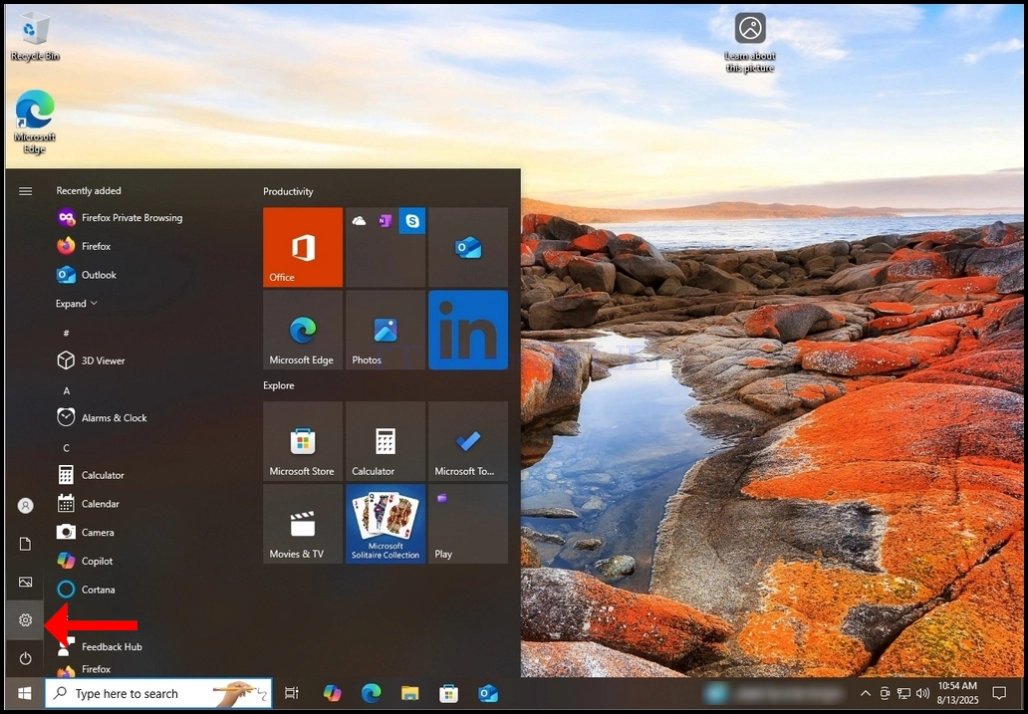
2. In the Start menu, look for the gear icon and click on it. Wait for the Settings
window to appear

How_to_Configure_Firefox_Browser_as_The_Default_Browser_in_Windows_10_2.jpg

3. In the Settings window, look for the Apps button and click on it. Wait for the
Apps & Features window to loadHow_to_Configure_Firefox_Browser_as_The_Default_Browser_in_Windows_10_10.jpg

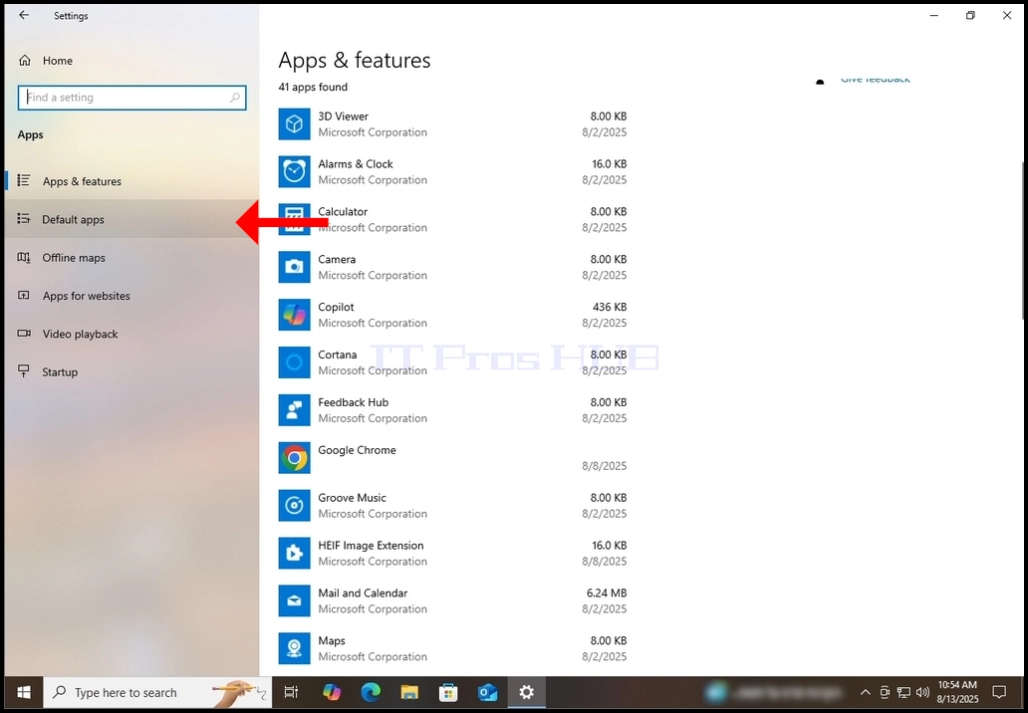
4. Once loaded, On the left pane, look for the Default apps button and click on it.
Wait for the Default apps window to loadHow_to_Configure_Firefox_Browser_as_The_Default_Browser_in_Windows_10_14.jpgHow_to_Configure_Firefox_Browser_as_The_Default_Browser_in_Windows_10_18.jpg
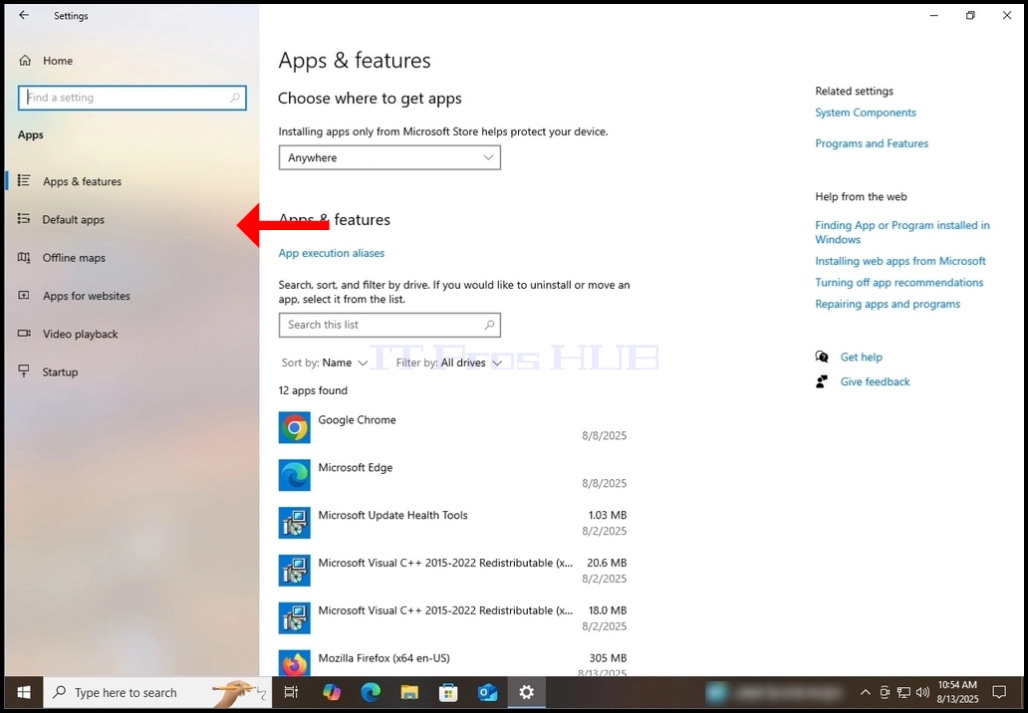
5. One loaded, look for the Web browser section on the middle part of the window.
Under that section, the default app for web browsing should appear. In the case
of this article, Google Chrome is configured as the default software for web browsing.How_to_Configure_Firefox_Browser_as_The_Default_Browser_in_Windows_10_22.jpgHow_to_Configure_Firefox_Browser_as_The_Default_Browser_in_Windows_10_26.jpg
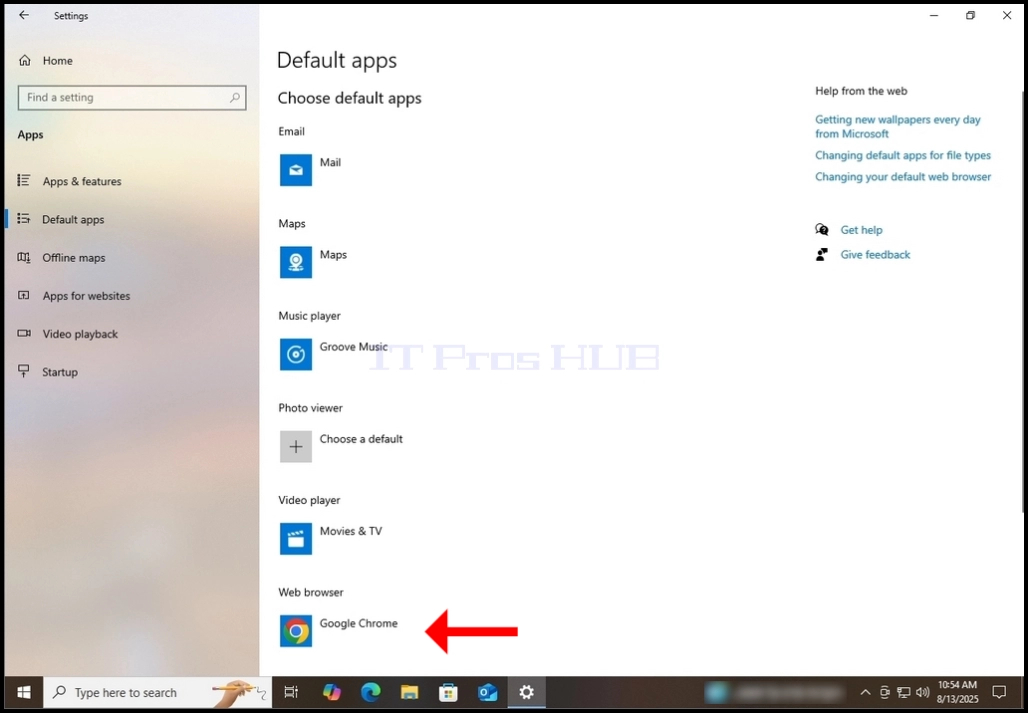
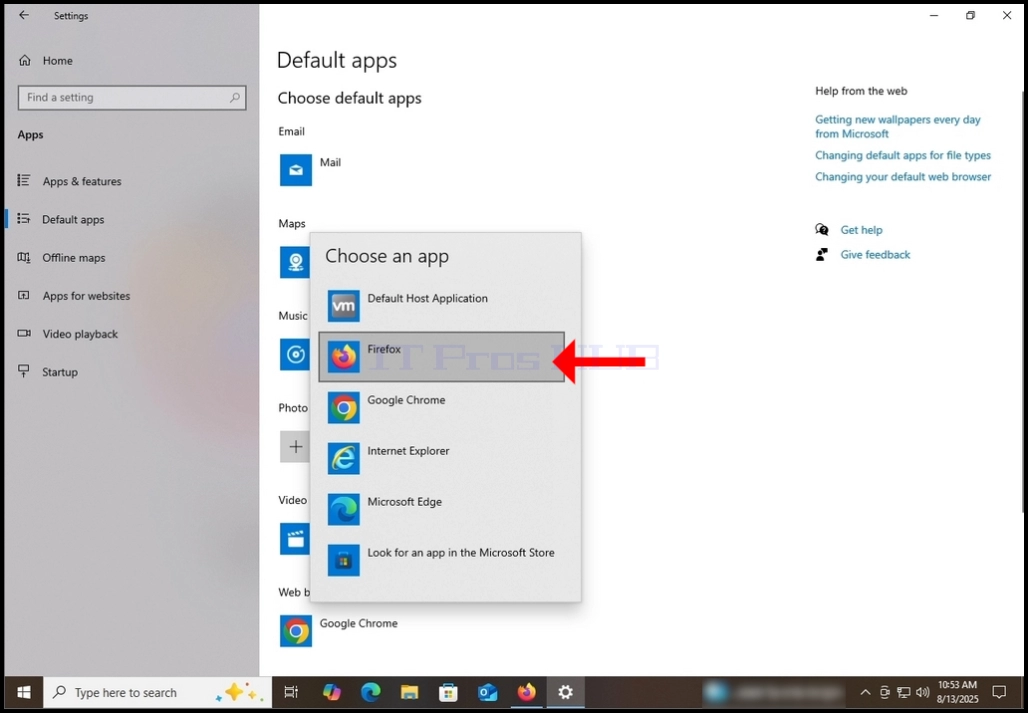
6. Click on the current default web browser, Google Chrome in this case, and wait for
a drop down menu to appear.

7. The drop down menu should contain all of the software that is capable of performing web browsing.
As you can see, Firefox appears there amongst Microsoft Edge and Internet Explorer.
Click on Firefox once in order to make it the default web browser.

How_to_Configure_Firefox_Browser_as_The_Default_Browser_in_Windows_10_30.jpg

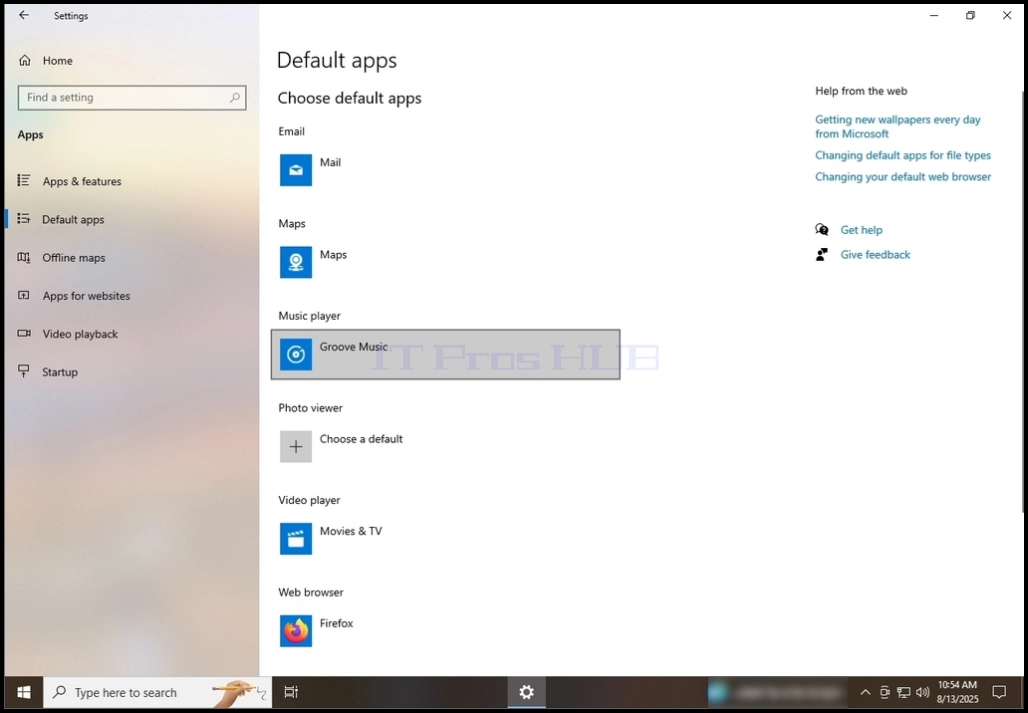
8. Once clicked on, the drop-down menu should disappear and the chosen solution, Firefox in this case,
Should appear under the Web browser section.

How_to_Configure_Firefox_Browser_as_The_Default_Browser_in_Windows_10_34.jpgHow_to_Configure_Firefox_Browser_as_The_Default_Browser_in_Windows_10_38.jpgHow_to_Configure_Firefox_Browser_as_The_Default_Browser_in_Windows_10_46.jpgHow_to_Configure_Firefox_Browser_as_The_Default_Browser_in_Windows_10_50.jpgHow_to_Configure_Firefox_Browser_as_The_Default_Browser_in_Windows_10_54.jpgHow_to_Configure_Firefox_Browser_as_The_Default_Browser_in_Windows_10_58.jpg