Photoshop bleibt in vielen Teams der bekannte Standard, aber im Jahr 2026 ist das "beste Werkzeug" oft dasjenige, das zu Ihrem Workflow, Ihrer Sicherheitshaltung, Ihrem Bereitstellungsmodell und Ihrem Budget passt, anstatt zu einem Markennamen. IT-Experten interessieren sich in der Regel weniger für Neuheitsfilter und mehr für vorhersehbare Ergebnisse: Farbgenauigkeit über Geräte hinweg, wiederholbare Exporte, Kompatibilität mit geschichteten Dateien, Automatisierungshaken und ein Lizenzmodell, das die Beschaffung nicht überraschen wird.
Die gute Nachricht ist, dass das Ökosystem gereift ist. Heute können Sie die meisten Photoshop-zentrierten Aufgaben mit einer Mischung aus modernen kommerziellen Apps, starken Open-Source-Projekten und webbasierten Editoren abdecken, die überall laufen. Der praktischste Ansatz besteht darin, Ihre tatsächlichen Anwendungsfälle - UI / UX-Assets, Marketingbanner, technische Diagramme, Fotoretusche, Texturarbeit oder Batchverarbeitung - abzubilden und dann die Werkzeuge auszuwählen, die die Reibung in Ihrer Pipeline minimieren.
Was IT-Experten beim Ersetzen von Photoshop priorisieren sollten
Bevor Sie Tools austauschen, hilft es zu definieren, was "Ersatz" in Ihrer Umgebung bedeutet. Kreative Teams konzentrieren sich oft auf Pinselgefühl und Feature-Tiefe, während die IT dazu neigt, die operative Realität zu priorisieren: Rollout, Compliance, Integration und Supportability. Die häufigsten "gotchas" erscheinen in dateikompatibilität, font-handling, farbmanagement und automatisierung.
In der Praxis ersetzen viele Unternehmen Photoshop nicht durch eine einzige App. Sie verwenden einen primären Editor für geschichtete Arbeit, ein dediziertes RAW / Foto-Workflow-Tool und ein oder zwei Dienstprogramme für Batch-Konvertierung, Komprimierung und leichte Bearbeitungen.
- Datei-Interoperabilität: PSD importieren / exportieren Qualität, geschichtete Formate, intelligente Objekte Äquivalente, Masken, Mischmodi und Textschichten.
- Farbmanagement: ICC-Profile, Soft-Proofing, vorhersehbare sRGB/Display P3-Workflows und Exportkontrollen für Web vs. Print.
- Automatisierung: Scripting, Makros, Batch-Operationen, CLI-Helfer, Headless-Konvertierung und Build-Pipeline-Freundlichkeit.
- Sicherheitshaltung: Offline-Fähigkeit, Telemetriesteuerung, Sandboxing-Einschränkungen und Verarbeitung von Web-Editor-Daten.
- Bereitstellung & Lizenzierung: MSI / PKG-Optionen, Admin-Vorlagen, sofern verfügbar, Sitzplatz- und Gerätelizenzierung und klare Verlängerungsbedingungen.
- Leistung: GPU-Beschleunigung, großes Canvas-Handling und Stabilität auf Ihren Standard-Workstation-Bildern.
Quick Tool-Picking Guide nach Use Case
| Gemeinsamer 2026 Use Case | Starke Passungen | Warum es IT-Teams gefällt |
|---|---|---|
| Layered Design, UI Assets, Marketing-Banner | Affinität Foto, Pixelmator Pro, Photopea, GIMP | Gute mehrschichtige Workflows, praktische Exportkontrollen, vorhersehbare tägliche Bearbeitung |
| Professioneller Fotoworkflow (RAW, Objektivkorrekturen, Katalogisierung) | Capture One, DxO PhotoLab, ON1 Photo RAW, Darktable, RawTherapee | Hochwertige Bildpipeline, konsistente Batch-Verarbeitung, starkes Kamera-/Objektiv-Tooling |
| Illustration, Malerei, Konzeptkunst, Texturen | Krita, Clip Studio Paint, Procreate | Ausgezeichnete Pinselmotoren und Künstler-Workflows, leichterer operativer Fußabdruck als vollständige Suiten |
| Leichte Windows-Bearbeitung und schnelles Markup | Paint.NET, GIMP | Schnelle Installationen, geringer Trainingsaufwand, g |
ood für einfache Aufgaben und interne DokumentationÜberall bearbeiten (BYOD, gesperrte Maschinen, Chromebooks)Photopea, CanvaBrowserbasierter Zugriff reduziert Workstation-Anforderungen und beschleunigt die Einführung
Beste Photoshop-Alternativen, die Sie im Jahr 2026 einsetzen können
Affinität Foto
Affinity Photo ist eine der häufigsten "Photoshop-Ersatz" -Tipps, wenn Teams einen leistungsstarken mehrschichtigen Editor ohne Abonnement-First-Modell wünschen. Es deckt eine breite Palette von Aufgaben im Photoshop-Stil ab: Compositing, Masking, Blend-Modi, Retusche und Export-Workflows für Web und Print. Für die IT ist es attraktiv, weil es sich normalerweise wie eine herkömmliche Desktop-Anwendung verhält - installierbar, offline-fähig und einfach auf Standard-Endpunkten zu unterstützen.
In gemischten Umgebungen wird Affinity Photo oft zum "primären Editor" für Designer, die Schichten und Präzision benötigen. Wenn Sie einen PSD-lastigen Workflow migrieren, testen Sie Ihre komplexesten PSDs frühzeitig – insbesondere solche, die auf spezielle Funktionen wie erweiterte Texteffekte, ungewöhnliche Mischmodi oder eingebettete Assets angewiesen sind. Wo die Kompatibilität stark ist, können Teams ein Affinity-natives Projektformat standardisieren und PSD nur dann exportieren, wenn es für externe Anbieter benötigt wird.
- Am besten für: Mehrschichtiges Compositing, UI-Assets, Marketing-Images, allgemeine Bearbeitung
- IT-Winkel: vorhersagbare Desktop-Bereitstellung, Offline-Workflows, weniger Identitäts-/Lizenzüberraschungen
- Achten Sie auf: Edge-Case-PSD-Funktionen; Validierung von Vorlagen und Shared-Asset-Bibliotheken
GIMP
GIMP bleibt die Flaggschiff-Open-Source-Alternative für die Rasterbearbeitung. Es ist weit verbreitet, aktiv gepflegt und passt gut in Umgebungen, die Transparenz, Offline-Nutzung und breite OS-Unterstützung schätzen. Für IT-gesteuerte Organisationen ist der größte Vorteil die Governance: Sie können auf einer offenen Toolchain standardisieren, sie dokumentieren und sie ohne einen Beschaffungszyklus pro Sitz weitgehend einsetzen.
GIMP ist besonders nützlich für Teams, die eine zuverlässige Bildbearbeitung für Dokumentation, Wissensdatenbanken, interne Tooling-Benutzeroberflächen und technisches Publizieren benötigen. Das Plugin-Ökosystem kann Lücken schließen und ist eine gute Wahl für Skript- und Batch-Aufgaben, wenn es mit konsistenten Prozessen kombiniert wird. Für Designer, die Photoshop-ähnliche UX erwarten, ist möglicherweise ein Training erforderlich, also sollten Sie interne "Task-Rezepte" für gängige Workflows wie Ausschnitte, Mockups und Web-Export-Presets erstellen.
- Am besten für: allgemeine Bearbeitung, Webgrafik, technische Content-Teams, gemischte OS-Flotten
- IT-Winkel: Open-Source-Governance, breite Bereitstellung, Offline-First-Workflows
- Achten Sie auf: UX-Unterschiede; PSD-Fidelität variiert mit komplexen Schichtstrukturen
Krita
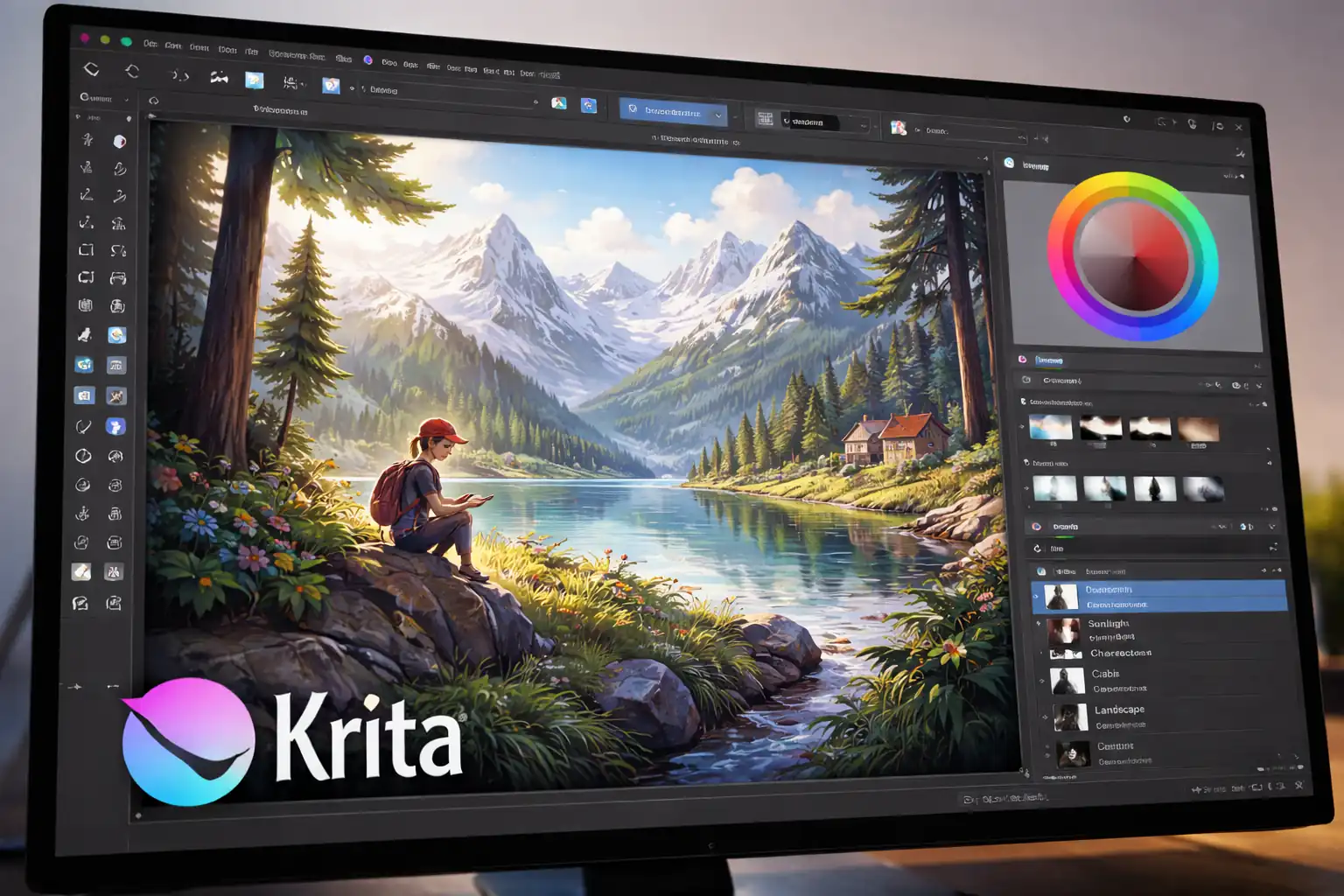
Krita wird oft als digitales Mal- und Illustrationswerkzeug kategorisiert, ist aber auch eine starke Photoshop-Alternative für viele kreative Teams - insbesondere für diejenigen, die Kunstwerke, Konzeptgrafiken, Texturen und stilisierte Assets produzieren. Es glänzt dort, wo Pinselqualität und Zeichnungsworkflows wichtiger sind als die Retusche von Unternehmensfotos.
Für IT-Experten, die Kreativabteilungen unterstützen, ist Krita ein praktischer "Spezialist", der den Bedarf an Schwergewichtsabonnements in Rollen reduzieren kann, die nicht das vollständige Photoshop-Feature-Set erfordern. Es eignet sich auch gut für Teams, die Produktvisualisierungen, UI-Illustrationen und Präsentationsfunktionen erstellen, bei denen Geschwindigkeit und Pinsel die Antriebsleistung spüren.
- Am besten für: Illustration, Malerei, Texturen, kreative Asset Generation
- IT-Winkel: Cross-Plattform-Unterstützung, starke Fähigkeiten ohne Suite-Lock-In
- Achten Sie auf: weniger auf traditionelle Fotokatalog-Workflows konzentriert; bei Bedarf mit einem RAW-Tool paaren
Photopea
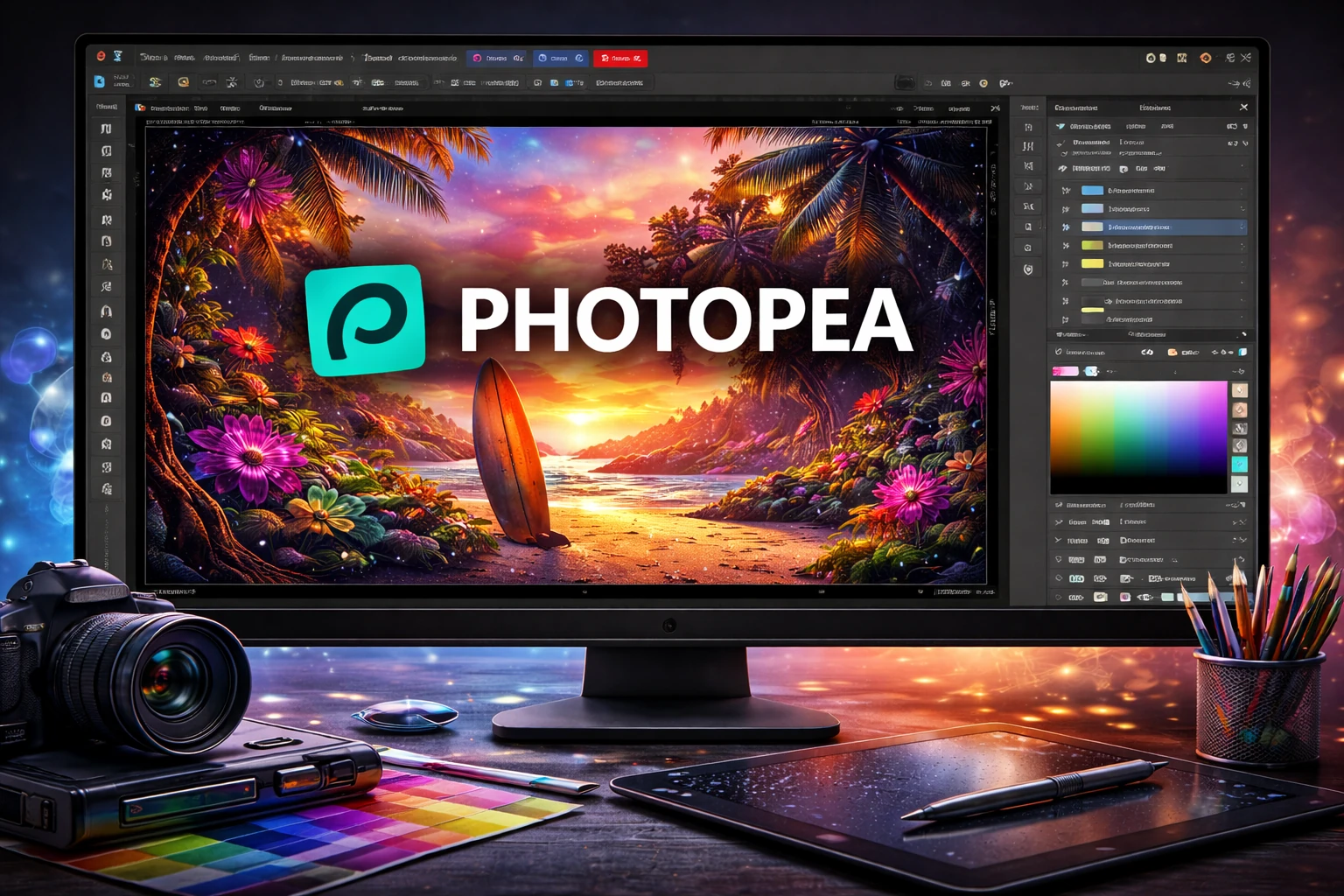
Photopea ist ein webbasierter Editor mit einem Photoshop-ähnlichen Workflow, der mehrschichtige Dateien öffnen und viele gängige PSD-zentrierte Aufgaben direkt im Browser erledigen kann. Es ist äußerst nützlich in gesperrten Umgebungen, in denen die Installation einer vollständigen Desktop-Software langsam, blockiert oder inkonsistent bei Auftragnehmern und Zeitarbeitskräften ist.
Aus IT-Sicht ist Photopea oft ein „schnelles Entsperrungs-Tool. Es eignet sich hervorragend für schnelle Korrekturen, Überprüfungen von Anbieterdateien, einfaches Compositing und Notfallbearbeitungen, wenn sich jemand auf einem eingeschränkten Computer befindet. Da es webbasiert ist, bewerten Sie es über Ihre Sicherheitslinse: Datenverarbeitung, Offline-Anforderungen und alle Richtlinien zum Hochladen sensibler Bilder. Viele Orgs behandeln Browser-Editoren als geeignet für nicht-sensible Assets und halten die Arbeit mit offline-fähigen Desktop-Tools vertraulich.
- Am besten für: schnelle PSD-Bearbeitungen, Auftragnehmer-Workflows, geräteunabhängiger Zugriff
- IT-Winkel: minimale Einsatzreibung, gut für "Bruchglas" -Situationen
- Achten Sie auf: Sicherheits-/Compliance-Richtlinien für browserbasiertes Content-Handling
Pixelmator Pro
Pixelmator Pro ist eine beliebte macOS-fokussierte Alternative, die Leistung und Zugänglichkeit ausbalanciert. Es ist besonders stark für Teams, die qualitativ hochwertige Ergebnisse ohne den Overhead einer Enterprise Suite benötigen. Für Mac-schwere Orgs kann es zum Standard-Editor für Produkt-Screenshots, Marketing-Assets, UI-Grafiken und die tägliche Bildproduktion werden.
IT-Teams, die Mac-Flotten unterstützen, schätzen oft Tools, die sich "nativ" fühlen, auf Standard-Hardware gut funktionieren und die Abhängigkeit von plattformübergreifenden Lizenzbeschränkungen reduzieren. Pixelmator Pro passt gut, wenn die kreative Leistung des Unternehmens hauptsächlich digital ist (Web, Benutzeroberfläche, Dokumentation) und nicht drucklastige farbgesteuerte Pipelines.
- Am besten für: macOS Teams, UI Assets, Marketing Grafiken, schnelle Bearbeitungen
- IT-Winkel: schlanke Mac-Bereitstellung, starke Leistung, geringer Overhead
- Achten Sie auf: macOS-only Umfang; Ausrichten von Werkzeugen, wenn Ihre Flotte gemischtes Betriebssystem ist
Corel PaintShop Pro
PaintShop Pro ist eine Windows-zentrierte Option, die sich an Benutzer richtet, die ein leistungsfähiges Fotoeditor- und Design-Toolset wünschen, ohne sich auf ein Ökosystem-Abonnement zu verpflichten. Es wird häufig in KMU-Umgebungen und von Teams verwendet, die einen vertrauten Desktop-First-Ansatz für die Bildarbeit bevorzugen.
Für die IT ist der Wert eine einfache Bereitstellung innerhalb eines Windows-Standardbildes und weniger externe Abhängigkeiten. Es ist eine praktische Wahl für interne Content-Teams, die Dokumentationsvisuale, Bannergrafiken und Produkt-Screenshots erstellen - insbesondere wenn Sie ein einzelnes Tool benötigen, das viele Routinebearbeitungsaufgaben ohne eine steile Lernkurve abdecken kann.
- Am besten für: Windows-Shops, allgemeine Fotobearbeitung, interne Content-Produktion
- IT-Winkel: Desktop-First-Bereitstellung, vorhersehbare Endpunktleistung
- Achten Sie auf: Dateiaustauschanforderungen validieren, wenn Sie stark mit PSD-First-Anbietern zusammenarbeiten
Farbe. NET
Paint.NET ist das „leichte Arbeitspferd, das viele IT-Teams herumtragen, weil es schnell, einfach und effektiv für alltägliche Aufgaben ist. Es zielt nicht darauf ab, Photoshop Feature-for-Feature zu ersetzen, aber es deckt Zuschneiden, Größenänderung, Annotation, grundlegende Schichtnutzung und schnelle Asset-Vorbereitung zuverlässig ab.
In der Praxis, Paint. NET ist ideal für IT-Dokumentationsworkflows: Screenshots, Redaktionen, Pfeile und Callouts, einfaches Compositing und schnelle Exporte für Ticketsysteme oder interne Wikis. Es ist auch ein guter "Standard-Editor" für Nicht-Designer, die gelegentliche Bildaufgaben ohne großen Trainingsaufwand erledigen müssen.
- Am besten für: Screenshot-Markup, schnelle Bearbeitungen, IT-Dokumentationsteams
- IT-Winkel: Leichter Einsatz, geringe Schulungskosten, schnelle Leistung
- Achten Sie auf: nicht für fortgeschrittenes Compositing oder High-End-Retusche gedacht
Clip Studio Paint
Clip Studio Paint wird häufig für Illustrationen, Comics und detaillierte Pinselarbeiten verwendet. Für Unternehmen, die kreative Assets produzieren - Tutorial-Visuals, Charakter-Art, stilisierte Produktillustrationen oder Marketing-Kunstwerke - kann Clip Studio als primäres kreatives Werkzeug dienen, bei dem Photoshop sonst hauptsächlich für Pinsel und Schichten verwendet wird.
IT-Teams neigen dazu, Clip Studio als rollenspezifisches Tool zu behandeln: Bereitstellen es für Künstler und visuelle Schöpfer, während ein allgemeinerer Editor für die breitere Organisation beibehalten wird. Dies reduziert die Lizenzverbreitung und richtet das Tooling an der tatsächlichen Ausgabe aus.
- Am besten für: Illustrationslastige Teams, Pinselworkflows, stilisierte kreative Produktion
- IT-Winkel: Gezielte Bereitstellung nach Rolle, reduziert die Abhängigkeit von einer breiten Suite
- Achten Sie auf: Pair mit einem Foto-Workflow-Tool, wenn RAW und Objektivkorrekturen zentral sind
Procreate
Procreate ist eine herausragende Option für iPad-basierte kreative Workflows. Es ist kein direkter Photoshop-Klon, aber für Teams, die skizzieren, Storyboards erstellen, Illustrationen erstellen oder Konzeptvisuale erstellen, kann Procreate einen erheblichen Teil der Photoshop-Nutzung ersetzen - insbesondere wenn Portabilität und Stylus-Eingabe wichtig sind.
In Organisationen, die moderne Geräteprogramme unterstützen, wird Procreate oft zu einem "Ersteller-Notizblock", der eine Desktop-Pipeline speist. Die IT-Gelegenheit besteht darin, die Übergabe zu formalisieren: Definieren Sie Exportformate, Namenskonventionen und Speicherorte, damit sich die Kunstwerke sauber von der iPad-Erstellung bis zur Desktop-Finishing und Versionskontrolle bewegen.
- Am besten für: Tablet-First Kreation, Skizze, Illustration, Konzeptkunst
- IT-Winkel: Stark für mobile Creator-Programme; klare Workflows reduzieren die Speicherung von Schatten-Assets
- Achten Sie auf: iPad-zentriert; definieren, wie Dateien für die Zusammenarbeit im Team exportiert und gespeichert werden
leuchtend
KI-gestützte Fotoeditoren wie Luminar sind beliebt, wenn das Ziel Geschwindigkeit ist: schnelle Verbesserung, Bereinigung und stilisierte Looks ohne tiefe manuelle Retusche. Diese Tools können Photoshop für eine überraschende Anzahl von Marketing- und Content-Aufgaben ersetzen, bei denen "gut schnell" mehr zählt als perfekte Kontrolle.
Für IT-Profis liegt der Schlüssel darin, Erwartungen zu setzen. KI-gesteuerte Bearbeitung kann für einen einzelnen Benutzer konsistent sein, kann aber je nach Asset-Typen und Markenrichtlinien variieren. Wenn Sie ein KI-Tool in der Produktion standardisieren, dokumentieren Sie die Voreinstellungen und Exporteinstellungen, damit die Ausgabe für alle Teammitglieder vorhersehbar bleibt.
- Am besten für: schnelle Fotoverbesserung, Content-Teams, Marketing-Turnaround
- IT-Winkel: beschleunigt die Produktion; Standard-Presets verbessern die Konsistenz
- Achten Sie auf: Markenkonsistenz und Wiederholbarkeit; Validierung von Outputs gegen Richtlinien
ON1 Foto RAW
ON1 Photo RAW wird häufig als All-in-One-Foto-Workflow-Tool verwendet, das RAW-Verarbeitung, -Effekte und viele Änderungen verarbeiten kann, die ansonsten zwischen Photoshop und einer dedizierten RAW-Anwendung aufgeteilt werden könnten. Es ist ein starker Kandidat für Teams, die sich mit großen Fotovolumen befassen und batchfreundliche Werkzeuge benötigen.
Aus IT-Sicht kann ein konsolidierter Workflow das Training und die Zersiedelung von Werkzeugen reduzieren. Wenn die Photoshop-Nutzung Ihrer Organisation hauptsächlich "Foto-Pipeline" und nicht komplexes Design-Compositing ist, kann ON1 einen großen Teil der täglichen Arbeit abdecken.
- Am besten für: hochvolumige Fototeams, Batch-Workflows, konsolidierte Bearbeitung
- IT-Winkel: weniger Tools zu unterstützen, klarere Pipeline, starke Batch-Operationen
- Achten Sie auf: Validierung erweiterter Compositing-Anforderungen; bei Bedarf mit einem mehrschichtigen Editor koppeln
DxO PhotoLab
DxO PhotoLab ist bekannt für die Bildqualität in der RAW-Pipeline, insbesondere in Bereichen wie Lärmbehandlung, Detailerhaltung und optische Korrekturen. Wenn es bei Ihrem "Photoshop-Workload" oft darum geht, Fotos für Web, Produktseiten oder Marketing zu verbessern - anstatt schweres Compositing - kann DxO das primäre Werkzeug werden und reduzieren, wie oft Photoshop überhaupt benötigt wird.
IT-Teams, die medienlastige Orgs unterstützen, können von einem zweistufigen Ansatz profitieren: DxO (oder ein Äquivalent) für RAW- und Batch-Verbesserungen und einen mehrschichtigen Editor nur für die kleineren Assets, die wirklich Compositing erfordern. Dies hält die Lizenzierung zielgerichtet und vereinfacht die Ausbildung.
- Am besten für: qualitätsorientierte RAW-Workflows, Fotooptimierung, Batch-Verarbeitung
- IT-Winkel: Reduziert die Abhängigkeit von schwergewichtigen Compositing-Tools für Photo-Only-Pipelines
- Achten Sie auf: Mehrschichtiges Grafikdesign benötigt noch einen dedizierten Raster-Editor
Capture One
Einfangen Eine davon ist eine professionelle Wahl für Fotografen und Teams, die einen robusten Katalog und RAW-Workflow benötigen. Es ist eine starke "Photoshop-Alternative", wenn Photoshop in erster Linie als letzte Stufe nach der RAW-Verarbeitung verwendet wird. In vielen Umgebungen erledigt Capture One die meisten Bearbeitungen, während nur eine kleine Teilmenge von Bildern geschichtetes Compositing benötigt.
Für IT-Profis ist der praktische Nutzen die Spezialisierung. Einfangen Man kann eine konsistente Foto-Pipeline mit definierten Export-Presets und farbverwalteten Workflows verankern, während die Organisation einen separaten geschichteten Editor für die Minderheit der Fälle, die dies erfordern, bereithält.
- Am besten für: Studio-Workflows, Katalogisierung, kontrollierte Exportpipelines
- IT-Winkel: konsistenter Fotoworkflow reduziert die Varianz zwischen Teams
- Achten Sie auf: nicht als Allzweckrasterersatz konzipiert
dunkler Tisch
darktable ist ein leistungsstarkes Open-Source-RAW-Workflow-Tool. In Organisationen, die offene Werkzeuge bevorzugen, kann es die Grundlage für eine qualitativ hochwertige Fotopipeline mit robusten Batch-Fähigkeiten sein. Es passt gut zu GIMP für die "Endarbeit", die Schichten, Text oder Compositing erfordert.
Wenn Sie Linux-lastige Umgebungen oder sicherheitsorientierte Workflows unterstützen, die Cloud-Abhängigkeiten vermeiden, ist die Darktable + GIMP-Kombination einer der stärksten "All-Open-Source" -Ersatz für große Teile eines typischen Photoshop-zentrierten Workflows.
- Am besten für: Open-Source RAW-Pipelines, Batch-Verarbeitung, Linux-freundliche Workflows
- IT-Winkel: Governance-freundlich, offline-first, stark für standardisierte Exporte
- Achten Sie auf: erforderliche Schulung; Berücksichtigung der Dokumentation für Presets und Exportstandards
RawTherapee
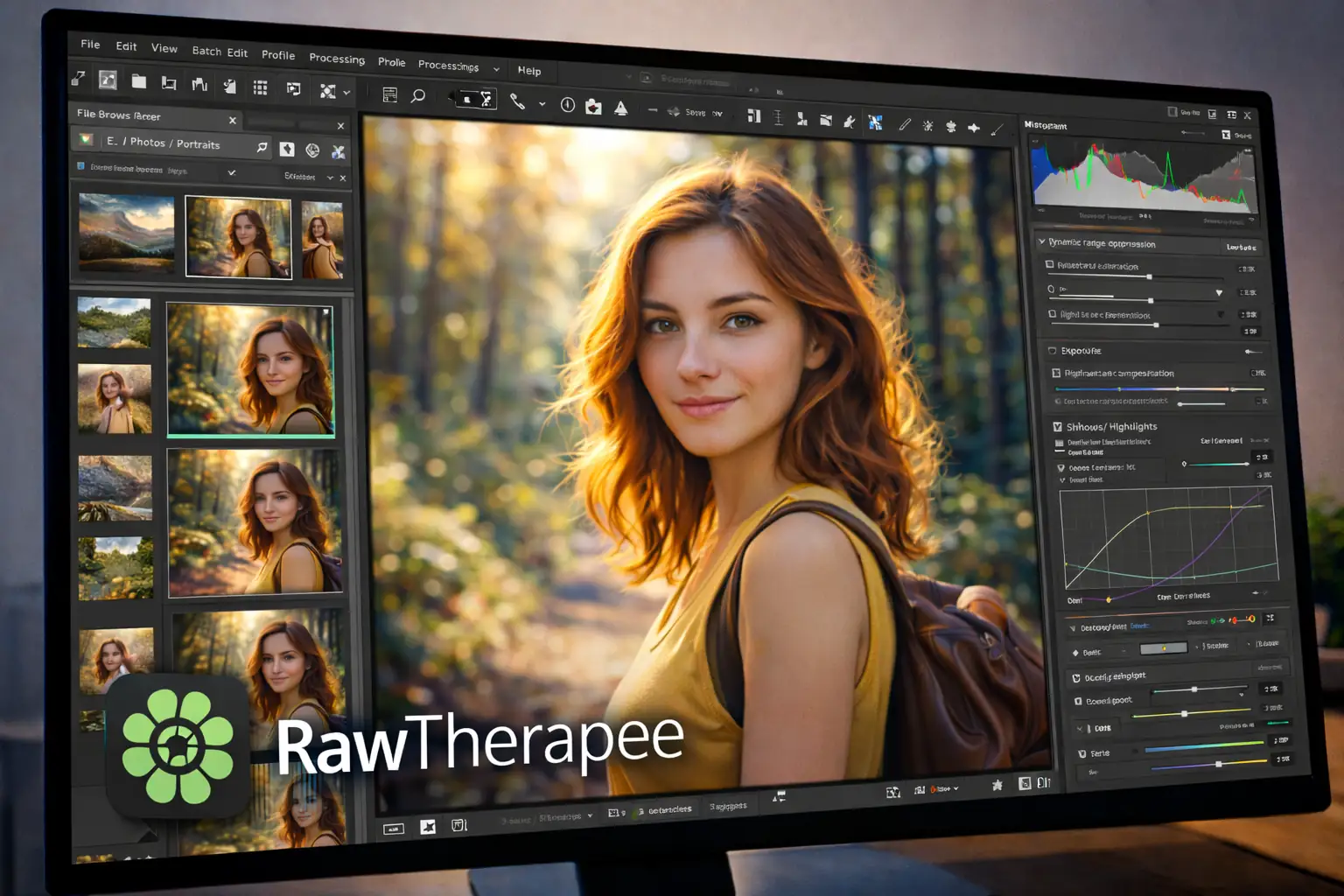
RawTherapee ist ein weiterer ausgezeichneter Open-Source-RAW-Prozessor. Es wird häufig verwendet, wenn Teams eine feine Kontrolle über die Bildentwicklung und eine wiederholbare Exportpipeline wünschen. Wie Darktable funktioniert es am besten als Teil einer Toolbox: RAW-Bearbeitung hier, dann geschichtete Arbeit in einem Raster-Editor, wenn nötig.
IT-Teams können RawTherapee für eine konsistente RAW-Konvertierung über Abteilungen hinweg standardisieren, wodurch die Ausgabe für Web-Publishing und Produktbilder vorhersehbar wird. Wenn Sie Presets und Exportziele definieren, reduzieren Sie "Mysterienunterschiede" zwischen den Ergebnissen der Mitarbeiter.
- Am besten für: RAW-Konvertierung mit starker Kontrolle, konsistente Export-Pipelines
- IT-Winkel: Open Source Standardisierung, reproduzierbare Outputs über Presets
- Achten Sie auf: kein mehrschichtiger Designersatz; Paar mit einem Raster-Editor
Canva
Canva ist kein Photoshop-Klon, aber es ersetzt Photoshop in vielen Unternehmen aus einem bestimmten Grund: Es ermöglicht Nicht-Designern, Marken-Assets schnell mit Vorlagen, gemeinsamen Marken-Kits und kontrollierten Exporteinstellungen zu produzieren. Wenn Ihr IT-Team eine große Anzahl von Mitarbeitern unterstützt, die gelegentlich Marketing-Grafiken, Event-Banner oder interne Kommunikationsvisualisierungen benötigen, kann Canva Ad-hoc-Anfragen und inkonsistente Ausgaben erheblich reduzieren.
Der operative Wert ist die zentrale Governance von Templates und Markenwerten. Anstatt PSDs zu verteilen und zu hoffen, dass Edits konsistent bleiben, arbeiten Teams mit gemeinsamen Layouts. Behandeln Sie Canva in sensiblen Umgebungen als reguliertes SaaS-Tool: Definieren Sie, welche Asset-Typen zulässig sind und wo die endgültigen Ausgaben gespeichert werden.
- Am besten für: Template-gesteuerte Grafiken, interne Comms, Fast-Marketing-Sicherheiten
- IT-Winkel: reduziert die Unterstützungslast, indem die Erstellung von Self-Services ermöglicht wird
- Achten Sie auf: Anforderungen an die SaaS-Governance und Datenverarbeitung
Migrationstipps für Teams, die Photoshop verlassen
Der schnellste Weg, eine Migration zu entgleisen, besteht darin, anzunehmen, dass "PSD-Unterstützung" "perfekte Parität" bedeutet. Migration nach Workflows. Beginnen Sie mit einem repräsentativen Satz von Dateien: Markenvorlagen, soziale Banner, UI-Exporte und die komplexesten mehrschichtigen Dokumente, die Sie mit externen Partnern teilen. Validieren Sie den vollständigen Pfad von der Bearbeitung über den Export bis zur Überprüfung, nicht nur, ob eine Datei geöffnet wird.
- Exportziele standardisieren: sRGB für Web definieren, Pixelabmessungen festlegen und Regeln für die Komprimierung von PNG/WebP/JPEG dokumentieren.
- Erstellen Sie interne Presets: Nennen Sie sie konsistent, so dass die Ausgabe für Teammitglieder und Geräte vorhersehbar ist.
- Handhabung der Schriftart: Führen Sie eine verwaltete Schriftbibliothek, definieren Sie Substitutionsregeln und bestätigen Sie die Lizenzierung von Markenschriften.
- Getrennte Rollen: Geben Sie Künstlern ein Illustrationswerkzeug, Fototeams ein RAW-Workflow-Tool und allen anderen einen leichten Editor.
- Erstellen Sie eine Review Loop: Stellen Sie sicher, dass Stakeholder kommentieren und genehmigen können, ohne dass derselbe Editor installiert werden muss.
- Automatisieren, wo möglich: Batch-Size, Wasserzeichen und Kompression können in Skripte oder CI-Jobs verschoben werden, um die manuelle Arbeit zu reduzieren.
Ein praktischer "Stack", der die meisten Photoshop-Nutzungen ersetzt
Wenn Ihr Unternehmen eine breite Abdeckung mit minimalen Störungen wünscht, funktioniert ein Stack-Ansatz am besten. Wählen Sie einen primären geschichteten Editor für Design und Compositing, ein dediziertes Foto / RAW-Workflow-Tool für die Bildentwicklung und ein leichtes Dienstprogramm für schnelle Bearbeitungen und Dokumentation.
Ein gewöhnlicher Stapel mit geringer Reibung sieht so aus: ein geschichteter Editor (Affinity Photo oder GIMP), ein RAW-Tool (Capture One, DxO, ON1, Darktable oder RawTherapee) und ein leichter Editor (Paint.NET) für schnelle Screenshot-Arbeit. Web-Editoren wie Photopea dienen als flexibles Backup für eingeschränkte Maschinen.
Schlussgedanken
Die beste Photoshop-Alternative im Jahr 2026 ist diejenige, die Ihrer operativen Realität entspricht: vorhersehbare Installationen, überschaubare Lizenzen, konsistente Exporte und Workflows, die Ihre Teams tatsächlich befolgen können. Beginnen Sie mit Ihren häufigsten Aufgaben, wählen Sie Tools aus, die Ihren Sicherheits- und Bereitstellungsbeschränkungen entsprechen, und dokumentieren Sie Voreinstellungen, damit die Ergebnisse für Benutzer und Geräte konsistent bleiben. Mit der richtigen Mischung können die meisten Unternehmen die Abhängigkeit von einem einzigen Tool reduzieren und gleichzeitig die Widerstandsfähigkeit, Kostenkontrolle und Klarheit des Workflows verbessern.

 12977
12977  IT Pro