USB has become the default “it just works” connector for everything from keyboards to multi-gigabit storage, but in 2026 the label “USB” alone is no longer actionable for IT work. Real-world outcomes—charging behavior, display support, dock stability, link speed, firmware quirks, and even security posture—depend on the exact port capabilities exposed by the device, the cable, and the host controller stack.
This guide is written for IT professionals who need practical, deployable clarity: how to identify USB port types, what they can and cannot do in modern fleets, how to avoid the common “USB-C is universal” trap, and how to standardize around predictable user experiences across laptops, desktops, thin clients, and docks.

Why “USB Port Type” Matters More in 2026
Many support tickets still start with a simple statement: “My USB-C port doesn’t work with this dock.” The mistake isn’t the user’s wording—it’s the ecosystem’s ambiguity. A USB-C receptacle can be wired to a basic USB controller with modest power, or it can be a high-end Thunderbolt/USB4 port with display tunneling, PCIe tunneling, and robust power delivery. Externally, the ports can look identical.
In 2026, the difference affects everything: whether a laptop can drive two 4K displays without compression, whether a storage device runs at a few hundred MB/s or several GB/s, whether a phone charges slowly or at high wattage, and whether the organization’s docking standard results in stable deployments or constant firmware workarounds.
The goal for IT is not to memorize marketing names—it’s to build a repeatable decision model that ties physical ports, signaling standards, power delivery behavior, and enterprise management requirements into one supportable policy.
The Physical Connectors You’ll Still See
USB standards define data and power behavior, but users interact with connectors. For field support and procurement, start by separating the physical shape from the capabilities behind it.
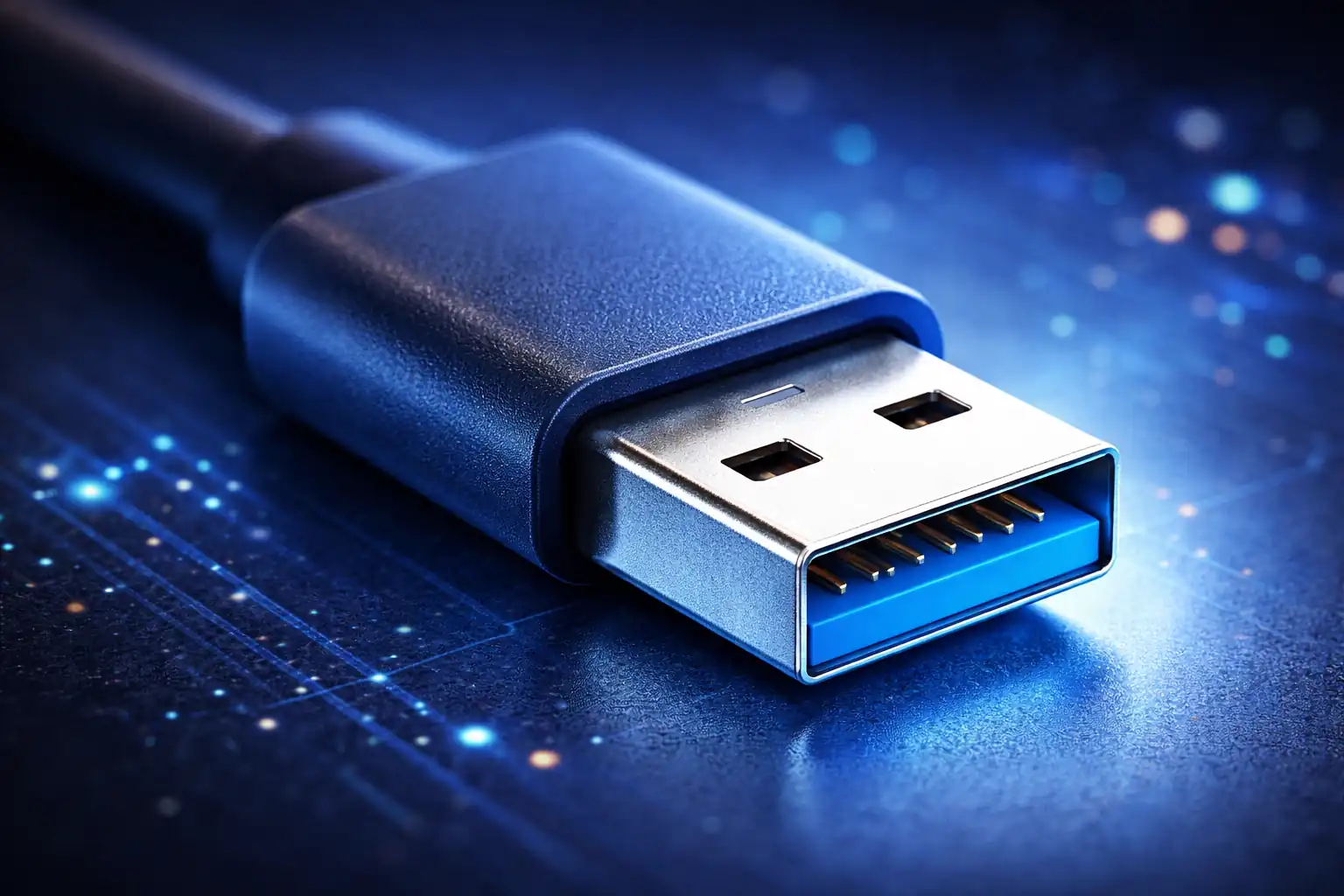
USB Type-A
Type-A remains the most common legacy host connector in enterprise environments because it is mechanically robust, compatible with a huge installed base, and doesn’t confuse users. In 2026, Type-A ports typically serve as “safe defaults” for keyboards, mice, headset dongles, smart card readers, serial adapters, and recovery media.
Operationally, Type-A is a strong option for devices that do not need high power or multi-function signaling. For IT, Type-A is also useful because it reduces ambiguity: there is no DisplayPort Alt Mode, no dock negotiation complexity, and fewer “it depends” outcomes.
Limitations are predictable: no reversible plug, generally lower charging potential than USB-C Power Delivery, and fewer modern laptops include more than one Type-A port. If you standardize around Type-A accessories, plan for a phased approach as OEMs continue to reduce Type-A count on premium devices.
USB Type-C
Type-C is the dominant connector for modern endpoints and it is the source of most confusion. The connector itself tells you almost nothing about data rates, display capability, or charging wattage. Two laptops can have identical Type-C ports, yet one supports basic USB only while the other supports USB4 with multi-display docking.
For IT professionals, Type-C should be treated as a “negotiation environment.” Power and data modes are chosen dynamically via USB Power Delivery (USB-PD) and USB-C configuration channels. The port’s implementation dictates what the endpoint can advertise, and the cable dictates what can be safely delivered.
The biggest practical lesson: a Type-C port is not a guarantee of fast storage, external GPU support, or display output. The capability must be validated in vendor documentation, BIOS/UEFI release notes, or enterprise fleet qualification tests.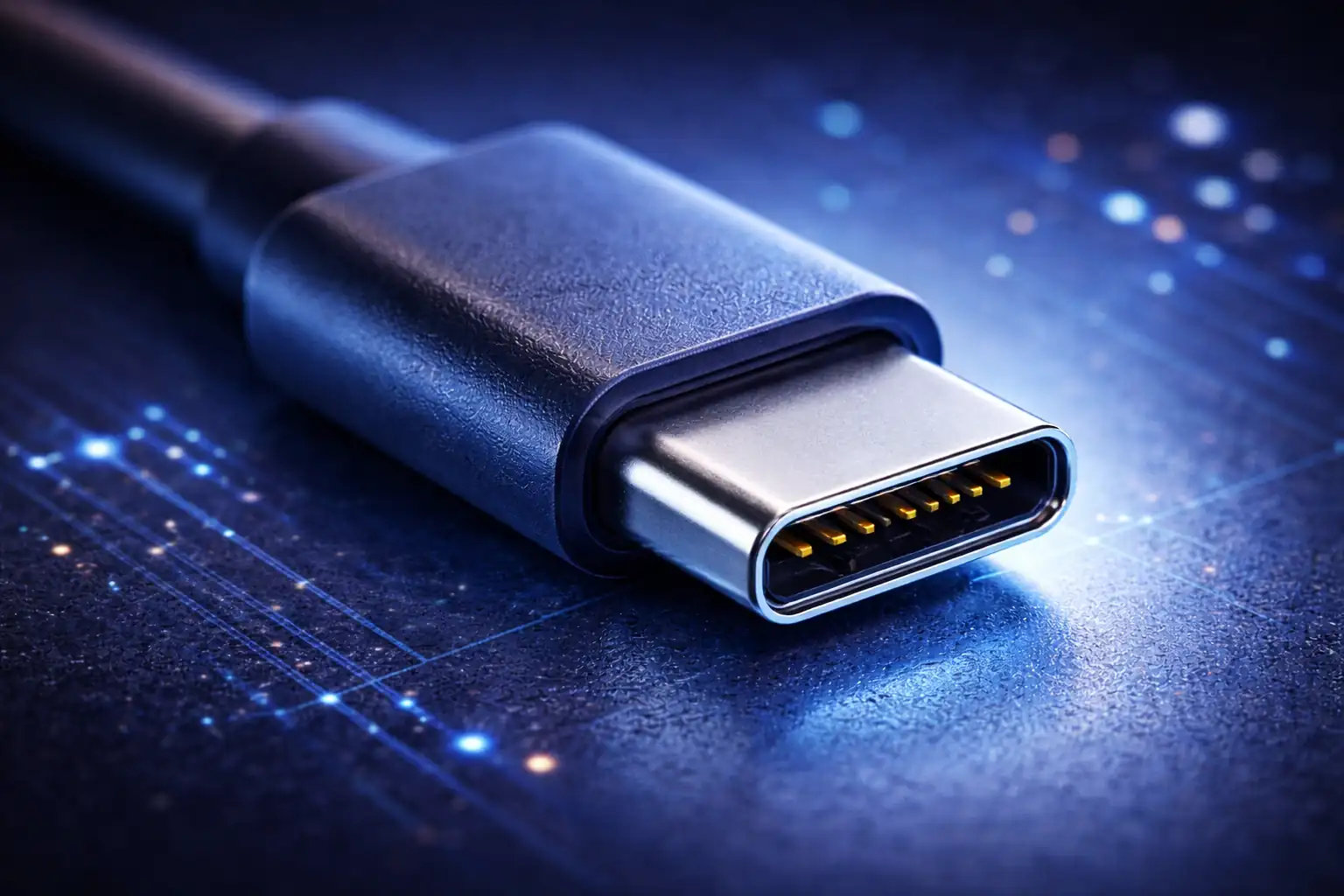


USB Type-B (Standard-B)
The classic “printer cable” connector. Still common on office printers/MFPs, some UPS management ports, lab gear, older audio/MIDI interfaces, and various industrial devices. Typically reliable, but you’ll need to keep Type-A–to–Type-B cables in stock for legacy support.

USB Mini-B
Older small connector found on legacy cameras, MP3 players, older GPS units, and some industrial/test equipment. You’ll mainly see it in long-lifecycle environments where devices are kept for years.
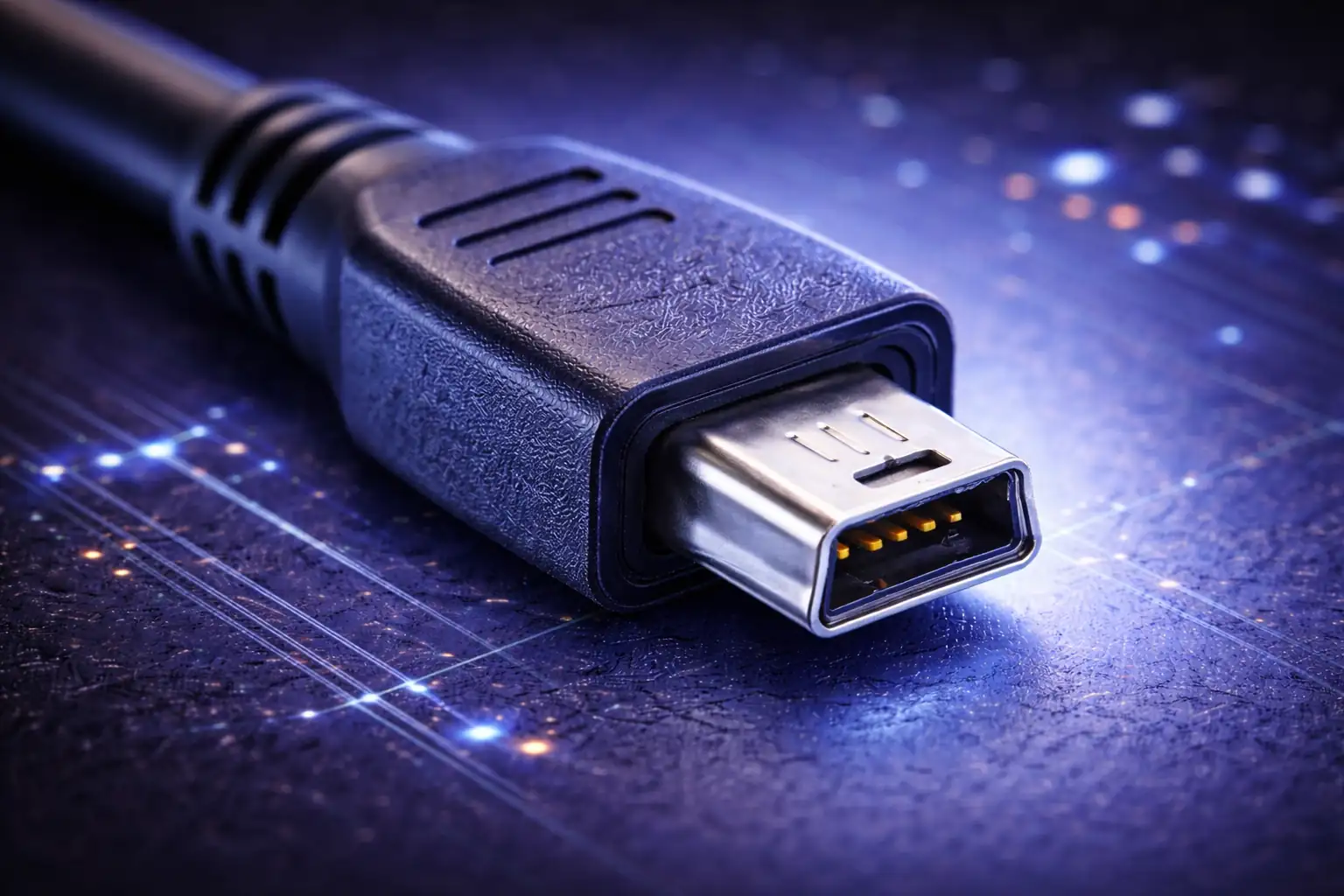
USB Micro-B (USB 2.0 Micro-B)
Common on older phones, power banks, barcode scanners, IoT/embedded devices, and various peripherals. High wear risk over time, so cable quality and connector condition matter.

USB Micro-B SuperSpeed (USB 3.x Micro-B)
A wider, “double” Micro-B connector used on many USB 3.0-era external hard drives and some enclosures. It can be a frequent point of failure due to connector/cable strain and limited availability compared to USB-C.

USB Type-B SuperSpeed (USB 3.x Type-B)
Looks like a taller Type-B with an added section, used on some external drive enclosures and specialized equipment. Rare in new deployments, but shows up in older storage and industrial gear.

USB Type-A “Powered” / Dual-Power Variants
Less common special implementations seen in niche retail POS gear, kiosks, or older external storage solutions where extra power was needed. Treat as device-specific: keep exact replacement cables/parts because generic cables often won’t work.
Proprietary / Panel-Mount Rugged USB Connectors
Not a formal USB connector type, but a category you’ll encounter in kiosks, medical carts, industrial panels, and rugged devices. These often use customized shells, locking mechanisms, or internal USB headers with adapters to improve strain relief and retention. Keep vendor-approved spares and avoid improvising.
USB Type-AB receptacle (legacy OTG era)
A special receptacle defined for older USB On-The-Go devices. It was designed to accept either an A-plug or B-plug (depending on whether the device acts as host or peripheral). You’ll rarely see it in modern gear, but it can pop up on older embedded devices and some legacy accessories.
USB Mini-AB (OTG variant)
A Mini-USB OTG receptacle meant to accept Mini-A or Mini-B plugs. Mostly historical now, but still encountered in older cameras, GPS units, and specialized field hardware.
USB Micro-AB (OTG variant)
A Micro-USB OTG receptacle that accepts Micro-A or Micro-B plugs. You may run into it on older phones/tablets, some dev boards, and certain industrial devices where OTG host mode mattered.
Internal motherboard USB headers (not external “connectors,” but definitely “ports”)
Common in desktops, servers, and appliances: internal USB 2.0 headers (often for front-panel ports, AIO coolers, Bluetooth modules, license dongles inside chassis, etc.), and internal USB 3.x headers for front I/O. These matter in IT because “we have ports” may mean “we have headers,” which affects build standards and servicing.
Front-panel USB-C header (internal Type-E style)
Many modern PC cases use an internal header to drive a front USB-C port. In practice, this is where you’ll see “front USB-C exists but only works at USB 2.0 speeds” problems—because the board/header/cable combo doesn’t match capabilities.
Behind the Connector: USB Generations and Speeds
USB naming has historically been messy, and 2026 is no exception. The practical approach is to focus on link behavior rather than branding. For endpoint qualification, measure the sustained throughput with a known device and cable, and validate stability under load (including sleep/wake cycles).
USB 2.0 is still widespread for low-speed devices such as HID peripherals, security keys, and many printers. USB 3.x introduces higher throughput and additional lanes, but the best performance depends on a full chain: host controller, device controller, cable quality, and OS driver stability.
A recurring enterprise issue is “fast port, slow result.” This often comes down to an internal design choice: some Type-C ports are routed through internal hubs, share lanes with other devices, or are attached to chipset paths that behave differently than CPU-direct controllers. From a troubleshooting perspective, you may see inconsistent results across ports on the same machine.
USB4 and the Modern Docking Reality
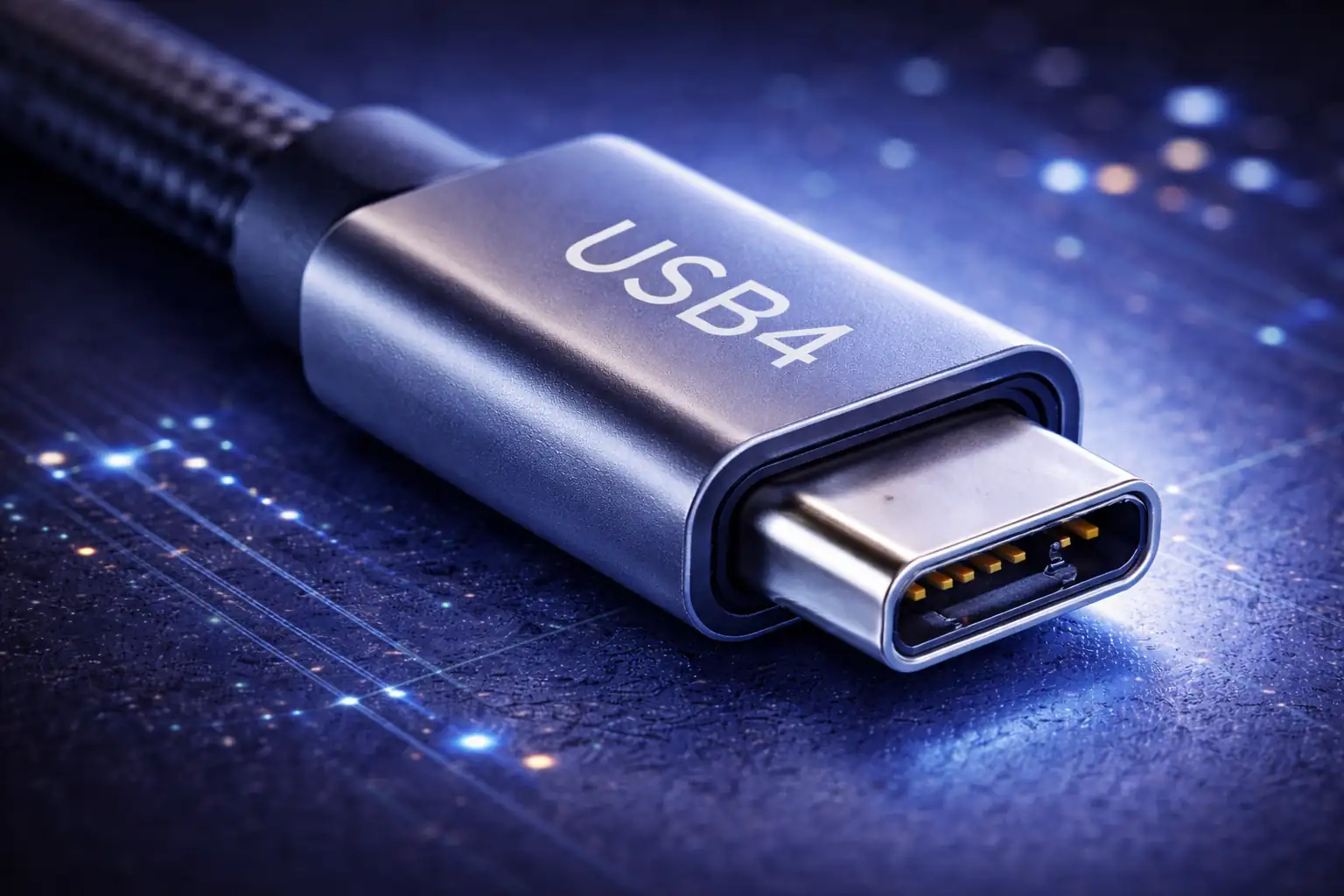
USB4 is the foundational change in the modern ecosystem because it converges high-speed USB data, tunneling concepts, and compatibility frameworks that were previously strongly associated with Thunderbolt-class setups. In practical terms, USB4-capable ports tend to offer more predictable high-performance docking—when implemented well.
However, USB4 does not eliminate uncertainty. OEMs can implement different feature sets, and docks can vary dramatically in how they handle displays, bandwidth allocation, and firmware edge cases. For IT, the emphasis should be on qualification testing with your chosen dock models and your reference laptop models, rather than relying on spec sheets.
In 2026, most large fleet pain points around USB4/Thunderbolt-class docking are not raw bandwidth issues—they’re interoperability issues: firmware compatibility across dock revisions, display wake behavior, MST quirks, power negotiation, and endpoint security policies that restrict device classes.
Thunderbolt vs USB4: What IT Should Actually Track
In the field, the best question is not “Is it Thunderbolt?” but “What does this port support for our use cases?” Thunderbolt historically implied a high feature baseline, including PCIe tunneling and strong docking ecosystems. USB4 moves the industry closer to that baseline, but feature support can still differ.
For IT operations, track these outcomes:
Whether the port supports external display output through Alt Mode or tunneling, and how many displays it can drive at target resolutions and refresh rates. Whether the port can sustain high throughput storage or imaging workflows without thermal throttling or link instability. Whether the port supports your docking standard reliably across sleep/wake, hot-plug, and conference room swap scenarios. Whether the organization’s security controls can govern the device classes that matter, without breaking productivity.
In procurement language, specify required outcomes and certified dock models rather than relying only on port labels. The label can guide you, but validated behavior is what reduces tickets.
Display Output: Alt Mode, MST, and Why Users Get Confused
Display support over USB-C is where expectations and reality diverge. Some ports support DisplayPort Alt Mode, allowing a USB-C to carry video signals to a monitor or dock. Others do not, even if they share the same physical port.
In enterprise environments, users often expect that “USB-C equals monitor support” because many personal devices behave that way. Your support model needs a clear internal standard: either designate specific ports for display/docking use, or standardize on systems where all Type-C ports meet the required capability.
Multi-monitor behavior frequently involves MST (Multi-Stream Transport) when using certain docks. MST can be stable, but it adds complexity—especially around mixed refresh rates, EDID handling, and sleep/wake. For conference rooms and hot-desking, choose docks and monitors that are proven stable with your fleet images.
Another 2026 reality is the growing presence of display compression/virtualization approaches in some docking solutions. These can work well for office productivity, but for latency-sensitive workflows, high-refresh requirements, or color-critical tasks, IT should validate the user experience before standardizing.
Power Delivery in 2026: Charging Isn’t Just Charging
USB-C Power Delivery changed how devices negotiate voltage and current. The benefit is obvious: a single connector can charge laptops, phones, and accessories. The cost is complexity, and the failure modes are often non-obvious to end users.
From an IT perspective, power delivery planning should be treated like endpoint standardization: define approved chargers and dock power profiles, define acceptable third-party chargers, and ensure your service desk has a consistent “known good” charger for troubleshooting.
Symptoms of power negotiation problems can look like OS issues: battery not charging under load, random disconnects when a dock is used, monitors flickering on hot-plug, or a laptop that only charges while asleep. These may be caused by cable quality, charger capability, dock firmware, or endpoint BIOS behavior. Standardization reduces the variable count.
IT should also plan for the human factor: users mix chargers. If you deploy USB-C laptops and allow BYO chargers, you will see tickets that boil down to “charger wattage mismatch” and “cable is not rated for this.” That’s not a user training problem alone—it’s a policy and supply chain problem.
Cables: The Hidden Root Cause of Many USB Incidents
In 2026, the cable is a first-class component in the USB system. A cable can limit link speed, break display capability, restrict charging, or introduce intermittent behavior that looks like hardware failure. Yet cables are routinely treated as interchangeable.
For enterprise operations, consider a “cable standard” alongside your dock standard. Maintain approved part numbers for high-speed data cables, charging cables, and display-capable cables. Train support staff to swap the cable early in the troubleshooting workflow, and keep labeled spares in helpdesk kits.
If you run hot-desking or shared conference rooms, manage cables like peripherals: attach them, label them, and replace them proactively. A single degraded cable can create the illusion that multiple laptops are failing, because users swap machines but keep the same shared cable.
Ports on Real Hardware: How OEM Choices Show Up in Tickets
Port behavior is an outcome of many design decisions: whether the port is CPU-direct or chipset-routed, whether it shares lanes with Wi-Fi, storage, or display paths, whether the firmware implements robust fallback logic, and whether the OEM validated its docking ecosystem across OS versions.
In the field, you may see patterns: one port on a laptop works better for docking than another; some ports handle charging but struggle with high-speed storage; a specific BIOS release improves hot-plug behavior; or certain device classes misbehave until driver packages are updated.
For enterprise support, capture these patterns as fleet knowledge: publish “preferred port” guidance for each model, document known-good dock firmware versions, and maintain a fast path to update BIOS, chipset, and USB controller drivers when a vendor fixes stability issues.
USB Hubs and Docks: Choose Your Complexity Level
A USB hub is not a dock, and a dock is not always equal across vendors. In 2026, the docking landscape includes everything from simple USB hubs to multi-function docks that manage video, Ethernet, audio, power, and sometimes device management.
For IT, the question is: how much complexity do you want at the edge? Simpler hubs are often more reliable but may not provide multi-monitor support. Full docks provide a better desk experience but introduce firmware, display, and power negotiation variables.
A practical approach is to define “tiers”: a lightweight hub tier for basic peripherals and occasional travel, and a standardized dock tier for desks and conference rooms. Support becomes easier when users understand that not every adapter is expected to support every scenario.
Enterprise Security Considerations
USB remains a common ingress path for malware, data exfiltration, and policy bypass attempts. In 2026, USB security is still a balancing act: strict controls reduce risk but can disrupt legitimate workflows like imaging, hardware token usage, and field diagnostics.
For IT professionals, treat USB policy as role-based: developers and engineers may need broader device class access; standard office users may need only HID and approved storage; support technicians may need elevated access with auditing.
Device control tooling can reduce risk without total lockdown: allow-list USB classes, enforce encryption on removable media, log device insertion events, and limit unknown device types. Combine this with training that focuses on practical behavior: don’t plug unknown devices, don’t use random promotional cables, and report suspicious peripherals.
A Practical Field Checklist for Identifying USB Port Capability
When a user says “this USB-C port doesn’t work,” your best response is a repeatable checklist that reduces variables. The objective is to quickly determine whether the issue is compatibility, configuration, firmware, or hardware.
Start with the physical layer: confirm the connector type, inspect for debris or wear, and swap to a known-good cable. Then confirm the use case: charging only, data transfer, display output, or full docking. Next, check the endpoint: BIOS/UEFI version, USB controller/chipset drivers, power management settings, and OS build. Finally, validate with a known-good dock or device that is part of your standard kit.
Document outcomes: which port was used, which cable, which dock firmware, and which OS build. Over time, this creates a model-specific knowledge base that turns “USB mystery” incidents into predictable fixes.
Standardization Strategies for IT Teams
The fastest way to reduce USB-related support load is to standardize around outcomes: choose a small set of endpoint models, a small set of dock models, and a small set of approved cables and chargers. This approach is more effective than trying to educate every user on USB naming.
When creating standards in 2026, consider these policies: Define which ports on each endpoint are “docking ports” and label them where possible. Provide an approved dock and charger package for each job role. Maintain firmware lifecycle management for docks as well as endpoints. Include USB behavior in your qualification testing for OS updates and major driver rollouts.
If you support mixed fleets, be explicit about exceptions. A limited set of devices may require special docks, special cables, or specific port usage. Publish those exceptions and keep them current, because otherwise exceptions become repeated tickets.
Common Myths to Retire
One of the most expensive myths is that USB-C makes everything universal. The connector is universal, but the capability matrix is not. Another myth is that a “faster” cable fixes everything. Some problems are firmware negotiation, not bandwidth. Another myth is that docks are plug-and-play forever. Docks behave like mini-computers now: they can need firmware updates, and they interact with OS updates in real ways.
Retiring these myths is not about lecturing users. It’s about building a support playbook and procurement standards that match how USB actually behaves in 2026.
What to Put in Procurement Specs in 2026
If you want fewer surprises, write procurement requirements that reflect real use cases. Specify minimum charging behavior on USB-C ports for your laptop class. Specify external display requirements with target resolution/refresh combinations using your standard dock models. Specify minimum storage performance using a validated external SSD and a defined cable type. Require vendor documentation that clearly states which ports support docking and display output.
For fleets that rely heavily on hot-desking, add requirements for stability across sleep/wake and repeated hot-plug. Include a vendor commitment for dock firmware updates and a predictable lifecycle policy. Treat the dock as part of the endpoint platform, not an optional accessory.
Closing Guidance for IT Professionals
In 2026, the best way to think about USB port types is as a layered system: the connector is what users see, but the capability is what IT supports. When you separate physical form from data modes, display behavior, and power delivery, USB becomes manageable again.
Your biggest wins will come from standardization and validation: approved docks, approved cables, clear port guidance by model, and a repeatable troubleshooting workflow. USB will keep evolving, but the operational strategy stays the same—reduce ambiguity, reduce variables, and engineer predictable outcomes for your users.

 10446
10446  IT Pro