



- Details
- Written by: IT Pro
- Category: How to Articles
- Hits: 4835
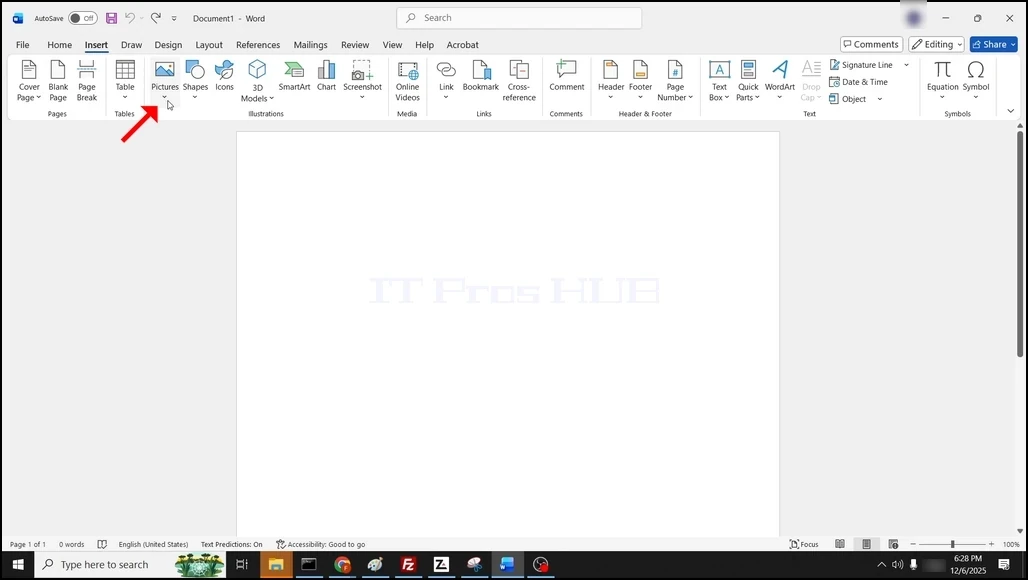
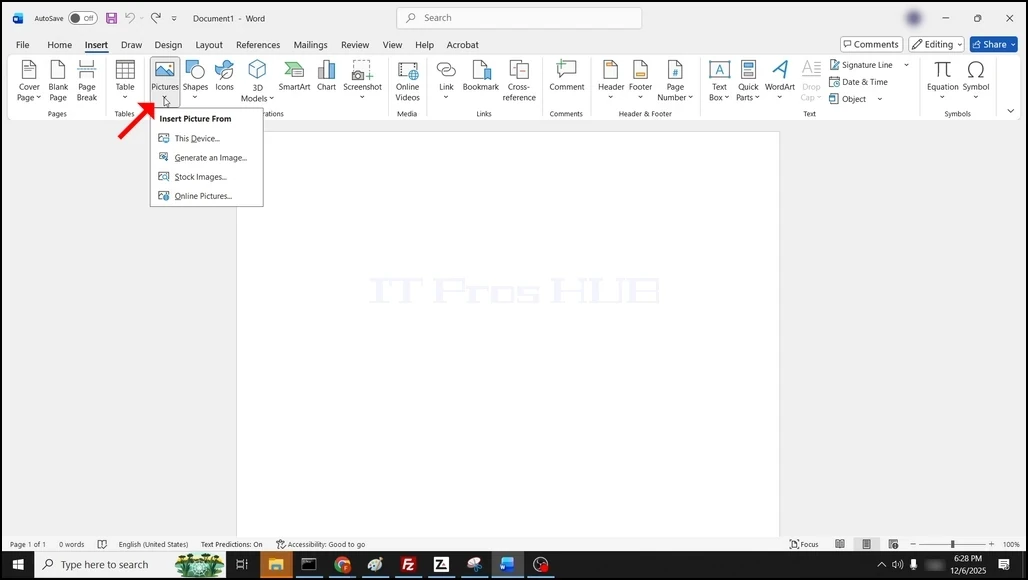
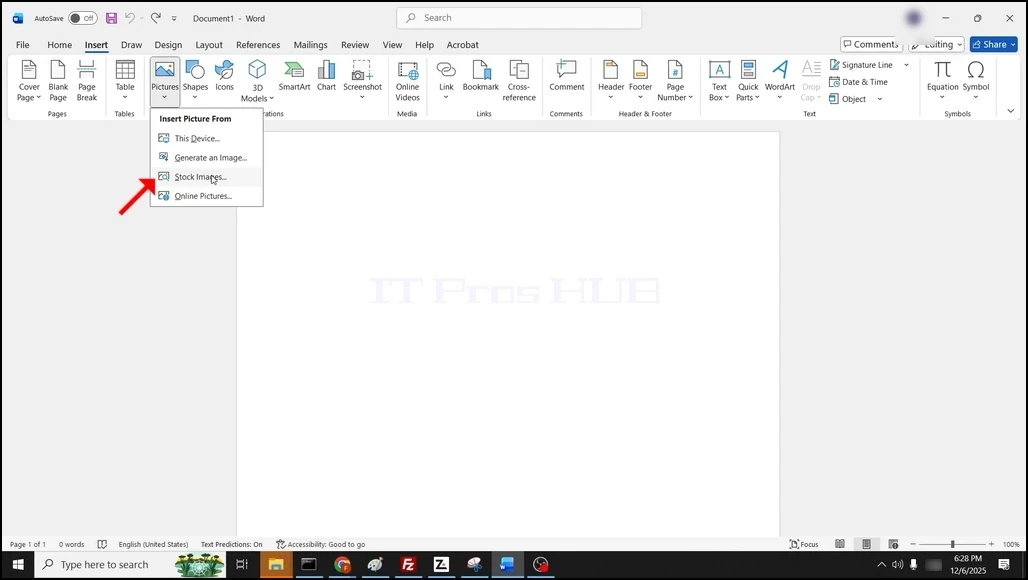
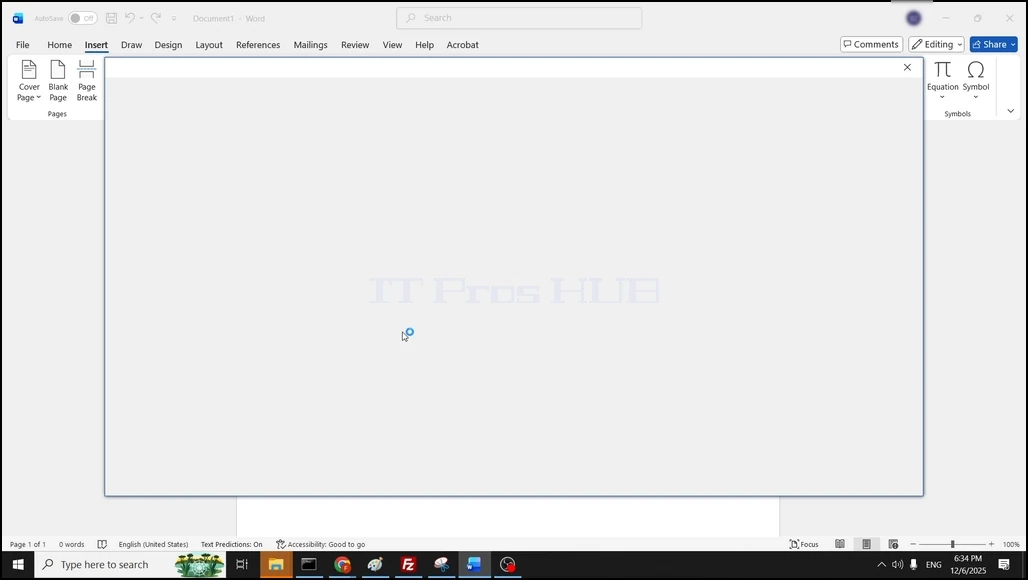
3. Choose Stock Images... and wait for a window to load.
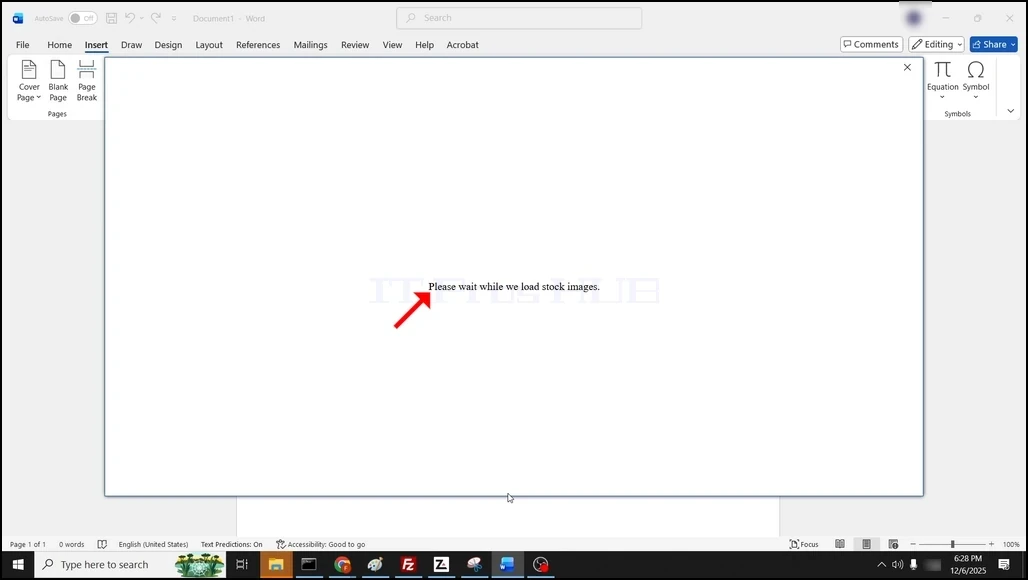
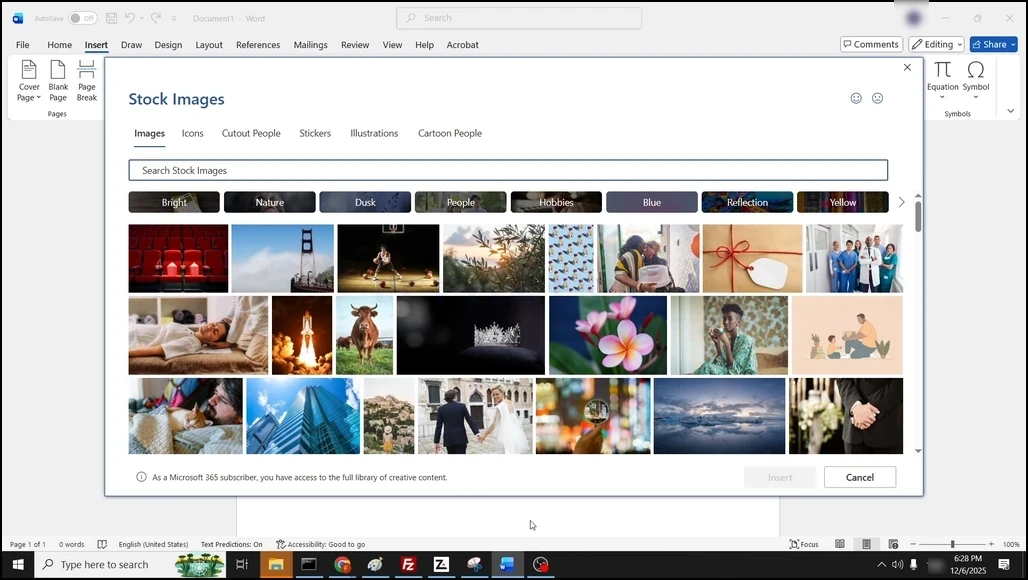
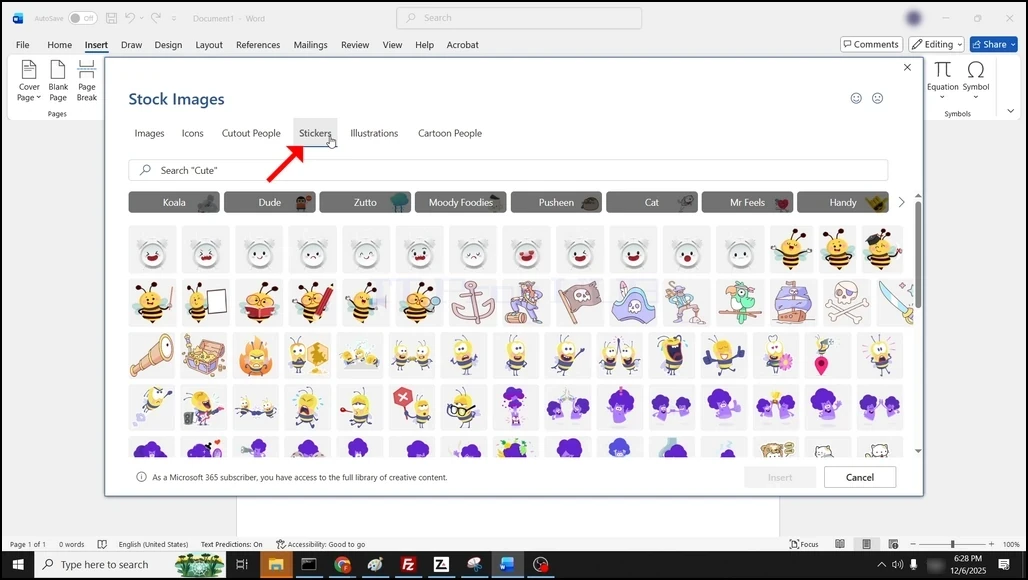
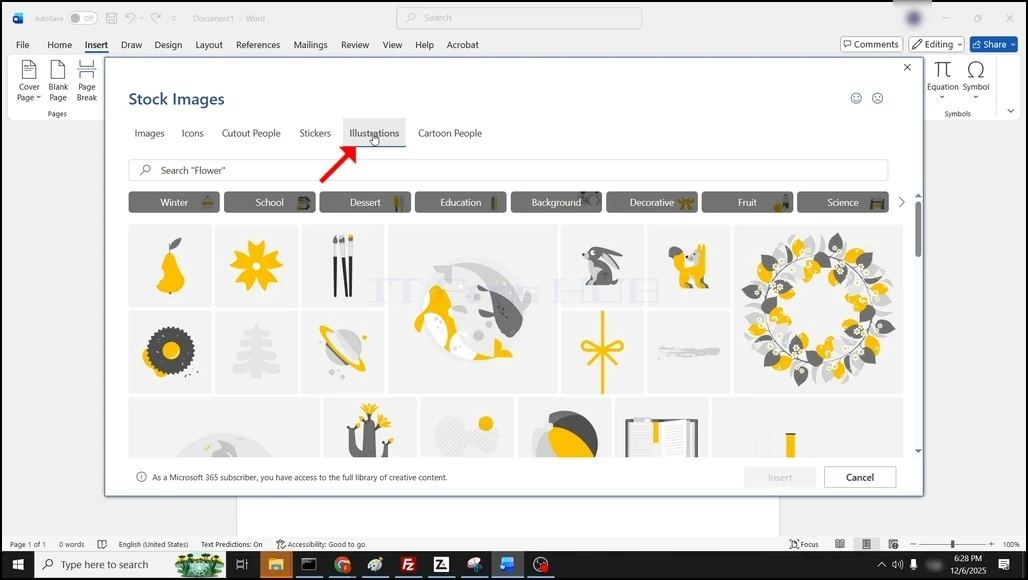
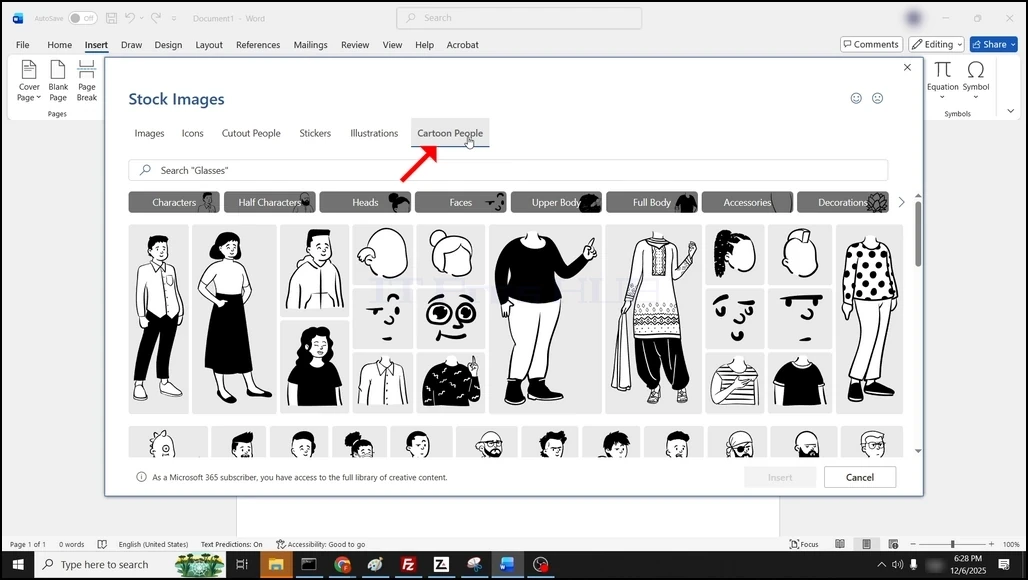
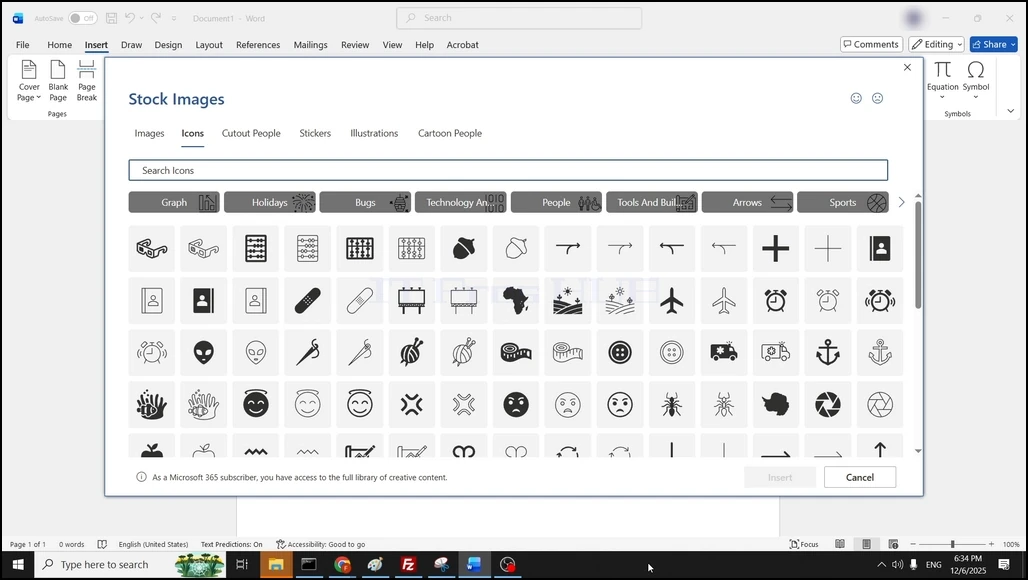
4. Once loaded, you will be presented by the various stock images options:
- Images
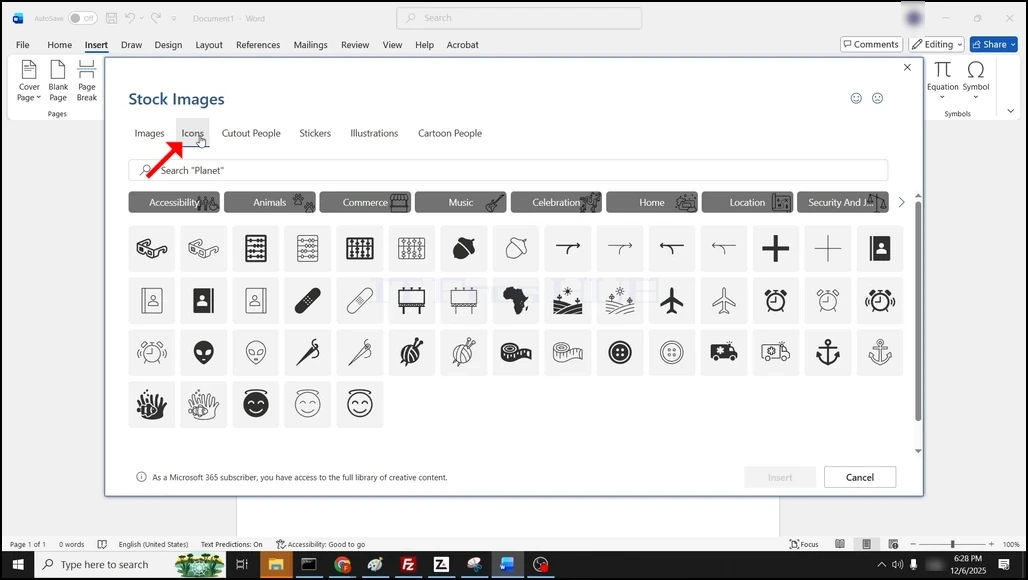
- Icons
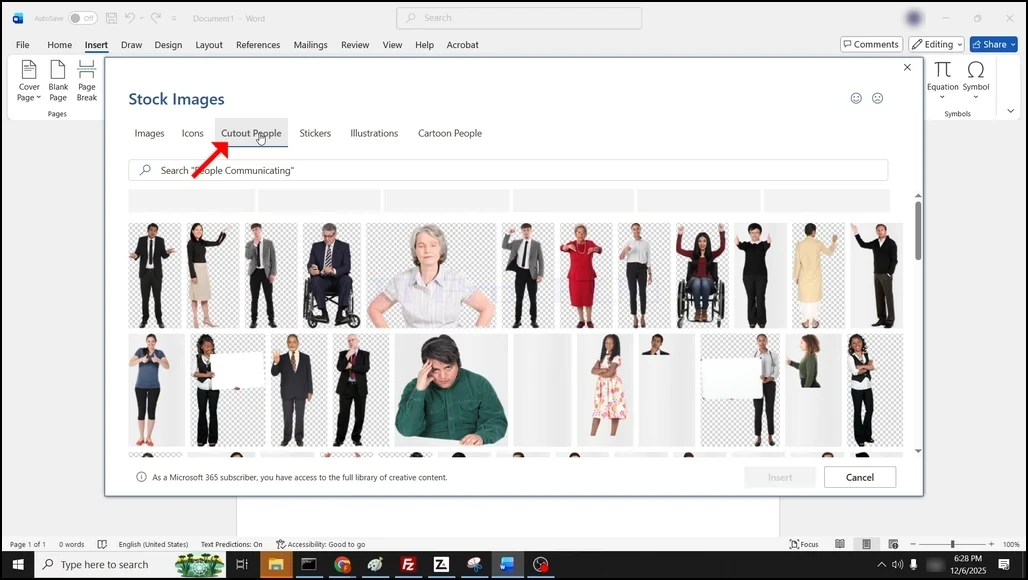
- Cutout People
- Stickers
- Illustrations
- Cartoon People
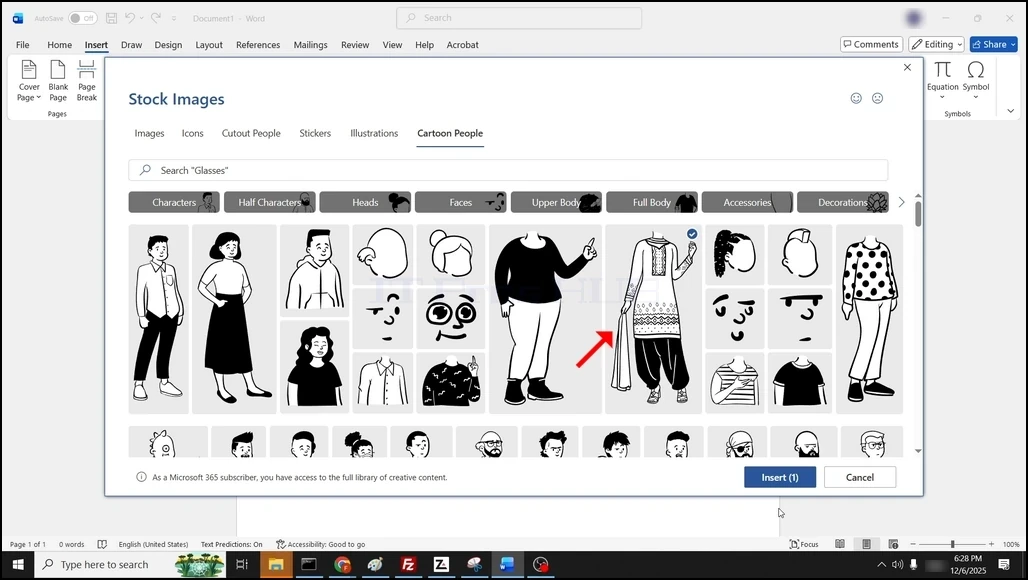
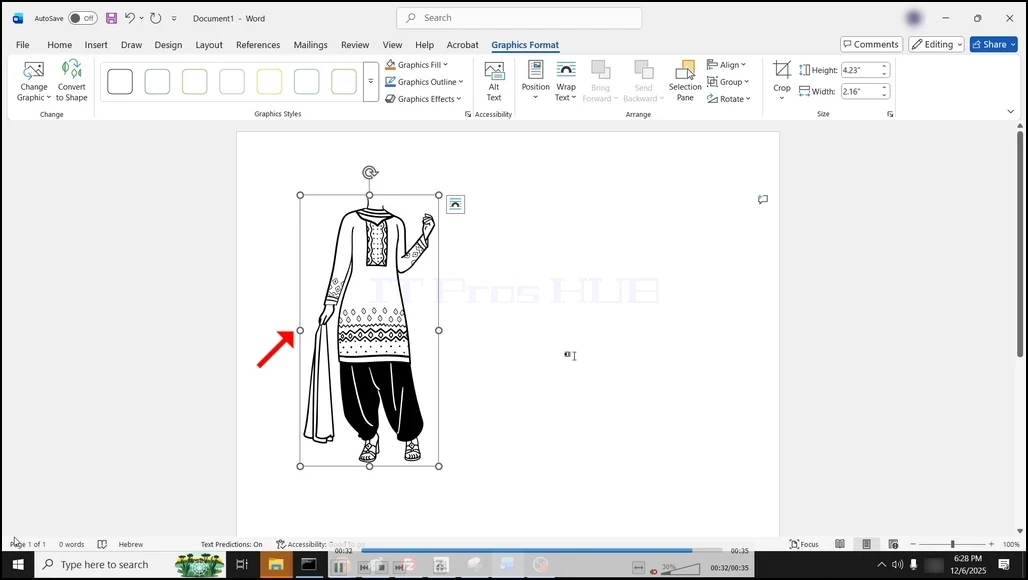
6. The stock image is now added to the Word document:
- Details
- Written by: IT Pro
- Category: How to Articles
- Hits: 5026
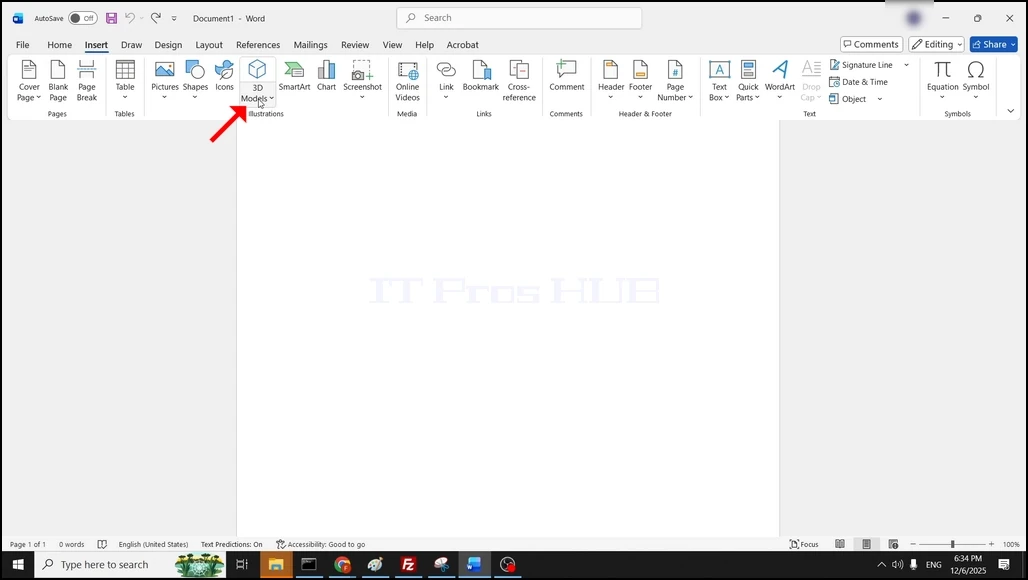
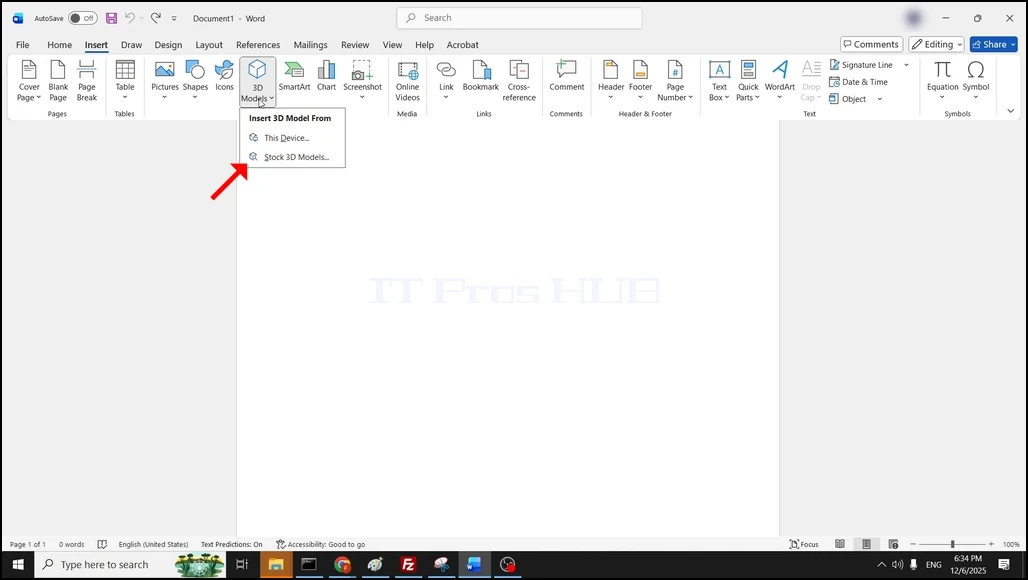
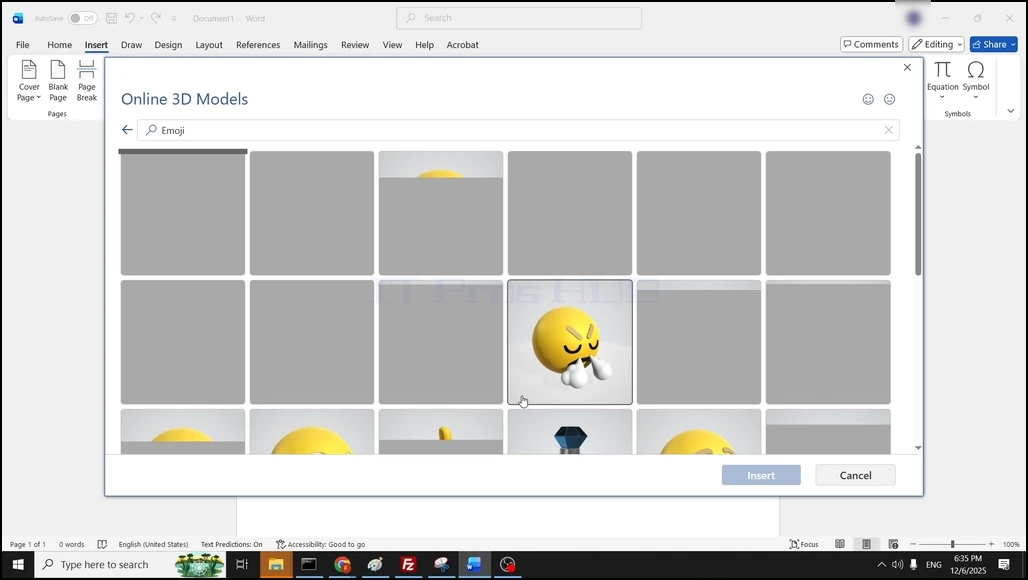
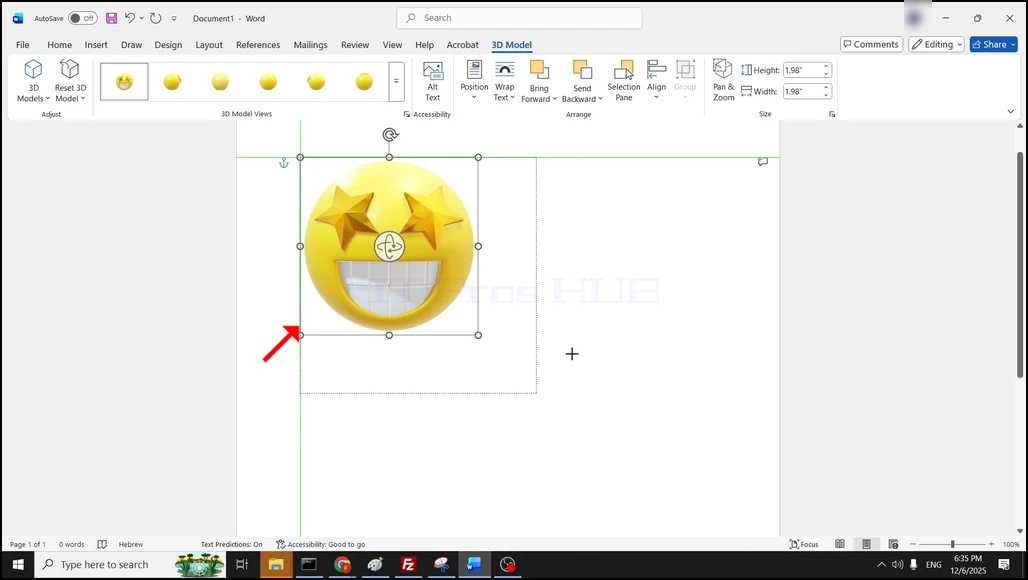
4. The 3D model is now inserted into the word document:
- Details
- Written by: IT Pro
- Category: How to Articles
- Hits: 5166
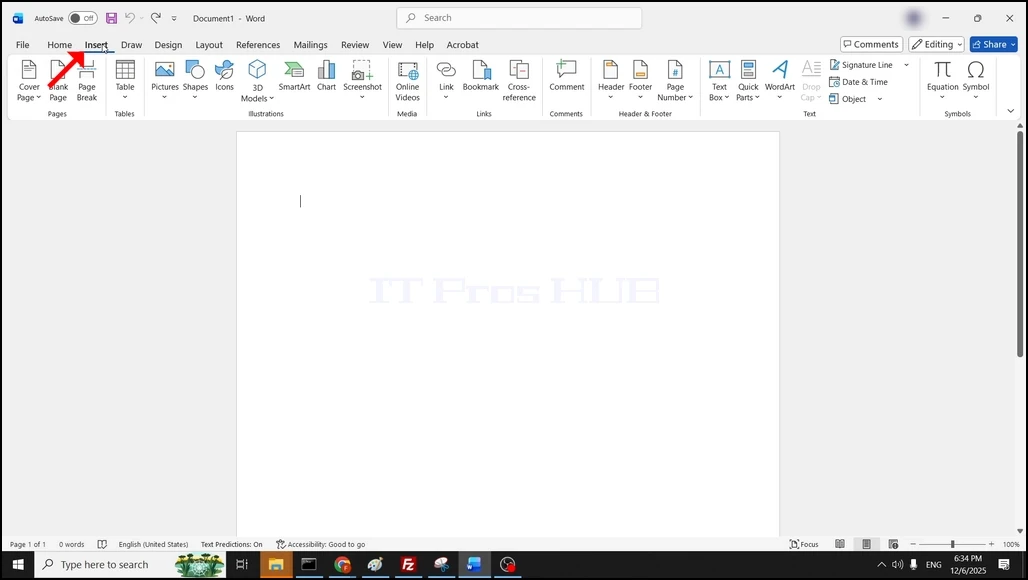
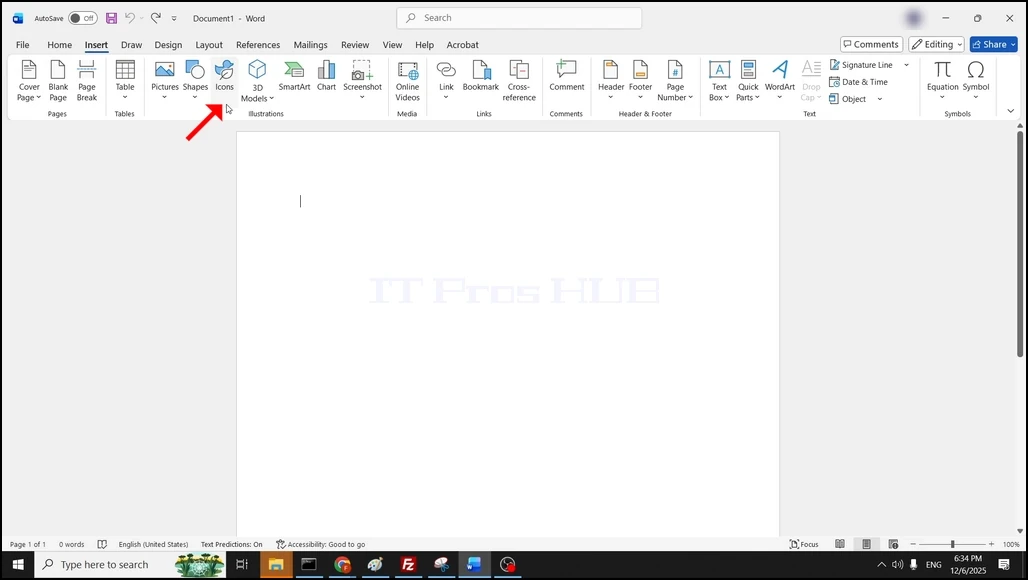
3. Once the stock images window is fully loaded, make sure that the presented files are Icon files:
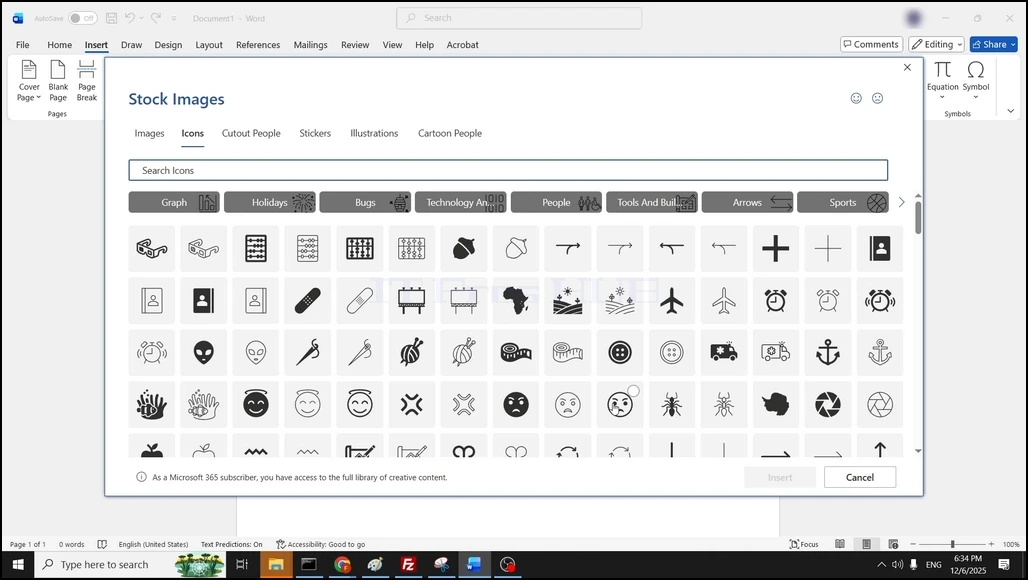
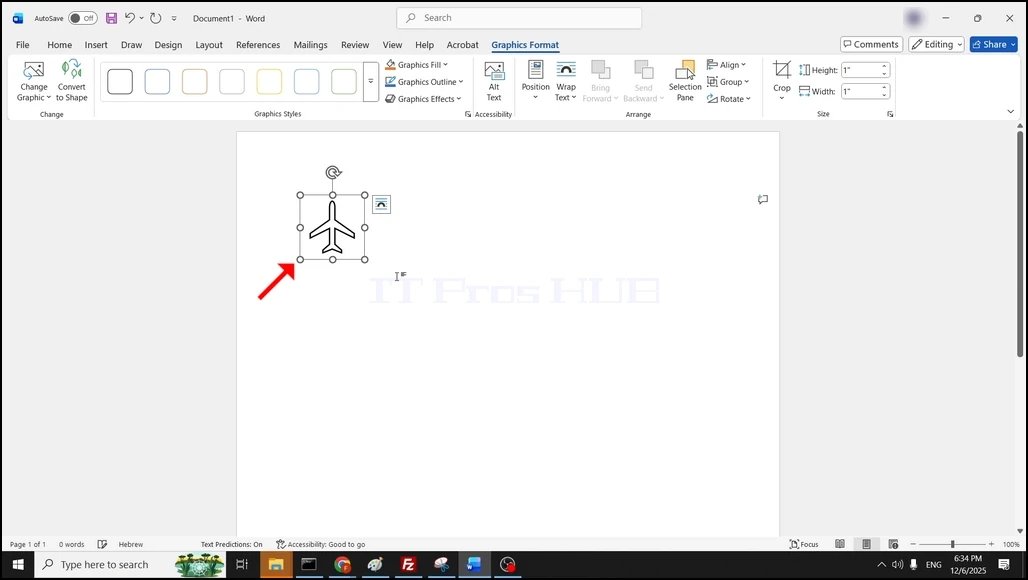
5. Now the icon should be present in the Word document:
- Details
- Written by: IT Pro
- Category: How to Articles
- Hits: 5444
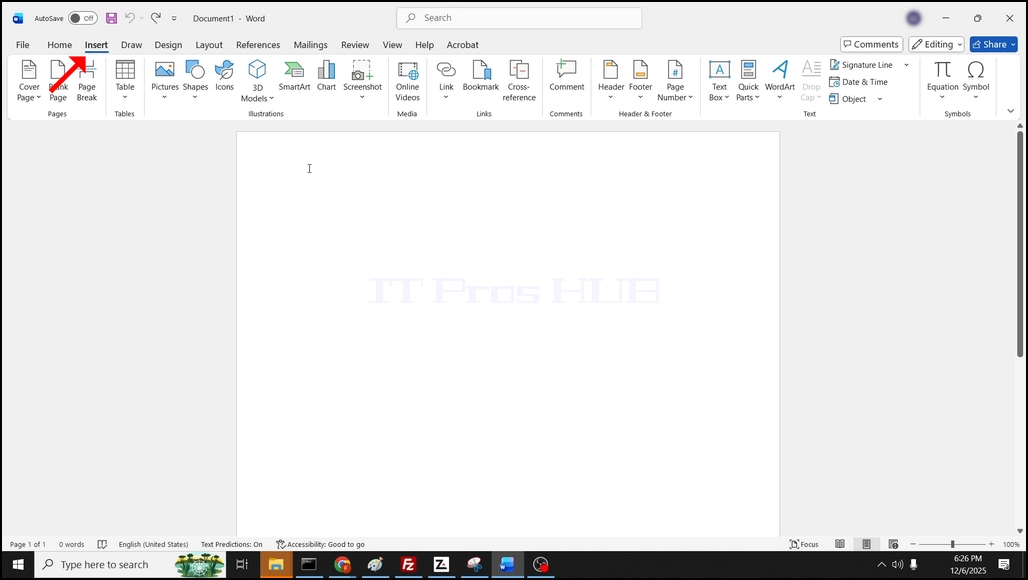


5. After clicking Insert, the image should be added to your Word document:

- Details
- Written by: IT Pro
- Category: How to Articles
- Hits: 5083
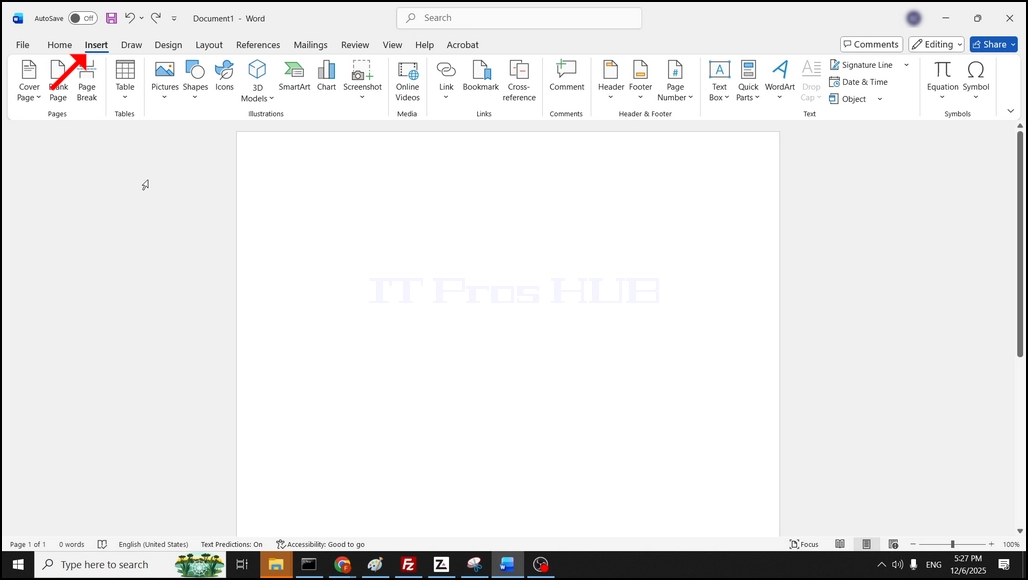

3. Once clicked, a new blank page has been added to the Word document as can be seen below:
