- Details
- Written by: IT Pro
- Category: Blog
- Hits: 7128
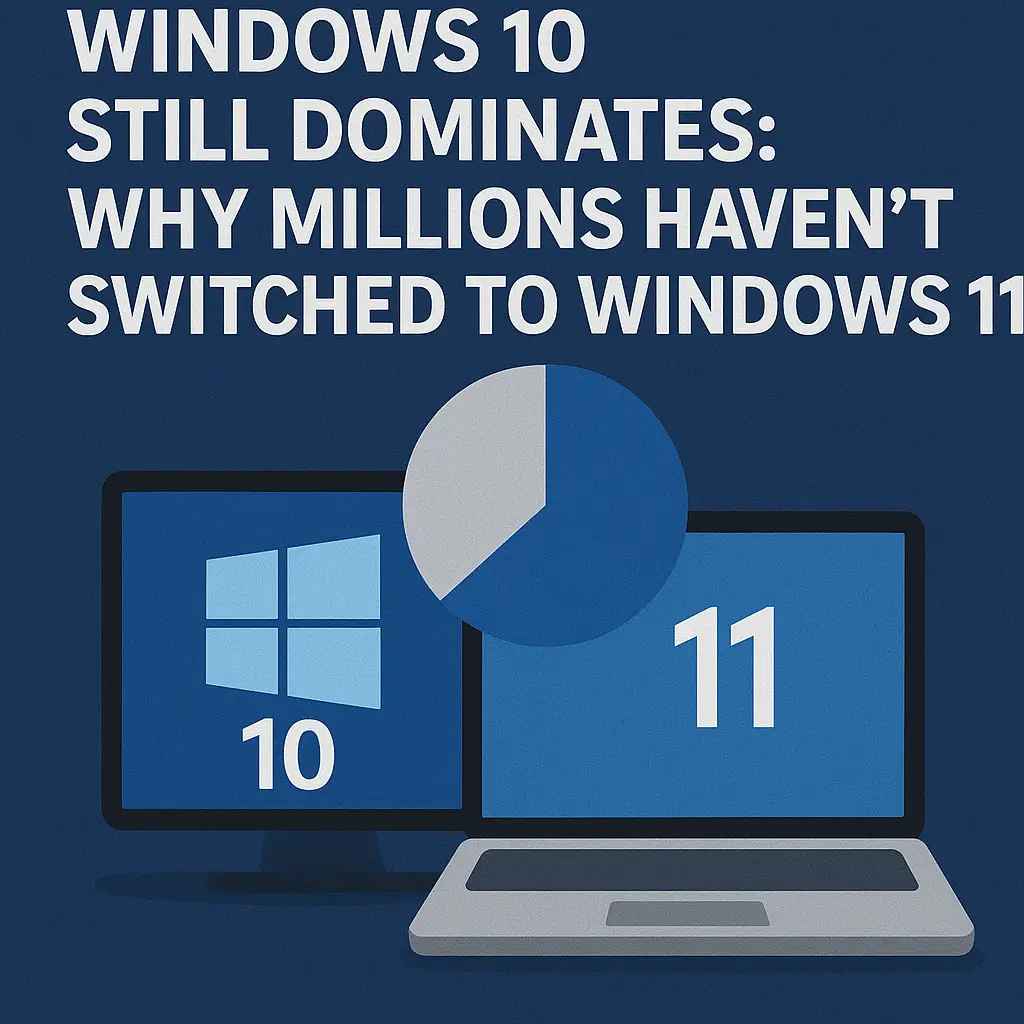
Even four years after the release of Windows 11, Windows 10 continues to hold a massive share of the global desktop operating system market. Despite Microsoft’s modernization efforts, Windows 10 remains deeply entrenched across enterprises, small businesses, educational institutions, and even consumer households. For IT professionals tasked with planning migration strategies, understanding why Windows 10 maintains such dominance is essential for future infrastructure decisions, lifecycle planning, and organizational readiness.
This article explores the key reasons millions of users and organizations still choose to remain on Windows 10—and why Windows 11 adoption is progressing more slowly than Microsoft anticipated.
Legacy Hardware Constraints and the TPM 2.0 Roadblock
One of the most significant barriers preventing widespread Windows 11 adoption is Microsoft’s strict hardware compatibility requirements. TPM 2.0, Secure Boot, and supported CPU generations collectively eliminate large portions of older—but still fully functional—hardware from eligibility.
For enterprises managing thousands of devices, these requirements translate directly into:
• Larger hardware refresh budgets
• Accelerated device replacement cycles
• Increased e-waste concerns
Many organizations cannot justify replacing stable, productive hardware simply to meet an OS requirement, especially in sectors where budgets are constrained or hardware refresh cycles span five to eight years.
Application Compatibility and Legacy System Dependencies
Enterprise environments often rely on legacy applications built for Windows 7 or early Windows 10 frameworks. These applications may depend on older drivers, deprecated APIs, or specific behavior that Windows 11 no longer supports. Rebuilding or replacing such applications requires extensive testing and significant financial investment, making Windows 10 the practical option for maintaining operational continuity.
Industries most affected include manufacturing, logistics, education, finance, and healthcare—where specialized software is often mission-critical and extremely sensitive to OS-level changes.
Stability and Predictability in Long-Term Environments
Windows 10’s maturity is one of its greatest strengths. After a decade of refinement, the OS offers predictable behavior, stable driver support, and well-understood deployment practices. IT teams have invested years in building reliable ecosystem controls around Windows 10, including:
• Group Policy structures
• Imaging workflows
• Software distribution pipelines
• Patch management routines
• Security baselines
Windows 11, while stable, continues to evolve rapidly—often requiring adjustments to UI, configuration tools, deployment strategies, and security policies. For long-term operational environments, predictability outweighs novelty.
User Interface Changes That Disrupt Established Workflows
Windows 11 introduces substantial UI redesigns, including changes to the Start Menu, Taskbar, context menus, and File Explorer. While visually modern, these changes alter well-established workflows, leading to user confusion and increased support requests.
For IT departments, any interface shift requires:
• New training materials
• Updated documentation
• Increased helpdesk volume
• Additional onboarding time
Organizations prioritizing productivity and minimizing operational friction often prefer to maintain Windows 10’s familiar interface until they are ready for a structured, well-planned migration.
Concerns About Update Size, Frequency, and Performance
Windows 11 updates are perceived as larger and more intrusive than those of Windows 10 due to expanded security layers, cloud integration, and more complex servicing stack components. Organizations with limited bandwidth, distributed offices, or aging infrastructure may face:
• Longer installation windows
• Greater bandwidth usage
• More user downtime
Additionally, performance differences—especially on older or minimally compliant devices—create skepticism about Windows 11’s readiness for broad deployment.
Privacy and Compliance Considerations
Windows 11’s deeper cloud integration, AI-assisted features, and Microsoft account dependencies raise new questions for privacy-sensitive industries. While enterprise tools exist to limit data collection, organizations subject to strict compliance regulations are cautious about migrating to a platform with more cloud-facing components.
Sectors such as government, healthcare, and finance often delay migration until privacy models are fully understood, validated, and compatible with internal policies.
Cost, Budgeting, and Procurement Cycles
Large-scale migrations involve not only software considerations but also hardware procurement, staff training, system reconfiguration, and workflow adjustments. Many organizations simply cannot align these changes with current budget cycles.
Windows 10’s Extended Security Updates (ESUs) provide breathing room, allowing organizations to remain secure without rushing into migration. This extended support encourages phased adoption instead of forced transitions.
Resistance to Change and Organizational Fatigue
Digital transformation initiatives, cloud migrations, cybersecurity overhauls, and remote-work infrastructure upgrades have already stretched IT resources. Many organizations are simply not prepared to take on another major OS migration so soon.
User resistance also plays a role. Employees accustomed to Windows 10 may push back against UI changes or new behaviors introduced in Windows 11, further slowing adoption.
Insufficient Compelling Benefits for Many Use Cases
While Windows 11 offers improvements in security, design, and hybrid CPU optimization, many users do not perceive significant functional advantages. For typical productivity use cases—email, web browsing, office applications—the experience between Windows 10 and Windows 11 is largely similar.
Without clear, compelling reasons to switch, users and IT leaders prioritize stability over new features.
Conclusion
Windows 10 continues to dominate because it delivers stability, compatibility, and reliability at a level that Windows 11 has not yet fully matched across all environments. Hardware constraints, legacy application dependencies, cost considerations, privacy concerns, and user resistance all contribute to the slow migration pace.
For IT professionals, the decision to migrate should be based on readiness, not pressure. Windows 11 will eventually become the standard, but until its ecosystem matures further—and enterprises complete their hardware and software modernization cycles—Windows 10 will remain firmly entrenched as the operating system millions continue to rely on every day.
- Details
- Written by: IT Pro
- Category: Blog
- Hits: 7023
Despite an aggressive push from Microsoft and continuous messaging around modernization, Windows 10 remains deeply entrenched across global enterprise environments. Even as Windows 11 matures and organizations begin planning long-term support transitions, adoption momentum remains slow. For many IT professionals, Windows 10 persists not out of nostalgia but because it continues to deliver stability, compatibility, and operational predictability that newer platforms have yet to fully replicate.
This article explores why Windows 10 remains a dominant force in corporate computing and why attempts to phase it out continue to meet resistance from enterprises, IT departments, and end users alike.
A Proven Stability That Enterprises Trust
Windows 10 has benefited from years of iterative refinement, extended patch cycles, and widespread deployment across millions of systems. Its long operational lifespan has allowed IT teams to thoroughly test, harden, and document the OS within their environments, producing a level of maturity that Windows 11 has not yet matched.
This stability extends to:
• Application behavior
• Driver compatibility
• Configuration management
• Group Policy consistency
• Known operational baselines
For organizations with mission-critical systems, predictable behavior often outweighs the allure of new features—making Windows 10 the safer choice until Windows 11 reaches comparable maturity.
Legacy Application Dependencies Still Holding Strong
A significant portion of enterprise environments rely on legacy applications built for Windows 7 or earlier, many of which were never fully updated for modern frameworks. These applications often depend on deprecated APIs, legacy drivers, or older architectural assumptions that Windows 11 either restricts or no longer supports.
Rewriting, replacing, or modernizing legacy systems comes with cost, risk, and operational downtime. Windows 10 offers a stable bridge between outdated software and modern IT infrastructure, allowing organizations to delay or avoid expensive overhauls.
Hardware Compatibility and the TPM 2.0 Barrier
Windows 11’s strict hardware requirements—particularly the need for TPM 2.0, Secure Boot, and supported CPU generations—exclude millions of otherwise functioning devices from upgrade eligibility. In many enterprises, large portions of the hardware fleet fail to meet these requirements, leading to difficult budgeting and procurement decisions.
Rather than replacing devices prematurely, organizations often choose to extend Windows 10’s operational life. This is especially true in:
• Education
• Healthcare
• Manufacturing
• Public sector environments
For many IT departments, hardware refresh cycles simply do not align with Microsoft’s upgrade timelines.
A Familiar Interface That Minimizes Training Burden
The redesigned user interface in Windows 11, while modern and visually appealing, disrupts many workflows long familiar to Windows 10 users. Changes to the Start Menu, File Explorer, taskbar behavior, and context menus often require retraining, adjustments to documentation, and increased helpdesk workload.
Windows 10’s interface remains predictable, widely understood, and deeply integrated into existing user habits. For organizations prioritizing productivity and minimizing disruption, the benefits of a familiar interface outweigh the need to adopt a new UI paradigm prematurely.
Easier Integration with Existing Management and Deployment Tools
Years of enterprise adoption have ensured that Windows 10 integrates seamlessly with established management frameworks such as:
• SCCM / MECM
• Group Policy
• WSUS
• Legacy imaging systems
• On-premises domain structures
While Windows 11 supports these same tools, early adopters frequently report inconsistencies, subtle behavior differences, and ongoing compatibility adjustments required for smooth operation. Windows 10’s long-term presence in the enterprise has resulted in deeply tested deployment pipelines that many teams are reluctant to abandon.
Extended Support Options Provide Breathing Room
Microsoft’s introduction of Extended Security Updates (ESUs) for Windows 10 ensures that organizations can continue running the OS safely beyond its official end-of-life date. These ESUs offer critical security updates without requiring an immediate migration to Windows 11.
For large enterprises balancing competing priorities—cloud migration, infrastructure modernization, cybersecurity investments—the availability of ESUs allows them to delay Windows 11 adoption until budget cycles, staffing, and technical readiness align.
Compatibility with Older Drivers and Peripherals
Industries relying on specialized peripherals—such as barcode scanners, medical instruments, industrial controllers, and legacy printers—often encounter driver issues under Windows 11. Many of these devices were built long before modern driver frameworks or security policies existed.
Windows 10 maintains broader compatibility with older hardware due to its more permissive driver model and longer legacy-support track record. For organizations dependent on equipment that cannot be easily replaced, maintaining Windows 10 is often the only viable option.
Lower Resource Requirements for Aging Devices
Windows 11 introduces new UI frameworks and security layers that increase RAM usage, GPU dependency, and CPU demands. On older devices, this leads to performance degradation that users perceive as slow or unstable.
Windows 10 runs more smoothly on aging hardware, giving organizations the ability to maximize existing device lifecycles and reduce premature capital expenditures.
User Resistance and Organizational Change Fatigue
Large-scale OS migrations are disruptive even under ideal conditions. Users often resist changes that alter familiar workflows or introduce new learning curves. With many organizations already juggling cloud transitions, security overhauls, and modernization efforts, another major UI and operational shift can feel overwhelming.
Windows 10’s persistence is as much a cultural and organizational issue as a technical one. Many businesses simply prefer to delay migration until user readiness and IT capacity align more effectively.
Conclusion
Windows 10 refuses to die because it remains reliable, compatible, and deeply embedded in enterprise ecosystems. While Windows 11 offers meaningful advancements in security, design, and cloud integration, these benefits are often overshadowed by concerns around compatibility, cost, training, and workflow disruption.
For IT professionals, the challenge is to determine the right balance between modernization and operational continuity. Windows 10 will eventually fade, but for now, its persistent value ensures it will remain part of the enterprise landscape long after official support deadlines come and go.
- Details
- Written by: IT Pro
- Category: Blog
- Hits: 6362
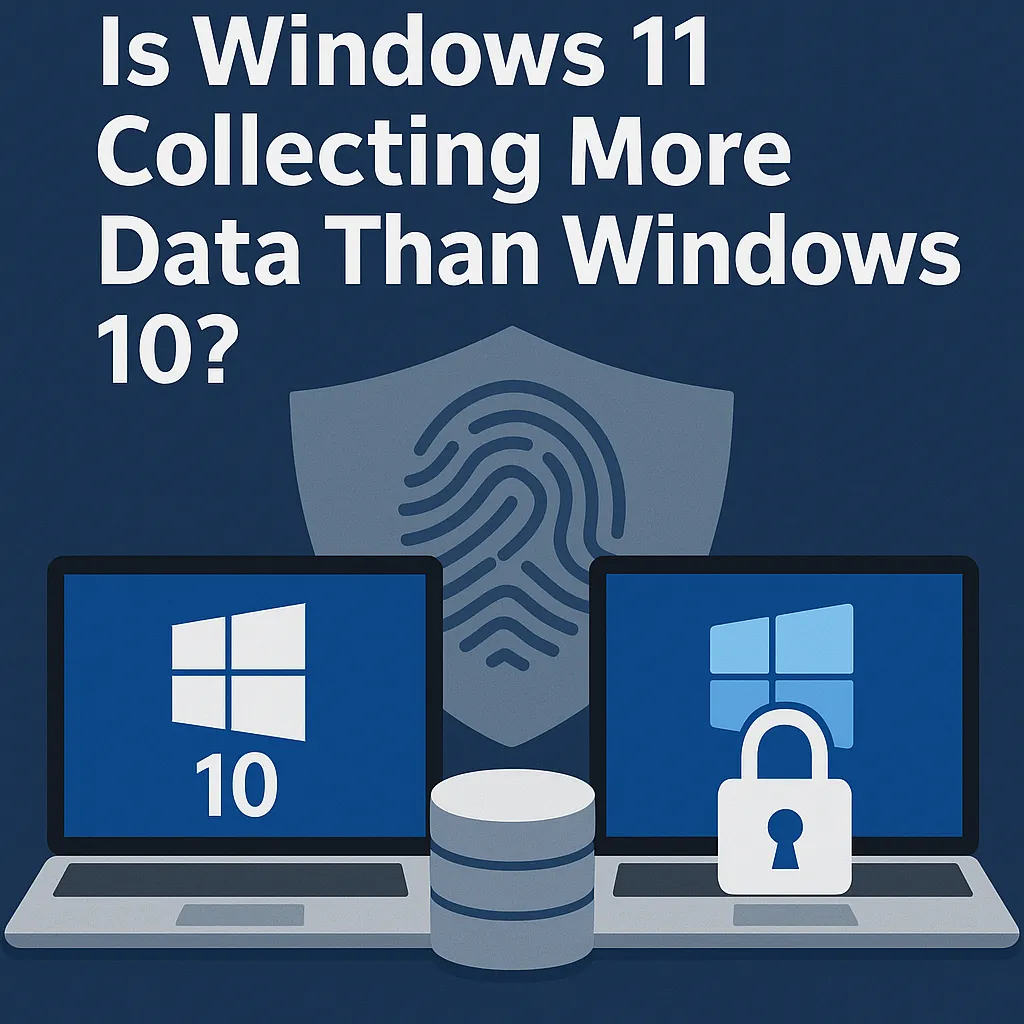
As organizations migrate their users from Windows 10 to Windows 11, a recurring question among IT professionals concerns the scope and nature of Microsoft’s data collection practices. Windows has long included telemetry and diagnostic data mechanisms to improve reliability, security, and user experience. However, the deeper cloud integration and AI-driven capabilities of Windows 11 have raised new questions about whether the operating system collects more data than its predecessor—and what that means for enterprise environments.
This review examines the privacy landscape surrounding Windows 11, highlights key differences from Windows 10, and outlines considerations IT teams must evaluate when deploying the OS across business environments.
Expanded Cloud Integration Leads to Broader Data Touchpoints
Windows 11 was designed with cloud-first functionality in mind. Features such as Widgets, Microsoft Teams integration, OneDrive synchronization, Windows Copilot, and cloud-based personalization services rely on data exchanges between the device and Microsoft’s cloud infrastructure.
Compared to Windows 10, which offered cloud features but did not tightly bind them into core workflow components, Windows 11 introduces a broader set of cloud-driven elements and background services. This inherently increases the amount of metadata the system may collect, particularly around:
• Usage patterns
• Interaction habits
• Content recommendations
• Device and account configuration
These elements are tied to improving user experience but also contribute to heightened scrutiny from privacy-conscious organizations.
Diagnostic Data Categories Remain Similar—But the Ecosystem Has Expanded
Microsoft maintains that Windows 11 collects no more diagnostic data than Windows 10. In terms of core telemetry categories—device health, performance metrics, application crash logs, and security signals—the overall framework remains largely the same.
However, the operating system interacts with more cloud-connected services than Windows 10, which broadens the range of scenarios where data may be collected. IT teams must therefore differentiate between:
• OS-level diagnostic telemetry
• Application-level cloud telemetry
• AI-driven service telemetry
The OS itself may not collect significantly more diagnostic data, but the surrounding ecosystem and bundled applications often do.
AI-Powered Features Introduce New Data Considerations
Windows 11 increasingly integrates AI-based features, including personalized recommendations, automated task suggestions, and Microsoft Copilot functionalities. These services rely on analyzing user activity, contextual information, and behavioral patterns to deliver insights or automation.
While enterprise environments can disable many of these capabilities via Group Policy, Intune, or cloud configuration, their default presence means organizations must carefully evaluate how data is processed, transmitted, and potentially retained.
AI-driven features may analyze:
• Recent document usage
• Search patterns
• Application behavior
• Workflow trends
Such data is typically anonymized or used in aggregate, but compliance-sensitive industries may consider the scope too broad without fine-tuned administrative controls.
Increased Account Dependency and Identity-Based Data Collection
Windows 11 places stronger emphasis on Microsoft account integration, particularly for consumer installations. While enterprise domains typically rely on Azure AD or local Active Directory, the shift towards cloud identity frameworks increases metadata related to authentication and identity-driven services.
For enterprise deployments, this shift leads to more granular collection of identity-related events, including:
• Sign-in patterns
• Device trust signals
• Conditional access events
• Cloud authentication telemetry
These insights improve security posture but can raise data residency or compliance questions depending on jurisdiction.
Widgets, Suggestions, and Content Feeds Increase Behavioral Telemetry
The introduction of Widgets and personalized feeds in Windows 11 creates a new, persistent channel for data-driven content. These components rely on:
• Location data
• Search data
• App usage patterns
• Microsoft ecosystem preferences
While these services can be disabled, they represent a notable departure from Windows 10’s more static interface. They also serve as a reminder that Windows 11 is more tightly aligned with cloud-based personalization tools.
Enterprise Controls Remain Strong—But Must Be Configured Proactively
Windows 11 retains extensive privacy controls suitable for enterprise environments, including Group Policy restrictions, Windows Update for Business controls, the ability to disable Consumer Experience Components, and tools to limit or block telemetry. However, these controls are not always enabled by default.
Organizations can enforce:
• Telemetry at the minimum data setting
• Restrictions on cloud-based features
• Blocking of consumer-oriented apps and services
• Data minimization policies for device usage
• Visibility into data flows via Microsoft Endpoint Manager
Failure to configure these settings can lead to unintentional data collection that might violate internal compliance requirements.
Comparing Windows 10 and Windows 11 in Practical Terms
From a strict telemetry classification perspective, Windows 11 is not collecting more diagnostic data than Windows 10. The privacy frameworks and enterprise controls remain broadly similar. What has changed is the OS ecosystem: Windows 11 is built around cloud services, AI-driven personalization, and integrated applications that inherently generate more “interaction data.”
Thus, the perception of increased data collection stems from:
• More built-in cloud apps
• More integrated personalization services
• Increased identity and authentication activity
• AI features requiring behavioral input
These elements expand the types of data that may be processed—not necessarily the diagnostic payloads Microsoft collects.
Conclusion
Windows 11 does not fundamentally change Microsoft’s diagnostic data model relative to Windows 10, but its ecosystem introduces new cloud and AI-driven features that interact with user behavior more deeply. For IT professionals, the key challenge is not the raw telemetry itself but the increased number of services capable of collecting metadata. With proper configuration via Group Policy, Intune, and enterprise privacy controls, organizations can effectively limit data exposure and ensure compliance with regulatory requirements.
Ultimately, Windows 11’s privacy posture can remain secure and compliant—provided IT teams take a proactive role in configuring and monitoring data collection behaviors across the operating system and its associated cloud services.
- Details
- Written by: IT Pro
- Category: Blog
- Hits: 6510
As organizations continue migrating to Windows 11, one of the most consistent complaints from IT departments and end users alike is the perception that Windows 11 updates are slower, larger, and more disruptive compared to those on Windows 10. While this perception varies depending on hardware configurations and deployment strategies, there are real architectural, security, and service-level changes within Windows 11 that influence how updates are downloaded, installed, and applied.
For IT professionals responsible for update management, endpoint performance, and user productivity, understanding the root causes of these differences is essential for planning maintenance windows, optimizing deployments, and avoiding unnecessary downtime across enterprise fleets.
A More Complex OS Architecture with Additional Components
Windows 11 introduces a modernized system architecture that comes with new frameworks, enhanced security layers, and updated UI components. These additions increase the size of the operating system footprint and, by extension, the updates needed to maintain it.
Windows 11 relies heavily on modular components such as redesigned subsystems for the Taskbar, Start Menu, and File Explorer—as well as deeper integration with cloud-based services such as OneDrive, Windows Update for Business, and Microsoft account–based personalization. Each of these modules requires frequent updates, resulting in more granular and often larger patch payloads compared to Windows 10.
Heavier Security Patches and Virtualization-Based Security
One of the major drivers of larger update sizes is Windows 11’s expanded security model. Virtualization-Based Security (VBS), Hypervisor-Protected Code Integrity (HVCI), and Memory Integrity all require additional system components, kernel drivers, and hypervisor layers that must be patched alongside the core OS.
These security modules significantly improve endpoint protection, but they result in more files being serviced during every update cycle. Because many enterprises enable these features by default, update packages must account for the additional drivers, isolation layers, and validation routines.
Changes to the Windows Servicing Stack
Windows 11 uses a more sophisticated servicing stack than Windows 10, incorporating new dependency validation mechanisms, component store management methods, and update resiliency tools. These additions help ensure update reliability—but they also increase the total number of components that must be processed during installation.
The Servicing Stack Updates (SSUs) included in Windows 11 are often larger and more complex because they support a broader set of modular OS components. This results in longer installation times and additional disk usage during the update process.
Cumulative Update Sizes Continue to Grow
Just like Windows 10, Windows 11 uses cumulative updates. However, the size of Windows 11’s baseline OS and its monthly rollups tends to be larger due to increased system complexity. Cumulative updates bundle all previous fixes, causing monthly packages to grow, especially on devices that have not updated recently.
On systems that miss multiple cycles, update sizes can exceed several gigabytes. This results in longer download periods, slower installation, and more strain on network resources—especially in organizations lacking optimized caching or deployment infrastructure.
More Frequent Feature Rollouts Under the Continuous Enhancement Model
Windows 11 follows a more aggressive feature release strategy than Windows 10, driven by Microsoft’s continuous enhancement model. Instead of large, twice-yearly feature updates, Windows 11 delivers new features throughout the year via:
• Online Service Experience Packs
• Moment updates
• Cloud-driven feature drops
• Microsoft Store application updates
These feature rollouts often include new UI elements, updated system apps, and additional integration capabilities. Even when installed silently, they increase the overall update volume experienced by end users and IT teams.
Reduced Optimization for Legacy Hardware
Windows 11 is optimized primarily for modern CPUs, SSD-based systems, and devices designed around its security requirements. On older hardware—especially systems barely meeting minimum requirements—updates can take significantly longer due to:
• Slower disk I/O on SATA SSDs or HDDs
• Older TPM modules that delay verification steps
• CPUs lacking optimized microcode for new scheduling mechanisms
While enterprise-grade machines handle updates more efficiently, legacy or minimally compliant devices will experience noticeable slowdowns compared to Windows 10.
Post-Update Optimization and Indexing Tasks
After installing updates, Windows 11 performs additional background tasks that may not be immediately obvious. These include:
• Index rebuilding for search
• Application preloading
• Cloud sync checks
• Component store cleanup
• Security baseline revalidation
These processes consume CPU, disk, and I/O resources, often creating the impression that updates are still ongoing or that the system is running slower after reboot. While temporary, they contribute to the overall perception of slower updates.
Network Impacts in Enterprise Environments
Because update sizes tend to be larger, IT departments may see increased bandwidth consumption across branch offices, VPN tunnels, or remote endpoints. Organizations without peer-to-peer caching, on-premises update distribution tools, or cloud-optimized deployment frameworks may experience network saturation.
Remote workers using metered connections or low-speed home networks often perceive updates as significantly slower compared to Windows 10’s more compact update packages.
Cloud-Integrated Components Require Additional Servicing
Windows 11 features deeper cloud integration than its predecessor. Components tied to Microsoft accounts, OneDrive, Teams, Widgets, and Windows Copilot require frequent updates independent of core system patches.
While these updates improve responsiveness and feature availability, they contribute to a steady increase in background data usage and patch volume—factors that reinforce the perception of slower, heavier updates.
Conclusion
Windows 11 updates feel slower and larger than Windows 10’s for several interconnected reasons: a more complex OS architecture, expanded security layers, heavier cumulative updates, cloud-centric components, and new background servicing models. For IT professionals, mitigating these challenges requires optimizing update delivery infrastructure, using Windows Update for Business policies effectively, and ensuring devices meet modern hardware standards.
With the right configuration and deployment strategy, organizations can balance update performance with security and stability—ensuring Windows 11 delivers long-term value without unnecessary disruption to users or the network.
- Details
- Written by: IT Pro
- Category: Blog
- Hits: 5848
As organizations continue their transition from Windows 10 to Windows 11, one of the most frequently reported pain points among experienced users is the updated File Explorer interface. While Microsoft’s design goals center on modernization, simplified navigation, and deeper cloud integration, these changes often disrupt well-established workflows. For IT professionals responsible for guiding end users and maintaining productivity across endpoint fleets, understanding these frustrations is key to developing training, documentation, and configuration policies that smooth the migration.
This article reviews the most significant File Explorer changes in Windows 11 that tend to confuse or slow down Windows 10 veterans, offering insight into why these differences matter and how they impact enterprise environments.
The New Command Bar Replacing the Classic Ribbon
Perhaps the most disruptive visual change is the removal of the classic Ribbon interface that Windows 10 users rely on for quick access to commands such as Copy, Paste, Rename, Sort, New Folder, and advanced view options. Windows 11 introduces a minimalist command bar with simplified icons, often hiding secondary functions behind dropdown menus.
While cleaner in appearance, this redesign reduces feature discoverability. Power users accustomed to finding advanced actions in the Ribbon now must navigate multiple clicks to reach the same tools. This shift not only affects productivity but may complicate scripted or documented workflows that depended on the older UI layout.
Context Menu Redesign and Hidden Legacy Options
Windows 11’s modern context menu introduces rounded corners, simplified options, and a new layered structure intended to reduce clutter. However, many commonly used advanced commands—such as file hashing, third-party integrations, detailed sharing settings, or version-control actions—are pushed into a secondary menu accessed through “Show more options.”
This two-step menu has caused confusion among Windows 10 veterans who expect certain commands to appear immediately when right-clicking. The extra step adds friction to daily tasks such as managing archives, interacting with version-control tools, or using enterprise security products that previously integrated directly into the context menu.
Changes to Quick Access and Pinned Folders
Windows 11 modifies how Quick Access works and introduces the concept of “Home” within File Explorer. While the intention is to highlight frequently used files and cloud-integrated content, the shift has caused disorientation for users familiar with the Windows 10 layout.
Pinned folders now appear under different sections, recent items are more prominent, and OneDrive-related content may surface automatically depending on organization settings. This can result in misplaced muscle memory and uncertainty about where user-defined shortcuts reside, especially for power users who built extensive folder shortcuts for daily workflows.
Simplified Toolbar Icons with Reduced Labeling
Another major change is the removal of text labels from toolbar buttons. Windows 11 relies heavily on iconography, which can be ambiguous for users accustomed to descriptive buttons. While the interface looks cleaner, it increases cognitive load—users must interpret icons or hover for tooltips to confirm an action.
In fast-paced enterprise workflows, this visual ambiguity can contribute to task delays or accidental misclicks, leading to user frustration or support requests for clarification.
Folder View Behavior and Navigation Differences
Windows 11 introduces subtle but impactful changes to how folder views behave. For example, details view, grouping, and sorting behave slightly differently, and some legacy customizations no longer persist across folders. Additional inconsistencies arise when mixing local and cloud-backed folders, as their metadata and icon behavior differ more noticeably than in Windows 10.
These variations often cause confusion for users who expect File Explorer to remember specific display preferences or to provide consistent sorting and filtering options across all directory types.
Integrated Cloud Experience Changing File Behavior
OneDrive integration is significantly more prominent in Windows 11’s File Explorer. Files-on-Demand behavior, sync status icons, and suggested cloud content surface more aggressively, sometimes appearing before users fully understand their role or impact. This can disrupt workflows involving shared drives, local-only folders, or offline work.
In organizations where cloud adoption is still partial, users may accidentally move files into the cloud, lose track of local copies, or experience sync delays that they misinterpret as system issues. This integration shift often requires additional IT guidance to prevent misconfigurations and confusion.
Tabs in File Explorer: Helpful but Disruptive to Old Habits
Windows 11’s introduction of tabbed File Explorer windows is widely praised but still presents an adjustment challenge. Windows 10 veterans accustomed to multiple separate windows or snap layouts may initially struggle with the mixed interaction model. While tabs reduce desktop clutter, they also change behaviors such as dragging, moving, or comparing files across directories.
Some users inadvertently open too many tabs, lose track of navigation paths, or experience reduced flexibility when multi-window workflows are essential—especially in IT, development, and data-processing roles.
Reduced Visibility of Network and System Locations
File Explorer in Windows 11 places less emphasis on network and system locations by default. For organizations with extensive SMB shares, mapped drives, or legacy NAS environments, this subtle change negatively impacts navigation. Users may believe network shares are missing or disconnected simply because they are deprioritized or hidden behind collapsible sections.
This contributes to increased helpdesk tickets related to “missing drives,” even when connectivity is functioning properly.
The Shift Toward a Touch-Friendly, Minimalist UI
Much of File Explorer’s redesign aligns with Microsoft’s broader shift toward a unified, touch-friendly interface. While beneficial for tablets, hybrid devices, and modern laptops, this design philosophy often reduces efficiency for keyboard-and-mouse power users—especially in enterprise settings where speed and precision outweigh aesthetics.
The flattened menus, larger spacing, and reduced visual density force more scrolling, more clicking, and more transitions, all contributing to workflow friction for users who mastered Windows 10’s more compact layout.
Conclusion
The File Explorer redesign in Windows 11 introduces usability improvements for some, but for Windows 10 veterans, it represents a significant shift that interrupts established workflows. Simplified menus, reduced customization, cloud-forward features, and altered navigation patterns increase the learning curve during organizational migrations.
For IT professionals, anticipating these challenges is essential for minimizing disruption. Training materials, transition guides, and clear policy configurations can help users regain efficiency while adjusting to the new interface. As File Explorer continues to evolve, IT teams must stay informed and proactive to ensure that UI changes enhance productivity rather than hinder it.

 11914
11914  IT Pro