
Online: 1114 online | Members: 0 | Guests: 1114
Wednesday, June 3, 2026
Page Minimap
Reading time: 2 min read
Tagline:HowtoAddanImageFileintoWordDocumentinVersion2511+5
There is no translation available.

1. Open Word and go to Insert on the top menu ribbon and click on it once:
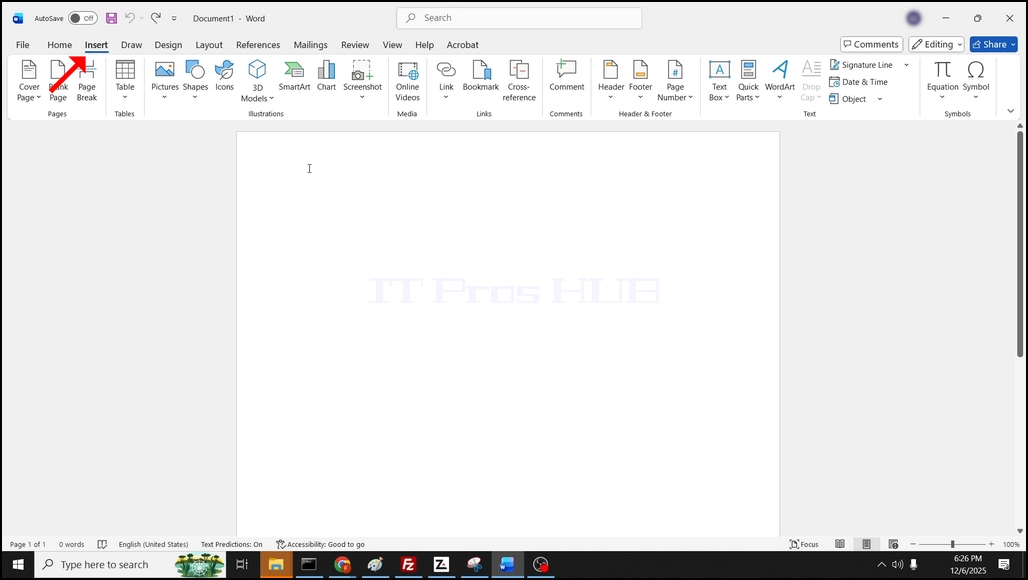
How_to_Add_an_Image_File_into_a_Word_Document_in_Word1.webp

2. Under Insert, go to Pictures and click on its icon. Wait for a drop-down menu to appear:

How_to_Add_an_Image_File_into_a_Word_Document_in_Word2.webp

3. In the drop-down menu, look for This Device... and click on it once. wait for a new window to appear.

How_to_Add_an_Image_File_into_a_Word_Document_in_Word4.webp

How_to_Add_an_Image_File_into_a_Word_Document_in_Word9.webp

4. In the newly opened window, choose the image file you would like to add to your Word Document and click on the Insert button:

How_to_Add_an_Image_File_into_a_Word_Document_in_Word10.webp

How_to_Add_an_Image_File_into_a_Word_Document_in_Word98.webp

5. After clicking Insert, the image should be added to your Word document:

How_to_Add_an_Image_File_into_a_Word_Document_in_Word11.webp