



1. Go to Windows Desktop1. Windows жұмыс үстеліне өтіңіз
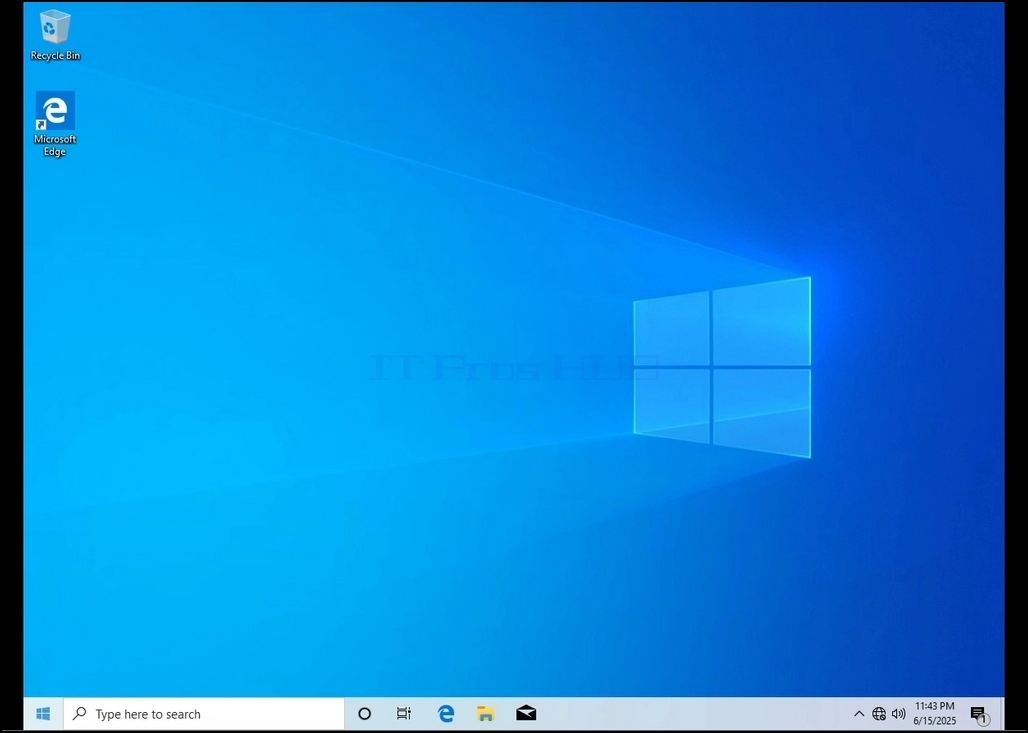
2. Бастау түймесін басыңыз
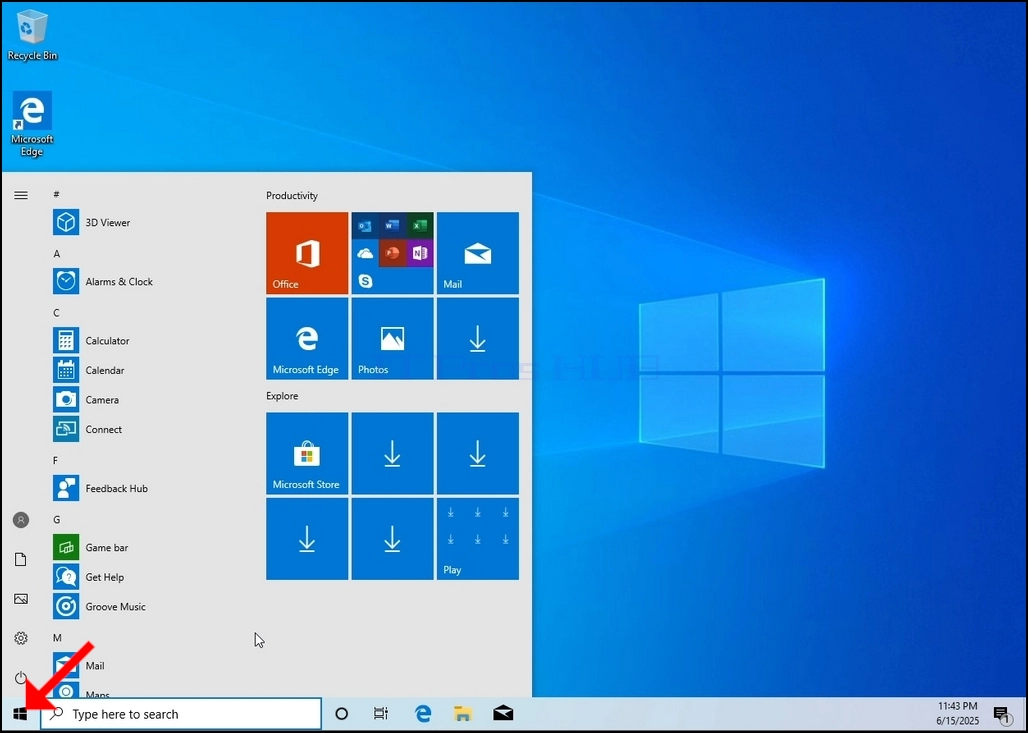
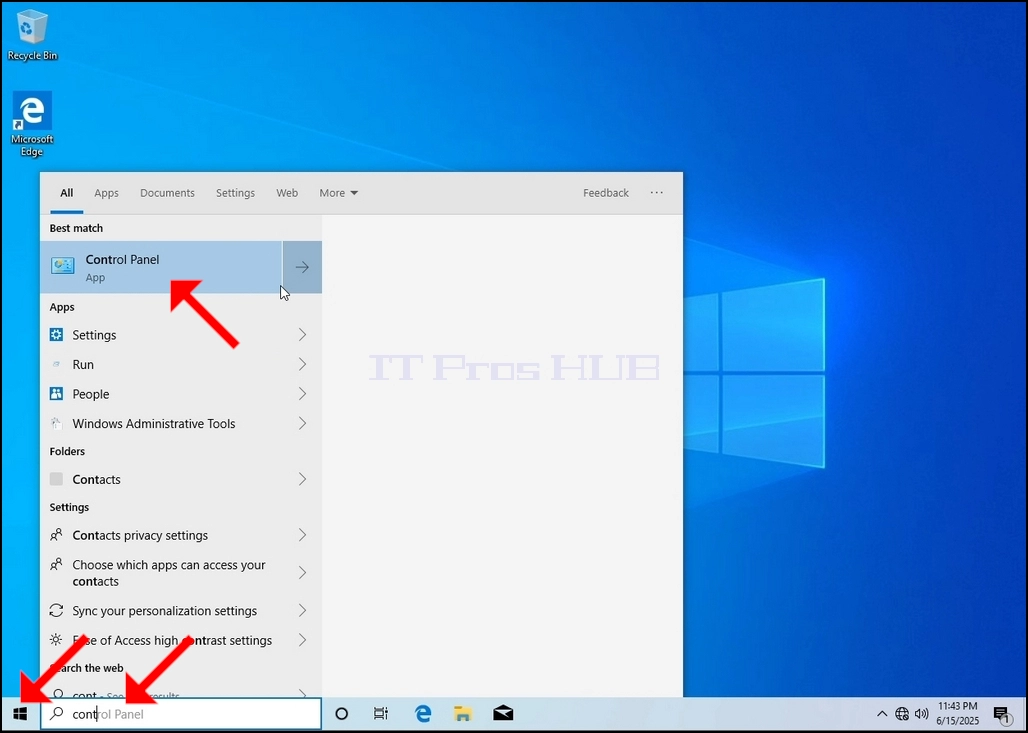
3. Бастау мәзірі ашылғаннан кейін, "басқару панелі" деп теріп, Бастау мәзірі Басқару панелі белгішесін тапқанша күтіңіз. Назар аударыңыз, тек «cont» теру мүмкін, ал көп жағдайда Бастау мәзірінде Басқару тақтасы белгішесі де болады.
Оны тапқаннан кейін, оны басып, Басқару тақтасы терезесінің пайда болуын күтіңіз.
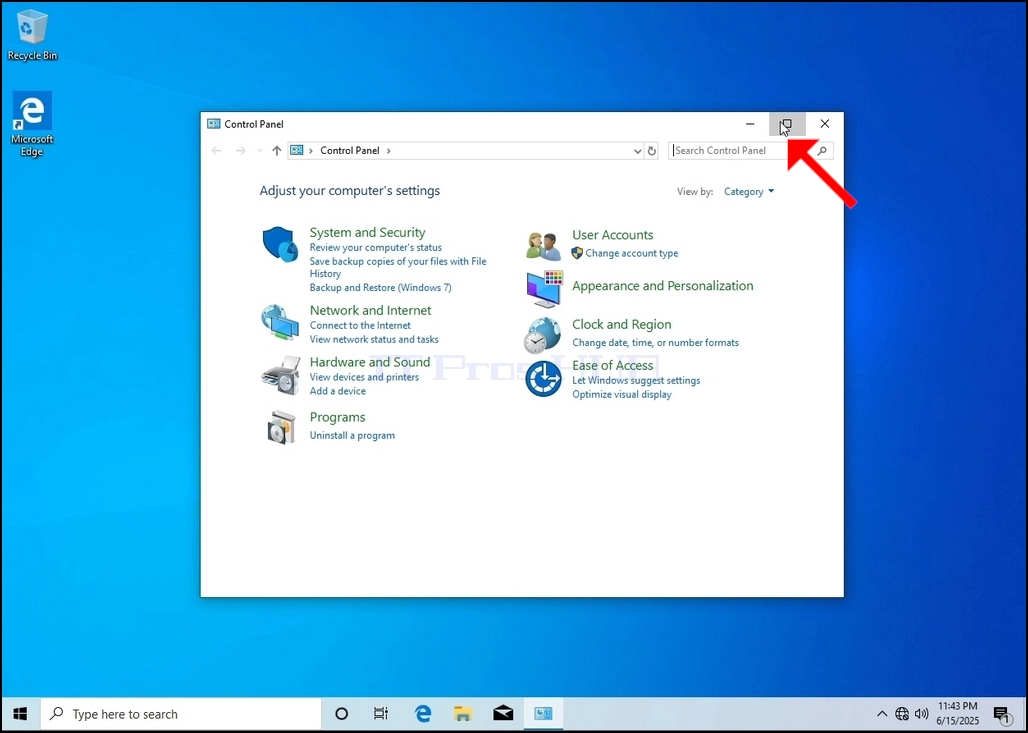
4. Басқару тақтасы терезесі ашылғаннан кейін, сол терезенің жоғарғы оң жақ бұрышындағы үлкейту белгішесін басу арқылы оны үлкейтіңіз.

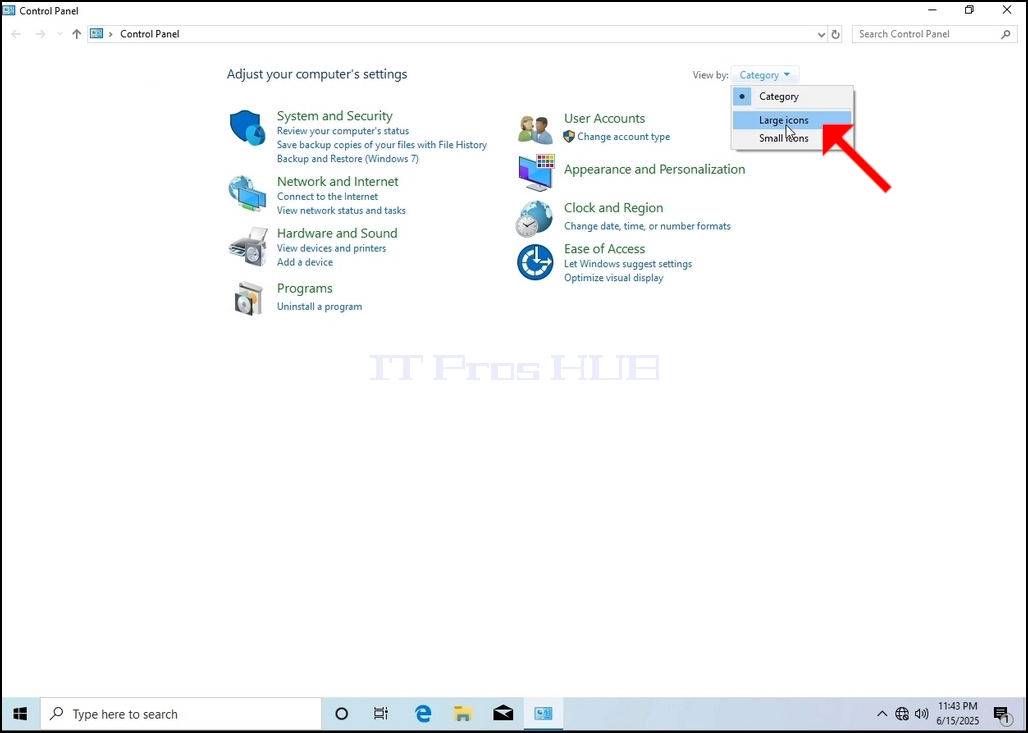
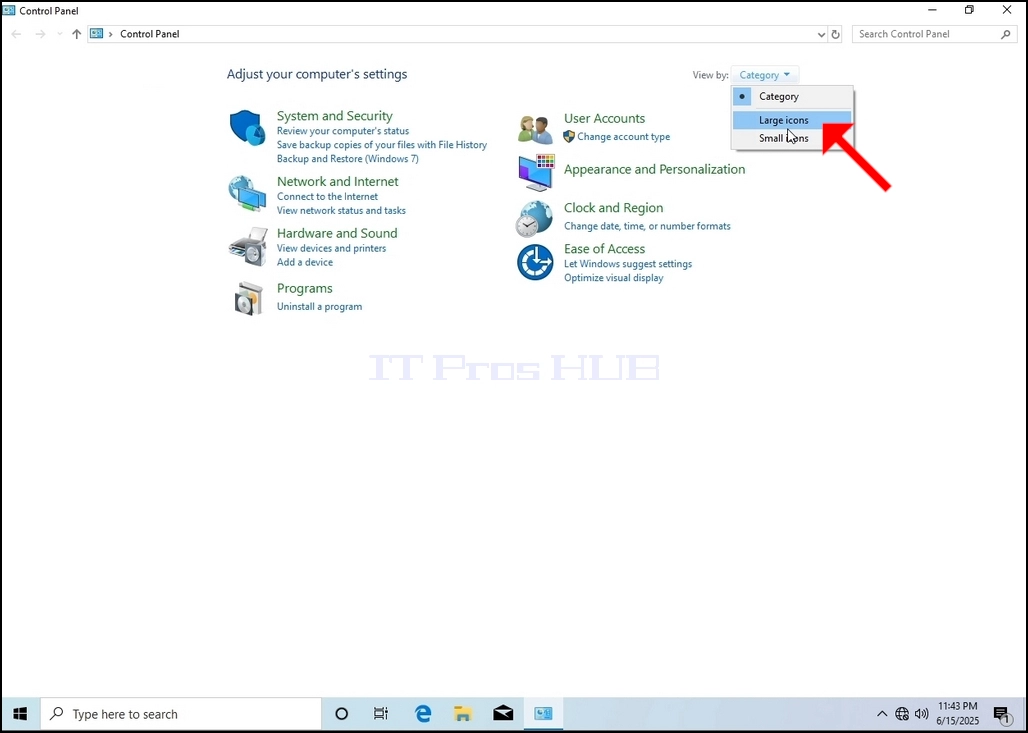
5. Навигацияны жеңілдету үшін Басқару тақтасы терезесінің жоғарғы оң жағындағы Санат түймесін басып, пайда болған шағын жаңа мәзірден "Үлкен белгішелер" таңдаңыз.
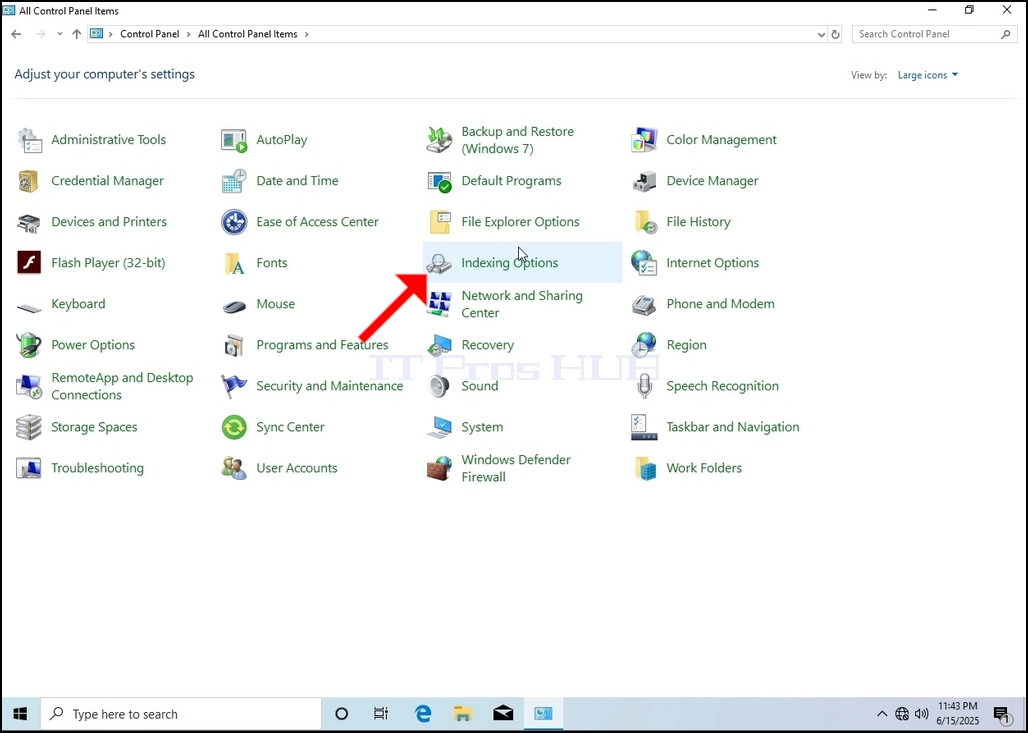
6. Индекстеу параметрлері белгішесін тауып, оны басыңыз. «Индекстеу параметрлері» терезесінің пайда болуын күтіңіз.
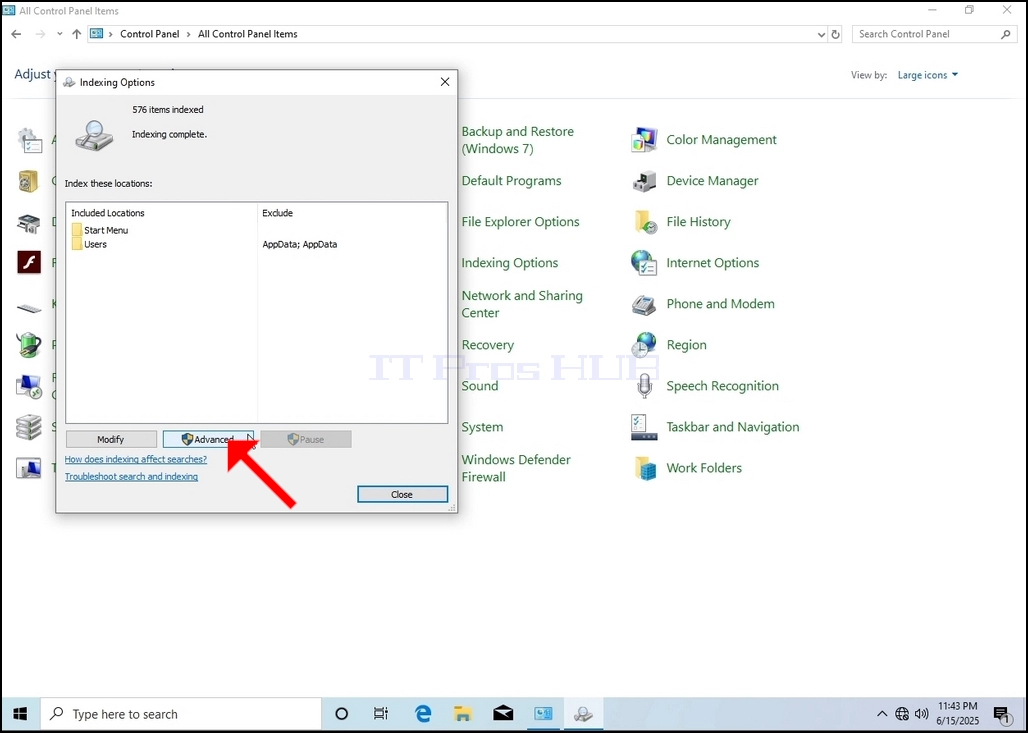
7. Индекстеу параметрлері терезесі ашылғаннан кейін, сол терезенің төменгі жағындағы «Қосымша» түймесін басыңыз.
8. Жаңа терезеде «Қайта құру» түймесін іздеп, оны басыңыз. Содан кейін растау терезесі пайда болады. Индексті қайта құруды бастау үшін ондағы «ОК» түймесін басыңыз.
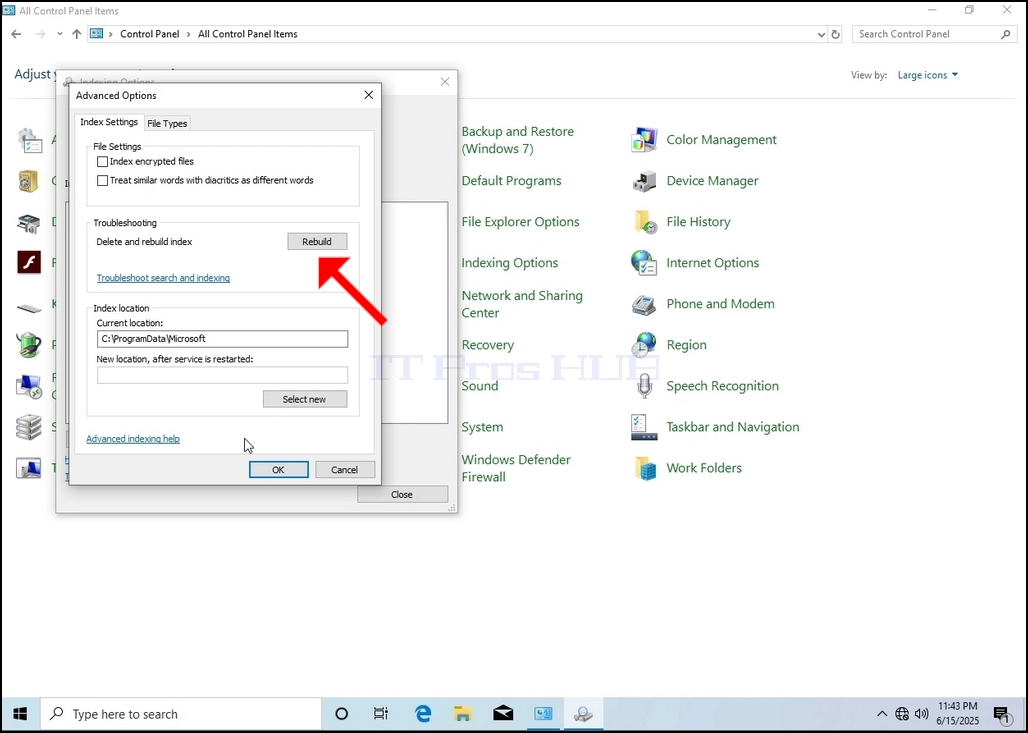
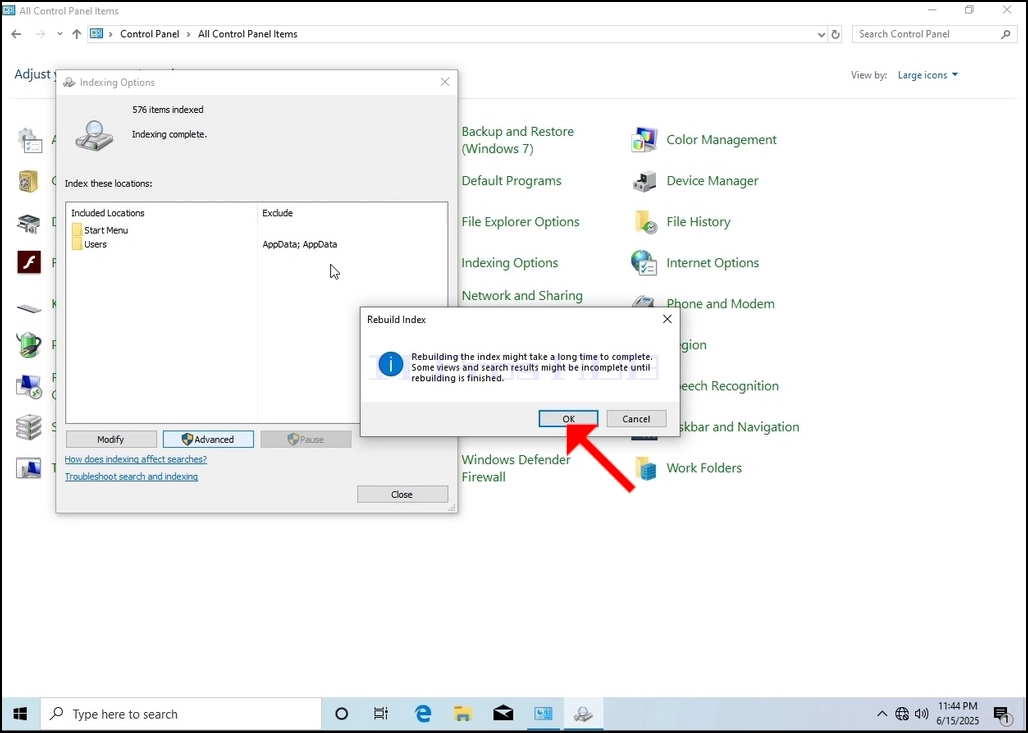
9. Растау терезесінде OK түймесін басқаннан кейін Windows өзінің индексін қайта құра бастайды. Нақты процестің басталуы үшін біраз уақыт кетуі мүмкін, шыдамдылықпен бірнеше секундтан бірнеше минутқа дейін күтіңіз. Процесс басталған сәтте, «Индекстеу аяқталды» деген сөйлем «Индекстеу жүріп жатыр. Іздеу нәтижелері осы уақыт ішінде аяқталмауы мүмкін» деген сөйлеммен ауыстырылады.
Сонымен қатар, индекстелген элементтер саны бір сәтке 0-ге қалпына келтіріліп, содан кейін арта бастайды.

2. Click Start

Once it finds it, click it and wait for the Control Panel window to appear.

4. Once the Control Panel window is open, enlarge it by clicking the enlarging icon on the top right corner of that window.


6. Look for the Indexing Options icon and click it. Wait for the Indexing Options window to appear.


9. After clicking OK in the confirmation box, Windows will start rebuilding its index. It might take some time for the actual process to start, Wait patiently a few seconds to a few minutes. The moment the process starts, the "Indexing Complete" sentence will be replaced with "Indexing in progress. Search results might not be complete during this time."
In addition, the number of items indexed will be reset to 0 for a moment and then start to increase.
Note that All of the windows that are related to the Indexing process can now be closed and the rebuilding process would still be running the background.
Note that the Indexing process' speed might be reduced due to user activity on the computer. The more intense the activity the less the Indexing speed would be.

10. To check if the indexing process is done, go back to the Indexing Options through Control Panel as explained in the previous stages. If the process is complete, you would see the "Indexing Complete" sentence appears again.
Since Windows does not notify the user once this process is done, there is indeed a need to perform the latter mentioned. Depending on the number of files, folders, drivers and partitions marked for indexing, this process could take between a few minutes to a few hours.
