



- 자세히
- 작성자: IT Pro
- 카테고리: How to Articles
- 조회수: 5300
1. Microsoft Word 열기
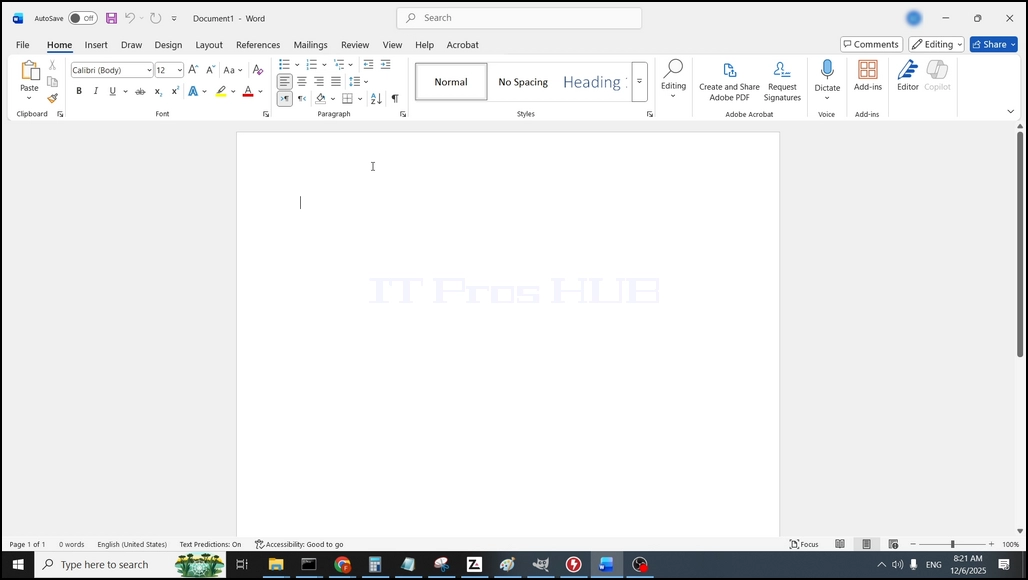
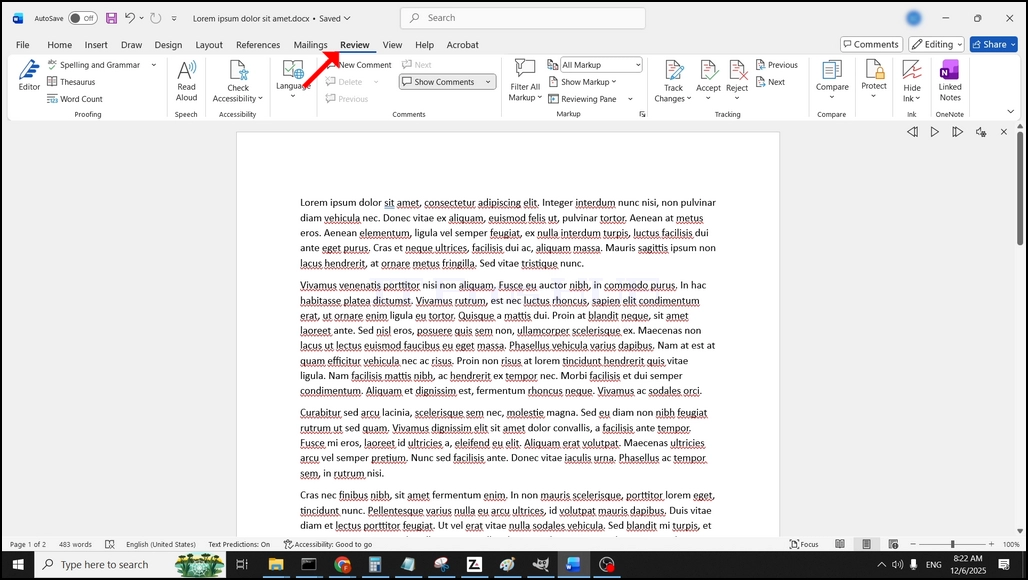
2. 정상 메뉴 막대기에서는, 가정에서, 검토에 가십시오:
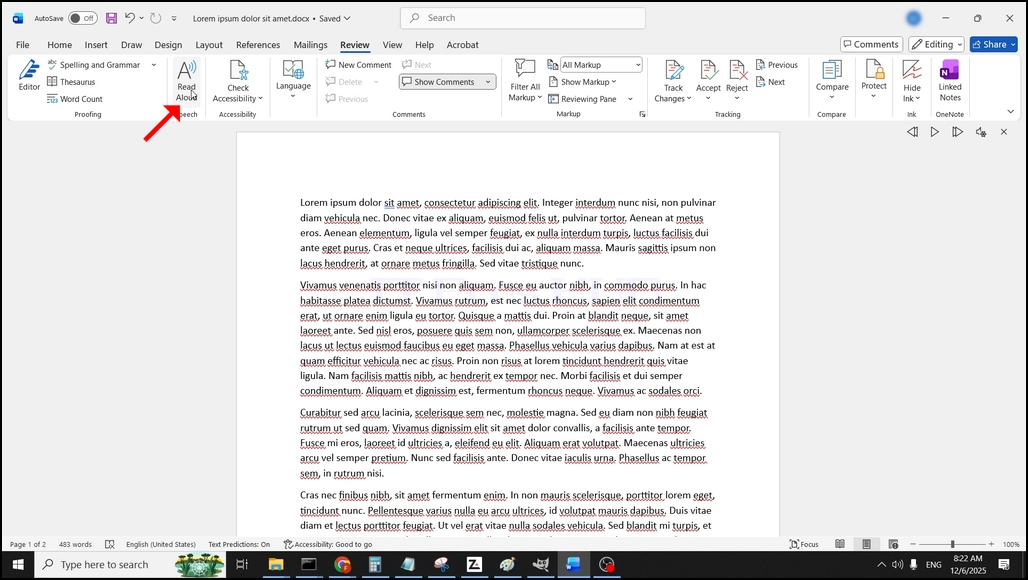
3. 검토 하에서, 큰 봐 "·"라는 아이콘은 "Aloud를 읽으십시오"그리고 단어의 음성 기능을 활성화하려면 클릭:
- 자세히
- 작성자: IT Pro
- 카테고리: How to Articles
- 조회수: 5730
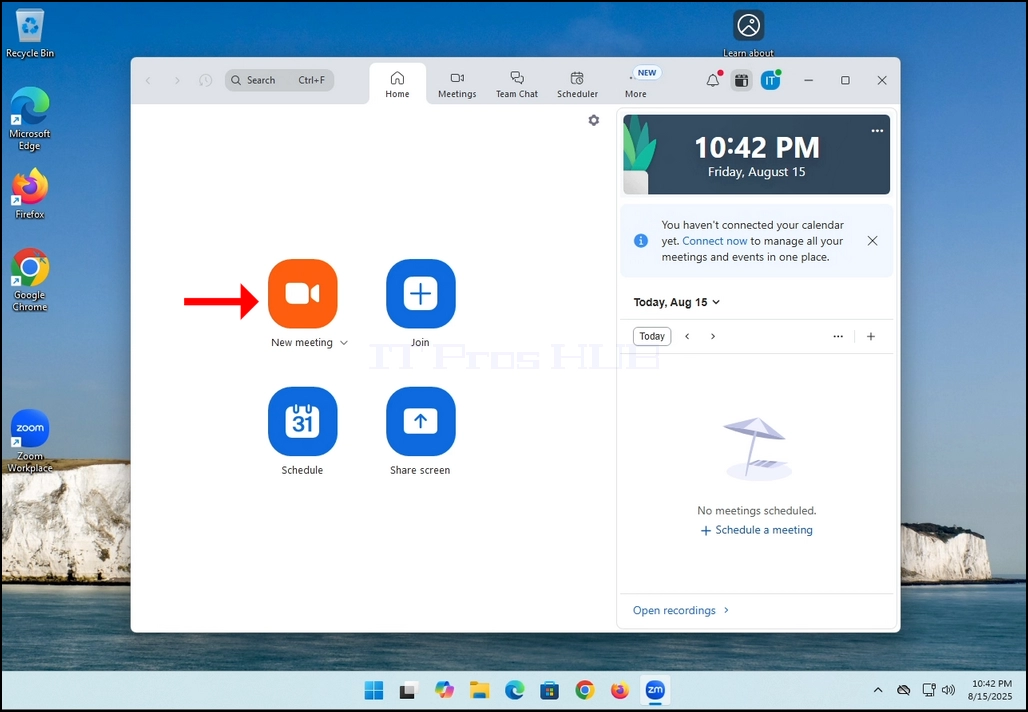
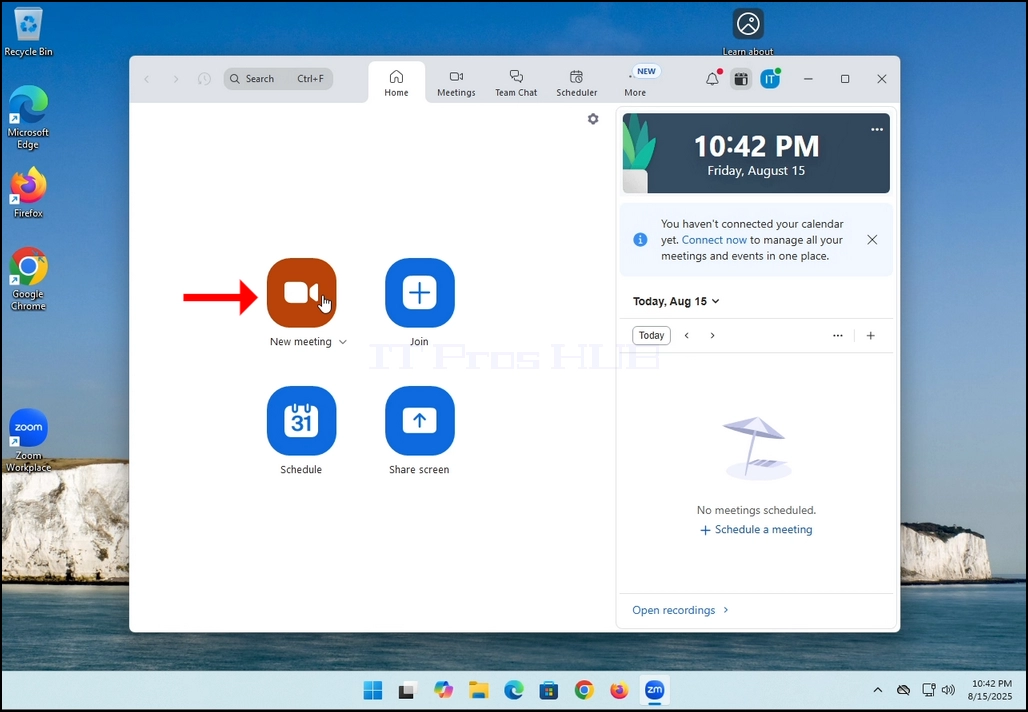
2. Once clicked, a new small window should appear. The window will show "connecting" and an animation progress circle.
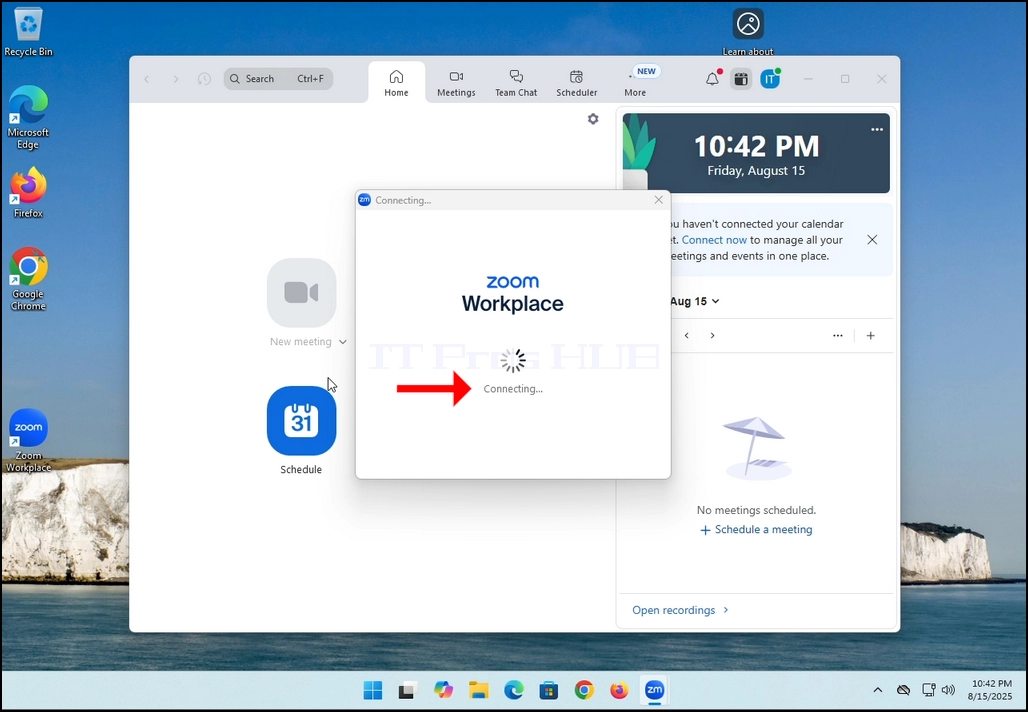
3. Once it's done loading, a new window will appear. Usually its title should say something along the lines of: "User's Zoom Meeting". In this article's case, it says "IT Proshub's Zoom Meeting" since the user that uses Zoom is called that way.
4. Here, you can mute your mic by clicking on the mic icon and you can also turn your camera off/on by clicking the Video icon.
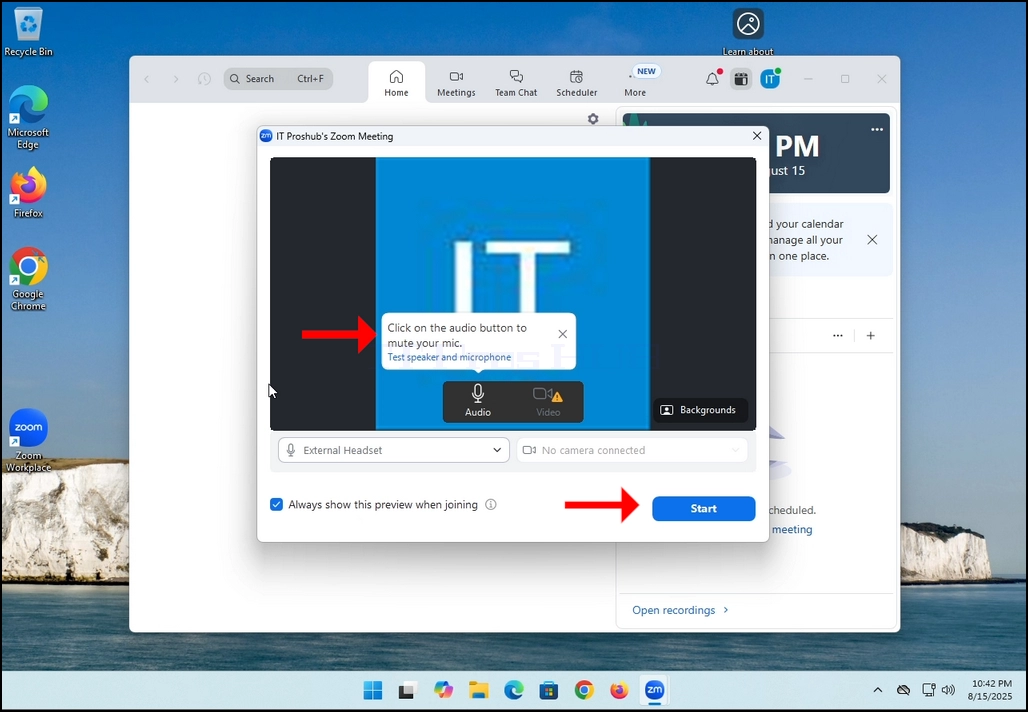
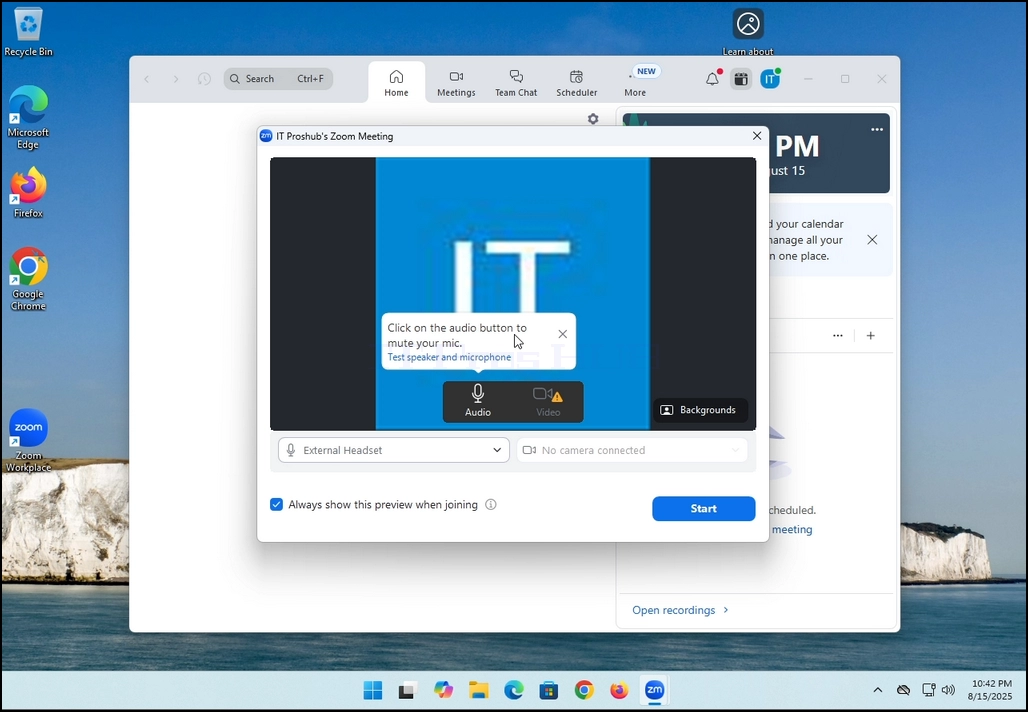
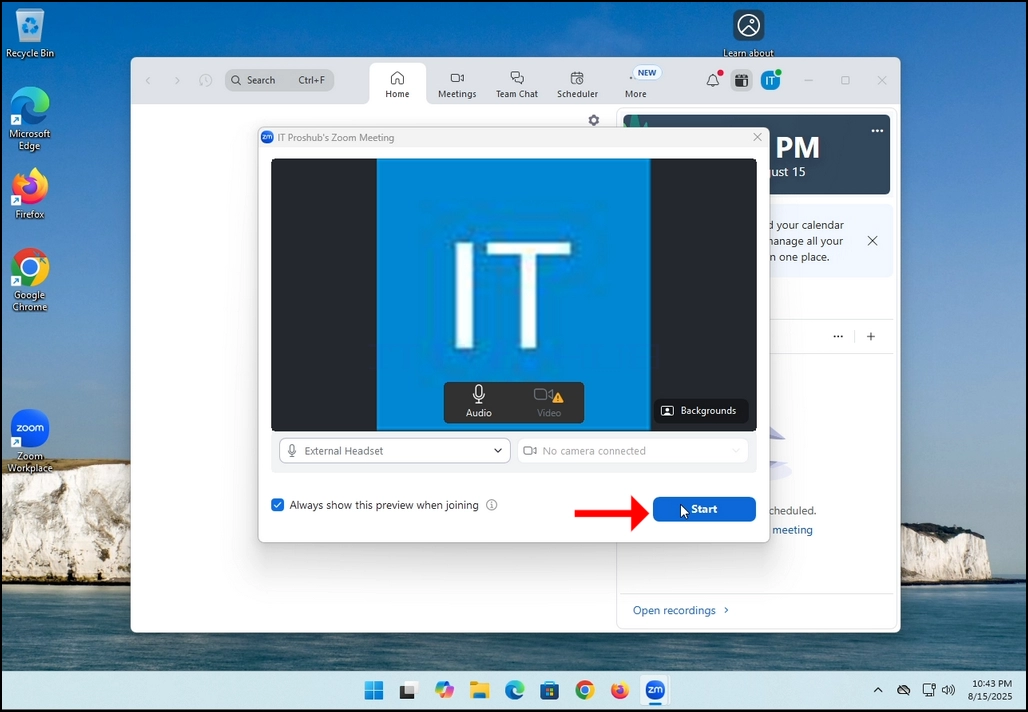
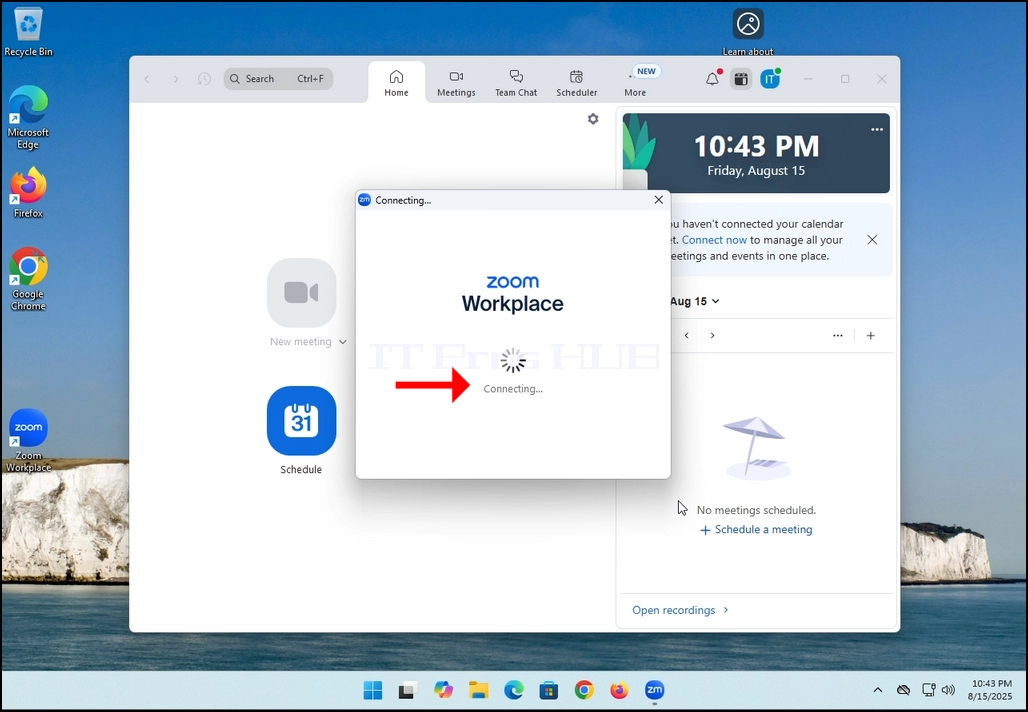
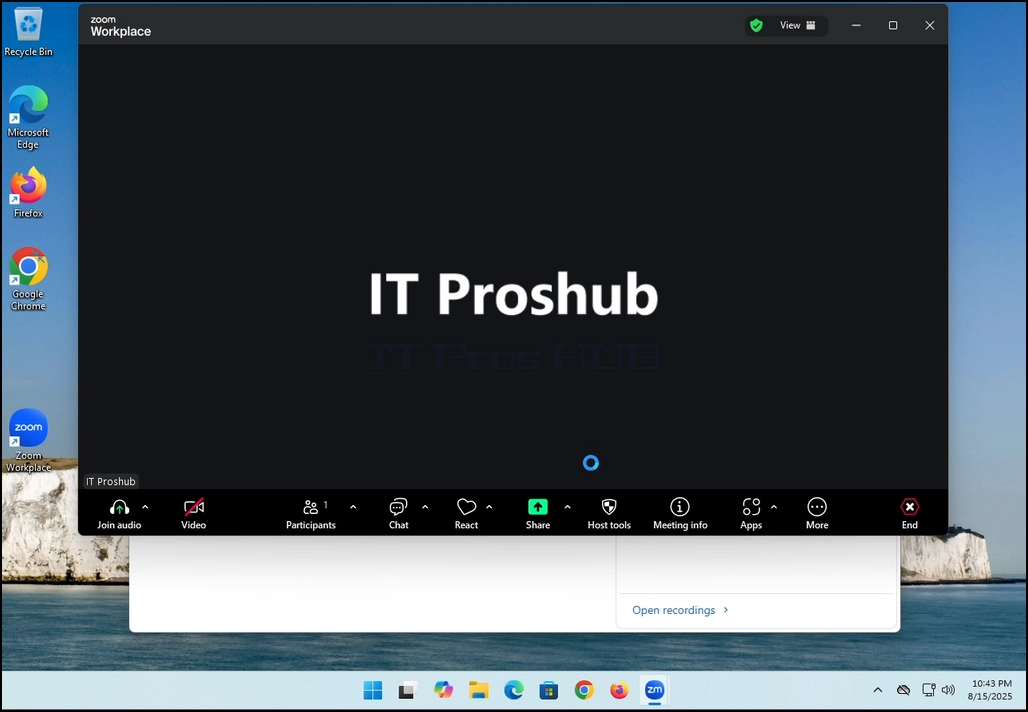
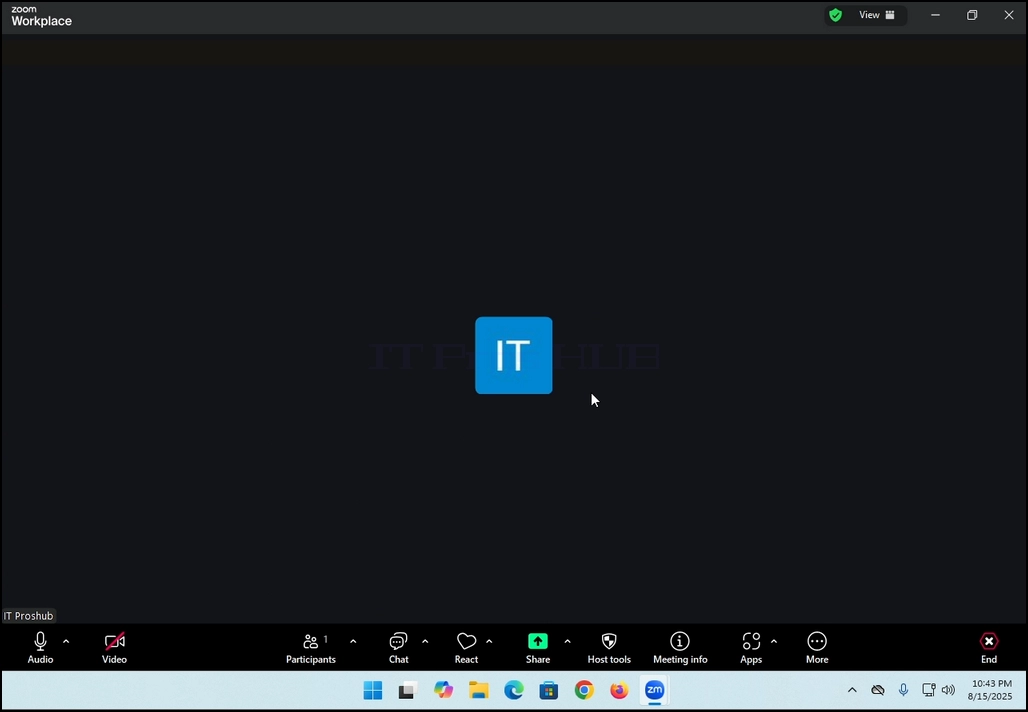
7. That's it! the new meeting is in progress. At this stage the meeting contains only the host which is IT Proshub in this article's case.
- 자세히
- 작성자: IT Pro
- 카테고리: How to Articles
- 조회수: 5423
In this article we will demonstrate how to delete a stripped volume in Windows 11
1. Make sure what is the stripped volume's drive letter is. In this case the drive letter is (E:):
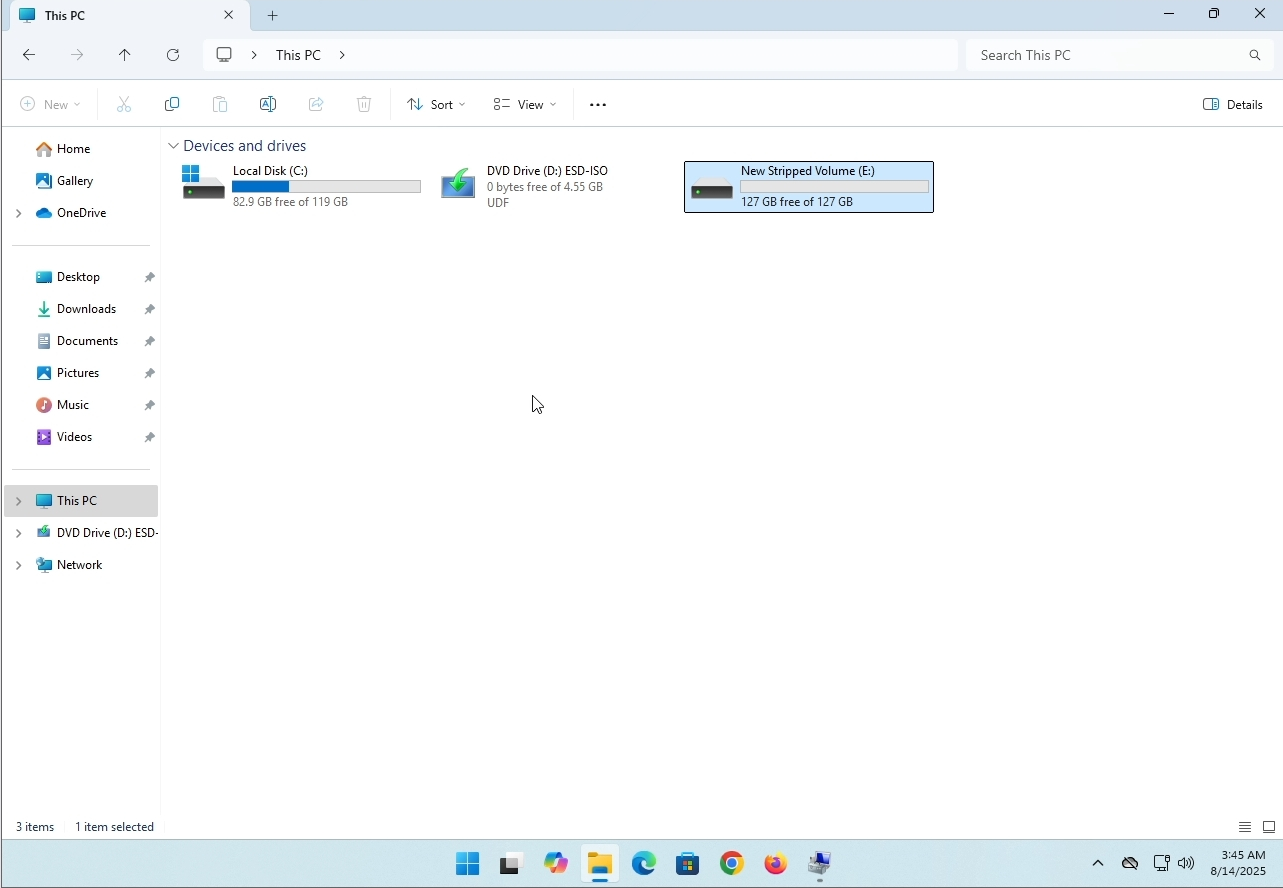
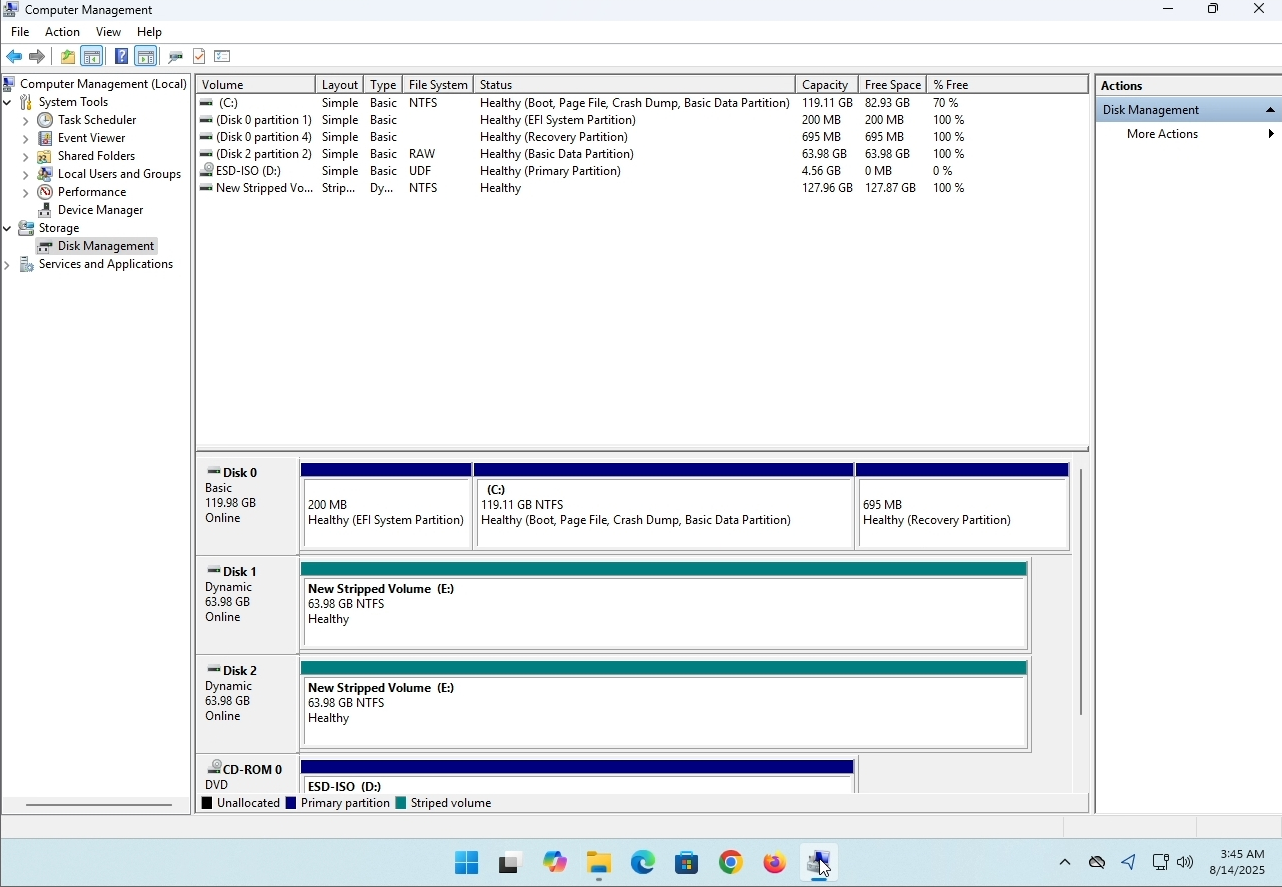
3. On the left pane. Look for Disk Management and click on it once.
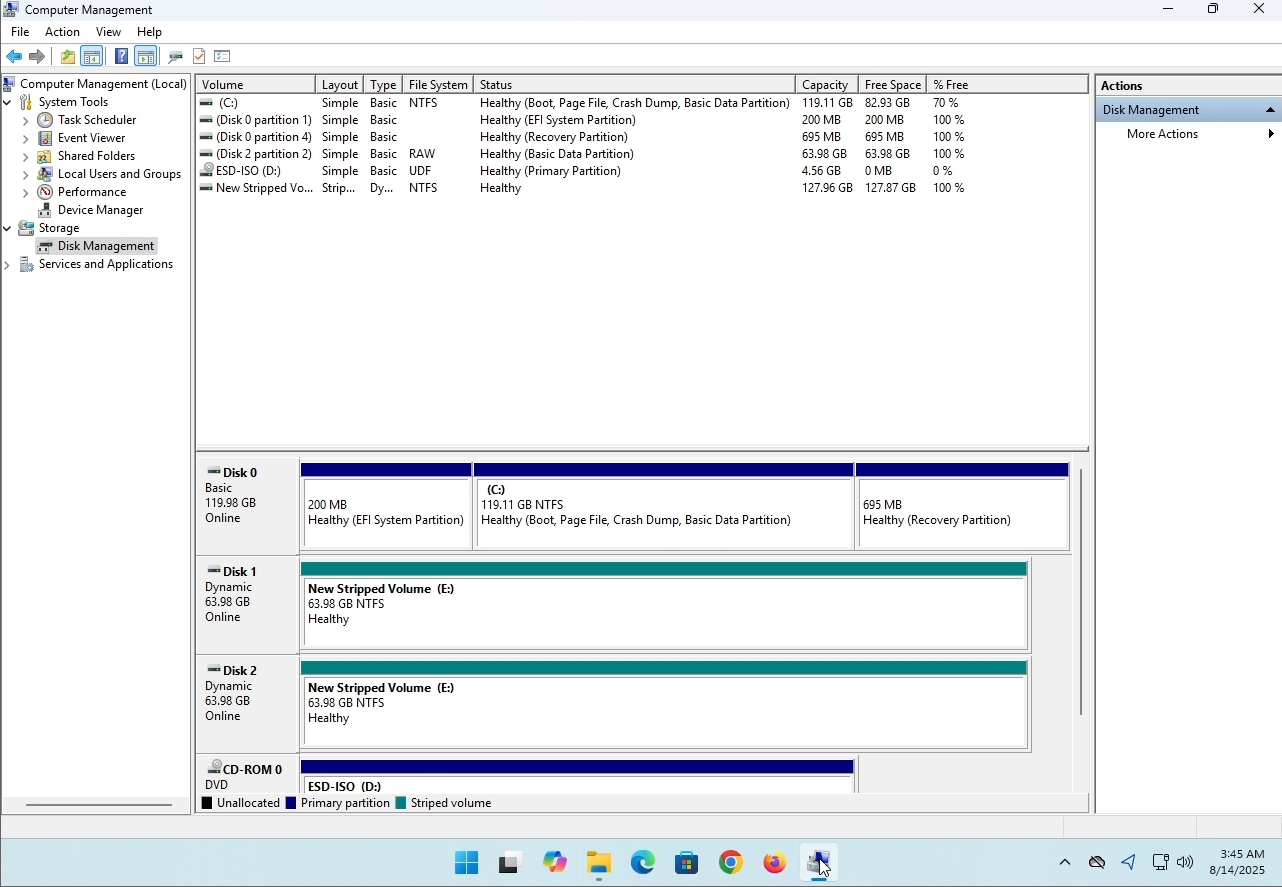
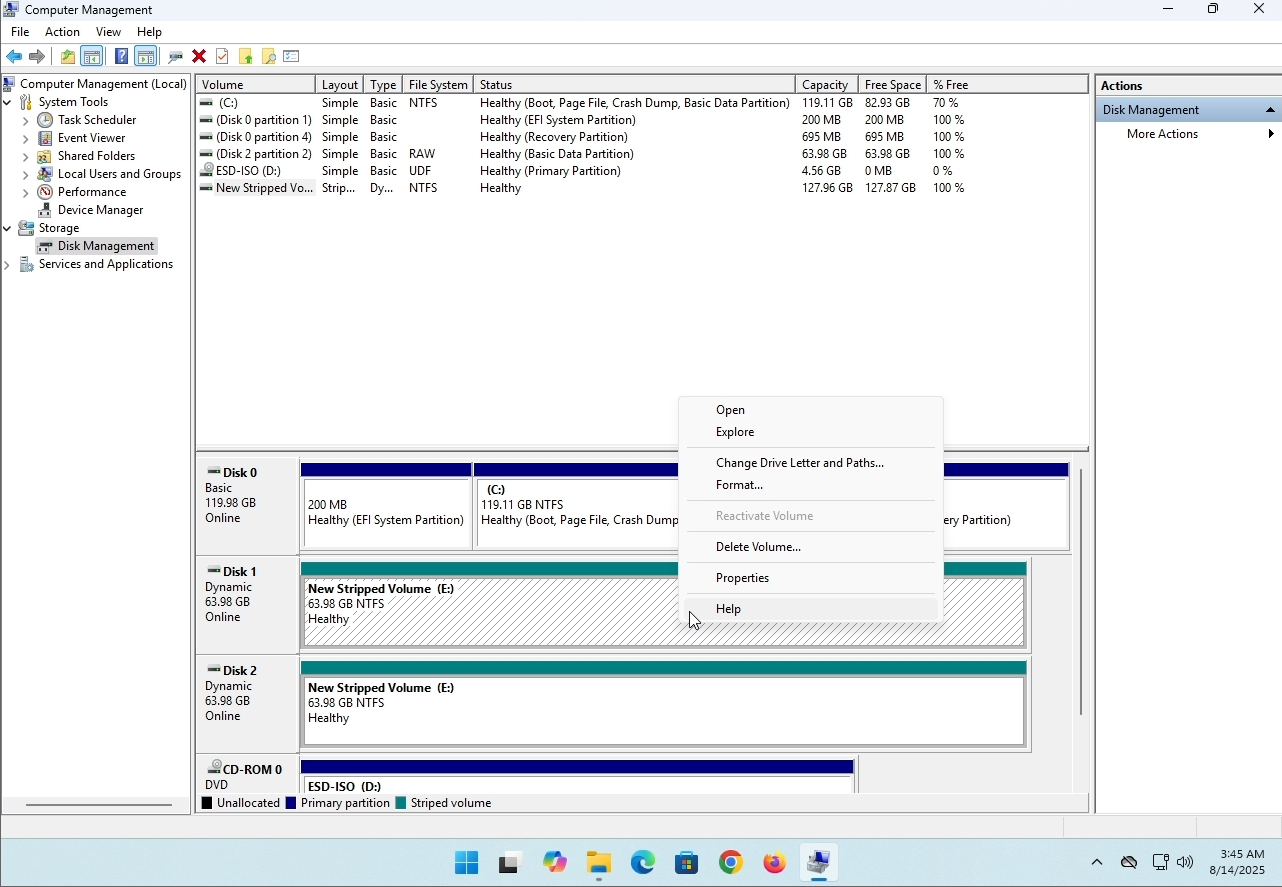
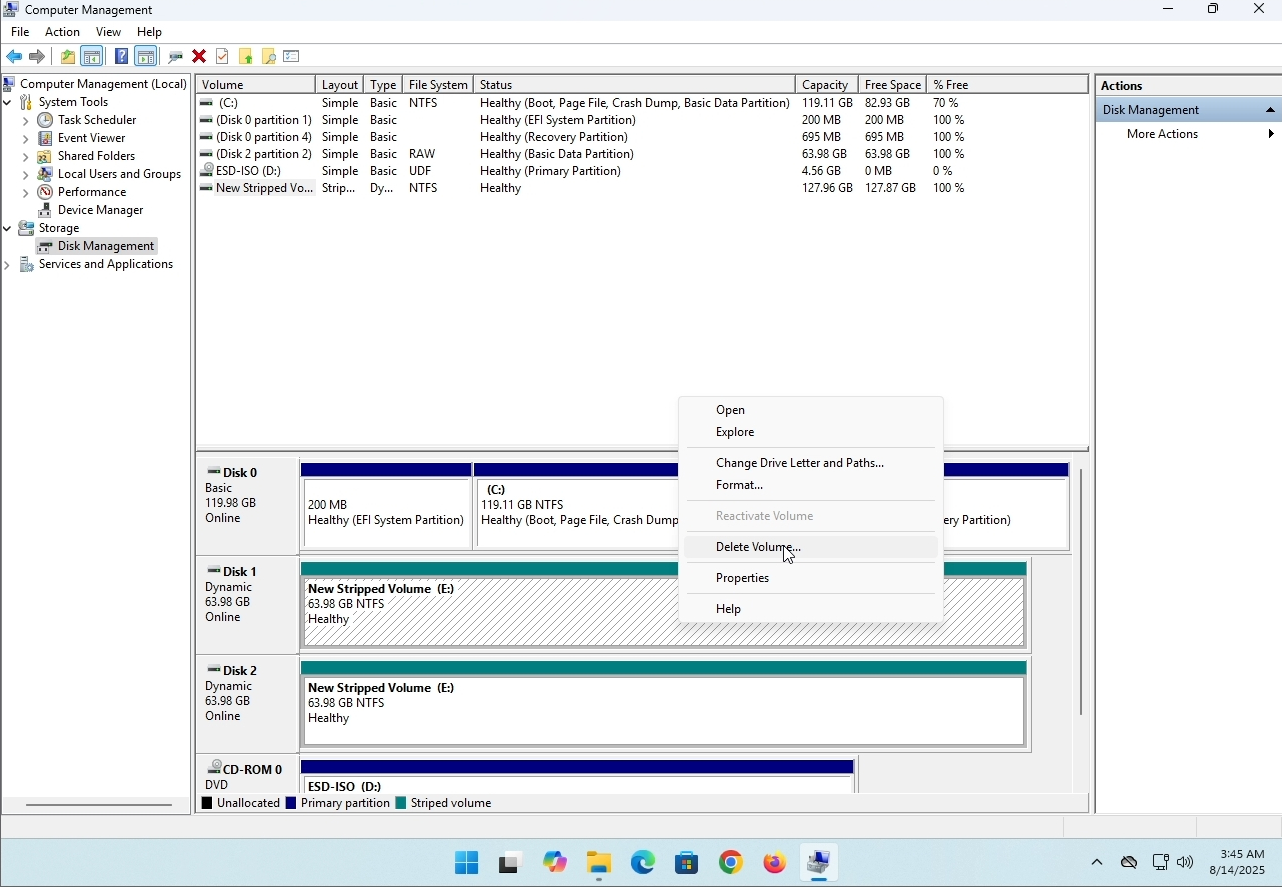
6. You will be shown a confirmation window. Click on Yes to confirm deleting the drive.
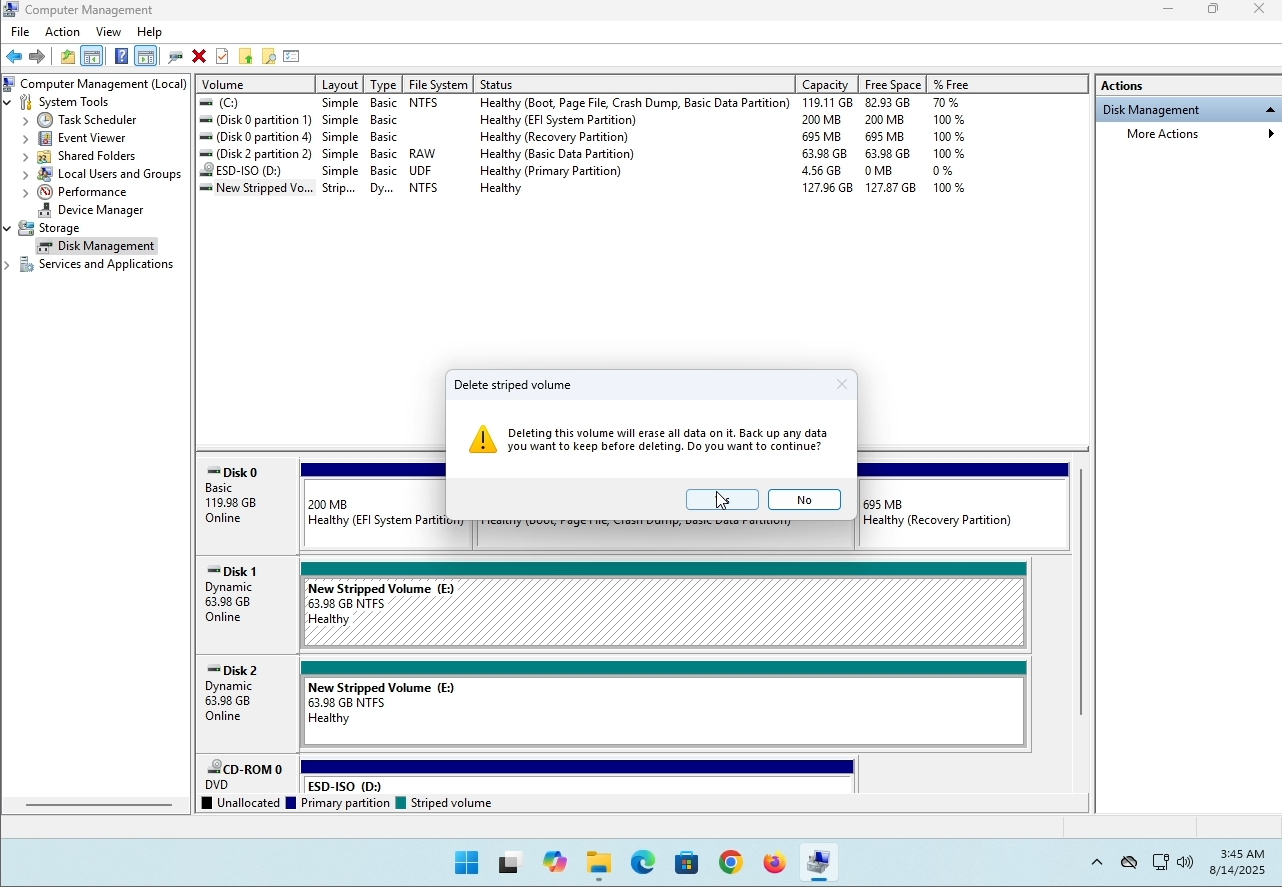
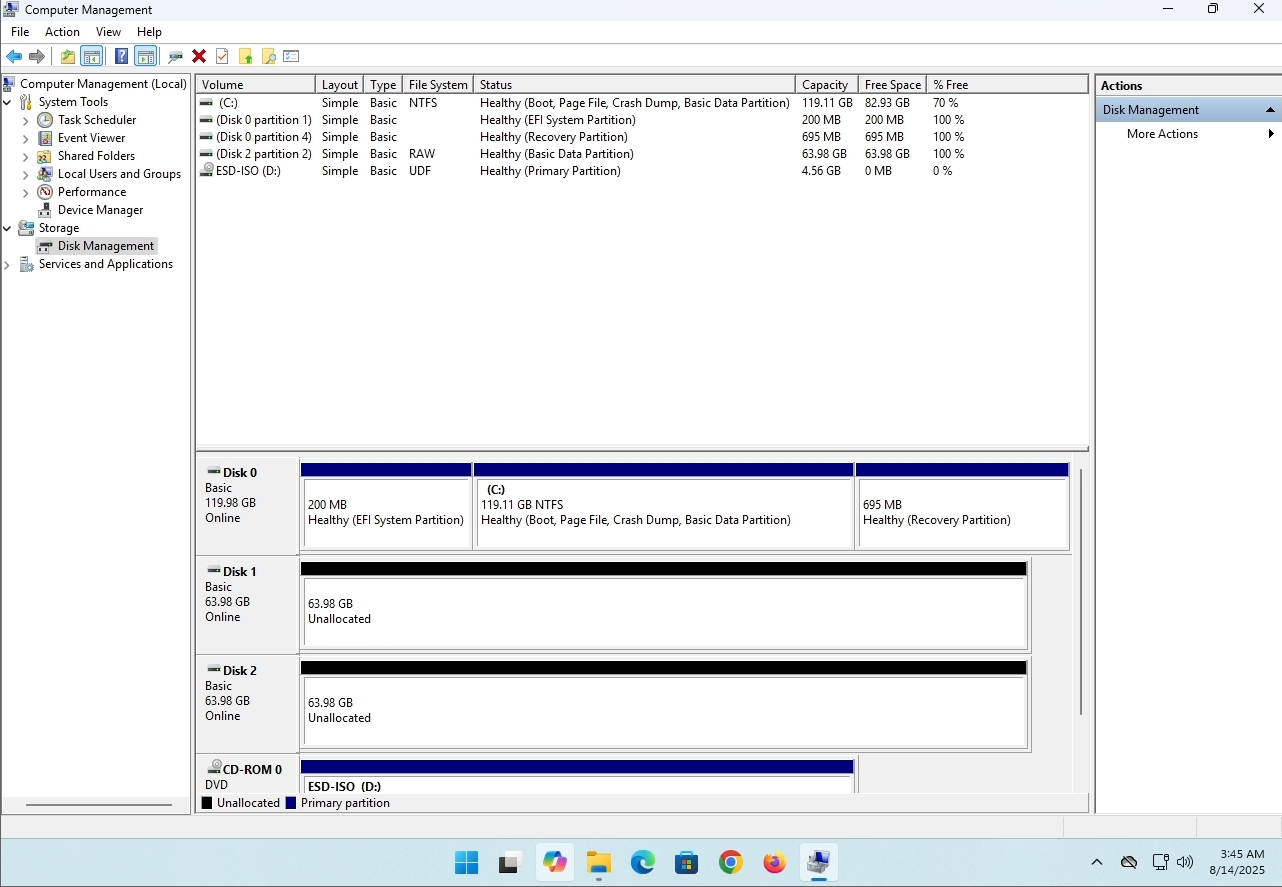
7. The drive is now deleted and the disks that were part of the stripped array are now unallocated.
- 자세히
- 작성자: IT Pro
- 카테고리: How to Articles
- 조회수: 8209
제품 설명:
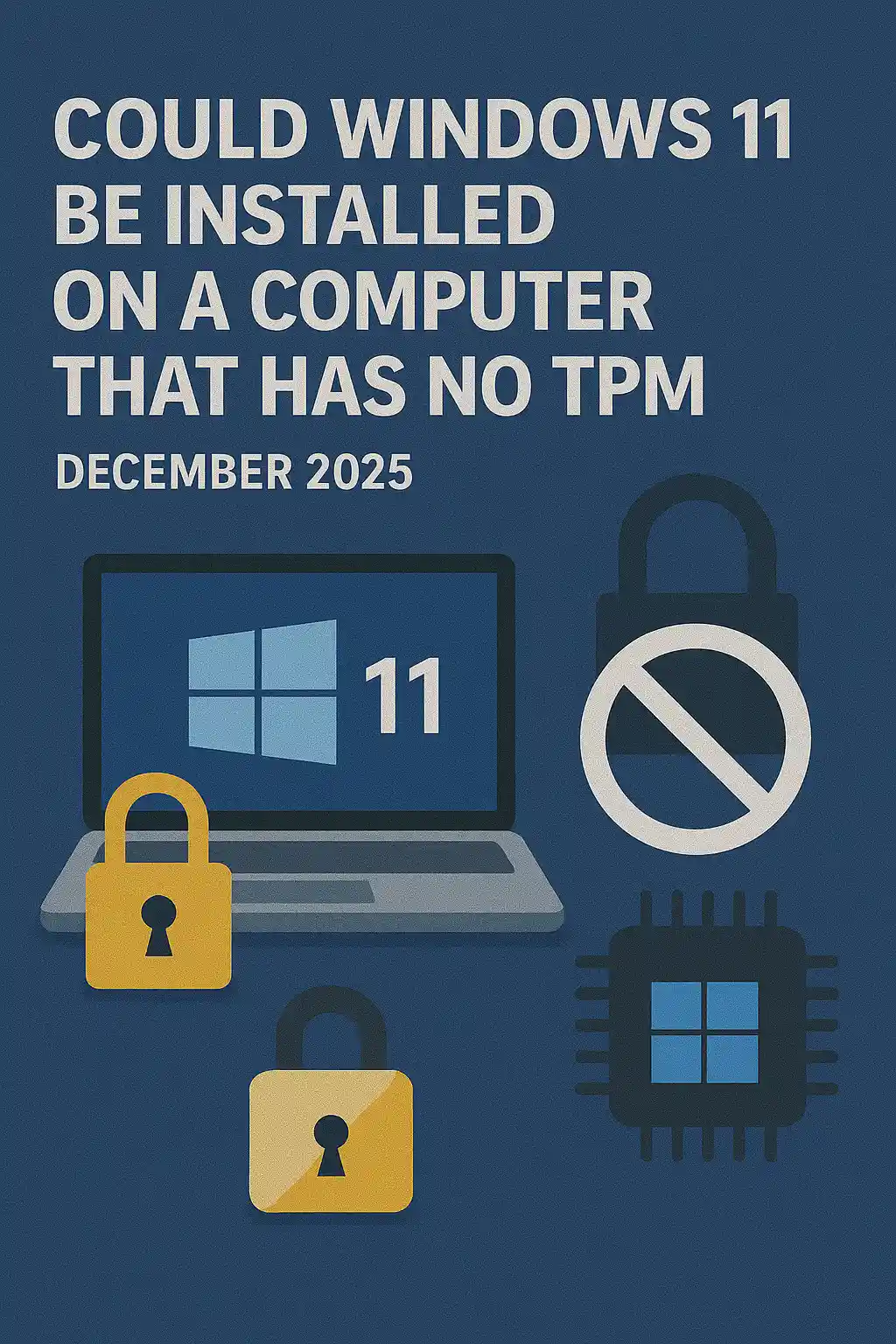
이 문서에서 Windows 11이 TPM 칩이없는 컴퓨터에 설치할 수 있는지 검사합니다.
짧은: 없음·
Windows 11는 TPM 버전 2.0 칩의 최소한 없이 컴퓨터에 설치될 수 없습니다.
다음은 Windows 11의 시도 된 설치의 일러스트입니다.
설치된 Windows 버전은 24H2였습니다.
1. Windows 임명에 시동


2. 언어 설정

3. 설치 방법 구성

4. 제품 키 단계


5. Windows 11 Pro 선택


6. PC 단계 검사

7. 차단제

결론:
여기에 말할 수 없습니다. 우리는 스스로 그것을 볼 수 있었다. 이 주제에 대한 큰 토론이 있으며,이 경우 물이 붙은 것 같습니다. 설치 - Windows 11은 TPM 버전 2.0 칩없이 컴퓨터 또는 시스템에 설치할 수 없습니다.
즉 Windows 11은 시스템에 RUN이 될 수 없습니다. 더 많은 것을 위해, 이 주제에 관하여 우리의 기사를 방문하십시오: https://itproshub.com/ko/windows/can-windows-11-run-on-a-computer-that-has-no-tpm-chip-at-all-decembet-2025
- 자세히
- 작성자: IT Pro
- 카테고리: How to Articles
- 조회수: 7259
1. 설정 파일을 클릭하여 Thunderbird의 설치를 시작합니다.
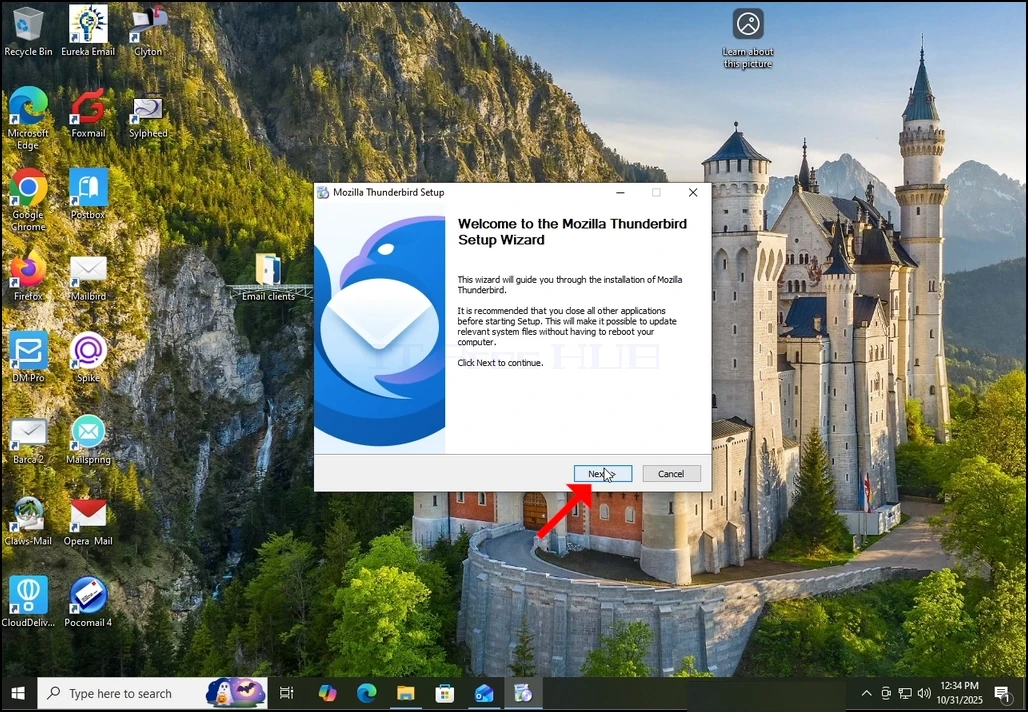
2. 환영 화면에서, 다음을 클릭합니다.
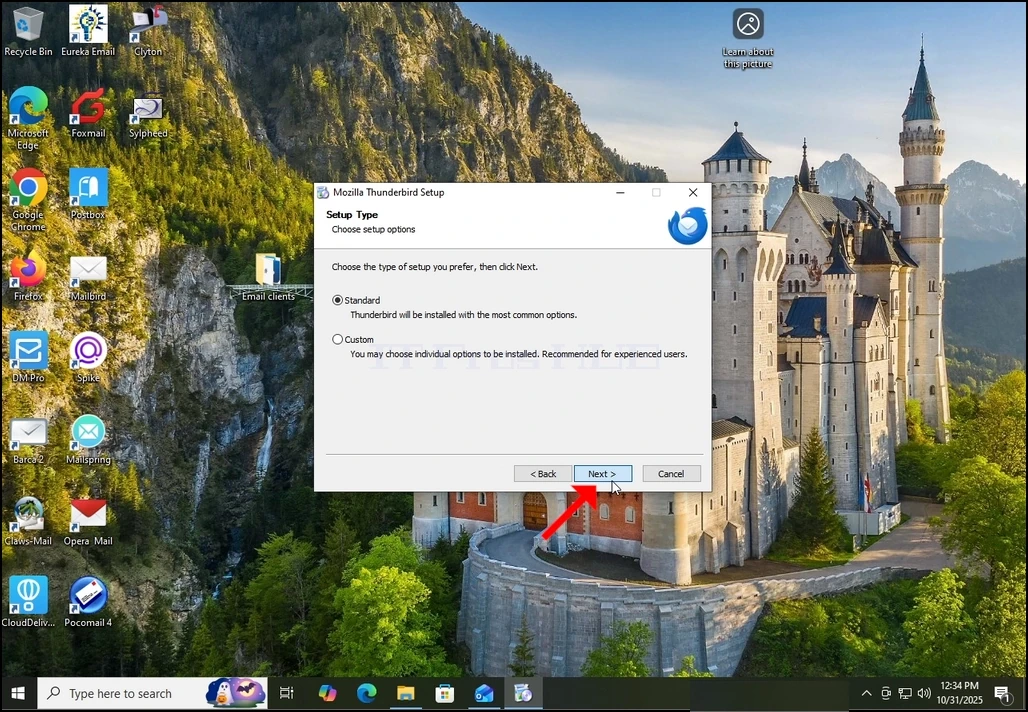
3. 표준 옵션을 선택하고 다음을 클릭합니다.
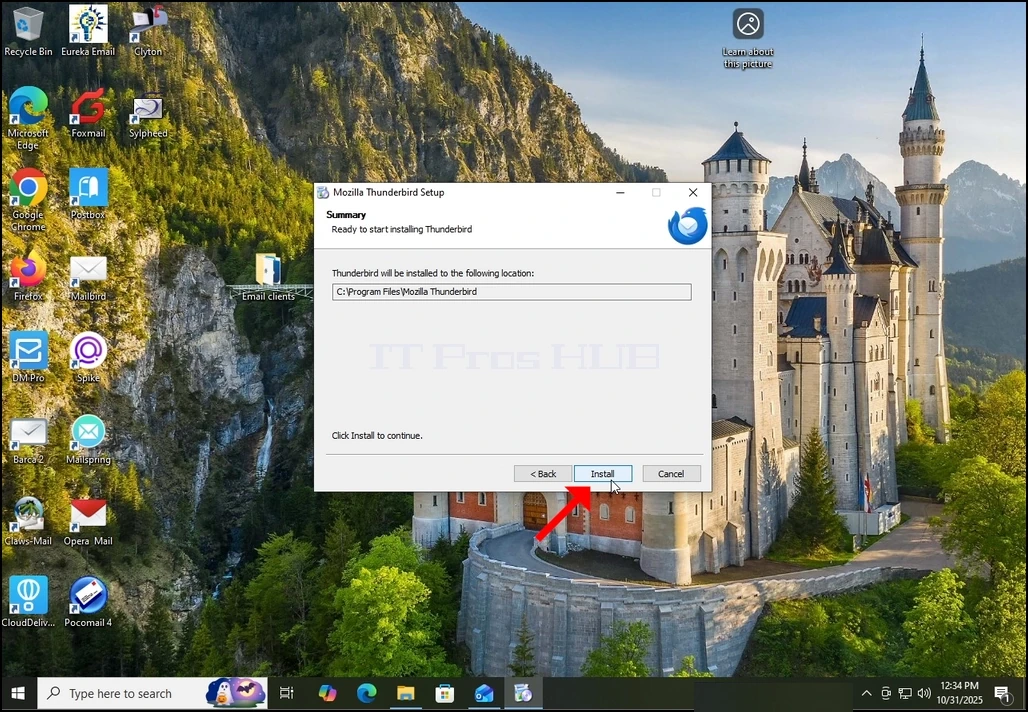
4. 설치 버튼을 클릭합니다.
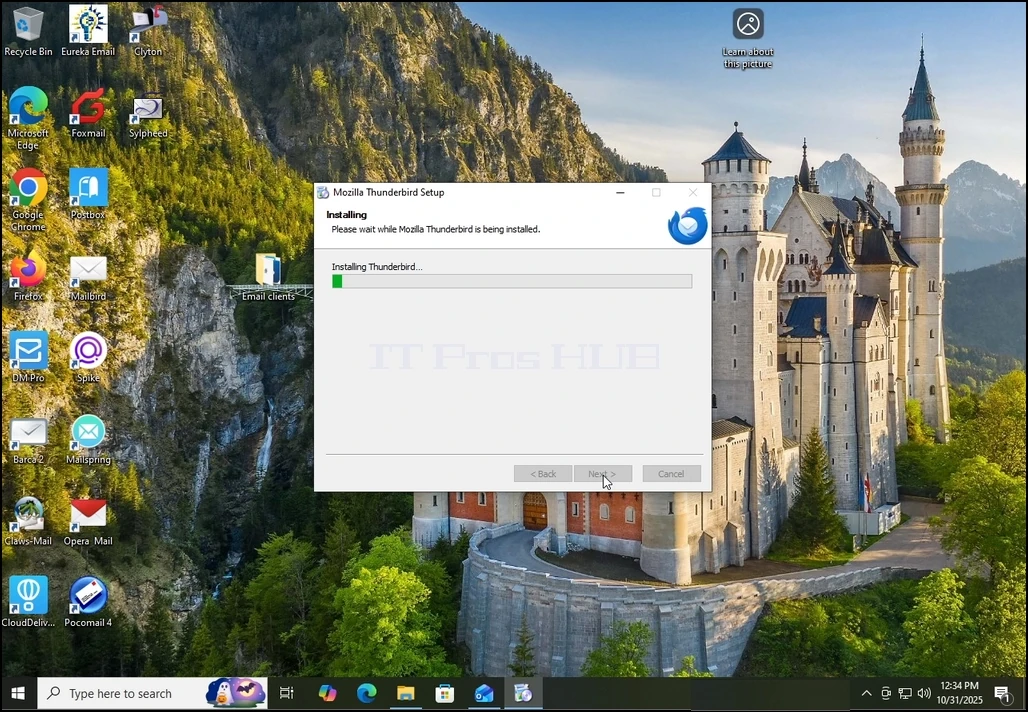
5. 끝내기 위하여 임명 과정을 위해 참을성있게 기대하십시오
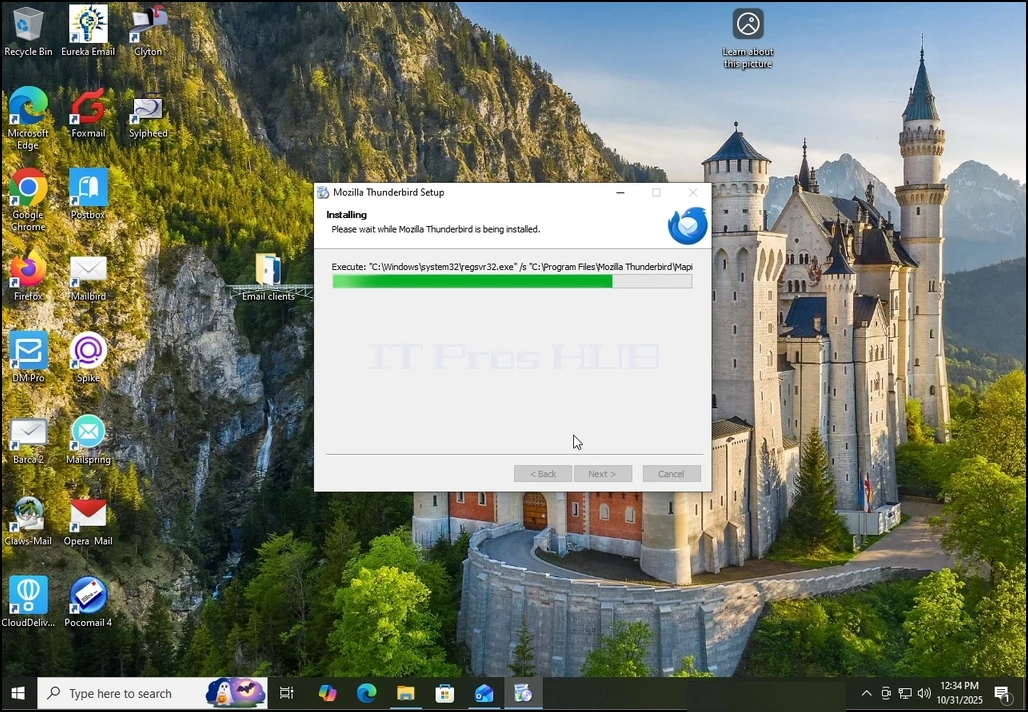
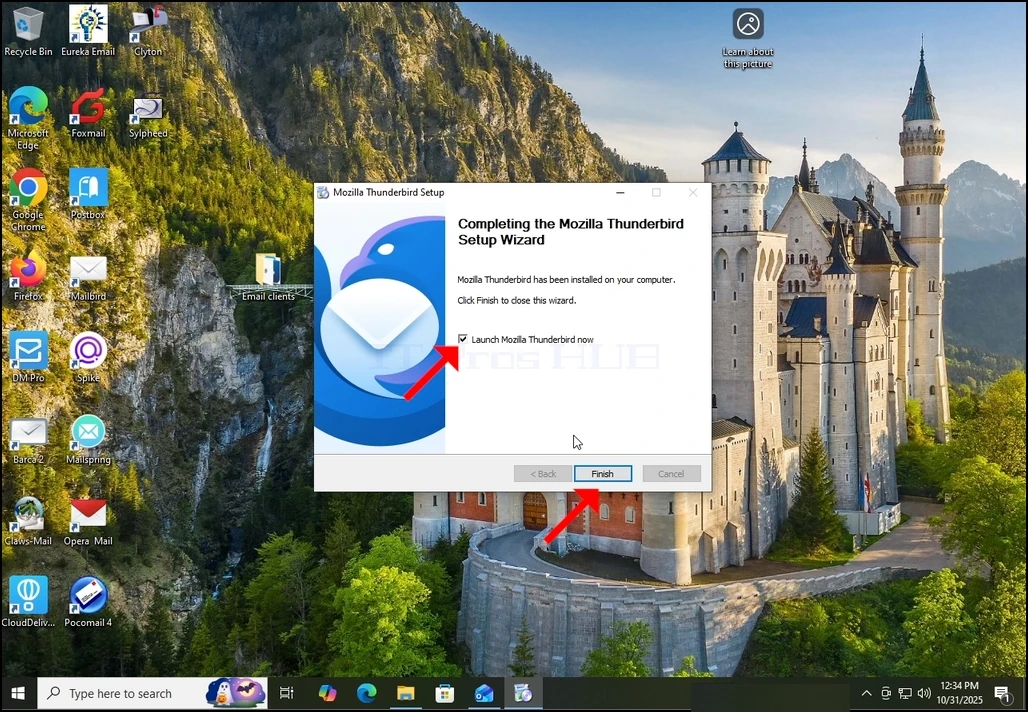
6. 출시 Mozilla Thunderbird가 이제 옵션과 끝 버튼을 누르지 마십시오.
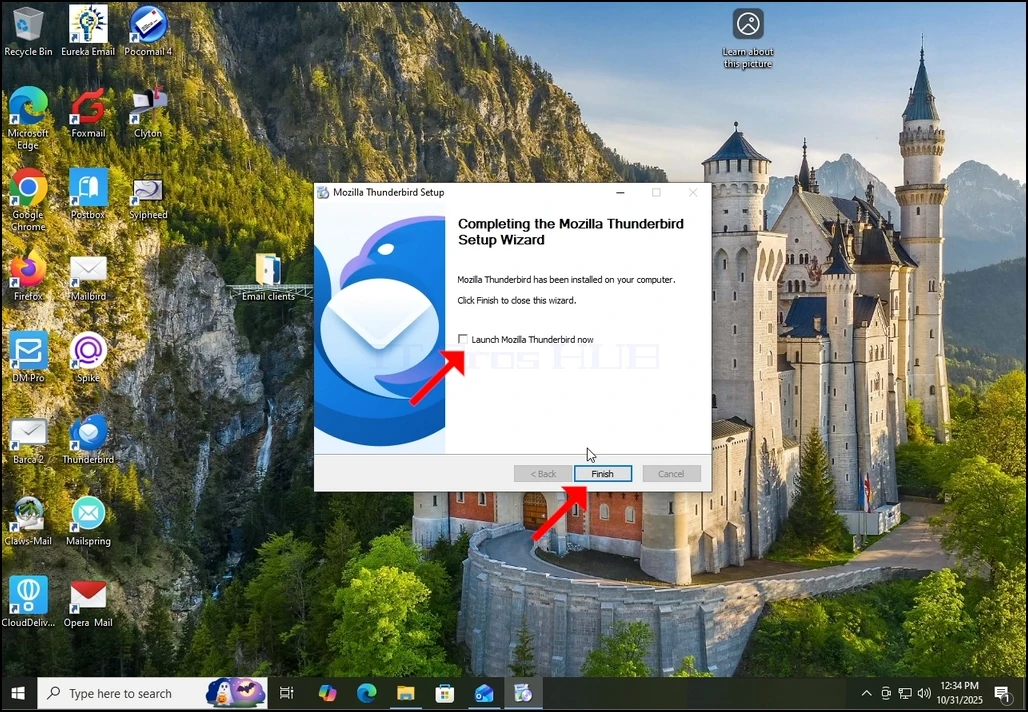
7. Mozilla Thunderbird가 설치되었습니다!