



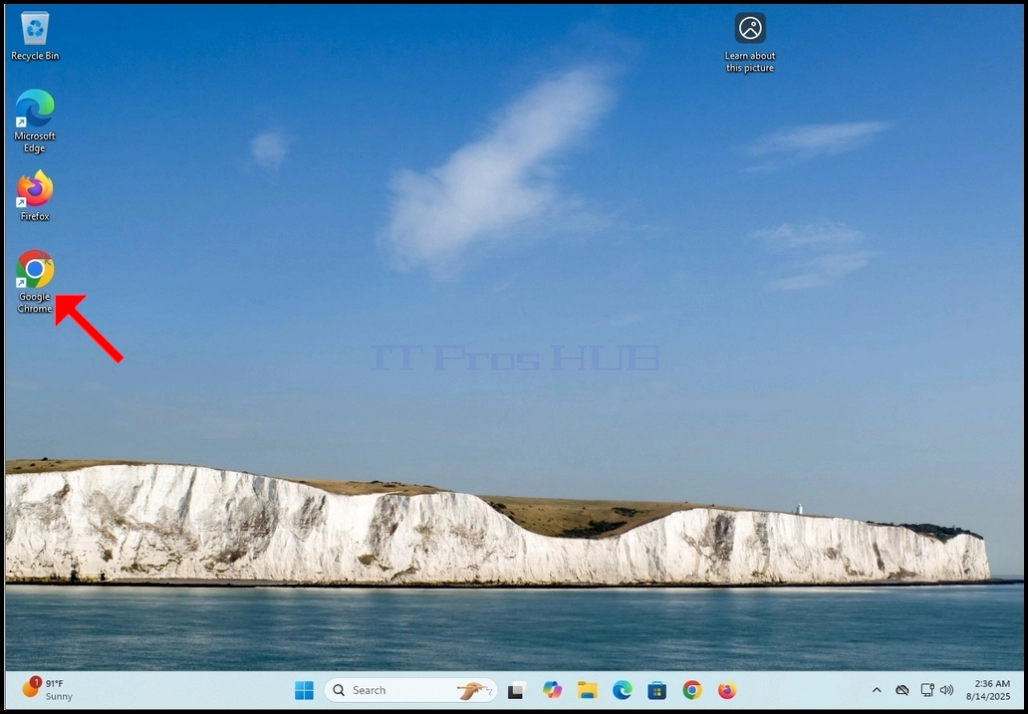
- Open your web browser. In this article we will use Google Chrome.
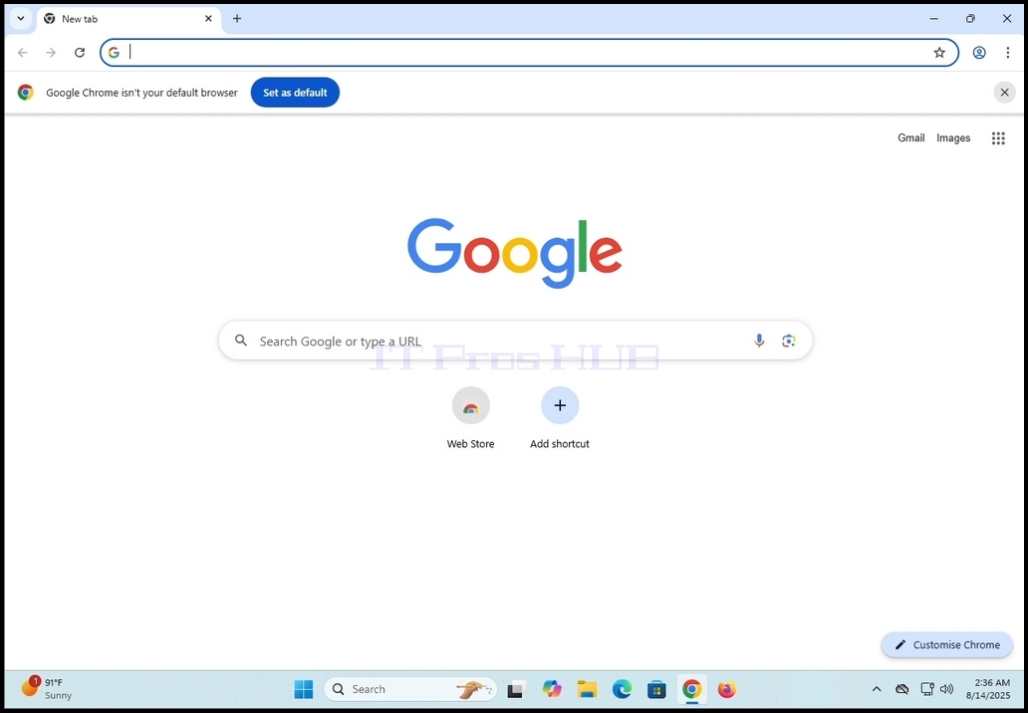
2. In the address line type: “download zoom” and hit the ENTER key on your keyboard

3. Wait for the search results to appear (In this article, the search engine used is the one which is native to Google Chrome which is Google)

4. Mostly, the first search result should be the right one but not only. In this article we will go to the first search result which is titled: “Download Center for Zoom and Plugins”

5. The next screen should be Zoom’s Download Center page.

6. Scroll down the page a little till you find the downloading options
a. Download (64-bit)
b. Download (32bit)
c. Download (ARM64)
7. In this article we will download the 64-bit version which is also the most commonly used one

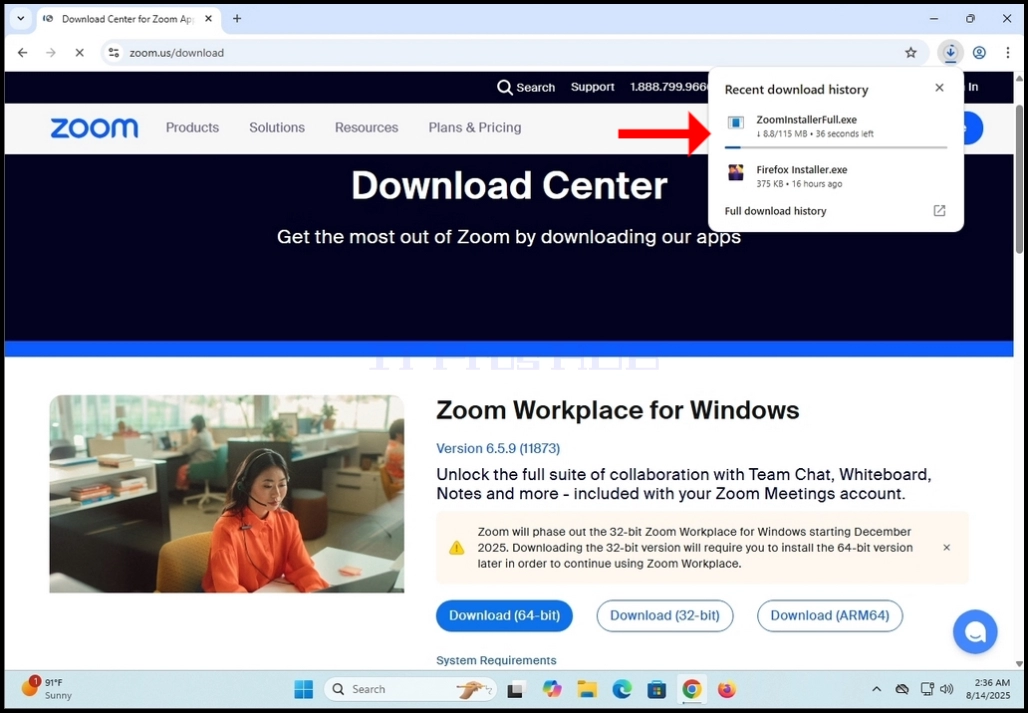
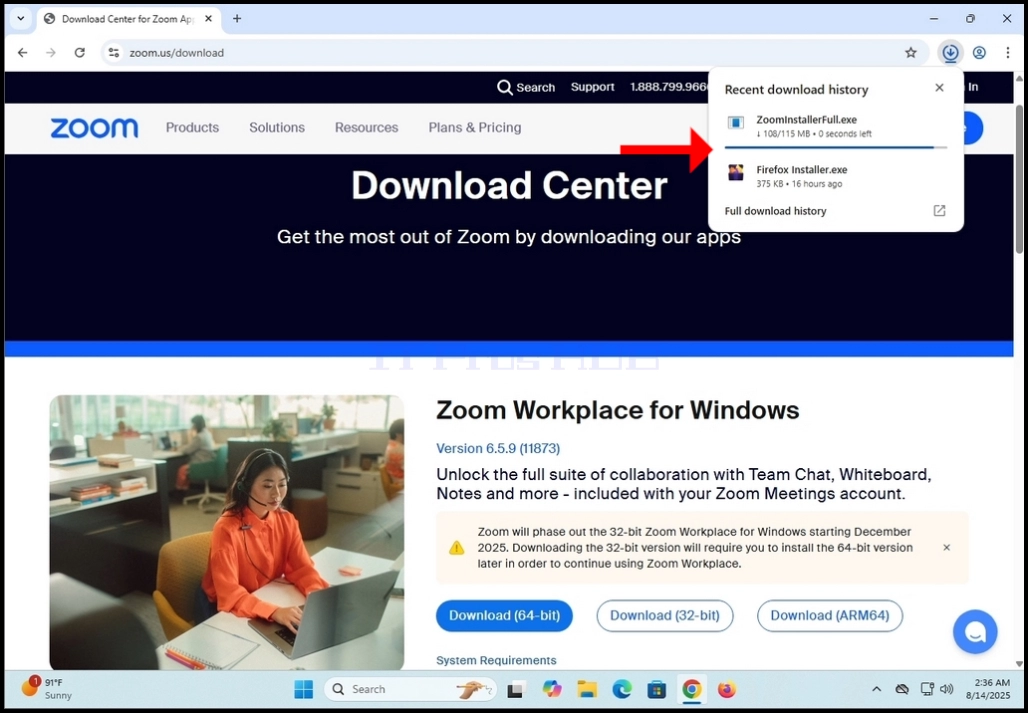
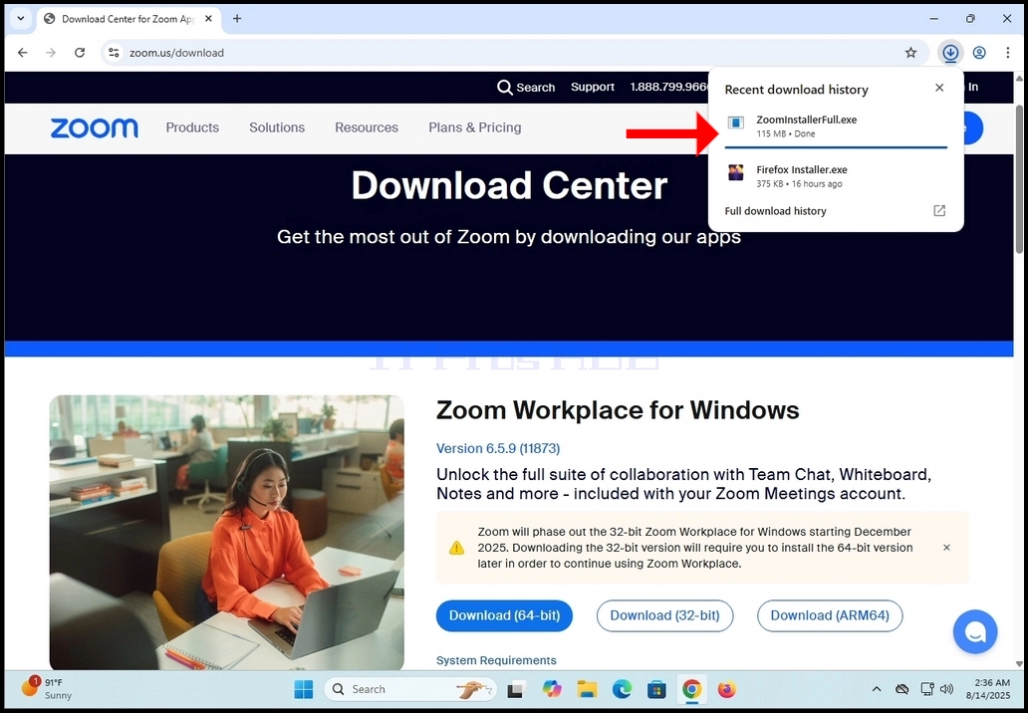
9. Wait for the download to finish and then click on the downloaded file and wait for the Zoom Workplace installation wizard to appear

10. Wait for the installer to initialize

11. Once the installation is successful you will be notified as such by the installer
12. You will also get to choose whether you like to keep Zoom up to date automatically by marking the “Automatically keep Zoom Workplace app up to date” sentence.

14. After clicking Done, Zoom Workplace’s GUI should appear
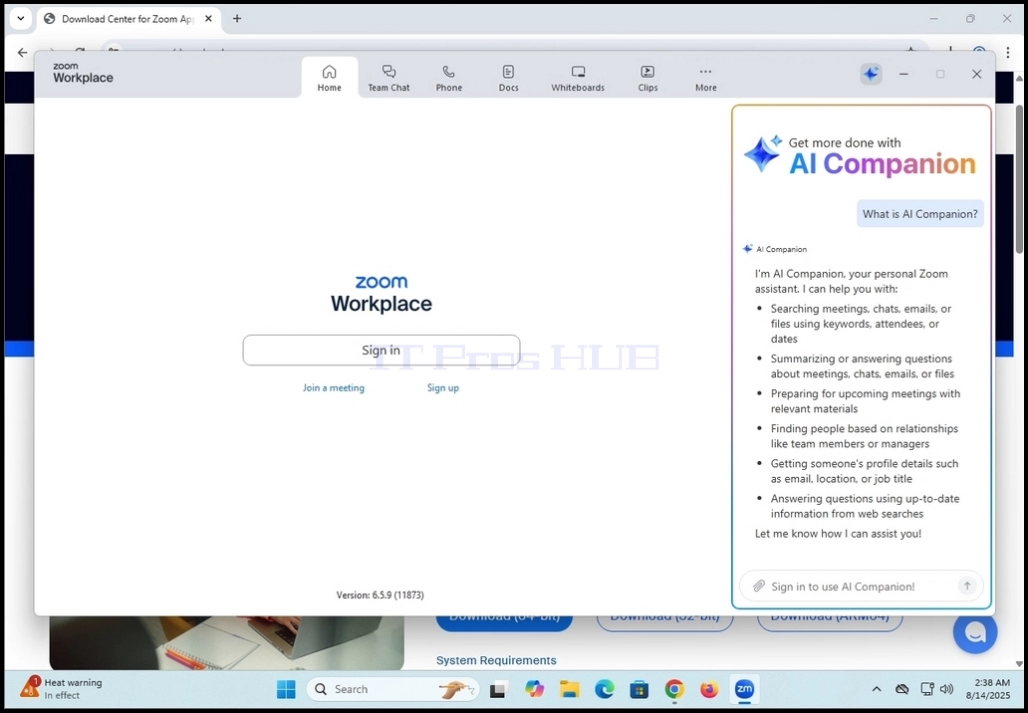
15. From here you can use Zoom Workplace in a few ways:
a. Just to join a meeting – no need to create an account
b. Sign up and create an account to initiate meetings
16. Zoom Workplace is now installed and ready to be used