Online: 1090 online | Members: 0 | Guests: 1090
Rabu, Jun 3, 2026
Page Minimap
Reading time: 4 min read
Tagline:HowtoPerformUpdatesinWindows11
There is no translation available.


1. Go to Windows desktop and click the Start button

How_to_Perform_Updates_in_Windows_11_1.jpg

2. Click on Settings and wait for the Settings window to appear

How_to_Perform_Updates_in_Windows_11_3.jpg

3. On the left pane, look for the last option that says “Windows update” and click on it

4. Wait for the Windows Update window to appear

How_to_Perform_Updates_in_Windows_11_6.jpg

5. On the right side of the window, click the Check for updates button

How_to_Perform_Updates_in_Windows_11_7.jpg

6. Right after clicking the Check for updates button, you will see an animation notification that says “Checking for updates…” on the top part of the window
          a. This process could take from a few seconds to a few minutes

How_to_Perform_Updates_in_Windows_11_8.jpg

7. Once updates were found, they will be shown in an ordered list under the previously mentioned animation and they will immediately begin being downloaded by Windows Update
     a. Sometimes some of these updates would fail to download. In those cases, a Retry button in blue would appear on the right side of the update name. Click on it to try to  download them again.

How_to_Perform_Updates_in_Windows_11_11.jpg

8. After the downloading process of a specific update has been done, Windows Update will start installing it right away.

How_to_Perform_Updates_in_Windows_11_14.jpg

9. When update is done being installed, the “Installing” status on the right would change to “Completed

How_to_Perform_Updates_in_Windows_11_18.jpg

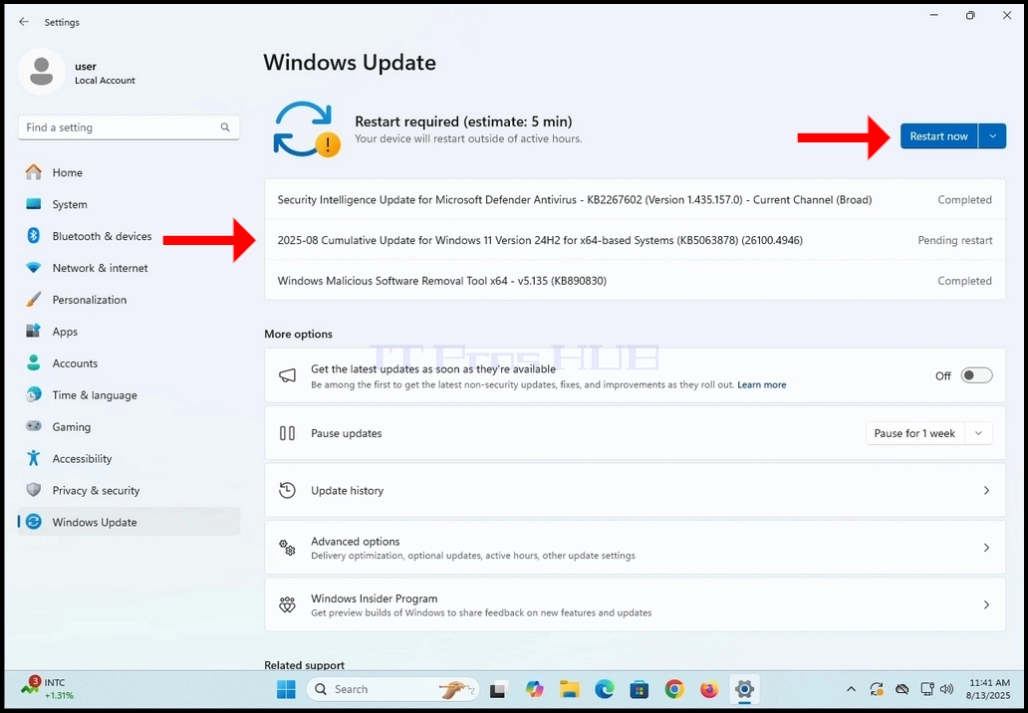
10. Some updates would require the Windows operating system to be restarted in order to be fully installed. In those cases, their status on the right would be changed from “Completed” to “Pending restart”.
a. In this article we have such an example
How_to_Perform_Updates_in_Windows_11_26.jpg

11. Manually restart the Windows operating system

How_to_Perform_Updates_in_Windows_11_27.jpg

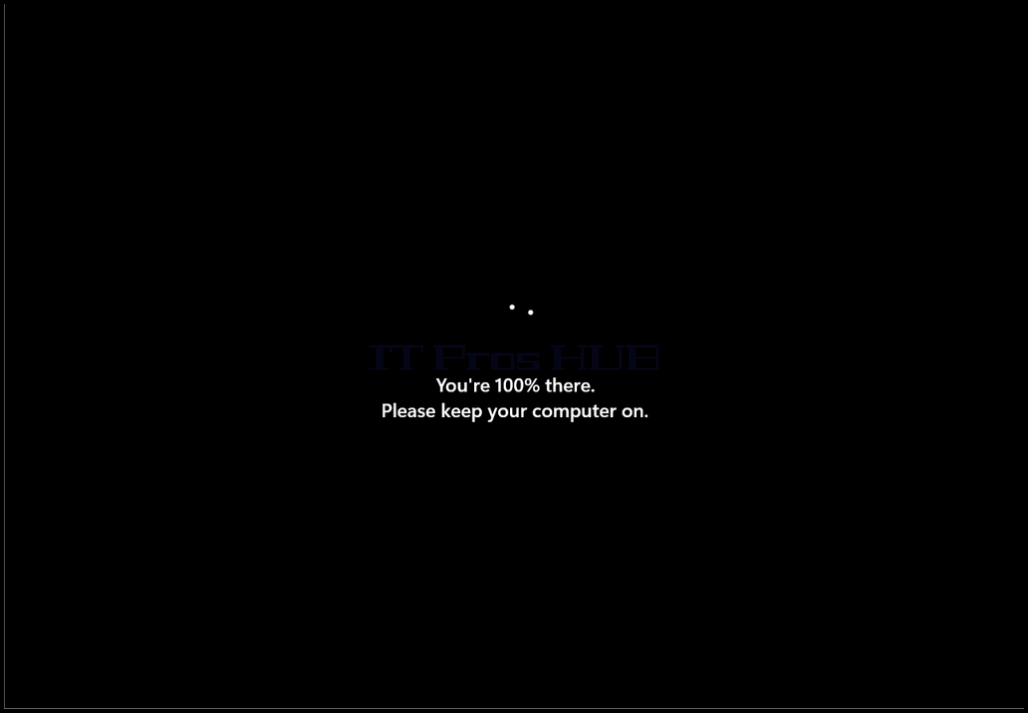
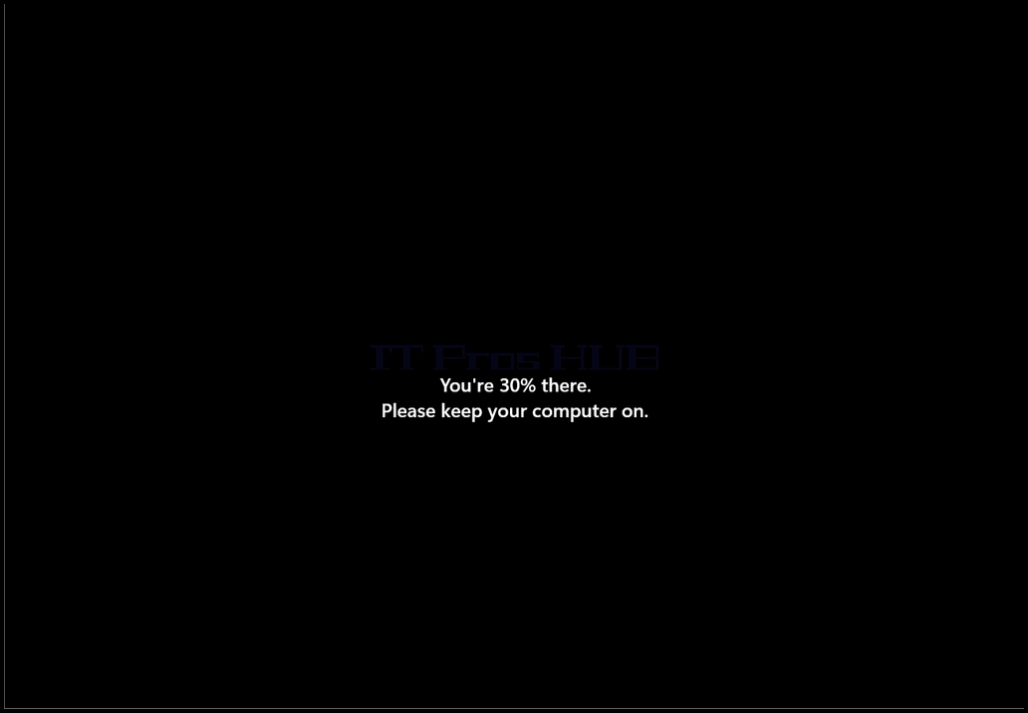
12. As you can see in the screenshot below, Windows is automatically installing the update that has been pending restart mentioned in stage 10.

How_to_Perform_Updates_in_Windows_11_28.jpgHow_to_Perform_Updates_in_Windows_11_30.jpgHow_to_Perform_Updates_in_Windows_11_31.jpg

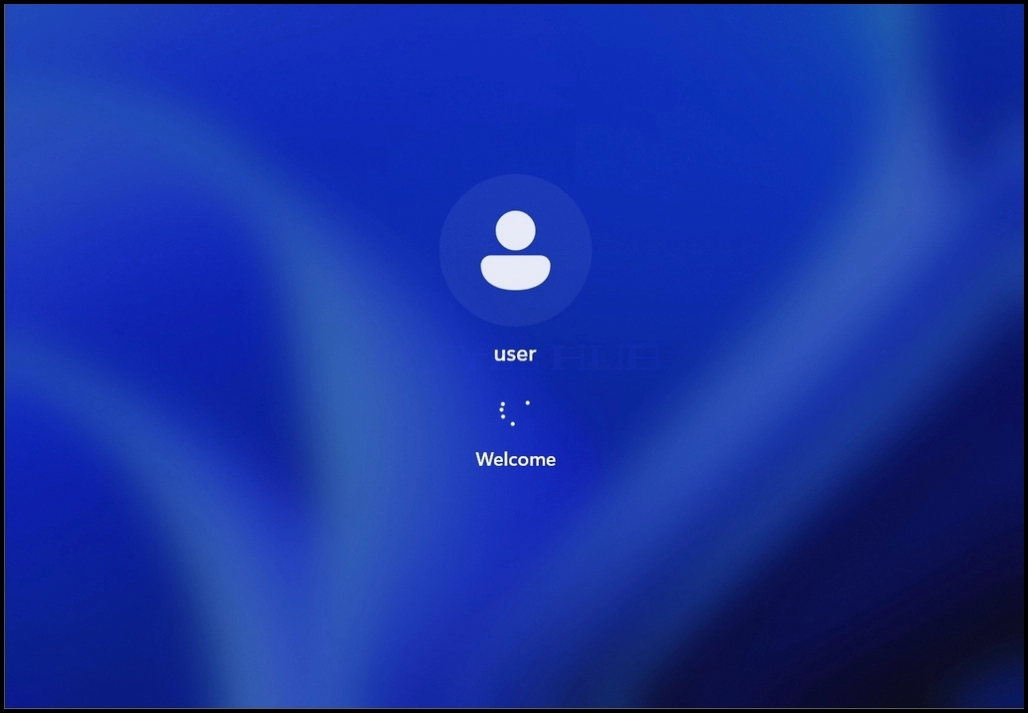
13. Once the start-up update has been installed, Windows should start normally.

xHow_to_Perform_Updates_in_Windows_11_37.jpgHow_to_Perform_Updates_in_Windows_11_38.jpg