



W tym artykule dowiemy się o uruchomieniu Windows 11 bez folderu Windows.old jest możliwe lub nie.
1. Ustawienie warunków, które tworzą folder Windows.old.
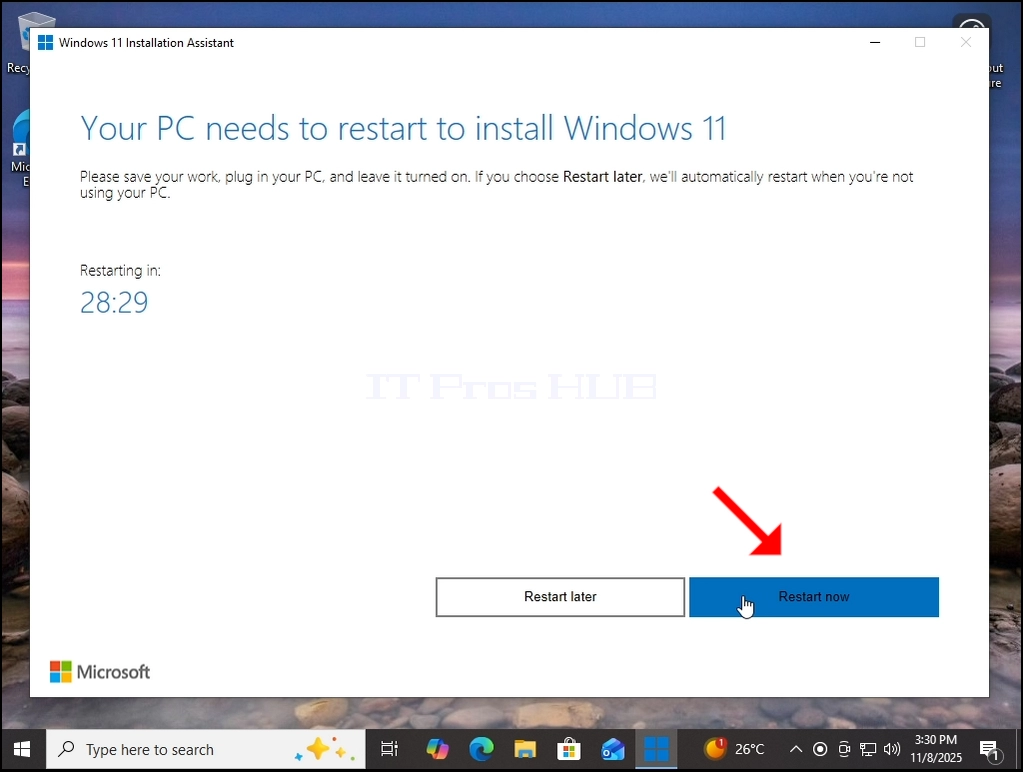
- Zainstalujemy ponownie system Windows 11 za pomocą Microsoft 's Windows Instalation Assistant. Po pierwsze:
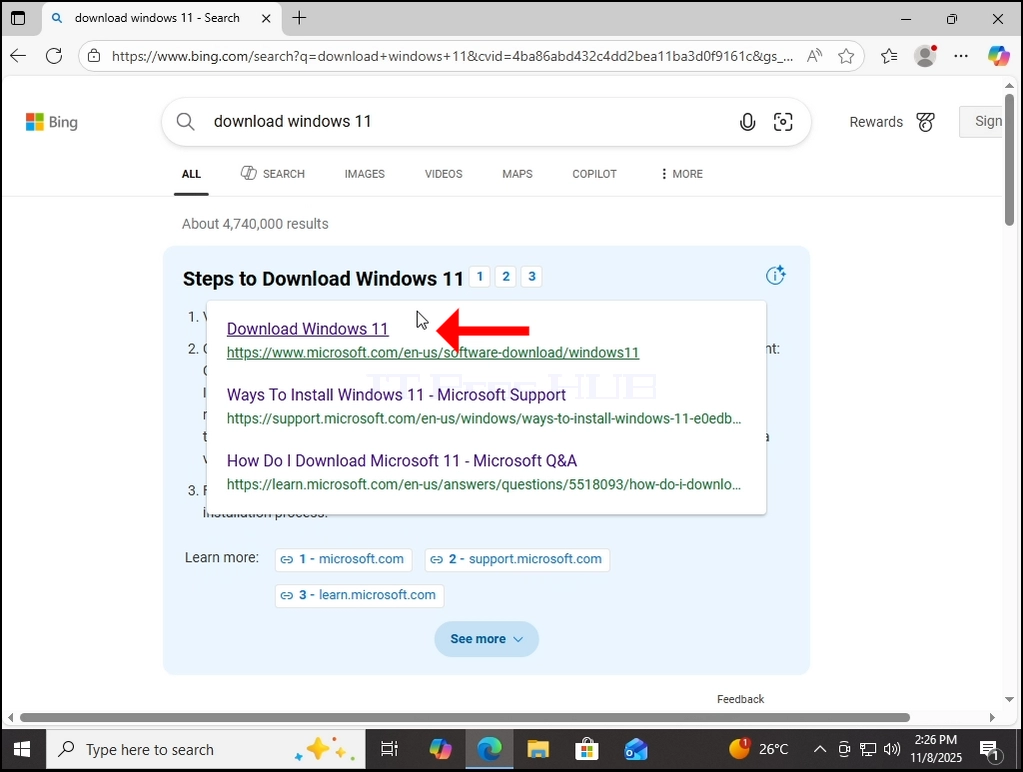
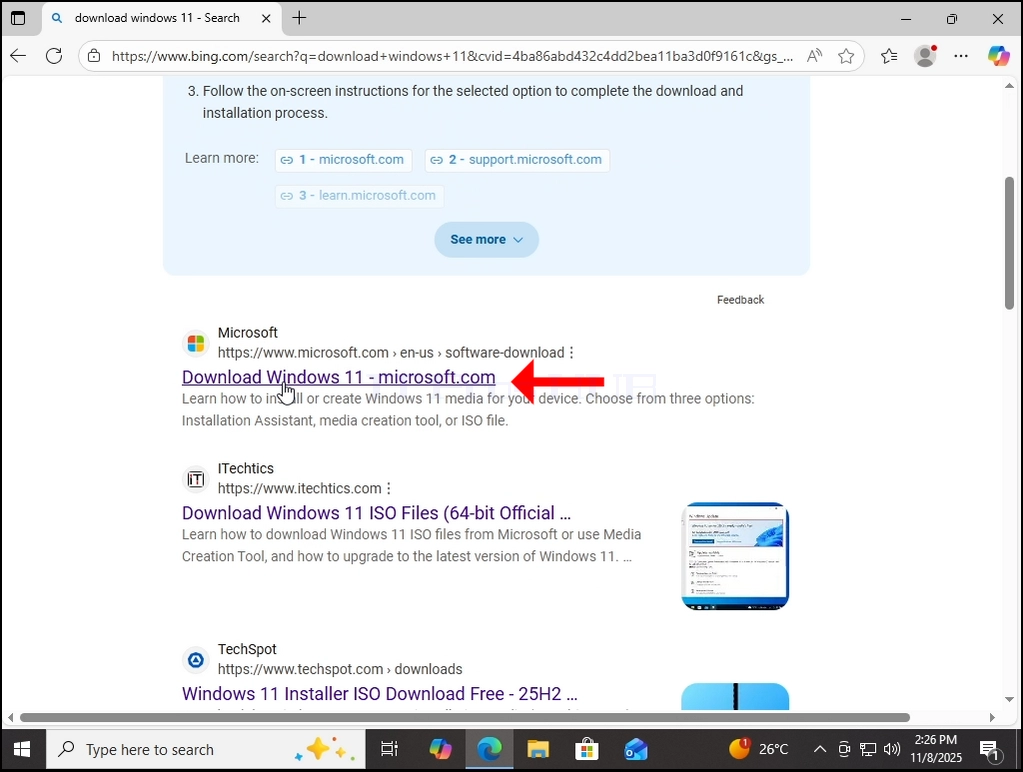
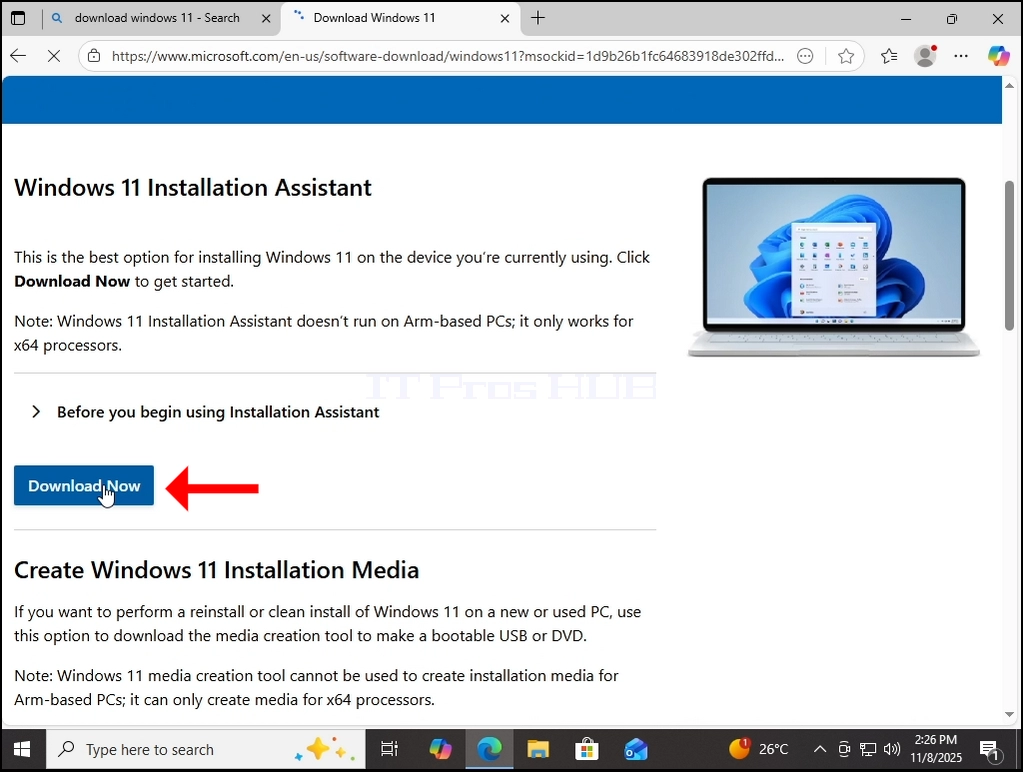
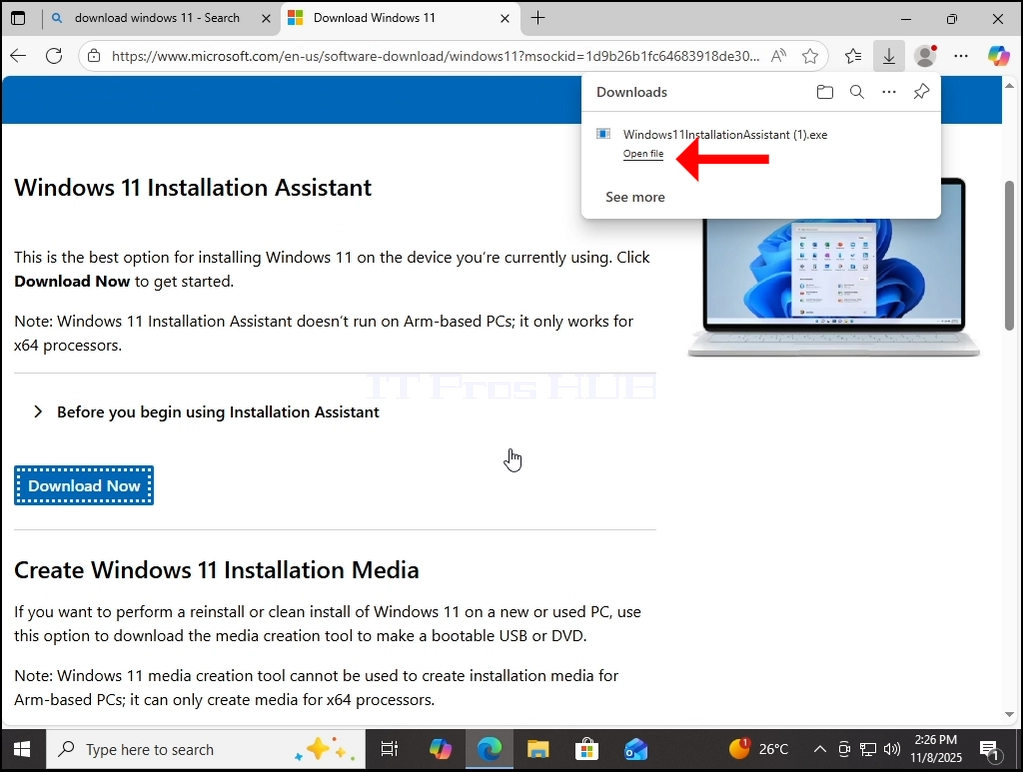
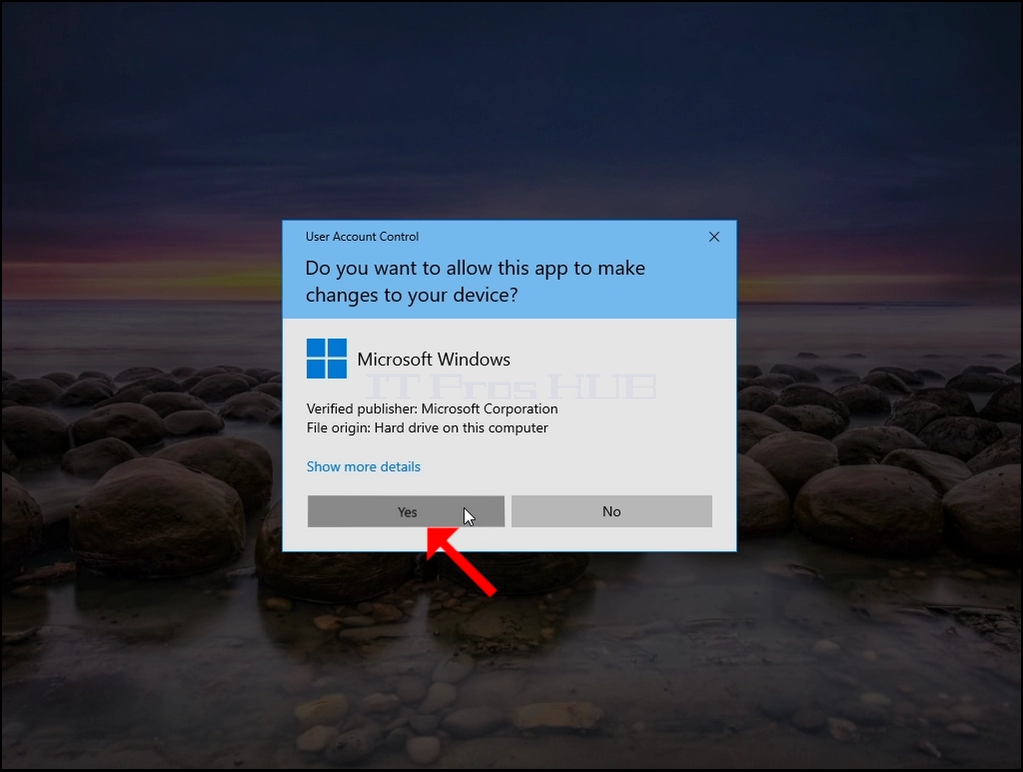
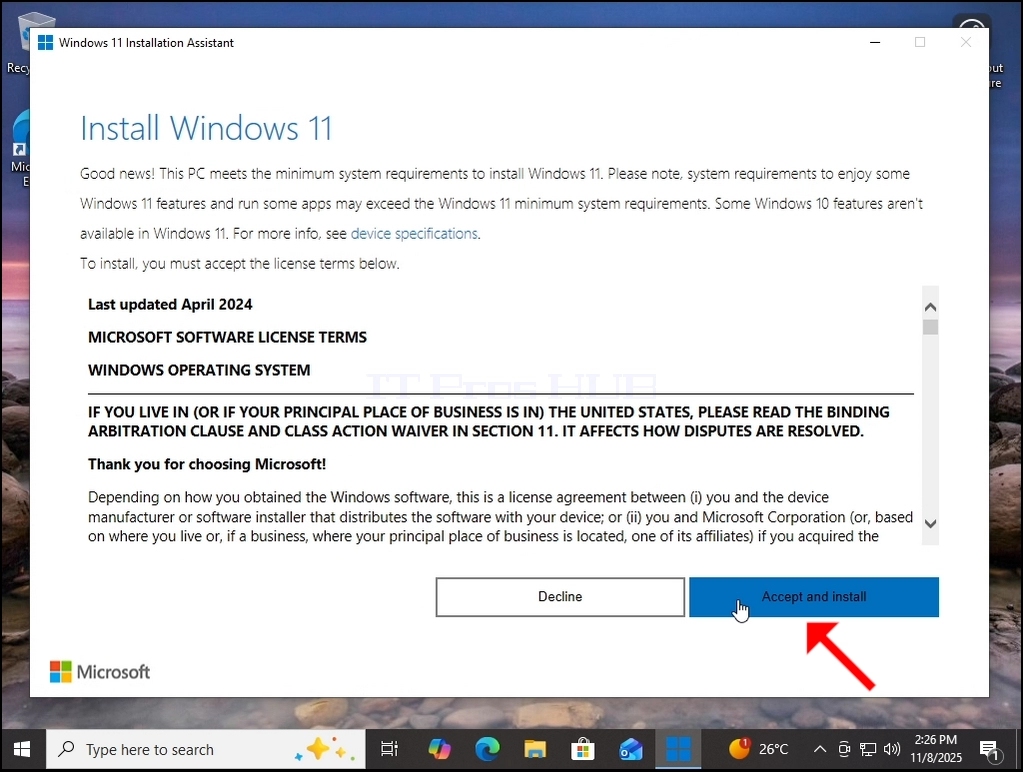 < img src = "images / articles / 775- can- windows- 11- run- without- a- windows- old- folder / Can _ Windows _ 11 _ Run _ Without _ a _ Windows.old _ Folder23.webp" alt = "Can _ Windows _ 11 _ Run _ Wit
hout _ a _ Windows.old _ Folder23.webp "szerokość =" 1023 "wysokość =" 772 "styl =" marginal-bottom: 50px; "/ >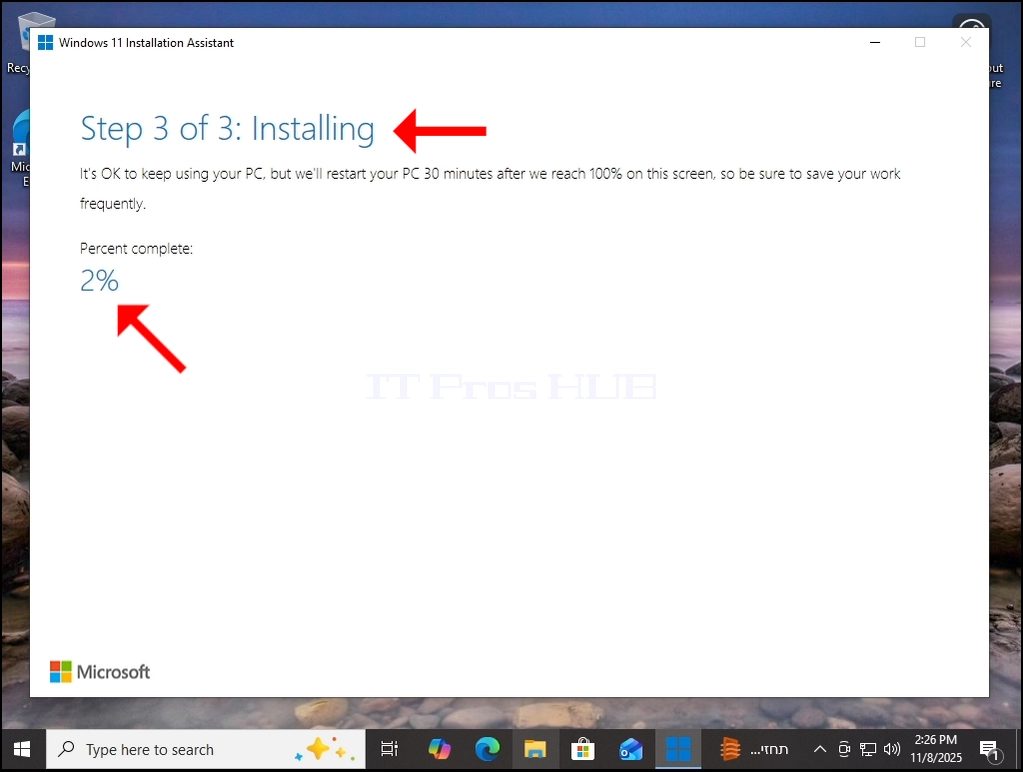
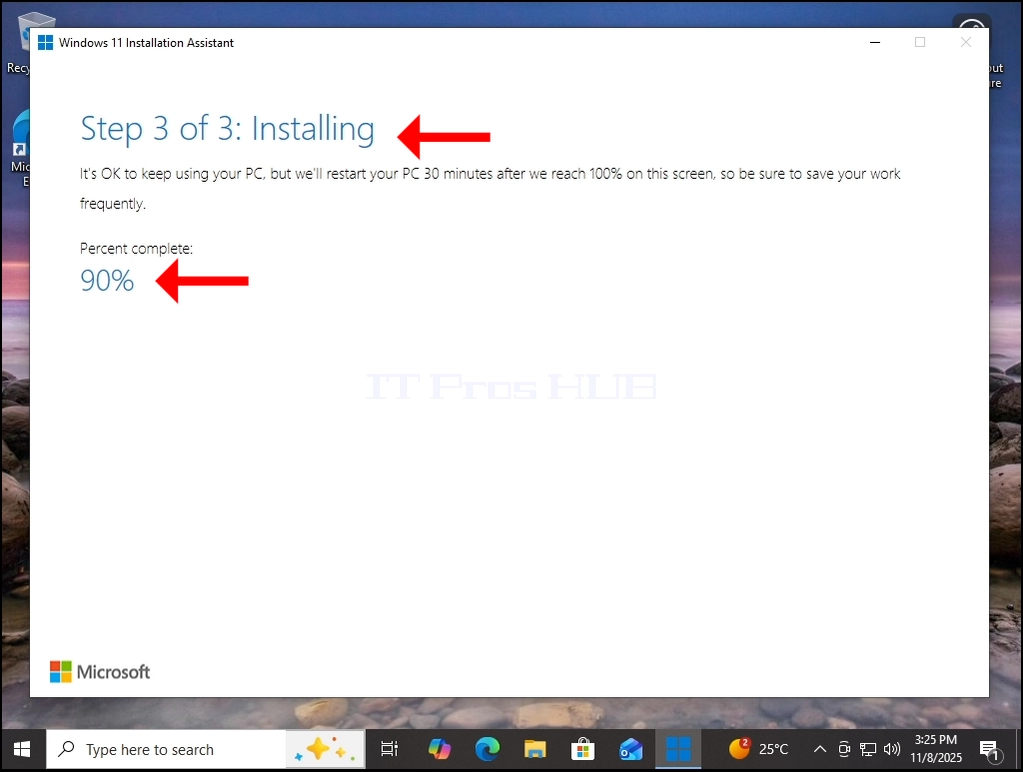
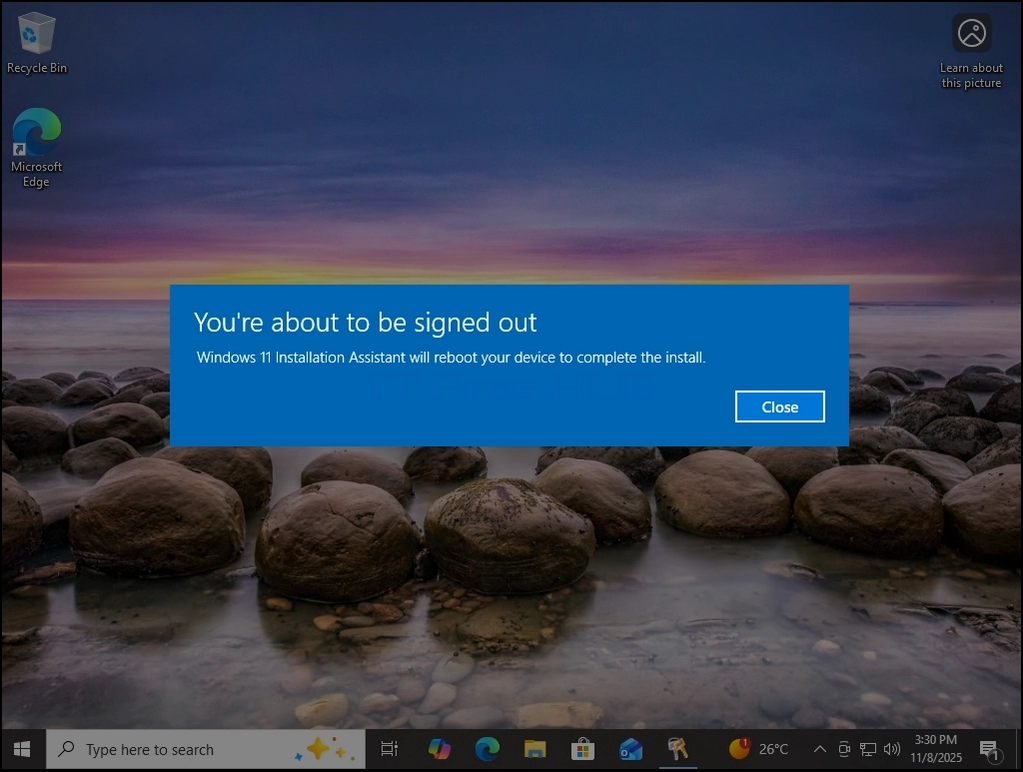
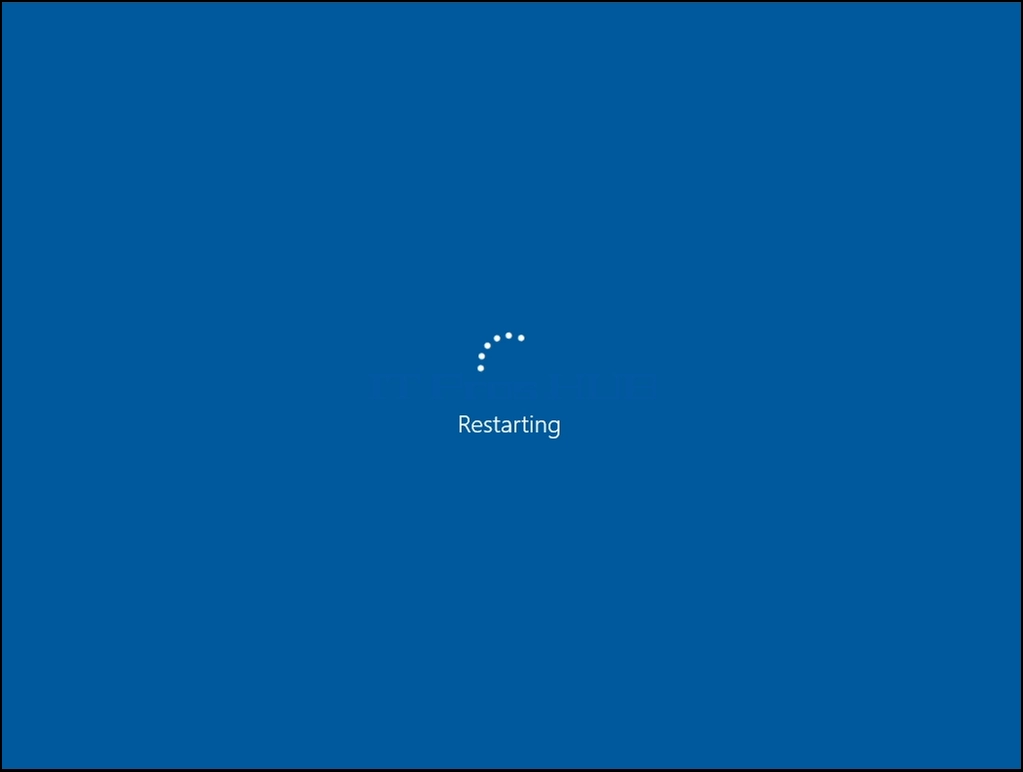
2. Po zakończeniu procesu instalacji - ponowne uruchomienie systemu Windows.
 < img src = "images / articles / 775- can- windows- 11- run- without- a- windows- old- folder / Can _ Windows _ 11 _ Run _ Without _ a _ Windows.old _ Folder42.webp" alt = "Can _ Windows _ 11
_ Run _ Without _ a _ Windows.old _ Folder42.webp "width =" 1023 "higher =" 772 "style =" margina- bottom: 50px; "/ >
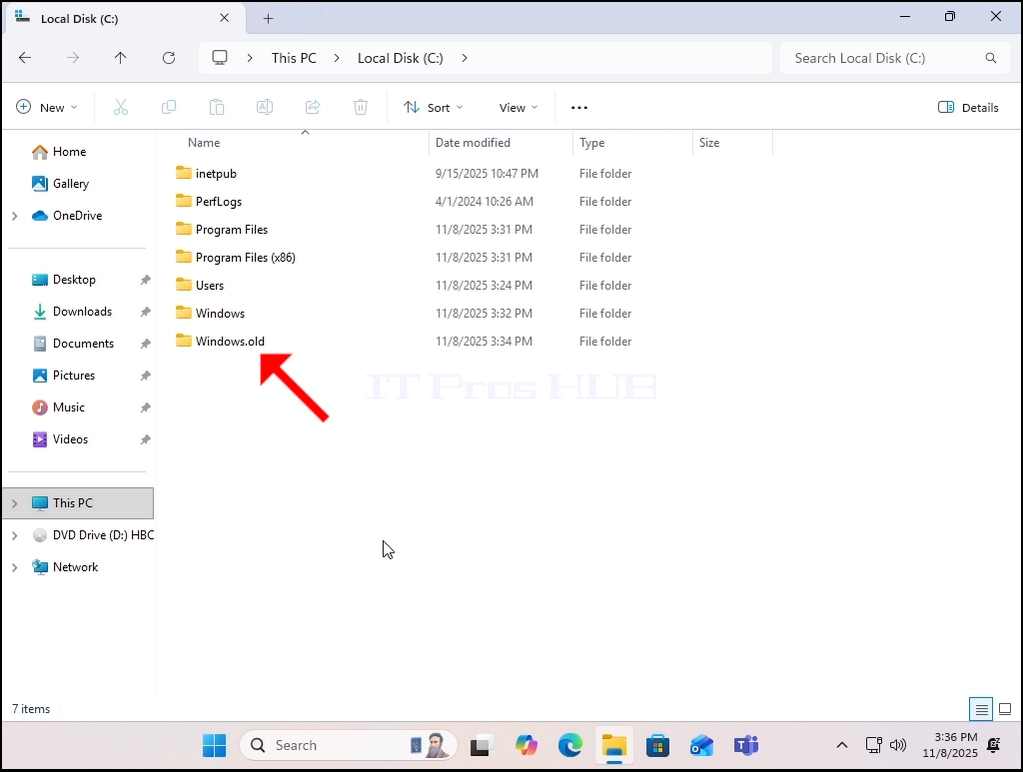
3. Windows jest teraz ponownie zainstalowany. Poprzednia wersja systemu Windows jest teraz przechowywana w folderze Windows.old.

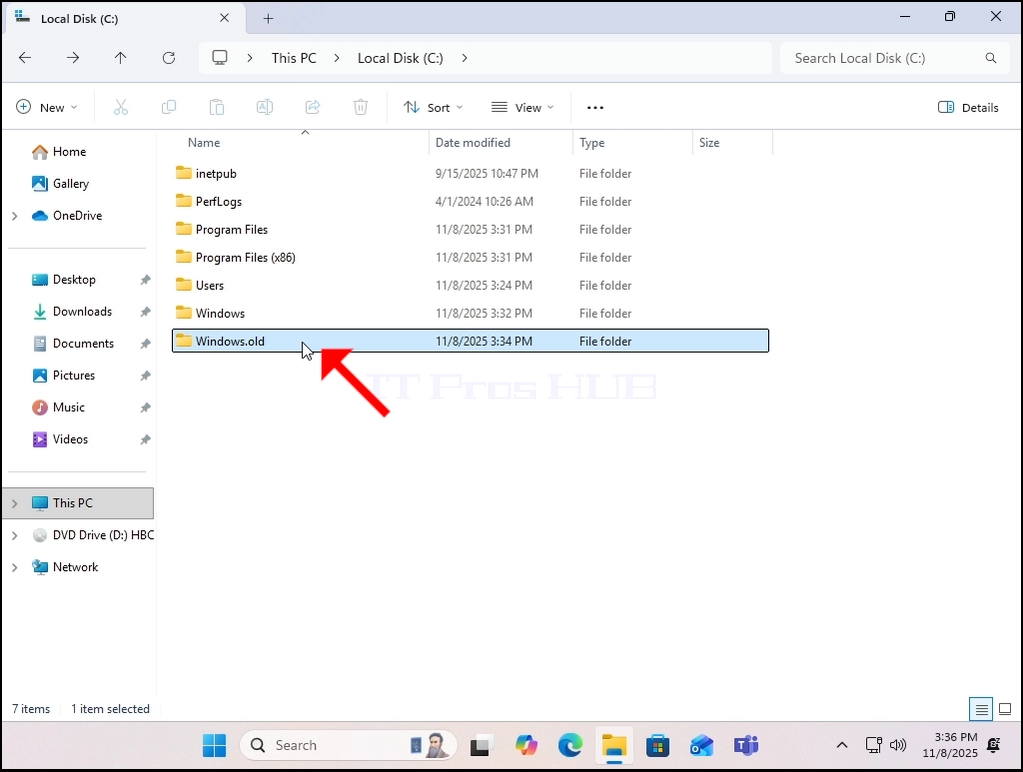
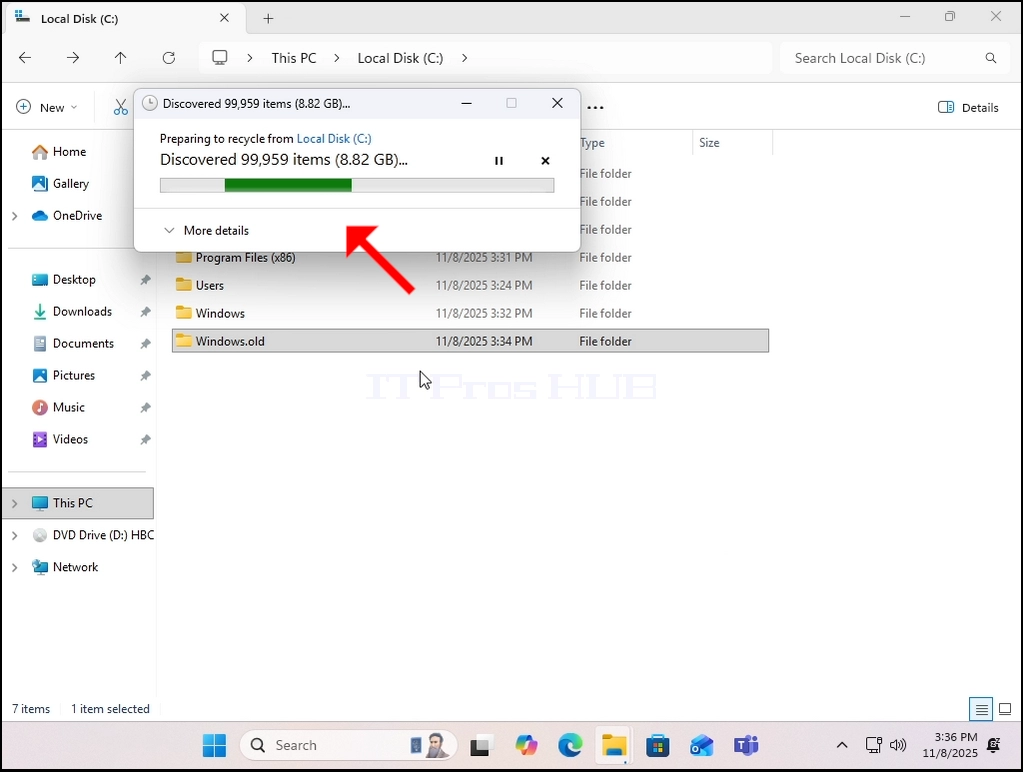
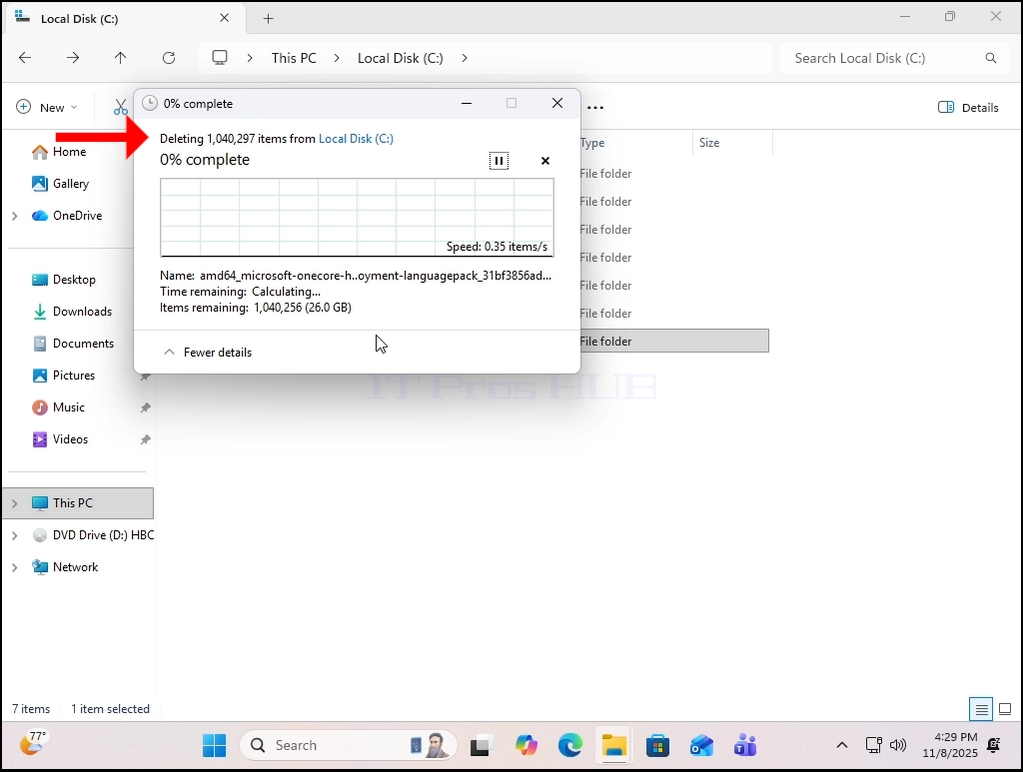
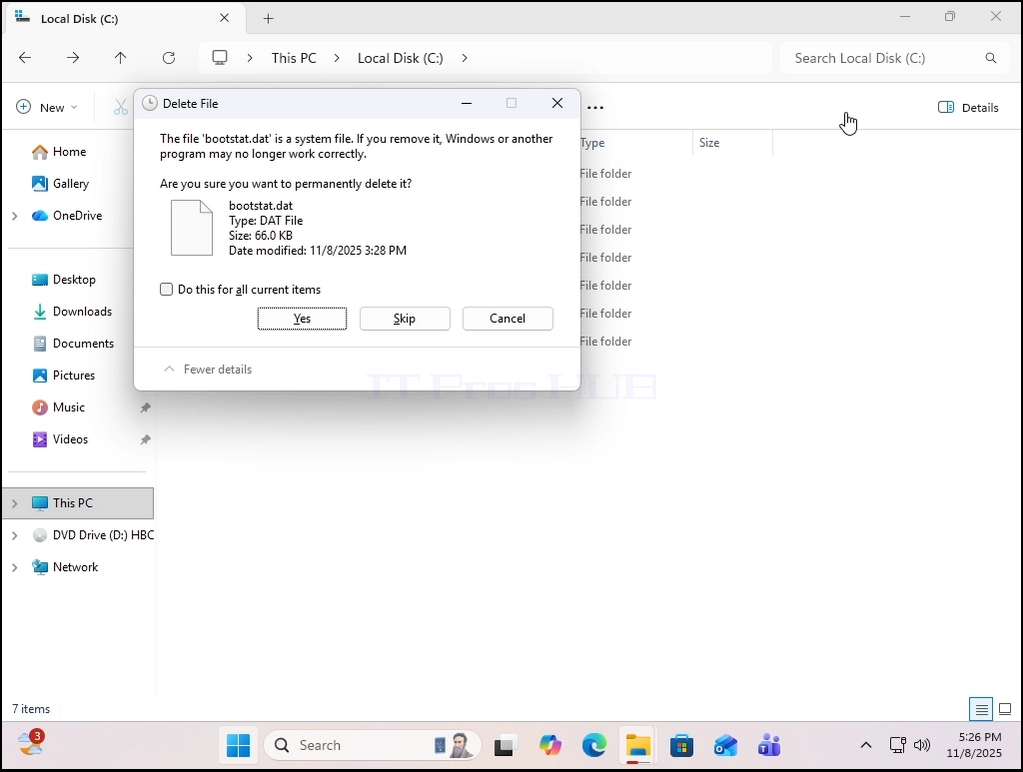
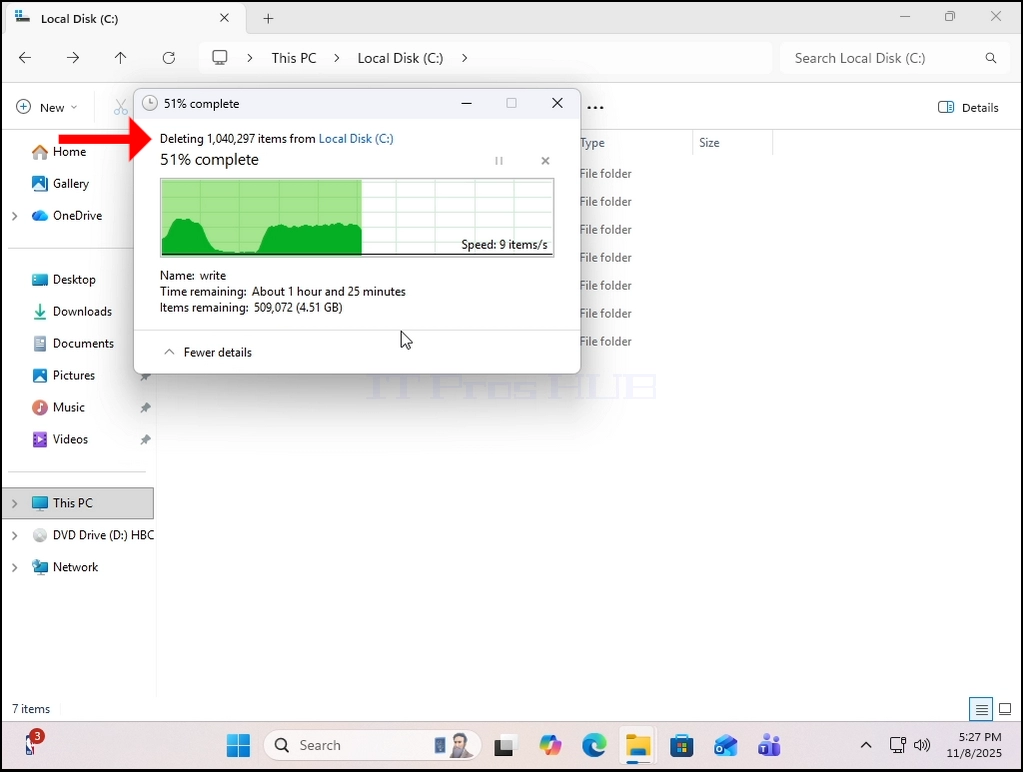
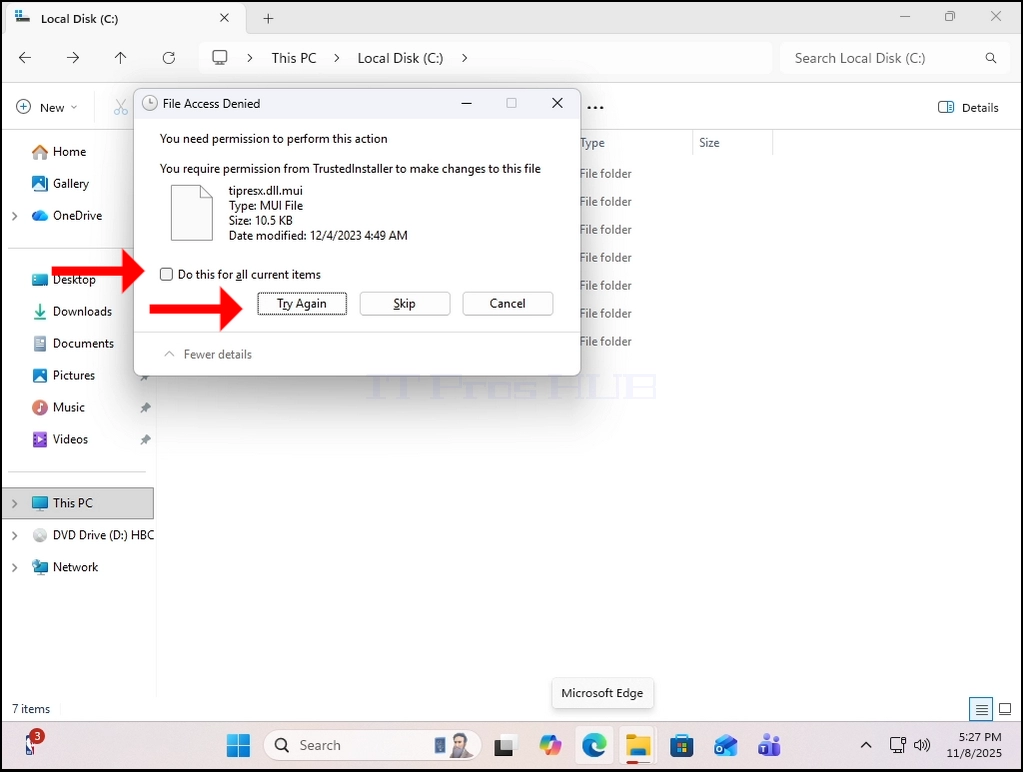
4. Jak widać, kasowanie Windows. stary folder całkowicie z systemu Windows nie jest w tym przypadku możliwy:
 < img src = "images / articles / 775- can- windows- 11- run- without- a- windows- old- folder / Can _ Windows _ 11 _ Run _ Without _ a _ Windows.old _ Folder54.webp" alt = "Can _ Windows _ 11
_ Run _ Without _ a _ Windows.old _ Folder54.webp "szerokość =" 1023 "wysokość =" 772 "styl =" margina- bottom: 50px; "/ >
5. Aby to osiągnąć, będziemy musieli użyć offline wersji Windows o nazwie Windows PE o nazwie HBCD w tym przypadku.
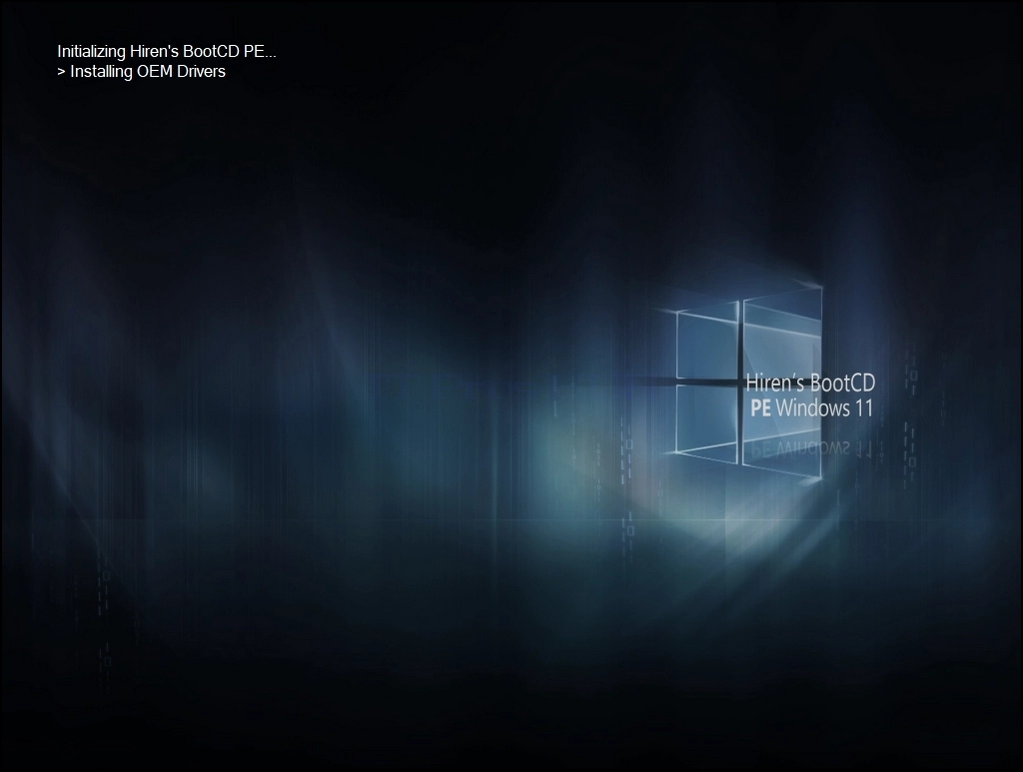
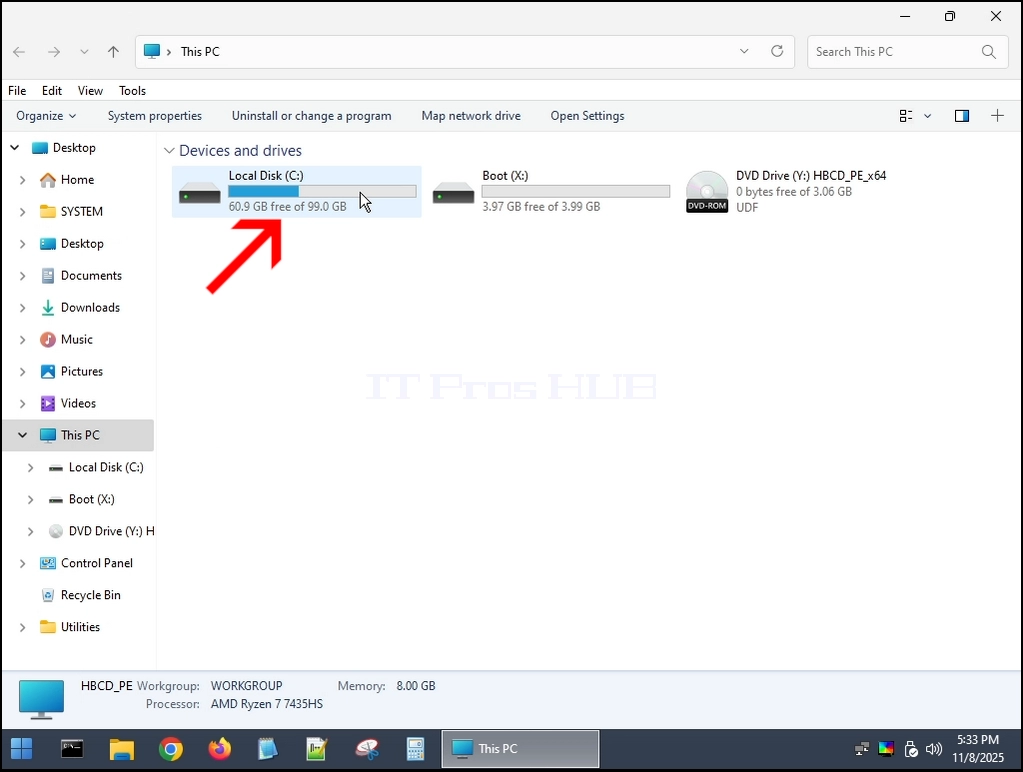
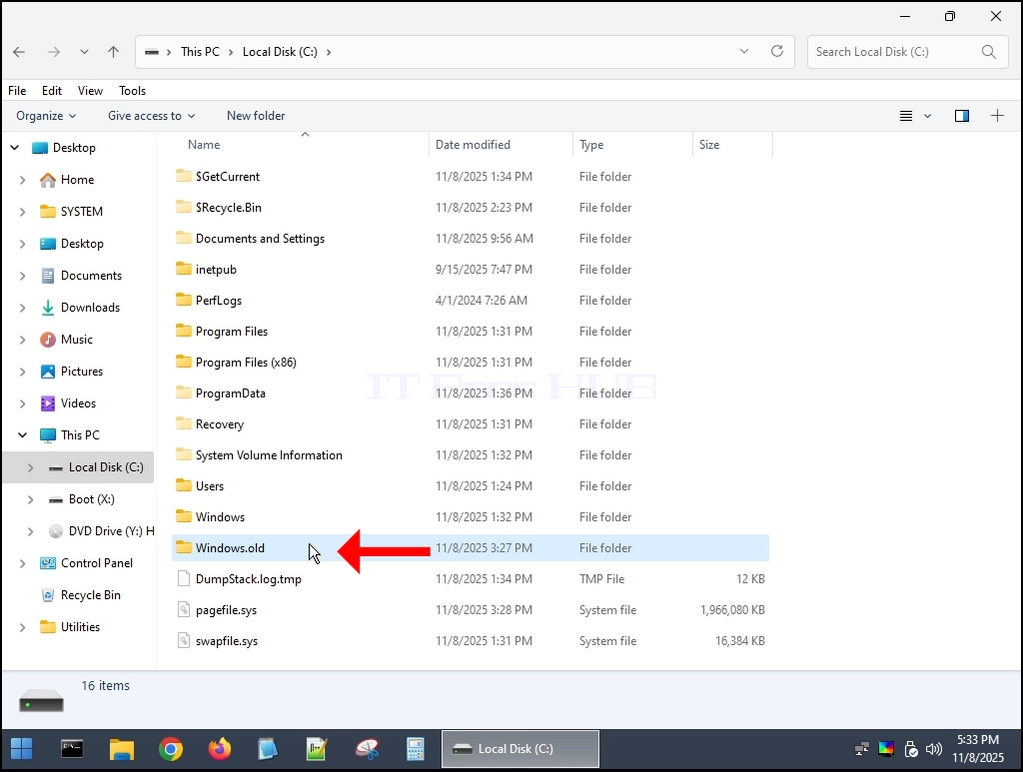
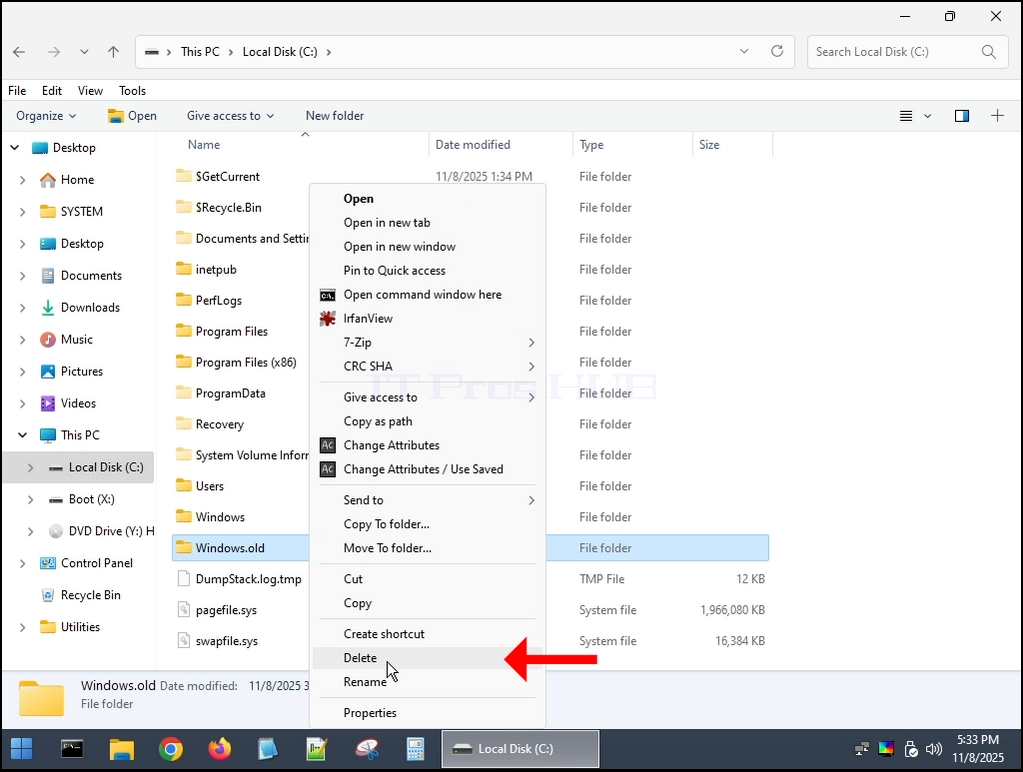
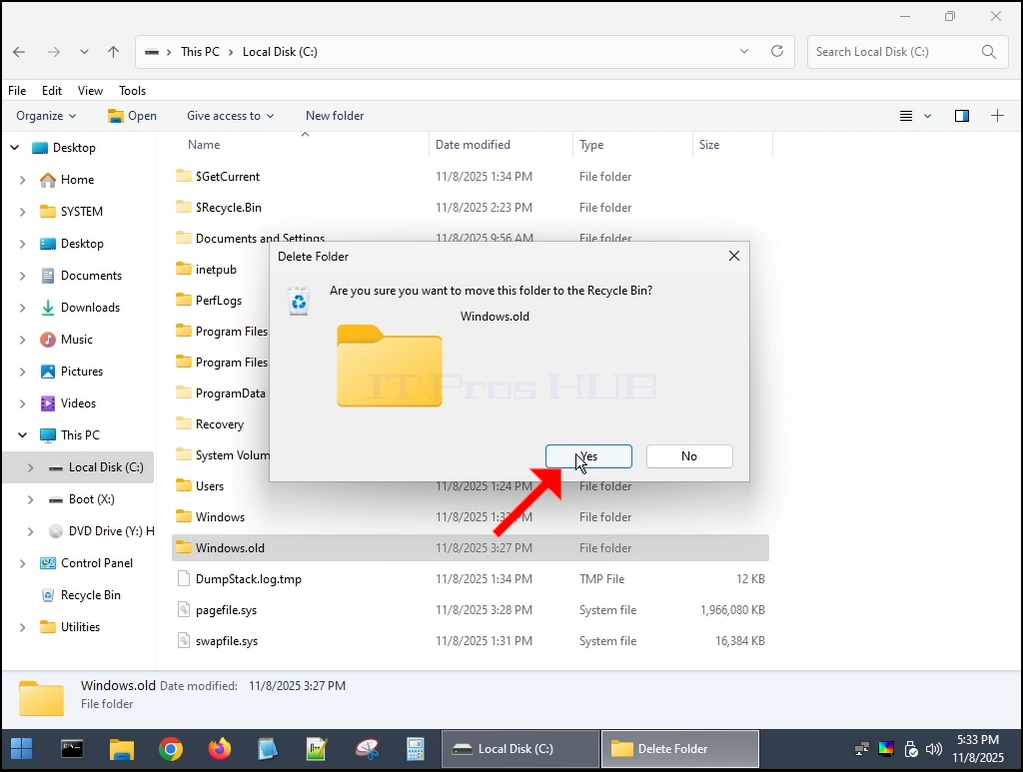
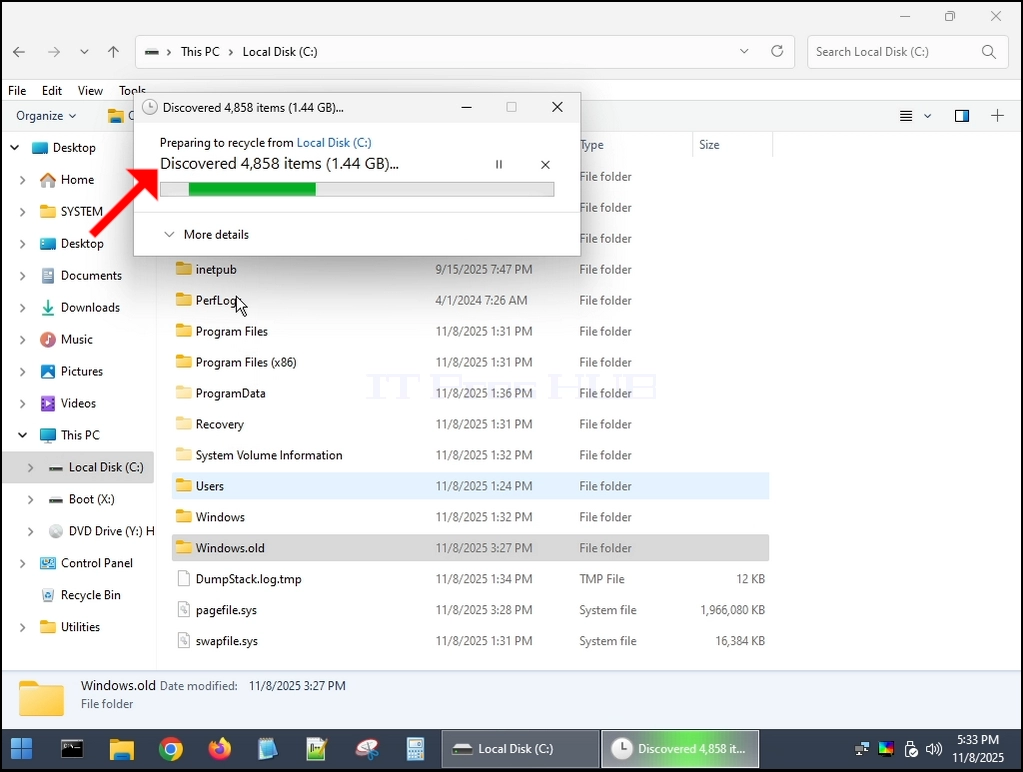
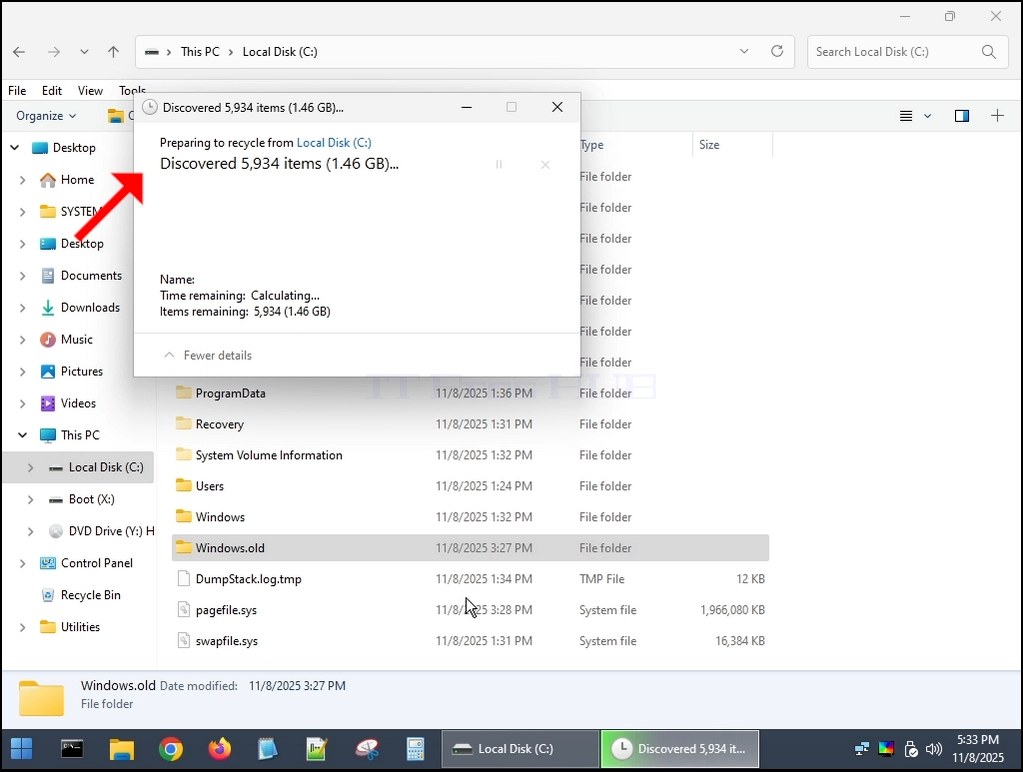
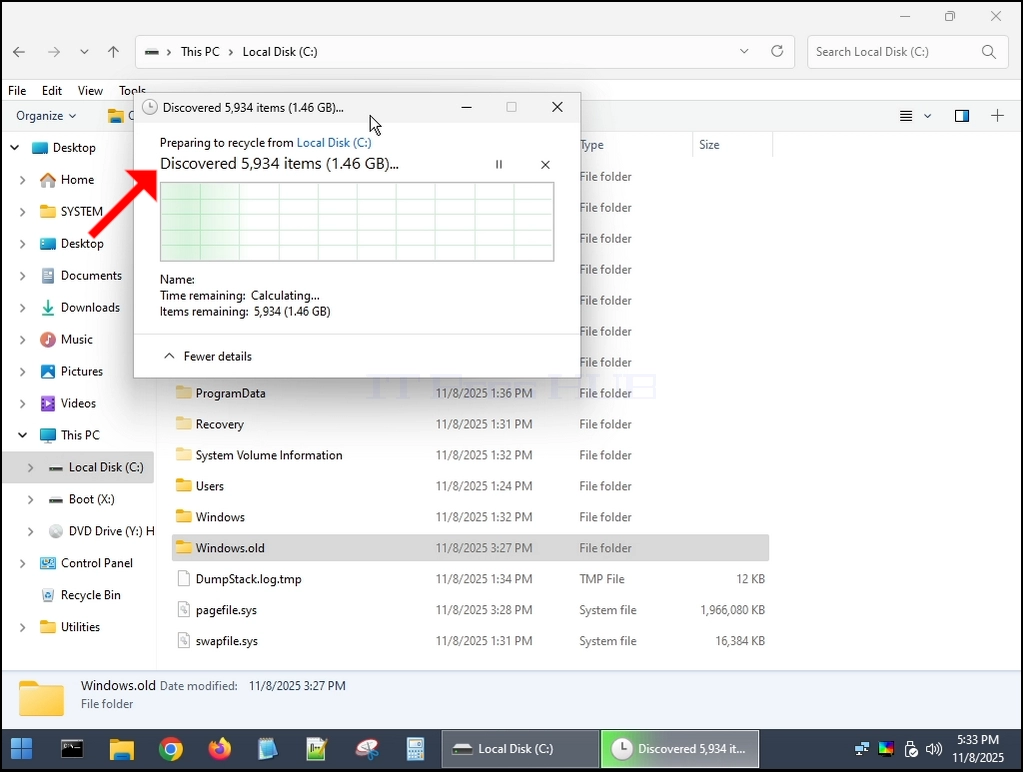
6. Usuniemy folder Windows.old z systemu Windows PE (HBCD):
 < img src = "images / articles / 775- can- windows- 11- run- without- a- windows- old- folder / Can _ Windows _ 11 _ Run _ Without _ a _ Windows.old _ Folder64.webp" alt = "Can _ Windows _ 11
_ Run _ Without _ a _ Windows.old _ Folder64.webp "width =" 1023 "higher =" 772 "style =" margina- bottom: 50px; "/ >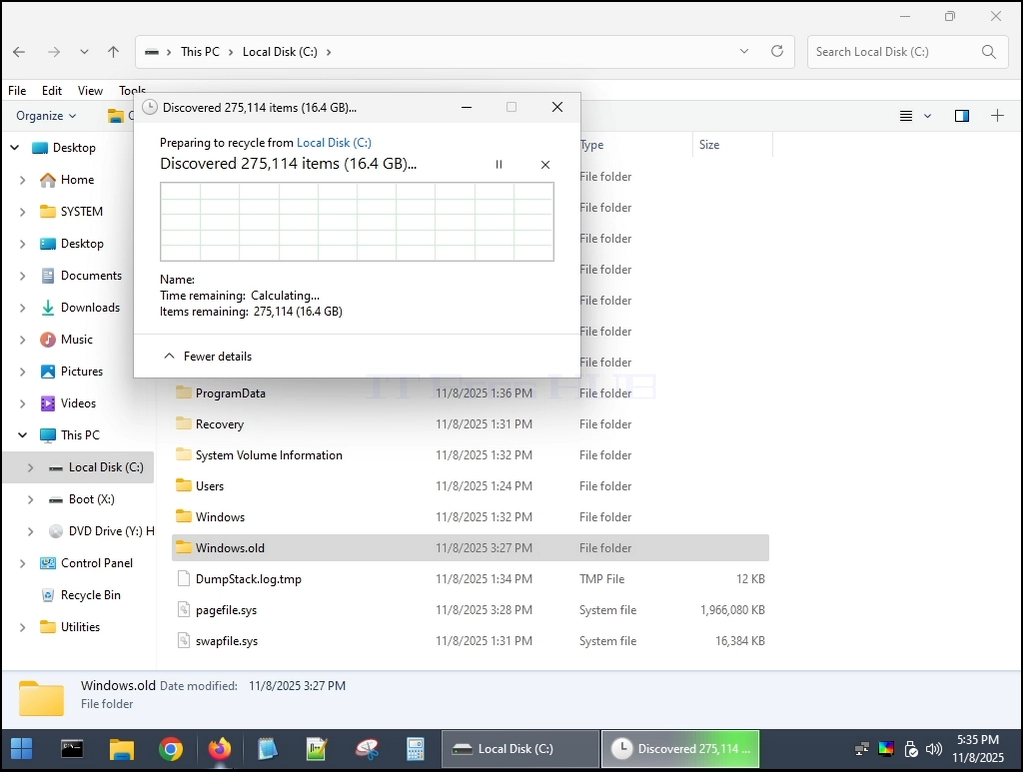
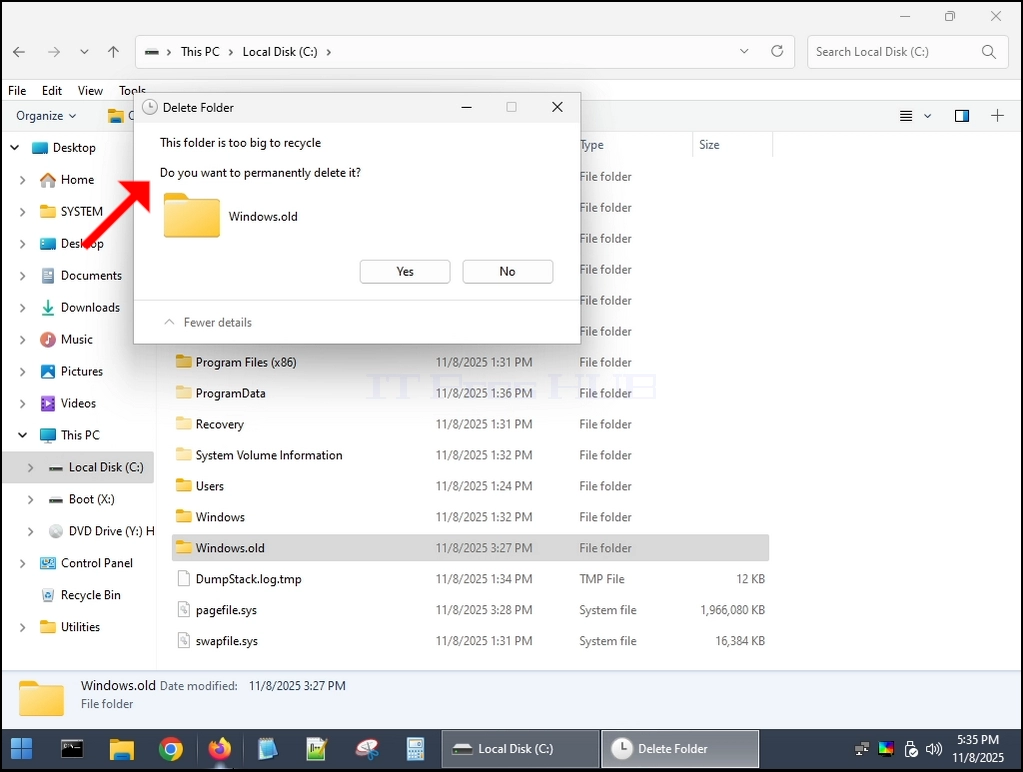
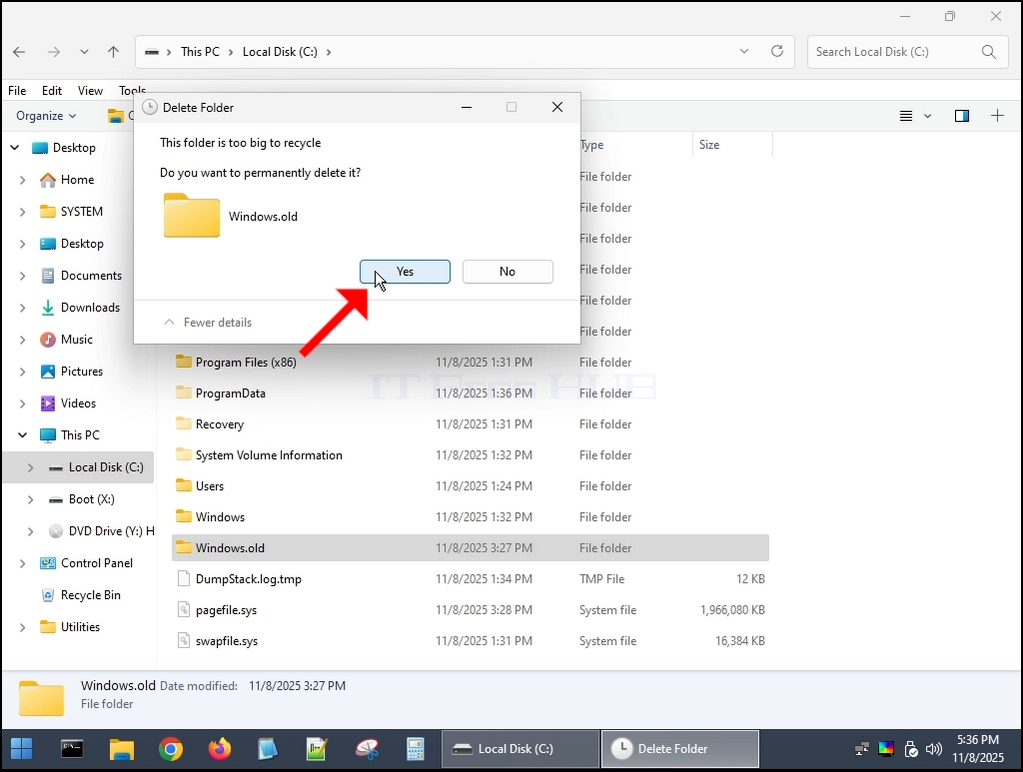
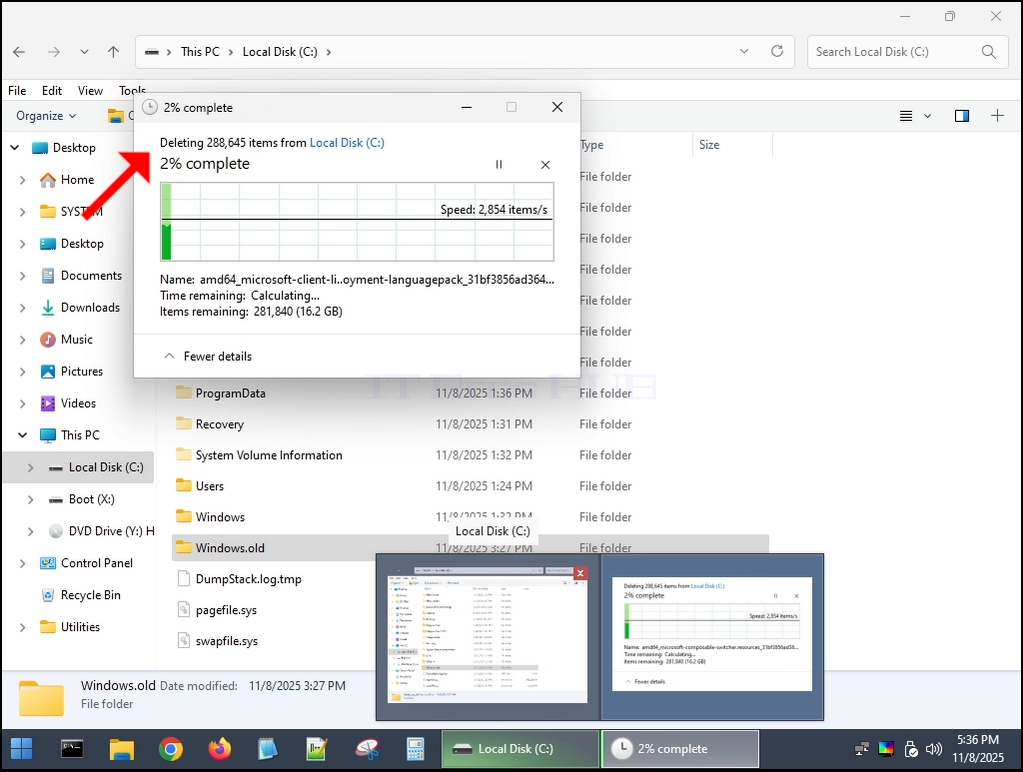
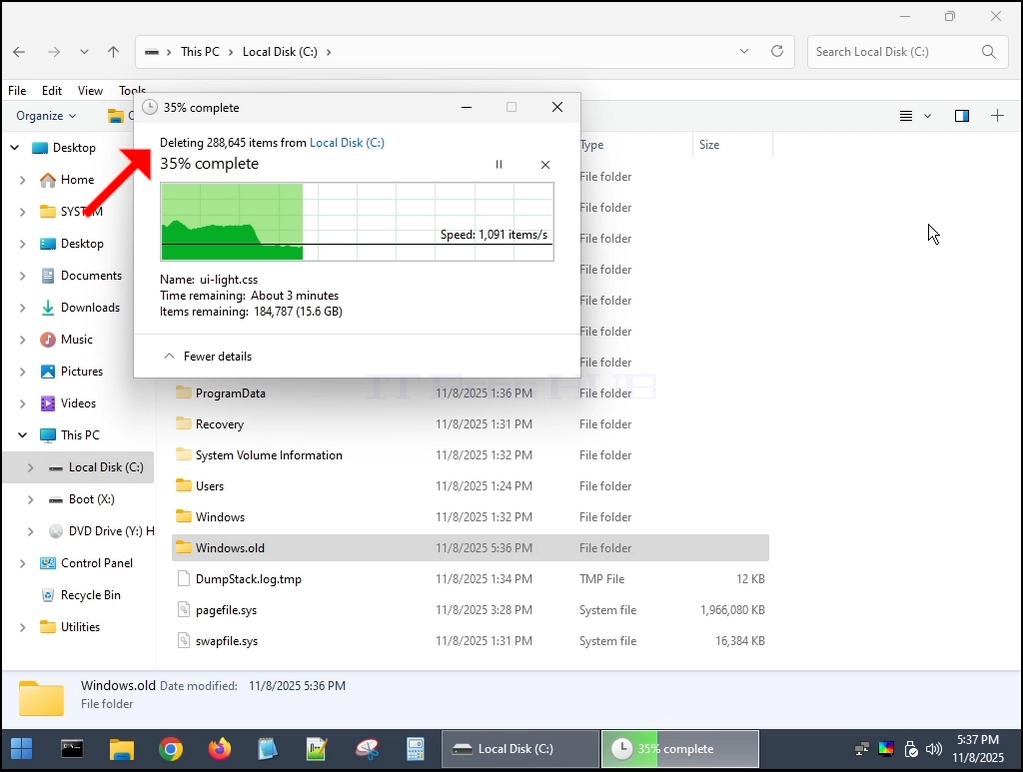
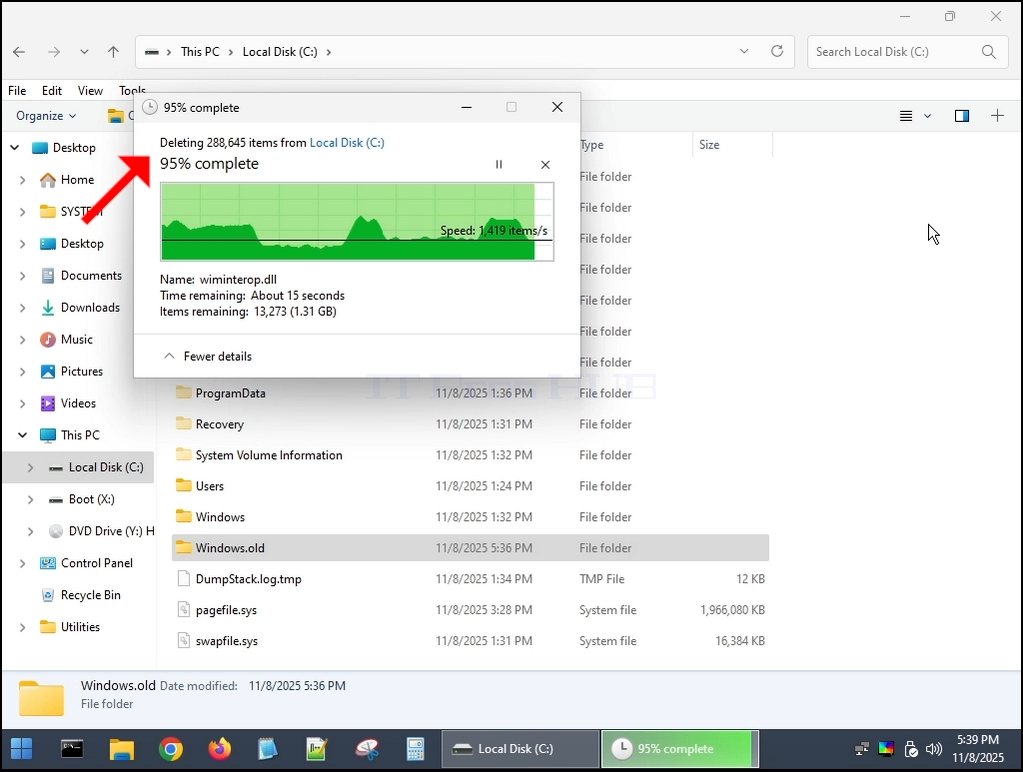
7. Jeśli pojawią się jakieś dialogi - Zaznacz je jako "Zrób to dla wszystkich aktualnych pozycji"i kliknij na Tak.
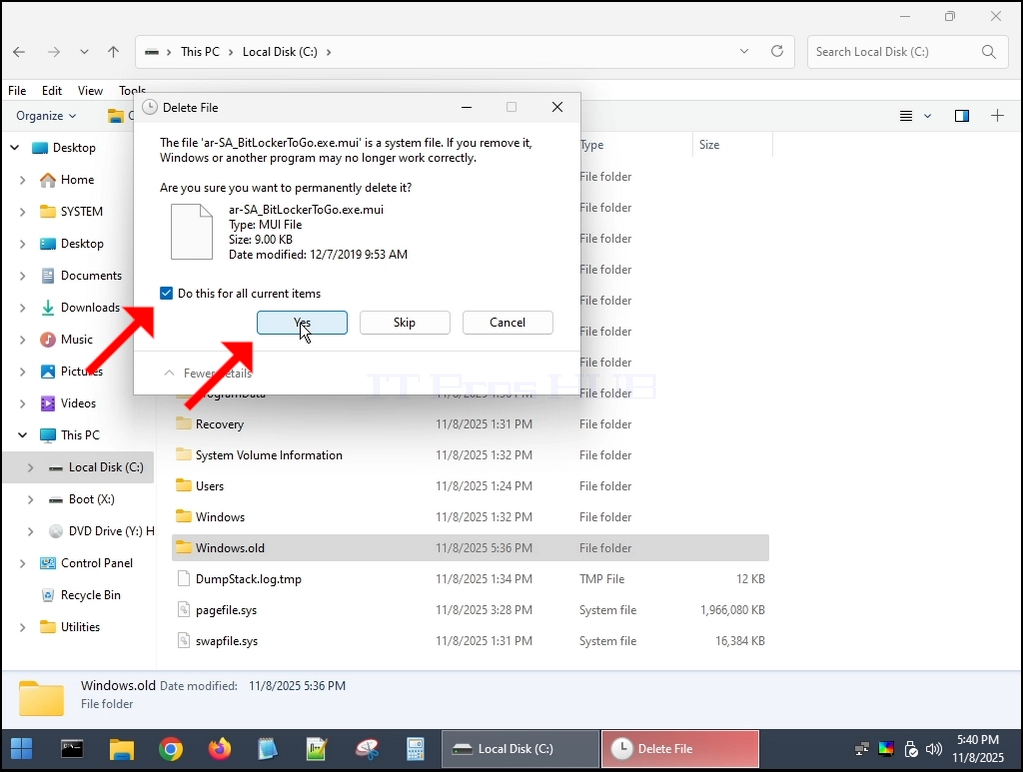
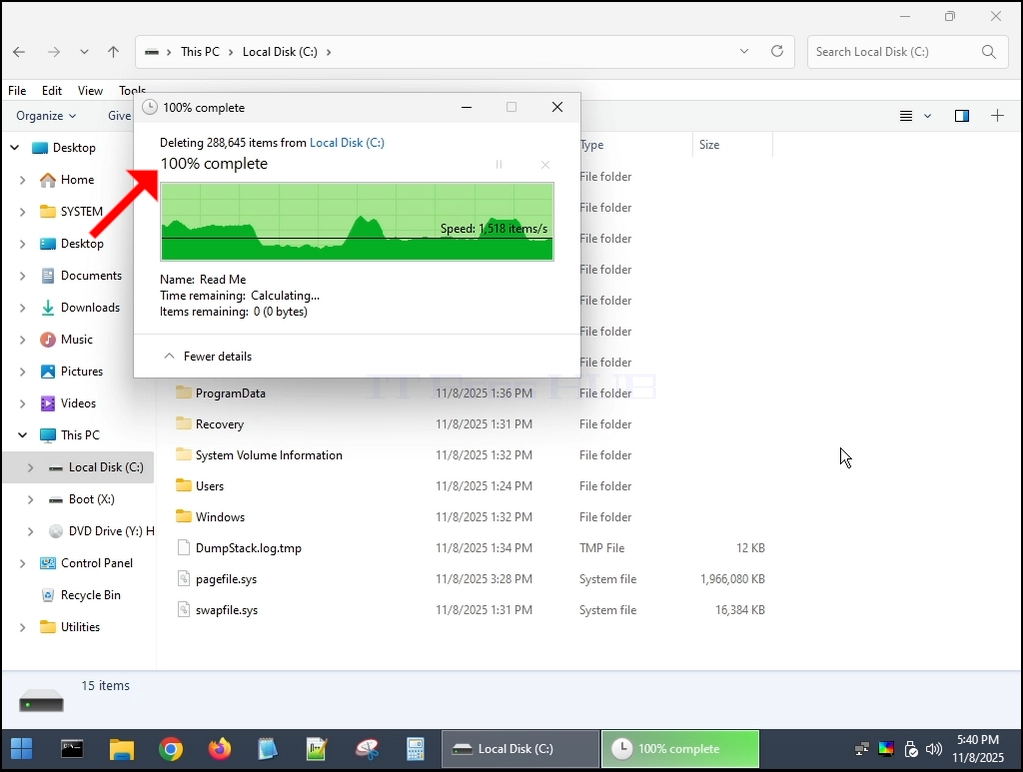
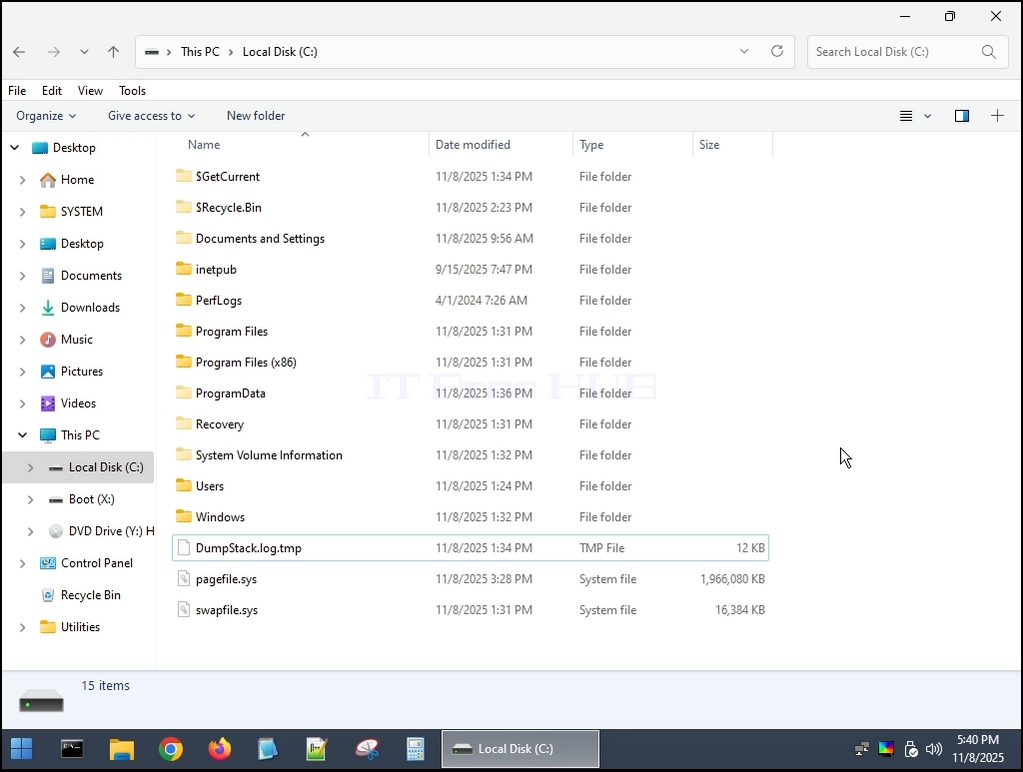
8. Folder Windows.old jest teraz całkowicie usunięty:
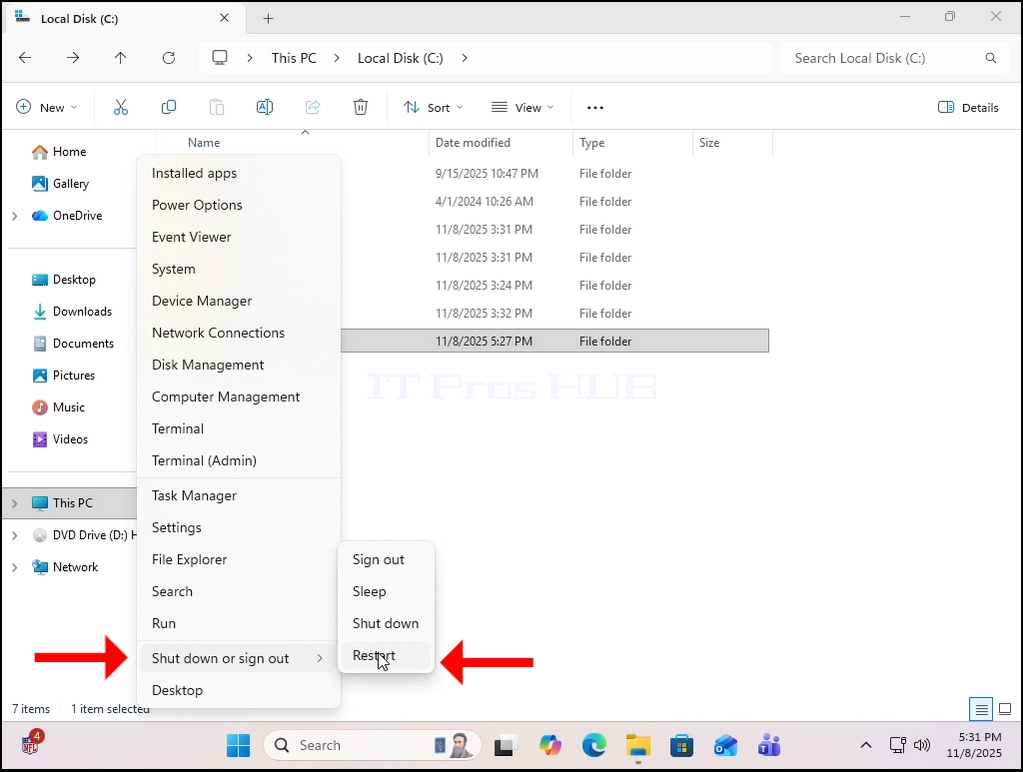
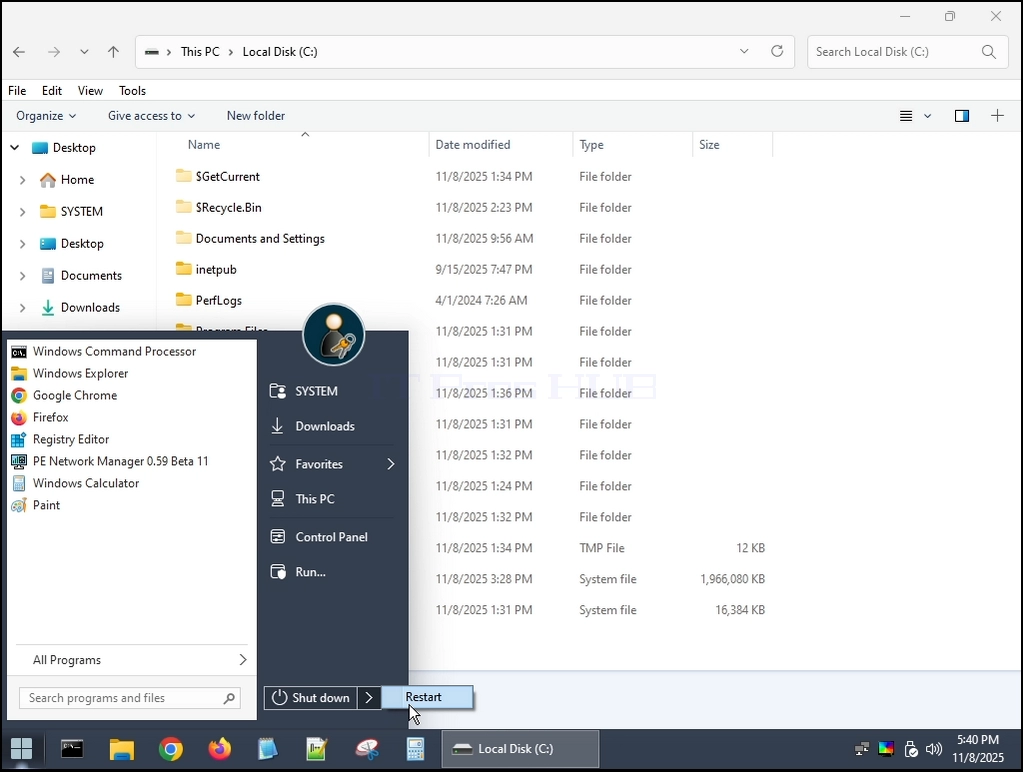
9. Restartowanie do systemu Windows 11:
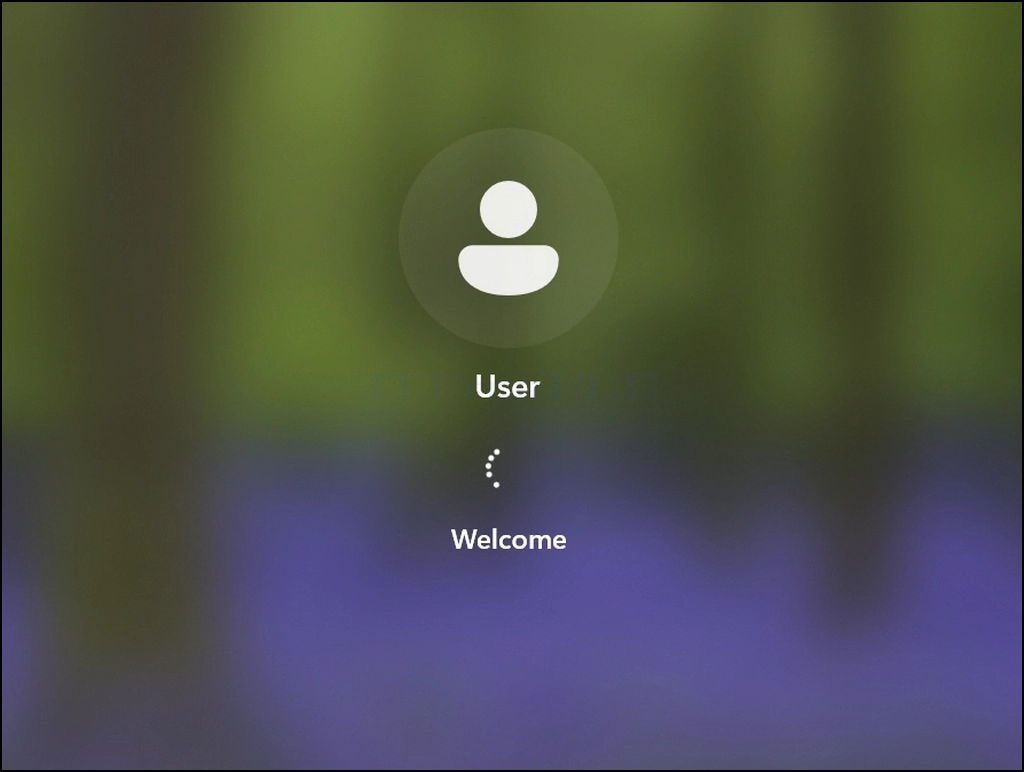
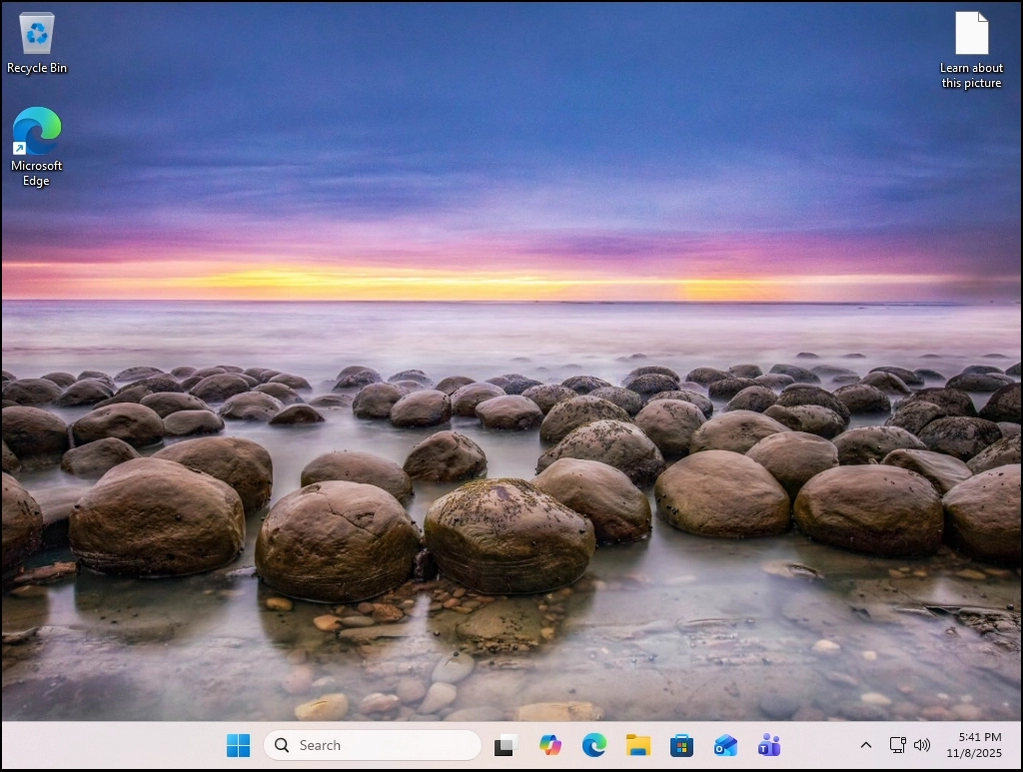
10. Windows 11 został uruchomiony pomyślnie.
11. Wniosek:
Folder Windows.old może zostać usunięty bez koneksji dotyczących uruchamiania systemu Windows 11.