



- Detalhes
- Escrito por: IT Pro
- Categoria: How to Articles
- Visualizações: 6198
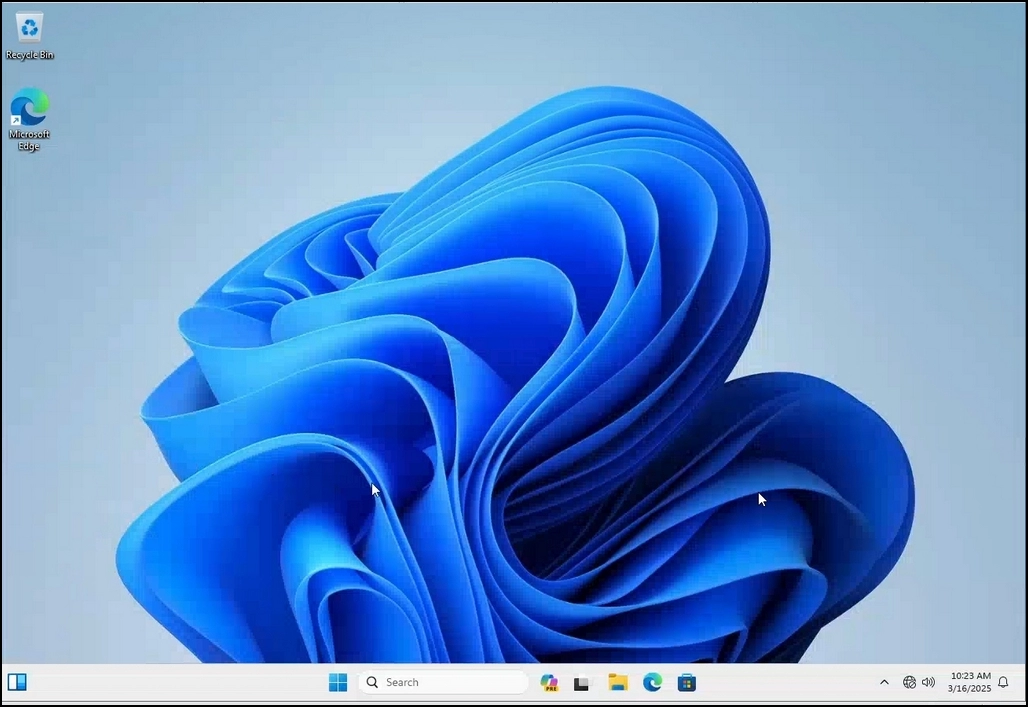
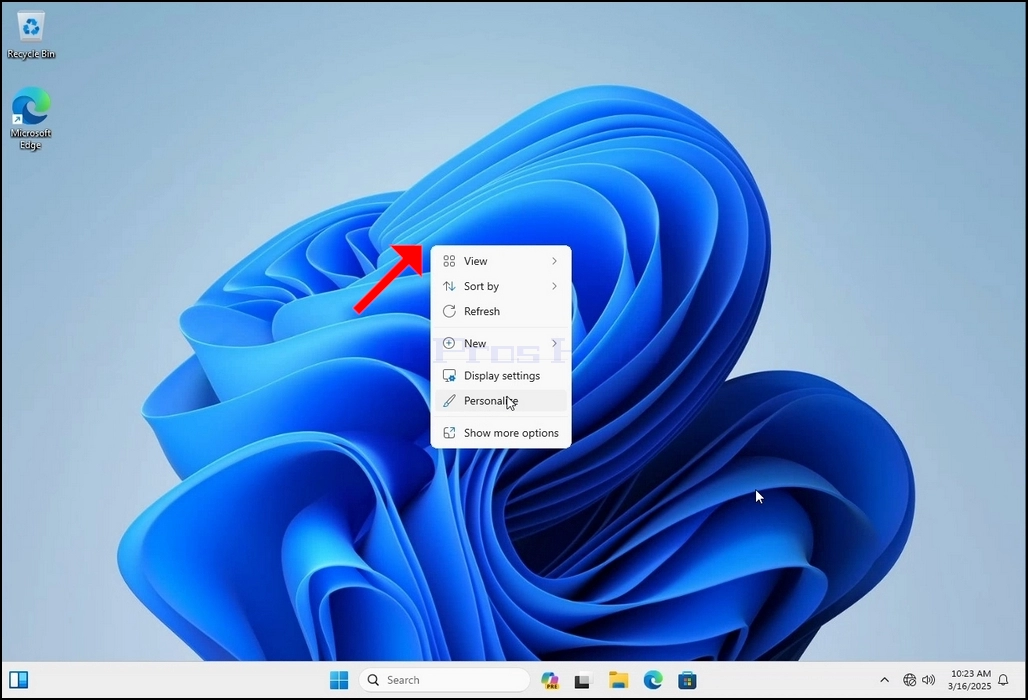
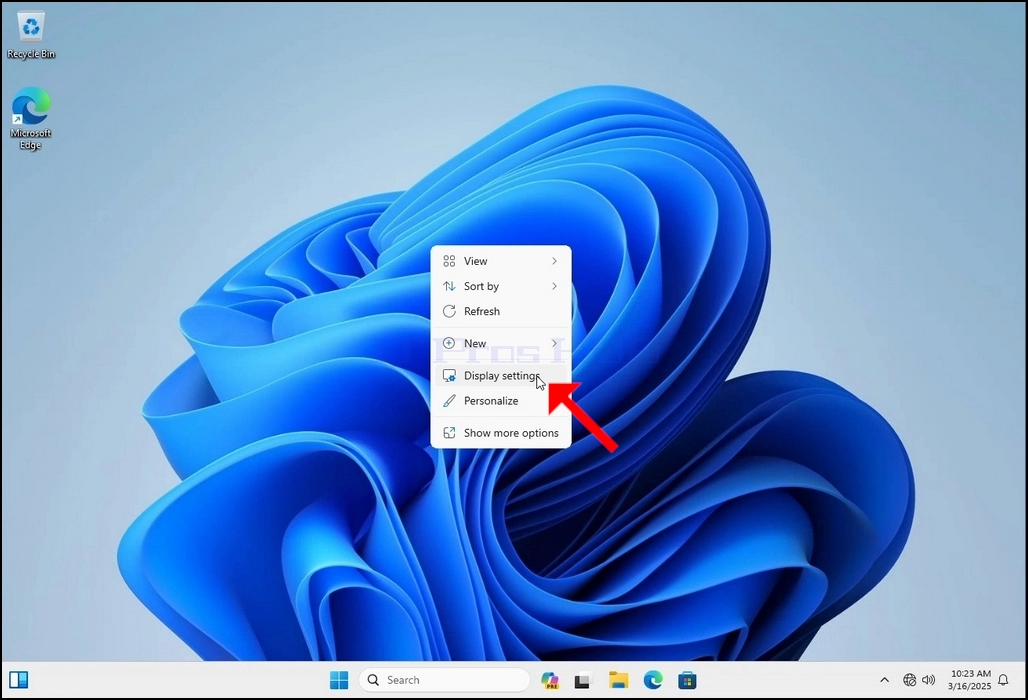
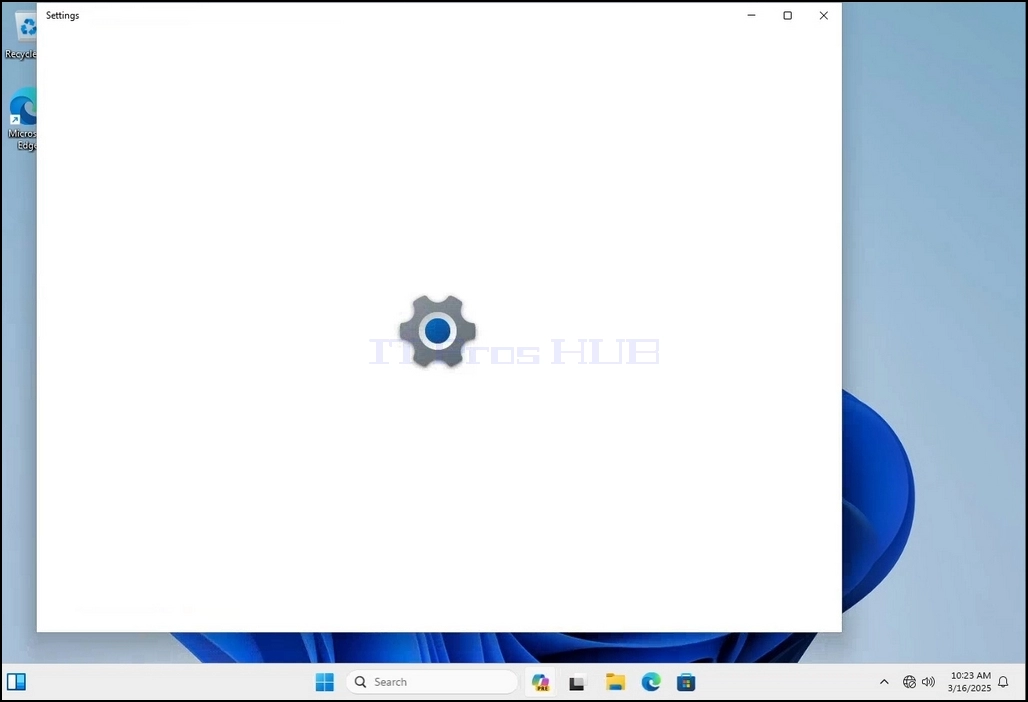
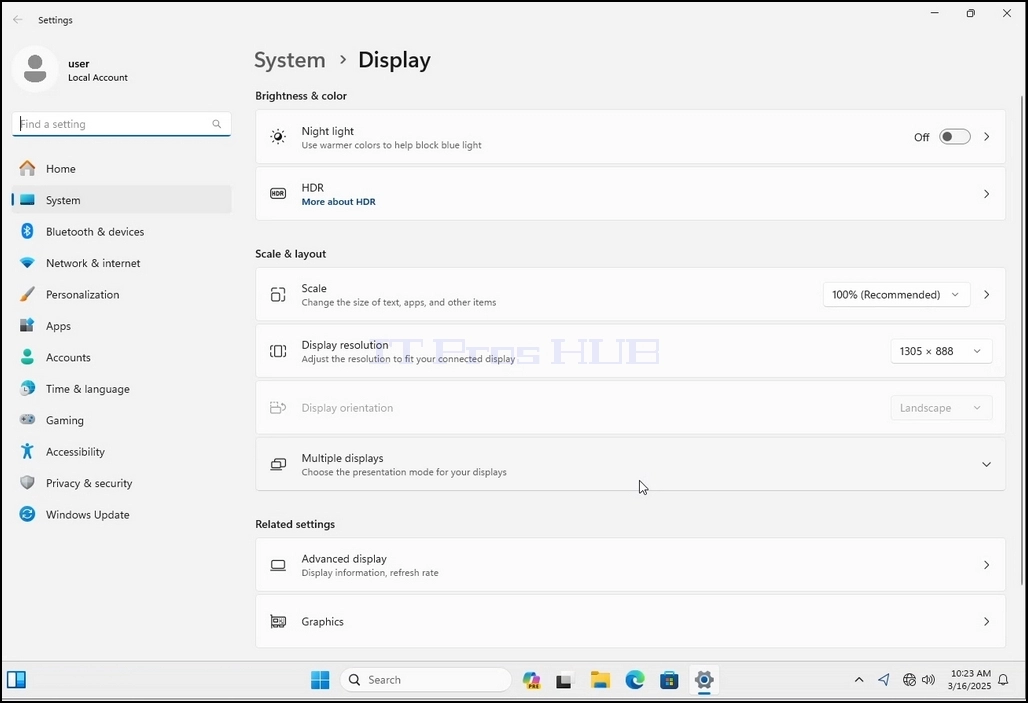
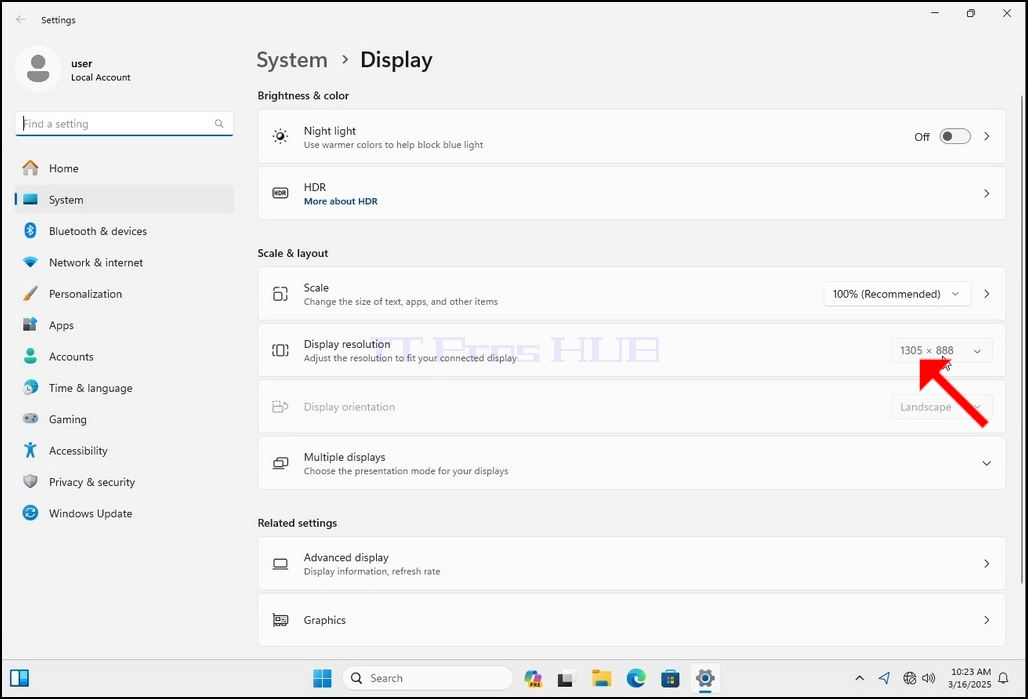
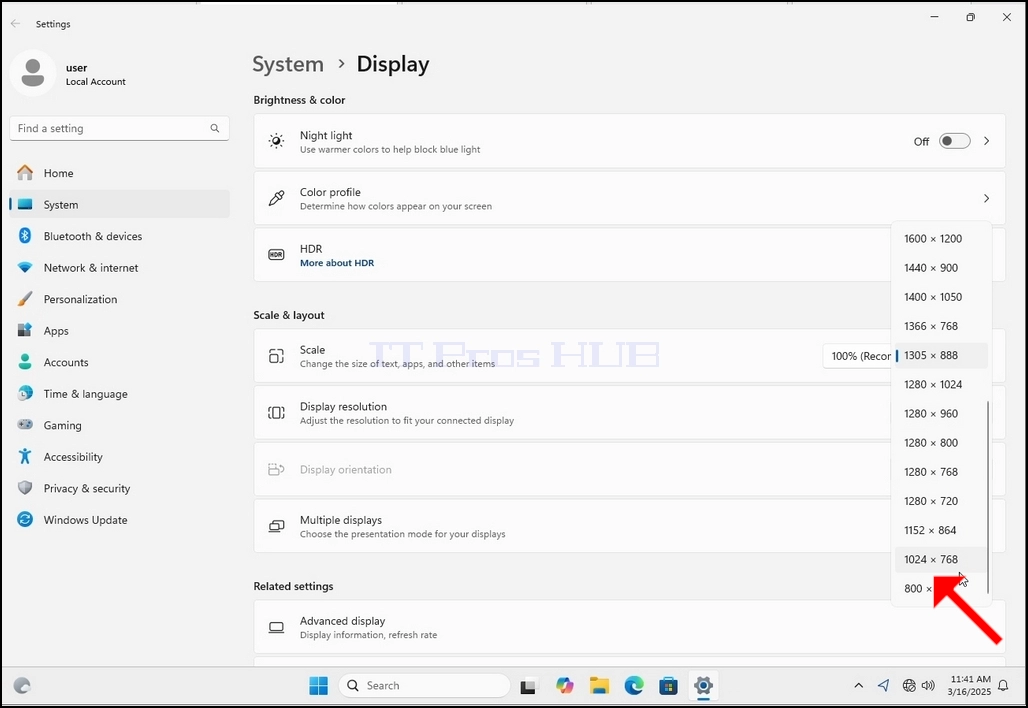
3. In the Settings window, under the System > Display options, look for the Display Resolution option
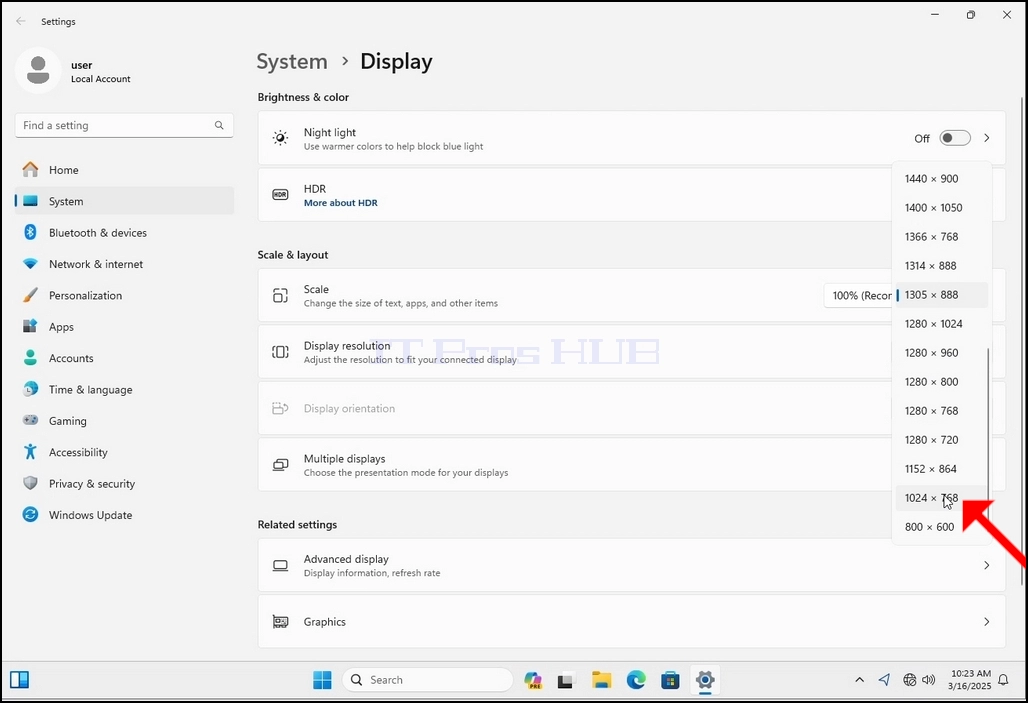
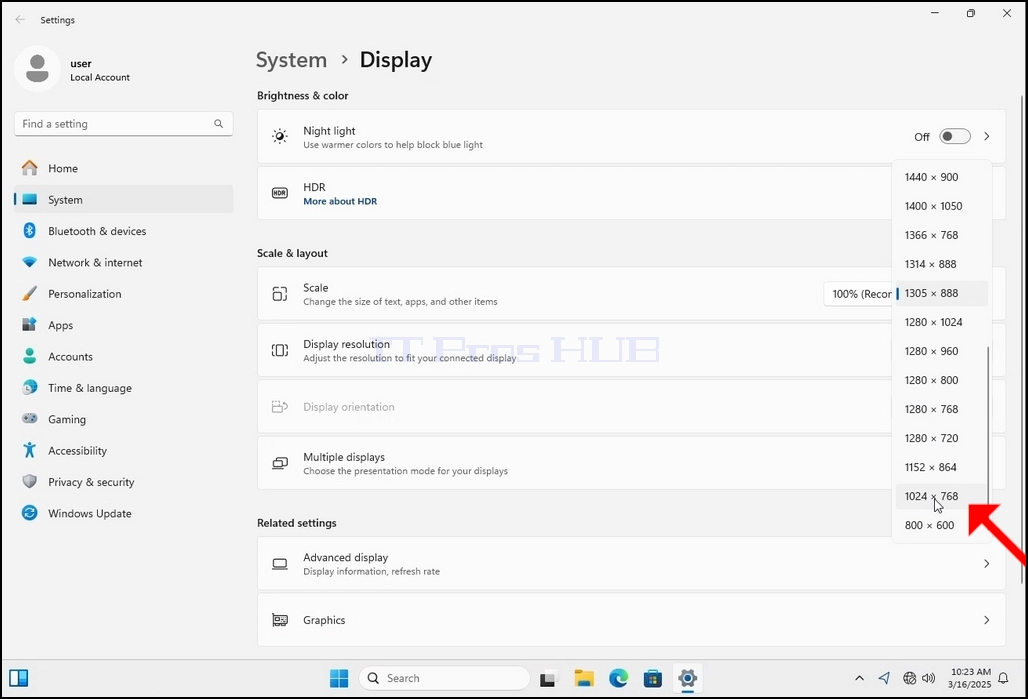
5. From the various resolution options, choose the one best suits your needs by left clicking on it ( In this example the chosen one is 1024x768)
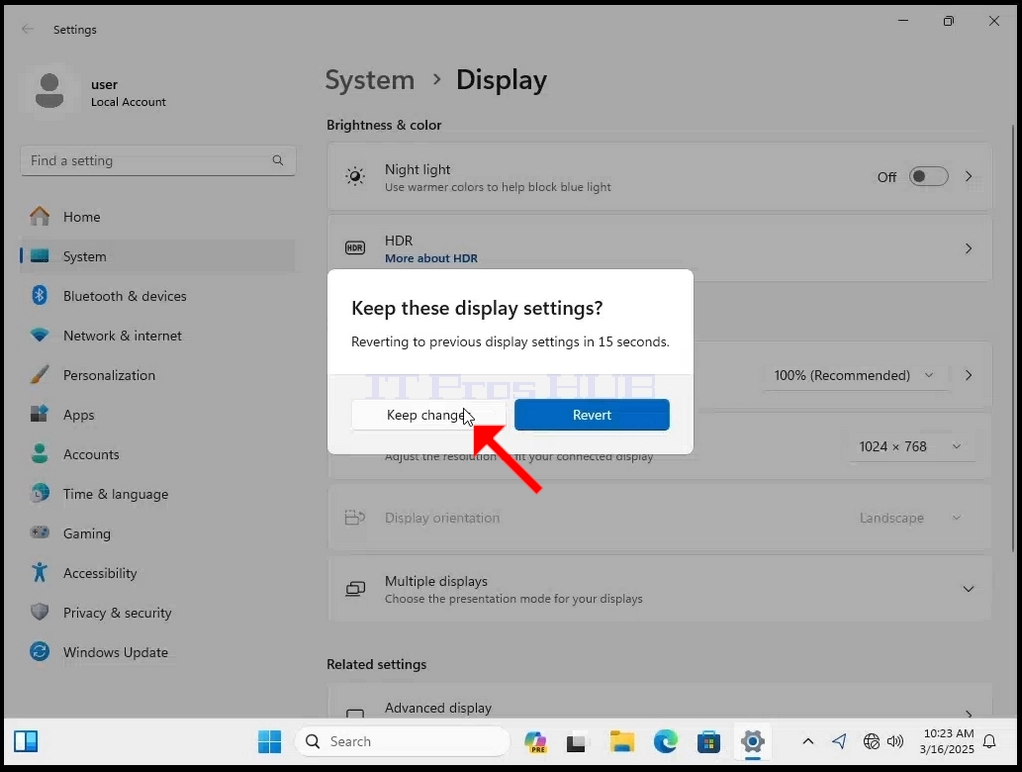
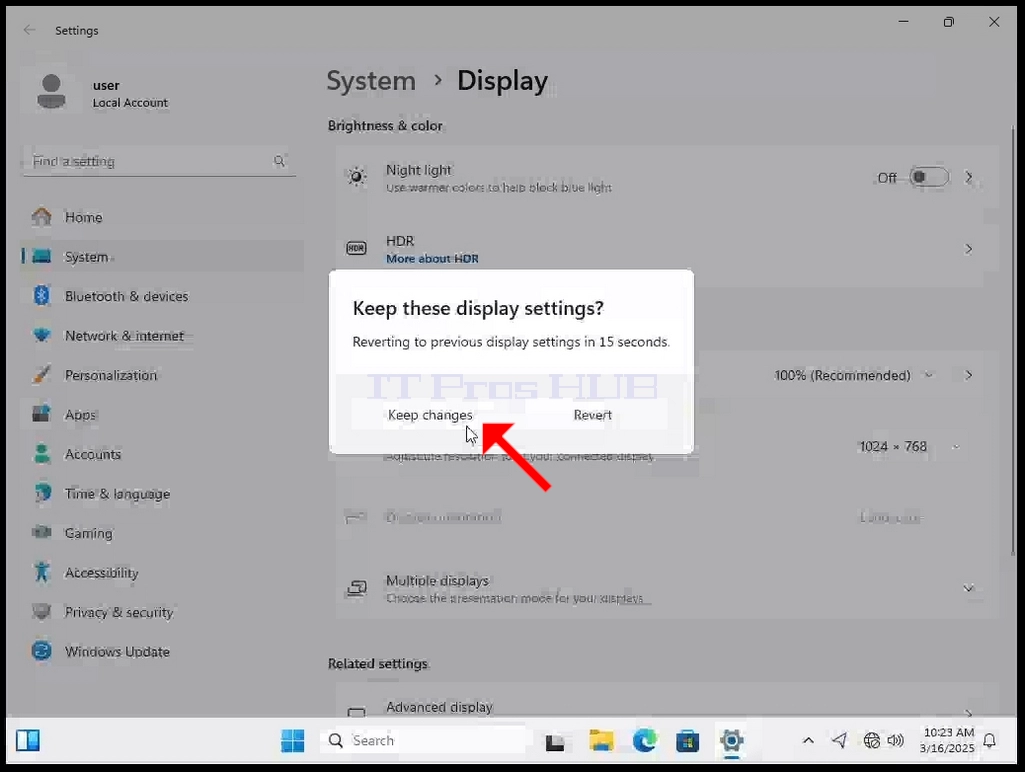
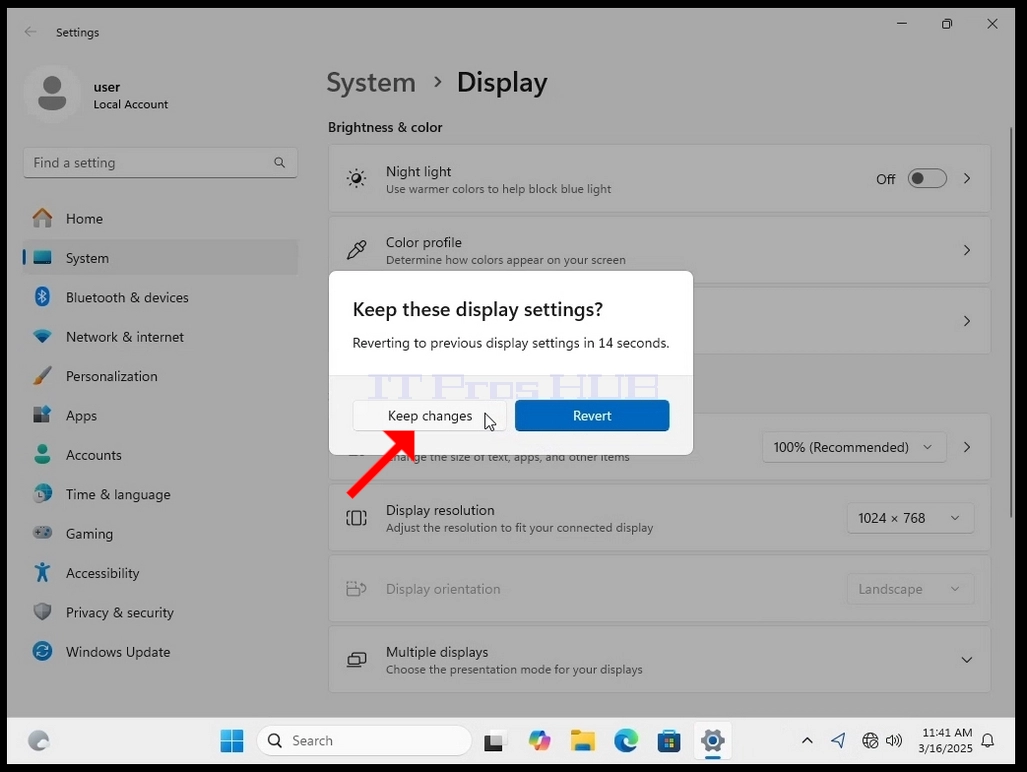
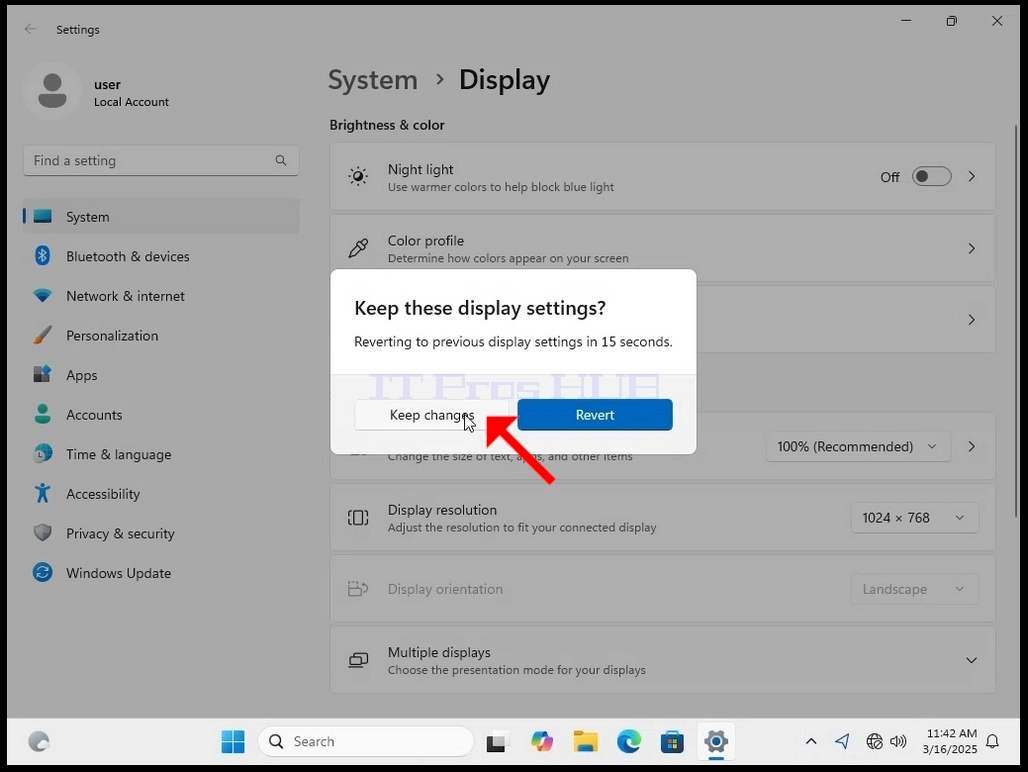
6. After choosing the new resolution setting, Windows will ask you whether you like to Keep Changes or to Revert them. If an option is not chosen with in an allocated amount of seconds, Windows will revert back to the previously configured resolution. This is done in case the monitor doesn't support the selected resolution and the user is unable to either see or see currently the video output in order to manually revert the newly selected resolution.
If the newly chosen resolution is compatible with the monitor, choose Keep Changes, and click it.
- Detalhes
- Escrito por: IT Pro
- Categoria: How to Articles
- Visualizações: 5621
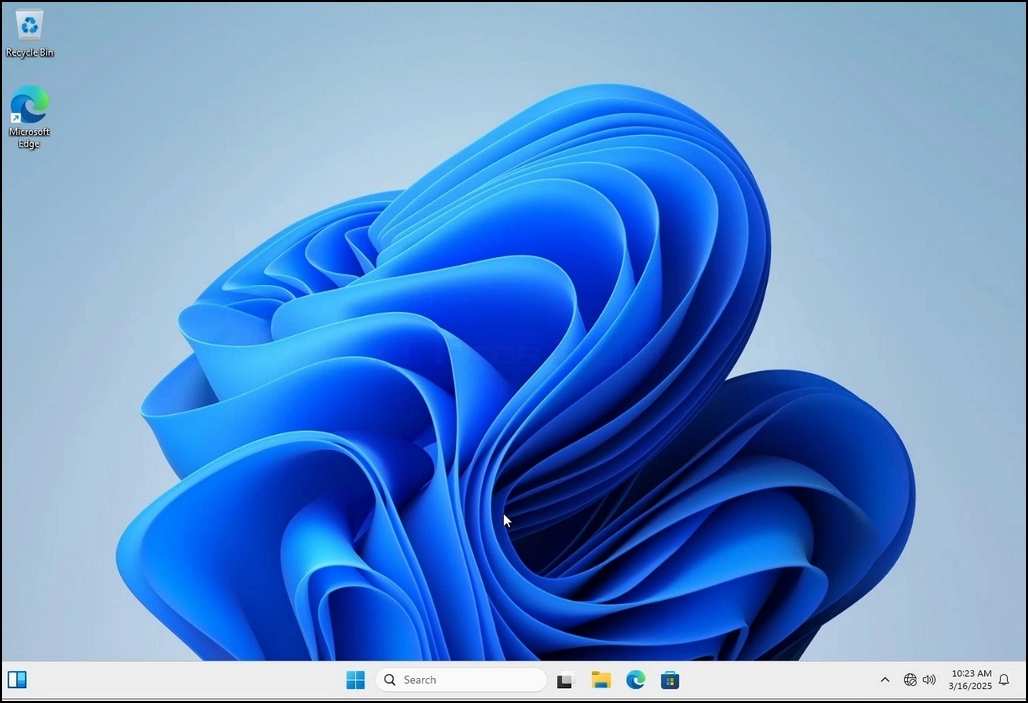
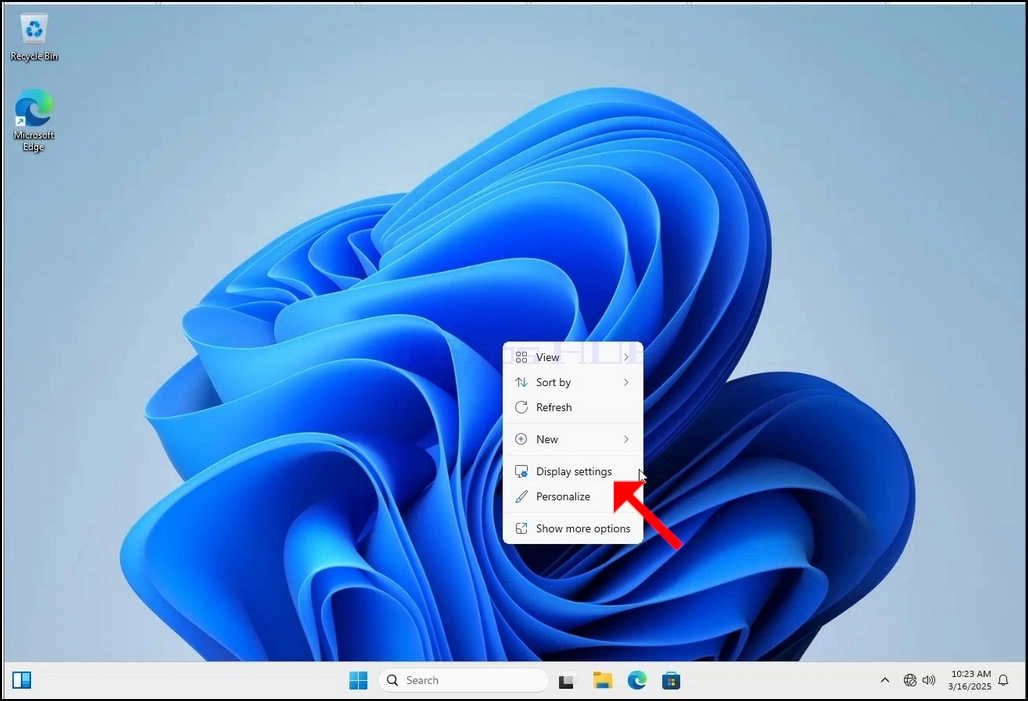
3. In the Settings window, under the System > Display options, look for the Display Resolution option
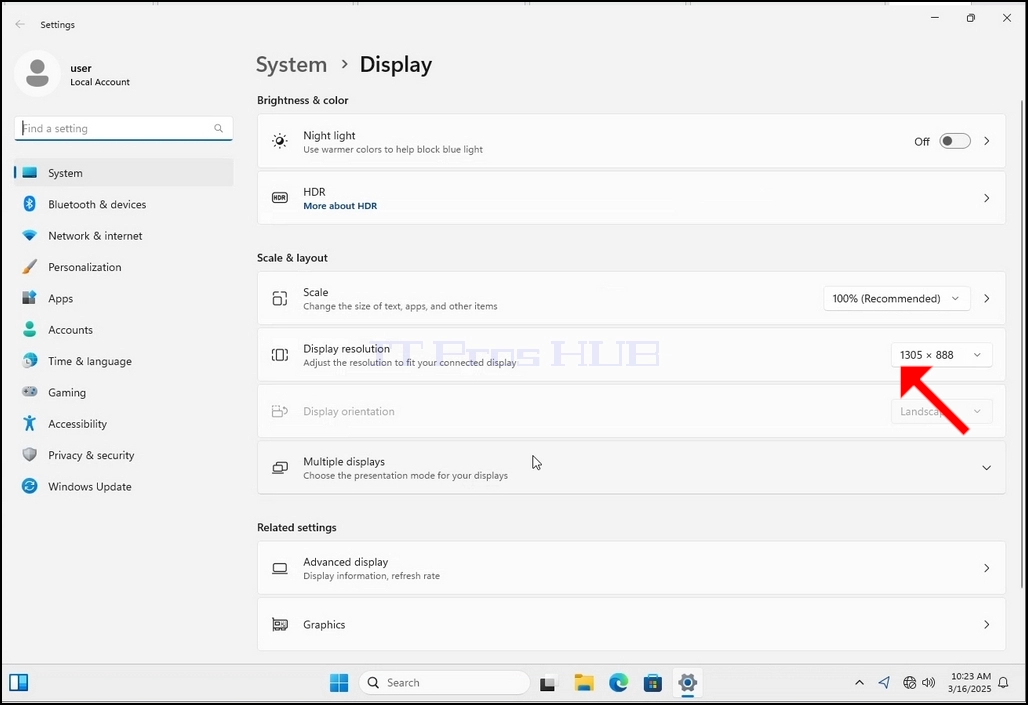
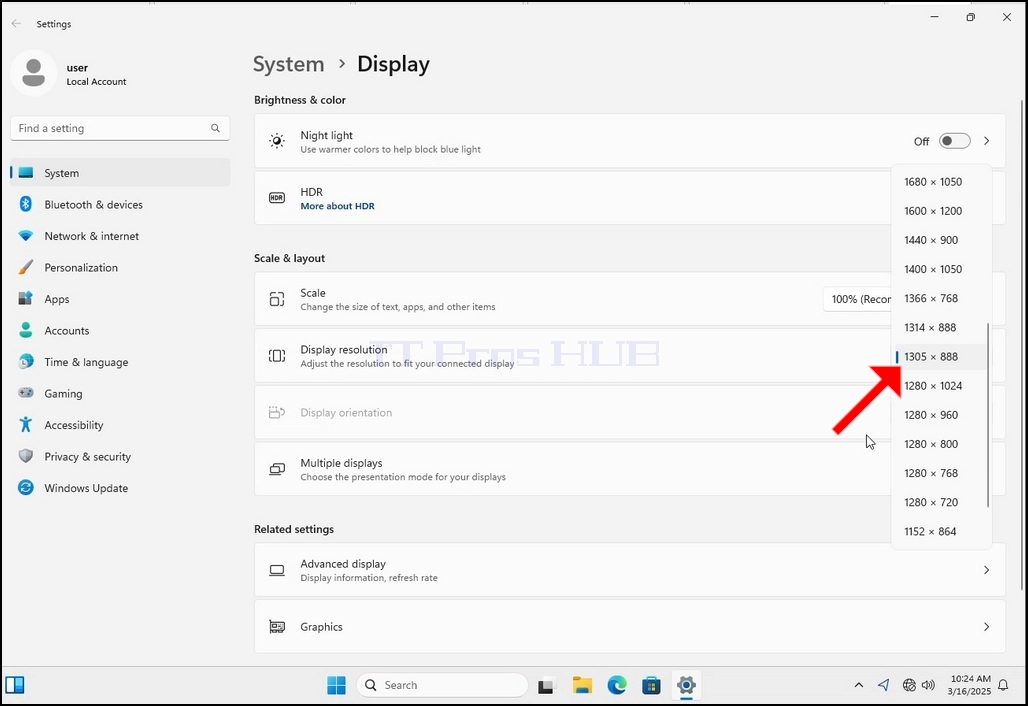
5. From the various resolution options, choose the one best suits your needs by left clicking on it ( In this example the chosen one is 1024x768)
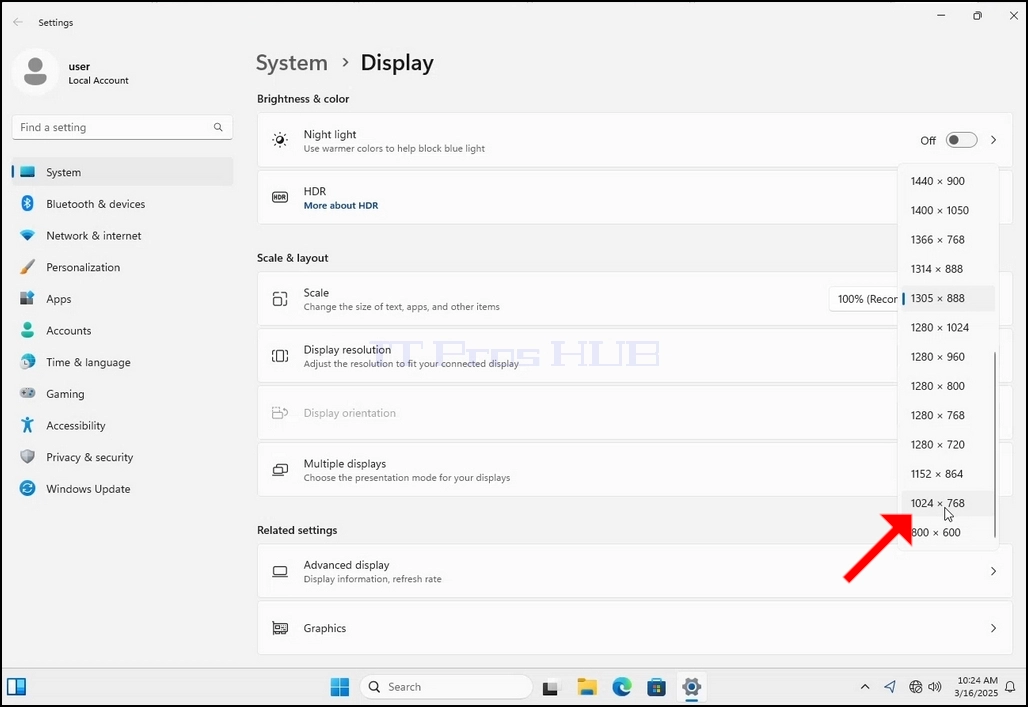
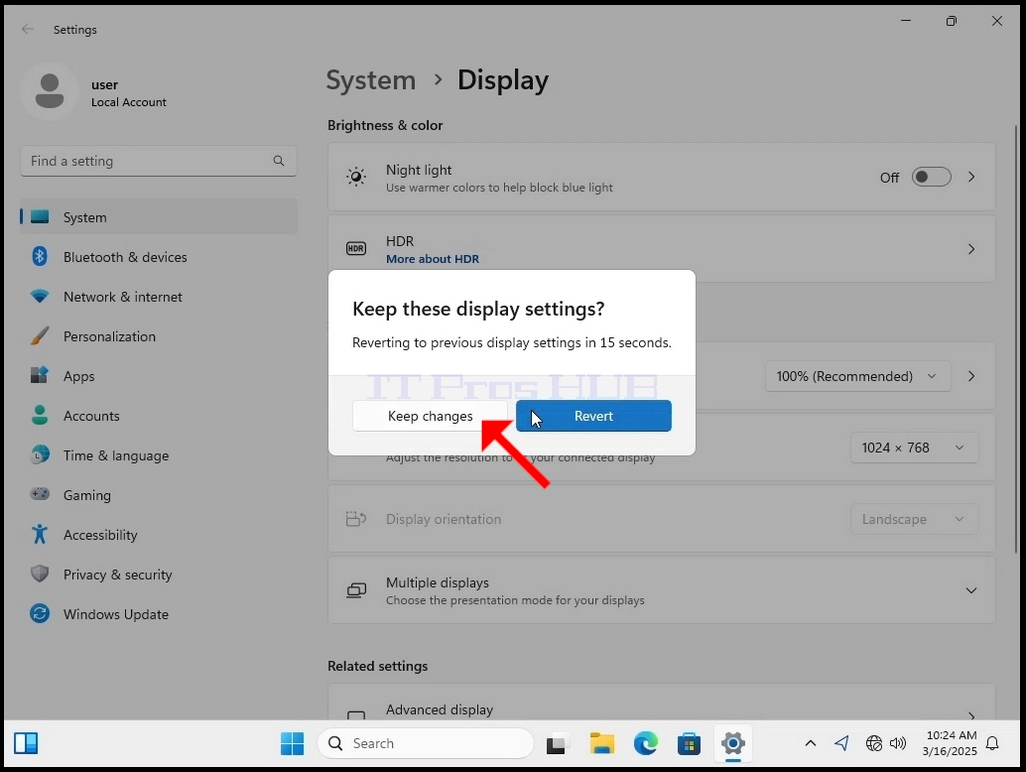
6. After choosing the new resolution setting, Windows will ask you whether you like to Keep Changes or to Revert them. If an option is not chosen with in an allocated amount of seconds, Windows will revert back to the previously configured resolution. This is done in case the monitor doesn't support the selected resolution and the user is unable to either see or see currently the video output in order to manually revert the newly selected resolution.
If the newly chosen resolution is compatible with the monitor, choose Keep Changes, and click it.
- Detalhes
- Escrito por: IT Pro
- Categoria: How to Articles
- Visualizações: 6486
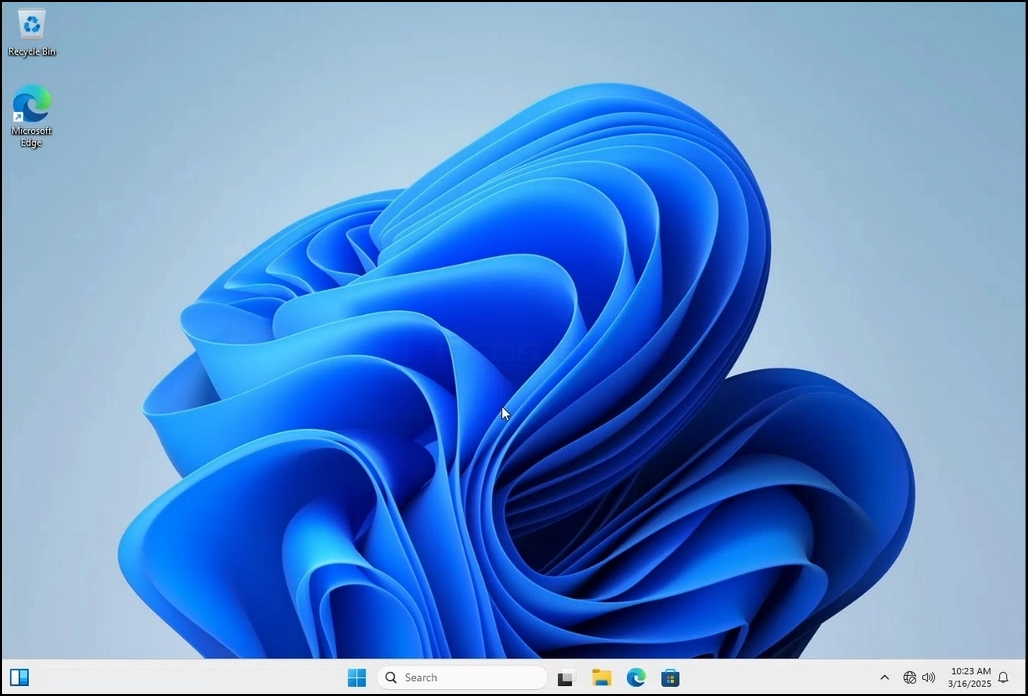
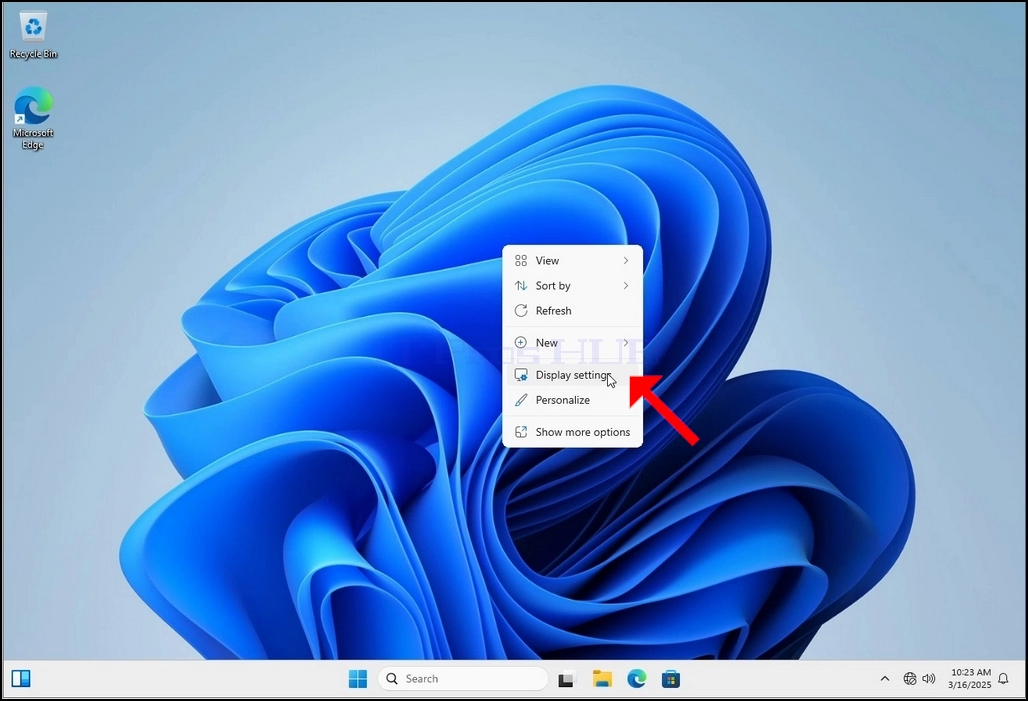
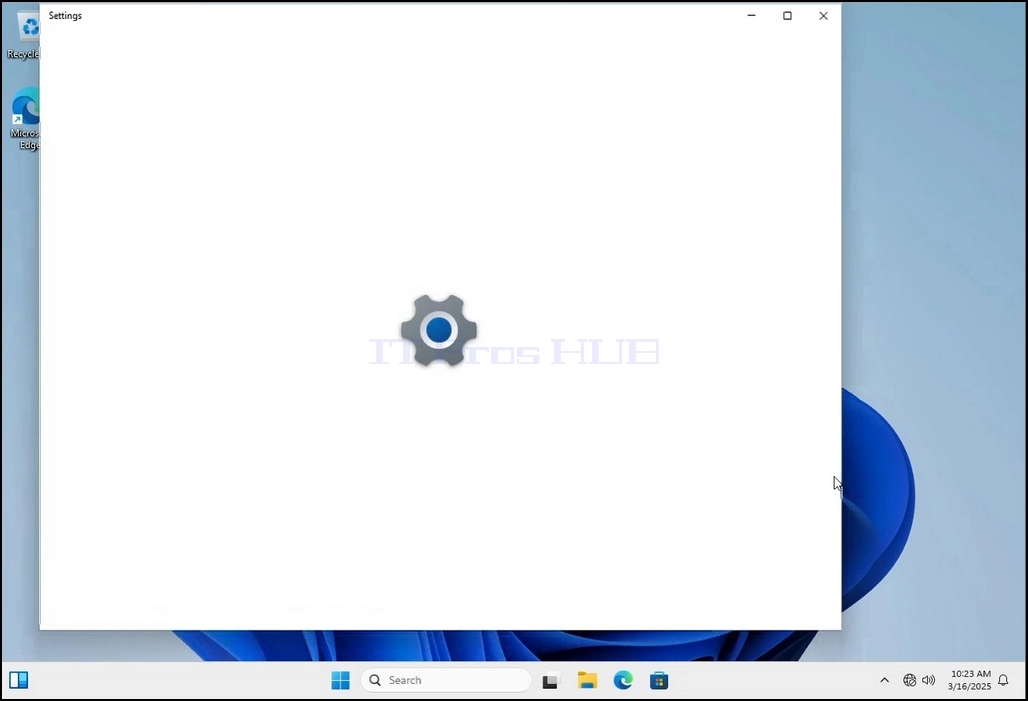
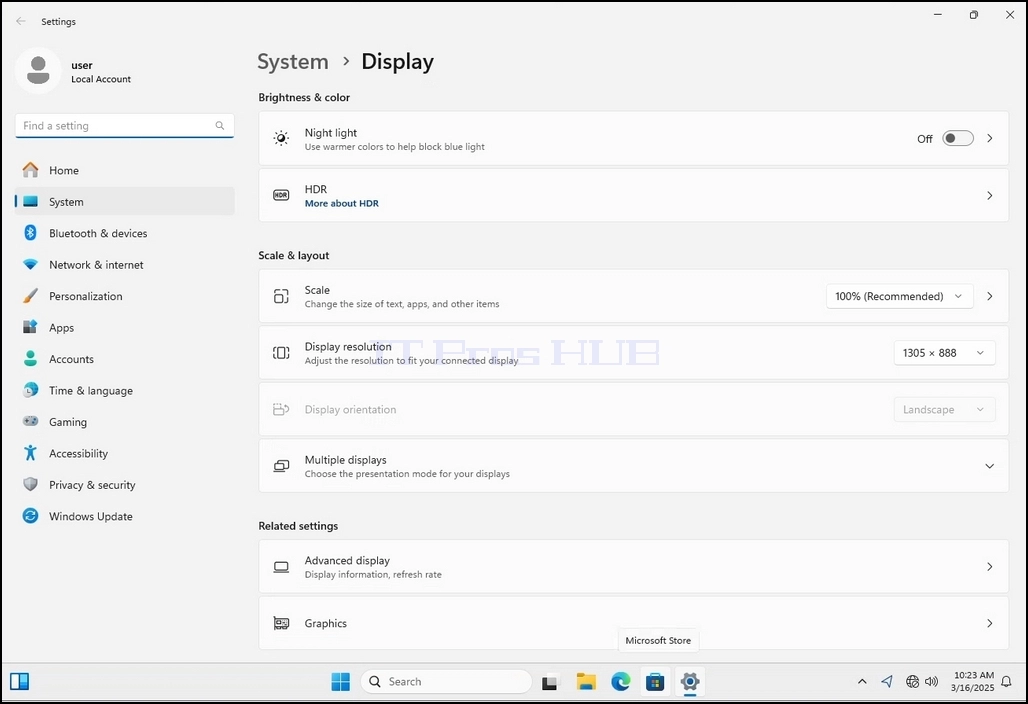
3. In the Settings window, under the System > Display options, look for the Display Resolution option
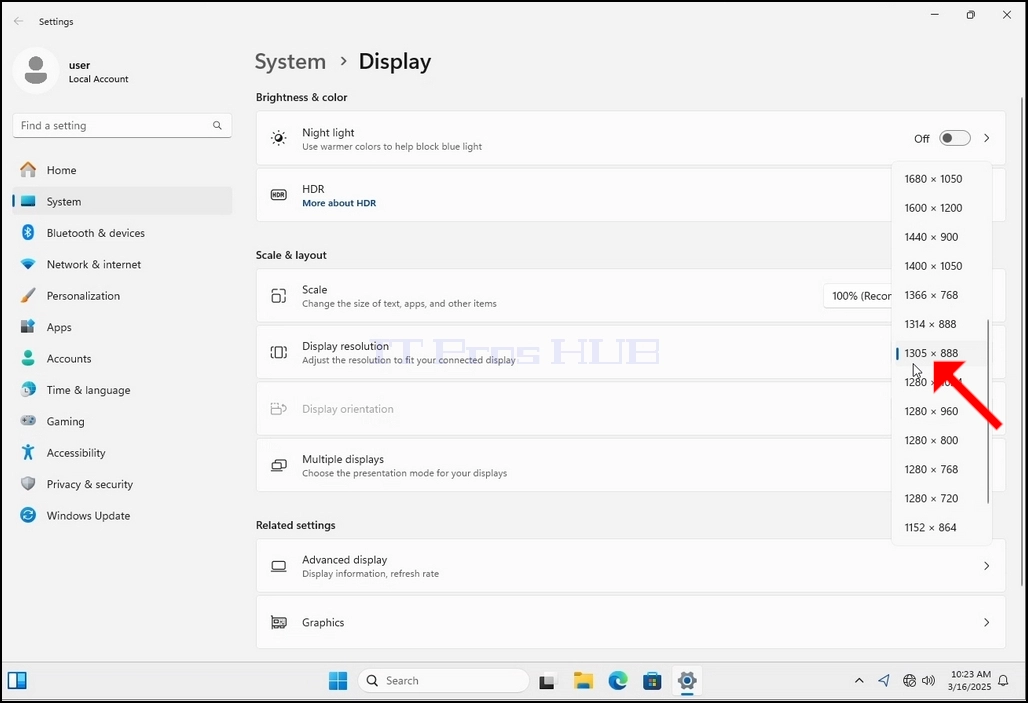
5. From the various resolution options, choose the one best suits your needs by left clicking on it ( In this example the chosen one is 1024x768)
6. After choosing the new resolution setting, Windows will ask you whether you like to Keep Changes or to Revert them. If an option is not chosen with in an allocated amount of seconds, Windows will revert back to the previously configured resolution. This is done in case the monitor doesn't support the selected resolution and the user is unable to either see or see currently the video output in order to manually revert the newly selected resolution.
If the newly chosen resolution is compatible with the monitor, choose Keep Changes, and click it.
- Detalhes
- Escrito por: IT Pro
- Categoria: How to Articles
- Visualizações: 5644


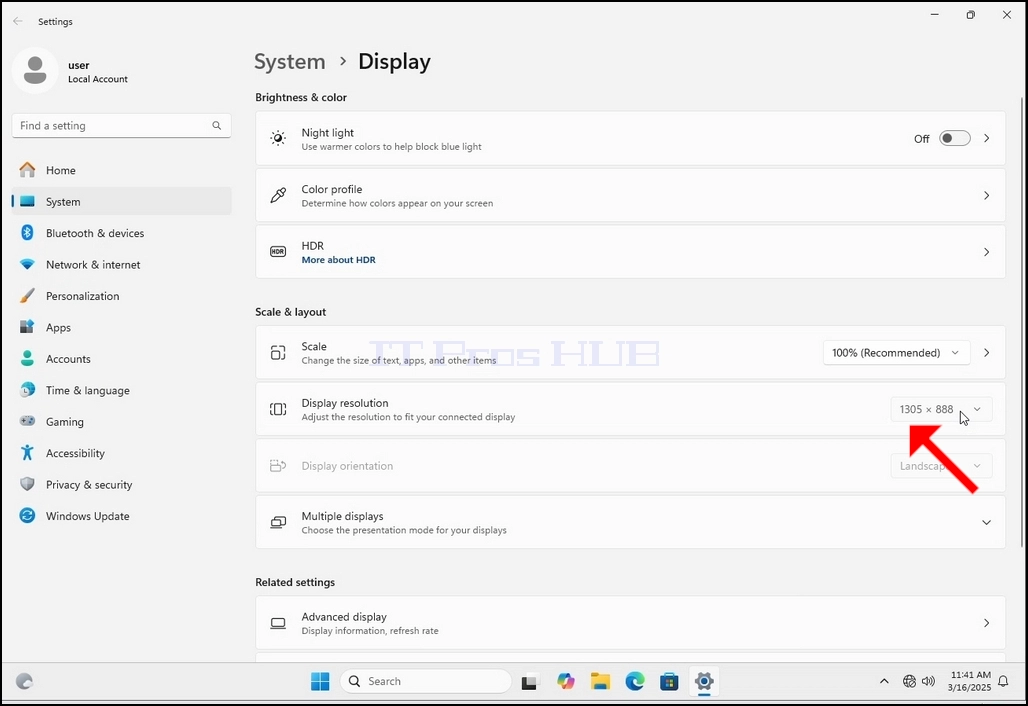
3. Na janela Configurações, sob o Sistema > Opções de exibição, procure a opção Resolução de exibição
5. Das várias opções de resolução, escolha o que melhor se adapta às suas necessidades clicando com o botão esquerdo sobre ele (Neste exemplo o escolhido é 1024x768)
6. Depois de escolher a nova configuração de resolução, o Windows irá perguntar-lhe se você gosta de manter alterações ou para revertê-los. Se uma opção não for escolhida com uma quantidade alocada de segundos, o Windows retornará à resolução previamente configurada. Isto é feito caso o monitor não suporte a resolução selecionada e o usuário não seja capaz de ver ou ver atualmente a saída de vídeo para reverter manualmente a resolução recém-selecionada.
Se a resolução recém escolhida for compatível com o monitor, escolha Manter as Alterações e clique nele.
- Detalhes
- Escrito por: IT Pro
- Categoria: How to Articles
- Visualizações: 7719
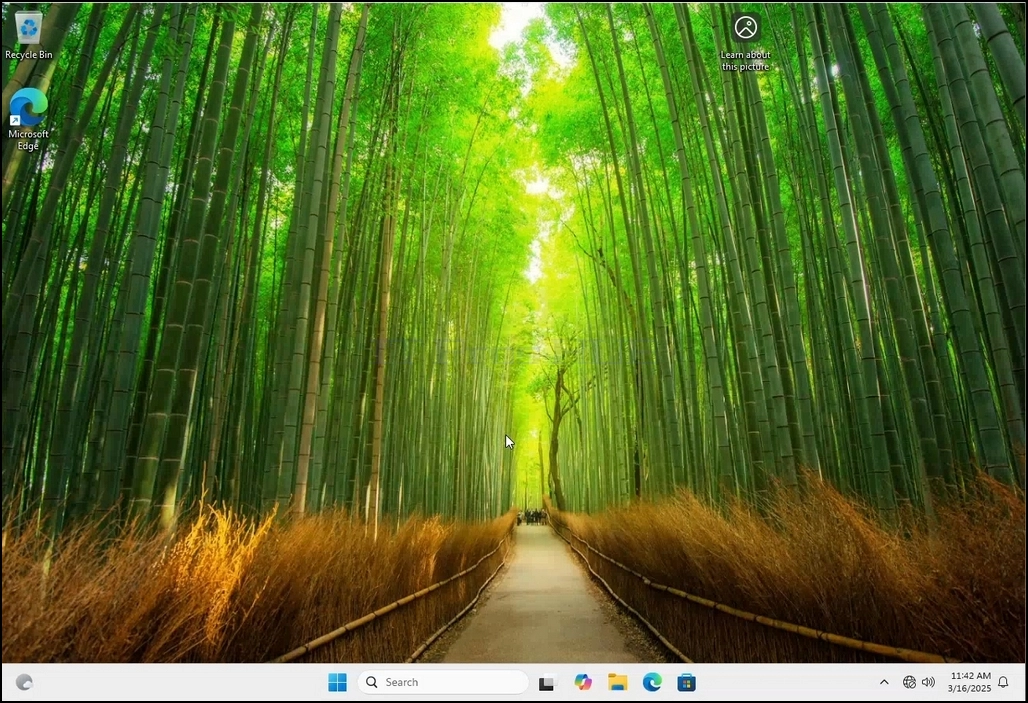
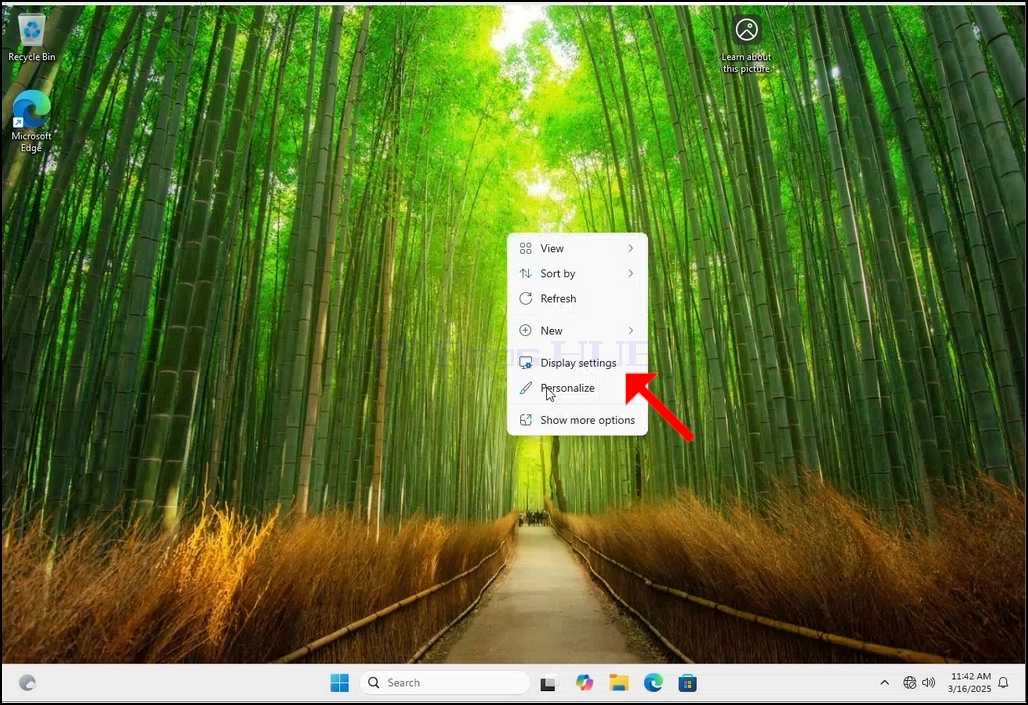
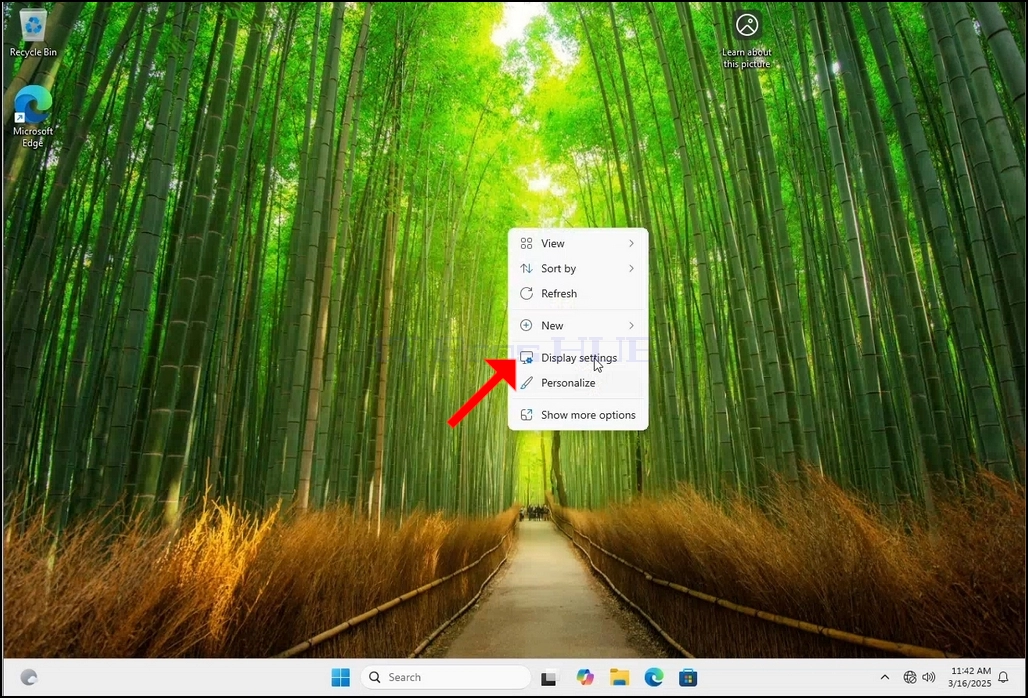
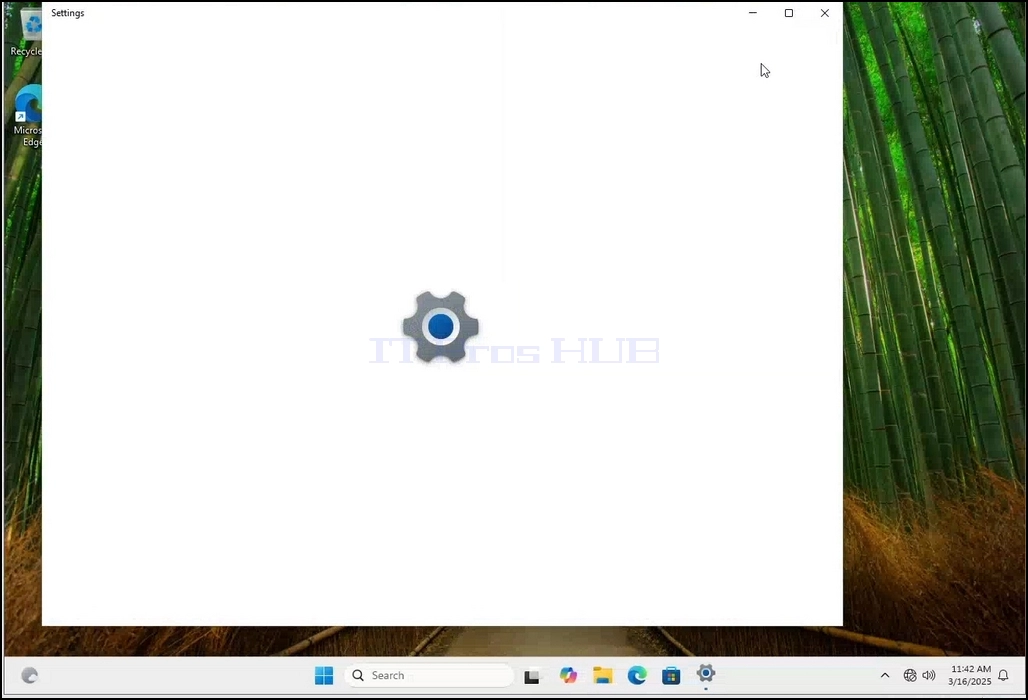
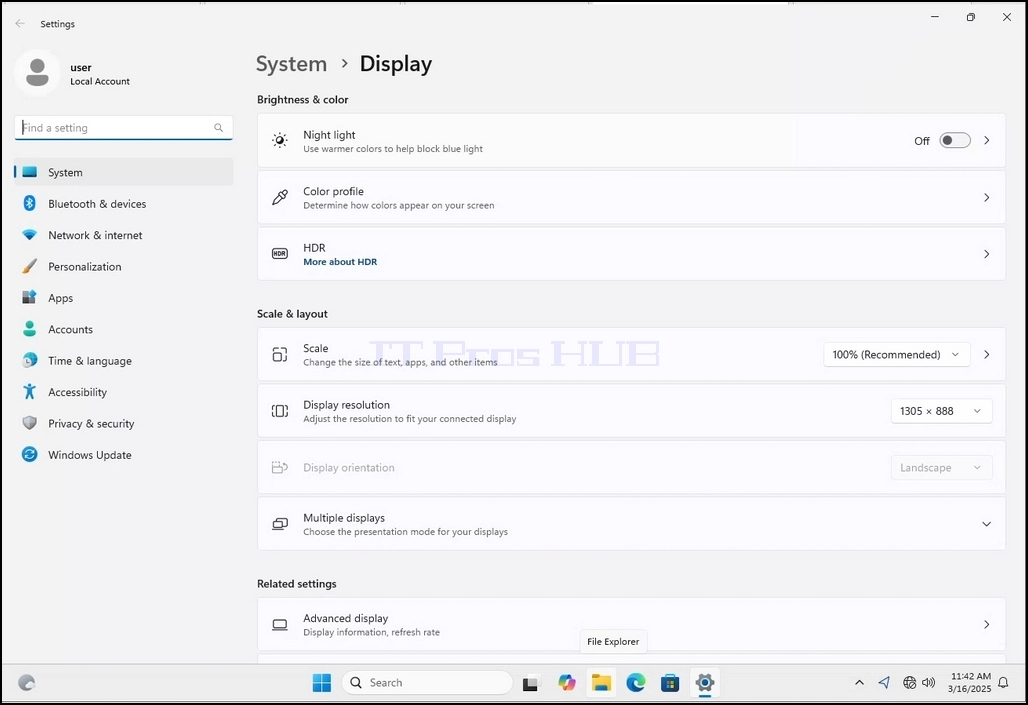
3. Na janela Configurações, sob o Sistema > Opções de exibição, procure a opção Resolução de exibição
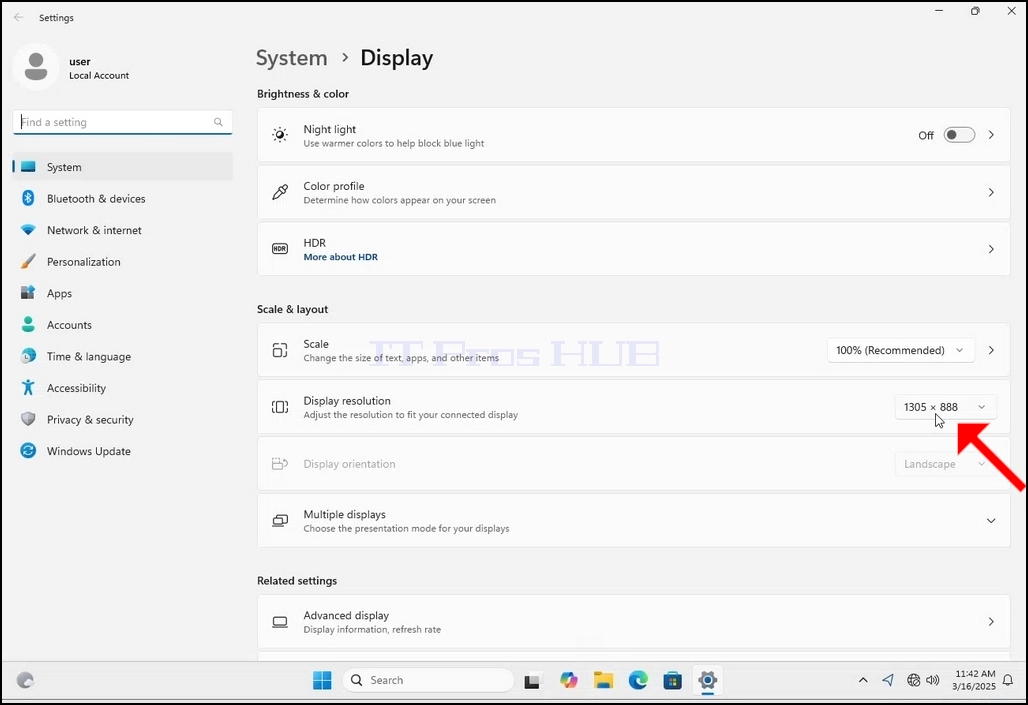
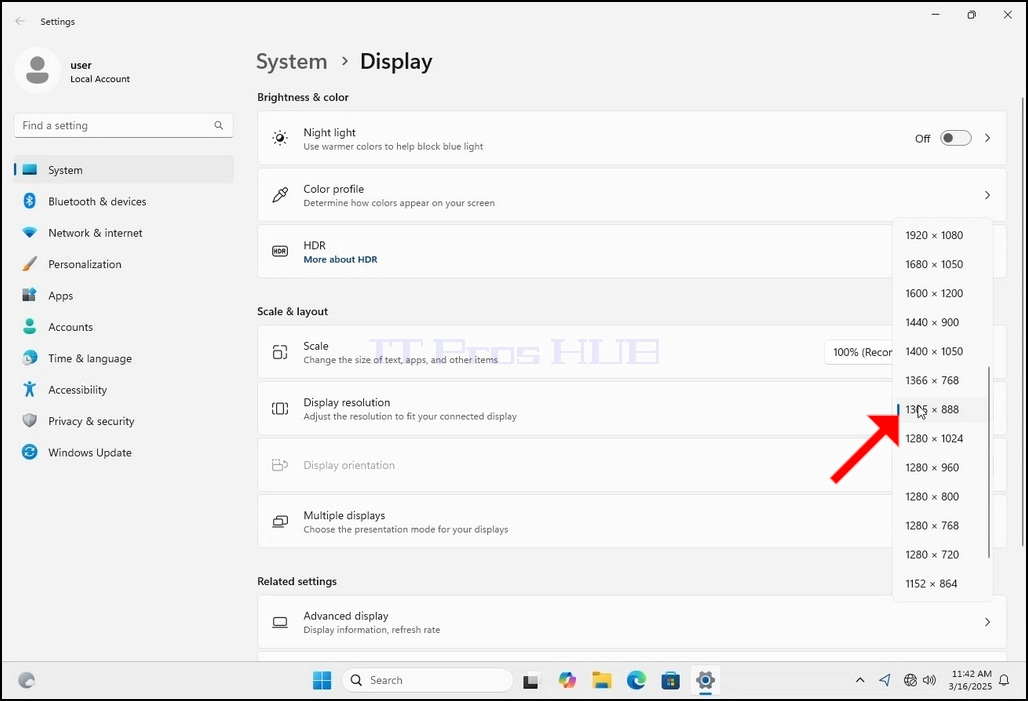
5. Das várias opções de resolução, escolha o que melhor se adapta às suas necessidades clicando com o botão esquerdo sobre ele (Neste exemplo o escolhido é 1024x768)
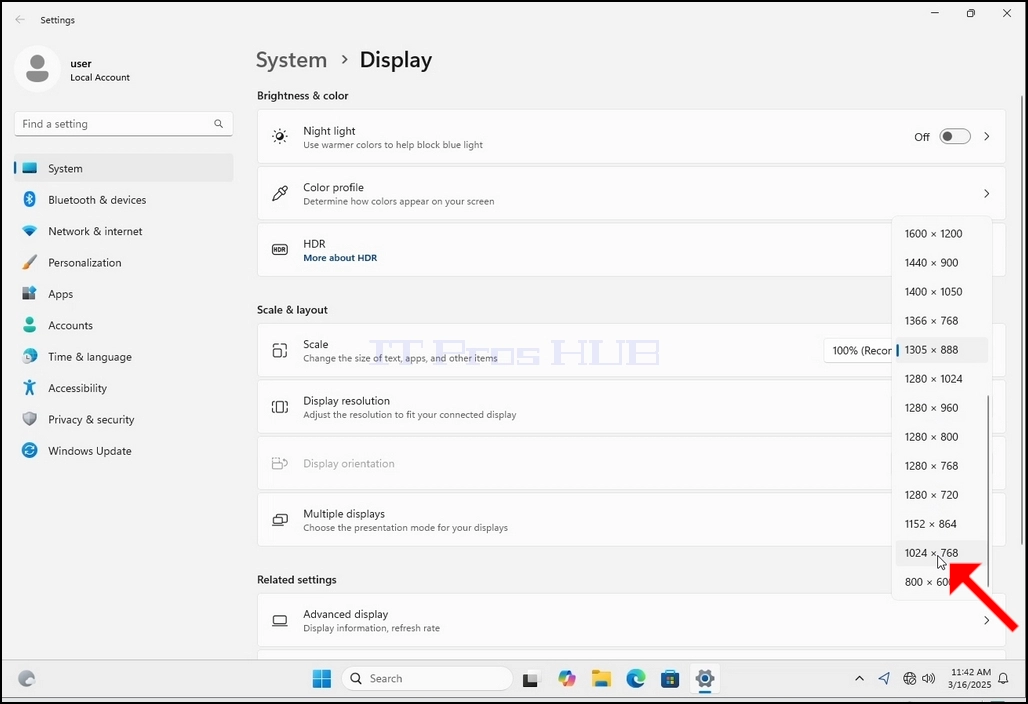
6. Depois de escolher a nova configuração de resolução, o Windows irá perguntar-lhe se você gosta de manter alterações ou para revertê-los. Se uma opção não for escolhida com uma quantidade alocada de segundos, o Windows retornará à resolução previamente configurada. Isto é feito caso o monitor não suporte a resolução selecionada e o usuário não seja capaz de ver ou ver atualmente a saída de vídeo para reverter manualmente a resolução recém-selecionada.
Se a resolução recém escolhida for compatível com o monitor, escolha Manter as Alterações e clique nele.
- Como alterar a resolução no Windows 11 24H2 x64 Pro N Build 26100.1742
- Como alterar a resolução no Windows 11 24H2 x64 Educação Pro Build 26100.1742
- Como alterar a resolução no Windows 11 24H2 x64 Home Build 26100.1742
- Como alterar resolução no Windows 11 24H2 x64 Home Single Language Build 26100.3194