- Podrobnosti
- Napisal: IT Pro
- Kategorija: How to Articles
- Ogledov: 6334
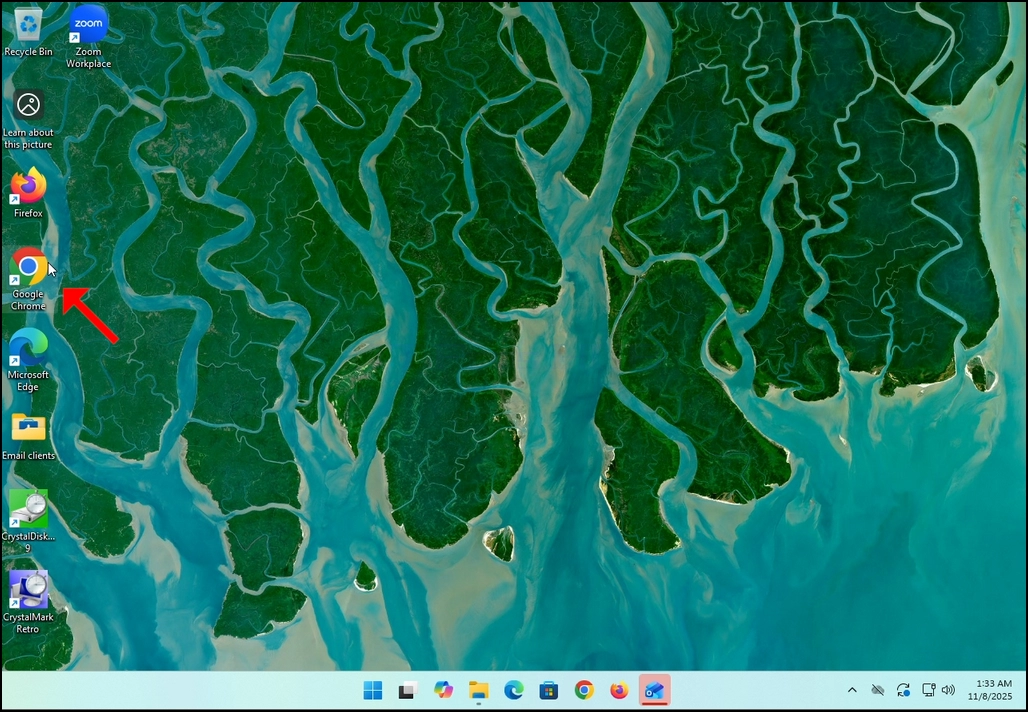
1. Go to your internet browser. In this article’s case we will use Chrome.
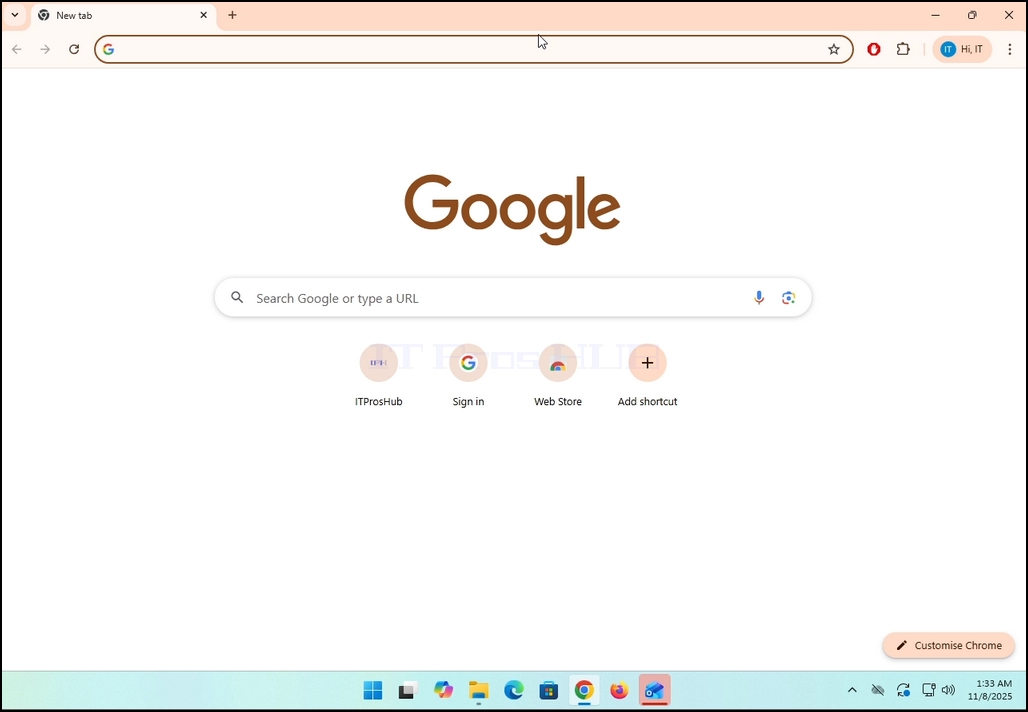
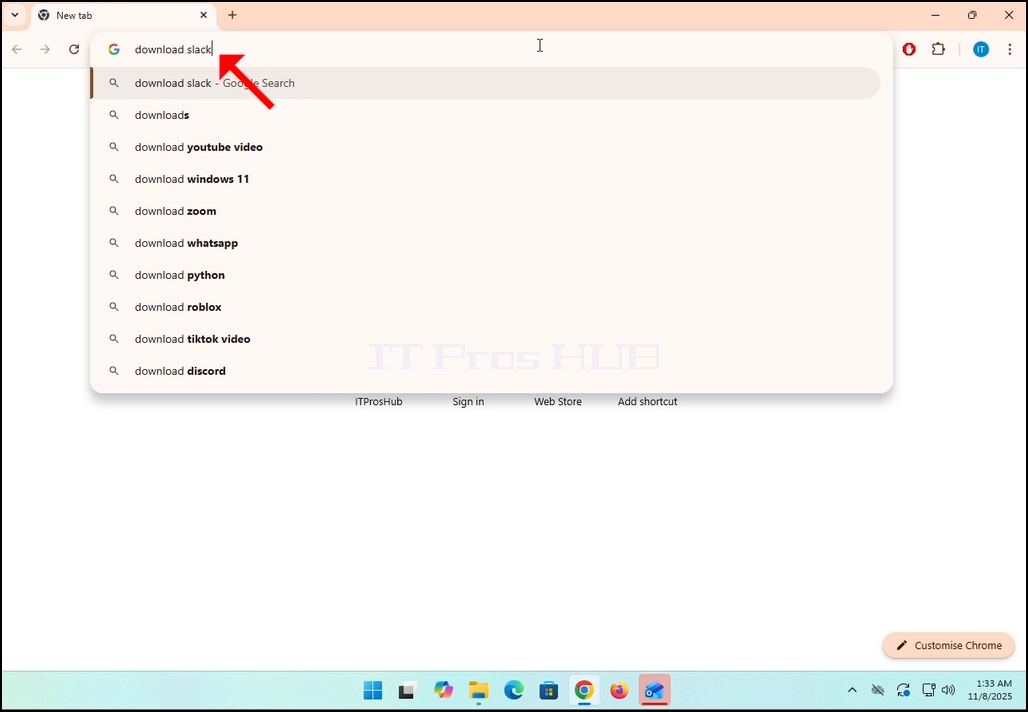
2. Go to Google and type Download Slack in the search bar. Hit the Enter key afterwards. Wait for the search results to appear.
3. In the search results, look for a result that is titled as “Windows | Downloads” and click on it. Wait for a new
page to load.
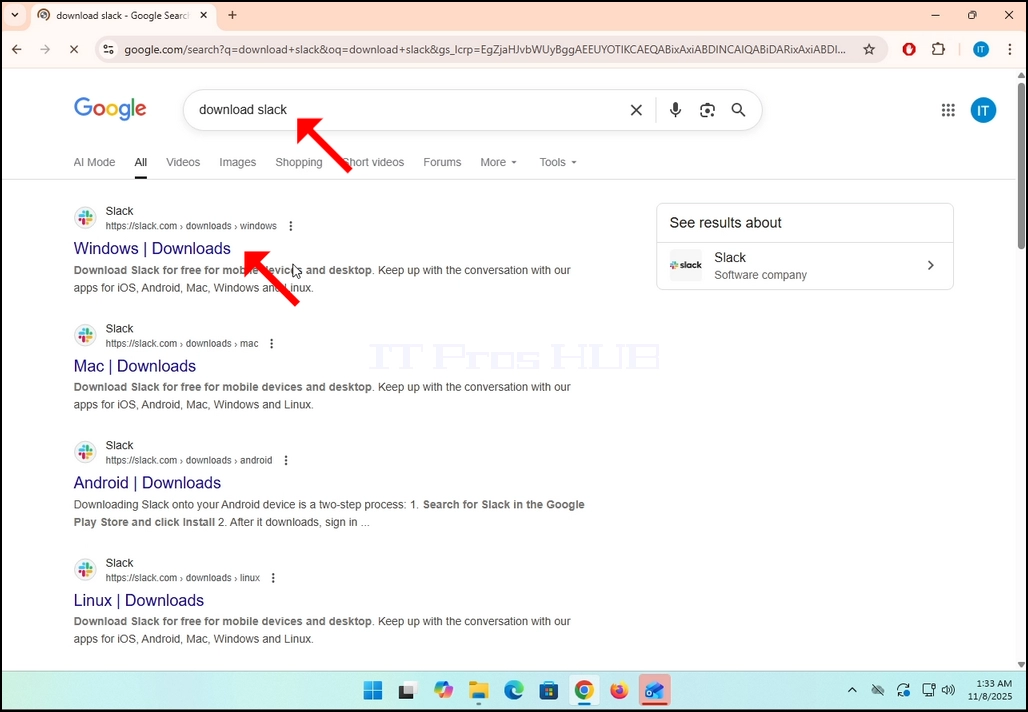
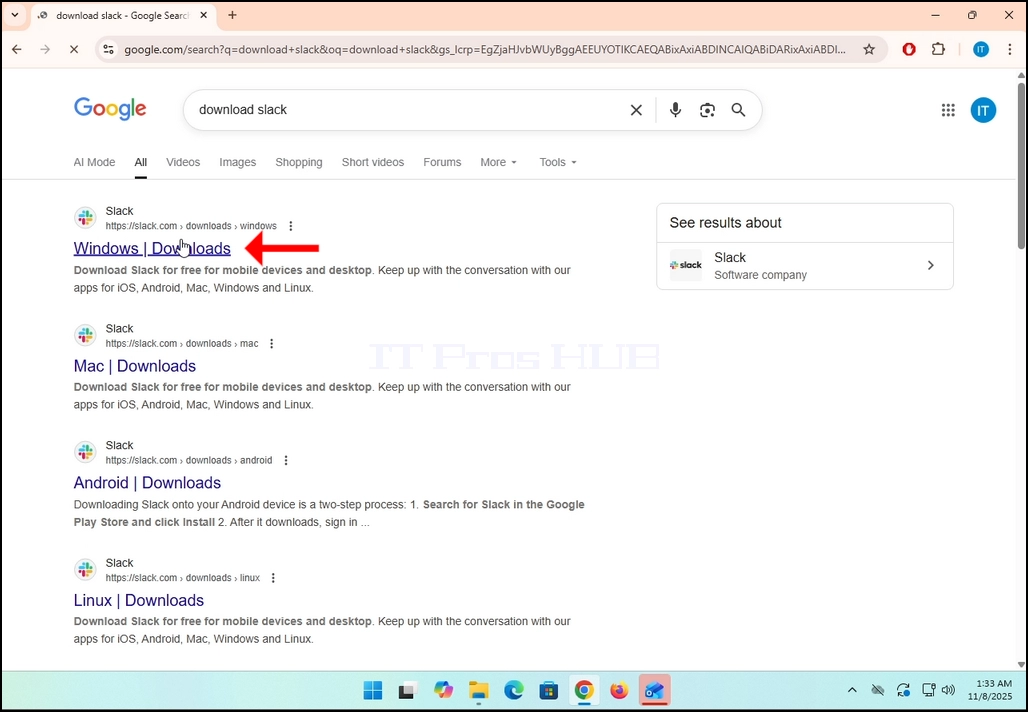
4. The newly loaded page will be under Slack’s domain (slack.com). look for a Download (64-BIT) button on the left side of the page. Click on that button to begin the downloading process of Slack’s installation file.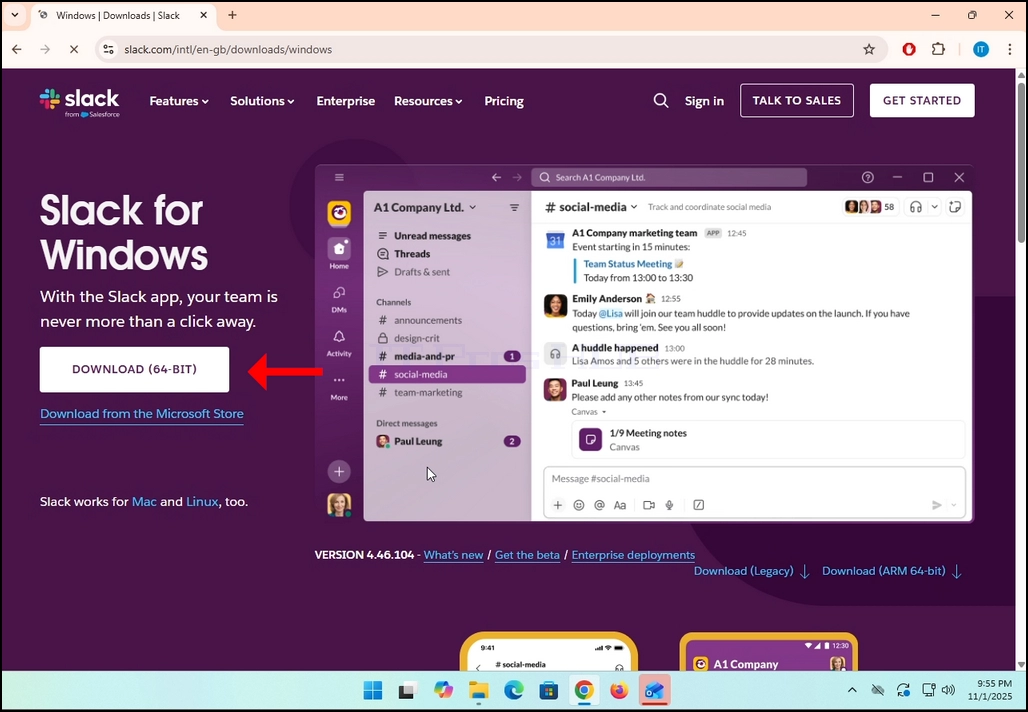
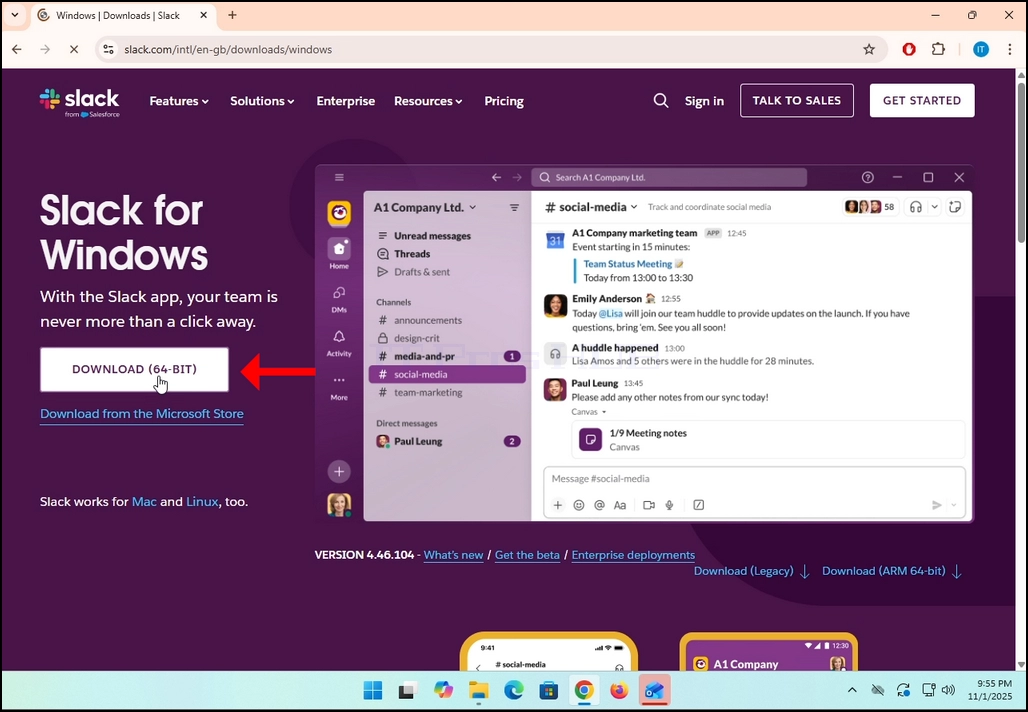
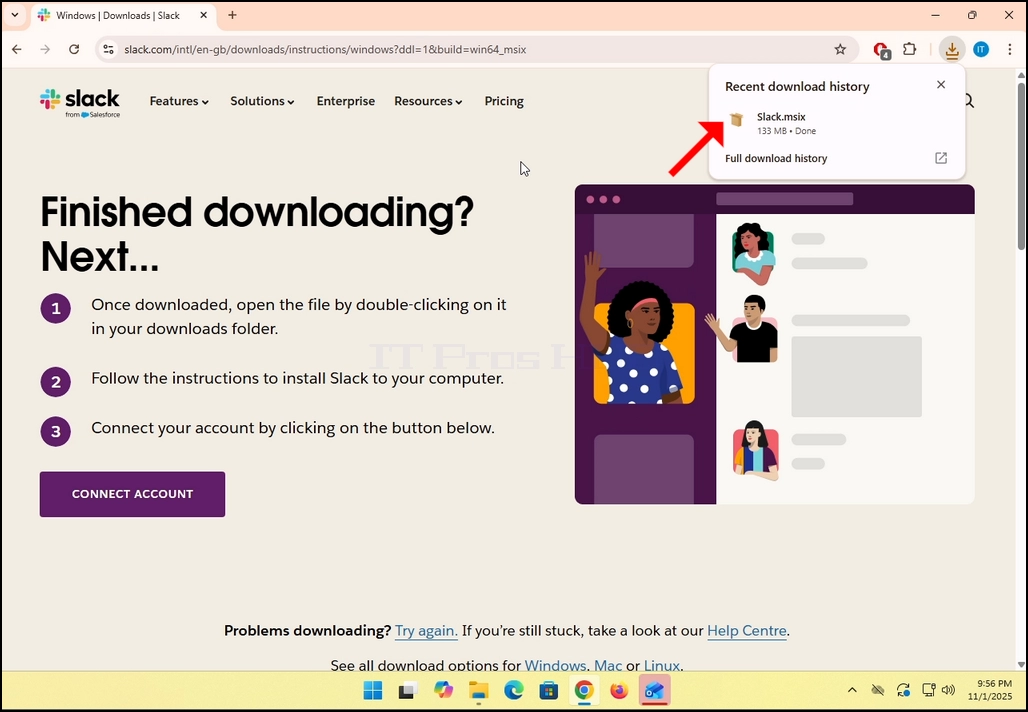
5. Once clicked, you will see the installation process being done in your browser. Make sure that the file being downloaded is called Slack.msix and not anything else.
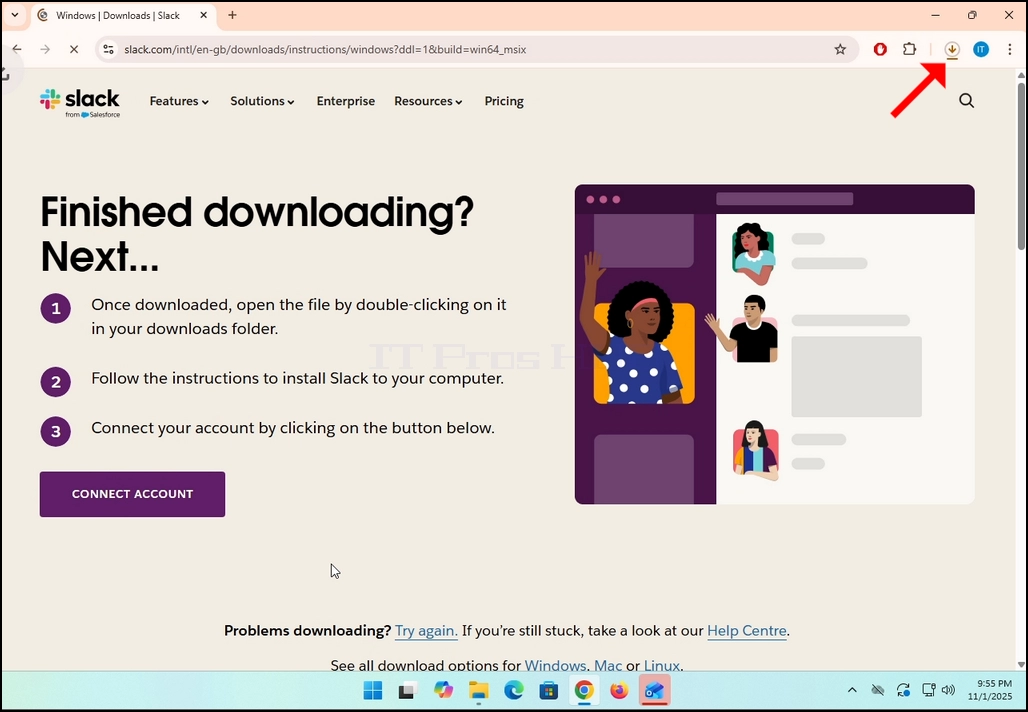
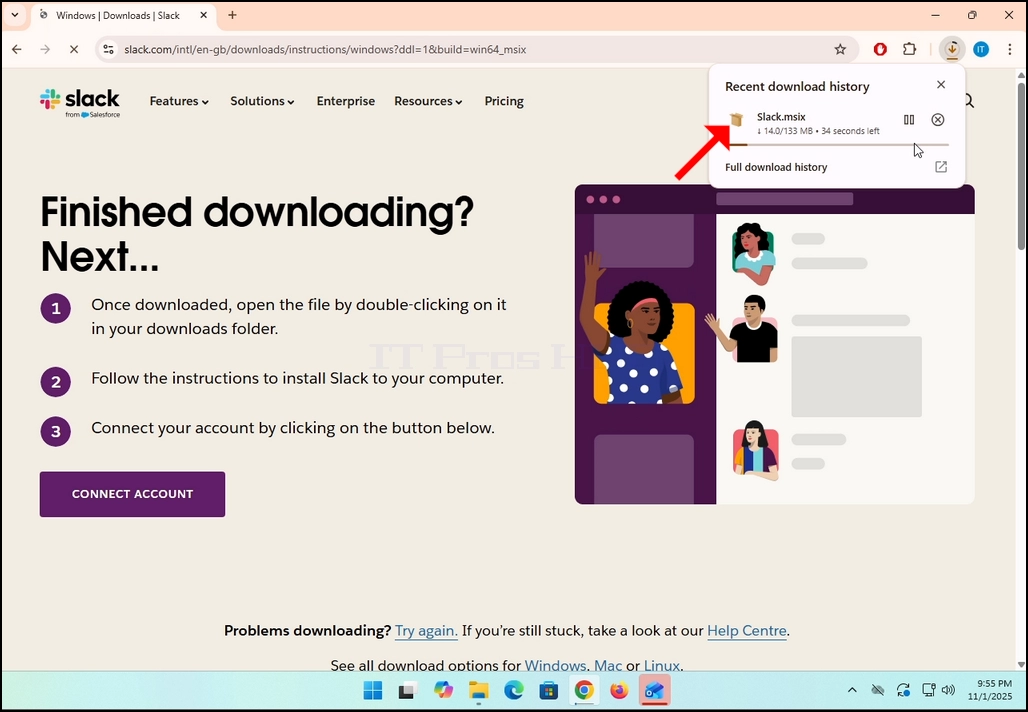
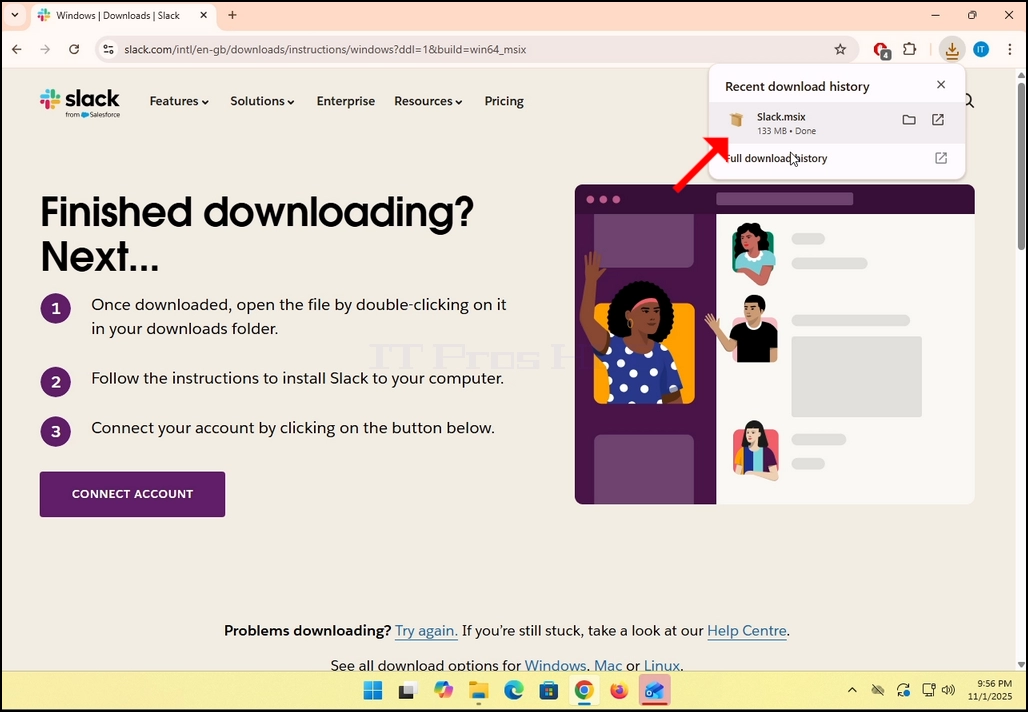
6. Once done, click on the Slack.msix file to open the file and begin the installation process.
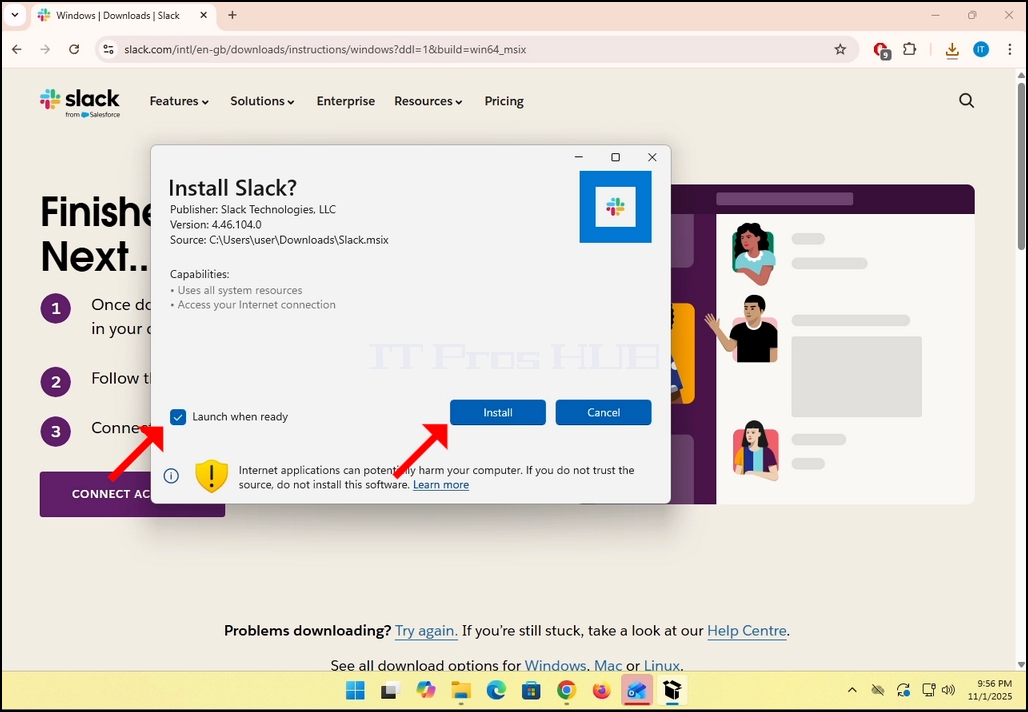
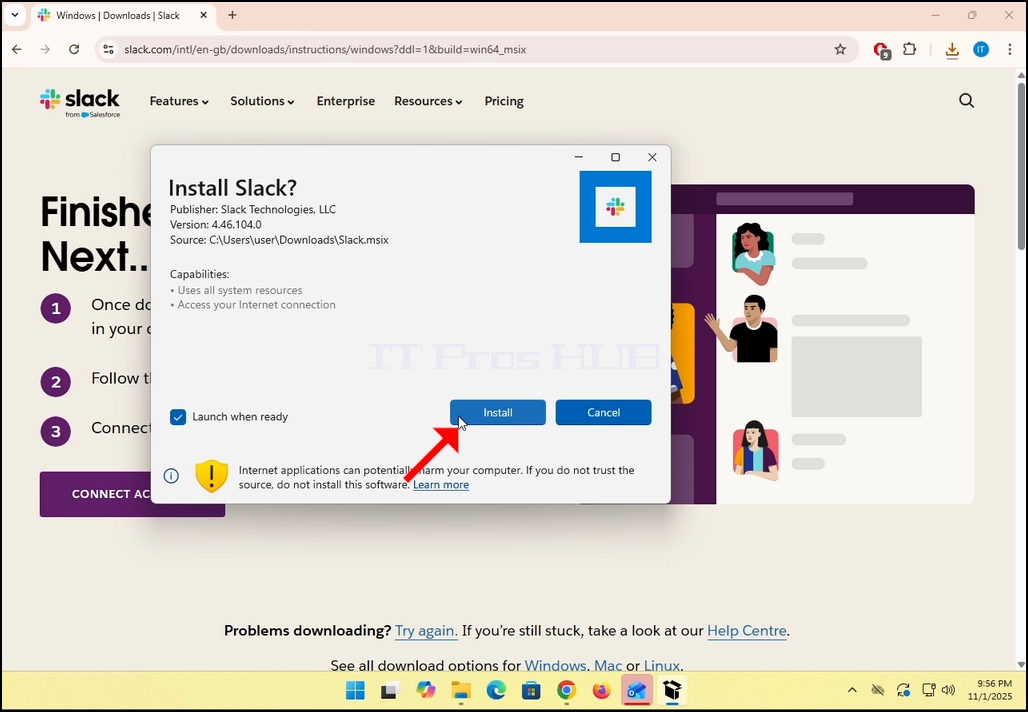
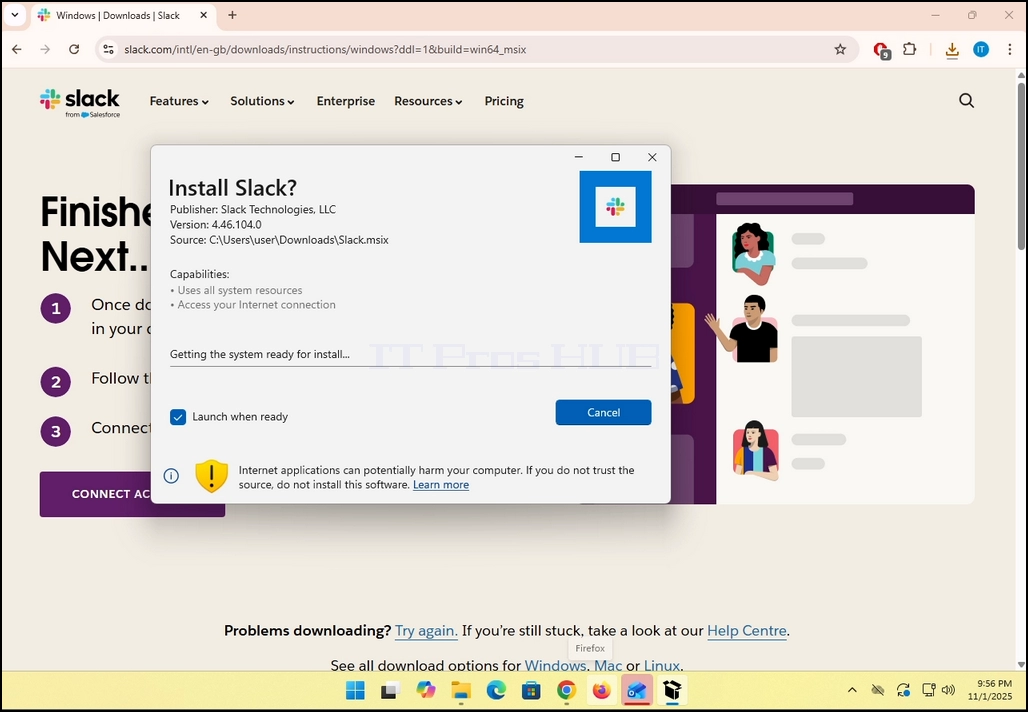
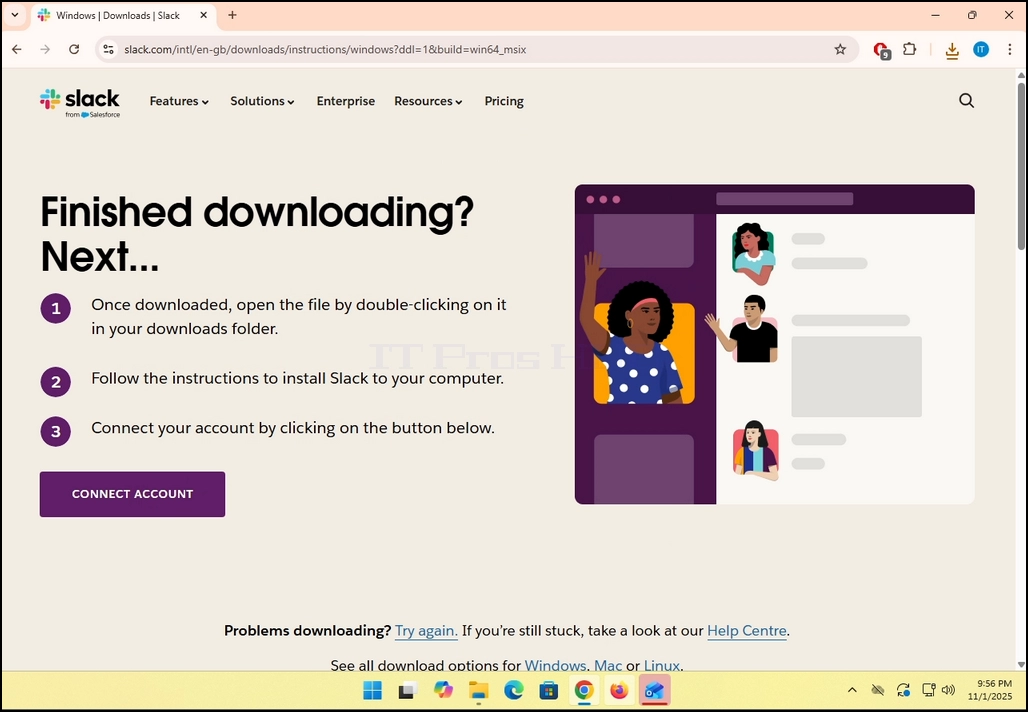
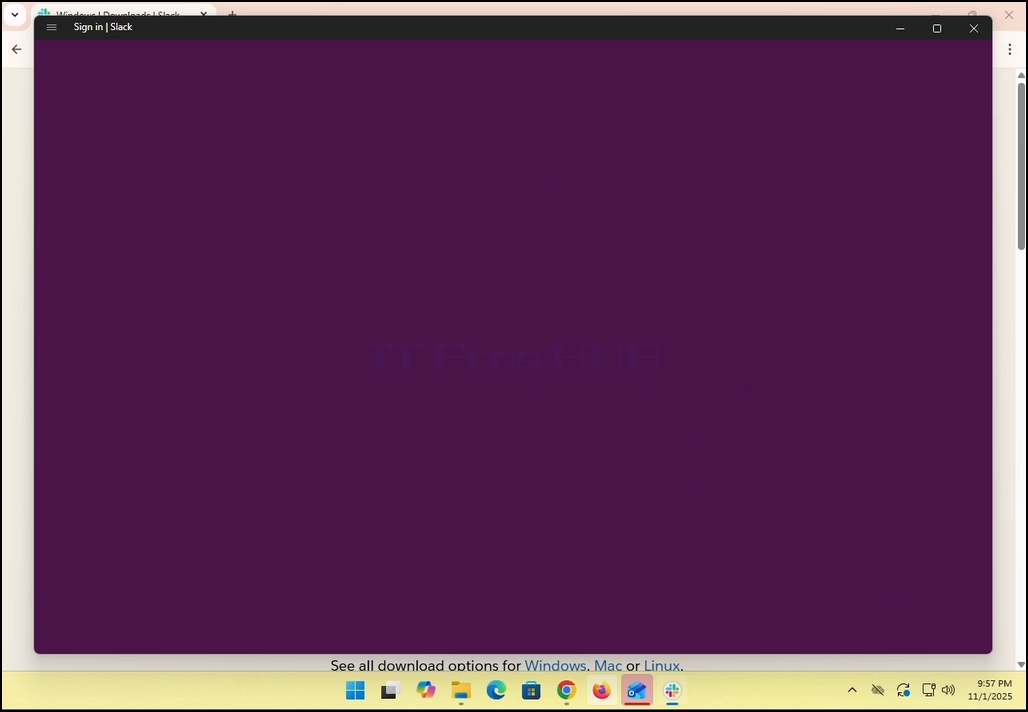
8. Once the installation process is complete, you will be notified by Windows Store with the message “Slack is Ready”. Click the blue Launch button to start Slack.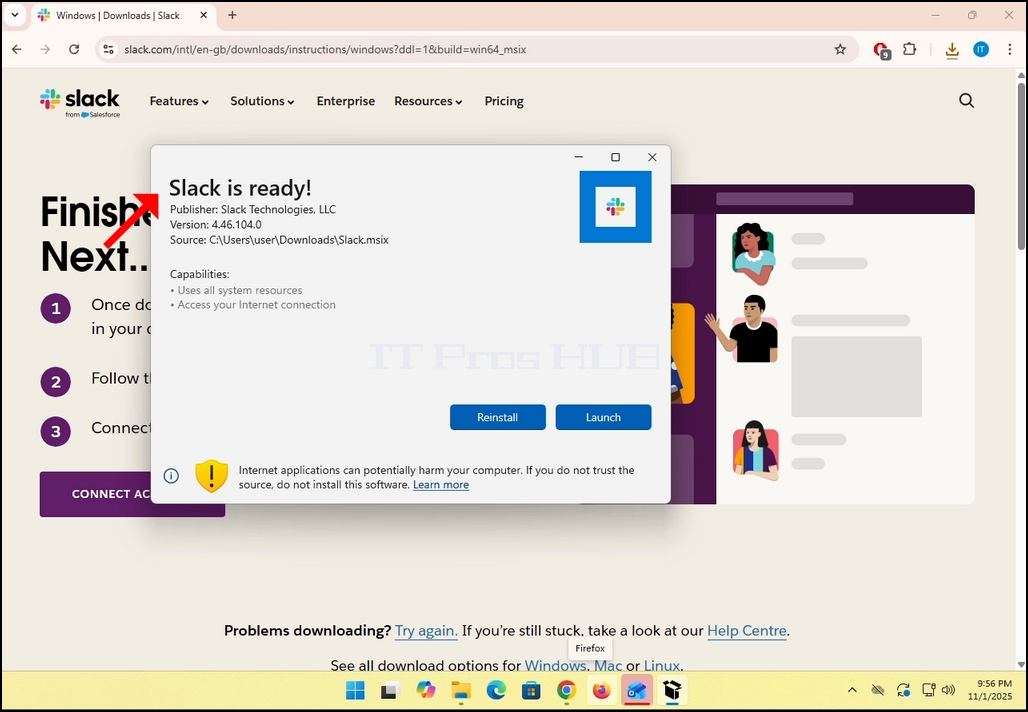
9. You are done! Slack is now installed in Windows.

- Podrobnosti
- Napisal: IT Pro
- Kategorija: How to Articles
- Ogledov: 6643
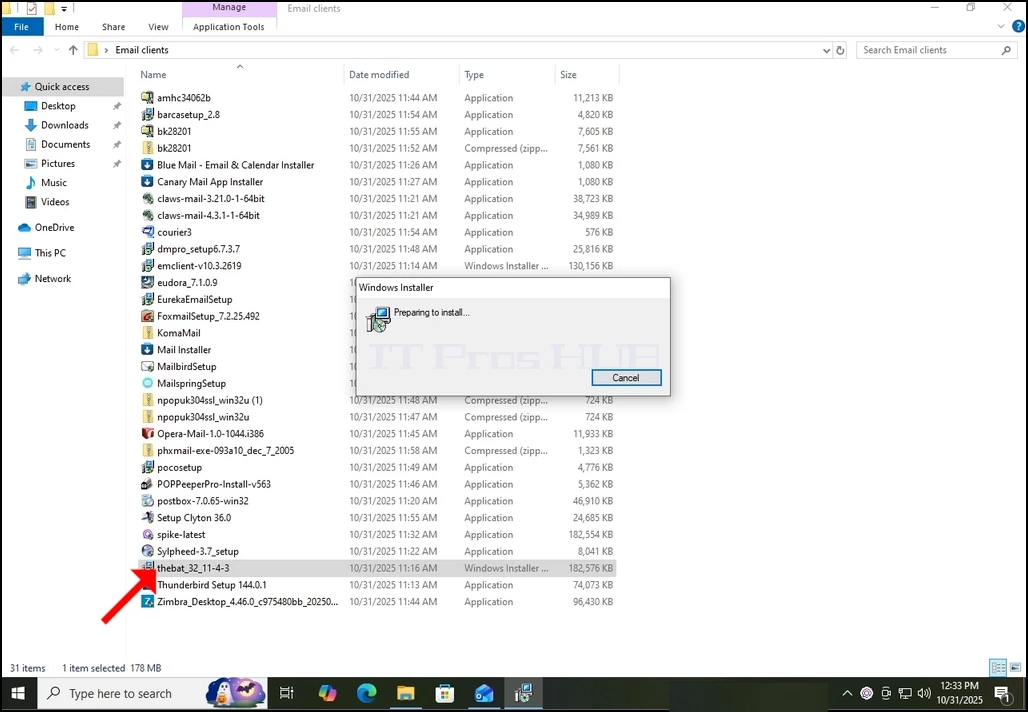
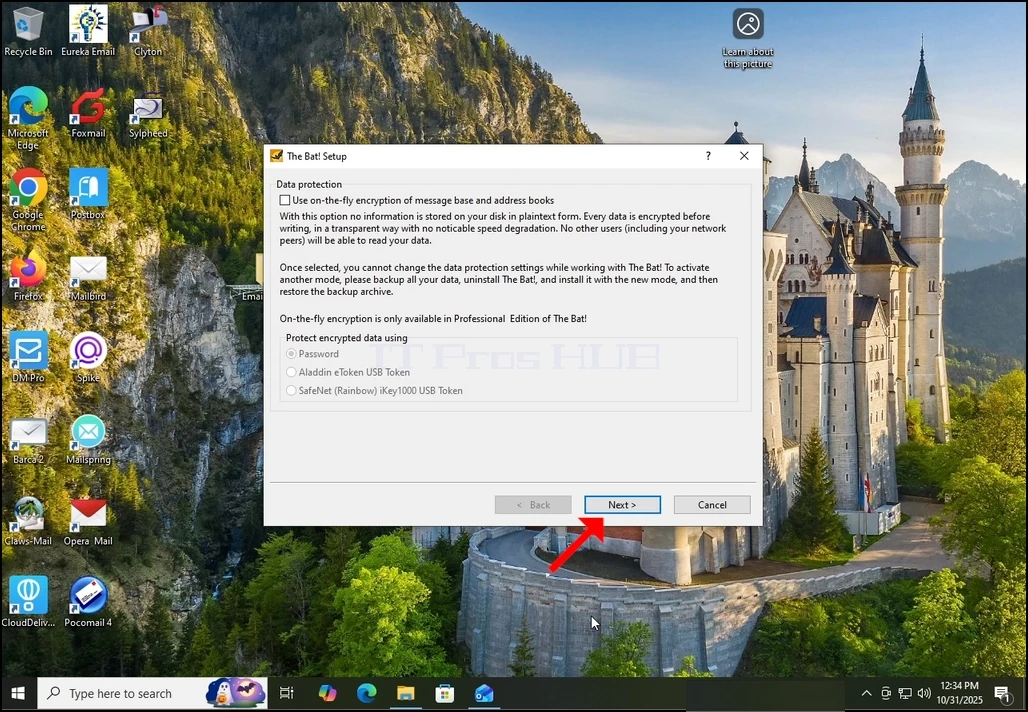
1. Download The Bat client and click on the downloaded file. Wait for it to start the installation wizard. Hit the NEXT key when the Data Protection window is shown.
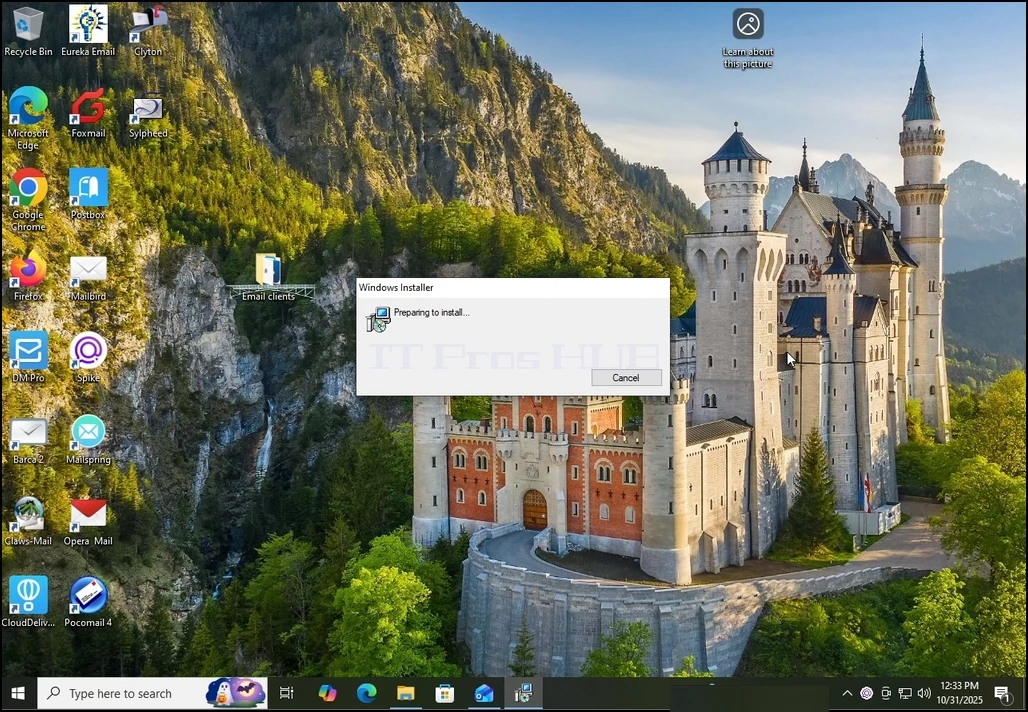
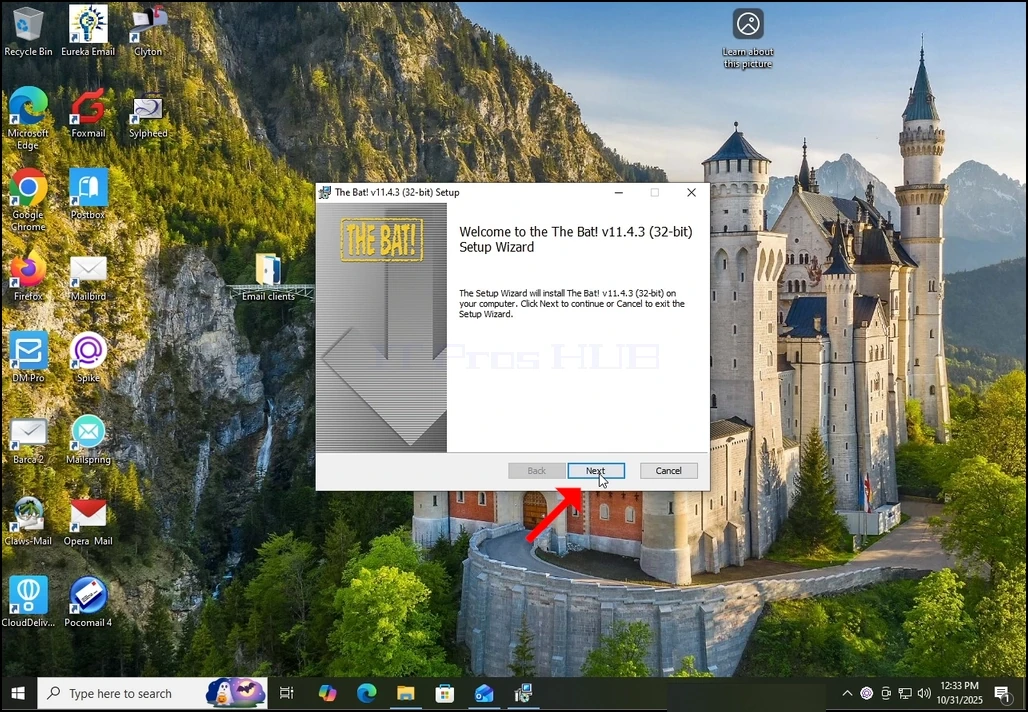
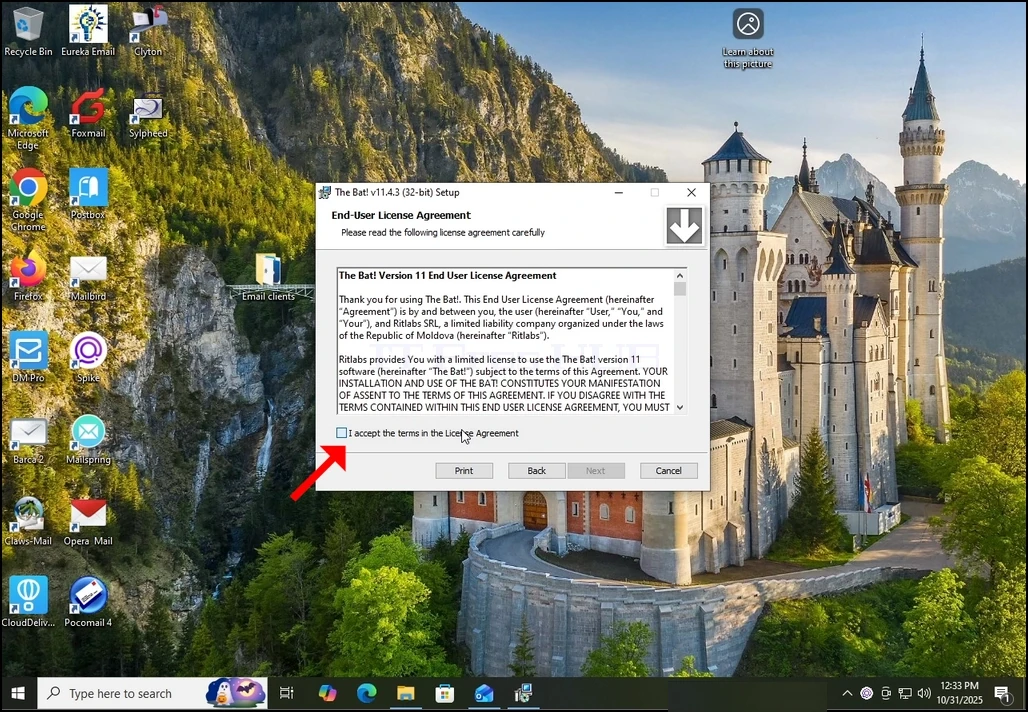
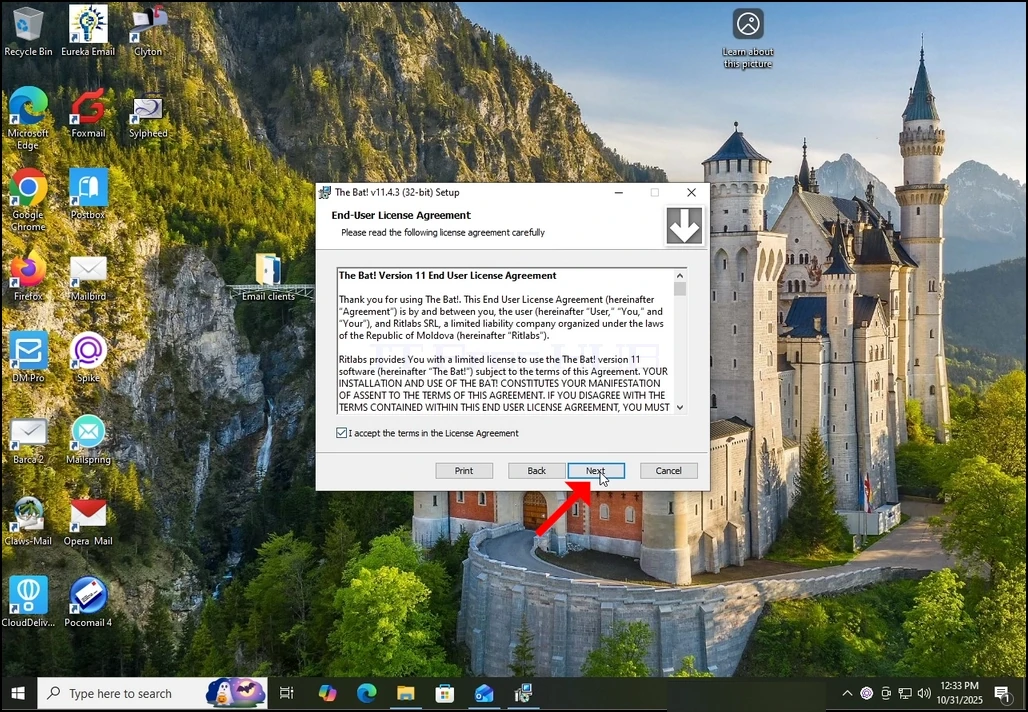
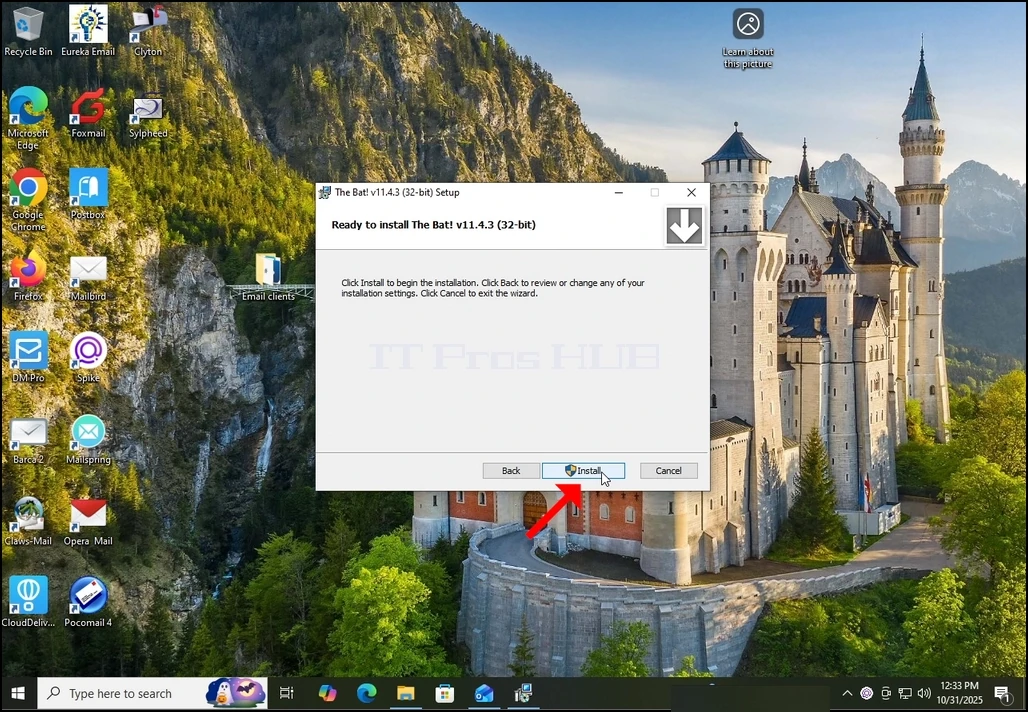
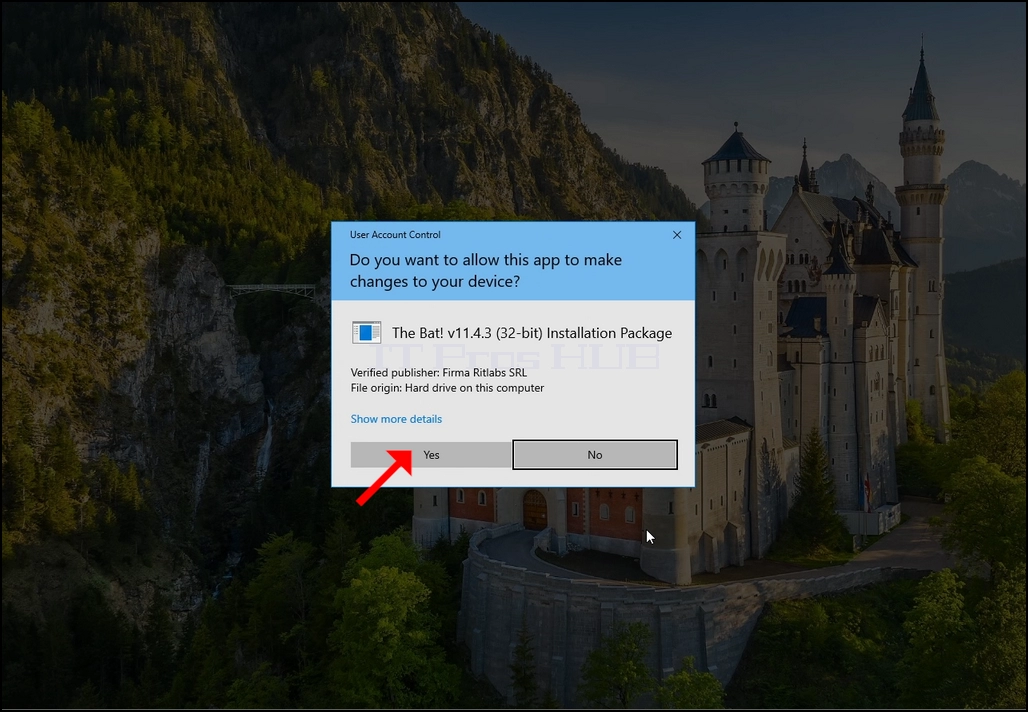
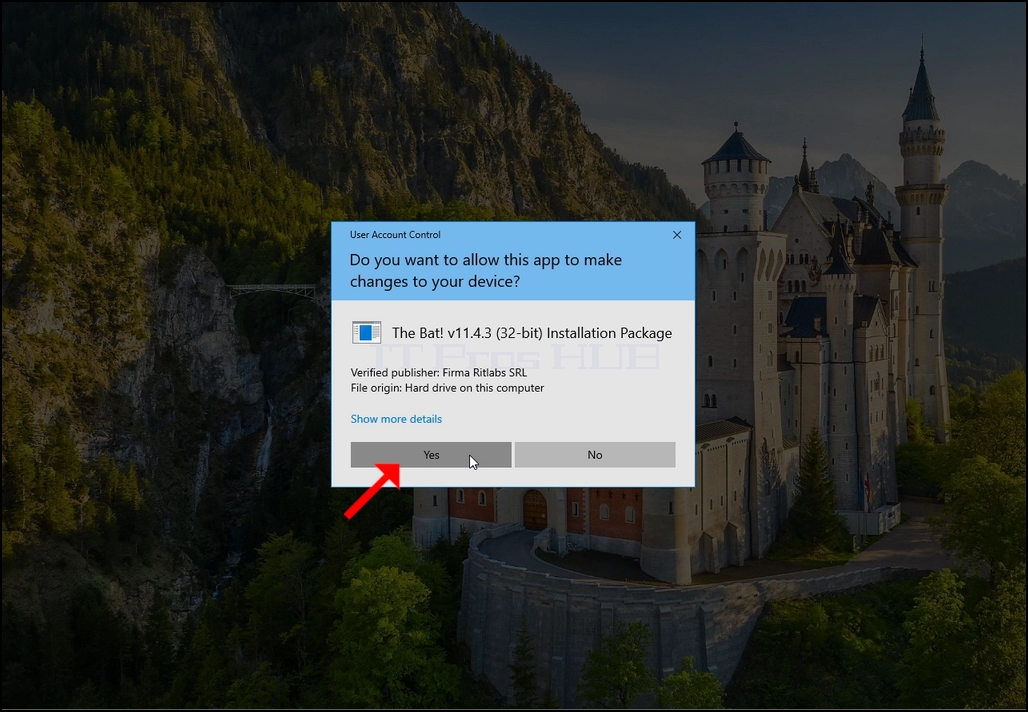
6. Wait till the process is done.
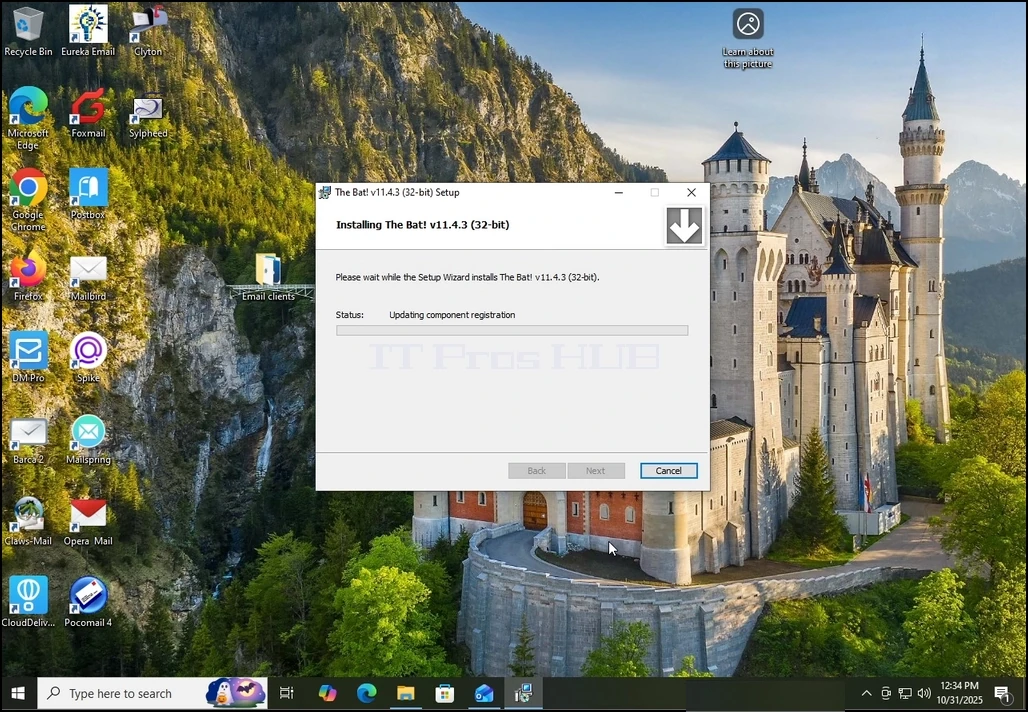
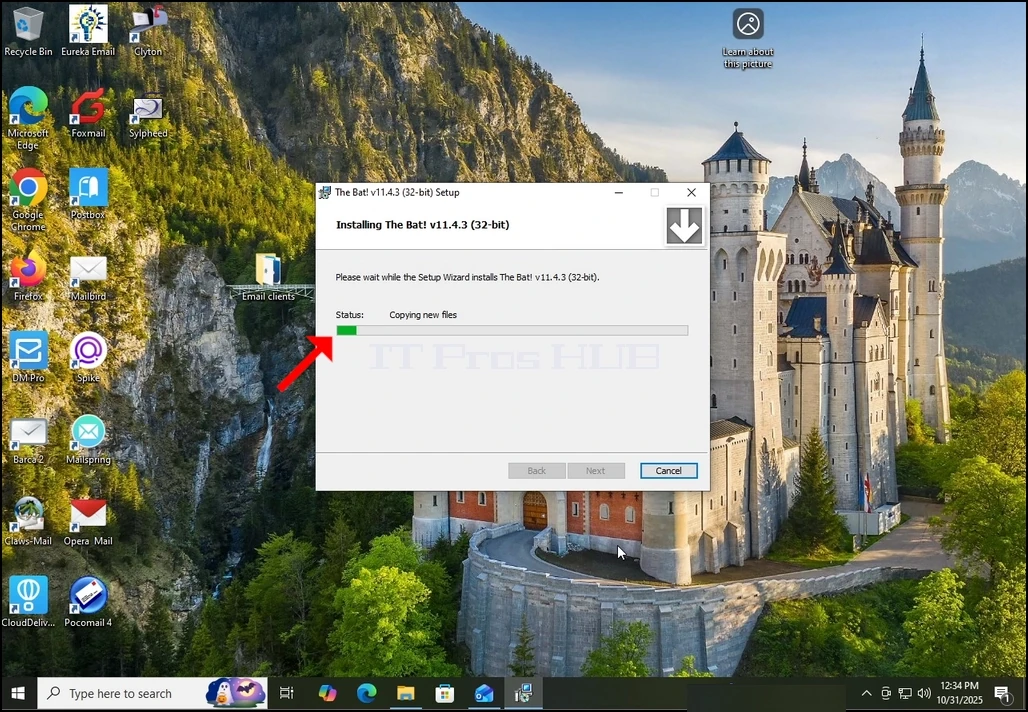
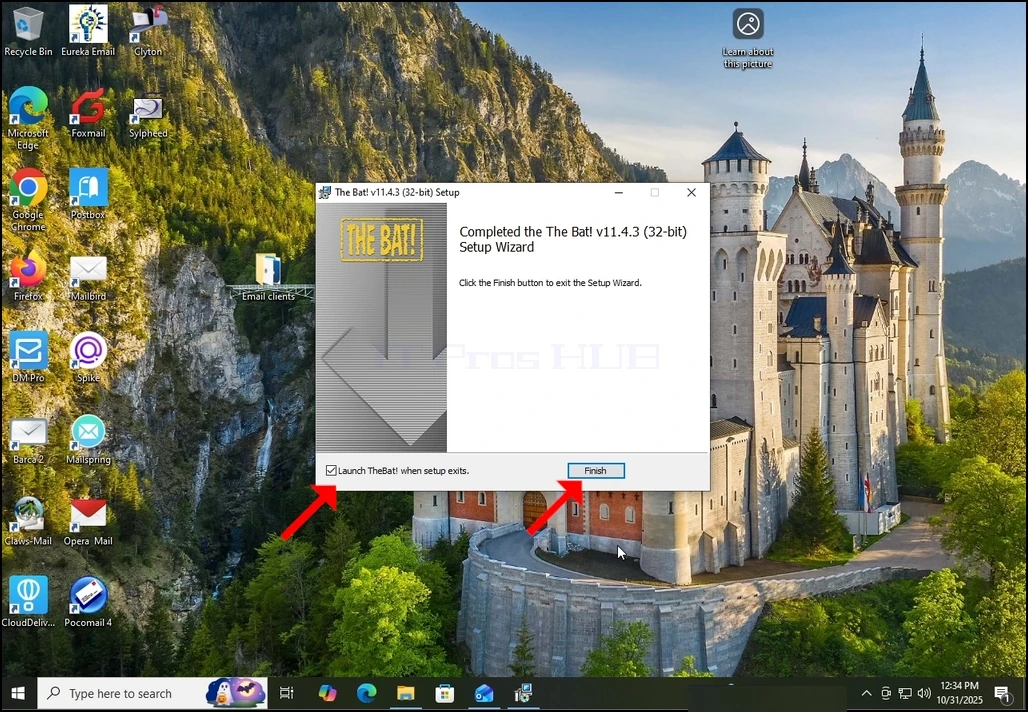
8.
- Podrobnosti
- Napisal: IT Pro
- Kategorija: How to Articles
- Ogledov: 7112
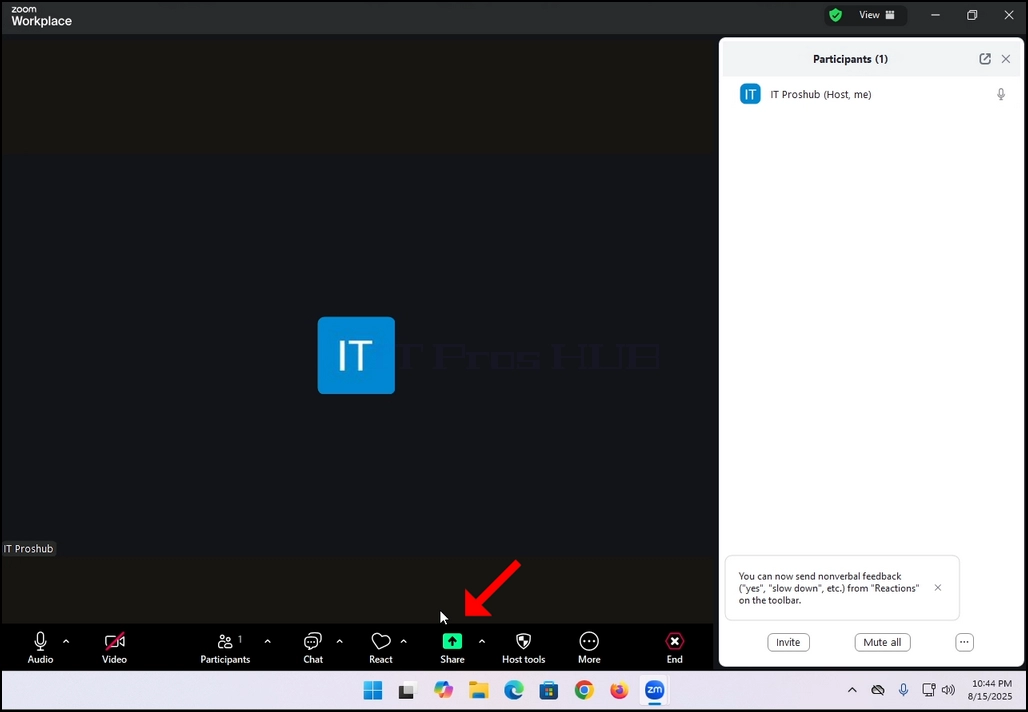
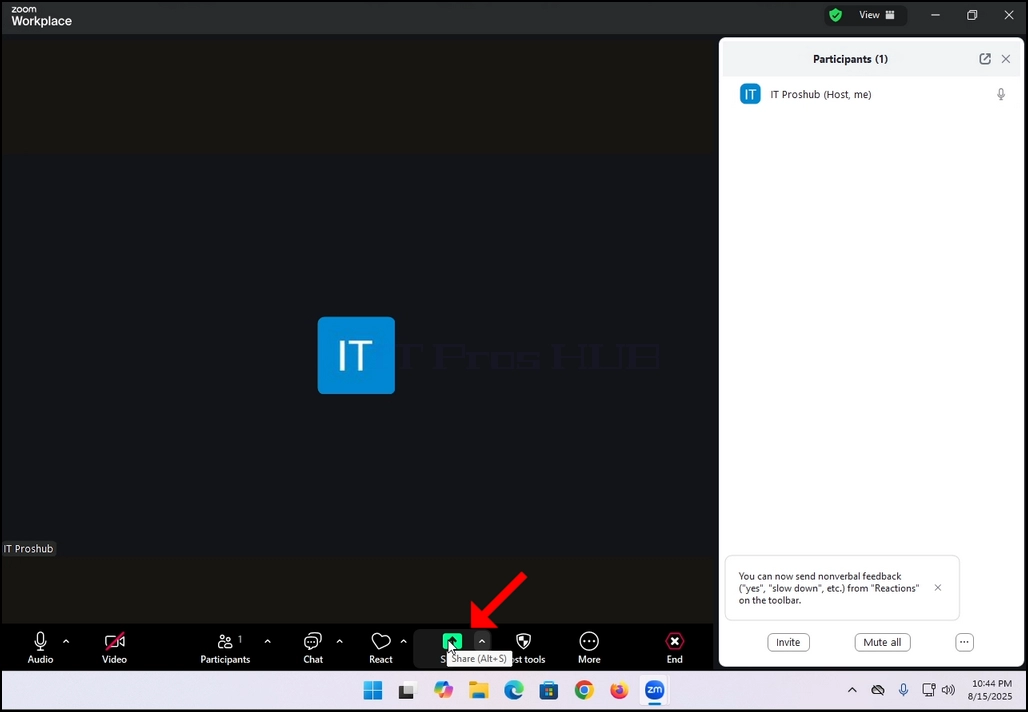
2. Note that there is an arrow next to that icon. If you click that arrow you can direct Zoom to either allow one participant to share a screen at a time or to allow multiple participants to share simultaneously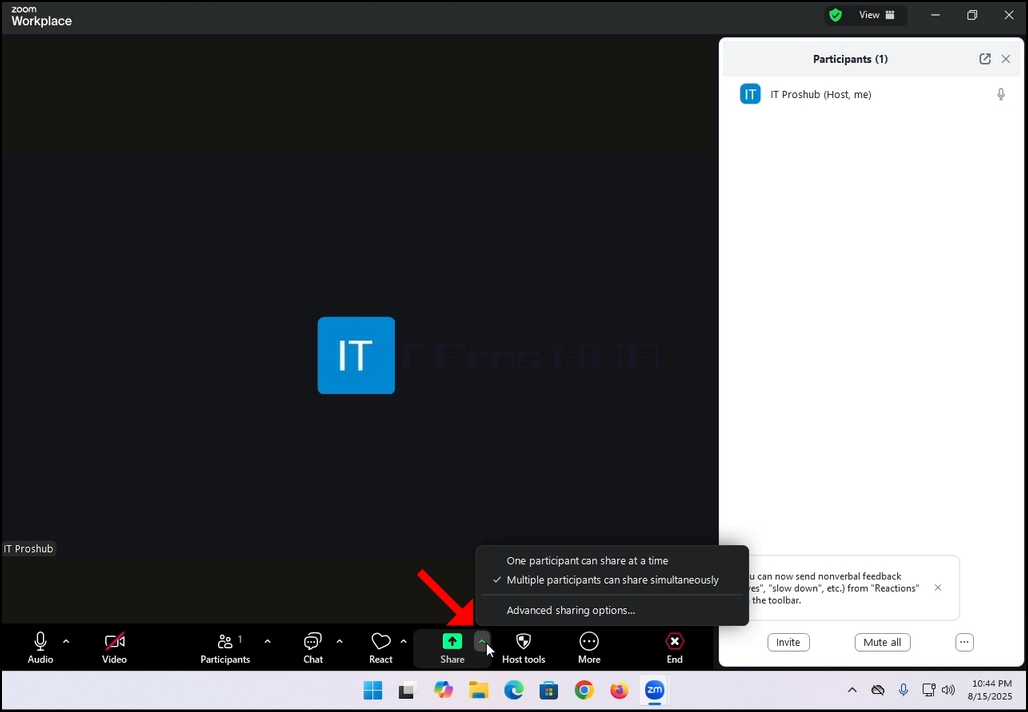
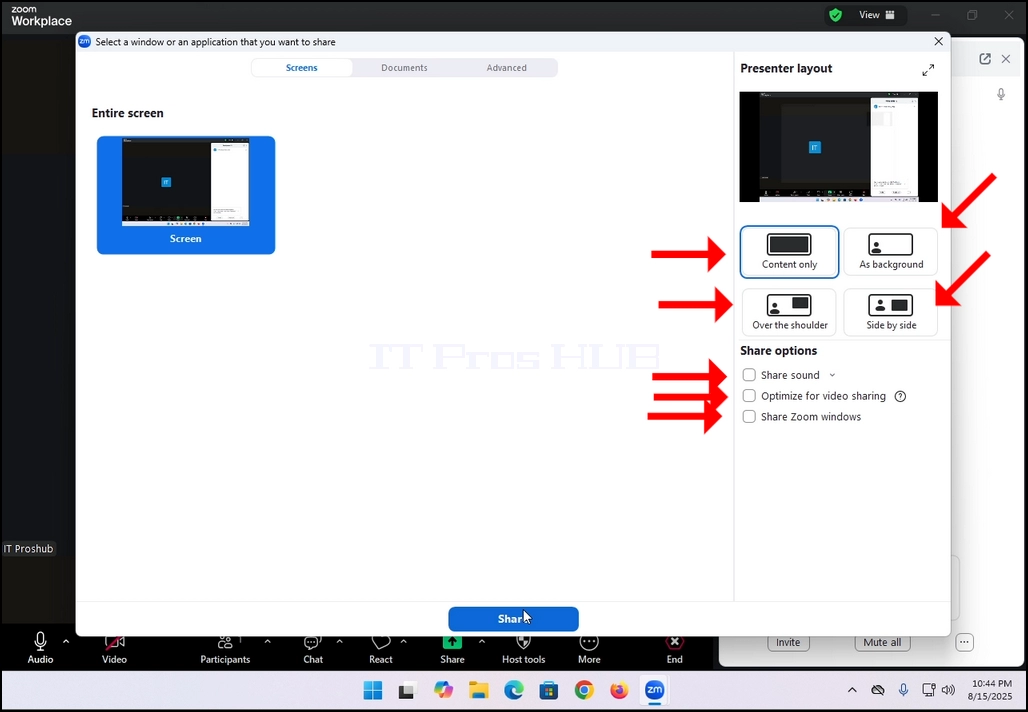
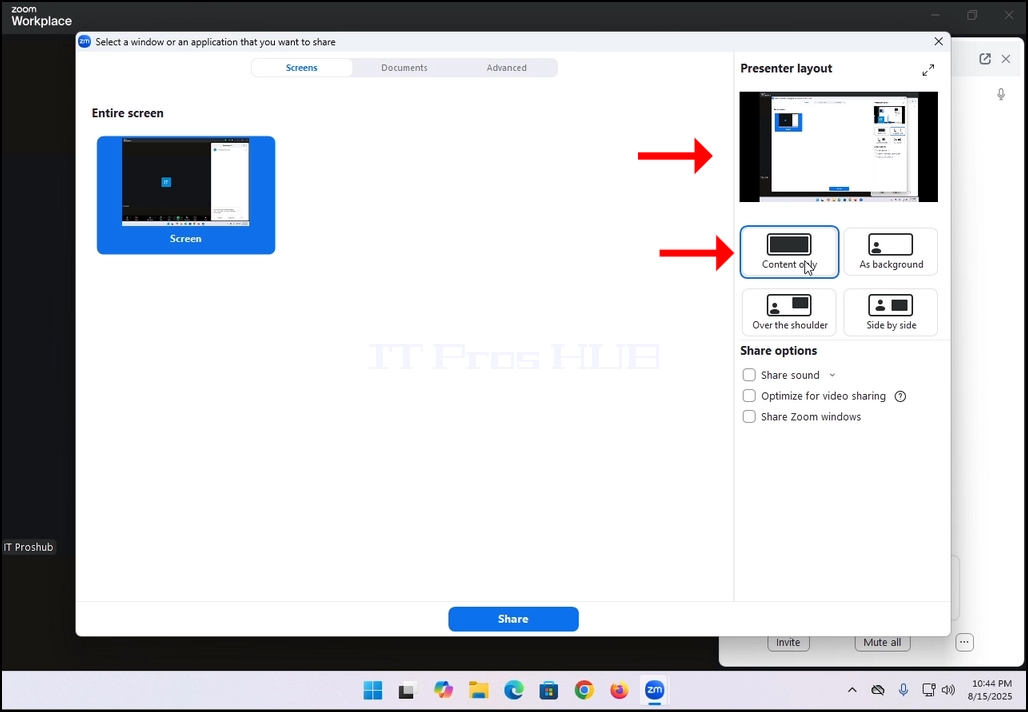
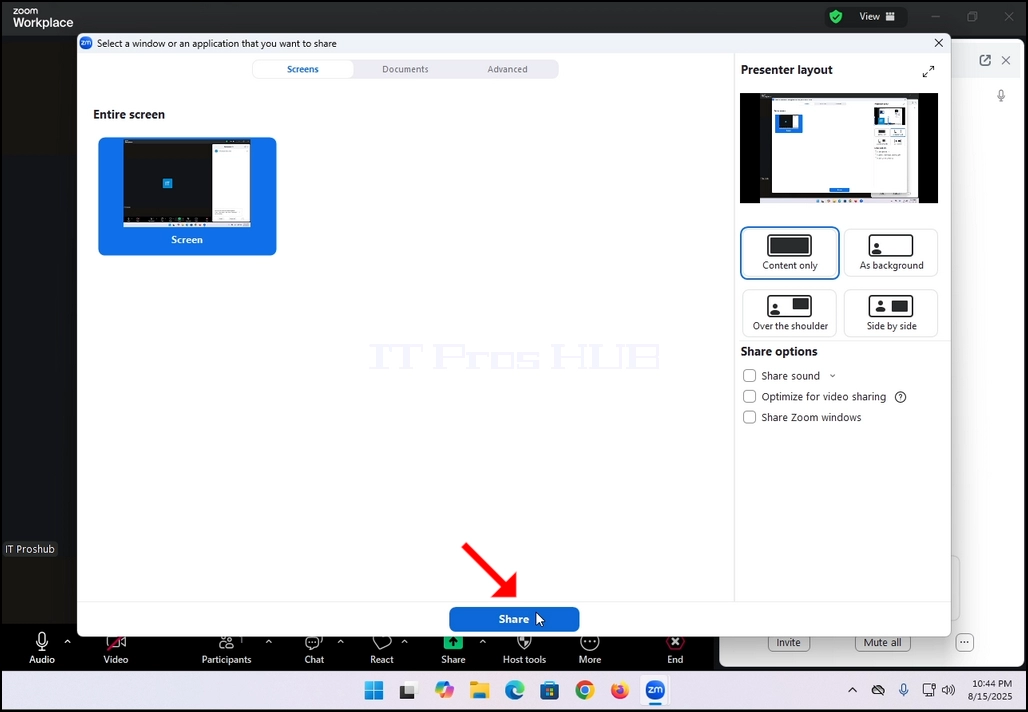
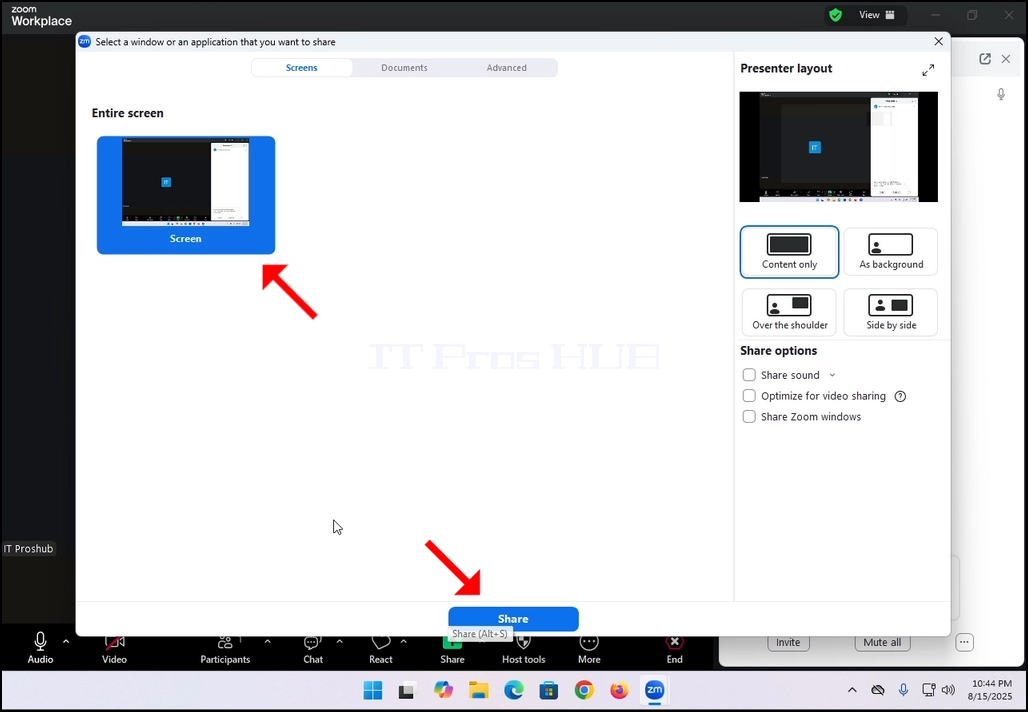 5. On the right side of the window there are the Presenter Layout options. These options allow the presenter to change how the screen and the presenter are laid during the meeting.
- Content only – only the content that is shared is visible to the participants
- As a background – the content is shared as a background and the presenter’s camera video feed is presented in the foreground
- Over the shoulder – the screen that is shared is shown on top of the “shoulder” of the participant. Basically, it is shown off their side to the top.
- Side by Side – the presenter and the screen that is shared are shown side by side to the participants
6. Additional options include:
- Sound sharing – the presenter shares the sounds omitting from its computer
- Optimize for video sharing – Zoom would optimize itself to share video over the screen that is shared
- Share Zoom windows - It controls whether your own Zoom interface (the Zoom app windows) can be shared when you screen share.
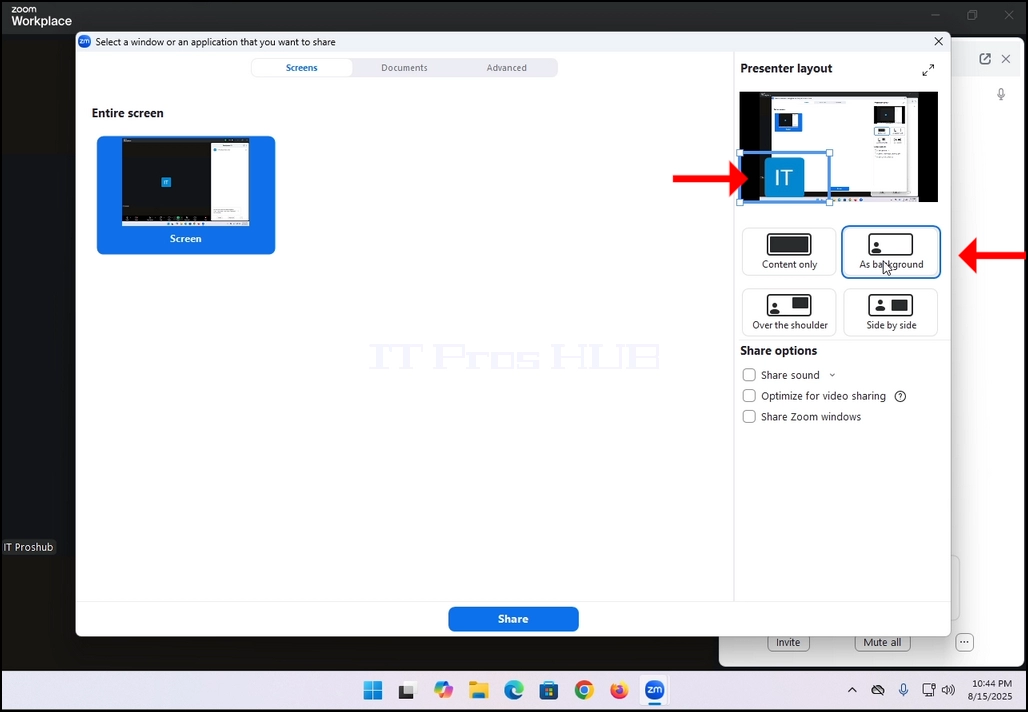
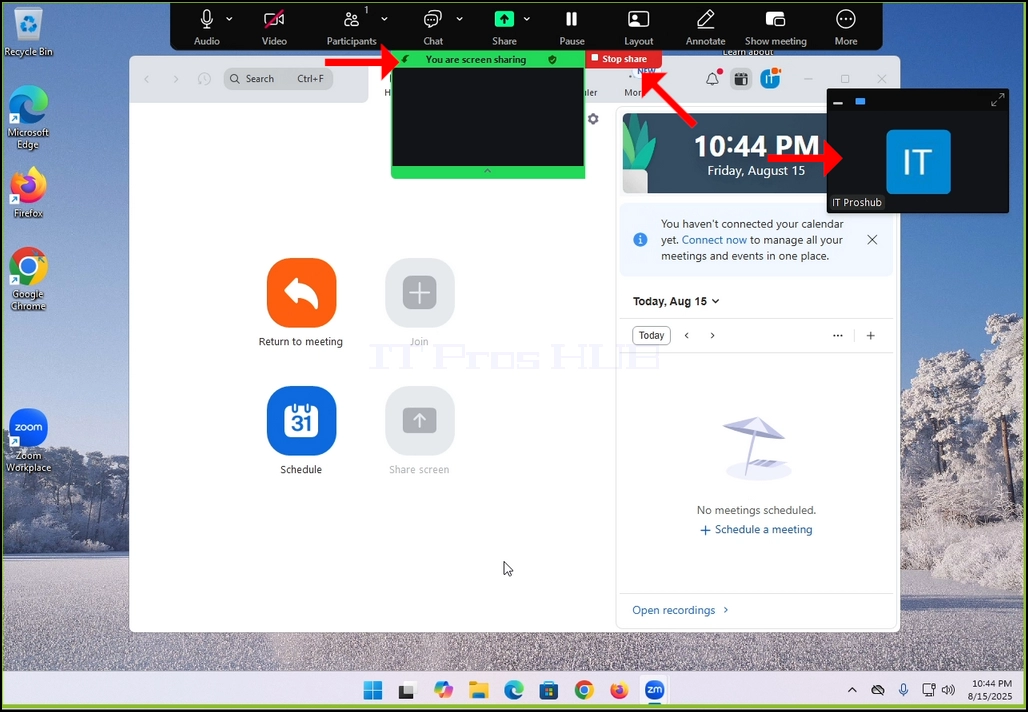
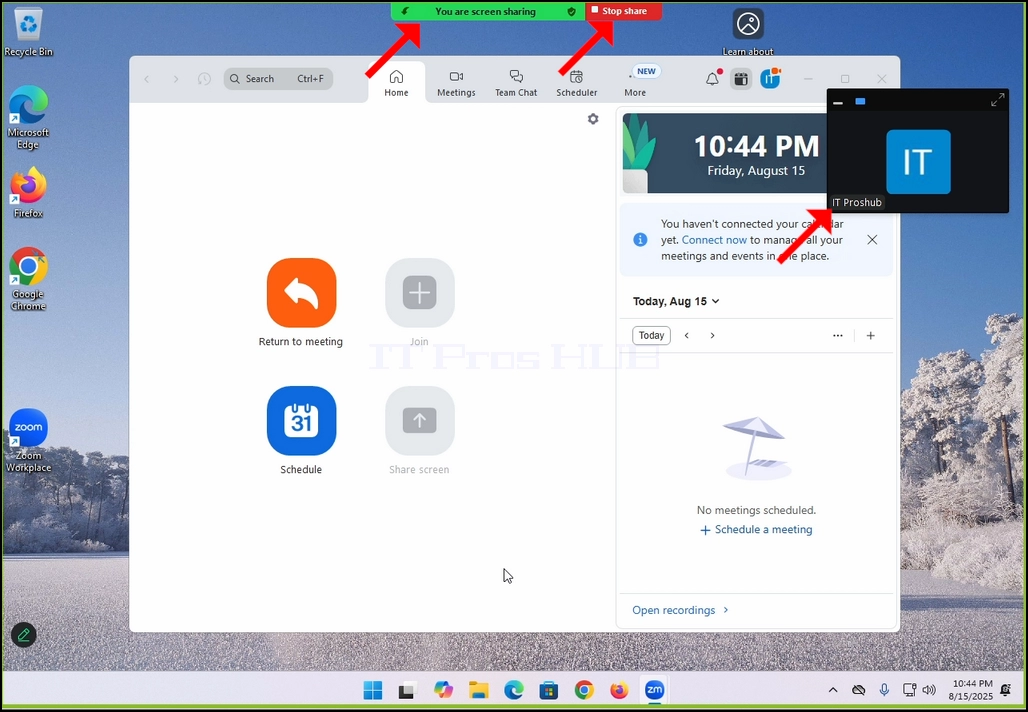
8. Note that your own camera video feed will be shown in a small box as well as can be seen in the image below:
- Podrobnosti
- Napisal: IT Pro
- Kategorija: How to Articles
- Ogledov: 6972
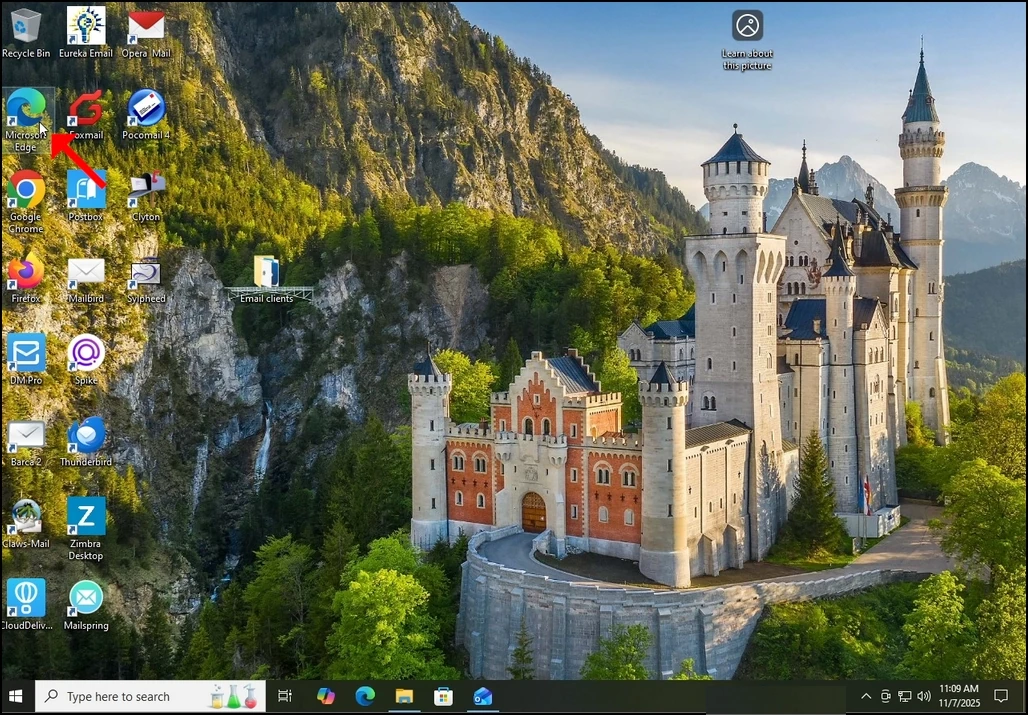
- Open Microsoft Edge
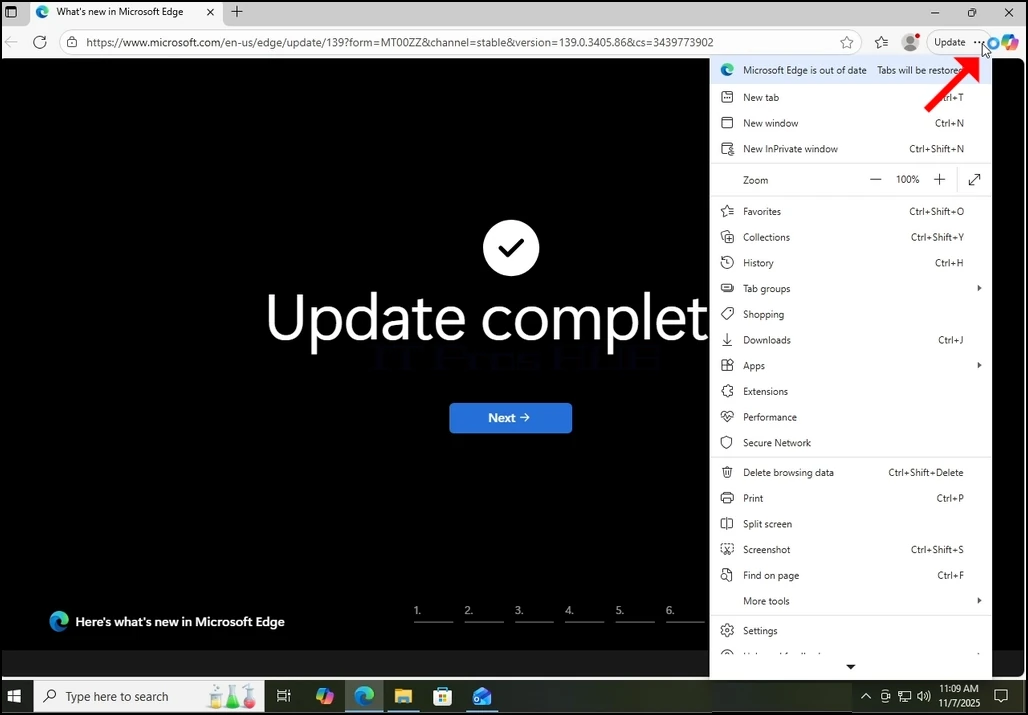
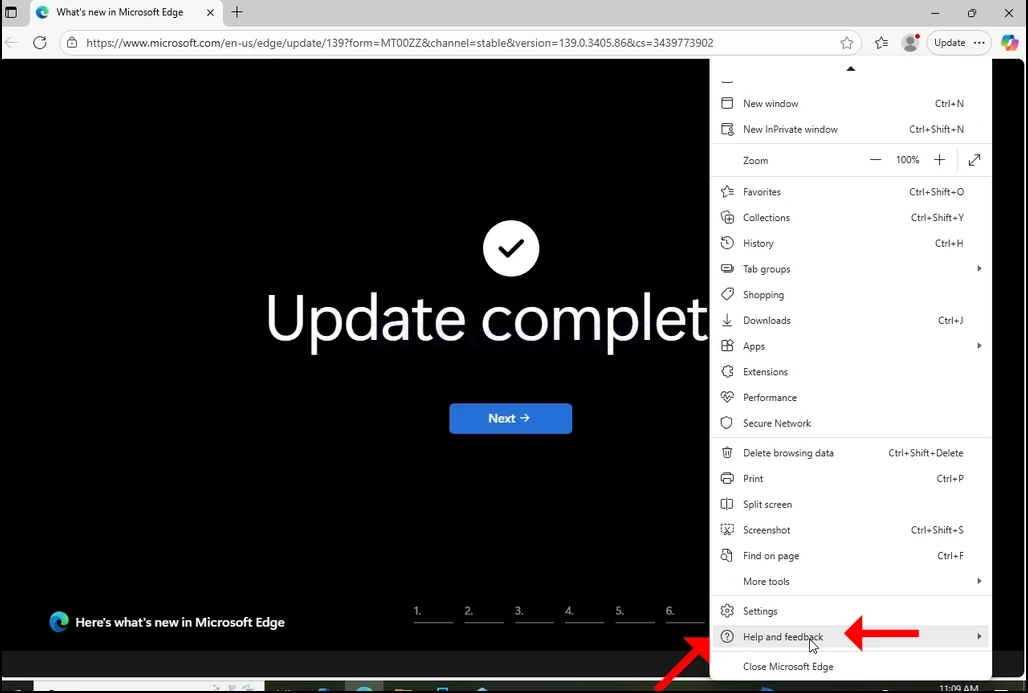
4. In that extension, look for the About Microsoft Edge sentence and click on it once. Wait for the About window to appear
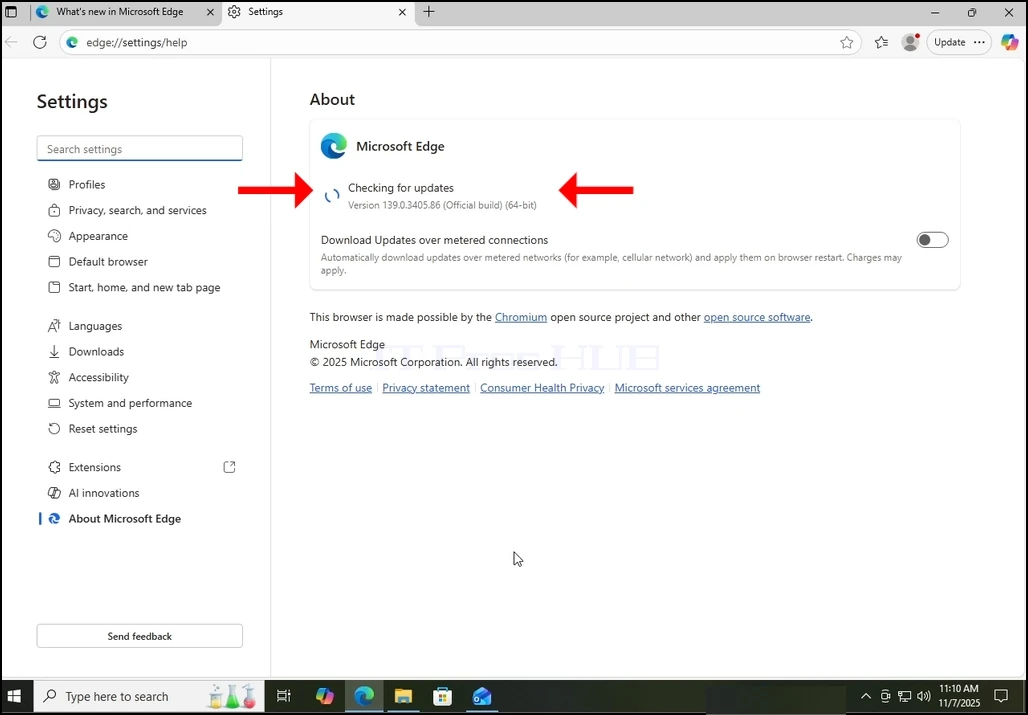
5. Once the About window appears, Edge browser will immediately start to look for updates. We would know that by seeing the “Checking for updates” sentence sided by a small animation icon.
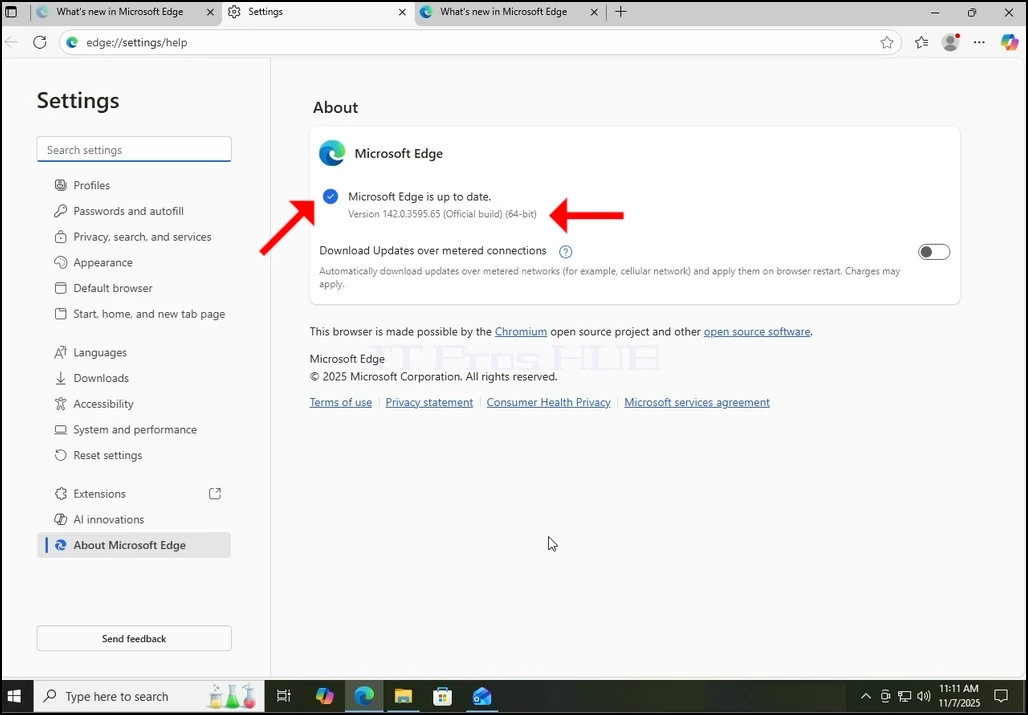
6. The current version of the Edge browser will be presented under that sentence.
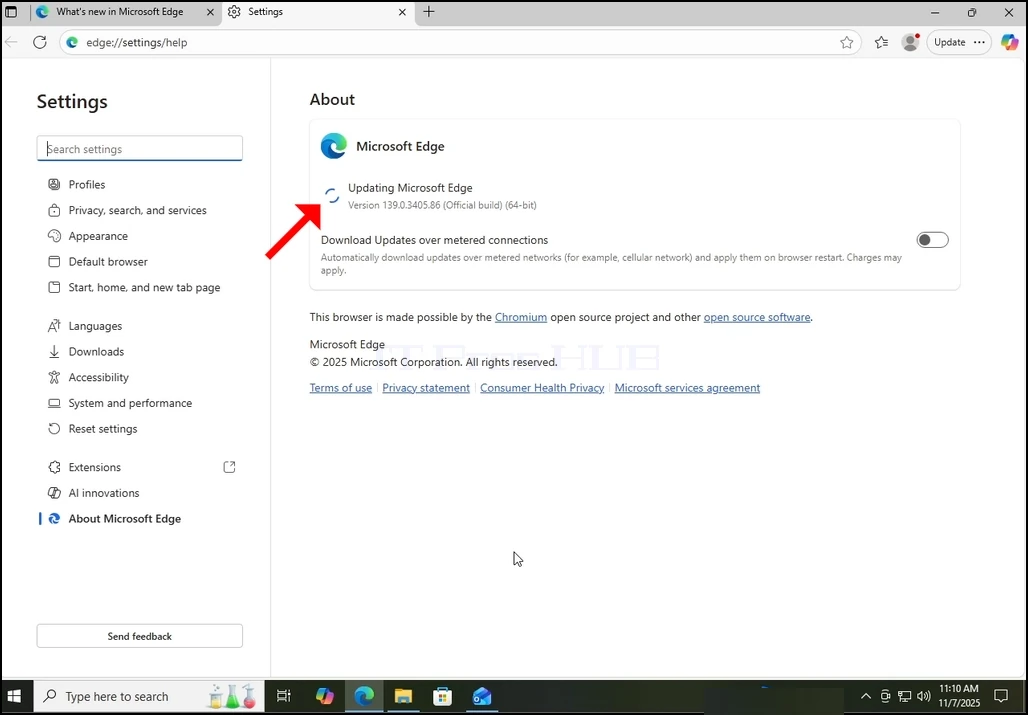
7. If an update is found by the Edge browser, the “Checking for updates” sentence would be changed to “Updating Microsoft Edge”.
8. An important note regarding metered connections:
a. If you use a metered connection like a mobile hotspot or an LTE connection, and wish to update Edge, make sure you mark the Download Updates over metered connections option which resides in that very About window.
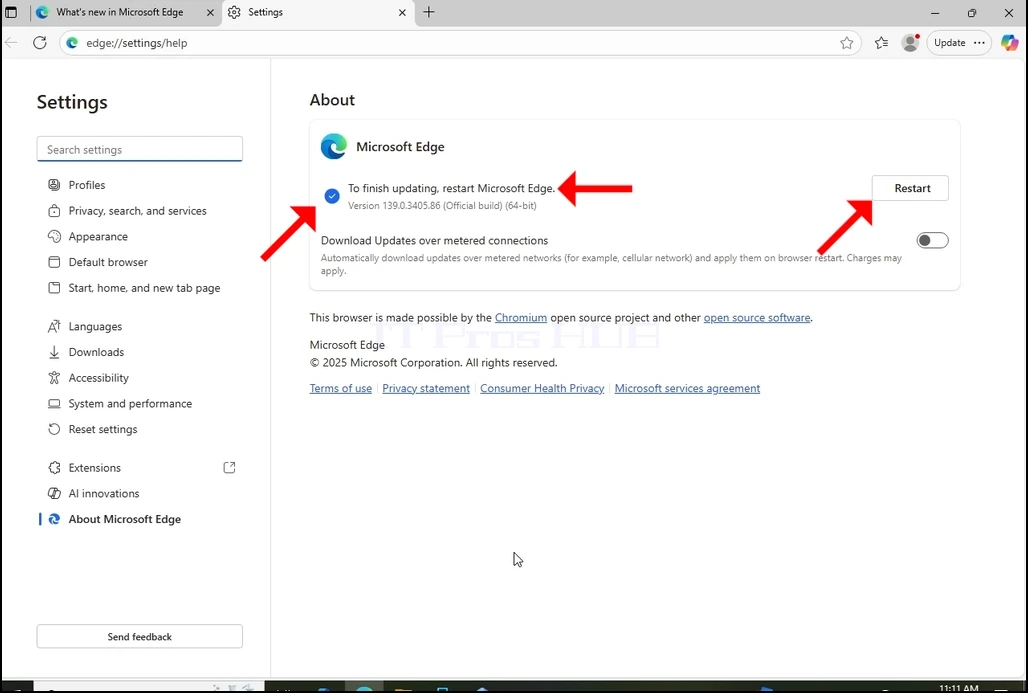
9. Once Edge is done downloading the update it will notify you that “To finish updating restart Microsoft Edge” as you can see in the image below.
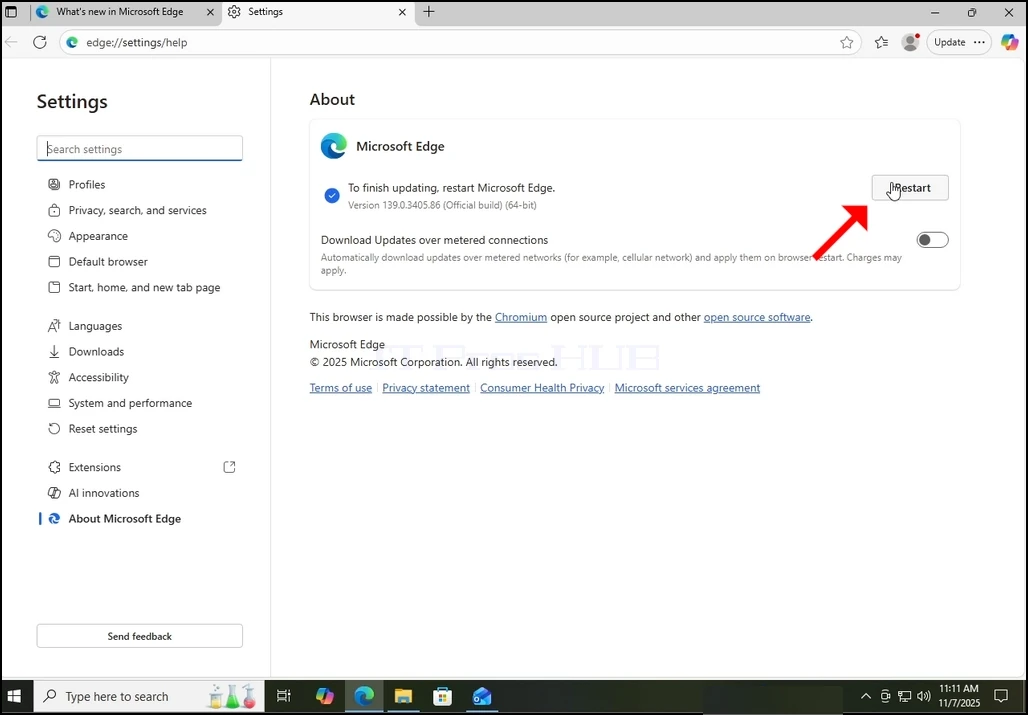
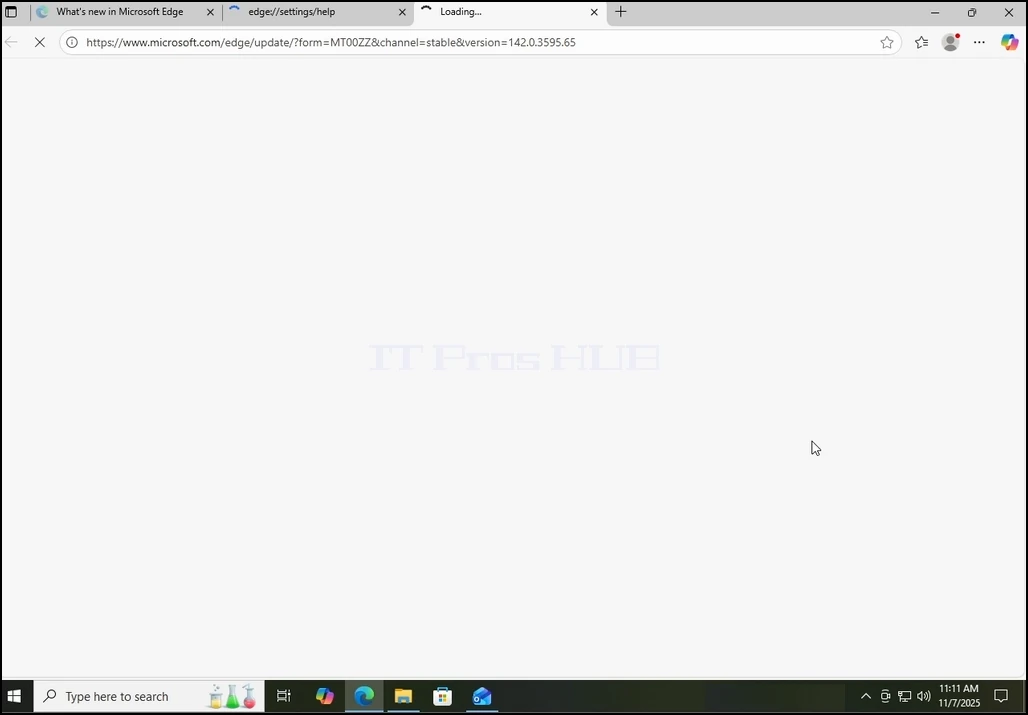
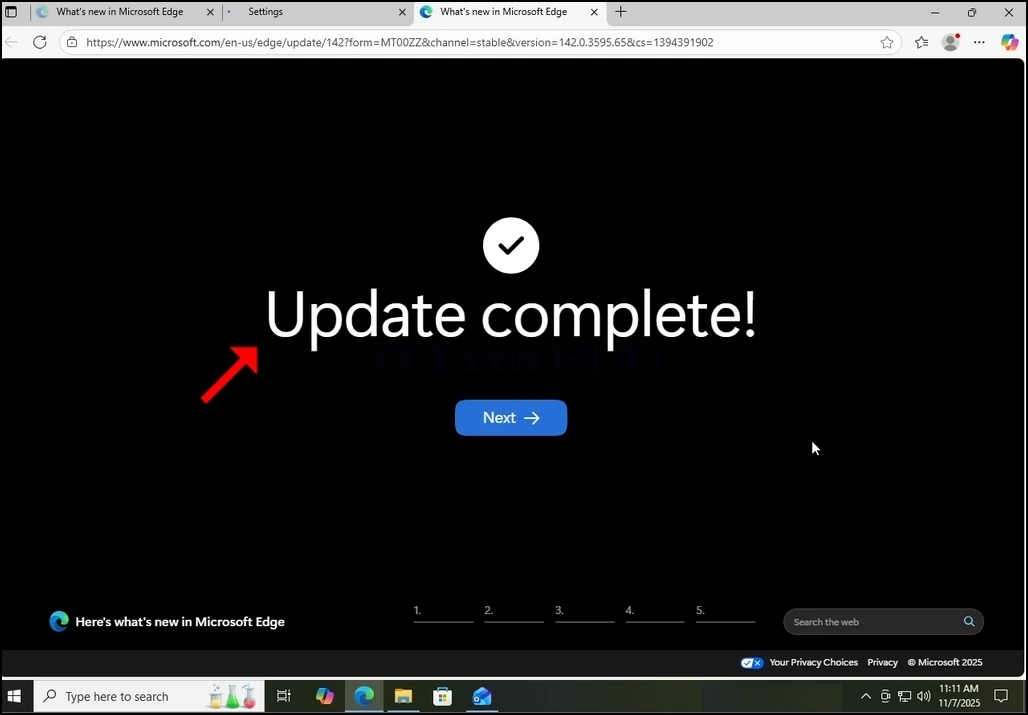
11. After Edge restarts itself, it should start presenting an Update Complete message in a new tab. Close that tab. Go back to the About window and check that indeed the version of the browser is different from the one before the updating process began.
12. Also, going back to the About window would allow you to check if there are more pending updates. As you can see here, there are no more pending updates since we are presented with the message Microsoft Edge is up to date.
- Podrobnosti
- Napisal: IT Pro
- Kategorija: How to Articles
- Ogledov: 6695
1. Go to Windows Desktop.
2. On your keyboard, click Windows+R key combination and wait for the Run box to appear.
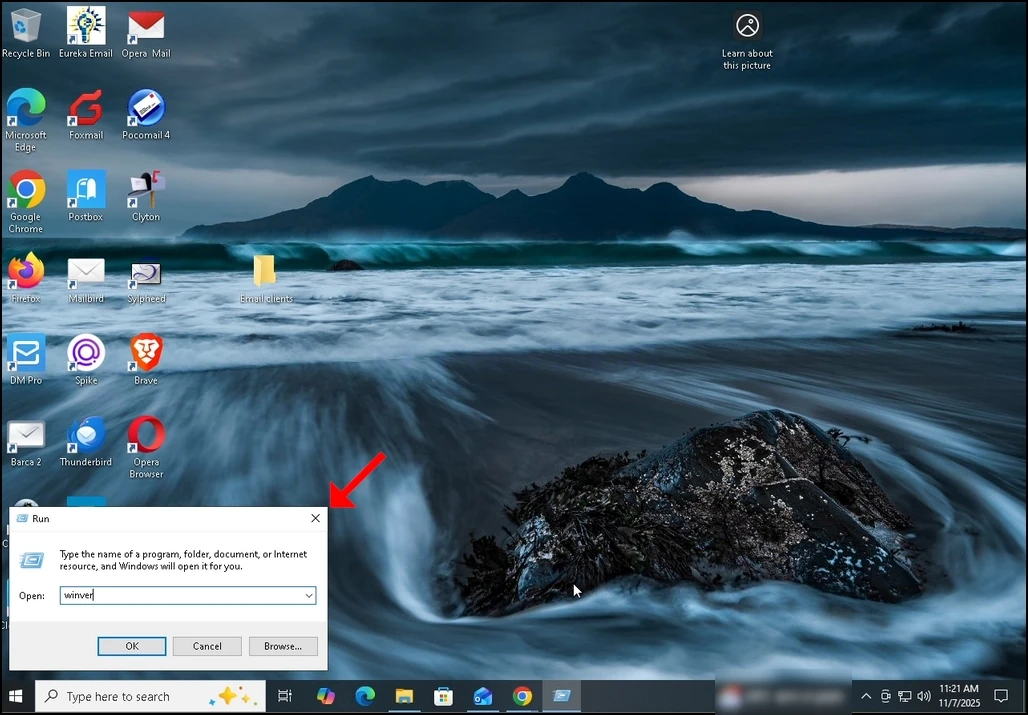
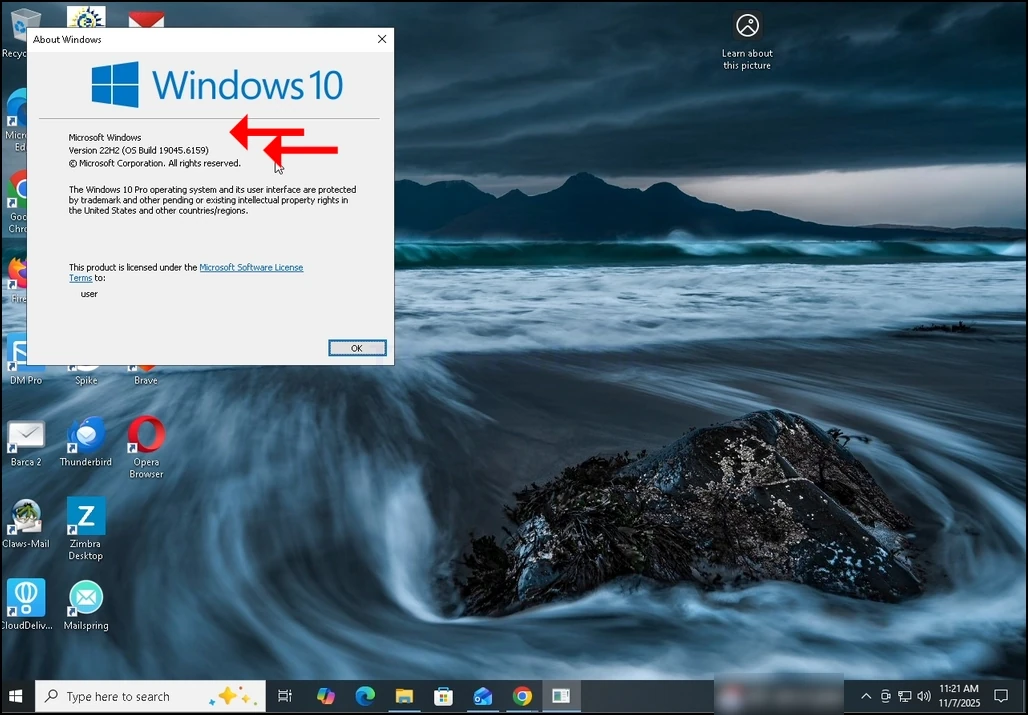
4. In the About Windows window, in the second sentence, Windows’ version and build will be apparent.
5. The type of operating system could be seen in the second paragraph.
6. In this article for example, Windows’ version is 22H2 and its build is 19045.6159 and the type of the operating system is Windows Pro.