



- Details
- Written by: IT Pro
- Category: How to Articles
- Hits: 5666
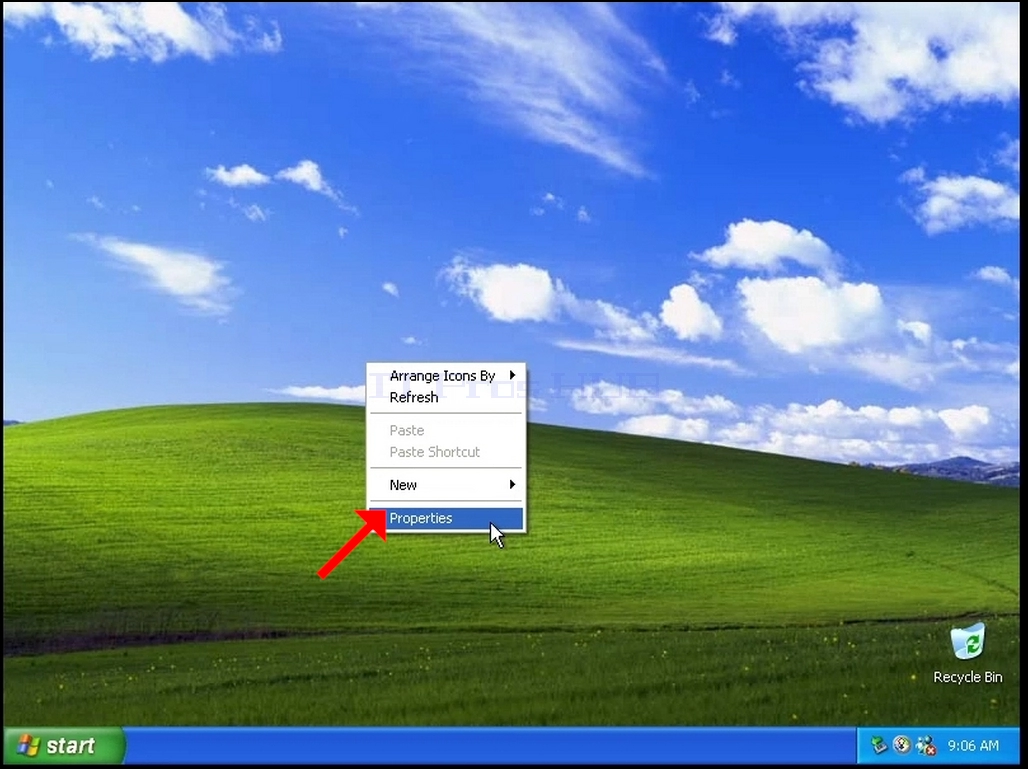
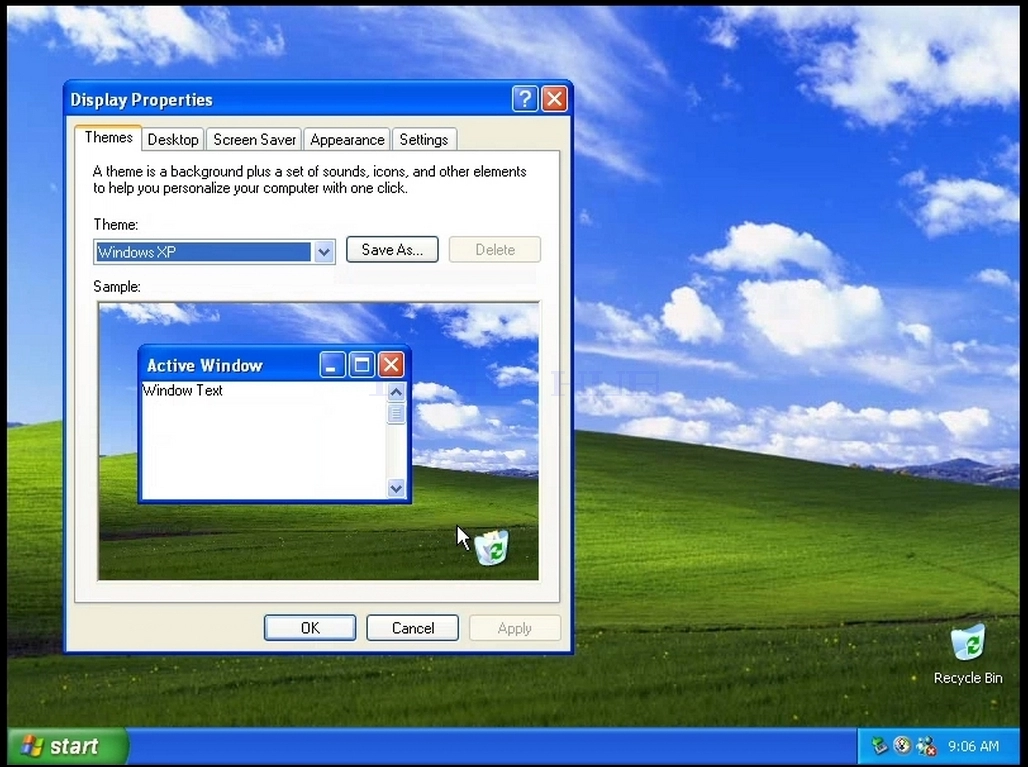
3. In the Display Properties window, look for the Settings tab and click it
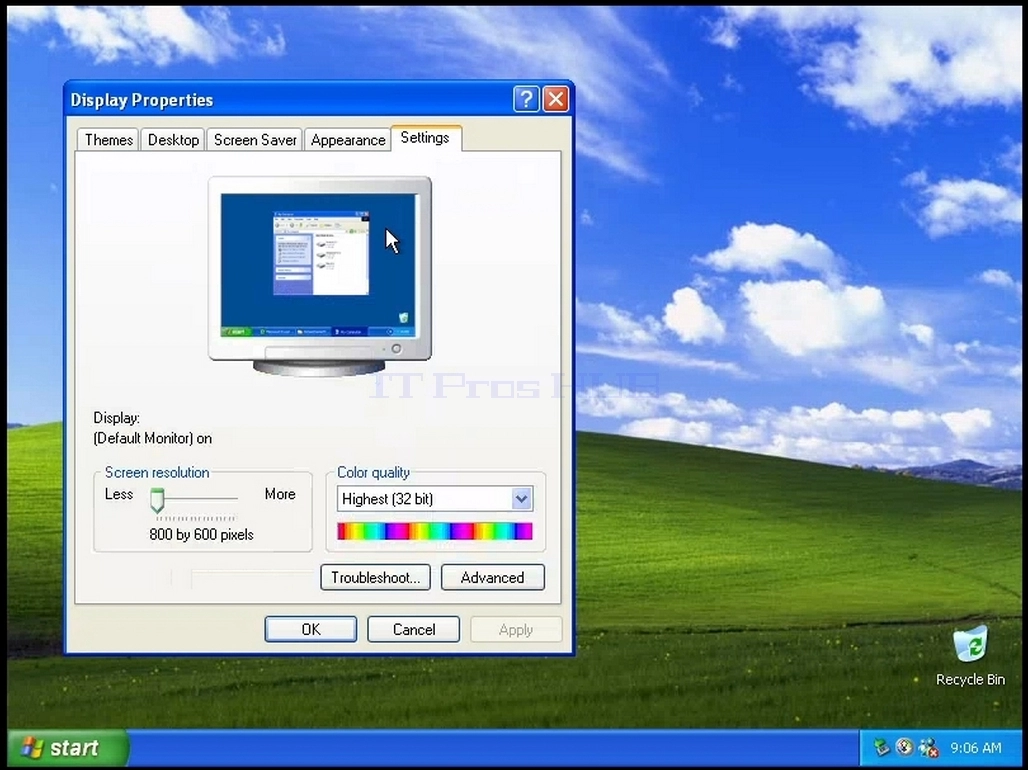
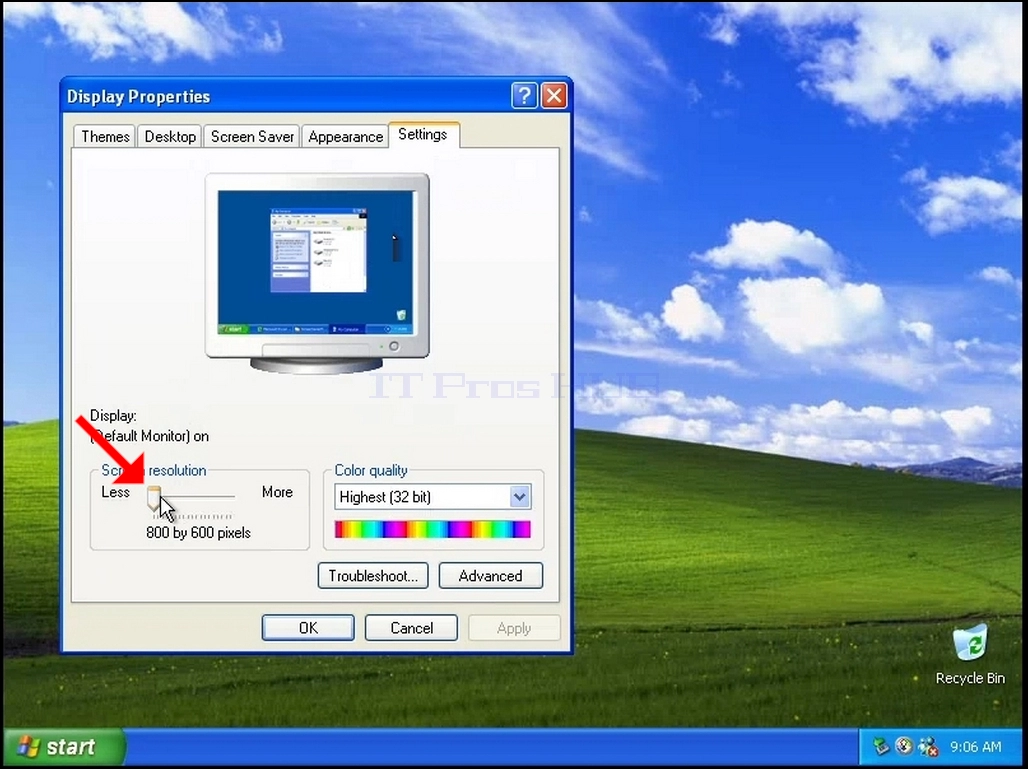
5. From the various resolution options, choose the one that best suits your needs (In this example the chosen one is 1024x768)
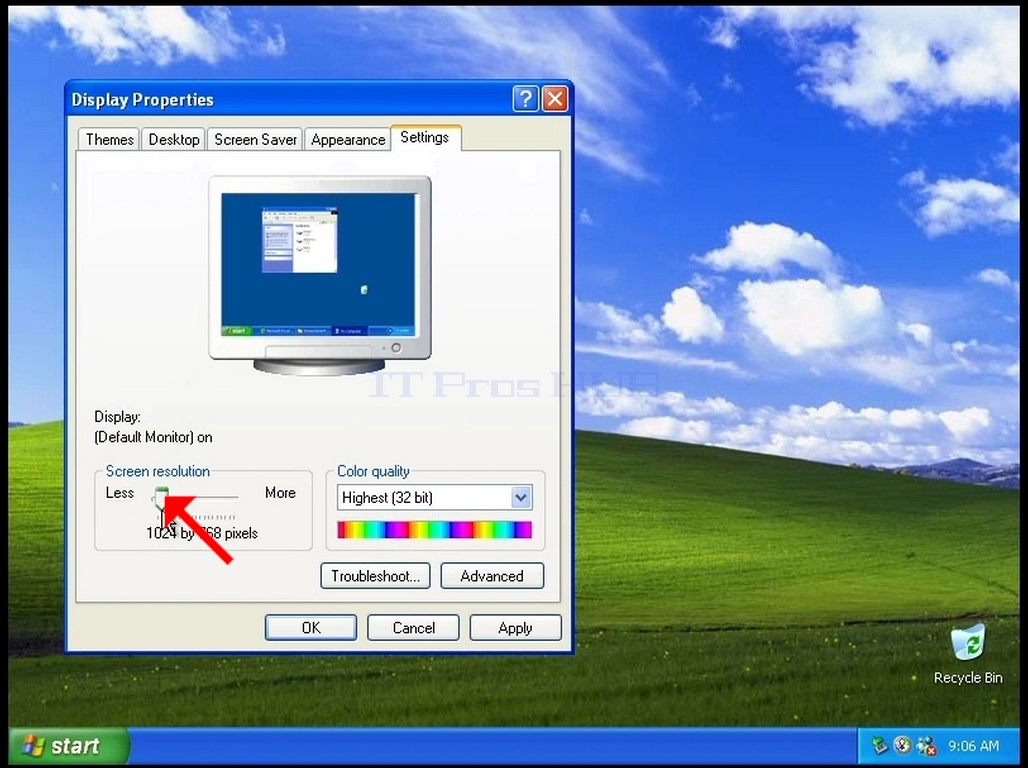
6. After choosing the new resolution setting Click Apply.
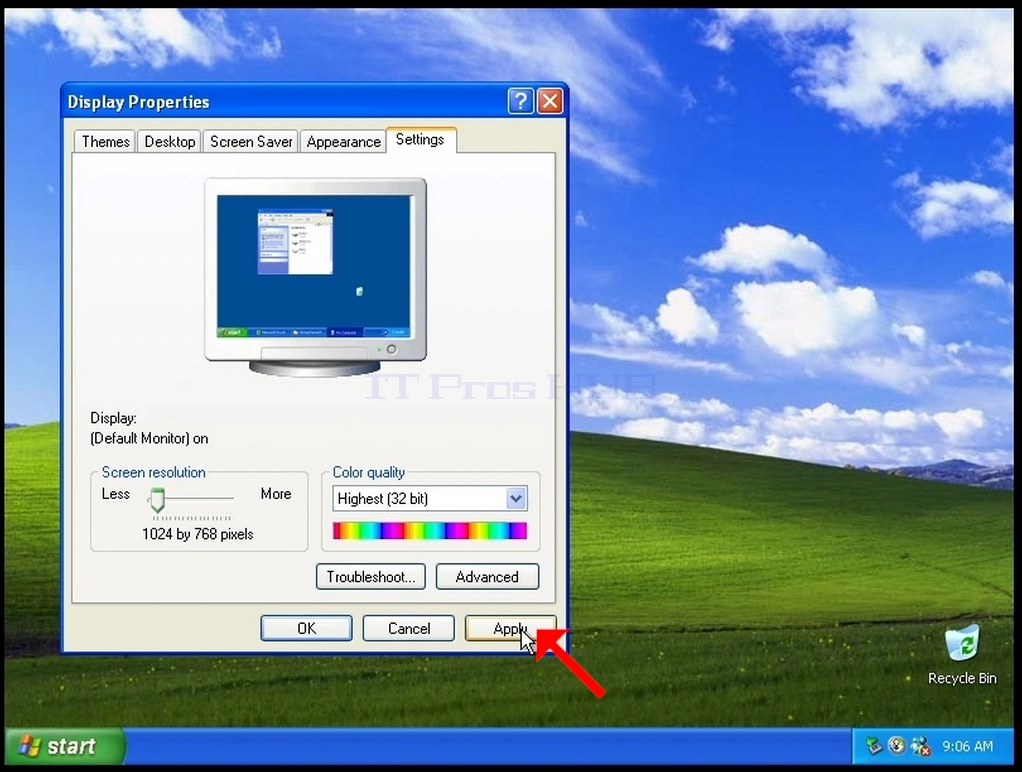
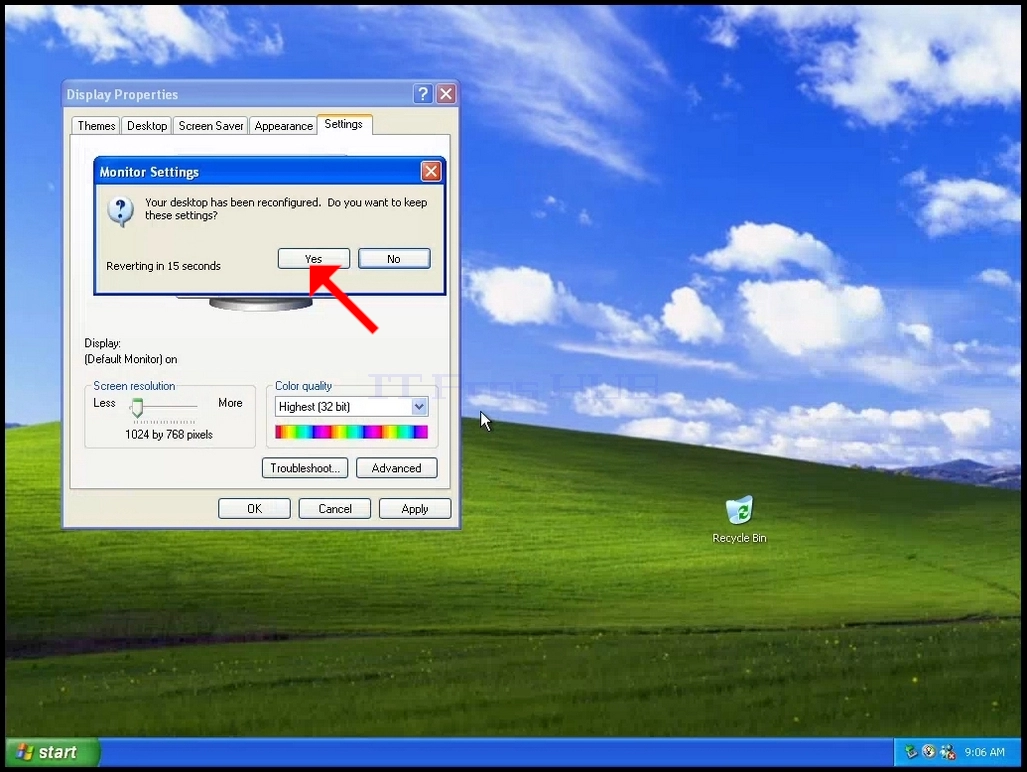
7. Windows will ask you whether you like to Keep These Display Settings or to not to. If an option is not chosen within an allocated amount of seconds, Windows will revert back to the previously configured resolution. This is done in case the monitor doesn't support the selected resolution, and the user is unable to either see or see currently the video output in order to manually revert the newly selected resolution.
If the newly chosen resolution is compatible with the monitor, choose Yes Changes, and click it.
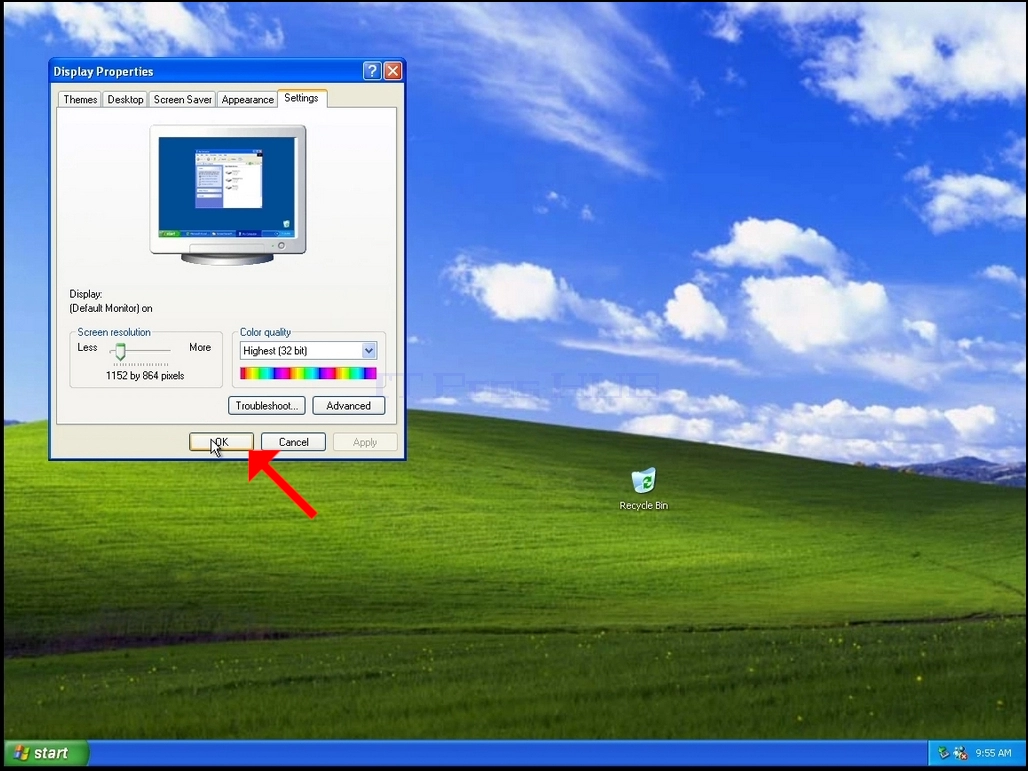
8. Click OK to close the Settings window
- Details
- Written by: IT Pro
- Category: How to Articles
- Hits: 5324
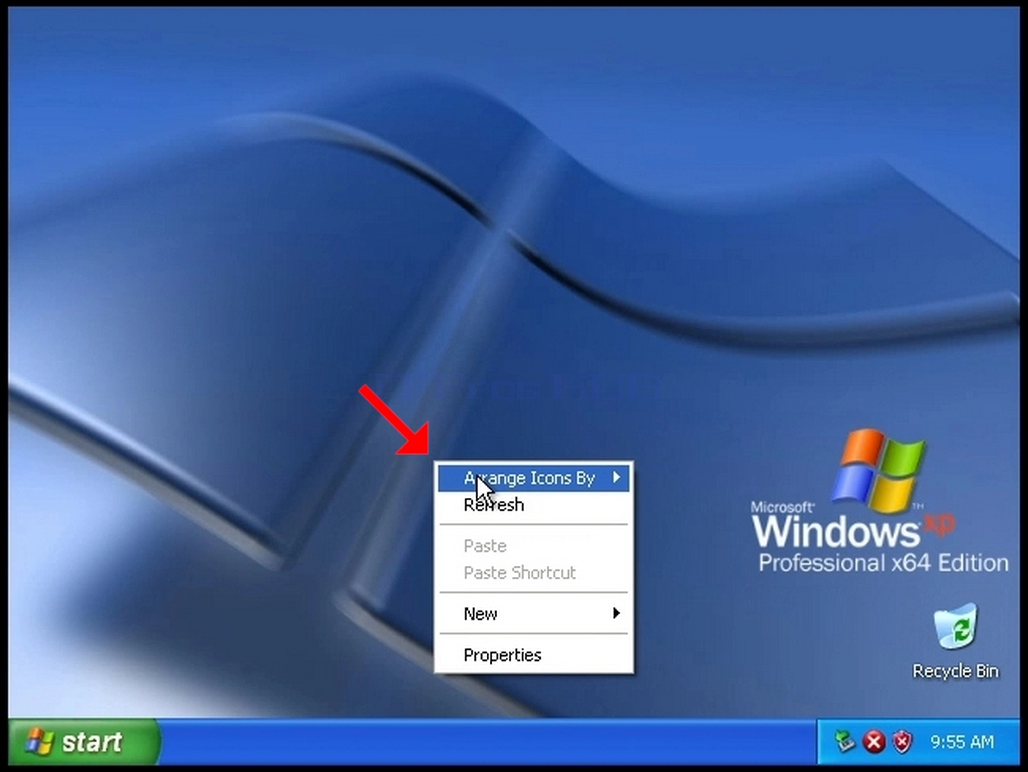
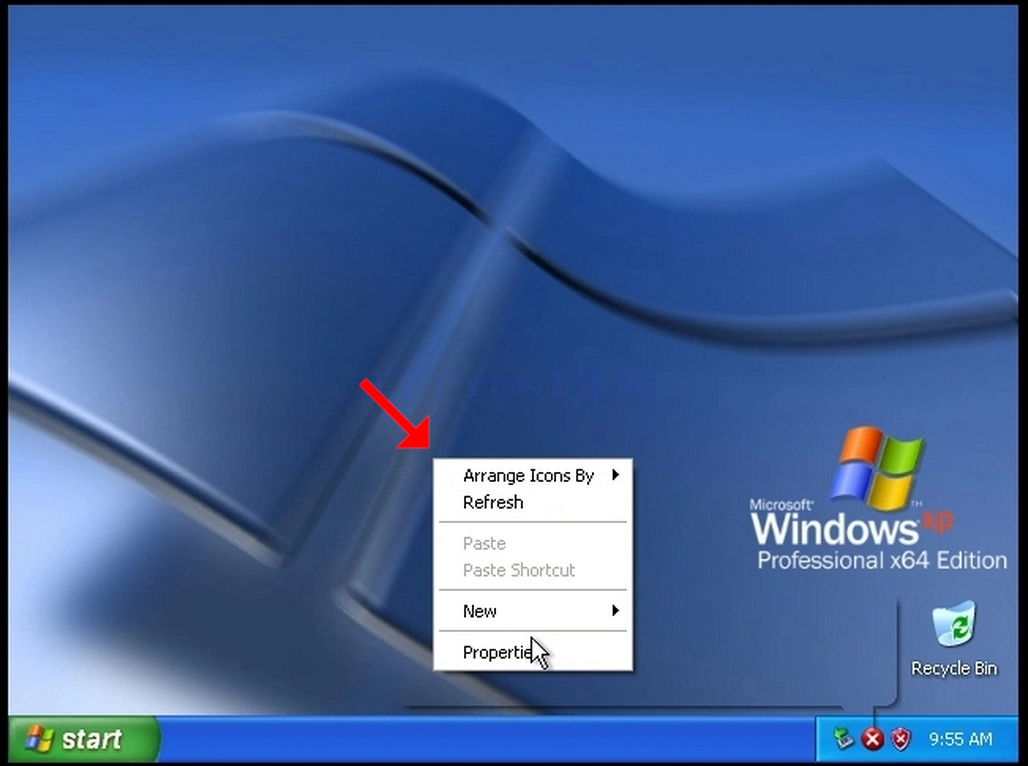
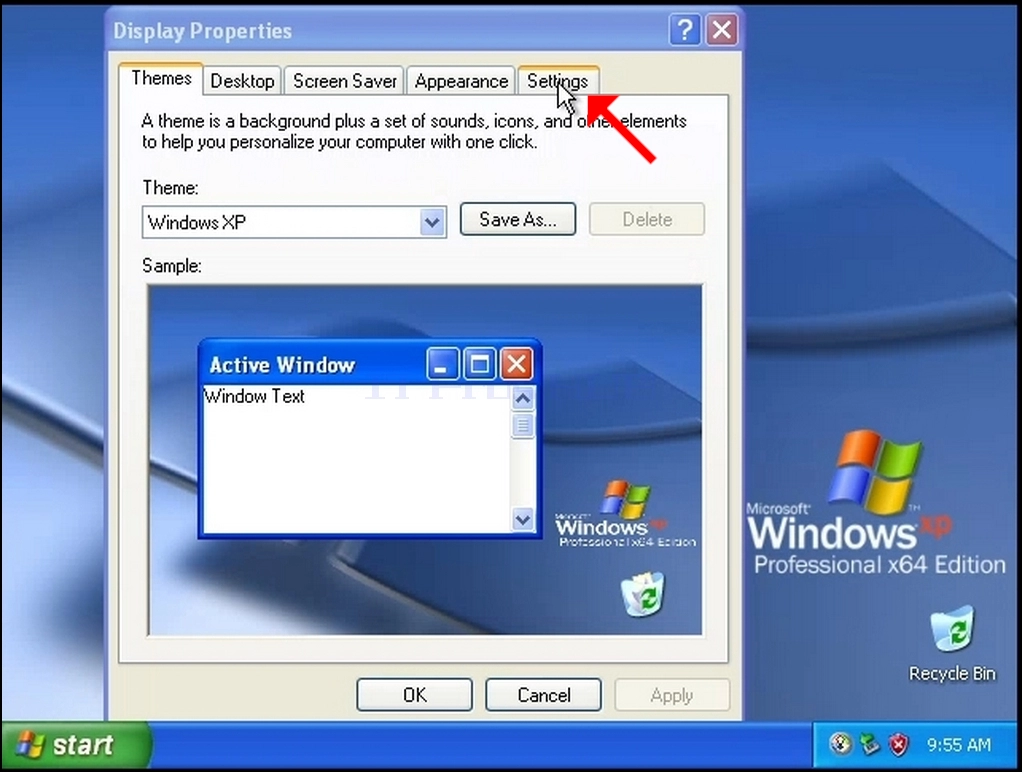
3. In the Display Properties window, look for the Settings tab and click it
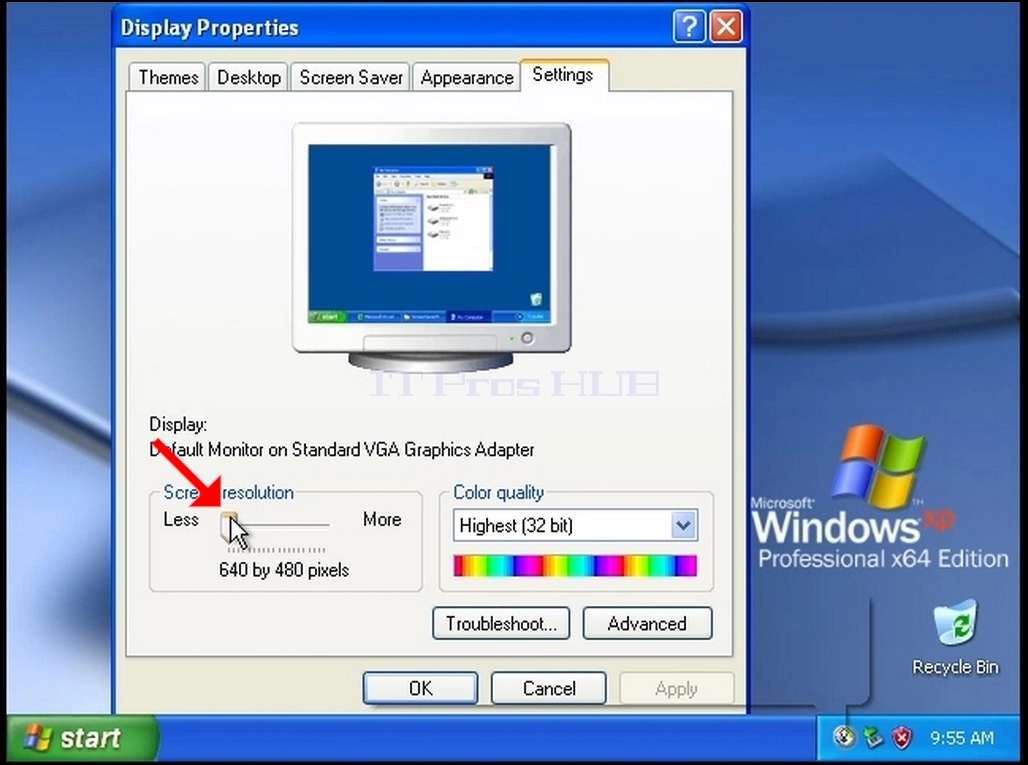
5. From the various resolution options, choose the one that best suits your needs (In this example the chosen one is 1024x768)
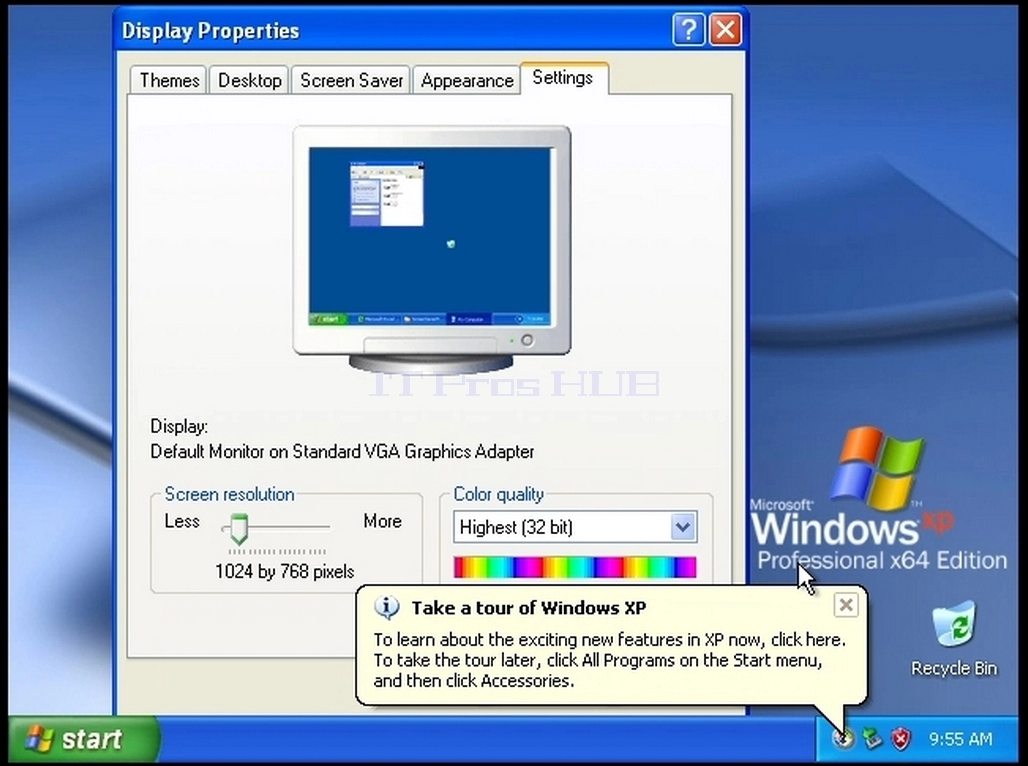
6. After choosing the new resolution setting Click Apply.
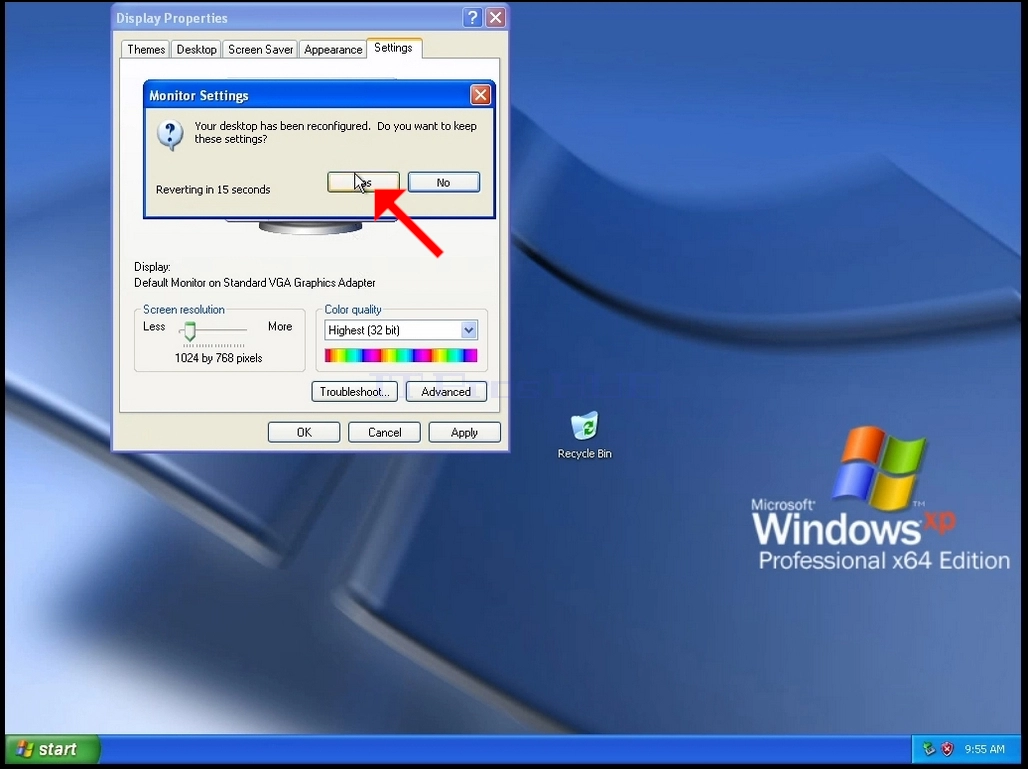
7. Windows will ask you whether you like to Keep These Display Settings or to not to. If an option is not chosen within an allocated amount of seconds, Windows will revert back to the previously configured resolution. This is done in case the monitor doesn't support the selected resolution, and the user is unable to either see or see currently the video output in order to manually revert the newly selected resolution.
If the newly chosen resolution is compatible with the monitor, choose Yes Changes, and click it.
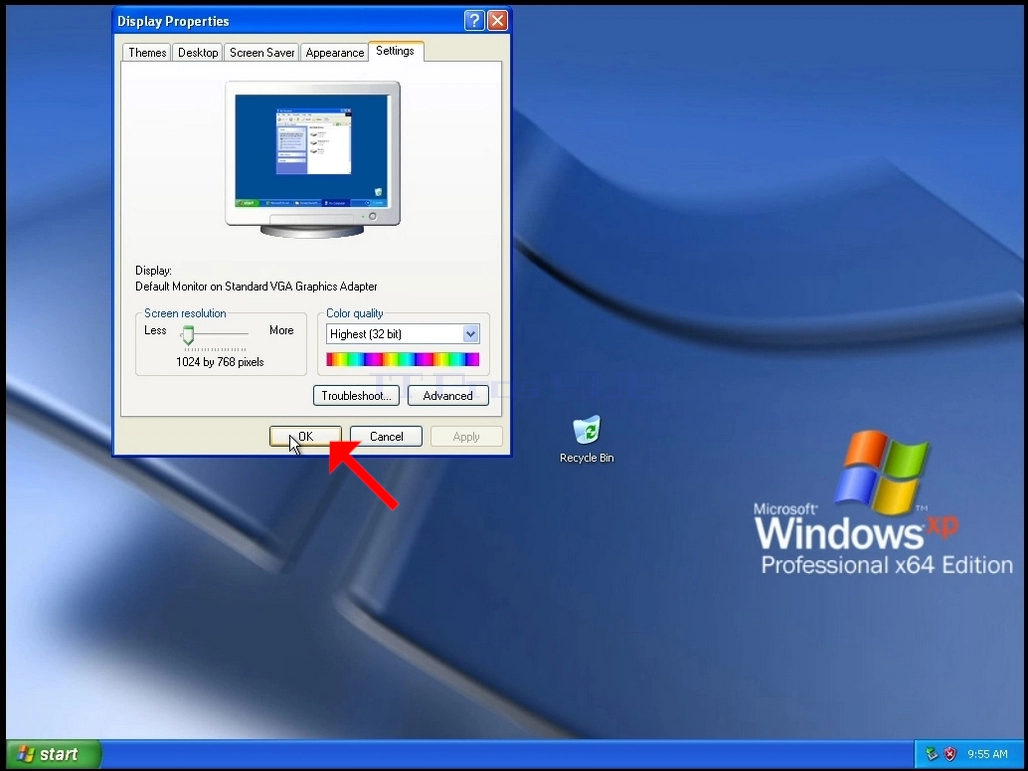
8. Click OK to close the Settings window
- Details
- Written by: IT Pro
- Category: How to Articles
- Hits: 6263
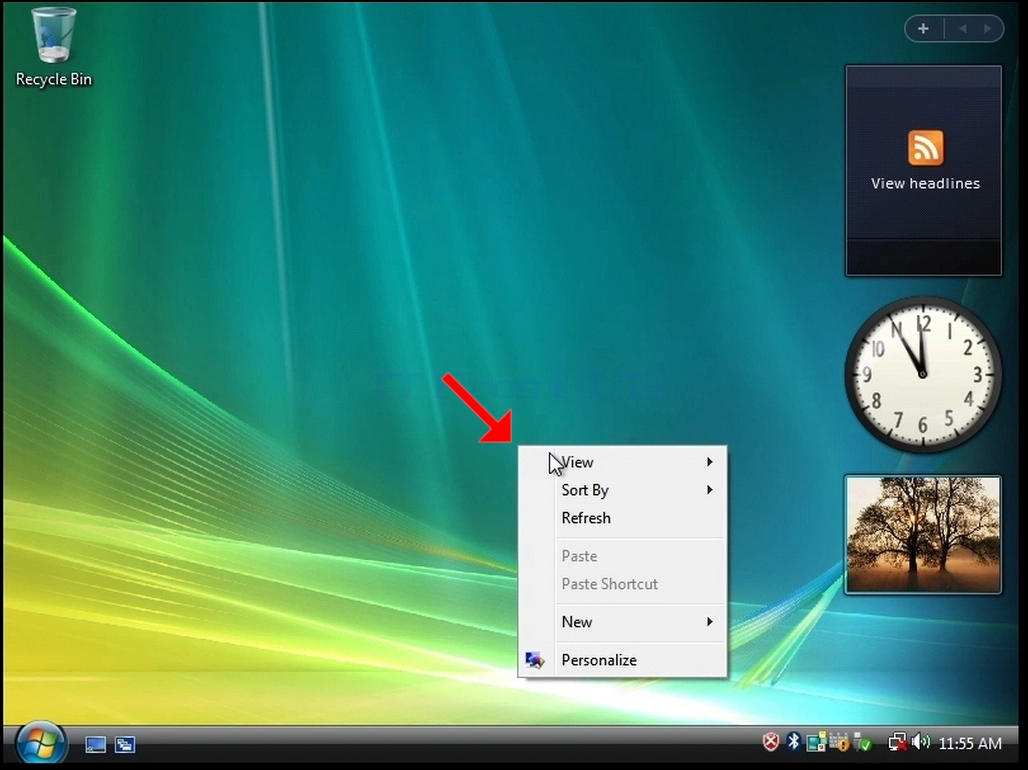
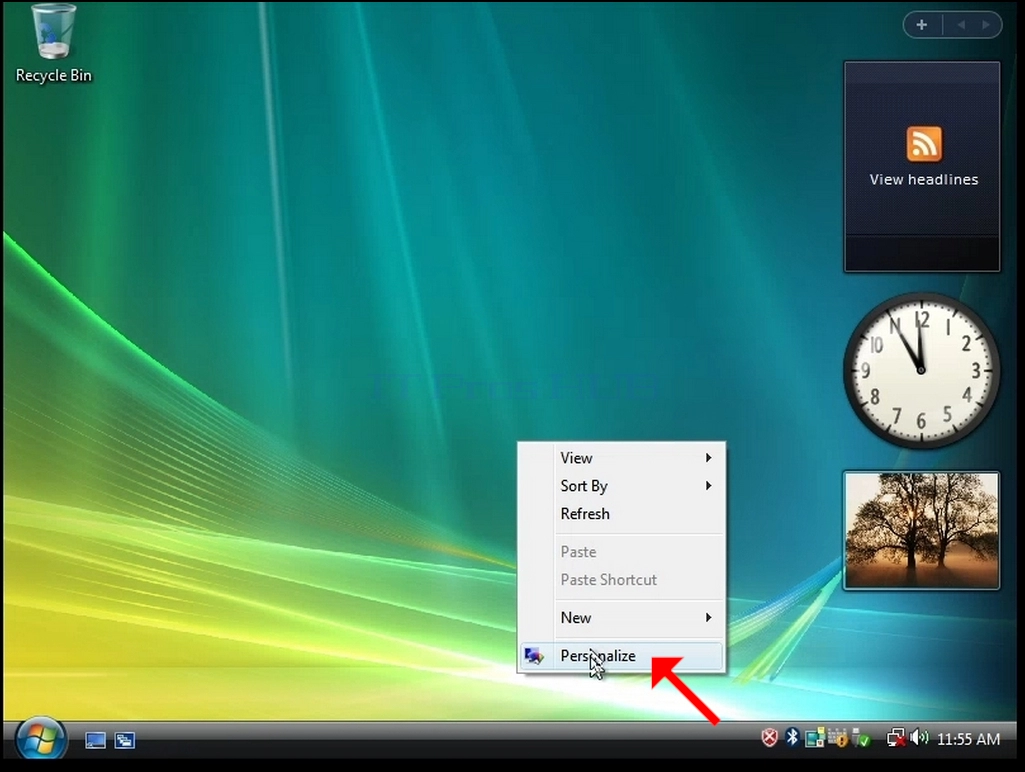
3. In the Personalization window, look for the Display Settings option and click it
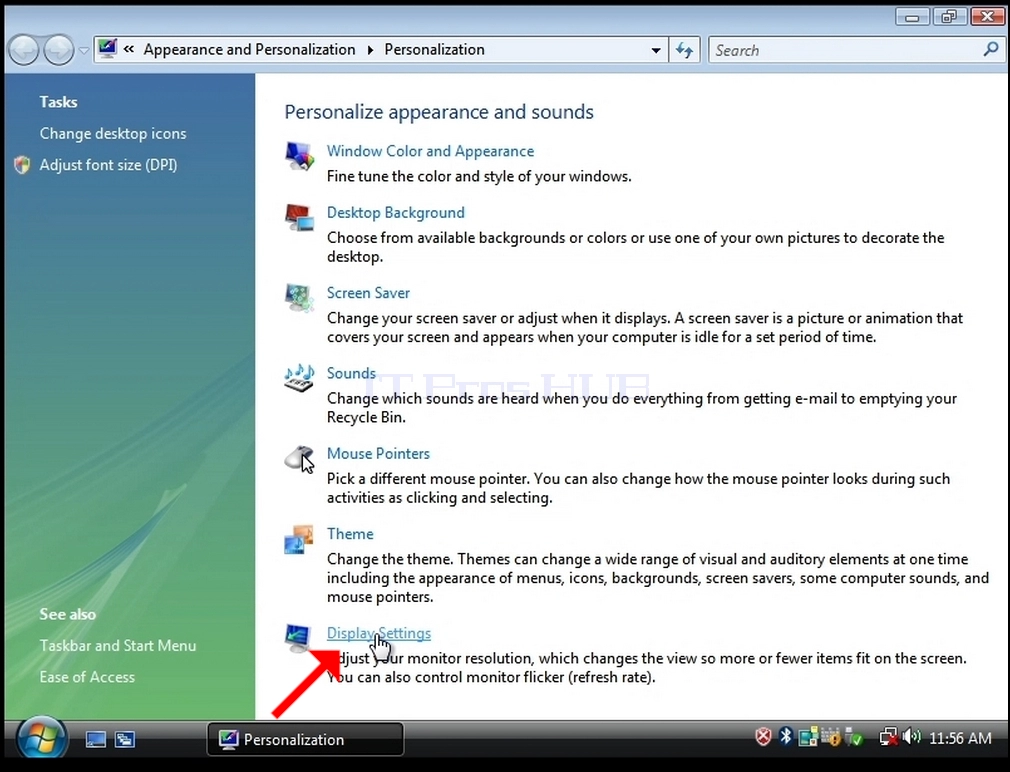
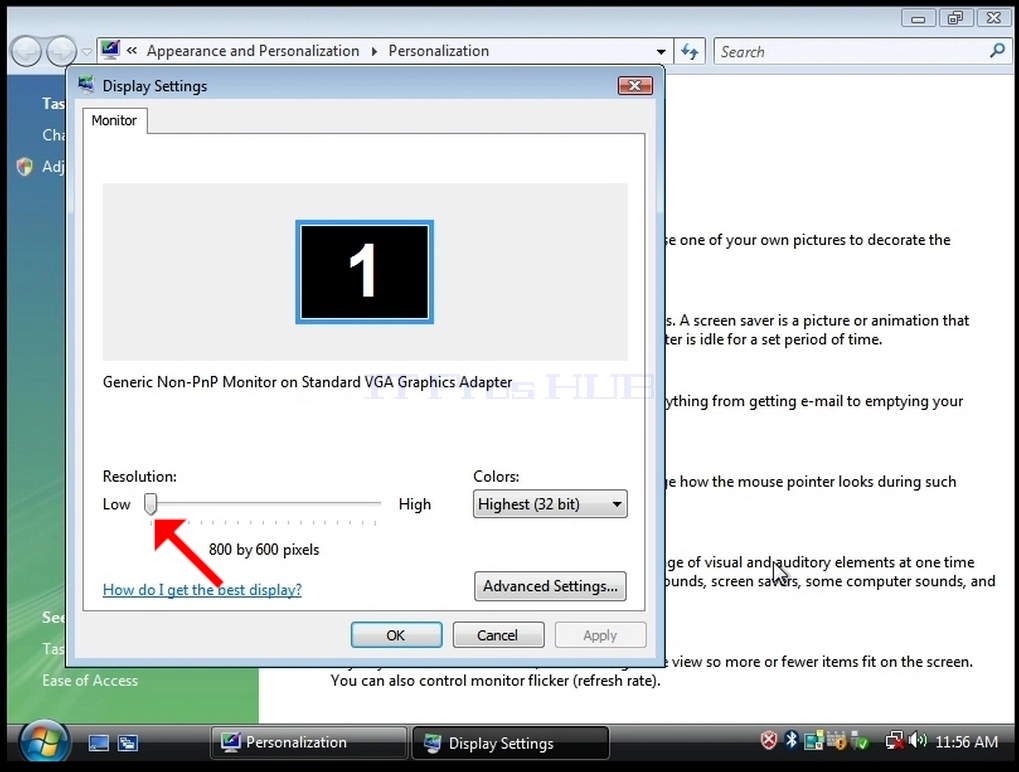
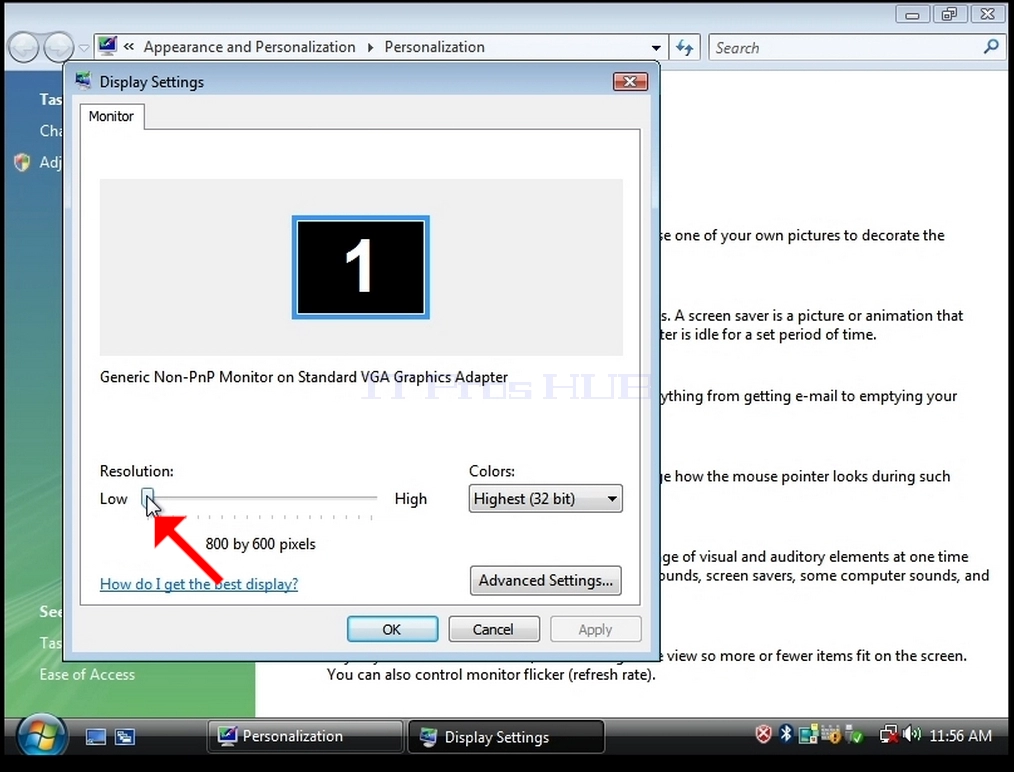
5. From the various resolution options, choose the one that best suits your needs by left clicking on it ( In this example the chosen one is 1024x768)
6. After choosing the new resolution setting Click Apply.
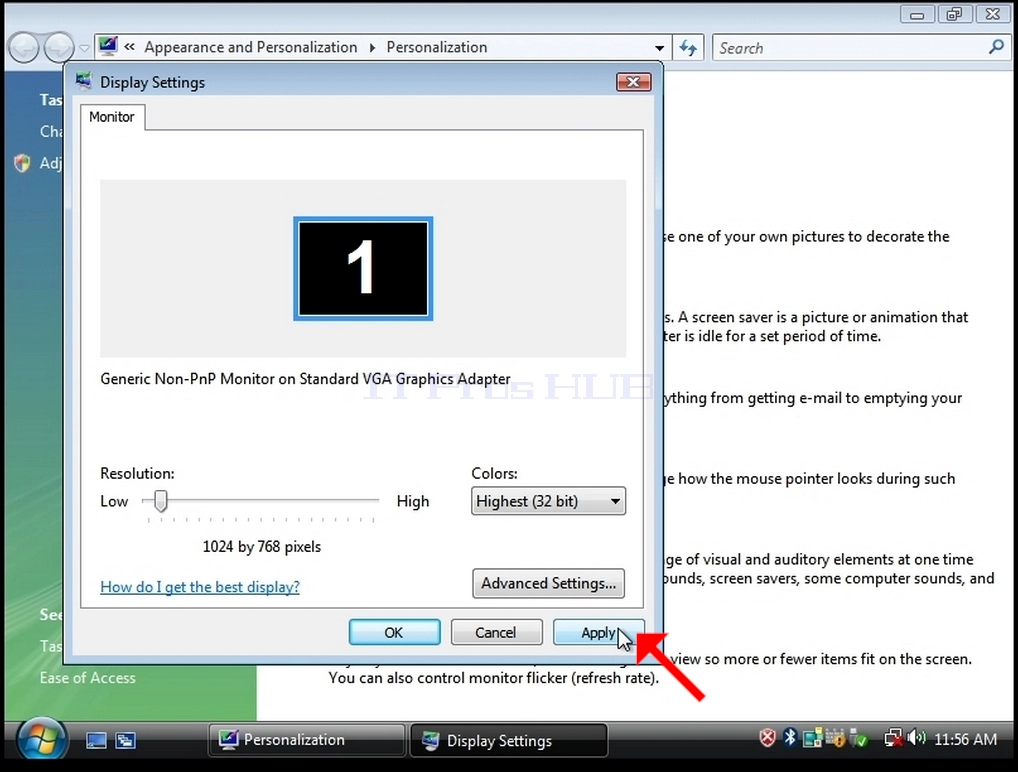
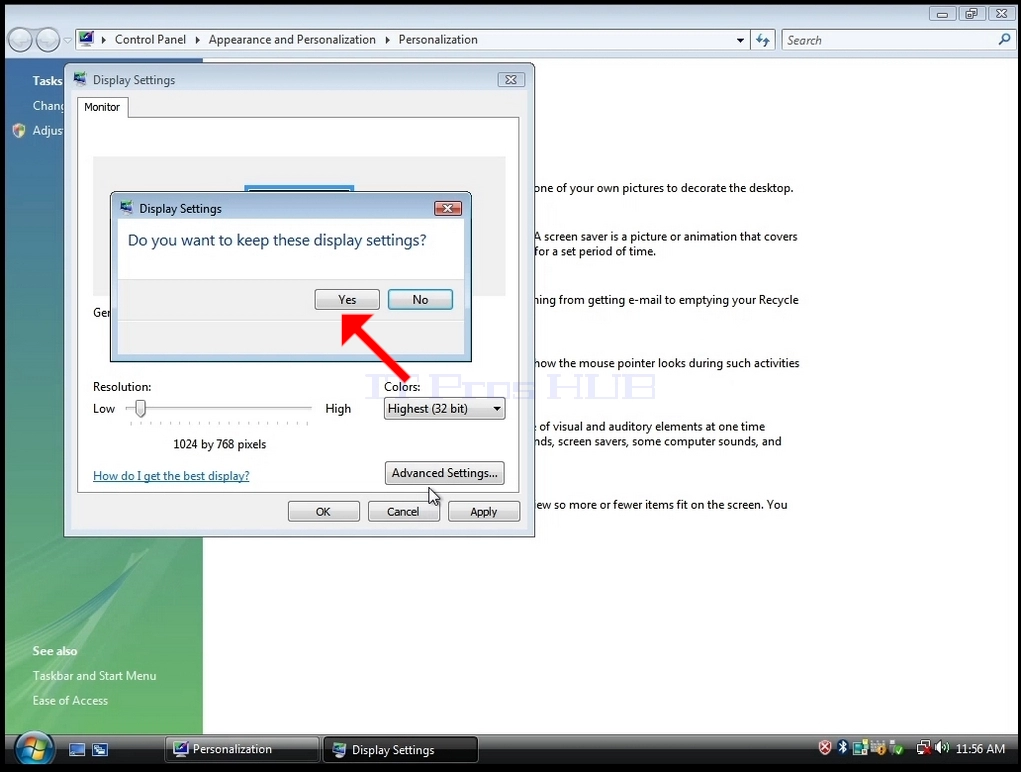
7. Windows will ask you whether you like to Keep These Display Settings or to not to. If an option is not chosen within an allocated amount of seconds, Windows will revert back to the previously configured resolution. This is done in case the monitor doesn't support the selected resolution, and the user is unable to either see or see currently the video output in order to manually revert the newly selected resolution.
If the newly chosen resolution is compatible with the monitor, choose Yes Changes, and click it.
- Details
- Written by: IT Pro
- Category: How to Articles
- Hits: 6366
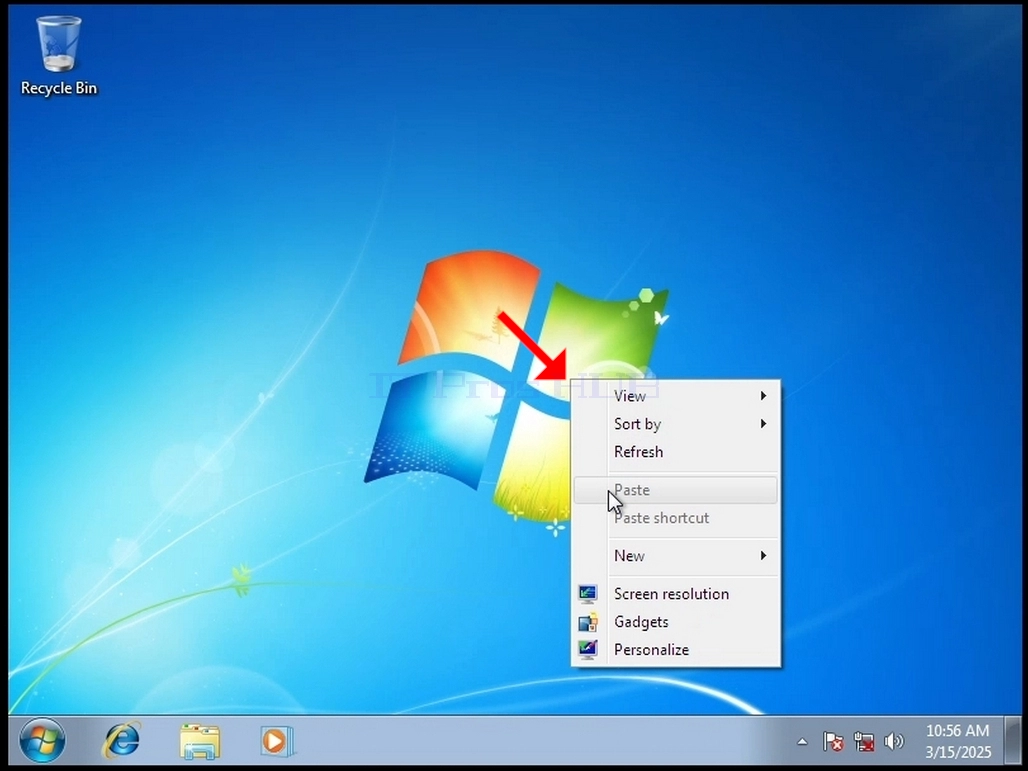
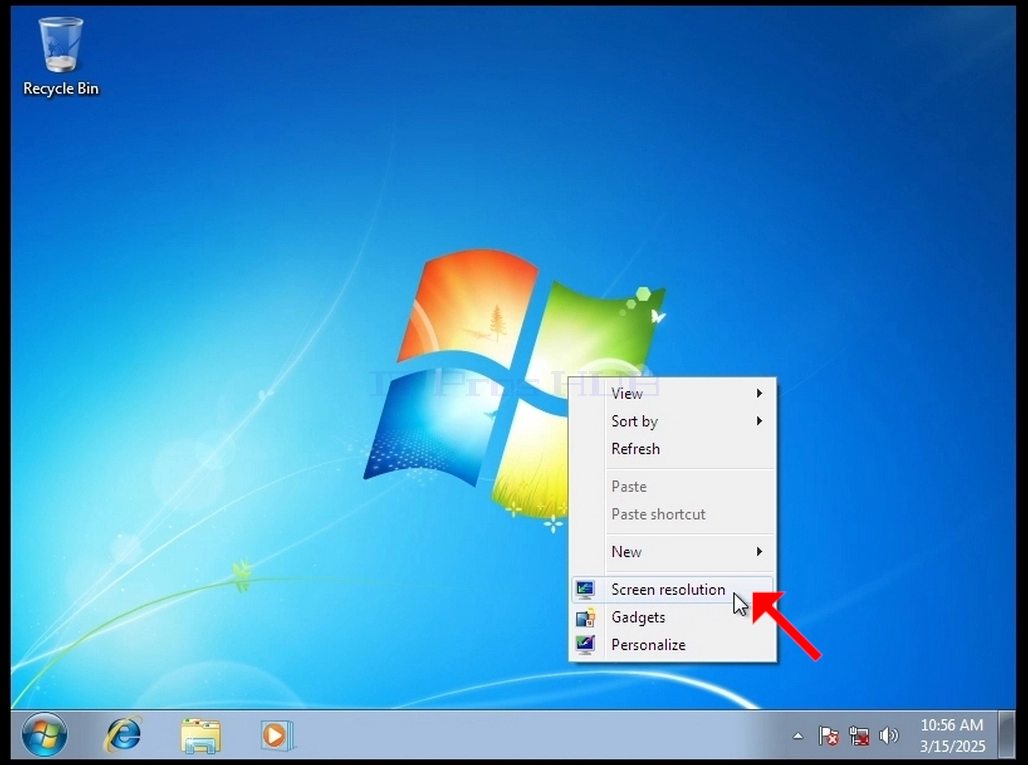
3. In the Settings window, look for the Resolution option
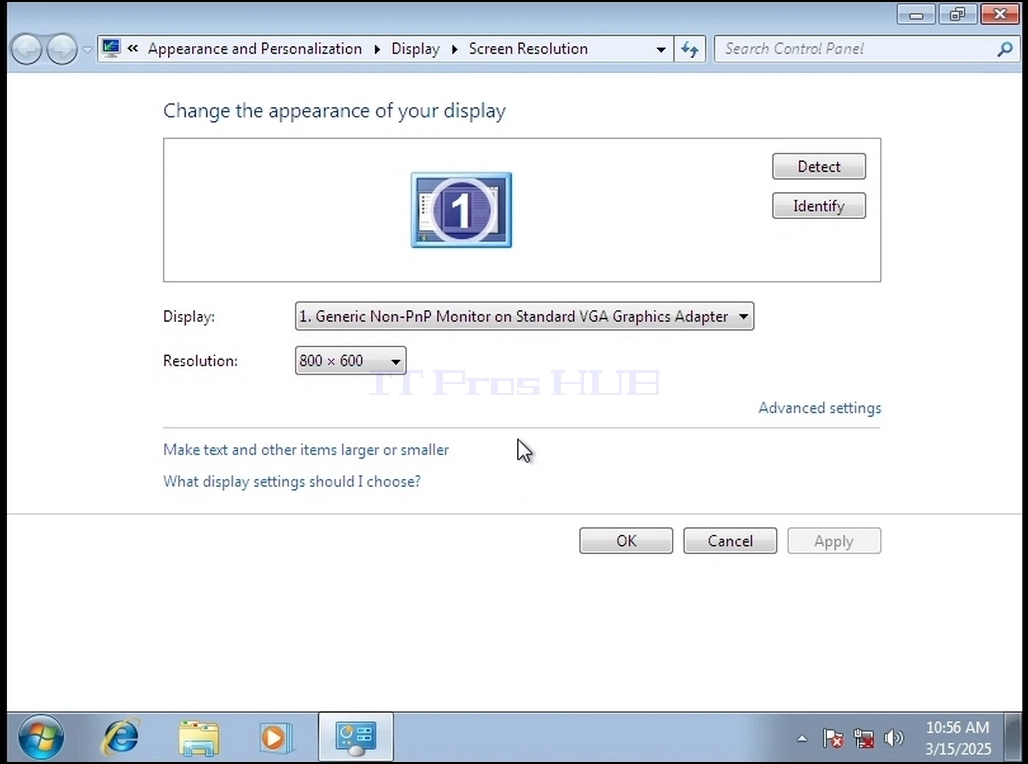
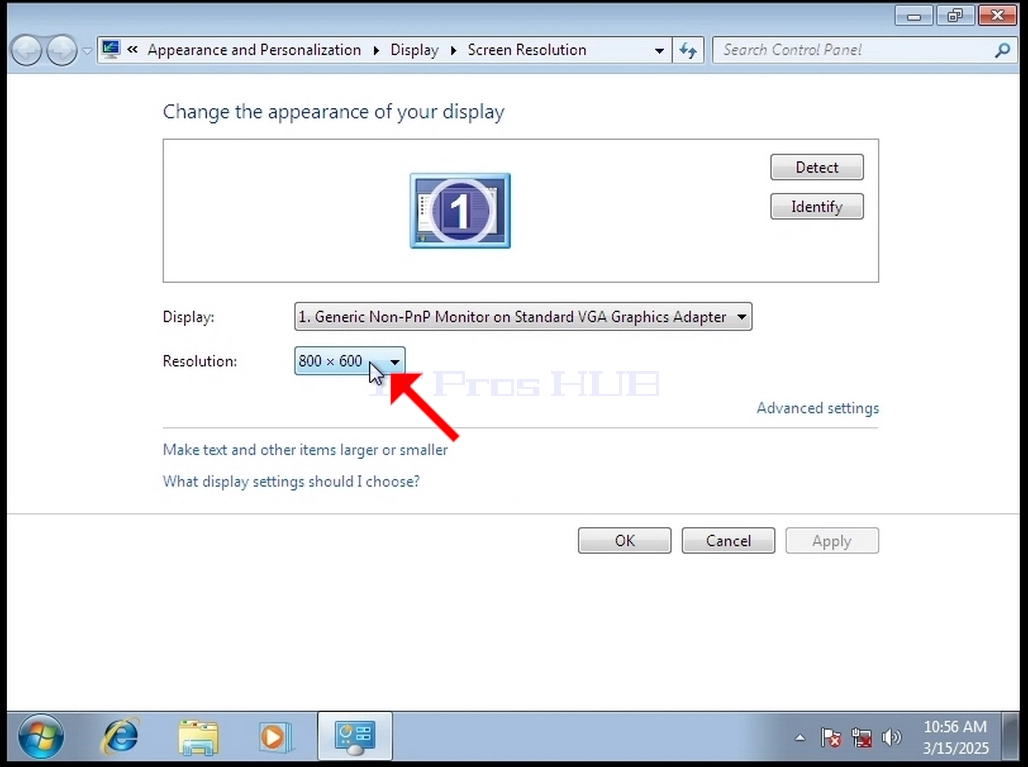
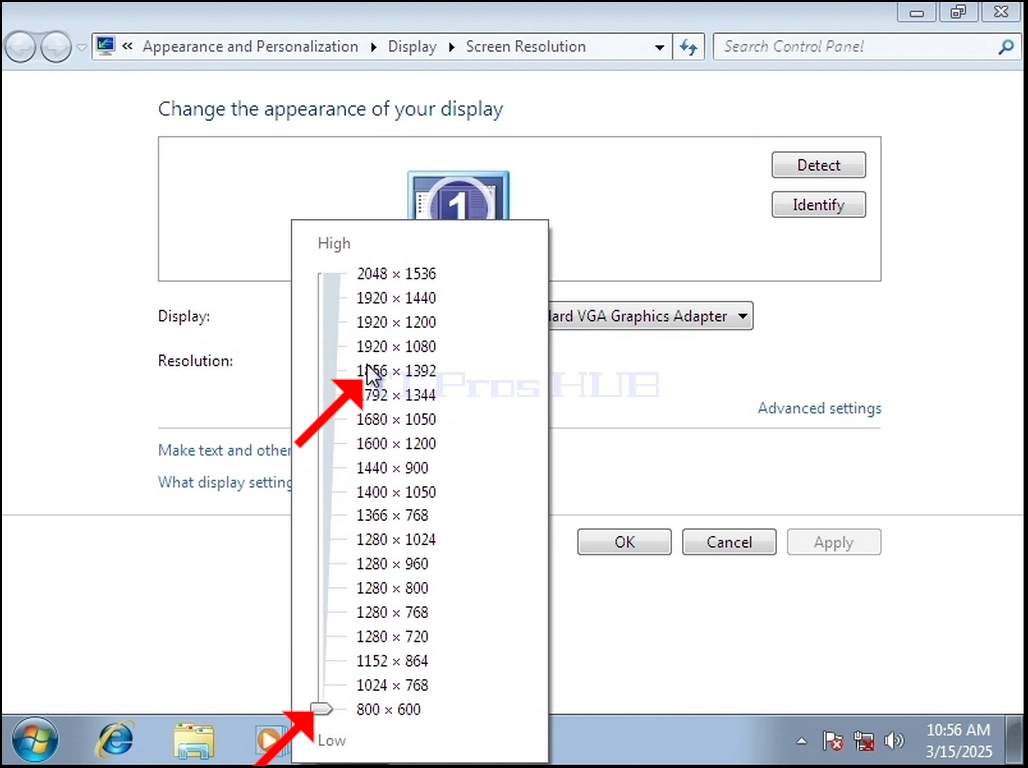
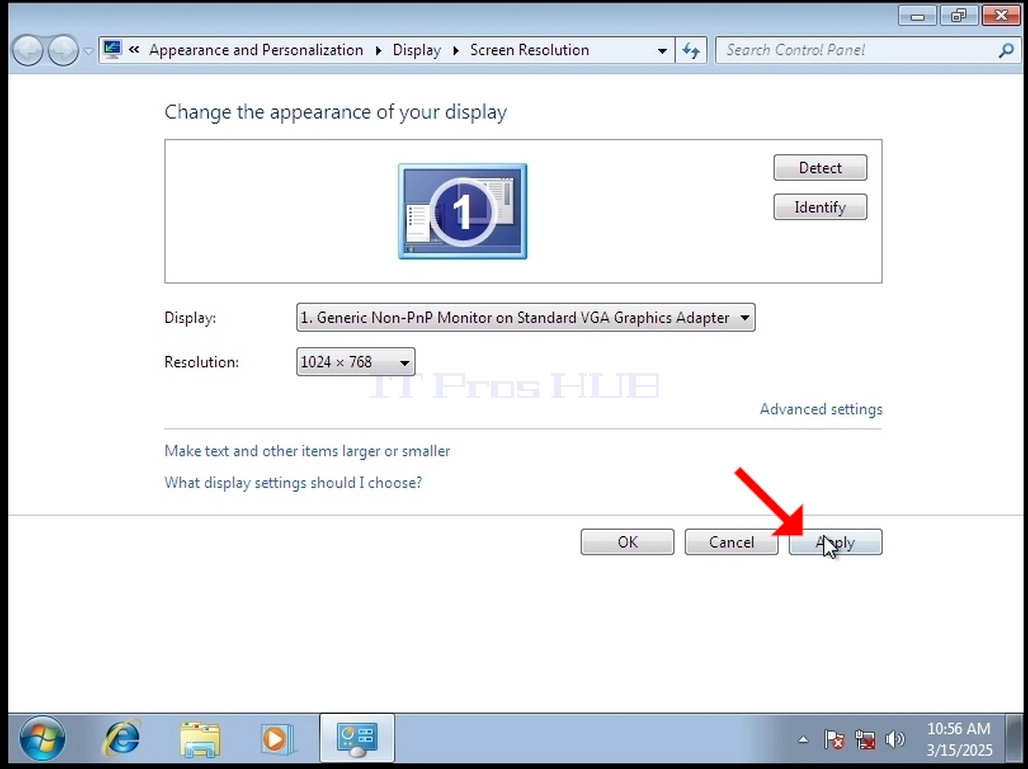
5. From the various resolution options, choose the one that best suits your needs by left clicking on it ( In this example the chosen one is 1024x768)
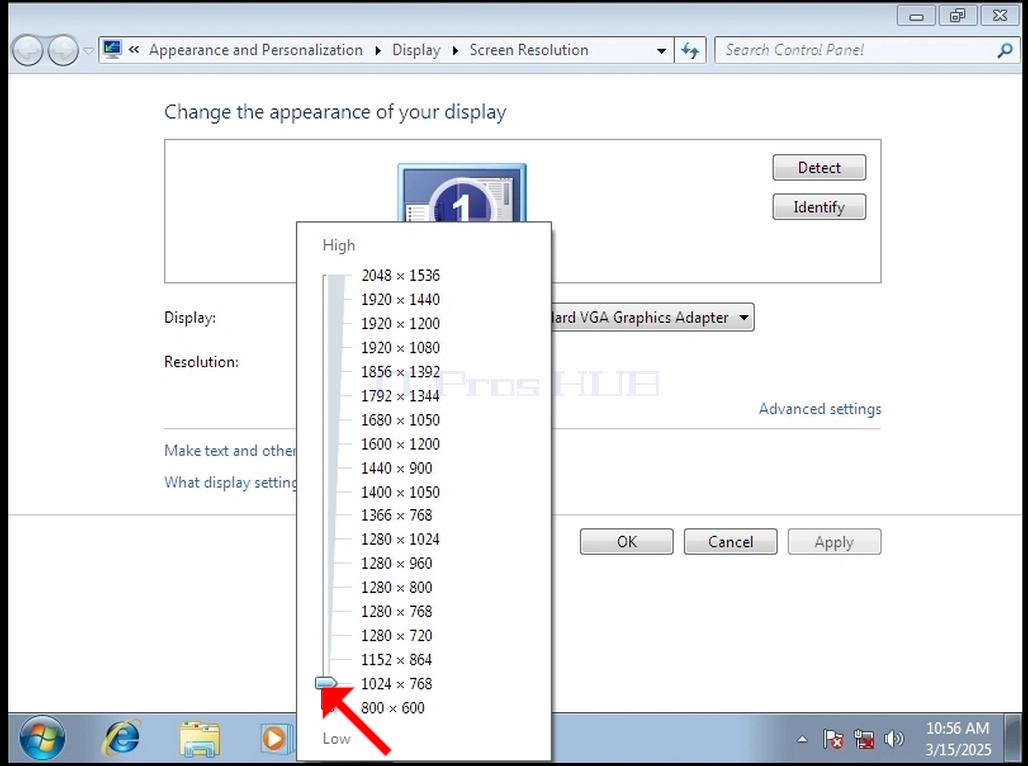
6. After choosing the new resolution setting Click Apply.
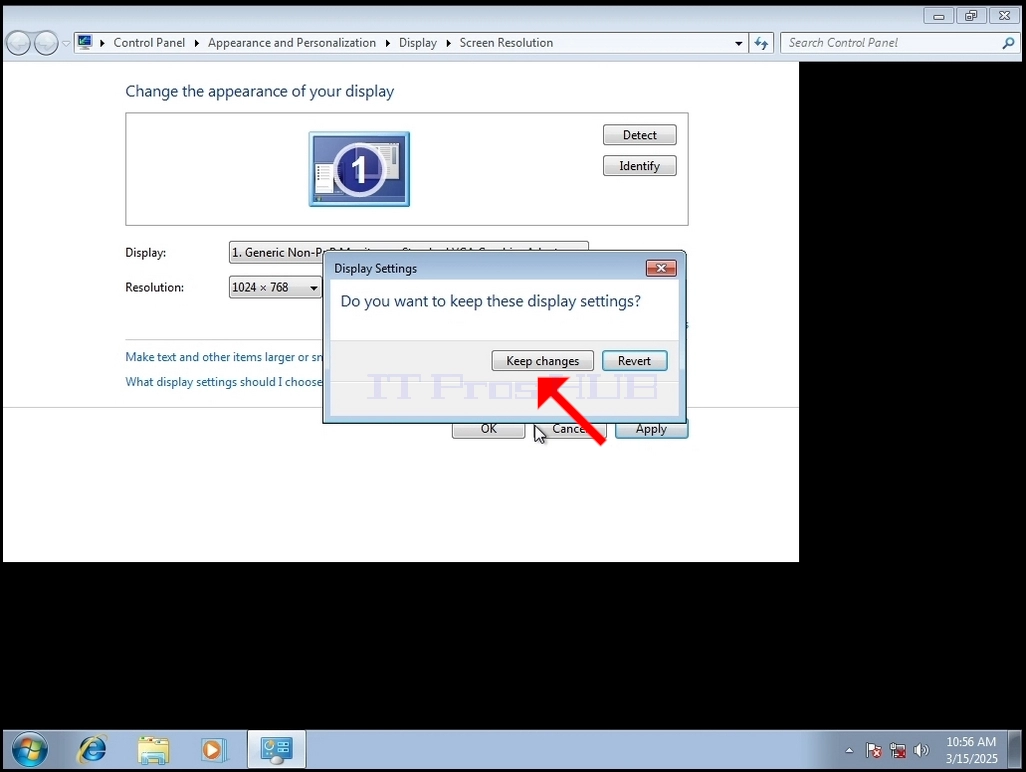
6. Windows will ask you whether you like to Keep Changes or to Revert them. If an option is not chosen within an allocated amount of seconds, Windows will revert back to the previously configured resolution. This is done in case the monitor doesn't support the selected resolution, and the user is unable to either see or see currently the video output in order to manually revert the newly selected resolution.
If the newly chosen resolution is compatible with the monitor, choose Keep Changes, and click it.
- Details
- Written by: IT Pro
- Category: How to Articles
- Hits: 4504
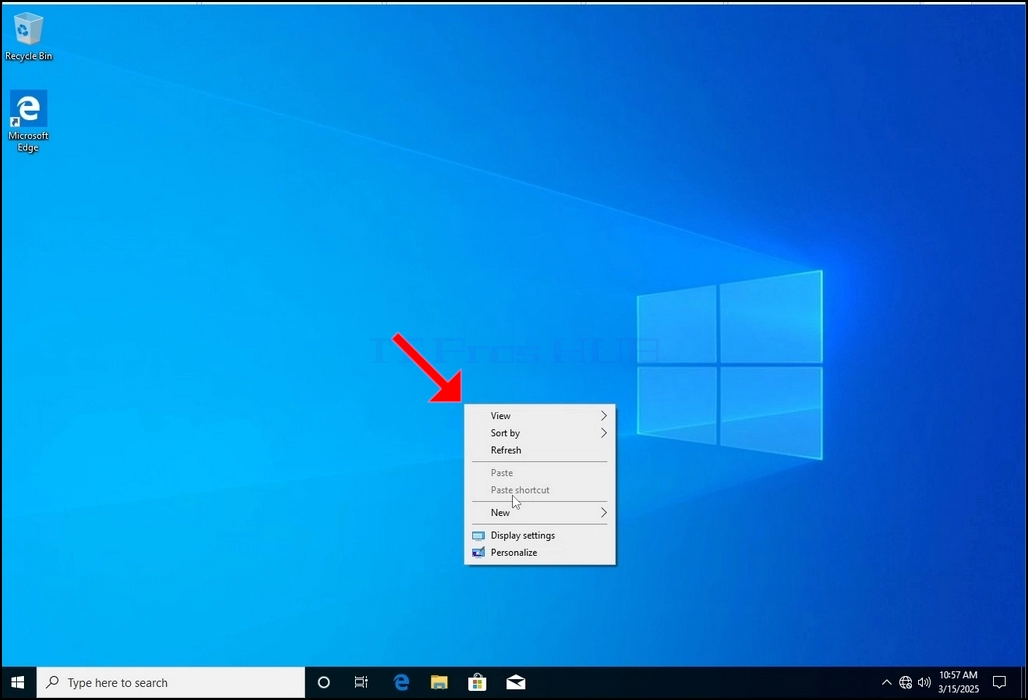
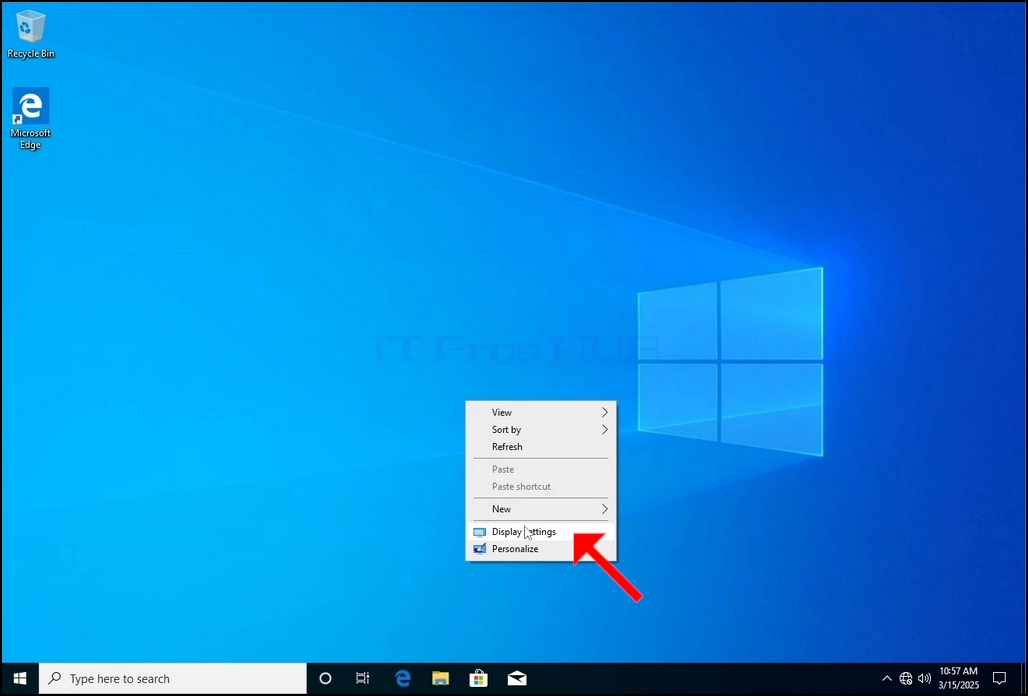
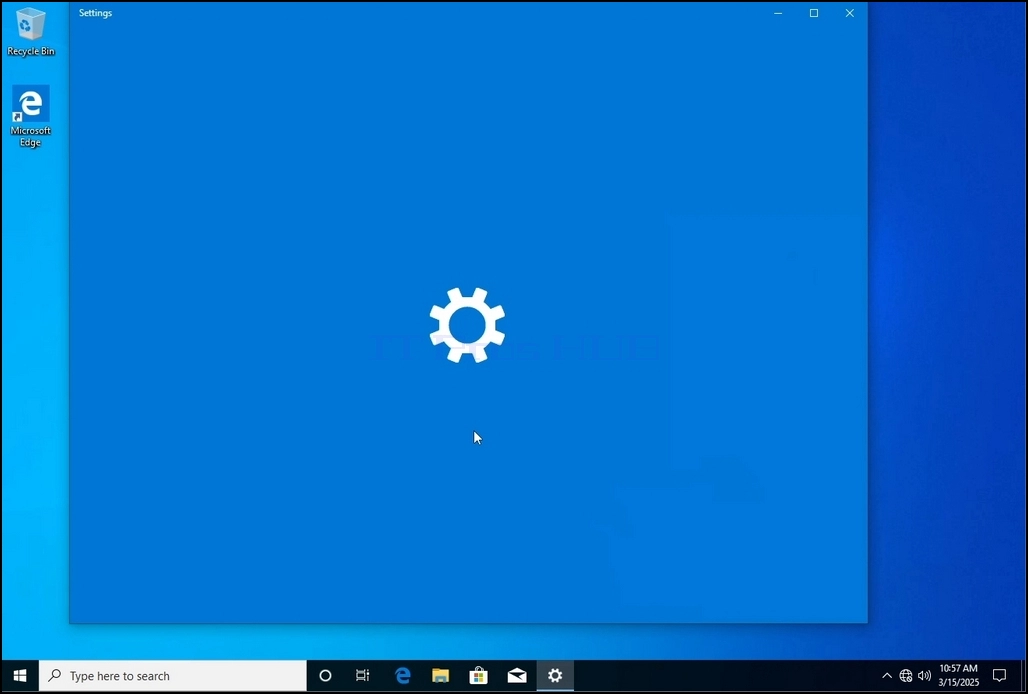
3. In the Settings window, under the System > Display options, look for the Display Resolution option
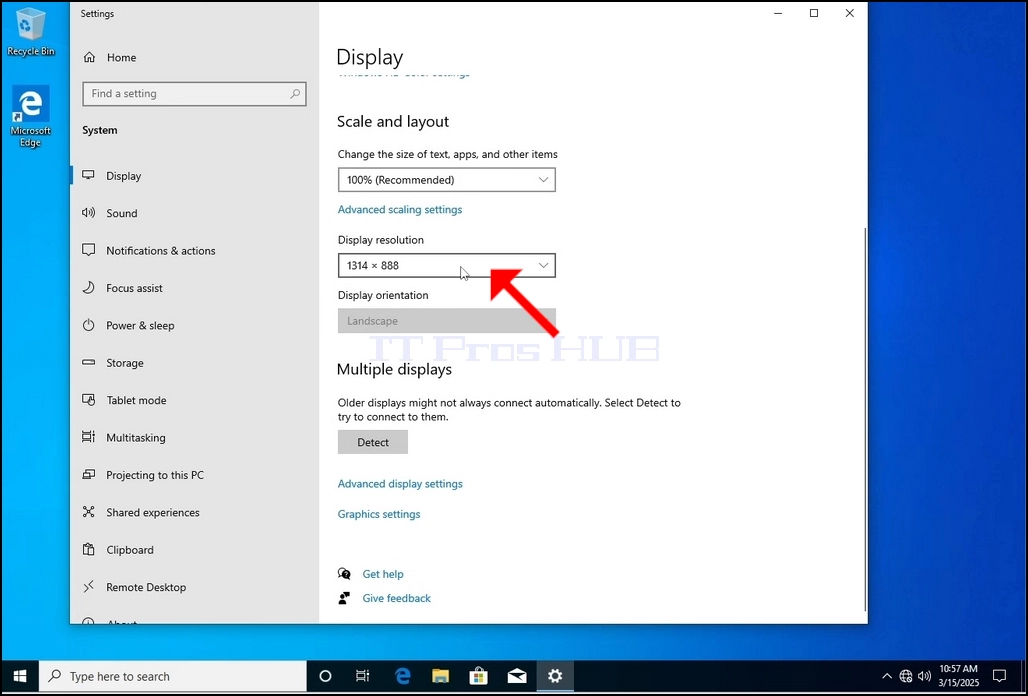
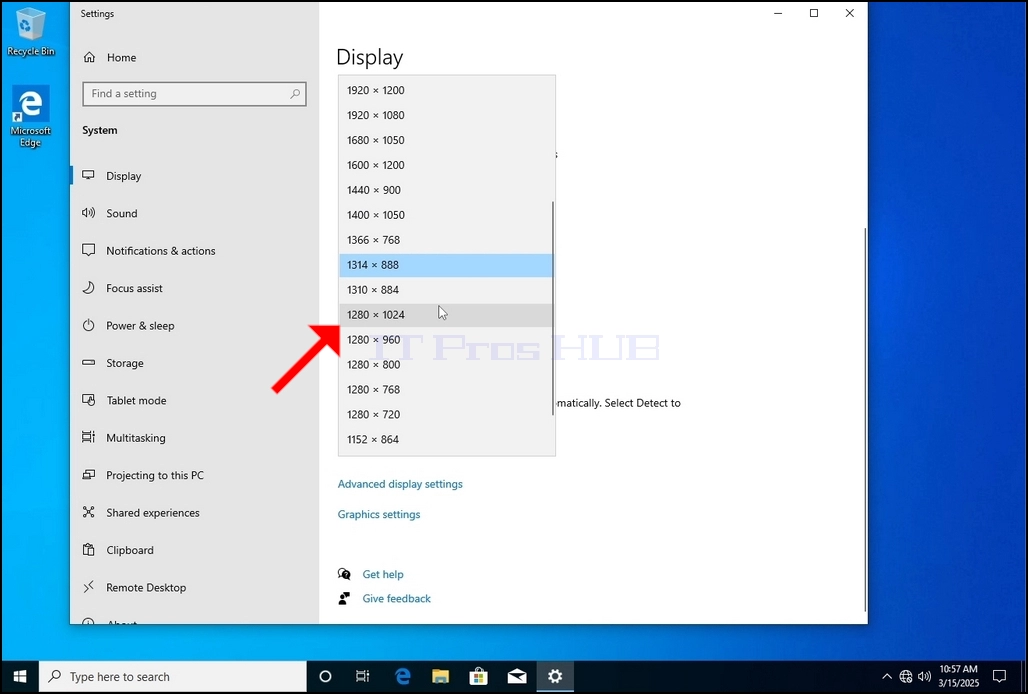
5. From the various resolution options, choose the one that best suits your needs by left clicking on it ( In this example the chosen one is 1024x768)
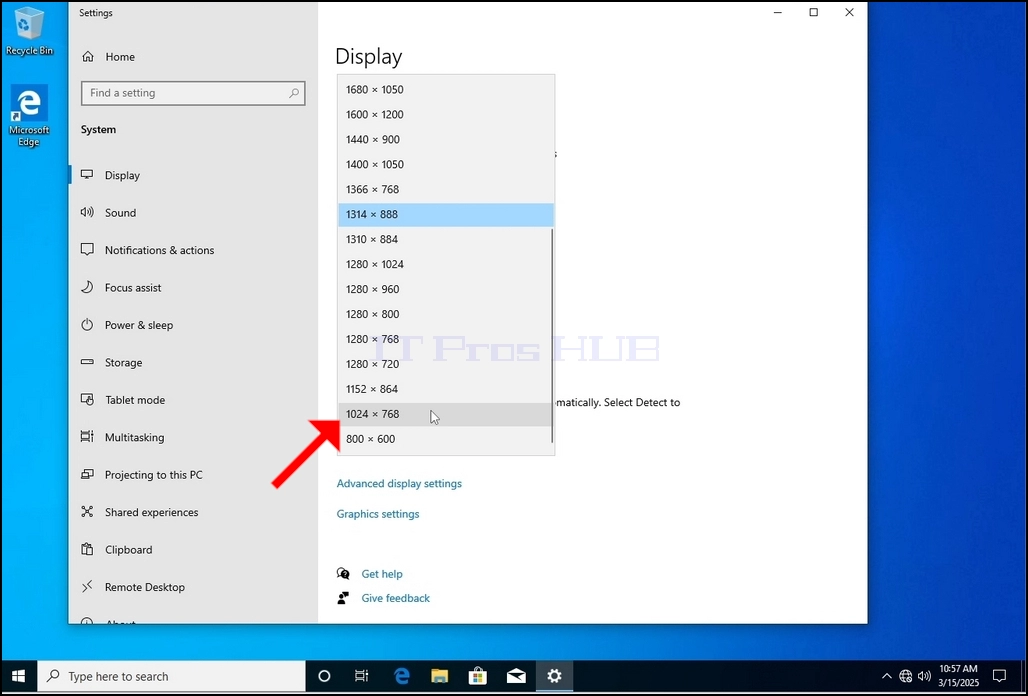
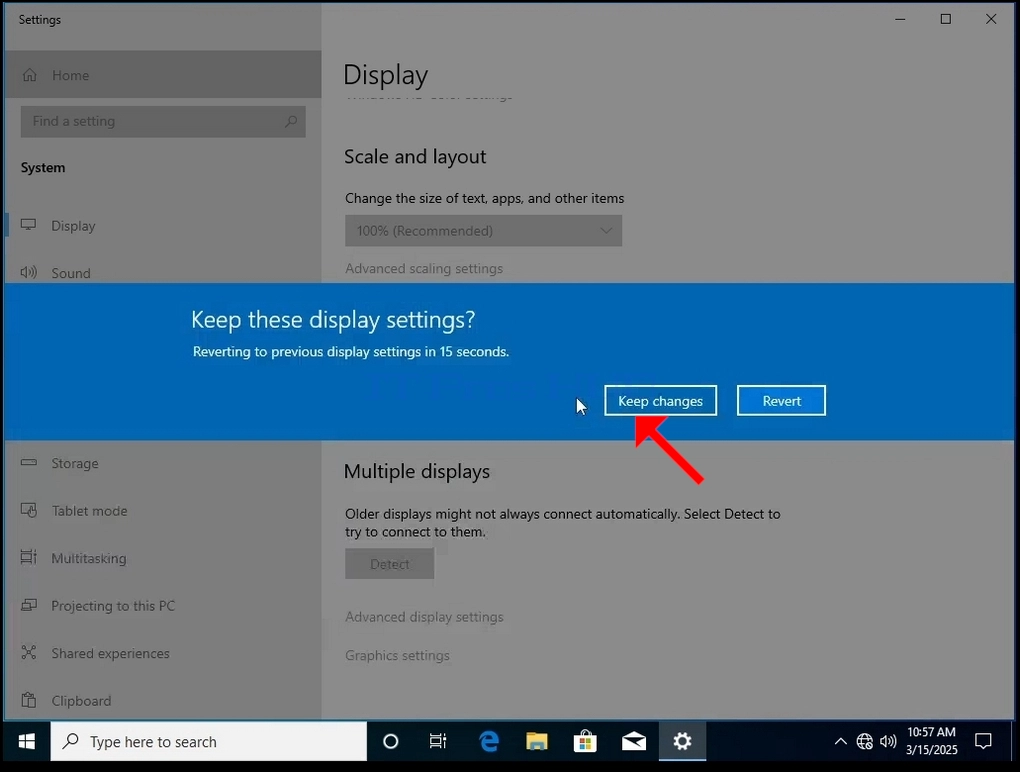
6. After choosing the new resolution setting, Windows will ask you whether you like to Keep Changes or to Revert them. If an option is not chosen with in an allocated amount of seconds, Windows will revert back to the previously configured resolution. This is done in case the monitor doesn't support the selected resolution and the user is unable to either see or see currently the video output in order to manually revert the newly selected resolution.
If the newly chosen resolution is compatible with the monitor, choose Keep Changes, and click it.
- విండోస్ 8.1 x64 ప్రో బిల్డ్ 9600 లో రిజల్యూషన్ ఎలా మార్చాలి
- Windows 10 2004 x64 Pro N బిల్డ్ 19041.264 లో రిజల్యూషన్ని ఎలా మార్చాలి
- విండోస్ 10 2004 x64 ప్రో ఫర్ వర్క్స్టేషన్స్ బిల్డ్ 19041.264 లో రిజల్యూషన్ను ఎలా మార్చాలి
- Windows 10 2004 x64 ప్రో ఎడ్యుకేషన్ N బిల్డ్ 19041.264 లో రిజల్యూషన్ను ఎలా మార్చాలి