



1. Go to Windows Desktop
2. Click Start

Once it finds it, click it and wait for the Control Panel window to appear.
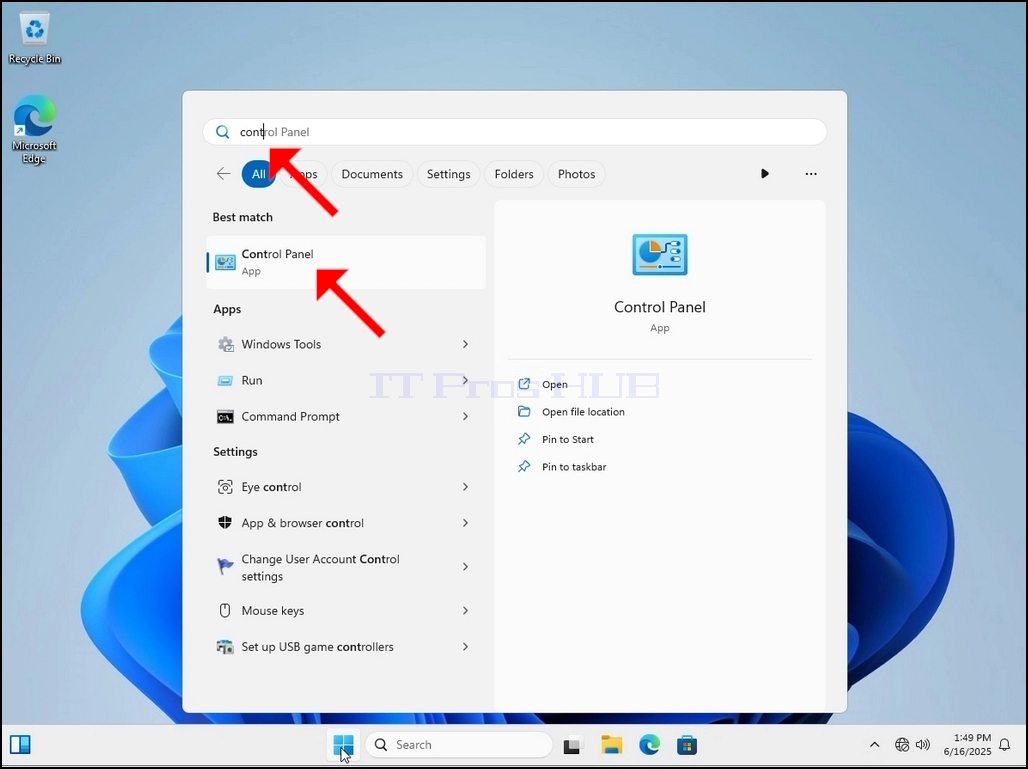
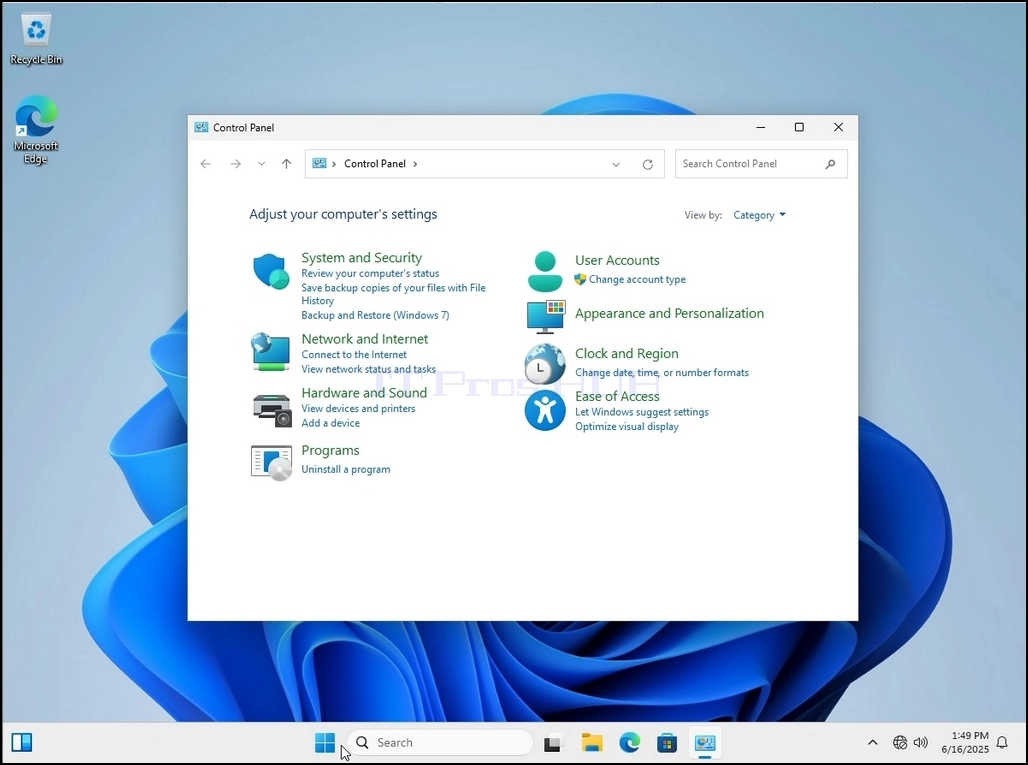
4. Once the Control Panel window is open, enlarge it by clicking the enlarging icon on the top right corner of that window.

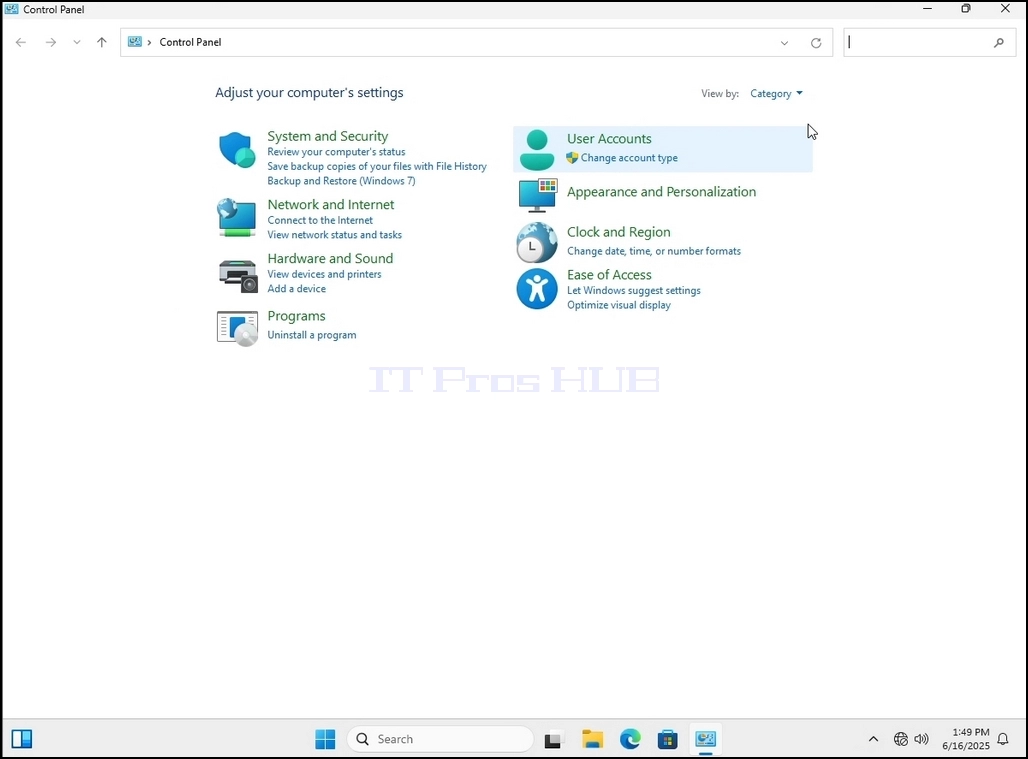


6. Look for the Indexing Options icon and click it. Wait for the Indexing Options window to appear.


9. After clicking OK in the confirmation box, Windows will start rebuilding its index. It might take some time for the actual process to start, Wait patiently a few seconds to a few minutes. The moment the process starts, the "Indexing Complete" sentence will be replaced with "Indexing in progress. Search results might not be complete during this time."
In addition, the number of items indexed will be reset to 0 for a moment and then start to increase.
Note that All of the windows that are related to the Indexing process can now be closed and the rebuilding process would still be running the background.
Note that the Indexing process' speed might be reduced due to user activity on the computer. The more intense the activity the less the Indexing speed would be.

10. To check if the indexing process is done, go back to the Indexing Options through Control Panel as explained in the previous stages. If the process is complete, you would see the "Indexing Complete" sentence appears again.
Since Windows does not notify the user once this process is done, there is indeed a need to perform the latter mentioned. Depending on the number of files, folders, drivers and partitions marked for indexing, this process could take between a few minutes to a few hours.
 1. Windows Masaüstü'ne gidin
2. Başlat'a tıklayın
3. Başlat menüsü açıldıktan sonra "denetim masası" yazın ve Başlat menüsünün Denetim Masası simgesini bulmasını bekleyin. Lütfen sadece "cont" yazmanın mümkün olduğunu ve çoğu durumda Başlat menüsünün Denetim Masası simgesini bulacağını unutmayın.
Bulduğunda, tıklayın ve Denetim Masası penceresinin görünmesini bekleyin.
4. Denetim Masası penceresi açıldıktan sonra, pencerenin sağ üst köşesindeki büyütme simgesine tıklayarak büyütebilirsiniz.
5. Gezinmeyi kolaylaştırmak için Denetim Masası penceresinin sağ üst tarafındaki Kategori'ye tıklayın ve açılan küçük yeni menüden "Büyük Simgeler"i seçin.
6. Dizinleme Seçenekleri simgesini bulun ve tıklayın. Dizinleme Seçenekleri penceresinin açılmasını bekleyin.
7. Dizinleme Seçenekleri penceresi açıldıktan sonra, pencerenin alt kısmındaki Gelişmiş düğmesine tıklayın.
8. Yeni pencerede Yeniden Oluştur düğmesini bulun ve tıklayın. Ardından bir onay kutusu açılacaktır. Dizini yeniden oluşturmaya başlamak için Tamam düğmesine tıklayın.
9. Onay kutusunda Tamam'a tıkladıktan sonra, Windows dizinini yeniden oluşturmaya başlayacaktır. Gerçek işlemin başlaması biraz zaman alabilir. Birkaç saniyeden birkaç dakikaya kadar sabırla bekleyin. İşlem başladığı anda, "Dizinleme Tamamlandı" cümlesi "Dizinleme devam ediyor. Arama sonuçları bu süre zarfında tamamlanmamış olabilir" ile değiştirilecektir.