Online: 824 online | Members: 0 | Guests: 824
Сряда, Юни 3, 2026
Page Minimap
Reading time: 2 min read
Tagline:HowtoInstallTheBatEmailClientinWindows10
There is no translation available.

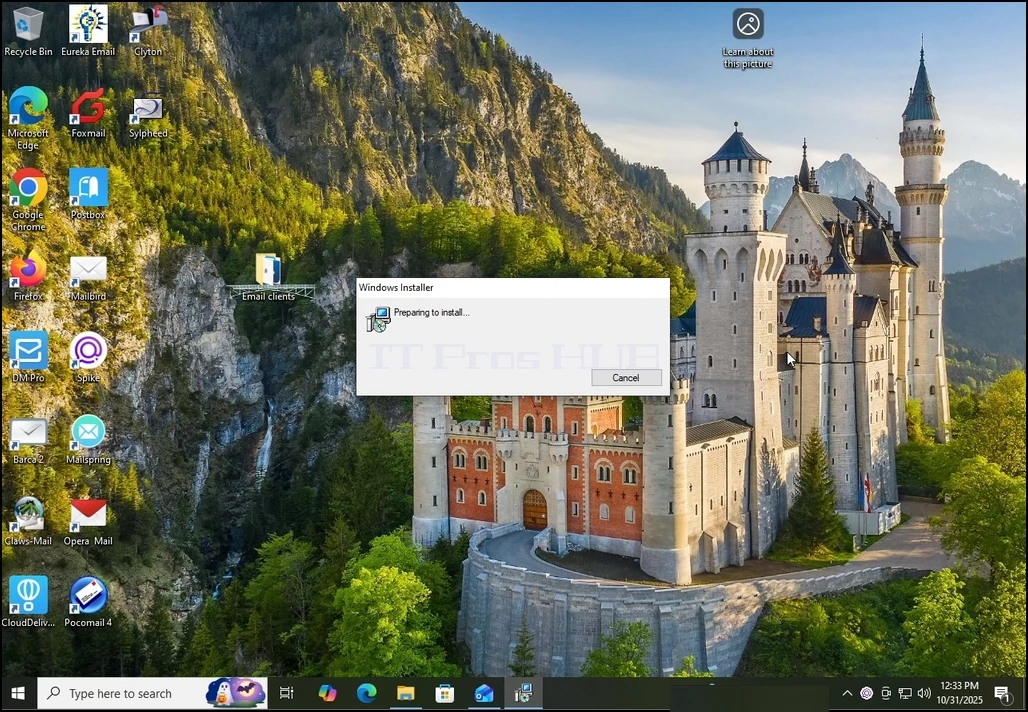
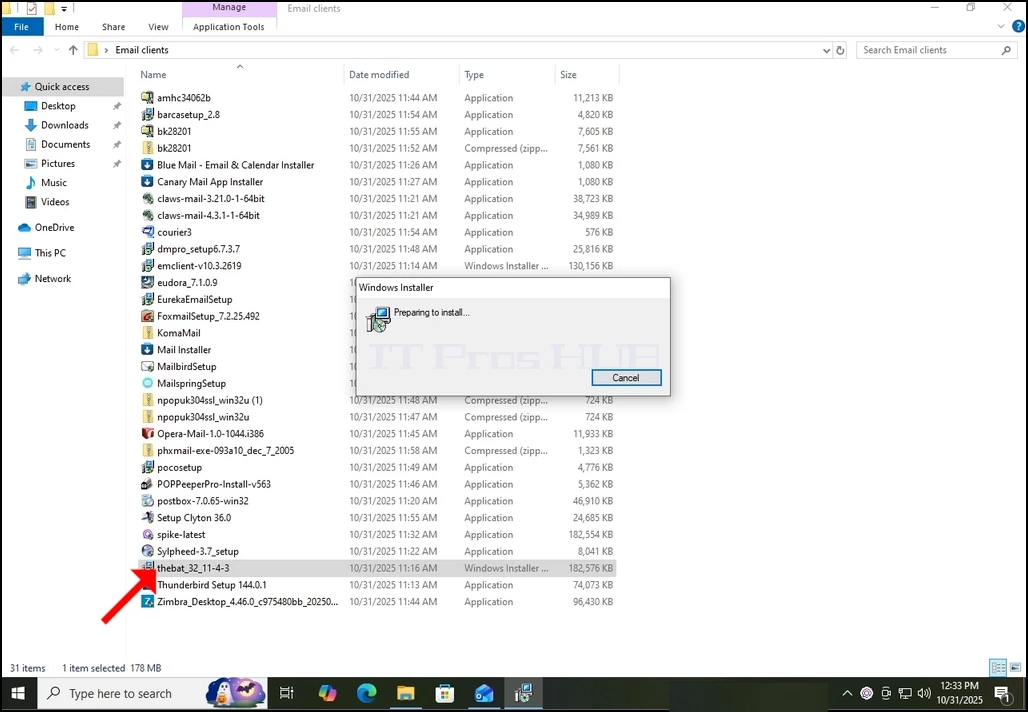
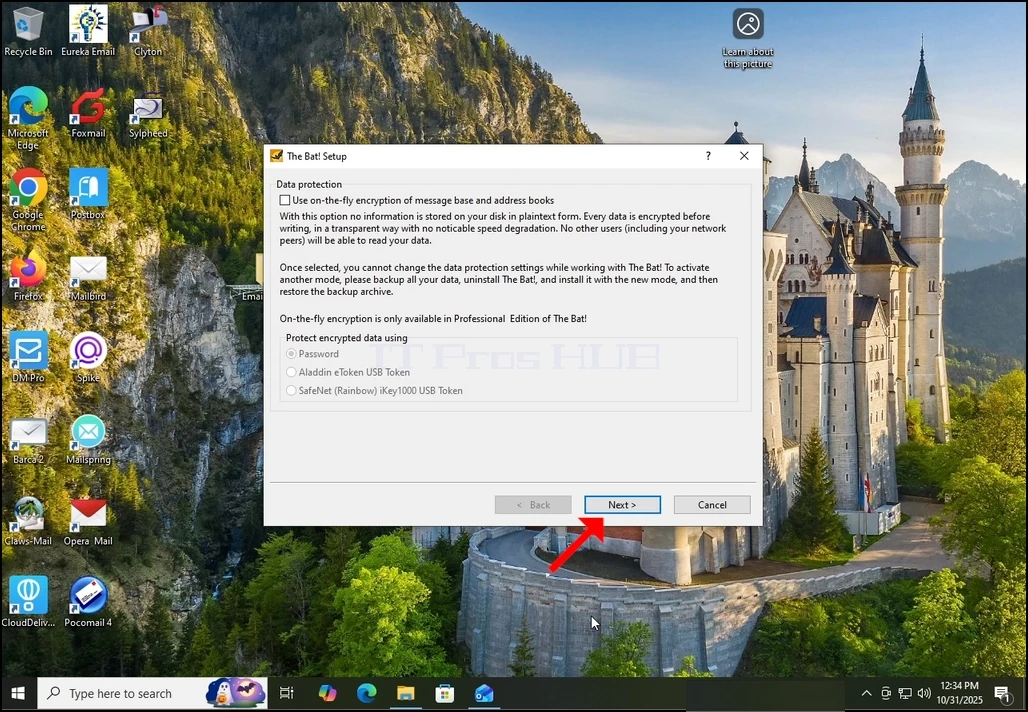
 1. Download The Bat client and click on the downloaded file. Wait for it to start the installation wizard. Hit the NEXT key when the Data Protection window is shown.
How_to_Install_The_Bat_Emai_Client_on_Windows_10.webp

2025-11-07_19_21_09-2025-10-31_21-21-10.mkv_-_VLC_media_player.webp

2025-11-07_19_20_43-2025-10-31_21-21-10.mkv_-_VLC_media_player.webp

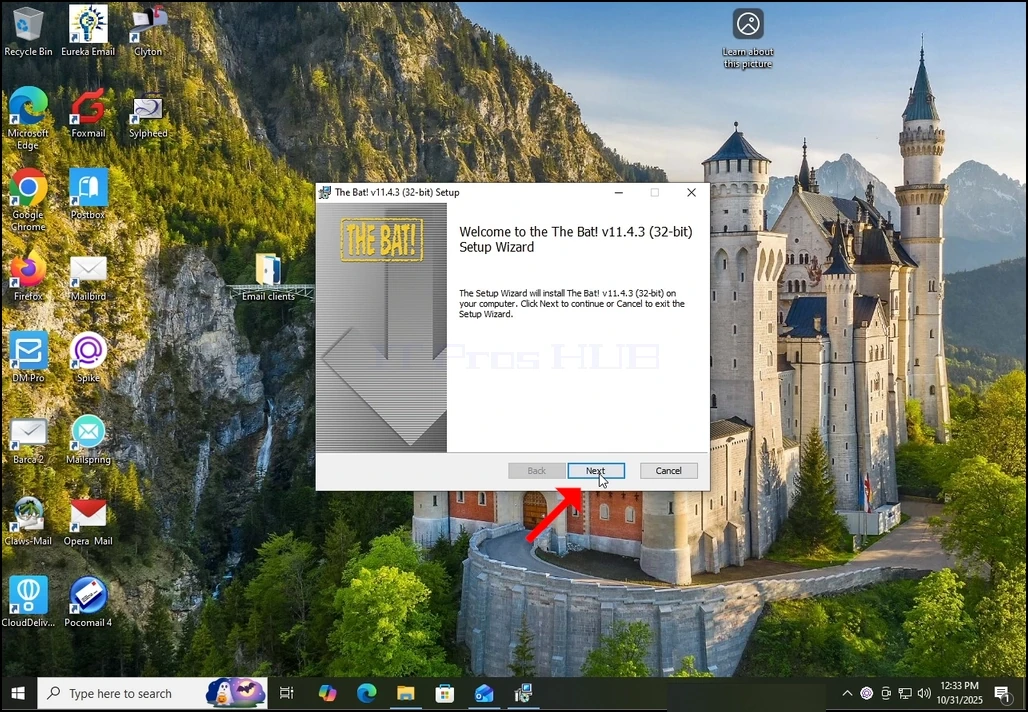
2. Once the installation wizard is open, click the NEXT button.

2025-11-07_19_20_46-2025-10-31_21-21-10.mkv_-_VLC_media_player.webp

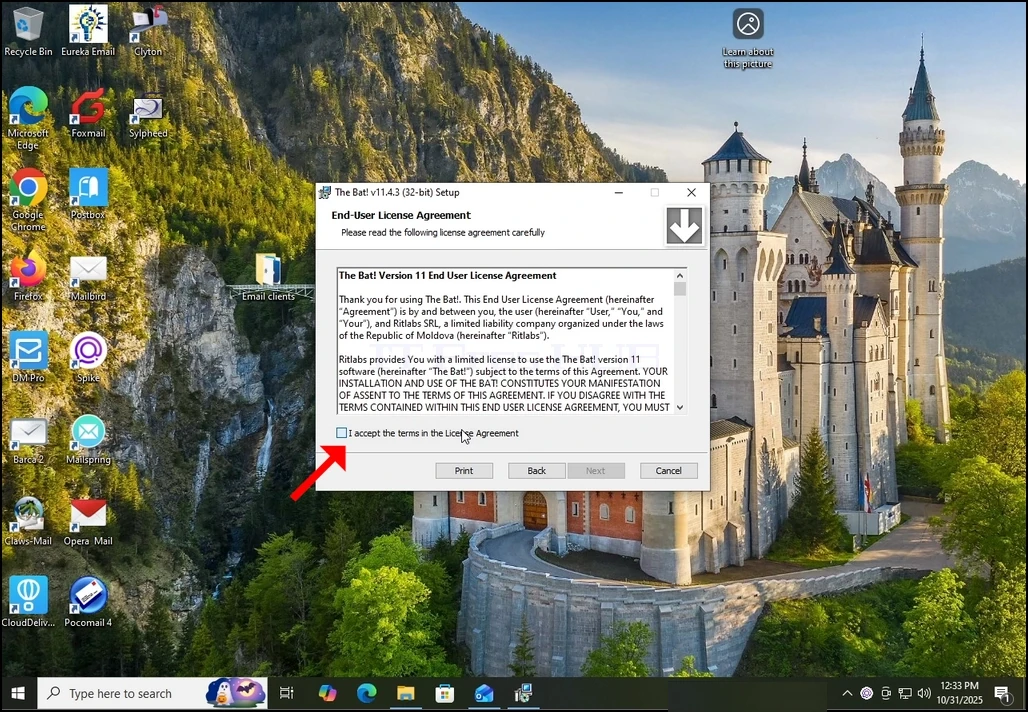
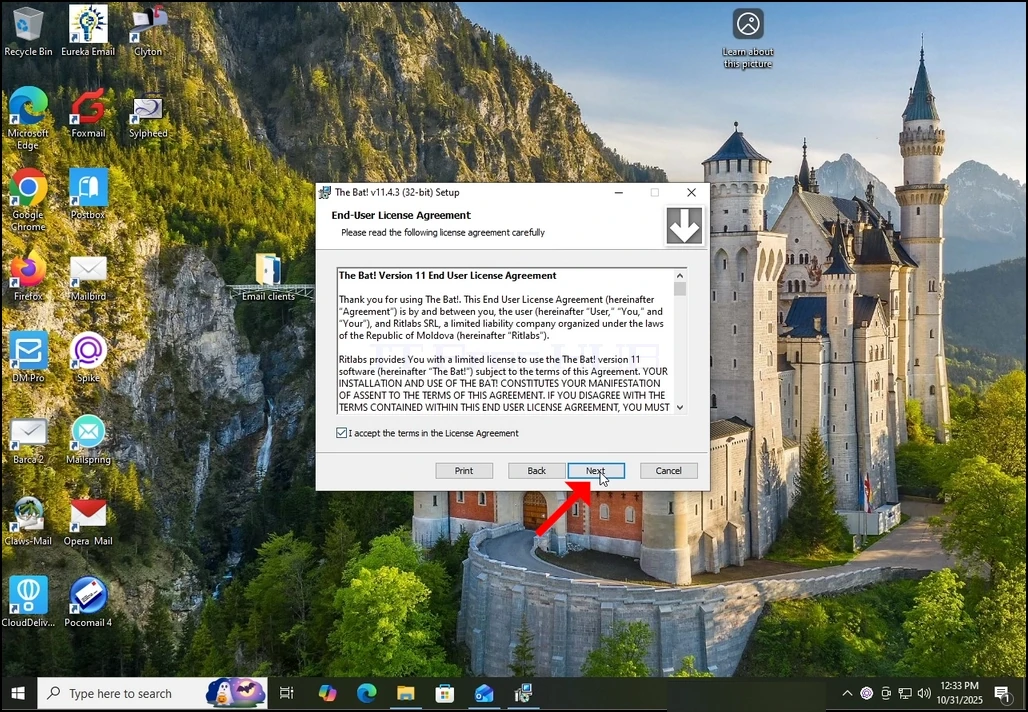
3. Accept the license agreemetn by marking the box on the botton right and click the NEXT button again.

2025-11-07_19_20_50-2025-10-31_21-21-10.mkv_-_VLC_media_player.webp2025-11-07_19_20_51-2025-10-31_21-21-10.mkv_-_VLC_media_player.webp

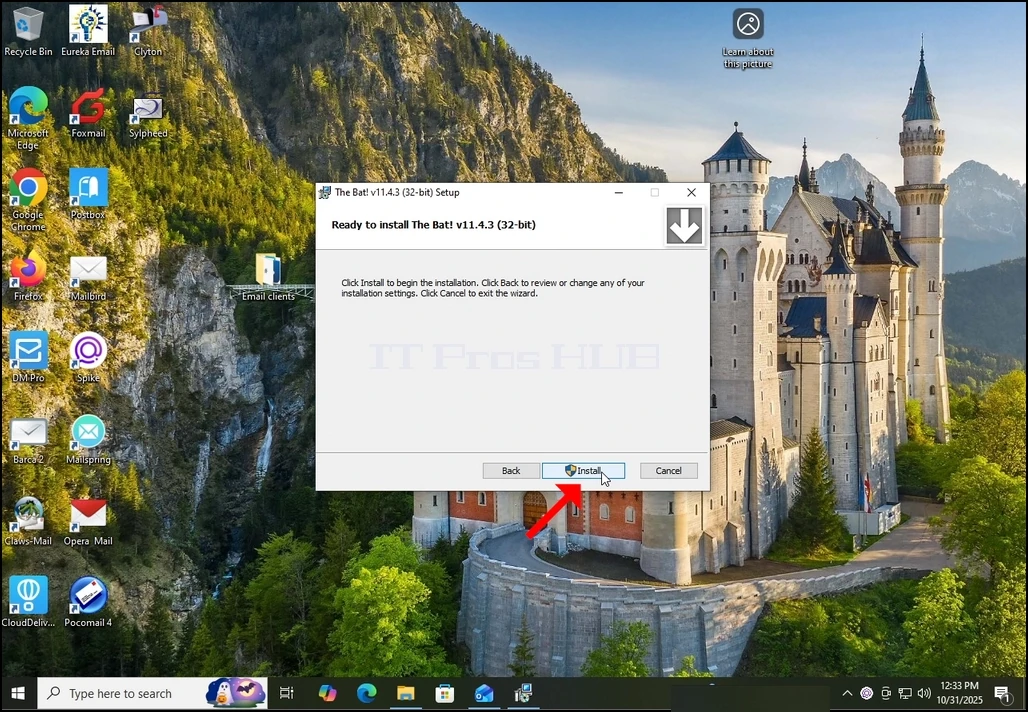
4. Click the INSTALL button. note that Windows UAC might ask you for an administrator approval to be begin the installation process (hence the UAC symbol inside the button.

2025-11-07_19_20_53-2025-10-31_21-21-10.mkv_-_VLC_media_player.webp

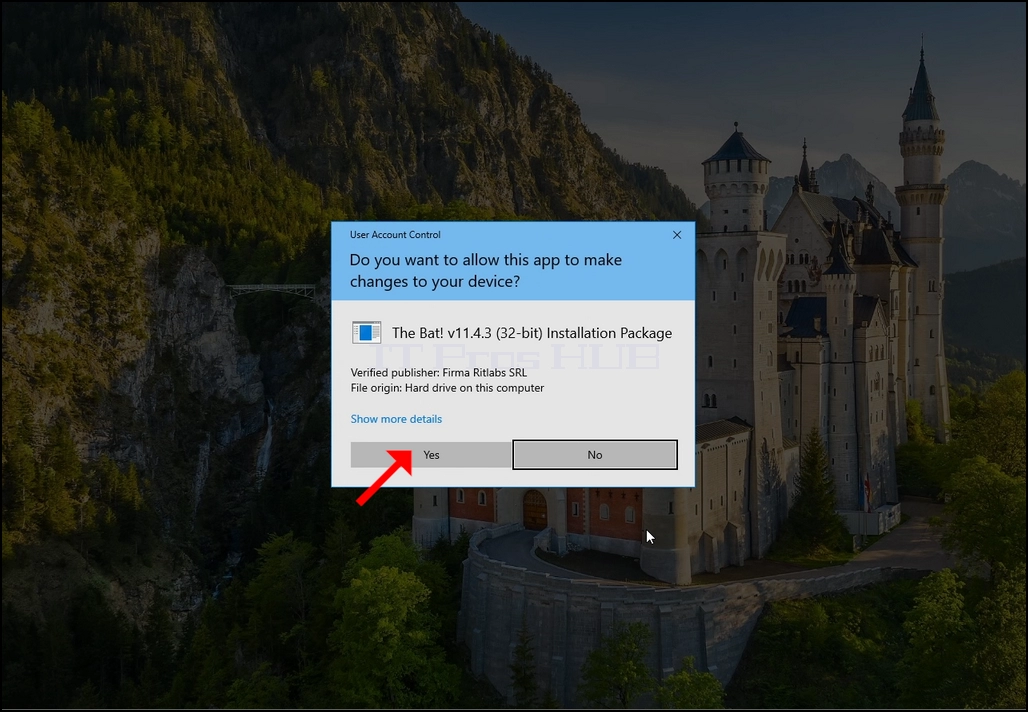
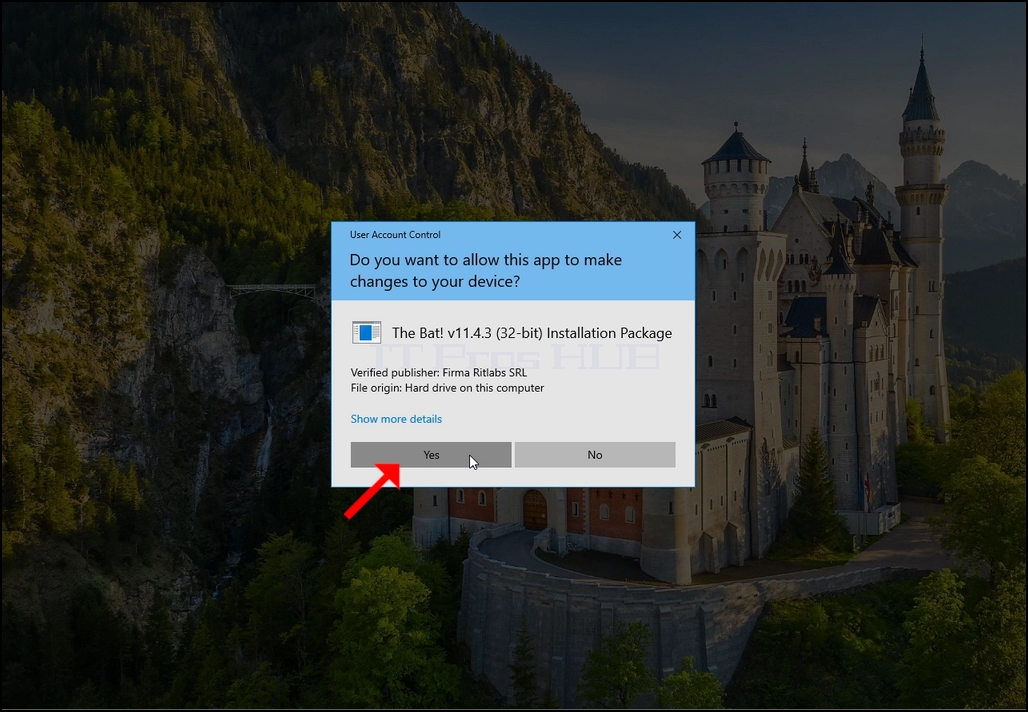
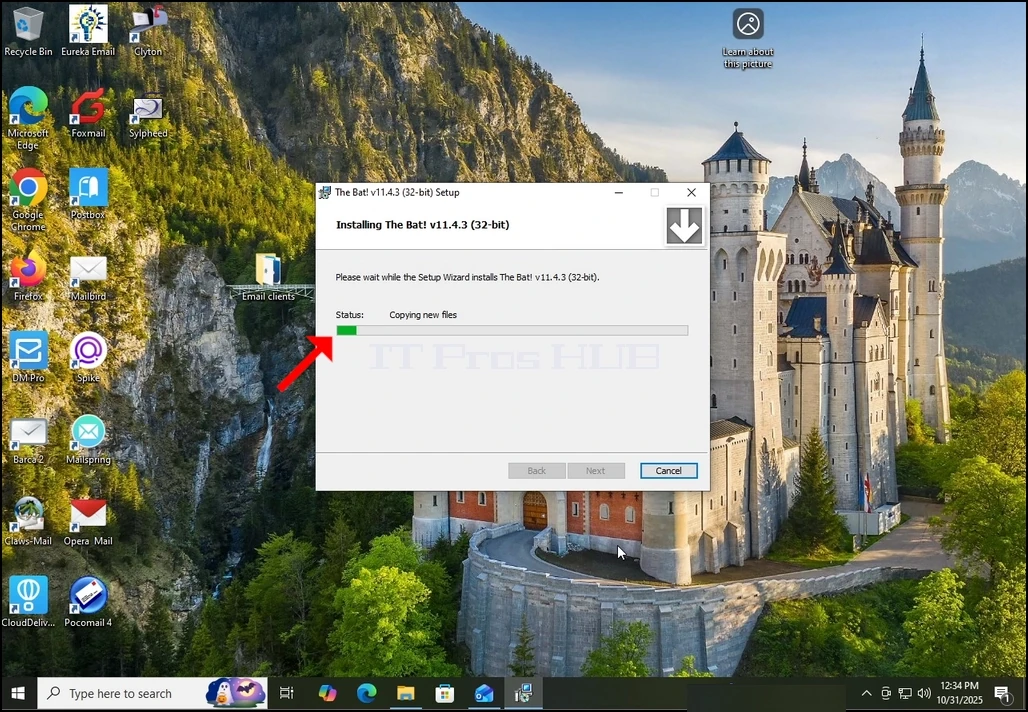
5. Once UAC asks for an adminsitrator approval, click the YES button. Wait for the next window to appear. once the YES button is clicked, the installation process will begin.

2025-11-07_19_20_55-2025-10-31_21-21-10.mkv_-_VLC_media_player.webp2025-11-07_19_20_57-2025-10-31_21-21-10.mkv_-_VLC_media_player.webp

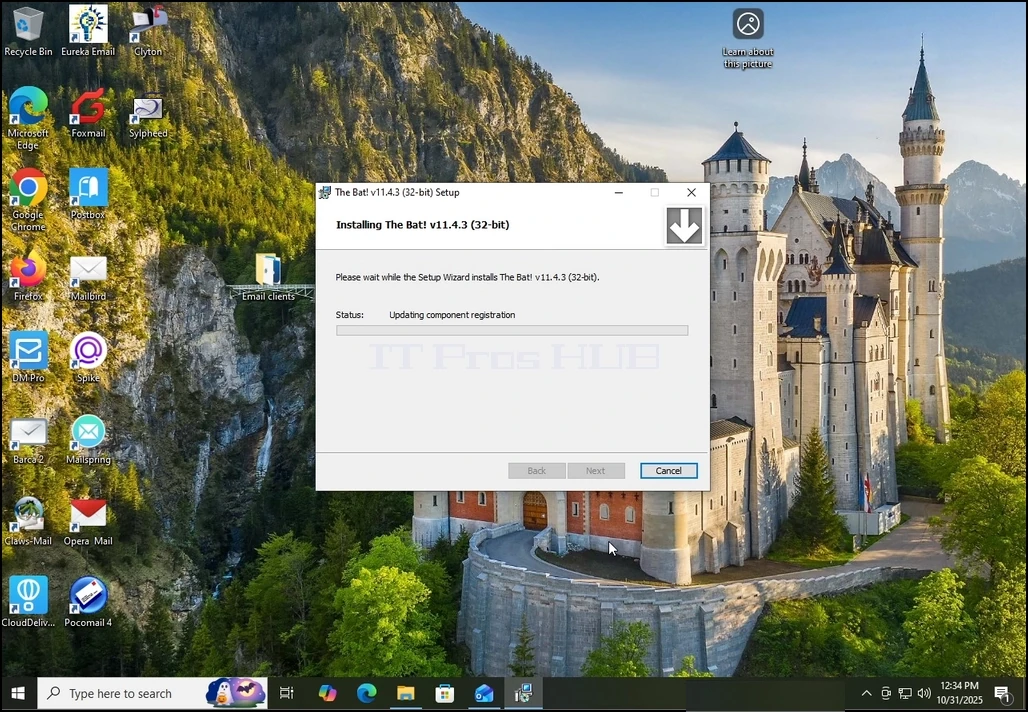
6. Wait till the process is done.
2025-11-07_19_20_58-2025-10-31_21-21-10.mkv_-_VLC_media_player.webp2025-11-07_19_21_00-2025-10-31_21-21-10.mkv_-_VLC_media_player.webp

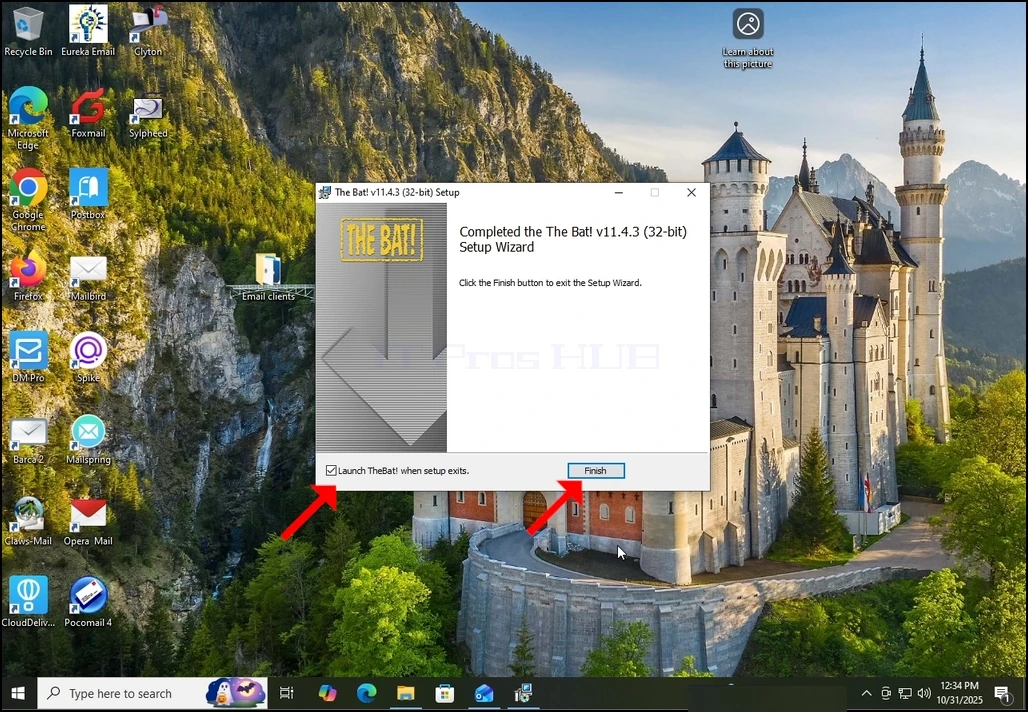
7. Once the process is done you can unmark the "Launch TheBat! when setup exists" option and click the FINISH button. TheBat! email client is now installed.

2025-11-07_19_21_04-2025-10-31_21-21-10.mkv_-_VLC_media_player.webp

8.