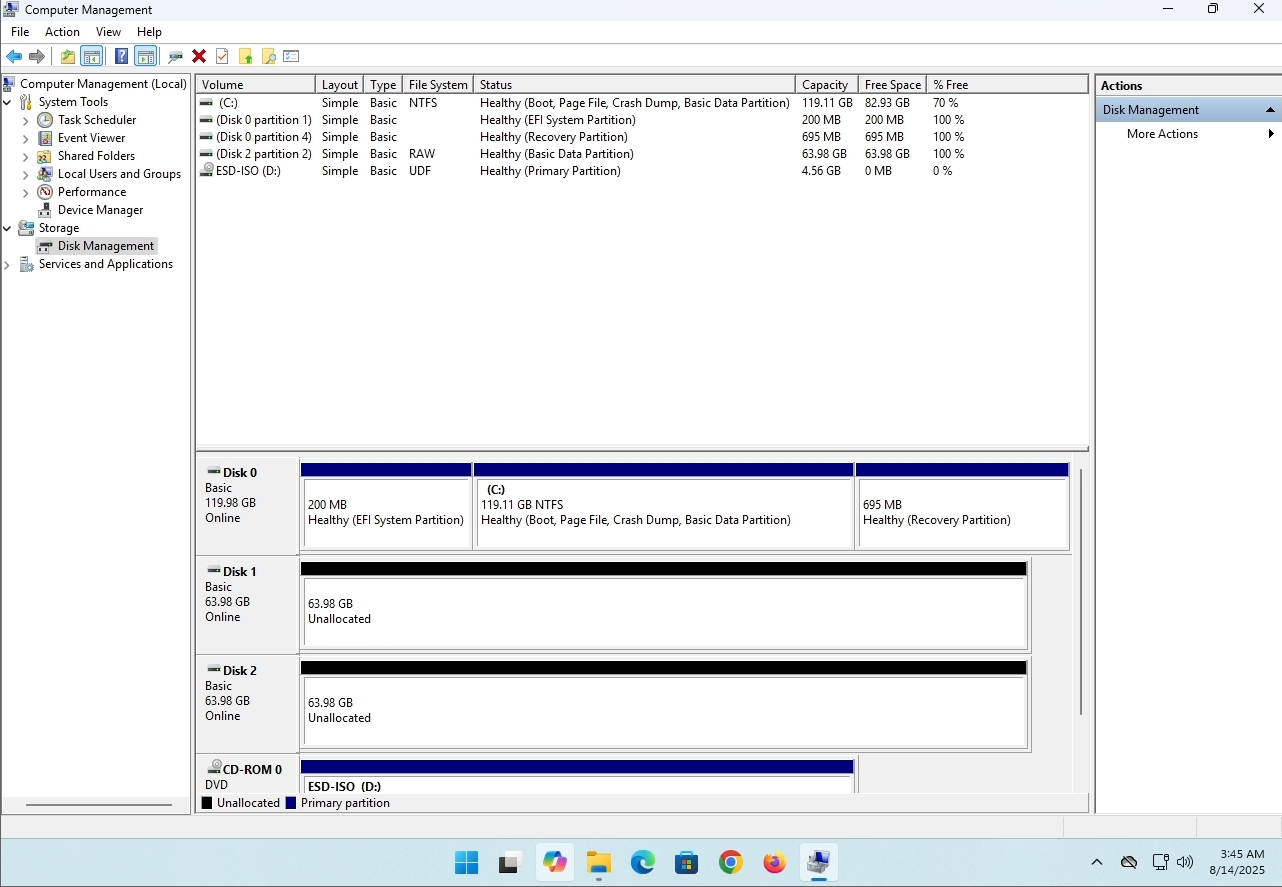
Tagline:КакдаизтриетеспънатобемWindows11+1
В тази статия ще покажем как да се изтрие оголен обем в Windows 11
1. Уверете се, че това, което е изтрит обем на шофиране писмо е. В този случай буквата за задвижване е (E:):
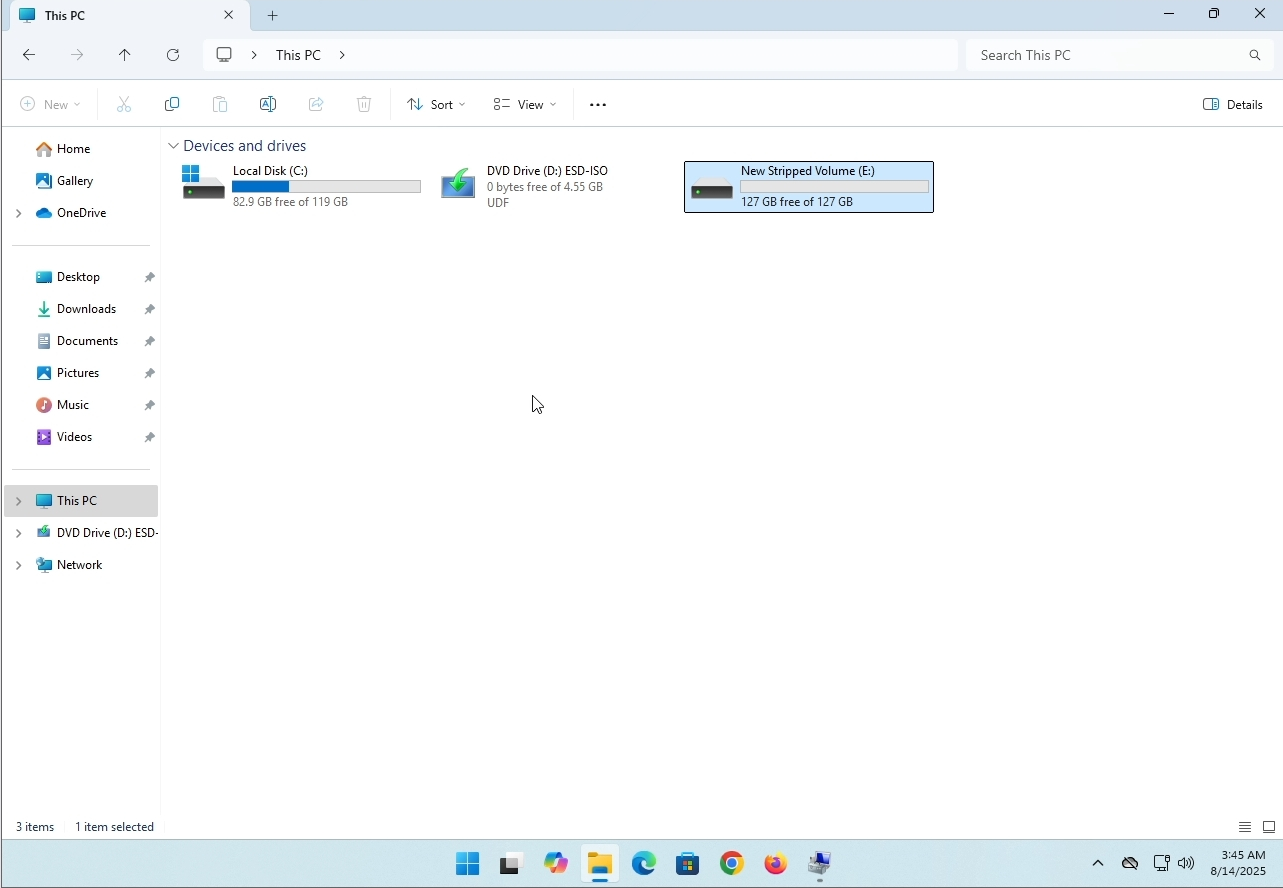
2. Отидете в компютърен мениджмънт чрез менюто на Windows' Start.
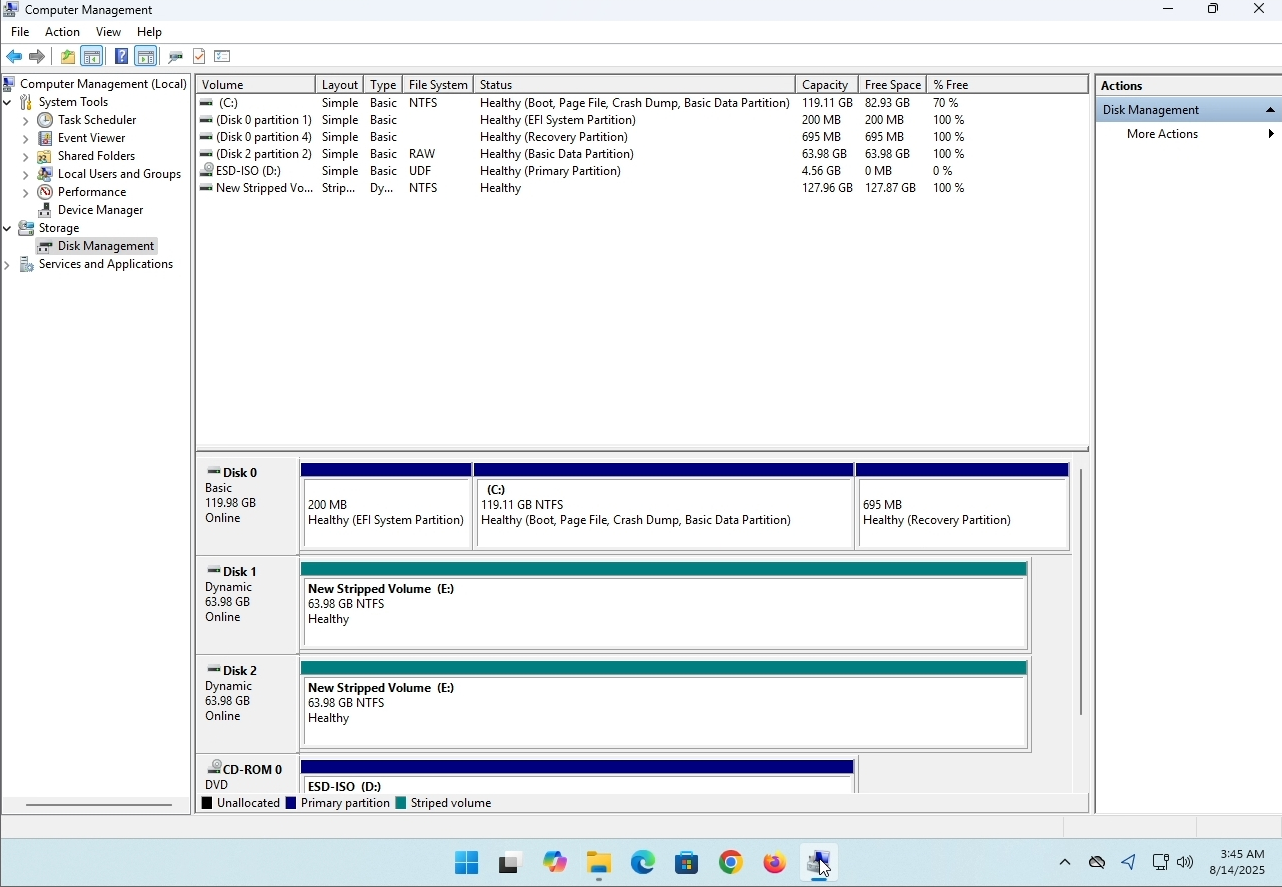
3. На лявото стъкло. Потърсете за управление на диска и кликнете върху него веднъж.
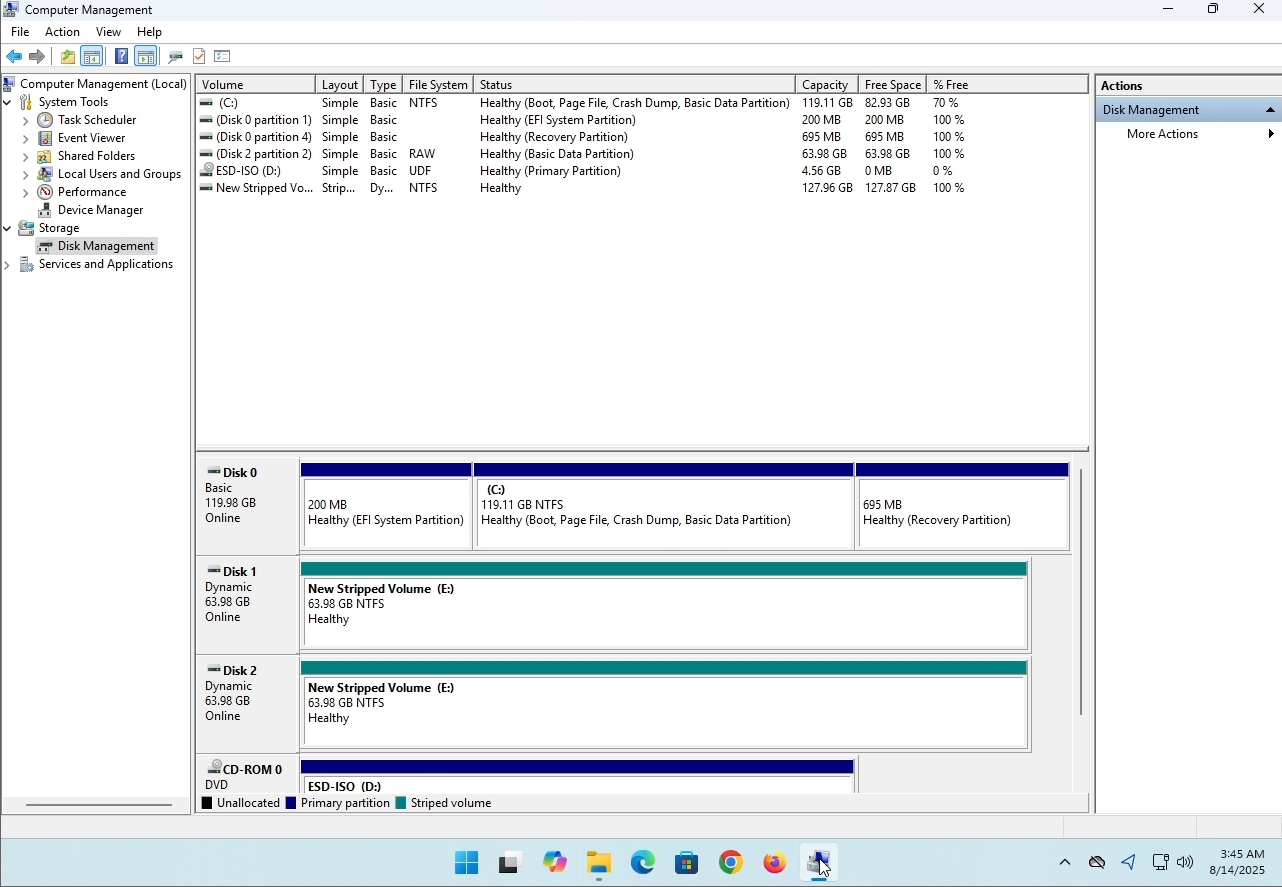
4. Търсете гол диск. В този случай член би (Е:). Кликнете с десния бутон върху един от дисковете в масива и изчакайте да се появи странично меню:
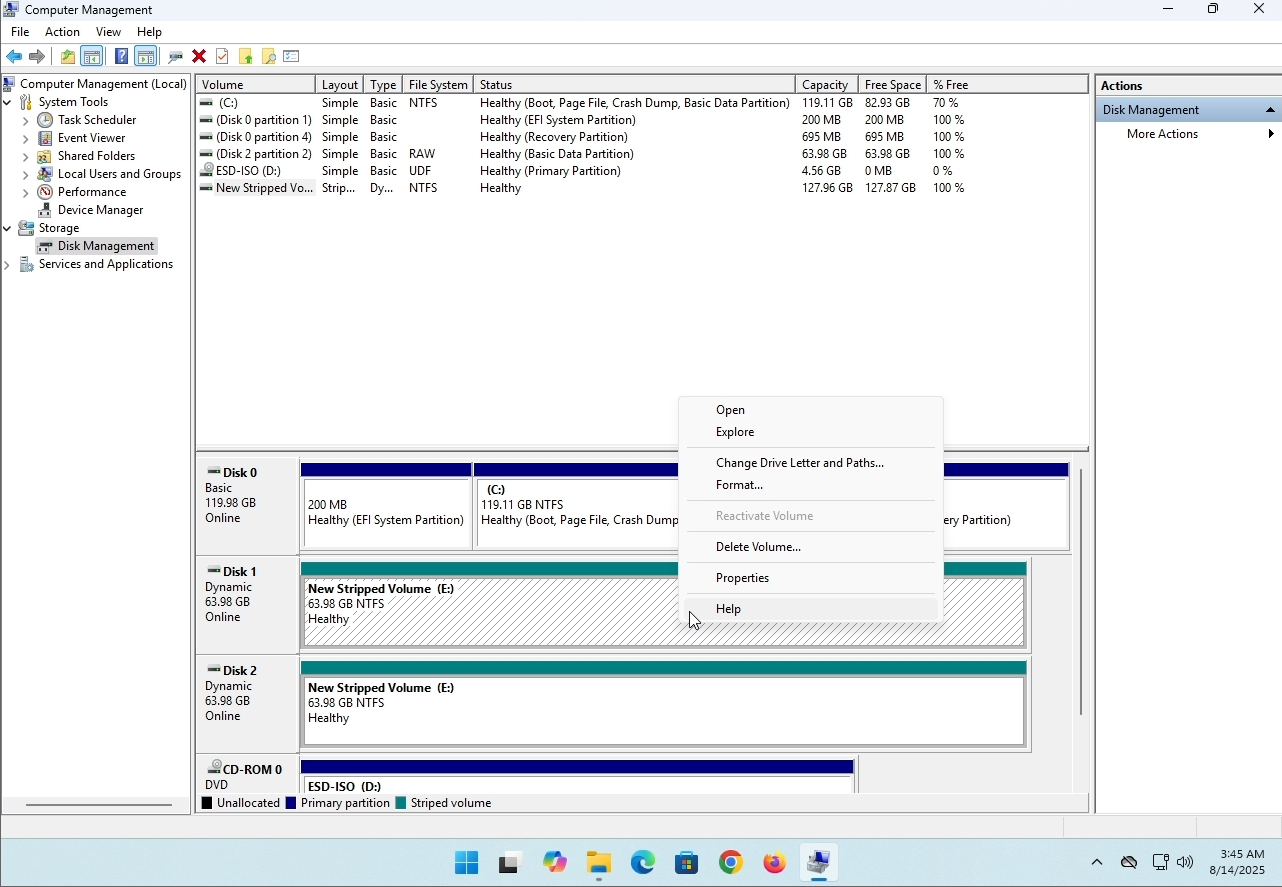
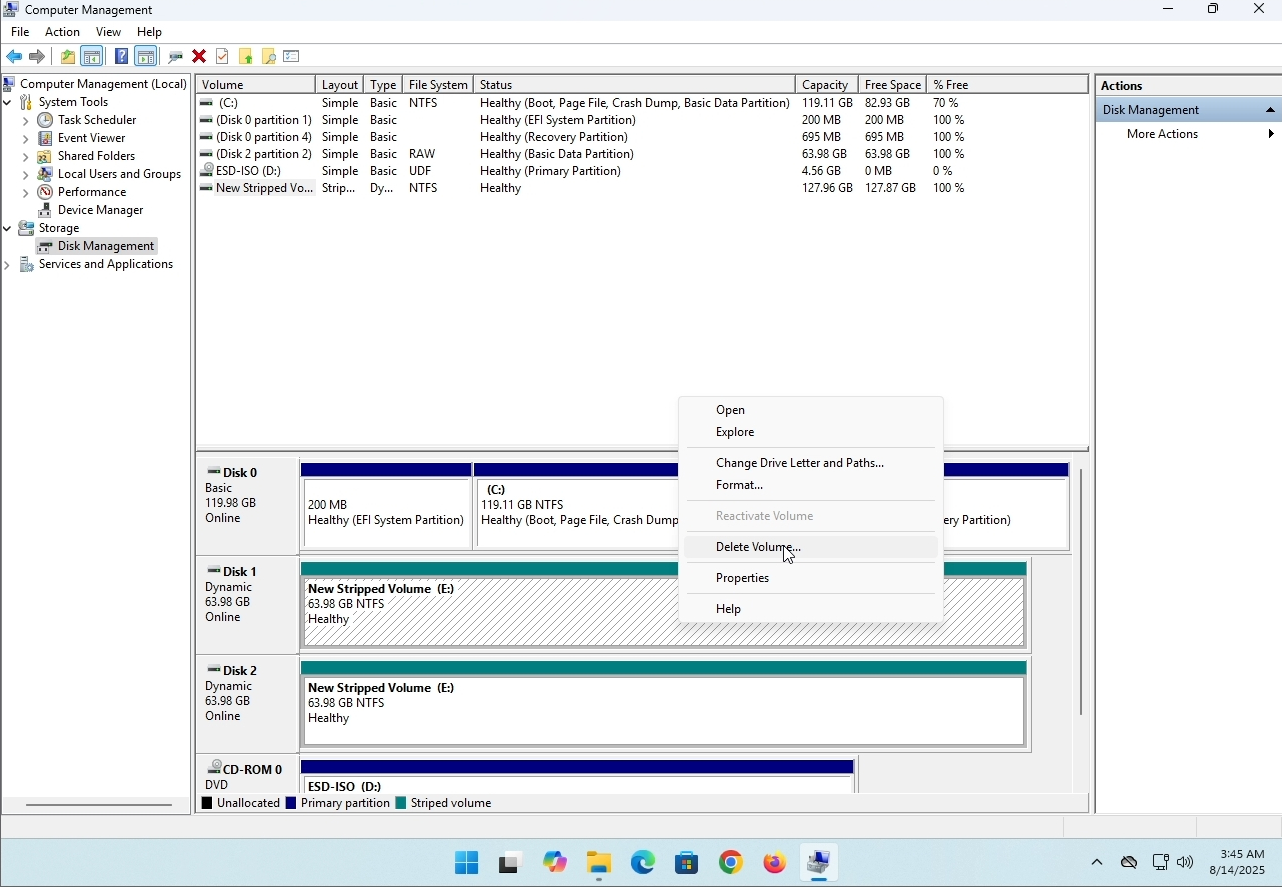
5. В страничното меню кликнете върху Изтриване на обем:
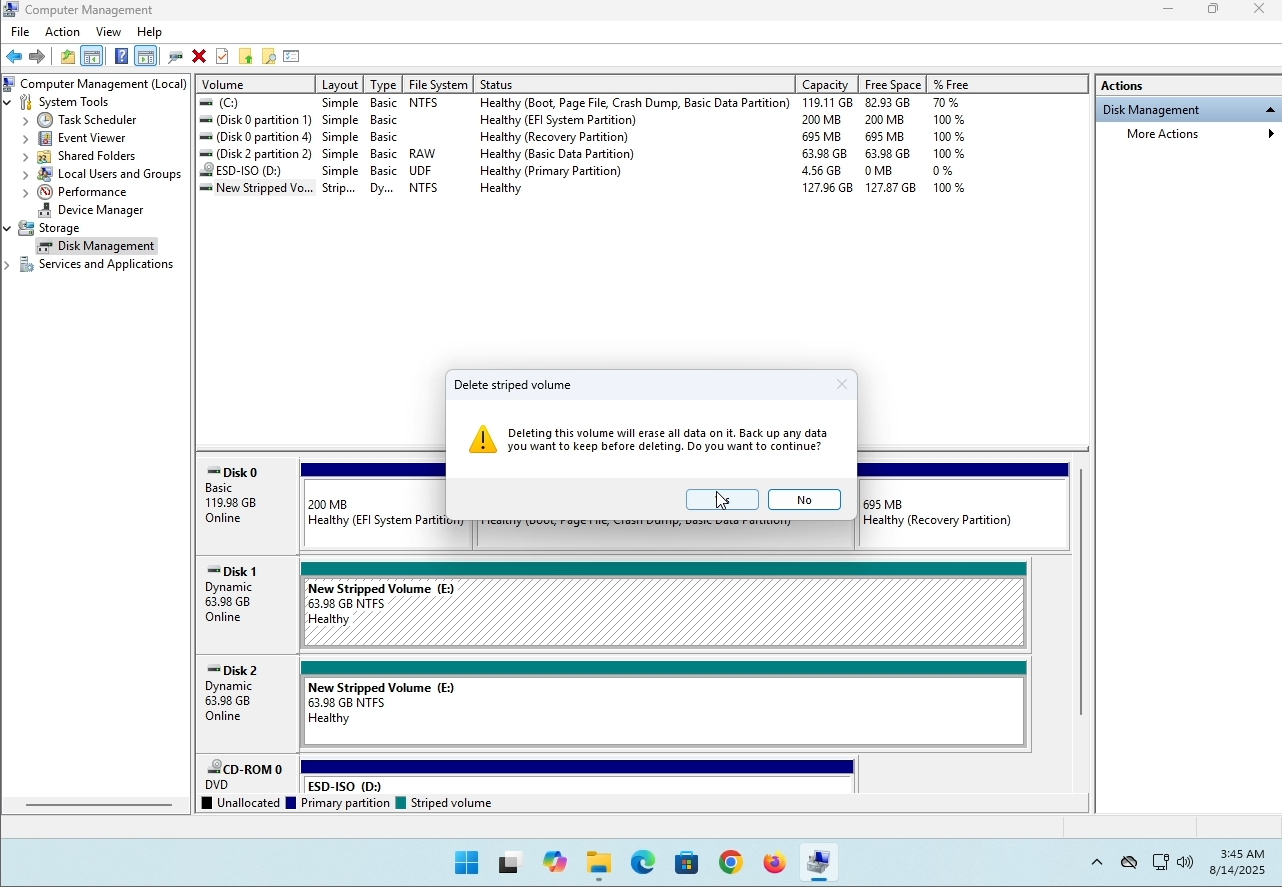
6. Ще ви бъде показан прозорец за потвърждение. Кликнете върху Да, за да потвърдите изтриването на диска.
7. Дискът сега е изтрит и дисковете, които са били част от оголения масив, сега са неразпределени.