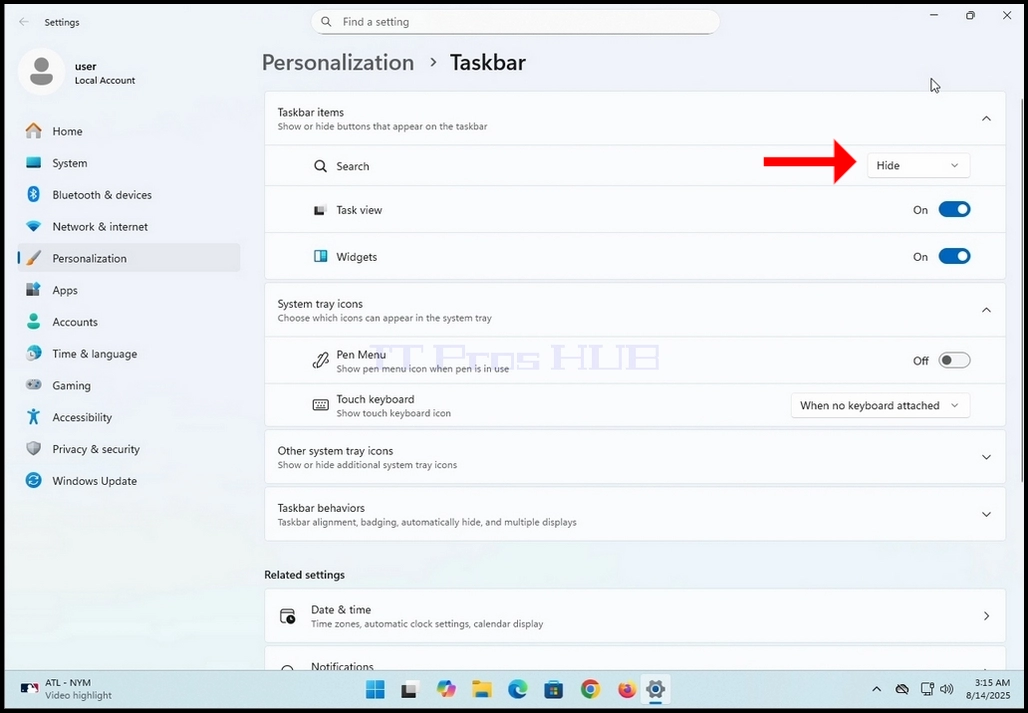
1. Отидете до Настройки на Windows
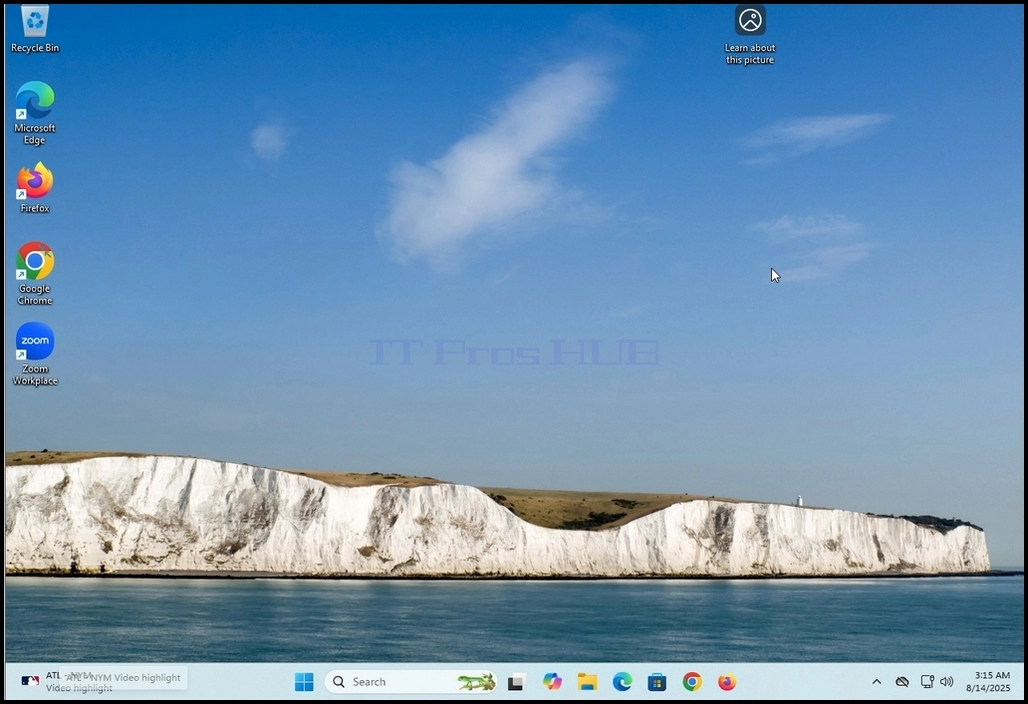
2. Добре. щракване върху Лента за задачи на Windows и изчакайте малко странично меню да се появи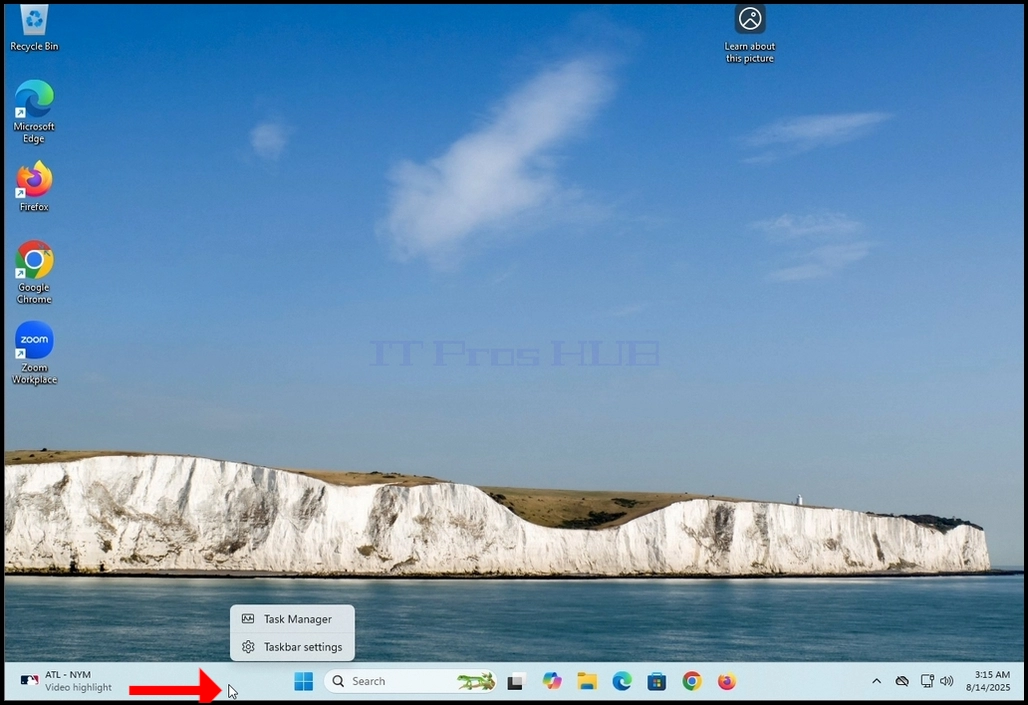
3. В страничното меню потърсете Настройки на лентата за задачи опция и кликнете върху нея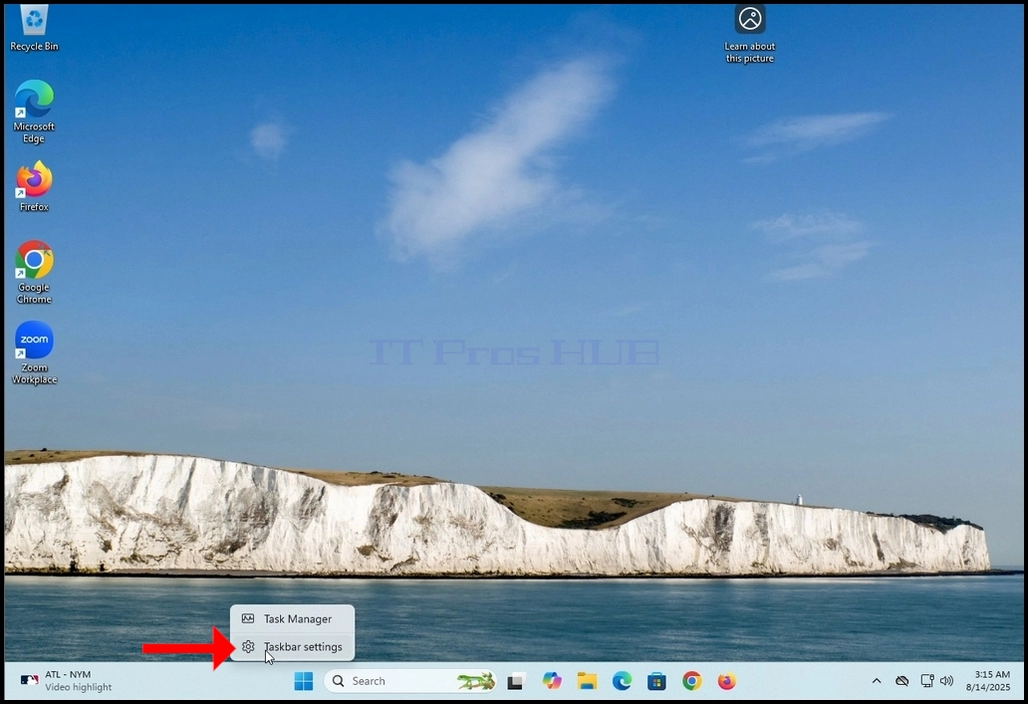
4. Изчакайте Настройки на лентата за задачи прозорец за появяване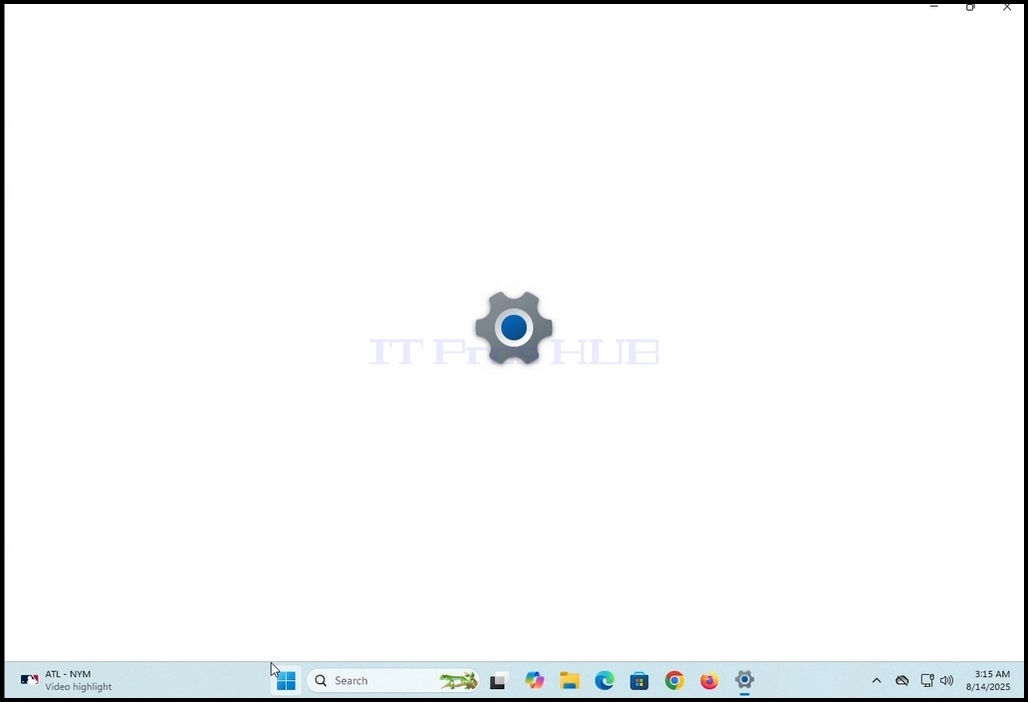
5. Настройки на лентата за задачи (Лични данни > лента за задачи)прозорец, в горната част на екрана, потърсете Елементи от лентата за изпълнение заглавие. Под него, търси Търсене Думата от лявата страна точно под нея.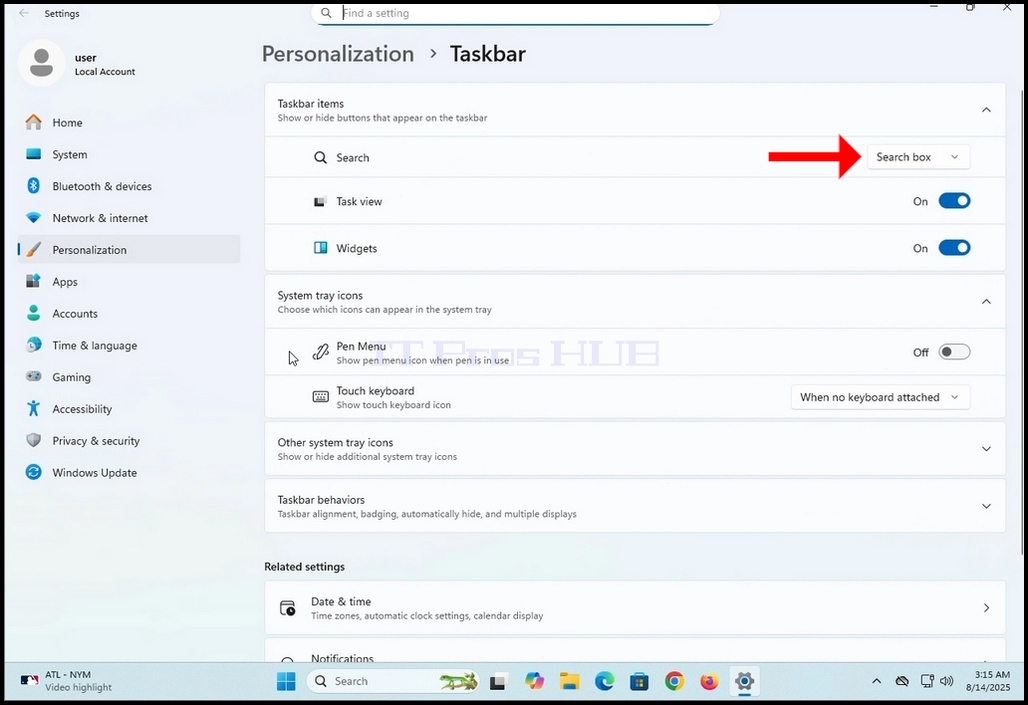
6. На същия ред. Ще видиш Поле за търсене опция го кликнете веднъж. В този случай ще се появи и меню с 4 опции:
a. Скриване
б. Само икона за търсене
c. Икона за търсене и етикет
г. Кутия за търсене
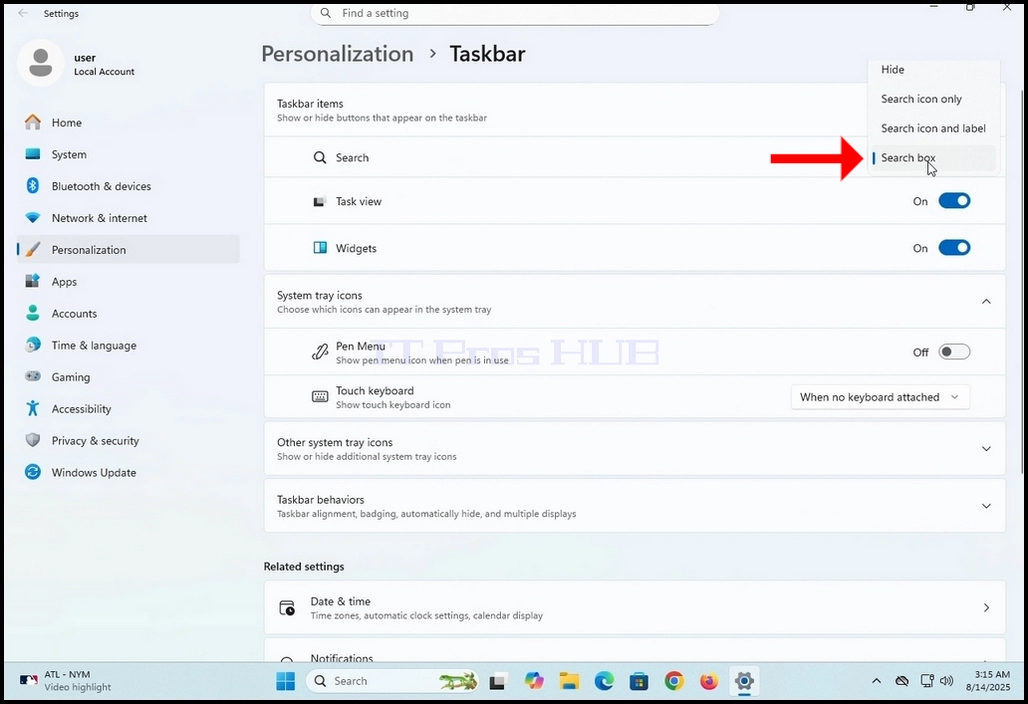
7. Изберете Скриване опция като кликнете върху нея веднъж
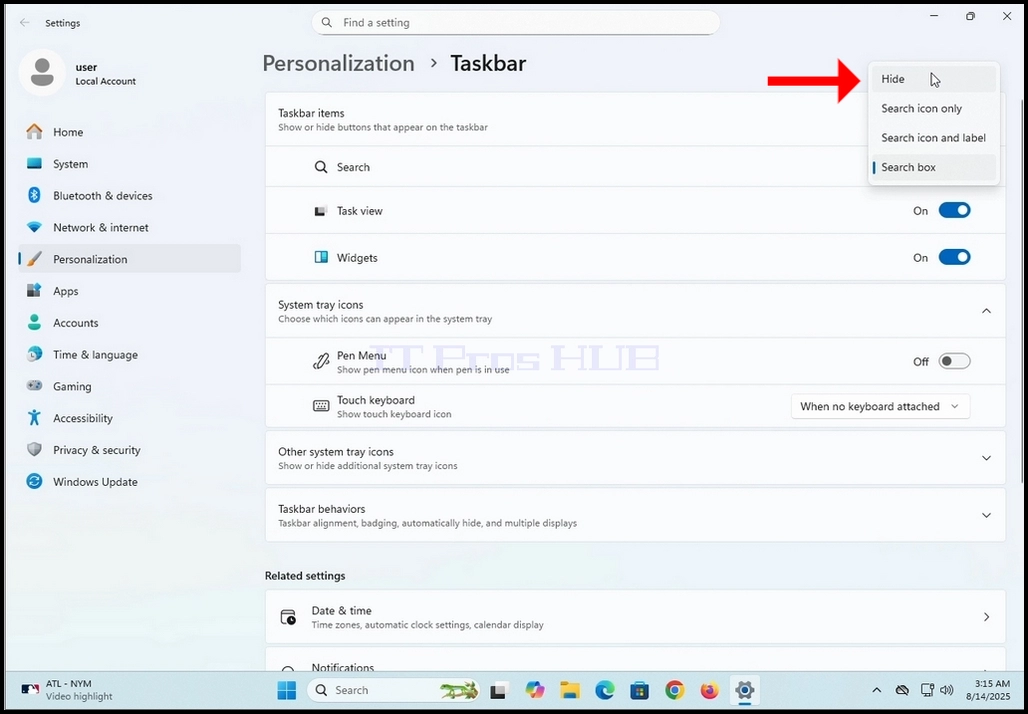
8. Забележете изчезването на полето за търсене от лентата за търсене в долната част на екрана.