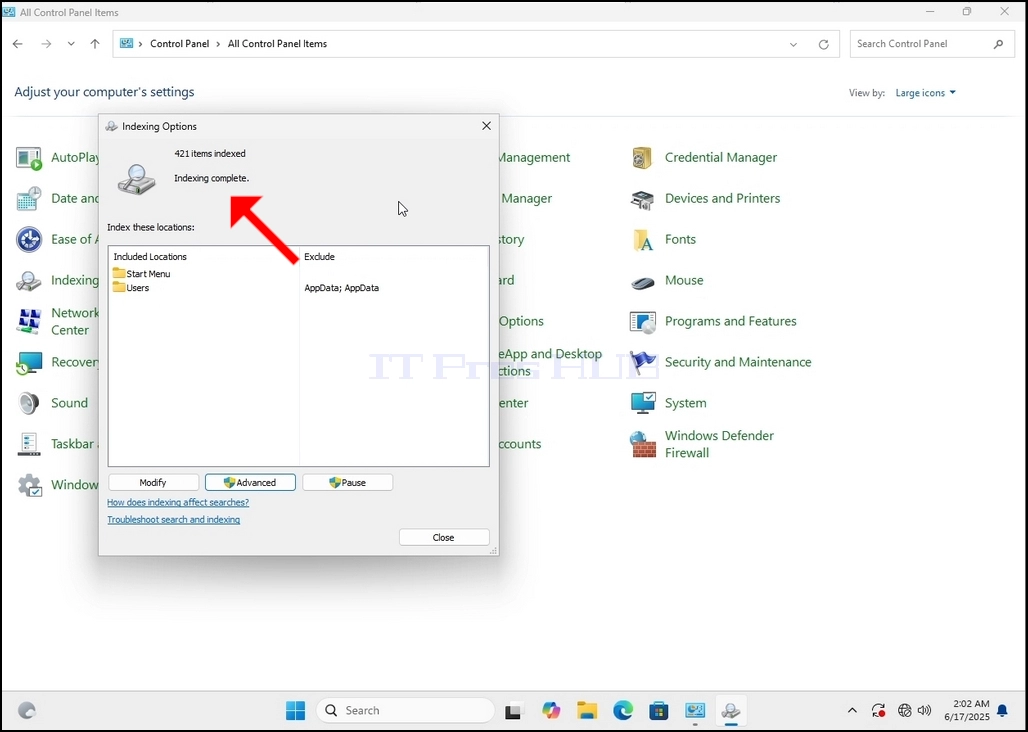
1. Отидете на работния плот на Windows
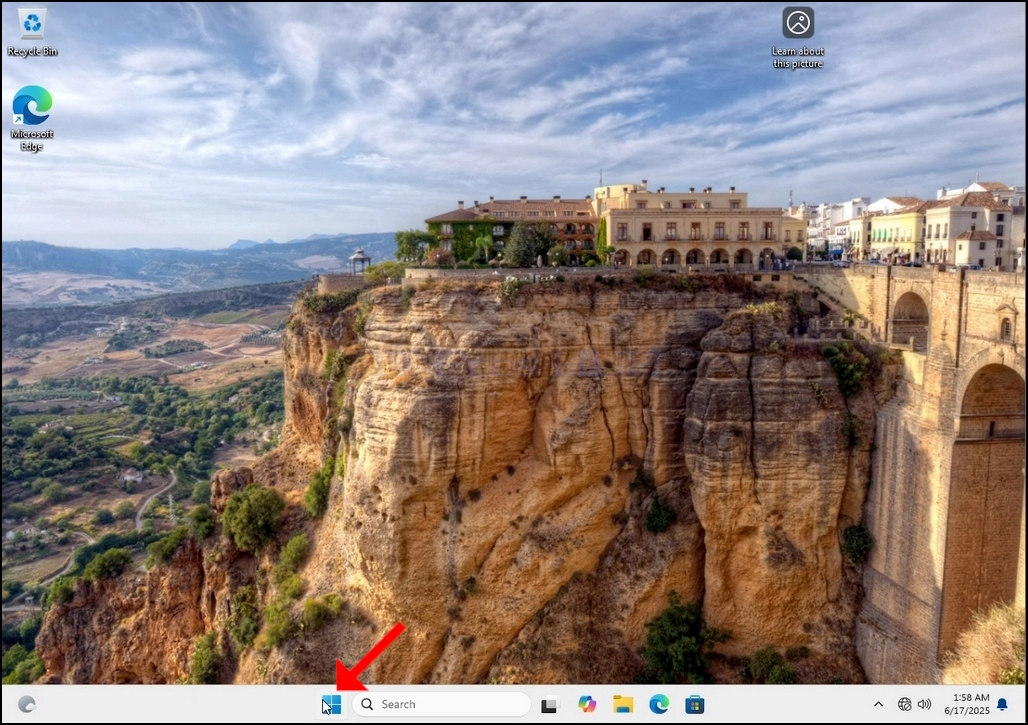
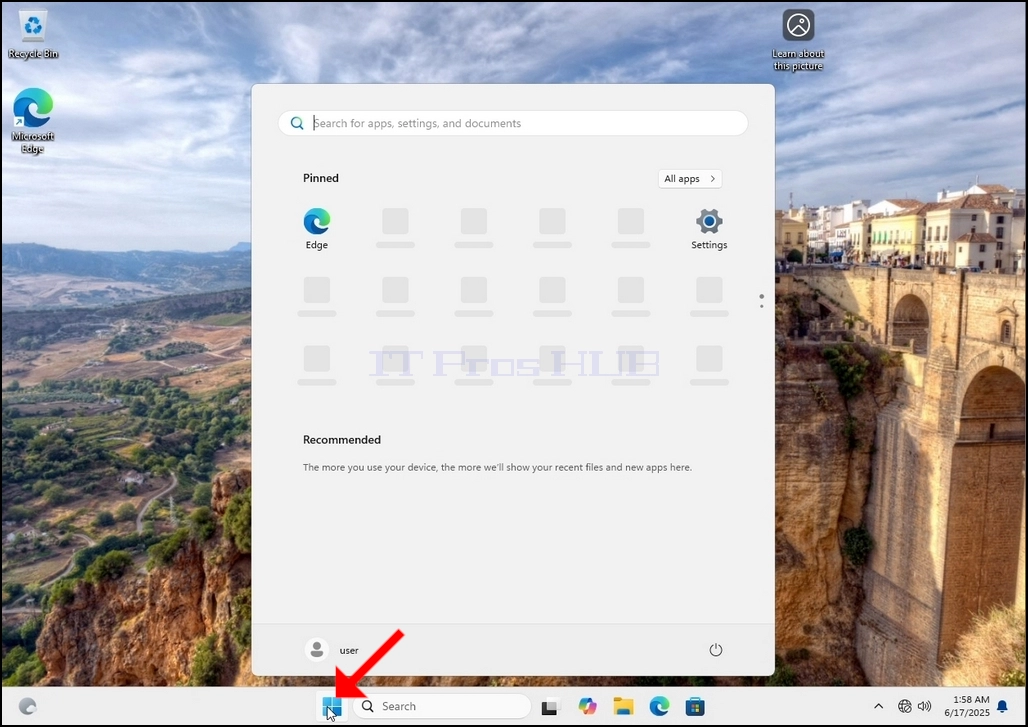
2. Щракнете върху старт
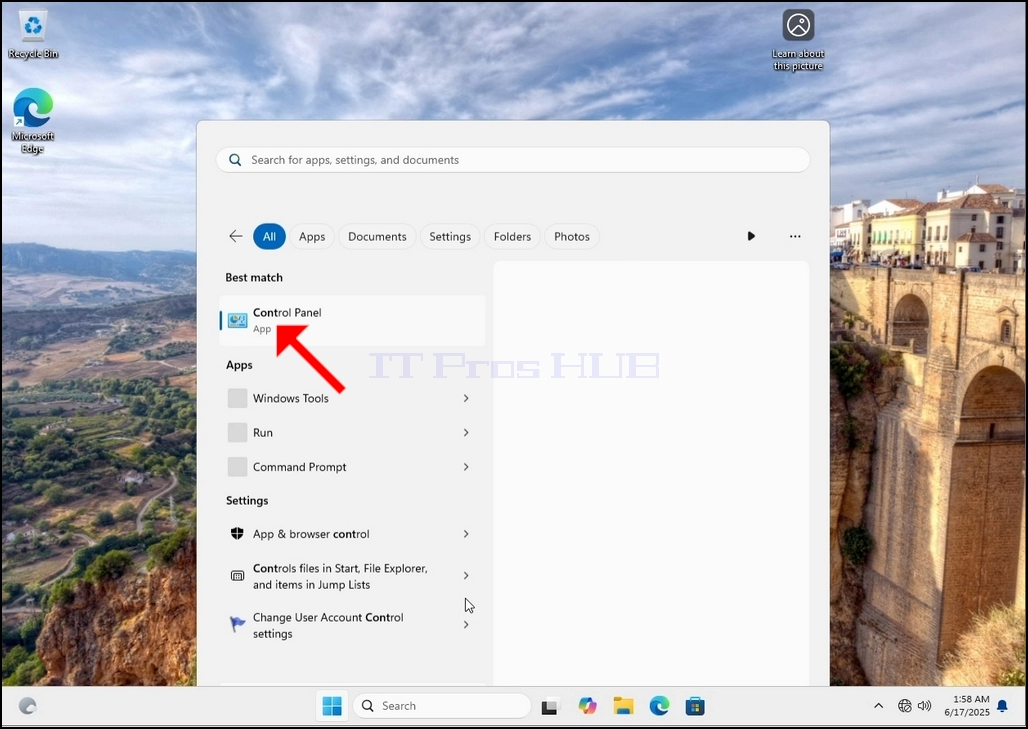
3. След отваряне на менюто, напишете "контролен панел" и изчакайте менюто Start да намери иконата на контролния панел. Моля, имайте предвид, че е възможно просто да напишете "cont" и в повечето случаи менюто Start да открие иконата на контролния панел.
След като го намери, кликнете върху него и изчакайте прозореца контрол панел да се появи.
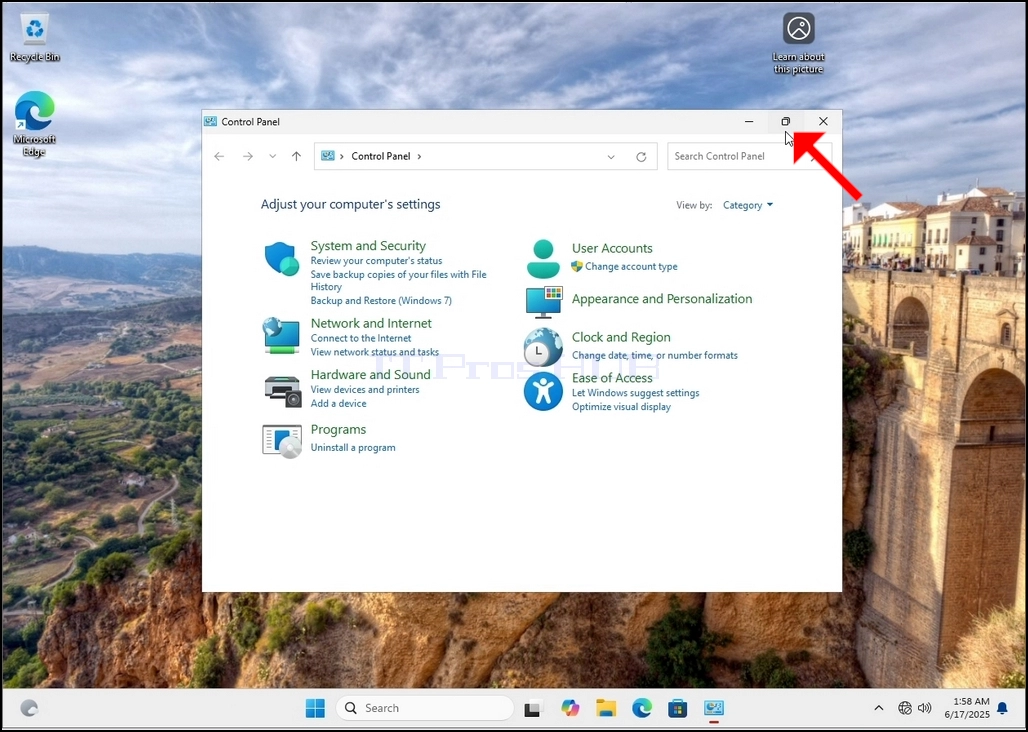
4. След като прозорецът на контролния панел е отворен, го увеличете, като кликнете върху разширяващата се икона в горния десен ъгъл на прозореца.
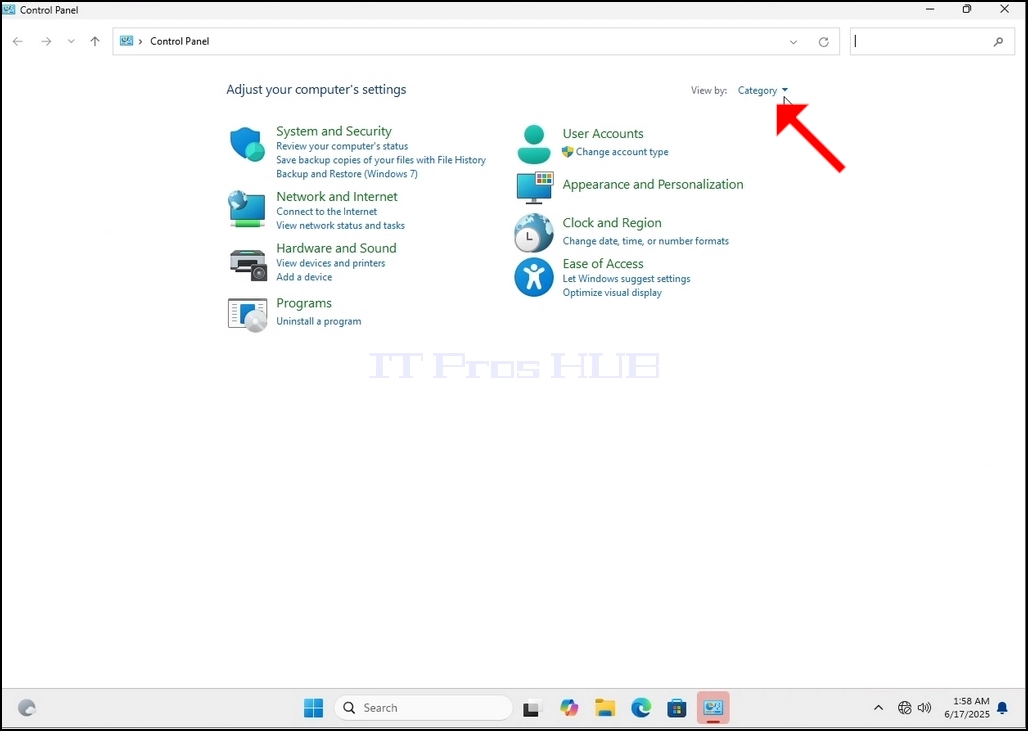
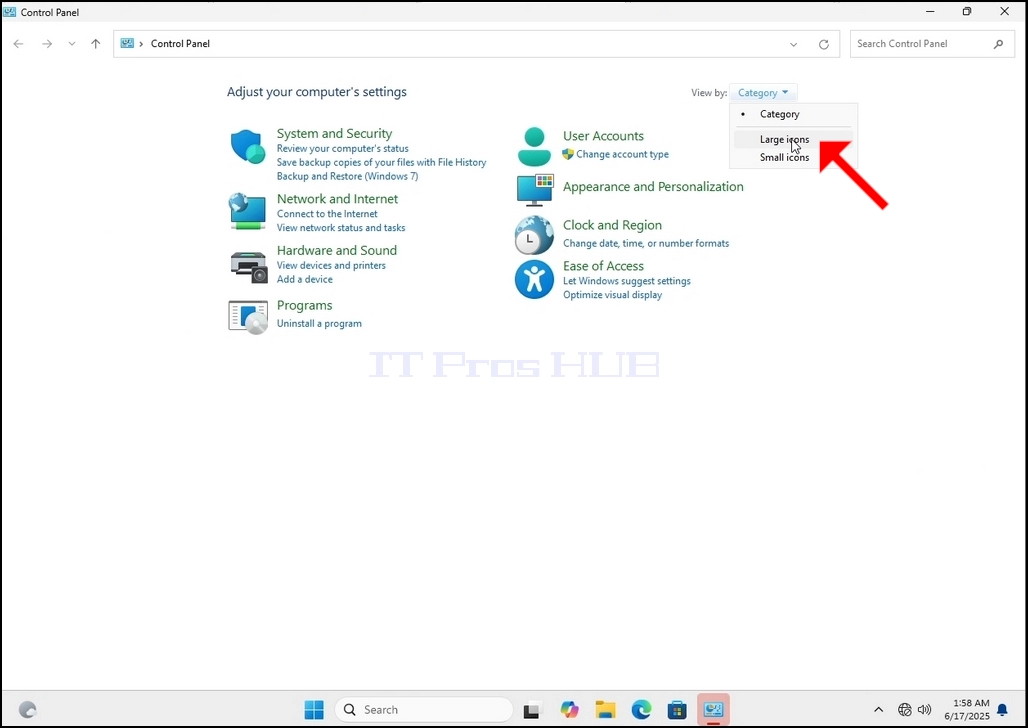
5. За да улесните навигацията, кликнете Категория от горната дясна страна на прозореца контрол панел и изберете "Големи икони" от малкото ново меню, което се появява.
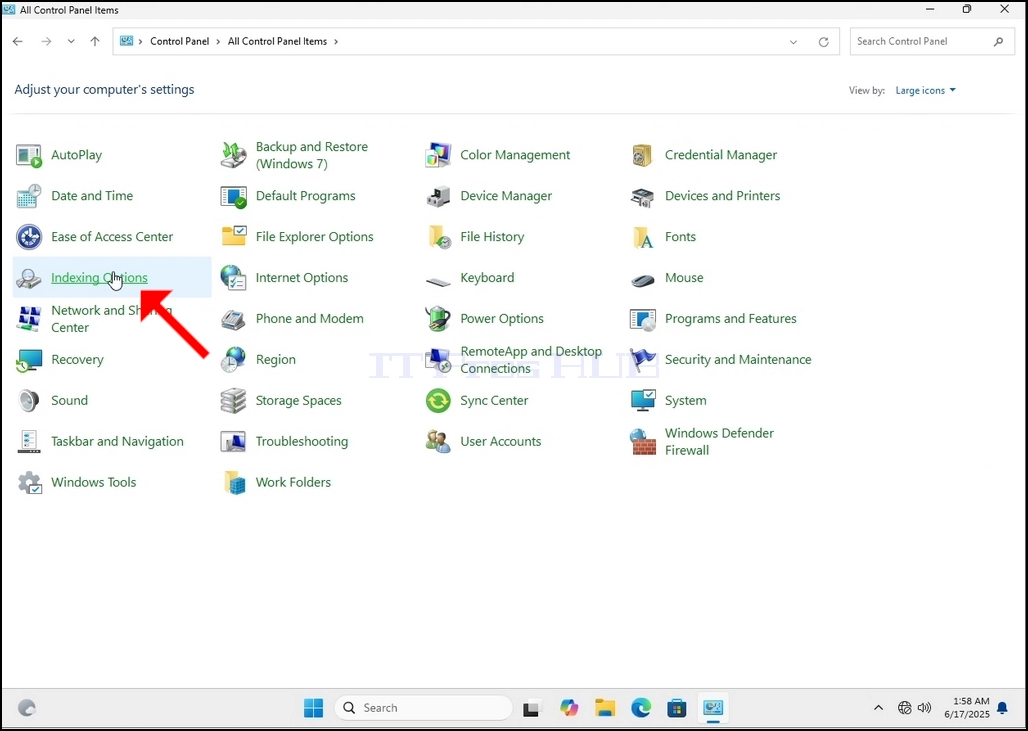
6. Потърсете иконата Indexing Options и кликнете върху нея. Изчакайте прозореца Indexing Options да се появи.
7. След като прозорецът Indexing Опции е отворен, кликнете върху бутона Advanced в долната част на този прозорец.
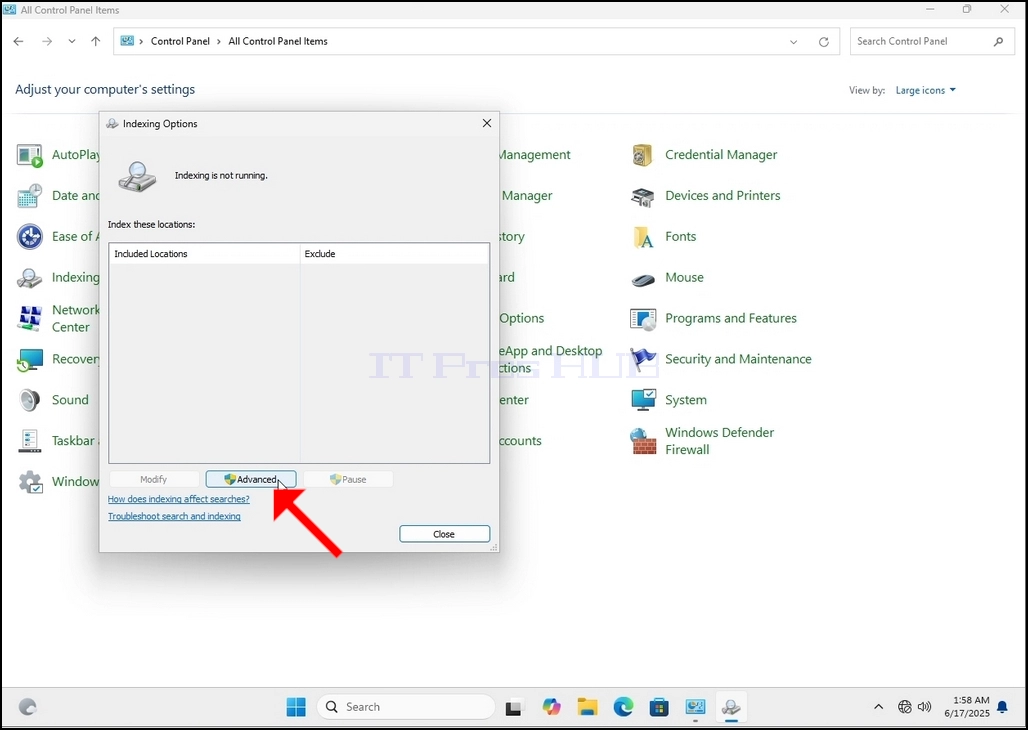
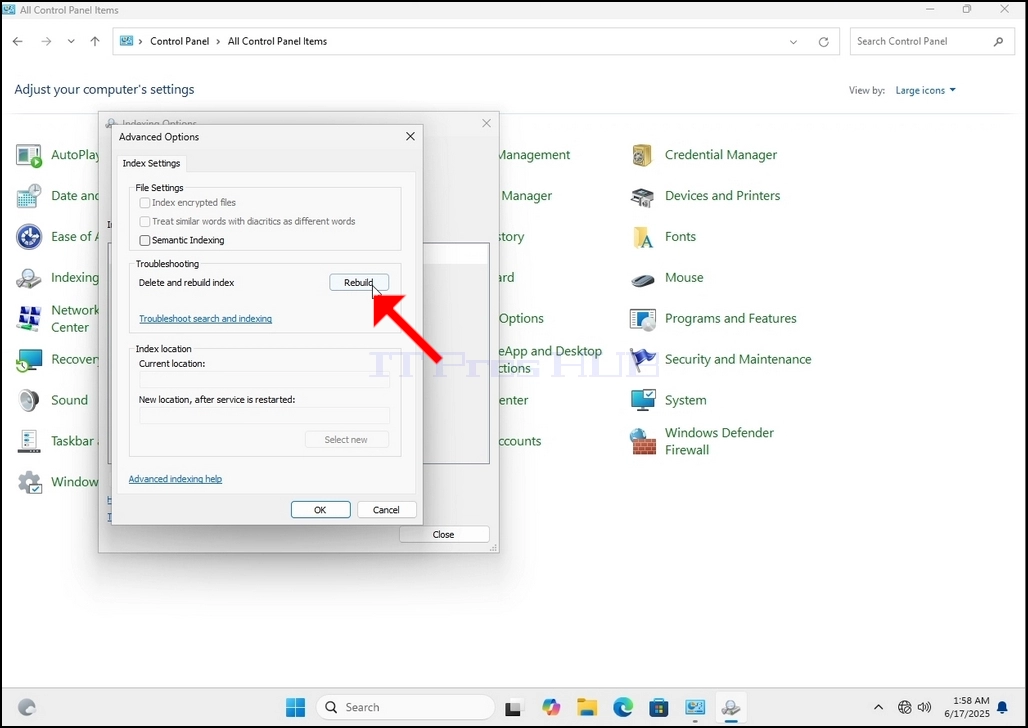
8. В новия прозорец, потърсете бутона за възстановяване и кликнете върху него. След това ще се появи кутия за потвърждение. Щракнете върху бутона OK в него, за да започнете възстановяване на индекса.
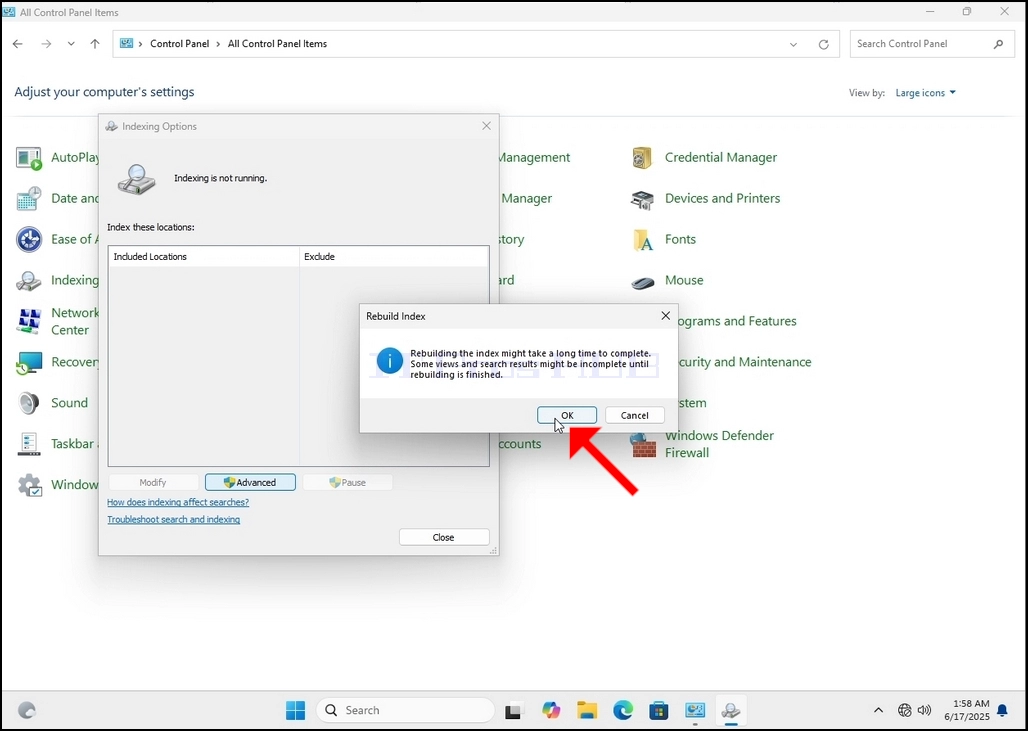
9. След като кликнете върху OK в полето за потвърждение, Windows ще започне възстановяване на индекса си. Може да отнеме известно време, за да започне истинският процес, изчакайте търпеливо няколко секунди до няколко минути. В момента, в който процесът започне, "Индексиране завършено" изречението ще бъде заменено с"Индексиране в прогрес. Резултатите от търсенето може да не са пълни през това време. "
В допълнение, броят на индексите ще бъде нулиран до 0 за момент и след това започва да се увеличава.
Имайте предвид, че всички прозорци, които са свързани с процеса на индексиране, сега могат да бъдат затворени, а процесът на възстановяване все още ще работи на фона.
Имайте предвид, че скоростта на процеса на индексиране може да бъде намалена поради потребителската активност на компютъра. Колкото по-интензивна е активността, толкова по-малко ще е скоростта на индексиране.
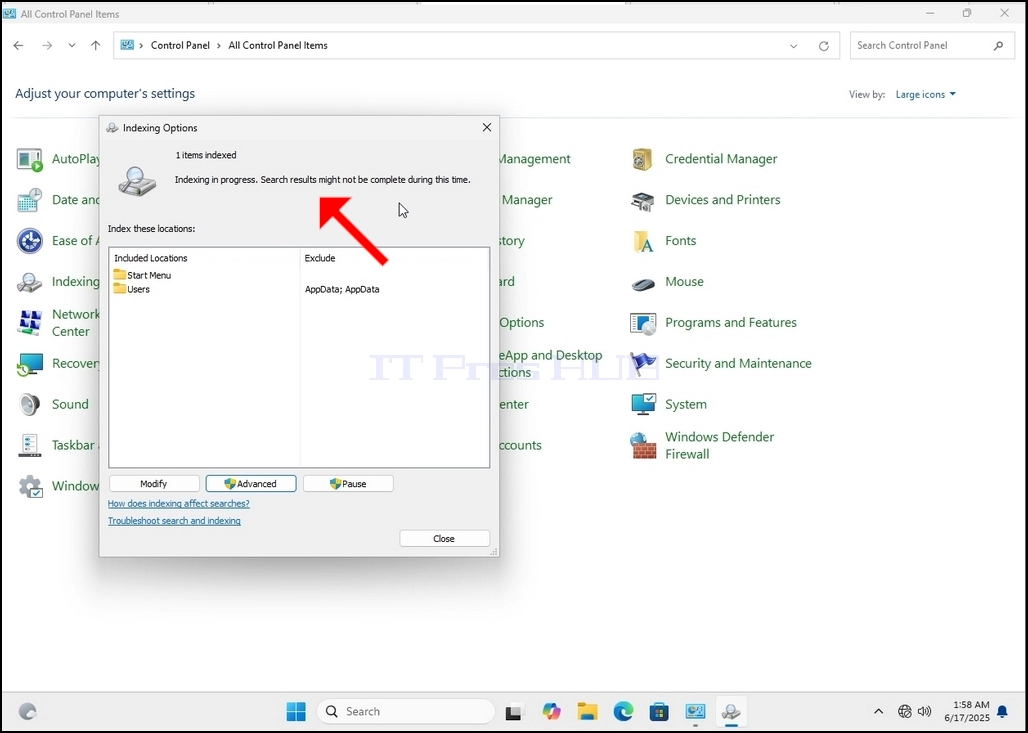
10. За да проверите дали процесът на индексиране е завършен, върнете се към Опциите за индексиране чрез контролен панел, както е обяснено в предходните етапи. Ако процесът е завършен, ще видите "Индексиране завършено"изречението се появява отново.
Тъй като Windows не уведомява потребителя, след като този процес е завършен, наистина има нужда да се извърши последното споменато. В зависимост от броя на файловете, папките, драйверите и преградите, маркирани за индексиране, този процес може да отнеме между няколко минути до няколко часа.