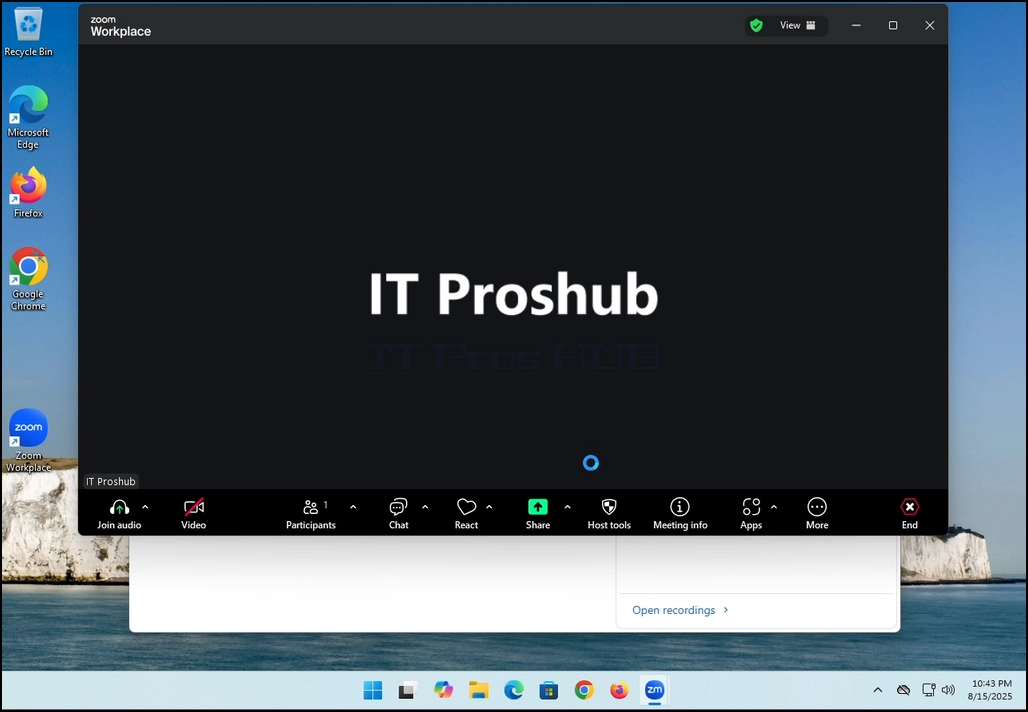
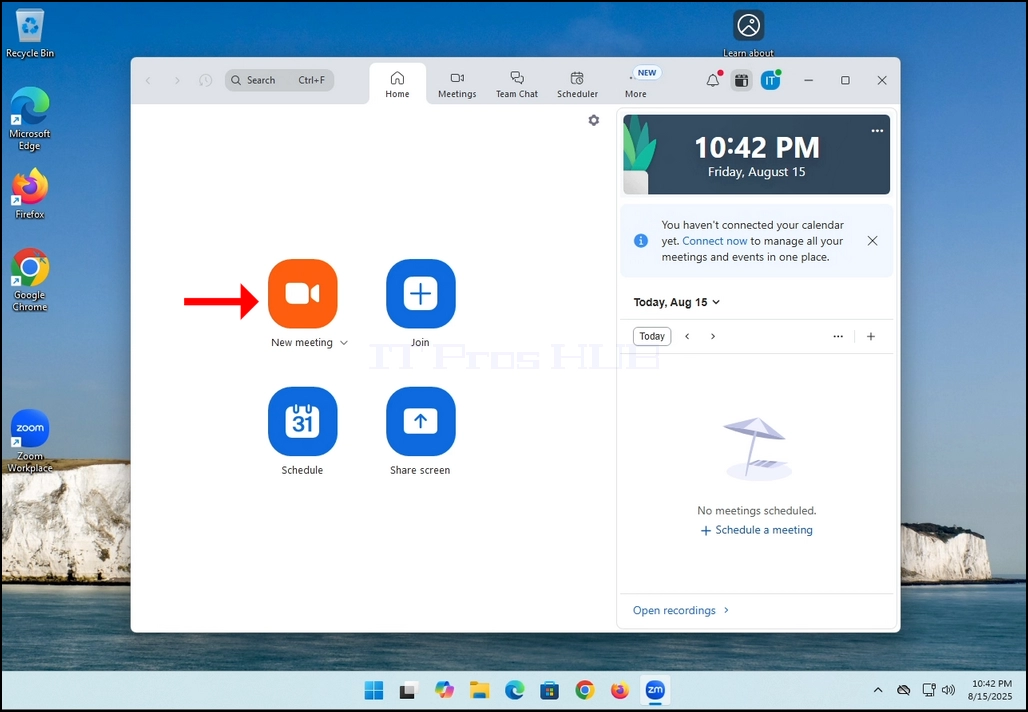
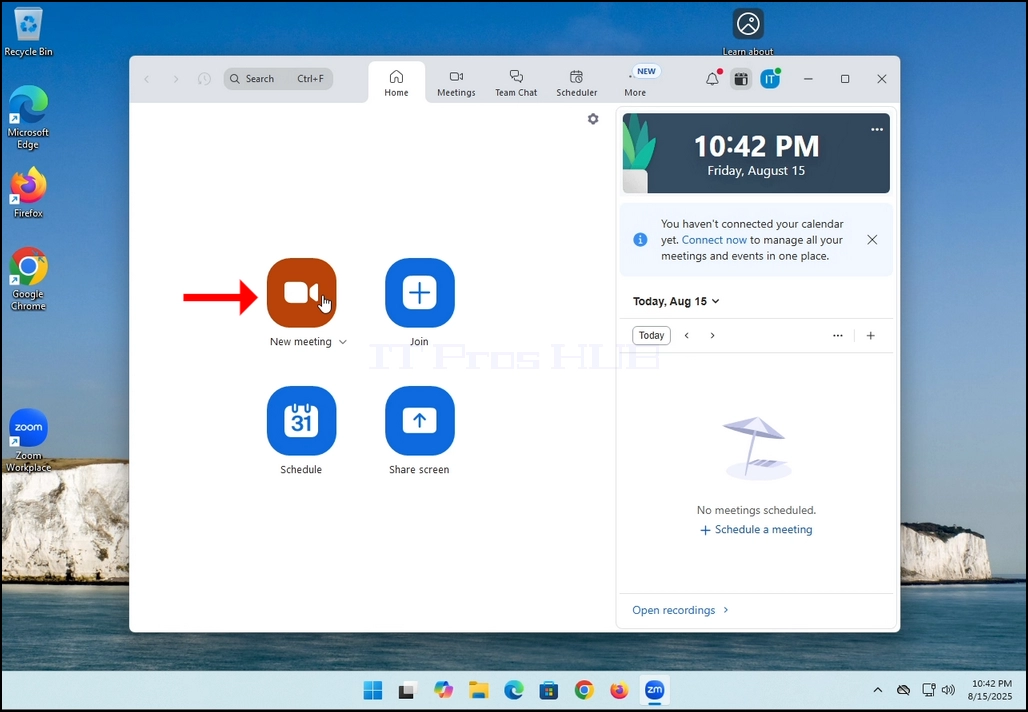
1. Начало Увеличаване. Потърсете оранжевия бутон, който казва Нова среща и кликнете върху него веднъж.
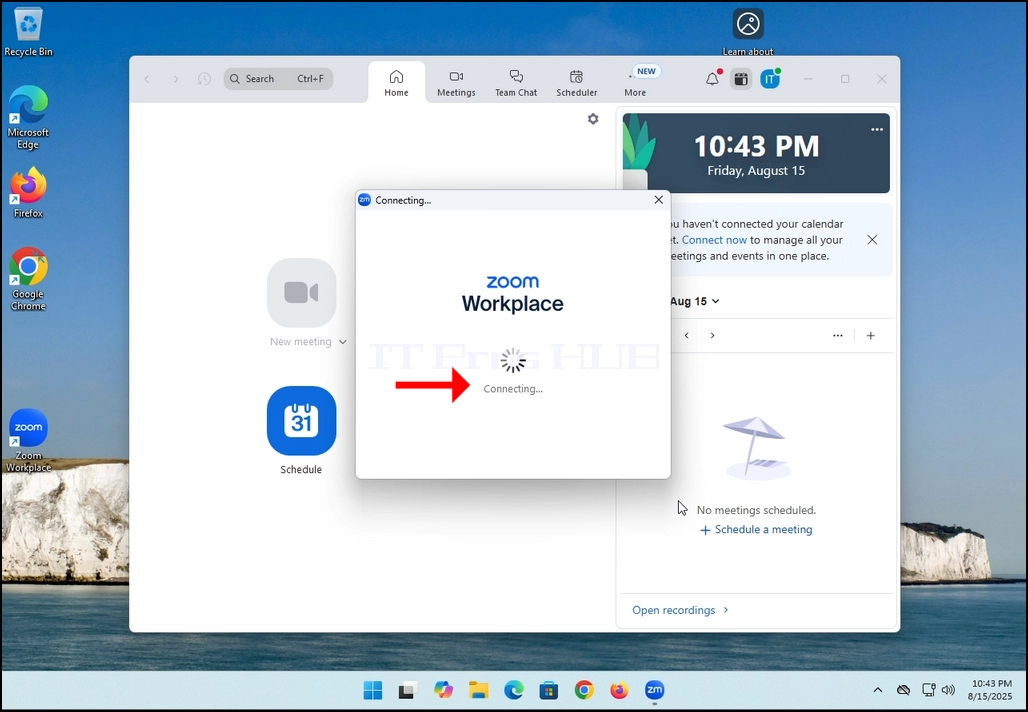
2. След като кликнете, трябва да се появи нов малък прозорец. Прозорецът ще покаже "свързване"и анимационен кръг.
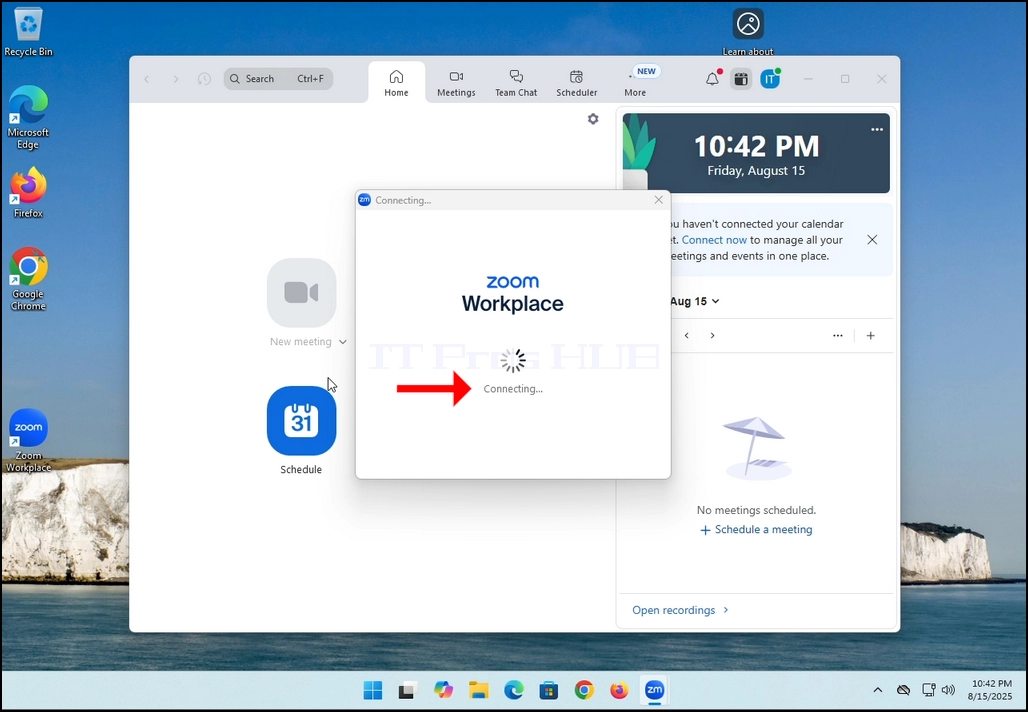
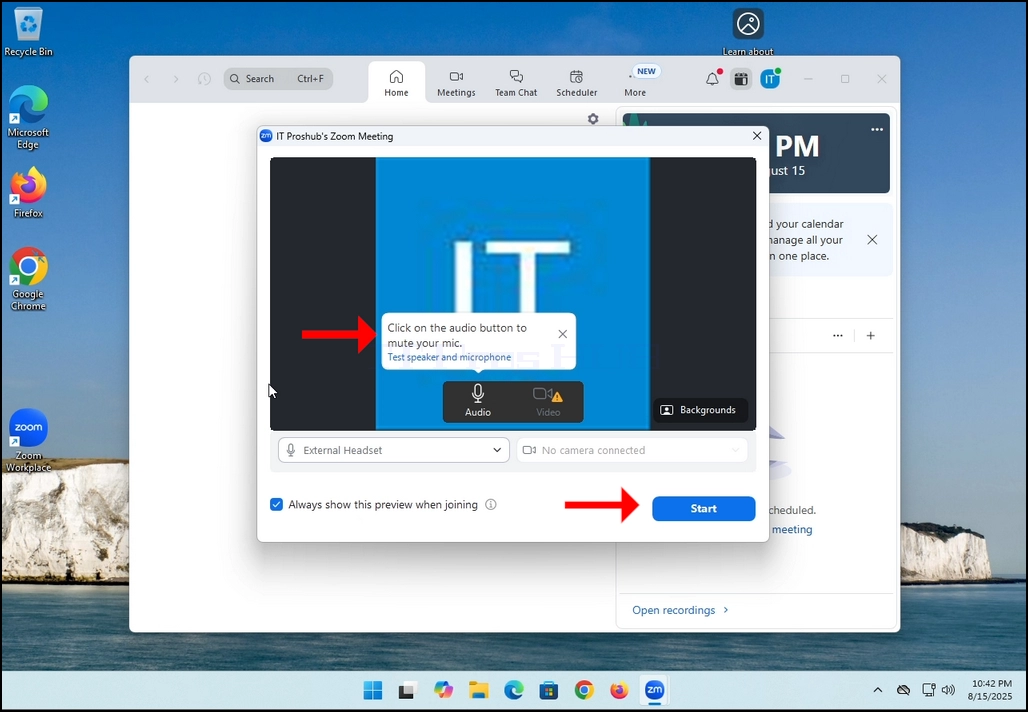
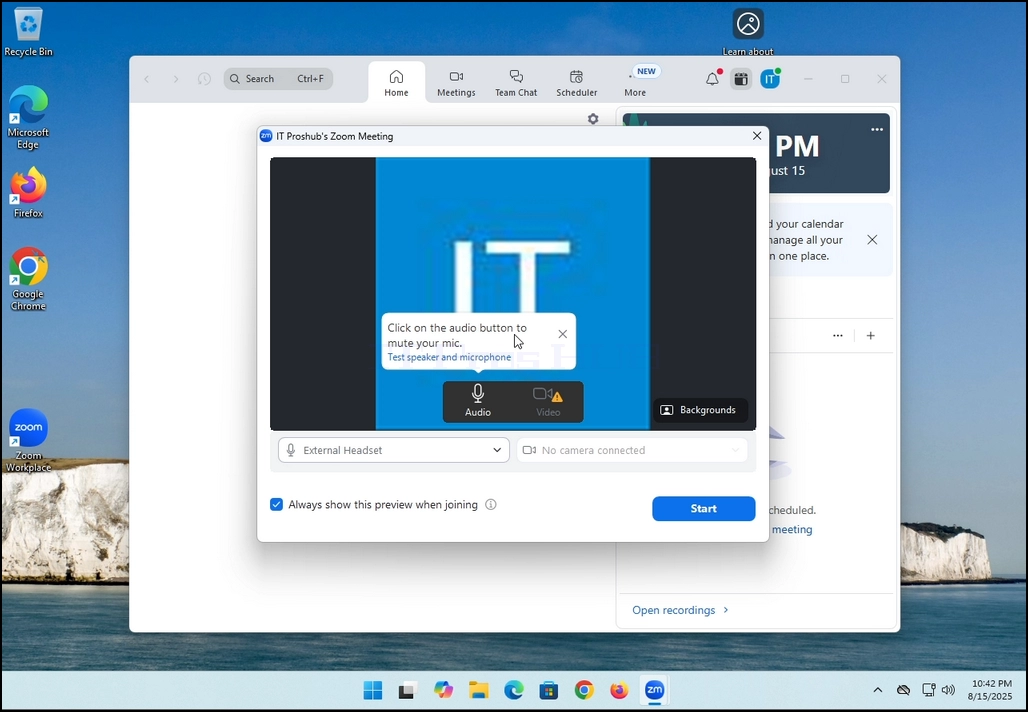
3. След като приключи зареждането, ще се появи нов прозорец. Обикновено заглавието му трябва да казва нещо подобно на: "Среща за увеличение на потребителя" В тази статия се казва: "Среща на IT Proshub за увеличение" тъй като потребителят, който използва Zoom, се нарича по този начин.
4. Тук можете да изключите вашия микрофон, като кликнете върху икона на микрофона Можете да изключите и камерата си, като кликнете върху Видео икона.
5. Щракнете върху Начало бутон за започване на срещата.
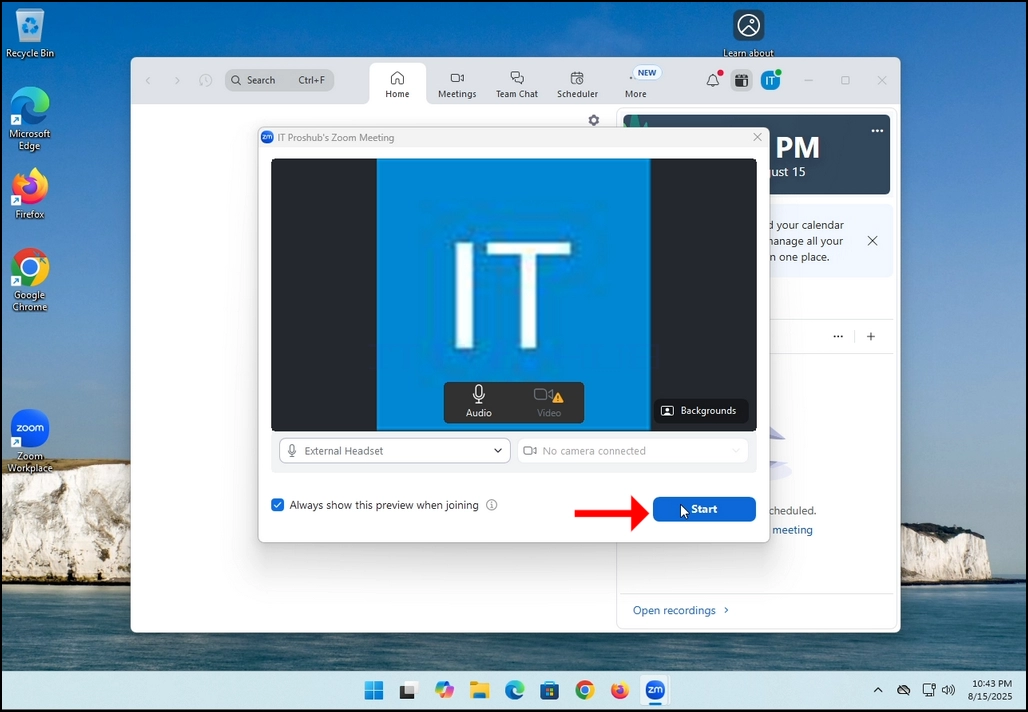
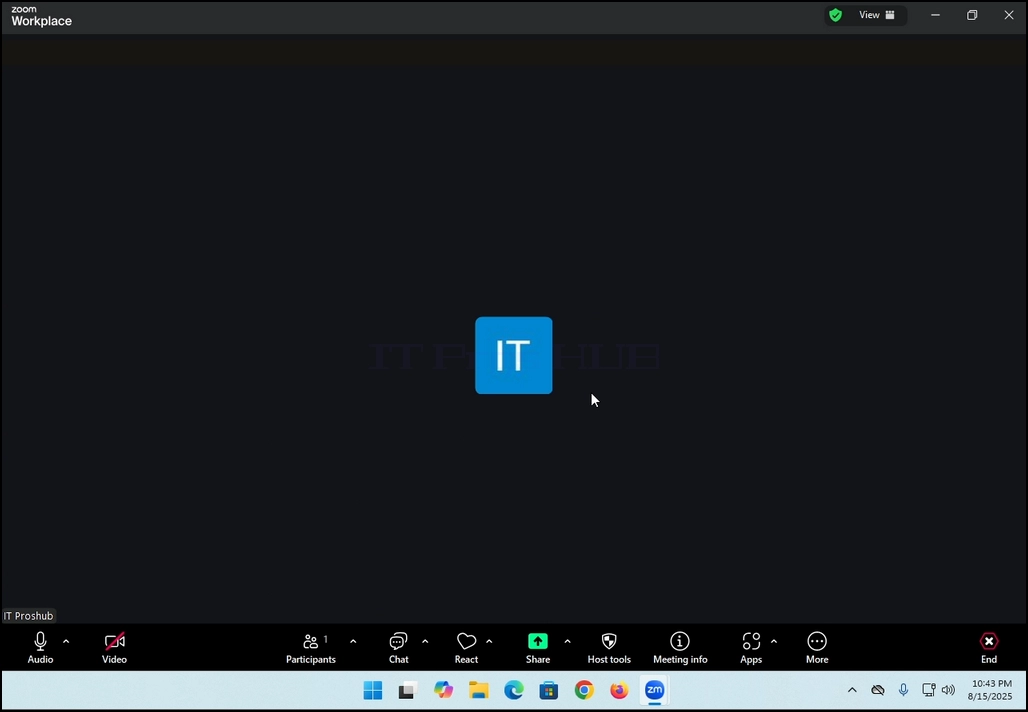
6. Начало Натиснете бутона, Zoom ще започне среща. Предишният прозорец ще изчезне и товарният прозорец, който видяхме преди, ще се върне отново.
Това е! Новата среща е в ход. На този етап срещата съдържа само домакина, който е IT Proshub в случая тази статия.