Online: 3446 online | Members: 0 | Guests: 3446
torsdag, juni 4, 2026
Page Minimap
Reading time: 4 min read
Tagline:HowtoCreateSpannedVolumeInWindows11+1
There is no translation available.

1. Go to Computer Management via Windows Start menu. Type the world Computer and wait till the Start menu finds the Computer Management app. When it does, click on it.

2. In Comuputer Management, on the left pane, look for Disk Management and click on it once.
2025-08-16_14_45_48-2025-08-14_13-42-33.mkv_-_VLC_media_player.webp

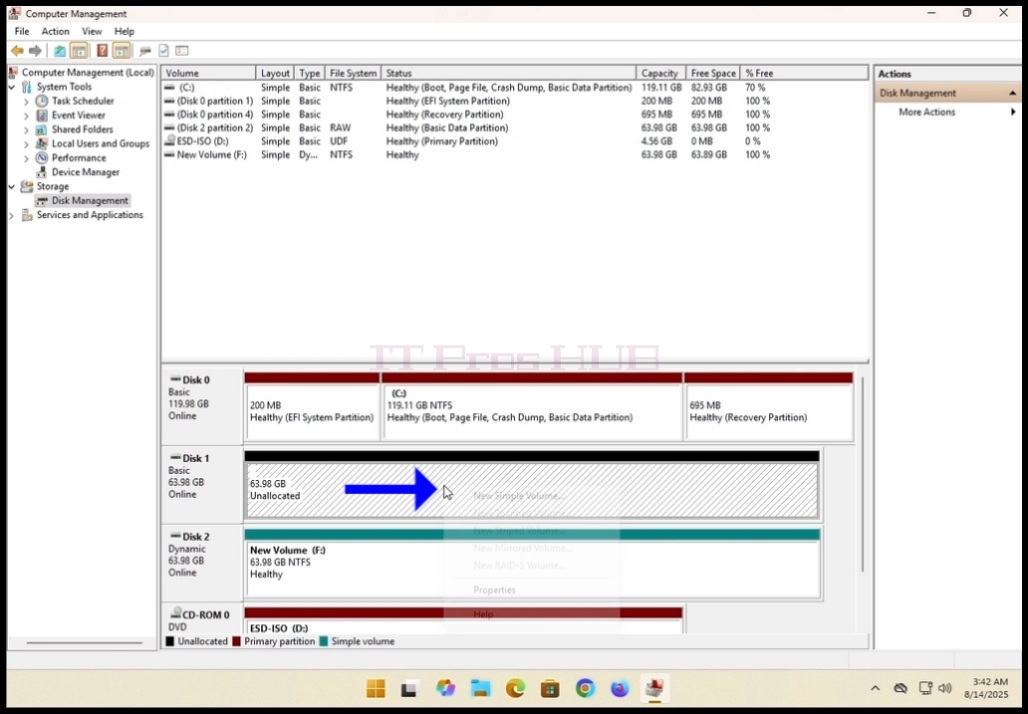
3. Look for one of the disks you would like to be a part of the spanned volume and
right click on it. Wait for a side menu to appear.2025-08-16_14_45_54-2025-08-14_13-42-33.mkv_-_VLC_media_player.webp
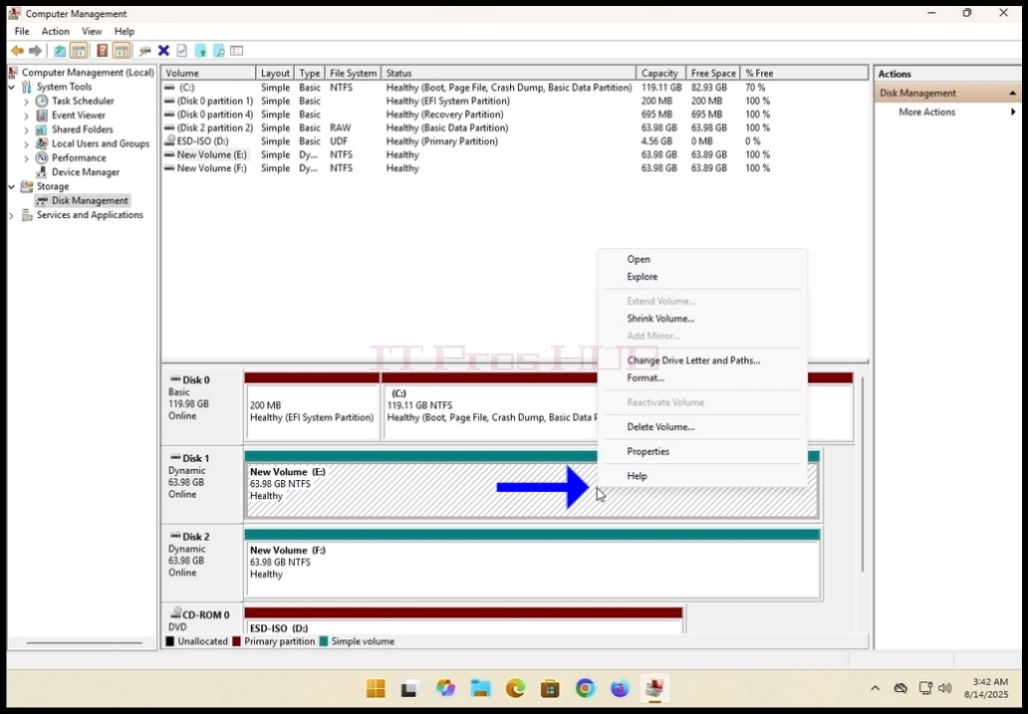
4. In the case of this article we will delete existing volumes out of the disks
we want to use in our spanned volume. As you can see, though
they are both dynamic, Disk 1 and Disk 2 are currently configured as something other than a spanned volume.
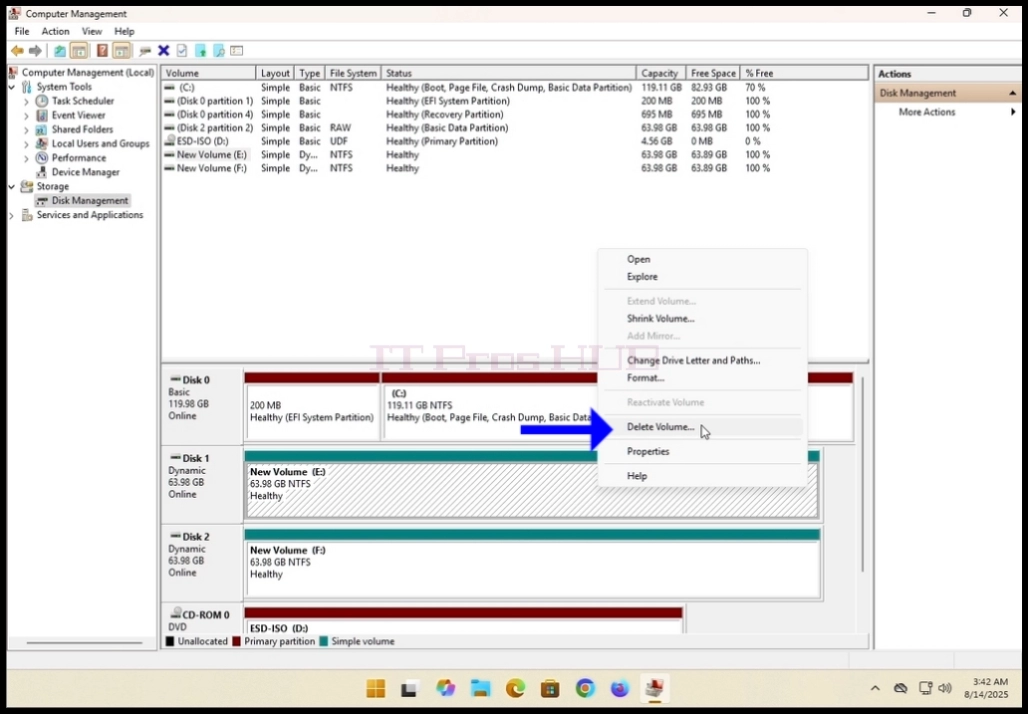
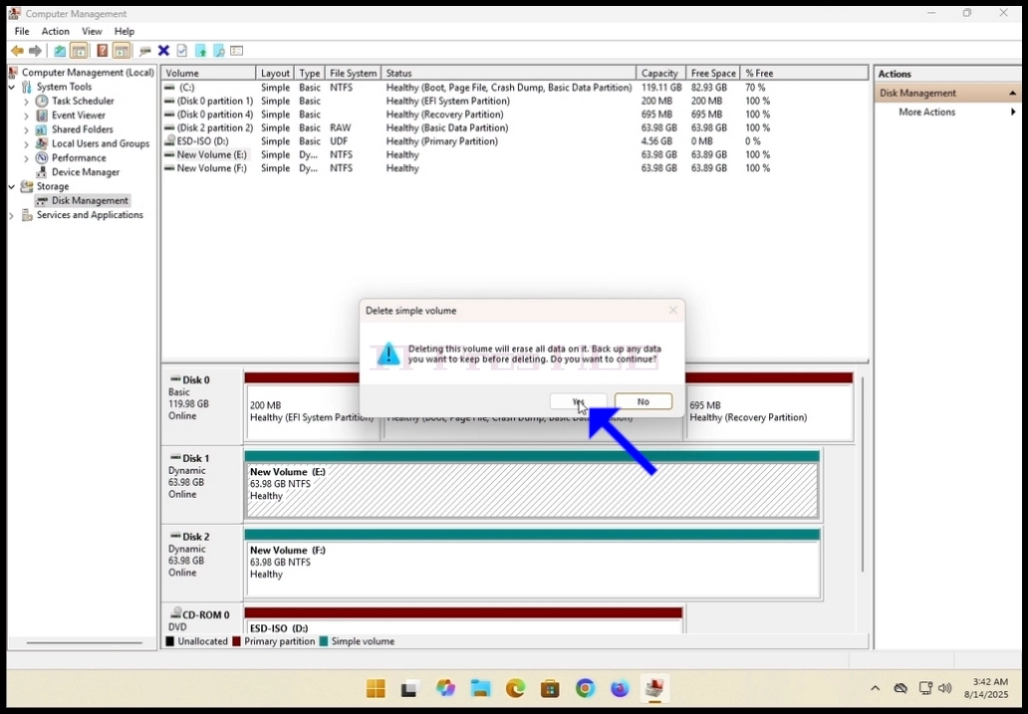
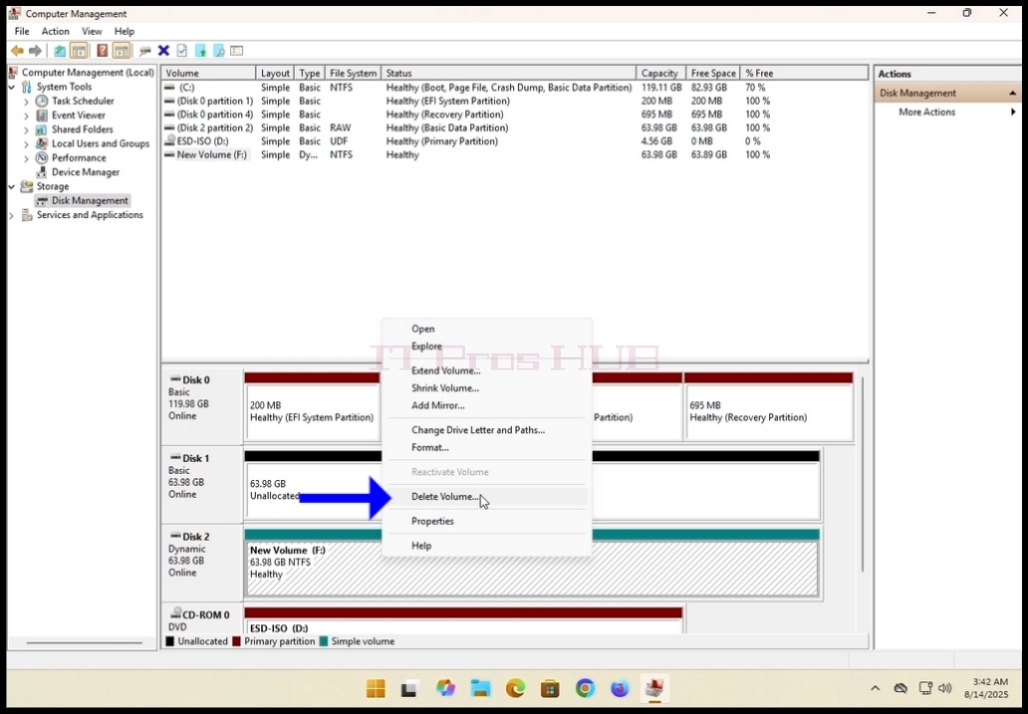
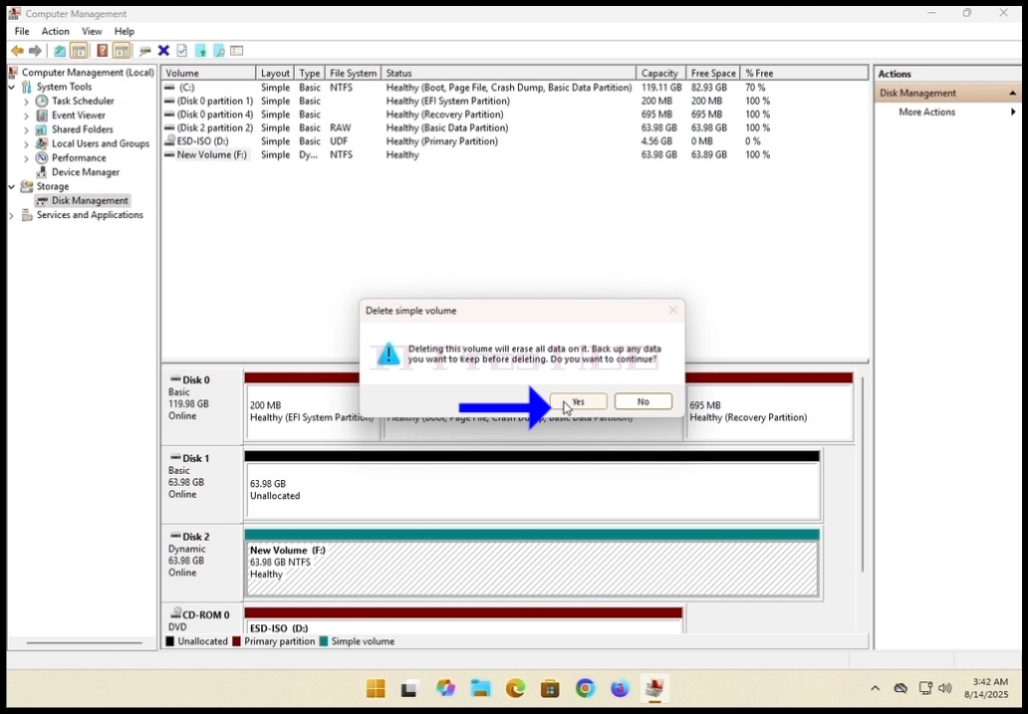
5. In the side menu, click on Delete Volume and hit the YES button when prompt to in the
warning window that should appear.

2025-08-16_14_45_55-2025-08-14_13-42-33.mkv_-_VLC_media_player.webp

6. After clicking the YES button, wait for the brown strip to change its colour to
black which means the volume is unallocated.

2025-08-16_14_45_58-2025-08-14_13-42-33.mkv_-_VLC_media_player.webp2025-08-16_14_46_01-2025-08-14_13-42-33.mkv_-_VLC_media_player.webp

7. Perform the same action to the second disk in the array.
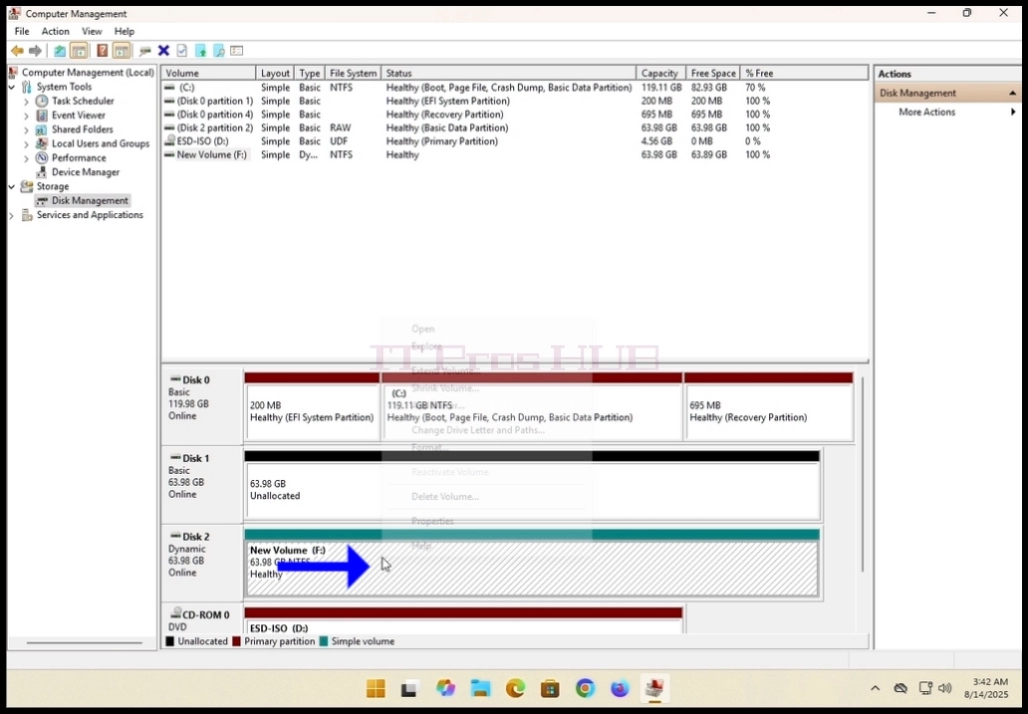
2025-08-16_14_46_04-2025-08-14_13-42-33.mkv_-_VLC_media_player.webp2025-08-16_14_46_06-2025-08-14_13-42-33.mkv_-_VLC_media_player.webp2025-08-16_14_46_09-2025-08-14_13-42-33.mkv_-_VLC_media_player.webp

8. Make sure both disks have only unallocated volumes.
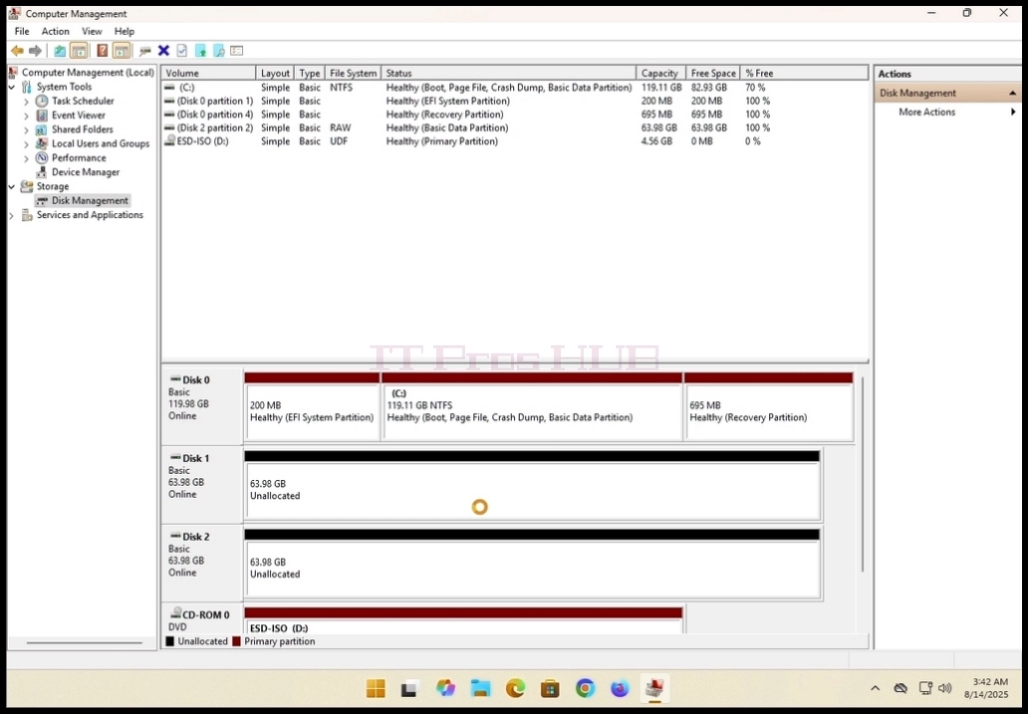
2025-08-16_14_46_13-2025-08-14_13-42-33.mkv_-_VLC_media_player.webp

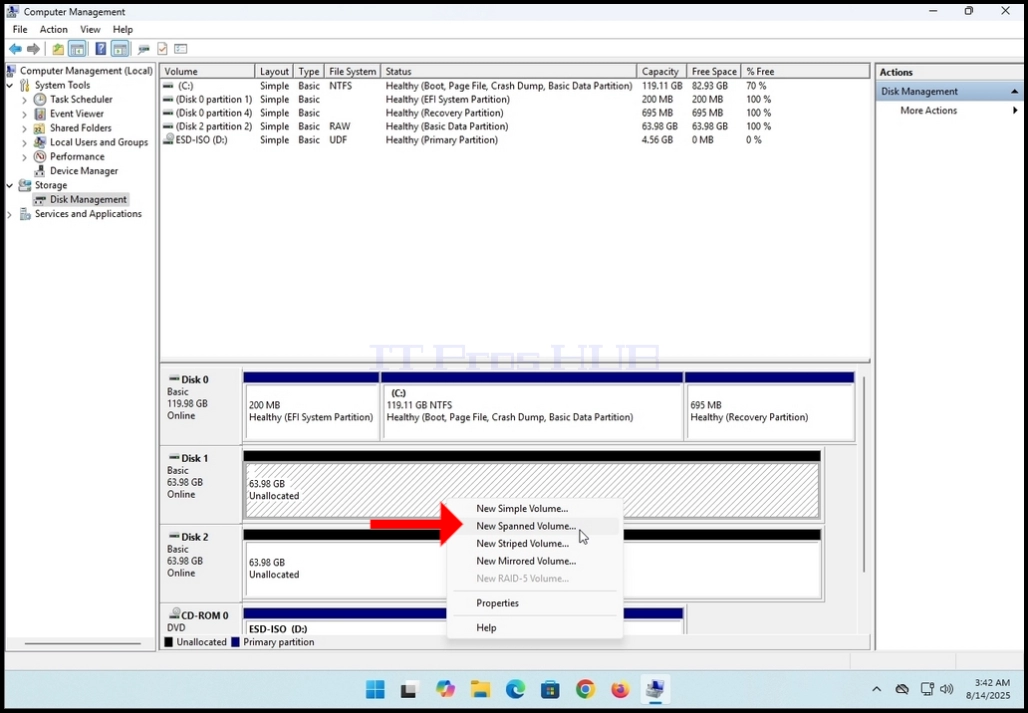
9. Right click on one of the volumes, wait for the side menu to appear. Look for
New Spanned Volume... option and click on it once. Wait for the New Spanned Volume
wizard to appear.

2025-08-16_14_46_17-2025-08-14_13-42-33.mkv_-_VLC_media_player.webp

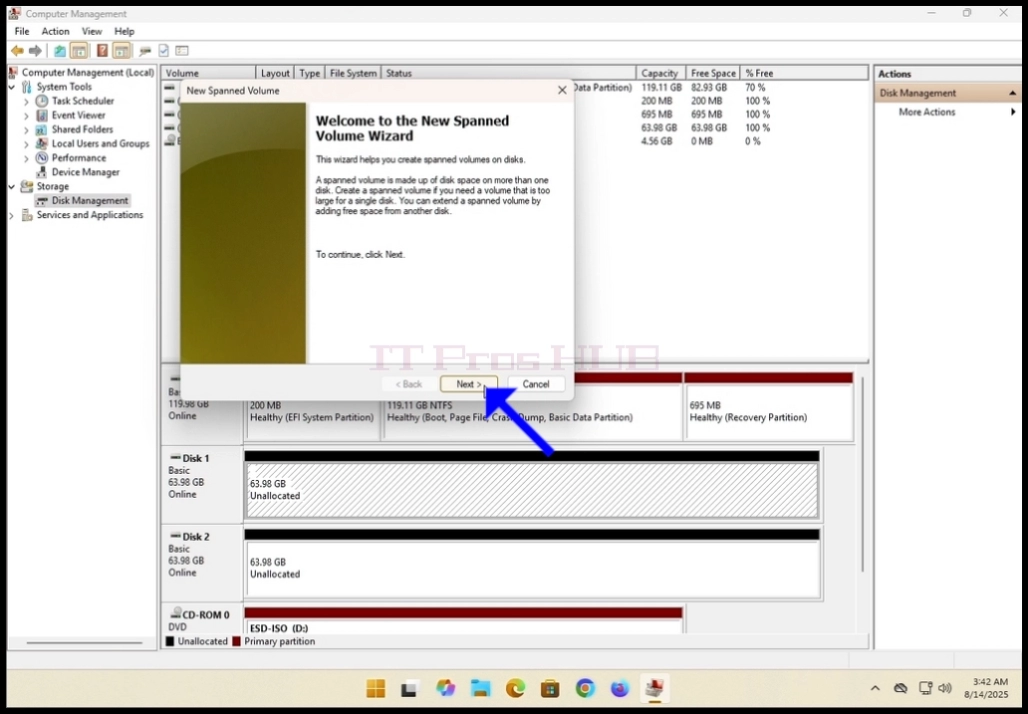
10. Click NEXT.

2025-08-16_14_46_21-2025-08-14_13-42-33.mkv_-_VLC_media_player.webp

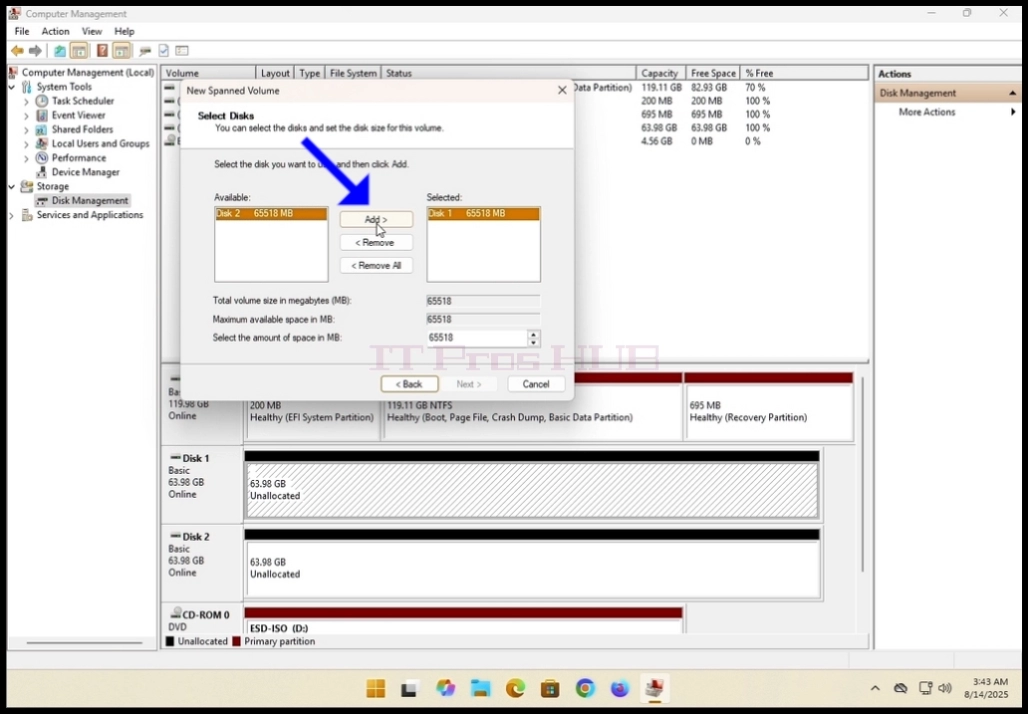
11. In the current Select Disks window, notice the 2 boxes. The box on the right contains
the disk previously right clicked on and the left boxf contains all of the available
disks to add to the spanned volume array.
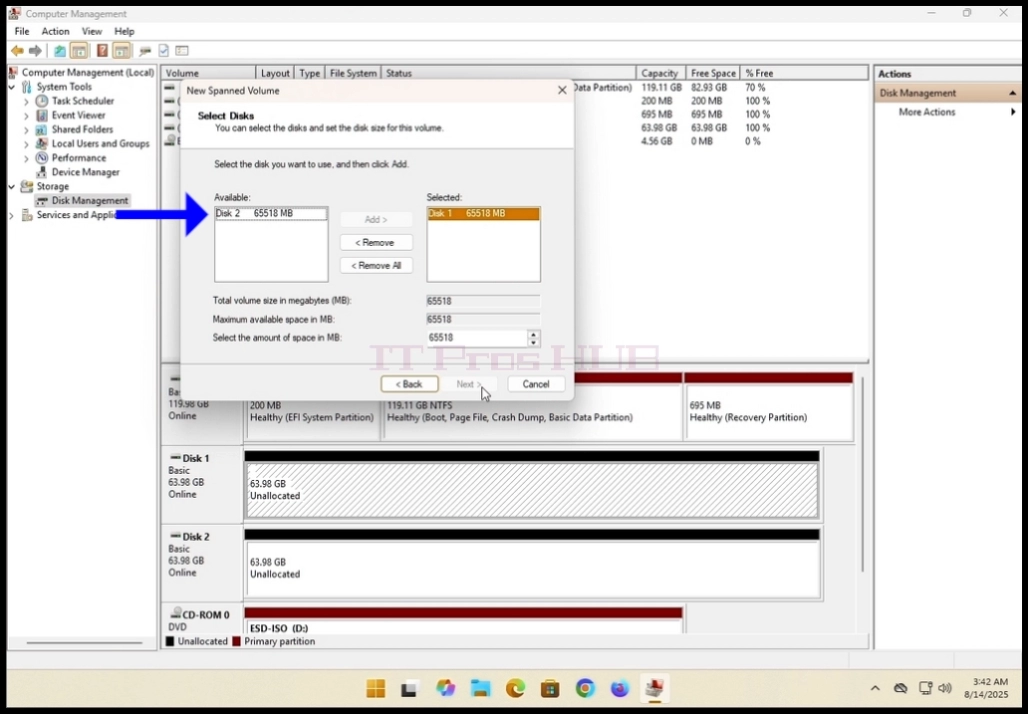
2025-08-16_14_46_22-2025-08-14_13-42-33.mkv_-_VLC_media_player.webp

12. In the case of this article and as metioned before, we will use disks 1 and 2.
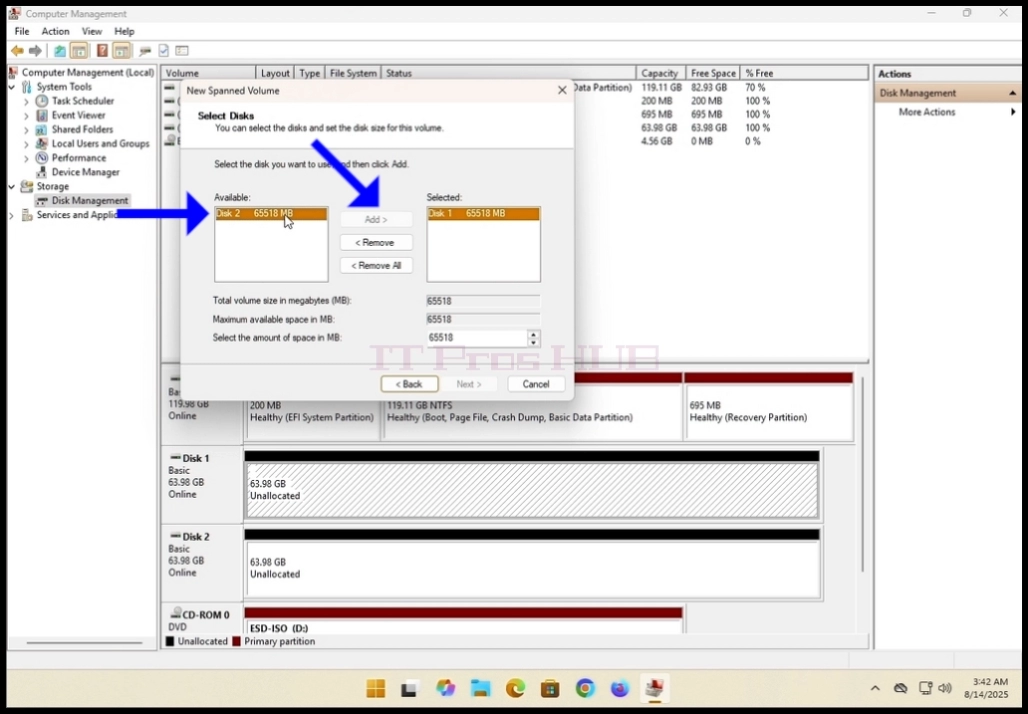
13. Select the second disk desired to be in the array, Disk 2 in this case, and click
on the Add> button in the middle of the boxes.

2025-08-16_14_46_26-2025-08-14_13-42-33.mkv_-_VLC_media_player.webp2025-08-16_14_46_30-2025-08-14_13-42-33.mkv_-_VLC_media_player.webp

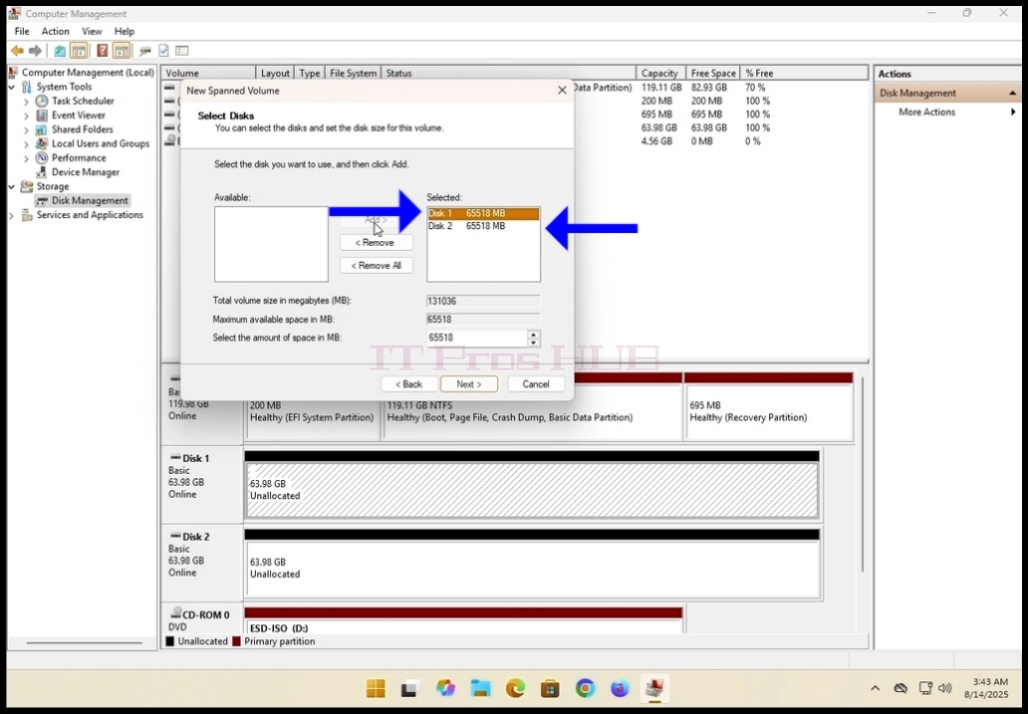
14. After hitting the Add> button, you should see both disks on top of the other on the
right box title Selected.

2025-08-16_14_46_31-2025-08-14_13-42-33.mkv_-_VLC_media_player.webp

15.click the Next button.

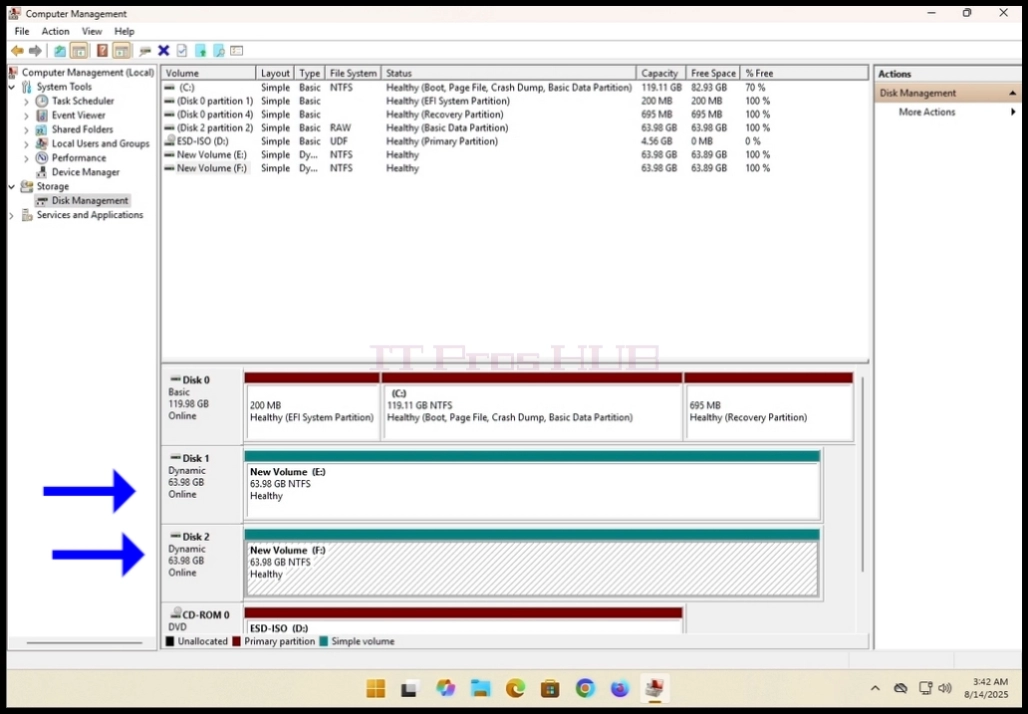
16. You have now configured a spanned volume!