



1. Go to Computer Management via Windows Start menu. Type the world Computer and wait till the Start menu finds the Computer Management app. When it does, click on it.
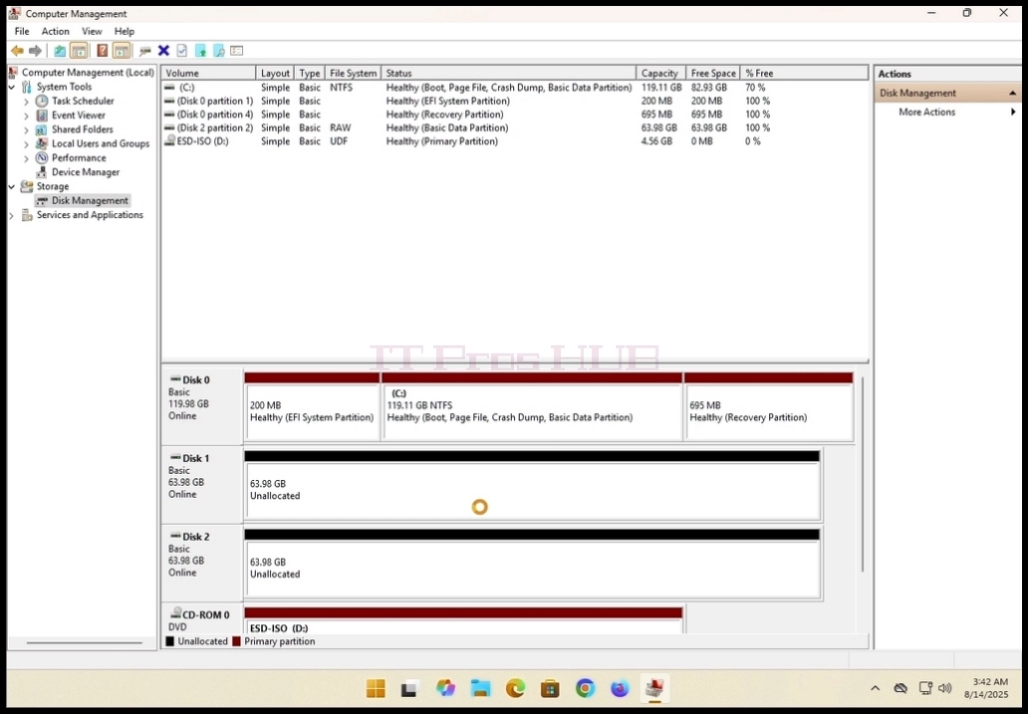
2. In Comuputer Management, on the left pane, look for Disk Management and click on it once.
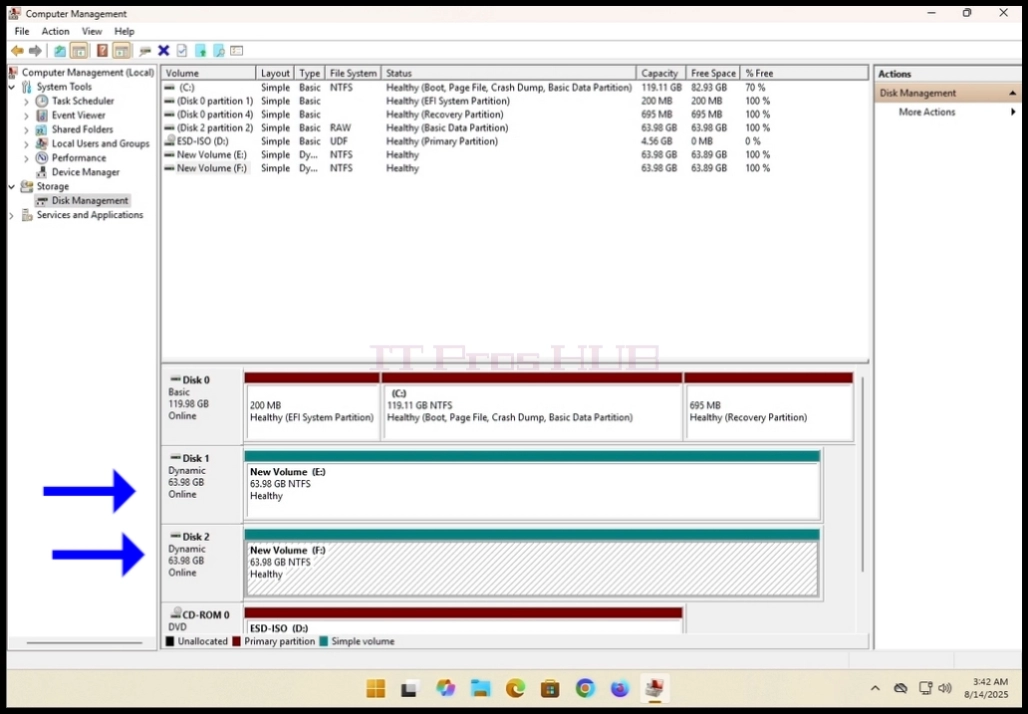
3. Look for one of the disks you would like to be a part of the spanned volume and
right click on it. Wait for a side menu to appear.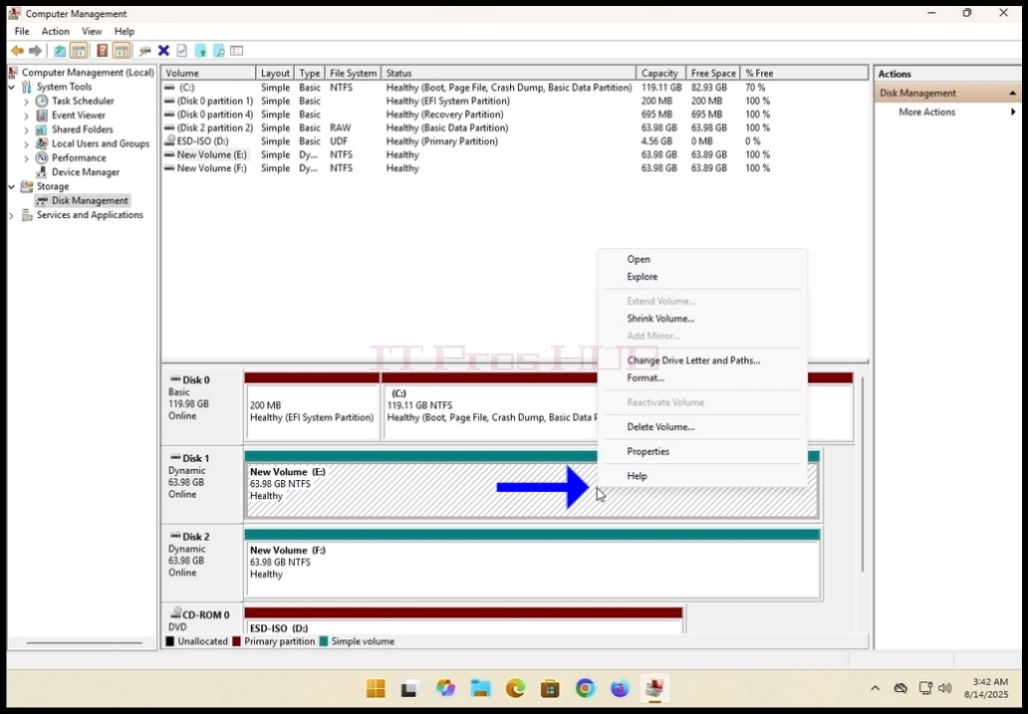
4. In the case of this article we will delete existing volumes out of the disks
we want to use in our spanned volume. As you can see, though
they are both dynamic, Disk 1 and Disk 2 are currently configured as something other than a spanned volume.
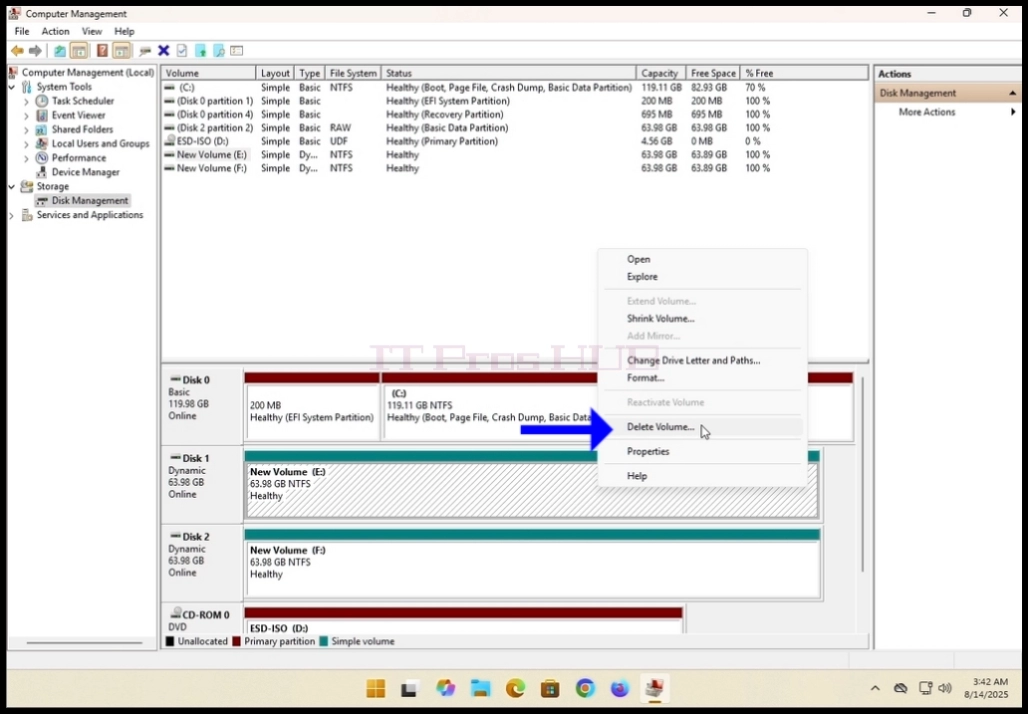
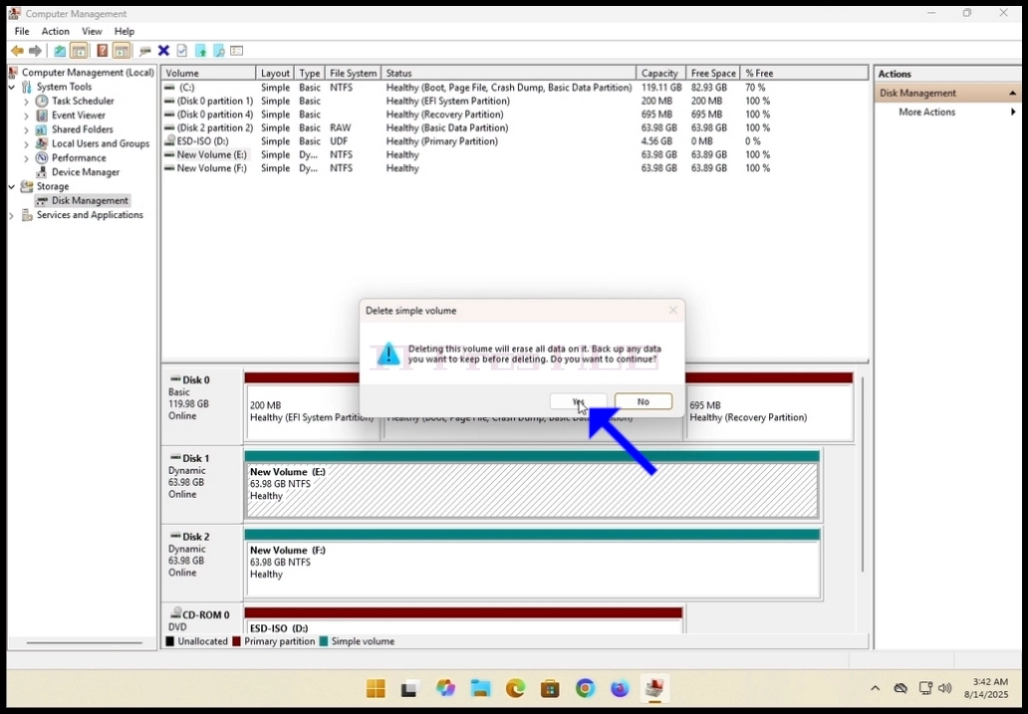
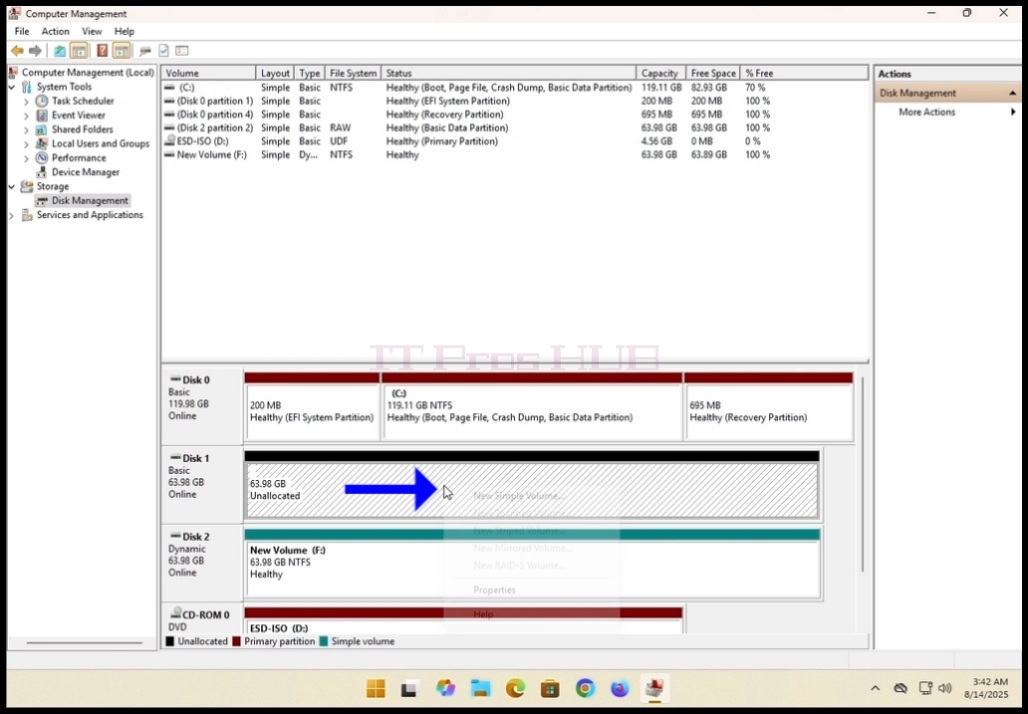
7. Perform the same action to the second disk in the array.
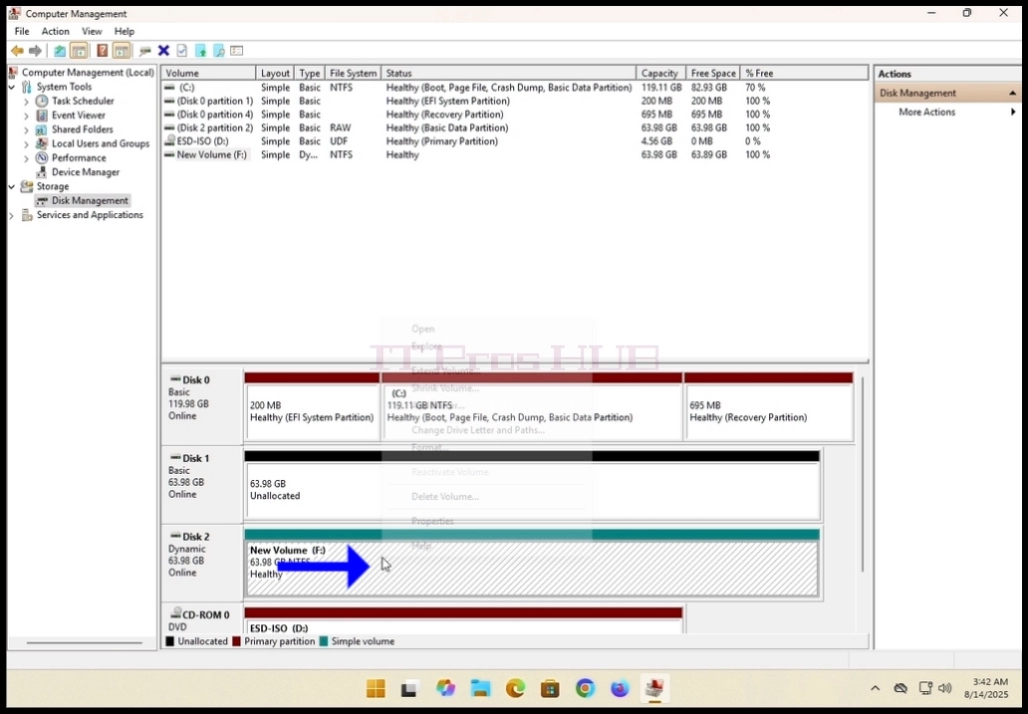
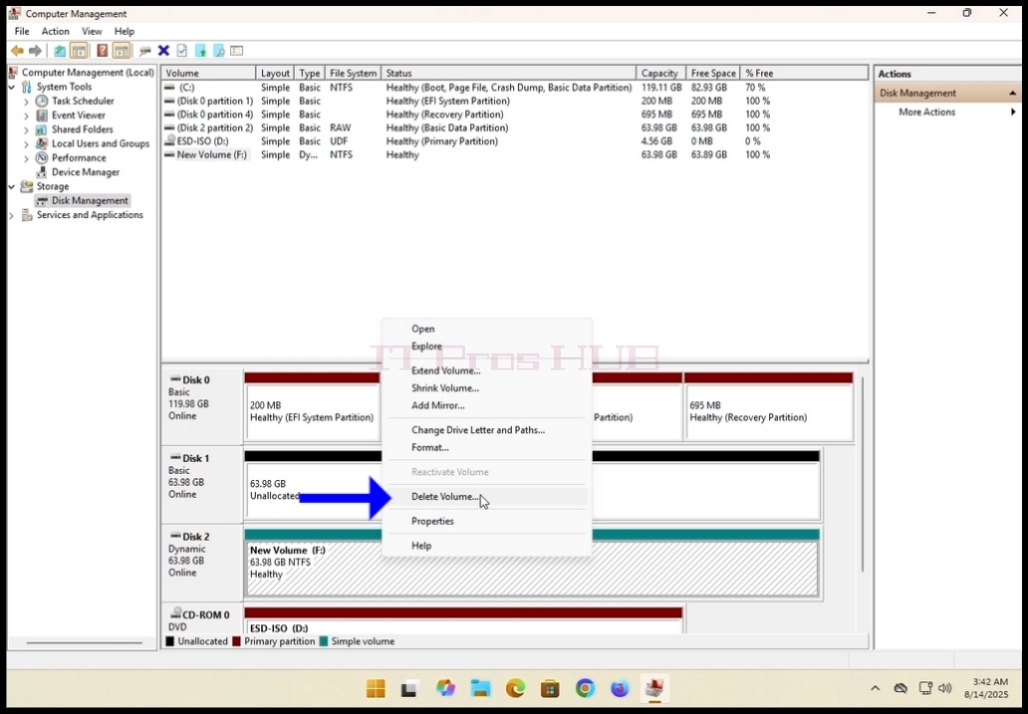
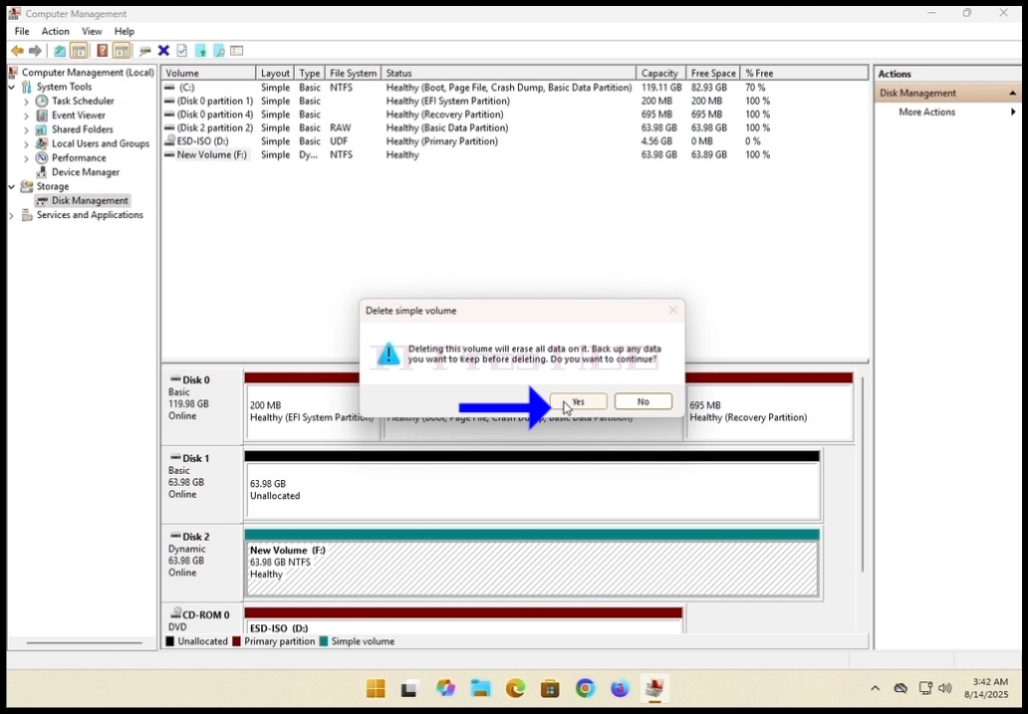
8. Make sure both disks have only unallocated volumes.
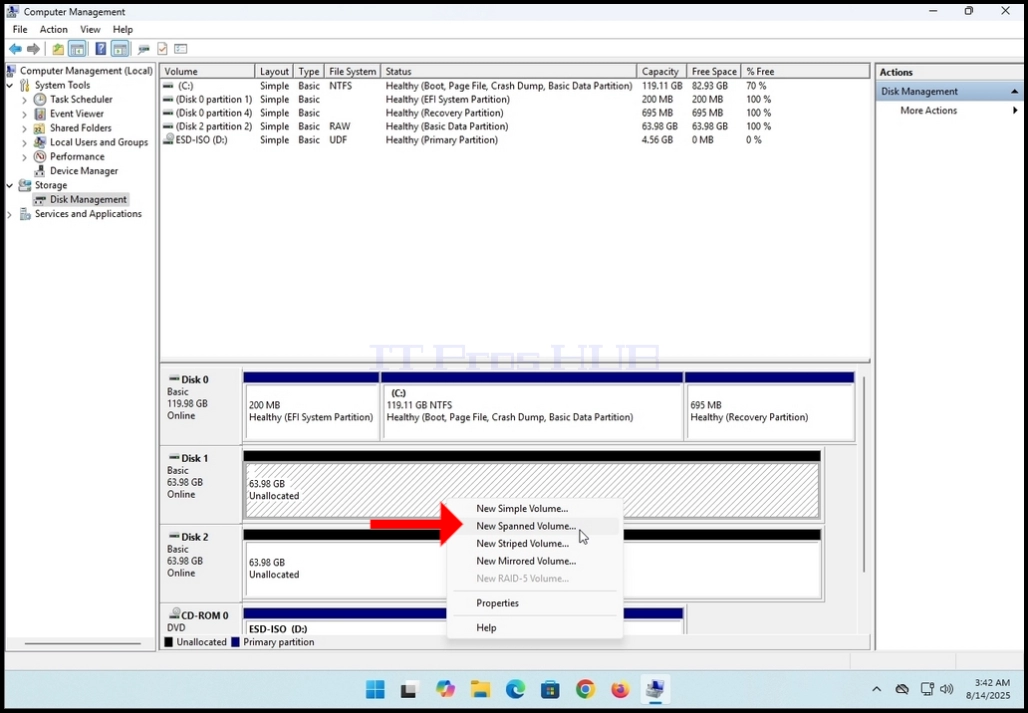
10. Click NEXT.
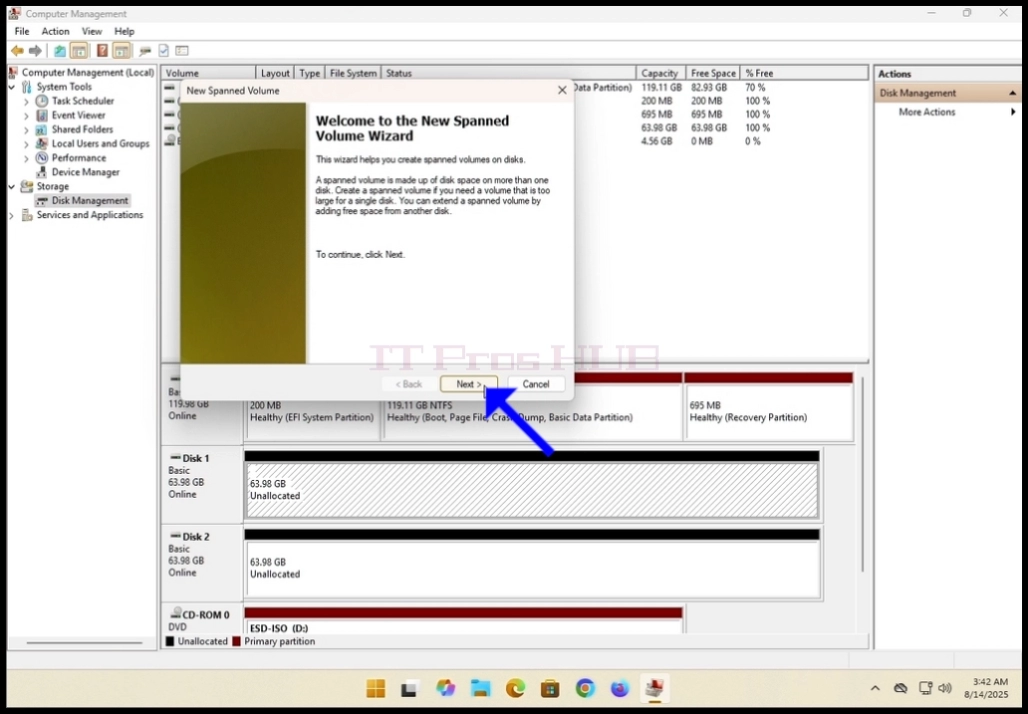
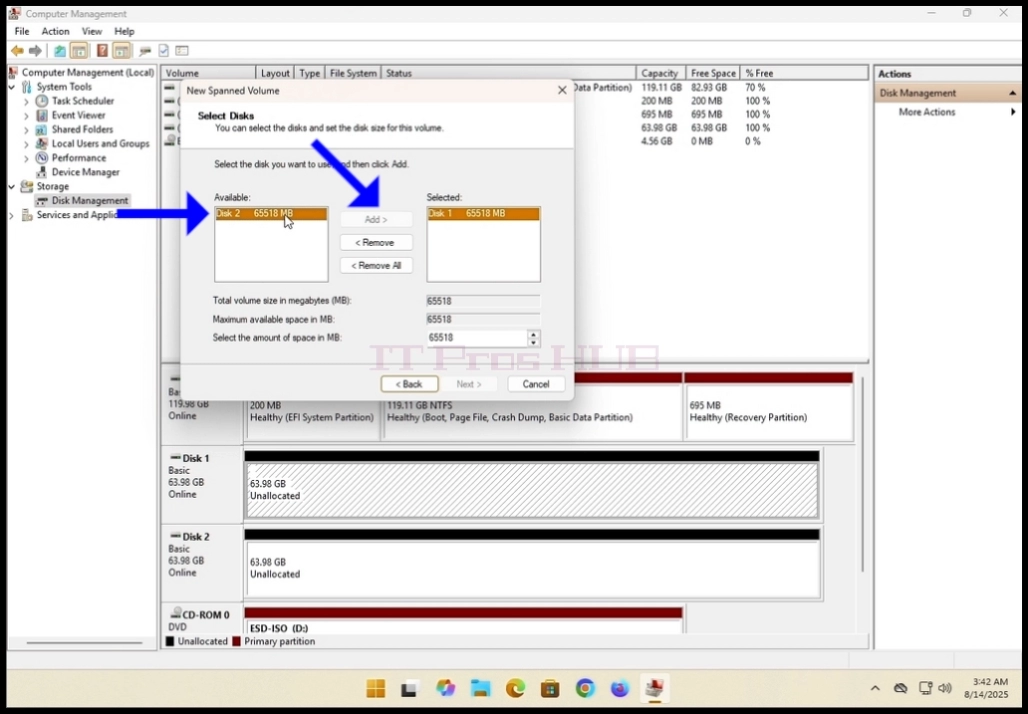
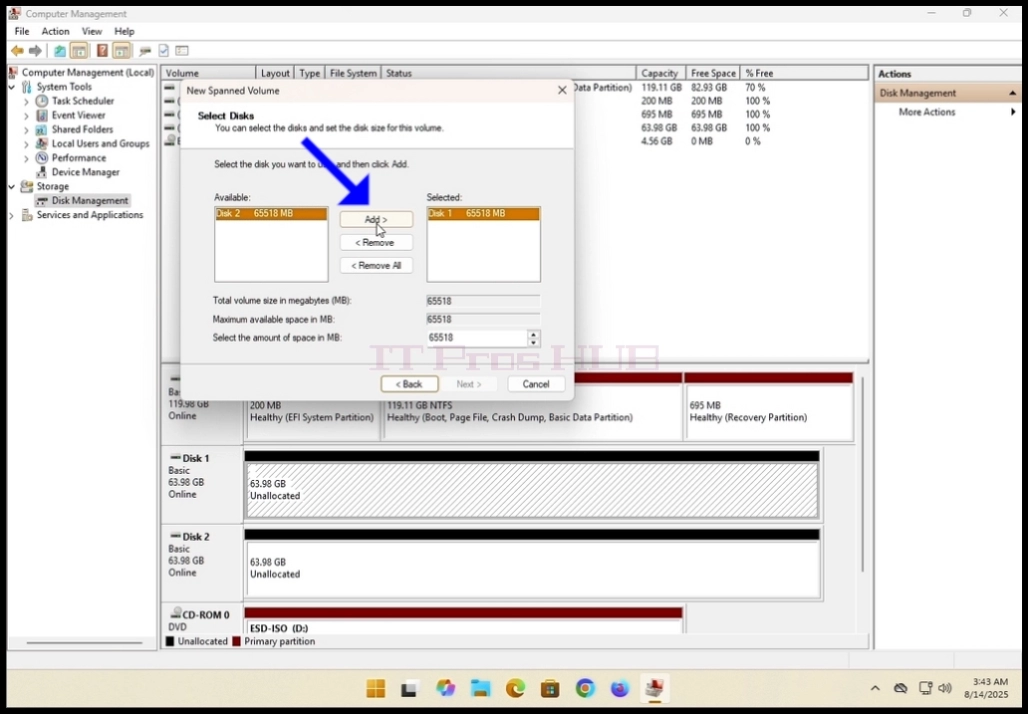
11. In the current Select Disks window, notice the 2 boxes. The box on the right contains
the disk previously right clicked on and the left boxf contains all of the available
disks to add to the spanned volume array.
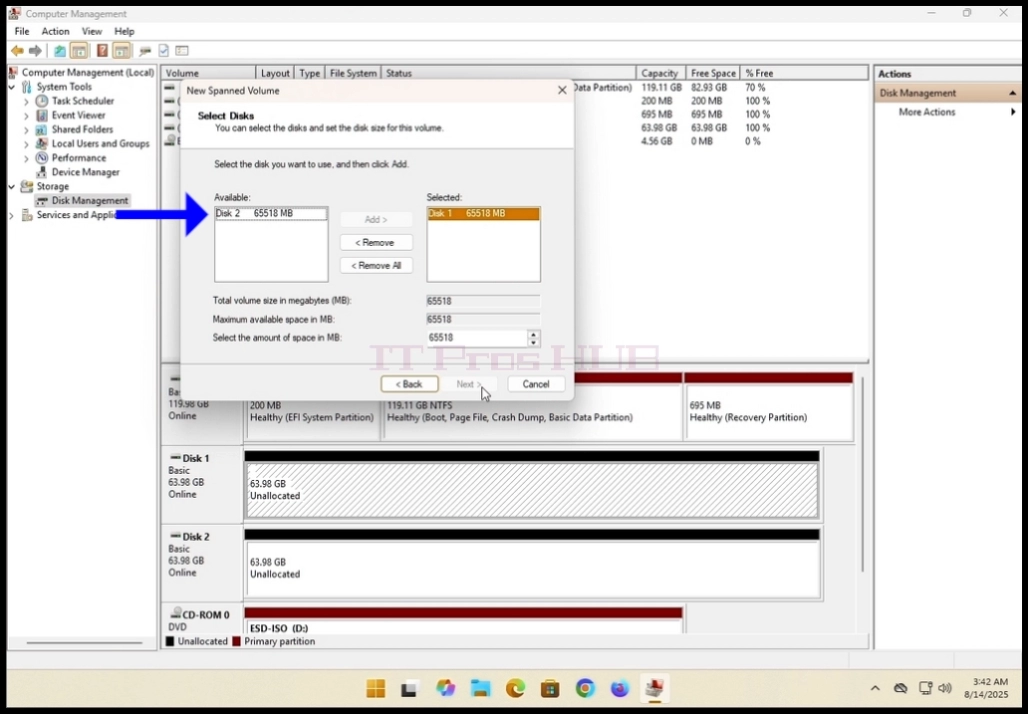
12. In the case of this article and as metioned before, we will use disks 1 and 2.
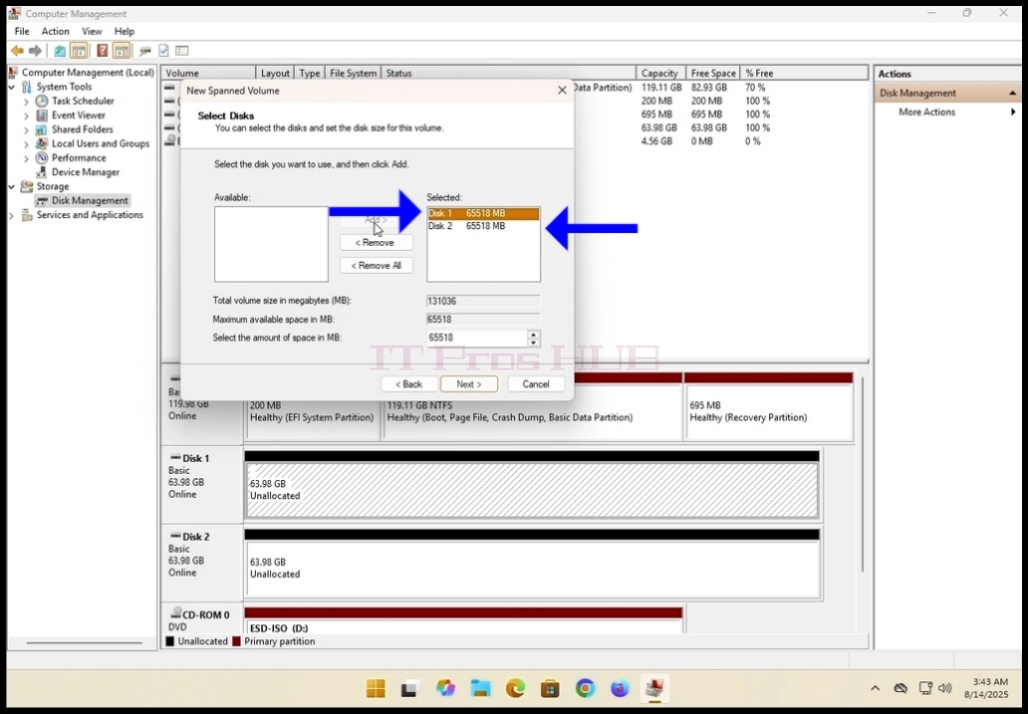
16. You have now configured a spanned volume!