



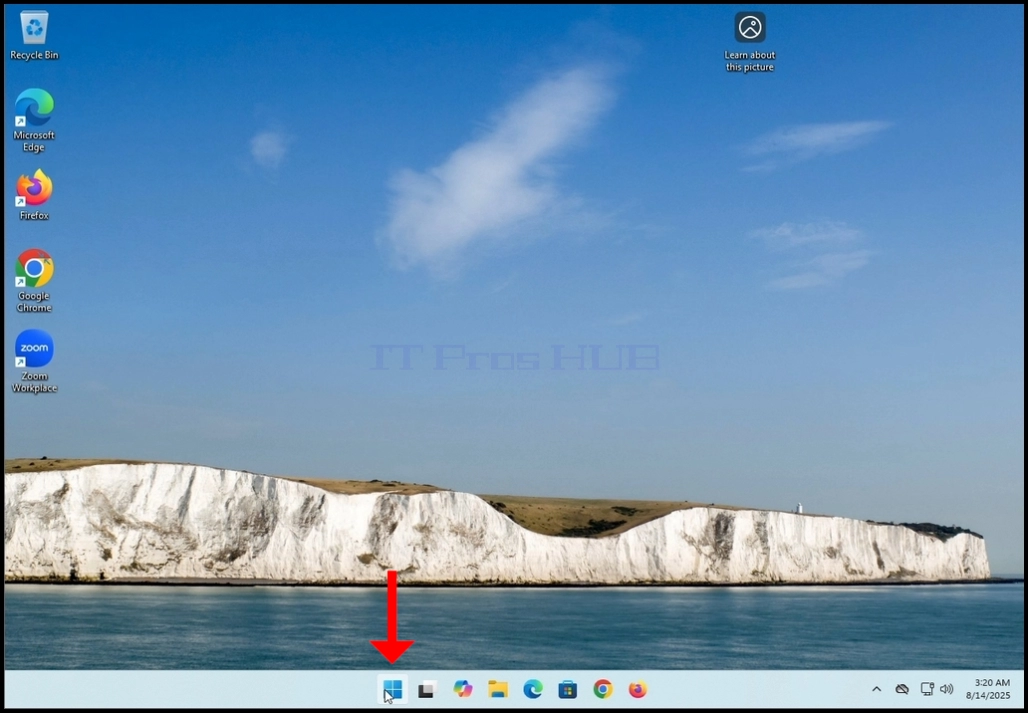
1. Gehen Sie zu Windows Desktop und suchen Sie nach Beginn Taste

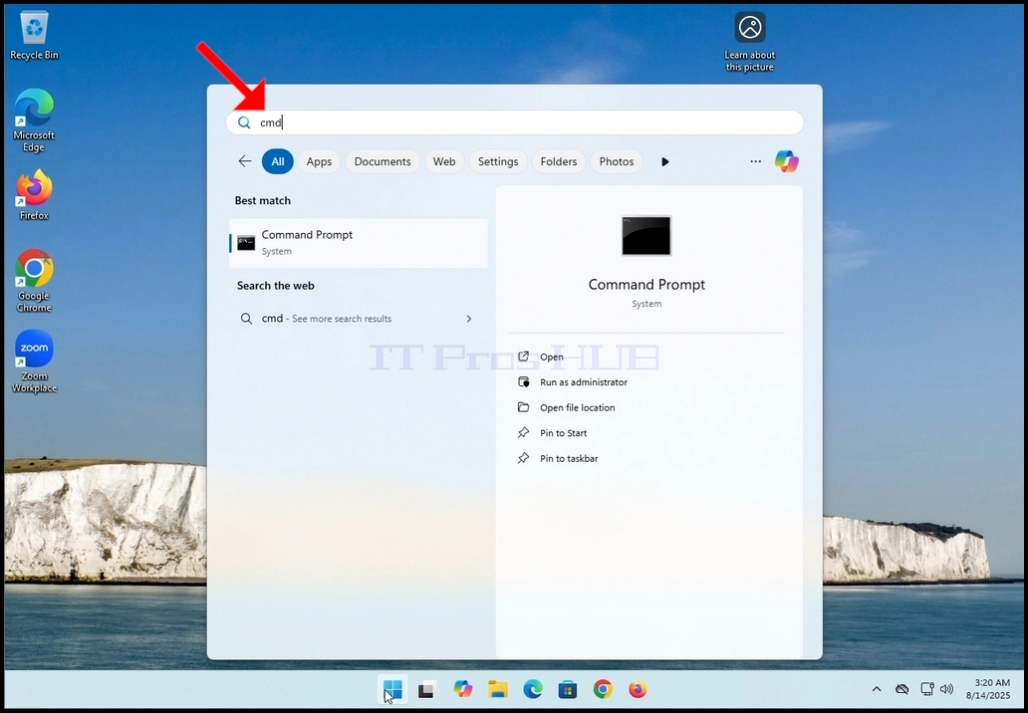
3. Nach dem Erscheinen des Startmenüs, Typ CMD Warten Sie auf das Startmenü, um die Befehlsaufforderung App.

4. Nachdem es es gefunden hat, klicken Sie im rechten Bereich des Startmenüs auf Führen Sie als Administrator und wartet auf die Windows UAC promptes Fenster erscheint
5. Klicken JA und wartet auf die Befehlsaufforderung Fenster erscheint


6. Nachdem das Eingabeaufforderungsfenster angezeigt wurde, geben Sie den folgenden Befehl ein:
a. DISM /online /cleanup-image /restorehealth
7. Schlagen Sie die EINGANG Schlüssel

8. Nachdem er die EINGANG Schlüssel, DISM wird anfangen, gemäß den gegebenen Argumenten zu arbeiten
9. Sie erhalten die Version der Bildversion, die Sie ausführen

10. Das Folgende ist eine Aufschlüsselung des DISM-Prozesses in diesem Artikel:
a. /Online → Befiehlt DISM, die laufende Windows-Installation (Ihr aktuelles Betriebssystem) anzuvisieren, nicht ein Offline-Image.
b. /Cleanup-Image → Gibt an, dass der Befehl auf dem Windows Image Service Stack (dem Komponentenspeicher, auch bekannt als WinSxS) ausgeführt wird.
c. /RestoreHealth → Befiehlt DISM, das System auf Korruption im Windows-Image zu scannen und zu versuchen, es automatisch zu reparieren.
11. Was sie in der Praxis tut:
a. Scannt den Komponentenspeicher (WinSxS) auf Korruption oder Inkonsistenzen.
b. Prüft die Gesundheit gegen bekannte gute Kopien.
c. Reparaturprobleme durch Herunterladen sauberer Dateien

12. Nach einigen Sekunden erscheint ein Fortschrittsbalken

13. Warten Sie, bis der Fortschrittsbalken 100% erreicht
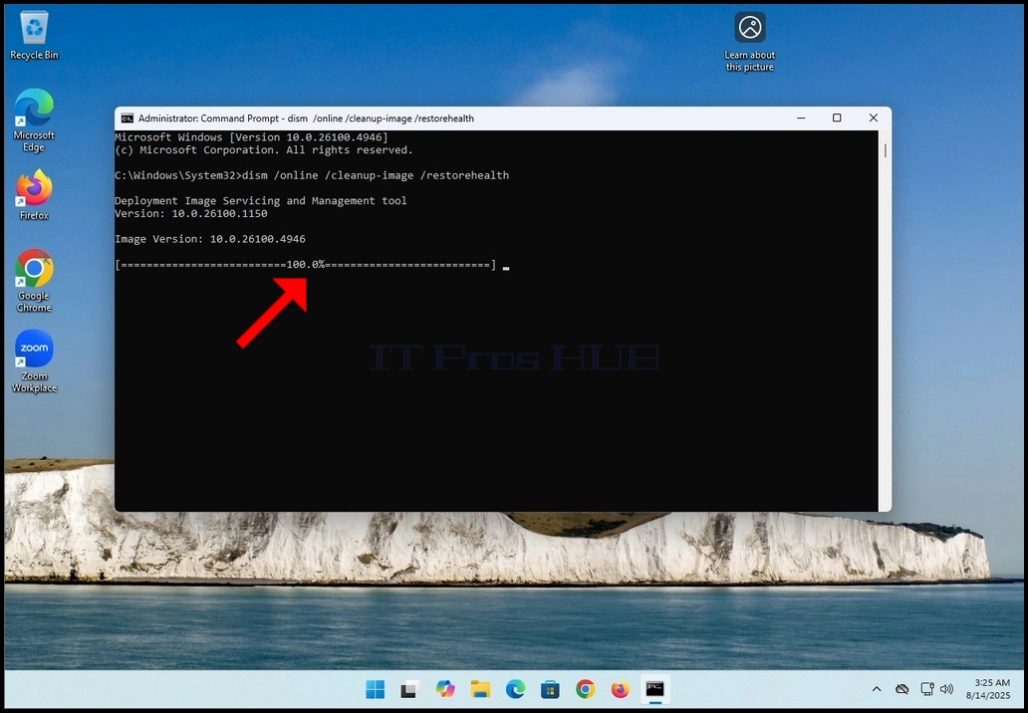
14. Nach Abschluss des DISM-Prozesses erhalten Sie folgende Meldung:
a. Wiederherstellungsvorgang erfolgreich abgeschlossen
