



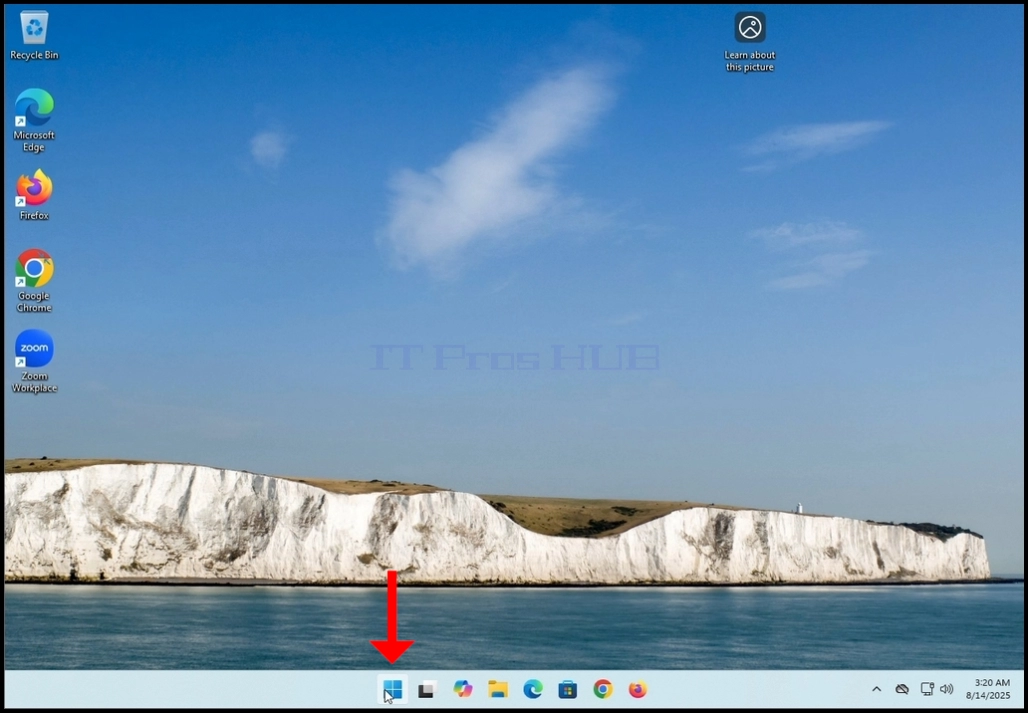
1. Go to Windows desktop and look for the Start button

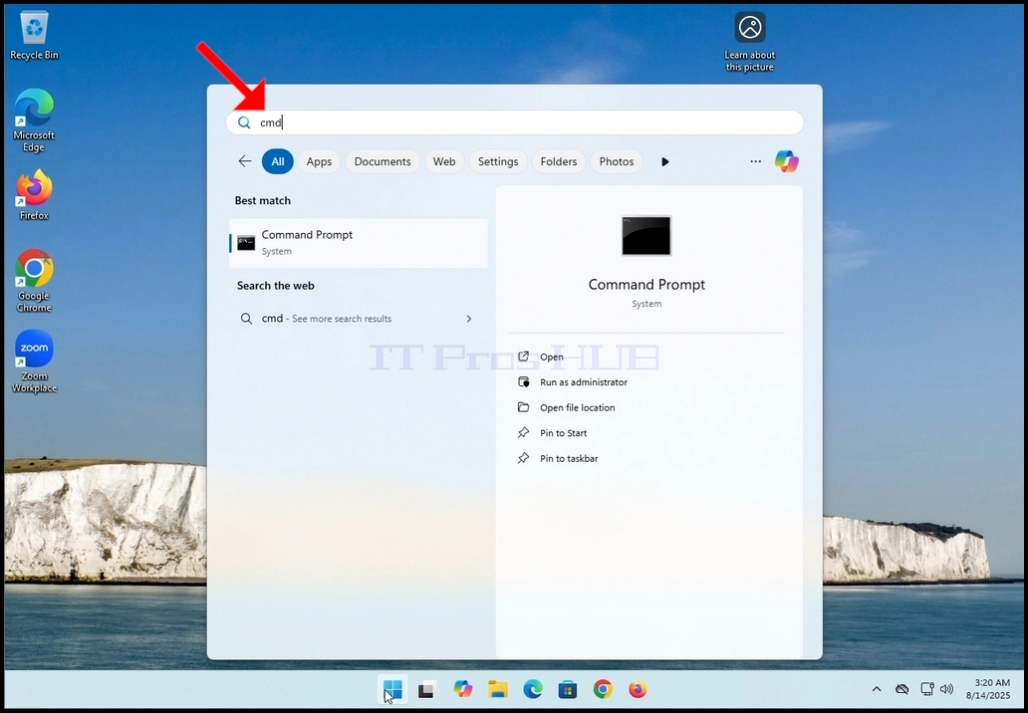

5. Click YES and wait for the Command Prompt window to appear


6. After the Command Prompt window appears, type the following command:
a. DISM /online /cleanup-image /restorehealth
7. Hit the ENTER key

8. After hitting the ENTER key, DISM will start working according to the given arguments
9. You will be presented with the version of the image version you are running

10. The following is a breakdown of the DISM process in this article:
a. /Online → Tells DISM to target the running Windows installation (your current OS), not an offline image.
b. /Cleanup-Image → Specifies that the command will operate on the Windows image servicing stack (the component store, also known as WinSxS).
c. /RestoreHealth → Instructs DISM to scan the system for corruption in the Windows image and attempt to repair it automatically.
11. What it does in practice:
a. Scans the component store (WinSxS) for corruption or inconsistencies.
b. Checks health against known good copies.
c. Repairs problems by downloading clean files

12. After a few seconds, a progress bar will appear

13. Wait till the progress bar hits 100%
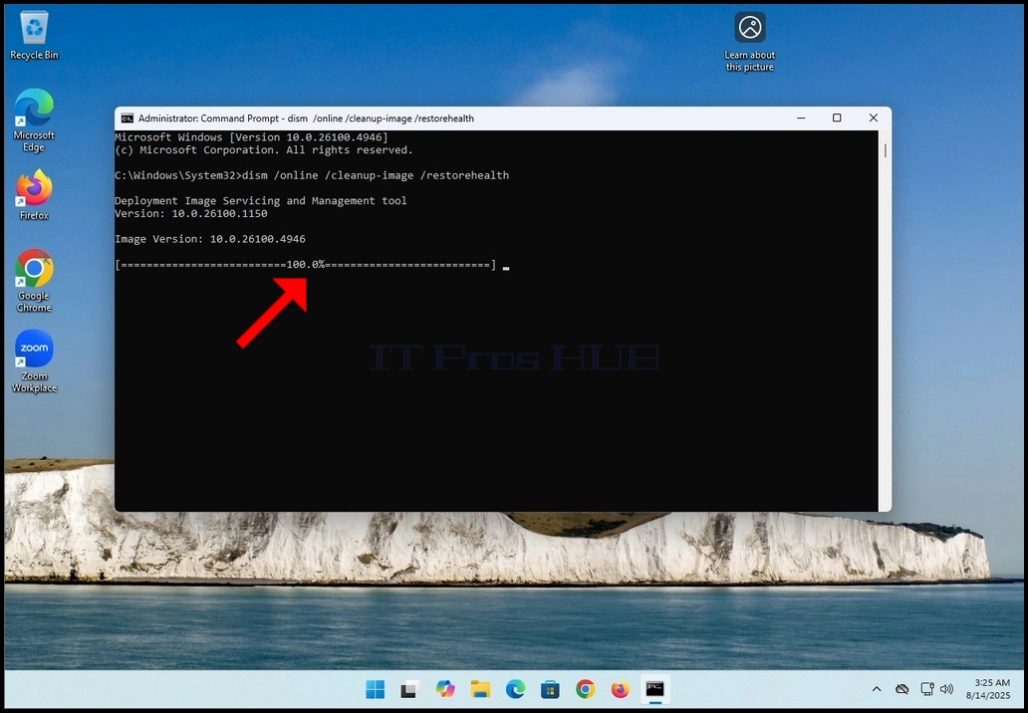
14. After the DISM process is done, you will be presented with the following message:
a. The restore operation completed successfully
