



Tagline:SoinstallierenSiedenMozillaThunderbirdEmailClientunterWindows10
1. Starten Sie die Installation von Thunderbird, indem Sie auf die Setup-Datei klicken
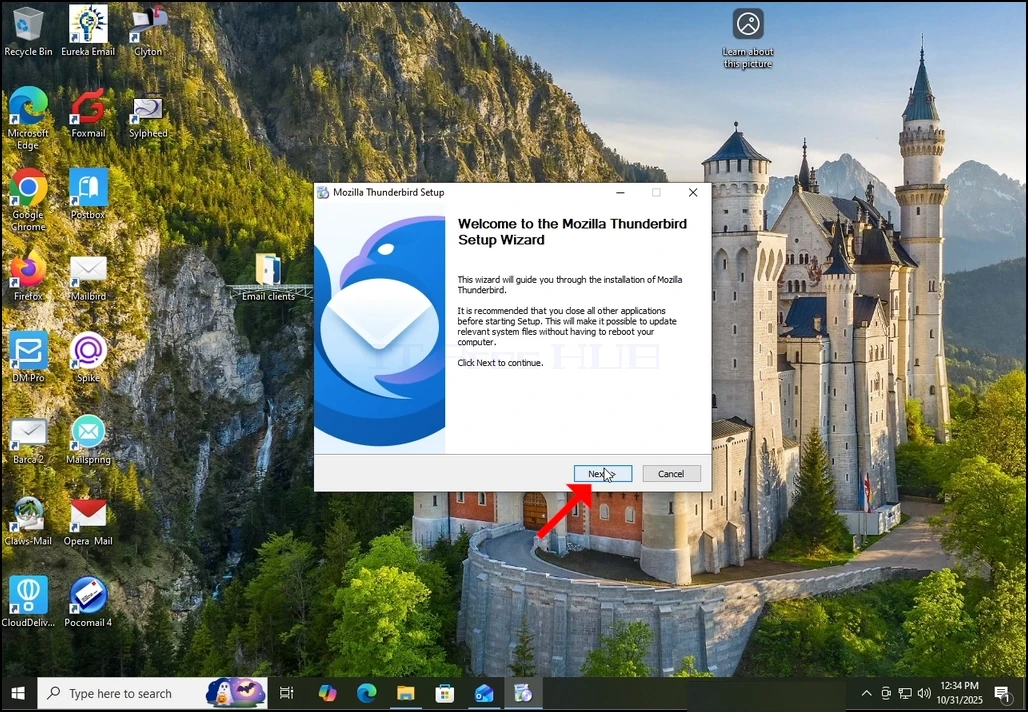
2. Klicken Sie im Begrüßungsbildschirm auf NEXT.
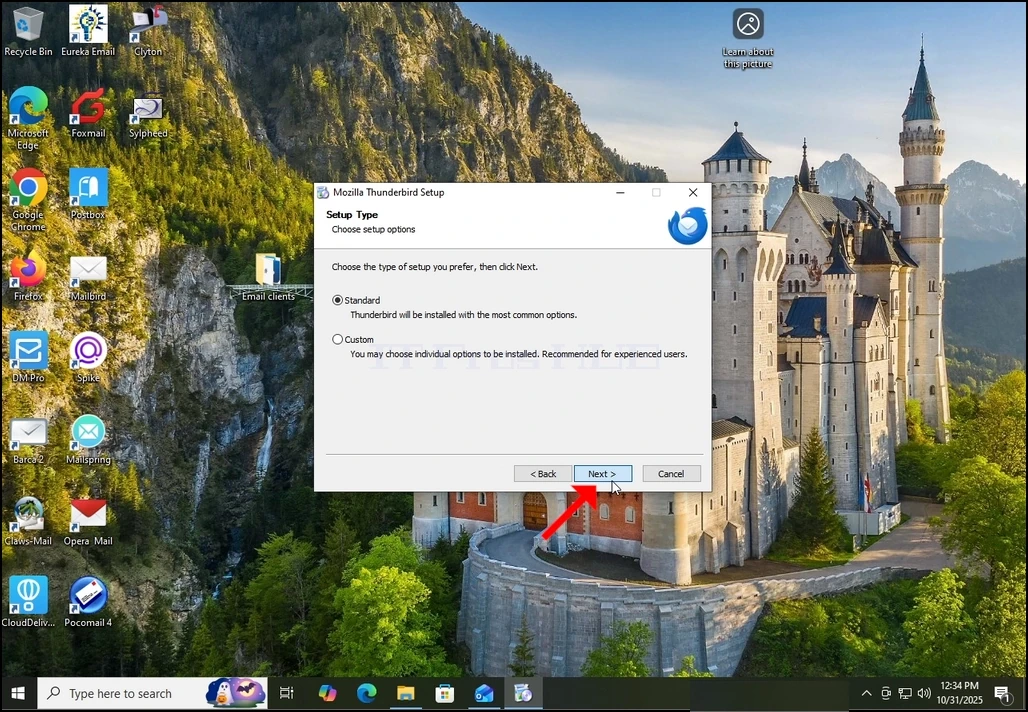
3. Wählen Sie die Option Standard und klicken Sie auf NEXT.
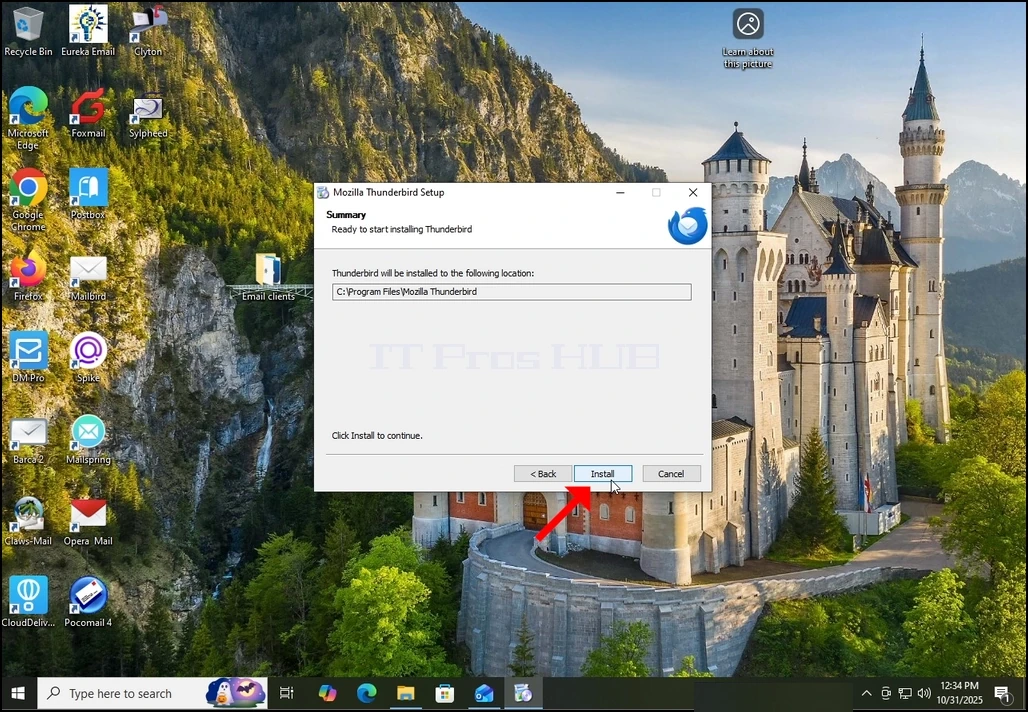
4. Klicken Sie auf die Schaltfläche Installieren.
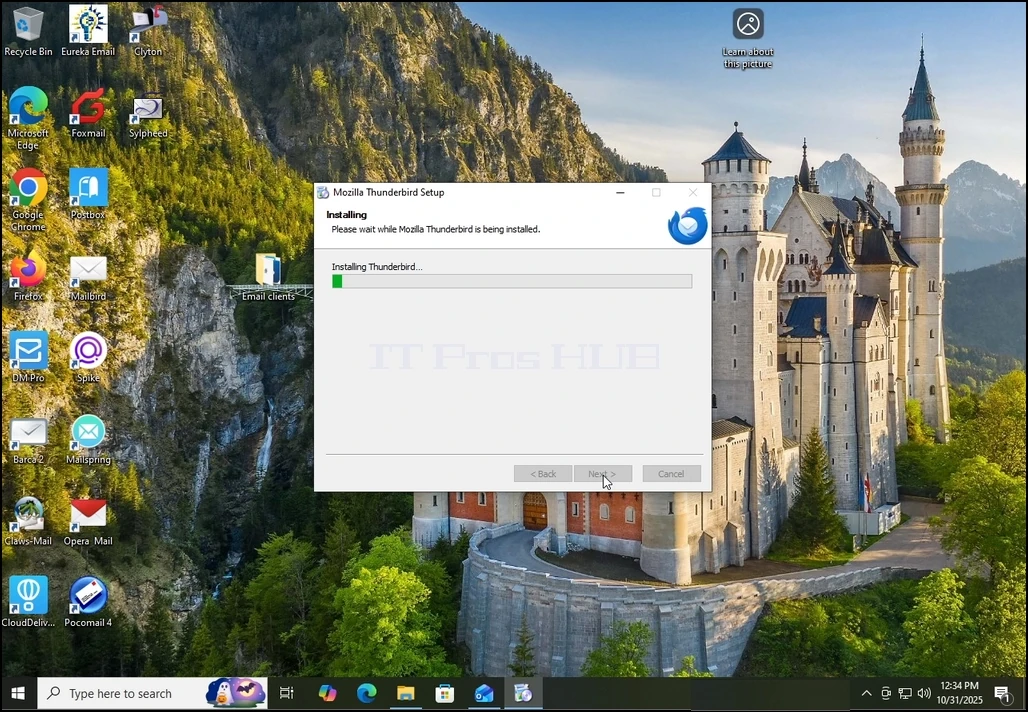
5. Warten Sie geduldig, bis der Installationsprozess abgeschlossen ist
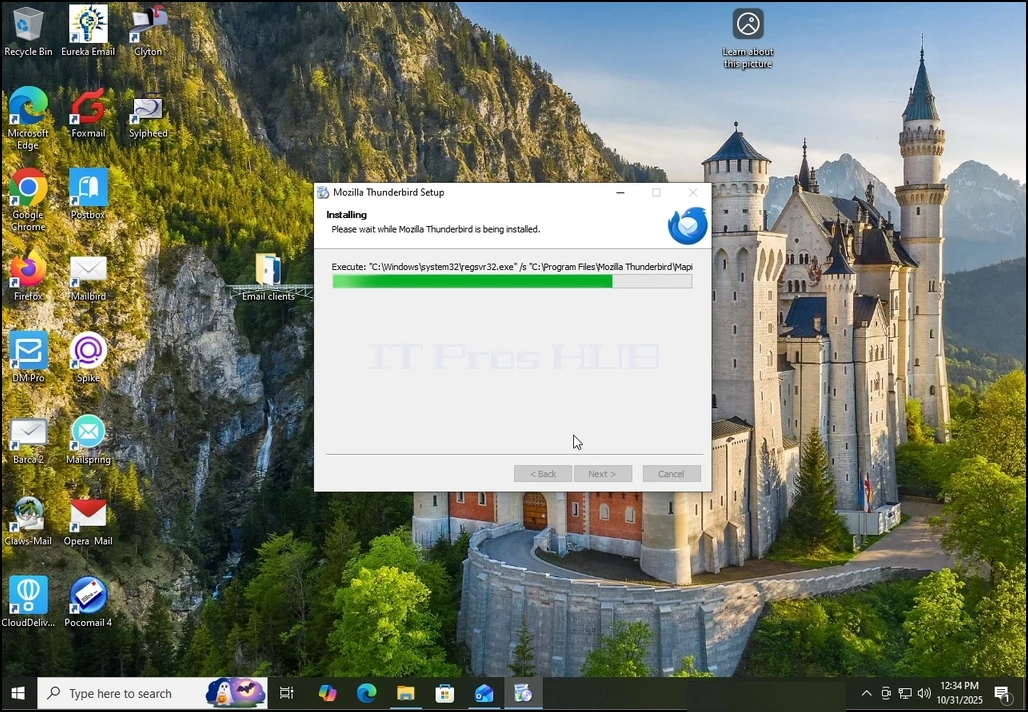
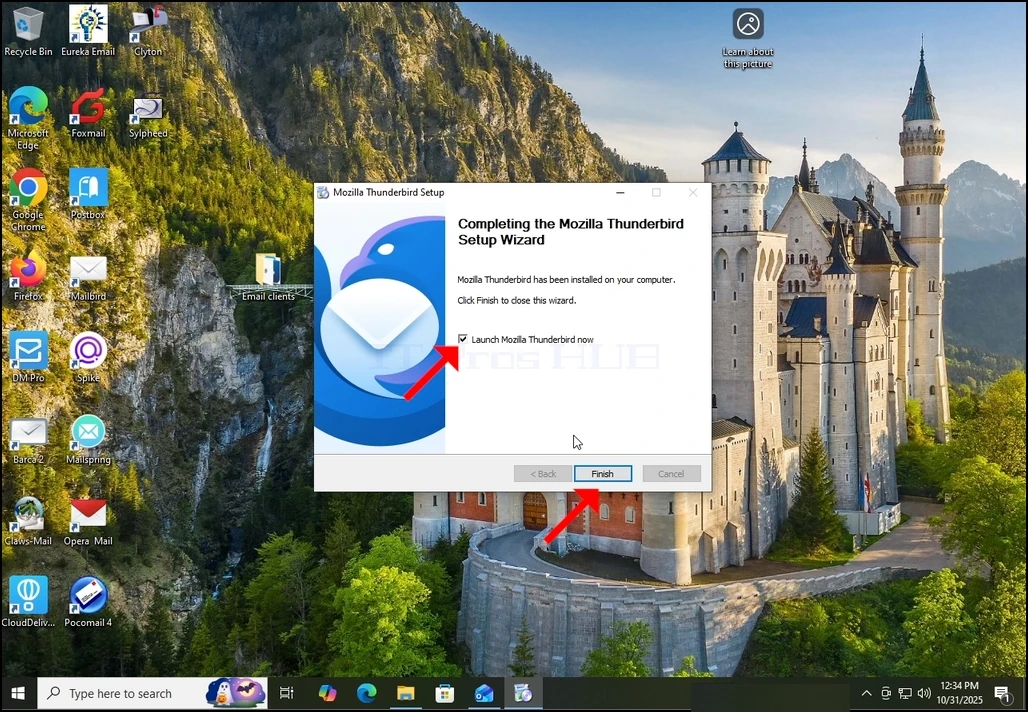
6. Aktivieren Sie die Option Mozilla Thunderbird jetzt starten und drücken Sie auf die Schaltfläche Ziel
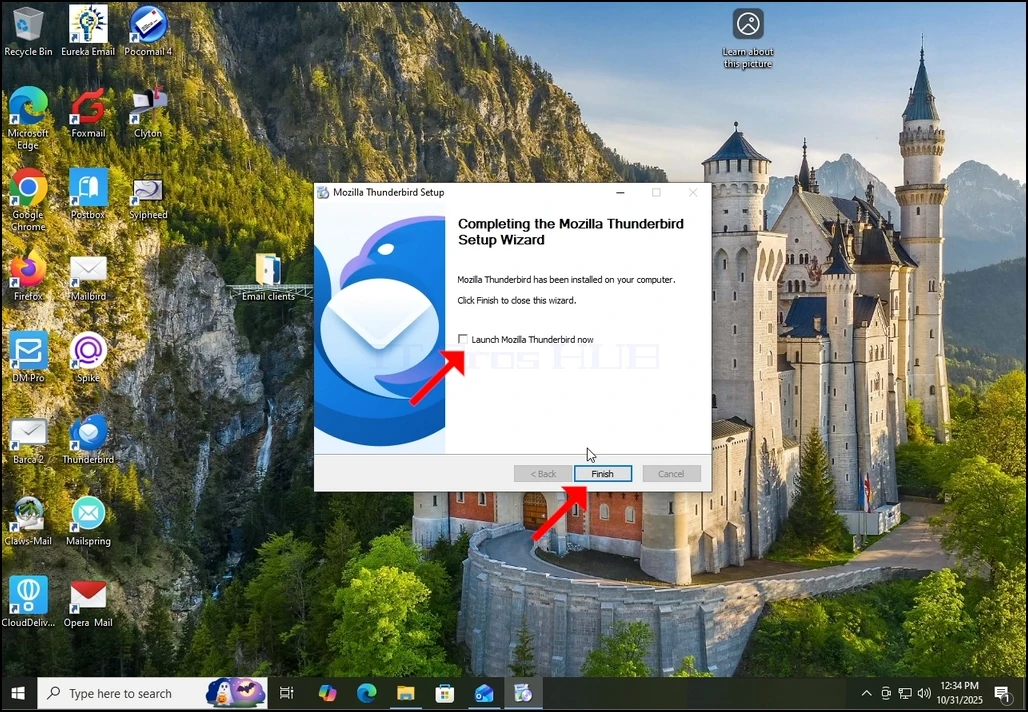
7. Mozilla Thunderbird ist jetzt installiert!