- Detalles
- Escrito por: IT Pro
- Categoría: How to Articles
- Visitas: 6250
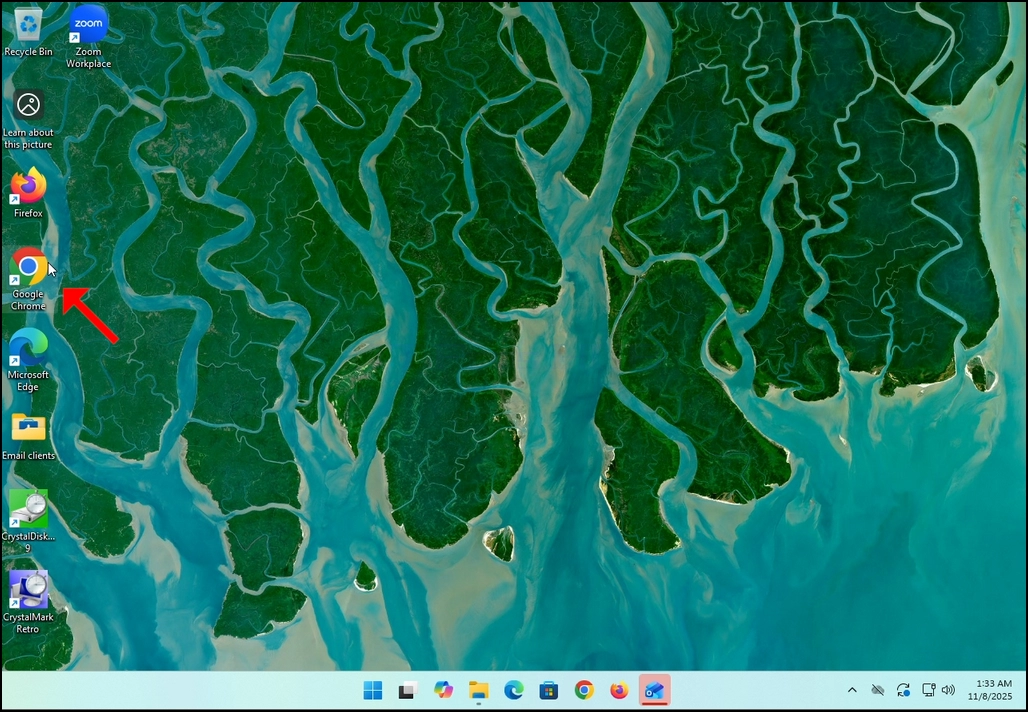
1. Go to your internet browser. In this article’s case we will use Chrome.
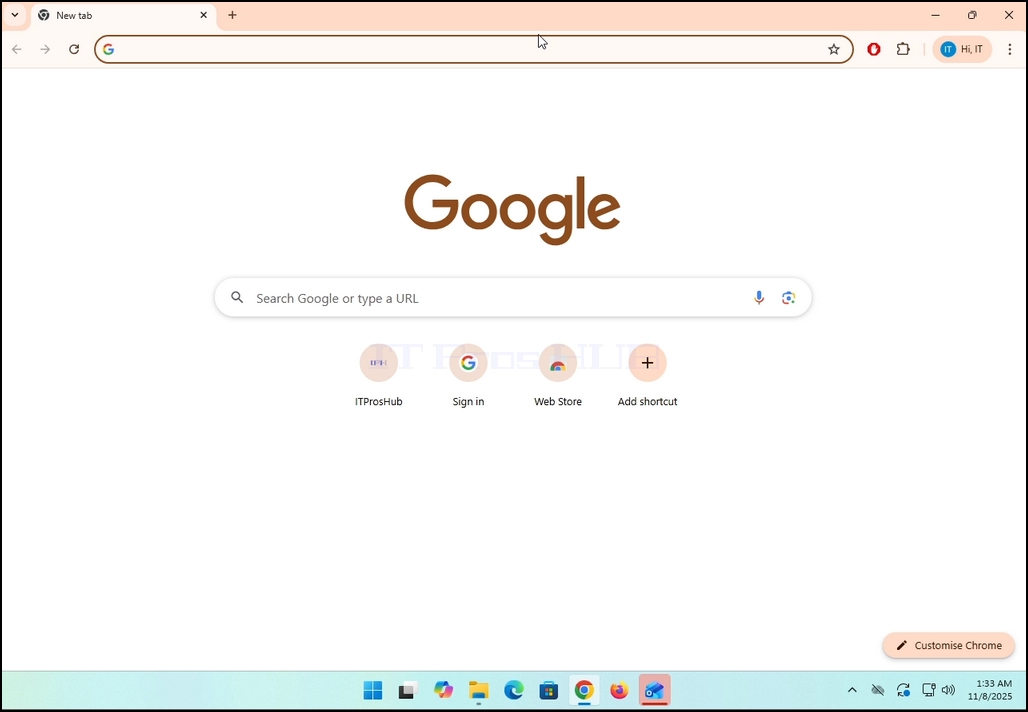
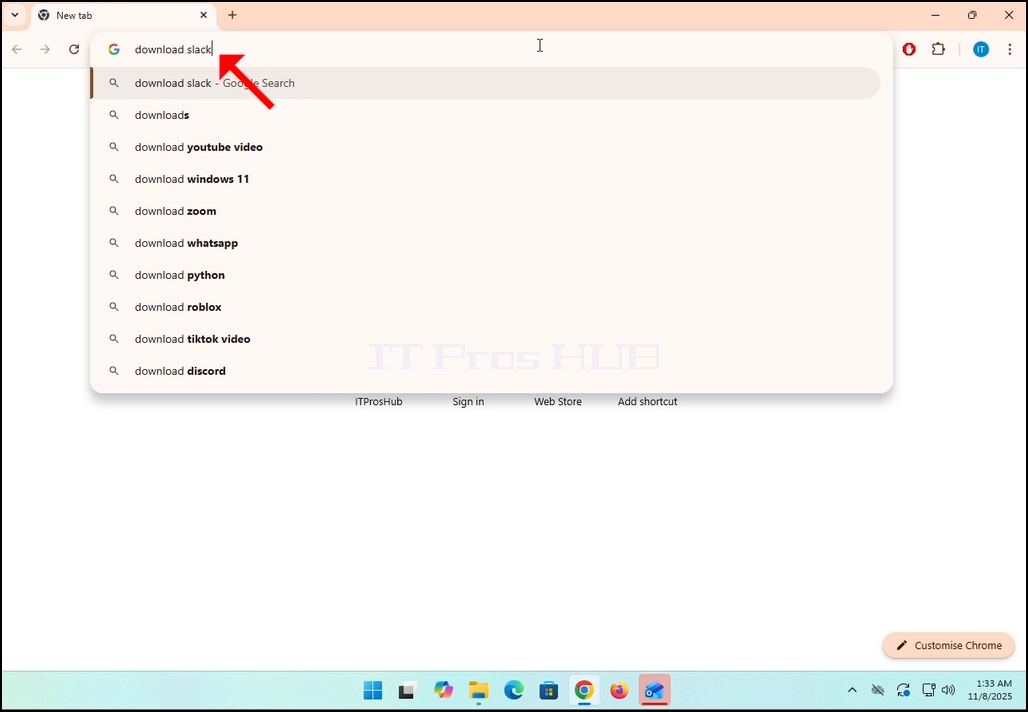
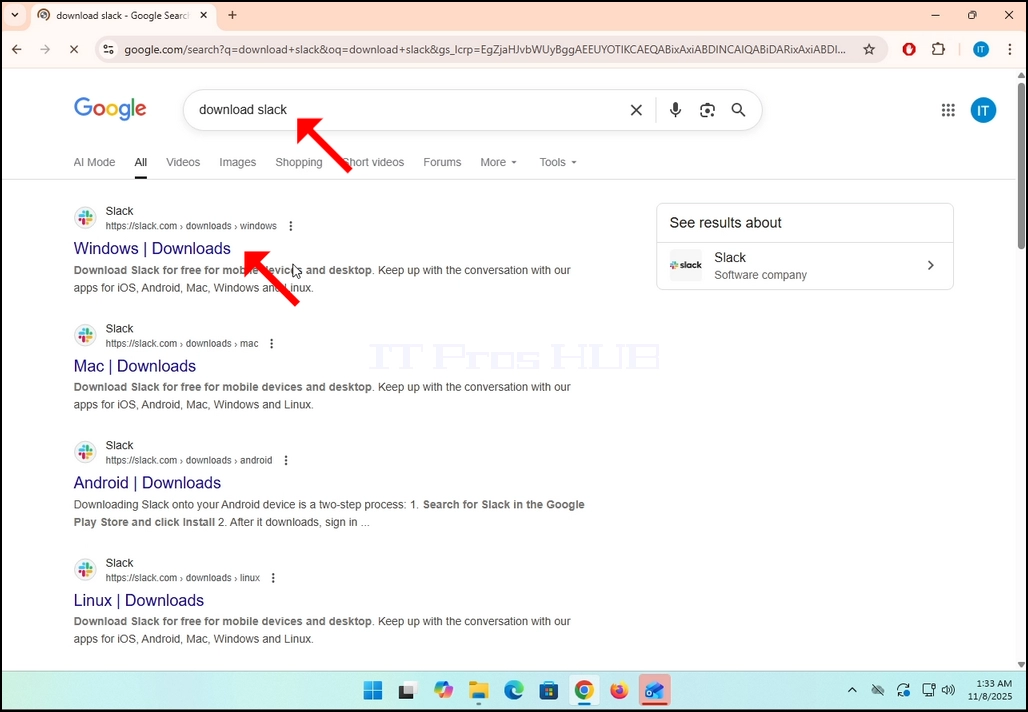
2. Go to Google and type Download Slack in the search bar. Hit the Enter key afterwards. Wait for the search results to appear.
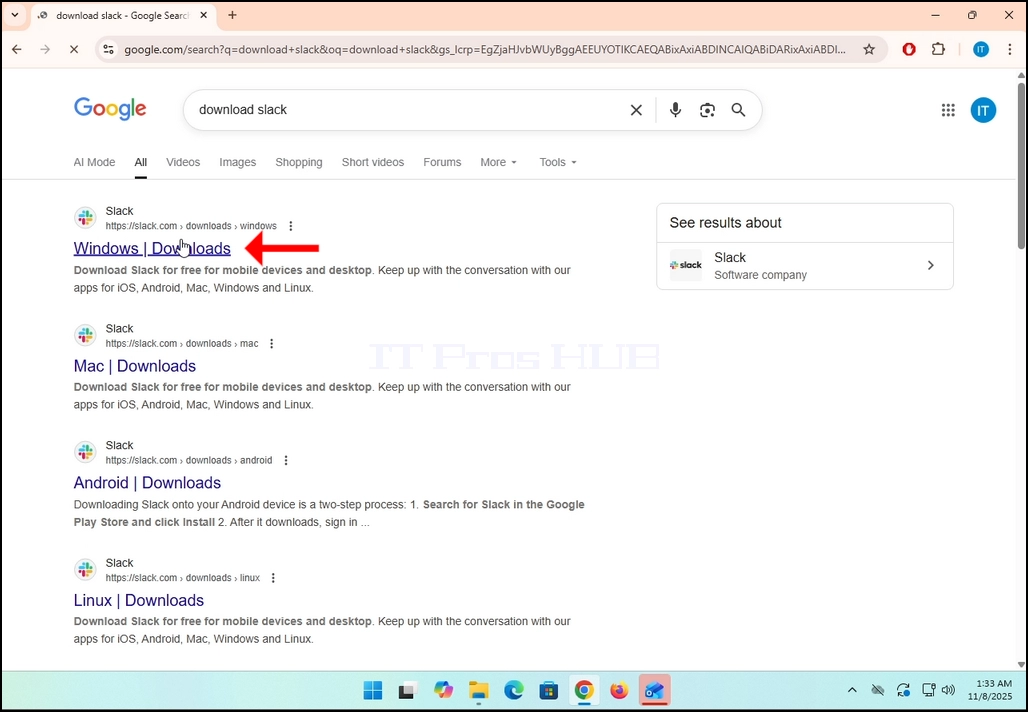
3. In the search results, look for a result that is titled as “Windows | Downloads” and click on it. Wait for a new
page to load.
4. The newly loaded page will be under Slack’s domain (slack.com). look for a Download (64-BIT) button on the left side of the page. Click on that button to begin the downloading process of Slack’s installation file.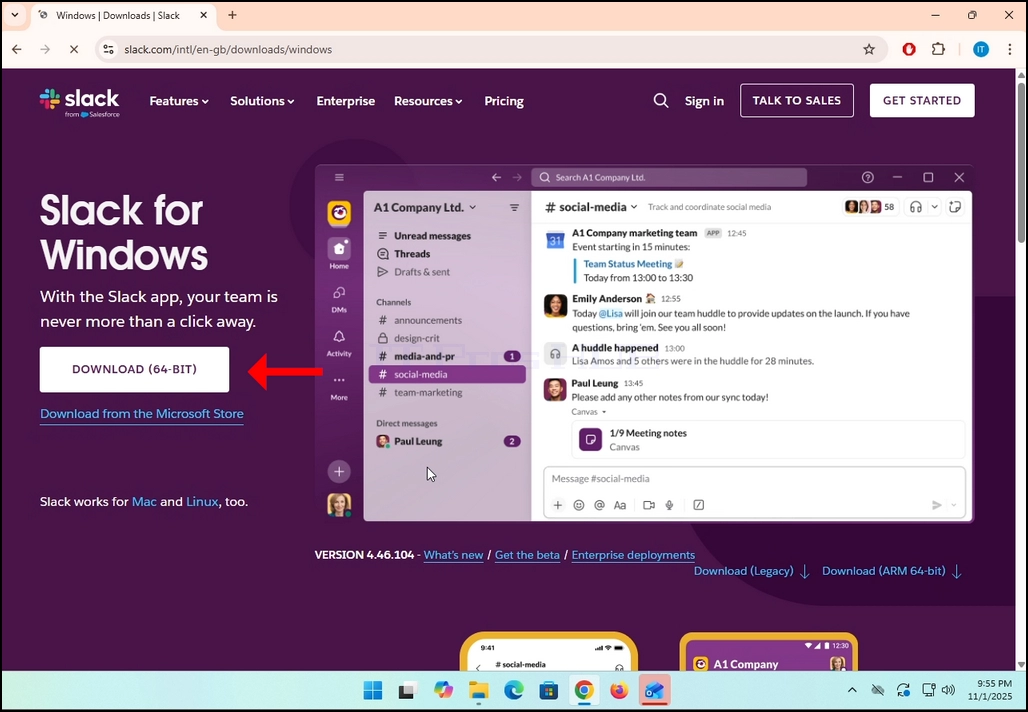
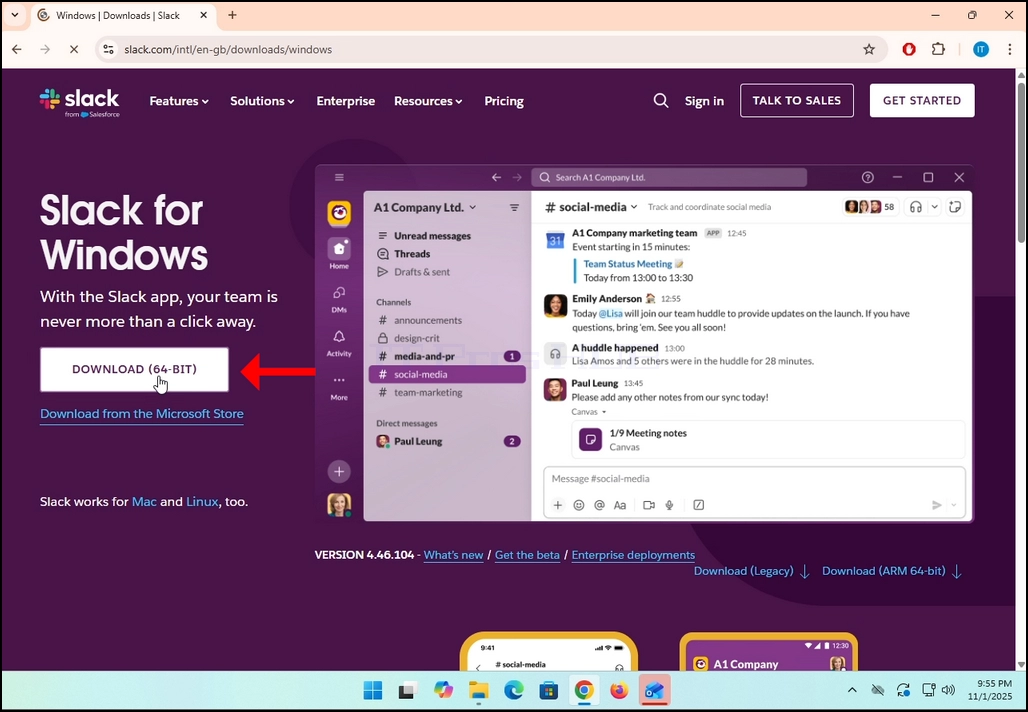
5. Once clicked, you will see the installation process being done in your browser. Make sure that the file being downloaded is called Slack.msix and not anything else.
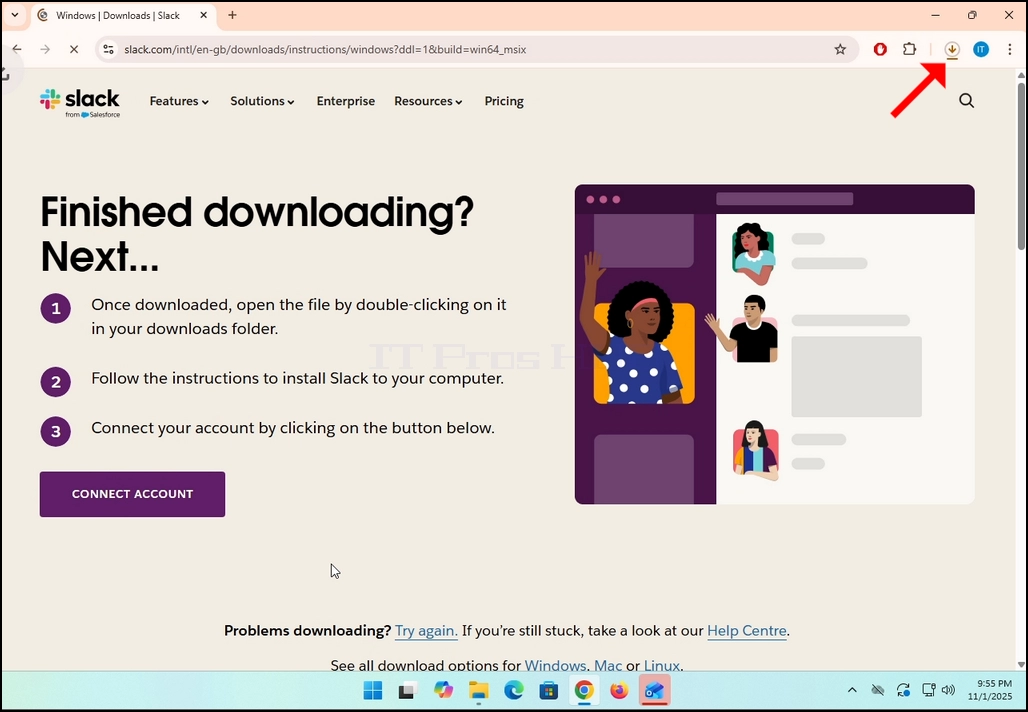
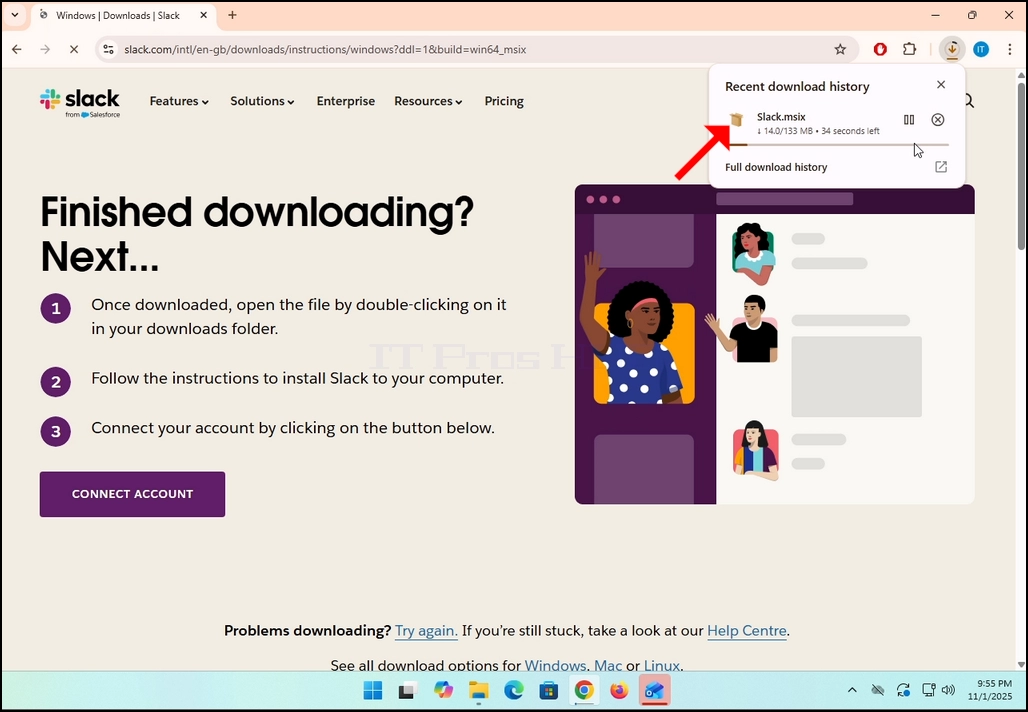
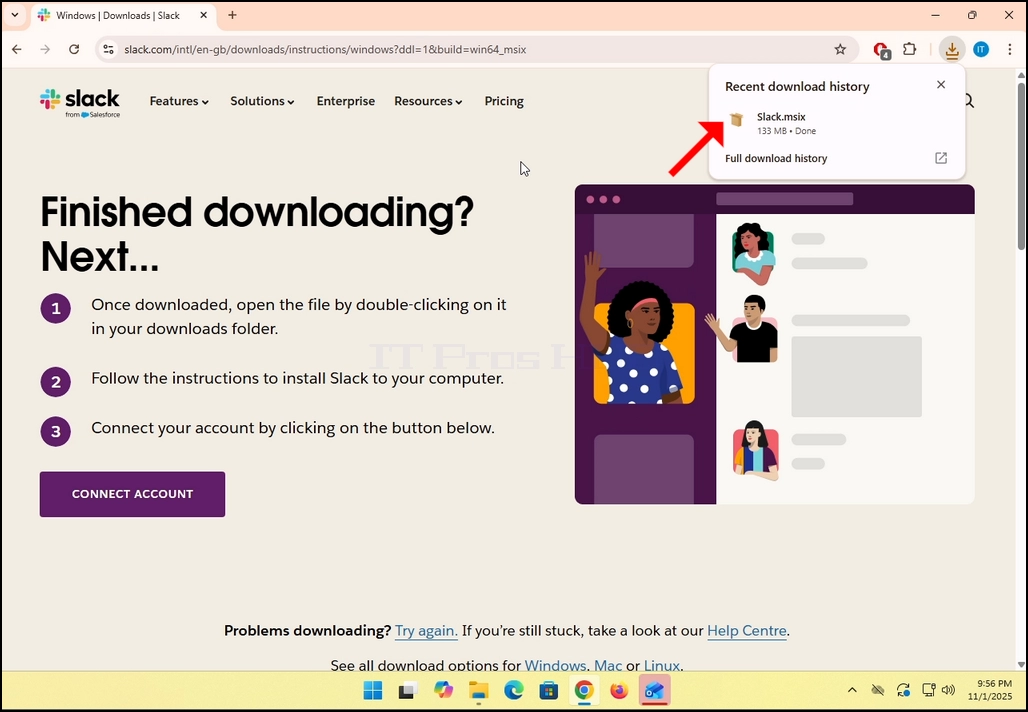
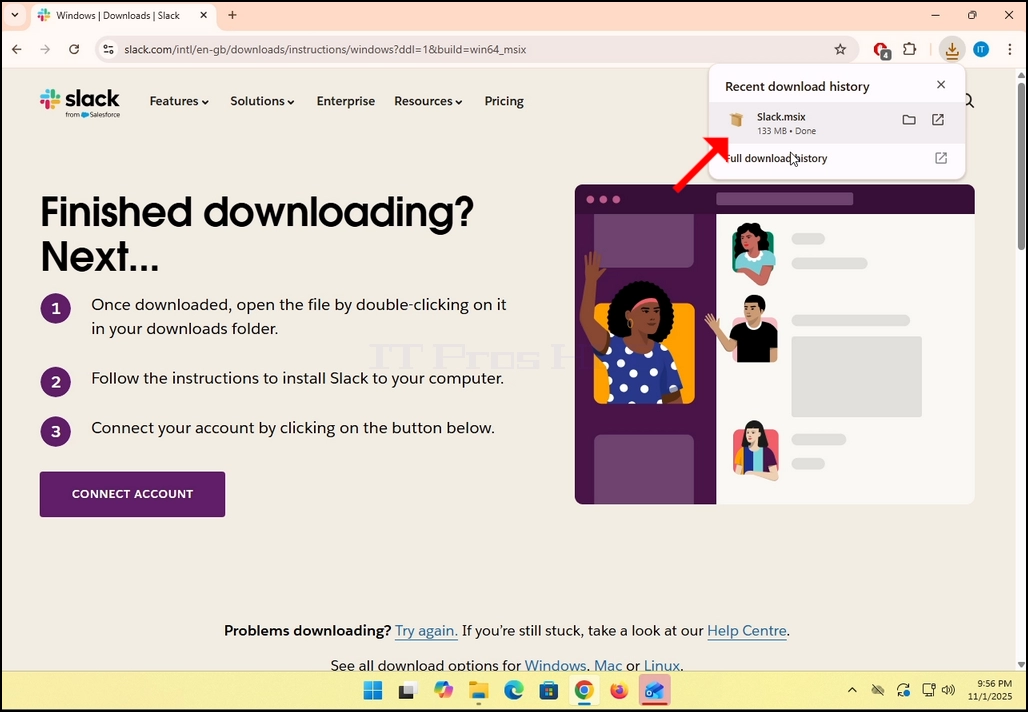
6. Once done, click on the Slack.msix file to open the file and begin the installation process.
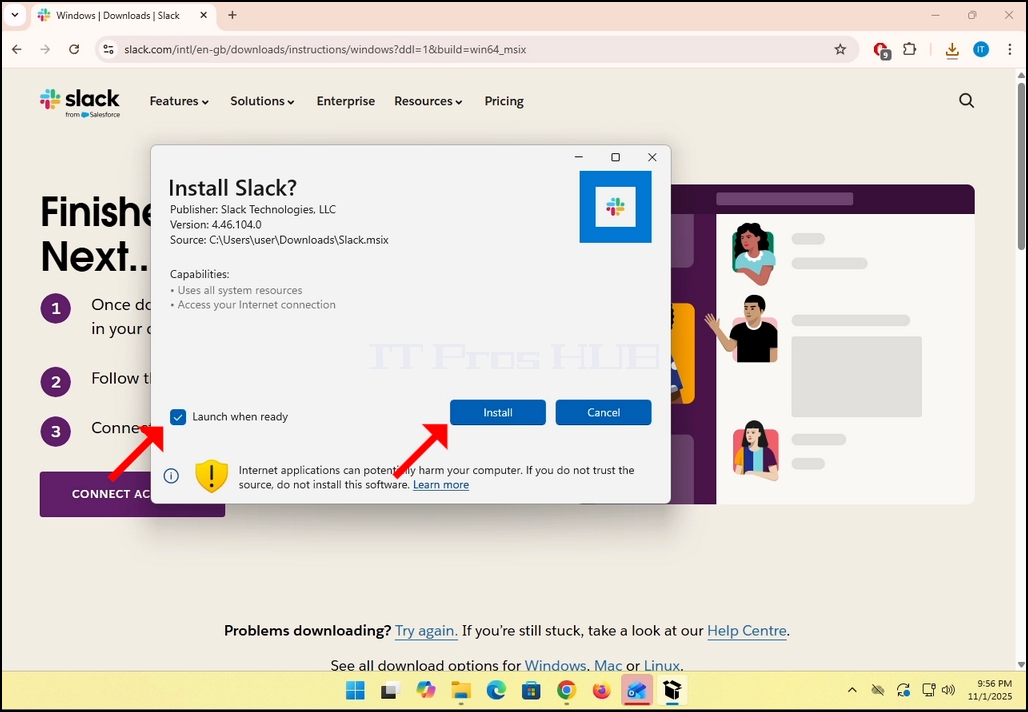
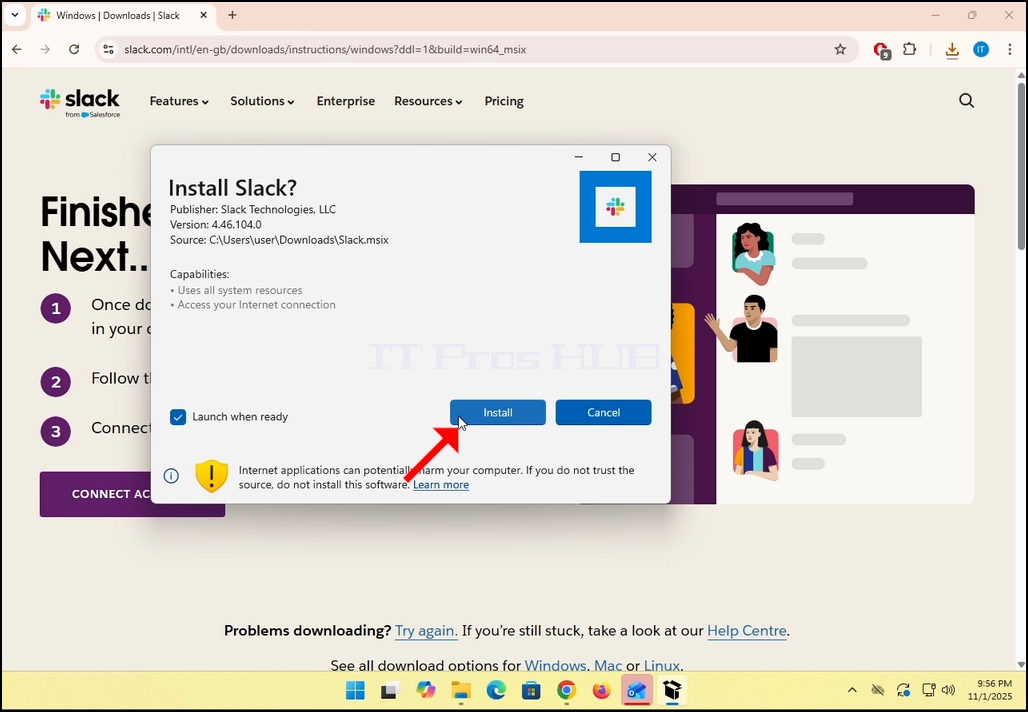
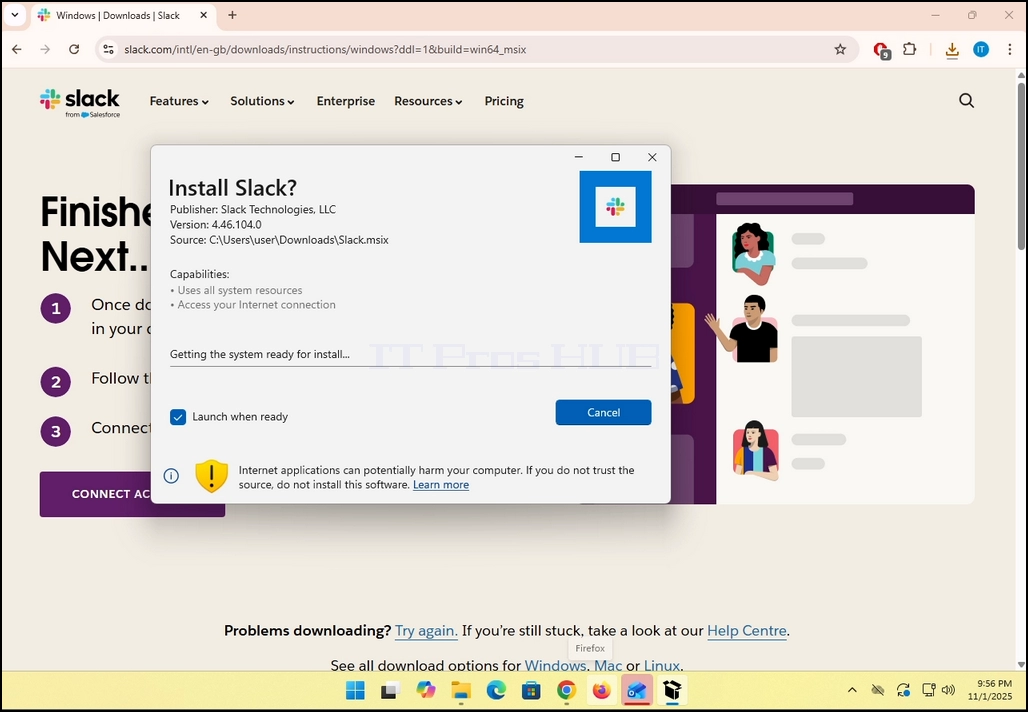
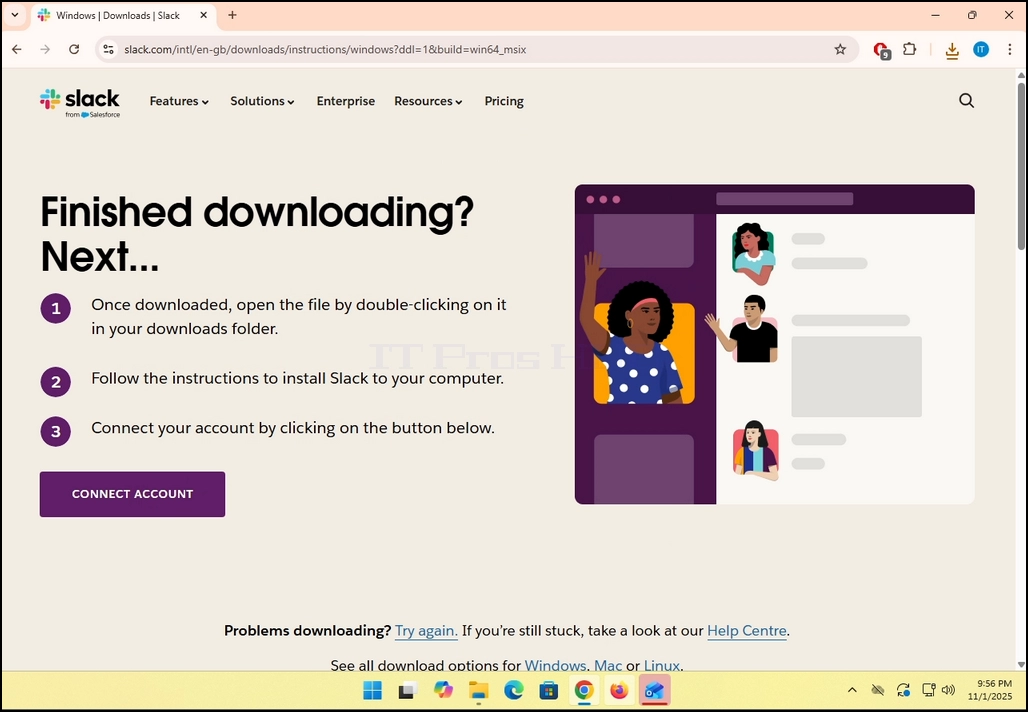
8. Once the installation process is complete, you will be notified by Windows Store with the message “Slack is Ready”. Click the blue Launch button to start Slack.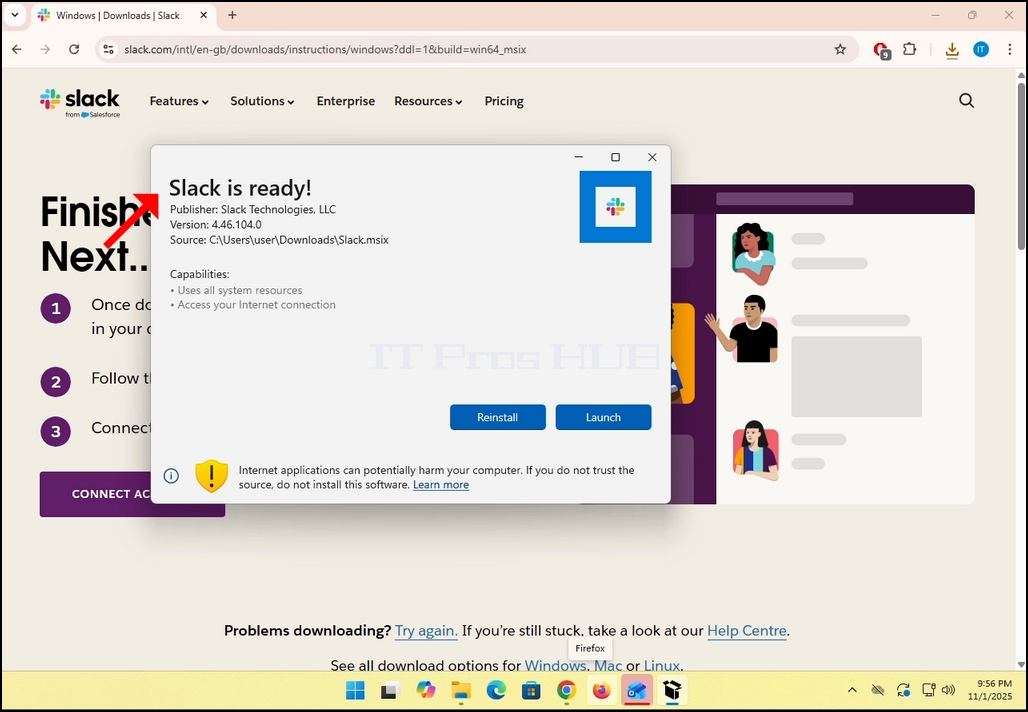
9. You are done! Slack is now installed in Windows.

- Detalles
- Escrito por: IT Pro
- Categoría: How to Articles
- Visitas: 6584
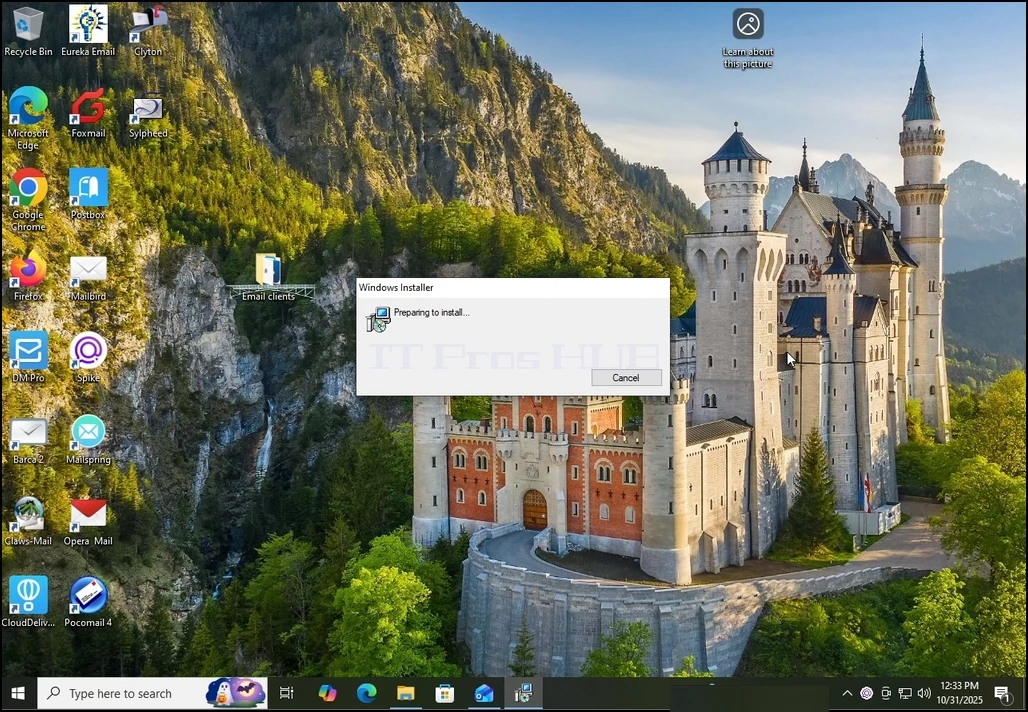
1. Descargar el cliente Bat y haga clic en el archivo descargado. Espere a que comience el asistente de instalación. Golpear NEXT llave cuando se muestra la ventana Protección de Datos.
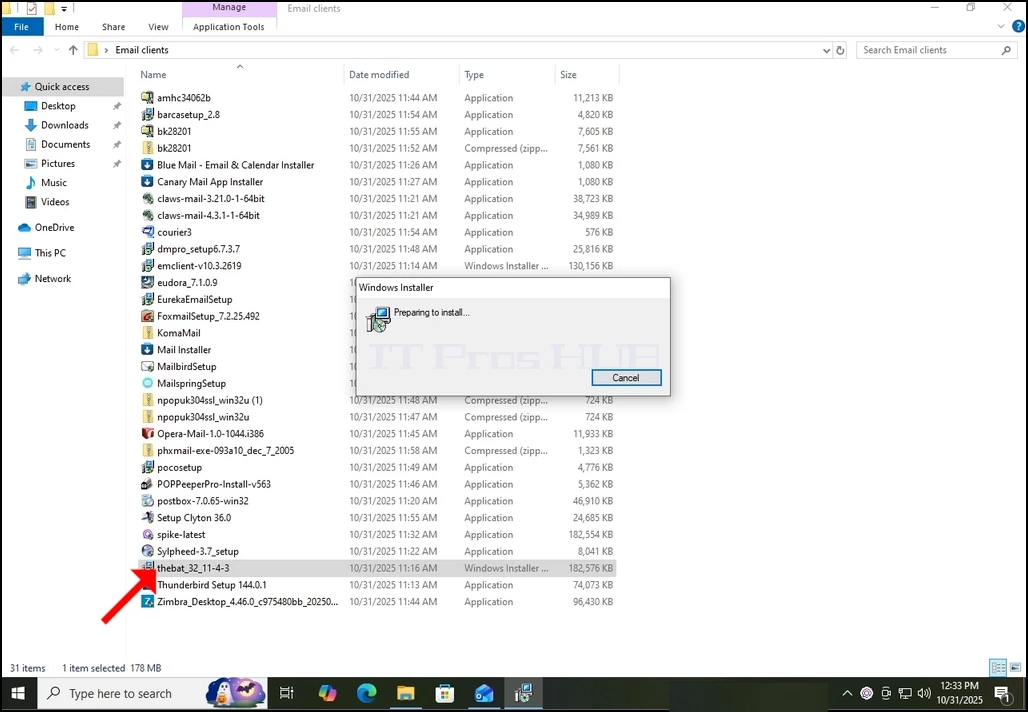
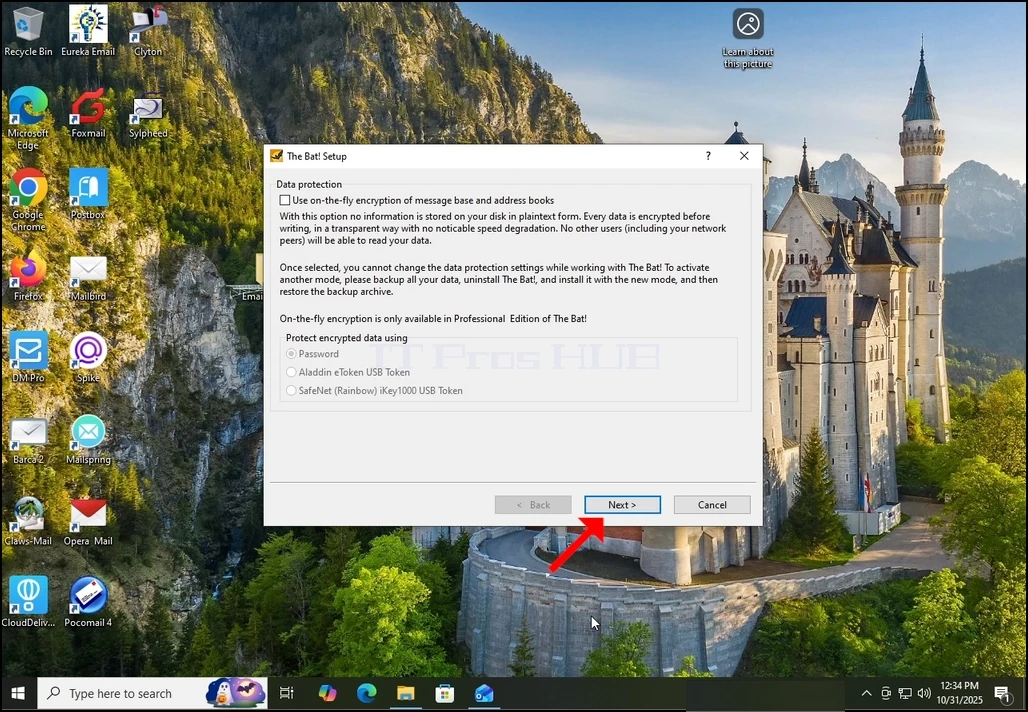
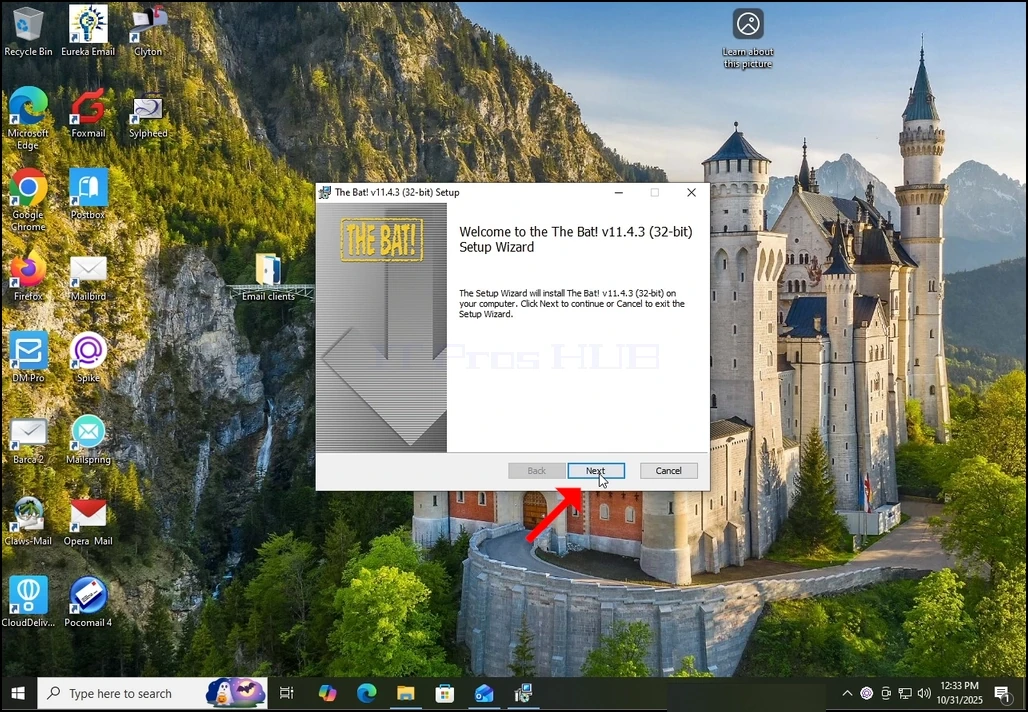
2. Una vez que el asistente de instalación esté abierto, haga clic en NEXTbotón.
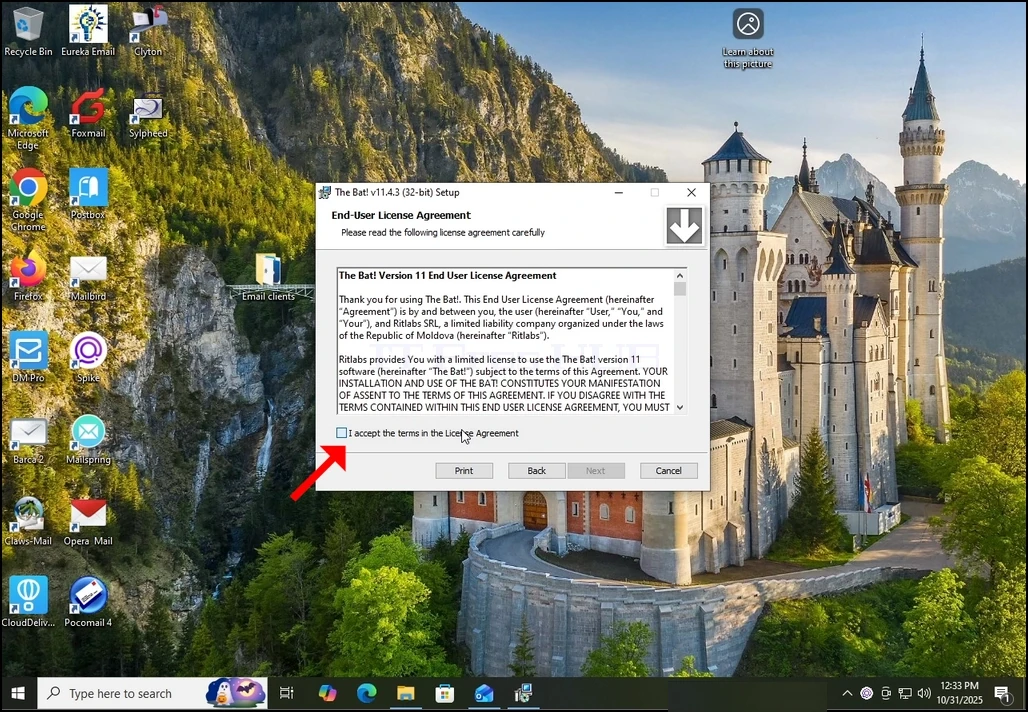
3. Aceptar la licencia aceptada marcando la caja en el botton derecho y haga clic en el botón NEXT de nuevo.
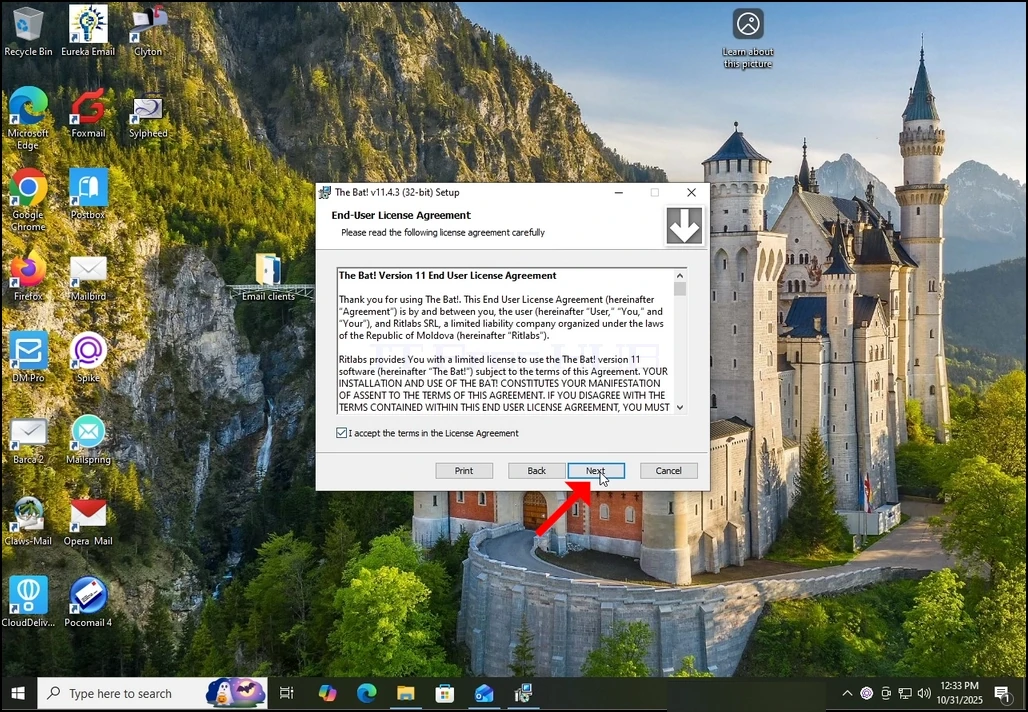
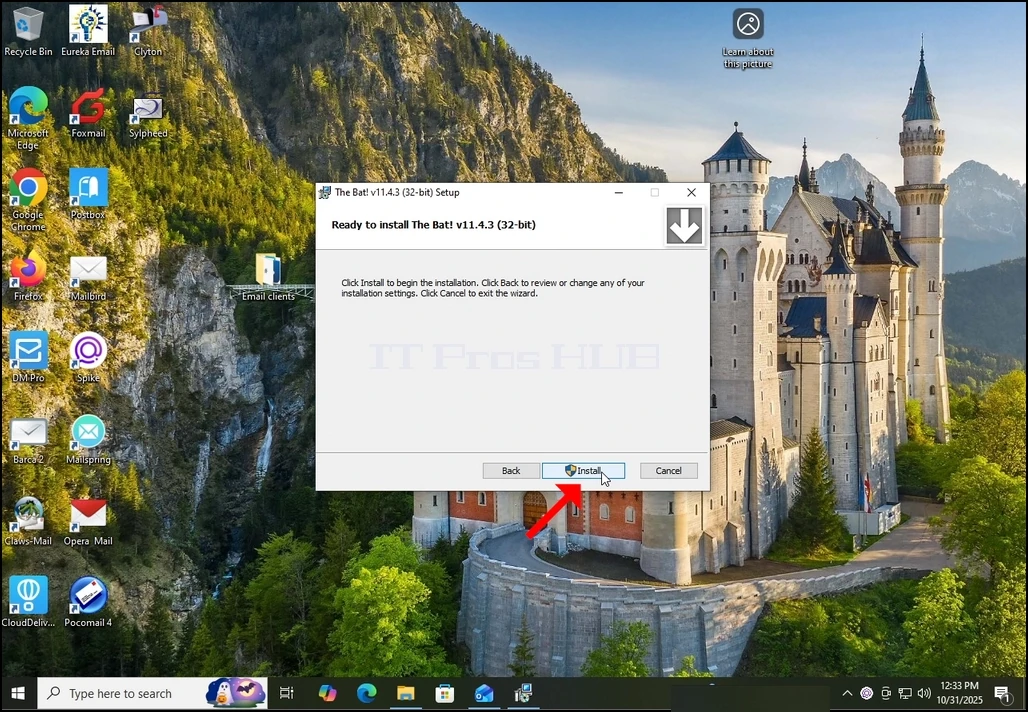
4. Haga clic en INSTALL botón. nota que Windows UAC puede pedirle que un administrador apruebe el proceso de instalación (de ahí el símbolo UAC dentro del botón.
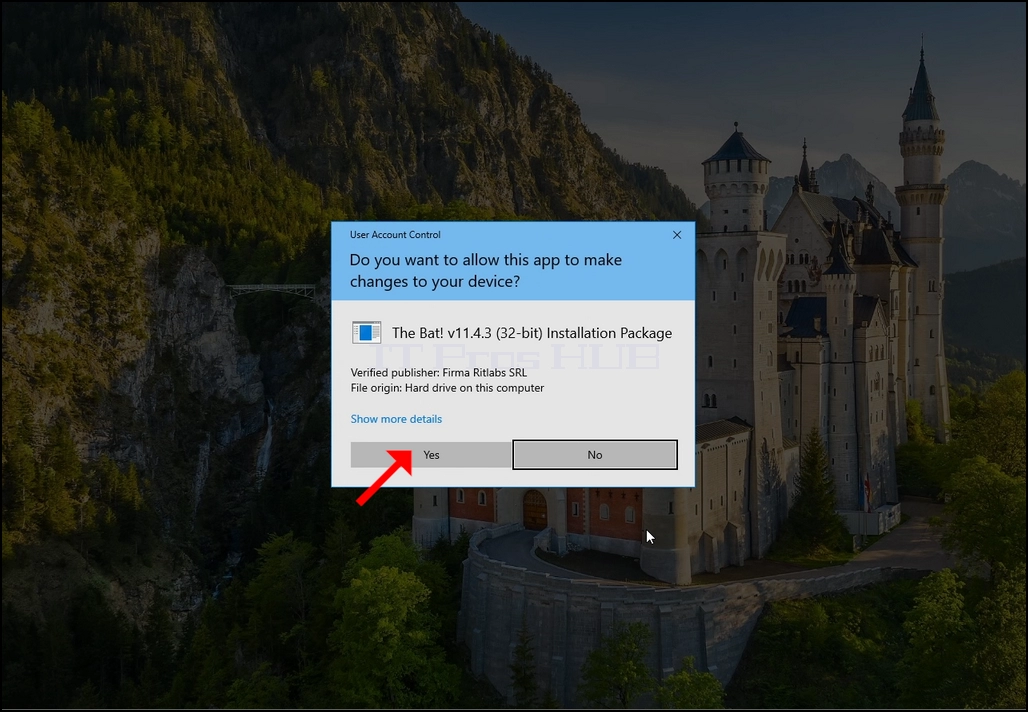
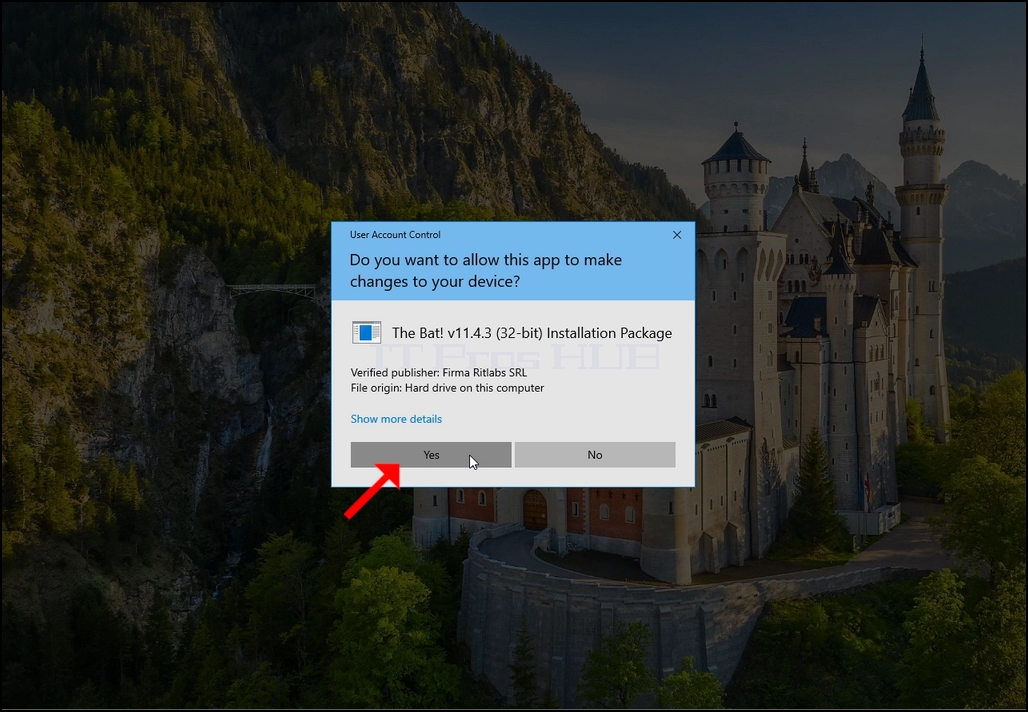
5. Una vez que UAC pide la aprobación de un administrador, haga clic en Sí. botón. Espera a que aparezca la siguiente ventana. una vez Sí. botón se hace clic, el proceso de instalación comenzará.
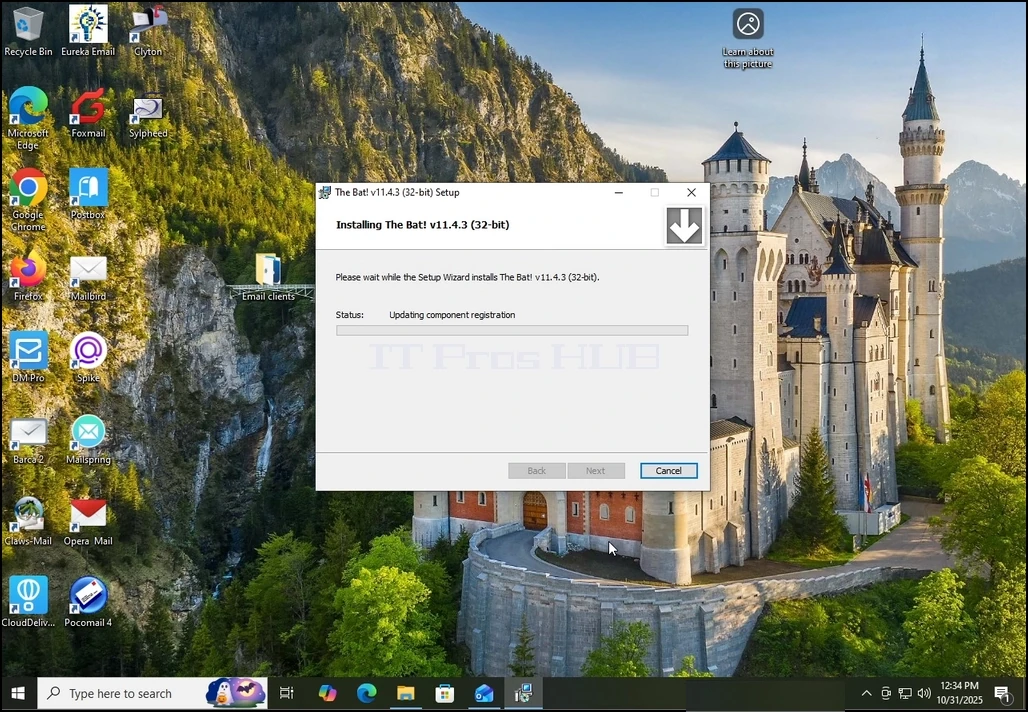
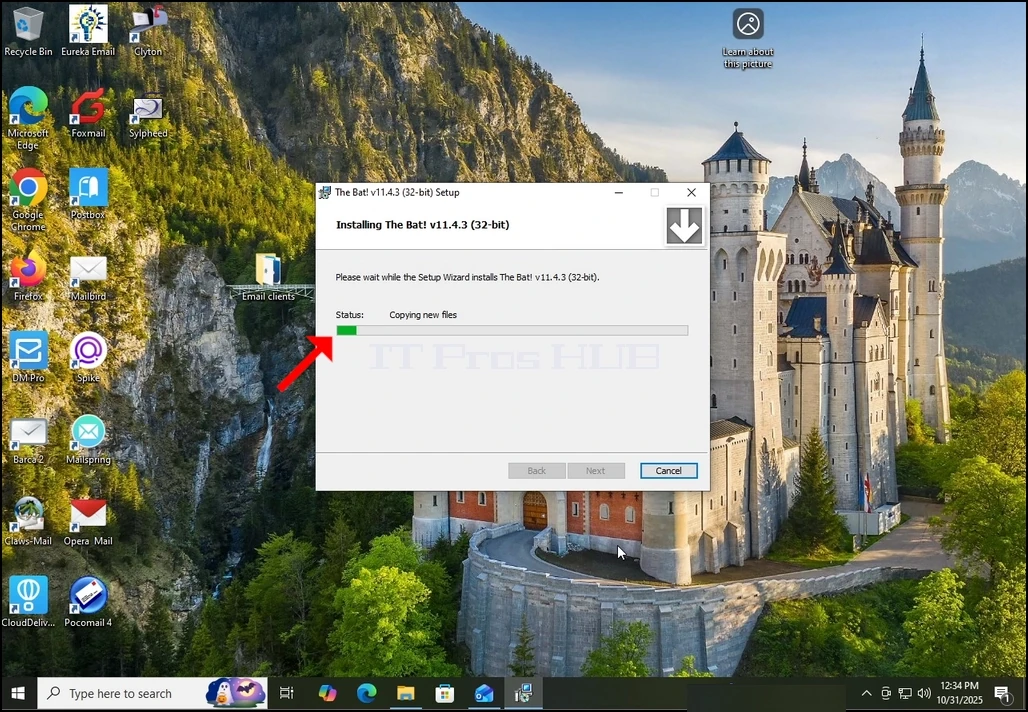
6. Espera a que se haga el proceso.
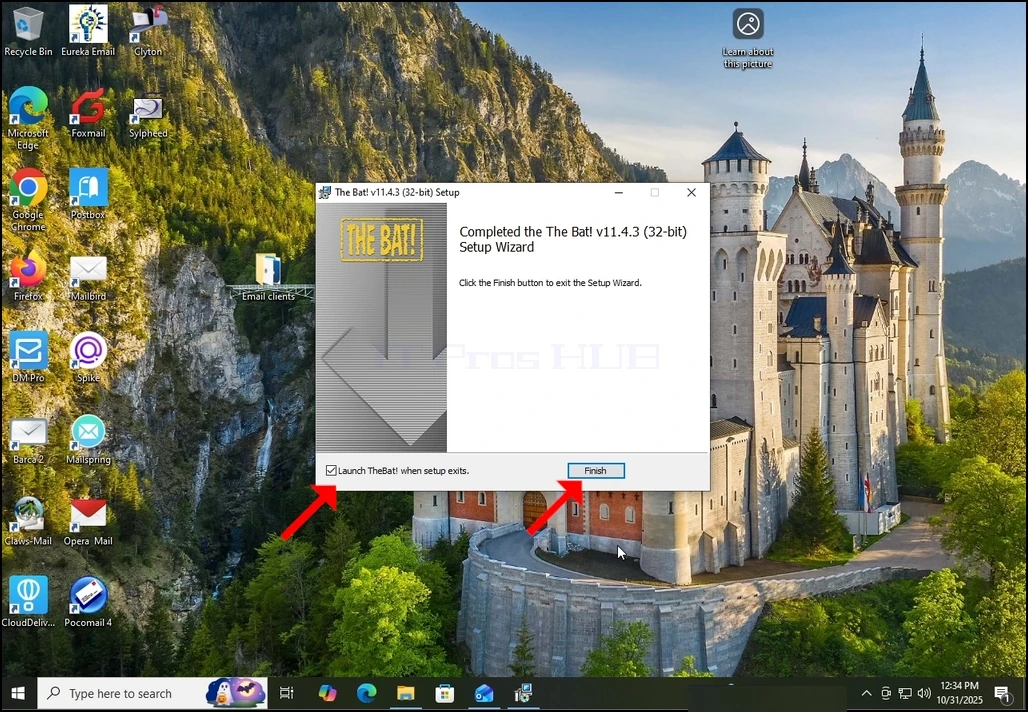
7. Una vez hecho el proceso, puede desmarcar el "Lanzamiento de TheBat! cuando existe la configuración" opción y haga clic en FINES botón. ¡El baño! cliente de correo electrónico ahora está instalado.
8.
- Detalles
- Escrito por: IT Pro
- Categoría: How to Articles
- Visitas: 7059
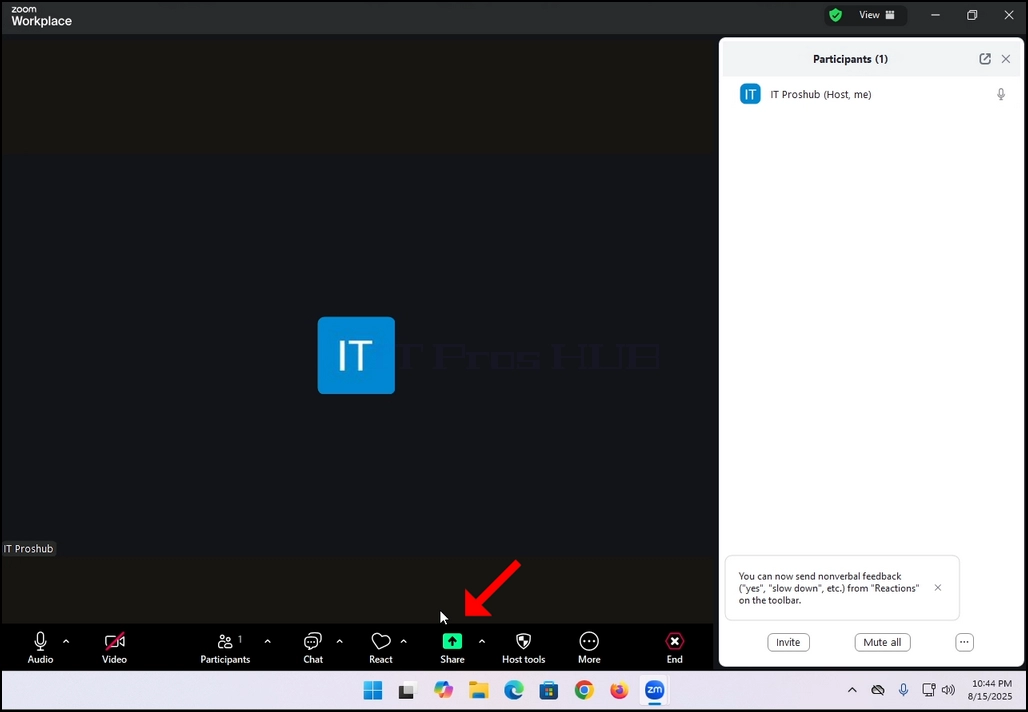
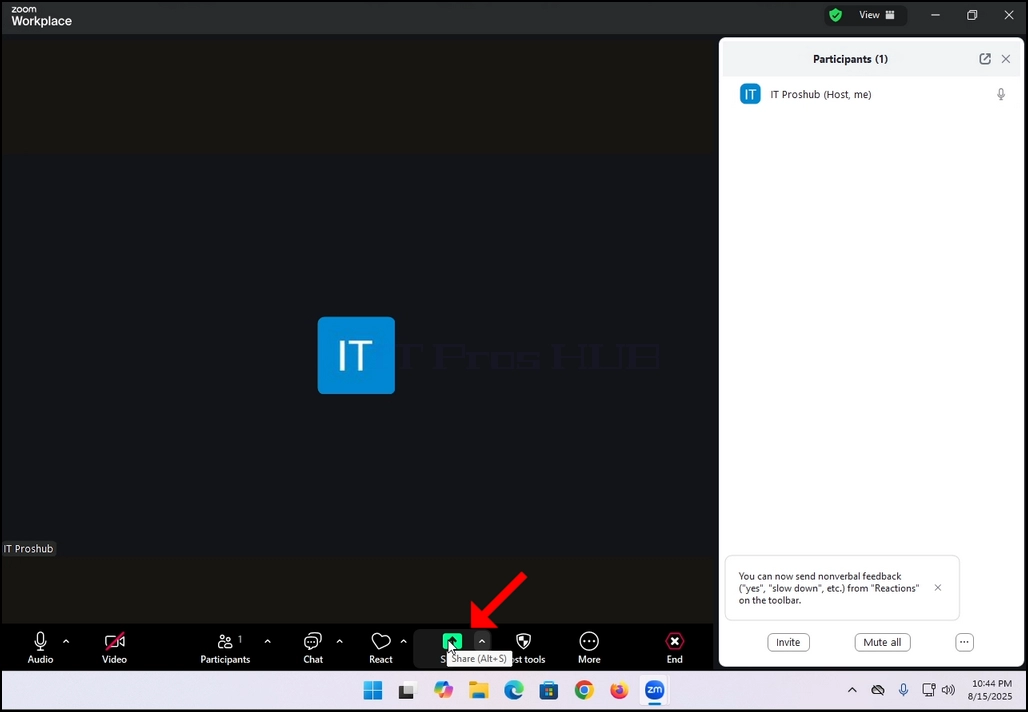
2. Note that there is an arrow next to that icon. If you click that arrow you can direct Zoom to either allow one participant to share a screen at a time or to allow multiple participants to share simultaneously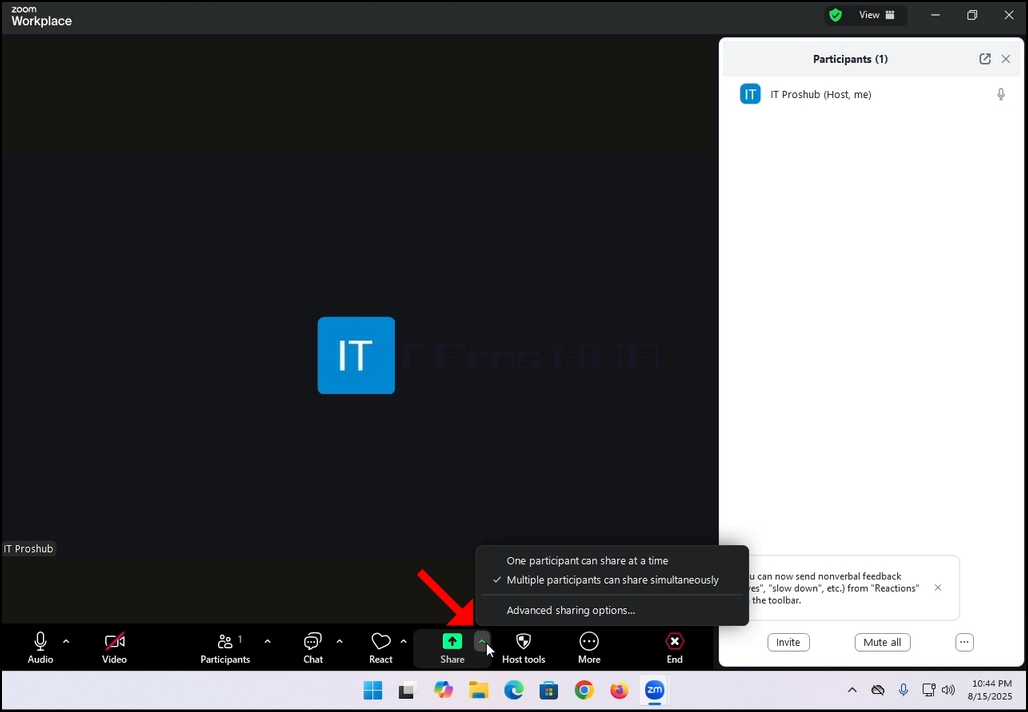
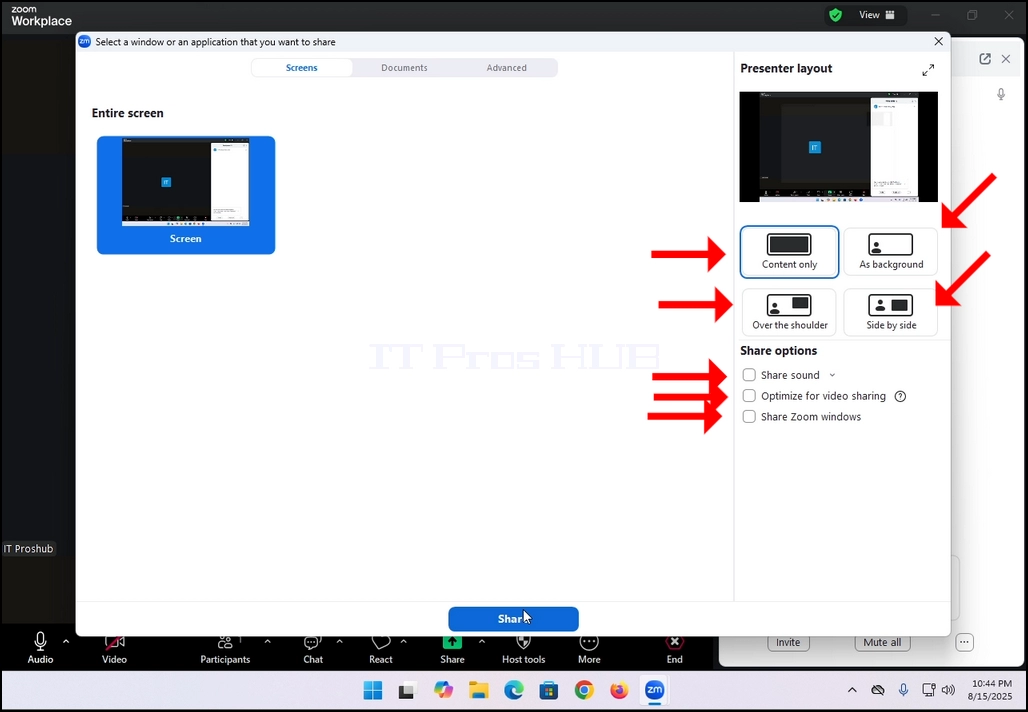
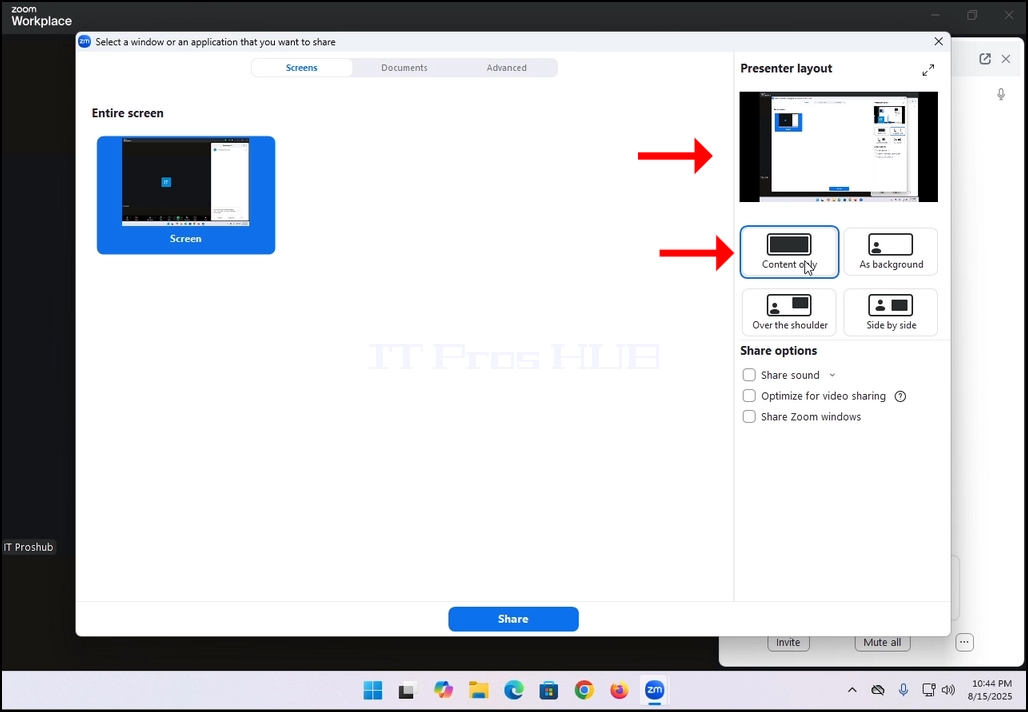
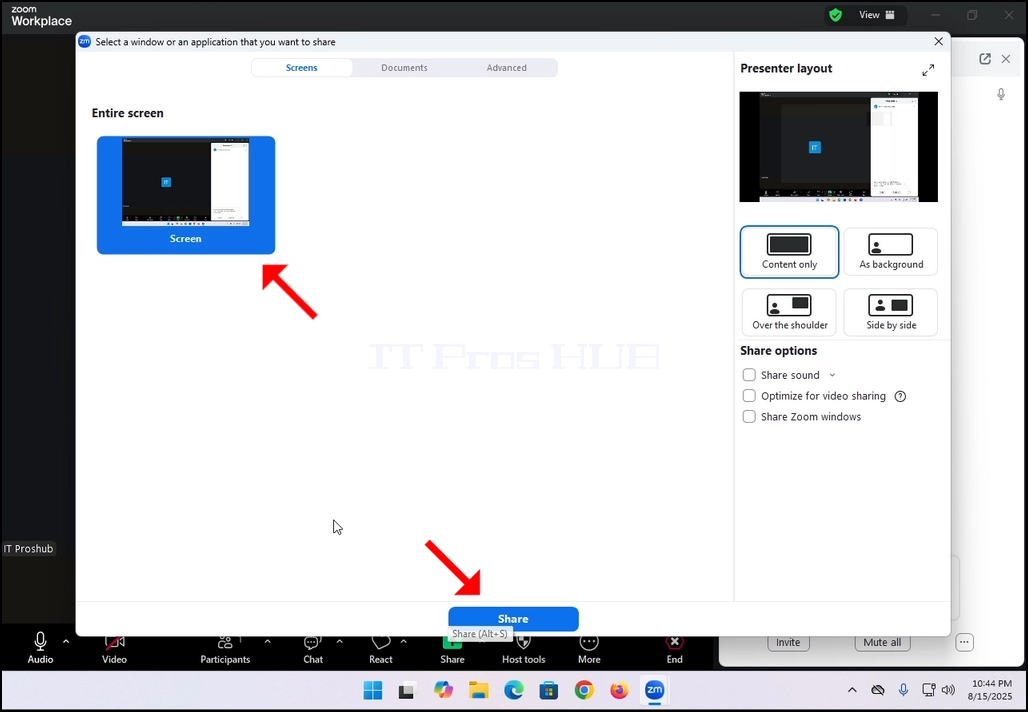 5. On the right side of the window there are the Presenter Layout options. These options allow the presenter to change how the screen and the presenter are laid during the meeting.
- Content only – only the content that is shared is visible to the participants
- As a background – the content is shared as a background and the presenter’s camera video feed is presented in the foreground
- Over the shoulder – the screen that is shared is shown on top of the “shoulder” of the participant. Basically, it is shown off their side to the top.
- Side by Side – the presenter and the screen that is shared are shown side by side to the participants
6. Additional options include:
- Sound sharing – the presenter shares the sounds omitting from its computer
- Optimize for video sharing – Zoom would optimize itself to share video over the screen that is shared
- Share Zoom windows - It controls whether your own Zoom interface (the Zoom app windows) can be shared when you screen share.
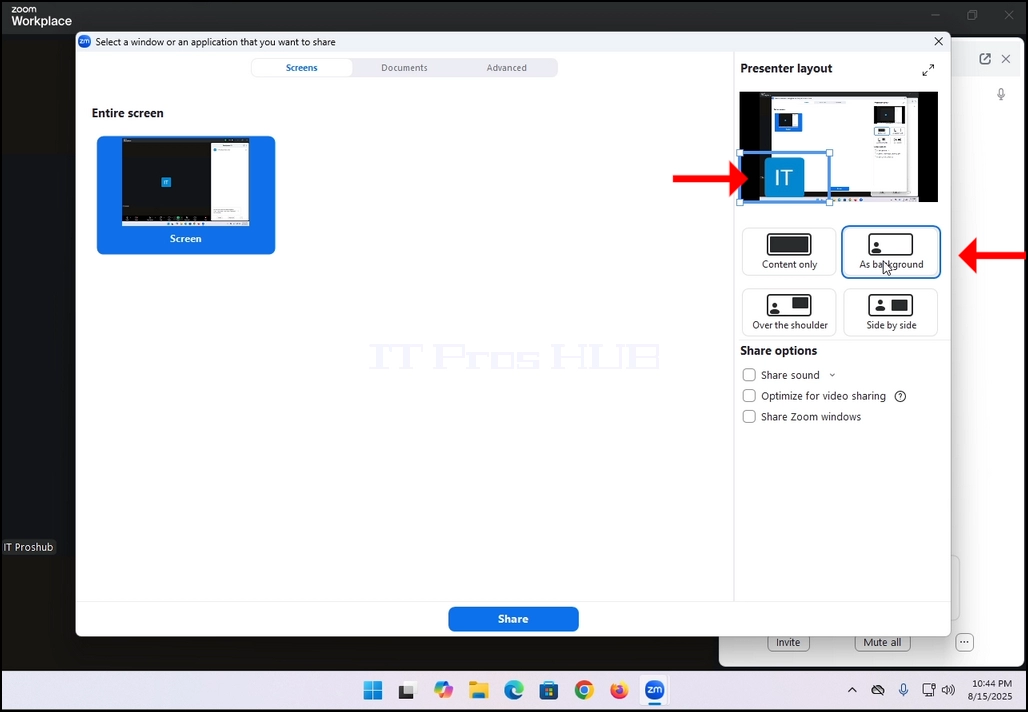
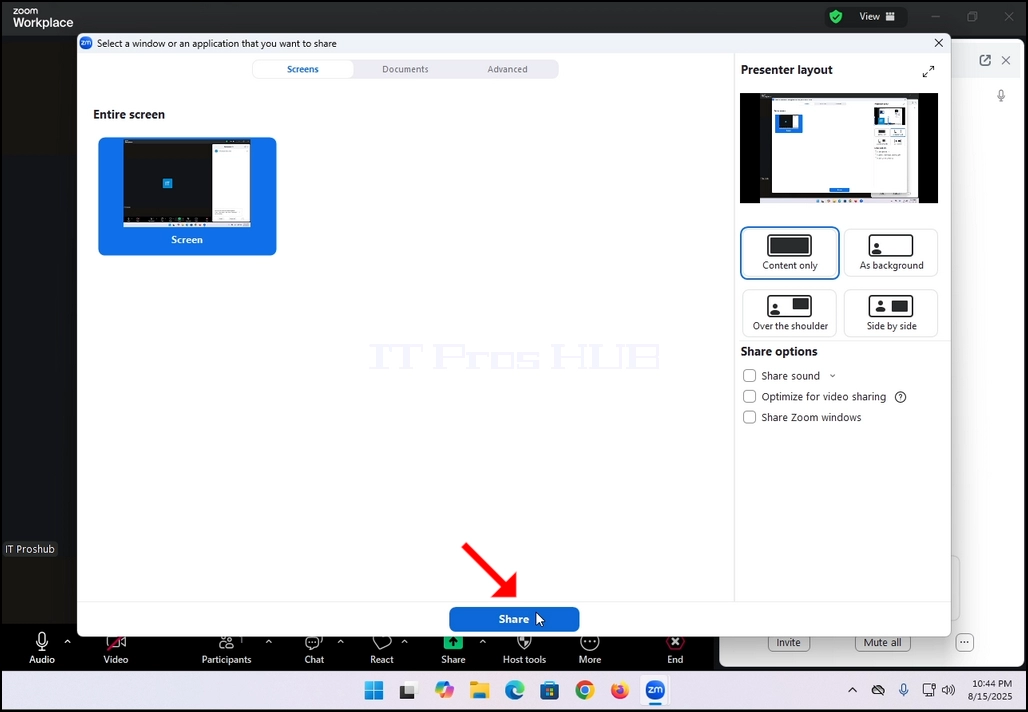
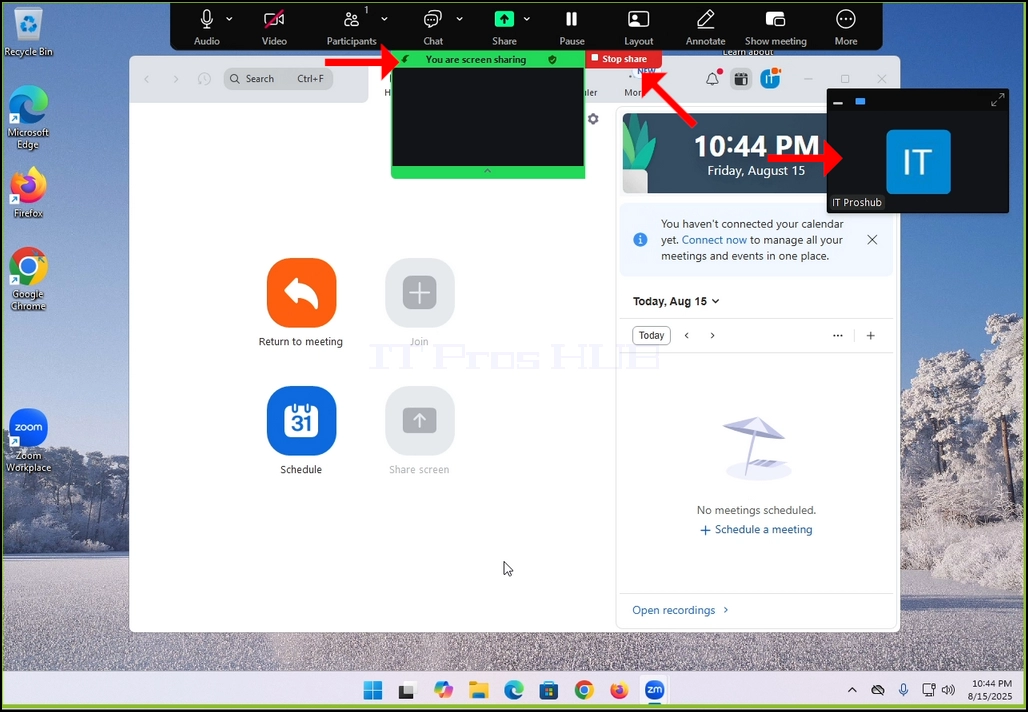
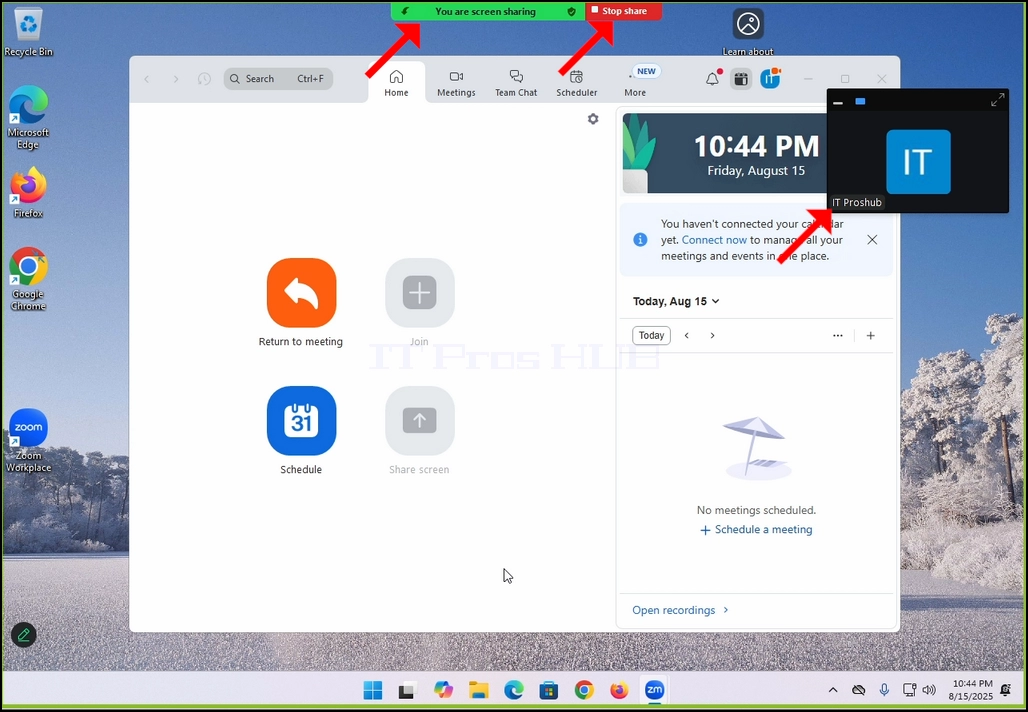
8. Note that your own camera video feed will be shown in a small box as well as can be seen in the image below:
- Detalles
- Escrito por: IT Pro
- Categoría: How to Articles
- Visitas: 6884
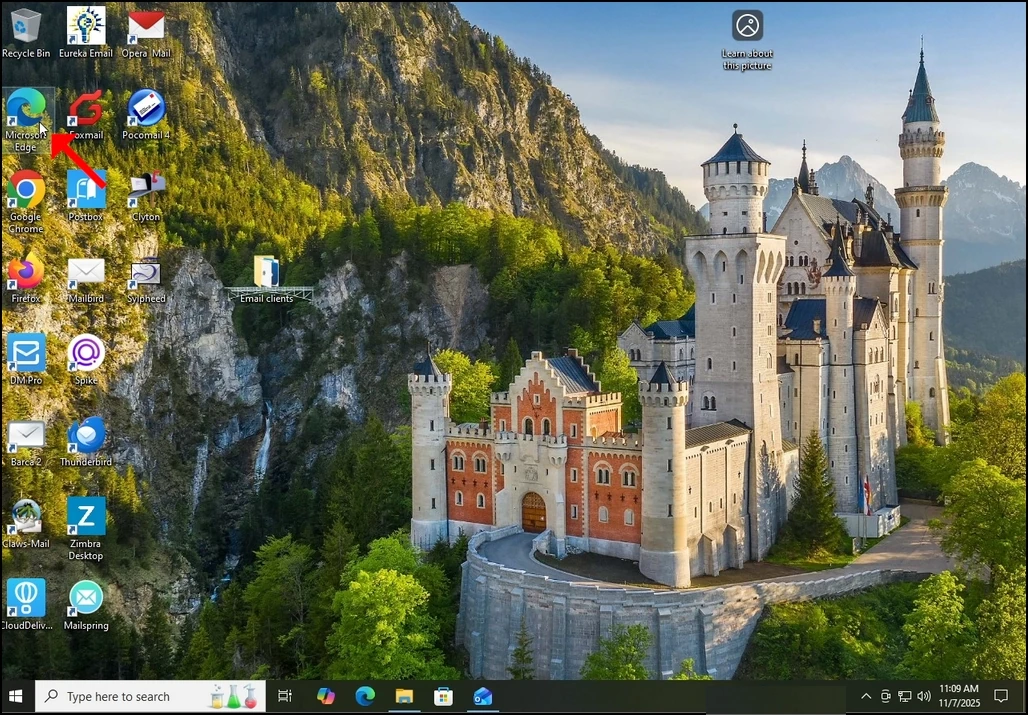
- Abra Microsoft Edge
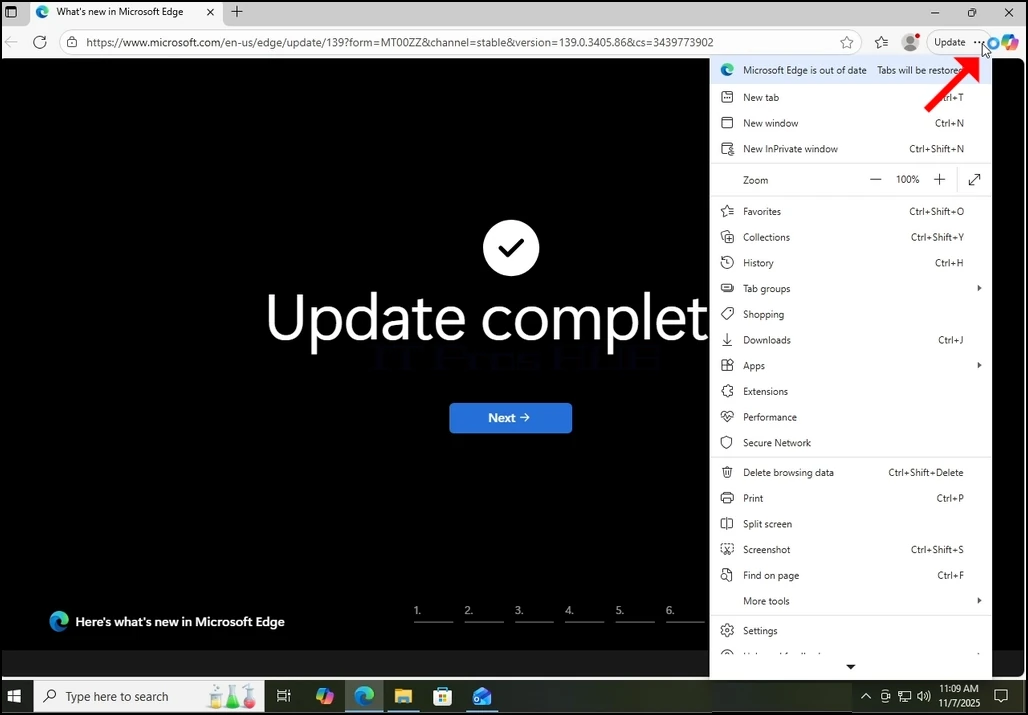
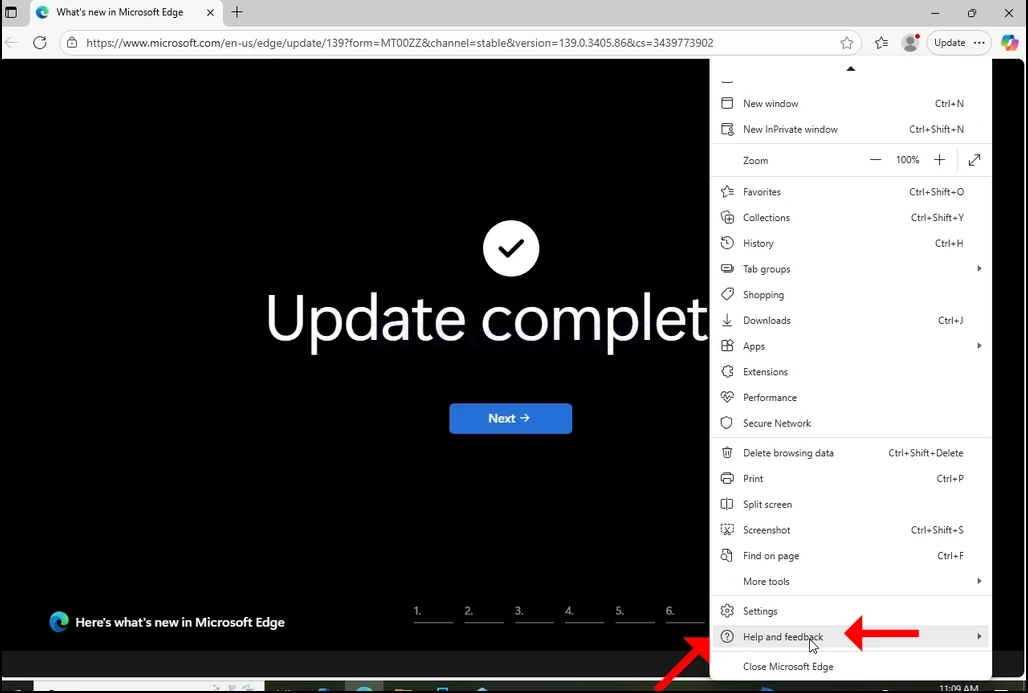
3. En ese menú lateral, vaya a la opción Ayuda y retroalimentación que está justo antes de la última opción allí. Hover con el ratón sobre él hasta que aparezca una extensión de menú. Si no lo hace, haga clic en ella una vez hasta que aparezca esa extensión.
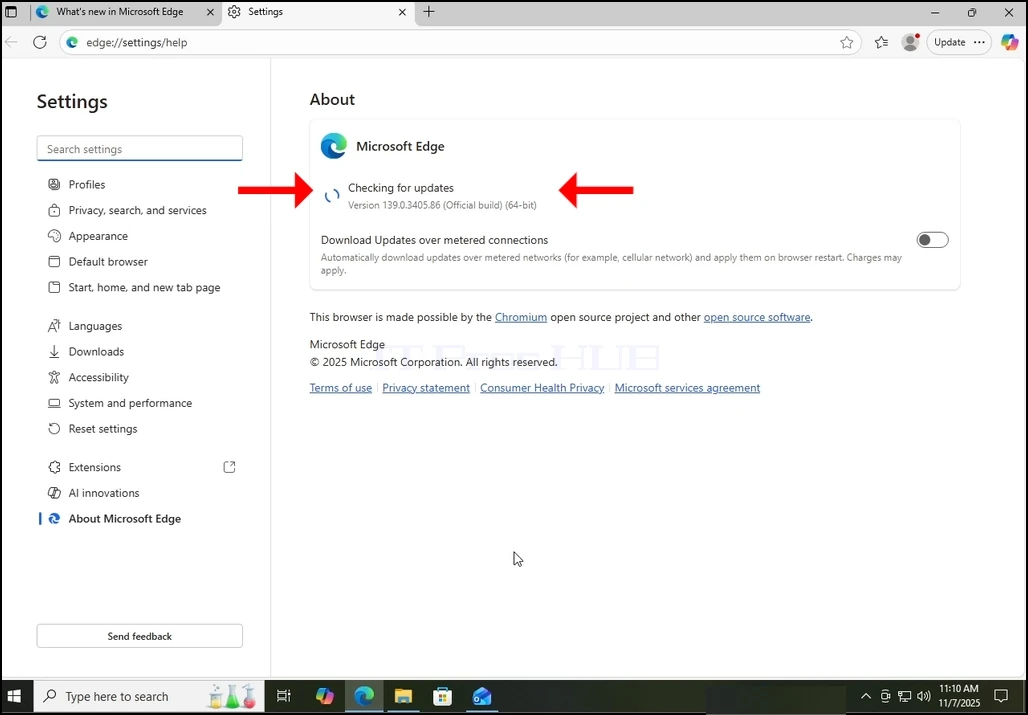
4. En esa extensión, busque la Acerca de Microsoft Edge frase y haga clic en ella una vez. Espera a que aparezca la ventana
8. Una nota importante en relación con las conexiones medidoras:
a. Si utiliza una conexión medidora como un hotspot móvil o una conexión LTE, y desea actualizar Edge, asegúrese de marcar el Descargas Actualizaciones sobre conexiones medidoras opción que reside en ese mismo Sobre la ventana.
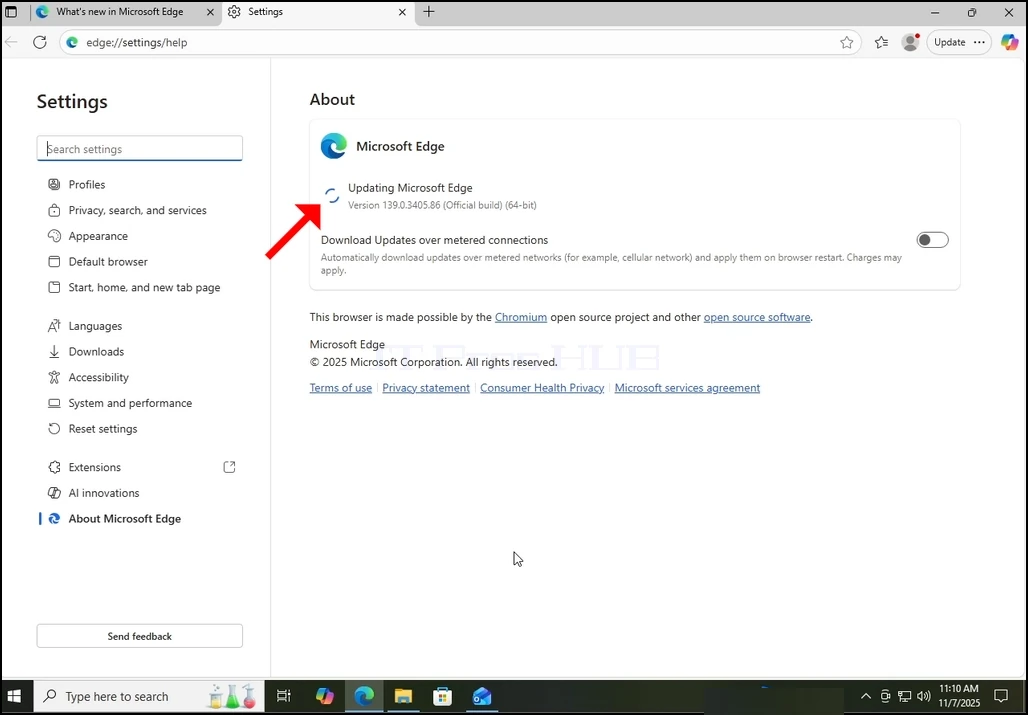
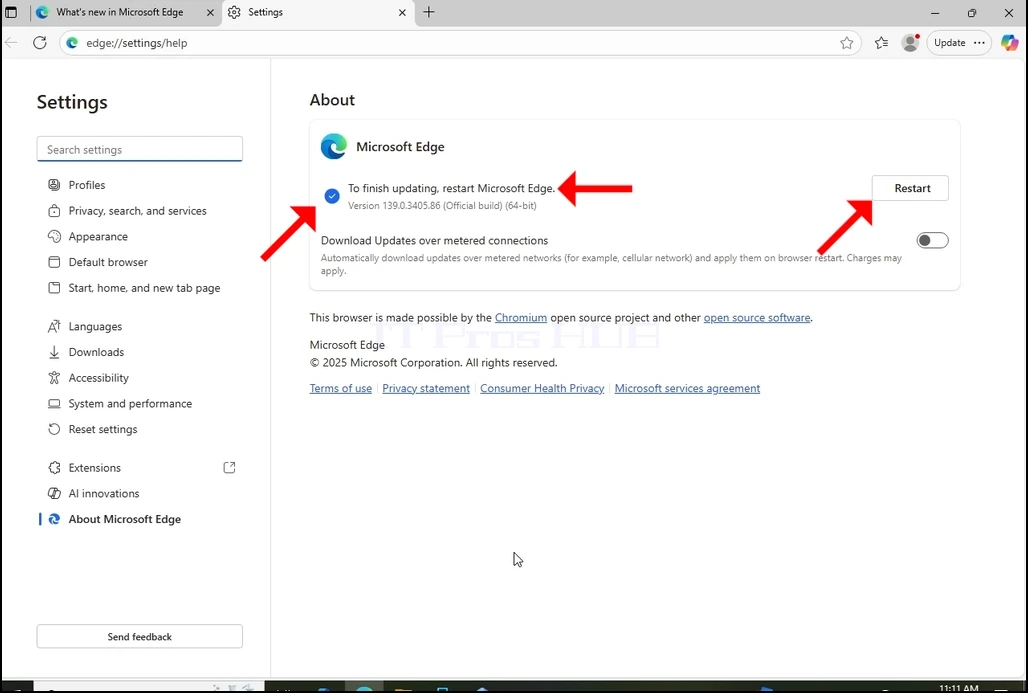
9. Una vez que Edge haya terminado de descargar la actualización, le notificará que “Para terminar de actualizar reiniciar Microsoft Edge” como se puede ver en la imagen de abajo.
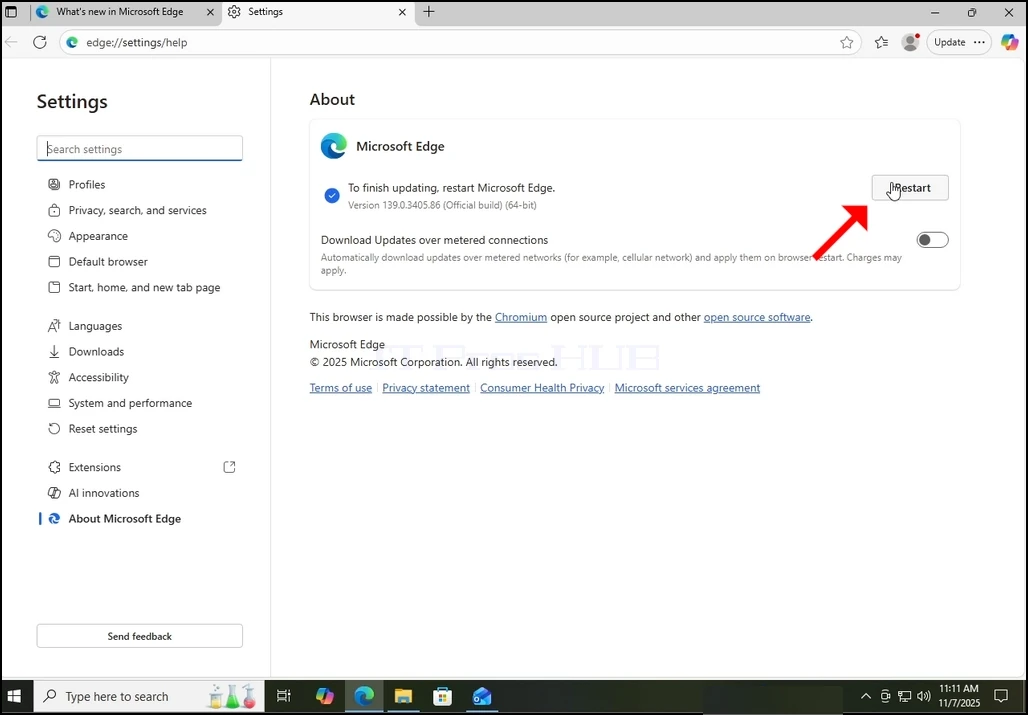
10. A Restart El botón debe aparecer en el lado derecho de la ventana. Haga click en ella para reiniciar Microsoft Edge y terminar el proceso de actualización.
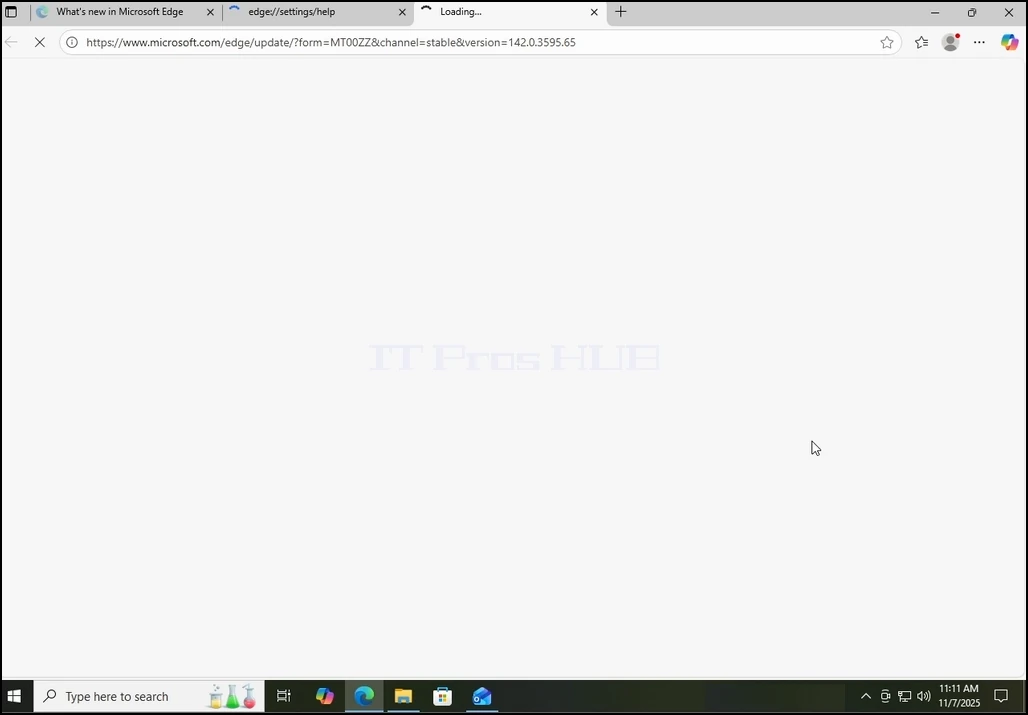
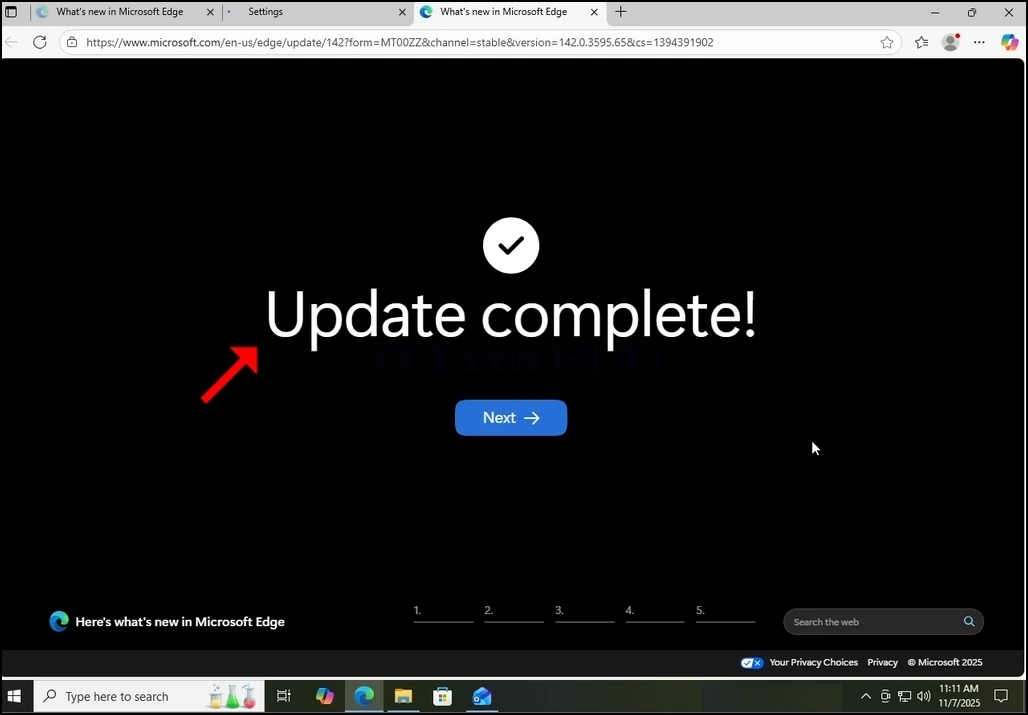
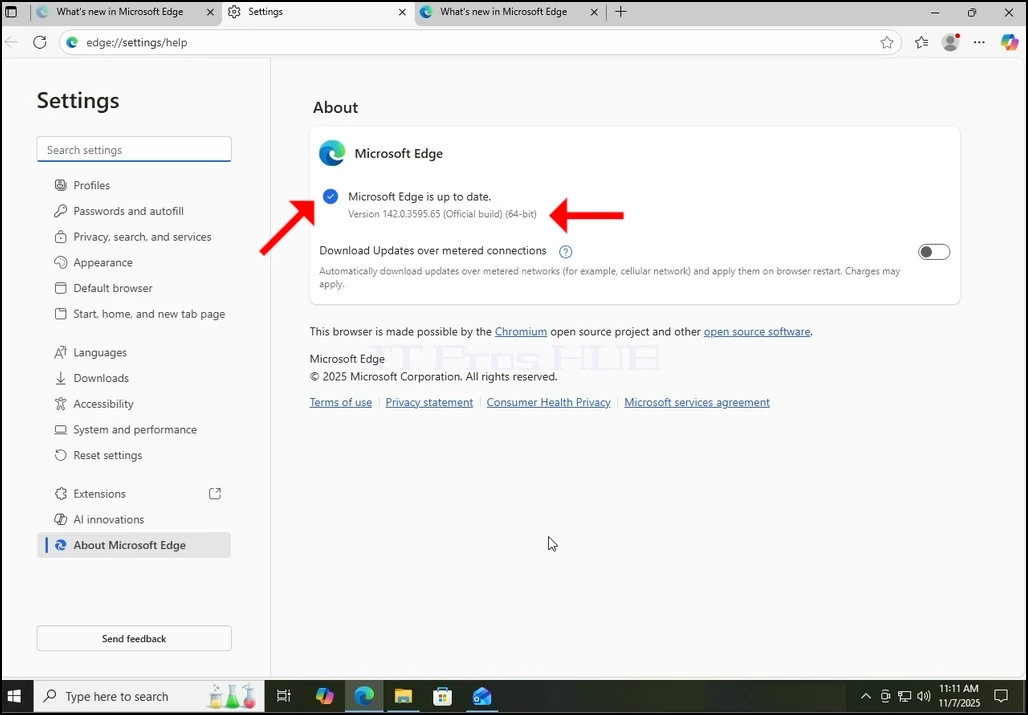
12. Además, volver a la ventana Acerca le permitiría comprobar si hay más actualizaciones pendientes. Como puede ver aquí, no hay más actualizaciones pendientes ya que se nos presenta el mensaje Microsoft Edge está al día..
- Detalles
- Escrito por: IT Pro
- Categoría: How to Articles
- Visitas: 6607
1. Ir a Windows Desktop.
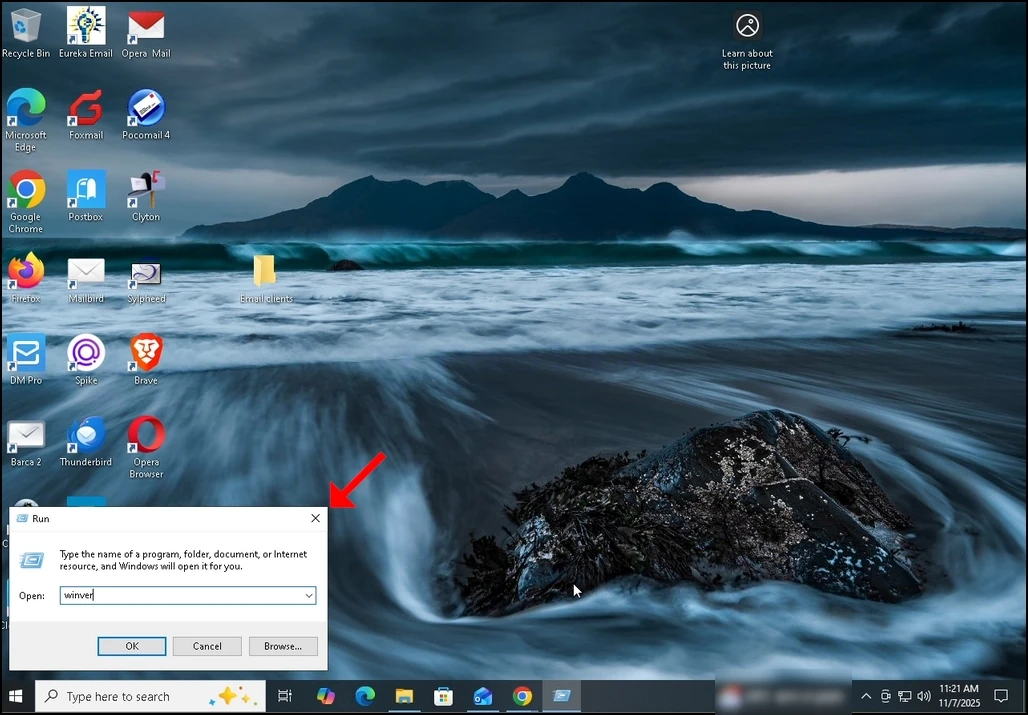
2. En el teclado, haga clic Windows+R combinación de teclas y esperar a que aparezca la caja Run.
3. Una vez que aparezca la casilla Run, escriba Winver en el cuadro de texto y golpear la tecla Entrar o haga clic en el botón Aceptar y esperar a la ventana de About Windows para pop-up
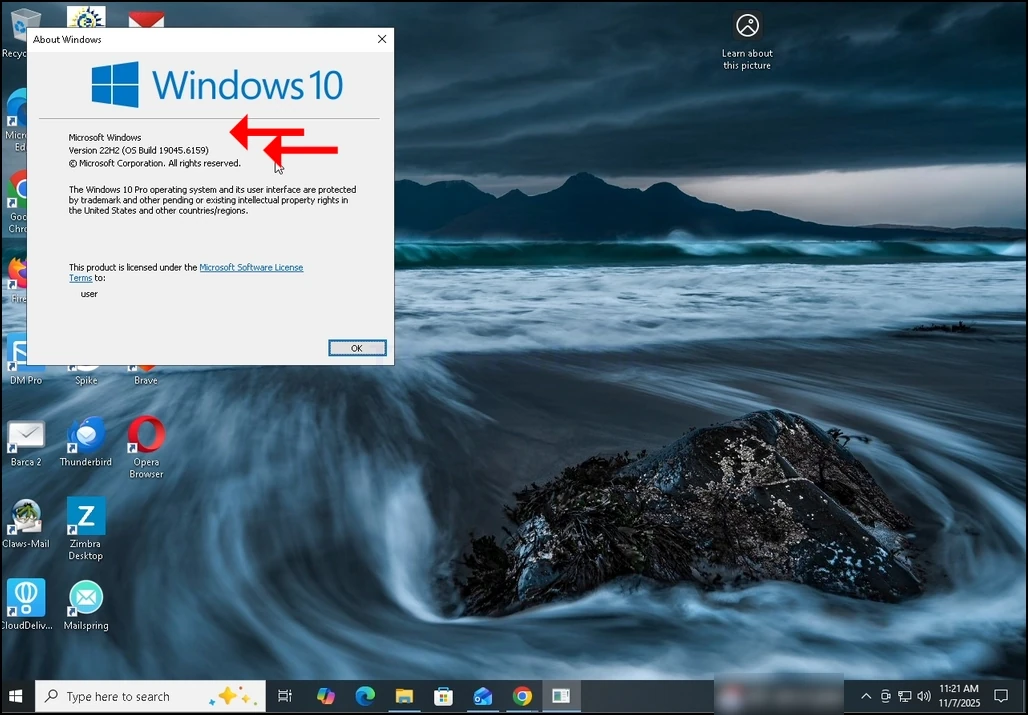
4. En la ventana Acerca de Windows, en la segunda frase, la versión de Windows y construir será evidente.
5. El tipo de sistema operativo podría verse en el segundo párrafo.
6. En este artículo, por ejemplo, la versión de Windows es 22H2 y su construcción es 19045.6159 y el tipo de sistema operativo es Windows Pro.