1. Haga clic en el botón Inicio
2. Tipo CMD
3. Esperar el menú Inicio para encontrar el Aplicación del comando
4. En el panel derecho del menú Inicio, haga clic en Corre como administrador y esperar a que la aplicación Comando se cargue
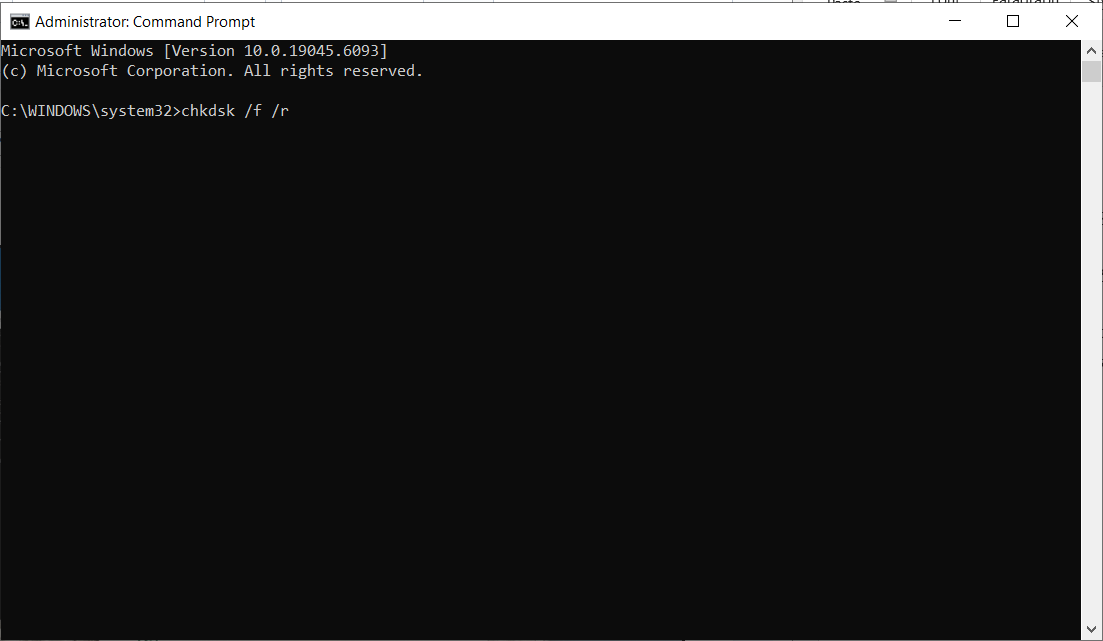
5. En el tipo de aplicación de comando: chkdsk /f /r y golpear el ENTER clave
6. Después de golpear el ENTER clave, lo más probable es que sea rápido con el siguiente mensaje:
a. Chkdsk no puede funcionar porque el volumen está en uso por otro proceso. ¿Le gustaría programar este volumen para ser revisado la próxima vez que el sistema se reinicia? (Y/N)
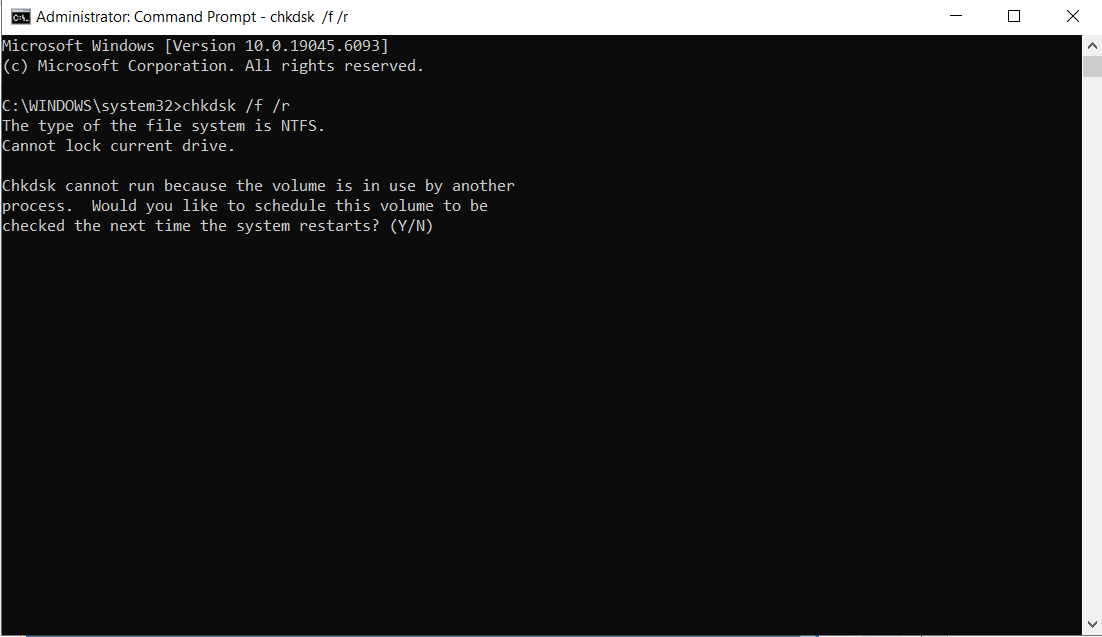
7. Este mensaje se presenta porque ejecutamos el comando chkdsk en una unidad de uso activo que es el C: unidad en este caso. Esta es la unidad donde se instala y se ejecuta el sistema operativo Windows.
8. Tipo "Sí.” y golpear el ENTER llave otra vez.
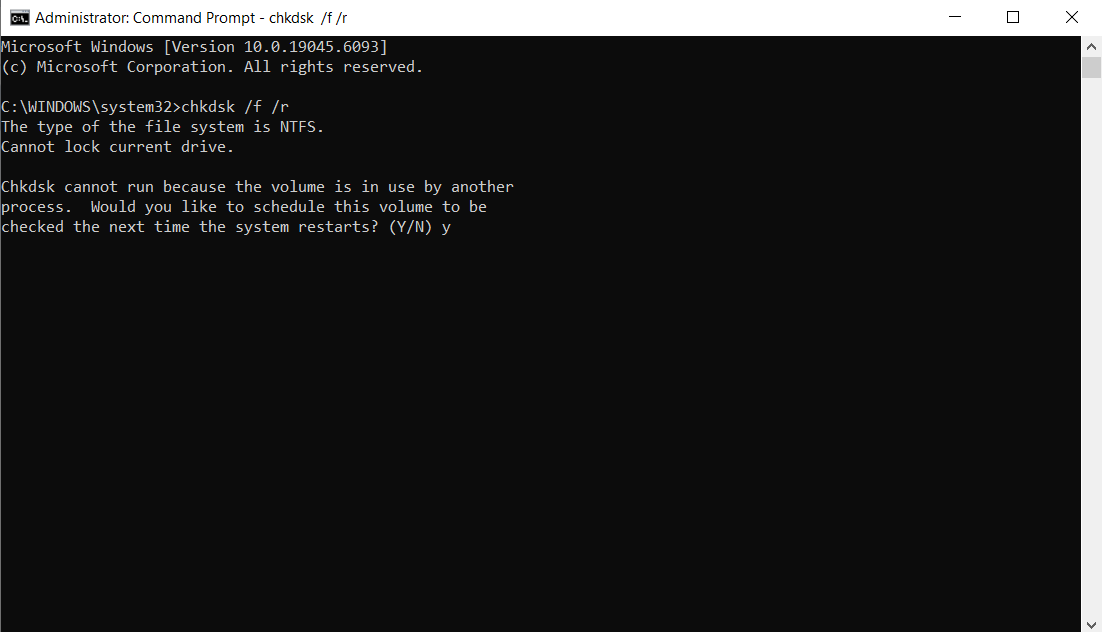
9. El siguiente mensaje será:
a. Este volumen será revisado la próxima vez que el sistema reinicia
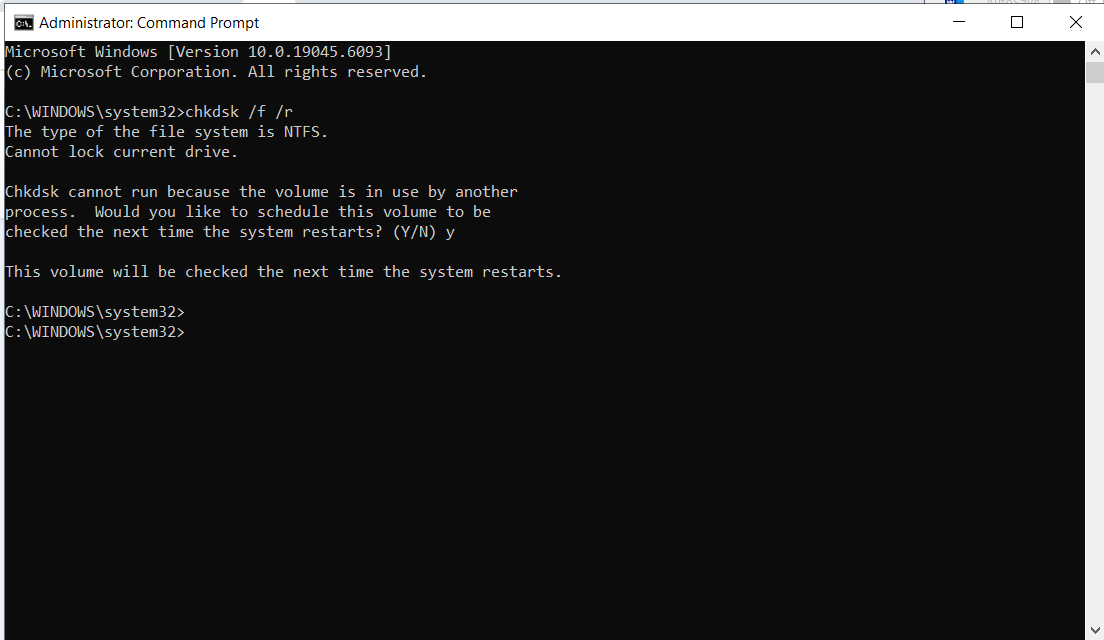
10. En este punto, se hace chkdsk
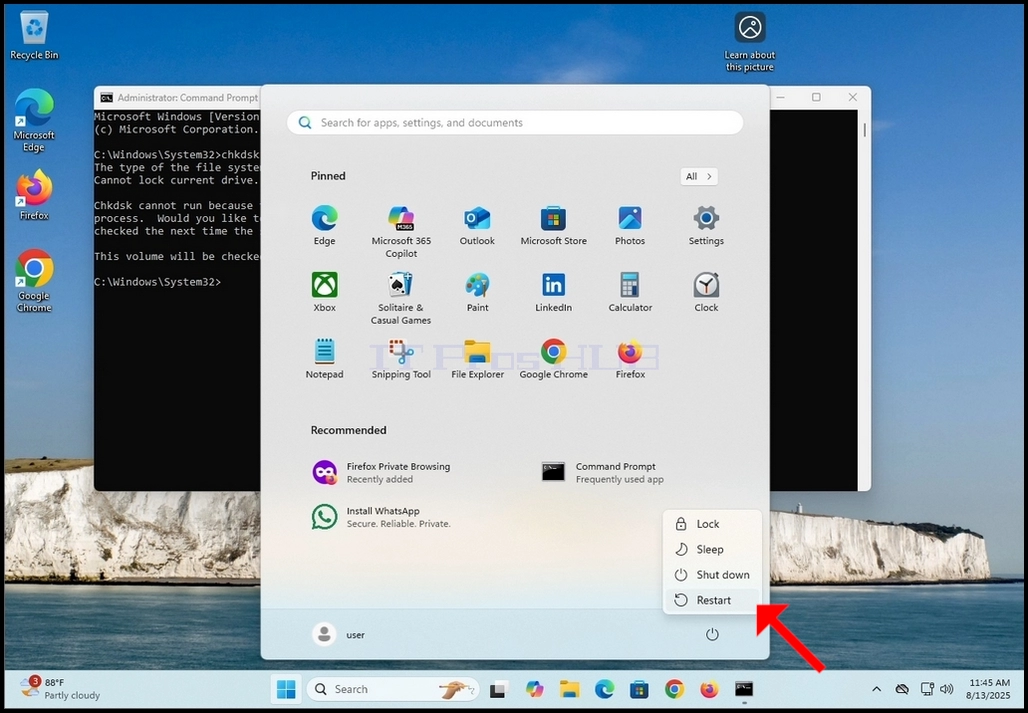
11. Reinicie Windows de forma segura desde el menú Inicio
12. Como declaró chkdsk en CMD en etapa 9, chkdsk está a punto de realizar un cheque de disco y estoy preguntando si desea saltarlo.
13. Tenga en cuenta que esta es la última oportunidad para abortar el cheque de chkdsk de forma segura antes de realizarlo.
14. Tenga en cuenta que este cheque lleva bastante tiempo realizar, especialmente en grandes discos duros mecánicos
15. Si desea que chkdsk realice el cheque, no presione ninguna llave y espere a que el temporizador termine.
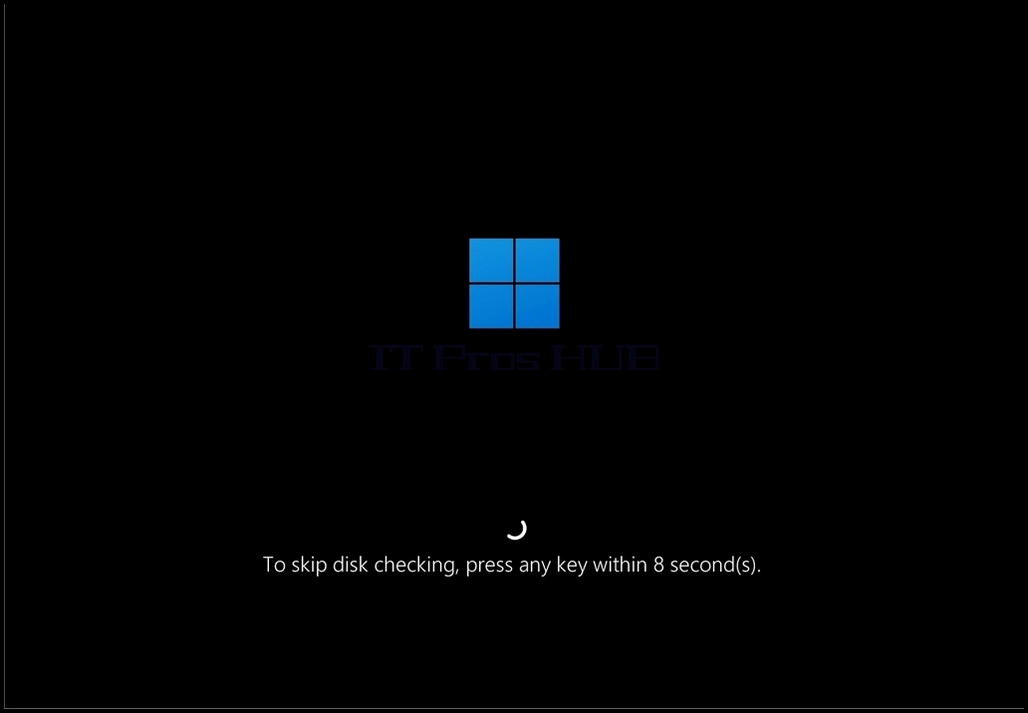
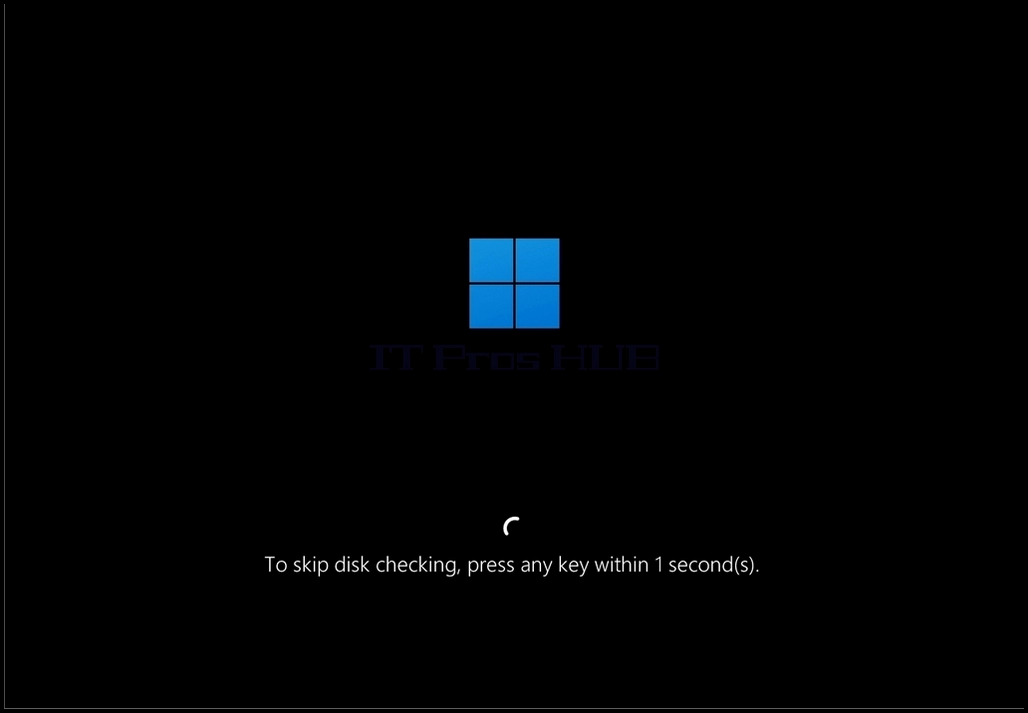
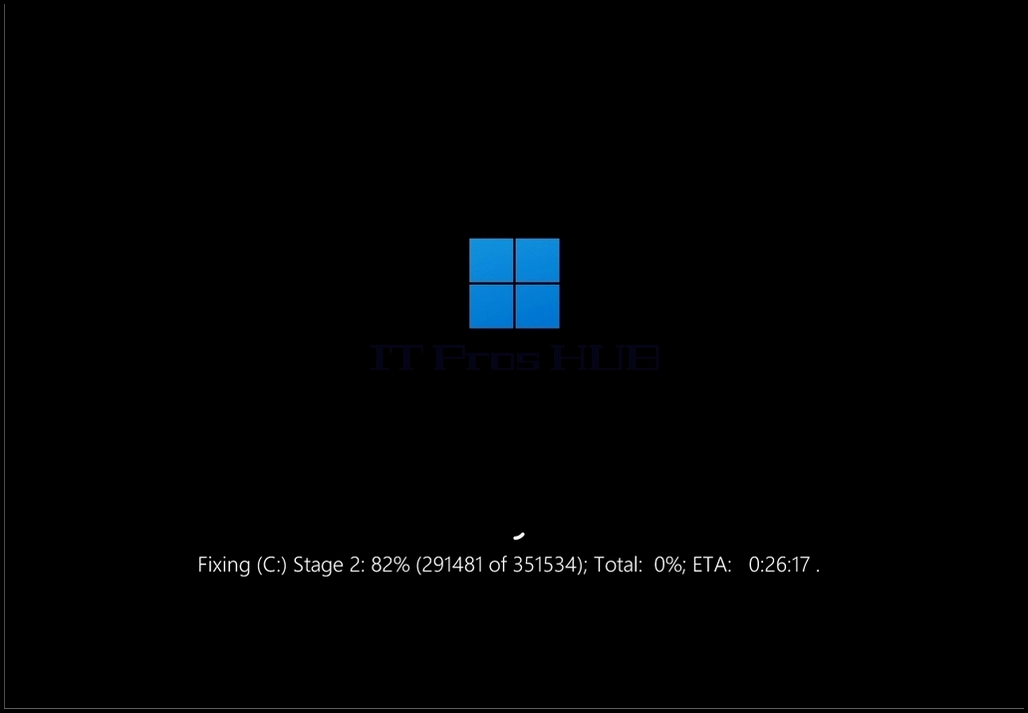
16. Chkdsk está realizando el cheque de disco.
17. Cuando se haga se reanudará el arranque en Windows.
18. Note that the ETA las iniciales al final de la oración indican el tiempo de estimación para completar el escaneo