



- Ouvrez votre navigateur Web. Dans cet article, nous utiliserons Google Chrome.
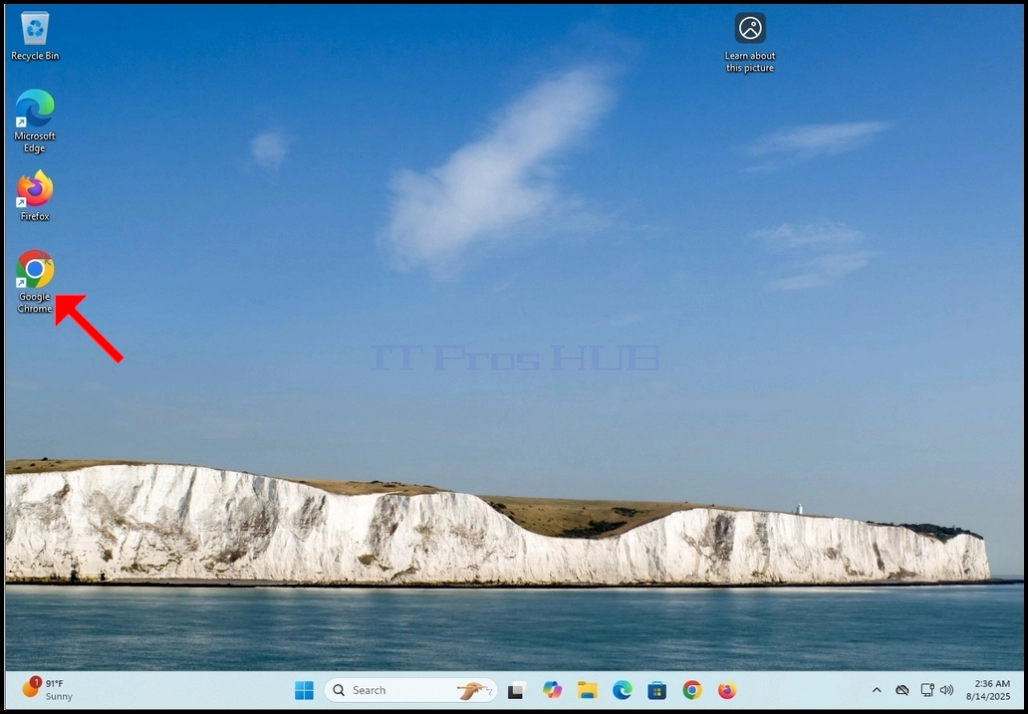
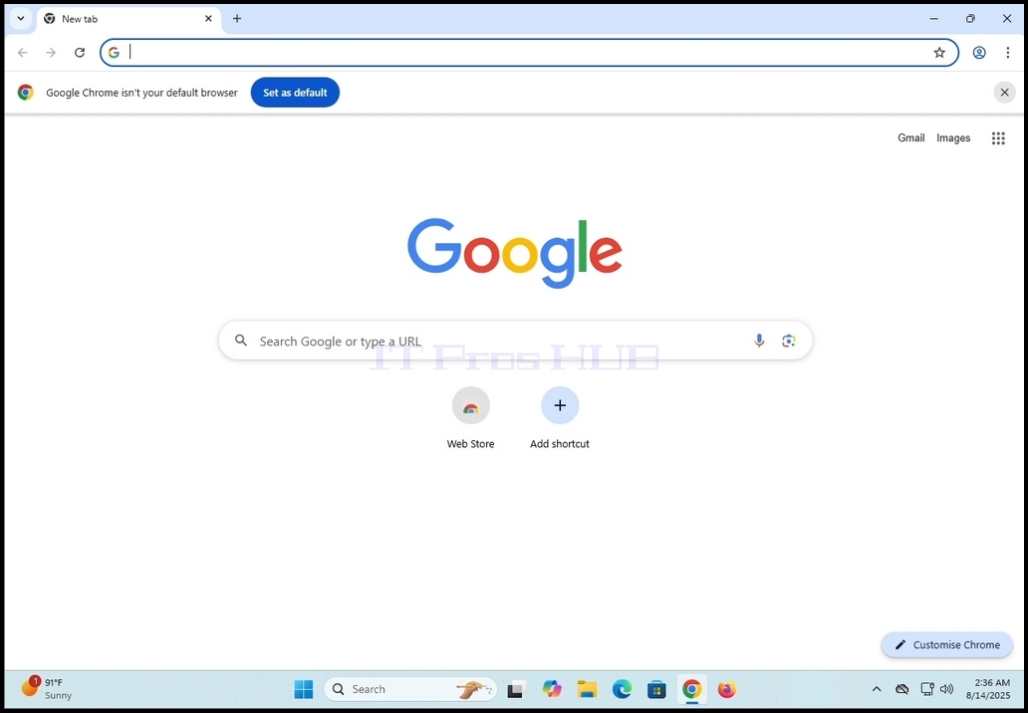
2. Dans le type de ligne d'adresse:télécharger zoomEt frappe le ENTRER touche sur votre clavier

3. Attendez que les résultats de recherche apparaissent (Dans cet article, le moteur de recherche utilisé est celui qui est natif de Google Chrome qui est Google)

4. La plupart du temps, le premier résultat de recherche devrait être le bon, mais pas seulement. Dans cet article nous allons aller au premier résultat de recherche qui est intitulé:Centre de téléchargement pour Zoom et Plugins(en milliers de dollars)

5. L'écran suivant devrait être Centre de téléchargement Zoom page.

6. Faites défiler la page un peu jusqu'à ce que vous trouvez les options de téléchargement
a. Téléchargement (64 bits)
b. Téléchargement (32bit)
c. Téléchargement (ARM64)
7. Dans cet article nous allons télécharger la version 64-bit qui est aussi la plus couramment utilisée

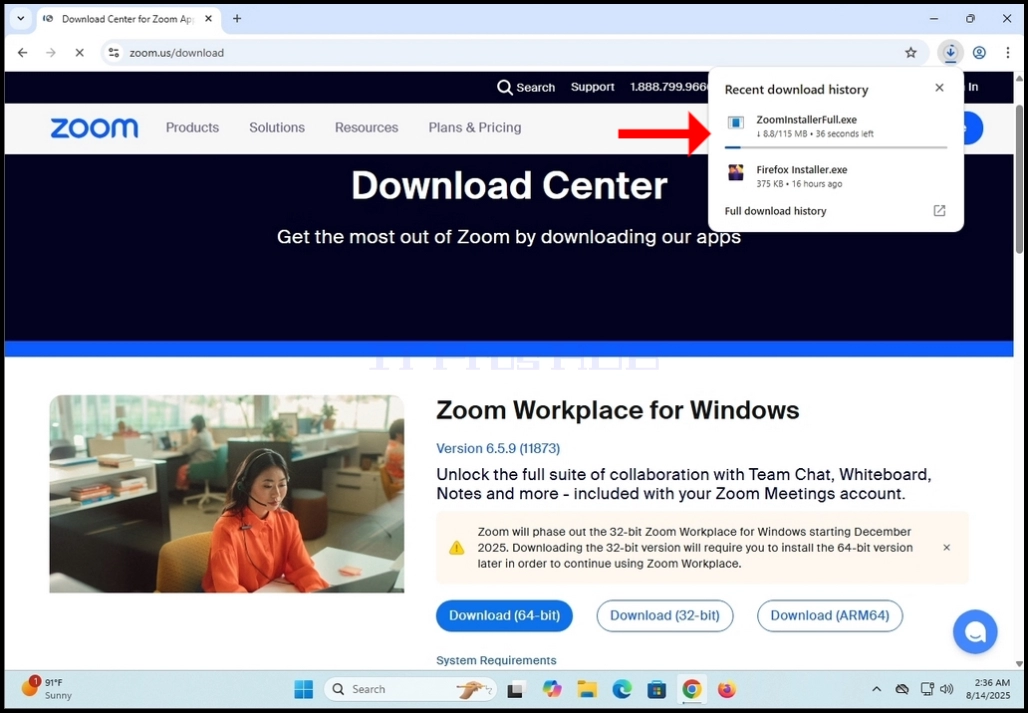
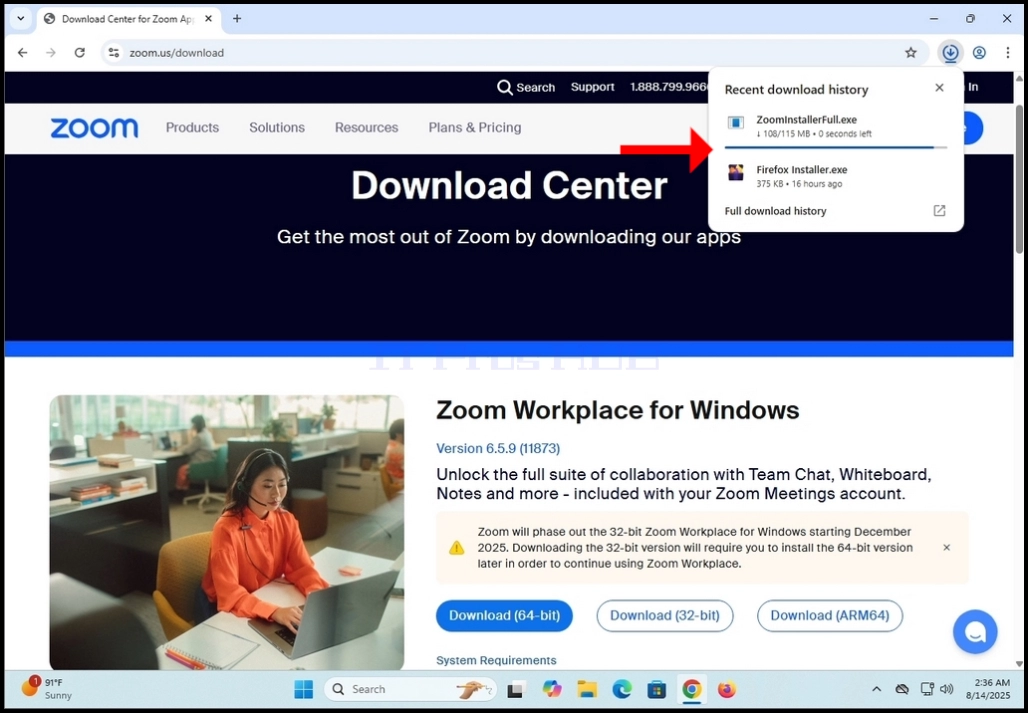
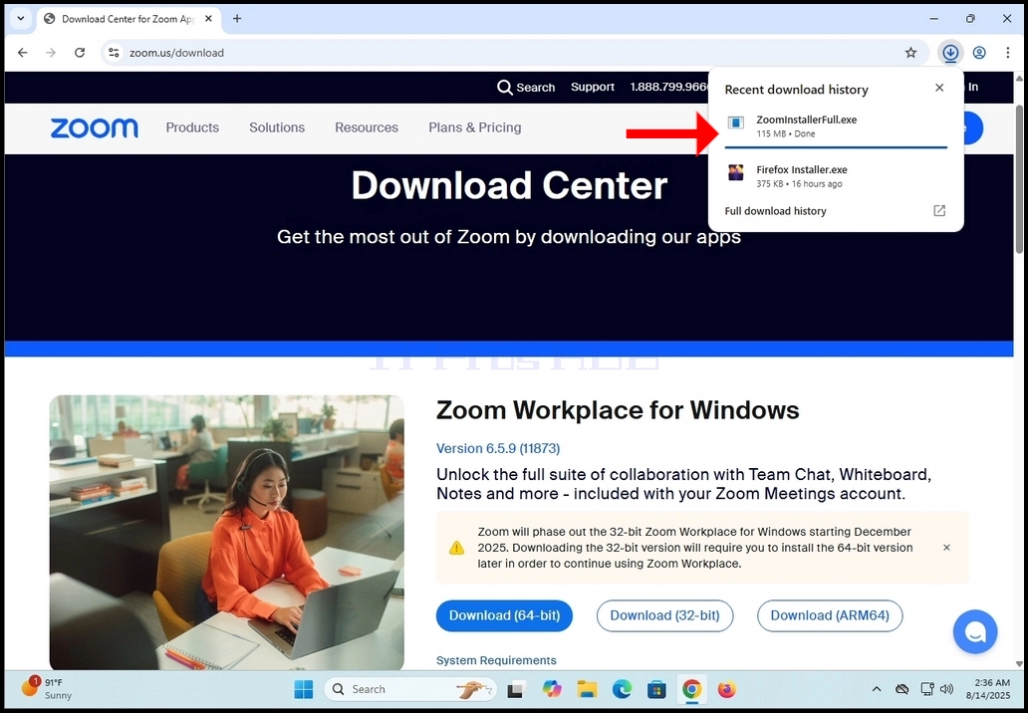
8. Cliquez sur le Téléchargement (64 bits) bouton et attendre que le fichier commence à être téléchargé
a. Le nom du fichier est habituellement ZoomInstallerFull.exe
9. Attendez que le téléchargement finisse, puis cliquez sur le fichier téléchargé et attendez que l'assistant d'installation Zoom Workplace apparaisse

10. Attendez que l'installateur initialise

11. Une fois l'installation réussie, vous serez informé comme tel par l'installateur
12. Vous obtiendrez également de choisir si vous aimez garder Zoom à jour automatiquement en marquant le .Conserver automatiquement l'application Zoom Workplace à jour- Une phrase.
13. Cliquez sur le Fait bouton lorsque prêt

14. Après avoir cliqué sur Terminé, Zoom sur le lieu de travail
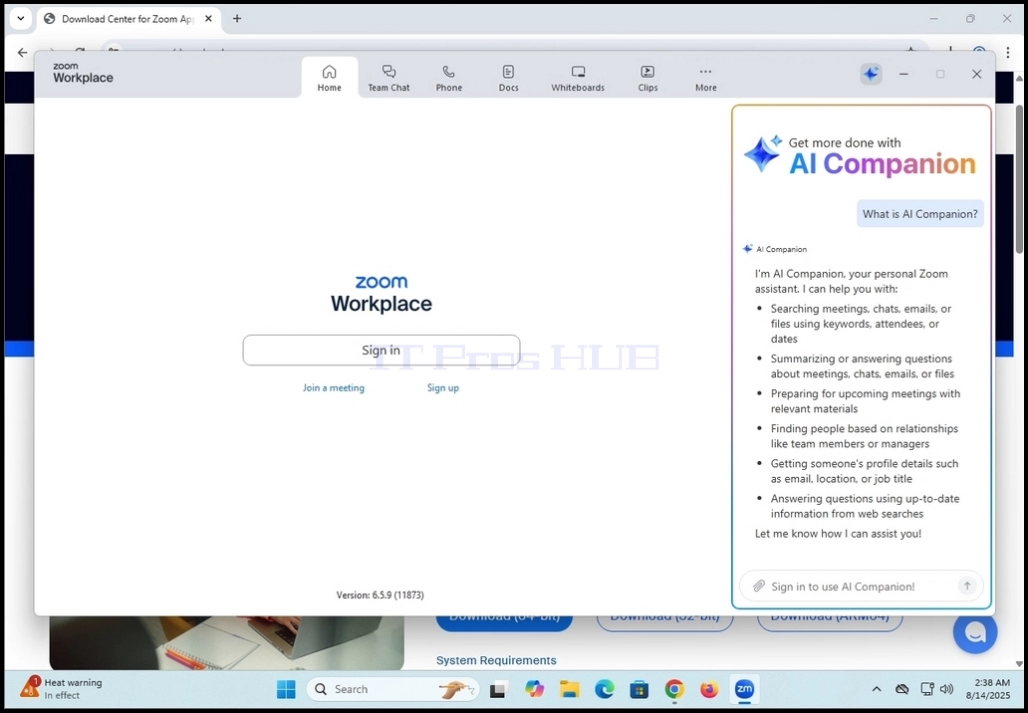
15. De là, vous pouvez utiliser Zoom Workplace de quelques façons:
a. Juste pour rejoindre une réunion – pas besoin de créer un compte
b. Inscrivez-vous et créez un compte pour lancer les réunions
16. Zoom Workplace est maintenant installé et prêt à être utilisé