



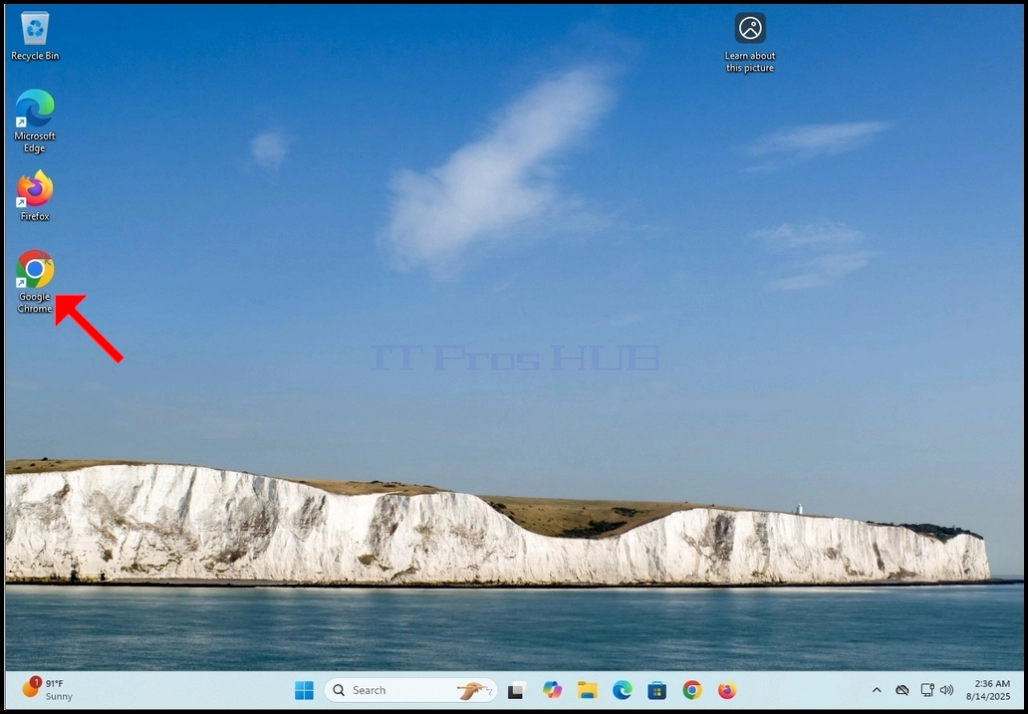
- Отворете уеб браузъра си. В тази статия ще използваме Google Chrome.
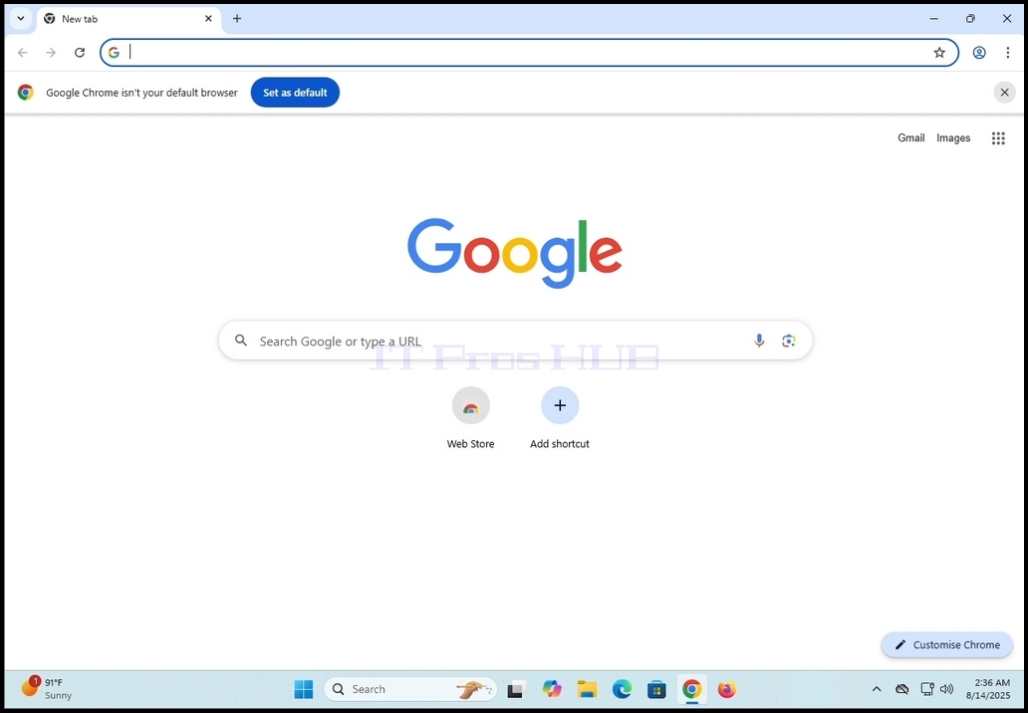
2. В типа адресна линия:Изтегляне на увеличение. ENTER ключ на клавиатурата

3. Изчакайте резултатите от търсенето да се появят (В тази статия, търсачката е тази, която е родена в Google Chrome, която е Google)

4. Предимно, първият резултат от търсенето трябва да бъде правилният, но не само. В тази статия ще преминем към първия резултат от търсенето, който е озаглавен:Център за изтегляне на Zoom и приставки- Да.

5. Следващият екран трябва да бъде Център за изтегляне на зооматии страница.

6. Превъртете надолу страницата малко, докато не намерите опциите за изтегляне
a. Изтегляне (64-bit)
б. Изтегляне (32bit)
c. Сваляне (ARM64)
7. В тази статия ще изтеглим 64-битовата версия, която е и най-често използвана

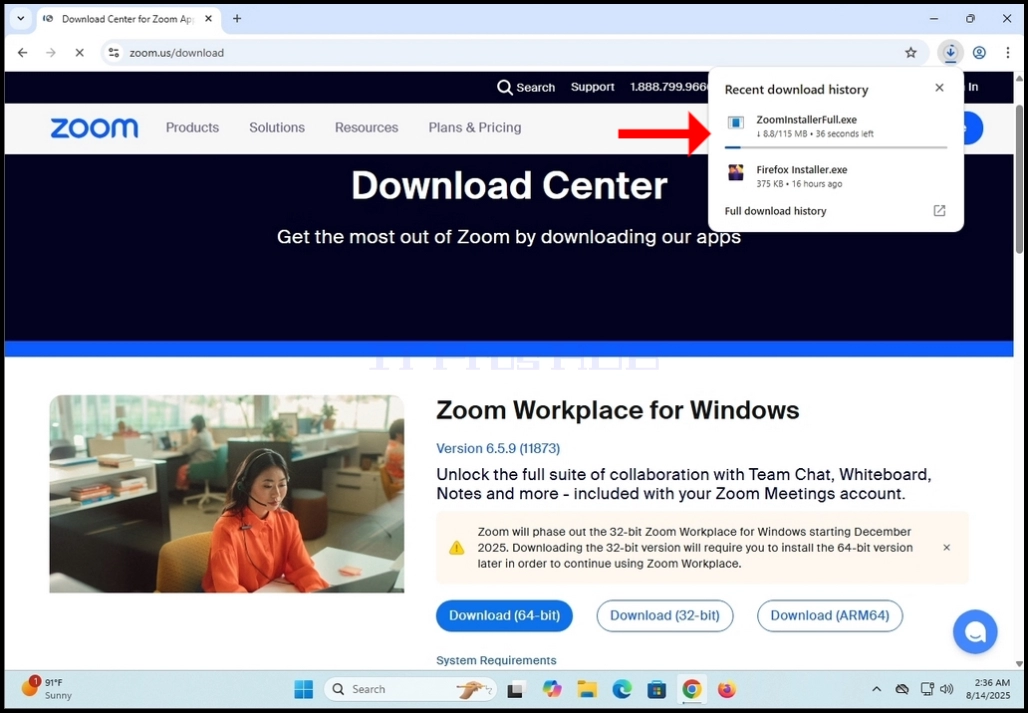
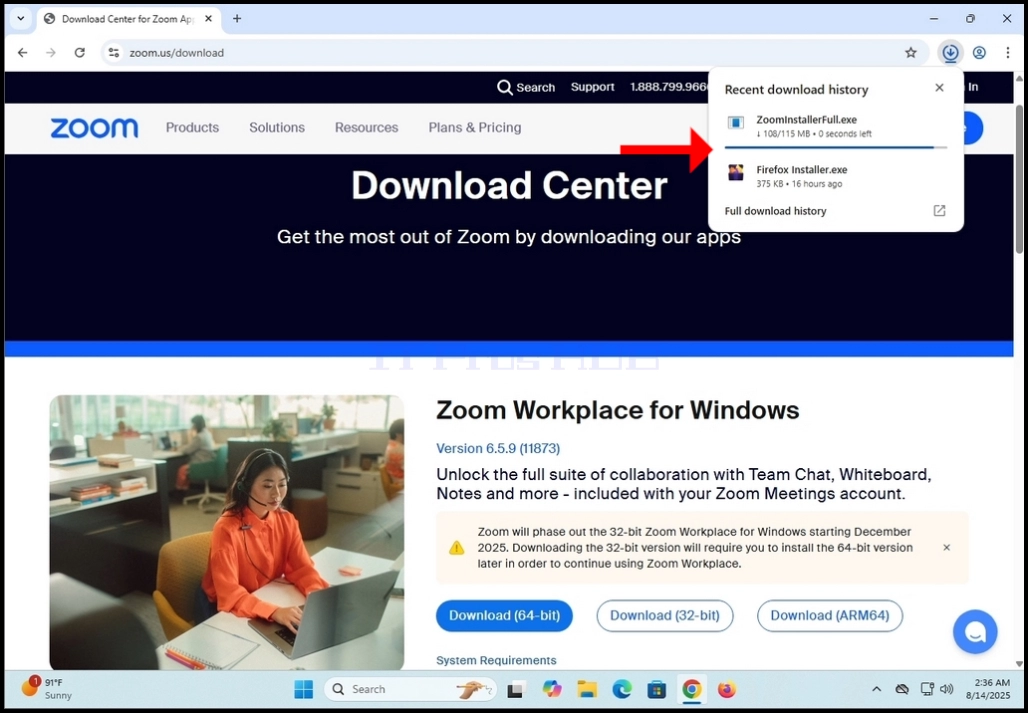
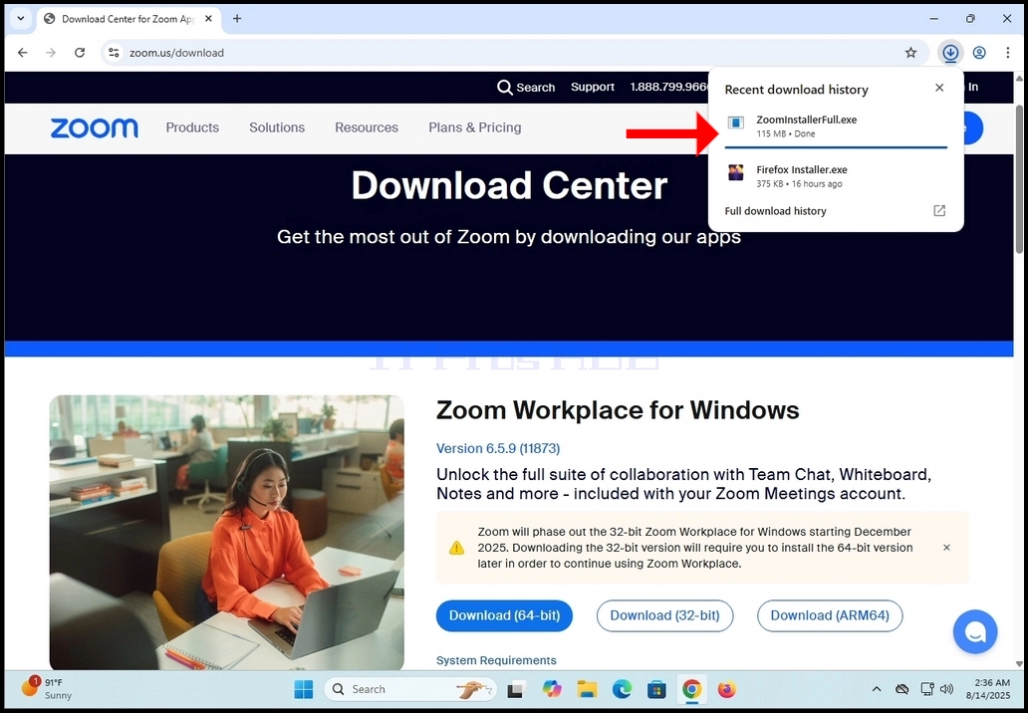
8. Щракнете върху Изтегляне (64- бита) бутон и изчакайте файлът да започне да се сваля
a. Името на файла обикновено ще бъде Zoom InstallerFull.exe
9. Изчакайте изтеглянето да завърши и след това кликнете върху изтегления файл и изчакайте да се появи съветникът за инсталиране на Zoom Workplace

10. Изчакайте инсталатора да инициализира

11. След като инсталацията е успешна, ще бъдете уведомени като такива от монтажника
12. Вие също така ще получите, за да изберете дали искате да поддържате Zoom до момента автоматично, като маркирате гоАвтоматично поддържайте приложението Zoom Workplace актуализираноПрисъда.
13. Щракнете върху Готово. бутон при готовност

14. След като кликнете върху Done, Zoom Workplace .
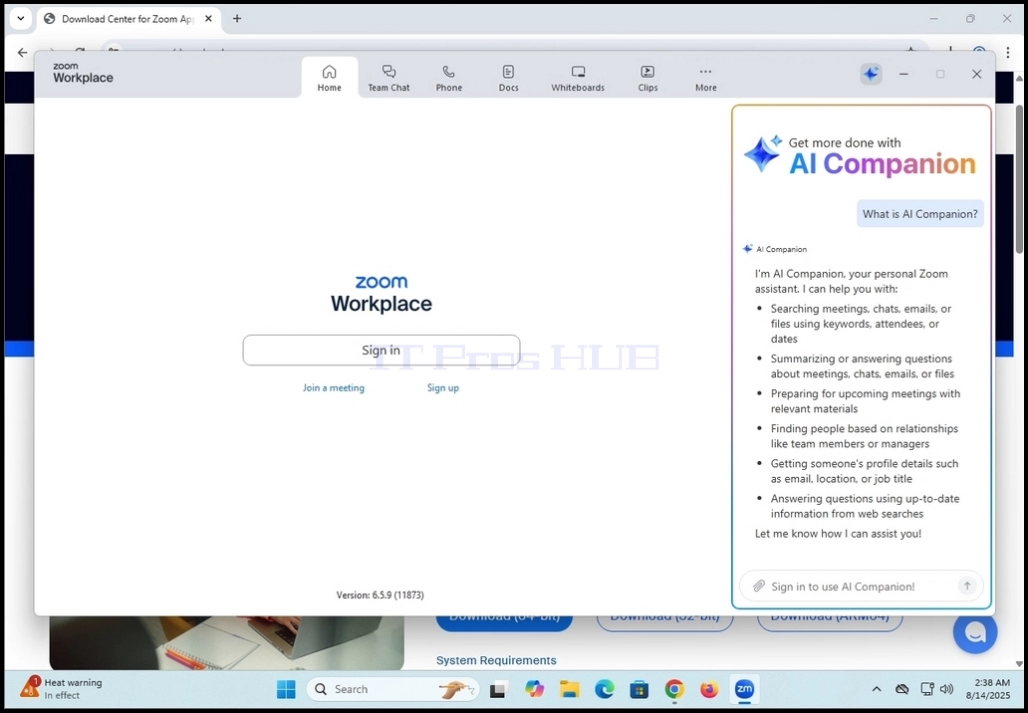
15. От тук можете да използвате Zoom Workplace по няколко начина:
a. Само за да се присъедините към срещата не е необходимо да създавате сметка
б. Регистриране и създаване на сметка за започване на срещи
16. Zoom Workplace вече е инсталиран и готов за използване